L1731W - Monitor DGM - Free user manual and instructions
Find the device manual for free L1731W DGM in PDF.



User questions about L1731W DGM
0 question about this device. Answer the ones you know or ask your own.
Ask a new question about this device
Download the instructions for your Monitor in PDF format for free! Find your manual L1731W - DGM and take your electronic device back in hand. On this page are published all the documents necessary for the use of your device. L1731W by DGM.
USER MANUAL L1731W DGM
Assembling the base to your monitor step by step.
STEP1
STEP 2
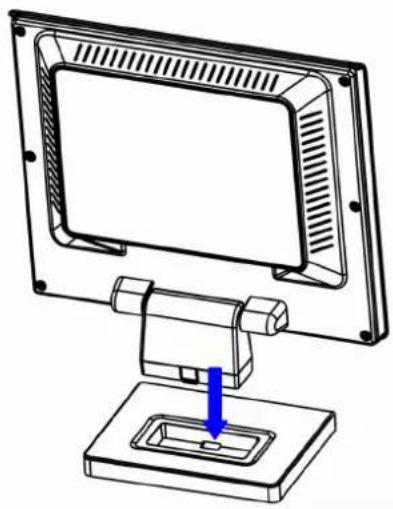
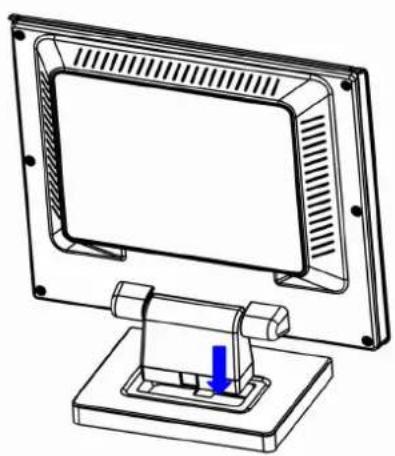
※ Disassembling your monitor and the base step by step.
STEP1
STEP2
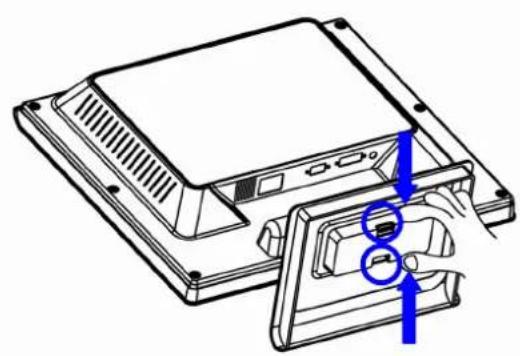
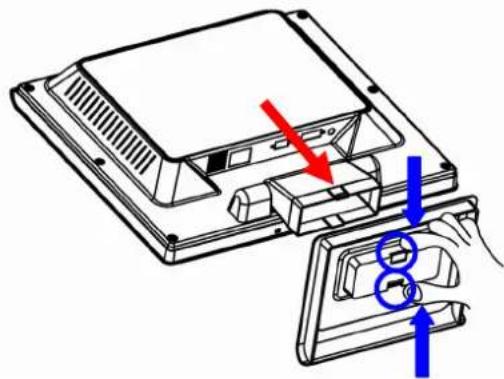
English 2
繁體中交 9
简體中文 16
François 23
Deutsch 30
Italiano 37
Espanol 44
Portugues 51
Dutch 58
Notice 3
Safety Information. 3
Precaution 3
Package Contents. 3
Hardware Installation. 4
Control Buttons. 4
OSD (On-Screen Display) Menu Mode. 5-6
Troubleshooting. 7
Supported Timing. 7
Specification 8
Notice
- All Information in this manual may change from time to time without prior notice.
To ensure safety operation of this product, please read the following menu carefully before using this product.
Safety Information
- Do not place anything wet on the monitor or the power cord.
- Be sure to turn the monitor off before plugging the power cord into the socket.
- Be sure to check the power cord and the other cords are securely and rightly connected.
Do not attempt to open the monitor. You may be hurt by electric shock. For service, call your place of purchase.
Precaution
- Do not expose the monitor to direct sunlight or heat.
- Do not spill liquid on the monitor.
- Do not use your monitor when magnets or electronic products are operating nearby.
- Do not use harsh chemicals or strong cleaning solvents to clean the monitor screen. Wipe it with clean, soft clothes applied with mild solution.
- Do not place anything on your monitor. Bad ventilation may elevate temperature in the monitor.
- Do not use your fingers to touch the LCD Screen directly. Fingerprint that contains oil and may be difficult to clean.
Package Contents
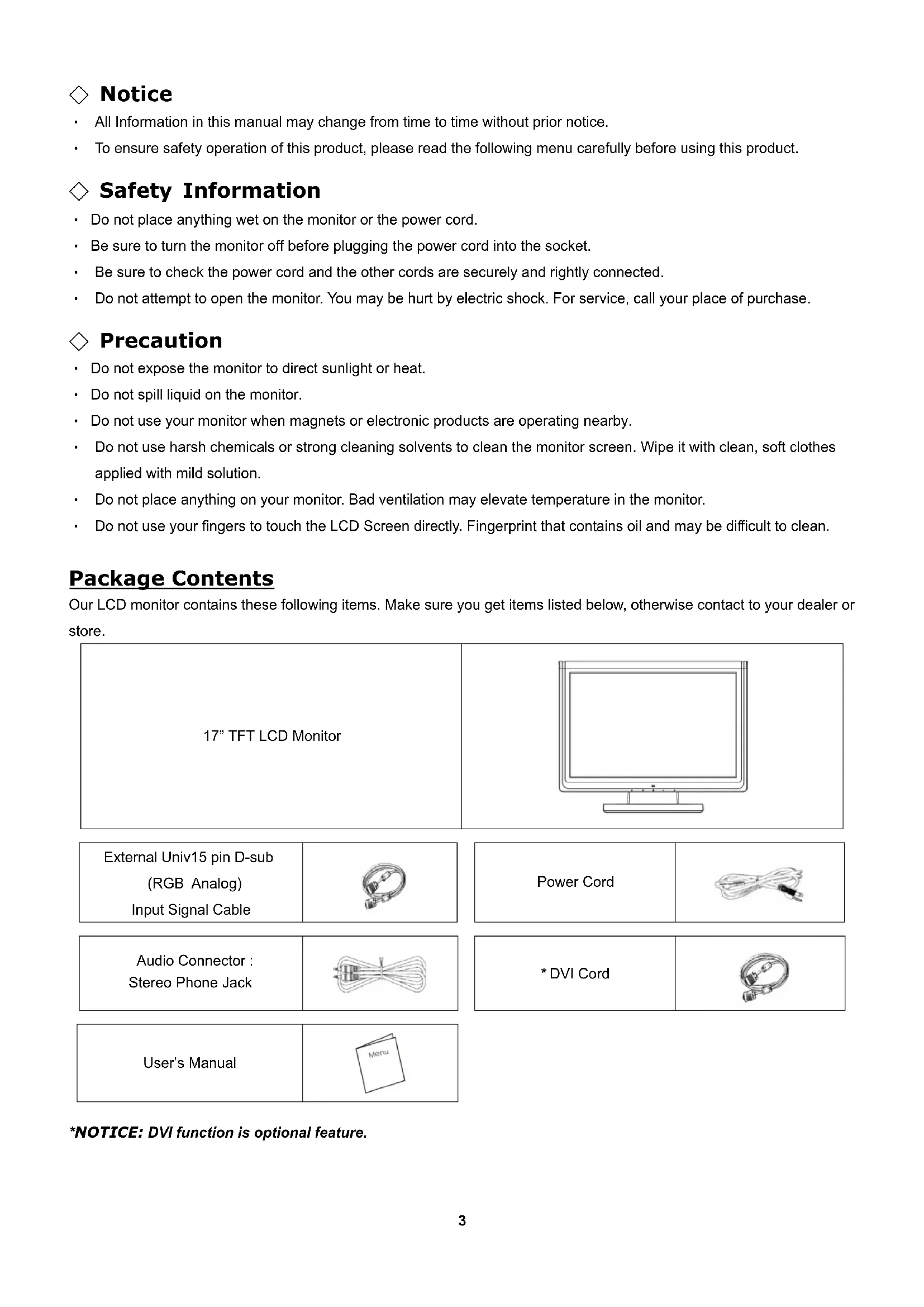
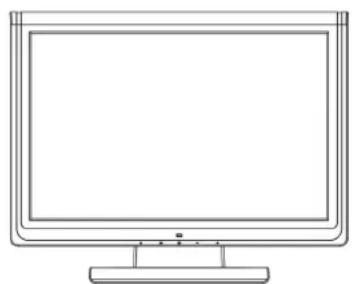
Our LCD monitor contains these following items. Make sure you get items listed below, otherwise contact to your dealer or store.
17" TFT LCD Monitor
External Univ15 pin D-sub
(RGB Analog)
Input Signal Cable
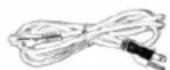
Power Cord
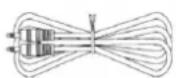
Audio Connector :
Stereo Phone Jack
- DVI Cord

User's Manual

*NOTICE: DVI function is optional feature.
Hardware Installation
Be carefully to your LCD monitor, it's very exquisite but easy to broken. Turn off LCD's and PC's power before you set it up. Follow our installation step by step.
Input
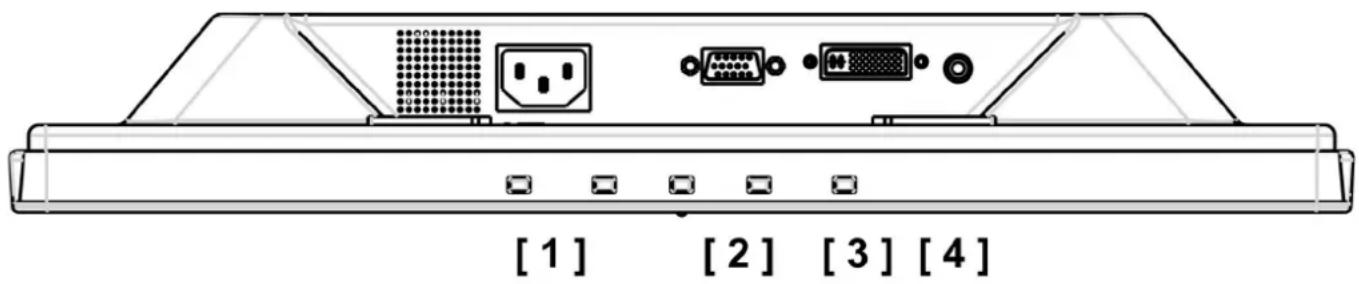
【1】AC Input : This is for connecting the power cable.
【2】VGA PORT : This can be connected with the D-Sub 15 pin signal Cable.
【3】DVI port : This can be connected with the DVI signal Cable.
【4】Audio In : This can be connected to the PC audio-out connector of sound resource.
*NOTICE: DVI function is optional feature.
Control Buttons
There are 5 keys for user to set up the monitor, including "Auto Adjust", "OSD menu", "Power", "Adjust < - > ", "Adjust < + > ". The following descriptions are the introduction of these Keys.
Auto Adjust (Function)--
A Function Select Button: This button allows you to select the control functions up in the OSD.
Hotkey: Press this button to apply the monitor setting automatically.
Menu (Function)--
M Function Select Button: This button allows you to select the control functions down in the OSD.
Hotkey: Press this button to get a pop-up OSD menu.
Power: Turn the LCD power on and off. When the power is on, the light is showing green, Stand by will be orange.
- Adjust < -> : Decrease the option value in the OSD menu.
- Adjust < + > : Increase the option value in the OSD menu. Switch the DVI operating environment to RGB.
OSD (On-Screen Display) Menu Mode
- Please adjust your Speaker Volume via your PC computer Speaker Volume control icon.
- Please note that Sound will continue to play when your monitor is off, to turn off please turn off your PC computer or mute the Speaker Volume control icon.
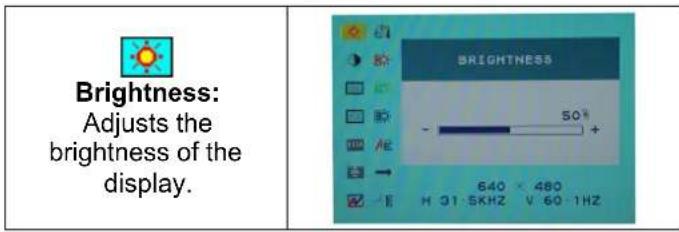
- Press the OSD button to access menu, and press Increase / Decrease button for adjustment.
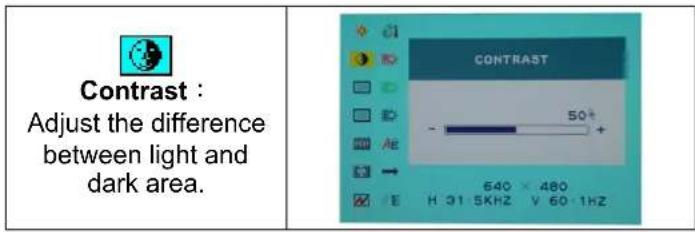
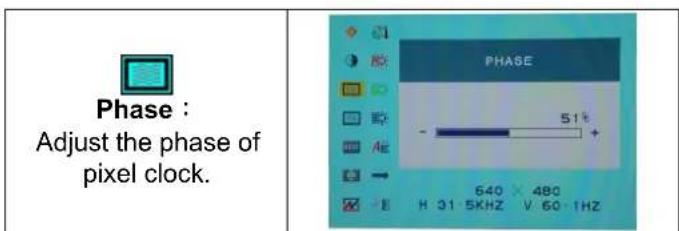
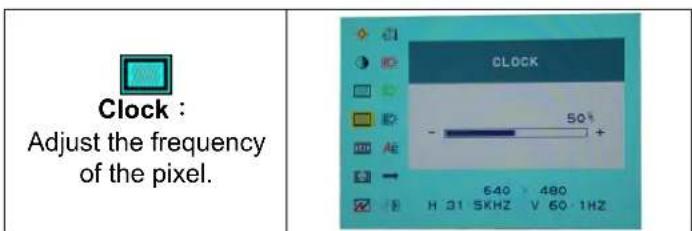
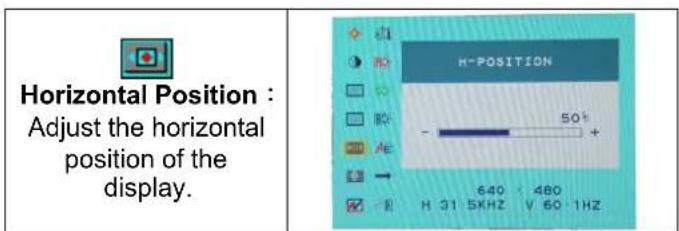
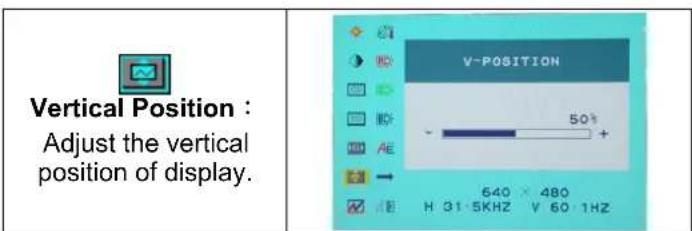
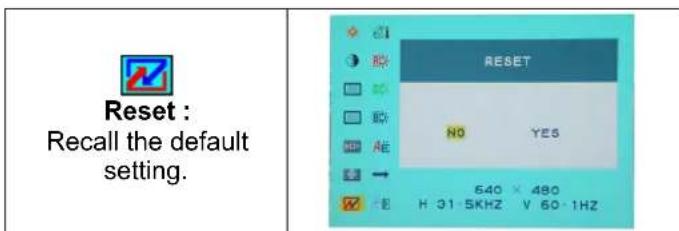
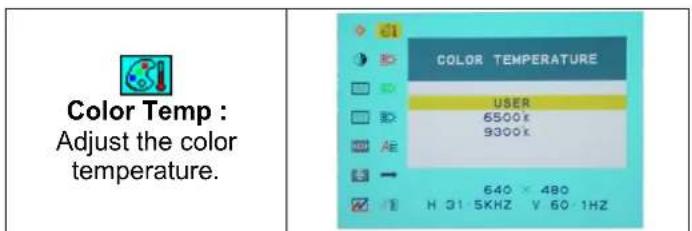
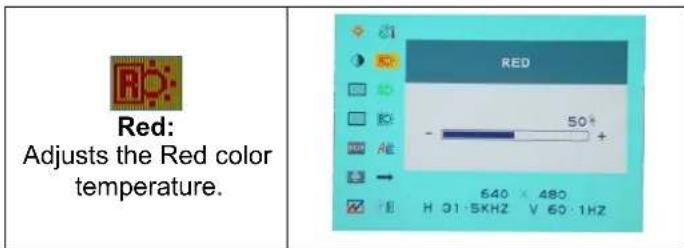
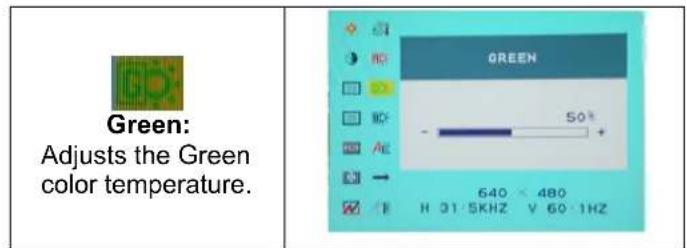
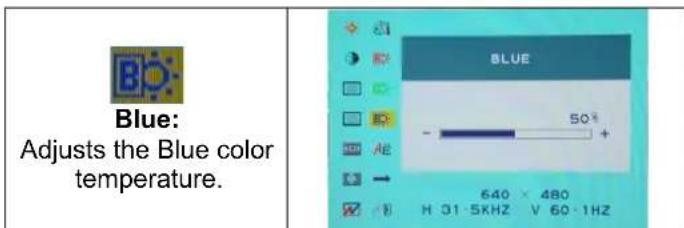
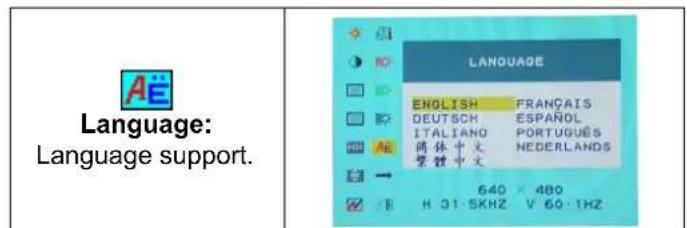

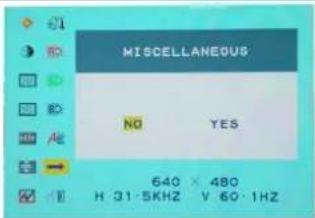
Miscellaneous
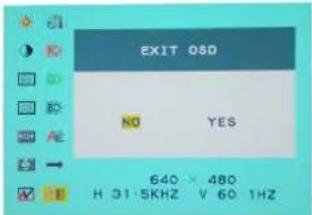
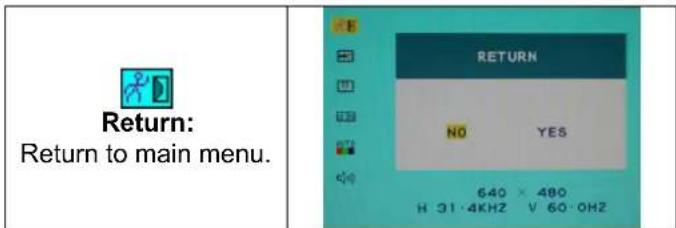
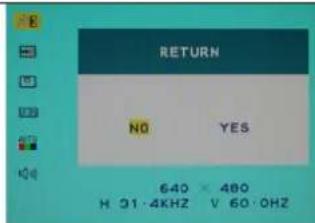
"No" will take you to the exit menu. "Yes" will bring you to the sub menus of the Miscellaneous menu

EXIT: g and Leave.
Miscellaneous
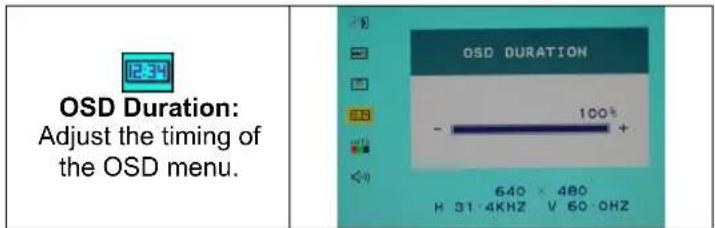
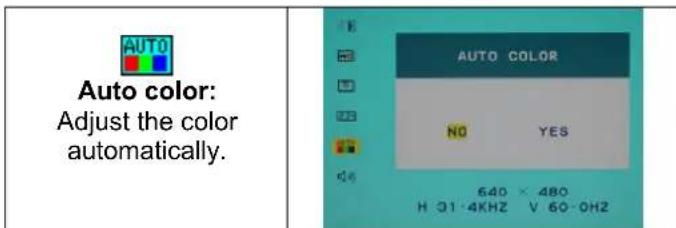
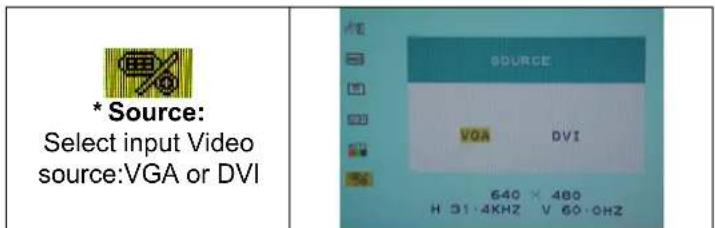
Notice: * Source is optional feature.
Troubleshooting
Make sure that your monitor is properly installed if you have encountered any trouble using this product.
There is no picture on the screen.
Check: 1.Power saving mode. Press any key and move the mouse to deactivate the mode.
- Signal cable connector pins. If there are bent or missing pins, consult your place of purchase.
Characters look too dark or too light
Check: Using OSD Menu to adjust the Brightness.
When your monitor shall be adjusted?
Check: If the resolution of frequency is being changed.
. The text appears on the screen are unclear.
Check: Make sure the resolution or refresh rate match with the Display Mode.
Supported Timing
| Display Mode | ||
| Resolution Vertical | Frequency (Hz) Horizontal Frequency (KHz) | |
| 640x480 | 72.81 | |
| 640x480 | 75.00 | |
| 800x600 | 56.25 | |
| 800x600 | 60.32 | |
| 800x600 | 72.19 | |
| 800x600 | 75.00 | |
| 1024x768 | 60.00 | |
| 1024x768 | 70.07 | |
| 1024x768 | 75.03 | |
| 1280x800 | 60.00 | 49.6 |
| 1440x900 | 60.00 | 55.9 |
Specification
| LCD Panel | Type | 17.0" TFT Active Matrix LCD Display |
| Viewing Angle | H:140°, V:130° | |
| Contrast Ratio | 400:1 (Typical) | |
| Brightness | 250 cd/m² (Typical) | |
| Response Time(Tr+Tf) | 16 ms | |
| Display Colors | 16.7M colors(True color) | |
| Max Resolution | 1440X900(WXGA) | |
| Pixel Pitch | 0.255mm(H)x0.255mm(V) | |
| Input Signals | VGA | VGA compatible analog RGB Composite sync supported |
| DVI* | DDWG compliant Single Link TMDS Digital Visual Interface (DVI) | |
| Compatibility | PC Up to 1440X900@60Hz | Non-interlaced) |
| Connector | VGA | D-sub 15-pins |
| DVI* | DVI-D* | |
| Audio | Stereo Phone Jack | |
| Power | A/C Input | |
| Power | Voltage | Built-in universal power supply: 100-240 VAC, 50/60 Hz |
| Consumption | Active < 30 Watt Max. | |
| Power saving mode | Standby < 3 Watt | |
| Internal Speaker | Speaker x 2 | |
| User Interface | LED Indicator Active | Blue |
| Standby - Flash | ||
| Operating Condition | Temperature | Operating:5°C to 40°C |
| Humidity | 20% ~ 80% R.H. | |
| Dimensions | Physical 423mm(W) x 340mm | m(H) x 173mm(D) |
| Net Weight | 2.5 Kg | |
| DDC | DDC2B | |
| Power Management | VESA DPMS | |
| Regulation (Certifications) | UL/CUL, FCC, CE, RoHS |
Notice: * DVI is optional.
Miscellaneous (DIVERS)

Return:
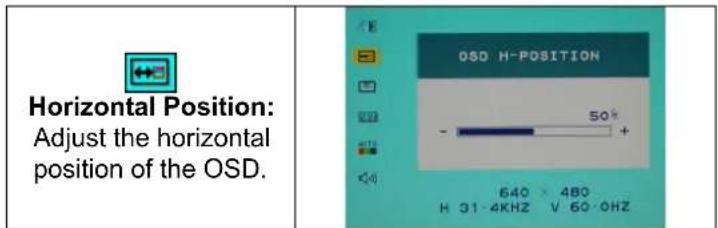
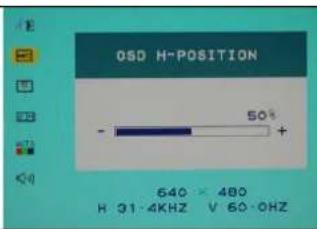
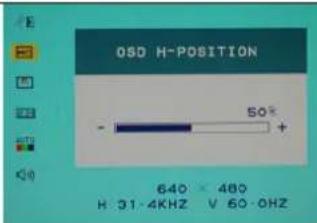
Horizontal Position:
Ajuste la position orizontale de l'OSD.

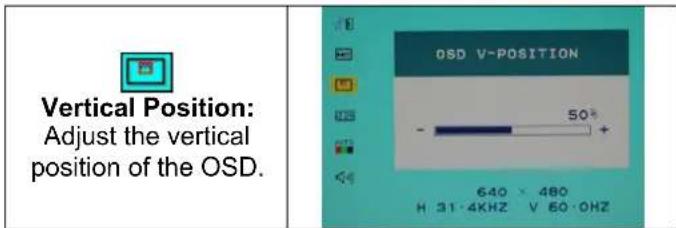
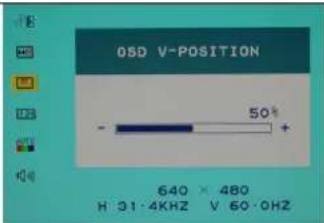
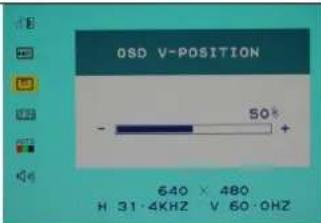
Vertical Position:
Miscellaneous (VERSCHIEDENES)

Return:
(Zurück)Zum
Zurückkehren zum
Hauptmenu.

Horizontal Position:
(Horiz. Position des
OSD)Zum horizontalen
Verschieben des
OSD-Menus auf dem
Bildschirm.

Vertical Position:
(Vertik. Position des
OSD)Zum vertikalen
Verschieben des
OSD-Menus auf dem
Bildschirm.

OSD Duration:
(OSD-Dauer) Zum
Horizontal Position:
Horizontal Position:
Horizontal Position:
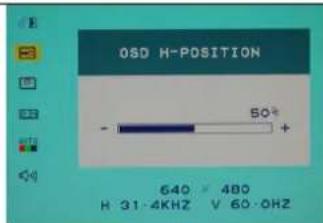
Ajustamento de posicao horizontal do menu OSD.

Vertical Position:
Ajustamento de posicao vertical do menu OSD.

OSD Duration:
Horizontal Position:
Opmerking: * DVI is optioneel.