
Ludox GXT 178 - Mouse TRUST - Free user manual and instructions
Find the device manual for free Ludox GXT 178 TRUST in PDF.



| Product type | Wired gaming mouse |
| Brand | Trust |
| Model | Ludox GXT 178 |
| Connection | Wired USB |
| Sensor | Optical |
| DPI resolution | 4 adjustable levels (up to 6400 DPI) |
| Programmable buttons | 7 buttons |
| Polling rate | 125 / 250 / 500 / 1000 Hz |
| Lighting | RGB LED with effects (wave, breathing, customizable) |
| Internal memory | Yes (for storing profiles and macros) |
| Profiles | 3 built-in profiles, export/import |
| Configuration software | Yes (downloadable from trust.com) |
| Compatible operating system | Windows |
| Cable length | 1.8 m |
| Weight | 100 g |
| Dimensions (L x W x H) | 125 x 70 x 40 mm |
| Power supply | USB (5V) |
| Warranty | 2 years |
Frequently Asked Questions - Ludox GXT 178 TRUST
User questions about Ludox GXT 178 TRUST
0 question about this device. Answer the ones you know or ask your own.
Ask a new question about this device
Download the instructions for your Mouse in PDF format for free! Find your manual Ludox GXT 178 - TRUST and take your electronic device back in hand. On this page are published all the documents necessary for the use of your device. Ludox GXT 178 by TRUST.
USER MANUAL Ludox GXT 178 TRUST
GXT 178 Gaming Mouse - USER'S MANUAL
Trust
Index
| Language | Page |
| english | 2 |
| Deutsch | 1 |
| français | 1 |
| italiano | 1 |
| spanol | 4 |
| portugués | 7 |
| lederlands | 0 |
| dansk | 3 |
| kuomi | 6 |
| lorsk | 9 |
| ivenska | 2 |
| olski | 5 |
| besky | 8 |
| slovenčina | 1 |
| magyar | 4 |
| română | 7 |
| ílbárapcsk | 0 |
| ýccský | 3 |
| íλληνικᾶ | 6 |
| Türkçë | 9 |
| Irvatski | 2 |
| lovenski | 5 |
| brasileiro | 8 |
| yipeline | 1 |
GXT 178 Gaming Mouse - USER'S MANUAL
Trust
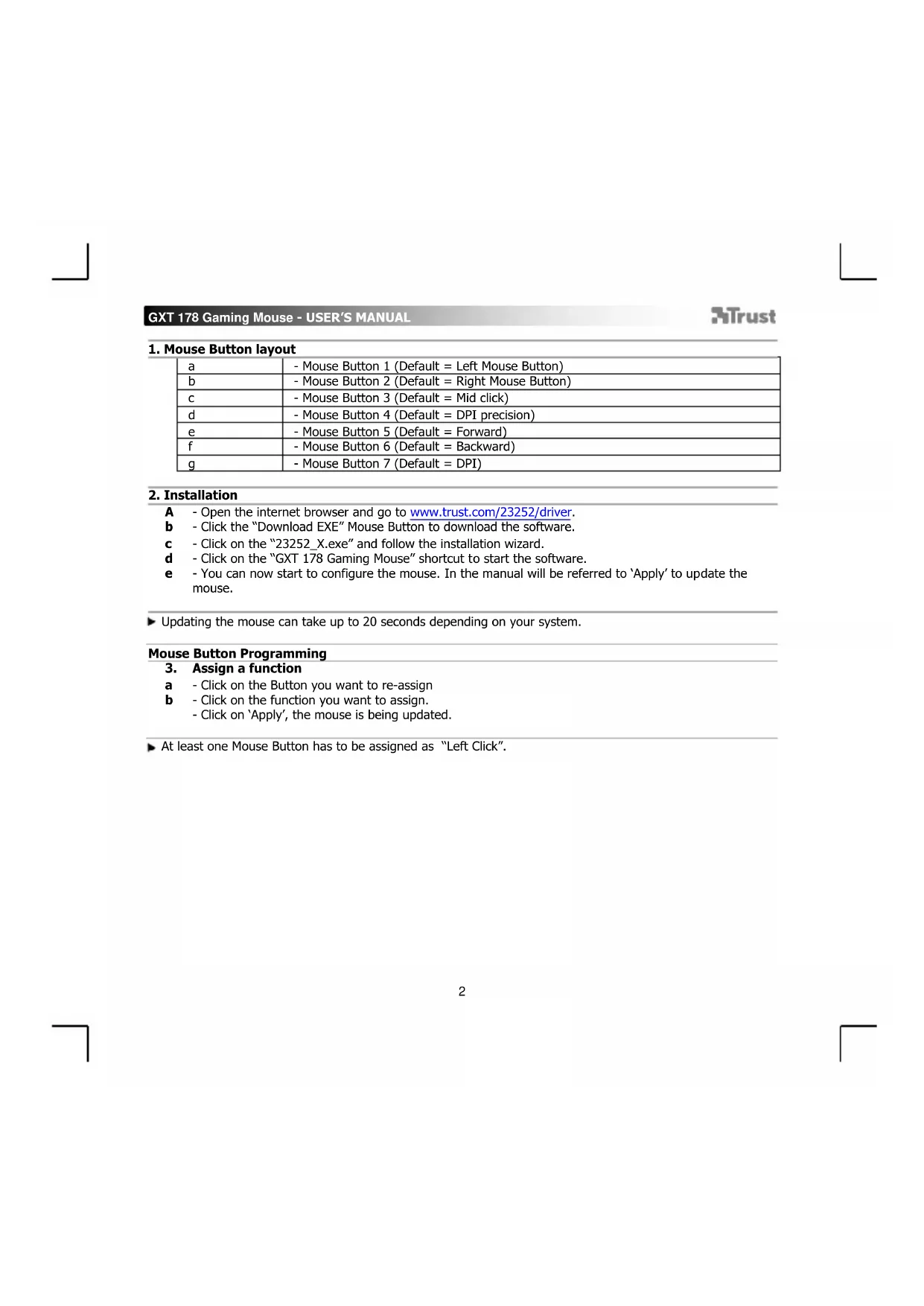
1. Mouse Button layout
| a | - Mouse Button 1 (Default = Left Mouse Button) |
| b | - Mouse Button 2 (Default = Right Mouse Button) |
| c | - Mouse Button 3 (Default = Mid click) |
| d | - Mouse Button 4 (Default = DPI precision) |
| e | - Mouse Button 5 (Default = Forward) |
| f | - Mouse Button 6 (Default = Backward) |
| g | - Mouse Button 7 (Default = DPI) |
2. Installation
A - Open the internet browser and go to www.trust.com/23252/driver.
b - Click the "Download EXE" Mouse Button to download the software.
c - Click on the "23252 X.exe" and follow the installation wizard.
d - Click on the "GXT 178 Gaming Mouse" shortcut to start the software.
- You can now start to configure the mouse. In the manual will be referred to 'Apply' to update the mouse.
Updating the mouse can take up to 20 seconds depending on your system.
Mouse Button Programming
3. Assign a function
a - Click on the Button you want to re-assign
b - Click on the function you want to assign.
- Click on 'Apply', the mouse is being updated.
At least one Mouse Button has to be assigned as "Left Click".
GXT 178 Gaming Mouse - USER'S MANUAL
Trust
Report rate & DPI settings
4. DPI setting
a - Click on the 'DPI Setting' tab.
b - Click on the checkbox next to the DPI number to enable or disable this DPI level.
c - Choose a LED color for each DPI setting.
d - Change the DPI level by dragging the respective bar.
- Click on 'Apply', the mouse is being updated.
Light Settings
5. Change the Lighting
a - Click on the 'Lighting' tab.
b - Change the light mode.
c - Change the animation speed.
d - Change the direction.
- Click on 'Apply', the mouse is being updated.
Other settings
6. Mouse Parameter
a - Click on the 'Mouse Parameter' tab.
b - Change the Windows acceleration, Windows pointer speed, Windows scroll speed or Windows doubleclick speed by dragging the respective cursor.
- Click on 'Apply', the mouse is being updated.
7. Polling Rate
a - Click on the 'Polling Rate' tab.
b - Change the Polling rate by clicking on the respective frequency.
- Click on 'Apply', the mouse is being updated.
GXT 178 Gaming Mouse - USER'S MANUAL
Trust
Macro Settings
-
Create a Macro (Store a sequence of keys in the software)
a - Click on the 'Macro Editor' button.
b - Click on 'New macro' to create a new macro.
c - Set the delay time between each action and/or the loop/repeat setting.
d - Click 'Start record' to start recording the macro. Now enter your preferred macro sequence.
e - Click 'Stop record' to stop recording the macro. (max. 164 actions)
f - Click on Save'. -
The created macro is now available under the 'Macro' function.
To assign a macro follow step 3 of this manual.
Profile Settings
- Select, Save or Load a profile
a - Select one of the 3 profiles by clicking on the preferred profile.
b - Click on the ^+ icon to create a new profile.
c - Click on the 'C' to delete a profile.
d - Click on 'Export profile' to save a setup, Click on 'Import profile' to load a setup.
e - Enter a name for the mouse setup you want to save, or choose the preferred profile to load.
f - Click on Save' to save the setup, click on Open' to load the setup. -
Click on 'Apply' Your mouse setup is now saved or updated to your mouse.
-
Restore default settings
a - Click on 'RESTORE' to reset the current profile to factory default.
b - Click on 'OK' to reset the current profile to factory default.
Trouble shooting
Problem
Solution
The software is not starting.
- Make sure the GXT 178 mouse is connected and try to start the software again.
If your problem is not solved, please contact the help desk at www.trust.com/23252/faq.
GXT 178 Gaming Mouse - USER'S MANUAL
Trust
Report rate & DPI settings
4. DPI-innstilling
a Klikk fanen 'DPI Setting' (ytelse).
b - Kikk på avmerkingsboksen ved sider av DPI-nummeret for Å aktivere aller deaktivere dette DPI-nivået.
c - Velg en LED-farge for haver DPI-innstilling.
d -Endre DPI-nivaretveda dra den respektive stolpen.
Setari report rate si DPI
4. Setarea DPI
Ako BaunrT np6bIe He e pa3peWeH, MoJI CbByPKeTe Ce C NOMOuHrT UeHTbP Ha aDpec www.trust.com/23252/faq.
1.Cxema KhoNOK
| a | - Khonka 1 (no умочаши = левая конка мыши) |
| b | - Khonka 2 (no умочаши = павая конка мыши) |
| c | - Khonka 3 (no умочаши = щелчok средnevий конков мыши) |
| d | - Khonka 4 (no умочаши = DPI precision) |
| e | - Khonka 5 (no умочаши = в胸前) |
| f | - Khonka 6 (no умочаши = налар) |
| g | - Khonka 7 (no умочаши = DPI) |
2.YctaHOBka
A - OtkpoiTe Be6-6pay3ep i nepeiDnTe no ccbInke www.trust.com/23252/driver.
b -LeKHTe KhoNky Download EXE> Iy3aRpy3kn nporpaMmHoro o6ecneueHna.
c - Μελκηθε φαην «23252_X.exe» έ Σζηγιθε έ ΕΟχτρύκημΜ Μαςτηρα ΑγταHOΒΚ.
d - ξεικητε ερλυκ «GXT 178 Gaming Mouse»對於 zanycka nporpaMMHOrO o6ecneueHn.
e -Tepeb moKHO haHaTb hAcToKy MbIiN. BpyHOM pExKIme Heo6xOdmo HaxaTb KhoNky «Apply» nIy oHOBLeHnI npOrpaMMHoro 0ecneueHnMaBIIu.
O6HOBHeHne nporpaMMHO oecneueHn MbIIM MOKeT 3aHrTb do 20 ckyHd B 3aBcMocTn OT BaWe CNTEmbl.
PporpaMMNPOBaHne KHOHOK
- Ha3haeHne yHKcH
a -HaKmTe KhoNky, KOtOpyIO Heo6xOIMo nepeHa3HaHTb.
b -IeKHTe FHKUHO, KOtOpYIO Heo6xOIMo Ha3HaHTb.
- LJIeIKNHITe «Apply», nporpaMmHoe o6ecneueHHe mblu 6yTe O6HOBNeHo.
Kak MInHmym, ODA KaHOniKa DoJNkHa 6bItb Ha3HaueHa KaK «Left Click».
GXT 178 Gaming Mouse - USER'S MANUAL
Trust
Yactota onpoca n napametpb DPI
4. NapaMeTpbl DPI
a -LeJKNHTe BklaDky «DPI Setting>.
b -IeKHTe Ha fnaXoK Bo3ne Homepa DPI, yTo6bB BKnHouNTb nIn OTKnHouNTb daHHbI ypoBeHb DPI.
C -BbI6epnTe UBeT CBeToDnOHDoro HnDnKaTopa IJra KaKdoHAcTpOKn DPI.
d -I3MeHnTe ypoBeHb DPI, nepetaNB COOTBcTCTByoUnn NOJ3yHOK.
- ⅢeIKNHTe «Apply», nporpaMMHoe oOecneueHHe Mbls6ydt ObHOBnEHO.
NapaMeTpbl NOcBETK
5. N3MeHeHHe 3ΦΦeKToB NOdCBetKn
a -LJenKnTe BknaKy «Lighting».
b -ИЗмЕнITEpeхиMuNoДCBeТК.
C -N3MeHHTeCKOPOCTb aHIMaLHN.
d -ИЗмени Te HanpaBJIeHne BOJHbI.
- lIeKHTe «Apply», nporpamMHOe o6ceueHHe MbHs 6ydt O6HOBHeNo.
Дргне napametpbI
6. Mouse Parameter
a -LeiknTe BknaKy «Mouse Parameter».
b -Измение усокене, ckopoctь указаел� Windows, ckopoctь npokpyTKn Windows nii ckopoctb Двоиного щeлчka Windows, nepetauib COOTBeTCTByIoUm Kypcop.
- UeJIKNHnTe «Apply», nporpaMMHoe o6ecneueHne Mbiu 6ydt O6HOBJeHo.
7. Polling Rate
a -LJIeIKNHtE BknaIky «Polling Rate».
b -Изменич acToTy onpoca, Haxkab Ha COOTBETCTByIOUyO acToTy.
- UeKHTe «Apply», nporpaMMHoe 06cneueHne Mbln 6ydt O6HOBHeHO.
NapaMeTpbMakpocOB
- Co3aHne MaKpOca (coXpaHeHne nocJeOBaTeBbOCTn KnaBn B nporpaMMHom o6ecneueHH)
a - LJIeKHTe KHONKy Macro Editor [«MAKPOCbl»].
b -New macro> dIa co3dHnHOBOrO MaKpoca.
C - YctaHOBnTe BpeMa 3adepKmexkMyKaXdbM DeIcTBneM n (nn) HAcTpoiKOuIKNa/NoBTopa.
d - Μεικητe 'Start record', Κτοῦ ὄναῦ θαπις Μακρος. Tenepb BBeιnte Tpe6yeMyo IocneioBaTeIbHOCtB MaKpOca.
e -LJenKnHe 'Stop record'UTo6bIOCTaHOBtB 3aINcMbApOca.(MaKc.YncNo DeIcTBn-164)
f -LJIeIKNHnTe «Save»
- Co3daHbI MaKpO TenePb DoCTyneH NOd fynKUneN «Macro».
ДянэзачениmaKрoca bblnoJHnTe 乌3HaCTOJIeO pykoBOdCTBa.
Napametpbipnpofo
- Bb6op, coxpaehne nnn 3arpy3ka npofo
a -Bb6epnte OINH n3 3 npoΦnIe, ζεκΚhγВ Tpe6yeMbI n3 Hx.
b -IeiknHe n3o6paKeHne +,yTo6bl co3daTb HObbl npOfnIb.
c -LJIKNHTe C》,TO6bI ydaJIHTb npoΦnJIb.
d - Μεικητe «Export profile» Дя coхаеня HabtpoeK. Μεικητe «Import profile» Дя загузки HabtpoeK.
e -BBeIte HMa HAcTpoE KbIuN, KOToPbIe CneDuET COXpaHITb, NIN Bbl6epNTe Tpe6yeMbIn npoFnIb dIa 3arpy3kn.
f -UeKHTe «Save» dna coxpaHnHaHCTpoe; UeKHTe «Open» dna 3arpy3Kn HAcTpoek.
- LSeKnTe «Apply» → HacTpoKmMbIu 6yDyT COxpaHeHb IIN O6HOBJeHbI.
- BocctahOBJIeHHe HAcTpoE KNo yMOJIyAHnIO
a -LJIKNHTE «RESTORE» dIra c6pOca TeKUeero npoΦnna K npaMeTpam no yMOJuaHnIO.
b -IeKHTe OK) nIa c6pOca Tekyuero npoФnna KnapaMeTpam no ymoHaHIO.
UctpaHHeH HeCnpaBHOCTe
Ipo6Iema
Psehenne
PporpamMa He 3anyckaetc.
- Y6eIntecb, yTOMbIb GXT 178 NOdkJIIOueHa n IOBtOpnTe 3anyck nporpaMMbl.
EcnB Bo3HnKShy np6IeMy He ydaIocb peuITb, o6paTntecb B cnYk6y TexHnuecko nOndepKKN www.trust.com/23252/faq.
GXT 178 Gaming Mouse - USER'S MANUAL
Trust
1. DiataEg nλκτρωv
- GXT 178 Gaming Mouse - USER'S MANUAL
- Trust
- Mouse Button layout
- Installation
- Mouse Button Programming
- Assign a function
- Report rate & DPI settings
- DPI setting
- Light Settings
- Change the Lighting
- Other settings
- Mouse Parameter
- Polling Rate
- Macro Settings
- Profile Settings
- Problem
- Solution
- DPI-innstilling
- Setari report rate si DPI
- Setarea DPI
- 2.YctaHOBka
- PporpaMMNPOBaHne KHOHOK
- Yactota onpoca n napametpb DPI
- NapaMeTpbl DPI
- NapaMeTpbl NOcBETK
- N3MeHeHHe 3ΦΦeKToB NOdCBetKn
- Дргне napametpbI
- NapaMeTpbMakpocOB
- Napametpbipnpofo
- Ipo6Iema
- Psehenne
- PporpamMa He 3anyckaetc.
- DiataEg nλκτρωv
Brand : TRUST
Model : Ludox GXT 178
Category : Mouse