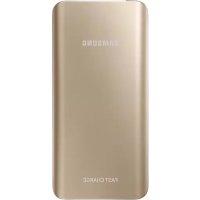
EBPN920 - Cellphone SAMSUNG - Free user manual and instructions
Find the device manual for free EBPN920 SAMSUNG in PDF.



| Product type | External battery / Power bank |
| Brand | Samsung |
| Model | EBPN920 |
| Power supply | Charge via USB adapter (5V, 2A typical) |
| Battery capacity | Not disclosed |
| Output ports | 1 USB port (to charge a mobile device) |
| Input port | 1 charging connector (USB micro or USB-C, unspecified) |
| Charge indicator | LED indicators (4 LEDs) showing battery level |
| Reset button | Yes, allows resetting the charger in case of malfunction |
| Main function | Charge mobile devices (smartphones, tablets, etc.) |
| Protection | Automatic shutdown in case of abnormal temperature |
| Safety | Use only Samsung-approved accessories; do not attempt to remove the battery yourself |
| Maintenance and cleaning | Wipe with a soft, dry cloth; do not use chemical products |
| Weight | Approximately 200 g (estimated) |
| Dimensions (L x W x H) | Approximately 140 x 70 x 15 mm (estimated) |
| Box contents | Device, quick start guide |
| Operating temperature | 0°C to 35°C (estimated) |
| Repairability | Battery removal only by an authorized service center |
Frequently Asked Questions - EBPN920 SAMSUNG
User questions about EBPN920 SAMSUNG
0 question about this device. Answer the ones you know or ask your own.
Ask a new question about this device
Download the instructions for your Cellphone in PDF format for free! Find your manual EBPN920 - SAMSUNG and take your electronic device back in hand. On this page are published all the documents necessary for the use of your device. EBPN920 by SAMSUNG.
USER MANUAL EBPN920 SAMSUNG
Please read this manual before using the device to ensure safe and proper use.
- Images may differ in appearance from the actual product. Content is subject to change without prior notice.
Instructional icons

Warning: situations that could cause injury to yourself or others

Caution: situations that could cause damage to your device or other equipment

Note: notes, usage tips, or additional information
Getting started
Package contents
Check the product box for the following items:
- Device
- Quick start guide

- The items supplied with the device and any available accessories may vary depending on the region or service provider.
- The supplied items are designed only for this device and may not be compatible with other devices.
• Appearances and specifications are subject to change without prior notice. - You can purchase additional accessories from your local Samsung retailer. Make sure they are compatible with the device before purchase.
- Use only Samsung-approved accessories. Using unapproved accessories may cause the performance problems and malfunctions that are not covered by the warranty.
- Availability of all accessories is subject to change depending entirely on manufacturing companies. For more information about available accessories, refer to the Samsung website.
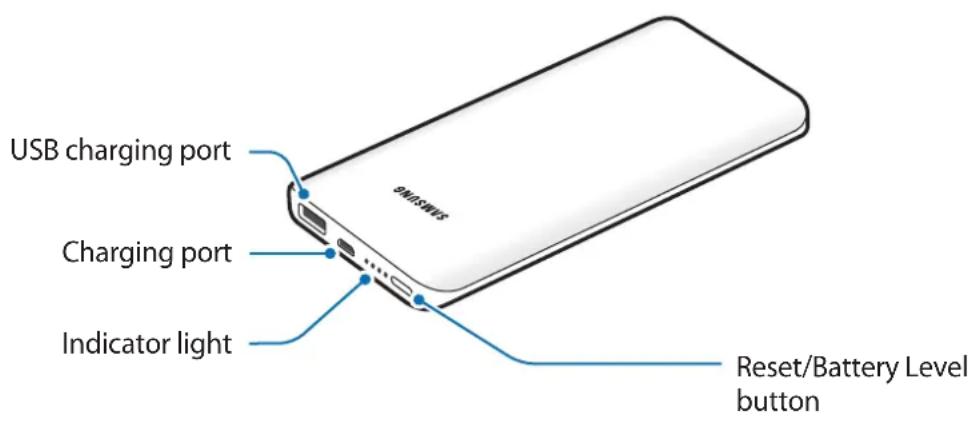
Device layout
Charging the device
Use the charger to charge the battery before using it for the first time.

Use only Samsung-approved chargers and cables. Unapproved chargers or cables can cause the battery to explode or damage the device.
Connect the device to a computer or the USB power adaptor via the USB cable. Plug the USB power adaptor into an electric socket.
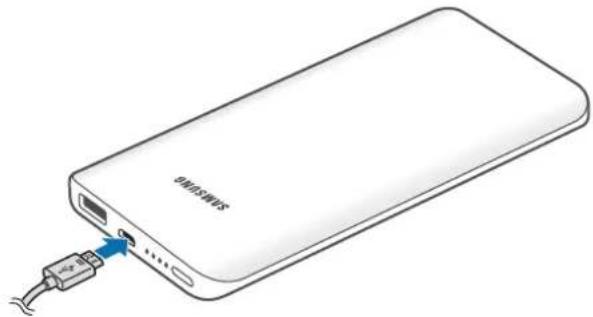
natural_image
Line drawing of a white power bank with a USB cable inserted, showing port and connector (no text or symbols)
Connecting the charger improperly may cause serious damage to the device. Any damage caused by misuse is not covered by the warranty.

• You can charge the device using the charger (sold separately).
- The charger can simultaneously charge the device and a mobile device when both are connected, but charging may take longer.
- While charging, the device may heat up. This is normal and should not affect the device's lifespan or performance. If the battery gets hotter than usual, the charger may stop charging.
- If the device is not charging properly, take the device and the charger to a Samsung Service Centre.
After fully charging, unplug the USB cable from the device, and then disconnect it from the computer or the electric socket.

- To save energy, unplug the charger when not in use. The charger does not have a power switch, so you must unplug the charger from the electric socket when not in use to avoid wasting power. The charger should remain close to the electric socket and easily accessible while charging.
- The socket-outlet shall be installed near the equipment and shall be easily accessible.
Checking the remaining battery power
Check the remaining battery power by pressing the Battery Level button.
The indicator lights activate according to the remaining battery power.
| Remaining battery power | Indicator light status |
| 75–100% Four indicator lights on | |
| 50–75% Three indicator lights on | |
| 25–50% Two indicator lights on | |
| 5–25% One indicator light on | |
| 0–5% One indicator light blinking | |
Using the device
Charging the mobile device
1 Connect one end of the USB cable to the device's USB charging port. Then, plug the other end of the USB cable into the mobile device's multipurpose jack.
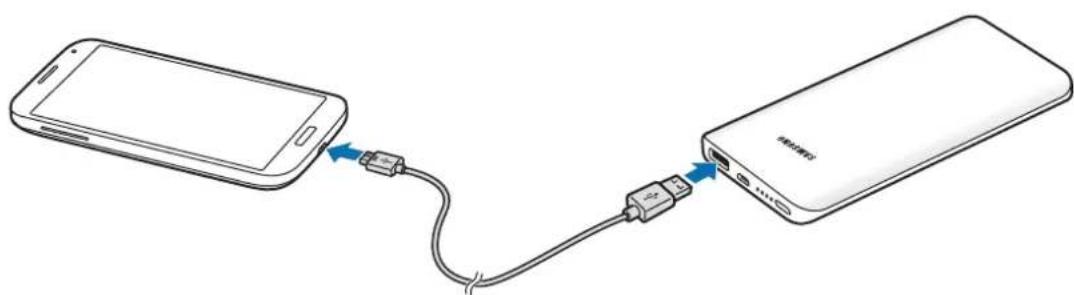
2 After the mobile device is fully charged, disconnect the USB cable from both devices.

- Check the mobile device's battery status using the charging icon displayed on the screen.
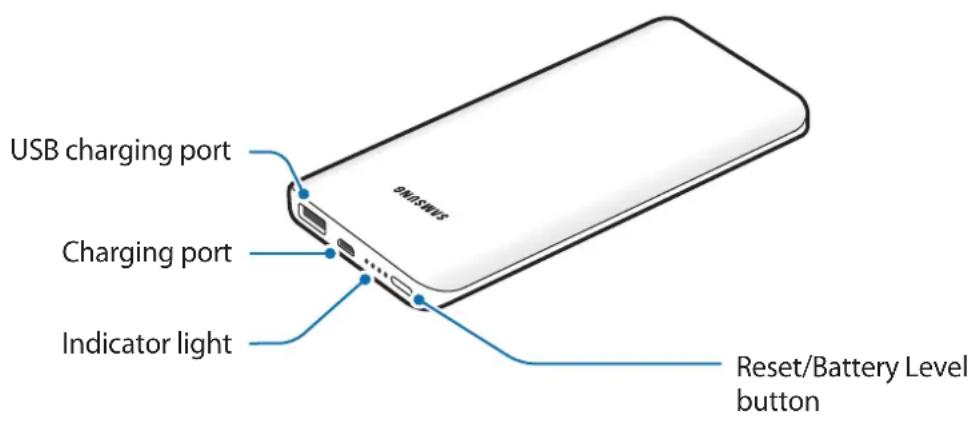
- If the mobile device is not charging after being connected to the device, press the Reset button.
- The device is an auxiliary external battery. It may not fully charge some mobile devices.
- If the device is exposed to extremely hot or cold temperatures or an error occurs, four indicator lights will blink. Disconnect the mobile device from the device, and then reconnect them.
Removing the battery
- To remove the battery, you must visit an authorised service centre with the provided instructions.
- For your safety, you must not attempt to remove the battery. If the battery is not properly removed, it may lead to damage to the battery and device, cause personal injury, and/or result in the device being unsafe.
- Samsung does not accept liability for any damage or loss (whether in contract or tort, including negligence) which may arise from failure to precisely follow these warnings and instructions, other than death or personal injury caused by Samsung's negligence.
1 Cut the plastic between the USB charging port and the charging port using a nipper tool.
2 Pry open the cover using the nipper tool.
3 Loosen and remove the screws.
4 Lift the battery and the circuit board upwards.
5 Use a nipper to cut the connections between the battery and the circuit board.
Copyright
Copyright © 2015 Samsung Electronics
This manual is protected under international copyright laws.
No part of this manual may be reproduced, distributed, translated, or transmitted in any form or by any means, electronic or mechanical, including photocopying, recording, or storing in any information storage and retrieval system, without the prior written permission of Samsung Electronics.
Trademarks
• SAMSUNG and the SAMSUNG logo are registered trademarks of Samsung Electronics.
• All other trademarks and copyrights are the property of their respective owners.
natural_image
Line drawing of a white power bank with a USB cable inserted, showing internal port and cable connector (no text or symbols)
natural_image
Diagram showing connection between a smartphone and a power bank via USB cable (no text or symbols)Copyright © 2015 Samsung Electronics
natural_image
Line drawing of a white power bank with a USB cable inserted, showing port and cable connector (no text or symbols)
natural_image
Diagram showing connection between a smartphone and a power bank via USB cable (no text or symbols)Copyright © 2015 Samsung Electronics
natural_image
Line drawing of a Siemens 4.0 power bank with an attached USB cable (no text or symbols on the device body)
natural_image
Diagram showing connection between a smartphone and a power bank via USB cable (no text or symbols)Copyright © 2015 Samsung Electronics
natural_image
Line drawing of a white power bank with a USB cable inserted, showing port and cable connector (no text or symbols)
natural_image
Diagram showing connection between a smartphone and a power bank via USB cable (no text or symbols)Copyright © 2015 Samsung Electronics
natural_image
Line drawing of a white power bank with a USB cable inserted, showing internal port and cable connector (no text or symbols)
natural_image
Diagram showing a smartphone connected to a power bank via USB cable (no text or symbols)Copyright © 2015 Samsung Electronics
natural_image
Line drawing of a white power bank with a USB cable inserted, showing internal port and ports (no text or symbols)
natural_image
Diagram showing a smartphone connected to a power bank via USB cable (no text or symbols)Copyright © 2015 Samsung Electronics
natural_image
Line drawing of a white power bank with a USB cable inserted, showing ports and cables (no text or symbols)
natural_image
Diagram showing connection between a smartphone and a power bank via USB cable (no text or symbols)natural_image
Diagram showing connection between a smartphone and a power bank via USB cable (no text or symbols)Copyright © 2015 Samsung Electronics
natural_image
Line drawing of a white power bank with a USB cable inserted, showing ports and cables (no text or symbols)
natural_image
Diagram showing connection between a smartphone and a power bank via cable (no text or symbols)Copyright © 2015 Samsung Electronics
natural_image
Diagram showing connection between a smartphone and a power bank via cable (no text or symbols)Copyright © 2015 Samsung Electronics
Ovaj priručnik je zaštićen međunarodnim zakonima o autorskim pravima.
Nijedan deo ovog priručnika se ne sme reprodukovati, distribuirati, prevoditi niti prenositi ni u jednom obliku niti bilo kojim putem, elektronskim niti mehaničkim, što podrazumeva fotokopiranje, snimanje i skladištenje u okviru bilo kog skladišta informacija i sistema za preuzimanje, bez prethodne dozvole kompanije „Samsung Electronics“ u pisanom obliku.
Trgovačke marke
- SAMSUNG i SAMSUNG logotip su registrovane trgovačke marke kompanije „Samsung Electronics“.
- Sve ostale trgovačke marke i autorska prava su vlasništvo njihovih vlasnika.
Leia primeiro
natural_image
Line drawing of a white power bank with a USB cable inserted, showing ports and cables (no text or symbols)
natural_image
Diagram showing connection between a smartphone and a power bank via cable (no text or symbols)Copyright © 2015 Samsung Electronics
Este manual está protegido pelas leis internacionais de copyright.
natural_image
Diagram showing connection between a smartphone and a power bank via cable (no text or symbols)natural_image
Line drawing of a white power bank with a USB cable inserted, showing ports and cables (no text or symbols)
natural_image
Diagram showing connection between a smartphone and a power bank via cable (no text or symbols)Copyright © 2015 Samsung Electronics
natural_image
Line drawing of a white power bank with a USB cable inserted, showing internal port and cable connector (no text or symbols)
natural_image
Diagram showing connection between a smartphone and a power bank via USB cable (no text or symbols)Copyright © 2015 Samsung Electronics
natural_image
Line drawing of a white power bank with a USB cable inserted, showing ports and cables (no text or symbols)
natural_image
Diagram showing connection between a smartphone and a power bank via cable (no text or symbols)Copyright © 2015 Samsung Electronics
natural_image
Diagram showing connection between a smartphone and a power bank via cable (no text or symbols)Copyright © 2015 Samsung Electronics
Copyright © 2015 Samsung Electronics
natural_image
Line drawing of a white power bank with a USB cable inserted, showing port and cable connector (no text or symbols)
natural_image
Diagram showing connection between a smartphone and a power bank via USB cable (no text or symbols)natural_image
Line drawing of a white power bank with a USB cable inserted, showing port and cable connector (no text or symbols)
2 Ko je mobilna naprava v celoti napolnjena, odklopite kabel USB z obeh naprav.

- Preverite stanje baterije mobilne naprave z uporabo ikone napajanja, ki je prikazana na zaslonu.
- Če se mobilna naprava ne polni po priklopu na napravo, pritisnite tipko Ponastavi.
natural_image
Diagram of a white power bank with a USB cable inserted, showing internal port and ports (no text or symbols)
natural_image
Diagram showing connection between a smartphone and a power bank via USB cable (no text or symbols)Telif hakkı © 2015 Samsung Electronics
natural_image
Diagram of a white power bank with a USB cable inserted, showing internal port and connector (no text or symbols)
natural_image
Diagram showing connection between a smartphone and a power bank via USB cable (no text or symbols)© Samsung Electronics, 2015.
natural_image
Line drawing of a white power bank with a USB cable inserted, showing ports and a small port (no text or symbols)
natural_image
Diagram showing connection between a smartphone and a power bank via USB cable (no text or symbols)© Samsung Electronics, 2015
natural_image
Line drawing of a white power bank with an attached USB cable (no text or symbols)
natural_image
Diagram showing connection between a smartphone and a power bank via USB cable (no text or symbols)Copyright © 2015 Samsung Electronics
Please read this manual before using the device to ensure safe and proper use.
- Images may differ in appearance from the actual product. Content is subject to change without prior notice.
Instructional icons

Warning: situations that could cause injury to yourself or others

Caution: situations that could cause damage to your device or other equipment

Note: notes, usage tips, or additional information
Getting started
Package contents
Check the product box for the following items:
- Device
- Quick start guide

- The items supplied with the device and any available accessories may vary depending on the region or service provider.
- The supplied items are designed only for this device and may not be compatible with other devices.
- Appearances and specifications are subject to change without prior notice.
- You can purchase additional accessories from your local Samsung retailer. Make sure they are compatible with the device before purchase.
- Use only Samsung-approved accessories. Using unapproved accessories may cause the performance problems and malfunctions that are not covered by the warranty.
- Availability of all accessories is subject to change depending entirely on manufacturing companies. For more information about available accessories, refer to the Samsung website.
Device layout
Charging the device
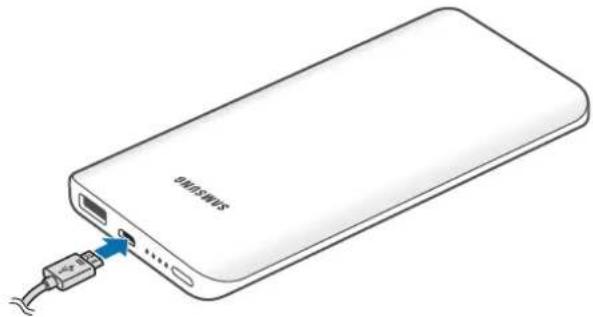
Use the charger to charge the battery before using it for the first time.

Use only Samsung-approved chargers and cables. Unapproved chargers or cables can cause the battery to explode or damage the device.
Connect the device to a computer or the USB power adapter via the USB cable. Plug the USB power adapter into an electric socket.
natural_image
Line drawing of a white power bank with a USB cable inserted, showing port and connector (no text or symbols)
Connecting the charger improperly may cause serious damage to the device. Any damage caused by misuse is not covered by the warranty.

• You can charge the device using the charger (sold separately).
- The charger can simultaneously charge the device and a mobile device when both are connected, but charging may take longer.
- While charging, the device may heat up. This is normal and should not affect the device's lifespan or performance. If the battery gets hotter than usual, the charger may stop charging.
- If the device is not charging properly, take the device and the charger to a Samsung Service Center.
After fully charging, unplug the USB cable from the device, and then disconnect it from the computer or the electric socket.

To save energy, unplug the charger when not in use. The charger does not have a power switch, so you must unplug the charger from the electric socket when not in use to avoid wasting power. The charger should remain close to the electric socket and easily accessible while charging.
Checking the remaining battery power
Check the remaining battery power by pressing the Battery Level button.
The indicator lights activate according to the remaining battery power.
| Remaining battery power | Indicator light status |
| 75–100% Four indicator lights on | |
| 50–75% Three indicator lights on | |
| 25–50% Two indicator lights on | |
| 5–25% One indicator light on | |
| 0–5% One indicator light blinking | |
Using the device
Charging the mobile device
1 Connect one end of the USB cable to the device's USB charging port. Then, plug the other end of the USB cable into the mobile device's multipurpose jack.
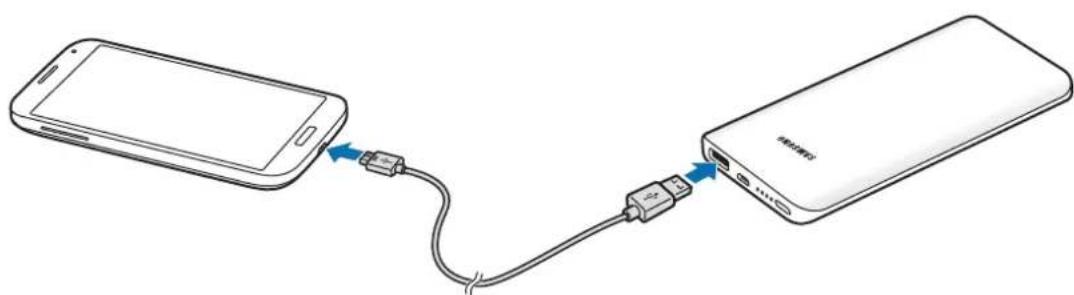
2 After the mobile device is fully charged, disconnect the USB cable from both devices.

- Check the mobile device's battery status using the charging icon displayed on the screen.
- If the mobile device is not charging after being connected to the device, press the Reset button.
- The device is an auxiliary external battery. It may not fully charge some mobile devices.
- If the device is exposed to extremely hot or cold temperatures or an error occurs, four indicator lights will blink. Disconnect the mobile device from the device, and then reconnect them.
Copyright
Copyright © 2015 Samsung Electronics
This manual is protected under international copyright laws.
No part of this manual may be reproduced, distributed, translated, or transmitted in any form or by any means, electronic or mechanical, including photocopying, recording, or storing in any information storage and retrieval system, without the prior written permission of Samsung Electronics.
Trademarks
• SAMSUNG and the SAMSUNG logo are registered trademarks of Samsung Electronics.
• All other trademarks and copyrights are the property of their respective owners.
natural_image
Line drawing of a white power bank with a USB cable inserted, showing internal port and ports (no text or symbols)
natural_image
Diagram showing a smartphone connected to a power bank via USB cable (no text or symbols)Copyright © 2015 Samsung Electronics
natural_image
Line drawing of a white power bank with a USB cable inserted, showing ports and a blue arrow pointing to the cable (no text or symbols on the device itself)
natural_image
Diagram of a Siemens 500S power bank with an attached USB cable (no text or symbols on the device body)
Copyright © 2015 Samsung Electronics
本手册受國際版權法保護。
natural_image
Line drawing of a white power bank with a USB cable inserted, showing port and cable connector (no text or symbols)
natural_image
Diagram showing a smartphone connected to a power bank via USB cable (no text or symbols)© Samsung Electronics, 2015.
natural_image
Line drawing of a white power bank with a USB cable inserted, showing ports and cables (no text or symbols)
natural_image
Line drawing of a white power bank with a USB cable inserted, showing internal port and ports (no text or symbols)
natural_image
Diagram of a white power bank with a USB cable inserted, showing internal port and ports (no text or symbols)natural_image
Line drawing of a white power bank with a cable inserted, showing internal port and cable connector (no text or symbols)
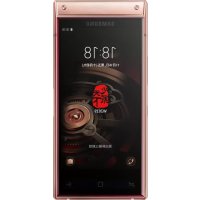
Brand : SAMSUNG
Model : EBPN920
Category : Cellphone