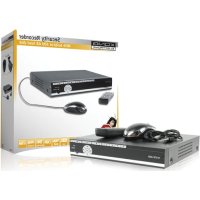
SASAHD1008 - Voice recorder KONIG - Free user manual and instructions
Find the device manual for free SASAHD1008 KONIG in PDF.



User questions about SASAHD1008 KONIG
0 question about this device. Answer the ones you know or ask your own.
Ask a new question about this device
Download the instructions for your Voice recorder in PDF format for free! Find your manual SASAHD1008 - KONIG and take your electronic device back in hand. On this page are published all the documents necessary for the use of your device. SASAHD1008 by KONIG.
USER MANUAL SASAHD1008 KONIG
natural_image
Exterior view of a black HD VIDEO RECORDER container with ventilation slots and control buttons (no readable text beyond branding)| Sensor | Main Board Sensor Industrial Embedded Microprocessor | |
| Operating System Embedded LINUX operating system | ||
| System | Signal Support AHD, IPC, CVBS, TVI, CVI (5 in 1) | |
| Video Coding H.264 | ||
| Video Format 4CH / 8CH 1080p | ||
| Video Frame PAL: 1 - 25 FPS / NTSC: 1 - 30 FPS | ||
| Double Stream Support | ||
| Interface USB Port (2x), RS 485, SATA HDD (max 8 GB), VGA, HDMI, CVBS, BNC (4x / 8x), RCA input, RCA output | ||
| Recording Manage | Recording Mode Automatic / Manual / Scheduled / Motion Detection / Alarm Recording | |
| Recording Resolution Self-adaption | ||
| Playback 4CH 1080p | ||
| Playback Mode Instant / Search / Event | ||
| Backup Mode USB / Network | ||
| Network | Protocol Support TCP/IP, UDP, PPPoE, DHCP, DDNS, NTP etc. | |
| P2P Cloud N_EYE Pro APP / www.yunyis.com | ||
| Supported access | Mobile App (iOS / Android), UTC control, 3G, WIFI | |
| Power | Power 12 VDC | |
| Power Consumption | < 15W (no HDD) | |
| Others | Operating conditions | -10 - 55 °C / 10 - 90% humidity |
| Physical 255 x 215 x 45 mm / < 1,5 KG (no HDD) | ||
text_image
CH01 CH02 (INT.04.12) Weel. 13.1895-000000000000000 CH03 CH04Figure "A"
text_image
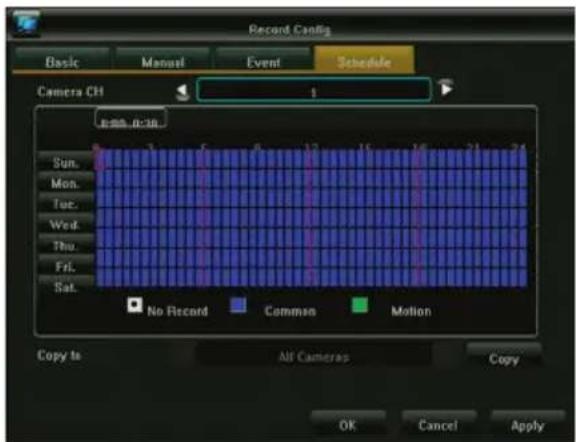
Record Config Basic Manual Event Schedule Camera CH 1 B:80, B:30 Sun. Mon. Tue. Wed. Thu. Fri. Sat. No Record Common Motion Copy to All Cameras Copy OK Cancel ApplyFigure "B"
text_image
Trackbox vial Apt 1997 0 M 1 M 2 M 3 M 4 M 5 M 6 M 7 M 8 M 9 M 10 M 11 M 12 M 13 M 14 M 15 M 16 M 17 M 18 M 19 M 20 M 21 M 22 M 23 M 24 M 25 M 26 M AC Comunes 1.2.1.1.1.1.1.1.1.1.1.1.1.1.1.1.1.1.1.1.1.1.1.1.1.1.1.1.1.1.1.1.1.1.1.1.1.1.1.1.1.1.1.1.1.1.1.1.1.1.1.1.2 Comma B: Comma B: Comma B: Comma B: COM COM COM COM COM COM COM COM COM COM COM COM COM COM COM COM COM COM COM COM COM COM COM COM COM COM COM COM COM COM COM COM COM COM COM COM COM COM COM COM COM COM COM COM COM COM COM COM COM COM COMFigure "C"
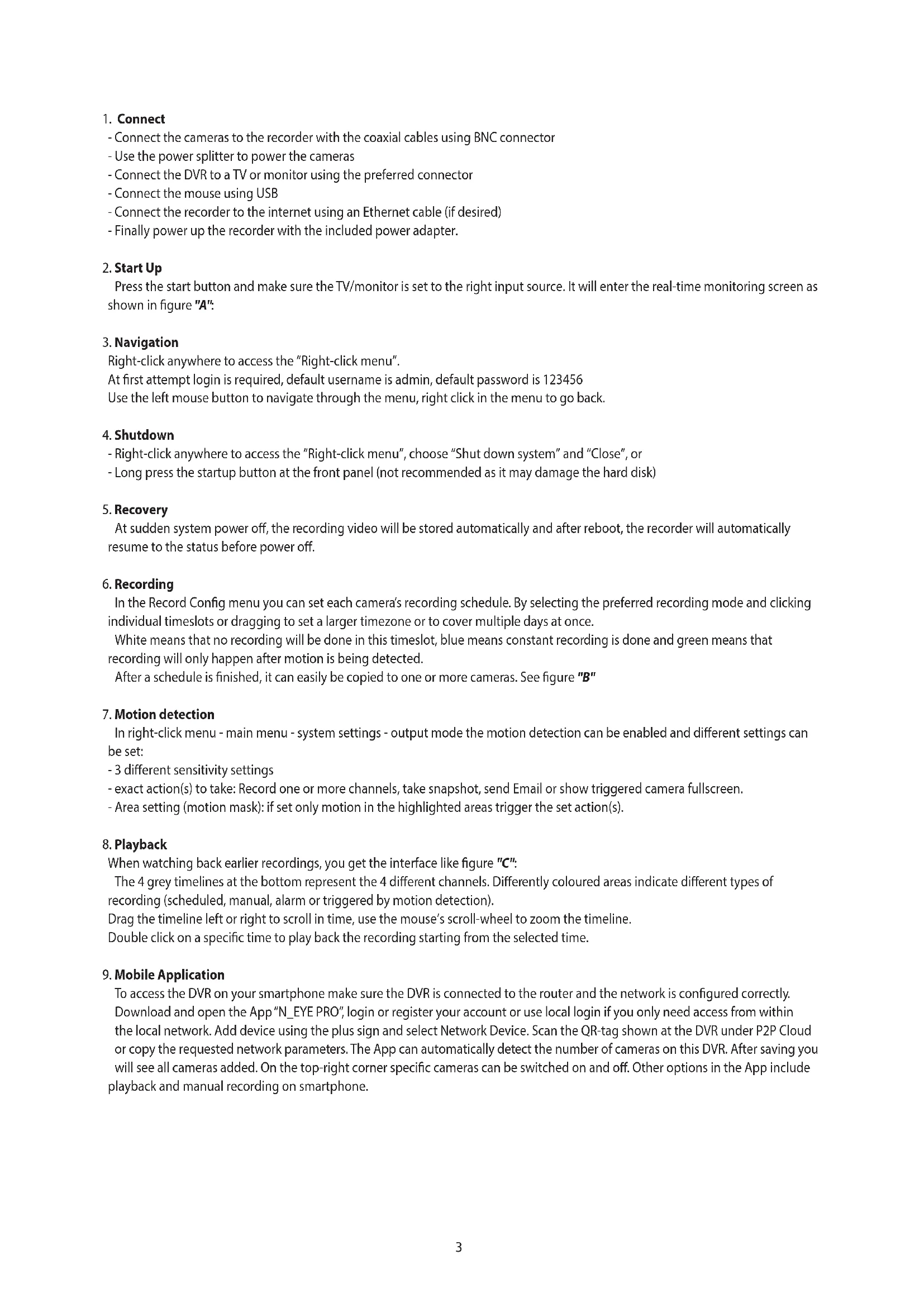
1. Connect
- Connect the cameras to the recorder with the coaxial cables using BNC connector
- Use the power splitter to power the cameras
- Connect the DVR to a TV or monitor using the preferred connector
- Connect the mouse using USB
- Connect the recorder to the internet using an Ethernet cable (if desired)
- Finally power up the recorder with the included power adapter.
2. Start Up
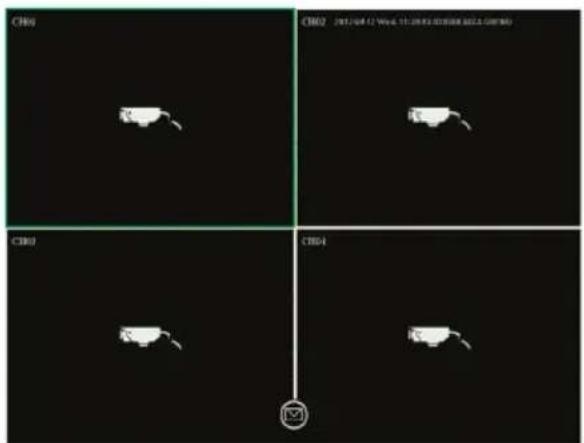
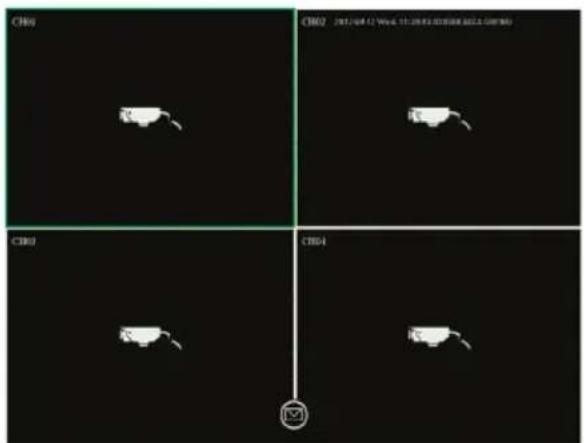
Press the start button and make sure the TV/monitor is set to the right input source. It will enter the real-time monitoring screen as shown in figure "A".
3. Navigation
Right-click anywhere to access the "Right-click menu".
At first attempt login is required, default username is admin, default password is 123456
Use the left mouse button to navigate through the menu, right click in the menu to go back.
4. Shutdown
- Right-click anywhere to access the "Right-click menu", choose "Shut down system" and "Close", or
- Long press the startup button at the front panel (not recommended as it may damage the hard disk)
5. Recovery
At sudden system power off, the recording video will be stored automatically and after reboot, the recorder will automatically resume to the status before power off.
6. Recording
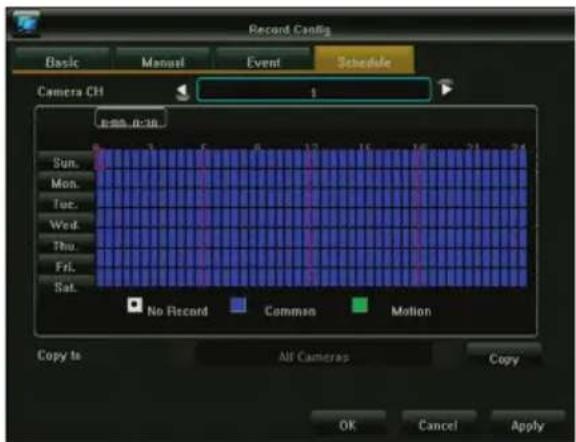
In the Record Config menu you can set each camera's recording schedule. By selecting the preferred recording mode and clicking individual timeslots or dragging to set a larger timezone or to cover multiple days at once.
White means that no recording will be done in this timeslot, blue means constant recording is done and green means that recording will only happen after motion is being detected.
After a schedule is finished, it can easily be copied to one or more cameras. See figure "B"
7. Motion detection
In right-click menu - main menu - system settings - output mode the motion detection can be enabled and different settings can be set:
- 3 different sensitivity settings
- exact action(s) to take: Record one or more channels, take snapshot, send Email or show triggered camera fullscreen.
- Area setting (motion mask): if set only motion in the highlighted areas trigger the set action(s).
8. Playback
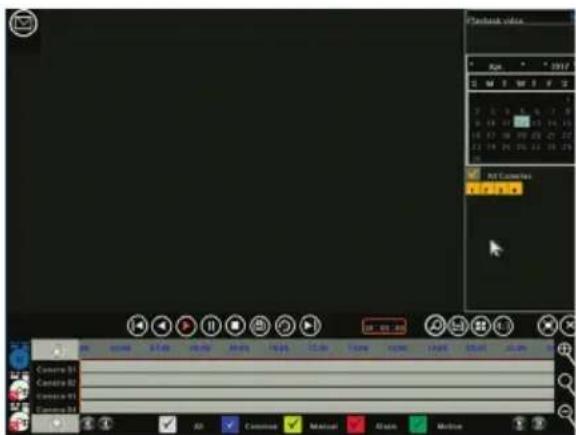
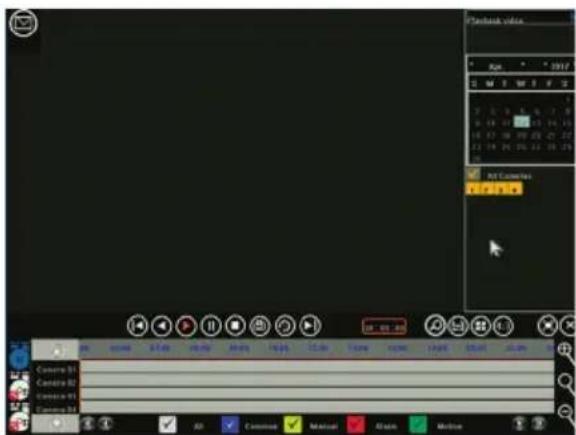
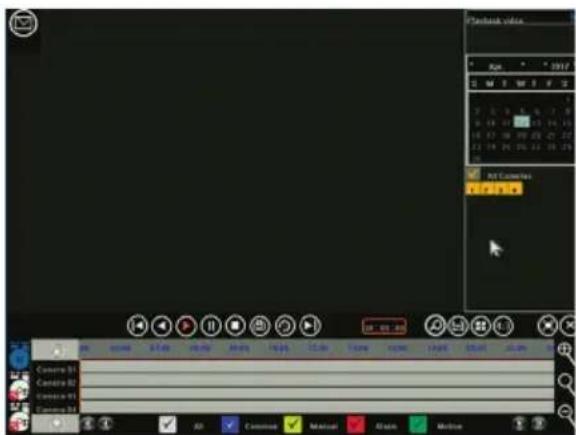
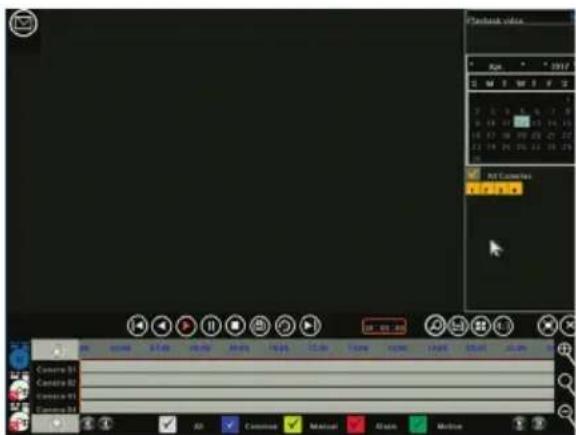
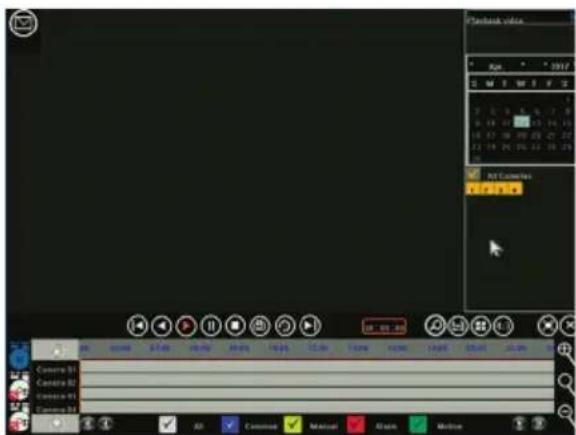
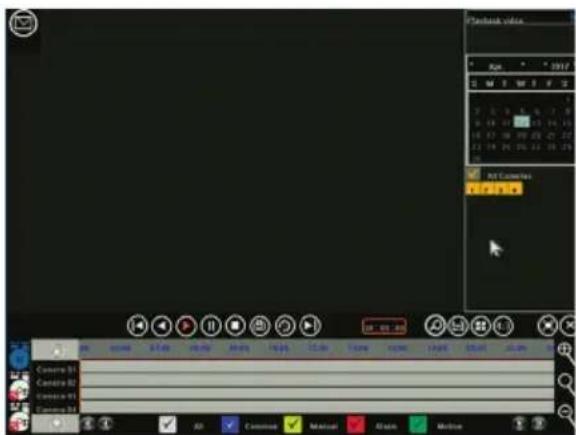
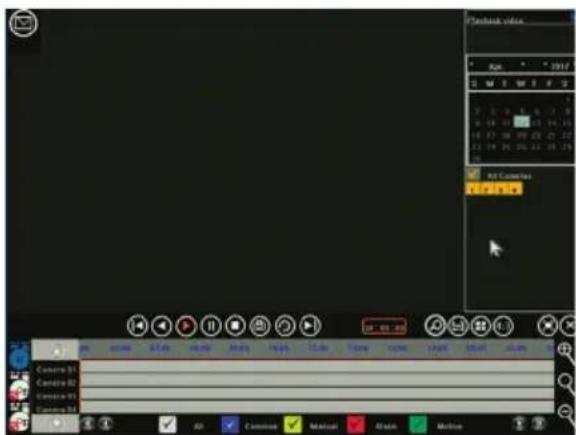
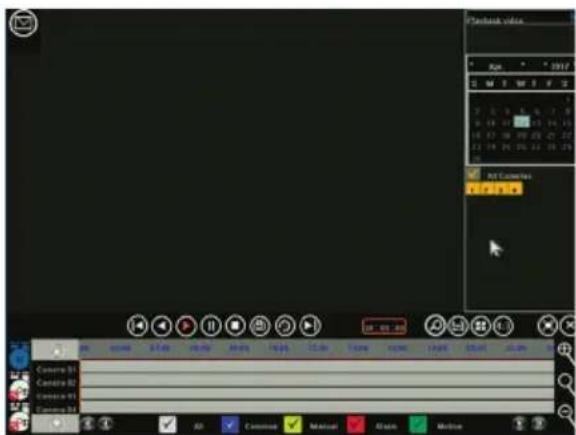
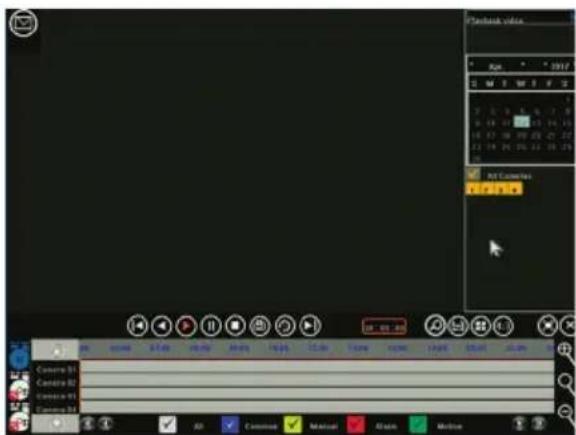
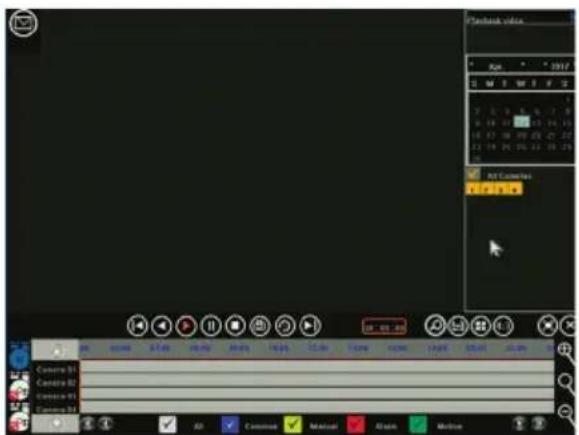
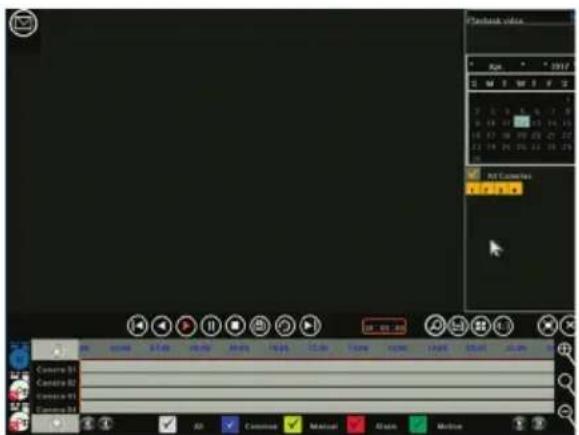
When watching back earlier recordings, you get the interface like figure "C":
The 4 grey timelines at the bottom represent the 4 different channels. Differently coloured areas indicate different types of recording (scheduled, manual, alarm or triggered by motion detection).
Drag the timeline left or right to scroll in time, use the mouse's scroll-wheel to zoom the timeline.
Double click on a specific time to play back the recording starting from the selected time.
9. Mobile Application
To access the DVR on your smartphone make sure the DVR is connected to the router and the network is configured correctly. Download and open the App "N_EYE PRO", login or register your account or use local login if you only need access from within the local network. Add device using the plus sign and select Network Device. Scan the QR-tag shown at the DVR under P2P Cloud or copy the requested network parameters. The App can automatically detect the number of cameras on this DVR. After saving you will see all cameras added. On the top-right corner specific cameras can be switched on and off. Other options in the App include playback and manual recording on smartphone.
Right-Click Menu
| Image Color | Brightness | ||||
| Contrast | |||||
| Chroma | |||||
| Saturation | |||||
| Video Mode Settings | AHD | ||||
| TVI | |||||
| AUTO | |||||
| CVI | |||||
| Electronic Zoom | Click and drag in bottom right image to zoom in | ||||
| PTZ control | not applicable with our cameras | ||||
| Video Query | Select date and camera, search for made recordings in bottom timeline | ||||
| Play / Pause Play / Pa | int video | ||||
| Stop Stop the video, screens close | |||||
| Fast Forward / Rewind | est Forward / Rewind | ||||
| Slow / Fast Play the video speed of 1X/2X/4X/8X/16X | |||||
| Screen splitting mode | ch 4 cameras simultaneously | ||||
| Backup Backup recom | ns on USB hard disk | ||||
| Capture | Save still frame of the selected channel | ||||
| Full Screen | Single-click to enter full screen | ||||
| Electronic zoom | Use the thumbnail on the bottom right corner to select an area to zoom in to | ||||
| Exit Playback | Return to preview page | ||||
| Main Menu | Backup | ||||
| Record Configuration | Basic / Manual / Event | Channel | default = ch. 1, select which channel to set. | ||
| Stream type | video = video only, composite = video and audio | ||||
| Video quality | set quality (higher quality = larger files) | ||||
| Resolution | automatically defined by the camera | ||||
| Bit rate limit | choose preset value or set manually | ||||
| Frame rate | choose any value, default is "full frame rate"; | ||||
| Schedule | Channel Select | the camera for which to set the recording schedule | |||
| Select the desired type of recording (No, Common or Motion) | |||||
| Click and drag to set the schedule for the entire week | |||||
| Copy the selected schedule to other cameras if needed. | |||||
| System Setting | Output Mode | Menu Output | Camera Name | Shown on each channel display | |
| Camera Mosaic | Define up to 4 areas which are blocked in recording (security/privacy) | ||||
| Video Loss | Set the required action when signal loss is detected | ||||
| Motion detection | Set sensitivity | ||||
| Set the required action(s) when motiomn is detected: recording one or more channels, showing fullscreen | |||||
| Area setting (motion mask): only movement in the highlighted areas triggers recording | |||||
| Color Settings | Set brightness, contrast, chroma and saturation for each channel individually | ||||
| Output Config | Menu Transparency | Set the transparency of menu item background | |||
| Screen Saver Time | Set the time after which the screen automatically switches off | ||||
| Resolution | Set the resolution sent over VGA and HDMI output | ||||
| Main Menu | System Setting | System Configure | Device Name | |
| Auto logout | ||||
| Video Standard | ||||
| Language | ||||
| System Time | ||||
| Date Format | ||||
| Time Format | ||||
| Time Zone | ||||
| Summer Time (daylight saving time) | ||||
| User Management | Add user | |||
| Delete User | ||||
| Edit User | ||||
| User Auhorization | ||||
| Version Info | ||||
| System Update | ||||
| Hard Disk Management | Disk Type | Shows the code of the product model | ||
| Disk Capacity | Shows the total capacity of the hard disk | |||
| Free Space | Shows the remaining capacity of the hard disk | |||
| Status | Current working status of the hard disk | |||
| Initialize the hard disk | Start the disk format operation (needed before first use) | |||
| Network Parameters | Basic | Network card type you can choose different network card based on your needs | ||
| Obtain IP address automatically | ||||
| Update | can re-obtain a DHCP lease | |||
| IP address | ||||
| Subnet mask | ||||
| Gateway | ||||
| MAC address | Shows physical address of the current network interface | |||
| WLAN mode | Only applicable after new network card is installed | |||
| Advanced Config | Set DDNS Parameters | |||
| E-mail Settings | ||||
| PPPOE | ||||
| Port Setting | ||||
| Alarm Management | Alarm Input | Channel | ||
| Alarm status | ||||
| Alarm time | ||||
| Linkage mode | ||||
| Copy to other channels | ||||
| Alarm Output | Channel | |||
| Output Alarm Delay | ||||
| Alarm Time | ||||
| Copy to other channels | ||||
| Exception Configuration | ||||
| System Info | Stream Statistics | |||
| Log Info | ||||
| Export Configuration | ||||
| Import Configuration | ||||
| Sensor | Moederbordsensor Industrieel geïntegreerde microprocessor | |||
| Besturingssysteem Geïntegreerd LINUX besturingssysteem | ||||
| Systeem | Signaal Ondersteuning AHD, IPC, CVBS, TVI, CVI (5 in 1) | |||
| Videocodering | H.264 | |||
| Videoformaat 4CH/8CH 1080p | ||||
| Videoframe PAL: 1 - 25 fps / NTSC: 1 - 30 fps | ||||
| Dual stream Ondersteuning | ||||
| Interface USB-poort (2x), RS485, SATA HDD (max. 8 GB), VGA, HDMI, CVBS, BNC (4x/8x), RCA invoer, RCA uitvoer | ||||
| Opname-manager | Opnamemodus Automatisch / Handmatig / Gepland / Bewegingsdetectie / Alarmopname | |||
| Opnameresolutie | Zelfaanpassend | |||
| Afspelen 4CH 1080p | ||||
| Afspeelmodus Direct / Zoeken / Gebeurtenis | ||||
| Back-upmodus USB / netwerk | ||||
| Netwerk | Protocol Ondersteuning TCP/IP, UDP, PPPoE, DHCPDDDNSNTP etc. | |||
| P2P-cloud N_EYE Pro APP / www.yunyis.com | ||||
| Ondersteunde toegang Mobiele app (iOS / Android), UTC-bediening, 3G, WiFi | ||||
| Voeding | Voeding 12 VDC | |||
| Stroomverbruik < 15W (geen HDD) | ||||
| Andere | Bedrijfsomstandigheden | -10 - 55 °C / 10 - 90% luchtvochtigheid | ||
| Technisch 255 x 215 x 45 mm / < 1,5 kg (geen HDD) | ||||
text_image
CH01 CH02 JINT.04.12: Week 15:28:35:00:00:00:00:00:00 CH03 CH04Afbeelding "A"
text_image
Record Config Basic Manual Event Schedule Camera CH 1 B:80, B:30 Sun. Mon. Tue. Wed. Thu. Fri. Sat. No Record Common Motion Copy to All Cameras Copy OK Cancel ApplyAfbeelding "B"
text_image
Flashbox value Run: 1997 M 8 M 8 F 3 F 0.0 0.0 0.0 0.0 F 0.0 0.0 0.0 0.0 F 0.0 0.0 0.0 0.0 F 0.0 0.0 0.0 0.0 F 0.0 0.0 0.0 0.0 F 0.0 0.0 0.0 0.0 F 0.0 0.1 F 0.0 0.1 F 0.0 0.1 F 0.0 0.1 F 0.0 0.1 F 0.0 0.1 F 0.0 0.1 F 0.0 0.1 F 0.0 0.1 F 0.0 0.1 F 0.0 0.2 F 0.0 0.2 F 0.0 0.2 F 0.0 0.2 F 0.0 0.2 F 0.0 0.2 F 0.0 0.2 F 0.0 0.2 F 0.0 0.2 F 0.0 0.2 F 0.0 0.3 F 0.0 0.3 F 0.0 0.3 F 0.0 0.3 F 0.0 0.3 F 0.0 0.3 F 0.0 0.3 F 0.0 0.3 F 0.0 0.3 F 0.0 16:45:45:45:45:45:45:45:45:45:45:45:45:45:45:45:45:45:45:45:45:45:45:45:45:45:45:45:45:45:45:45:45:45:45: F-1, F-2, F-3, F-4, F-5, F-6, F-7, F-8, F-9, F-16, F-17, F-18, F-19, F-26, F-27, F-28, F-29, F-36, F-37, F-38, F-39, F-46, F-47, F-48, F-49, F-56, F-57, F-58, F-59, F-66, F-67, F-68, F-69, F-76, F-77, F-78, F-79, F-86, F-87, F-88, F-89, F-96, F-97, F-98, F-99, F-166, F-167, F-168, F-169, F-176, F-177, F-178, F-179, F-186, F-187, F-188, F-189, F-196, F-197, F-198, F-199, F-266, F-267, F-268, F-269, F-276, F-277, F-278, F-279, F-286, F-287, F-288, F-289, F-296, F-297, F-298, F-299, F-366, F-367, F-368, F-369, F-376, F-377, F-378, F-379, F-386, F-387, F-388, F-389, F-396, F-397, F-398, F-399, F-466, F-467, F-468, F-469, F-476, F-477, F-478, F-479, F-486, F-487, F-488, F-489, F-496, F-497, F-498, F-499, F-566, F-567, F-568, F-569, F-576, F-577, F-578, F-579, F-586, F-587, F-588, F-589, F-596, F-597, F-598, F-599, F-666, F-667, F-668, F-669, F-676, F-677, F-678, F-679, F-686, F-687, F-688, F-689, F-696, F-697, F-698, F-699, F-766, F-767, F-768, F-769, F-776, F-777, F-778, F-779, F-786, F-787, F-788, F-789, F-796, F-797, F-798, F-799, F -1 , C -1 , C -2 , C -3 , C -4 , C -5 , C -6 , C -7 , C -8 , C -9 , C -10 , C -11 , C -12 , C -13 , C -14 , C -15 , C -16 , C -17 , C -18 , C -19 , C -20 , C -21 , C -22 , C -23 , C -24 , C -25 , C -26 , C -27 , C -28 , C -29 , C -36 , C -36 : C -36 : C -36 : C -36 : C -36 : C -36 : C -36 : C -36 : C -36 : C -36 : C -36 : C -36 : C -36 : C -36 : C -36 : C -36 : C -36 : C -36 : C -36 : C -36 : C -36 : C Contra B1 C Contra B2 C Contra B3 C Contra B4 C Contra B5 C Contra B6 C Contra B7 C Contra B8 C Contra B9 C Contra B10 C Contra B11 C Contra B12 C Contra B13 C Contra B14 C Contra B15 C Contra B16 C Contra B17 C Contra B18 C Contra B19 C Contra B20 C Contra B21 C Contra B22 C Contra B23 C Contra B24 C Contra B25 C Contra B26 C Contra B27 C Contra B28 C Contra B29 C Contra B30 C Contra B31 C Contra B32 C Contra B33 C Contra B34 C Contra B35 C Contra B36 C Contra B37 C Contra B38 C Contra B39 C Contra B40 C Contra B41 C Contra B42 C Contra B43 C Contra B44 C Contra B45 C Contra B46 C Contra B47 C Contra B48 C Contra B49 C Contra B50 C Contra B51 C Contra B52 C Contra B53 C Contra B54 C Contra B55 C Contra B56 C Contra B57 C Contra B58 C Contra B59 C Contra B60 C Contra B61 C Contra B62 C Contra B63 C Contra B64 C Contra B65 C Contra B66 C Contra B67 C Contra B68 C Contra B69 C Contra B70 C Contra B71 C Contra B72 C Contra B73 C Contra B74 C Contra B75 C Contra B76 C Contra B77 C Contra B78 C Contra B79 C Contra B80 C Contra B81 C Contra B82 C Contra B83 C Contra B84 C Contra B85 C Contra B86 C Contra B87 C Contra B88 C Contra B89 C Contra B9AAfbeelding "C"
1. Aansluiten
text_image
Record Config Basic Manual Event Schedule Camera CH 1 B:80, B:30 Sun. Mon. Tue. Wed. Thu. Fri. Sat. No Record Common Motion Copy to All Cameras Copy OK Cancel ApplyAbb "B"
text_image
Flashbox value Run 3917 M 8 M 8 F 8 F 0.0 0.0 0.0 0.0 F 0.0 0.0 0.0 0.0 F 0.0 0.0 0.0 0.0 F 0.0 0.0 0.0 0.0 F 0.0 0.0 0.0 0.0 F 0.0 0.0 0.0 0.0 F 0.0 0.1 F 0.0 0.1 F 0.0 0.1 F 0.0 0.1 F 0.0 0.1 F 0.0 0.1 F 0.0 0.1 F 0.0 0.1 F 0.0 0.1 F 0.0 0.1 F 0.0 0.2 F 0.0 0.2 F 0.0 0.2 F 0.0 0.2 F 0.0 0.2 F 0.0 0.2 F 0.0 0.2 F 0.0 0.2 F 0.0 0.2 F 0.0 0.2 F 0.0 0.3 F 0.0 0.3 F 0.0 0.3 F 0.0 0.3 F 0.0 0.3 F 0.0 0.3 F 0.0 0.3 F 0.0 0.3 F 0.0 0.4 F 0.0 0.4 F 0.0 0.4 F 0.0 0.4 F 0.0 0.4 F 0.0 0.4 F 0.0 0.4 F 0.0 0.5 F 0.0 0.5 F 0.0 0.5 F 0.0 0.5 F 0.0 0.5 F 0.0 0.5 F 0.0 1. F 1:1:1:1:1:1:1:1:1:1:1:1:1:1:1:1:1:1:1:1:1:1:1:1:1:1:1:1:1:1:1:1:1:1:1:1:1:1:1:1: Contra B1 Contra B2 Contra B3 Contra B4Abb "C"
1. Verbinden
text_image
Record Config Basic Manual Event Schedule Camera CH 1 B:80, B:30 Sun. Mon. Tue. Wed. Thu. Fri. Sat. No Record Common Motion Copy to All Cameras Copy OK Cancel ApplyFigure "B"
text_image
Trackbox vial Apt 1997 0 M 1 M 2 M 3 M 4 M 5 M 6 M 7 M 8 M 9 M 10 M 11 M 12 M 13 M 14 M 15 M 16 M 17 M 18 M 19 M 20 M 21 M 22 M 23 M 24 M 25 M 26 M AC Comunes 1.2.1.1.1.1.1.1.1.1.1.1.1.1.1.1.1.1.1.1.1.1.1.1.1.1.1.1.1.1.1.1.1.1.1.1.1.1.1.1.1.1.1.1.1.1.1.1.1.1.1.1.2 Comma B: Comma B: Comma B: Comma B: COM: COM: COM: COM: COM: COM: COM: COM: COM: COM: COM: COM: COM: COM: COM: COM: COM: COM: COM: COM: COM: COM: COM: COM: COM: COM: COM: COM: COM: COM: COM: COM: COM: COM: COM: COM: COM: COM: COM: COM: COM: COM: COM: COM: COM: COM: COM: COM: COM: COM: COM: Com: COM: COM: COM: COM: COM: COM: COM: COM: COM: COM: COM: COM: COM: COM: COM: COM: COM: COM: COM: COM: COM: COM: COM: COM: COM: COM: COM: COM: COM: COM: COM: COM: COM: COM: COM: COM: COM: COM: COM: COM: COM: COM: COM: COM: COM: COM: COM :Figure "C"
1. Connexion
text_image
Record Config Basic Manual Event Schedule Camera CH 1 8:30, 8:16. Sun. Mon. Tue. Wed. Thu. Fri. Sat. No Record Common Motion Copy to All Cameras Copy OK Cancel ApplyFigura "B"
text_image
Concerta 51 Concerta 52 Concerta 53 Concerta 54 Concerta 55 Concerta 56 Concerta 57 Concerta 58 Concerta 59 Concerta 60 Concerta 61 Concerta 62 Concerta 63 Concerta 64 Concerta 65 Concerta 66 Concerta 67 Concerta 68 Concerta 69 Concerta 70 Concerta 71 Concerta 72 Concerta 73 Concerta 74 Concerta 75 Concerta 76 Concerta 77 Concerta 78 Concerta 79 Concerta 80 Concerta 81 Concerta 82 Concerta 83 Concerta 84 Concerta 85 Concerta 86 Concerta 87 Concerta 88 Concerta 89 Concerta 90 Concerta 91 Concerta 92 Concerta 93 Concerta 94 Concerta 95 Concerta 96 Concerta 97 Concerta 98 Concerta 99 Concerta 100Figura "C"
1. Conexión
text_image
Record Config Basic Manual Event Schedule Camera CH 1 B:80, B:30 Sun. Mon. Tue. Wed. Thu. Fri. Sat. No Record Common Motion Copy to All Cameras Copy OK Cancel ApplyFigura "B"
text_image
Flashbox value Run 2017 M 8 M 9 F 10 7 0 1 2 3 4 5 6 7 8 9 10 11 12 13 14 15 16 17 18 19 20 21 22 23 24 25 26 27 28 RT Compters 1:2:3:4:5:6:7:8:9:10:11:12:13:14:15:16:17:18:19:20:21:22:23:24:25:26:27:28:29:30:31:32:33:34:35:36:37:38:39:40:41:42:43:44:45:46:47:48:49:50:51:52:53:54:55:56:57:58:59:60:61:62:63:64:65:66:67:68:69:70:71:72:73:74:75:76:77:78:79:80:81:82:83:84:85:86:87:88:89:90:91:92:93:94:95:96:97:98:99: Contra 01 Contra 02 Contra 03 Contra 04 Contra 05 Contra 06 Contra 07 Auto Common Medical Action MotionFigura "C"
1. Ligação
text_image
Record Config Basic Manual Event Schedule Camera CH 1 B:80, B:30 Sun. Mon. Tue. Wed. Thu. Fri. Sat. No Record Common Motion Copy to All Cameras Copy OK Cancel ApplyFigur "B"
text_image
Trackbox vial Apt 1997 0 M 1 M 2 M 3 M 4 M 5 M 6 M 7 M 8 M 9 M 10 M 11 M 12 M 13 M 14 M 15 M 16 M 17 M 18 M 19 M 20 M 21 M 22 M 23 M 24 M 25 M 26 M AC Comunes 1.2.1.1.1.1.1.1.1.1.1.1.1.1.1.1.1.1.1.1.1.1.1.1.1.1.1.1.1.1.1.1.1.1.1.1.1.1.1.1.1.1.1.1.1.1.1.1.1.1.1.1.2 Comma B: Comma B: Comma B: Comma B: COM COM COM COM COM COM COM COM COM COM COM COM COM COM COM COM COM COM COM COM COM COM COM COM COM COM COM COM COM COM COM COM COM COM COM COM COM COM COM COM COM COM COM COM COM COM COM COM COM COM COMFigur "C"
1. Anslutning
text_image
Record Config Basic Manual Event Schedule Camera CH 1 B:80, B:30 Sun. Mon. Tue. Wed. Thu. Fri. Sat. No Record Common Motion Copy to All Cameras Copy OK Cancel ApplyFigur "B"
text_image
Trackbox vial Apt 1997 0 M 1 M 2 M 3 M 4 M 5 M 6 M 7 M 8 M 9 M 10 M 11 M 12 M 13 M 14 M 15 M 16 M 17 M 18 M 19 M 20 M 21 M 22 M 23 M 24 M 25 M 26 M AC Comunes 1.2.1.1.1.1.1.1.1.1.1.1.1.1.1.1.1.1.1.1.1.1.1.1.1.1.1.1.1.1.1.1.1.1.1.1.1.1.1.1.1.1.1.1.1.1.1.1.1.1.1.1.2 Comma B: Comma B: Comma B: Comma B: COM COM COM COM COM COM COM COM COM COM COM COM COM COM COM COM COM COM COM COM COM COM COM COM COM COM COM COM COM COM COM COM COM COM COM COM COM COM COM COM COM COM COM COM COM COM COM COM COM COM COMFigur "C"
1. Tilslutning
text_image
Record Config Basic Manual Event Schedule Camera CH 1 B:80, B:30 Sun. Mon. Tue. Wed. Thu. Fri. Sat. No Record Common Motion Copy to All Cameras Copy OK Cancel ApplyKuva "B"
text_image
Flashbox value Run: 1917 M 8 M 8 F 3 F 0.0 0.0 0.0 0.0 F 0.0 0.0 0.0 0.0 F 0.0 0.0 0.0 0.0 F 0.0 0.0 0.0 0.0 F 0.0 0.0 0.0 0.0 F 0.0 0.0 0.0 0.0 F 0.0 0.1 F 0.0 0.1 F 0.0 0.1 F 0.0 0.1 F 0.0 0.1 F 0.0 0.1 F 0.0 0.1 F 0.0 0.1 F 0.0 0.1 F 0.0 0.1 F 0.0 0.2 F 0.0 0.2 F 0.0 0.2 F 0.0 0.2 F 0.0 0.2 F 0.0 0.2 F 0.0 0.2 F 0.0 0.2 F 0.0 0.2 F 0.0 0.2 F 0.0 0.3 F 0.0 0.3 F 0.0 0.3 F 0.0 0.3 F 0.0 0.3 F 0.0 0.3 F 0.0 0.3 F 0.0 0.3 F 0.0 0.3 F 0.0 16:45:45:45:45:45:45:45:45:45:45:45:45:45:45:45:45:45:45:45:45:45:45:45:45:45:45:45:45:45:45:45:45:45:45: F-1, F-2, F-3, F-4, F-5, F-6, F-7, F-8, F-9, F-10, F-11, F-12, F-13, F-14, F-15, F-16, F-17, F-18, F-19, F-20, F-21, F-22, F-23, F-24, F-25, F-26, F-27, F-28, F-29, F-30, F-31, F-32, F-33, F-34, F-35, F-36, F-37, F-38, F-39, F-40, F-41, F-42, F-43, F-44, F-45, F-46, F-47, F-48, F-49, F-50, F-51, F-52, F-53, F-54, F-55, F-56, F-57, F-58, F-59, F-60, F-61, F-62, F-63, F-64, F-65, F-66, F-67, F-68, F-69, F-70, F-71, F-72, F-73, F-74, F-75, F-76, F-77, F-78, F-79, F-80, F-81, F-82, F-83, F-84, F-85, F-86, F-87, F-88, F-89, F-90, F-91, F-92, F-93, F-94, F-95, F-96, F-97, F-98, F-99, F-16:46:46:46:46:46:46:46:46:46:46:46:46:46:46:46:46:46:46:46:46:46:46:46:46:46:46:46:46:46:46:46:46:46:47: Contra B1 Contra B2 Contra B3 Contra B4 Contra B5 Contra B6 Contra B7 Contra B8 Contra B9 Contra B10 Contra B11 Contra B12 Contra B13 Contra B14 Contra B15 Contra B16 Contra B17 Contra B18 Contra B19 Contra B20 Contra B21 Contra B22 Contra B23 Contra B24 Contra B25 Contra B26 Contra B27 Contra B28 Contra B29 Contra B30 Contra B31 Contra B32 Contra B33 Contra B34 Contra B35 Contra B36 Contra B37 Contra B38 Contra B39 Contra B40 Contra B41 Contra B42 Contra B43 Contra B44 Contra B45 Contra B46 Contra B47 Contra B48 Contra B49 Contra B50 Contra B51 Contra B52 Contra B53 Contra B54 Contra B55 Contra B56 Contra B57 Contra B58 Contra B59 Contra B60 Contra B61 Contra B62 Contra B63 Contra B64 Contra B65 Contra B66 Contra B67 Contra B68 Contra B69 Contra B70 Contra B71 Contra B72 Contra B73 Contra B74 Contra B75 Contra B76 Contra B77 Contra B78 Contra B79 Contra B80 Contra B81 Contra B82 Contra B83 Contra B84 Contra B85 Contra B86 Contra B87 Contra B88 Contra B89 Contra B90 Contra B91 Contra B92 Contra B93 Contra B94 Contra B95 Contra B96 Contra B97 Contra B98 Contra B99 F-16:46:46:46:46:46:46:46:46:46:46:46:46:46:46:46:46:46:46:46:46:46:46:46:46:46:46:46:46:46:46:46:46Kuva "C"
1. Liitäntä
text_image
Record Config Basic Manual Event Schedule Camera CH 1 B:80, B:30 Sun. Mon. Tue. Wed. Thu. Fri. Sat. No Record Common Motion Copy to All Cameras Copy OK Cancel ApplyObrázek "B"
text_image
Playback video Apr 2017 A# 5 4 3 2 1 0 2 3 4 5 6 7 8 9 10 11 12 13 14 15 16 17 18 19 20 23 24 25 26 27 28 29 30 31 32 33 34 35 36 37 38 39 40 45 46 47 48 49 50 55 56 57 58 59 65 66 67 68 69 75 76 77 78 85 86 87 88 95 96 97 105 106 107 115 116 117 125 126 127 135 136 137 145 146 147 155 156 157 165 166 167 175 176 177 185 186 187 195 196 197 205 206 207 215 216 217 225 226 227 235 236 237 245 246 247 255 256 257 265 266 267 275 276 277 285 286 287 295 296 297 305 306 307 315 316 317 325 326 327 335 336 337 345 346 347 355 356 357 365 366 367 375 376 377 385 386 387 395 396 397 405 406 407 415 416 417 425 426 427 435 436 437 445 446 447 455 446 447 465 446 447 475 446 447 485 446 447 495 446 447 505 446 447 515 446 447 525 446 447 535 446 447 545 446 447 555 446 447 565 446 447 575 446 447 585 446 447 595 446 447 605 446 447 615 446 447 625 446 447 635 446 447 645 446 447 655 446 447 665 446 447 675 446 447 685 446 447 695 446 447 705 446 447 715 446 447 725 446 447 735 446 447 745 446 447 755 446 447 765 446 447 775 446 447 785 446 447 795 446 447 805 446 447 815 446 447 825 446 447 835 446 447 845 446 447 855 446 447 865 4Obrázek "C"
1. Připojení
text_image
Record Config Basic Manual Event Schedule Camera CH 1 B:80, B:30 Sun. Mon. Tue. Wed. Thu. Fri. Sat. No Record Common Motion Copy to All Cameras Copy OK Cancel ApplyРисунок "В"
text_image
Playback video Apr 2017 A# 5 4 3 2 1 0 2 3 4 5 6 7 8 9 10 11 12 13 14 15 16 17 18 19 20 23 24 25 26 27 28 29 30 31 32 33 34 35 36 37 38 39 40 45 46 47 48 49 50 55 56 57 58 59 65 66 67 68 69 75 76 77 78 85 86 87 88 95 96 97 105 106 107 115 116 117 125 126 127 135 136 137 145 146 147 155 156 157 165 166 167 175 176 177 185 186 187 195 196 197 205 206 207 215 216 217 225 226 227 235 236 237 245 246 247 255 256 257 265 266 267 275 276 277 285 286 287 295 296 297 305 306 307 315 316 317 325 326 327 335 336 337 345 346 347 355 356 357 365 366 367 375 376 377 385 386 387 395 396 397 405 406 407 415 416 417 425 426 427 435 436 437 445 446 447 455 447 465 448 475 449 485 450 495 451 505 452 515 453 525 454 535 455 545 456 555 457 565 458 575 459 585 460 595 605 615 625 635 645 655 665 675 685 695 705 715 725 735 745 755 765 775 785 795 805 815 825 835 845 855 865 875 885 895 905 915 925 935 945 955 965 975 985 995 1000Рисунок "С"
1. Подключение
We, NEDIS, as manufacturer, declare that product SAS-AHDxxx from the brand König, produced in China was tested according to all relevant CE standards / regulations and passed all tests. This includes, but is not limited to the R&TTE Directive 1999/5/EC (from June 2017, this will be replaced by the RED Directive 2014/53/EU).
The complete Declaration of Conformity (+ safety datasheet if applicable) can be found and downloaded via http://webshop.nedis.com
Maintenance:
Clean the product only with a dry cloth.
Do not use cleaning solvents or abrasives.
Warranty:
Any changes and/or modifications to the product will void the warranty. We cannot accept any liability for damage caused by incorrect use of this product.
Disclaimer:
Designs and specifications are subject to change without notice. All logos, brands and product names are trademarks or registered trademarks of their respective holders and are hereby recognized as such.
Disposal:
- This product is designated for separate collection at an appropriate collection point. Do not dispose of this product with household waste. - For more information, contact the retailer or the local authority responsible for waste management.
This product has been manufactured and supplied in compliance with all relevant regulations and directives, valid for all member states of the European Union. It also complies to all applicable specifications and regulations in the country of sales. Formal documentation is available upon request. This includes, but is not limited to: Declaration of Conformity (and product identity), Material Safety Data Sheet, product test report.
For other compliant-related information, please contact customer service desk for support: via website: http://www.nedis.com via e-mail: service@nedis.com via telephone: +31 (0)73-5991055 (during office hours) NEDIS B.V., De Tweeling 28, 5215 MC 's-Hertogenbosch, THE NETHERLANDS