
MSFD20U - Other computer accessories SONY - Free user manual and instructions
Find the device manual for free MSFD20U SONY in PDF.



| Product type | USB floppy disk drive with Memory Stick slot |
| Brand | Sony |
| Model | MSFD-20U |
| Dimensions (W × H × D) | Approx. 104 × 24.3 × 143 mm (excluding protruding parts) |
| Weight | Approx. 350 g |
| Power supply | 5 V DC via USB connector, consumption 2.5 W |
| Compatible floppy disk types | 3.5-inch 2HD (1.44 MB or 1.2 MB) and 2DD (720 KB) |
| Supported floppy disk formats | 1.44 MB, 1.2 MB, 720 KB |
| Memory Stick compatibility | Standard Memory Stick and MagicGate Memory Stick |
| Floppy disk read/write speed | 2× (standard speed) |
| Memory Stick read/write speed | Up to 500 KB/s |
| Supported operating systems | Windows 98 SE, Me, 2000, XP Home and Professional |
| Minimum system requirements | Pentium II 400 MHz, 64 MB RAM, USB port, CD-ROM drive |
| Connection type | USB (bus-powered, root hub recommended) |
| Operating temperature | 5 °C to 35 °C |
| Operating humidity | 20% to 80% (no condensation) |
| Maintenance and cleaning | Do not expose to heat, dust, moisture; avoid magnetic fields |
| Safety | Do not cover the device, do not insert objects into slots, observe Memory Stick polarity |
| Spare parts and repairability | Contact Sony customer service or an authorized dealer |
| Included accessories | Driver software CD-ROM, User Guide, Installation Guide, Warranty card |
| Warranty | Valid only with included accessories and in specified countries of sale |
Frequently Asked Questions - MSFD20U SONY
User questions about MSFD20U SONY
0 question about this device. Answer the ones you know or ask your own.
Ask a new question about this device
Download the instructions for your Other computer accessories in PDF format for free! Find your manual MSFD20U - SONY and take your electronic device back in hand. On this page are published all the documents necessary for the use of your device. MSFD20U by SONY.
USER MANUAL MSFD20U SONY
USB 2x Speed Floppy Disk Drive
with "Memory Stick" Slot
User's Guide GB
User's Guide RU
User's Guide CS

MEMORY STICK TM
MSFD-20U
2002 Sony Corporation
Safety Regulations
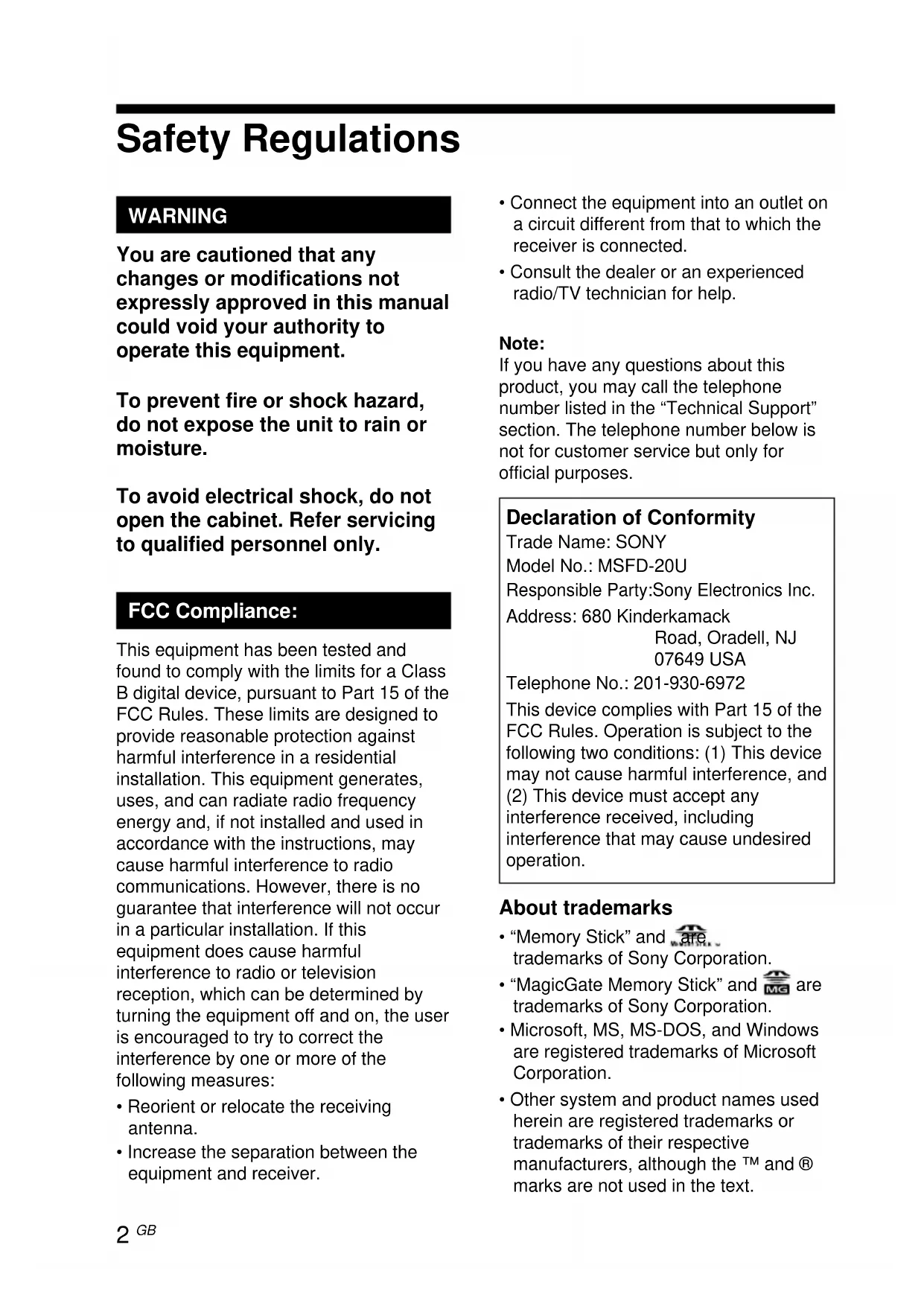
WARNING
You are cautioned that any changes or modifications not expressly approved in this manual could void your authority to operate this equipment.
To prevent fire or shock hazard, do not expose the unit to rain or moisture.
To avoid electrical shock, do not open the cabinet. Refer servicing to qualified personnel only.
FCC Compliance:
This equipment has been tested and found to comply with the limits for a Class B digital device, pursuant to Part 15 of the FCC Rules. These limits are designed to provide reasonable protection against harmful interference in a residential installation. This equipment generates, uses, and can radiate radio frequency energy and, if not installed and used in accordance with the instructions, may cause harmful interference to radio communications. However, there is no guarantee that interference will not occur in a particular installation. If this equipment does cause harmful interference to radio or television reception, which can be determined by turning the equipment off and on, the user is encouraged to try to correct the interference by one or more of the following measures:
- Reorient or relocate the receiving antenna.
- Increase the separation between the equipment and receiver.
- Connect the equipment into an outlet on a circuit different from that to which the receiver is connected.
- Consult the dealer or an experienced radio/TV technician for help. If you have any questions about this product, you may call the telephone number listed in the "Technical Support" section. The telephone number below is not for customer service but only for official purposes. Trade Name: SONY Model No.: MSFD-20U Responsible Party: Sony Electronics Inc. Address: 680 Kinderkamack Road, Oradell, NJ 07649 USA Telephone No.: 201-930-6972 This device complies with Part 15 of the FCC Rules. Operation is subject to the following two conditions: (1) This device may not cause harmful interference, and (2) This device must accept any interference received, including interference that may cause undesired operation.
- "Memory Stick" and are trademarks of Sony Corporation. "MagicGate Memory Stick" and are trademarks of Sony Corporation.
- Microsoft, MS, MS-DOS, and Windows are registered trademarks of Microsoft Corporation.
- Other system and product names used herein are registered trademarks or trademarks of their respective manufacturers, although the TM and R marks are not used in the text.
Note:
Declaration of Conformity
About trademarks
Before using this device, be sure to read the end user license agreements for the software provided with your computer.
Our product guarantee is valid only when the supplied accessories (including software) are used in the specified or recommended system environment, in accordance with this User's Guide, and applies only to this floppy disk drive. Our customer service and user support apply only under these product guarantee conditions. Please note that we cannot accept responsibility for failure of the computer or other devices, incompatibility with special hardware, operating problems caused by improper installation of software, loss of data, discs or other accidental or incidental damage that might occur when using this product. The guarantee and user support for this product are valid only within the countries or sales regions specified on the warranty card. Copyright laws prohibit the copying of all or part of the supplied software and User's Guide, or loaning the software, without obtaining permission of the copyright holder. We cannot accept responsibility for any direct or indirect financial damage or loss of profit that might occur when using the supplied software. The supplied software can only be used with this product. Specifications of the supplied software may be changed without notice in the interest of product improvement.
Table of Contents
Safety Regulations 2 List of Accessories 4 Introduction 4 System Requirements 4 Names and Functions of Parts 5 Inserting and Removing Floppy Disks 6 To Insert a Floppy Disk 6 To Remove a Floppy Disk 6 Inserting and Removing "Memory Stick" 7 To Insert a "Memory Stick" 7 To Remove a "Memory Stick" 7 Usage Notes 8 About Floppy Disks 9 About "Memory Stick" 10 Troubleshooting 12 Specifications 13 Technical Support 14
List of Accessories
When you unpack the carton, make sure that it contains all the accessories listed below. If anything is missing or damaged, contact your retailer.
- MSFD-20U - Driver Software CD-ROM
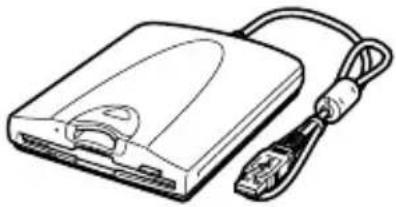
- User's Guide
- Setup Guide Warranty Card
Before you use the drive for the first time, you must install the driver software on your computer. Before connecting the drive to your computer for the first time, make sure that you perform the procedures outlined in the Setup Guide.
Introduction
The MSFD-20U (hereafter referred to as the "drive") has the following features:
Floppy disk drive with a 2x read/write speed. Comes equipped with a "Memory Stick" slot.
The drive is powered by your computer's USB connector, so there is no need to connect it to an external power source. Has a compact, lightweight design for portability.
System Requirements
The drive can be used with a computer with the following specifications:
CPU: Pentium II 400 MHz or faster RAM: 64 MB or more Computer with a USB connector Computer with a CD-ROM drive (used to install the driver software)
OS: Windows 98 Second Edition (Windows 98 SE)
Windows 2000 Professional
(Windows 2000)
Windows Millennium Edition (Windows Me)
Windows XP Home Edition
Windows XP Professional (Windows XP)
- Not supported by the NEC PC98 series.
Names and Functions of Parts
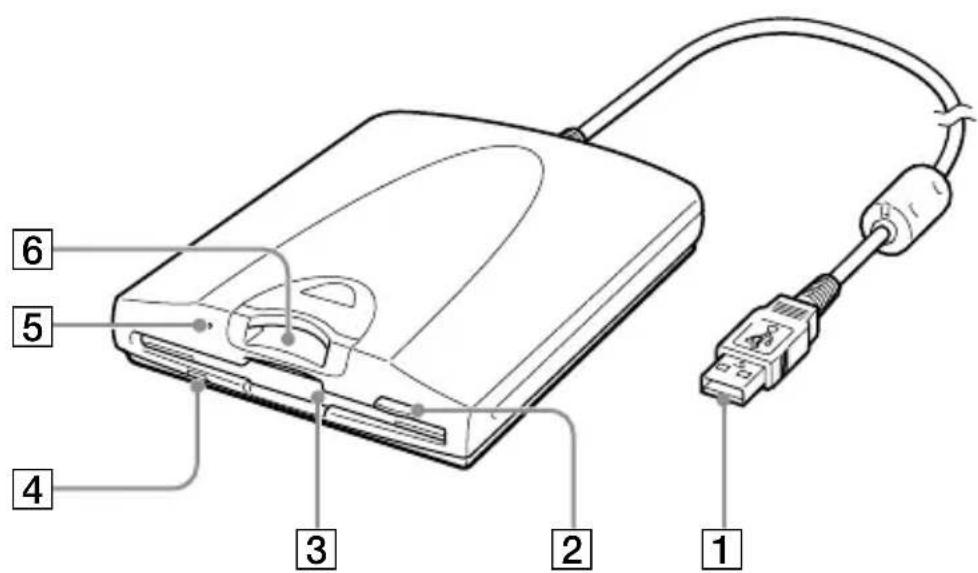
1 USB Connector
Connect to the USB connector of your computer.
2 Eject Button
Press this button to remove the floppy disk.
3 Floppy Disk Slot
Insert the floppy disk here.
4 Floppy Disk Busy Indicator
When data on a floppy disk is accessed, the indicator lights.
5 "Memory Stick" Busy Indicator
When you insert a "Memory Stick" into the "Memory Stick" slot, the indicator lights. When data on the "Memory Stick" is accessed, the indicator flashes.
6 "Memory Stick" Slot
Insert the "Memory Stick" here.
Inserting and Removing Floppy Disks
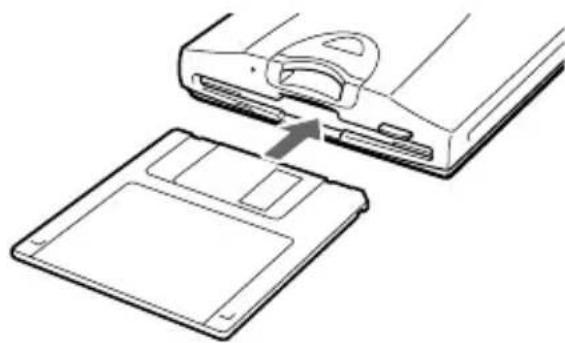
To Insert a Floppy Disk
1 Insert the floppy disk into the floppy disk slot.
Push until the floppy disk is fully inserted.
To Remove a Floppy Disk
CAUTION
Make sure that the floppy disk busy indicator is off before removing the floppy disk. Removing the floppy disk while the indicator is on may cause loss of data.
1 Make sure that the floppy disk busy indicator is off, and then press the eject button.
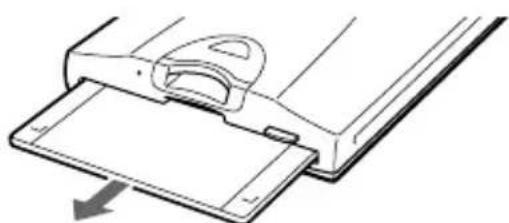
The floppy disk is ejected.
Floppy disk busy indicator Eject button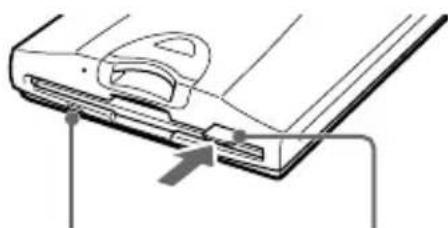
2 Remove the floppy disk from the drive.
Inserting and Removing "Memory Stick"
To Insert a "Memory Stick"
CAUTION
- Make sure that the floppy disk busy indicator is off before inserting a "Memory Stick". Inserting a "Memory Stick" while the floppy disk busy indicator is on may cause the drive to malfunction.
- Do not insert a "Memory Stick" into the floppy disk slot.
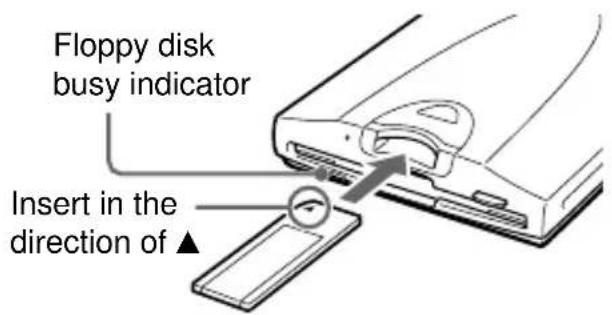
- Make sure that the "Memory Stick" is inserted in the correct direction. Inserting a "Memory Stick" in the wrong direction may damage the "Memory Stick" slot and/or "Memory Stick".
1 Make sure that the floppy disk busy indicator is off, and then insert the "Memory Stick" into the "Memory Stick" slot.
Insert the "Memory Stick" until you hear a click.
To Remove a "Memory Stick"
CAUTION
Make sure that the "Memory Stick" busy indicator is off before removing the "Memory Stick". Removing the "Memory Stick" while the indicator is on may cause loss of data.
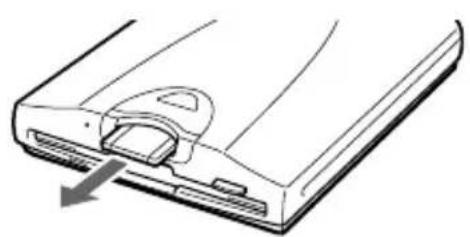
1 Make sure that the "Memory Stick" busy indicator is off, and then push the "Memory Stick".
"Memory Stick" busy indicator
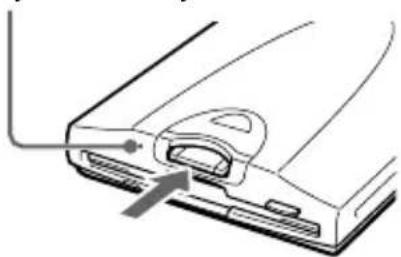
2 Move your hand away and remove the "Memory Stick". When you move your hand away, the "Memory Stick" is partially ejected so that you can remove it from the slot.
Usage Notes
Usage with other USB devices
Because the drive is a high-powered device (bus-powered; draws 500mA of current or less), it may malfunction if the power from the computer is not stable. Therefore, the drive operation is not guaranteed in the following situations.
- When using the drive at the same time as other high-powered USB devices such as hard disks, CD-ROM drives, scanners, and printers.
- When multiple drives are connected at the same time.
- When using the drive at the same time as a bus-powered hub.
- When you insert a "Memory Stick" at the same time a floppy disk is being accessed. (Before inserting a "Memory Stick" make sure that the floppy disk busy indicator is off.)
Connection to the USB hub
- Connect the drive directly to your computer's USB connector (root hub). Operation is not guaranteed when you connect the drive to other bus-powered hubs such as keyboard hubs.
Disconnection from the computer
The drive can be connected and disconnected to your computer while it is on. However, before disconnecting the drive with Windows XP, 2000, and Me, you must click the taskbar icon and perform the procedure to stop and remove the hardware below.
- Windows XP/2000
Stop "Sony USB Floppy" and "Sony MS Reader/Writer".
- Windows Me
Stop "USB Floppy" and "USB Disk".
Operating and storage environments
- Do not place the drive close to heat sources or in direct sunlight; do not place it in dusty, dirty, or humid locations; do not place it under precipitation such as rain; and do not leave it in a vehicle with the windows closed.
- If the drive interferes with the reception of radio or television signals, move the drive away from the radio or television.
- When using the drive, do not wrap it in cloth, sheets, or covers, as this may cause malfunctions or fire.
About Floppy Disks
Compatible floppy disks
The following floppy disks can be used with the drive.
| Disk | Format | Windows | |||
| XP | 2000 | Me | 98 SE | ||
| 2HD | 1.44 MB | ◎ | ◎ | ◎ | ◎ |
| 1.2 MB | ○ | ◎ | ○ | ○ | |
| 2DD | 720 KB | ○ | ◎ | ◎ | ◎ |
● : read, write, format possible.
○ : read, write possible.
CAUTION
- Do not use floppy disks that are incompatible with the drive, as this may damage the drive.
- If you use preformatted floppy disks, make sure that they are compatible with your OS.
Protecting data on floppy disks
To prevent accidental loss of important data, use the write-protect switch on floppy disks. When you slide the switch to the write-protect position, you can read data on floppy disks, but it is impossible to write or delete data.
Back of the floppy disk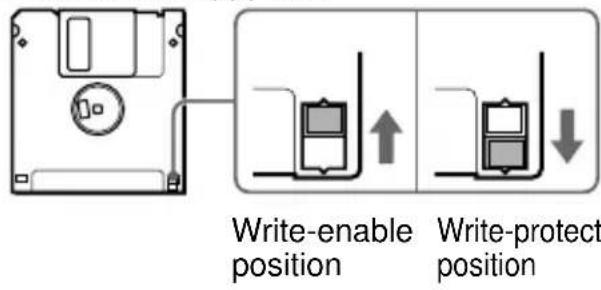
Handling notes
Make sure that you take the following precautions when handling floppy disks to ensure the safety of your data.
- Do not place floppy disks close to strong magnetic fields such as those generated by speakers or televisions, as this could cause loss of data.
- Do not place floppy disks close to heat sources or in direct sunlight as this may warp the floppy disk, making it unusable.
- Do not open the floppy disk shutter or touch the disk surface. Dirt or scratches on the disk surface may make reading and writing impossible.
- Avoid dropping liquids on floppy disks.
- To protect important data, remove floppy disks from the drive and store them in a case when they are not being used.
About "Memory Stick"
On "Memory Stick"
"Memory Stick" is a new compact, portable and versatile IC recording medium with a data capacity that exceeds a floppy disk. "Memory Stick" is specially designed for exchanging and sharing digital data among "Memory Stick" compatible products. Because it is removable, "Memory Stick" can also be used for external data storage.
Using "Memory Stick"
You can read data from and write data to "Memory Stick" using Windows file operations.
Compatible "Memory Stick"
You can use the following types of "Memory Stick" with the drive.
- "Memory Stick": standard blue "Memory Stick".
- "MagicGate Memory Stick": White "Memory Stick" incorporating copyright protection technology (MagicGate*).
- MagicGate is a coding method that allows copyright protection.
Note
Because the drive does not support the MagicGate standard, data recorded with the drive is not subject to MagicGate copyright protection.
Protecting data on "Memory Stick"
To prevent accidental loss of important data, use the write-protect switch on "Memory Stick". When you slide the switch to the write-protect position, you can read data on "Memory Stick", but it is impossible to write or delete data.
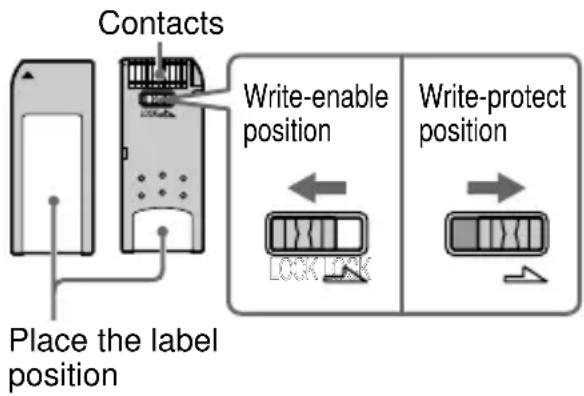
If an error message appears
If an error occurs when reading or writing to "Memory Stick" and a blue screen appears with a message indicating that data may be lost, "Memory Stick" may be write-protected. In this case, slide the write-protect switch as illustrated above to remove the protection. No data is erased from "Memory Stick" if this occurs.
Handling notes
Make sure that you take the following precautions when handling "Memory Stick" to ensure the safety of your data.
- "Memory Stick" are formatted at the time of manufacture. There is no need to reformat them. Formatting a "Memory Stick" with your computer may cause access problems when inserting it into other "Memory Stick" compatible devices.
- To use a "Memory Stick" formatted with a computer, reformat it with a "Memory Stick" compatible device.
- Other "Memory Stick" compatible devices require the "MemoryStick.ind" file on the "Memory Stick". Do not erase this file.
- Do not attempt to defragment or compress the "Memory Stick" drive.
Data may be lost if:
- A "Memory Stick" is removed from the drive or the computer turned off while reading or writing data.
- A "Memory Stick" is subjected to an electrostatic discharge or electrostatic noise.
- When affixing a label to "Memory Stick", only use "Memory Stick" labels. Do not use other types of labels.
- When storing or carrying a "Memory Stick", keep it in its original case.
- Avoid touching the connector or making it come in contact with metallic objects.
- Do not drop, bend, or submit "Memory Stick" to external shock.
- Do not disassemble or modify "Memory Stick".
- Avoid dropping liquids on "Memory Stick".
Troubleshooting
Before consulting your Sony representative, verify the following. If you are still unable to identify or solve your problem, consult your retailer or Sony representative.
| Problem Cause/Solution | |
| The computer does not detect the drive. | → Your computer and the drive may not be properly connected. Disconnect the drive from the computer and reconnect it. |
| Under Widows Me, 2000, and 98 SE, the “Memory Stick” Reader/Writer icon is not displayed in the “My Computer” window when the drive is connected. | → In Windows Me, 2000, and 98 SE, the “Memory Stick” Reader/Writer appears as a “Removable Disk” icon. |
| Cannot insert a floppy disk or “Memory Stick” into the drive. | → You may be trying to insert a floppy disk or “Memory Stick” in the wrong direction. Make sure that you insert them in the correct direction. |
Specifications
Floppy disk drive
Speed
Write 2.
Read 2
Compatible disks
3.5-in. 2HD (1.44 MB, 1.2 MB)
3.5-in. 2DD (720 KB)
"Memory Stick" slot
Write Speed
Up to 500 KB/s*
Read Speed
Up to 500 KB/s*
- Maximum read and write speeds depend on the capabilities of the computer and the type of "Memory Stick" used.
Compatible "Memory Stick"
"Memory Stick"
"MagicGate Memory Stick"
Interface
USB
Operating and storage environments
Temperature range
Operating temperature
5°C to 35°C
Storage temperature
-20°C to 55°C
Relative humidity
Operating humidity
20% to 80% (No condensation)
Storage humidity
15% to 90% (No condensation)
Power supply/Miscellaneous
Power supply
DC +5V (supplied by the USB connector)
Power consumption
2.5 W
Size
Approx. 104 x 24.3 x 143 mm
(W·H·D, excluding projections)
Mass
Approx. 350 g
These specifications and the appearance of the product are subject to change without notice.
Technical Support
Please consult the above sources before calling with questions about using MSFD-20U, or with technical questions about the drive or the supplied software. If using telephone or e-mail support, please have the following information available:
- Model number: MSFD-20U
- Serial number
- Date and place of purchase
- Computer maker and model number
- Computer specifications (CPU speed, memory size, OS version, etc.)
Local technical support is available only in the following sales regions:
- For Customer in the USA (Sony Electronics Inc):
Monday to Saturday
Toll free: 1-800-588-3847 - Free telephone support is offered for 90 days from your first call.
USA Technical Support only: Web based technical support is free of charge and is available 24 hours a day, 7 days a week.
Web site:
http://sony.storagesupport.com/
- For Customer in Europe (Sony UK Limited):
Monday to Friday United Kingdom
Toll free: Austria 0179-567-237
Belgium 027-106-218
Denmark 38-322-816
Finland 0969-379-506
France 0155-698-144
Germany 0695-098-5217
Ireland 014-073-384
Italy 0269-682-545
Luxembourg 3420-808-127
Netherlands 0202-036-738
Norway 23-162-663
Portugal 214-154-378
Spain 914-534-232
Sweden 0858-536-711
Switzerland 016-545-444
United Kingdom 0207-365-7871
- E-mail: support@sonyISstorage.info
For Customer in Australia (Sony Australia Limited):
Monday to Friday
9:00 a.m.-6:00 p.m. EST
Toll free: (Aust) 1300-13-7669
(NZ) 09-488-6188
International: +61-2-9887-6666
Web site:
http://www.sony.com.au
E-mail:
cic-customerissues@ap.sony.com
- For Customer in HK (Sony Corporation of Hong Kong Service Center):
Monday to Friday
9:00 a.m. - 6:00 p.m.
Hotline: 28335129
Product information Web site :
http://www.sony.com.hk/Electronics/cp
- For Customer in Korea (Sony Korea Corp.):
Monday to Friday
10:00 a.m. - 7:00 p.m.
CS center of Sony Korea.
Tel.: 02-6333-4819
- For Customer in Taiwan (Sony Taiwan Limited):
Monday to Friday
10:00 a.m. - 5:00 p.m.
Computer Peripheral Department
Tel.: 02-2522-3286
- For Customer in Singapore, Malaysia, Thailand, the Philippines, Indonesia, Vietnam, South Africa, India (Sony Electronics Singapore Pte. Ltd.):
Monday to Friday
9.00 a.m. - 5.00 p.m.
Tel.: +65-329-1469
End User License Agreement
IMPORTANT NOTICE
The following "END USER LICENSE AGREEMENT" applies to the USB Floppy Disk Drive Device Driver software provided by Sony. Please read the following "END USER LICENSE AGREEMENT" before installing. By installing the device driver software, you agree to the "END USER LICENSE AGREEMENT".
END USER LICENSE AGREEMENT
This is a legal agreement between you (hereafter referred to as the User) and Sony Corporation (hereafter referred to as Sony) pertaining to the right to use the USB Floppy Disk Drive Device Driver software (hereafter referred to as the PROGRAM). Using the PROGRAM indicates your acceptance of these terms and conclusion of the Agreement between the User and Sony.
1 Copyright and all other rights relating to the PROGRAM and documents accompanying the PROGRAM are owned by Sony or the original rightful person or organization (hereafter referred to as the original rightful person) granting Sony the right to use the PROGRAM. The User is granted no rights other than those specified in this agreement. 2 Sony grants the User the non-exclusive, indivisible and non-transferable right to use the PROGRAM for the purpose of using the Sony product "USB floppy disk drive" for which the PROGRAM designates. 3 The User may not transfer the Right of Use described above to any third party nor allow for any third party to use the PROGRAM unless the User obtains the advance written permission of Sony.
4 The User may not export or transport the PROGRAM or documents accompanying the PROGRAM from the country where the User installed the PROGRAM to any other country. 5 The User may not (i) update, add to, or modify nor (ii) de-assemble or de-compile the PROGRAM either in whole or in part. 6 THE PROGRAM IS PROVIDED "AS IS" WITHOUT EXPRESS OR IMPLIED WARRANTY, INCLUDING WARRANTY OF MERCHANTABILITY AND FITNESS FOR A PARTICULAR PURPOSE OR NON-DEFECTIVENESS. 7 If any dispute relating to infringement of copyright, patent, or other intangible property rights arises between the User and a third party as a consequence of use of the PROGRAM, the User shall settle the dispute at the User's own expense, and shall make no claim against Sony or the original rightful person. 8 Sony may terminate your license upon notice for failure to comply with any of these Terms. Any such termination shall not affect any payments, any compensation for damage. Upon termination, you must immediately destroy the Software together with all copies in any form. 9 This Agreement has several non-English language versions for the reference purpose only. In the event of any discrepancy between the English language version and any other language version, the English language version shall prevail.
Technical support 14
List of accessories
"MagicGate Memory Stick"
Interface
USB
(Sony Australia Limited) :
"MagicGate Memory Stick"
Interface
USB
Computer Peripheral Department
Tel.: 02-2522-3286
"Memory Stick" compatible
"MagicGate Memory Stick"
Interface
USB
- For customers in Europe (Sony UK Limited):
- For customers in Australia (Sony Australia Limited):
- For customers in Hong Kong (Sony Corporation of Hong Kong Service Center):
- For customers in Taiwan (Sony Taiwan Limited):
Computer Peripheral Department
Tel.: 02-2522-3286
- For customers in Singapore, Malaysia, Thailand, Philippines, Indonesia, Vietnam, South Africa, India (Sony Electronics Singapore Pte. Ltd.):
"Memory Stick" compatible
"MagicGate Memory Stick"
Interface
USB
Monday to Saturday 8:00 a.m. - 8:00 p.m., Central Time
- For customers in Australia (Sony Australia Limited):
Monday to Friday 9:00 a.m. - 5:00 p.m.
Tel.: +65-329-1469
Local contacts should place the label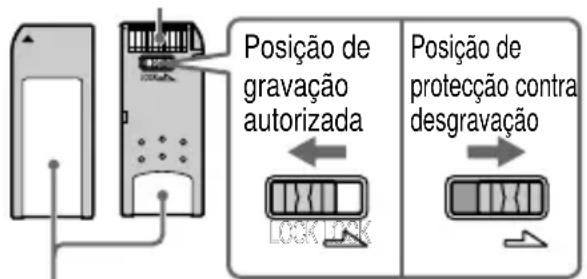
"MagicGate Memory Stick"
Interface
USB
Operating and storage environment
9:00 a.m. - 6:00 p.m.
Direct line: 28335129
10:00 a.m. - 7:00 p.m.
Sony Korea CS Center.
Tel.: 02-6333-4819
- For customers in Taiwan (Sony Taiwan Limited):
10:00 a.m. - 5:00 p.m.
Computer Peripheral Department
Tel.: 02-2522-3286
9.00 a.m. - 5.00 p.m.
Tel.: +65-329-1469
End User License Agreement
IMPORTANT NOTICE
To install the diskette 6
To remove the diskette 6
Installation and removal
"Memory Stick" 7
To insert
"Memory Stick" 7
To remove the diskette 7
Notes on use .. 8
Table of Contents 9
About "Memory Stick" 10
Troubleshooting 12
Specifications ... 13
Technical Support 14
List of Accessories
After unpacking the box, make sure it contains all of the following accessories.
If anything is missing or any item is damaged, contact the dealer.
MSFD-20U·Compact disc with driver
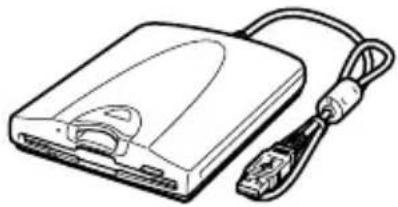
-User's Manual -Installation Manual -Warranty Card
Before using the disc drive for the first time, it is necessary to install the driver on the computer. Before connecting the disc drive to the computer for the first time, be sure to perform the procedures described in the Installation Manual.
Introduction
The MSFD-20U device (hereinafter referred to as the "disc drive") has the following characteristics:
□Disc drive with 2x read/write speed. 口Comes with a slot for "Memory Stick".
Power is supplied to the disc drive via the USB port of the computer, so there is no need to connect it to external power sources. Compact and lightweight design.
Insert the disk into the drive.
Data protection on disks
To prevent accidental data loss, use the write-protect switch on the disks. When the switch is in the write-protect position, data can be read from the disks, however, it is impossible to write or delete data.
Back side of the disk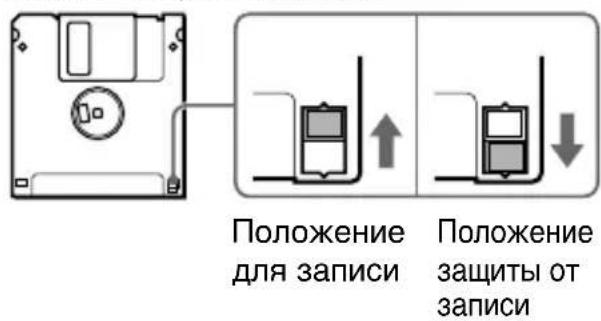
"MagicGate Memory Stick"
Interface
USB
Temperature range
Operating temperature
from 5°C to 35°C
Storage temperature
from -20°C to 55°C
Relative humidity
Operating humidity
20% - 80%
(without condensation)
Humidity during storage
15% - 90% (without
condensation)
Power source / Other standards
Power source
+5 V DC (power
supplied via USB connector)
Power consumption
2.5 W
Dimensions
Fig. 104 24.3 × 143 mm
(W × H, without protruding
parts)
Macca
Pn6J.350r
Technical specifications
The appearance of the product may
change without prior
notice.
Technical support
Read all the points below before contacting us with questions about using the MSFD-20U device or technical questions about the drive or the supplied software. When contacting technical support by phone or email, be ready to provide the following information:
Model number: MSFD-20U - Serial number - Date and place of purchase - Manufacturer's model number of the computer - Technical specifications of the computer (processor speed, memory size, OS version, etc.)
Local technical support service is available only in the following regions of product distribution:
From Monday to Friday in Great Britain
8:00 - 18:00 (GMT)
Continental Europe
(Sony Australia Limited):
USER
END USER LICENSE AGREEMENT
This document is a legal agreement between you (hereinafter referred to as the User) and Sony Corporation (hereinafter referred to as Sony) regarding the right to use the USB drive software (hereinafter referred to as the SOFTWARE). Your use of the SOFTWARE signifies your agreement to accept the terms and conditions of the Agreement between the User and Sony.
1. The copyright and all other rights in the SOFTWARE and the documentation accompanying the SOFTWARE belong to Sony Corporation or to the third parties to whom the original ownership rights belong (hereinafter referred to as the Original Owners), who have granted Sony the right to use the SOFTWARE. The User is granted no other rights than those specified in this Agreement. 2. Sony grants the User a non-exclusive, non-transferable right to use the SOFTWARE solely in conjunction with the Sony product called "USB Drive" for which the SOFTWARE is intended. 3. The User may not transfer the right to use the SOFTWARE described above to any third party, and no third party may use the SOFTWARE unless the User has obtained prior written permission from Sony.
4. The User may not export or take the SOFTWARE or the documentation accompanying the SOFTWARE out of the country in which the User installed the SOFTWARE to any other country. 5. The User may not (i) modify, add to, or alter, and (ii) assemble or decompile all or part of the SOFTWARE. 6. THIS SOFTWARE IS PROVIDED "AS IS" WITHOUT ANY EXPRESS OR IMPLIED WARRANTIES, INCLUDING WARRANTIES OF MERCHANTABILITY AND FITNESS FOR A PARTICULAR PURPOSE AND NON-INFRINGEMENT. 7. In the event of disputes concerning infringement of copyright, patent, or other intellectual property rights between the User and a third party arising from the use of the SOFTWARE, the User will settle the dispute at his own expense and will not make any claims against Sony or the Original Owners. 8. Sony may terminate your license if you fail to comply with the notice of non-compliance with these terms. Termination does not affect any payments or compensation for damages. In the event of termination, you will be obliged to immediately destroy the software along with all its copies in any form. 9. The English version of this Agreement is the official version. In the event of any discrepancy between the English version and any other language version, the English version shall prevail.
About Trademarks
"MagicGate Memory Stick"
Interface
USB
Operating and Storage Environment
Temperature Range
(Sony Electronics Singapore Pte. Ltd.) :
- USB 2X SPEED FLOPPY DISK DRIVE
- SAFETY REGULATIONS
- WARNING
- FCC COMPLIANCE
- NOTE
- DECLARATION OF CONFORMITY
- ABOUT TRADEMARKS
- TABLE OF CONTENTS
- LIST OF ACCESSORIES
- INTRODUCTION
- SYSTEM REQUIREMENTS
- NAMES AND FUNCTIONS OF PARTS
- INSERTING AND REMOVING FLOPPY DISKS
- TO INSERT A FLOPPY DISK
- TO REMOVE A FLOPPY DISK
- CAUTION
- INSERTING AND REMOVING "MEMORY STICK
- TO INSERT A "MEMORY STICK
- TO REMOVE A "MEMORY STICK
- USAGE NOTES
- USAGE WITH OTHER USB DEVICES
- CONNECTION TO THE USB HUB
- DISCONNECTION FROM THE COMPUTER
- OPERATING AND STORAGE ENVIRONMENTS
- ABOUT FLOPPY DISKS
- COMPATIBLE FLOPPY DISKS
- PROTECTING DATA ON FLOPPY DISKS
- HANDLING NOTES
- ABOUT "MEMORY STICK
- ON "MEMORY STICK
- USING "MEMORY STICK
- COMPATIBLE "MEMORY STICK
- PROTECTING DATA ON "MEMORY STICK
- IF AN ERROR MESSAGE APPEARS
- TROUBLESHOOTING
- SPECIFICATIONS
- FLOPPY DISK DRIVE
- MEMORY STICK" SLOT
- INTERFACE
- POWER SUPPLY/MISCELLANEOUS
- TECHNICAL SUPPORT
- LOCAL TECHNICAL SUPPORT IS AVAILABLE ONLY IN THE FOLLOWING SALES REGIONS
- FOR CUSTOMER IN THE USA (SONY ELECTRONICS INC)
- FOR CUSTOMER IN EUROPE (SONY UK LIMITED)
- FOR CUSTOMER IN AUSTRALIA (SONY AUSTRALIA LIMITED)
- END USER LICENSE AGREEMENT
- IMPORTANT NOTICE
- MEMORY STICK" COMPATIBLE
- FOR CUSTOMERS IN EUROPE (SONY UK LIMITED)
- FOR CUSTOMERS IN AUSTRALIA (SONY AUSTRALIA LIMITED)
- OPERATING AND STORAGE ENVIRONMENT
- DATA PROTECTION ON DISKS
- POWER SOURCE / OTHER STANDARDS
Brand : SONY
Model : MSFD20U
Category : Other computer accessories