
GDM5410 - Other computer accessories SONY - Free user manual and instructions
Find the device manual for free GDM5410 SONY in PDF.



| Product Type | CRT Trinitron FD Monitor |
| Brand | Sony |
| Model | GDM-5410 |
| Category | Computer Monitor |
| Display Technology | Aperture Grille Trinitron, 0.24 mm |
| Screen Diagonal | 21 inches (53.3 cm) |
| Display Area | 403.8 x 302.2 mm (19.8 inches) |
| Recommended Resolution | 1280 x 1024 pixels |
| Horizontal Frequency | 30 - 121 kHz |
| Vertical Frequency | 48 - 160 Hz |
| Input Connectors | 1 x 13W3 (RGB), 1 x HD15 (VGA) |
| Power Supply | 100 - 240 V AC, 50/60 Hz, 2.0 - 1.0 A |
| Power Consumption | ≤ 160 W (normal), ≤ 3 W (standby), < 1 W (off) |
| Dimensions (W x H x D) | 501 x 498 x 498 mm |
| Weight | Approx. 32 kg |
| Main Features | OSD menus, geometry adjustments, convergence, color, zoom, degaussing, energy saving, sRGB mode, auto-centering |
| Image Adjustments | Brightness, contrast, size, centering, geometry, convergence, color, moiré |
| Energy Saving | Compliant with VESA DPMS, ENERGY STAR, NUTEK |
| Cleaning | Soft cloth, no harsh solvents |
| Safety | Compliant with MPR II, static discharge: wait 30 s after power off |
| Standards | TCO'99 (optional), VESA DDC |
| Included Accessories | Power cable, rear cover |
| Tube Maintenance | Automatic degaussing at each power-on |
| Repairability | Factory reset via dedicated button |
Frequently Asked Questions - GDM5410 SONY
User questions about GDM5410 SONY
0 question about this device. Answer the ones you know or ask your own.
Ask a new question about this device
Download the instructions for your Other computer accessories in PDF format for free! Find your manual GDM5410 - SONY and take your electronic device back in hand. On this page are published all the documents necessary for the use of your device. GDM5410 by SONY.
USER MANUAL GDM5410 SONY
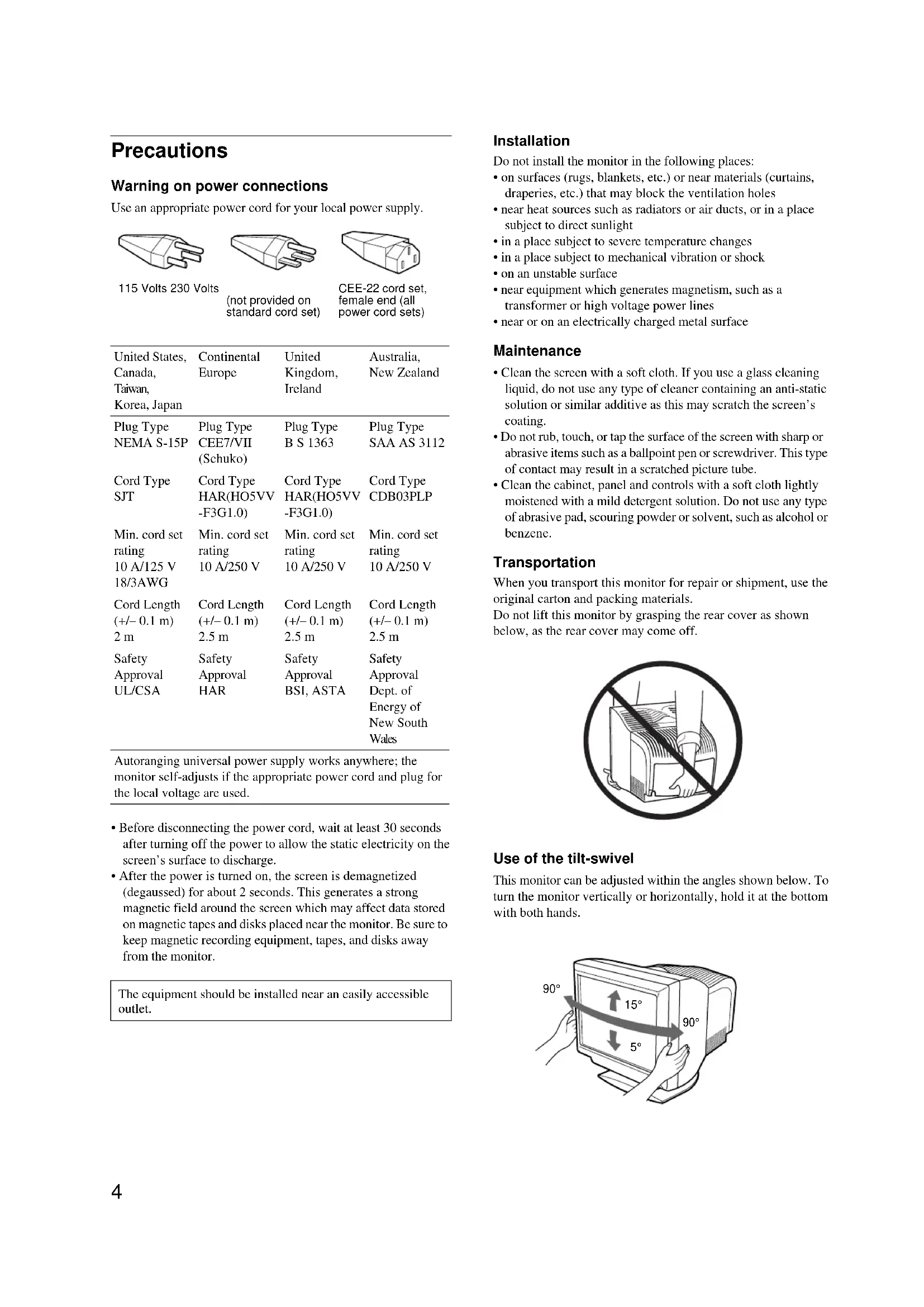
The model and serial numbers are located at the rear of the unit. Record these numbers in the spaces provided below. Refer to them whenever you call upon your dealer regarding this product. Model No. ____ Serial No. ____
WARNING
To prevent fire or shock hazard, do not expose the unit to rain or moisture.
Dangerously high voltages are present inside the unit. Do not open the cabinet. Refer servicing to qualified personnel only.
FCC Notice
This equipment has been tested and found to comply with the limits for a Class B digital device, pursuant to Part 15 of the FCC Rules. These limits are designed to provide reasonable protection against harmful interference in a residential installation. This equipment generates, uses, and can radiate radio frequency energy and, if not installed and used in accordance with the instructions, may cause harmful interference to radio communications. However, there is no guarantee that interference will not occur in a particular installation. If this equipment does cause harmful interference to radio or television reception, which can be determined by turning the equipment off and on, the user is encouraged to try to correct the interference by one or more of the following measures:
- Reorient or relocate the receiving antenna.
- Increase the separation between the equipment and receiver.
- Connect the equipment into an outlet on a circuit different from that to which the receiver is connected.
- Consult the dealer or an experienced radio/TV technician for help.
You are cautioned that any changes or modifications not expressly approved in this manual could void your authority to operate this equipment.
INFORMATION
This product complies with Swedish National Council for Metrology (MPR) standards issued in December 1990 (MPR II) for very low frequency (VLF) and extremely low frequency (ELF).
INFORMATION
Declaration of Conformity
Trade Name: Sun Microsystems, Inc.
Model No.: GDM-5410
Responsible Party: Sony Electronics Inc.
Address: 1 Sony Drive, Park Ridge, NJ. 07656 USA
Telephone No.: 201-930-6970
This device complies with Part 15 of the FCC Rules. Operation is subject to the following two conditions: (1) This device may not cause harmful interference, and (2) this device must accept any interference received, including interference that may cause undesired operation.
Notes
This notice is applicable for USA/Canada only.
If shipped to USA/Canada, install only a UL LISTED/CSA
LABELLED power supply cord meeting the following specifications:
SPECIFICATIONS
Plug Type: Nema-Plug 5-15p
Cord Type: SVT or SJT, minimum 3 18 AWG
Length: Maximum 15 feet
Rating: Minimum 7 A, 125 V
NOTICE
As an ENERGY STAR Partner, Sun Microsystems, Inc. has determined that this product meets the ENERGY STAR guidelines for energy efficiency.
This monitor complies with the TCO'99 guidelines.
Production Model name: GDM-5410 (19.8" viewing image)
Table of Contents
Precautions 4
Identifying parts and controls 5
Setup. .6
Step 1: Remove the rear cover 6
Step 2: Connect your monitor to your computer 6
Step 3: Connect the power cord. 6
Step 4: Attach the rear cover 6
Step 5: Turn on the monitor and computer 6
Selecting the on-screen menu language (LANGUAGE). 7
Selecting the input signal 7
Automatically sizing and centering the picture 7
Customizing Your Monitor .8
Navigating the menu. 8
Adjusting the brightness and contrast. 9
Adjusting the size of the picture (SIZE/CENTER). 10
Adjusting the centering of the picture (SIZE/CENTER) 10
Enlarging or reducing the picture (ZOOM) 10
Adjusting the shape of the picture (GEOMETRY) 10
Adjusting the convergence (CONVERGENCE) 11
Adjusting the quality of the picture (SCREEN) 11
Adjusting the color of the picture (COLOR) 12
Additional settings (OPTION) 13
Resetting the adjustments 14
Technical Features 14
Power saving function. 14
Troubleshooting 15
If thin lines appear on your screen (damper wires) 15
On-screen messages 15
Trouble symptoms and remedies 16
Self-diagnosis function 18
Specifications 18
Appendix
TCO'99 Eco-document
- VESA and DDC are trademarks of the Video Electronics Standard Association.
- ENERGY STAR is a U.S. registered mark.
- All other product names mentioned herein may be the trademarks or registered trademarks of their respective companies.
- Furthermore, "U" and "U" are not mentioned in each case in this manual.
Precautions
Warning on power connections
Use an appropriate power cord for your local power supply.
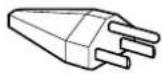
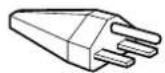
115 Volts 230 Volts not provided on standard cord set) CEE-22 cord set, female end (all power cord sets)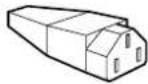
| United States, Canada, Taiwan, Korea, Japan | Continental Europe | United Kingdom, Ireland | Australia, New Zealand |
| Plug Type NEMA S-15P | Plug Type CEE7/VII (Schuko) | Plug Type B S 1363 | Plug Type SAA AS 3112 |
| Cord Type SJT | Cord Type HAR(HO5VV -F3G1.0) | Cord Type HAR(HO5VV -F3G1.0) | Cord Type CDB03PLP |
| Min. cord set rating | Min. cord set rating | Min. cord set rating | Min. cord set rating |
| 10 A/125 V 18/3AWG | 10 A/250 V | 10 A/250 V | 10 A/250 V |
| Cord Length (+/- 0.1 m) | Cord Length (+/- 0.1 m) | Cord Length (+/- 0.1 m) | Cord Length (+/- 0.1 m) |
| 2 m | 2.5 m | 2.5 m | 2.5 m |
| Safety Approval | Safety Approval | Safety Approval | Safety Approval |
| UL/CSA | HAR | BSI, ASTA | Dept. of Energy of New South Wales |
Autoranging universal power supply works anywhere; the monitor self-adjusts if the appropriate power cord and plug for the local voltage are used.
- Before disconnecting the power cord, wait at least 30 seconds after turning off the power to allow the static electricity on the screen's surface to discharge. After the power is turned on, the screen is demagnetized (degaussed) for about 2 seconds. This generates a strong magnetic field around the screen which may affect data stored on magnetic tapes and disks placed near the monitor. Be sure to keep magnetic recording equipment, tapes, and disks away from the monitor.
The equipment should be installed near an easily accessible outlet.
Installation
Do not install the monitor in the following places:
- on surfaces (rugs, blankets, etc.) or near materials (curtains, draperies, etc.) that may block the ventilation holes
- near heat sources such as radiators or air ducts, or in a place subject to direct sunlight
- in a place subject to severe temperature changes
- in a place subject to mechanical vibration or shock
- on an unstable surface
- near equipment which generates magnetism, such as a transformer or high voltage power lines
- near or on an electrically charged metal surface
Maintenance
- Clean the screen with a soft cloth. If you use a glass cleaning liquid, do not use any type of cleaner containing an anti-static solution or similar additive as this may scratch the screen's coating.
- Do not rub, touch, or tap the surface of the screen with sharp or abrasive items such as a ballpoint pen or screwdriver. This type of contact may result in a scratched picture tube.
- Clean the cabinet, panel and controls with a soft cloth lightly moistened with a mild detergent solution. Do not use any type of abrasive pad, scouring powder or solvent, such as alcohol or benzene.
Transportation
When you transport this monitor for repair or shipment, use the original carton and packing materials.
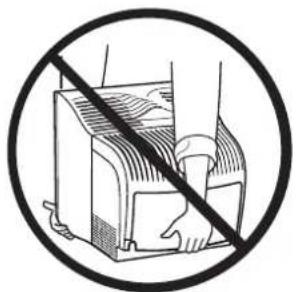
Do not lift this monitor by grasping the rear cover as shown below, as the rear cover may come off.
Use of the tilt-swivel
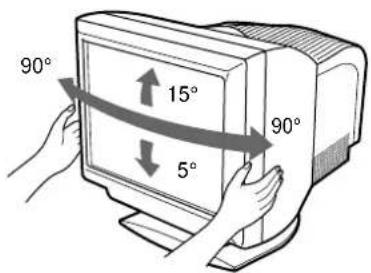
This monitor can be adjusted within the angles shown below. To turn the monitor vertically or horizontally, hold it at the bottom with both hands.
Identifying parts and controls
See the pages in parentheses for further details.
Front
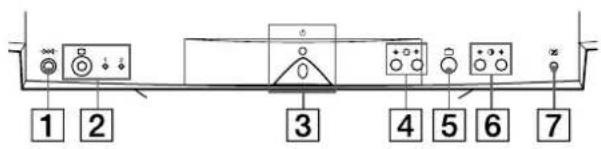
1 reset) button (page 14)
This button resets the adjustments to the factory settings.
2 (input) button and 1 (13W3) / 2 (HD15) indicators (page 7)
This button selects the 1 (13W3) or 2 (HD15) video input signal.
Each time you press this button, the input signal and corresponding indicator alternate.
3 (power) switch and indicator (pages 6, 14, 18)
This button turns the monitor on and off. The power indicator lights up in green when the monitor is turned on, and either flashes in green and amber, or lights up in amber when the monitor is in power saving mode.
4 (brightness) down/up buttons (page 9)
These buttons display the BRIGHTNESS/CONTRAST menu and function as the down/up buttons when selecting menu items.
5 (menu) button (page 9)
This button displays the main menu.
6 (contrast) left/right buttons (page 9)
These buttons display the BRIGHTNESS/CONTRAST menu and function as the left/right buttons when making adjustments.
7 ASC (auto sizing and centering) button (page 7)
This button automatically adjusts the size and centering of the picture.
AC IN connector (page 6)
This connector provides AC power to the monitor.
Rear (with the cover opened)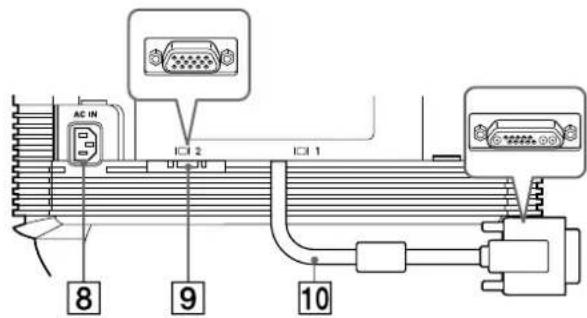
Video input 2 connector (HD15) (page 6)
This connector inputs RGB video signals (0.700 Vp-p, positive) and sync signals.
Video input 1 connector (13W3) (page 6)
This connector inputs RGB video signals (0.700 Vp-p, positive) and sync signals.
9 HD15
10 13W3
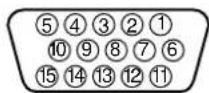
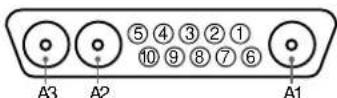
| No. | 9 Signal | 10 Signal |
| A1 — Red | ||
| A2 — Green | ||
| A3 — Blue | ||
| 1 Red Data Clock (SCL)* | ||
| 2 Green | DDC + 5V* | |
| (Sync on Green) | ||
| 3 | B l u e | - - - |
| 4 ID (Ground) | DDC Ground* | |
| 5 DDC Ground* | C Sync** | |
| 6 Red Ground | Bi-Directional Data (SDA)* | |
| 7 Green Ground | V. Sync | |
| 8 Blue Ground | ID (100 Ω) | |
| 9 DDC + 5V* | ID (100 Ω) | |
| 10 Ground | Ground | |
| 11 ID (Ground) | — | |
| 12 Bi-Directional Data (SDA)* | — | |
| 13 H. Sync | — | |
| 14 V. Sync | — | |
| 15 Data Clock (SCL)* | — | |
- DDC (Display Data Channel) is a standard of VESA. **Pins serve a dual purpose as combined sync input and as Hsync input if V-sync is present on pin no. 7.
Setup
This monitor works with platforms running at horizontal frequencies between 30 and 121 kHz.
Step 1: Remove the rear cover
Before connecting, remove the rear cover of the monitor.
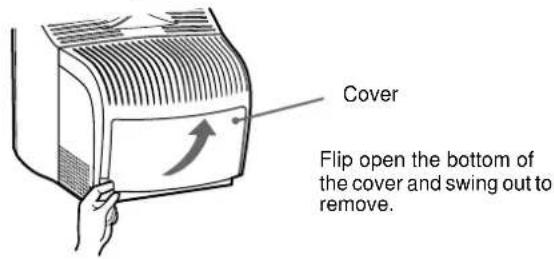
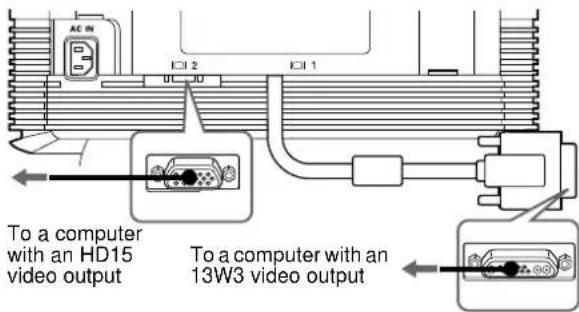
Step 2: Connect your monitor to your computer
With the monitor and computer switched off, connect the video signal cable to the video input connector of the monitor and to the video output of the computer.
Notes
- Do not touch the pins of the video signal cable connector as this might bend the pins.
- When connecting the video signal cable, check the alignment of the connectors. Do not force the connector in the wrong way or the pins might bend.
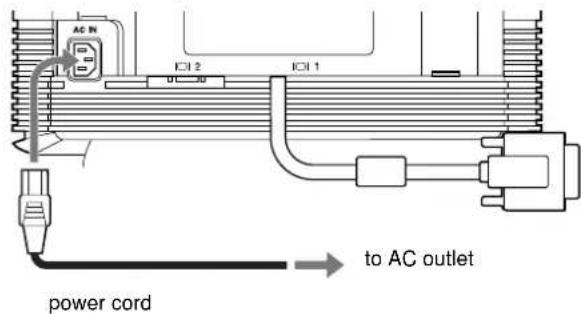
Step 3: Connect the power cord
With the monitor and computer switched off, first connect the proper power cord for your local power supply to the monitor, then connect it to a power outlet.
Step 4: Attach the rear cover
Attach the rear cover to the monitor.
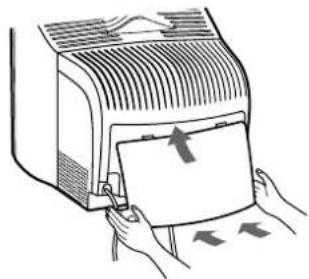
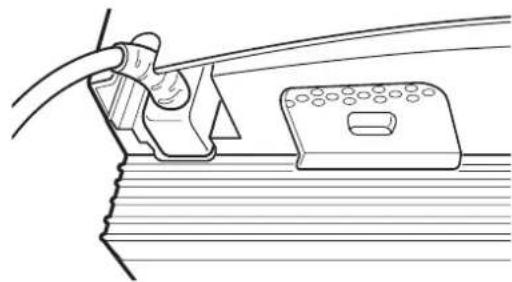
Pass the AC cord through the cord opening at the bottom of the rear cover.
Step 5: Turn on the monitor and computer
First turn on the monitor, then turn on the computer.
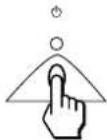
The installation of your monitor is complete.
If necessary, use the monitor's controls to adjust the picture.
If no picture appears on your screen
- Check that the monitor is correctly connected to the computer.
- If NO INPUT SIGNAL appears on the screen, follow the on-screen messages (page 15).
- If you are replacing an old monitor with this model and OUT OF SCAN RANGE appears on the screen, reconnect the old monitor. Then adjust the computer's graphic board so that the horizontal frequency is between 30 - 121 kHz, and the vertical frequency is between 48 - 160 Hz.
For more information about the on-screen messages, see "Trouble symptoms and remedies" on page 16.
Selecting the on-screen menu language (LANGUAGE)
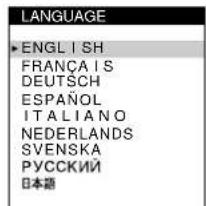
English, French, German, Spanish, Italian, Dutch, Swedish, Russian and Japanese versions of the on-screen menus are available. The default setting is English.
1 Press the button.
See page 9 for more information on using the button.


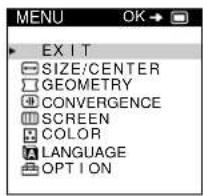
2 Press the down/up buttons to highlight LANGUAGE and press the button again.
See page 9 for more information on using the down/up buttons.
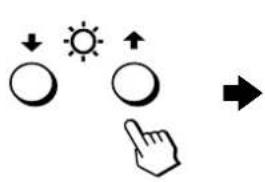
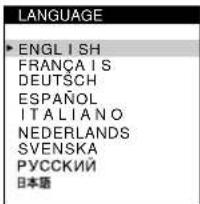
3 Press the down/up buttons to select a language.
- ENGLISH, FRANCAIS: French
- DEUTSCH: German
- ESPANOL: Spanish, ITALIANO: Italian, NEDERLANDS: Dutch
- SVENSKA: Swedish, PROG.KNU: Japanese
To close the menu
Press the button once to return to the main MENU, and twice to return to normal viewing. If no buttons are pressed, the menu closes automatically after about 30 seconds.
To reset to English
Press the reset button while the LANGUAGE menu is displayed on the screen.
Selecting the input signal
You can connect two computers to this monitor using the video input 1 and video input 2 connectors. To select one of the two computers, use the button.
Press the button.
Each time you press this button, the input signal and corresponding indicator alternate.
When the button is pressed, INPUT 2 is selected; when the button is not pressed, INPUT 1 is selected.


INPUT 1 (video input 1 connector)

INPUT 2 (video input 2 connector)
The selected connector appears on the screen for a few seconds. "INPUT 1" (video input 1 connector) or "INPUT 2" (video input 2 connector) appears on the screen.
Note
If no signal is input to the selected connector, NO INPUT SIGNAL appears on the screen. After a few seconds, the monitor enters power saving mode. If this happens, switch to the other connector.
Automatically sizing and centering the picture
You can easily adjust the picture to fill the screen by pressing the (auto sizing and centering) button.
Press the button.
The picture automatically fills the screen.
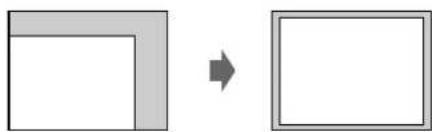
Notes
- This function is intended for use with a computer that provides a full-screen picture. It may not work properly if the background color is dark or if the input picture does not fill the screen to the edges.
- Pictures with an aspect ratio of 5:4 (resolution: 1280 x 1024, 1600 x 1280) are displayed at their actual resolution and do not fill the screen to the edges. The displayed image moves for a few seconds when the button is pressed. This is not a malfunction.
Customizing Your Monitor
You can make numerous adjustments to your monitor using the on-screen menu.
Navigating the menu
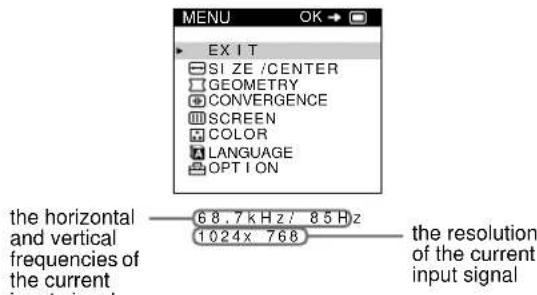
Press the button to display the main MENU on your screen.


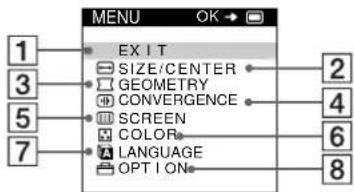
Use the / and buttons to select one of the following menus. See page 9 for more information on using the / and buttons.
1 EXIT
Select EXIT to close the menu.
SIZE/CENTER (page 10)
Selects the SIZE/CENTER menu to adjust the picture's size, centering or zoom.
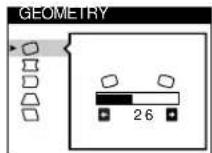
3 GEOMETRY (page 10)
Select the GEOMETRY menu to adjust the picture's rotation and shape.
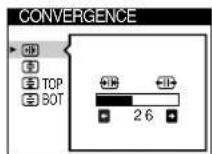
4 CONVERGENCE (page 11)
Select the CONVERGENCE menu to adjust the picture's horizontal and vertical convergence.
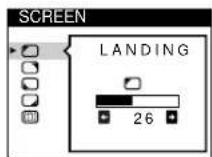
5 SCREEN (page 11)
Select the SCREEN menu to adjust the picture's quality. You can adjust the landing and moiré cancellation effect.
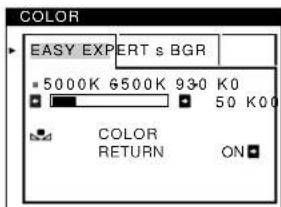
Select the COLOR menu to adjust the picture's color temperature. You can use this to match the monitor's colors to a printed picture's colors.
Select LANGUAGE to choose the on-screen menu's language.
Select LANGUAGE to choose the on-screen menu's language.
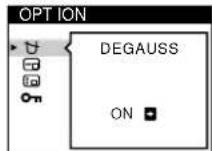
Select OPTION to adjust the monitor's options. The options include:
Select OPTION to adjust the monitor's options. The options include:
- degaussing the screen
- changing the on-screen menu position
- locking the controls
Displaying the current input signal
The horizontal and vertical frequencies of the current input signal are displayed in the main MENU. If the signal matches one of this monitor's factory preset modes, the resolution is also displayed.
Using the down/up and left/right buttons
1 Display the main MENU.
Press the button to display the main MENU on your screen.

2 Select the menu you want to adjust.
Press the down/up buttons to highlight the desired menu. Press the button to select the menu item.
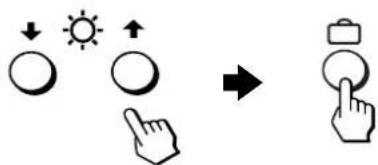
3 Adjust the menu.
Press the down/up buttons to select the desired adjustment item. Press the left/right buttons to make the adjustment.
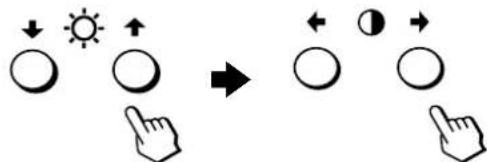
4 Close the menu.
Press the button once to return to the main MENU, and twice to return to normal viewing. If no buttons are pressed, the menu closes automatically after about 30 seconds.

Resetting the adjustments
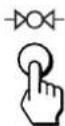
Press the reset button. See page 14 for more information on resetting the adjustments.
Adjusting the brightness and contrast
Brightness and contrast adjustments are made using a separate BRIGHTNESS/CONTRAST menu.
These settings are stored in memory for the signals from the currently selected input connector.
1 Press either one of the (brightness) or (contrast) left/right buttons.
The BRIGHTNESS/CONTRAST menu appears on the screen.
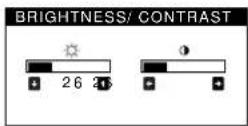
2 Press the (brightness) down/up buttons to adjust the brightness (a) and (contrast) left/right buttons to adjust the contrast (b).
If you are using the sRGB mode
If you selected the sRGB mode in the COLOR menu, the following BRIGHTNESS/CONTRAST menu appears on the screen.
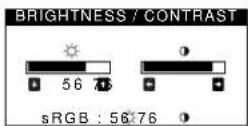
For more information about using the sRGB mode, see "Adjusting the color of the picture (COLOR)" on page 12.
The menu automatically disappears after about 3 seconds.
Adjusting the size of the picture (SIZE/CENTER)
This setting is stored in memory for the current input signal.
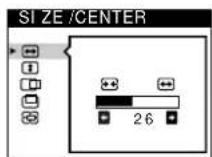
1 Press the button. The main MENU appears on the screen. 2 Press the down/up buttons to highlight SIZE/CENTER and press the button again. The SIZE/CENTER menu appears on the screen. 3 First press the down/up buttons to select for horizontal adjustment, or for vertical adjustment. Then press the left/right buttons to adjust the size.
Adjusting the centering of the picture (SIZE/CENTER)
This setting is stored in memory for the current input signal.
1 Press the button. The main MENU appears on the screen. 2 Press the down/up buttons to highlight SIZE/CENTER and press the button again. The SIZE/CENTER menu appears on the screen. 3 First press the down/up buttons to select for horizontal adjustment, or for vertical adjustment. Then press the left/right buttons to adjust the centering.
Enlarging or reducing the picture (ZOOM)
This setting is stored in memory for the current input signal.
1 Press the button. The main MENU appears on the screen. 2 Press the down/up buttons to highlight SIZE/CENTER and press the button again. The SIZE/CENTER menu appears on the screen. 3 Press the down/up buttons to select zoom, and press the left/right buttons to enlarge or reduce the picture.
Note
Adjustment stops when either the horizontal or vertical size reaches its maximum or minimum value.
Adjusting the shape of the picture (GEOMETRY)
The GEOMETRY settings allow you to adjust the rotation and shape of the picture.
The rotation setting is stored in memory for all input signals.
All other settings are stored in memory for the current input signal.
1 Press the button. The main MENU appears on the screen. 2 Press the down/up buttons to highlight GEOMETRY and press the button again. The GEOMETRY menu appears on the screen. 3 First press the down/up buttons to select the desired adjustment item. Then press the left/right buttons to make the adjustment.
Select To
| \( \square \) | rotate the picture |
| \( \square \) | expand or contract the picture sides |
| \( \square \) | shift the picture sides to the left or right |
| \( \square \) | adjust the picture width at the top of the screen |
| \( \square \) | shift the picture to the left or right at the top of the screen |
Adjusting the convergence (CONVERGENCE)
The CONVERGENCE settings allow you to adjust the quality of the picture by controlling the convergence. The convergence refers to the alignment of the red, green, and blue color signals. If you see red or blue shadows around letters or lines, adjust the convergence.
These settings are stored in memory for all input signals.
1 Press the button.
The main MENU appears on the screen.
2 Press the down/up buttons to highlight CONVERGENCE and press the button again. The CONVERGENCE menu appears on the screen. 3 First press the down/up buttons to select the desired adjustment item. Then press the left/right buttons to make the adjustment.
| Select To | |
| ‡ | horizontally shift red or blue shadows |
| ‡ | vertically shift red or blue shadows |
| ‡ TOP | vertically shift red or blue shadows at the top of the screen |
| V CONVER TOP | |
| ‡ BOT | vertically shift red or blue shadows at the bottom of the screen |
| V CONVER BOTTOM | |
Adjusting the quality of the picture (SCREEN)
The SCREEN settings allow you to adjust the quality of the picture by controlling the moiré and landing.
- If the color is irregular at the corners of the screen, adjust the landing.
- If elliptical or wavy patterns appear on the screen, cancel the moiré.
The CANCEL MOIRE and MOIRE ADJUST settings are stored in memory for the current input signal. All other settings are stored in memory for all input signals.
1 Press the button.
The main MENU appears on the screen.
2 Press the down/up buttons to highlight [SCREEN] and press the button again.
The SCREEN menu appears on the screen.
3 First press the down/up buttons to select the desired adjustment item. Then press the left/right buttons to make the adjustment.
| Select To | |
| LANDING | reduce any color irregularities in the screen's top left corner to a minimum. |
| LANDING | reduce any color irregularities in the screen's top right corner to a minimum. |
| LANDING | reduce any color irregularities in the screen's bottom left corner to a minimum. |
| LANDING | reduce any color irregularities in the screen's bottom right corner to a minimum. |
| CANCEL MOIRE* | turn the moire cancellation function ON or OFF. (MOIRE ADJUST) appears in the menu when you select ON. |
| MOIRE ADJUST | adjust the degree of moire cancellation until the moirc is at a minimum. |
- Moire is a type of natural interference which produces soft, wavy lines on your screen. It may appear due to interference between the pattern of the picture on the screen and the phosphor pitch pattern of the monitor.
Example of moiré![SONY GDM5410 - Press the down/up buttons to highlight [SCREEN] and press the button again. - 1](/content/2026/03/536676/images/56a2cb92ddff73f8876431686777f3b222139b69d69d5963c9def5725118a772.jpg)
Note
The picture may become fuzzy when CANCEL MOIRE is set to ON.
Adjusting the color of the picture (COLOR)
The COLOR settings allow you to adjust the picture's color temperature by changing the color level of the white color field. Colors appear reddish if the temperature is low, and bluish if the temperature is high. This adjustment is useful for matching the monitor's color to a printed picture's colors.
1 Press the button.
The main MENU appears on the screen.
2 Press the down/up buttons to highlight COLOR and press the button again.
The COLOR menu appears on the screen.
3 Press the left/right buttons to select the adjustment mode.
There are three types of adjustment modes: EASY, EXPERT, and sRGB.
4 First press the down/up buttons to select the desired adjustment item. Then press the left/right buttons to make the adjustment.
Adjust the selected mode according to the following instructions.
EASY mode
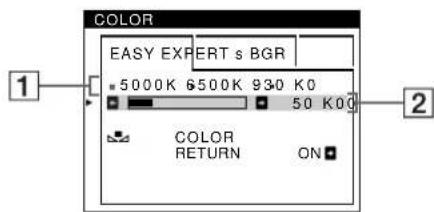
1 First press the down/up buttons to select the color temperature row [1], then press the left/right buttons to select a color temperature.
The preset color temperatures are 5000K, 6500K, and 9300K. Since the default setting is 9300K, the whites will change from a bluish hue to a reddish hue as the temperature is lowered to 6500K and 5000K.
2 If necessary, fine tune the color temperature. First press the down/up buttons to select the color temperature adjustment row [2], then press the left/right buttons to fine tune the color temperature.
If you fine tune the color temperature, the new color settings are stored in memory for each of the three color temperatures and item 1 of the on-screen menu changes as follows.
·[5000K]→[ ] ·[6500K]→[2] ·[9300K]→[B]
EXPERT mode
You can make additional adjustments to the color in greater detail by selecting the EXPERT mode.
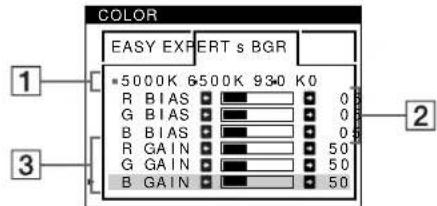
1 Press the down/up buttons to select the color temperature row 1, then press the left/right buttons to select a color temperature.
2 Press the down/up buttons to select the adjustment item 2, then press the left/right buttons to adjust the BIAS (black level).
This adjusts the dark areas of an image.
3 Press the down/up buttons to select the adjustment item 3, then press the left/right buttons to adjust the GAIN (white level).
This adjusts the light areas of an image.
You can adjust the R (red), G (green), B (blue) component of the input signal when making changes to items 2 and 3.
If you fine tune the color temperature, the new color settings are stored in memory for each of the three color temperatures and item 1 of the on-screen menu changes as follows.
·[5000K]→[1] ·[6500K]→[2] ·[9300K]→[3]
Setting the color temperature for each of the video input connectors
You can set the fine tuning of the color temperature in EASY or EXPERT mode for each of the video input connectors (INPUT 1 : 13W3 and INPUT 2 : HD15).
1 Select the same adjustment mode and color temperature in the COLOR menu for both INPUT 1 and INPUT 2. 2 Fine tune the color temperature in each menu for INPUT 1 and INPUT 2.
The settings are stored in memory for each of the INPUT 1 and INPUT 2 connectors.
For information on how to select the connector, see page 7.
sRGB mode
The sRGB color setting is an industry standard color space protocol designed to correlate the displayed and printed colors of sRGB compliant computer products. To adjust the colors to the sRGB profile, simply select the sRGB mode in the COLOR menu. However, in order to display the sRGB colors correctly (γ = 2.2, 6500K) you must set your computer to the sRGB profile and adjust the brightness (⊙) and contrast (O) to the numbers shown in the menu. For information on how to change the brightness (⊙) and contrast (O), see page 9.
Note
Your computer and other connected products (such as a printer), must be sRGB compliant.
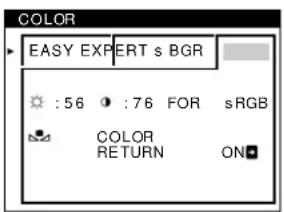
Restoring the color from the EASY or sRGB menus
The colors of most display monitors tend to gradually lose brilliance over several years of service. The COLOR RETURN feature found in the EASY and sRGB menus allows you to restore the color to the original factory quality levels. The explanation below explains how to restore the monitor's color from the EASY menu.
1 Press the left/right buttons to select EASY or sRGB mode. 2 First press the down/up buttons to select COLOR RETURN, then press the right button.
The picture disappears while the color is being restored (about 2 seconds). After the color is restored, the picture reappears on the screen again.
Notes
- Before using this feature, the monitor must be in normal operation mode (green power indicator on) for at least 30 minutes. If the monitor goes into power saving mode, you must return the monitor to normal operation mode and wait for 30 minutes for the monitor to be ready. You may need to adjust your computer's power saving settings to keep the monitor in normal operation mode for the full 30 minutes. If the monitor is not ready, the following message will appear.
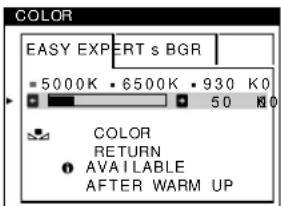
- The monitor may gradually lose its ability to perform this function due to the natural aging of the picture tube.
Additional settings (OPTION)
You can manually degauss (demagnetize) the monitor, change the menu position, and lock the controls.
1 Press the button.
The main MENU appears on the screen.
2 Press the down/up buttons to highlight OPTION and press the button again.
The OPTION menu appears on the screen.
3 Press the down/up buttons to select the desired adjustment item.
Adjust the selected item according to the following instructions.
Degaussing the screen
The monitor is automatically demagnetized (degaussed) when the power is turned on.
To manually degauss the monitor, first press the down/up buttons to select DEGAUSS. Then press the button.
The screen is degaussed for about 2 seconds. If a second degauss cycle is needed, allow a minimum interval of 20 minutes for the best result.
Changing the menu's position
Change the menu's position if it is blocking an image on the screen.
To change the menu's on-screen position, first press the down/up buttons to select OSD H POSITION for horizontal adjustment, or OSD V POSITION for vertical adjustment. Then press the left/right buttons to shift the on-screen menu.
Locking the controls
To protect adjustment data by locking the controls, first press the down/up buttons to select CONTROL LOCK. Then press the right button to select ON.
Only the power switch, EXIT, and CONTROL LOCK of the OPTION menu will operate. If any other items are selected, the mark appears on the screen.
To cancel the control lock
Repeat the procedure above and set CONTROL LOCK to OFF.
Resetting the adjustments
This monitor has the following three reset methods. Use the reset button to reset the adjustments.
Resetting a single adjustment item
Use the down/up buttons to select the adjustment item you want to reset, and press the reset button.
Resetting all of the adjustment data for the current input signal
Press the (reset) button when no menu is displayed on the screen.
Note that the following items are not reset by this method: - on-screen menu language (page 7) - adjustment mode in the COLOR menu (EASY, EXPERT, sRGB) (page 12) - on-screen menu position (page 13) - control lock (page 13)
Resetting all of the adjustment data for all input signals
Press and hold the (reset) button for more than two seconds.
Note
The (reset) button does not function when CONTROL LOCK is set to ON.
Technical Features
Power saving function
This monitor meets the power-saving guidelines set by VESA, ENERGY STAR, and NUTEK. If no signal is received by the monitor from the connected computer, the monitor will automatically reduce power consumption as shown below.
| Power mode | Power consumption | ( power) indicator |
| normal operation | ≤ 160 W green | |
| active off* | ≤ 3 W amber | |
| power off | < 1 W off |
- When your computer enters the "active off" mode, the input signal to the monitor is cut off and "NO INPUT SIGNAL" appears on the screen. After an interval, the monitor enters power saving mode.
Troubleshooting
Before contacting technical support, refer to this section.
If thin lines appear on your screen (damper wires)
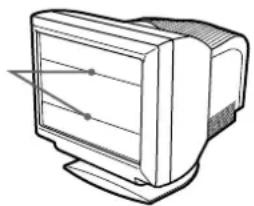
The lines you are experiencing on your screen are normal for the Trinitron monitor and are not a malfunction. These are shadows from the damper wires used to stabilize the aperture grille and are most noticeable when the screen's background is light (usually white). The aperture grille is the essential element that makes a Trinitron picture tube unique by allowing more light to reach the screen, resulting in a brighter, more detailed picture.
Damper wires
On-screen messages
If there is something wrong with the input signal, one of the following messages appears on the screen.
If NO INPUT SIGNAL appears on the screen
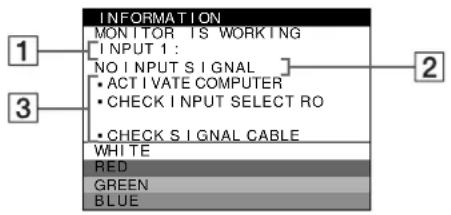
1 The selected connector
This message shows the currently selected connector (INPUT 1 or INPUT 2).
2 The input signal condition NO INPUT SIGNAL
This indicates that no signal is input, or that no signal is input from the selected connector.
3 The remedies
One or more of the following messages may appear on the screen.
- If ACTIVATE COMPUTER appears on the screen, try pressing any key on the computer, and confirm that your computer's graphic board is completely seated in the correct bus slot.
- If CHECK INPUT SELECTOR appears on the screen, try changing the input signal (page 7).
- If CHECK SIGNAL CABLE appears on the screen, check that the monitor is correctly connected to the computer (page 6).
If OUT OF SCAN RANGE appears on the screen
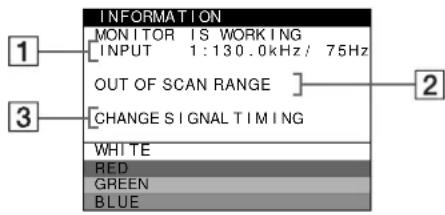
1 The selected connector and the frequencies of the current input signal
This message shows the currently selected connector (INPUT 1 or INPUT 2). If the monitor recognizes the frequencies of the current input signal, the horizontal and vertical frequencies are also displayed.
The input signal condition OUT OF SCAN RANGE
This indicates that the input signal is not supported by the monitor's specifications.
The remedies
CHANGE SIGNAL TIMING appears on the screen. If you are replacing an old monitor with this monitor, reconnect the old monitor. Then adjust the computer's graphic board so that the horizontal frequency is between 30 - 121 kHz and the vertical frequency is between 48 - 160 Hz.
For more information, see "Trouble symptoms and remedies" on page 16.
Trouble symptoms and remedies
If the problem is caused by the connected computer or other equipment, please refer to the connected equipment's instruction manual. Use the self-diagnosis function (page 18) if the following recommendations do not resolve the problem.
| Symptom Check these items | |
| No pictureIf the (power) indicator is not lit | ·Check that the power cord is properly connected.·Check that the (power) switch is in the "on" position. |
| If the NO INPUT SIGNAL message appears on the screen, or if the (power) indicator is either amber or alternating between green and amber | ·C h e c khe t C h b u t o n s i n g i s c o r r e c t (p a y 7).·Check that the video input connector pins are not bent or pushed in.■Problems caused by the connected computer or other equipment·The computer is in power saving mode. Try pressing any key on the computer keyboard.·Check that the computer's power is "on."·Check that the graphic board is completely seated in the proper bus slot. |
| If the NO INPUT SIGNAL and CHECK SIGNAL CABLE message appear on the screen, or if the (power) indicator is either amber or alternating between green and amber | ·Check that the video signal cable is properly connected and all plugs are firmly seated in their sockets (page 6).·Check that the video input connector pins are not bent or pushed in.·C h e c khe t C h b u t o n s i n g i s c o r r e c t (p a y 7).■Problems caused by the connected computer or other equipment·Check that the graphic board is completely seated in the proper bus slot. |
| If the OUT OF SCAN RANGE message appears on the screen | ■Problems caused by the connected computer or other equipment·Check that the video frequency range is within that specified for the monitor. If you replaced an old monitor with this monitor, reconnect the old monitor and adjust the frequency range to the following. Horizontal: 30 - 121 kHzVertical: 48 - 160 Hz |
| If no message is displayed and the (power) indicator is green or flashing amber | ·Use the Self-diagnosis function (page 18). |
| Picture flickers, bounces, oscillates, or is scrambled | ·Isolate and eliminate any potential sources of electric or magnetic fields such as other monitors, laser printers, electric fans, fluorescent lighting, or televisions.·Move the monitor away from power lines or place a magnetic shield near the monitor.·Try plugging the monitor into a different AC outlet, preferably on a different circuit.·Try turning the monitor 90 ° to the left or right.■Problems caused by the connected computer or other equipment·Check your graphics board manual for the proper monitor setting.·Confirm that the graphics mode and the frequency of the input signal are supported by this monitor. Even if the frequency is within the proper range, some video boards may have a sync pulse that is too narrow for the monitor to sync correctly.·Adjust the computer's refresh rate (vertical frequency) to obtain the best possible picture. |
| Picture is fuzzy | ·Adjust the brightness and contrast (page 9).·Degauss the monitor* (page 13).·If CANCEL MOIRE is ON, the picture may become fuzzy. Decrease the moire cancellation effect or set CANCEL MOIRE to OFF (page 11). |
| Picture is ghosting | • Eliminate the use of video cable extensions and/or video switch boxes. • Check that all plugs are firmly seated in their sockets. |
| Picture is not centered or sized properly | • Press the button (page 7). • Adjust the size (page 10) or centering (page 10). Note that some video modes do not fill the screen to the edges. |
| Edges of the image are curved | • Adjust the geometry (page 10). |
| Wavy or elliptical pattern (moire) is visible | • Set CANCEL MOIRE to ON and adjust the degree of moire cancellation until the moire is at a minimum (page 11). ■ Problems caused by the connected computer or other equipment • Change your desktop pattern. |
| Color is not uniform | • Degauss the monitor* (page 13). If you place equipment that generates a magnetic field, such as a speaker, near the monitor, or if you change the direction the monitor faces, color may lose uniformity. • Adjust the landing (page 11). |
| White does not look white | • Adjust the color temperature (page 12). |
| Letters and lines show red or blue shadows at the edges | • Adjust the convergence (page 11). |
| Monitor buttons do not operate (appears on the screen) | • If the control lock is set to ON, set it to OFF (page 13). |
| COLOR RETURN function does not operate | • Before using this function, the monitor must be in normal operation mode (green power indicator on) for at least 30 minutes. For more information on using the COLOR RETURN function, see page 13. • Adjust the computer's power saving settings to keep the monitor in normal operation mode for more than 30 minutes. • The monitor may gradually lose its ability to perform this function due to the natural aging of the picture tube. |
| A hum is heard right after the power is turned on | • This is the sound of the auto-degauss cycle. When the power is turned on, the monitor is automatically degaussed for two seconds. |
- If a second degauss cycle is needed, allow a minimum interval of 20 minutes for the best result. A humming noise may be heard, but this is not a malfunction.
Displaying this monitor's name, serial number, and date of manufacture.
While the monitor is receiving a video signal, press and hold the button for more than five seconds to display this monitor's information box.
If the problem persists, call your service representative and give the following information.
Model name: GDM-5410 - Serial number - Name and specifications of your computer and graphics board.
Example
INFORMATION
MODEL: GDM-5410 SER NO: 1234567 MANUFACTURED: 1999-52
Self-diagnosis function
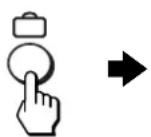
This monitor is equipped with a self-diagnosis function. If there is a problem with your monitor or computer(s), the screen will go blank and the power indicator will either light up green or flash amber. If the power indicator is lit in amber, the computer is in power saving mode. Try pressing any key on the keyboard.
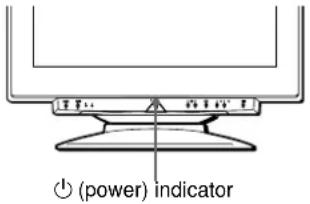
If the power indicator is green
1. Remove any plugs from the video input 1 and 2 connectors, or turn off the connected computer(s). 2. Press the power button twice to turn the monitor off and then on. 3. Press the right arrow button for 2 seconds before the monitor enters power saving mode.
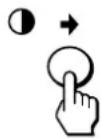
If all four color bars appear (white, red, green, blue), the monitor is working properly. Reconnect the video input cables and check the condition of your computer(s).
If the color bars do not appear, there is a potential monitor failure. Inform your service representative of the monitor's condition.
If the power indicator is flashing amber
Press the power button twice to turn the monitor off and then on.
If the power indicator lights up green, the monitor is working properly.
If the power indicator is still flashing, there is a potential monitor failure. Count the number of seconds between amber flashes of the power indicator and inform your service representative of the monitor's condition. Be sure to note the model name and serial number of your monitor. Also note the make and model of your computer and video board.
Specifications
CRT 0.24 mm aperture grille pitch
21 inches
90-degree
FD Trinitron
Viewable image size Approx. 403.8 x 302.2 mm (w/h)
(15.9 x 11.9 inches)
19.8" viewing image
Recommended resolution Horizontal: 1280 dots
Vertical: 1024 lines
Standard image area Approx. 388 x 291 mm (w/h)
(15 1/4 x 11 1/2 inches)
or
Approx. 364 x 291 mm (w/h)
(14 3/8 x 11 1/2 inches)
Deflection frequency* Horizontal: 30 to 121 kHz
Vertical: 48 to 160 Hz
AC input voltage/current 100 to 240V 50 - 60Hz 2.0 - 1.0A
Power consumption Approx. 145 W
Dimensions: Approx. 501 x 498 x 498 mm (W/H/D)
(19 3/4 x 19 5/8 x 19 5/8 inches)
Mass: Approx. 32 kg (70 lb 9 oz)
Plug and Play: DDC1/2B/2Bi, GTF**
- Recommended horizontal and vertical timing condition: Horizontal sync width duty should be more than 4.8% of total horizontal time or 0.8 μs, whichever is larger. Horizontal blanking width should be more than 2.3 μs. Vertical blanking width should be more than 450 μs. ** If the input signal is Generalized Timing Formula (GTF) compliant, the GTF feature of the monitor will automatically provide an optimal image for the screen.
Design and specifications are subject to change without notice.
Appendix
TCO'99 Eco-document

■ Congratulations!
You have just purchased a TCO'99 approved and labelled product! Your choice has provided you with a product developed for professional use. Your purchase has also contributed to reducing the burden on the environment and also to the further development of environmentally adapted electronics products.
Why do we have environmentally labelled computers?
In many countries, environmental labelling has become an established method for encouraging the adaptation of goods and services to the environment. The main problem, as far as computers and other electronics equipment are concerned, is that environmentally harmful substances are used both in the products and during their manufacture. Since it is not so far possible to satisfactorily recycle the majority of electronics equipment, most of these potentially damaging substances sooner or later enter nature.
There are also other characteristics of a computer, such as energy consumption levels, that are important from the viewpoints of both the work (internal) and natural (external) environments. Since all methods of electricity generation have a negative effect on the environment (e.g. acidic and climate-influencing emissions, radioactive waste), it is vital to save energy. Electronics equipment in offices is often left running continuously and thereby consumes a lot of energy.
What does labelling involve?
This product meets the requirements for the TCO'99 scheme which provides for international and environmental labelling of personal computers. The labelling scheme was developed as a joint effort by the TCO (The Swedish Confederation of Professional Employees), Svenska Naturskyddsforeningen (The Swedish Society for Nature Conservation) and Statens Energimyndighet (The Swedish National Energy Administration).
Approval requirements cover a wide range of issues: environment, ergonomics, usability, emission of electric and magnetic fields, energy consumption and electrical and fire safety.
The environmental demands impose restrictions on the presence and use of heavy metals, brominated and chlorinated flame retardants, CFCs (freons) and chlorinated solvents, among other things. The product must be prepared for recycling and the manufacturer is obliged to have an environmental policy which must be adhered to in each country where the company implements its operational policy.
The energy requirements include a demand that the computer and/or display, after a certain period of inactivity, shall reduce its power consumption to a lower level in one or more stages. The length of time to reactivate the computer shall be reasonable for the user.
Labelled products must meet strict environmental demands, for example, in respect of the reduction of electric and magnetic fields, physical and visual ergonomics and good usability.
Below you will find a brief summary of the environmental requirements met by this product. The complete environmental criteria document may be ordered from:
TCO Development
SE-114 94 Stockholm, Sweden
Fax: +46 8 782 92 07
Email (Internet): development@tco.se
Current information regarding TCO'99 approved and labelled products may also be obtained via the Internet, using the address: http://www.tco-info.com/
Environmental requirements
Flame retardants
Flame retardants are present in printed circuit boards, cables, wires, casings and housings. Their purpose is to prevent, or at least to delay the spread of fire. Up to 30% of the plastic in a computer casing can consist of flame retardant substances. Most flame retardants contain bromine or chloride, and those flame retardants are chemically related to another group of environmental toxins, PCBs. Both the flame retardants containing bromine or chloride and the PCBs are suspected of giving rise to severe health effects, including reproductive damage in fish-eating birds and mammals, due to the bio-accumulative processes. Flame retardants have been found in human blood and researchers fear that disturbances in foetus development may occur.
The relevant TCO'99 demand requires that plastic components weighing more than 25 grams must not contain flame retardants with organically bound bromine or chlorine. Flame retardants are allowed in the printed circuit boards since no substitutes are available.
Cadmium**
Cadmium is present in rechargeable batteries and in the colour-generating layers of certain computer displays. Cadmium damages the nervous system and is toxic in high doses. The relevant TCO'99 requirement states that batteries, the colour-generating layers of display screens and the electrical or electronics components must not contain any cadmium.
(continued)
Mercury**
Mercury is sometimes found in batteries, relays and switches. It damages the nervous system and is toxic in high doses. The relevant TCO'99 requirement states that batteries may not contain any mercury. It also demands that mercury is not present in any of the electrical or electronics components associated with the labelled unit.
CFCs (freons)
The relevant TCO'99 requirement states that neither CFCs nor HCFCs may be used during the manufacture and assembly of the product. CFCs (freons) are sometimes used for washing printed circuit boards. CFCs break down ozone and thereby damage the ozone layer in the stratosphere, causing increased reception on earth of ultraviolet light with e.g. increased risks of skin cancer (malignant melanoma) as a consequence.
Lead**
Lead can be found in picture tubes, display screens, solders and capacitors. Lead damages the nervous system and in higher doses, causes lead poisoning. The relevant TCO'99 requirement permits the inclusion of lead since no replacement has yet been developed.
- Bio-accumulative is defined as substances which accumulate within living organisms. ** Lead, Cadmium and Mercury are heavy metals which are Bioaccumulative.
Plug and Play DDC1/2B/2Bi, GTF**
Plug and Play DDC1/2B/2Bi, GTF**
Plug and Play DDC1/2B/2Bi, GTF**
Plug and Play DDC1/2B/2Bi, GTF**
- WARNING
- FCC NOTICE
- INFORMATION
- DECLARATION OF CONFORMITY
- NOTES
- NOTICE
- TABLE OF CONTENTS
- SETUP
- CUSTOMIZING YOUR MONITOR
- TECHNICAL FEATURES
- TROUBLESHOOTING
- SPECIFICATIONS
- APPENDIX
- PRECAUTIONS
- WARNING ON POWER CONNECTIONS
- INSTALLATION
- MAINTENANCE
- TRANSPORTATION
- USE OF THE TILT-SWIVEL
- IDENTIFYING PARTS AND CONTROLS
- FRONT
- STEP 1: REMOVE THE REAR COVER
- STEP 2: CONNECT YOUR MONITOR TO YOUR COMPUTER
- STEP 3: CONNECT THE POWER CORD
- STEP 4: ATTACH THE REAR COVER
- STEP 5: TURN ON THE MONITOR AND COMPUTER
- IF NO PICTURE APPEARS ON YOUR SCREEN
- SELECTING THE ON-SCREEN MENU LANGUAGE (LANGUAGE)
- PRESS THE BUTTON
- PRESS THE DOWN/UP BUTTONS TO HIGHLIGHT LANGUAGE AND PRESS THE BUTTON AGAIN
- PRESS THE DOWN/UP BUTTONS TO SELECT A LANGUAGE
- TO CLOSE THE MENU
- TO RESET TO ENGLISH
- SELECTING THE INPUT SIGNAL
- NOTE
- AUTOMATICALLY SIZING AND CENTERING THE PICTURE
- NAVIGATING THE MENU
- DISPLAYING THE CURRENT INPUT SIGNAL
- DISPLAY THE MAIN MENU
- SELECT THE MENU YOU WANT TO ADJUST
- ADJUST THE MENU
- CLOSE THE MENU
- RESETTING THE ADJUSTMENTS
- ADJUSTING THE BRIGHTNESS AND CONTRAST
- PRESS EITHER ONE OF THE (BRIGHTNESS) OR (CONTRAST) LEFT/RIGHT BUTTONS
- PRESS THE (BRIGHTNESS) DOWN/UP BUTTONS TO ADJUST THE BRIGHTNESS (A) AND (CONTRAST) LEFT/RIGHT BUTTONS TO ADJUST THE CONTRAST (B)
- IF YOU ARE USING THE SRGB MODE
- ADJUSTING THE SIZE OF THE PICTURE (SIZE/CENTER)
- ADJUSTING THE CENTERING OF THE PICTURE (SIZE/CENTER)
- ENLARGING OR REDUCING THE PICTURE (ZOOM)
- ADJUSTING THE SHAPE OF THE PICTURE (GEOMETRY)
- ADJUSTING THE CONVERGENCE (CONVERGENCE)
- ADJUSTING THE QUALITY OF THE PICTURE (SCREEN)
- PRESS THE DOWN/UP BUTTONS TO HIGHLIGHT [SCREEN] AND PRESS THE BUTTON AGAIN
- ADJUSTING THE COLOR OF THE PICTURE (COLOR)
- EASY MODE
- EXPERT MODE
- SETTING THE COLOR TEMPERATURE FOR EACH OF THE VIDEO INPUT CONNECTORS
- SRGB MODE
- RESTORING THE COLOR FROM THE EASY OR SRGB MENUS
- ADDITIONAL SETTINGS (OPTION)
- DEGAUSSING THE SCREEN
- CHANGING THE MENU'S POSITION
- RESETTING A SINGLE ADJUSTMENT ITEM
- RESETTING ALL OF THE ADJUSTMENT DATA FOR THE CURRENT INPUT SIGNAL
- RESETTING ALL OF THE ADJUSTMENT DATA FOR ALL INPUT SIGNALS
- POWER SAVING FUNCTION
- IF THIN LINES APPEAR ON YOUR SCREEN (DAMPER WIRES)
- ON-SCREEN MESSAGES
- IF NO INPUT SIGNAL APPEARS ON THE SCREEN
- IF OUT OF SCAN RANGE APPEARS ON THE SCREEN
- TROUBLE SYMPTOMS AND REMEDIES
- DISPLAYING THIS MONITOR'S NAME, SERIAL NUMBER, AND DATE OF MANUFACTURE
- SELF-DIAGNOSIS FUNCTION
- IF THE POWER INDICATOR IS GREEN
- IF THE POWER INDICATOR IS FLASHING AMBER
- TCO'99 ECO-DOCUMENT
- CONGRATULATIONS
- WHY DO WE HAVE ENVIRONMENTALLY LABELLED COMPUTERS
- WHAT DOES LABELLING INVOLVE
- TCO DEVELOPMENT
- ENVIRONMENTAL REQUIREMENTS
- FLAME RETARDANTS
- CADMIUM
- MERCURY
- CFCS (FREONS)
- LEAD
Brand : SONY
Model : GDM5410
Category : Other computer accessories