DKVM2K - Switch D-LINK - Free user manual and instructions
Find the device manual for free DKVM2K D-LINK in PDF.

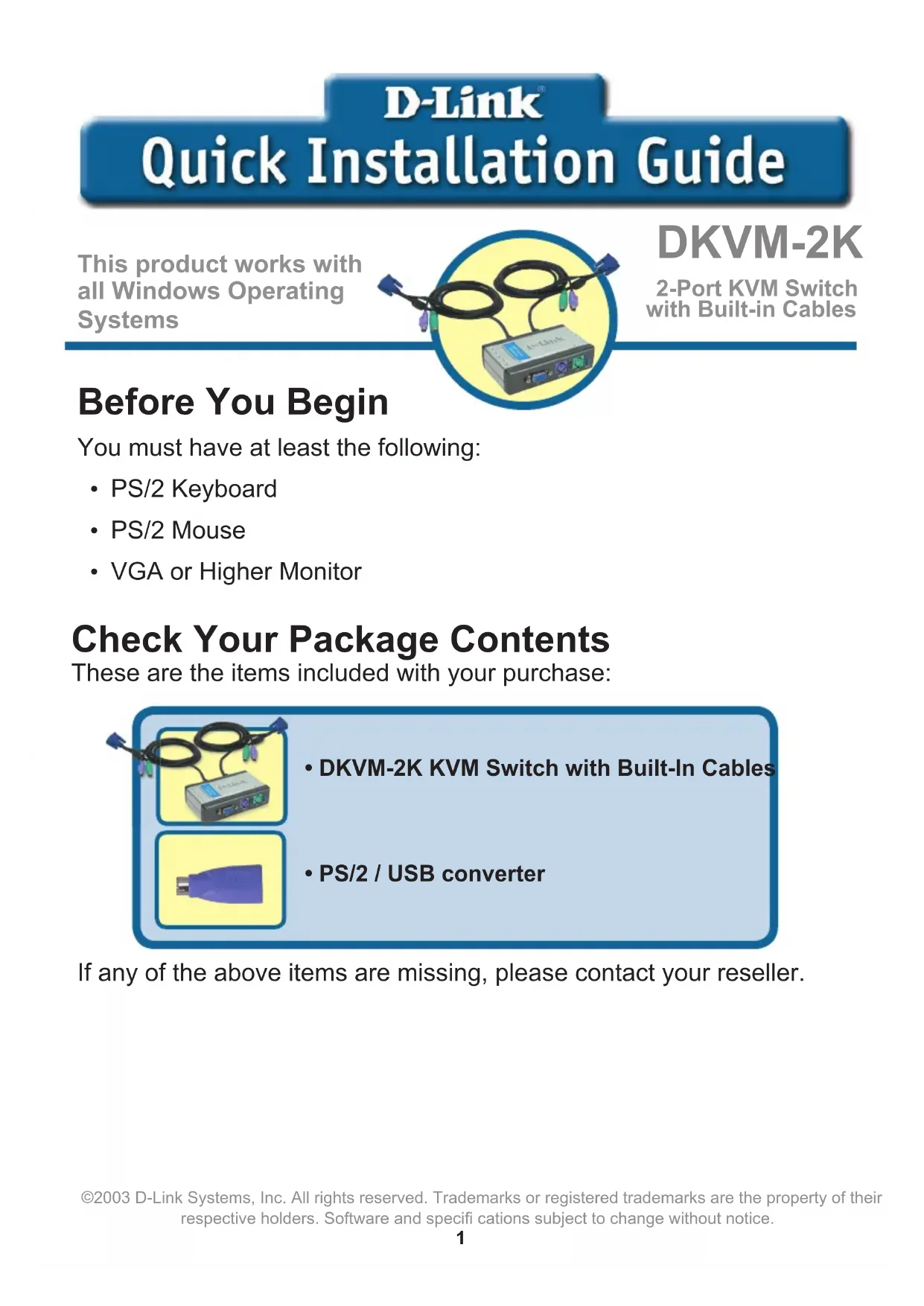


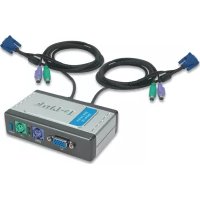
| Product Type | 2-Port KVM Switch with Integrated Cables |
| Brand | D-Link |
| Model | DKVM-2K |
| Number of Computer Ports | 2 |
| Connection Types | PS/2 (keyboard, mouse), VGA (monitor) |
| Integrated Cables | Yes (VGA, keyboard, mouse) |
| USB/PS/2 Converter Included | Yes |
| Selection Method | Front button and keyboard shortcuts (Scroll Lock key) |
| AutoScan Mode | Yes (scan every 10 seconds) |
| Supported Operating Systems | All Windows systems |
| Dimensions (estimated) | 10 x 7 x 2 cm |
| Weight (estimated) | 200 g |
| Power Supply | Powered by computer PS/2 ports |
| Housing Material | Plastic |
| Care and Cleaning | Clean with a soft, dry cloth. Do not use liquids. |
| Safety | Disconnect before cleaning. Do not expose to moisture. |
| Included Accessories | USB/PS/2 converter, quick installation guide |
| Customer Support | D-Link phone and internet support (see manual) |
Frequently Asked Questions - DKVM2K D-LINK
User questions about DKVM2K D-LINK
0 question about this device. Answer the ones you know or ask your own.
Ask a new question about this device
Download the instructions for your Switch in PDF format for free! Find your manual DKVM2K - D-LINK and take your electronic device back in hand. On this page are published all the documents necessary for the use of your device. DKVM2K by D-LINK.
USER MANUAL DKVM2K D-LINK
This product works with all Windows Operating Systems
DKVM-2K
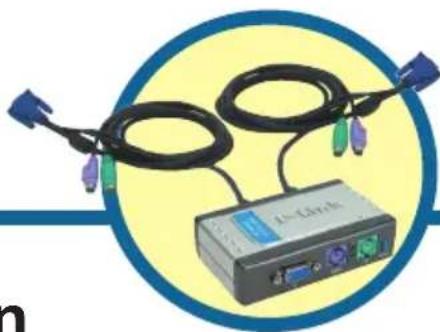
2-Port KVM Switch with Built-in Cables
Before You Begin
You must have at least the following:
PS/2 Keyboard
PS/2 Mouse
VGA or Higher Monitor
Check Your Package Contents
These are the items included with your purchase:
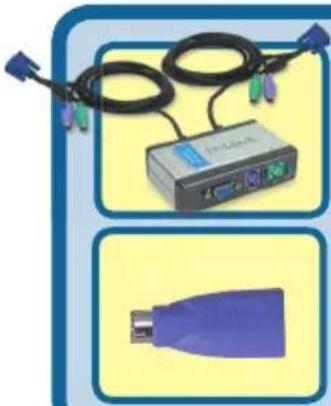
DKVM-2K KVM Switch with Built-In Cables
PS/2 / USB converter
If any of the above items are missing, please contact your reseller.
Installing the DKVM-2K

Make sure that all your computers are turned OFF before installing the DKVM-2K to avoid mouse and keyboard errors when booting up your computers.
Attach your monitor's HDDB 15 VGA connector to the console port of the DKVM-2K.
Attach your computer's 6-pin PS/2 male keyboard connector to the DKVM-2K keyboard port.
Attach your computer's 6-pin PS/2 male mouse connector to the DKVM-2K mouse port.
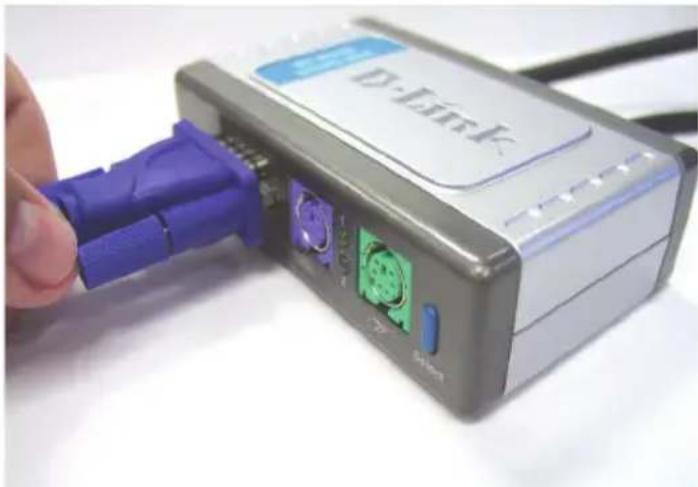
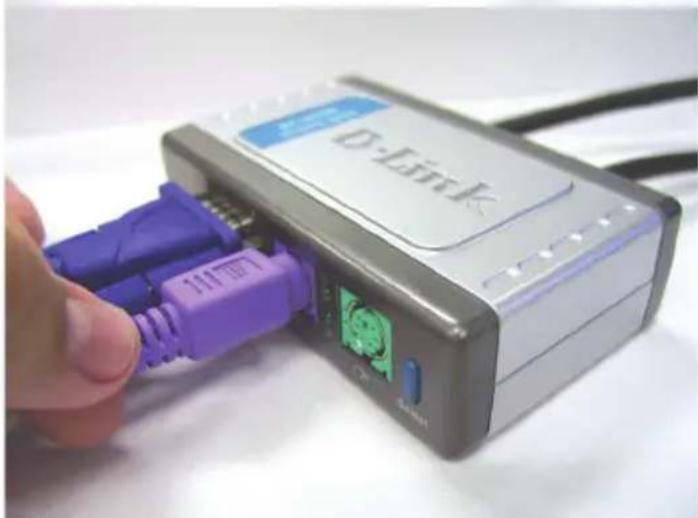
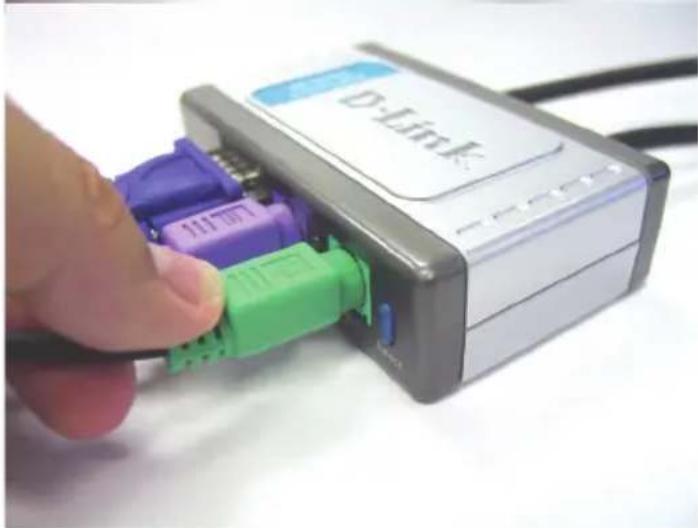
Installing the DKVM-2K
The following steps below apply to both the computers that you are using with your
DKVM-2K.
Attach the DKVM-2K's built-in monitor cable to the VGA port located on the back of your computer case.
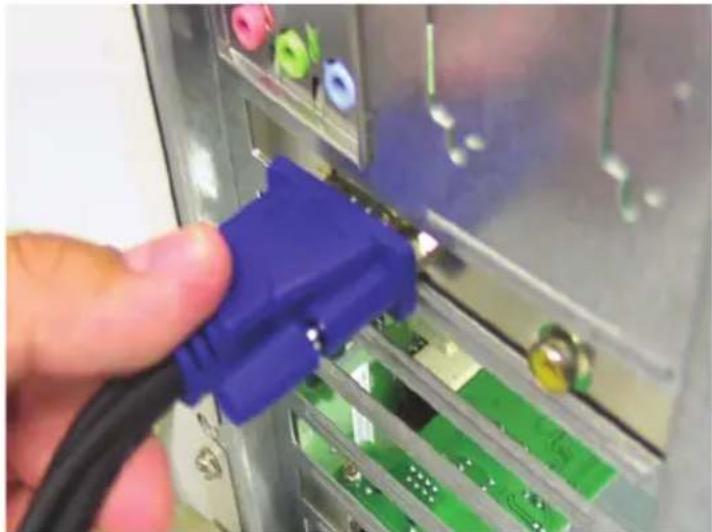
Attach the DKVM-2K's built-in keyboard cable to the PS/2 keyboard port located on the back of your computer case.
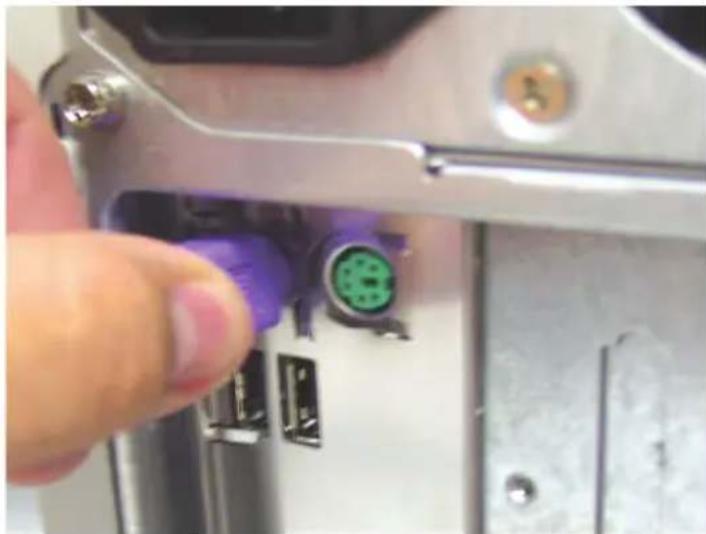
Attach the DKVM-2K's built-in mouse cable to the PS/2 mouse port located on the back of your computer case.
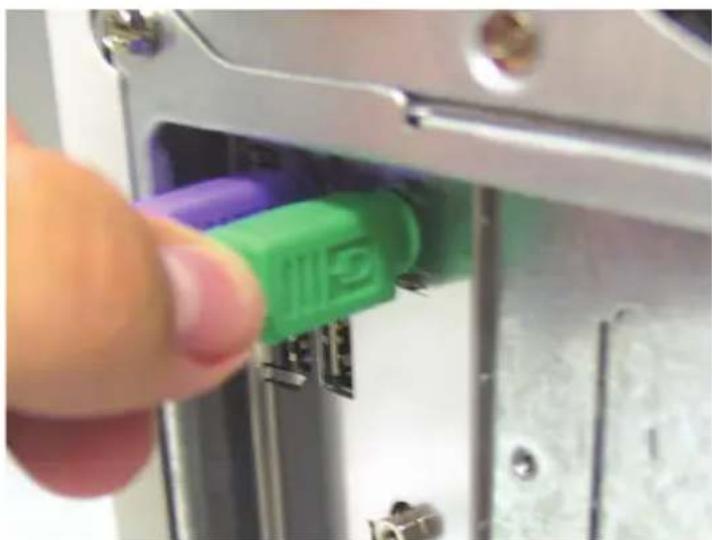
Power ON all your attached computers after you have completed the DKVM-2K installation.
Switching with the DKVM-2K
The DKVM-2K features a Select Button located on the front panel and keyboard Hot Keys to switch quickly and easily between both your computers.
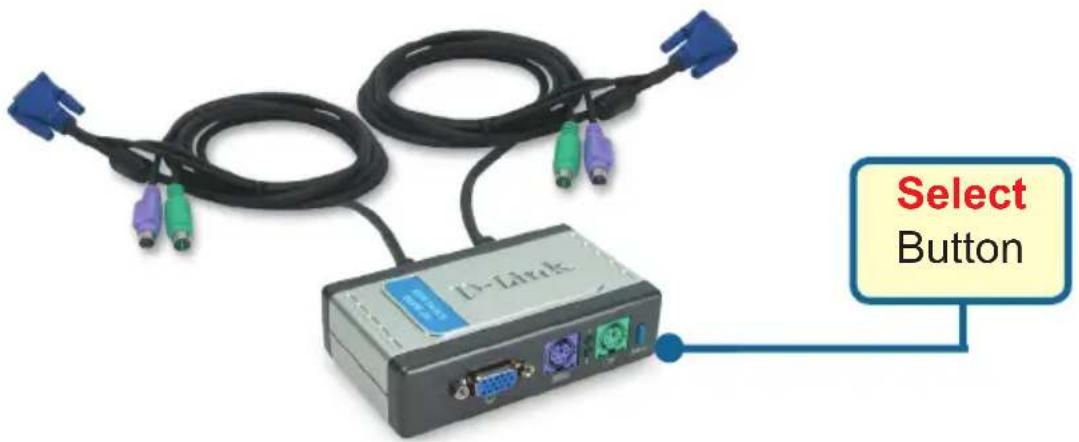
To enter Hot Key switching mode, press the Scroll Lock key twice. A beep confirms that the Hot Key mode is activated.
Hot Key Menu
Scroll Lock + Scroll Lock + 1 : Switches to PC 1
Scroll Lock + Scroll Lock + 2 : Switches to PC 2
Scroll Lock + Scroll Lock + S : Activates Auto Scan Mode. Each computer will be scanned every 10 seconds.
Scroll Lock + Scroll Lock + ESC : Exits Auto Scan Mode and Hot Key Mode.
Scroll Lock + Scroll Lock + M: Resets the Mouse and Keyboard
Troubleshooting Tips
Keyboard
If your keyboard is not functional, not detected, or there is a keyboard error on boot-up, check the following:
- Make sure that the keyboard is properly connected to the computer and to the DKVM-2K. Check that the keyboard is plugged into the correct PS/2 keyboard port and not the PS/2 mouse port.
- Verify that the keyboard works when plugged into the computer directly. You will have to shut down your computer first to do this.
- Read your motherboard documentation and make sure that the PS/2 keyboard's IRQ is enabled. This can be set for most computers in the BIOS setup.
- Try using a different keyboard.
Mouse
If your mouse is not functional, not detected, or there is a mouse error on boot-up, check the following:
- Make sure that the mouse is properly connected to the computer and to the DKVM-2K. Check that mouse is plugged into the correct PS/2 mouse port and not the PS/2 keyboard port.
- Verify that the mouse works when plugged into the computer directly. You will have to shut down your computer first to do this.
- Read your motherboard documentation and make sure that the PS/2 mouse's IRQ is enabled. This can be set for most computers in the BIOS setup.
Try using a different mouse. - If mouse movement is random when switching between computers, try shutting down your computer and rebooting.
- Verify that your computers do not have more than one mouse driver installed (check your config.sys and autoexec.bat files for Windows) and that you are using the latest mouse driver.
- If a special mouse is used such as a cordless or scrolling mouse, make sure you use generic PS/2 mouse drivers. A non-standard PS/2 mouse may have extensions on the PS/2 protocol that are not supported by the DKVM-2K.
- Do not move the mouse or press any mouse buttons when switching from one PC to another.
- Try resetting the mouse by unplugging it from the DKVM-2K for about 3 seconds and reconnecting.
Video
If the image on your monitor is not clear, check the following:
- Verify that all video monitor cables are inserted properly.
Try lowering the resolution and refresh rate of your monitor.
Try using a shorter video cable.
Technical Support
You can find software updates and user documentation on the D-Link website.
D-Link provides free technical support for customers within the United States and within Canada for the duration of the warranty period on this product.
U.S. and Canadian customers can contact D-Link technical support through our website, or by phone.
Tech Support for customers within the United States:
D-Link Technical Support over the Telephone:
(877) 453-5465
24 hours a day, seven days a week
D-Link Technical Support over the Internet:
http://support.dlink.com
email:support@dlink.com
Tech Support for customers within Canada:
D-Link Technical Support over the Telephone:
(800)361-5265
Monday to Friday 7:30am to 12:00am EST
D-Link Technical Support over the Internet:
http://support.dlink.ca
email:support@dlink.ca
Tech Support for customers within the United Kingdom & Ireland:
D-Link UK & Ireland Technical Support over the Telephone:
+44 (0)845 612 0003 (United Kingdom)
+353 (0)12 421 061 (Ireland)
Monday to Friday 8:00 am to 10:00 pm
D-Link Technical Support over the Internet:
http://www.dlink.co.uk
D-Link
Assistance technique
Building Networks for People
D-Link
Guía
Scroll Lock + Scroll Lock + 2: Cambia a PC 2
You can find software updates and user documentation on the D-Link website.
D-Link provides free technical support for customers within Benelux for the duration of the warranty period on this product.
Benelux customers can contact D-Link technical support through our website, or by phone.
Tech Support for customers within the Netherlands:
D-Link Technical Support over the Telephone:
+31(0)20 201 3856
Monday to Friday 8:00 am to 10:00 pm
D-Link Technical Support over the Internet:
www.dlink.nl
Tech Support for customers within Belgium:
D-Link Technical Support over the Telephone:
+32(0)27173248
Monday to Friday 8:00 am to 10:00 pm
D-Link Technical Support over the Internet:
www.dlink.be
Tech Support for customers within
Luxemburg:
D-Link UK & Ireland Technical Support over the Telephone:
+352 342 080 82 13
Monday to Friday 8:00 am to 10:00 pm
D-Link Technical Support over the Internet:
www.dlink.be
www.dlink-benelux.com
D-Link®
Building Networks for People
D-Link
Scroll Lock + Scroll Lock + 1 : Vekslertil PC 1
Scroll Lock + Scroll Lock + 2 : Veksler til PC 2
Scroll Lock + Scroll Lock + S : Aktiverer Auto Scan Mode (automatisch skannemodus). Hver datamaskin blir skannet hvert 10. sekund.
Scroll Lock + Scroll Lock + ESC : Avslutter Auto Scan Mode (automatisk skannemodus) og Hot Key Mode (hurtigtastmodus).
Installation of DKVM-2K
Building Networks for People