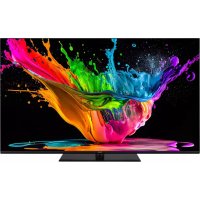
TX65MZ800E - TV PANASONIC - Free user manual and instructions
Find the device manual for free TX65MZ800E PANASONIC in PDF.
Download the instructions for your TV in PDF format for free! Find your manual TX65MZ800E - PANASONIC and take your electronic device back in hand. On this page are published all the documents necessary for the use of your device. TX65MZ800E by PANASONIC.
USER MANUAL TX65MZ800E PANASONIC
WARNING: This device is intended to be
used by persons (including children) who are capable / experienced of operating such a device unsupervised, unless they have been given supervision or instruction concerning the use of the device by a person responsible for their safety.
ABOVE ALL - NEVER let anyone, especially children, push or hit the screen, push anything into holes, slots or any other openings in the TV. Markings on the Product
Caution, See Operating Instructions:
CLASS 1LASER PRODUCT
Class 1 Laser Product:
English - 3 - WARNING Do not ingest the battery, Chemical Burn Hazard This product or the accessories supplied with the pro
duct may contain a coin/button cell battery. If the coin/ button cell battery is swallowed, it can cause severe internal burns in just 2 hours and can lead to death. Keep new and used batteries away from children. If the battery compartment does not close securely, stop using the product and keep it away from children. If you think batteries might have been swallowed or placed inside any part of the body, seek immediate medical attention. – – – – – – – – – – – – Warning Stability Hazard A television may fall, causing serious personal injury or death. Many injuries, particuIarly to children, can be avoided by taking simple precautions such as:
- ALWAYS use cabinets or stands or mounting me- thods recommended by the manufacturer of the television set.
- ALWAYS use furniture that can safely support the television set.
- ALWAYS ensure the television set is not overhanging the edge of the supporting furniture.
- ALWAYS educate children about the dangers of climbing on furniture to reach the television set or its controls.
- ALWAYS route cords and cables connected to your television so they cannot be tripped over, pulled or grabbed.
- NEVER place a television set in an unstable location.
- NEVER place the television set on tall furniture (for example, cupboards or bookcases) without ancho- ring both the furniture and the television set to a suitable support.
- NEVER place the television set on cloth or other materials that may be located between the television set and supporting furniture.
- NEVER place items that might tempt children to climb, such as toys and remote controls, on the top of the television or furniture on which the television is placed.
- The equipment is only suitable for mounting at heights ≤2 m. If the existing television set is going to be retained and relocated, the same considerations as above should be applied. – – – – – – – – – – – – Apparatus connected to the protective earthing of the building installation through the MAINS connection or through other apparatus with a connection to protective earthing – and to a television distribution system using coaxial cable, may in some circumstances create a re hazard. Connection to a television distribution system has therefore to be provided through a device providing electrical isolation below a certain frequency range (galvanic isolator).
WALL MOUNTING WARNINGS
- Read the instructions before mounting your TV on the wall.
- The wall mount kit is optional. You can obtain from your local dealer, if not supplied with your TV.
- Do not install the TV on a ceiling or on an inclined wall.
- Use the specied wall mounting screws and other accessories.
- Tighten the wall mounting screws rmly to prevent the TV from falling. Do not over-tighten the screws. WARNING
- Using other wall-hanging brackets, or installing a wall-hanging bracket by yourself have the risk of personal injury and product damage. In order to maintain the unit’s performance and safety, be absolutely sure to ask your dealer or a licensed contractor to secure the wall-hanging brackets. Any damage caused by installing without a qualied installer will void your warranty.
- Carefully read the instructions accompanying optional accessories, and be absolutely sure to take steps to prevent the TV from falling o.
- Handle the TV carefully during installation since subjecting it to impact or other forces may cause product damage.
- Take care when xing wall brackets to the wall. Always ensure that there are no electrical cables or pipes in the wall before hanging bracket.
- To prevent fall and injury, remove the TV from its xed wall position when it is no longer in use. DAMAGES
- Excepting cases where responsibility is recognised by local regulations, Panasonic accepts no responsibility for malfunctions caused by misuse or use of the product, and other problems or damages caused by use of this product.
- Panasonic accepts no responsibility for loss, etc., of data caused by disasters.
- External devices separately prepared by the custo
mer are not covered by the warranty. Care for the data stored in such devices is the responsibility of the customer. Panasonic accepts no responsibility for abuse of this data. Figures and illustrations in these operating instructions are provided for reference only and may dier from the actual product appearance. Product design and specications may be changed without notice.English - 4 -
- Make sure not to scratch or break the TV. CAUTION: Please refrain from inserting pictured screws to the TV body when not using the TV stand e.g. wall hanging. Inserting screws without pedestal may cause a damage of the TV.
The stand of the TV consists of two pieces. Install these pieces together.
M6 x 20 mm Place the stand(s) on the stand mounting pattern(s) on the rear side of the TV. Insert the screws (M4 x 12) provided and tighten them gently until the stand is properly tted.
M4 x 12 mmM6 x 20 mm Removing the pedestal from the TV Be sure to remove the pedestal in the following way when using the wall-hanging bracket or repacking the TV.
- Put the TV onto a work table with the screen panel down on the clean and soft cloth. Leave the stand(s) protruding over the edge of the surface.
- Unscrew the screws that xing the stand(s).
- Remove the stand(s).
Gently wipe the surface of the display panel, cabinet, or pedestal by using a soft cloth to remove dirt or ngerprints.
First clean the dust from the surface. Dampen a soft cloth with clean water or diluted neutral detergent (1 part detergent to 100 parts water). Wring out the cloth rmly. (Please note, do not let liquid enter the TV inside as it may lead to product failure.) Carefully wipe moisten and wipe away the stubborn dirt. Finally, wipe away all the moisture. Caution Do not use a hard cloth or rub the surface too hard, otherwise this may cause scratches on the surface.
- Take care not to subject the surfaces to insect repellent, solvent, thinner or other volatile substances. This may degrade surface quality or cause peeling of the paint.
- The surface of the display panel is specially treated and may be easily damaged. Take care not to tap or scratch the surface with your ngernail or other hard objects.
- Do not allow the cabinet and pedestal to make contact with a rubber or PVC substance for a long time. This may degrade surface quality. Mains plug Wipe the mains plug with a dry cloth at regular intervals. Moisture and dust may cause re or electrical shock.
the pedestal Preparations Take out the pedestal(s) and the TV from the packing case and put the TV onto a work table with the screen panel down on the clean and soft cloth (blanket, etc.)
- Use a at and rm table bigger than the TV.
- Do not hold the screen panel part.English - 5 - Introduction Thank you for choosing our product. You’ll soon be enjoying your new TV. Please read these instructions carefully. They contain important information which will help you get the best from your TV and ensure safe and correct installation and operation. Accessories Included
- Remote Control• Batteries: 2 x AAA• Operating Instructions• Power Cord• Detachable stand• Stand mounting screws (M4 x 12) + (M6 x 20) Features
- 4K UHD Google TV• Android operating system• Google Cast• Voice Search• Fully integrated digital terrestrial/cable/satellite TV (DVB-T-T2/C/S-S2)• Ethernet (LAN) for Internet connectivity and service• 802.11 a/b/g/n/ac built in WLAN Support Ultra HD (UHD) The TV supports Ultra HD (Ultra High Denition - also known as 4K) which provides resolution of 3840 x 2160 (4K:2K). It equals 4 times the resolution of Full HD TV by doubling the pixel count of the Full HD TV both horizontally and vertically. Ultra HD content is supported via native and market applications, HDMI, some of the Over-the-Top (OTT) services, USB inputs and over DVB-T2 and DVB-S2 broadcasts. High Dynamic Range (HDR) / Hybrid Log- Gamma (HLG) Using this feature the TV can reproduce greater dynamic range of luminosity by capturing and then combining several dierent exposures. HDR/HLG promises better picture quality thanks to brighter, more realistic highlights, more realistic colour and other improvements. It delivers the look that lmmakers intended to achieve, showing the hidden areas of dark shadows and sunlight with full clarity, colour and detail. HDR/HLG content is supported via native and market applications, HDMI, USB inputs and over DVB-S broadcasts. When the input source is set to the related HDMI input press the Menu button and set the HDMI EDID Version option in the TV Options>Settings>Channels & Inputs>Inputs menu as EDID 2.0, EDID 2.1 or Auto EDID in order to watch When using the wall-hanging bracket Please contact your local Panasonic dealer to purchase the recommended wall-hanging bracket.Holes for wall-hanging bracket installation;Rear of the TV
(d) 55” 65”Depth of screw (c)min. 8 mm 15 mmmax. 12 mm 20 mmDiameter M6 M6Note: The screws for xing the TV onto the wall-hanging bracket are not supplied with the TV.English - 6 - HDR/HLG content, if the HDR/HLG content is received through an HDMI input. The source device should also be at least HDMI 2.0a compatible in this case. Dolby Vision Dolby Vision™ delivers a dramatic visual experience, astonishing brightness, exceptional contrast, and vivid colour, that brings entertainment to life. It achieves this stunning image quality by combining HDR and wide colour gamut imaging technologies. By increasing the brightness of the original signal and using a higher dy- namic colour and contrast range, Dolby Vision presents amazing true-to-life images with stunning detail that other post-processing technologies in the TV aren’t able to produce. Dolby Vision is supported via native and market applications, HDMI and USB inputs. When the input source is set to the related HDMI input press the Menu button and set the HDMI EDID Version option in the TV Options>Settings>Channels & Inputs>Inputs menu as EDID 2.0, EDID 2.1 or Auto EDID in order to watch Dolby Vision content, if the Dolby Vision content is received through an HDMI input. The source device should also be at least HDMI 2.0a compatible in this case. In the Picture Mode menu three predened picture modes will be availa- ble if Dolby Vision content is detected: Dolby Vision Bright, Dolby Vision Dark and Dolby Vision Vivid. All allow the user to experience the content in the way the creator originally intended with dierent ambient lighting conditions. To change the Picture Mode setting press the Menu button while watching the Dolby Vision content and go to Picture menu. While watching Dolby Vision Content via an application, except YouTube, Netix and Multi Media Player, you will not be able to access the Picture menu and set the Picture Mode. OLED TV Operations OLED panels have some procedures in order to extend the panel lifetime and provide protection from image sticking problem. OLED Fast Panel Clean
- After every 4 hours of use, the TV will perform OLED Fast Panel Clean operation automatically when next time the TV is switched into standby mode. If the TV is in Store Mode this operation will be performed 3 hours after the last successful OFF-RS compensation.
- It will take about 6 minutes. In order not to interrupt the operation it is recommended to wait until the operation is completed.
- The LED will be blinking during the operation.
- When the operation is complete, the TV will switch into standby mode.
- This operation can be interrupted by cutting the power supply to the TV or switching the TV on. In this case OLED Fast Panel Clean operation will performed when next time the TV is switched into standby mode. OLED Compensation
- This operation will be performed automatically at any time of the day when the TV is switched into standby mode after every 1500 hours of use.
- After a period of 60 seconds in standby mode the TV will switch on with blank screen and OLED Compensation function will be performed if the panel is at proper temperature.
- This will take about 1 minute and during the operation the LED will blink and a horizontal line will appear on the screen, moving from the top to the bottom of the screen.
- After OLED Compensation operation is completed the TV will switch into standby mode.
- OLED Compensation operation can be interrupted at any time by cutting the power supply to the TV or switching the TV on.
- If OLED Compensation operation is interrupted a massage will appear on the screen stating that the OLED Compensation operation was interrupted when next time the TV is switched on. In this case OLED Compensation operation will be performed when next time the TV is switched into standby mode.
- This operation can be performed manually using the OLED Compensation option in the Settings>Device Preferences>Picture>OLED menu. This operation will take about 90 minutes and then the TV will be switched o automatically. Do not unplug the mains lead during this period. It is not recommended to perform this operation more than once a year or unless requested by authorised service personnel. Manual OFF-RS Compensation
- This operation can be performed manually using the Manual OFF-RS Compensation option in the Settings>Display & Sound>Picture>OLED menu.
- It will take about 15 minutes. In order not to interrupt the operation it is recommended to wait until the operation is completed.
- The LED will be blinking during the operation.
- When the operation is complete, the TV will switch into standby mode.
- This operation can be interrupted by cutting the power supply to the TV or switching the TV on. In this case, OFF-RS operation will be performed the next time the TV is switched into standby mode after 4 hours of use. Pixel Shift
- The images will be automatically shifted by one pixel every 80 seconds to prevent image sticking.English - 7 -
- You can change the pixel shifting setting using the OLED Pixel Shift option in the Settings>Display & Sound>Picture>OLED menu. On and O options will be available.
- The image on the screen will be shifted horizontally and vertically, following a rectangular-shaped orbit. Antenna Connection Connect the aerial or cable TV plug to the aerial input (ANT) socket located on the left side of the TV or satellite plug to the satellite input (LNB) socket located on the rear side of the TV. Left side of the TV ANT Rear side of the TV LNB If you want to connect a device to the TV, make sure that both the TV and the device are turned o before making any connection. After the connection is done, you can turn on the units and use them.English - 8 - Other Connections If you want to connect a device to the TV, make sure that both the TV and the device are turned o before making any connection. After the connection is done, you can turn on the units and use them. Connector Type Cables Device HDMI Connection (back&side) SPDIF SPDIF (Optical Out) Connection (back) HEADPHONE Headphone Connection (back) USB Connection (side)
Connection (side) CAM module LAN Ethernet Connection (back) LAN / Ethernet Cable When using the wall mounting kit (contact your dealer to purchase one, if not supplied), we recommend that you plug all your cables into the back of the TV before mounting on the wall. Insert or remove the CI module only when the TV is SWITCHED OFF. You should refer to the module instruction manual for details of the settings. The USB inputs on the TV support devices up to 500mA. Connecting devices that have current value above 500mA may damage your TV. When connecting equipment using a HDMI cable to your TV, to guarantee sucient immunity against parasitic frequency radiation and trouble-free transmission of high denition signals, such as 4K content, you have to use a high speed shielded (high grade) HDMI cable with ferrites.English - 9 - Turning On/Off the TV Connect power IMPORTANT: The TV set is designed to operate on 220-240V AC, 50 Hz socket. After unpacking, allow the TV set to reach the ambient room temperature before you connect the set to the mains. Plug one end (the two-hole plug) of the supplied detachable power cord into the power cord inlet on the rear side of the TV as shown above. Then plug the other end of the power cord into the mains socket outlet. The TV will switch on automatically. Note: The position of the power cord inlet may dier depending on the model. To switch on the TV from standby If the TV is in standby mode the standby LED lights up. To switch on the TV from standby mode either:
- Press the Standby button on the remote control.
- Press the centre of the joystick on the TV in. To switch the TV into standby The TV cannot be switched into standby mode via joystick. Press and hold the Standby button on the remote control. Power o dialogue will appear on the screen. Highlight OK and press the OK button. The TV will switch into standby mode. To switch o the TV To power down the TV completely, unplug the power cord from the mains socket. Quick standby mode In order to switch the TV into quick standby mode either;
- Press the Standby button on the remote. Press again to go back to operating mode.
- Press and hold the centre of the joystick on the TV. Press again to go back to operating mode. Your TV continues to operate in the quick standby mode state, as it regularly checks for updates. This is not a malfunction, it meets the requirements for energy consumption. In order to minimise energy consumption switch your TV into standby mode as explained above. Note: When the TV is switched into standby mode, the standby LED can blink to indicate that features such as standby search or timer is active. The LED can also blink when you switch on the TV from standby mode.English - 10 - TV Control & Operation The joystick allows you to control the Volume / Programme / Source and Quick Standby-On functions of the TV. Note: The position of the joystick may dier depending on the model. To change volume: With the front side of the TV facing you, push the joystick right to increase the volume and push it left to decrease the volume. To change channel in Live TV mode: Scroll through the stored channels by pushing the joystick forwards or pulling it towards yourself. To change source in Live TV mode: Press the centre of the joystick in, the TV options menu will be displayed. Highlight Source option and press the centre of the joystick in again, the Inputs list will appear on the screen. Select the desired source by pushing the joystick forwards or pulling it towards yourself and press the centre of the joystick in. To turn the TV o (Quick Standby): Press the centre of the joystick in and hold it down for a few seconds, the TV will turn into quick standby mode. To turn the TV o (Standby): The TV cannot be switched into standby mode via joystick. To turn on the TV: Press the centre of the joystick in, the TV will turn on. Operation with the Remote Control Press the Menu button on your remote control to display Live TV settings menu when in Live TV mode. Press the Home button to display or return to the Home Screen of the Google TV. Use the directional buttons to move the focus, proceed, adjust some settings and press OK to make selections in order to make changes, set your preferences, enter a sub-menu, launch an application, etc. Press Back/Return to return to the previous menu screen. Input Selection Once you have connected external systems to your TV, you can switch to dierent input sources. Press the Source button on your remote control consecutively or use the directional buttons and then press the OK button to switch to dierent sources when in Live TV mode. Or enter the Inputs menu on the Dashboard, select the desired source from the list and press OK. Changing Channels and Volume You can adjust the volume by using the Volume +/- buttons and change the channel in Live TV mode by using the Programme +/- buttons on the remote.English - 11 - Remote Control MENU TEXT
Note: Other Panasonic devices cannot be operated with this remote. Standby Button Press and hold the Standby button on the remote control. Power o dialogue will appear on the screen. Highlight OK and press the OK button. The TV will switch into standby mode. Press briey and release to switch the TV into quick standby mode or to switch on the TV when in quick standby or standby mode. Inserting the Batteries into the Remote The remote may have a screw that secures the battery com
partment cover onto the remote control (or this may be in a separate bag). Remove the screw, if the cover is screwed on previously. Then remove the battery compartment cover to reveal the battery compartment. Insert two 1.5V - size AAA batteries. Make sure the (+) and (-) signs match (observing correct polarity). Do not mix old and new batteries. Replace only with same or equivalent type. Place the cover back on. Secure the cover again with the screw, if any. To pair remote with the TV When the TV is turned on for the rst time, a search for the remote will be performed before the initial setup starts. You will need to pair your remote control with your TV at this point. Press and hold the Home and Back/Return buttons on the remote simultaneously until the LED on the remote starts to blink, then release the buttons. That means the remote is in pairing mode. Now you will wait for the TV to nd your remote. When the pairing process is successful, the LED on the remote will go o and a green check mark will appear on the TV screen. If the pairing process fails the remote will enter sleep mode after 30 seconds. In order to pair your remote later on, you can go to Settings> Bluetooth Remotes & Accessories menu, highlight the Pair Accessory option and press OK to start a search for accessories.
1. Standby: Quick Standby / Standby / On
2. Numeric buttons: Switches the channel in Live TV
mode, enters a number in the text box on the screen
3. Language: Switches among sound modes (analogue
5. Microphone: Activates the microphone on the remote
if the remote is paired with the TV previously. Otherwise pressing this button will start the search for accessories where you can pair your remote with the TV
6. Home: Opens the Home Screen, is also used in pairing
process of the remote. Press and hold to open the Dashboard
7. Guide: Displays the electronic programme guide for
8. OK: Confirms selections, enters sub-menus, views
channel list (in Live TV mode)
9. Back/Return: Returns to previous menu screen, goes
one step back, closes open windows, closes teletext (in Live TV-Teletext mode), is also used in pairing process of the remote
12. Menu: Displays the main settings menu (on other sources
than Google TV Home), displays available setting options such as sound and picture
13. Coloured Buttons: Follow the on-screen instructions for
coloured button functions
14. Rewind: Moves frames backwards in media such as
15. Stop: Stops the media being played
16. Record: Records programmes in Live TV mode
17. Pause: Pauses the media being played, starts timeshift
recording in Live TV mode Play: Resumes playing the paused media
18. Text: Opens and closes teletext (where available in
19. Fast forward: Moves frames forward in media such
20. Source: Shows all available broadcast and content
23. Exit: Closes and exits from the main settings menus (on
other sources than Google TV Home), closes the Home Screen and switches to last set source, exits from any running application or menu or OSD banner
24. Directional buttons: Navigates menus, setting options,
moves the focus or cursor, etc. and displays the subpages in Live TV-Teletext mode when pressed Right or Left. Follow the on-screen instructions Note: Directional buttons are positioned on the circle around the OK button.
27. Mute: Completely turns o the volume of the TV
28. Info: Displays information about on-screen contentEnglish - 12 -
Initial Setup Wizard Note: Follow the on-screen instructions to complete the initial setup process. Use the directional buttons and the OK button on the remote to select, set, conrm and proceed. When turned on for the rst time, the remote control pairing screen will be displayed. After pairing your remote with the TV as instructed, select your language on the next screen and press OK. Follow the on-screen instructions to setup your TV and install channels. The installation wizard will guide you through the setup process. You can perform initial setup anytime using the Reset option in the Settings>System>About>Re- set menu. You can access the Settings menu from the Dashboard on the Home screen or from the TV options menu in Live TV mode. Some steps of the initial setup process may dier or be skipped depending on the selected options in each step.
1. Pair the remote control
A search for the remote control will be performed when the TV is turned on for the rst time. Follow the on-screen instructions to pair your remote control (depends on the model of the remote control) with your TV. If the pairing process is successful, a green check mark will be displayed on the screen. If you don’t want to pair your remote with the TV at this point, you can press the Back/Return button to skip.
2. Welcome Message and Language Selection
“Welcome” message will be displayed along with the language selection options listed on the screen. Select the desired language from the list and press OK to continue.
In the next step select your region or country from the list and press OK to continue.
4. TV setup selection
You can choose to proceed with the Google TV or basic TV installation at this point. Select according to your preference and press OK to continue.
5. Setup with the Google Home app
Depending on the country selection you can use the Google Home app to transfer your Android phone’s Google Account to your TV. Select adding new device option in the app and scan the QR code when instructed. Follow the on-screen instructions on your TV and your phone to complete the process with the Google Home app. Some of the following steps of the initial setup on the TV will be skipped if the Google TV setup is carried out using the Home app. To continue the setup on your TV press the Down directional button and then press OK on this screen.
6. Network Connection
If you did priorly connect your TV to the Internet via Ethernet a message will be displayed stating that you are connected. You can choose to continue with wired connection or change the network. Highlight Change network and press OK if you want to use wireless connection instead of wired connection. If the Internet connection has not been established via Ethernet before, available wireless networks will be searched and listed on the next screen. Select your WLAN network from the list and press OK to connect. Enter the password using the virtual keyboard if the network is password protected. Select the Other network option from the list, if the network that you want to connect has hidden SSID (network name). If you prefer not to connect to the Internet at this point you can skip this step by selecting the Skip option. You can connect to the Internet later using the Network & Internet menu options in the Settings menu from the Dashboard on the Home Screen or from the TV options menu in Live TV mode. Highlight OK and press OK to continue with the wireless connection, when the energy saving tips dialogue is displayed.
7. Network Privacy Policy
Network Privacy Policy screen will be displayed next. Read the related explanations displayed on the screen. You can use Up and Down directional buttons to scroll through and read the entire text. Highlight Accept and press OK on the remote to conrm and proceed. You can change this setting later using Network Privacy Policy option in the Settings>Network & Internet menu.
8. Sign in to your Google account
If the network connection is successfully established, you can sign in to your Google account on the next screen. You need to be signed in to a Google account in order to use Google services. This step will be skipped if no internet connection has been established or if you already signed in to your Google account using your Android phone in the previous steps of the initial setup. By signing in, you will be able to discover new apps for videos, music and games on Google Play; get personalised recommendations from apps like YouTube; buy or rent the newest movies and shows on Google Play Movies & TV; access your entertainment and control your media. Highlight Sign In and press OK to proceed. You can sign in to your Google account by entering your e-mail address or phone number and your password, or create a new account.
Terms of Service screen will be displayed next. By continuing, you will agree to the Google Terms of Service, the Google Play Terms of Service, and theEnglish - 13 - Google Privacy Policy. Highlight Accept and press OK on the remote to conrm and proceed. You can also view Terms of Service, Play Terms of Service, and Privacy Policy on this screen. To display the content an internet connection is needed. A message will be displayed mentioning the web site address on which this information can also be viewed, in case internet access is not available.
Select each to learn more about each service, such as how to turn it on or o later. Data will be used accor
ding to Google’s Privacy Policy. Highlight Accept and press OK to conrm your selection of these Google services settings. Use location You can allow or disallow Google and third party apps to use your TV’s location information. Highlight Use location and press OK to view detailed information and turn this feature on or o. You can change this setting later using Location status option in the Set
tings>Privacy>Location menu. Help improve Google TV Automatically send diagnostic information to Google, like crash reports and usage data from your device and apps. Highlight Help improve Google TV and press OK to view detailed information and turn this feature on or o. You can change this setting later using the Settings>Privacy>Usage & diagnostics menu. Recommendations Google TV uses your activity from other Google products and services to improve your recommendations. Your activity on Google TV will also be used to improve your recommendations on other Google products. You can view and control the data shared between Google products at the address given in the text. You can also hide personalised recommendations on Google TV by enabling apps-only mode from the device settings. Services and your privacy Google Assistant sends services you talk to a unique code. That way, services can remember things like your preferences during conversations. You can view, manage and reset the data sent to services on each service’s page in the Explore section of the Assistant mobile app. Learn more at g.co/assistant/idreset. If you have signed in to your Google account in the previous steps, you can also turn on personal results for Assistant and allow Assistant to search across all your TV apps by choosing the related options when prompted.
Depending on the country selection you made in the earlier steps, you may be asked to dene a 4-digit password (PIN) at this point. Press OK to proceed. The selected PIN cannot be 0000. This PIN will be required in order to access some menus, content or to release locked channels, sources, etc. You will have to enter it if you are asked to enter a PIN for any menu operation later.
12. Parental Controls
Depending on the country selection you made in the earlier steps, the parental controls screen may be displayed. Highlight the desired parental restriction option and press OK to select and proceed. The TV will get the maturity information from the broadcast and if this maturity level is disabled, will prohibit access to the broadcast. You can highlight O and press OK, if you don’t want to activate parental restrictions.
In the following step of the initial setup, you can set the TV’s operation mode either as Home or as Store. Store option will congure your TV’s settings for store environment. This option is intended only for store use. It is recommended to select Home for home use.
14. Chromecast built-in always available
Select your chromecast availability preference. If set as On your TV will be detected as a Google Cast device and allow Google Assistant and other services to wake your TV up to respond to Cast commands, even when on standby mode and the screen is o.
The next step is the selection of the tuner mode. Select your tuner preference to install channels for Live TV function. Antenna and Cable options are available. Highlight the option that corresponds to your environment and press OK or Right directional button to proceed. If you don’t want to perform a tuner scan highlight Next and press OK. When the channel scan with the selected tuner is completed, the installation wizard will bring you back to this step. In case you want to continue scanning channels with another tuner, you can proceed as explained below. Antenna If the Antenna option is selected, you can choose to search for digital terrestrial and analogue broadcasts. On the next screen highlight the option you prefer and press OK to start the search. While the search continues you can press the Back/ Return button to stop the search. Then highlight Skip Scan and press OK or the Right directional button to complete the setup. The channels that have already been found will be stored in the channel list. Note: If the country selected does not have analogue broadcasts, analogue channels may not be searched. Cable If the Cable option is selected, you can choose to search for digital cable and analogue broadcasts. IfEnglish - 14 - any, available operator options will be listed on the Select Operator screen. Otherwise this step will be skipped. You can select only one operator from the list. Highlight the desired operator and press OK or the Right directional button to proceed. On the next screen highlight the option you prefer and press OK to start the search. If one of the digital channel search options is selected, a conguration screen will be displayed next. Scan Mode, Frequency (KHz), and Network ID options may need to be set. To perform a full scan set the Scan Mode as Full or Advanced if available. Depending on the selected operator and/ or the Scan Mode setting, some options may not be available to be set. Note: If the country selected does not have analogue broadcasts, analogue channels may not be searched. Once you are done with setting available options, press the Right directional button to proceed. The TV will start to search available broadcasts. While the search continues you can press the Back/ Return button to stop the search. Then highlight Skip Scan and press OK or the Right directional button to complete the setup. The channels that have already been found will be stored in the channel list. When the initial setup is completed a message will be displayed. Press OK to nish the setup. You will be asked to give your consent to the collection of your data. Read the text on the screen for detailed information. Highlight Accept and press OK to give your consent and proceed. To skip without giving your consent, select Next. You can change this setting later using the Settings>Privacy>Usage & diagnostics menu. Your apps will be installed and nal touches will be added. When the Google TV is ready, a message stating that the TV is ready and the Start exploring button will appear on the screen. Press OK again to proceed. Home Screen will be displayed. You can press the Exit button on the remote or highlight the LiveTV app and press OK to switch to Live TV mode and watch TV channels. Home Screen To enjoy the benets of your Google TV, the Google TV installation should be performed instead of the basic TV installation during the initial setup of your TV. You also need to be signed in to your Google account and your TV should be connected to the Internet. To perform Google TV installation after the initial setup, you can scroll down, highlight the Setup Google TV option and press OK. Connect the TV to a home network with a high-speed Internet connection. Refer to the Network & Internet and Connecting to the Internet sections for further information on how to connect your TV to the Internet. The Home menu is the centre of your TV. From the Home menu, you can start any application, switch to a TV channel, watch a movie, or switch to a connected device. Press the Home button to display Home Screen. You can also select the Google TV Home option from the Inputs menu to switch to Home Screen. To open the Inputs menu, press the Source button on the remote or press the Menu button on the remote when the TV is in Live TV mode, highlight the Source option in the TV options menu, and press OK. Depending on your TV setup and your country selection in the initial setup, the Home menu may contain dierent items. Highlight the Live TV app and press OK or press the Exit button on the remote to switch to Live TV mode. If the source was set to an option other than Antenna, Cable, Satellite or ATV previously, press the Source button and set one of these options to watch live TV channels. Highlight the Multi Media Player app and press OK to browse the connected USB devices and play/display the installed media content on the TV. The audio can be played through the speakers of the TV or through the speaker systems connected to the TV. Google TV Home Screen The Home Screen will be organised into several tabs. Home, Apps, and Library tabs will be available. The available options of these tabs are positioned in rows. To navigate through the Home Screen options use the directional buttons on the remote. Select a tab and then a row, move the focus to the desired item in the row. Press OK to make a selection or to enter a sub-menu. On the upper left of the Home Screen, search tool will be located. You can choose either to type a word to start a search via the virtual keyboard or try voice search option if your remote has a built-in microphone. Move the focus to the search tool and press OK or just press the Microphone button on the remote and talk to proceed. On the upper right of the Home Screen, the logo of the active account will be seen, if you have priorly logged into a Google account. To display the Dashboard, press the Settings button or press and hold the Home button on the remote or press the Right directional button consecutively on the Home screen. On the Dashboard there will be options for Google TV accounts, screensaver and the Settings, Inputs, Picture and Notications options available. To browse the Internet, you will need an internet browser application. Make a search on the Home Screen or in the Apps tab, find a browser and download it. Basic TV Home Screen The available options of the Home Screen are positi- oned in rows. To navigate through the Home Screen options use the directional buttons on the remote.English - 15 - Select a row then move the focus to the desired item in the row. Press OK button to make a selection or to enter a sub-menu. To display the Dashboard, press the Settings button or press and hold the Home button on the remote or highlight the Dashboard item on the Home screen and press OK. On the Dashboard there will be options for screensaver and the Settings, Inputs, Picture and Notications options available. Live TV Mode Menu Content Switch the TV to Live TV mode rst and then press the Menu button on the remote to see Live TV menu options. To switch to Live TV mode you can either press the Exit button or highlight the Live TV app on the Home Screen and press OK. Channels Programme Guide: Open the electronic programme guide. Refer to the Programme Guide section for detailed information. Channel Export/Import: Export this TV’s satellite channel list data to a connected USB storage device, or import a previously exported data from a connected USB storage device to this TV. The Channel Export and Channel Import options will be available. Connect a USB storage device (*) to the TV, highlight the option you want to continue with and press OK. The Channel Export/Import option will not be available if the input source is not set to Satellite. (*) The USB storage device must be formatted with the FAT32 le system. Channel: Open the Channels menu. You can use the options of this menu to search for broadcast channels. Refer to the Channels section for more information. Channel Management: You can edit the channels and the channel list using the options of this menu. Available options may change or the menu may become inactive depending on the selected input source, operator, and whether the channel installation is completed. Input Source - Antenna Channel Skip: Set channels to be skipped when switching the channels via the Programme +/- buttons on the remote. Highlight the desired channel/s on the list and press OK to select/unselect. Channel Swap: Replace the positions of the two selected channels in the channel list. Highlight the desired channels on the list and press OK to select. When the second channel is selected, the position of this channel will be replaced with the position of the rst selected channel. You can press the Yellow but
ton and enter the number of the channel you want to select. Then highlight OK and press OK to go to that channel. You may need to set the LCN option in the Channels>Channel>Antenna menu to O in order to enable this feature. Channel Move: Move a channel to the position of another channel. Highlight the channel you want to move and press OK to select. Then do the same for a second channel. When the second channel is selected, you can press the Blue button and the rst selected channel will be moved to the position of that channel. When the conrmation dialogue appears, highlight Continue and press OK to proceed. You can press the Yellow button and enter the number of the channel you want to select. Then highlight OK and press OK to go to that channel. You may need to set the LCN option in the Channels>Channel>Antenna menu to O in order to enable this feature. Channel Edit: Edit channels in the channel list. Edit the name and channel number (*) of the selected channel and display Network Name, Channel Type and Frequency information related to that channel if available. Depending on the channel other options may also be editable. Press OK or the Yellow button to edit the highlighted channel. You can press the Blue button to delete the highlighted channel. (*) The selected channel number should not be used for another channel in the channel list. You may need to set the LCN option to O in order to change the channel number. Channel Delete: Highlight the desired channel/s on the list and press OK or the Yellow button to select/ unselect. Then press the Blue button to delete the selected channel/s. When the conrmation dialogue appears, highlight Continue and press OK to proceed. Clear Channel List: Delete all channels stored in the channel list. A dialogue will be displayed for conrma
tion. Highlight Continue and press OK to proceed. Highlight Cancel and press OK to cancel. Input Source - Cable Channel Skip: Set channels to be skipped when switching the channels via the Programme +/- buttons on the remote. Highlight the desired channel/s on the list and press OK to select/unselect. Channel Swap: Replace the positions of the two selected channels in the channel list. Highlight the desired channels on the list and press OK to select. When the second channel is selected, the position of this channel will be replaced with the position of the rst selected channel. You can press the Yellow button and enter the number of the channel you want to select. Then highlight OK and press OK to go to that channel. You may need to set the LCN option in the Channels>Channel>Cable menu to O in order to enable this feature. Channel Move: Move a channel to the position of another channel. Highlight the channel you want to move and press OK to select. Then do the same for a second channel. When the second channel is selected,English - 16 - you can press the Blue button and the rst selected channel will be moved to the position of that channel. When the conrmation dialogue appears, highlight Continue and press OK to proceed. You can press the Yellow button and enter the number of the channel you want to select. Then highlight OK and press OK to go to that channel. You may need to set the LCN option in the Channels>Channel>Cable menu to O in order to enable this feature. Channel Edit: Edit channels in the channel list. Edit the name and channel number (*) of the selected channel and display Network Name, Channel Type, Frequency, Modulation and Symbol Rate informati
on related to that channel. Depending on the channel other options may also be editable. Press OK or the Yellow button to edit the highlighted channel. You can press the Blue button to delete the highlighted channel. (*) The selected channel number should not be used for another channel in the channel list. You may need to set the LCN option to O in order to change the channel number. Channel Delete: Highlight the desired channel/s on the list and press OK or the Yellow button to select/ unselect. Then press the Blue button to delete the selected channel/s. When the conrmation dialogue appears, highlight Continue and press OK to proceed. Clear Channel List: Delete all channels stored in the channel list. A dialogue will be displayed for conrma
tion. Highlight Continue and press OK to proceed. Highlight Cancel and press OK to cancel. Input Source - Satellite Channel Skip: Set channels to be skipped when switching the channels via the Programme +/- buttons on the remote. Highlight the desired channel/s on the list and press OK to select/unselect. Channel Swap: Replace the positions of the two selected channels in the channel list. Highlight the desired channels on the list and press OK to select. When the second channel is selected, the position of this channel will be replaced with the position of the rst selected channel. You can press the Yellow button and enter the number of the channel you want to select. Then highlight OK and press OK to go to that channel. Channel Move: Move a channel to the position of another channel. Highlight the channel you want to move and press OK to select. Then do the same for a second channel. When the second channel is selected, you can press the Blue button and the rst selected channel will be moved to the position of that channel. When the conrmation dialogue appears, highlight Continue and press OK to proceed. You can press the Yellow button and enter the number of the channel you want to select. Then highlight OK and press OK to go to that channel. Channel Edit: Edit channels in the channel list. Edit the name and channel number (*) of the selected chan
nel and display Network Name, Channel Number, Channel Type and Frequency information related to that channel if available. Depending on the channel other options may also be editable. Press OK or the Yellow button to edit the highlighted channel. You can press the Blue button to delete the highlighted channel. (*) The selected channel number should not be used for another channel in the channel list. Channel Delete: Highlight the desired channel/s on the list and press OK or the Yellow button to select/ unselect. Then press the Blue button to delete the selected channel/s. When the conrmation dialogue appears, highlight Continue and press OK to proceed. Clear Channel List: Delete all channels stored in the channel list. A dialogue will be displayed for conrma
tion. Highlight Continue and press OK to proceed. Highlight Cancel and press OK to cancel. Input Source - ATV Channel Skip: Set channels to be skipped when switching the channels via the Programme +/- buttons on the remote. Highlight the desired channel/s on the list and press OK to select/unselect. Channel Swap: Replace the positions of the two selected channels in the channel list. Highlight the desired channels on the list and press OK to select. When the second channel is selected, the position of this channel will be replaced with the position of the rst selected channel. You can press the Yellow button and enter the number of the channel you want to select. Then highlight OK and press OK to go to that channel. Channel Move: Move a channel to the position of another channel. Highlight the channel you want to move and press OK to select. Then do the same for a second channel. When the second channel is selected, you can press the Blue button and the rst selected channel will be moved to the position of that channel. When the conrmation dialogue appears, highlight Continue and press OK to proceed. You can press the Yellow button and enter the number of the channel you want to select. Then highlight OK and press OK to go to that channel. Channel Edit: Edit channels in the channel list. Edit the channel number (*), name, frequency, colour system and sound system of the selected channel and display the Network Name and Channel Type information related to that channel if available. Press OK or the Yellow button to edit the highlighted channel. You can press the Blue button to delete the highlighted channel. (*) The selected channel number should not be used for another channel in the channel list. Channel Delete: Highlight the desired channel/s on the list and press OK or the Yellow button to select/ unselect. Then press the Blue button to delete the selected channel/s. When the conrmation dialogue appears, highlight Continue and press OK to proceed.English Analogue Channel Fine-tune:
ContinueOK CancelOK TV Options Source:
Hours, 6 Hours8 Hours Never Parental Controls (*) To enter this menu PIN should be entered rst. Use the PIN that you have dened during the initial setup process. If you have changed the PIN after the initial setup use that PIN. If you didn’t set a PIN during the initial setup, you can use the default PIN. The default PIN is 1234. Some options may not be available or vary depending on the country selection during the initial setup. The content of this menu may not be displayed if the channel installation is not completed and no channels are installed. Channels Blocked:
Programme Restrictions:
Second Audio Language:
Audio for the Visually Impaired:
Second Digital Subtitle Language:
Teletext Digital Teletext Language:
Decoding Page Language:
HBBTV Settings HBBTV Support:
Frequency, Symbol Rate (KSym/s), Polarisation, Programme IDCW Key
System Information: Signal Level, Signal Quality, Frequency Open Source Licences:
RedGreen Device Info:
Schedule List: Schedule List Time Shift Mode: USB Recording
Settings Settings TV options SettingsEnglish - 19 - press and hold the Home button on the remote or press the Right directional button consecutively on the Home Screen. If Basic TV installation is performed during the initial setup, highlight the Dashboard item on the Home Screen and press OK. You can use the Right and Left directional buttons, OK, and Back/Return buttons to navigate through the menu tree. Channels & Inputs The content of this menu may change depending on the selected input source and whether the channel installation is completed. Channels Analogue Channel Scan: Start a scan for analogue channels. You can press OK or the Back/Return button to cancel the scan. Then press OK or the Back/Return button again to exit. The channels that have already been found will be stored in the channel list. Update Scan: Search for updates. Previously added channels will not be deleted, but any newly found channels will be stored in the channel list. You can press OK or the Back/Return button to cancel the scan. Then press OK or the Back/Return button again to exit. Analogue Manual Scan: Start a channel scan manually. First, enter the start frequency for the scan. Then select the scanning direction and press OK or the Right directional button to start scan. The found channels will be stored in the channel list. You can press the Back/Return button to cancel the scan. Then press the Back/Return button again or highlight Finish and press OK to exit. Antenna Channel Scan: Start a scan for digital terrestrial channels. You can press OK or the Back/Return button to cancel the scan. Then press OK or the Back/Return button again to exit. The channels that have already been found will be stored in the channel list. Update Scan: Search for updates. Previously added channels will not be deleted, but any newly found channels will be stored in the channel list. You can press OK or the Back/Return button to cancel the scan. Then press OK or the Back/Return button again to exit. Single RF Scan: Set the RF Channel option by using the Right/Left directional buttons. Signal Level and Signal Quality of the selected channel will be shown. Press OK to start scan on the selected RF channel. The found channels will be stored in the channel list. You can press the Back/ Return button to cancel the scan. Then press the Back/Return button again or highlight Finish and press OK to exit. Manual Service Update: Start a service update manually. You can press OK or the Back/Return button to cancel the scan. Then press OK or the Back/Return button again to exit. LCN: Set your preference for LCN. LCN is the Logical Channel Number system that organises available broadcasts in accordance with a recognisable channel number sequence (if available). Channel Scan Type: Set your scan type preference. Channel Store Type: Set your store type prefe
rence. Favourite Network Select: Select your favourite network. This menu option will be active, if more than one network is available. Cable Channel Scan: Start a scan for digital cable channels. If available, operator options will be listed. Select the desired one and press OK. Scan Mode, Frequency and Network ID options may be available. The options may vary depending on the operator and the Scan Mode selections. Set the Scan Mode as Full if you don’t know how to set up other options. Highlight Scan and press OK or the Right directional button to start the scan. You can press the Back/Return button to cancel the scan. The channels that have already been found will be stored in the channel list. Single RF Scan: Enter the Frequency value. Signal Level and Signal Quality of the selected Frequency will be shown. Highlight the Scan option and press OK or the Right directional button to start scan. The found channels will be stored in the channel list. LCN: Set your preference for LCN. LCN is the Logical Channel Number system that organises available broadcasts in accordance with a recognisable channel number sequence (if available). Channel Scan Type: Set your scan type preference. Channel Store Type: Set your store type prefe
rence. Favourite Network Select: Select your favourite network. This menu option will be active, if more than one network is available. This option may not be available depending on the selected country during the initial setup process. Satellite Channel Installation Mode: Set this option as Preferred Satellite or General Satellite. The channel list will also change depending on the selected option here. In order to watch the channels on the satellite you want, this option should beEnglish - 20 - selected accordingly. Set to Preferred Satellite to watch operator channels, if you have performed an operator installation. Set to General Satellite to watch other satellite channels, if you have performed a normal installation. Satellite Re-scan: Start a satellite scan beginning with the antenna selection screen. When this scanning option is preferred, some scanning congurations will not be available and thus the preferences you made during the initial setup process may not be changed. For the General Satellite channel installation mode the SatcoDX Scan option may also be available here. For standard installation select Normal scan. For SatcoDX installation select SatcoDX Scan and copy the relevant sdx le into the root directory of an USB storage device and connect it to your TV. Highlight this option and press OK or the Right directional button. The Download SatcoDX option will be highlighted, press OK or the Right directional button to continue. Select the sdx le from the connected USB storage device and press OK. Satellite selection screen will be displayed. The status of the rst satellite option will appear as On. Highlight that satellite option and press OK. Set the parameters corresponding to your system and correct satellite and press the Back/Return button to return to the satellite selection screen. Highlight Next and press OK to proceed with the SatcoDX channel list installation. If the selected satellite is not correct for SatcoDX installation, a warning dialogue will be displayed on the screen. The satellite/s that can be selected will be listed. Press OK to close the dialogue and press OK or the Back/Return button to return to satellite selection screen. Then set the satellite accordingly. Satellite Add: Add satellite/s on which you want to perform a channel scan. This menu option will be active, if Channel Installation Mode is set to General Satellite. Satellite Update: Search for any updates by repeating the previous scan with the same settings. You will also be able to congure these settings before the scan. Depending on the Channel Installation Mode setting, this option may not be available or named dierently depending on the available services. Highlight the satellite and press OK to configure detailed satellite parameters. Then press the Back/Return button to return to the satellite selection screen. Highlight Next and press OK to proceed. Satellite Manual Tuning: Start a manual satellite scan. Highlight the satellite and press OK to configure detailed satellite parameters. Then highlight Next and press OK to proceed. Favourite Network Select: Select your favourite network. This menu option will be active, if more than one network is available. This option may not be available depending on the selected country during the initial setup process. Auto Channel Update: Turn the auto channel update function on or o. Channel Update Message: Turn the channel update message function on or o. Note: Some options may not be available and appear as greyed out depending on the operator selection and operator related settings. Inputs Show or hide an input terminal, change the name of an input terminal, and congure the options for HDMI CEC (Consumer Electronic Control) function and display the CEC device list. Display & Sound Picture Picture Mode: Set the picture mode to suit your preference or requirements. Picture mode can be set to one of these options: Standard, Vivid, Sport, Movie and Game. Dolby Vision Modes: If Dolby Vision content is detected Dolby Vision Bright, Dolby Vision Dark and Dolby Vi- sion Vivid picture mode options will be available instead of other picture modes. Backlight, Brightness, Contrast, Colour, HUE, Sharpness settings will be adjusted according to the selected picture mode. Energy Saving: Set your energy saving preference. O, Low and Middle options will be available. OLED Luminance: If the Energy Saving option is set as O, this option will be manually adjustable. Highlight and use the Left/Right directional buttons to adjust. Brightness: Adjust the brightness value of the screen. Contrast: Adjust the contrast value of the screen. Colour: Adjust the colour saturation value of the screen. HUE: Adjust the hue value of the screen. Sharpness: Adjust the sharpness value for the objects displayed on the screen. Advanced Settings Colour Temperature: Set your colour tempe
rature preference. User, Cool, Standard and Warm options will be available. You can adjust red, green and blue gain values manually. If one of these values is changed manually, Colour Temperature option will be changed to User, if not already set as User.English - 21 - Dolby Vision Notication: Set your notication appearance preference for Dolby Vision content. When turned on, Dolby Vision logo will be dis
played on the screen when Dolby Vision content is detected. DNR: Dynamic Noise Reduction (DNR) is the process of removing noise from digital or analogue signals. Set your DNR preference as Low, Medi
um, Strong, Auto or turn it o by setting as O. MPEG NR: MPEG Noise Reduction cleans up block noise around outlines and noise on the back
ground. Set your MPEG NR preference as Low, Medium, Strong or turn it o by setting as O. Max Vivid: Manipulates contrast and colour perception, basically converts Standard Dynamic Range picture to High Dynamic Range picture. Set as On to enable. Adaptive Luma Control: Adaptive Luma control adjusts contrast settings globally according to content histogram in order to provide deeper black and brighter white perception. Set your Adaptive Luma Control preference as Low, Medium, Strong or turn it o by setting as O. Local Contrast Control: Local contrast control divides each frame to dened small regions and provides ability to apply independent contrast set
ting for each region. This algorithm improves ne details and provides better contrast perception. It makes higher depth impression by enhancing dark and bright areas without any detail loss. Set your Local Contrast Control preference as Low, Medium, High or turn it o by setting as O. Filmmaker Mode: Filmmaker mode and Auto switch options will be available. To enable or disable an option, highlight and press OK. Flesh Tone: Adjusts the skin tone brightness. Set your preference as Low, Medium, or High to enable. Set as O to disable. DI Film Mode: It is the function for 3:2 or 2:2 cadence detection for 24 fps lm content and improves the side eects (like interlacing eect or judder) which are caused by these pull down me
thods. Set your DI Film Mode preference as Auto or turn it o by setting as O. This item will not be available if Game Mode or PC Mode is turned on. Blue Stretch: Human eye perceives cooler whites as brighter white, Blue Stretch feature changes White balance of mid-high grey levels to cooler colour temperature. Turn the Blue Stretch function on or o. Gamma: Set your gamma preference. Dark, Mid
dle, and Bright options will be available. Game Mode: Game mode is the mode which cuts down some of the picture processing algorithms to keep up with video games that have fast frame rates. Turn the Game Mode function on or o. Note: The game mode can not be used for Netix and YouTube. If you want to use the game mode for Multi Media Player or HDMI source, you need to set the MJC option to O. ALLM: ALLM (Auto Low Latency Mode) function allows the TV to activate or deactivate low latency settings depending on playback content. Highlight this option and press OK to turn the ALLM function on or o. PC Mode: PC Mode is the mode which cuts down some of the picture processing algorithms to keep signal type as it is. It can be usable especially for RGB inputs. Turn the PC Mode function on or o. De-Contour: Decreases the contour eects in low-resolution content and auto streaming servi
ces. Set your preference as Low, Middle, or High to enable. Set as O to disable. MJC: Optimises the TV’s video settings for motional images to acquire a better quality and readability. Highlight this option and press OK to see available options. Eect, Demo Partition, and Demo options will be available. Set the Eect option to Low, Middle, or High to enable the MJC function. Highlight Demo Partition and press OK to set your preference. All, Right and Left options will be available. Highlight Demo and press OK to activate the demo mode. While the demo mode is active, the screen will be divided into two sections, one displaying the MJC activity, the other displaying the normal settings for the TV screen. If the Demo Partition option is set to All, both sides will display the MJC activity. HDMI RGB Range: This setting should be ad
justed according to input RGB signal range on HDMI source. It can be limited range (16-235) or full range (0-255). Set your HDMI RGB range preference. Auto, Full and Limit options will be available. This item will not be available, if the input source is not set as HDMI. Low Blue Light: Electronic device screens emit blue light that can cause eye strain and may lead to eye problems over time. To reduce the eect of blue light set your preference as Low, Middle, or High. Set as O to disable. Colour Space: You can use this option to set the range of colours displayed on your TV screen. When set as On, colours are set according to the source signal. When set as Auto, the TV decides to set this function as on or o dynamically, accor
ding to source signal type. When set as O, the TV’s maximum colour capacity is used by default. Automatic Playback Optimisation: Turn the automatic playback optimisation feature on or o.English - 22 - Dolby Vision PQ Calibration: Highlight this option and press OK to see available options. View Mode and End User Calibration options will be available. You can also view the last modied time information here. Light Sense: Turn the light sense feature on or o. Colour Tuner: Colour saturation, hue, brightness can be adjustable for red, green, blue, cyan, ma
genta, yellow and esh tone (skin tone) for having more vivid or more natural image. Set the HUE, Colour, Brightness, Oset and Gain values manually. Highlight Enable and press OK to turn this function on. 11 Point White Balance Correction: White ba
lance feature calibrates TV’s colour temperature in detailed grey levels. By visually or measurement, grey scale uniformity can be improved. Adjust the strength of the Red, Green, Blue colours and Gain value manually. Highlight Enable and press OK to turn this function on. OLED: Displays OLED settings. OLED Compensation: You can perform this pa
nel maintenance operation manually to protect the OLED panel and extend its life time. Panel noise cleaning takes around 60 seconds and TV has to be on standby mode during this operation. When the conrmation screen is displayed, highlight Yes and press OK to perform this operation immediate
ly. Do not unplug the mains lead during this period. It is not recommended to perform this operation more than once a year or unless requested by authorised service personnel. Refer to the OLED TV Operations section for more information before you perform this operation. Manual OFF-RS Compensation: This operation will take about 15 minutes and in order not to inter
rupt it is recommended to wait until the operation is completed. Highlight and press OK. When the conrmation screen is displayed, highlight Yes and press OK to perform this operation. Refer to the OLED TV Operations section for more information before you perform this operation. Pixel Shift: The images will be automatically shifted every 80 seconds to prevent image stic
king. Highlight this option and press OK to turn this function on or o. Refer to the OLED TV Operations section for more information before you perform this operation. Reset to Default: Reset the video settings to factory default settings. Note: Depending on the currently set input source some menu options may not be available. Screen Set the aspect ratio of the screen. Select one of the predened options according to your preference. Sound Sound Style: For easy sound adjustment, you can select a preset setting. User, Standard, Vivid, Sports, Movie, Music and News options will be available. Sound settings will be adjusted according to the selected sound style. Some other sound options may become unavailable depending on the selection. Balance: Adjust the left and right volume balance for speakers and headphones. Surround Sound: Turn the surround sound feature on or o. Equaliser Detail: Adjust the equalizer values ac
cording to your preferences. Speaker Delay: Adjust the delay value for speakers. eARC: Set your eARC preference. O and Auto options will be available. Set as O to disable. Digital Output: Set the digital sound output prefe
rence. Auto, Bypass, PCM, Dolby Digital Plus and Dolby Digital options will be available. Highlight the option you prefer and press OK to set. Digital Output Delay: Adjust the digital output delay value. Auto Volume Control: With Auto Volume Control, you can set the TV to automatically level out sudden volume dierences. Typically at the beginning of adverts or when you are switching channels. Turn this option on/o by pressing OK. Downmix Mode: Set your preference to convert multi-channel audio signals to two-channel audio signals. Press OK to see the options and set. Stereo and Surround options will be available. Highlight the option you prefer and press OK to set. Dolby Audio Processing: With Dolby Audio Pro
cessing, you can improve the sound quality of your TV. Press OK to see the options and set. Some other sound options may become unavailable and appear as greyed out depending on the settings made here. Turn the Dolby Audio Processing feature o if you would like to change these settings. Dolby Audio Processing: Highlight this option and press OK to turn this function on/o. Some options may not be available if this option is not turned on. Sound Mode: If the Dolby Audio Processing option is turned on Sound Mode option will be available to set. Highlight the Sound Mode option and press OK to see the preset sound modes. Game, Movie, Music, News, Stadium, Smart and User options will be available. Highlight the option you prefer and press OK to set. Some options may not be available if this option is not set to User.English - 23 - Volume Leveler: Allows you to balance the sound levels. In this way, you are minimally aected by abnormal sound rises and falls. Turn this feature on/o by pressing OK. Surround Virtualiser: Turn the surround virtua
liser feature on or o. Dolby Atmos: Your TV supports Dolby Atmos technology. By means of this technology the sound moves around you in three-dimensional space, so you feel like you’re inside the action. You will have best experience if input audio bitstream is Atmos. Turn this option on/o by pressing OK. Dialogue Enhancer: This feature provides sound postprocessing options for speech-gated dialogue enhancement. O, Low, Medium and High options will be available. Set according your preference. Note: This feature has an eect only if input audio format is AC-4 or dolby audio processing is enabled. This eect only applies to TV loudspeaker output. Dolby Atmos Notication: Set your notication appearance preference for Dolby Atmos content. When turned on, Dolby Atmos logo will be dis- played on the screen when Dolby Atmos content is detected. Reset to Default: Resets the sound settings to factory defaults. Audio Output Digital Output: Set the digital sound output prefe
rence. Auto, Bypass, PCM, Dolby Digital Plus and Dolby Digital options will be available. Highlight the option you prefer and press OK to set. Digital Output Delay: Adjust the digital output delay value. Network & Internet You can congure your TV’s network settings using the options of this menu. Wi-Fi: Turn the wireless LAN (WLAN) function on and o. Available networks When the WLAN function is turned on, available wireless networks will be listed. Highlight See all and press OK to see all networks. Select one and press OK to connect. You may be asked to enter a password to connect to the selected network, in case the network is password protected. Additionally you can add new networks by using the related options. Other options Add new network: Add networks with hidden SSID’s. Data Saver: Turn the Data Saver function on and o. This function automatically adjusts video quality to use less mobile data. When turned on, Data Saver will monitor and limit your network trac. Data usage and alerts: Set alerts to monitor data usage on your TV. You can also see the amount of data used on the current day. Highlight Data alerts and press OK to see available options. You can disable alerts by setting to O. Scanning always available: You can let the location service and other apps scan for networks, even when WLAN function is turned o. Press OK to turn it on and o. Ethernet Connected/Not connected: Displays the status of the internet connection via Ethernet, IP and MAC addresses. Proxy settings: Set a HTTP proxy for browser manu
ally. This proxy may not be used by other apps. IP settings: Congure your TV’s IP settings. Others Network Privacy Policy: Display network privacy policy. You can use Up and Down directional buttons to scroll through and read the entire text. Highlight Accept and press OK to give your consent. Wake congs WoW: Turn this function on and o. This function allows you to turn on or awaken your TV via wire
less network. WoL: Turn this function on and o. This function allows you to turn on or awaken your TV via network. WoC: Turn this function on and o. This function allows you to turn on or awaken your TV via Chro
mecast. This option will be available if the WoW or WoL option is turned on. Accounts & Sign-In Google TV installation should be performed during initial setup in order to sign in to your Google account. To perform Google TV installation after the initial setup, you can scroll down on the Home Screen, highlight the Setup Google TV option and press OK. You can press the Setings button or press and hold the Home button on the remote to display the Dashboard. Then you can use the option for the Google account to switch between accounts or open this menu. Following options will be available if you have signed into your Google account. Google TV Account You can manage the settings of the active account or remove a registered account using the available options. Kids Accounts You can manage the settings of the active account or remove a registered account using the availableEnglish - 24 - options. You will need to enter the PIN you dened during adding the kid account in order to access the settings. Add a kid: Create a personalised space for your kid with access to content and tools of your choice to help you in control. Follow on-screen instructions to complete. Other Accounts You can use other accounts within Google apps like YouTube, but you won’t see recommendations for those accounts on the Google TV home screen. Add another account: Add a new one to available accounts by signing in to it. Privacy Device Settings Location Location status: You can allow the use of the wireless connection to estimate the location. Scanning always available: You can let the lo
cation service and other apps scan for networks, even when WLAN function is turned o. Press OK to turn it on and o. Recent Location Requests: You can see the recent location requests and allow or restrict the listed apps to use your location information. Usage & Diagnostics: Automatically send usage data and diagnostic information to Google. Set according to your preference. Ads: Manage your ads settings, such as resetting your advertising ID. Account Settings Google Assistant: Manage your Google Assistant settings, such as turning on or o voice control. Payment & Purchases: To prevent unauthorised purchases, you can require authentication for all purchases, including in-app purchases, made through your Google Play account on this TV. App Settings App permissions: The apps will be sorted by permission type categories. You can enable disable permissions for the apps from within these categories. Special app access: Congure some app features and special permissions. Security & Restrictions: You can allow or restrict installation of apps from sources other than the Google Play Store. Apps Using the options of this menu, you can manage the apps on your TV. Recently opened apps You can display recently opened apps. Highlight See all apps and press OK to see all the apps installed on your TV. The amount of storage space that they needed will also be displayed. You can see the version of the app, open or force to stop the running of the app, uninstall a downloaded app, see the permissions and turn them on/o, turn on/o the notications, clear the data and cache, etc. Highlight an app and press OK or the Right directional button to see available options. Changing the storage location of an app If you did priorly format your USB storage device as device storage to extend the storage capacity of your TV, you can move the app to that device. For more information refer to the Storage section in the Settings>System menu. Highlight the app you want to move and press OK to see available options. Then highlight the Storage used option and press OK. If the selected app is convenient you will see your USB storage device as an option for this app to be stored. Highlight that option and press OK to move the app. Note that the apps that moved to a connected USB storage device will not be available if that device is disconnected. And if you format the device with the TV as removable storage, don’t forget to back up the apps using the related option. Otherwise, the apps stored on that device will not be available after formatting. For more information refer to the Storage section in the Settings>System menu. Permissions Manage the permissions and some other features of the apps. App permissions: The apps will be sorted by permission type categories. You can enable disable permissions for the apps from within these categories. Special app access: Congure some app features and special permissions. Security & Restrictions: You can allow or restrict installation of apps from sources other than the Google Play Store. System Accessibility: Congure Captions, Text to Speech settings and/or turn High Contrast Text and Acces
sibility shortcut on/o. Some of the caption settings may not be applied. About: Check for system updates, change the device name, reset the TV to the factory defaults and display system information such as network addresses, serial numbers, versions, etc. You can also display legal information.English - 25 - Reset: Reset all TV settings to the factory defaults. Highlight Reset and press OK. A confirmation message will be displayed, select Reset to proceed with resetting. A further conrmation message will be displayed, select Delete everything to factory reset the TV. The TV will switch o/on rst and the initial setup will start. Select Cancel to exit. Note: You may be asked to enter a PIN to proceed with the reset operation. Enter the PIN you have dened during the initial setup. If you didn’t set a PIN during the initial setup, you can use the default PIN. The default PIN is 1234. Netix ESN: Displays your ESN number. ESN number is an unique ID number for Netix, created especially to identify your TV. Date & Time: Set the date and time options of your TV. You can set your TV to automatically update the time and date data over the network or over the broadcasts. Set corresponding to your environment and preference. Disable by setting as O if you want to manually change the date or time. Then set date, time, time zone and hour format options. Language: Set your language preference. Keyboard: Select your keyboard type and manage keyboard settings. Storage: View the total storage space status of the TV and connected devices if available. To see detailed in
formation on the usage details highlight and press OK. There will also be options for ejecting and setting up the connected USB storage devices as device storage. Eject: To keep your content safe, eject your USB storage device before you unplug it from your TV. Set up as device storage: You can use the connected USB storage device to extend the storage capacity of your TV. After doing this, that device will only be usable with the TV. Follow the on-screen instructions and read the information displayed on the screen before proceeding. Note: Formatting the connected storage device will erase all data installed on it. Back up the les that you want to keep before you proceed with formatting the device. Set up as removable storage: If you did priorly format your USB storage device as device storage, it will only be usable with your TV. You can use this option to format it again in order to use it with other devices. Before proceeding with the formatting, you may consider backing up the data on your device to your TV’s internal storage or to another USB storage device using the Back up apps option. Otherwise, some apps may not work properly after formatting. Follow the on-screen instructions and read the information displayed on the screen before proceeding. Note: Formatting the connected storage device will erase all data installed on it. Back up the les that you want to keep before you proceed with formatting the device. You can also go to the Notications section on the Dashboard after connecting your USB device to your TV to see the available options. Highlight the notication related to your connected USB device and press OK. Browse: Opens the Storage menu. Set up as device storage: Same as described above. Eject: Same as described above. Ambient mode: When your TV isn’t being used, Google TV Ambient Mode can transform the blank screen into a series of photos to brighten your space. Power & Energy Power on behaviour: Set your TV’s power on behaviour. Depending on your selection, the TV will return to the Google TV home screen or the last used input when it is turned on. Energy saver: Dene a time after which you want your TV to turn itself o for energy saving. Set as Never to disable. Power: This menu has the same options as in the TV Options>Power menu. Sleep Timer: Dene a time after which you want your TV to enter sleep mode automatically. Set as O to disable. Picture O: Select this option and press OK to turn the screen o. Press a button on the remote or on the TV to turn the screen on again. Note that you can not turn the screen on via the Volume +/-, Mute and Standby buttons. These buttons will function normally. Auto Sleep: Dene an idle time after which you want your TV to enter sleep mode automatically. 4 Hours, 6 Hours and 8 Hours options are availa
ble. Set as Never to disable. Timer Power On Time Type: Set your TV to turn on by itself. Set this option as On or Once to enable a power on timer to be set, set as O to disable. If set as Once the TV will turn on only once at the de
ned time in Auto Power On Time option below. Auto Power On Time: Available if the Power On Time Type is enabled. Set the desired time for your TV to come on from standby using the directional buttons and press OK to save the new set time. Power O Time Type: Set your TV to turn o by itself. Set this option as On or Once to enable a power o timer to be set, set as O to disable. If set as Once the TV will turn o only once at the de
ned time in Auto Power O Time option below. Auto Power O Time: Available if the Power O Time Type is enabled. Set the desired timeEnglish - 26 - for your TV to go to standby using the directional buttons and press OK to save the new set time. Cast: Set your remote control notication preferen
ce for showing a notication on all Android devices connected to your Wi-Fi and let them control media casting to this device. Always, While Casting and Never options will be available. System Sounds: System sound is the sound played when navigating or selecting an item on the TV screen. Highlight this option and press OK to turn this function on or o. Store Mode: Highlight Store mode and press OK. A dialogue will be displayed asking for your conrmation. Read the description, highlight Continue and press OK if you want to proceed. Then highlight On to activate or O to deactivate and press OK. In store mode your TV’s settings will be congured for store environment and the supported features will be displayed on the screen. Once activated, the Store Messaging setting will become available. Set according to your preference. It is recommended not to activate store mode for home use. Restart: A conrmation message will be displayed, select Restart to proceed with restarting. The TV will switch o/on rst. Select Cancel to exit. Bluetooth Remotes & Accessories You can use Bluetooth accessories, such as your remote control (depends on the model of the remote control), headphones, keyboards or game controllers with your Google TV. Add devices to use them with your TV. Select the Bluetooth Remotes & Accessories option in the Settings menu and press OK to see available options. Highlight the Pair accessory option and press OK to start searching available devices in order to pair them with your TV. Set your device to pairing mode. Available devices will be recognised and listed or pairing request will be displayed. To start pairing, select your device from the list and press OK, or highlight OK and press OK when the pairing request appears. Connected devices will also be listed here. To unpair a device, highlight it and press OK or the Right directional button. Then highlight the Forget option and press OK. Then select OK and press OK again to unpair the device from the TV. If you have multiple devices paired with your TV, you can use the Disconnect option to disconnect the ones you’re not using. You can also change the name of a connected device. Highlight Rename and press OK. Press OK again and use the virtual keyboard to change the name of the device. Help & Feedback You can use the Send feedback option to send your product feedback to Google. Channel List The TV sorts all stored channels in the channel list. Press the OK button to open the channel list in Live TV mode. You can press the Left directional button to scroll up the list page by page, or press the Right directional button to scroll down. To sort the channel or nd a channel in the channel list, press the Green button to display the Channel Operation options. Available options are Sort and Find. Sort option may not be available depending on the selected country during the initial setup process. To sort the channels highlight Sort and press the OK button. Select one of the available options and press OK again. The channels will be sorted according to your selection. To nd a channel highlight Find and press the OK button. Virtual keyboard will be displayed. Enter all or a portion of the name or number of the channel you want to nd, highlight the check mark symbol on the keyboard and press OK. Matching results will be listed. To lter the channels press Yellow button. The Select Type menu options will be displayed. You can select among TV, Radio, Free, Encrypted, and Favourites options to lter the channel list or select All channels option to see all installed channels in the channel list. Available options may dier depending on the operator selection. Note: If any option except All channels is selected in the Select Type menu, you can only scroll through the channels that are currently listed in the channel list using the Programme +/- buttons on the remote. Editing the Channels and the Channel List Press the Red button on the remote to access the Channel Management menu. You can edit the chan- nels and the channel list using the options of this menu. The Channel Skip, Channel Swap, Channel Move, Channel Edit, and Channel Delete options may be available. You can also access the Channel Manage- ment menu from the Channels menu in Live TV mode. Note: The options Channel Swap, Channel Move, Channel Edit and Channel Delete or the Channel Management menu may not be available or appear as greyed out depending on the operator selection and operator related settings. You can turn o the LCN setting in the Settings>Channels & Inputs>Channels menu, as it prevents channel editing. This option might be set to On by default depending on the selected country during the initial setup process. Managing Favourite Channel Lists You can create four dierent lists of your favourite channels. These lists include only the channels that are specied by you. Press the OK button to display the channel list. To add a channel to one of the favourite lists, highlight that channel in the channel list and press the Blue button. Favourite list selection menu will be displayed.English - 27 - Highlight the list/s you want the channel to be added and press OK. The channel will be added to the selected favourite list/s. To remove a channel from a favourite list highlight that channel in the channel list and press the Blue button. Favourite list selection menu will be displayed. Highlight the list/s you want the channel to be removed and press OK. The channel will be removed from the selected favourite list/s. To set one of your favourite channel lists as the main channel list, press the Yellow button and set the Select Type option to Favourites. Then highlight the desired favourite list and press OK. In order to change the position of a channel in the favourite list press the Green button, then highlight the Move option and press OK. Then use the Up and Down directional buttons to move the channel to the desired position and then press OK. In order to delete a channel from the favourite list press the Green button, then highlight the Delete option and press OK. Programme Guide By means of Electronic Programme Guide (EPG) function of your TV, you can browse the event schedule of the currently installed channels on your channel list. It depends on the related broadcast whether this feature is supported or not. Electronic Programme Guide is available in Live TV mode. To switch to Live TV mode you can either press the Exit button or highlight the Live TV app on the Home Screen and press OK. In order to access the Electronic Programme Guide press the Guide button on the remote. Use the directional buttons to navigate through the programme guide. You can use the Up/Down directional buttons or Programme +/- buttons to switch to previous/next channel on the list and Right/ Left directional buttons to select a desired event of the currently highlighted channel. If available, the full name, start-end time and date, genre of the highlighted event and a brief information about it will be displayed on the screen. Press the Blue button to lter the events. Due to the large variety of lter options you can nd events of the desired type quicker. Press the Yellow button to see detailed information on the highlighted event. You can also use the Red and Green buttons to see events of previous day and next day. The functions will be assigned to the coloured buttons on the remote when they are available. Follow the on-screen information for accurate button functions. Press the Record button to add a timer for the highlighted event in the guide. You can dene the type of the timer by setting the Schedule type option as Reminder or Record. When other parameters are set, press the Green button. The timer will be added to the schedule list. You can access the schedule list from the Record menu in Live TV mode. The guide can not be displayed if DTV input source is blocked from the TV Options>Parental Controls>Inputs Blocked menu in Live TV mode. Connecting to the Internet You can access the Internet via your TV, by connecting it to a broadband system. It is necessary to congure the network settings in order to enjoy a variety of streaming content and internet applications. These settings can be congured from the Settings>Network & Internet menu. For further information refer to the Network & Internet section under the title of Settings. Wired Connection Connect your TV to your modem/router via an Ethernet cable. There is a LAN port on the rear side of your TV. The status of the connection under the Ethernet section in the Network & Internet menu will change from Not connected to Connected.
3. LAN input on the rear side of the TV
You might be able to connect your TV to a network wall socket depending on your network’s conguration. In that case, you can connect your TV directly to the network using an Ethernet cable.
2. LAN input on the rear side of the TV
Wireless Connection A wireless LAN modem/router is required to connect the TV to the Internet via wireless LAN. Highlight the Wi-Fi option in the Network & Internet menu and press OK to enable wireless connection. Available networks will be listed. Select one and press OK to connect. For more information refer to the Network & Internet section under the title of Settings.
A network with hidden SSID (network name) can not be detected by other devices. If you want to connect to a network with hidden SSID, highlight the Add new network option under the Network & Internet menu and press OK. Add the network by entering its name manually using the related option. Some networks may have an authorisation system that requires a second login as such in a work environment. In this case, after connecting to the wireless network you want to connect to, highlight Notications situated on the Dashboard and press OK. Then highlight the “Sign in to Wi-Fi network” notication and press OK. Enter your credentials to log in. A Wireless-N router (IEEE 802.11a/b/g/n/ac) with simultaneous 2.4 and 5 GHz bands is designed to increase bandwidth. These are optimised for smoother and faster HD video streaming, le transfers and wireless gaming. Use a LAN connection for quicker data transfer between other devices like computers. The transmission speed diers depending on the distance and number of obstructions between the transmission products, the configuration of these products, the radio wave conditions, the line trac and the products that you use. The transmission may also be cut o or may get disconnected depending on the radio wave conditions, DECT phones or any other WLAN 11b appliances. The standard values of the transmission speed are the theoretical maximum values for the wireless standards. They are not the actual speeds of data transmission. The location where the transmission is most eective diers depending on the usage environment. The Wireless feature of the TV supports 802.11 a,b,g,n & ac type modems. It is highly recommended that you should use the IEEE 802.11n communication protocol in order to avoid any possible problems while watching videos. You must change your modem’s SSID when there are any other modems around with the same SSID. You can encounter connection problems otherwise. Use a wired connection if you experience problems with a wireless connection. A stable connection speed is required to play back streaming content. Use an Ethernet connection if the wireless LAN speed is unstable. Multi Media Player On the Home Screen select Multi Media Player (MMP) and press the OK button to launch. Select the media type on the main media player screen. On the next screen, you can press the Menu button to access a list of menu options while the focus is on a folder or a media le. Using the options of this menu you can change the media type, sort the les, change the thumbnail size and turn your TV into a digital photo frame. You will also be able to copy, paste and delete the media les using the related options of this menu, if a FAT32 formatted USB storage device is connected to the TV. Additionally you can switch the viewing style by selecting either Normal Parser or Recursive Parser. In Normal Parser mode the les will be displayed with folders if any available. So only the selected type of media les in the root folder or in the selected folder will be displayed. If there isn’t any media les of the selected type, the folder will be assumed as empty. In Recursive Parser mode the source will be searched for all available media les of the selected type and the found les will be listed. Press the Back/Return button to close this menu. In order to activate photo frame feature select Photo as the media type. Then press the Menu button, highlight Photo Frame and press OK. If you select the One Photo mode option and press OK, the image that you set as photo frame image earlier will be displayed when photo frame feature is activated. If you select the USB storage device option the rst le (in Recursive Parser mode) will be displayed. To set the photo frame image press the Menu button while the photo le of your choice is displayed, highlight Photo Frame Image and press OK. Additionally, you can toggle between browsing modes by pressing the Blue button. List View and Grid View modes are available. While browsing for the video, photo and text les a preview of the highlighted leEnglish - 29 - will be displayed in a small window on the left side of the screen if the browse mode is set to List View. You can also use the Programme +/- buttons to jump directly to the rst and last folder or le if the view style is set to Grid View. You can also enable or disable the USB Auto Play feature by pressing the Yellow button. Using this feature you can set your TV to start playing the media content installed on a connected USB storage device automatically. Refer to the USB Auto Play Feature section for more information. Video Files Press OK to play back the highlighted video le. Info: Display the info bar. Press twice to display the extended information and the next le. Pause/Play: Pause and resume the playback. Rewind: Start reverse playback. Press consecutively to set the rewind speed. Fast Forward: Start fast forward playback. Press consecutively to set the forward playback speed. Stop: Stop the playback. Programme +: Switch to next le. Programme -: Switch to previous le. Back/Return: Return to the media player screen. Music Files Press OK to play back the highlighted music/audio le. Info: Display the extended information and the next le. Pause/Play: Pause and resume the playback. Rewind: Press and hold to rewind. Fast Forward: Press and hold to fast forward. Stop: Stop the playback. Programme +: Switch to next le. Programme -: Switch to previous le. Back/Return: Return to the media player screen. If you press the Back/Return button without stopping the playback rst, the playback will continue while you are browsing in the multimedia player. You can use the media player buttons to control the playback. The playback will stop if you exit the media player or switch the media type to Video. Photo Files Press OK to display the highlighted photo le. When you press the OK button as a second time, slide show will also start and all photo les in the current folder or in the storage device, depending on the viewing style, will be displayed in order. If the Repeat option is set to None, only the les between the highlighted one and the last listed one will be displayed. Press the OK or Pause/Play button to pause or resume the slide show. The slide show will stop after the last listed le is displayed and media player screen will be displayed. Info: Display the info bar. Press twice to display the extended information and the next le. OK or Pause/Play: Pause and resume the slide show. Green button (Rotate/Duration): Rotate the image / Set the interval between the slides. Yellow button (Zoom/Eect): Zoom in on the image / Apply various eects to the slide show. Programme +: Switch to next le. Programme -: Switch to previous le. Back/Return: Return to the media player screen. Text Files When you press the OK button, slide show will start and all text les in the current folder or in the storage device, depending on the viewing style, will be displayed in order. If the Repeat option is set to None, only the les between the highlighted one and the last listed one will be displayed. Press the OK or Pause/ Play button to pause or resume the slide show. The slide show will stop after the last listed le is displayed and media player screen will be displayed. Info: Display the info bar. Press twice to display the extended information and the next le. OK or Pause/Play: Pause and resume the slide show. Programme +: Switch to next le. Programme -: Switch to previous le. Directional buttons (Down or Right / Up or Left): Switch to next page / Switch to previous page. Back/Return: Stop the slide show and return to the media player screen. Menu Options Press the Menu button to see available options while playing back or displaying media les. The content of this menu diers depending on the media le type. Pause/Play: Pause and resume the playback or the slide show. Repeat: Set the repeat option. Highlight an option and press OK to change the setting. If the Repeat One option is selected, the current media le will be repeatedly played back or displayed. If the Repeat All option is selected all media les of the same type in the current folder or in the storage device, depending on the viewing style, will be repeatedly played back or displayed. Shue On/O: Turn the shue option on or o. Press OK to change the setting. Duration: Set the interval between the slides. Highlight an option and press OK to change the setting. You can also press the Green button to set. This option will not be available if the slide show is paused.English - 30 - Rotate: Rotate the image. The image will be rotated 90 degrees clockwise each time you press OK. You can also press the Green button to rotate. This option will not be available if the slide show is not paused. Effect: Apply various effects to the slide show. Highlight an option and press OK to change the setting. You can also press the Yellow button to set. This option will not be available if the slide show is paused. Zoom: Zoom in on the image that is currently being displayed. Highlight an option and press OK to change the setting. You can also press the Yellow button to zoom in. This option will not be available if the slide show is not paused. Font: Set the font options. Size, style and colour can be set according to your preferences. Show Info: Display the extended information. Photo Frame Image: Set the currently displayed image as photo frame image. This image will be displayed if the One Photo mode option is selected instead of the connected storage device while activating the photo frame feature. Otherwise all les will be played back as a slide show when photo frame feature is activated. Hide/Show Spectrum: Hide or show the spectrum if available. Lyric Options: Display lyric options if available. Picture O: Open the power menu of your TV. You can use the Picture o option here to turn the screen o. Press a button on the remote or on the TV to turn the screen on again. Screen Mode: Set the aspect ratio option. Picture Settings: Display the picture settings menu. Sound Settings: Display the sound settings menu. Sound Tracks: Set the soundtrack option if more then one available. Last Memory: Set to Time if you want to resume the playback from the position where it was stopped next time you open the same video le. If set to O the playback will start from the beginning. Highlight an option and press OK to change the setting. Seek: Jump to a specic time of the video le. Use the numeric and directional buttons to enter the time and press OK. Subtitle Encoding: Display subtitle encoding options if available. From USB Connection IMPORTANT! Back up the les on your USB storage devices before connecting them to the TV. Manufacturer will not be responsible for any le damage or data loss. Certain types of USB devices (e.g. MP3 Players) or USB hard disk drives/ memory sticks may not be compatible with this TV. The TV supports FAT32 disk formatting, NTFS is not supported. FAT32 formatted devices with a storage capacity larger than 2TB are not supported. Files larger than 4 GB are not supported. You can view your photos, text documents or play your music and video les installed on a connected USB storage device on the TV. Plug in the USB storage device to one of the USB inputs on the TV. On the main media player screen select the desired media type. On the next screen, highlight a le name from the list of available media les and press the OK button. Follow the on-screen instructions for more information on other available button functions. Note: Wait a little while before each plugging and unplugging as the player may still be reading les. Failure to do so may cause physical damage to the USB player and the USB device itself. Do not pull out your drive while playing a le. USB Auto Play Feature This feature is used to start playing the media content installed on a removable device automatically. It uses the Multi Media Player application. The media content types have dierent priorities in order to be played. The reducing priority order is as Photo, Video and Audio. That means, if there is Photo content in the removable device, the Multi Media Player will play the Photos in a sequence (in le name order) instead of Video or Audio les. If not, it will be checked for Video content and as last Audio. You can enable the USB Auto Play feature from within the Multi Media Player app. Launch the application on the Home Screen and press the Yellow button on the remote to enable or disable this feature. If the feature is enabled while the USB device is already connected, unplug the device and then plug it back in to activate the feature. This feature will only work if all of the following cir
- The USB Auto Play feature is enabled
- The USB device is plugged in
- Playable content is installed on the USB device If more than one USB device is connected to the TV, the last one plugged in will be used as content source. USB Recording To record a programme, you should rst connect a USB storage device to your TV while the TV is switched o. You should then switch on the TV to enable the recording feature. To record long duration programmes such as movies, it is recommended to use USB Hard disk drives (HDD’s). Recorded programmes are saved onto the connected USB storage device. If desired, you can store/copy recordings onto a computer; however, these les will not be available to be played on a computer. You can play the recordings only via your TV.English - 31 - Lip Sync delay may occur during the timeshifting. Radio record is supported. If the writing speed of the connected USB storage device is not sucient, the recording may fail and the timeshifting feature may not be available. It is recommended to use USB hard disk drives for recording HD programmes. Do not pull out the USB/HDD during a recording. This may harm the connected USB/HDD. Some stream packets may not be recorded because of signal problems, as a result sometimes videos may freeze during playback. If a recording starts from timer when teletext is on, a dialogue will be displayed. If you highlight Yes and press OK teletext will be turned o and recording will start. Instant Recording Press the Record button to start recording an event instantly while watching a programme. Press the Stop button to stop and save the instant recording. You can not switch broadcasts during the recording mode. A dialogue will be displayed if you try to switch to another channel. Highlight Yes and press OK to stop the recording and switch the channel. Watching Recorded Programmes Select Record List from the Record menu in Live TV mode and press OK. Select a recorded item from the list (if previously recorded). Press the OK button to watch. Press the Stop or Back/Return button to stop a playback. The recordings will be named in the following format: Channel Name_Date(Year/Month/Day)_Programme Name. Timeshift Recording In order to use timeshift recording feature the Time Shift Mode option in the Record>Time Shift Mode menu should be enabled rst. In timeshifting mode, the programme is paused and simultaneously recorded to the connected USB storage device. Press the Pause/Play button while watching a broadcast to activate timeshifting mode. Press the Pause/Play button again to resume the paused programme from where you stopped. Press the Stop button to stop timeshift recording and return to the live broadcast. When this feature is used for the rst time Disk Setup wizard will be displayed when the Pause/Play button is pressed. You can either choose Auto or Manual setup mode. In Manual mode, if you prefer, you can format your USB storage device and specify the storage space that will be used for timeshift function. When the setup is complete, the Disk Setup Result will be displayed. Press the Back/Return button to exit. Timeshift function will not be available for radio broadcasts. Disk Format When using a new USB storage device, it is recom- mended that you rst format it using the Format option in the Record>Device Info menu in Live TV mode. Highlight the connected device on the Device Info screen and press OK or the Right directional button to see the list of available options. Then highlight Format and press OK to proceed. A conrmation dialogue will be displayed. Highlight Yes and press OK to start formatting. IMPORTANT: Formatting your USB storage device will erase ALL the data on it and its le system will be converted to FAT32. In most cases operation errors will be xed after a format but you will lose ALL your data. Schedule List You can add reminders or record timers using the Schedule List menu. You can access the Schedule List from the Record menu in Live TV mode. Highlight Schedule List and press OK. Previously set timers will be listed if any available. Otherwise, a dialogue will be displayed. Highlight Add and press OK to add a timer. Press the Yellow button to add a timer while the Schedule List menu is displayed on the screen. You can dene the type of the timer by setting the Schedule Type option as Reminder or Record. When other parameters are set press the Green button. The timer will be added to the list. If any available, you can also edit or delete the timers on this list. Highlight the timer of your choice and press the Red button to edit. After you edited the timer press the Green button to save changes. Highlight the timer of your choice and press the Blue button to delete. When you choose to delete a timer a conrmation dialogue will be displayed on the screen. Highlight Yes and press OK to delete the selected timer. A warning message will be displayed asking whether you want to replace timers, if the time intervals of two timers overlap. You can not set more than one timer for the same time interval. To replace the old timer with the new one, highlight Yes and press OK. Highlight No and press OK to edit the last created timer. Press the EXIT button to close the Schedule List.English - 32 - CEC With CEC function of your TV you can operate a connected device with the TV remote control. This function uses HDMI CEC (Consumer Electronics Control) to communicate with the connected devices. Devices must support HDMI CEC and must be connected with an HDMI connection. In order to make use of the CEC functionality the related option in the menu should be switched on. To check, switch on or o the CEC function, do the following:
- Scroll down to the Consumer Electronic Control (CEC) section. Check if the HDMI control option is switched on.
- Highlight the HDMI control option and press OK to switch on or o. Make sure that all CEC settings are properly set up on the connected CEC device. The CEC functionality has dierent names on dierent brands. CEC function might not work with all devices. If you connect a device with HDMI CEC support to your TV, the related HDMI input source will be renamed with the connected device’s name. To operate the connected CEC device, select the related HDMI input source from the Inputs menu on the Dashboard. Or press the Source button if the TV is in Live TV mode and select the related HDMI input source from the list. To terminate this operation and control the TV via the remote again, press the Source button, which will still be functional, on the remote and switch to another source. The TV remote is automatically able to control the device once the connected HDMI source has been selected. However not all buttons will be forwarded to the device. Only devices that support CEC Remote Control function will respond to the TV remote control. The TV supports also eARC (Enhanced Audio Return Channel) feature. Similar to ARC, the eARC feature enables the transfer of the digital audio stream from your TV to a connected audio device via the HDMI cable. eARC is an improved version of ARC. It has a much higher bandwidth than its predecessor. Bandwidth represents the range of frequencies or amount of data that is being transferred at a time. Higher bandwidth translates into a higher amount of data that can be transferred. Higher bandwidth also means that digital audio signal doesn’t have to be compressed and is much more detailed, rich, and vibrant. When eARC is enabled from the sound menu, TV rst tries to establish eARC link. If eARC is supported by the connected device, the output turns into eARC mode and the “eARC” indicator can be observed on the connected device’s OSD. If an eARC link cannot be established (for example, the connected device is not supporting eARC but supporting ARC only) or if eARC is disabled from the sound menu, then TV initiates ARC. In order to activate ARC feature the eARC option should be set as Auto. You can access this option from the TV options>Sound menu in Live TV mode or from the Settings>Display & Sound>Sound menu on the Dashboard. When eARC is active, TV will mute its other audio outputs automatically. So you will hear audio from the connected audio device only. The volume control buttons of the remote will be directed to the connected audio device and you will be able to control the volume of the connected device with your TV remote. For eARC to function properly;
- The connected audio device should also support eARC.
- Some HDMI cables do not have enough bandwidth to carry high-bit-rate audio channels, use an HDMI cable with eARC support (HDMI High Speed Cables with Ethernet and the new Ultra High Speed HDMI Cable - check hdmi.org for latest info). Note: eARC is supported only via the HDMI2 input. Google Cast With the built-in Google Cast technology you can cast the content from your mobile device straight to your TV. If your mobile device has Google Cast feature, you can mirror your device’s screen to your TV wirelessly. Select Cast screen option on your android device. Available devices will be detected and listed. Select your TV from the list and tap on it to start casting. You can get the network name of your TV from the Settings>System>About menu on the Dashboard. Device name will be one of the shown options. You can also change the name of your TV. Highlight Device name and press OK. Then highlight Change and press OK again. You can either select one of the predened names or enter a custom name. To cast your device’s screen to the TV screen…
1. On your android device, go to ‘Settings’ from the
notication panel or home screen
2. Tap on ‘Device Connectivity’
3. Tap on the ‘Easy projection’ and enable ‘Wireless
projection’. Available devices will be listed
4. Select the TV you would like to cast to
2. Tap on ‘Wireless projection’
3. Select the TV you would like to cast to
If the mobile app is Cast-enabled, such as YouTube, Dailymotion, Netix, you can cast your app to your TV. On the mobile app, look for the Google Cast icon and tap on it. Available devices will be detected and listed. Select your TV from the list and tap on it to start casting. To cast an app to the TV screen…
1. On your smartphone or tablet, open an app that
supports Google Cast
2. Tap the Google Cast icon
3. Select the TV you would like to cast to
4. The app you selected should start playing on TV
Notes: Google Cast works on Android and iOS. Make sure that your mobile device is connected to the same network as your TV. The menu options and namings for Google Cast function on your Android device can dier from brand to brand and can change with time. Refer to your device’s manual for latest information on Google Cast function. HBBTV System HbbTV (Hybrid Broadcast Broadband TV) is a standard that seamlessly combines TV services delivered via broadcast with services delivered via broadband and also enables access to the Internet only services for consumers using connected TVs and set-top boxes. Services delivered through HbbTV include traditional broadcast TV channels, catch-up services, video on demand, electronic programme guide, interactive advertising, personalisation, voting, games, social networking and other multimedia applications. HbbTV applications are available on channels where they are signalled by the broadcaster. The HbbTV applications are generally launched with the press of a coloured button on the remote. Generally a small red button icon will appear on the screen in order to notify the user that there is an HbbTV appli
cation on that channel. Press the button indicated on the screen to launch the application. HbbTV applications use the buttons on the remote control to interact with the user. When an HbbTV application is launched, the control of some buttons are owned by the application. For example, numeric channel selection may not work on a teletext applica
form. There are numerous applications providing VOD (video on demand) and catch-up TV services. The OK (play&pause), Stop, Fast forward, and Rewind buttons on the remote control can be used to interact with the AV content. Note: You can enable or disable this feature from the TV Options>Advanced Options>HBBTV Settings menu in Live TV mode. Quick Standby Search If the Auto Channel Update option in the Set- tings>Channels & Inputs>Channels menu is ena- bled the TV will wake up within 5 minutes after it is switched into quick standby mode and search for chan
nels. Standby LED will blink during this process. Once the standby LED stops blinking the search process is completed. Any new found channels will be added to the channel list. If the channel list is updated, you will be informed on the changes at the next power on. Software Update Your TV is capable of nding and updating the software automatically via Internet. To experience the best use of your TV and benet from the latest improvements make sure your system is always up to date. Software update via internet Your TV will check Google Server to see if any update is available (GOTA). If new software is found, it will be downloaded automatically in the background. When the download is completed, a message indicating the new software will be displayed on the screen for a few seconds and then it will disappear. You can check the notications section on the Dashboard to see the related information. The downloaded software will be installed automatically the next time the TV is switched on. You can also go to the Settings>System>About menu, highlight Restart now, and press OK to execute the installation immediately. To check for an update manually, enter the Set
tings>System>About menu. The TV will check to see if any update is available. When completed, you will be informed about the current system status and the time at which the device was last checked for an update. The Check for update option will be highlighted. Press OK if you want to check again. Note: Do not unplug the power cord during the software upgrade process. If the TV fails to come on after the upgrade, unplug, wait for two minutes then plug it back in.English - 34 - Troubleshooting & Tips TV does not switch on
- Make sure the power cord is plugged in securely to the power outlet.
- Disconnect the power cord from the power outlet. Wait for one minute then reconnect it.
- Press the Standby/On button on the TV. TV does not respond to the remote control
- The TV requires some time to start up. During this time, the TV does not respond to the remote control or TV controls. This is normal behaviour.
- Check if the remote control is working by means of a mobile phone camera. Put the phone in camera mode and point the remote control to the camera lens. If you press any key on the remote control and you notice the infra red LED icker through the camera, the remote control is working. The TV needs to be checked. If you do not notice the ickering, the batteries may be exhausted. Replace the batteries. If the remote is still not working, the remote control might be broken and needs to be checked. This method of checking the remote control is not possible with remote controls which are wirelessly paired with the TV. No Channels
- Make sure that all cables are properly connected and that the correct network is selected.
- Make sure that the correct channel list is selected.
- Make sure that you have entered the correct channel frequency if you have done manual tuning. No picture / distorted picture
- Make sure that the antenna is properly connected to the TV.
- Make sure that the antenna cable is not damaged.
- Make sure that the correct device is selected as the input source.
- Make sure that the external device or source is properly connected.
- Make sure that the picture settings are set correctly.
- Loud speakers, unearthed audio devices, neon lights, high buildings and other large objects can inuence reception quality. If possible, try to improve the reception quality by changing the antenna direction or moving devices away from the TV.
- Change to a dierent picture format, if the picture does not t the screen
- Make sure that your PC uses the supported resolution and refresh rate. No sound / poor sound
- Make sure that the sound settings are correctly set.
- Make sure that all cables are properly connected.
- Make sure that the volume is not muted or set to zero, increase the volume to check.
- Make sure that the TV audio output is connected to the audio input on the external sound system.
- Sound may be coming from only one speaker. Check the balance settings from the Display & Sound menu. Input sources - can not be selected
- Make sure that the device is connected to the TV.
- Make sure that all cables are properly connected.
- Make sure that you select the right input source which is dedicated to the connected device.
- Advanced Prole @ Level 3
1280x1024 x x x 1400x1050
RF Aerial Input Operating Voltage
Audio Headphone Networked
Operation temperature and operation humidity
- This TV is designed to meet the standards (as of March, 2021) of DVB-T / T2 (MPEG2, MPEG4- AVC(H.264) and HEVC(H.265)) digital terrestrial services, DVB-C (MPEG2, MPEG4-AVC(H.264) and HEVC(H.265)) digital cable services and DVB-S (MPEG2, MPEG4-AVC(H.264) and HEVC(H.265)) digital satellite services. Consult your local dealer for availability of DVB-T / T2 or DVB-S services in your area. Consult your cable service provider for availability of DVB-C services with this TV.
- This TV may not work correctly with the signal which does not meet the standards of DVB-T / T2, DVB-C or DVB-S.
- Not all the features are available depending on the country, area, broadcaster, service provider, satellite and network environment.
- Not all CI modules work properly with this TV. Consult your service provider about the available CI module.
- This TV may not work correctly with CI module that is not approved by the service provider.
- Additional fees may be charged depending on the service provider.
- The compatibility with future services is not guaranteed.
- Internet apps are provided by their respective service providers, and may be changed, interrupted, or discontinued at any time. Panasonic assumes no responsibility and makes no warranty for the availability or the continuity of the services.
- Panasonic does not guarantee operation and performance of peripheral devices made by other manufacturers; and we disclaim any liability or damage arising from operation and/or performance from usage of such other maker's peripheral devices. Licences The terms HDMI, HDMI High-Denition Multimedia Interface, HDMI trade dress and the HDMI Logos are trademarks or registered trademarks of HDMI Licen- sing Administrator, Inc. Dolby, Dolby Vision, Dolby Atmos, and the double-D symbol are registered trademarks of Dolby Laboratories Licensing Corporation. Manufactured under licence from Dolby Laboratories. Condential unpublished works. Copyright © 2012-2022 Dolby Laboratories. All rights reserved. Google, Android, Android TV, Chromecast, Google Play and YouTube are trademarks of Google LLC. The Bluetooth
CLASS 1LASER PRODUCT
1280x1024 x x x 1400x1050
CLASS 1LASER PRODUCT
1280x1024 x x x 1400x1050
- External devices separately prepared by the custo
1280x1024 x x x 1400x1050
Select Mode User Select Show Channels
Open Source Licences:
1280x1024 X X X 1400x1050
– – – – – – – – – – – –
1280x1024 x x x 1400x1050
– – – – – – – – – – – –
- Advanced Prole @ Level 3
– – – – – – – – – – – –
1280x1024 x x x 1400x1050
– – – – – – – – – – – –
1280x1024 x x x 1400x1050
ManualGo.com