
Ybar GXT 922 - Mouse TRUST - Free user manual and instructions
Find the device manual for free Ybar GXT 922 TRUST in PDF.



| Product type | Wired gaming mouse |
| Brand | Trust |
| Model | Ybar GXT 922 |
| Connectivity | Wired (USB) |
| Number of buttons | 6 programmable buttons |
| Sensor | Optical |
| DPI resolution | Adjustable (multiple levels) |
| Polling rate | Adjustable (1000 Hz max) |
| Lighting | Customizable RGB LED |
| Configuration software | Trust GXT 922 Gaming Mouse (downloadable) |
| Integrated memory | Yes (4 profiles) |
| System compatibility | Windows |
| Cable length | 1.8 m |
| Dimensions (L x W x H) | 125 x 70 x 40 mm |
| Weight | 100 g |
| Power supply | Via USB port |
| Maintenance and cleaning | Clean with a soft, dry cloth |
| Safety | No special safety instructions |
| Spare parts | Not provided |
| Repairability | Not user-serviceable |
| General information | Gaming mouse with 6 buttons, RGB lighting, adjustable DPI, macros and profiles |
Frequently Asked Questions - Ybar GXT 922 TRUST
User questions about Ybar GXT 922 TRUST
0 question about this device. Answer the ones you know or ask your own.
Ask a new question about this device
Download the instructions for your Mouse in PDF format for free! Find your manual Ybar GXT 922 - TRUST and take your electronic device back in hand. On this page are published all the documents necessary for the use of your device. Ybar GXT 922 by TRUST.
USER MANUAL Ybar GXT 922 TRUST
TRUST GXT 922 Gaming Mouse - USER'S MANUAL
Trust
Index
| Language | Page |
| english | 2 |
| deutsch | 1 |
| français | 1 |
| italiano | 1 |
| spanol | 4 |
| portugues | 7 |
| Jederlands | 0 |
| dansk | 3 |
| cuomi | 6 |
| lorsk | 9 |
| svenska | 2 |
| polski | 5 |
| besky | 8 |
| slovenčina | 1 |
| magyar | 4 |
| română | 7 |
| бulgарский | 0 |
| у检ский | 3 |
| эльпереду | 6 |
| Türkce | 9 |
| Irvatski | 2 |
| lovenski | 5 |
| brasileiro | 8 |
| украінă | 1 |
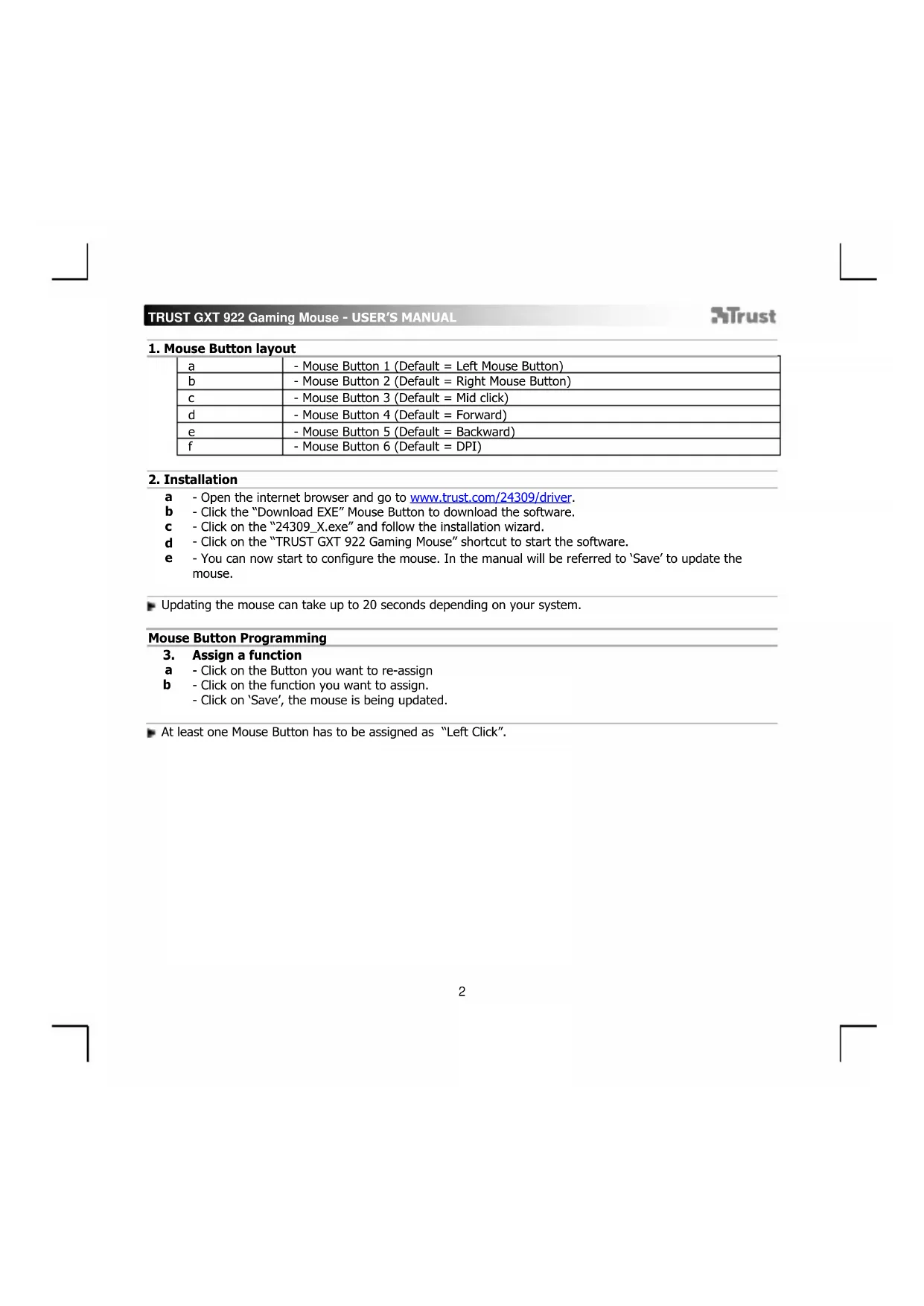
TRUST GXT 922 Gaming Mouse - USER'S MANUAL
Trust
1. Mouse Button layout
| a | - Mouse Button 1 (Default = Left Mouse Button) |
| b | - Mouse Button 2 (Default = Right Mouse Button) |
| c | - Mouse Button 3 (Default = Mid click) |
| d | - Mouse Button 4 (Default = Forward) |
| e | - Mouse Button 5 (Default = Backward) |
| f | - Mouse Button 6 (Default = DPI) |
2. Installation
a - Open the internet browser and go to www.trust.com/24309/driver.
b - Click the "Download EXE" Mouse Button to download the software.
c - Click on the "24309_X.exe" and follow the installation wizard.
d - Click on the "TRUST GXT 922 Gaming Mouse" shortcut to start the software.
- You can now start to configure the mouse. In the manual will be referred to 'Save' to update the mouse.
- Updating the mouse can take up to 20 seconds depending on your system.
Mouse Button Programming
3. Assign a function
a - Click on the Button you want to re-assign
- Click on the function you want to assign.
- Click on 'Save', the mouse is being updated.
At least one Mouse Button has to be assigned as "Left Click".
TRUST GXT 922 Gaming Mouse - USER'S MANUAL
Trust
Report rate & DPI settings
4. DPI setting
a - Click on the 'DPI' tab.
- Click on the checkbox next to the DPI number to enable or disable this DPI level.
c - Choose a LED color for each DPI setting.
d - Click on the 'DPI' button.
e - Change the DPI level by dragging the respective bar.
- Click on 'Save', the mouse is being updated.
Light Settings
5. Change the Lighting
a - Click on the 'LED' tab.
b - Change the light mode.
c - Change the animation speed.
- Change the direction.
- Click on 'Save', the mouse is being updated.
Other settings
6. Mouse Parameter
a - Click on the 'DPI' tab.
b - Change the Windows acceleration, Windows pointer speed, Windows scroll speed or Windows doubleclick speed by dragging the respective cursor.
- Click on 'Save', the mouse is being updated.
7. Polling Rate
a - Click on the 'DPI'' tab.
b - Change the Polling rate by clicking on the respective frequency.
- Click on 'Save', the mouse is being updated.
TRUST GXT 922 Gaming Mouse - USER'S MANUAL
Trust
Macro Settings
- Create a Macro (Store a sequence of keys in the software)
a - Click on the 'Macro Editor' button.
- Click on 'New macro' to create a new macro.
c - Set the delay time between each action and/or the loop/repeat setting.
d - Click 'Record' to Recording the macro. Now enter your preferred macro sequence.
e - Click 'Stop' to Stopping the macro. (max. 112 actions)
- The created macro is now available under the 'Macro' function.

To assign a macro follow step 3 of this manual.
Profile Settings
- Select, Save or Load a profile
a - Select one of the 4 profiles by clicking on the preferred profile.
b - Click on 'Export' to save a setup, Click on 'Import' to load a setup.
c - Enter a name for the mouse setup you want to save, or choose the preferred profile to load.
d - Click on 'Save' to save the setup, click on 'Open' to load the setup.
- Click on 'Save' → Your mouse setup is now saved or updated to your mouse.
- Reset default settings
a - Click on 'RESET' to reset the current profile to factory default.
b - Click on 'Save' to reset the current profile to factory default.
Trouble shooting
Problem
Solution
The software is not starting.
- Make sure the TRUST GXT 922 mouse is connected and try to start the software again.
If your problem is not solved, please contact the help desk at www.trust.com/24309/faq.
TRUST GXT 922 Gaming Mouse - USER'S MANUAL
Trust
Report rate & DPI settings
4. DPI-innstilling
Setári report rate.si DPI
4. Setarea DPI
YecToHaDoklaDaHeHDPiHaCtpoKn
4. DPI hactpoikn
a -IpaKHeTe Bbpxy pa3en "DPI".
b -LpaKHeTe nIeTo 3a OTMeTKn Do 6poA DPI, 3a da aKTnBnPaTe nn DeakTNBnPaTe TOBa HnBO Ha DPI.
c -I36epete zBt Ha CBeToDIOJTe 3a BCsKa DPI HAcTpoJa.
d -LpaKHeTe Bbpxy 6yToHa,DPi
e - CmeHete HnBoto Ha DPI kaTo n3TeTInTe cBoTBetHaTa JeHTA.
- LpakHeTe Bbpxy, Save", Mmkkata ce akTuAn3npa.
HacptpoKn Ha CBeTJInHa
5. CmHa Ha CBeTInHHn eΦeKT
a -LpaKHeTe Bbpxy pa3en"LED".
b - CmeHete peKIma Ha CBetInHaTa.
C - CmHa Ha ckopoCTa Ha aHIMaIyraTa.
d -CmHa Ha NocOKaTa Ha BbHata.
- LipaKaHHe Te Bbpxy ,Save", MIIaKaTa ce aKtyaIIm3npa.
Dpyn HactpoKn
6. Mouse Parameter
a -LpakheTe Bbpxy pa3dEn ,DPI".
b - CmHa Ha yckopene, ckopoCT Ha Windows noka3ane, ckopoCT Ha npeBpTaHe Ha Windows nnckopoCT Ha DBykpaTHO upaKaBaHe Ha Windows ype3 n3TeTJHe Ha cBoTBETHnKypCop.
- UpaKHeTe Bbpxy Save", MmIkaTc ce aKtyaIIN3npa.
7. Polling Rate
a -LpaKHeTe Bbpxy pa3en,DPi".
b - CmeheTe YecToTaHa OnpeChBaHe KaTo UpaKHeTe Bbpxy CbotBETHaTaeCTOta.
- LpakHe Te Bbpxy, Save", MmKata ce akTuAn3npa.
MaKpo NaCTpoKn
- Cb3daBaHe Ha Makpoc (zanaMetete nocneobateHnOCT Ha KnaBnB B cofoyepa)
a -LpaKHeTe Bbpxy 6yToHa „Macro Editor" [MAKPOC].
b -LpaKHeTebpxyNew macro",3a da cb3daTe HOB MaKpoc.
C -3aainTe BpeMe 3a 3a6abAHe MeKdy BCaKO DeIcTBne H/INn HAcTPOKa Ha LkBn/NOBTOpeHne.
d -UpaKHeTe 'Record', 3a da cTapTnPaTe 3anica Ha MaKpoc. Cera BbBeJeTe NcKaHata ot Bac nocJeIOBaTeJIHOCT Ha MaKpoc.
e -LpaKHeTe'Stop,3a da cnpete 3anica Ha MaKpoc.(MaKc.112 deICTBnA) - Cb3daeHnT MaKpO e HaJIuH eBbФyHKnIg_Macro".
3a Da Ha3HaunTe MaKpO, CneBaIte CbIka 3 Ha To3n HApbHnK.
HaetpoKn Ha npoHn
- 36epete, 3ana3n nn 3apeyn npofo
a -I36epeTe eHnOT 4 Te npoФиla KaTo upaKHeTe Bbpxy npedNoHTaHn.
b - UpaKHeTe "Export", 3a da 3ana3nte HacTpoiKaTa. UpaKHeTe Bbpxy, Import", 3a da 3apeiTe HacTpoiKa.
c -BbBeTe Ime 3a HacTpoKata Ha MmKata, KOrTo NCKate Da 3anAnTe nn n36peTe 3a 3apeXdaHe npednoHTAH npoHn.
d -UpaKHeTe "Save", 3a da 3ana3nte HacTpoiKaTa. UpaKHeTe Bbpxy ,Open", 3a da 3apeiTe HacTpoiKa. -
Lpakhe Tbpxy Save" → Cera Hactpoikata Ha Mmukata Bn e 3ana3eHa nIIN akTyan3npaHa B Mmukata.
-
Bb3ctaHOBRABaHe Ha HAcTpoiKn no Nopa36HpaHe
a -LpaKHeTe Bbpxy "RESET", 3a da HynipaTe Tekyu npoФn KbM fa6pnHte HaCtpoKn.
b -UpaKHeTe Bbpxy,Save",3a Da HynipaTe Tekyu npoФnI KbM fa6pnHnTe HaCtpoKn.
Ipo6Jem
PeweHne
CoΦTyepbT He cTApTnpa.
- YBepete ce, che MmikkaTa TRUST GXT 922 e Cbbp3aHa n ONTaTe da cTaptnape CoTpyepa OTHOBO.
Ako Baunr npo6nem He e pa3peuH, MoJc CbpxKeTe ce c NMOUHNr T cHTbp Ha aDPEC
www.trust.com/24309/faq.
TRUST GXT 922 Gaming Mouse - USER'S MANUAL
Trust
1.Cxema KHOJOK
| a | - Khonka 1 (no умочаню = левая конка мыши) |
| b | - Khonka 2 (no умочаню = павая конка мыши) |
| c | - Khonka 3 (no умочаню = щeльчok средnevий конков мыши) |
| d | - Khonka 4 (no умочаню = впered) |
| e | - Khonka 5 (no умочаню = назад) |
| f | - Khonka 6 (no умочаню = DPI) |
2. YctaHOBka
A -OTkpOte Be6-6pay3ep npepeDnTe no ccbuike www.trust.com/24309/driver.
b - Κεικήτe Khoŋky «Download EXE»對於3arpy3knporpamMhoro obecneuehenia.
C -UeKHTe faHn «24309_X.exe» n cIeDyIte HNCTpyKuIaM MaCTepa yCTaHOBKn.
d - Κεικητε ερλβικ «TRUST GXT 922 Gaming Mouse»對於 zanycka nporpaamMHO o6ecneehn.
e - Tenepb Moxho Haatb Hactpoiky Mbwn. B pyHOM pexkme Heo6xOIMo HaxaTb KhONky «Save» dIra 06HOBJIeHn IporpAMMHorO oecneueHnMbwn.
06HOBHeHne nporpaMMHOrO oecneueHn Mblu MoKet 3aHrtb do 20 ckyHd B 3aBcMocTn OT Baue CNTEmbl.
PporpaMMnpoBaHne KhoNOK
- Ha3haeyHne yHKm
a -HaxMMTe KHOKNy, KOtOpYIO Heo6xOAnMO IpeHa3HaHTb.
b - ΦηλκHητε Φγκιμικό, KOtopyι ΘεοδxομησΟ Ḥατιδην.
- Ileiknite «Save», nporpamMHOe o6ecneHHe MbIa 6yTeO6HOBNeHo.
Kak MNHmym, ODA HONKa DOJXHa 6bIb Ha3HaYeHa KAK «Left Click».
Yactota onpoca nnapametpb DPI
4. NapaMeTpbDPI
a -LeKHTe BknaKy «DPI »
b - ⅢeIckHnTe Ha ΦIaxok Bo3ne Homepa DPI, yTo6bI BkIIIOuHTb IIN OTKIOUHTb daHHbI ypoBeHb DPI.
C -BbI6epnTe UBeT CBeToDIOHOrO INHnKaTopa IJK KaXDoHAcTpOKn DPI.
d -LeKHTe KhoNky DPI.
e -N3MeHnTe ypoBeHb DPI, nepTaunB COOTBetCTByOuI NOn3yHOK.
- ⅢeIckHnTe «Save», nporpaMMHoe oecneueHne Mbln 6ydt O6HOBHeHO.
NapaMeTpbl NOcBcETK
5. N3MeHeHHe 3ΦΦeKToB NOcBETKn
a -LJIeKHNTe BknaIky «LED»
b -N3MeHHTepeKIMnIOcBETKn.
C -H3MeHInTe CKOPoCTb aHIMaUIN.
d -N3MeHHTe HappaBHeHne BOJIhbl.
- LJIeKnTe «Save», nporpaMMHoe o6ecneueHne Mblu 6ydt O6HOBNeHO.
Dpyrhe npametpb
6. Mouse Parameter
a -LeKHTe BknaDky « DPI »
b -Измение усокорно, ckopoctb yka3aTeЯ Windows, ckopoctb npokpyTKn Windows nIn ckopoctb DBOHORO ueHka Windows, nepetaumb COOTBETCTBYIOuN Kypcop.
- ⅢeIKNHTe «Save», nporpamMHOe o6ecneueHHe Mbln 6ydt O6HOBJIeHO.
7. Polling Rate
a -ДeЛКНITEВКЛАДКУ «DPI».
b -N3MeHHTe yactOTy onpoca, HaxkAB Ha COOTBETCTBYIOUyIO yactOTy.
- LienKHTe «Save», nporpaMMHoe obecneueHne Mbln 6ydt ObHOBHeHO.
NapaMeTpbMakpocOB
- Co3aHne MaKpOca (coXpaHHe HIOcNEoBATEbHOCTN KIAHB W nporpaMMHom o6ecneHH)
a -LJeknTe KhoNky Macro Editor [«MAKPOCbl»].
b -New macro> dno co3daHnHOBOrO MaKpoca.
C -YctaHOBInTe BpEm 3aepKm Mekdy KaKdbIM DeiCTBnEM n (NJn) HAcTPOKO LKNa/NOBTOpa.
d -IeKHTe 'Record',HTo6bHaHaTb 3aNNcb MaKpOca.Tenepb BBeNTe Tpe6yEmyo IocNeIOBaTeJIbHOCTb MaKpOca.
e -LcKHTe'Stop'UTo6bIocTaHOBt3aHncMbKaPoca.(MaKc.uaCNo DeiCTbn-112)
-Co3daHbMakpocTepebdoctyneHnofdyHKuee«Macro>
HnHa3NaeHnMaKpOcBaBInOnHInTe 1aR 3 HacToIeRo pykoBoDCTBa.
Napametpbipnophi
- BbI6Op, coXpaHene Hn nn 3aIpy3ka npoФnla
- Bb6epHTe OINH 34 npoDJIe, IeKHyTpe6yEmbI H3 HIX.
- BBeDHTe HMAHACTPOEKMbln, KOTOpBc CNEyET COXPAHNTb, NIN BB6epNTe Tpe6yeMbI npOHNb dIa
c 3arpy3kn.
d -IeKHTe Sav → HactpoKmbln6yT coXpaHeHbI nO6HOBHeHbI.
- BocctahOBJIeHHe HAcTpoE KNo yMOnaHHIO
a - Κεικητε «RESET» Дяг сбра оукушero npoфия кnapametpam noуmonчанio.
b -IeKHTe «Save» dIa c6pOca TeKUeIero npoHJI KnapaMeTpam no yMOnHaHHIO.
UcTaPaeHHe HeeCnPaBHOCTe
Ipo6Iema
PeweHne
IporpamMa He 3anyckaetc.
- Y6eIntecb, yTOMbIbTRUSTGXT922noKIOueHa n NOBtOpTe3anyck npOrpAmMbI.
EcnB Bo3HnK7UIO np6IeMy He ydaIocb peuITb, o6paTntecb B cnYk6y TexHnuecko noIepKKn www.trust.com/24309/faq.
TRUST GXT 922 Gaming Mouse - USER'S MANUAL
Trust
1. DiataEn nλκτρωv
- TRUST GXT 922 Gaming Mouse - USER'S MANUAL
- Trust
- Mouse Button layout
- Installation
- Mouse Button Programming
- Assign a function
- Report rate & DPI settings
- DPI setting
- Light Settings
- Change the Lighting
- Other settings
- Mouse Parameter
- Polling Rate
- Macro Settings
- Profile Settings
- Problem
- Solution
- The software is not starting.
- DPI-innstilling
- Setári report rate.si DPI
- Setarea DPI
- YecToHaDoklaDaHeHDPiHaCtpoKn
- DPI hactpoikn
- HacptpoKn Ha CBeTJInHa
- CmHa Ha CBeTInHHn eΦeKT
- Dpyn HactpoKn
- MaKpo NaCTpoKn
- HaetpoKn Ha npoHn
- Ipo6Jem
- PeweHne
- CoΦTyepbT He cTApTnpa.
- 1.Cxema KHOJOK
- YctaHOBka
- PporpaMMnpoBaHne KhoNOK
- Yactota onpoca nnapametpb DPI
- NapaMeTpbDPI
- NapaMeTpbl NOcBcETK
- N3MeHeHHe 3ΦΦeKToB NOcBETKn
- Dpyrhe npametpb
- NapaMeTpbMakpocOB
- Napametpbipnophi
- Ipo6Iema
- IporpamMa He 3anyckaetc.
- DiataEn nλκτρωv
Brand : TRUST
Model : Ybar GXT 922
Category : Mouse