AL2021 - Monitor ACER - Free user manual and instructions
Find the device manual for free AL2021 ACER in PDF.



| Product Type | 20-inch LCD Monitor |
| Screen Size | 20 inches (diagonal) |
| Maximum Resolution | 1600 x 1200 pixels (UXGA) |
| Brightness | 250 cd/m² (typical) |
| Contrast Ratio | 600:1 (typical) |
| Response Time | 15 ms + 10 ms / 25 ms (Tr+Tf typical) |
| Horizontal Viewing Angle | 85° / 85° (min.) |
| Vertical Viewing Angle | 85° / 85° (min.) |
| Displayable Colors | 16.7 million |
| Dimensions (with stand) | 449 x 439 x 197 mm |
| Dimensions (without stand) | 449 x 426 x 134 mm |
| Net Weight | 7.0 kg |
| Gross Weight | 9.2 kg |
| Power Supply | 100-240 V AC, 50/60 Hz |
| Normal Consumption | < 60 W |
| Standby Consumption | < 3 W |
| Video Interfaces | VGA, DVI-D |
| Audio | 2 x 2 W (built-in speakers) |
| OSD Functions | Contrast, brightness, sharpness, frequency, position, color, language, auto-config, reset |
| Tilt Angle | -5° to 20° |
| Plug & Play | DDC2B |
| Care and Cleaning | Unplug before cleaning; use a soft cloth slightly dampened with a mild detergent; do not spray liquid directly |
| Safety | Keep away from heat sources, do not block ventilation openings, do not open the casing, contact a qualified technician if problems occur |
| Spare Parts and Repairability | Keep original packaging for transport. Do not attempt to repair yourself – contact a qualified professional. |
Frequently Asked Questions - AL2021 ACER
User questions about AL2021 ACER
0 question about this device. Answer the ones you know or ask your own.
Ask a new question about this device
Download the instructions for your Monitor in PDF format for free! Find your manual AL2021 - ACER and take your electronic device back in hand. On this page are published all the documents necessary for the use of your device. AL2021 by ACER.
USER MANUAL AL2021 ACER
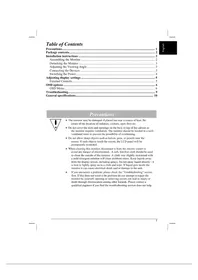
Installation instructions 2
Assembling the Monitor 2
Detaching the Monitor....3
Adjusting the Viewing Angle 3
Connecting the Devices 3
Switching the Power 4
Adjusting display settings 5
External Controls 5
OSD options 6
OSD Menu 6
Troubleshooting....9
General specifications.... 10
Precautions

- The monitor may be damaged if placed too near a source of heat. Be aware of the location of radiators, cookers, open fires etc.
- Do not cover the slots and openings on the back or top of the cabinet as the monitor requires ventilation. The monitor should be located in a well-ventilated room to prevent the possibility of overheating.
- Do not allow sharp objects such as knives, pens, or pencils near the screen. If such objects touch the screen, the LCD panel will be permanently scratched.
- When cleaning this monitor, disconnect it from the electric socket to avoid any danger of electrocution. A soft, lint-free cloth should be used to clean the outside of the monitor. A cloth very slightly moistened with a mild detergent solution will clean stubborn stains. Keep liquids away from the display screen, including sprays. Do not spray liquid directly - it is best to lightly spray on to a cloth and wipe. If liquid gets inside the monitor it can cause electrical shock and/or damage to the unit.
- If you encounter a problem, please check the "Troubleshooting" section first. If this does not resolve the problem do not attempt to repair the monitor by yourself; opening or removing covers can lead to injury or death through electrocution among other hazards. Please contact a qualified engineer if you find the troubleshooting section does not help.
Package contents
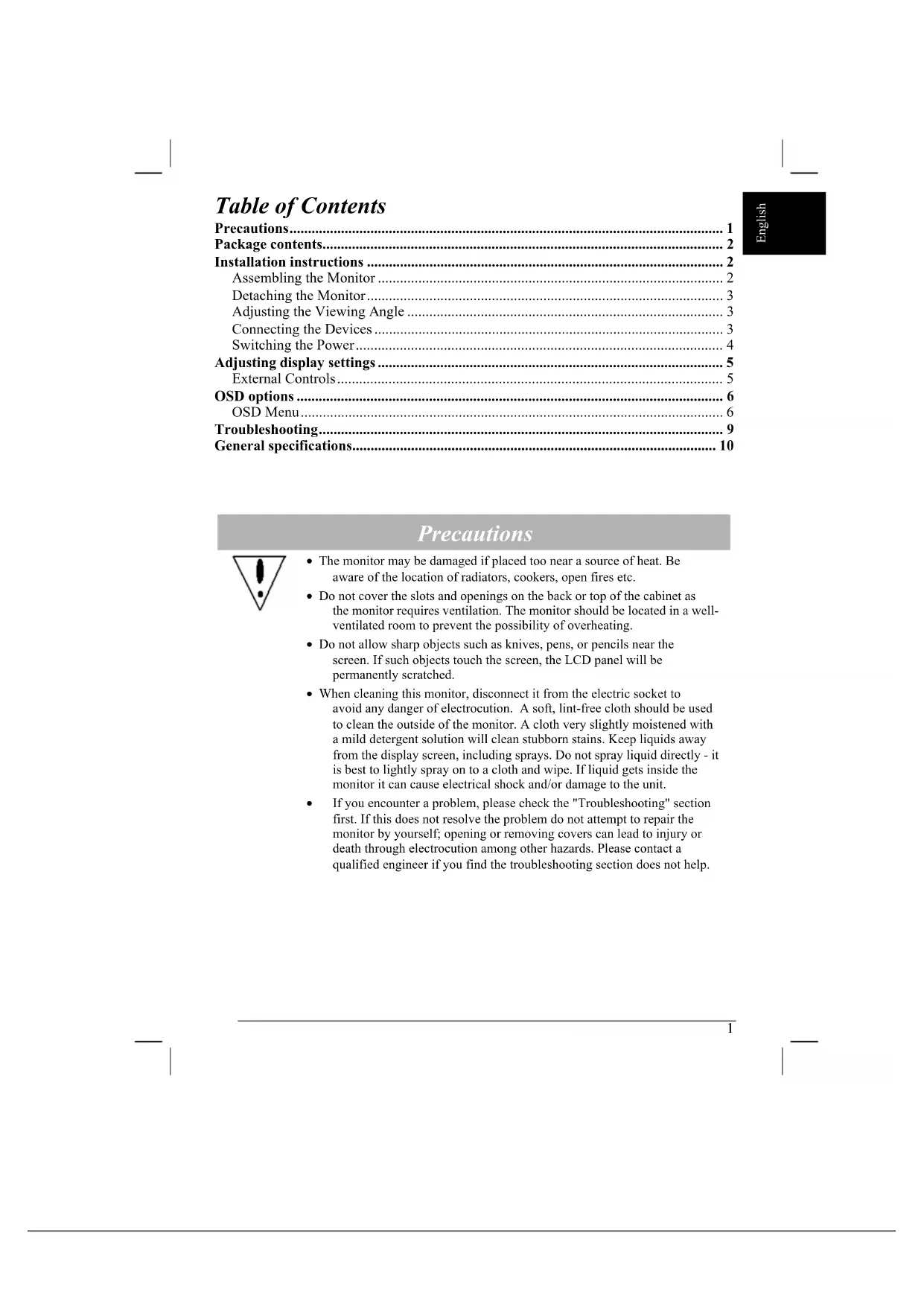
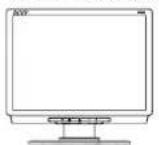
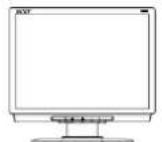
LCD Monitor
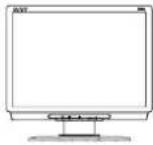
VGA Cable
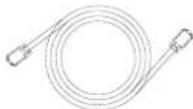
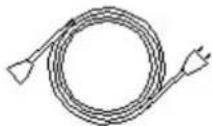
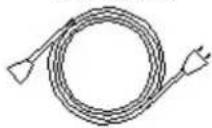
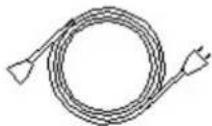
Power Cord
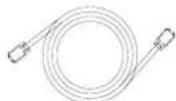
DVI-D Cable
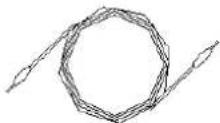
Audio Cable
User Manual
Installation instructions
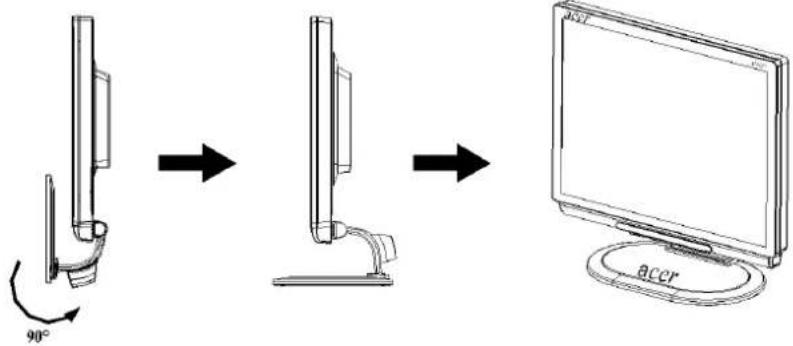
Assembling the Monitor
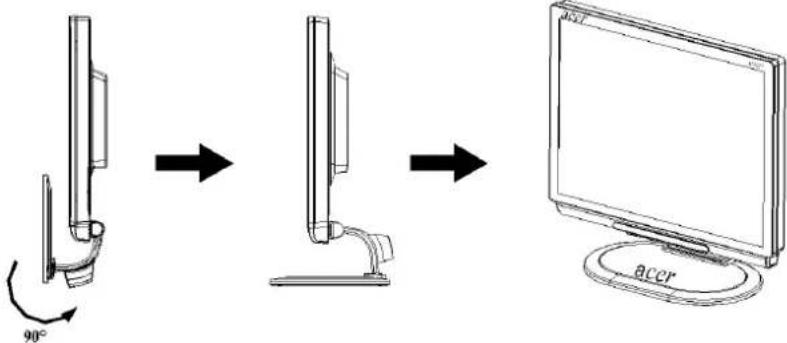
flowchart
graph LR
    A["Vertical Panel"] -->|90° rotation| B["Computer"]
    B --> C["Monitor"]
- Along the track, twist 90^ for the base.
- Put the monitor on flat table or plate.
Important
First, find a clean, flat surface to place the monitor after removing it from the stand. Place a clean dry cloth under the monitor to protect it further.
Repackage the Monitor
Save the original box and packing material in case you have to ship or transport the monitor.
Repackage the monitor:
-
Unplug the AC power cord to make sure the power is off.
-
Twist the base to close the monitor as left picture.
Put it into carton
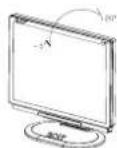
Adjusting the Viewing Angle
The viewing angle of the monitor ranges is from -5^20^
English
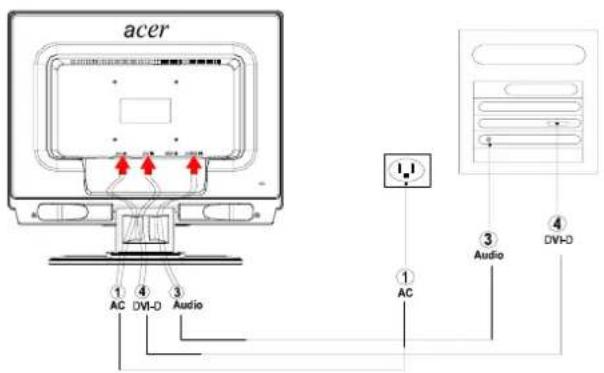
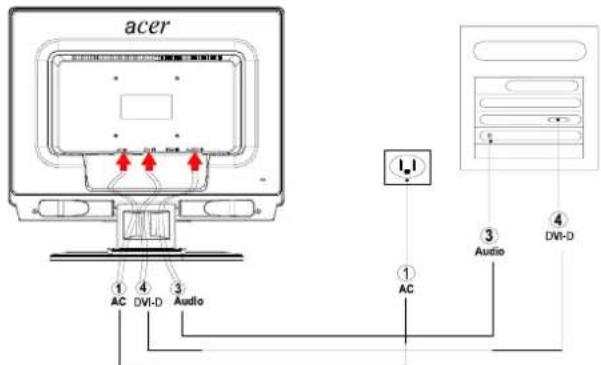
Connecting the Devices

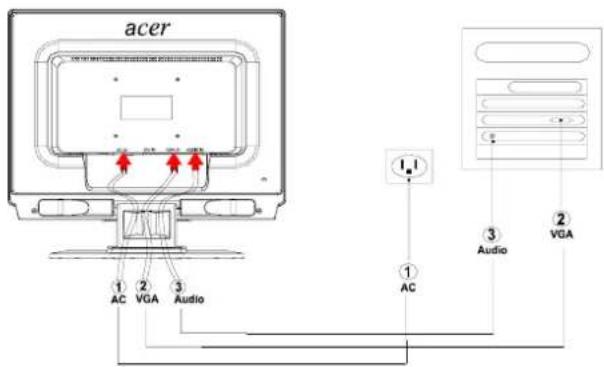
Caution: Make sure that the computer and the monitor are both disconnected from the power supply.
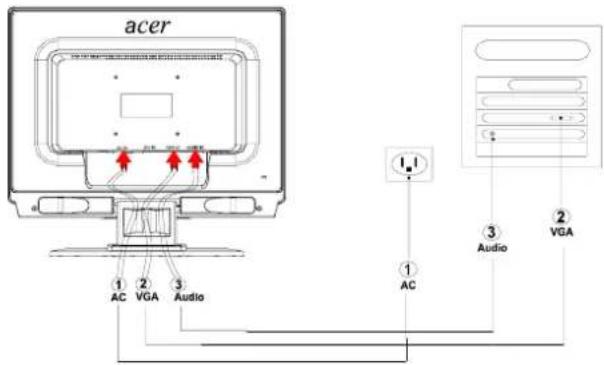
Connect A: Monitor-to-PC VGA Cable
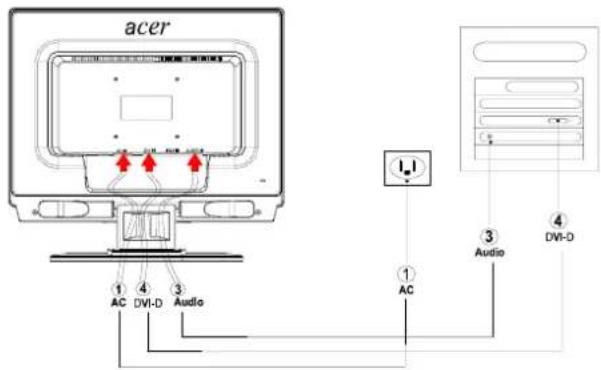
Connect B: Monitor-to-PC DVI-D Cable
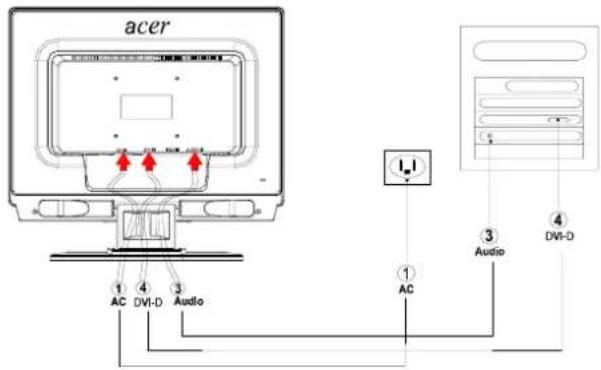
English
| 1 | Power Code Attach | the monitor to the power cord which should then be inserted into a properly grounded electric socket. |
| 2 | VGA Cable Connect | the signal cable to the VGA output socket of the graphics card on the computer. Then tighten the thumbscrews on the connector. |
| 3 | Audio cable | Connect the audio input socket of the LCD monitor and the computer by means of the audio cable. |
| 4 | DVI-D Cable Connect | the signal cable to the DVI-D output socket of the graphics card on the computer. Then tighten the thumbscrews on the connector. |
! WARNING:
-
Make sure the VGA card of your computer to connect the correct cable.
-
Make sure the shape of the plug matches the shape of the socket it is inserted into. And that none of the pins are bent or otherwise damaged.
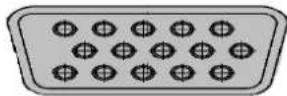
VGA
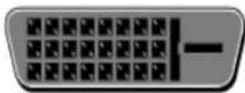
DVI-D
Switching the Power
- First, turn on the hard power switch which is beside the AC power socket of monitor.
- Switch the power on to the monitor.
- Then switch the power on to the computer.
- When you see the LED on the power button go blue, and the other button go green, this indicates the computer is ready for use. Allow about 10 seconds for the video signal to appear. If you do not see the blue light on the power button or a video signal, check the connections.
Adjusting display settings
English
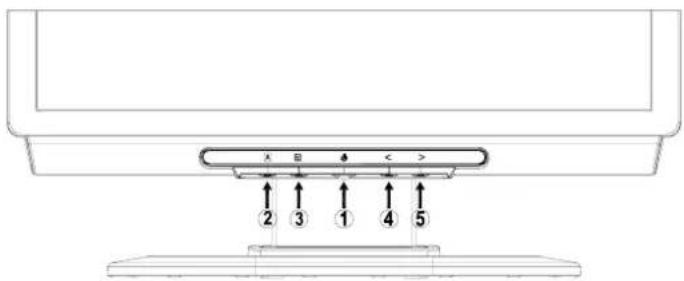
External Controls
| 1 |  | POWER | Power on/offBlue: power onOrange: in sleep mode |
| 2 |  | AUTO | If OSD is active, press to exit a selection in OSD. If OSD is inactive, press and the monitor will automatically optimize the position, focus and clock of your display. |
| 3 |  | OSD Function | Press to view OSD.Press again to enter a selection in OSD. |
| 4 | MINUS | If OSD is active, press to select or adjust OSD options. If OSD is inactive, press once, then press the buttons marked < or > to adjust the volume. | |
| 5 | PLUS | If OSD is active, press to select or adjust OSD options. If OSD is inactive, press once, then press the buttons marked < or > to adjust the volume. |
OSD options
Please refer to "External Controls" on Page 5.
To adjust the OSD settings:
- Press the MENU button to open the OSD menu. Press again to enter a selection of 10 functions on OSD.
- Use the buttons marked < or >, to highlight a control, then adjust the control to the desired level.
- When you have finished making all selections, press the AUTO button to exit the OSD.
OSD Menu
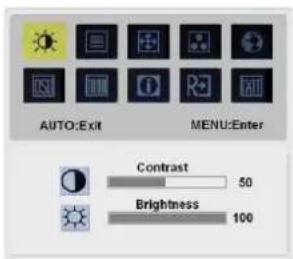

Contrast:
This adjusts dark and light shades of color relative to each other to achieve a comfortable contrast.
Brightness:
This adjusts the brightness of the picture on the screen.
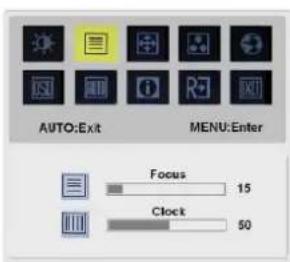

Focus:
This removes any horizontal distortion and makes the picture clear and sharp.
Clock:
If there are any vertical stripes seen on the background of the screen this renders them less noticeable by minimizing their size. It also changes the size of the horizontal screen.
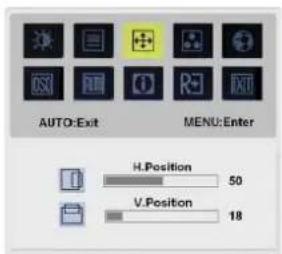

H-Position:
This adjusts the horizontal.
V-Position:
This adjusts the vertical.

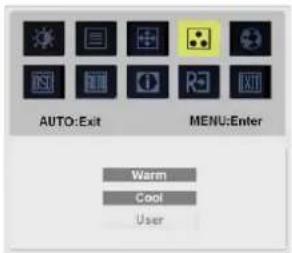

COLOR:
There are three ways of adjusting color:
Warm (Reddish white)
Cool (Bluish white)
User defined:
You can adjust the colors red, green and blue to the intensity you desire.
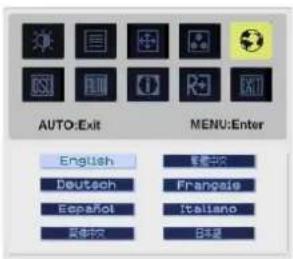

LANGUAGE:
Select the OSD menu language from
English-English, Deutsch -German,
Español-Spanish, 简体中文-Simplified
Chinese, 紫語F17-Traditional Chinese,
Français -French, Italiano -Italian,
and 本語-Japanese.
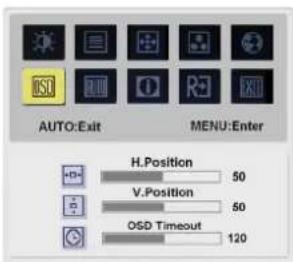

OSD SETTING:
H-Position
V-Position
OSD Timeout
This changes the position of the OSD window on the screen and staying time.

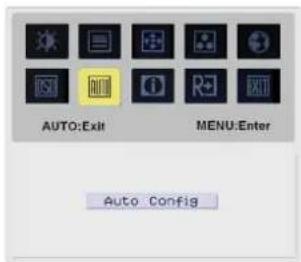

Auto Config :
System runs auto-configuration.
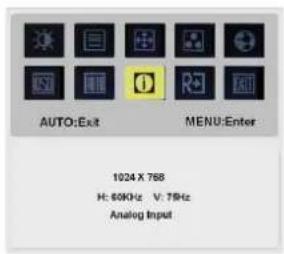

INFORMATION:
This shows brief information on the screen.
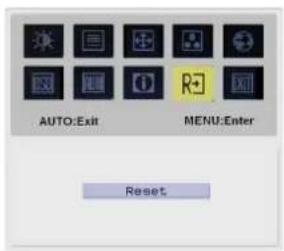

Reset:
Recall to default settings.
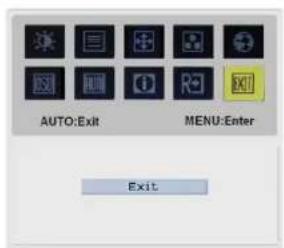

Exit:
Exit from OSD.
Troubleshooting
English
| Problems Possible Solutions | |
| Power LED is not ON | Check to see if the power switch is in the ON position.Ensure that the Power Cord is connected. |
| No Picture | Check to see if the power switch is in the ON position.Ensure that the Power Cord is connected.Ensure the video cable is securely connected to the back of the monitor and the computer.Move the mouse or press any key on the keyboard to bring the monitor out of "active off" mode. |
| Picture shows inappropriate colors | See "Color Adjustment" to adjust RGB color or to select color temperature. |
| Picture bounces or a wave pattern is present in the picture | Move or switch off electrical devices that may be causing interference.Inspect the monitor's video cable and ensure that none of the pins are bent. |
| Image is not sized or centered properly | Press select/auto key and the monitor will automatically optimize the position of your display.See "Position adjustment". |

Caution: Do not attempt to service the monitor yourself or open the computer yourself. Please refer all servicing to qualified service personnel if the problems cannot be solved in "Troubleshooting" section.
General specifications
Item Specification
LCD Panel
| Display 20-inch Flat panel active-matrix TFT LCD | |
| Max resolution UXGA 1600×1200 pixels | |
| Pixel Pitch 0.255 mm | |
| Color | 16.7M |
| Brightness 250 cd/m2 (Typical) | |
| Contrast Ratio 600:1 (Typical) | |
| Response Time 15ms +10ms /25ms (Tr+Tf / typical) | |
| View Angle of Horizontal 85° / 85° (Min.) | |
| View Angle of Vertical 85° / 85° (Min.) | |
| External Controls | |
| Power Button ON/ OFF | |
| Control Buttons AUTO, MENU, < , > | |
| OSD Function | |
| Contrast / Brightness Contrast / Brightness | |
| Focus / Clock Focus / Clock | |
| Position | Position |
| Color | Color |
| Language | Language |
| OSD setting OSD setting | |
| Auto config Auto config | |
| Information | Information |
| Reset | Reset |
| Exit | Exit |
| Video Interface | |
| Video | Analog 0.7V / Digital TMDS |
| Sync | TTL (+/-) |
| Audio | 2W x 2 |
| Plug & Play | DDC2B |
| Power | |
| Power Source | 100~240V AC, 50/60 Hz |
| Power consumption during normal operation | < 60W |
| Power consumption during active off operation | < 3W |
| Dimension and Weight | |
| Dimension (W×H×D) | 449X439X197 mm (with stand) |
| 449X426X134 mm (without stand) | |
| Weight (Net/ Gross) | 7.0 Kg/ 9.2 Kg |
Table des matières
Précautions.... 11
Connector A: Ecran-au-Cable PC VGA
Connector B: Ecran-au- Câble PC DVI-D
Français
LCD Monitor
VGA Kabel
Stromkabel
DVI-D Kabel
Monitor LCD
Cable VGA
449X426X134 mm (sin stand)
Peso (Net/ Gross) 7.0 Kg/ 9.2 Kg
Indice
Avvertenze....41
Collegamento B: Monitor-a-Cavo PC DVI-D
flowchart
graph LR
    A["Vertical monitor with 90° rotation"] --> B["Flat monitor with 90° rotation"]
    B --> C["Computer monitor with accr"]
Skärpa 250 cd/m² (Typical)
Kontrast Proportion 600:1 (Typical)
Respons Tid 15ms +10ms /25ms (Tr+Tf/ typical)
Horizontal tittar vinkel 85° / 85° (Min.)
Vertikal tittar vinkel 85° / 85° (Min.)
Externa Kontroller
Ström Knapp ON/ OFF (På/Av)
Kontroll Knapp AUTO, MENU, < ,>
OSD Funktion
Contrast / Brightness Kontrast / Skärpa
Focus / Clock Fokus / Klocka
Position
Position
Color
Färg
Language
Språk
OSD setting
OSD inställning
Items do monitor....72
Monitor LCD/LCD Monitor
Cabo VGA/VGA Cable
Cabo de força/Power Cord
Cabo DVI-D/DVI-D Cable
Conexao B: Monitor com cabo PC DVI-D
Portugues
Repackage the Monitor
Внешнее управление
OSD SETTING (OSD 設志):
H-Position (水工 他貯)
V-Position (音曲曲目)
登载 20-inch Flat panel active-matrix TFT LCD
449X439X197 mm (with stand)
449X426X134 mm (without stand)
(淨)
7.0 Kg/9.2 Kg
目录
安全制定....101
系统配備及附件 102
102
裝機 102
裴翔月聚....103
調整兩句 103
連浪....103
開啓音源 104
營割線上操作....105
智能控制说明 105
OSD MENU 操作 106
OSD Menu....106
問題處望 109
華品規格....110
安全规定

简体中文
OSD SETTING (OSD 设定):
H-Position (水平位置)
V-Position (垂直位置)
日本語
Monitor LCD
Kabel VGA
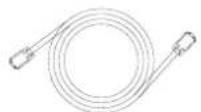
Kabel Listrik
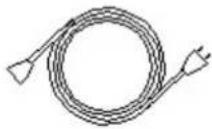
Kabel DVI-D
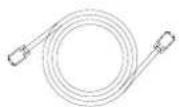
Kabel audio
Buku Petunjuk
Petunjuk Pemasangan
Merakit Monitor
Waktu Response 15ms +10ms /25ms (Tr+Tf/ typical)
Sudut Pandang Horisontal 85° / 85° (Min.)
Sudut Pandang Vertikal 85° / 85° (Min.)
Kontrol Luar
Tombol Power ON/OFF
Tombol Kontrol AUTO, MENU, < ,>
Fungsi OSD