Amiron Wireless - Earphones BEYERDYNAMIC - Free user manual and instructions
Find the device manual for free Amiron Wireless BEYERDYNAMIC in PDF.



| Product type | Circum-aural wireless headphone |
| Brand | Beyerdynamic |
| Model | Amiron Wireless |
| Color | Black |
| Weight | Approx. 210 g |
| Dimensions (L x W x H) | Approx. 20 x 18 x 8 cm |
| Power supply | Rechargeable lithium-ion battery via USB-C |
| Battery life | Up to 30 hours (depending on volume and codecs) |
| Charging time | Approx. 3 hours |
| Connectivity | Bluetooth 5.0 with support for SBC, AAC, aptX, aptX HD, aptX LL codecs |
| Bluetooth range | Up to 10 meters |
| Bluetooth profiles | A2DP, HFP, HSP, AVRCP |
| Key features | Touch control, multipoint (up to 8 devices, 2 active), voice assistant, voice prompts, MIY app, wired mode |
| Frequency response | 5 – 40,000 Hz |
| Impedance | 32 ohms |
| SPL | 100 dB (1 mW) |
| Transducer | Dynamic, open |
| Care and cleaning | Clean with a soft, dry cloth; replace ear pads if necessary |
| Safety | Prolonged listening at high volume can damage hearing; avoid use in traffic |
| Spare parts and repairability | Ear pads, cables and other parts available at www.beyerdynamic.com |
| General information | Made in Germany; warranty: see terms on website |
Frequently Asked Questions - Amiron Wireless BEYERDYNAMIC
User questions about Amiron Wireless BEYERDYNAMIC
0 question about this device. Answer the ones you know or ask your own.
Ask a new question about this device
Download the instructions for your Earphones in PDF format for free! Find your manual Amiron Wireless - BEYERDYNAMIC and take your electronic device back in hand. On this page are published all the documents necessary for the use of your device. Amiron Wireless by BEYERDYNAMIC.
USER MANUAL Amiron Wireless BEYERDYNAMIC
text_image
beyerdynamicAMIRON WIRELESS
HEADPHONES
Manual | Bedienungsanleitung | Mode d'emploi Instrucciones de uso | Manuale d'uso | Bruksanvisning Руководство по эксплуатации | 取扱説明書 사용 설명서 | 使用说明书
Safety instructions 4
Box contents 5
beyerdynamic MIY app 5
Note firmware version 1.0 .... 5
Firmware Update 5
Compatibility 5
Supported audio codecs 6
Controls and indicators 7
Turning on / off. 7
Pairing with the player 8
Pairing and clearing the list of players 8
Multi point operation 9
Setting up multi point. 9
Using up multi point....9
Media playback 10
Call personal assistant 12
Call control 12
Charging 13
Activating and deactivating aptX™ HD 13
Activating and deactivating voice messages. 13
Reset to factory settings 13
Touch pad and button functions table. 14
Settings table....15
Headphones LED display table. 15
Playback device settings for your best wireless sound. 16
Troubleshooting 16
Connection of the audio cable 18
Controls of cable remote control. 18
Operating instructions. 19
Media playback 19
Control volume 19
Call personal assistant....19
Call control 19
Maintenance – how to find the FCC/IC/Japan certification number ..... 20
Notes on battery life for Li-Ion batteries ..... 21
Spare parts 21
Disposal....21
Battery disposal 21
Product registration 22
Warranty conditions 22
Technical specifications 22
Simplified EU/UK Declaration of Conformity ..... 22
Third Party Licenses 22
Trademarks 22
FCC / IC Regulation 23
Compliance Information 25
Thank you for choosing Amiron wireless headphones with Bluetooth® wireless technology. For your best possible listening experience, you will find a comprehensive description on how to use your Amiron wireless.
Safety instructions
Caution:
When you connect the headphones, please make sure that the volume level is set to minimum. Adjust the volume level only after putting on the headphones. We would like to point out that excessively high volumes and long listening times may cause hearing damage. Hearing defects always constitute an irreversible ent of hearing ability.
Always ensure an adequate volume level. It is advisable to keep listening times as short as possible at high volume levels. This also shows an example from working life: According to occupational regulations for safety and health the noise exposure should not exceed 85 dB (low volume) when working with an allowed time of listening of 8 hours at maximum. If the volume is increased by 3 dB, the allowed time of listening is halved, i.e. with 88 dB the time of listening is 4 hours, with 91 dB 2 hours and so on.
The beyerdynamic MIY App allows you to personalise your Amiron wireless. The App's tracking function allows to use the Amiron wireless so that the headphones will not exceed a maximum of acoustic impact (“noise”) that is calculated from common, general findings. Please note that the Amiron wireless and the MIY App can only register noise impact that is created by the headphones themselves; other, external sources of noise such as construction noise, concerts, etc. can of course not be considered in the calculation of acoustic impact. Therefore, the Amiron wireless and the MIY App do not offer a summary of the entire exposure of your hearing. The MIY App only displays the acoustic load that is wirelessly transmitted via the Amiron wireless and allows to limit it to acceptable levels.
Danger to life!
Headphones drastically reduce perception of external sounds. Using headphones in road traffic can be potentially dangerous. The user's hearing must not be impaired to the extent that it causes road safety risks. Please also make sure that you do not use the in-ear headphones within an area of potentially dangerous machines and tools.
Risk of injury!
Avoid sudden movements when using wired headphones. You might seriously hurt yourself especially if you wear piercings, earrings, glasses, etc., where the wire can get caught.
Box contents
- Amiron wireless headphones
- Connecting cable with remote control, mini jack (3.5 mm)
- Charging cable USB-A to USB-C
- Hard case
- Warranty booklet
- Quick Start Guide
beyerdynamic MIY app
By using the beyerdynamic MIY app you can personalise your Amiron wireless. The app is available for Apple iOS and Android and can be downloaded from both the Apple App Store and the Google Play Store.
Note firmware version 1.0
The following descriptions refer to the firmware version 1.0 installed on the present headphones with Bluetooth® wireless technology.
Firmware Update
A more recent firmware version than installed (version 1.0) might be available. If available, you can perform this update yourself.
- Download the firmware update tool from the Amiron product page at www.beyerdynamic.com to your computer.
- Turn on the Amiron wireless and connect it to your computer using the USB charge cable ②.
- Start the update tool and follow the instructions on the screen.
Compatibility
The Amiron wireless is compatible with Bluetooth® wireless technology enabled playback devices that support the following profiles:
• A2DP (for audio transmission)
• HFP (for phone operation)
- HSP (voice output)
• AVRCP (for the transmission of controls signals)
Note:
All associated functions are only available, if they are supported by the playback device.
Supported audio codecs
Within the A2DP profile, the Amiron wireless supports the audio codecs SBC, AAC, aptX ^TM , aptX ^TM LL and aptX ^TM HD. The best audio quality is offered by aptX ^TM HD. aptX ^TM LL offers the shortest audio latency.
Note:
Please note that only audio codecs can be used for audio transmission, which are available in the playback device.
Playback device and Amiron wireless automatically communicate on the best, commonly available codec in the following order:
- aptX ^TM LL
- aptX ^TM HD
- aptX ^TM
- AAC
- SBC
Note: Please note that most playback devices do not indicate which codec is active.
Controls and indicators
natural_image
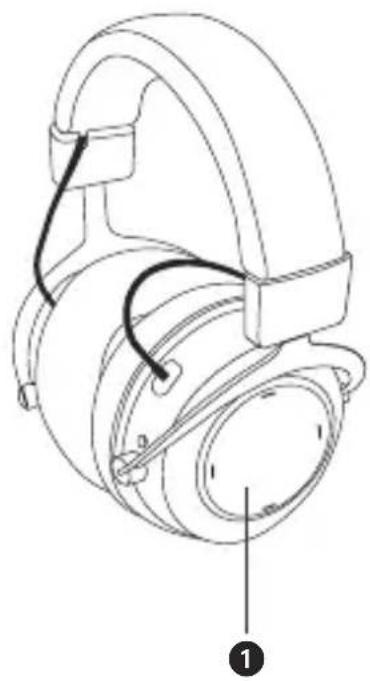
Line drawing of a headboard with earbuds and cable, labeled with number 1 (no text or symbols on the diagram itself)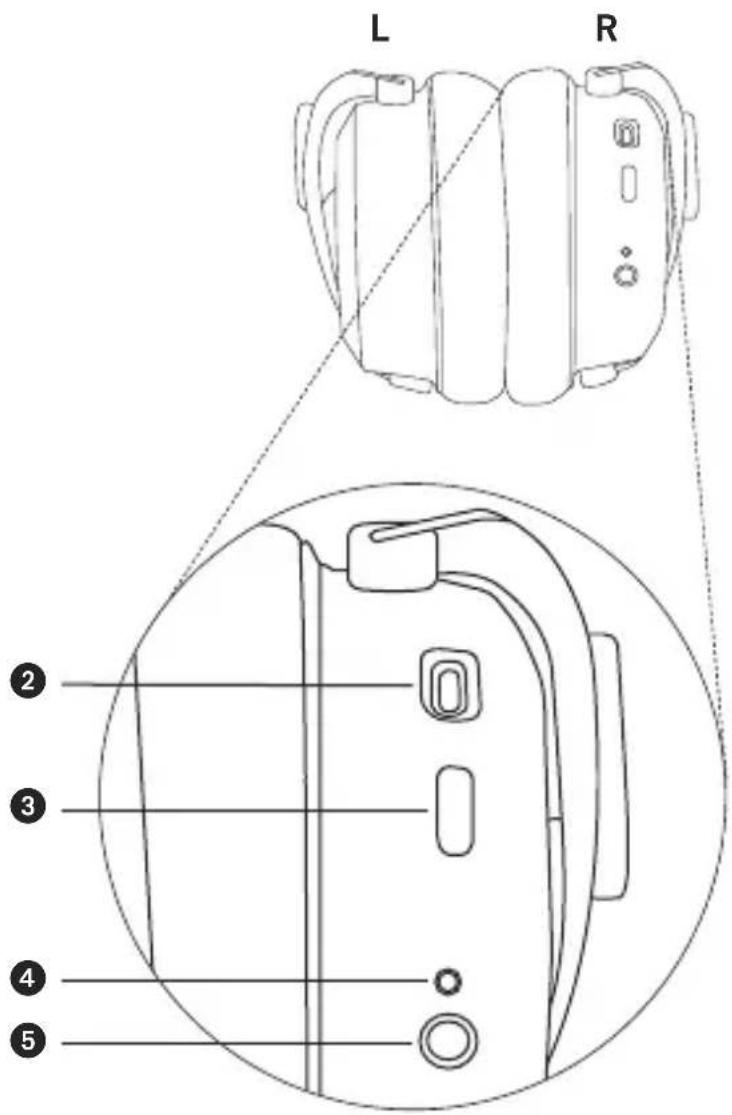
text_image
L R ② ③ ④ ⑤① Touch pad
② USB connection for charging cable (USB-C)
③ LED button
4 Microphone
⑤ Mini jack connector 3.5 mm for audio cable
Turning on / off
The functions listed below refer to the Amiron wireless when it has already been paired with a Bluetooth ^® wireless technology enabled device.
- Turning on:
Hold down the button ③ for approx. 2 seconds.
The LED ③ will illuminate red once.
- Turning off:
Hold down the button ③ for approx 6 seconds.
The LED ③ will illuminate red once and then go out.
Pairing with the player
Before you use the Amiron wireless for the first time, you have to pair it with your mobile phone or another Bluetooth® wireless technology enabled device. The pairing process may be different with various players. Please refer to the appropriate manual of the player.
- When the Amiron wireless is turned off, press the button ③ for 6 seconds to start the Bluetooth® wireless technology mode. The LED ③ will rapidly flash blue and red accordingly.
- Activate the Bluetooth ^ wireless technology function on your player and, if necessary, search for new devices.
- Select “beyerdynamic Amiron wireless” under the available devices in the Bluetooth ^® wireless technology menu of your player and pair both devices. Each time when turning on, both devices are paired automatically.
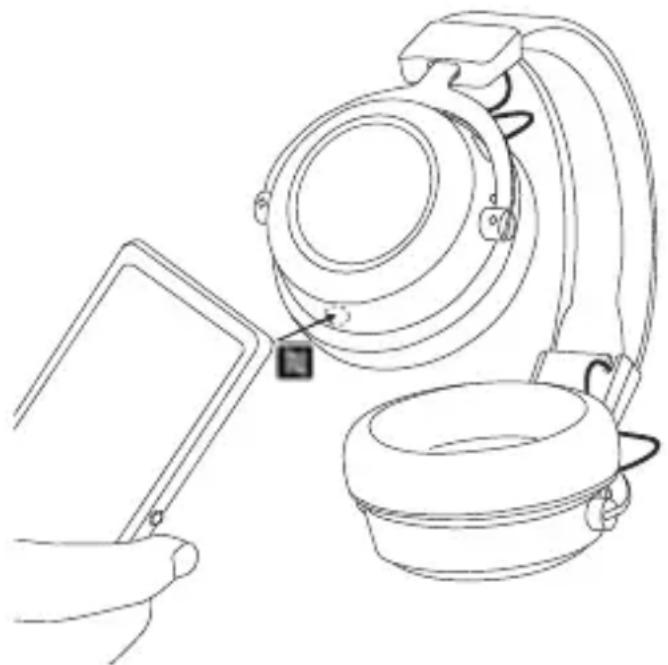
Alternatively, you can connect the Amiron wireless with an NFC-capable playback device through NFC. The Amiron must be switched on. It does not matter whether the Amiron is in pairing mode or not.
- Activate the NFC function on your playback device so that all necessary information can be transmitted to the playback device and a connection can be established.
- Hold the NFC sensor of your playback device to the lower area of the left headphone housing, because the NFC chip is integrated there. Refer also to the NFC logo in the drawing. Please note that the exact position of the NFC sensor of your playback device is described in the respective manual.
natural_image
Line drawing of a hand holding a tablet next to a mechanical device with wires and a small square component (no text or symbols)Pairing and clearing the list of players
If there are already several players in the list of your Amiron wireless and your Amiron wireless cannot be paired with another new player, the list is full and should be cleared so that the new player can be added.
This is how to clear the list:
- Hold down the button ③ of the turned off Amiron wireless for more than 10 seconds, so that the Amiron wireless will switch into the pairing mode and clear the list of players simultaneously.
Multi point operation
The Amiron wireless can be paired to up 8 Bluetooth® wireless technology enabled devices. Active connections can be established with up to two devices at a time. However, playback of music and phone operation is only possible with one device at a time. Phone operation has priority over playback of music; i. e. playback of music is interrupted during phone calls.
The following priorities apply during the use of playback devices PD:
| Priority Profile | Playback device (PD) | |
| 1 HFP (phone operation) PD 1 (device used first) | ||
| 2 HFP (phone operation) PD 2 (device used second) | ||
| 3 | A2DP (playback of music) | PD 1 (device used first) |
| 4 | A2DP (playback of music) | PD 2 (device used second) |
Setting up multi point
- Pair the Amiron wireless with the first device (refer to “pairing with the player”).
- Deactivate the Bluetooth ^ wireless technology connection on the first device.
- Switch the Amiron wireless off.
- Press the button ③ for 6 seconds to start pairing mode (LED ③ flashes slowly alternating blue and red).
- Pair the Amiron wireless with the second device (refer to “pairing with the player”).
- Re-activate the Bluetooth ^ wireless technology connection to the first device that automatically connects to the Amiron wireless.
- Once both devices are paired with the Amiron wireless, the Amiron wireless automatically connects with both devices each time it is powered up.
Using up multi point
If you have connected the Amiron wireless with two devices
– and have just activated media playback, briefly tap the touch pad ① twice to accept an incoming call.
- and have just finished a call, briefly tap the touch pad ① twice to restart the media playback that was playing most recently.
Media playback
Please note that the functions described below, depend on the player and the player software and may not be available. The Amiron wireless only transmits control signals that comply with the Bluetooth® wireless technology standard.
Important: To avoid malfunction, use only one finger when you use the touch pad 1.
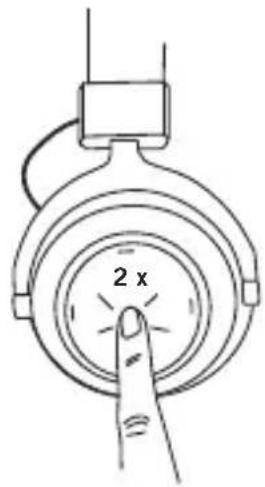
- Start / stop media playback: Briefly tap the touch pad ① twice.
- Play next track: Drag your finger forwards on the touch pad ①.
- Play previous track: Drag your finger backwards on the touch pad ①.
text_image
2 x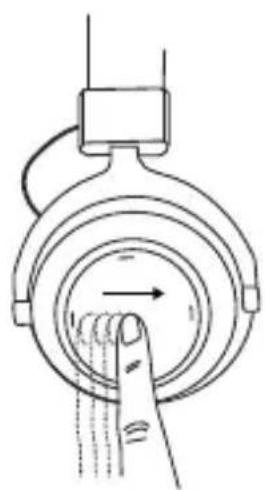
natural_image
Diagram of a hand pressing down on a circular mechanical component with an arrow indicating direction (no text or symbols)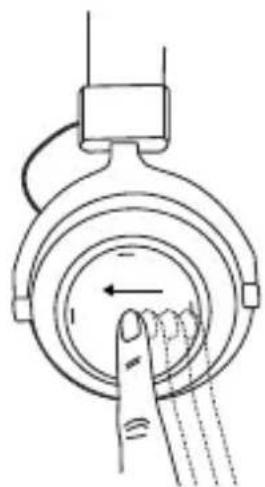
natural_image
Diagram of a hand pressing down on a circular mechanical component with an arrow indicating left motion (no text or symbols)- Fast forward:
Drag your finger forwards on the touch pad ① and hold it for at least one second.
- Rewind:
Drag your finger backwards on the touch pad ① and hold it for at least one second.
- Increase volume:
Drag your finger upwards on the touch pad ①. When you drag your finger upwards and hold it, the volume is gradually increased until the maximum is achieved. An acoustic signal indicates the achieved maximum.
- Decrease volume:
Drag your finger downwards on the touch pad ①. When you drag your finger downwards and hold it, the volume is gradually decreased until the minimum is achieved. An acoustic signal indicates the achieved minimum.

text_image
Hold HoldCall personal assistant
- To call the personal assistant on your smartphone or tablet such as Siri, Google Assistant etc.: Press the centre of the touch pad ① for approx. two seconds.
Call control
The following functions are used to control calls.
- Accept / end a call: Briefly tap the touch pad ① twice.
- Reject a call: Press the centre of the touch pad ① for approx. two seconds.
- Toggle between two callers: Press the centre of the touch pad ① for approx. two seconds.

Charging
- For charging the rechargeable battery we recommend using the supplied USB charging cable only.
- Connect the Amiron wireless with this USB charging cable to any USB compliant USB port supplying voltage (e.g. USB power supply).
- During charging the LED ③ is flashing red.
- As soon as the LED ③ is permanently illuminated red, the rechargeable battery is completely recharged.
- Detach the USB charging cable after the charging process.
Activating and deactivating aptX™ HD
- Activating aptX™ HD:
Switch on the Amiron wireless.
Then perform the following steps within two seconds:
- Hold button ③.
- Drag one finger upwards on the touch pad 1.
- Release button ③.
- Deactivating aptX ^TM HD:
Switch on the Amiron wireless.
Then perform the following steps within two seconds:
- Hold button ③.
- Drag one finger downwards on the touch pad ①.
- Release button ③.
Activating and deactivating voice messages
- Activating / deactivating voice messages:
Switch on the Amiron wireless.
Then perform the following steps within two seconds:
- Hold button ③.
- Briefly tap the touch pad ① twice with one finger.
- Release button ③.
Reset to factory settings
- Switch on the Amiron wireless.
Then perform the following steps within two seconds:
- Hold button ③.
- Drag one finger backwards on the touch pad 1.
- Release button ③.
Touch pad and button functions table
Unless otherwise stated, the listed functions apply for headphones that are switched on.
| Switch on | Press button 3 for 2 seconds |
| Switch off | Press button 3 for 6 seconds |
| Paring mode Switch off headphones, then | press button 3 for 6 seconds |
| Delete pairing mode list Switch off headphones | ones, then press button 3 for at least 10 seconds |
| Start / pause | Briefly tap the touch pad 1 twice |
| Increase volume Drag your finger upwards | s on the touch pad 1 |
| Decrease volume Drag your finger downwards | ds on the touch pad 1 |
| Next track | Drag forwards on the touch pad 1 |
| Previous track | Drag backwards on the touch pad 1 |
| Scroll forward | Drag forwards on the touch pad 1 and hold for at least 1 second |
| Scroll backward | Drag backwards on the touch pad 1 and hold for at least 1 second |
| Accept / finish a call | Briefly tap the touch pad 1 twice |
| Reject a call | Press the touch pad 1 for 2 seconds |
| Toggle between 2 callers | Press the touch pad 1 for 2 seconds |
| Call personal assistant (Siri, Google Assistant etc.) | Press the touch pad 1 for 2 seconds |
Settings table
The listed functions apply for headphones that are switched on.
| Activating aptXTM HD: | Hold button 3 for 2 seconds and at the same time drag one finger upwards on the touch pad 1 |
| Deactivating aptXTM HD: | Press button 3 for 2 seconds and at the same time drag one finger downwards on the touch pad 1 |
| Activating and deactivating voice messages | Press button 3 for 2 seconds and at the same time briefly tap the touch pad 1 twice with one finger |
| Reset to factory settings | Press button 3 for 2 seconds and at the same time drag one finger backwards on the touch pad 1 |
Headphones LED display table
| Charging red LED flashing | |
| Fully charged LED permanently lit | |
| Switching off LED lights up one time for 1.5 sec. | |
| Battery almost empty red LED flashing fast 3 x | |
| Connection mode via Bluetooth® wireless technology active (Pairing) | red and blue LED flash alternating |
| Connection active via Bluetooth® wireless technology | blue LED flashes slowly with interruptions of 7 sec. |
| Connection lost via Bluetooth® wireless technology | blue LED flashes slowly with interruptions of 3 sec. |
| Media playback active blue LED flashes slowly with interruptions of 7 sec. | |
| Incoming call blue LED flashes fast with interruptions of 1 sec. | |
Playback device settings for your best wireless sound
To achieve your best possible sound via Bluetooth® wireless technology with Amiron wireless, you should consider the following practical hints:
- Set the volume of the Amiron wireless to minimum, of the playback device to maximum. From then on, adjust the volume on the Amiron wireless only, not on the playback device. This applies only to playback devices that do not automatically synchronise the volume.
- On playback devices that automatically synchronise the volume (e.g. iPhone, iPad, various Android smartphones), the headphones volume is always identical to the volume of the playback device.
- Deactivate any audio effects that might exist in your player software.
- Ensure that aptX™ HD is switched on at the Amiron wireless, if supported by your playback device.
Troubleshooting
| Problem Cause Solution | ||
| Amiron wireless cannot be switched on | Battery is empty or almost empty | Charge the battery |
| No audio output No connection | ion via Bluetooth® wireless technology | Pair the Amiron wireless with the playback device |
| The Amiron wireless does not appear among the available Bluetooth® wireless technology enabled devices on the playback device | · The Amiron wireless is switched off· The Amiron wireless is not in pairing mode· A connection via Bluetooth® wireless technology to another playback device exists already | · Turn on the Amiron wireless· Put the Amiron wireless into pairing mode· Disconnect the connection via Bluetooth® wireless technology to the other playback device and connect the Amiron wireless to the desired device |
| Playback volume is low, despite the Amiron wireless volume is set to maximum | The received audio signal is too low | Increase the playback volume on the playback device |
| The sound is harsh and the bass response is too low | Insufficient seal of the ear pads | Adjust the Amiron wireless over your ears so that maximum seal is achieved |
| The wireless range is too low or the connection is disrupted | There are interferences with other devices | Move away from WLAN routers and microwave ovens, ensure that your body is not between playback device and the Amiron wireless |
Connection of the audio cable
Included in the package contents is an audio cable with a remote control and with a 3.5 mm jack plug on either end. Connect one end of the audio cable ^1 to the jack socket of the headphone housing if you want to use the headphones without Bluetooth ^® wireless technology. Ensure that the Amiron wireless is switched off. In this case the headphones are functioning passively so that no electricity is drawn from the battery.
Controls of cable remote control
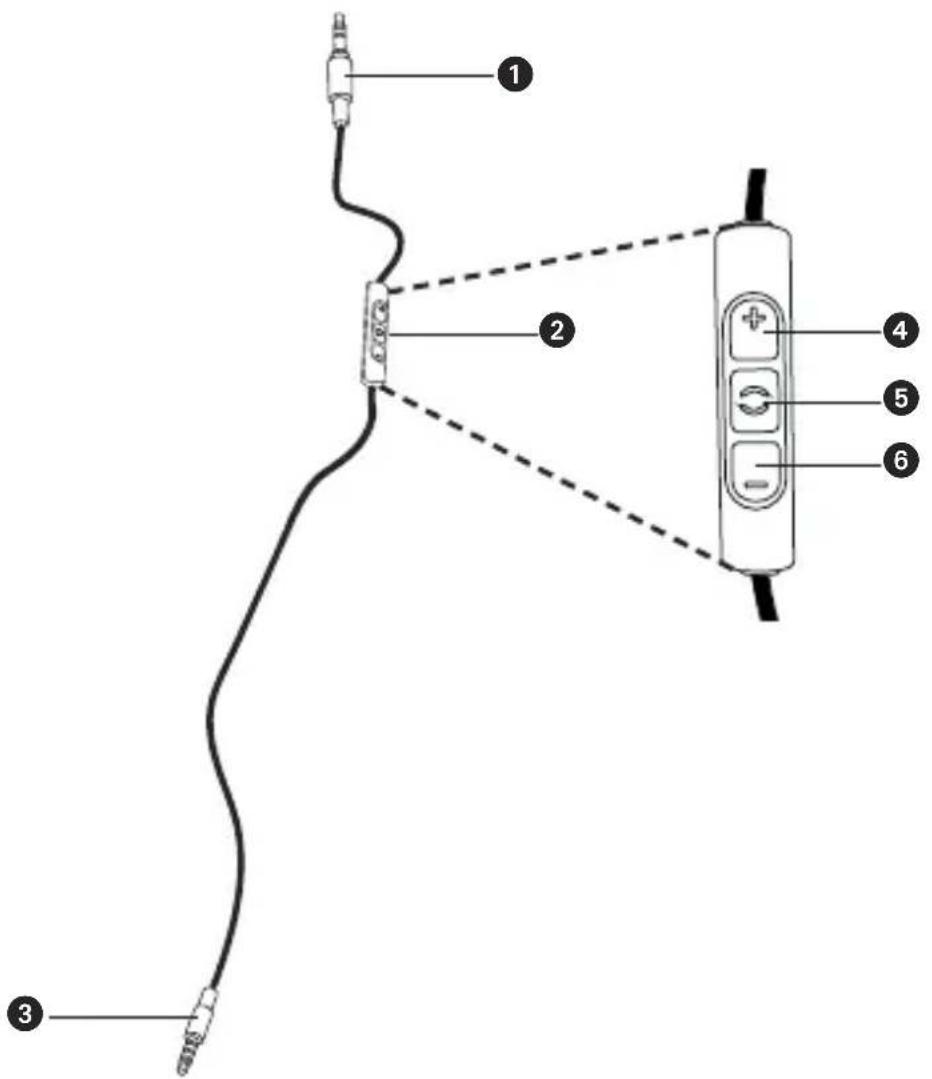
text_image
Diagram of a cable connector with labeled parts including audio, audio jack, and control panel1 Jack connector 3.5 mm to connect to ear cup
② Remote control
③ Jack connector 3.5 mm to connect to audio device
④ Button to increase volume
⑤ Button to control calls and media playback
⑥ Button to reduce volume
Operating instructions
The enclosed cable includes a microphone and a remote control with three buttons. You can use this remote control to control calls, media playback and volume adjustment on compatible smartphones and tablets.
This requires that the playback device is provided with a built-in headphone jack, and the pin assignment meets the CTIA standard. Only in this case are the functions described below possible.
Connect the cable to the right ear cup of the headphone.
Media playback
- Start / pause media control:
Briefly press the centre button 5.
Note:
Depending on the playback device and version of the operating system and/or firmware, there may be further media playback functions which can be controlled by the centre button. For more details, please contact the smartphone or tablet manufacturer.
Control volume
- Increase volume:
Briefly press the + button ④, to increase the volume by one step.
- Reduce volume:
Briefly press the - button ⑥, to decrease the volume by one step.
Note:
Please note that not every smartphone or tablet features this function. On smartphones and tablets with an Android system, it is necessary that the playback device supports the so-called Wired Audio Headset Specification (https://source.android.com/devices/accessories/headset/specification.html). Please contact the smartphone or tablet manufacturer, if necessary.
Call personal assistant
- To call the personal assistant on your smartphone or tablet such as Siri, Google Assistant etc.:
Press the centre button ⑤ for approx. two seconds.
Call control
- Accept / end a call:
Briefly press the centre button 5.
Note:
Make sure that you do not cover the opening for the microphone which is located on the back of the remote control opposite the buttons.
Depending on the smartphone and version of the operating system and/or firmware, there may be further call control functions which can be controlled by the centre button ⑤. It may also be possible to call the personal assistant (e.g. Siri or Google Assistant) with the centre button ⑤. For more details, please contact the smartphone manufacturer.
Maintenance – how to find the FCC/IC/Japan certification number
- To clean the Amiron wireless use only a soft cloth - either dry or slightly damp.
- Do not use cleaners that contain solvents as they can damage the surface.
Since the ear pads are subject to natural wear, they should be replaced from time to time.
You can do this easily yourself:
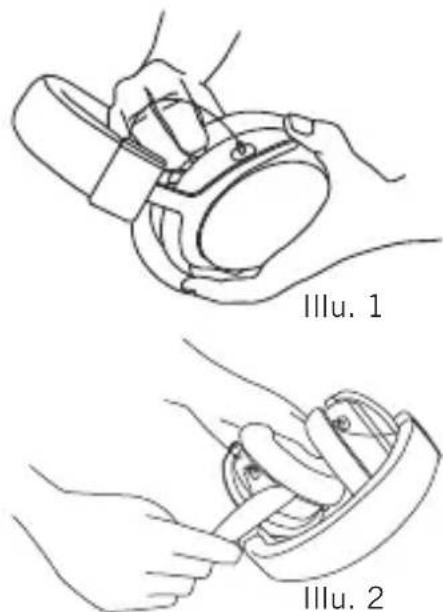
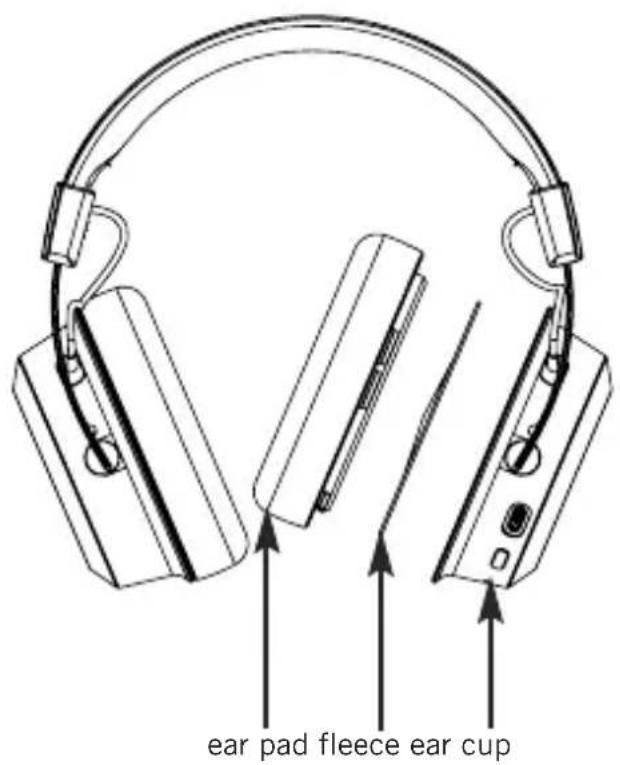
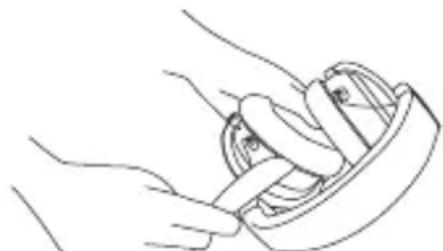
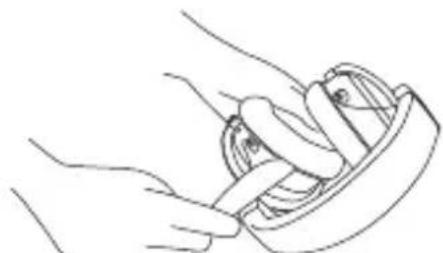
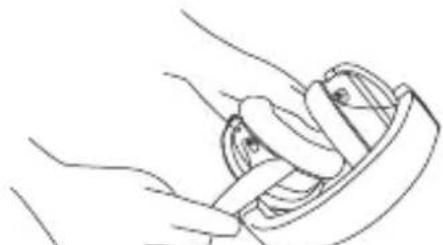
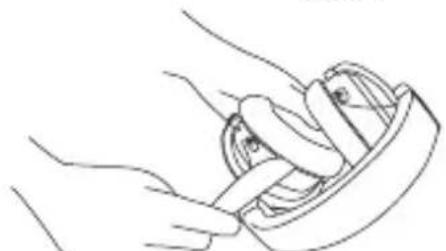
- Grasp the ear pad at the rim and pull it off the headphone housing (refer to illu. 1). Please note that you need a little bit of physical effort. Alternatively you can use a blunt flat tool to pull it off (refer to illu. 2).
Warning: Be careful to avoid scratches or other damages or injuries! - The FCC/IC certification number is found under the ear pad and black fleece of the left headphone housing.
- Attach the new ear pad.
Important: The holding tab on the ring of the ear pad must lock with the notch of the headphone housing. Refer also to illu. 3.
In the event that other components require replacement, please contact your local beyerdynamic representative.
text_image
Illi. 1 Illi. 2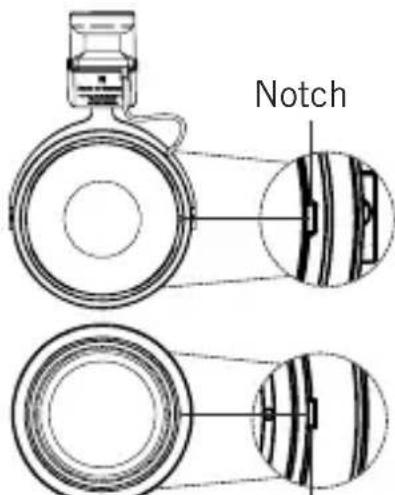
text_image
NotchHolding tab
Illu. 3
Notes on battery life for Li-Ion batteries
• After charging fully, disconnect the charging cable from the Amiron wireless.
- High temperatures, especially when fully charged can lead to irreversible damage.
- If the battery is not used for extended periods of time, it is recommended to charge to approx. 50 % and store it at no more than 20 °C.
Spare parts
- Spare parts for the Amiron wireless can be found on the web at: www.beyerdynamic.com under section “Service”.
Disposal
This symbol on the product, in the instructions or on the packaging means that your electrical and electronic equipment should be disposed at the end of its life separately from your household waste. There are separate collection systems for recycling in the EU. For more information, please contact the local authority or your retailer where you purchased the product.
Battery disposal
This symbol means that according to local laws and regulations your product and/or its battery shall be disposed of separately from household waste. When this product reaches its end of life, take it to a collection point designated by local authorities. The separate collection and recycling of your product and/or its battery at the time of disposal will help conserve natural resources and ensure that it is recycled in a manner that protects human health and the environment.
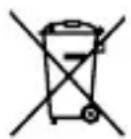
- Old batteries may contain substances that are harmful to your health and environment.
- Dispose used batteries always according to the applicable disposal regulations. Please do not throw used battery packs into the fire (danger of explosion) or your household rubbish, take them to your local collection points. The return is free and required by law. Please dispose discharged batteries only.
- All batteries are recycled to reclaim valuable material such as iron, zinc or nickel.
Product registration
- Using the serial number, you can register your Amiron wireless on the web at www.beyerdynamic.com.
Warranty conditions
- The current warranty conditions can be found at www.beyerdynamic.com.
Technical specifications
RF frequency range ..... 2.4000 - 2.4835 GHz
Transmission power .... 10 mW
Operating temperature range ..... 0 to 40 °C
Charging temperature range. ..... 10 to 40 °C
Detailed technical specifications can be found on the internet at:
www.beyerdynamic.com/amiron-wireless
Simplified EU/UK Declaration of Conformity
beyerdynamic hereby declares that this radio transmission device complies with the EU Directive 2014/53/EU and the UK Directive “The Radio Equipment Regulations 2017”.
The full text of the EU/UK declaration of conformity can be found on the Internet at: http://www.beyerdynamic.com/cod
Third Party Licenses
For more information on 3rd party licenses, please go to:
https://www.beyerdynamic.com/media/downloads/headphones/manual/Licenses_Amiron.md
Trademarks
The Bluetooth ^® wordmark and logos are registered trademarks of Bluetooth SIG, Inc. and all use of these trademarks by beyerdynamic is licensed. Other trademarks and trade names are the property of the respective owners.
Qualcomm aptX™ is a product of Qualcomm Technologies, Inc. and/or its subsidiaries. Qualcomm® is a registered trademark of Qualcomm Incorporated in the USA and in other countries. aptX™ is a registered trademark of Qualcomm Technologies International, Ltd.
FCC / IC Regulation
FCC ID: OSDAMIRON
Canada IC: 3628C-AMIRON
NOTICE:
This device complies with Part 15 of the FCC Rules [and with Industry Canada licence-exempt RSS standard(s)].
Operation is subject to the following two conditions:
(1) this device may not cause harmful interference, and
(2) his device must accept any interference received, including interference that may cause undesired operation.
Changes or modifications made to this equipment not expressly approved by beyerdynamic may void the FCC authorization to operate this equipment.
Radiofrequency radiation exposure information:
For body worn operation, this phone has been tested and meets the FCC RF exposure guidelines when used with the beyerdynamic accessories supplied or designated for this product. Use of other accessories may not ensure compliance with FCC RF exposure guidelines.
Note: This equipment has been tested and found to comply with the limits for a Class B digital device, pursuant to part 15 of the FCC Rules
These limits are designed to provide reasonable protection against harmful interference in a residential installation. This equipment generates, uses and can radiate radio frequency energy and, if not installed and used in accordance with the instructions, may cause harmful interference to radio communications. However, there is no guarantee that interference will not occur in a particular installation.
If this equipment does cause harmful interference to radio or television reception, which can be determined by turning the equipment off and on, the user is encouraged to try to correct the interference by one or more of the following measures:
– Reorient or relocate the receiving antenna.
– Increase the separation between the equipment and receiver.
- Connect the equipment into an outlet on a circuit different from that to which the receiver is connected.
- Consult the dealer or an experienced radio/TV technician for help.
CAUTION: Changes or modifications not expressly approved by the manufacturer responsible for compliance could void the user's authority to operate the equipment.
Made in Germany
The FCC/IC/Japan registration number is found under the black hair protection fleece of the left ear pad. Remove the ear pad and the black fleece (refer to the “Maintenance - how to find the FCC/IC/Japan certification number” section).
text_image
ear pad fleece ear cup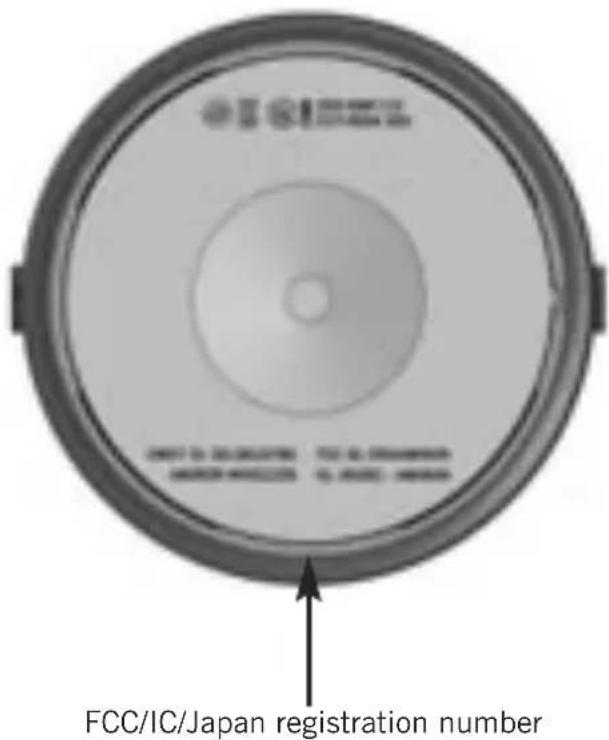
text_image
FCC/IC/Japan registration numberThis device is granted pursuant to the Japanese Radio Law (電波法) and the Japanese Telecommunications Business Law (電気通信事業法)
This device should not be modified (otherwise the granted designation number will become invalid.
Compliance Information
Frequency band. . . . . 2,400 - 2,483.5 MHz
Transmitter power ... max. 10 mW
| Country Approval | |
| USA | FCC ID: OSDAMIRON |
| Canada IC: 362 | 8C-AMIRON |
| Europe |   |
| Japan | [R] 202-SMF110 [T] D 17-0034 202 [T] D 17-0034 202 |
| China |  CMIIT ID:2018DJ2780 CMIIT ID:2018DJ2780 |
| Korea | [R-CMI-SSB-AVENTHO |
beyerdynamic MIY App
natural_image
Line drawing of a headboard with earbuds and cable, labeled with number 1 (no text or symbols on the diagram itself)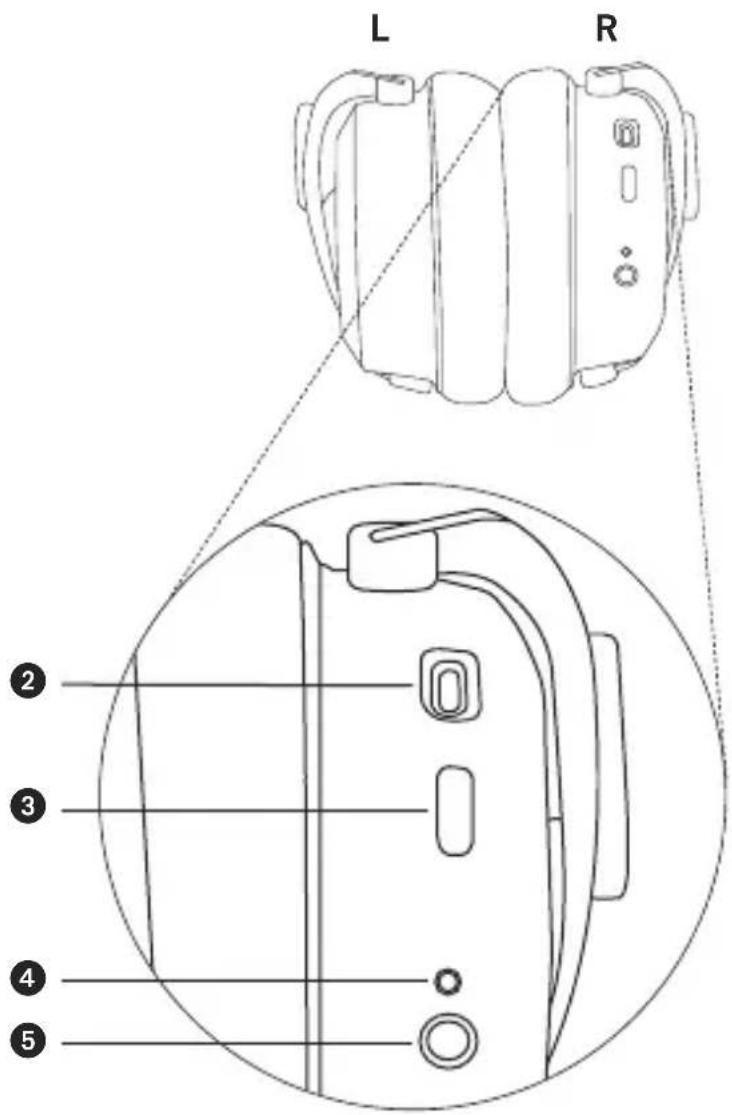
text_image
L R ② ③ ④ ⑤natural_image
Line drawing of a hand holding a tablet next to a mechanical device with wires and a square button (no text or symbols)natural_image
Diagram of a finger pressing down on a circular component with an arrow indicating direction (no text or symbols)natural_image
Diagram of a hand pressing down on a circular mechanical component with an arrow indicating left motion (no text or symbols)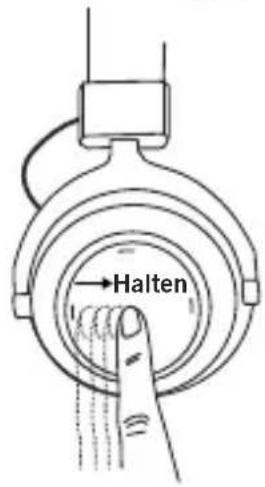
text_image
Halten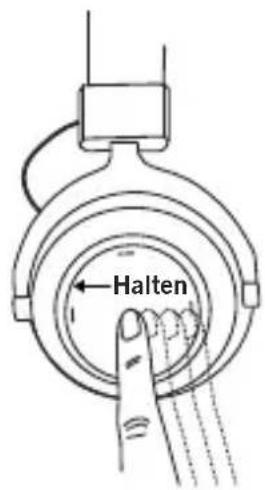
text_image
Halten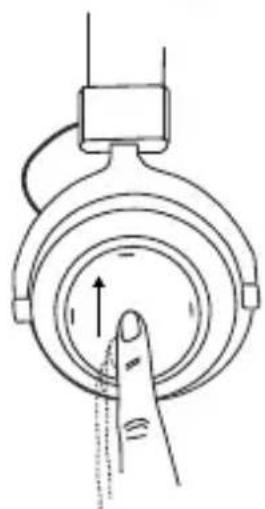
natural_image
Diagram of a finger pressing down on a circular mechanical component (no text or symbols)text_image
Kerbe RastnaseAbb. 3
www.beyerdynamic.com/amiron-wireless
Codecs audios supportés .... 52
Codecs audios supportés
natural_image
Line drawing of a headboard with earbuds and cable, labeled with number 1 (no text or symbols on the diagram itself)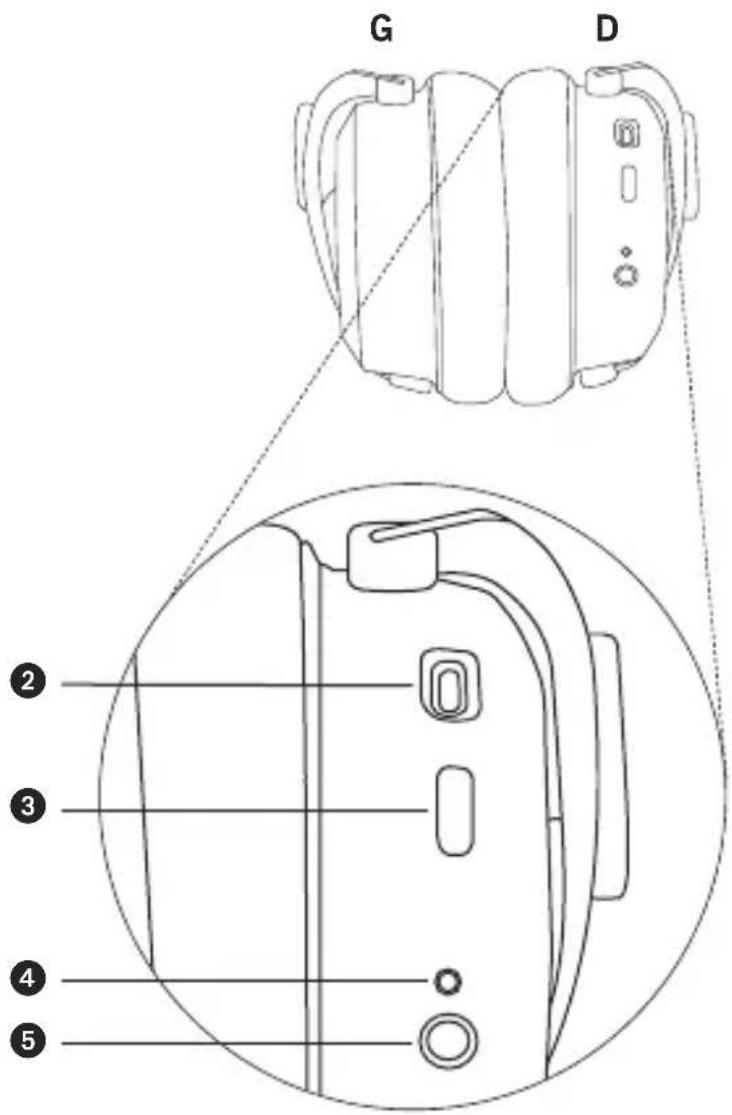
text_image
G D 2 3 4 5natural_image
Line drawing of a hand holding a tablet next to a mechanical device with wires and a square button (no text or symbols)natural_image
Diagram of a hand pressing down on a circular mechanical component with an arrow indicating direction (no text or symbols)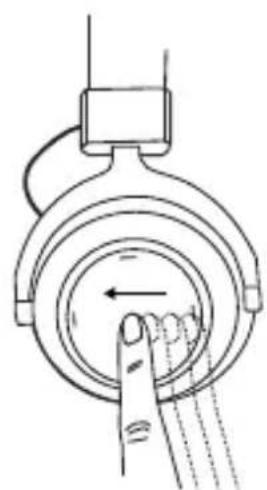
natural_image
Diagram of a mechanical device with a finger pressing a button, showing rotational motion (no text or symbols)- Avance rapide :
text_image
Diagram of audio cable connection showing connections between audio jack, microphone, and screen with labeled partsnatural_image
Line drawing of hands holding a device with a handle, labeled Fig. 1 (no text or symbols on the diagram itself)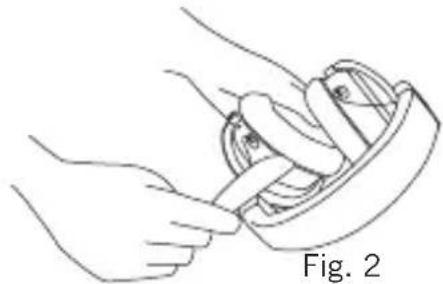
natural_image
Line drawing of hands performing a mechanical tool or assembly (no text or symbols)beyerdynamic MIY App
natural_image
Line drawing of a pair of headphones with labeled parts (no text or symbols on the device itself)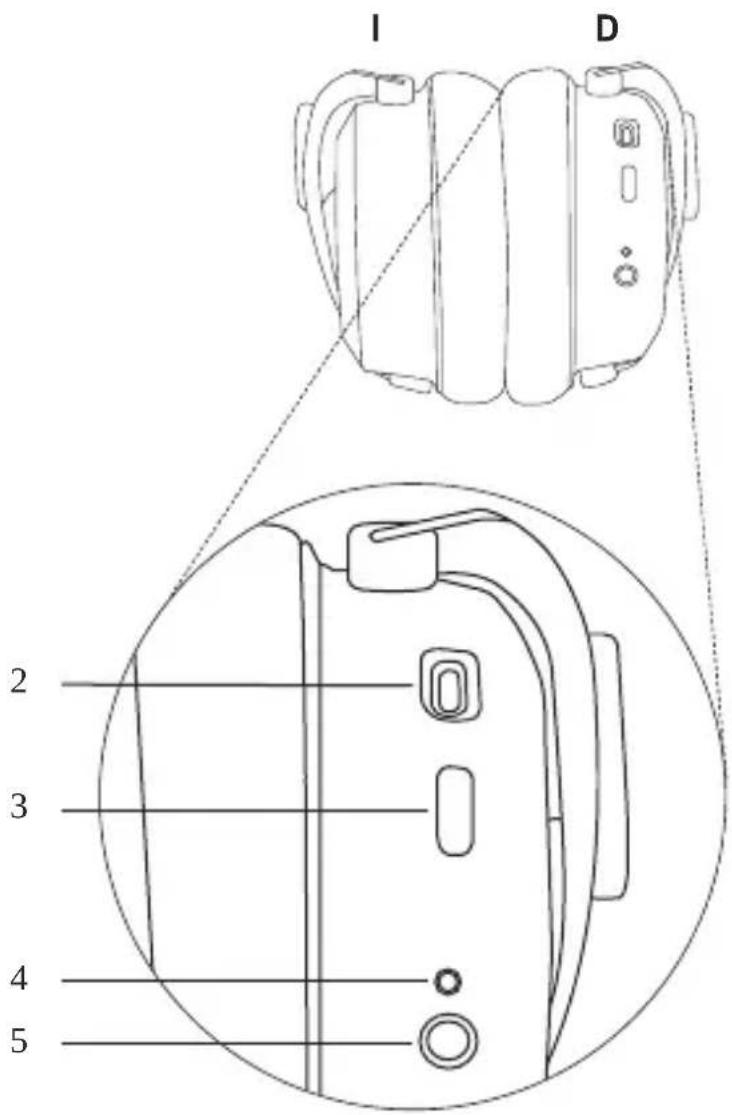
text_image
I D 2 3 4 51 Panel táctil
natural_image
Line drawing of a hand holding a tablet next to a mechanical device with wires and a small square component (no text or symbols)natural_image
Diagram of a hand pressing down on a circular mechanical component with an arrow indicating direction (no text or symbols)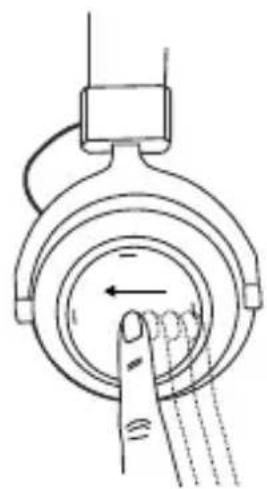
natural_image
Diagram of a hand pressing down on a circular mechanical component with arrows indicating motion (no text or symbols)- Avanzar:
natural_image
Line drawing of a hand holding a small object, labeled 'Fig. 1' (no other text or symbols)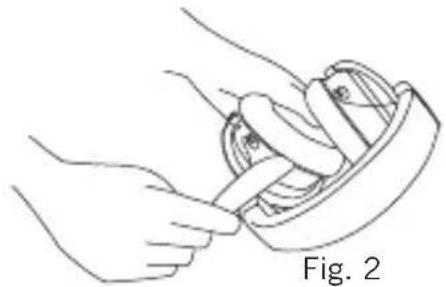
natural_image
Line drawing of hands holding a mechanical component, labeled Fig. 2 (no text or symbols on the diagram itself)www.beyerdynamic.com/amiron-wireless
beyerdynamic MIY App
natural_image
Line drawing of a headboard with earbuds and straps, labeled with number 1 (no text or symbols on the diagram itself)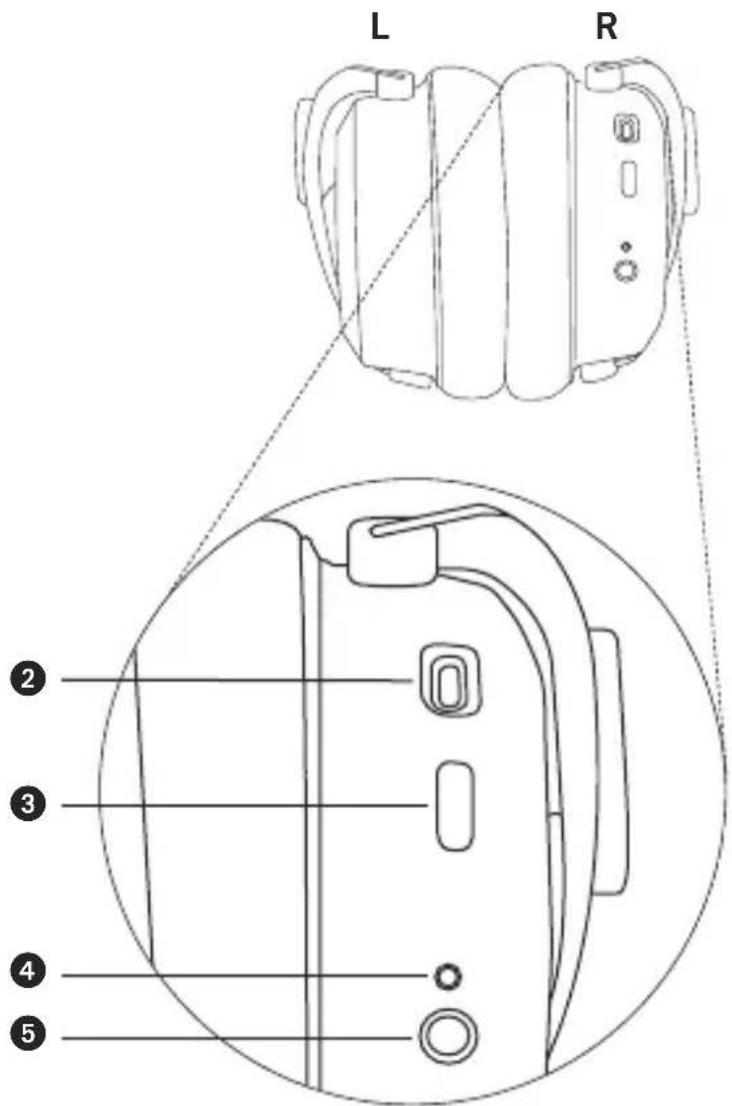
text_image
L R ② ③ ④ ⑤natural_image
Line drawing of a hand holding a tablet next to a mechanical device with wires and a small square component (no text or symbols)natural_image
Diagram of a hand pressing down on a circular mechanical component with an arrow indicating direction (no text or symbols)natural_image
Diagram of a hand pressing down on a circular mechanical component with an arrow indicating left motion (no text or symbols)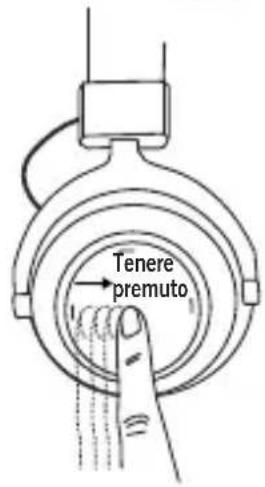
natural_image
Diagram of a finger pressing down on a circular mechanical component (no text or symbols)natural_image
Diagram of a finger pressing down on a circular component with arrows indicating direction (no text or symbols)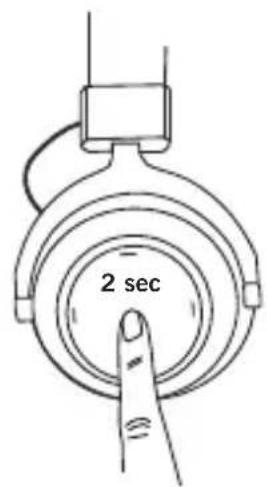
text_image
2 sec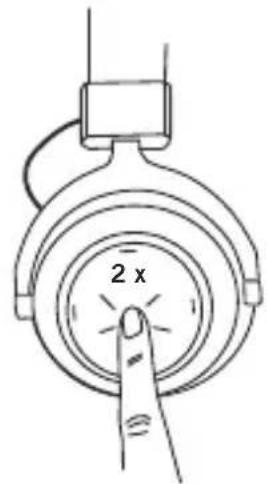
text_image
2 x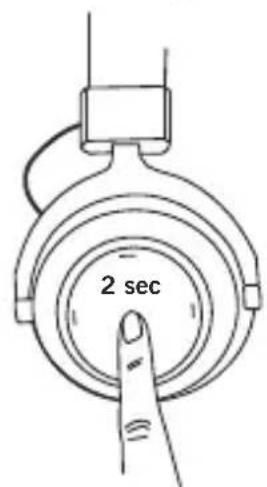
text_image
2 secnatural_image
Line drawing of hands holding a device with a magnifying glass (no text or symbols)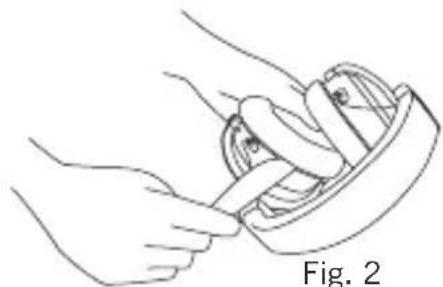
natural_image
Line drawing of hands using a tool to interact with a mechanical component (no text or symbols)natural_image
Line drawing of a headboard with attached cable and connector (no text or symbols)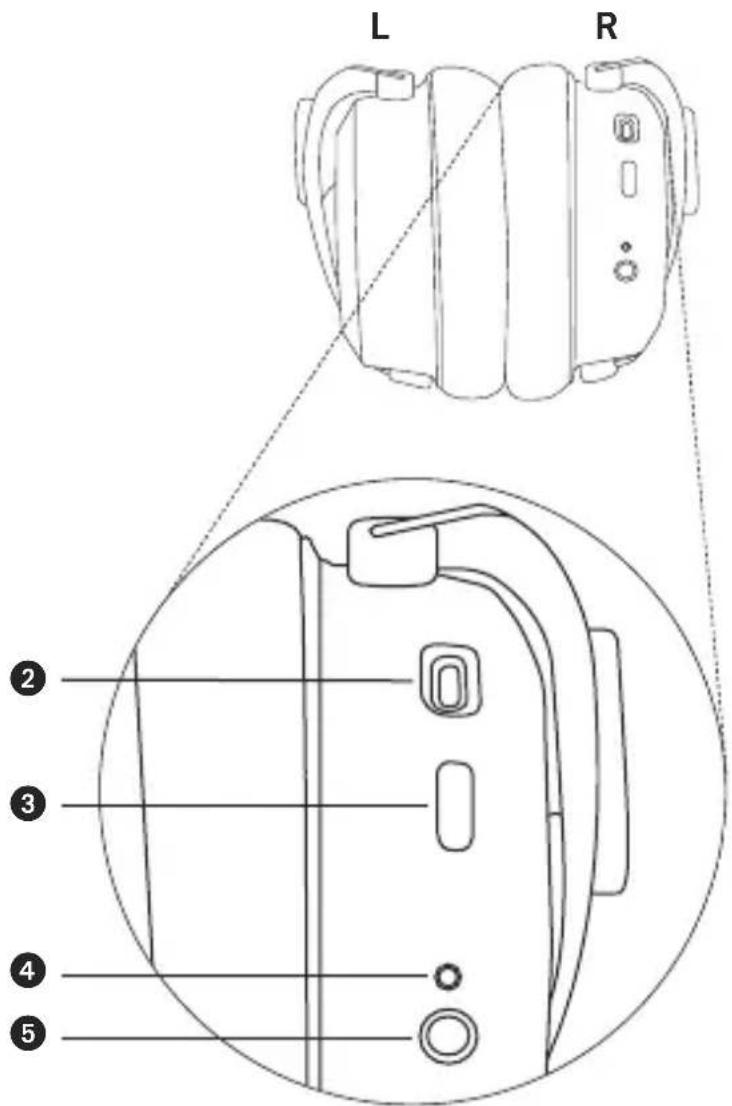
text_image
L R ② ③ ④ ⑤① Touchplatta
2 USB-anslutning för laddningskabel (USB-C)
③ LED-knapp
4 Mikrofon
5 Kontakt 3,5 mm för ljudsladd
natural_image
Line drawing of a hand holding a tablet connected to a device with attached cables (no text or symbols)natural_image
Diagram of a hand pressing down on a circular mechanical component with an arrow indicating direction (no text or symbols)natural_image
Diagram of a hand pressing a circular button with an arrow indicating left motion (no text or symbols)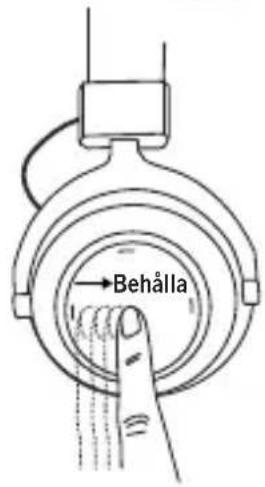
text_image
Behålla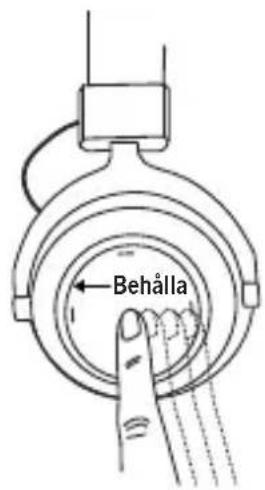
text_image
Behålla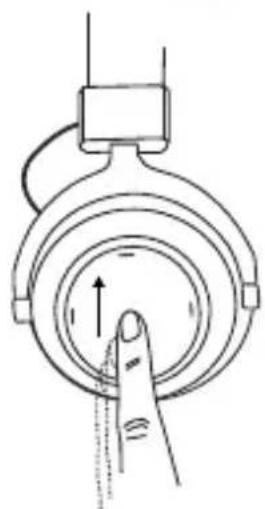
natural_image
Diagram of a finger pressing down on a circular mechanical component (no text or symbols)natural_image
Line drawing of a headboard with attached cable and connector (no text or symbols)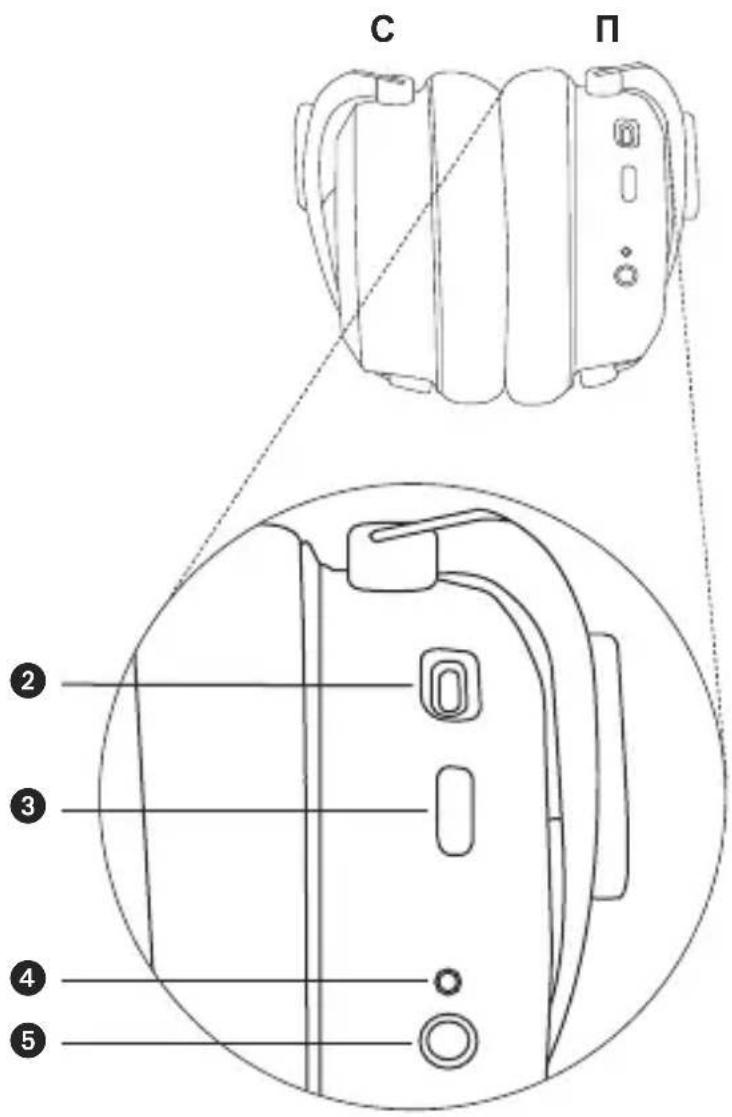
text_image
C Π ② ③ ④ ⑤natural_image
Line drawing of a hand holding a tablet next to a mechanical device with wires and a square button (no text or symbols)natural_image
Diagram of a hand pressing a button on a circular mechanical component with an arrow indicating direction (no text or symbols)natural_image
Diagram of a finger pressing down on a circular component with arrows indicating motion (no text or symbols)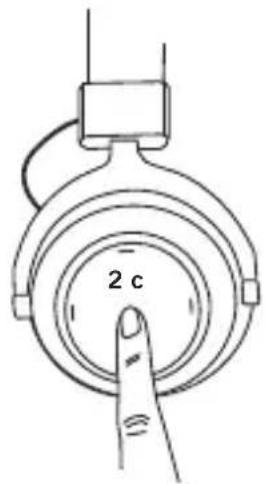
text_image
2 c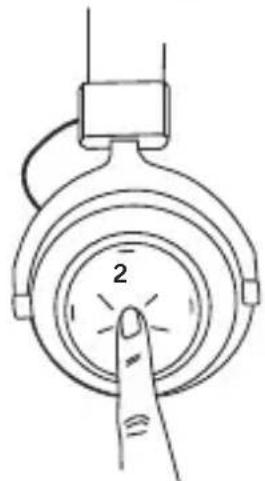
natural_image
Hand pointing at a circular button labeled '2', with no visible text or symbols beyond the number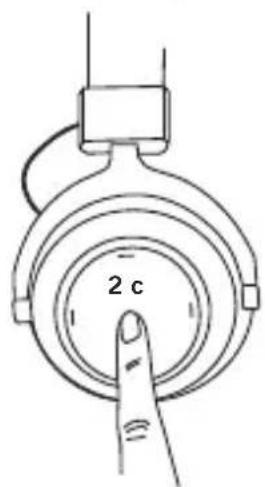
text_image
2 cnatural_image
Line drawing of hands holding a device (no text or symbols)Рис. 1
natural_image
Line drawing of hands holding a circular object with a handle (no text or symbols)Рис. 2
www.beyerdynamic.com/amiron-wireless
natural_image
Line drawing of a headboard with earbuds and straps, labeled with number 1 (no text or symbols on the diagram itself)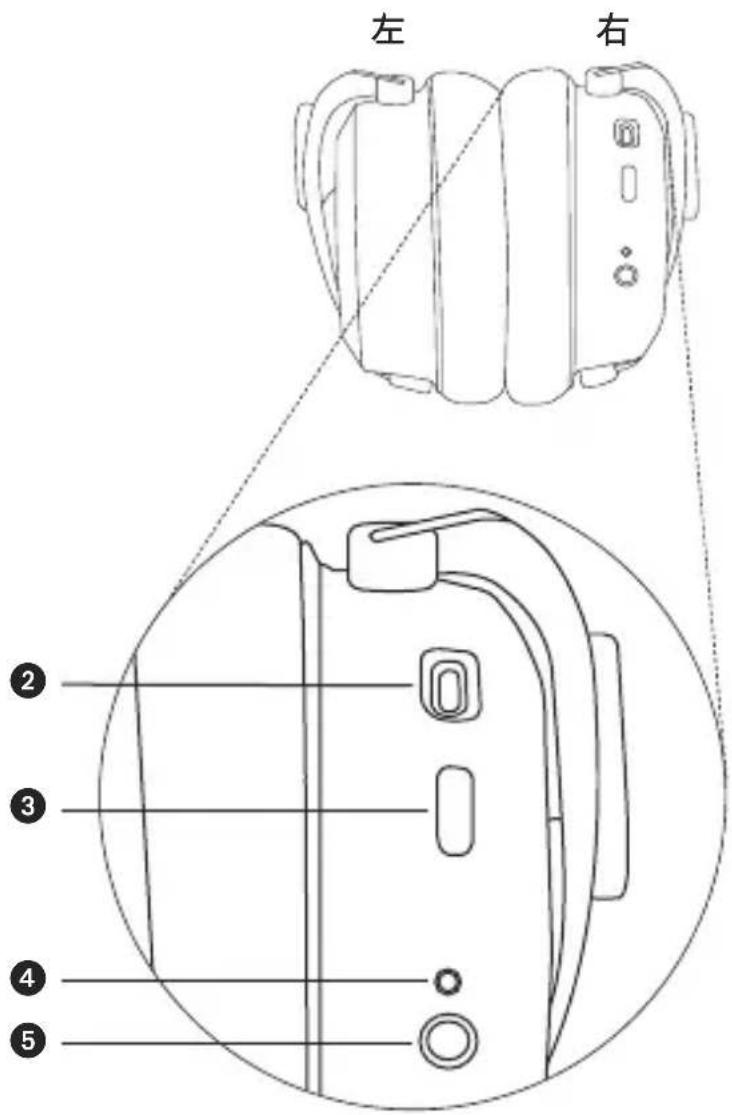
text_image
左 右 ② ③ ④ ⑤natural_image
Line drawing of a hand holding a tablet next to a mechanical device with wires and a square button (no text or symbols)接続とリスト内の再生デバイスの削除
natural_image
Diagram of a hand pressing down on a circular mechanical component with an arrow indicating rotational direction (no text or symbols)natural_image
Diagram of a hand pressing down on a circular mechanical component with an arrow indicating left motion (no text or symbols)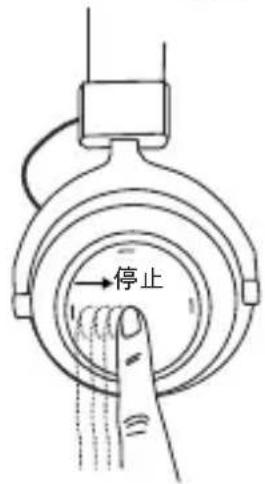
text_image
停止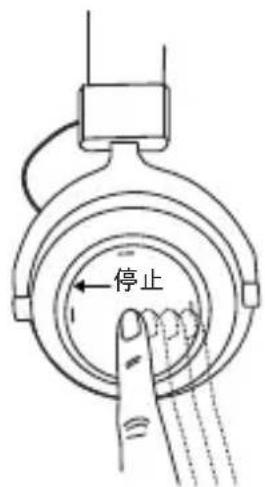
text_image
停止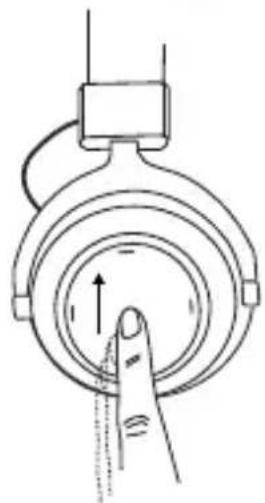
natural_image
Diagram of a finger pressing down on a circular component with an upward arrow (no text or symbols)- 音量を下げる:
natural_image
Line drawing of hands holding a device with a clip (no text or symbols)图1
natural_image
Line drawing of hands holding a small object, possibly a tool or device, with no visible text or symbols.图2
www.beyerdynamic.com/amiron-wireless
簡略 適合宣言
natural_image
Line drawing of a headboard with earbuds and cable, labeled with number 1 (no text or symbols on the diagram itself)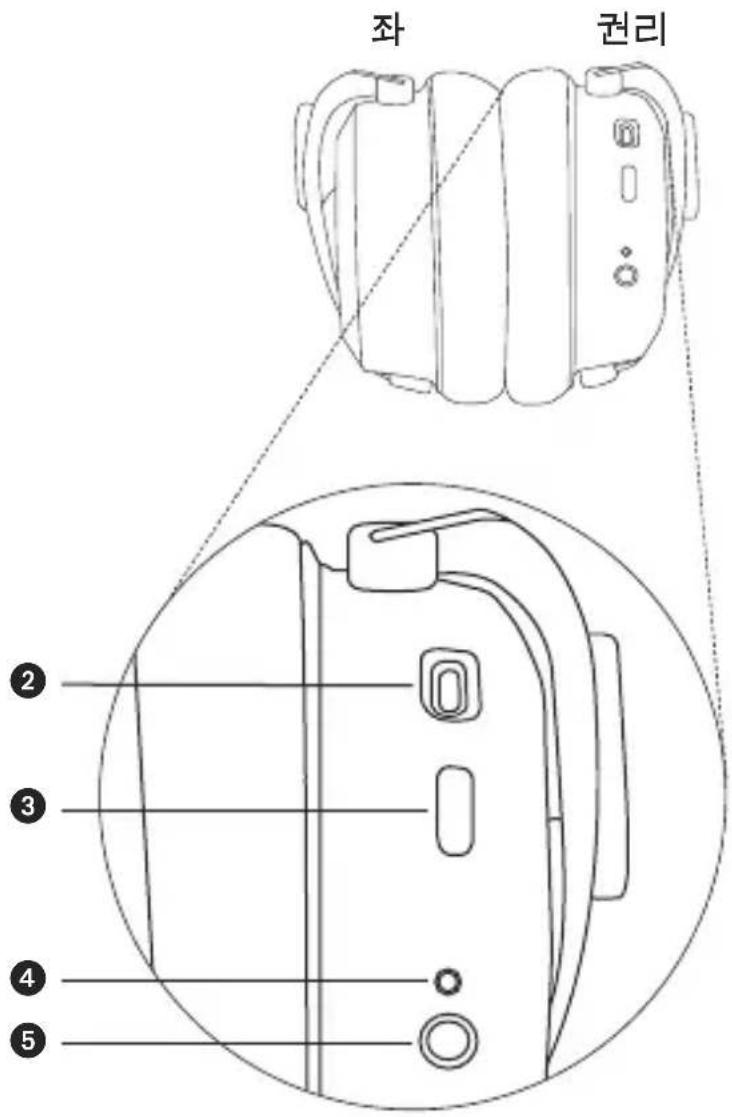
natural_image
Line drawing of a hand holding a tablet next to a mechanical device with wires and a square tag (no text or symbols)연결 및 목록에서 재생 장치 삭제
natural_image
Diagram of a hand pressing down on a circular mechanical component with an arrow indicating direction (no text or symbols)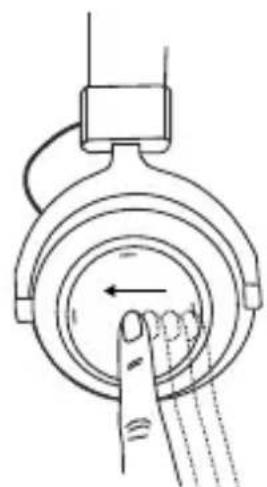
natural_image
Diagram of a hand pressing a button on a circular mechanical component (no text or symbols)natural_image
Diagram of a finger pressing a circular button with an arrow indicating direction (no text or symbols)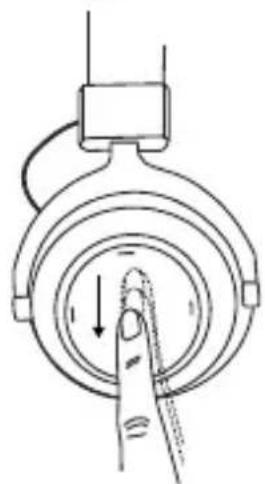
natural_image
Diagram of a finger pressing down on a circular mechanical component with a downward arrow indicating force or direction (no text or symbols)개인 비서 불러오기
natural_image
Line drawing of hands holding a device with a circular lens (no text or symbols)그림 1
natural_image
Line drawing of hands holding a curved object (no text or symbols)그림 2
-새 이어패드를 고정하십시오.
www.beyerdynamic.com/amiron-wireless
간소화된 적합성 선언
natural_image
Line drawing of a headboard with attached straps and a labeled component (no text or symbols present)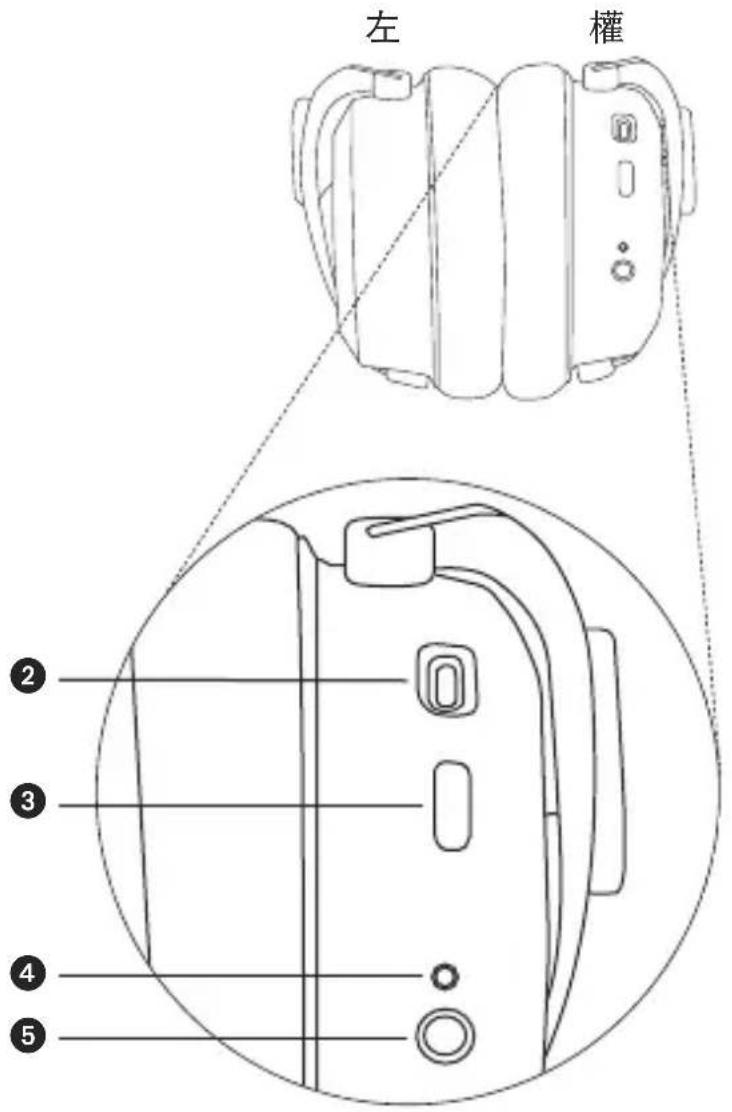
natural_image
Line drawing of a hand holding a tablet next to a mechanical device with wires and a small square component (no text or symbols)连接和删除列表中的播放设备
natural_image
Diagram of a hand pressing down on a circular mechanical component with an arrow indicating direction (no text or symbols)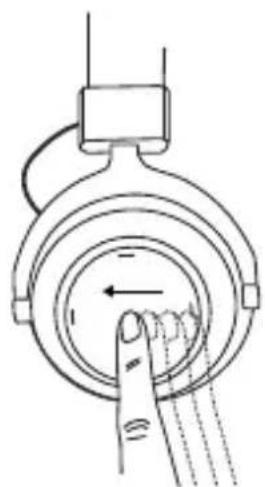
natural_image
Diagram of a hand pressing down on a circular mechanical component with an arrow indicating left motion (no text or symbols)- 快进:
text_image
Diagram of audio cable connection with labeled components including audio jack, microphone, and connector pinnatural_image
Line drawing of hands holding a mechanical component (no text or symbols)插图1
natural_image
Line drawing of hands holding a mechanical component (no text or symbols)插图 2
- 将新耳垫固定。
www.beyerdynamic.com/amiron-wireless
简化的欧盟一致性声明
text_image
CE EAC UK CA 10beyerdynamic GmbH & Co. KG
Theresienstr. 8 · 74072 Heilbronn / Germany
Phone +49 7131 617-300
E-Mail info@beyerdynamic.com
www.beyerdynamic.com
For further distributors worldwide, please go to www.beyerdynamic.com
Non-contractual illustrations. Subject to change without notice.