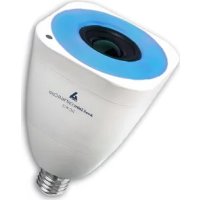
StriimLight WiFi Color - Speaker AwoX Striim - Free user manual and instructions
Find the device manual for free StriimLight WiFi Color AwoX Striim in PDF.


Frequently Asked Questions - StriimLight WiFi Color AwoX Striim
User questions about StriimLight WiFi Color AwoX Striim
0 question about this device. Answer the ones you know or ask your own.
Ask a new question about this device
Download the instructions for your Speaker in PDF format for free! Find your manual StriimLight WiFi Color - AwoX Striim and take your electronic device back in hand. On this page are published all the documents necessary for the use of your device. StriimLight WiFi Color by AwoX Striim.
USER MANUAL StriimLight WiFi Color AwoX Striim
AwoX StriIMLIGHT WiFi Color
SLC-W13

EN
FR
IT
DE
ES
CS
DK
NL
FI
HU
NO
PL
PT
RU
SE
SL
TR
[\text{或}P = {k}^{2}]
User Guide
Mode d'emploi
Starng your product. 5
AwoX Striim CONTROL setup 8
Using AwoX Striim CONTROL 10
Using AwoX StriimSERVER 15
Overview of the Play tab. 19
Playlists and queues. 20
Controlling lights and colors 23
Using music zones 25
Creang a new zone. 27
Otherconguraonopons 31
Updang AwoX Striim CONTROL 33
Technical specicaons 34
Troubleshoong 35
© 2014 AwoX. All rights reserved. StriimLIGHT Color WiFi, AwoX, the AwoX logo and other AwoX and AwoX Striim marks are owned by AwoX. iPhone, iPad, and iPod are trademarks of Apple, Inc., registered in the U.S and other countries. Android is a trademark of Google Inc. DLNA and DLNA CERTIFIED are trademarks and/or service marks of Digital Living Network Alliance. All other trademarks are the property of their respecve owners. Smartphone or tablet device sold separately. This is a non-contractual document. Read provided safety informaon before using this product.
Rev 01 (EU)
Getting started
Welcome
Congratulations and thank you for choosing the AwoX StriiimLIGHT™ WiFi Color speaker light. This innovave device contains both a full-color LED light bulb and an audio speaker, giving you a great way to listen to music from nearly any source, anywhere you can plug in a light bulb! Use several AwoX Striiim® WiFi products to create zones in full stereo around the house.
- A fun and easy way to play music from many sources, including your Apple iOS^TM or Google Android Android^TM smartphone or tablet, PC or Mac ^(1) , and the Internet
Access to hundreds of Internet radio staons (2) - Use the free AwoX media player sware for your iPhone®, iPad®, iPod touch®, or Android smartphone. (3)
1) Requires DLNA-compatible media server. (2) Requires Internet conneccon.
(3) Download the free AwoX Striim CONTROL sware for your Apple or Android OS device.
What's in the box
- StriimLIGHT WiFi Color light bulb with speaker
- Remote control (with baery)
- Mini CD-ROM with complete user guide and AwoX StriimSERVER sware for PC and MAC.
- Quick-start guide
- Safety and warranty leaet
What else you need
- WiFi Internet access
- A supported smartphone, or computer with StriimCONTROL for Windows or Mac soware installed (available for free on www.awox.com)
This document only describes how to use the smartphone. sware.
Before you begin
- Start by downloading the free AwoX media player for your device:
Apple iPhone, iPad, iPod touch
Download and install AwoX Striim CONTROL™ sware from the App Store.
Google Android devices

Download and install AwoX Striim CONTROL™ sware from the Google Play Store.
- On your Apple or Android device, make sure WiFi is turned on and then use the device's sengs to connect to your home network.
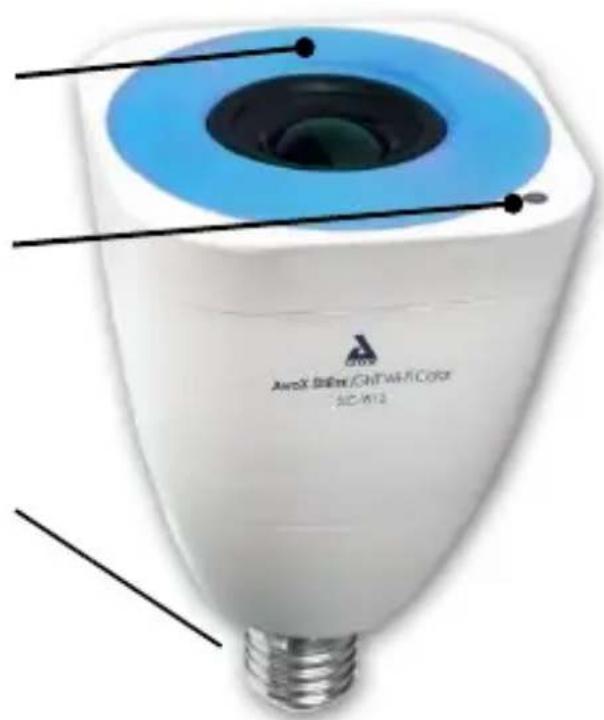
StriimLIGHT WiFi Color overview
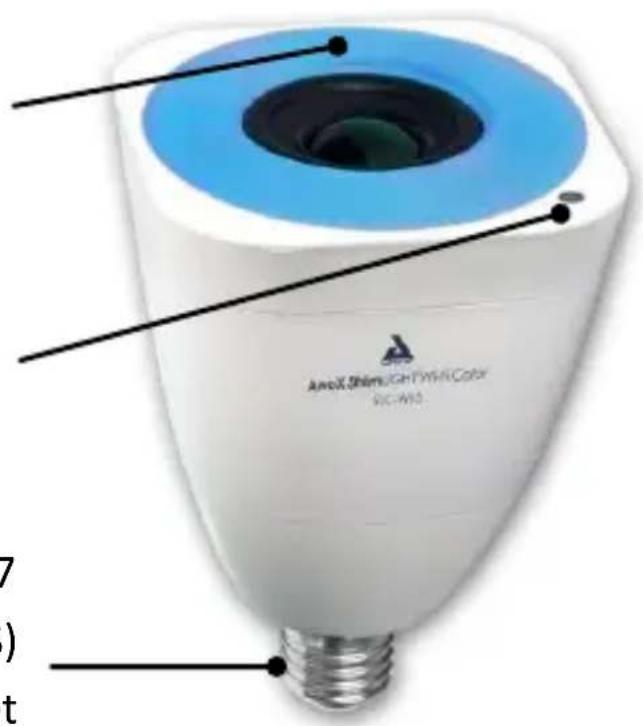
Blue power indicator
WPS auto-conguraon buon: Short-press to launch WiFi recognnion, long-press to reset conneccon
Fits standard E27 (European), E26 (US) light bulb socket
Starting your product
Screw your StriimLIGHT WiFi Color device into a light socket and turn on the power. Wait a few moments for the device to startup. The light turns on and a blue light blinks slowly. Aer starng, this light remains blue connuously.
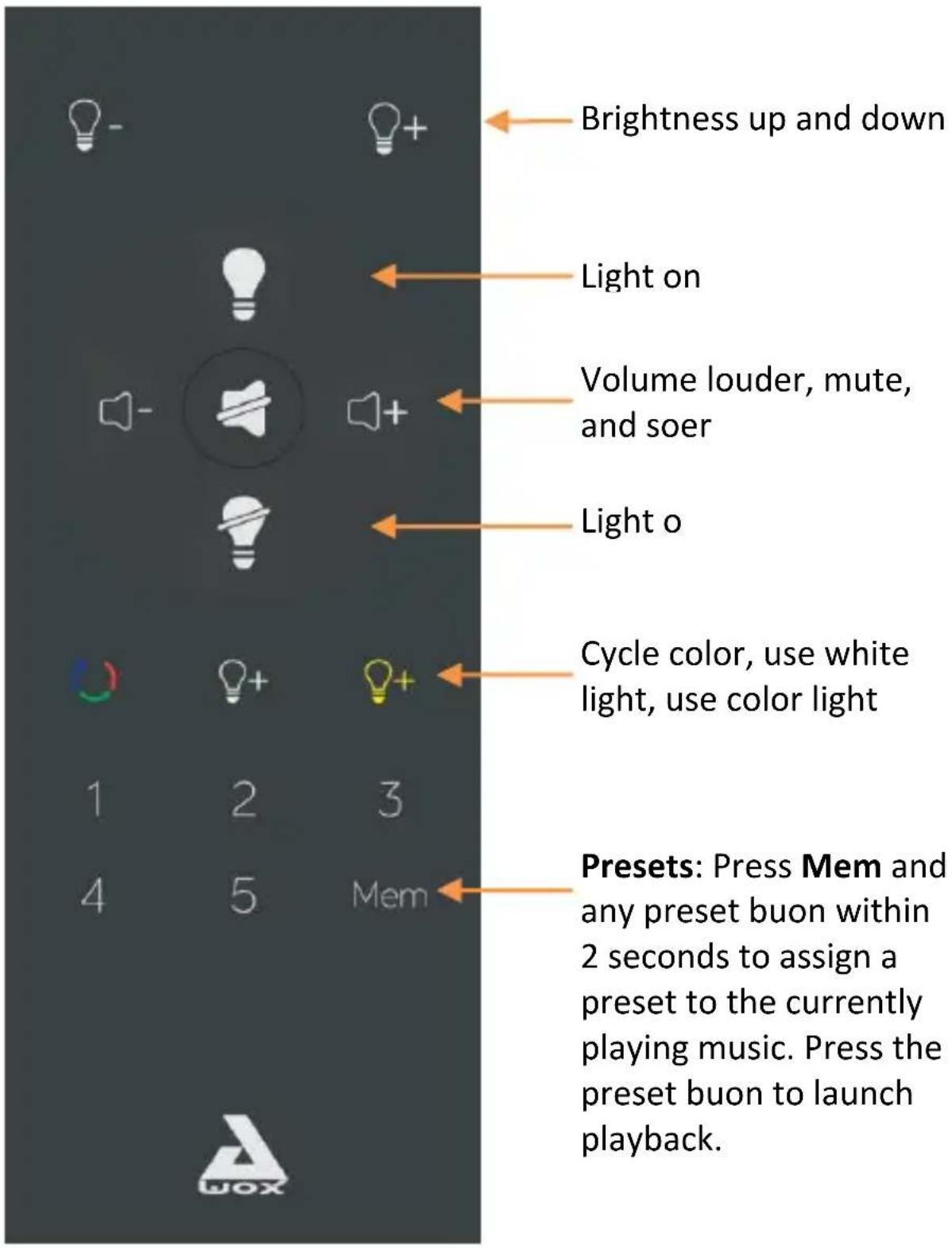
StriimLIGHT WiFi Color remote control
Changing the remote control baery
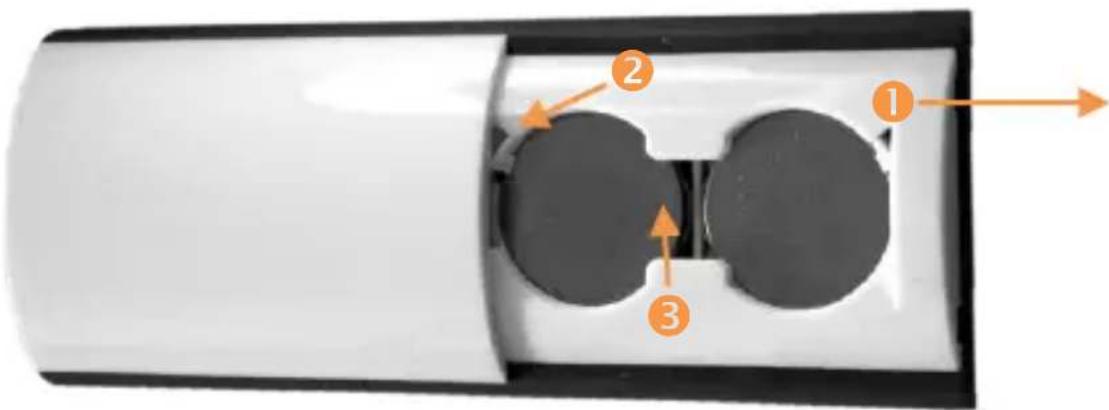
- Slide and li o cover from back of remote control.
- Use the p of a pen to push back the tab in the corner.
- Press boom of baery to li from slot.
- To replace the baery, place the boom of the baery in rst and push unl it clicks into posion.
If your Internet router supports WPS
WPS is a feature that enables you to add new WiFi devices to your network at the touch of a buon. If your Internet router supports WPS, simply press the WPS buon on the router and then press the WPS buon on your StriimLIGHT WiFi Color device. The two devices will recognize each other automatically and you may begin using the AwoX Striim CONTROL applicaon right away. Otherwise, the installaon wizard runs as described in the next secon and will guide you through the WiFi conguraon.
Note: Do not use any kind of dimmer switch other than the provided remote control unit.
AwoX Striim CONTROL setup
-
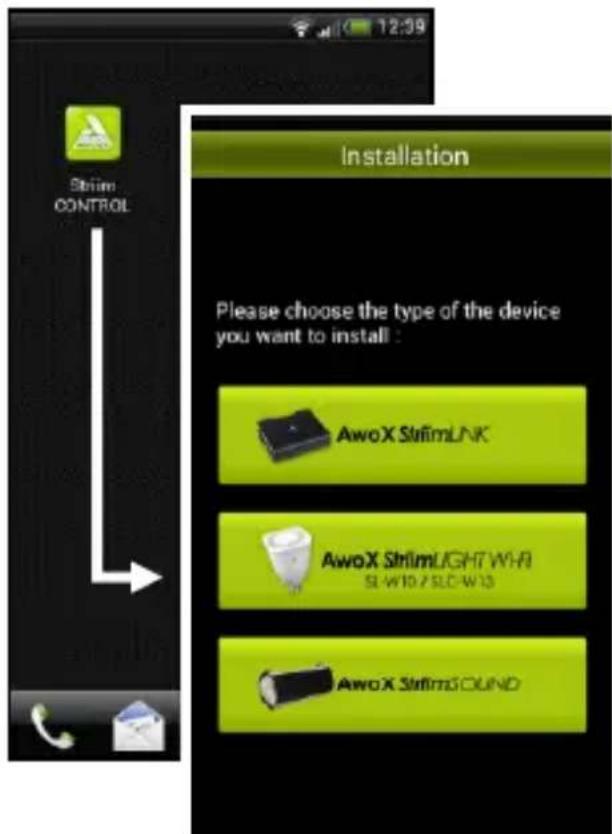
Aer downloading the applicaon, tap on the launcher icon to run AwoX Striim CONTROL. You must be connected to your local WiFi network.
-
If StriimCONTROL does not detect a StriimLIGHT device in your network, the setup wizard starts when you launch the applicaon.
-
Choose Congure a new audio device, then install AwoX StriimLIGHT WiFi.
-
The wizard guides you through all the steps for connecng your AwoX StriimLIGHT WiFi Color device to your local network to begin playing your music.
Once the device is connected to your network, it will automatically reconnect each me you turn it on.
Sample usage
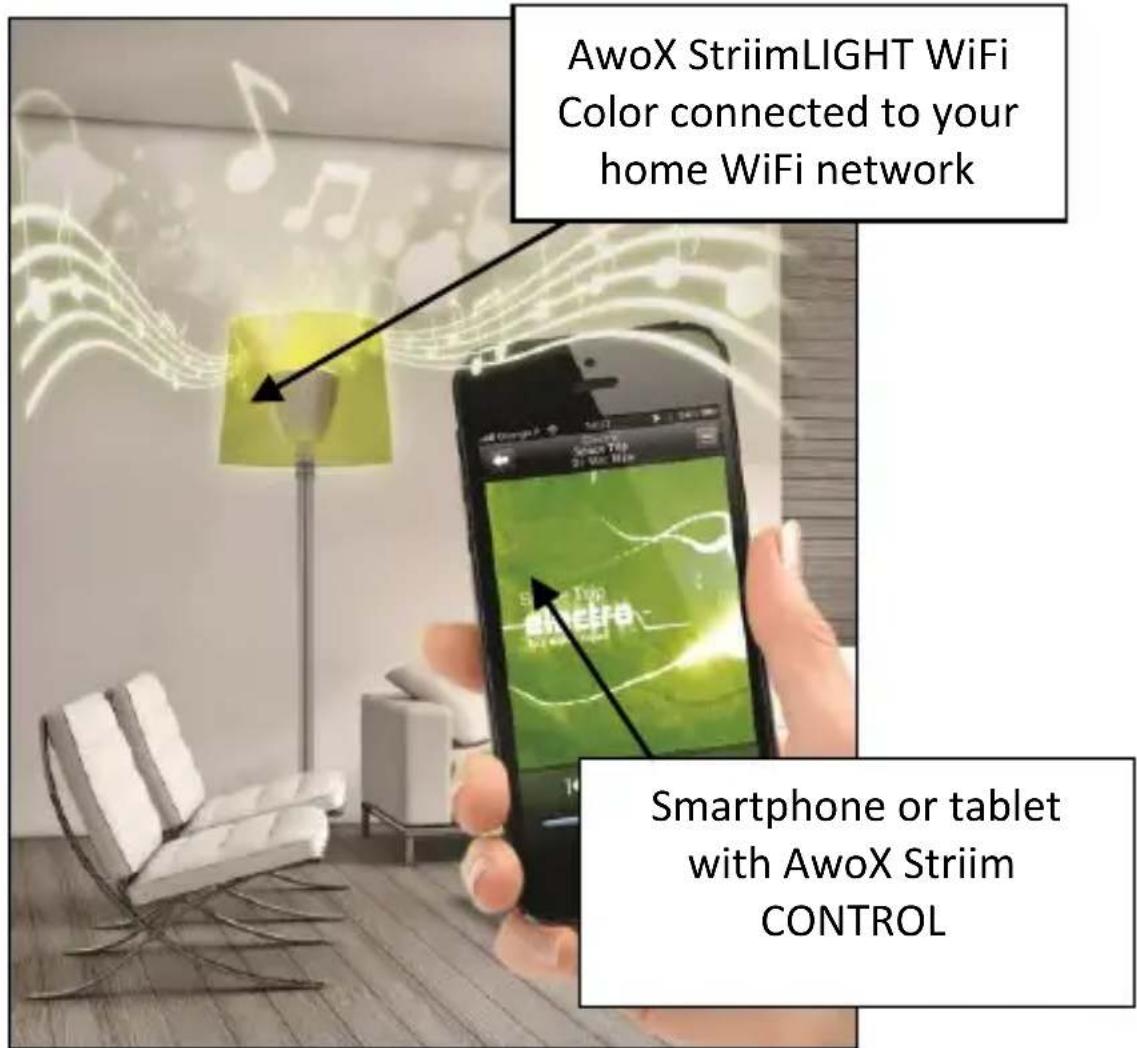
Connect StriimLIGHT WiFi to your home network and stream music from:
- Your Apple iOS or Google Android device
Internet radio - Your home computer
Using AwoX Striim CONTROL
Note: the instrucons provided here are idencal for devices running Apple iOS and Google Android operang systems.
Applicaon overview
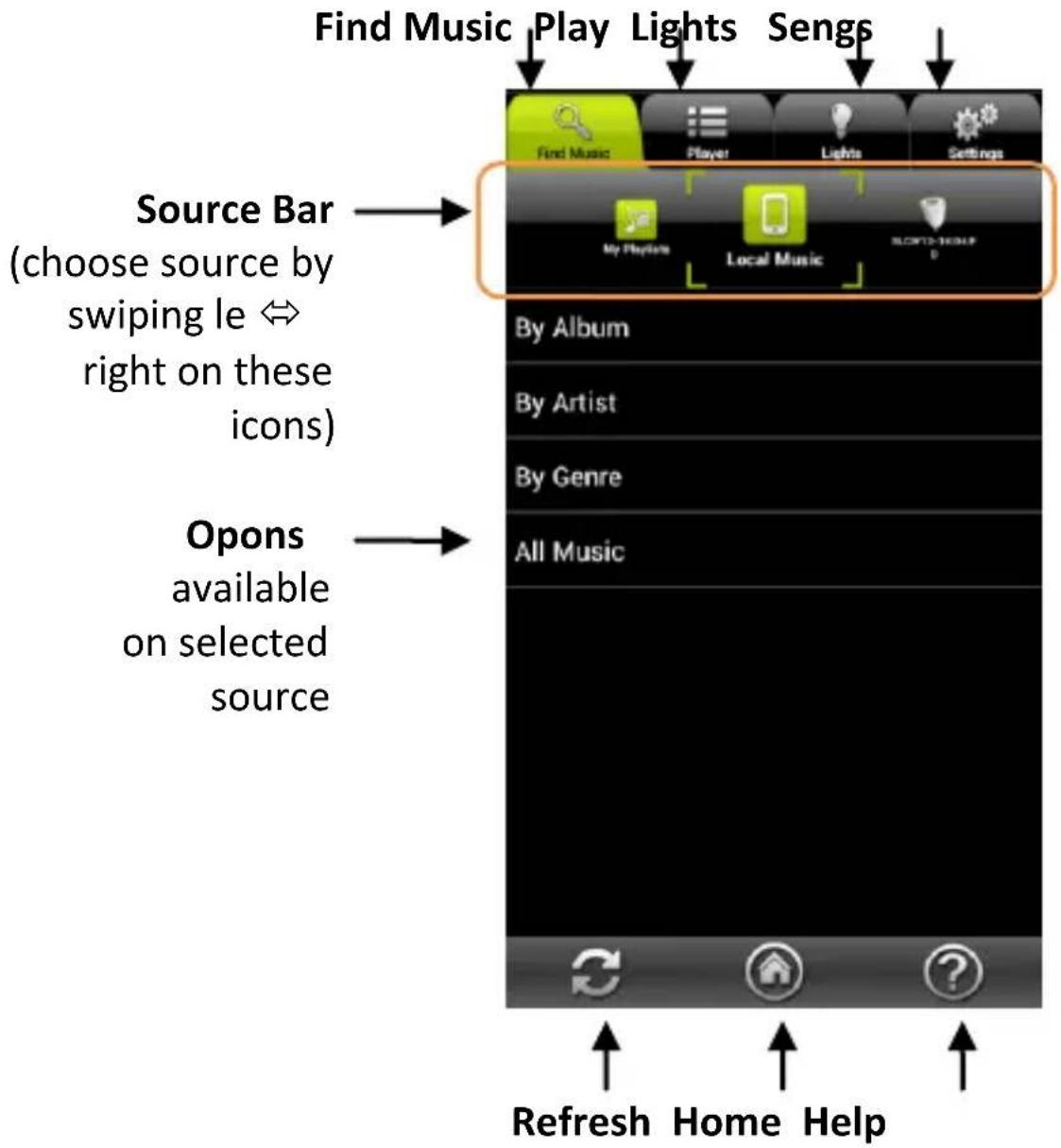
AwoX Striim CONTROL nds and plays music from your various media sources. Here is an overview of the applicaon layout:
Choosing your music

Tap on the Find Music tab to see available music sources. The source bar contains Playlists, Local, StriimLIGHT, and any other media sources you may have available on your network. The contents available for play vary with each source.
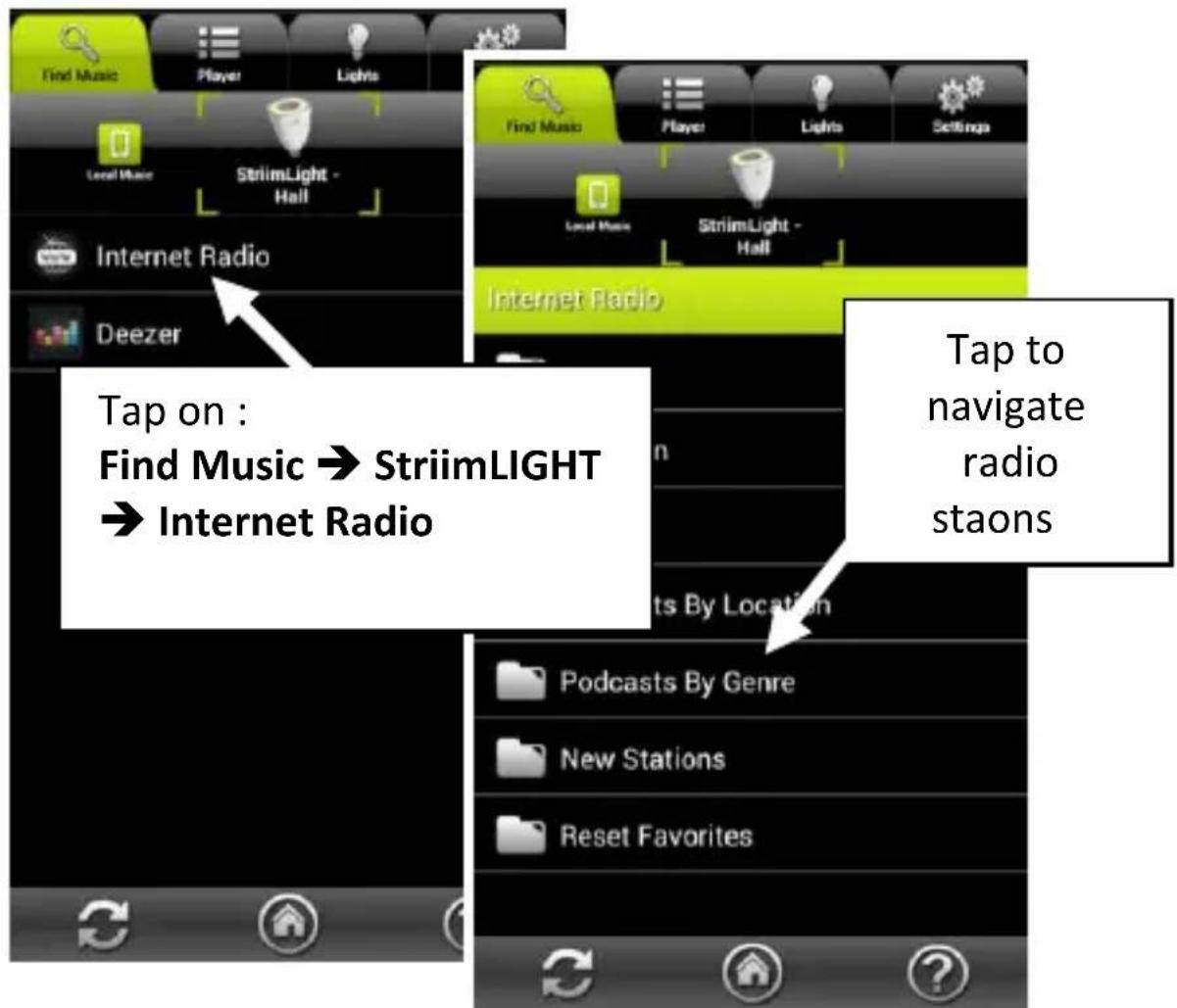
Playing Internet radio using your StriimLIGHT WiFi
- Tap to select StriimLIGHT in the source bar.
- Select Internet Radio.
-
Tap to play Internet Radio:
-
Navigate through countries, favorites, and other opons to choose the music you want to hear.
- When you tap directly on a staon, the applicaon switches to the Play tab and your selecon begins to play.
- Tap on for other opons (see Playlists and queues).
Playing Deezer using your StriimLIGHT WiFi
- Tap to select StriimLIGHT in the source bar, as shown on the previous page.
- Select Deezer.
- Enter your Deezer login informaon to connue.
You may save your Deezer login informaon under Sengs Phone My Deezer account
Playing local media from your iOS or Android device
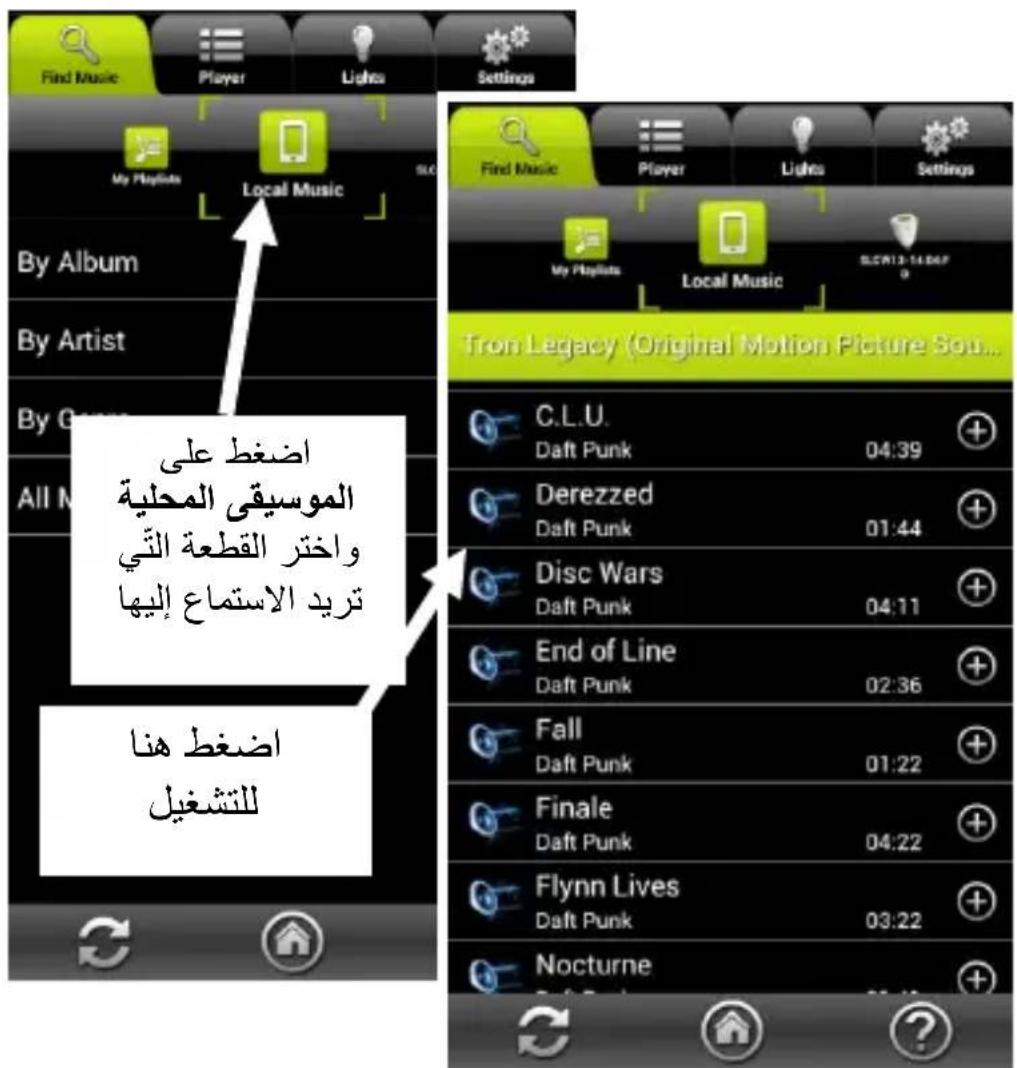
- Tap to select Local Music in the source bar
- Tap the available opons to choose your music.
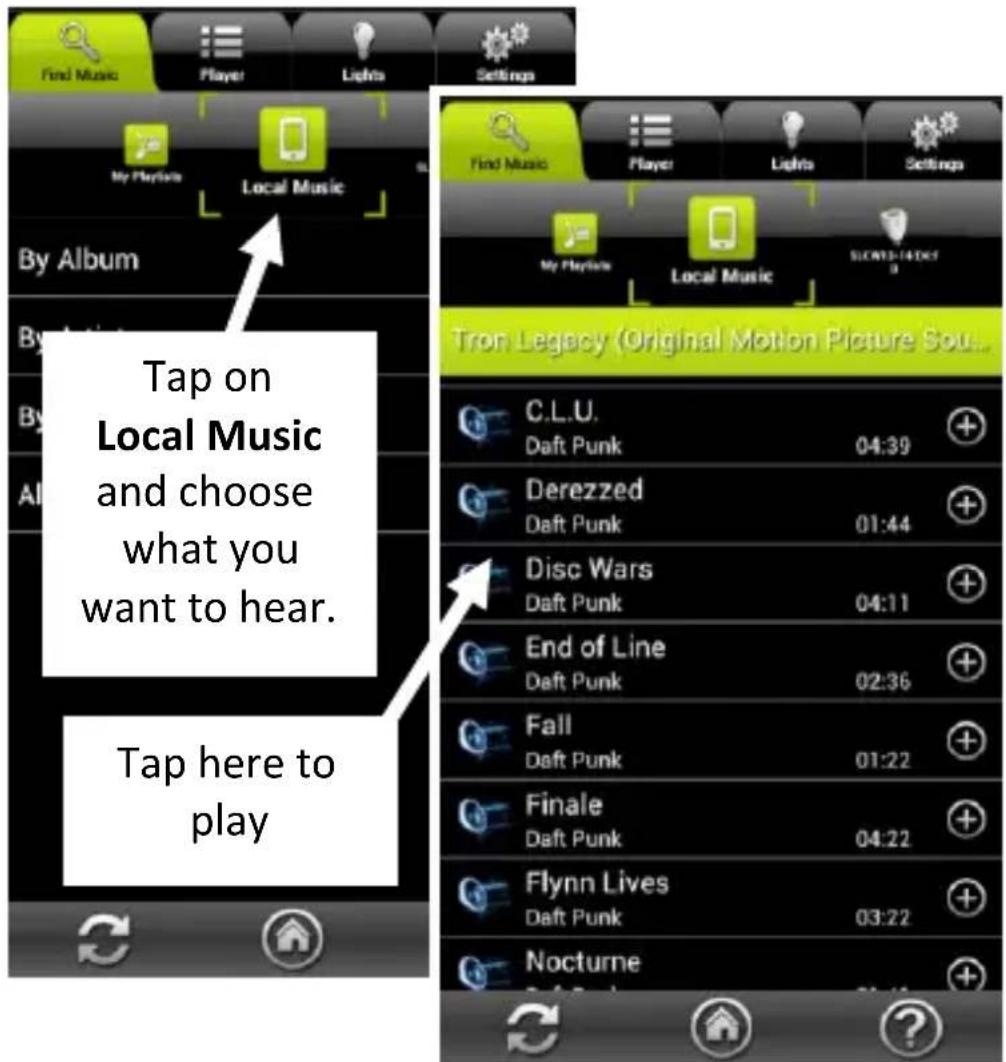
- When you tap directly on an item in the list, the window switches to the Play tab and your selecon begins to play, replacing the current song queue.
EN
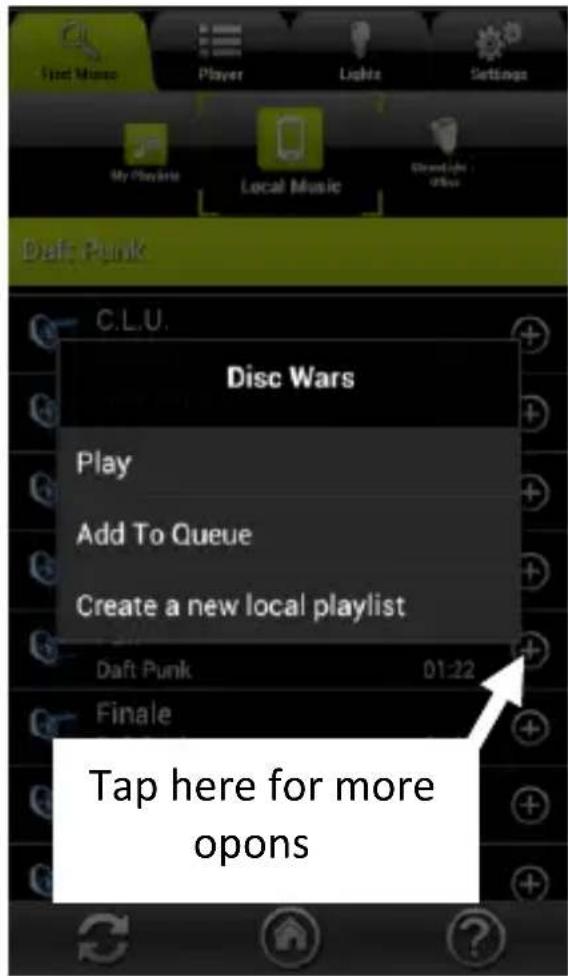
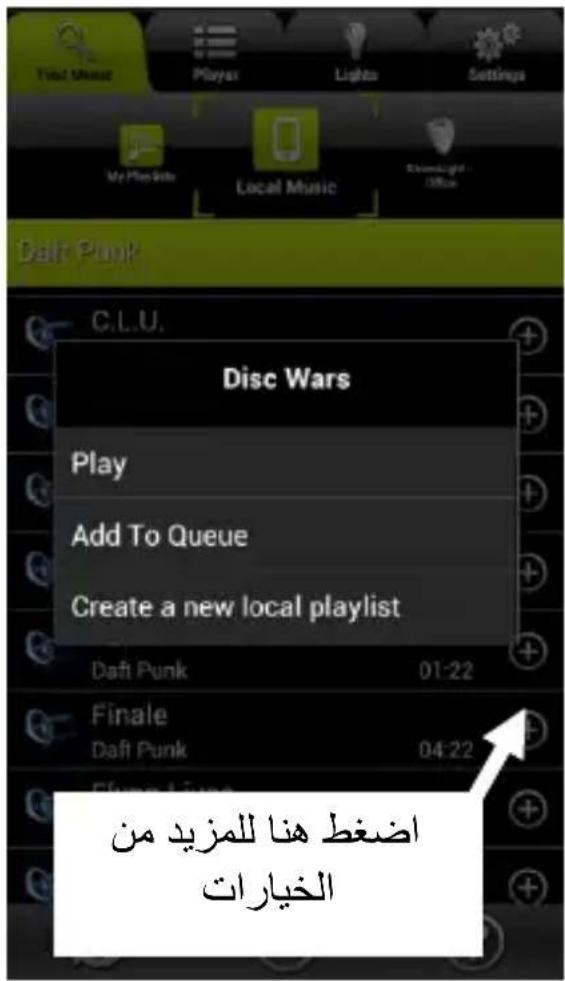
- Tap on more opons:
Play: Plays the selecon now.
Add to queue: Adds the song to be played aer other songs in the queue.
Create new... Creates a new playlist.
Playing songs from your PC/Mac ^(1) or other DLNA audio server
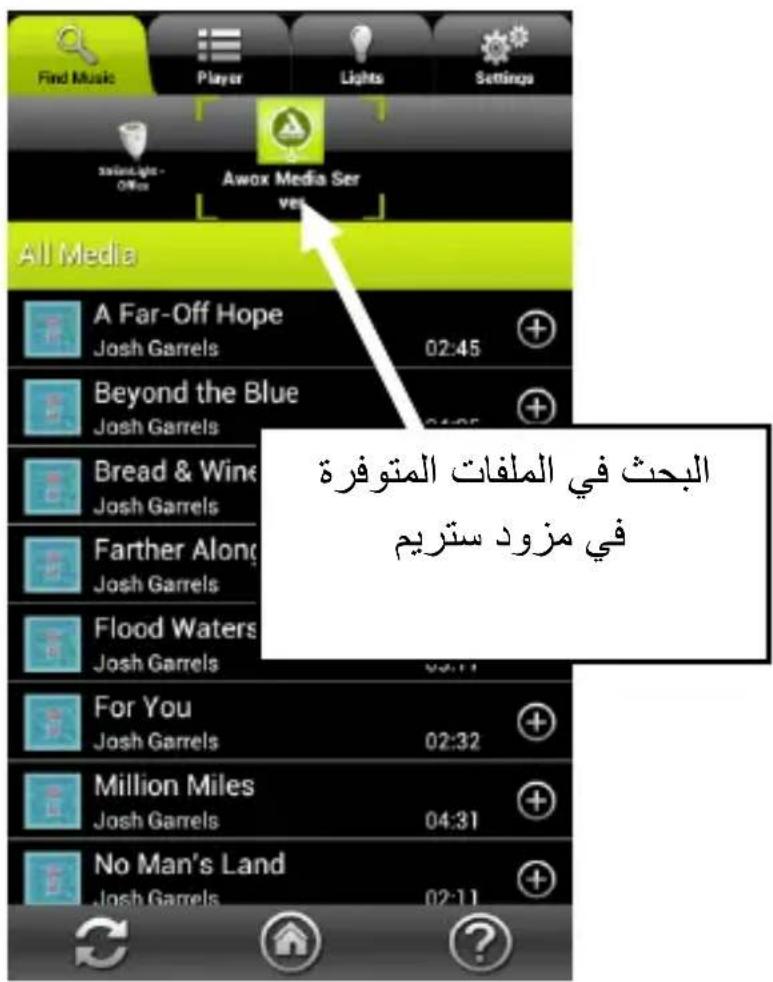
- Swipe the Source Bar to choose the desired server or device.
- Navigate in the list of songs to choose the music you want to hear.
- When you tap directly on an item, the applicaon switches to the Player tab and your selecon begins to play.
- Tap on for other opons (see Playlists and queues).
14 | AwoX StriimLIGHT WiFi Color - User Guide
Using AwoX StriimSERVER
With versions for Mac and Windows, AwoX StriimSERVER makes your home audio library available as a source to Striim devices in your network. StriimSERVER works exclusively with AwoX Striim products. Follow these steps to get AwoX StriimSERVER up and running on your computer:
- You will nd the StriimSERVER setup applicaon on the CD-ROM provided with your product. You may also choose to download it from here:
http://www.awox.com/mediaservers - Navigate to the CD-ROM or download folder on your computer and double-Tap on the StriimSERVER installer for Mac or Windows, depending on your operang system, and follow the instrucons on your screen.
-
Launch StriimSERVER by clicking on the StriimSERVER icon installed on your computer's desktop ( ). Allow access to your private networks if prompted by the applicaon.
-
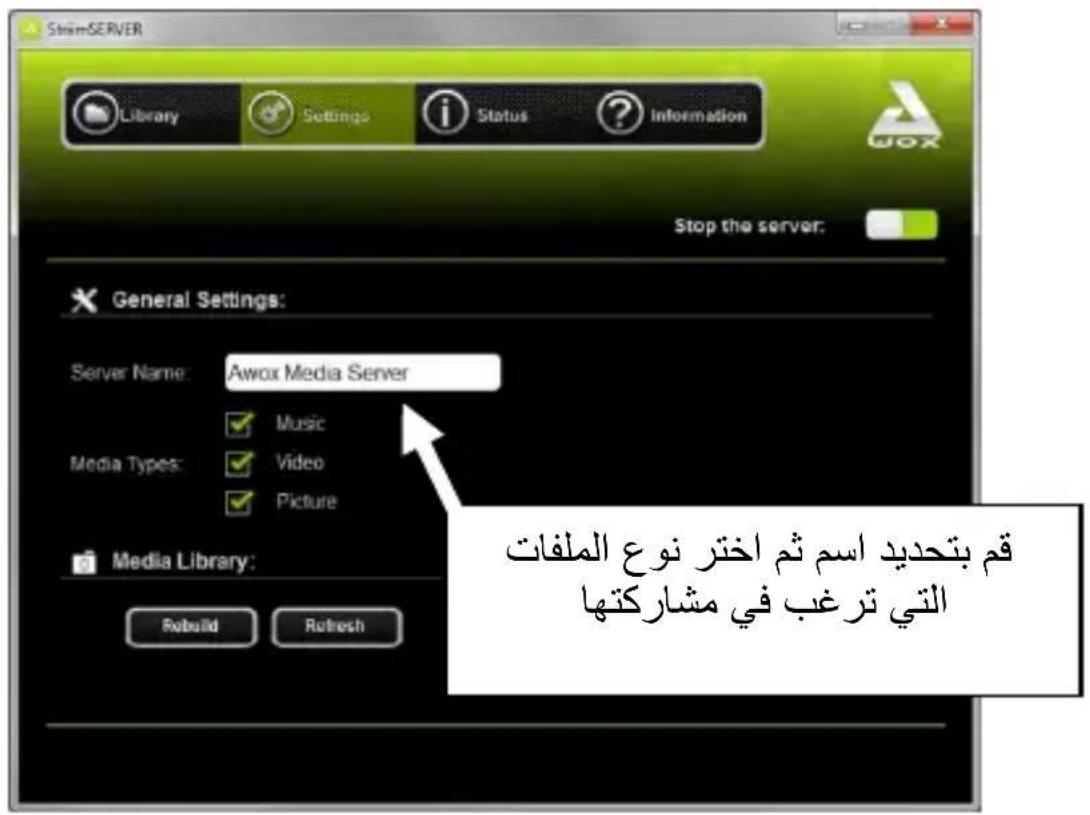
The applicaon opens to the Sengs window:
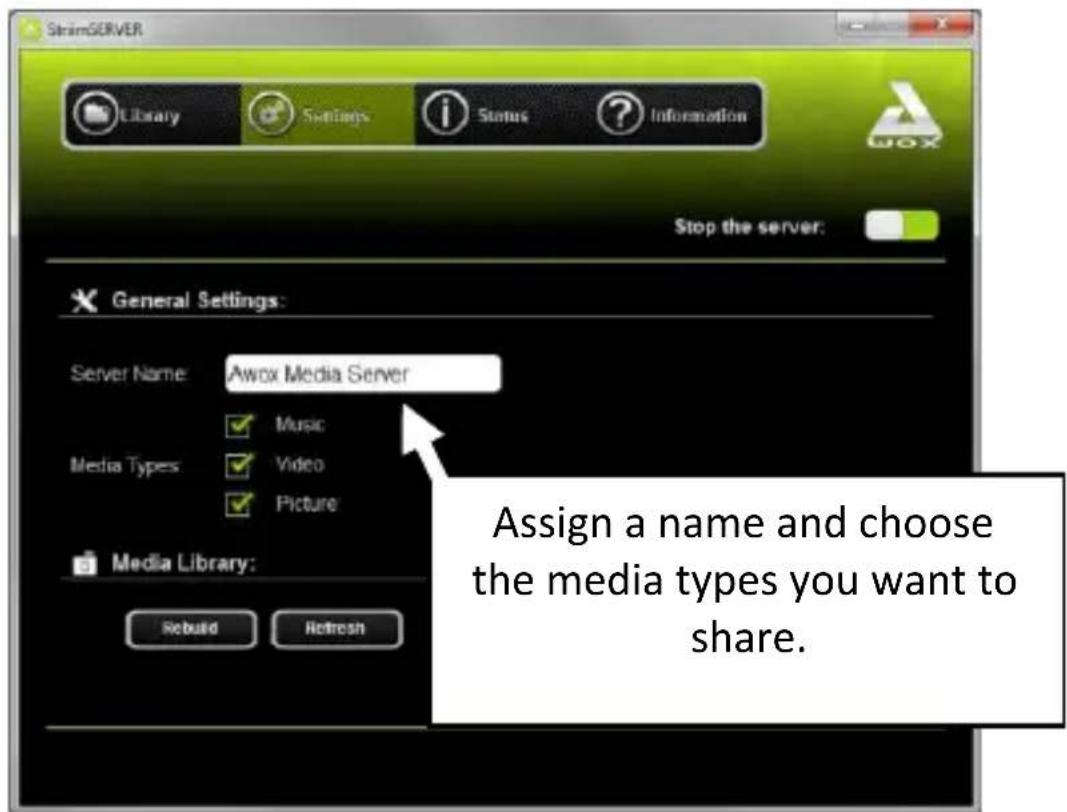
- Make sure the server is on (when the Stop the server buon is displayed, which is the default seng).
- Tap on Sengs:
- Use the Server Name eld to change the name of your server as it will be seen in your network.
- Select the Media Types that you would like to be able to share (make sure to select Music for use with StriimLIGHT WiFi).
- Tap on Apply when to save your changes.
-
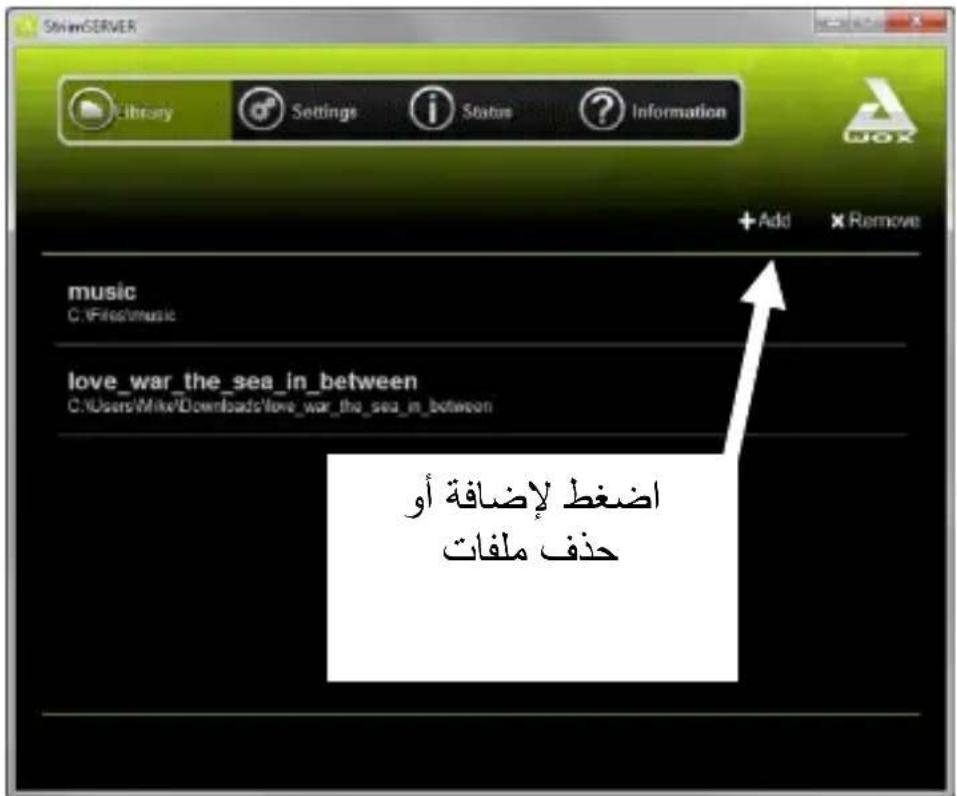
Tap on Library Add to add media folders to your library.
16 | AwoX StriimLIGHT WiFi Color - User Guide -
Browse your hard drive to choose a folder, then Tap on Select Folder to include the folder in the library published by StriimSERVER.
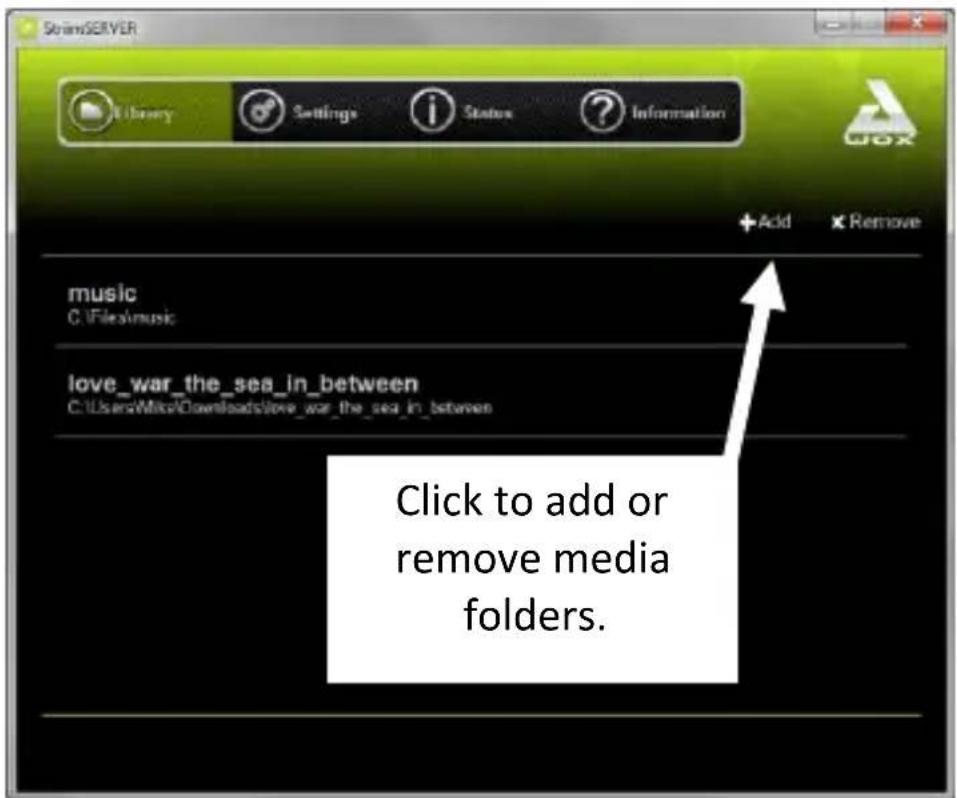
-
If you make changes to a media library on your computer, Tap on Sengs → Refresh. If you encounter any problems with the le list display, Tap on Rebuild.
-
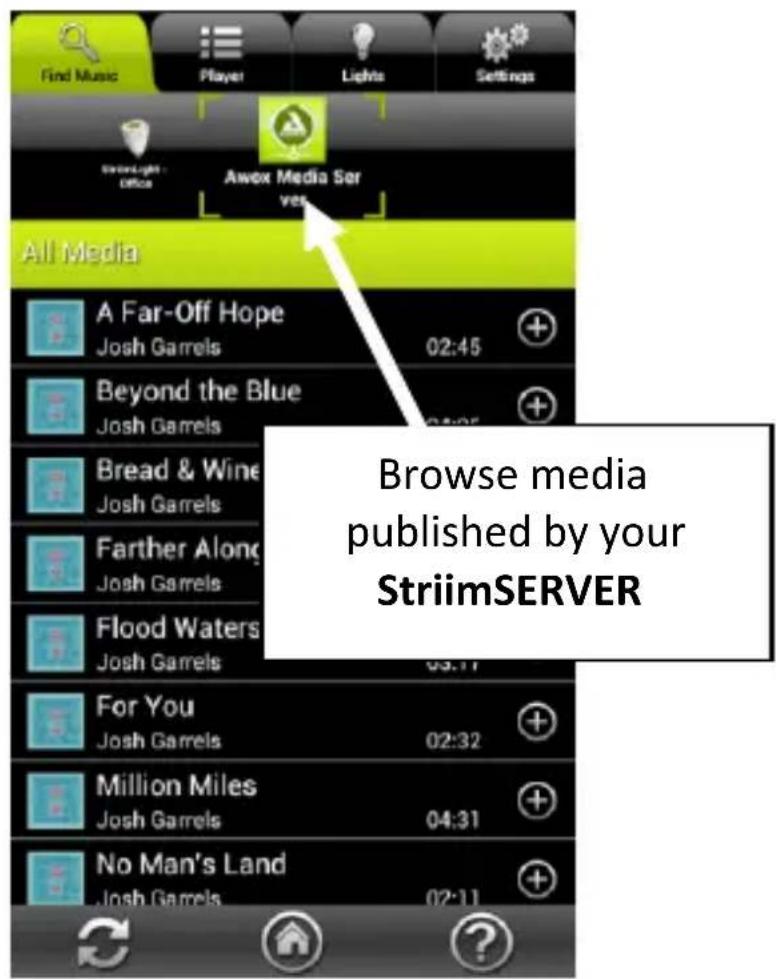
Your StriimSERVER media library is now appears as a source in the Striim CONTROL source bar. You may browse through the available media and tap to play your selecon.
- You may turn the server o by clicking on Sengs Stop the server. To restart the server, simply click this same buon.
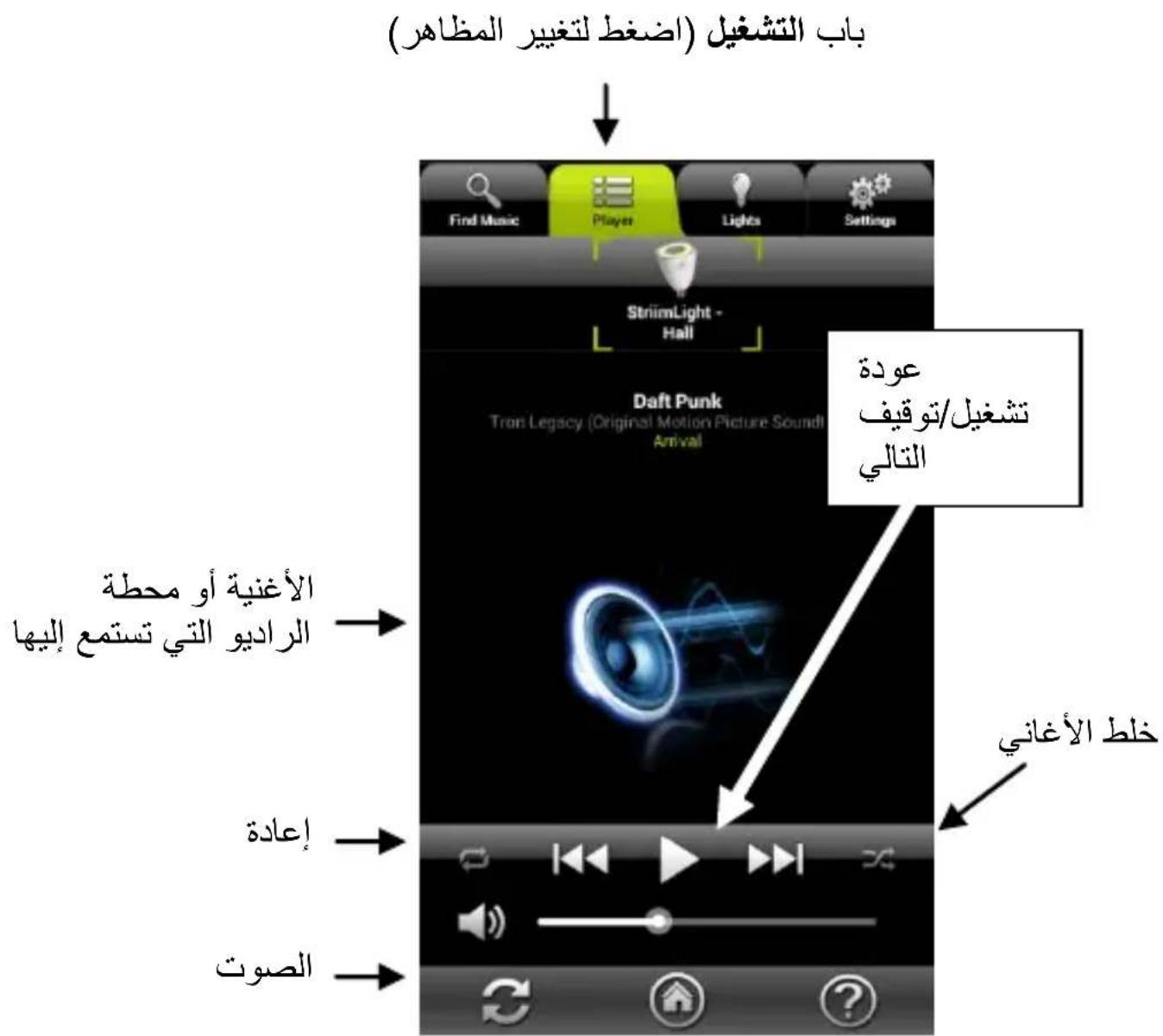
Overview of the Play tab
The Play tab show the music that you have selected to play, and provides standard player controls.
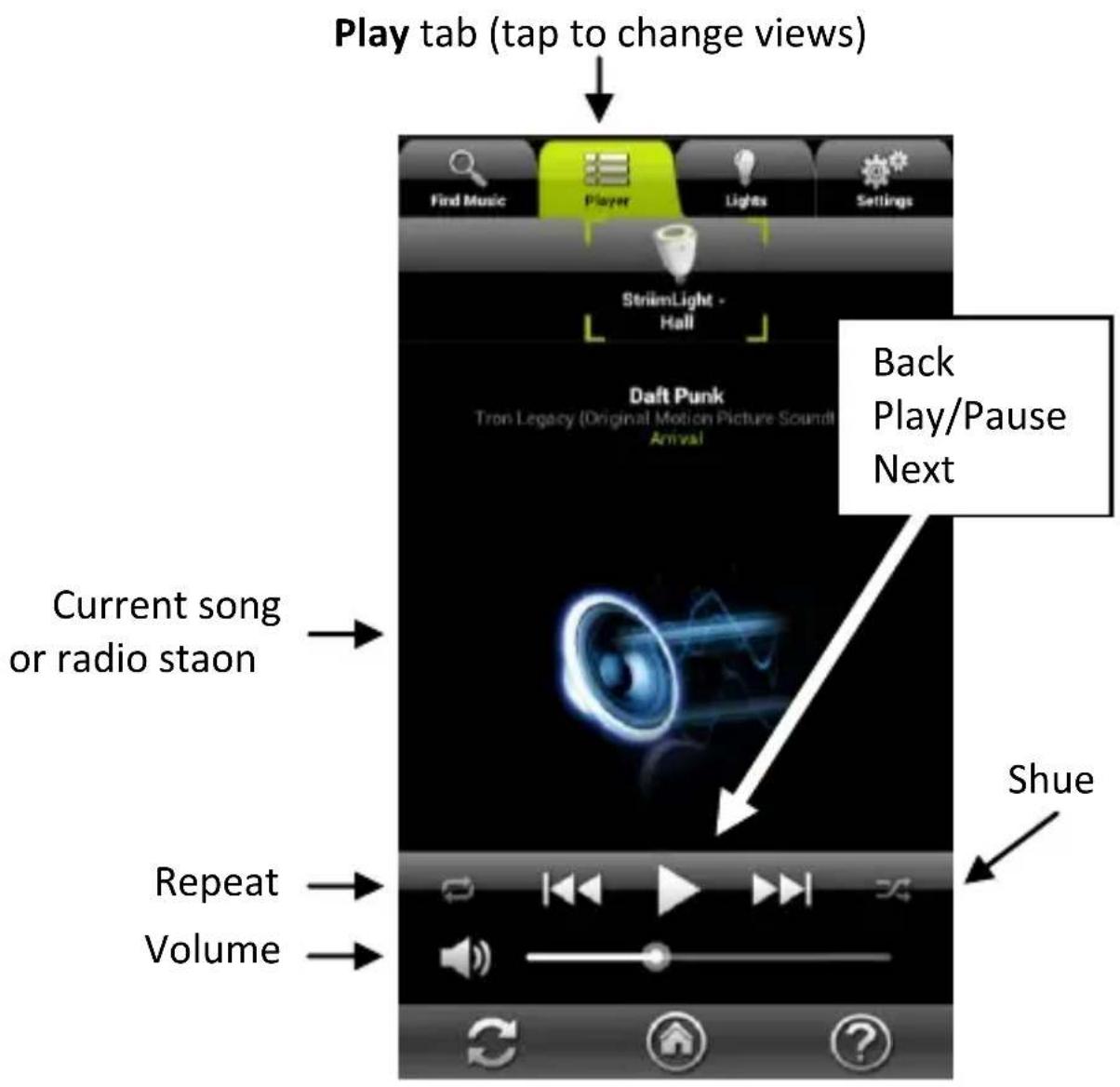
Control music playback using the icons at the boom of the screen.
Playlists and queues
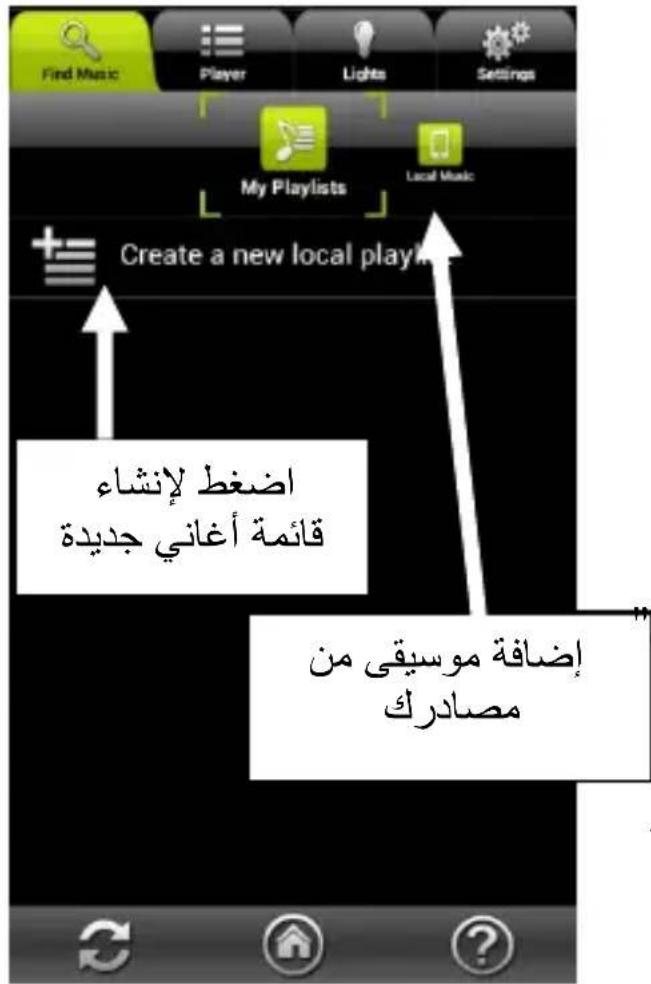
Creang a playlist
You may create playlists of songs located on any available audio sources. A single playlist may contain songs from several dierent sources.
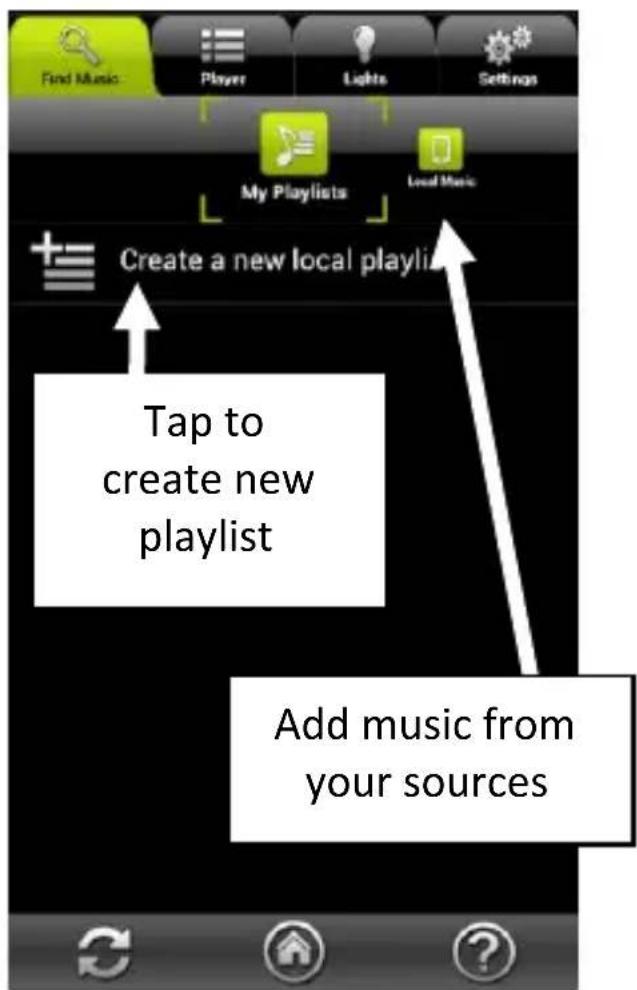
Start by creang a new (empty) playlist
- Tap on the Find Music tab
- Tap on My playlists
- Tap to Create New Playlist and enter a name for the playlist.
Adding songs to your playlist
- Swipe the Source Bar to select the source.
- Locate the music you want and then tap on + , select Add to [your playlist name].
- Add as many songs as you want in this manner.
Managing songs in playlists
- Swipe the media selecon bar and select My Playlists.
- Tap the playlist name to view the music it contains.
- To reorder a playlist, tap and hold the track name, then drag and drop it to a new posion.
- To delete a track from the playlist, tap on + , select Delete. This only removes the song from the playlist without deleng the le from the source.
Managing playlists
On the My Playlists screen, tap on other playlist opons:
Rename Allows you to rename the playlist (not available for songs).
Delete Allows you to delete the playlist or a song.
Adding tracks to queues
Instead of creang a playlist, you may simply select songs from one or more sources and queue them up to be played sequentially one aer the other. To do this:
- Tap on the Find Music tab ( ) and select a song that you would like to play, such as from your smartphone or home audio server.
- Tap on and select Add to queue. If this is the rst song in the queue, it begins to play right away.
- Add as many other songs as you want to the queue in the same manner. Songs are played in the order in which they are added.
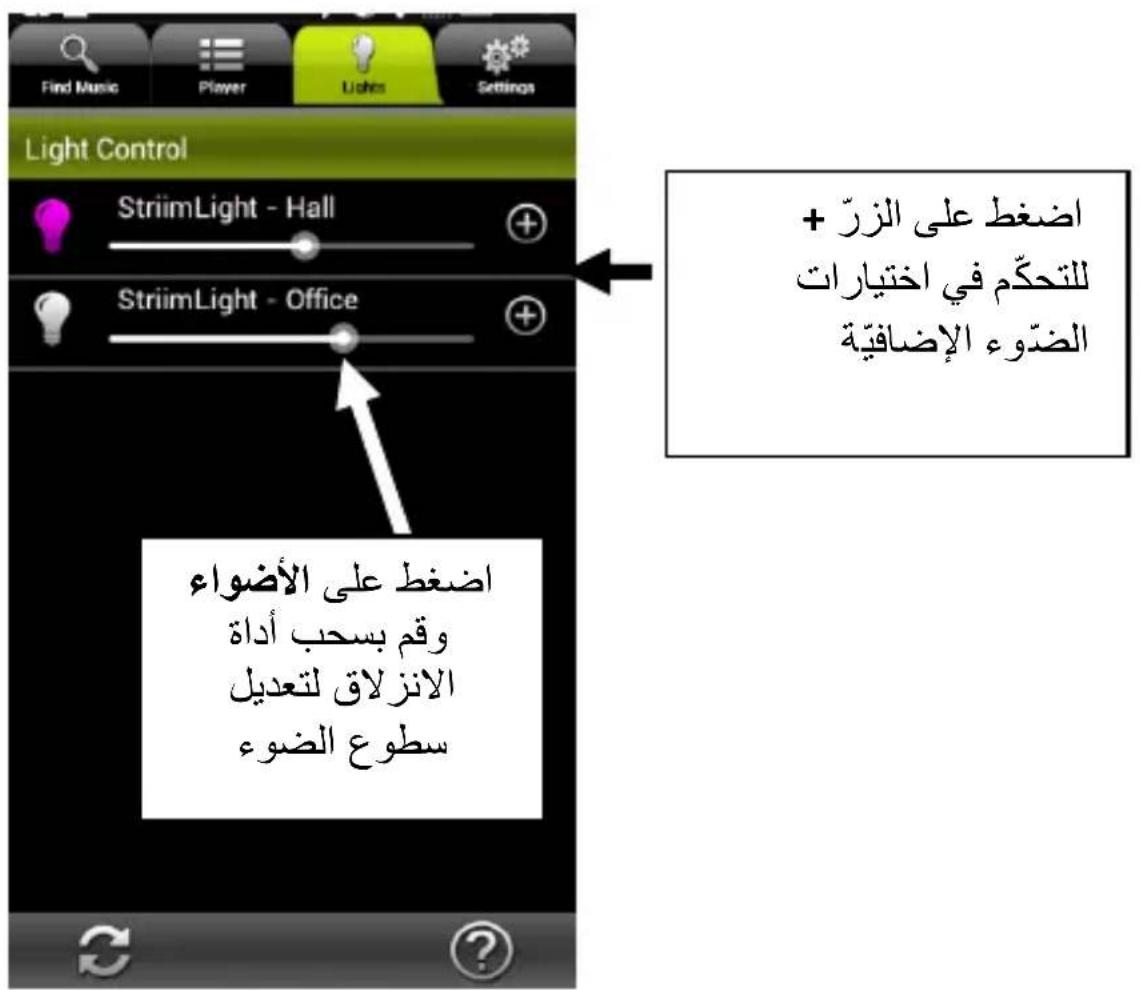
Controlling lights and colors
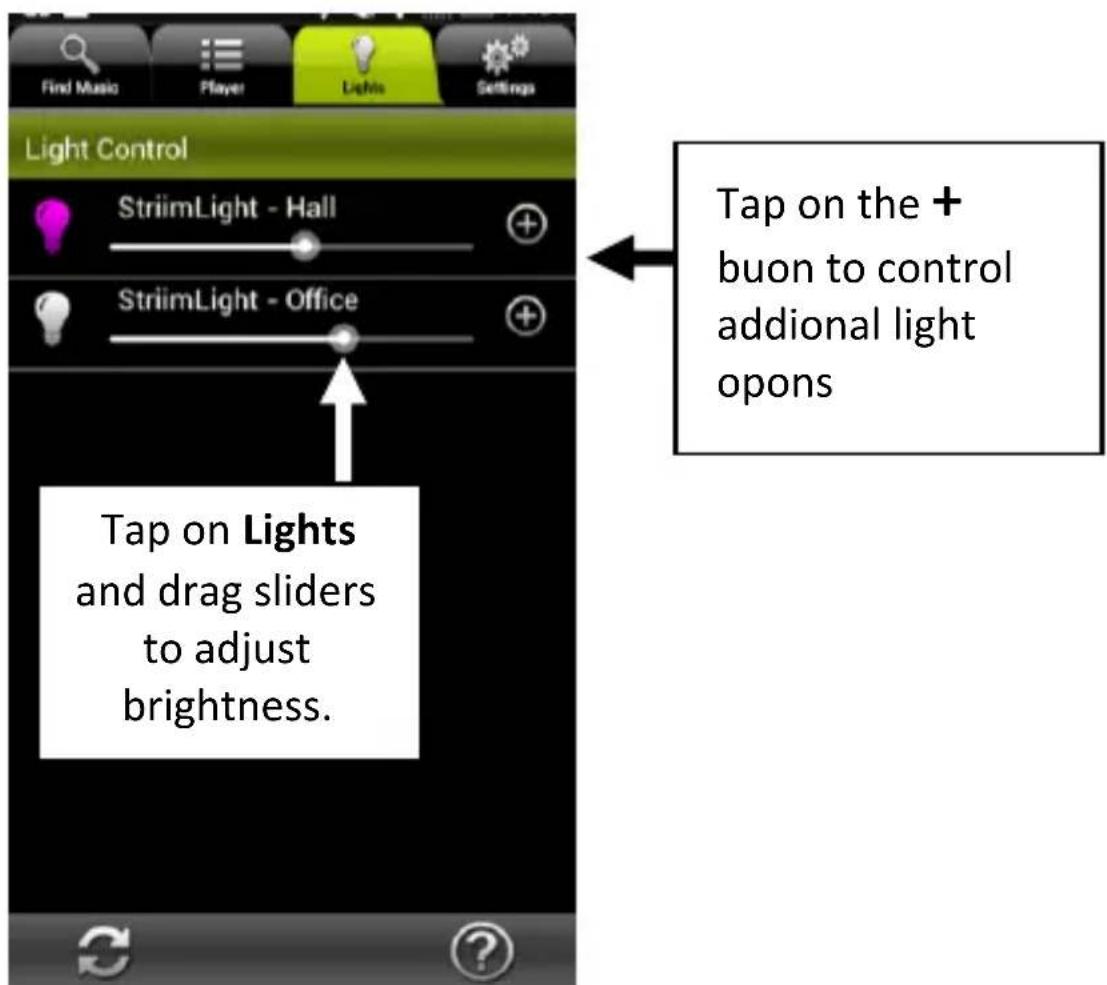
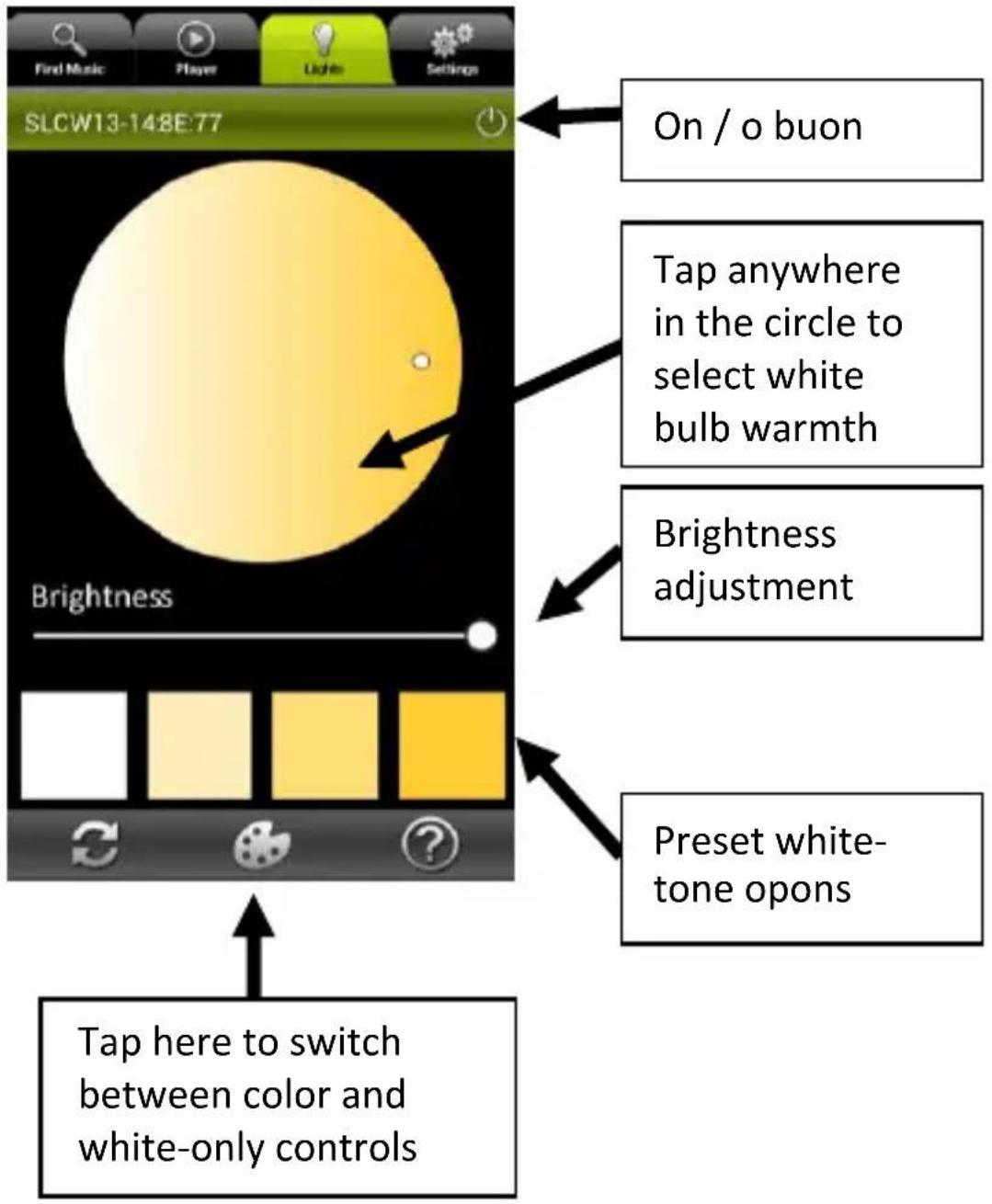
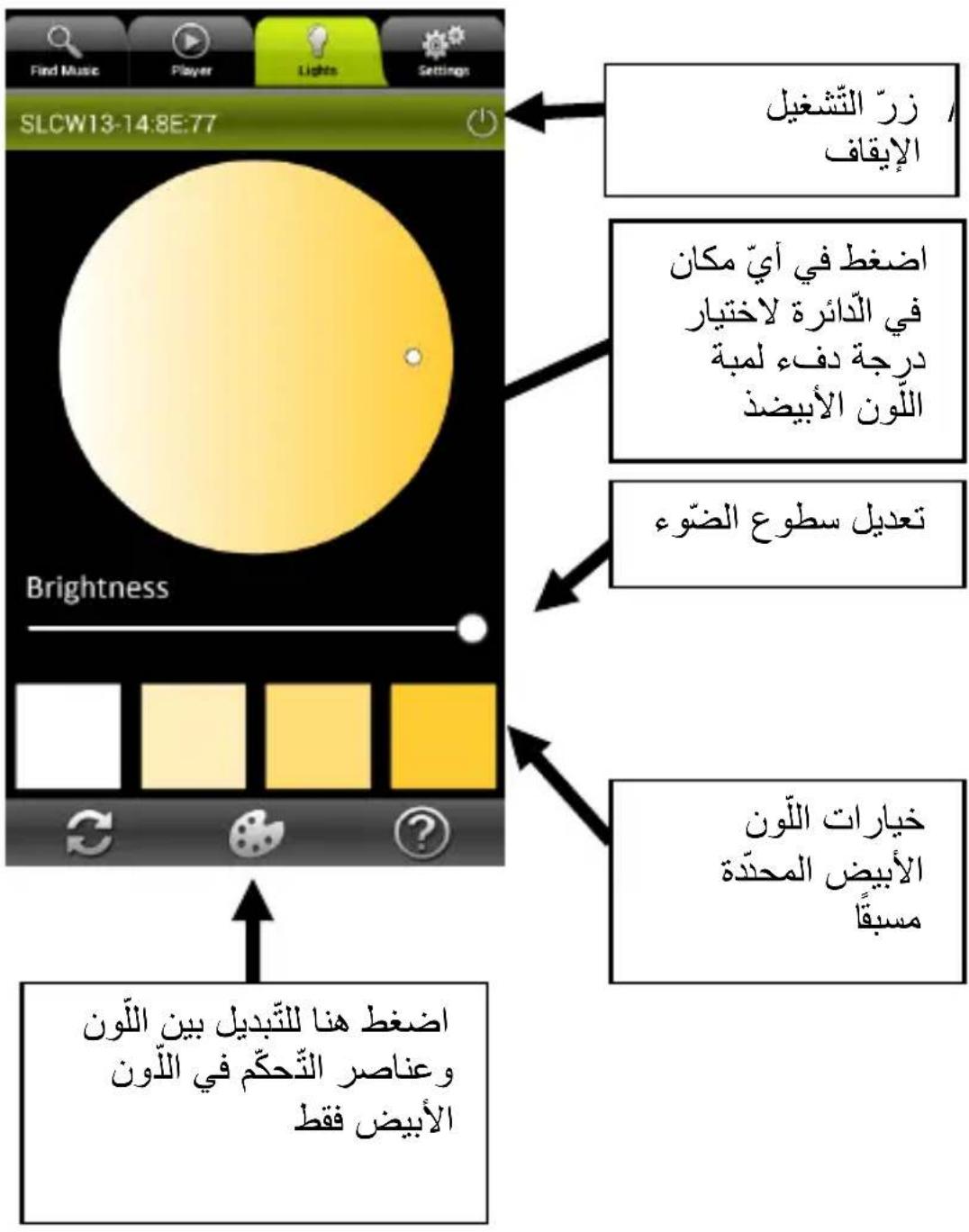
To adjust the brightness, warmth, and colors of the LED bulb in your StriimLIGHT, tap on the Lights tab. Dimmer sliders enable you to adjust the brightness of each StriimLIGHT in your system individually.
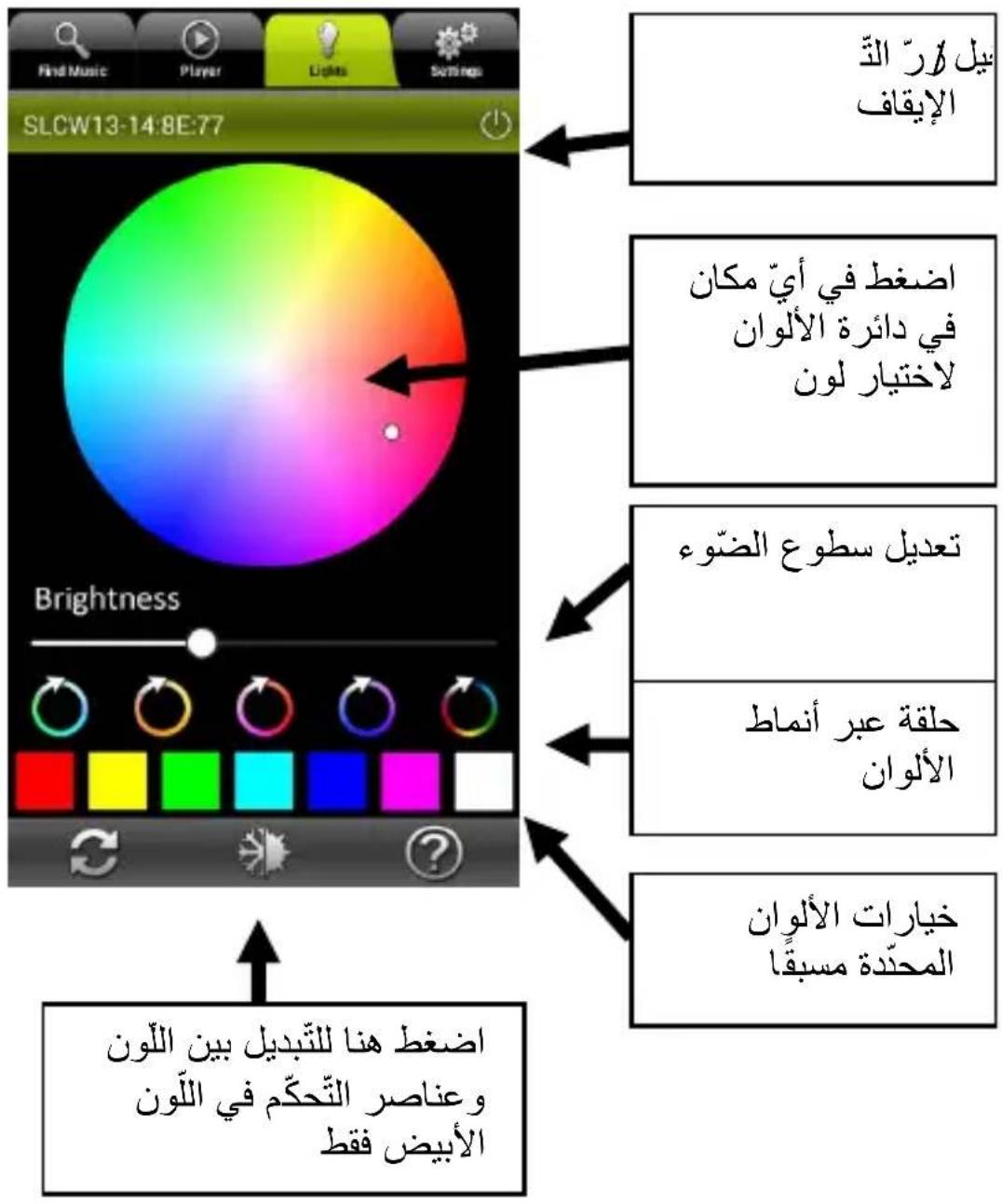
Color light controls
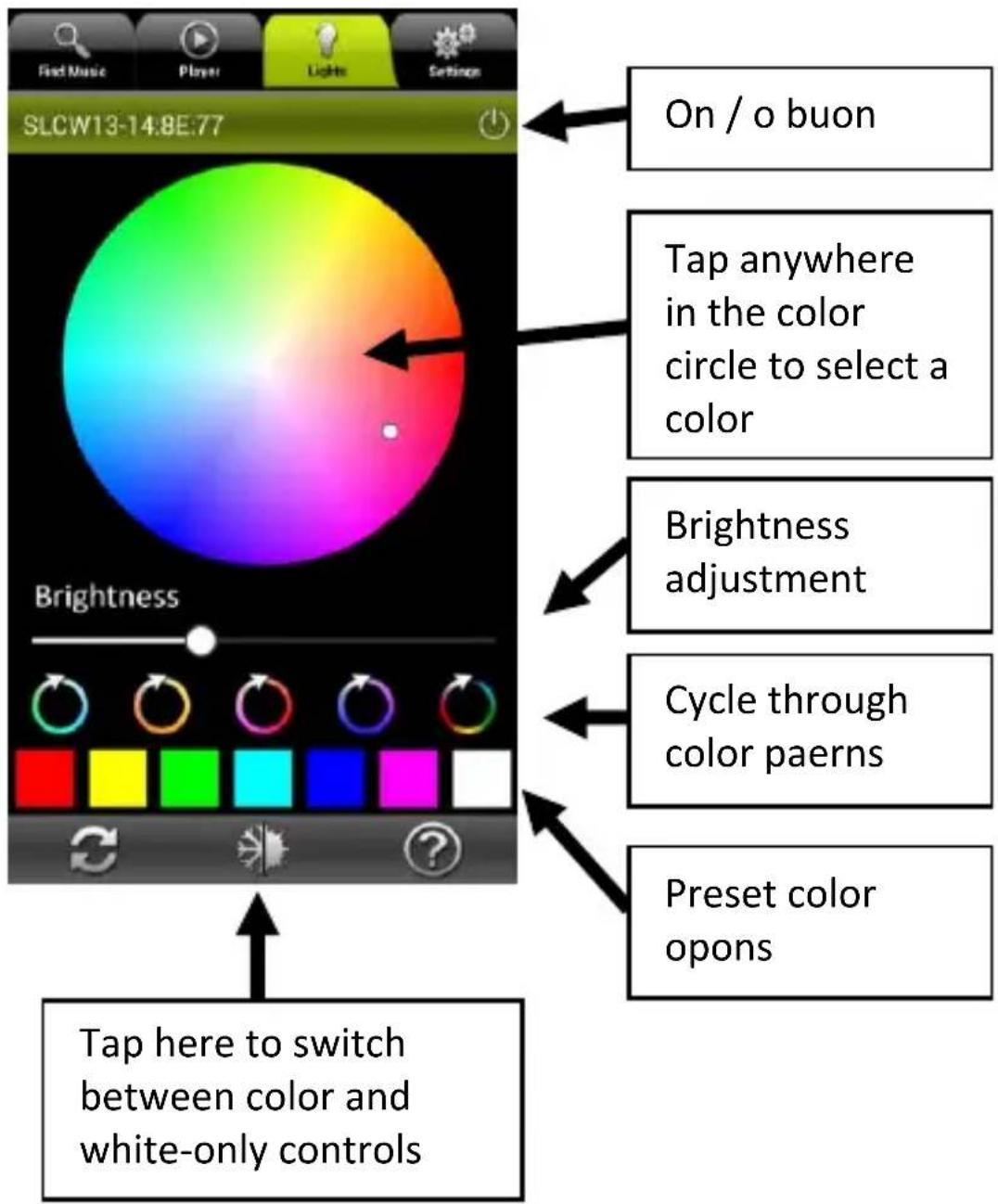
When you tap on the on, additional opons for controlling the light are displayed.
White light controls
Using music zones
Adding more devices to your network
You may add mulple StriimLight WiFi devices and other compatible AwoX WiFi products to your network.
Start by adding the other devices to your network:
- In the StriimControl applicaon, tap on Sengs Phone Congure a new device
- Proceed as you did with your rst device (described in AwoX Striim CONTROL setup earlier in this guide).
Creating a new zone
You may combine mulple AwoX StriimLIGHT other AwoX Striim WiFi devices into zones to get a richer stereo sound. For this to work, the devices must all be connected to the same WiFi network.
For example, here is how you can setup right and le channels with two StriimLIGHT WiFi Color speakers:
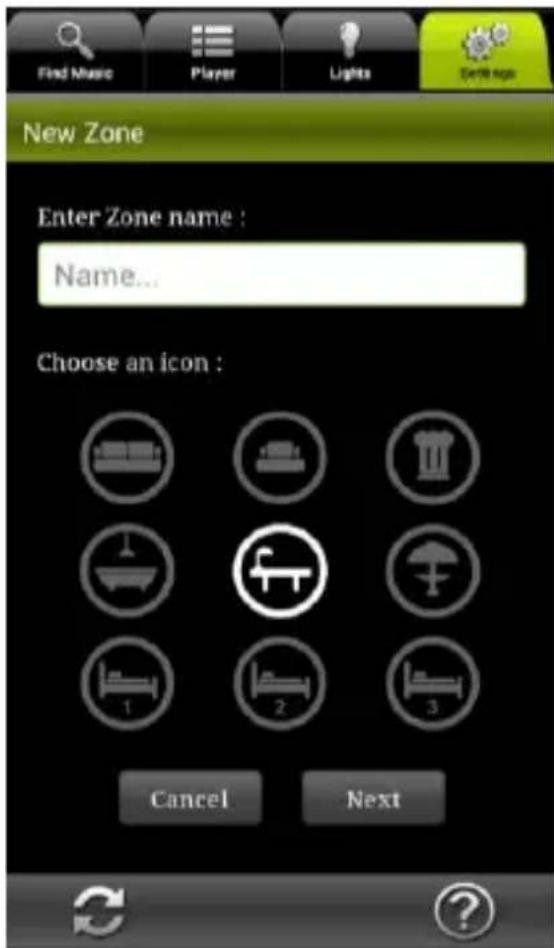
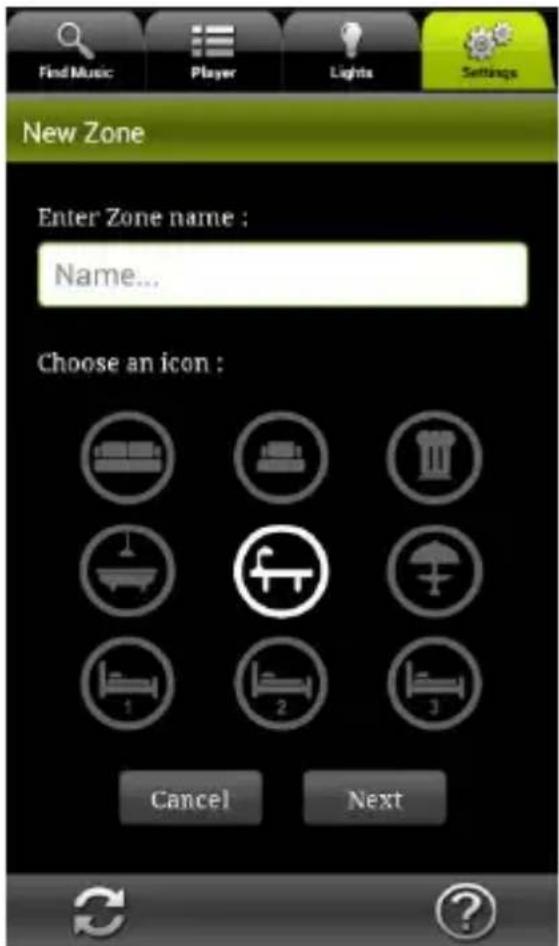
- Tap on Sengs → Zone Conguraon → Create New Zone
- Type in a name for the zone.
- Select an icon to display for the zone.
- Tap on Next to connue or on Cancel to close this window without saving.
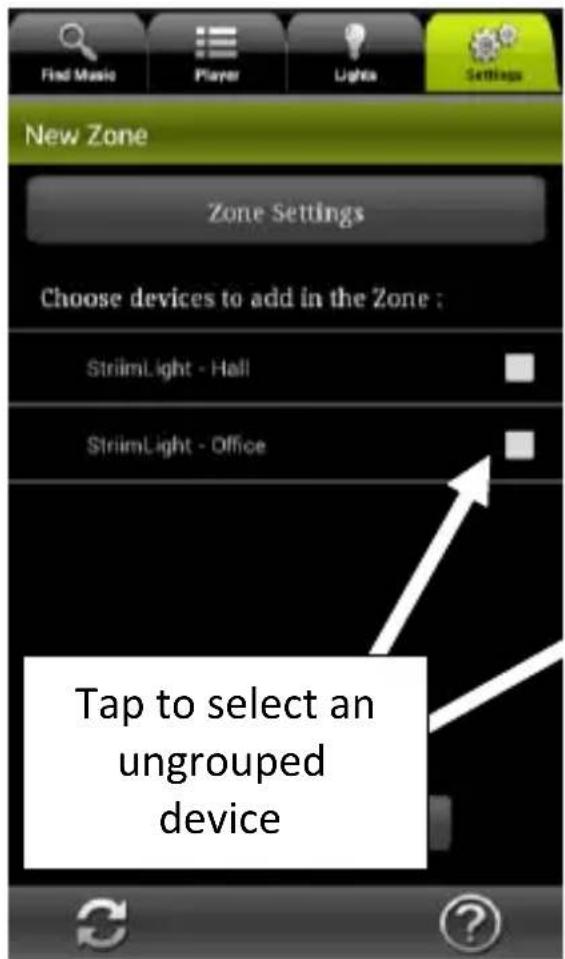
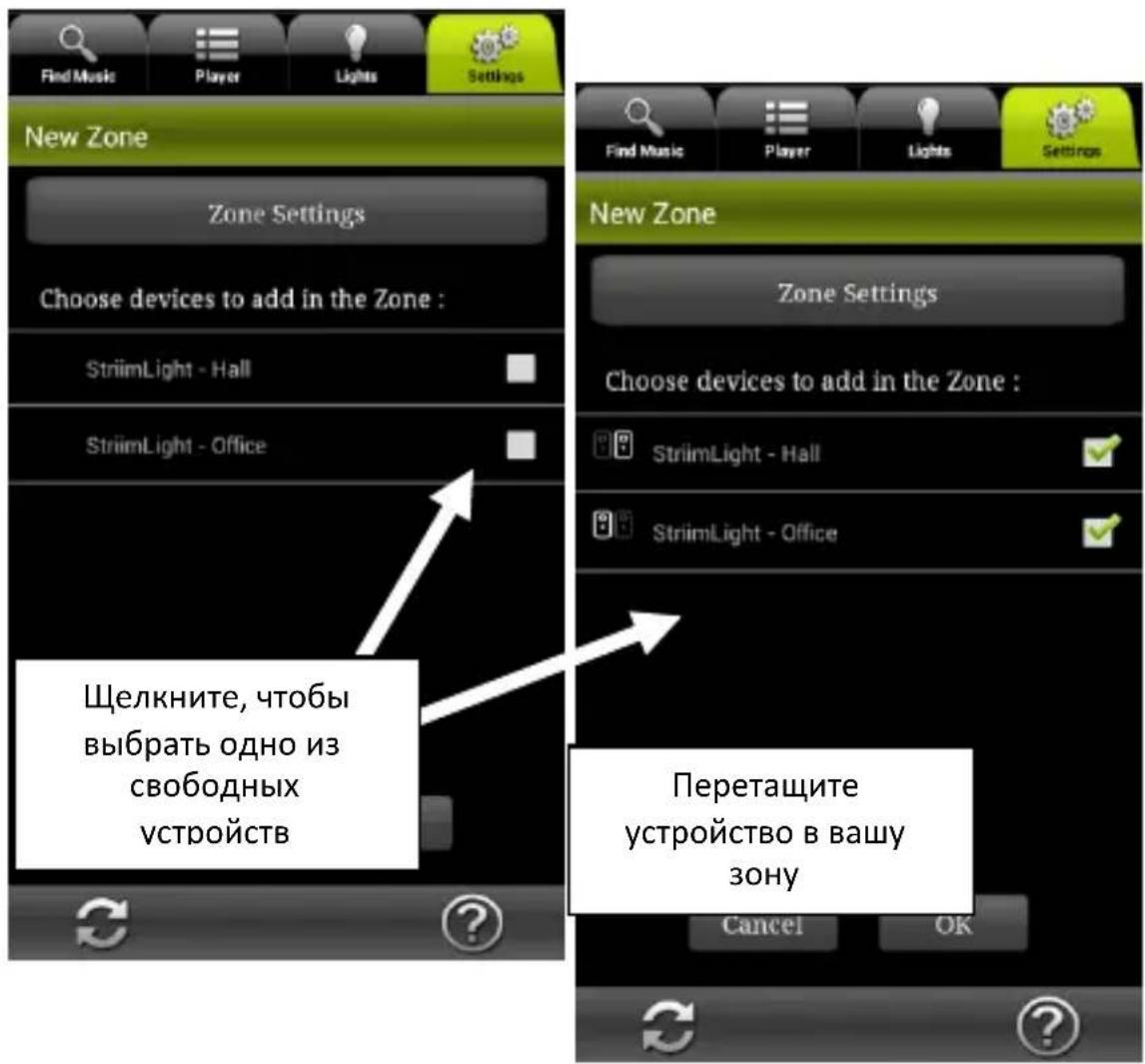
- Tap in the checkbox to choose the devices you want to add to the zone.
StriimLIGHT speakers that are not yet assigned to a zone do not have a check in the checkbox.
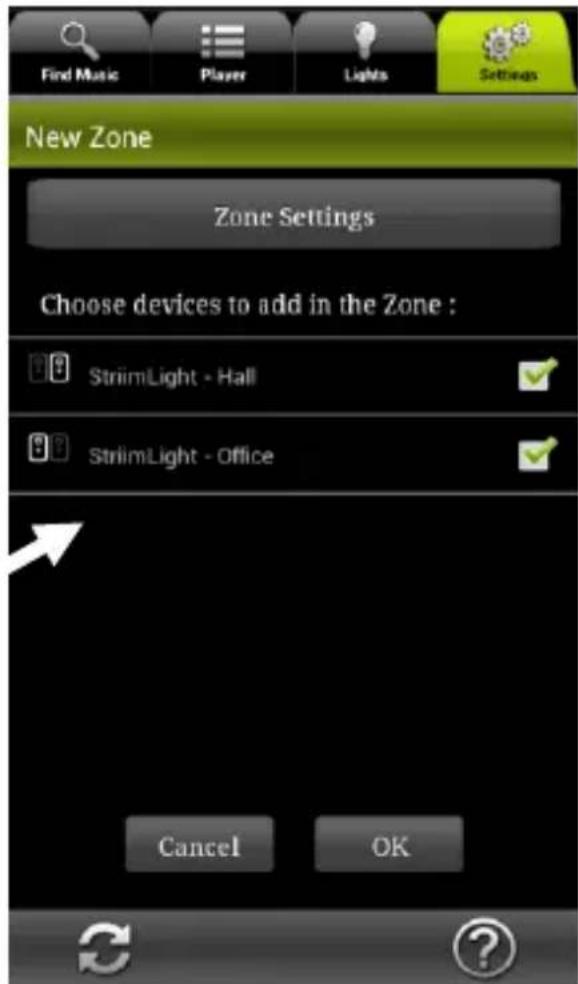
- Assign le and right channels by clicking on these icons to the le of each device:

Right channel

Le channel

Mixed stereo (both channels on one speaker)
- Tap OK and wait a moment while the display refreshes.
Editing an existng zone
To make changes to an existng zone:
- Tap on Sengs → Zone
- Tap on to Modify the name of the zone or change the icon, or on Delete to remove the zone.
- Tap on OK when nished.
Playing music to a zone (mulple speakers)
Once you have created a zone, simply play your music to the zone just as if it were a single device.
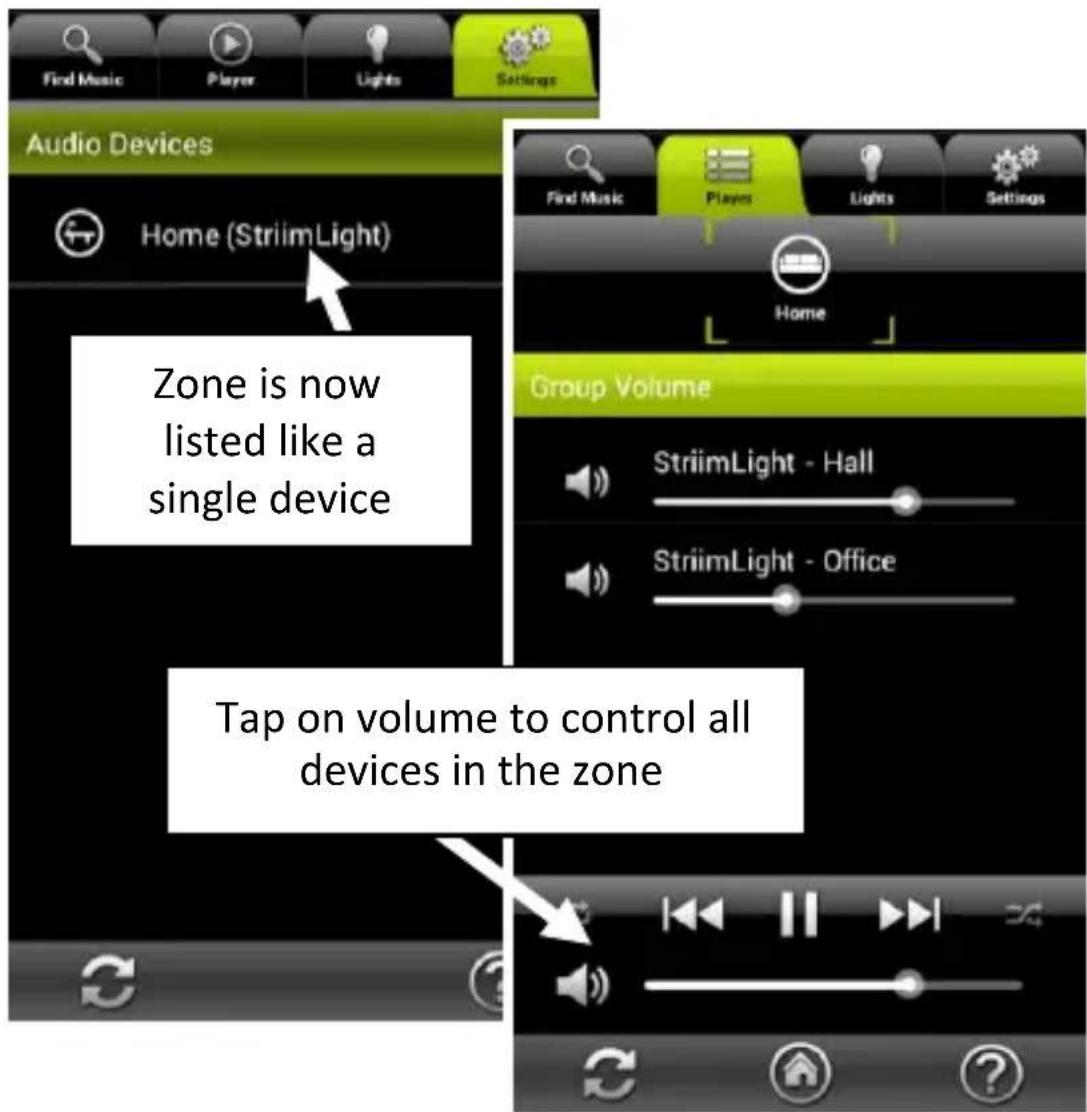
When you adjust the volume for a zone in the Play tab, additional volume sliders enable you to adjust the volume for each StriimLIGHT Color WiFi or compatible device in your system.
Other configuration options
Several additional conguraon opons are provided on the Sengs tab.
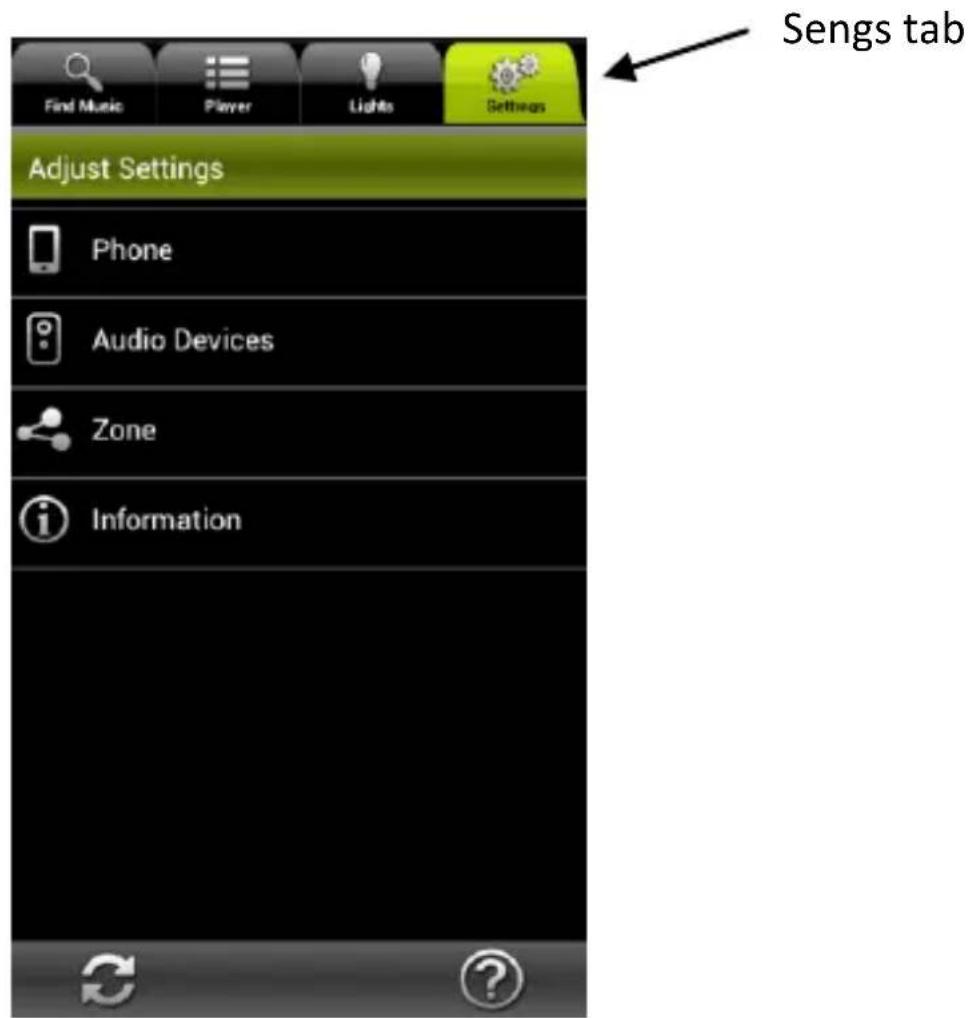
- Tap on the Sengs tab Phone. Here you may set the following opons:
Incoming call Determines what the app should do if you receive a phone call (No acon, Mute phone volume, or Pause playback).
My Deezer account
Enables you to add and store Deezer account informaon for future use.
Congure a new audio device
Runs the device installaon Wizard so you can conjure another AwoX Striim product.
Reset applicaon sengs
Removes current sengs and restores factory conguraon.
-
Also on the sengs tab, you may tap on Audio devices to:
-
Set the device to use as the default audio device.
- View technical informaon about your StriimLIGHT WiFi module(s).
- Change the network name of your StriiIMLIGHT WiFi module(s).
Updating AwoX Striim CONTROL
To check on-line for updates to the AwoX Striim CONTROL applicaon:
- In the Sengs tab, tap on Informaon (

- If a more recent version of the sware is available, tap on Update now to update your device.
Technical specifications
Hardware
| Supported media | MP3 (up to 48 kHz, CBR & VBR) AAC (up to 48 kHz, 8-320 kbps) WMA (up to 48 kHz, CBR & VBR) including lossless LPCM, WAV (up to 48 kHz, up to 1.44 Mb/s |
| Network | WiFi b/g/n (WEP/WPA, WPS) |
| Speaker | 2 inch, 8 Ohm, 13W |
| Light | White and color LED |
| Dimensions | 95 mm x 147 mm x 95 mm |
| Weight | 550 g |
| Environmental | |
| Operang conditions | 0° to +35°c 10% to 85% RH (no condensaon) |
| Storage conditions | -10° to +60°c 5% to 90% RH (no condensaon) |
| Input power | 100-240V, 0.3A, E27/E26 socket |
| Consumpon | 25 W max |
Troubleshooting
AwoX StriimLIGHT WiFi is not listed as an available source or the device is grayed-out in the Zones list.
- Press the reset buon on the device for ve seconds to erase any previous conguraon sengs and re-run the setup Wizard.
I can connect to my StriimLIGHT, but Internet Radio doesn't list any available staons.
- Check to make sure that your home Internet conneccon is working properly.
I created a zone with two StriimLIGHT WiFi Color devices, but somemes the sound is not synchronized between them.
- When rst geng started, or if the Striim CONTROL applicaon is refreshing sengs, the speakers may become temporarily unsynchronized. They will automatically get back in sync aer a few moments.
AwoX StriimLIGHT WiFi Color
Mode d'emploi
Table des matieres
Table des maures. 1
AwoX StriimLIGHT WiFi Color : introducon. 2
Incoming call (appels entrants)
List view (Player listet Lieder in
Congure a new audio device
Reset applicaon sengs
- Start med at downloade gras AwoX medie player I din enched:
Apple
iPhone,
iPad, iPod
touch
Google
Android
enheder
Passer I standard E27 (EU), E26 (US) paerefathing
Delete Giver mulighed for at slee playlisten elleren sang.
Viewmode Graphical view(toont albumcovers &
pictogrammen)
Congure a new audio device
Reset applicaon sengs
Congure a new audio device
Reset applicaon sengs
Graphical view (Grask visning) (viser
Congure a new audio device
Reset applicaon sengs
Adicionar faixas as las
IpeenMeHOBaTb OOnu IIO3BOJareT nepeHMeHOBaTb cNcOK BOCnpOu3BeDeHnRA (HeoCTyUHNo dJa KOMNo3n).
YdaNTb OIcII NaIO3BOJAEr YdaNTb CnncOK BOCpOu3BeDeHn IJI KOMNo3nIIO.
HaunTe cdoabLeHnA pyrnx yctpoB CBcTb:
36.ВпрложенStriimControlБыберпeНастpoи (Sengs) Telefon (Phone) HacstponTb HOBOe yctpoIcTBO (Congure a new device)
37.Проблжайецостroy Ктук imm К obpa30m,Каи спегвIM yctpoiCTBOM (cM. pa3delen no hactrojke AwoX Striim CONTROL).
Co3dahne HOBOI 3OHbl
Kombnnpa Heckolbko yctpoiCTB AwoX
StriIMLIGHT n dpyrne ycptpoiCTBa AwoX
Striim WiFi, moxno co3daBaTb 30HbI C
6oJee rny6okm ctepeo3ByuHaHem.ДЯ
3TOrO ycptpoiCTBa DOJIKNbI 6bITb
NoDKlIOUeHbl K OJHOcTn WiFi.
Далee onncbIbaeTc npIMep TOrO, KaK MoXHo HacTpOnTb npaBbIи leBbI KaHaJIbI, ИспОлььЗУЯ ДВа ДИнамИKa StriimLIGHT WiFi Color:
-
IpeeIte Ha BkJaKy HacTroPoiKn KOHpypaun 30hbl Co3daTb HOByIO 3OHy
-
BBeIte nMa 3OHbI.
-
BbI6epnTe 3HaQok, KOTOpBiy 6yJeT OTO6paKaTbcra dJaDaHHoH 3OHbl.
-
YTo6bI coXpaHnTb n3MeHeHn, HaxMMTe DaJe (Next), YTo6bl npOdoJnxTb; YTo6bl 3aKpbItb OKHO, He coXpaHnI napaMeTpbl, HaxMMTe OTMeHnTb.
- BbIbepeTe yctpoiCTBa, KOtOpBie Bbl XOTnTe Do6aBNTb B 3OHy, NOCTaBnB OTMeTkn HAnpOTnB HIX.
Диhamнк StriimLIGHT, Дя кOTopbIX euple He Ha3HaueHa 30Ha, OTO6paJxIoTc8e3 OTMeTKn HAnpoTINB Hnx.
- Ha3haueHne IeBOrO n npaBOrO KaHaIOB BbIPOJIHeTcIeJUcKOM Ha 3HaUkax, paCNOLOXeHHbIX CLeBa OT IMeHN KaJDoRo yCTpOJCTBa:
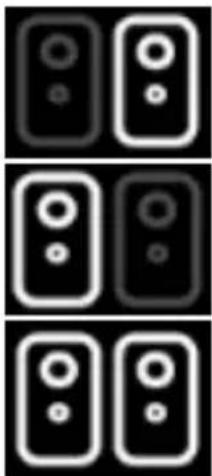
PpaBbI KaHaI
JIeBbI KaHaJ
CmeuHoe cTepeo (oba KaHana Ha OndHom dHaMke)
- HaxmTe OK n noDoxnTe, noka He oHOBNTcNHOpMaunHa dnCnlee.
PedaKtnpObaHne npaMeTPOB cyuEcTByUoSei 30HbI
ДяТоуTO6bI BHeCTn n3MeHEny B npaMeTpbl cyuEcTByoUeJ 3Ohbl, HxKHO BbINOJIHNb CLeDyUOUsne DeiCTBnA:
45.перейдenteHaВКладуHастpoи→3oHa
46. Haxmte Ha nKtorpammy, yTo6bl n3MeHnTb NMR 30HbI nn Ha3HaueHHbI dJa Hee 3HaQoK, IIn6o YdaJIHTb, yTo6bl ydaJIHTb 3OHy.
47. По заBERшЕни нажмITE OK.
Bocnpon3BeDeHne My3bIKN B 3OHe (HeckoJIbKO dINHaMnKOB)
Iocne co3dAnn 30HbI, ynpaBHeNne BocpOn3BeDeHneM B Hei npOn3BOdntc aHaIoRnUHO ynpaBLeHIO OdInHOuHbIM yCTpoNCTBOM.
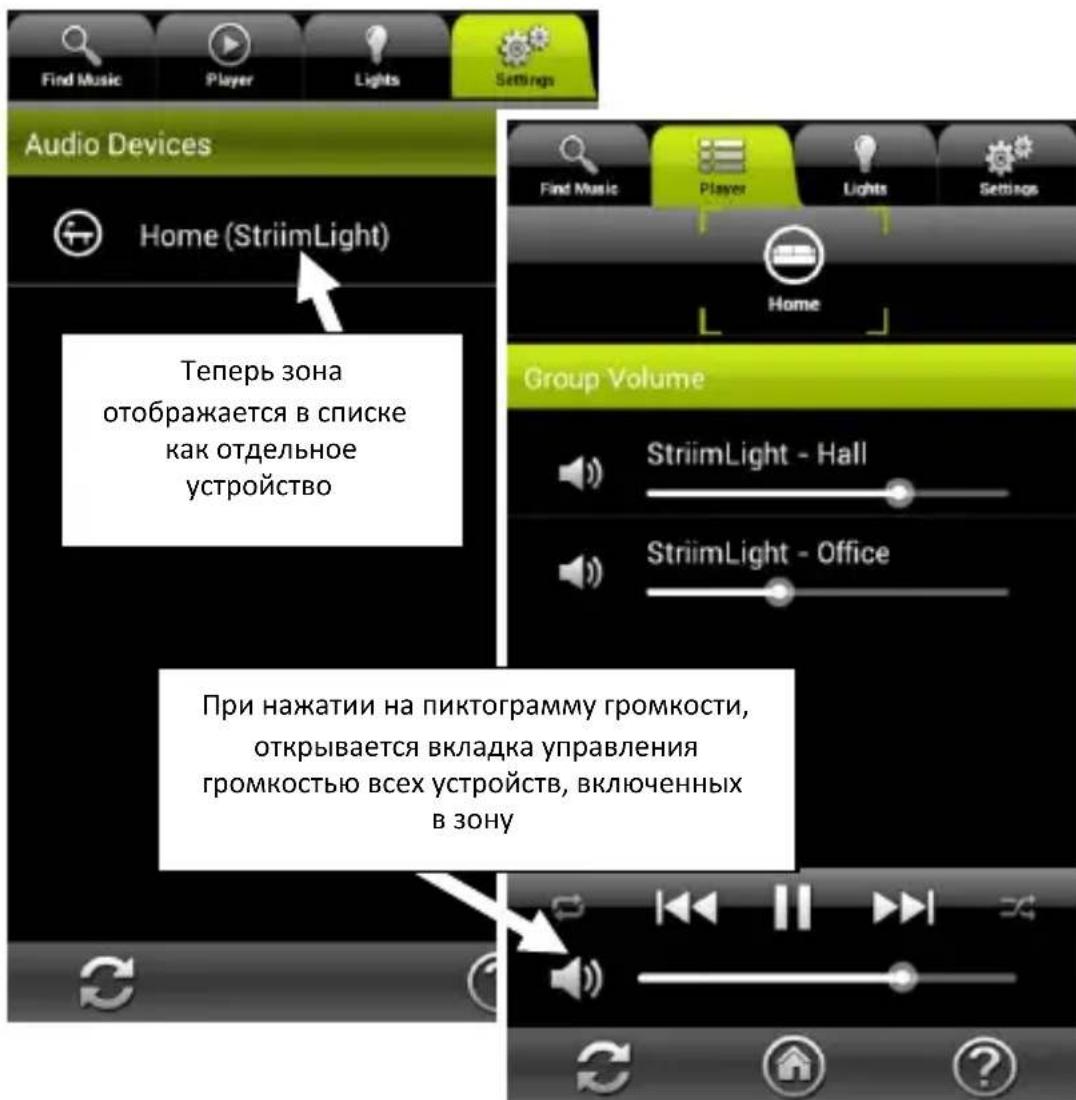
IpnpeynilpoBaHn rPOMKocTn IJI 3OHbI Ha BklaAdKe
Bocnpon3BeDeHne, OTo6paKaOTcA DOnOJIHnTeJbHbIe NOp3yHKOBbIe peYJATOpbl, YTO No3BOJAEt HaCTpOHTb rPOMKoCTb KaJDoRo yCTpoNCTBa StriimLIGHT Color WiFi nIIu COBMeCTHMOrO yCTPONCTBa B BaWei cnCTeme.
cepBepOB DLNA n MeMa-ntOuHnKOB.
KoHfNrgpaun HOBOr aYdno-ycTroPcTBa
3anyck MacTepa yCTaHOBKn yCTpoiCTBa,
N03B0JIIOUeRo BbINOLHHTb KOHfNpyaUNO
dpyroro npoodykta AwoX Striim.
C6poc hactpoek npnloxehna
YdaJIeHHe TeKyuIx HacTpoE K I BOCCTaHOBJIeHne
3HaueHnNo yMoluaHnIO.
- TaKke Ha BklaKe HacTpoEe MOXHO HaxaTb Ha NyHKT
AydnooyctpoiCTBa, yTO n03BOJAEr:
- Ha3NaHTb yCTpoiCTBO B KaueCTBe ayDnOyCTpoiCTBa no yMOnHaHIO.
- Прочь Тхнческne ДаHHье мodyя(мodyя) StriimLIGHT WiFi.
- Измены сеюеся мodyл (moул) StriimLIGHT WiFi.
YcTpaHHeHHeNcPpaBHOCTeI
AwoX StriimLIGHT WiFi He oTo6paJxaeTcB CnNcKe DoCTyHbIX pecypcoB, IIn6o yCTpoIcTBo HeOCTynHO dIa Bbl6opa B CnNcKe yCTpO'CTB 3OHbl.
HaKmTe KhoNky c6pOca yCTpoiCTBa, YTObI ydaIITb BCE paHee 3aDaHHbIe HAcTPOIKn, NOBtOpHO 3aNyCTHTe MaCTep yCTaHOBKn.
CoeHHeHc yctpoBom StriIMLIGHT ectb, HO B cInsKe INtepHeT-paNo Het doCTynhbx CTaHcni.
- Y6eIntecb, yTo BaWe INTepeHET-IOdkJIoueHne pa6oTaet NaIeKaUm o6pa30m.
Co3daHa 30Ha c DBym ycTpoiCTbAmn StriimLIGHT WiFi Color, HO INHOrda MeJxu HMM npOpaAeT cnHXPOHn3aun 3ByuHn.
- Пи поьом заунcke, a тохе ecnnpiloxeHne Striim CONTROL bblonHЯET obHOBleHne HacTpoEK, cnHxpoHn3aCnmaMeJy dInHaMnKaMn MoXeT BpeMeHNo HapUshaTbcra. CnHxpoHn3aCnA BtOMaTUnYeCKn BocCTaHaBnBaetcYepe3 HeCKOJIbKO CeKYNd.
AwoX StriimLIGHT WiFi Color
Användarhandbok
Innehäll
Congure a new audio device
Zagon Čarovnika za namestev naprave in s tem nastavitev drugega izdelka AwoX Striim.
Reset applicaon sengs
Jaaal aagl 1c aal gall jaiy bai.1
.2
J 3
13 |

4 ① y_c
J 1
:
1
a
.
jssll jgsn s gall
DLNA
Jaaal aag lgc aer bieol.1
J 1
gall jie 2
1
Jooaiaaaie 1oc baiiia Lioic.3
J 111
i j 1
(
a a a a a a a a a a a a a a a a a a a a a a a a a a a
14 |
J 1
J 1
1
1
http://www.awox.com/mediaservers
2c
1 1
aaiie 1e aaoaia
" 3
Jgolllbeil.()
.
:
L 5
:Jalal 6
1 1
J 1
.8
aill jll lbc bcl pbll lla JyJ 10000000000000000000000000000000000000000
16 |
10 bc b
17 |
- 1
Jgai 12
aai jll 1c d jn biai a jzai l
18 |
Jieiill jce aole
1
J
Jai jie jie gao jie biai Jia jia jia jia jia jia jia jia jia jia jia jia jia jia jia jia jia jia jia jia jia jia jia jia jia jia jia jia jia jia jia jia jia jia jia jia
19 | 1
auii i 1
giclae
d g jy j 1000000000000000000000000000000000000000000000000000000000000000000000000000
aagaaagaaagaaagaaagaaagaaagaaagaaagaaagaaagaaagaaagaaagaaagaaagaaagaaagaaagaaagaaagaaagaaagaaagaaagaaagaaagaaagaaagaaagaaagaaagaaagaaagaaagaaagaaagaaagaaagaaagaaagaaagaa
Iawl Jldg y aiae eliy bai 3
siaia 10 aie
1 a c
[shia] 1
aaiy jie 1n o cuii la i
aaii
.1
1.2
11 3
a
.4
Jn Jn Jn Jn Jn Jn Jn Jn
aagaaal gallgall

gai
()
aai 1
aieae iie 1
aLslll 1
J 1
:1.5.5 11
"glll jil g ( ) "gall ne 11 .1
aLwllgJyI aicY1 1.
.
.3
$$ \left. \right.\left. \right.\left. \right.\left. \right.\left. \right.\left.\left.\left.\left.\left.\left.\left.\left.\left.\left.\left.\left.\left.\left.\left.\left.\left.\left.\left.\left.\left.\left.\left.\left.\left.\left.\left.\left.\left.\right.\right.\right.\right.\right.\right.\right.\right.\right.\right.\right.\right.\right.\right.\right.\right.\right.\right.\right.\right.\right.\right.\right.\right.\right.\right.\right.\right.\right. $$
Jg 1
J 1
1
24 | 1
#
aaii gai iai
1
jz jn nn jnnn nnnn nnnn nnnn nnnn nnnn nnnn nnnn nnnn nnnn nnnn nnnn nnnn nnnn nnnn nnnn nnnn nnnn nnnn nnnn nnnn nnnn nnnn nnnn nnnn nnnn nnnn nnnn nnnn nnnn nnnn nnnn nnnn nnnn nann
sii 1
1
aallll lalalalalalalalalalalal
1aii 100
J 1
a
i#
: aaii i jg 1c biin sik y, jieal aol ie 2
Jgai jiee Jiee Jiee b
y
y
: 1

一
. jie jie jie jie jie jie jie jie jie jie jie jie jie jie jie jie jie jie jie jie jie jie jie jie jie jie jie jie jie jie jie jie jie jie jie jie jie jie jie
iia jai
[\therefore \log \frac{11}{10} = \frac{11}{10}]
p j 50