653 - Scale SECA - Free user manual and instructions
Find the device manual for free 653 SECA in PDF.



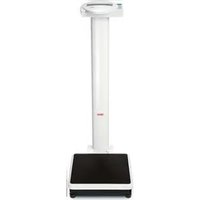
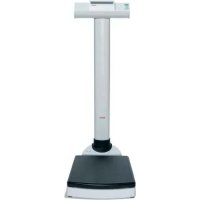
| Product type | Electronic medical scale (personal scale) |
| Brand | Seca |
| Model | 653 |
| Platform dimensions (W x D x H) | 640 mm x 600 mm x 46 mm |
| Net weight | Approximately 14.1 kg |
| Power supply | 6 AA/LR6 1.5 V batteries or optional power adapter (9 V/12 V) |
| Maximum capacity | 300 kg (range 1: 200 kg, range 2: 300 kg) |
| Graduation | 100 g (range 1), 200 g (range 2) |
| Main functions | Weighing, BMI calculation, TARE, HOLD, seca 360° wireless transmission, configurable menu |
| Display | Screen with symbols, digit height 25 mm |
| Operating temperature | +10 °C to +40 °C |
| Operating humidity | 30 % to 80 % non-condensing |
| Protection class | II, type B, class I medical device with measuring function |
| Standards | CE, directives 2009/23/EC and 93/42/EEC, EN 45501 |
| Maintenance and cleaning | Cleaning with a soft cloth and mild soap; disinfection with suitable disinfectant; sterilization prohibited |
| Safety | Detailed instructions to avoid electric shocks, infections and injuries |
| Spare parts and repairability | Power adapter (ref. 68-32-10-252 or 68-32-10-265); repairs exclusively by seca customer service |
| Warranty | 2 years from delivery date |
| Optional accessories | seca 274/264 measuring rods, seca 465/466 network printer, seca analytics software, wireless USB adapter |
Frequently Asked Questions - 653 SECA
User questions about 653 SECA
0 question about this device. Answer the ones you know or ask your own.
Ask a new question about this device
Download the instructions for your Scale in PDF format for free! Find your manual 653 - SECA and take your electronic device back in hand. On this page are published all the documents necessary for the use of your device. 653 by SECA.
USER MANUAL 653 SECA
Druckoption wahlen (APrt)
1. Signed and sealed 55
2. Device description 56
2.1 Congratulations! 56
2.2 Intended use 56
2.3 Description of function 56
2.4 User qualification 57
Assembly 57
Operation 57
3. Safety information 57
3.1 Safety information in these instructions for use 57
3.2 Basic safety instructions 58
Handling the instrument 58
Preventing electric shock 59
Avoiding infections 59
Avoiding injuries 60
Preventing device damage 60
Handling measuring results 61
Handling packaging material 62
3.3 Handling batteries and battery packs 62
4. Overview 64
4.1 Controls 64
4.2 Symbols in the display 65
4.3 Marking on the device and on the rating plate 66
4.4 Marking on the packaging 67
4.5 Menu structure 68
5.Before you really get started... .69
5.1 Scope of delivery 69
5.2 Making display housing ready for use (desktop display) 70 Fitting the angle adapter . . . . . . . . . . . . . . . . . . . . . . . . . . . . . . . . . . . . . . . . . . . . . . . . . . . . . . . . . . . . . . . . . . . . . . . . . . . . . . . . . . . . . . . . . . . . . . . . .. .. .. .. .. .. .. .. .. .. .. .. .. .. .. .. .. .. .. .. .. .. .. .. .. .. .. .. .. .. .. .. .. .. .. .. .. .. .. ... .. .. .. .. .. .. .. .. .. .. .. .. .. .. .. .. .. .. .. .. ... .. ... ... ... ... ... ... ... ... ... ... ... ... ... ... ... ... ... ... ... ... ... ... ... ... ... ... ... ... ... ... ... ... ... ... ... ... ... ... ... ... ... ... ... ... ... ... ... ... ... ... ... ... ... ... ... ... ... ... ... ... ... ... ... ... ... ...
cable to the platform 70
5.3 Making display housing ready for use (wall-mounted display) 71
Fitting the angle adapter . . . . . . . . . . . . . . . . . . . . . . . . . . . . . . . . . . . . . . . . . . . . . . . . . . . . . . . . . . . . . . . . . . . . .
Connecting the connecting cable to the platform .. .. .. .. .. .. .. .. .. .. .. .. .. .. .. .. .. .. .. .. .. .. ..
Installing the wall bracket .. .. .. .. .. .. .. .. ..
Placing the display housing on the wall bracket ... ... ... ... ... ... ...
5.4 Establishing power supply 74 Inserting the batteries .74
5.5 Setting up the scale 75
Aligning the scale .75
6. Operation 76
6.1 Weighing 76
Switching on the scale 76
Weighing a patient 76
Taring off extra weight (TARE) 77
Keeping the measurement result in the display (HOLD) 77
Determining and rating body mass index (BMI) 78
Sending measurement results to wireless receivers 79
Calculating and printing out BMI automatically 80
Automatic switching of weighing range 80
Switching off the scale 80
6.2 Other functions (menu) 81
Navigating in the menu 81
Deleting saved values automatically (ACIr) 82
Permanently saving the additional weight (Pt) 82
Activating the auto hold (Ahold) function 83
Activatingbeeps(BEEP) 84
Setting filtering (Fil) 84
Restoring factory settings (RESET) 85
7. The seca 360^ wireless network 86
7.1 Introduction 86
seca wireless groups 86
Channels 87
Device detection 87
7.2 Operating the scale in a wireless group (menu) 88
Activating the wireless module (SYS) 88
Setting up a wireless group (Lm) 88
Activating automatic send (ASend) 90
Selecting print option (APrt) .. 91
Set the time (Time) 91
8.Hygiene treatment 92
8.1 Cleaning 92
8.2 Disinfecting 93
8.3 Sterilizing 93
9. Function check 93
10.Troubleshooting 94
11. Servicing/recalibration 96
11.1 Information on servicing and recalibration 96
11.2 Checking the content of the calibration counter 97
12. Technical data 98
12.1 General technical data 98
12.2 Technical data, weighing 99
13. Optional accessories 99
14. Spare parts 100
15.Disposal 100
15.1 Device 100
15.2 Batteries and rechargeable batteries 100
16.Warranty 101
1. SIGNED AND SEALED

M
CE
xx 0109 0123
ISO 9001
ISO 13485

With seca products, you are not only purchasing technology which has been perfected over 100 years, but also quality with official legal certification confirmed by institutions. seca products comply with European directives, standards and national laws. When you buy seca, you buy the future.
Scales bearing this symbol comply with European Directive 2009/23/EC applicable to non-automatic scales. seca scales with this symbol meet the stringent quality and technical requirements placed on scales which can be calibrated.
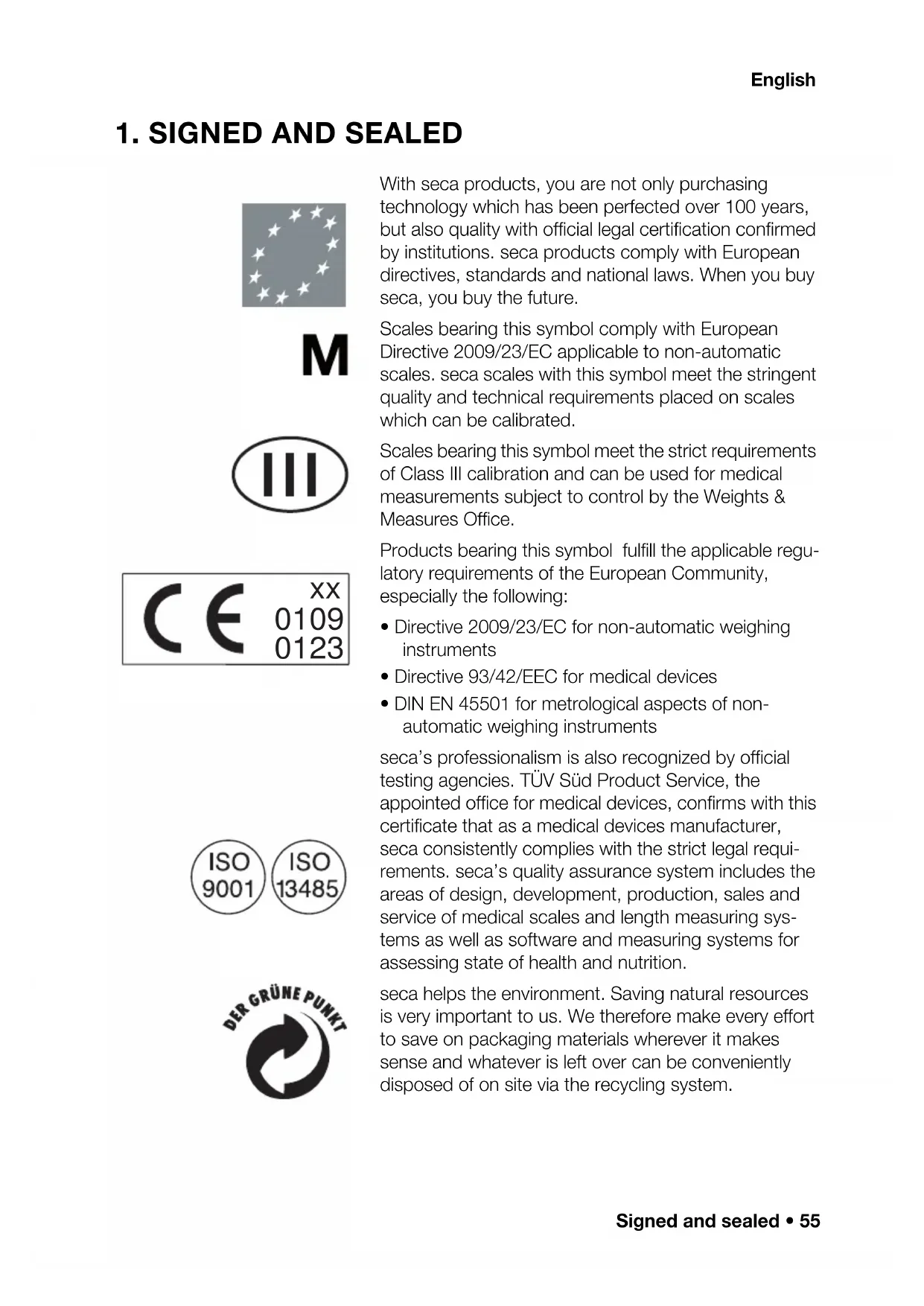
Scales bearing this symbol meet the strict requirements of Class III calibration and can be used for medical measurements subject to control by the Weights & Measures Office.
Products bearing this symbol fulfill the applicable regulatory requirements of the European Community, especially the following:
- Directive 2009/23/EC for non-automatic weighing instruments
- Directive 93/42/EEC for medical devices
DIN EN 45501 for metrological aspects of non-automatic weighing instruments
seca's professionalism is also recognized by official testing agencies. TÜV Süd Product Service, the appointed office for medical devices, confirms with this certificate that as a medical devices manufacturer, seca consistently complies with the strict legal requirements. seca's quality assurance system includes the areas of design, development, production, sales and service of medical scales and length measuring systems as well as software and measuring systems for assessing state of health and nutrition.
seca helps the environment. Saving natural resources is very important to us. We therefore make every effort to save on packaging materials wherever it makes sense and whatever is left over can be conveniently disposed of on site via the recycling system.
2. DEVICE DESCRIPTION
2.1 Congratulations!
With the seca 635 electronic multi-functional scale, you have purchased a highly precise and simultaneously robust device.
For over 170 years, seca has used its experience in the service of healthcare and, as a market leader, it has always set standards in many countries of the world with innovative developments in weighing and measuring.
2.2 Intended use
Electronic multi-functional scale seca 635 is mainly used in hospitals, medical practices and in-patient care facilities in accordance with national regulations.
The scale is for conventional determination of weight and establishment of general state of nutrition; it assists the physician supervising treatment in making a diagnosis or deciding on a course of treatment.
To make an accurate diagnosis, however, other specific examinations have to be ordered by the physician and their results taken into account, in addition to determining a weight value.
2.3 Description of function
In addition to conventional determination of weight, the seca 635 provides a function for determining body mass index. To this end, height is entered on the key pad and the body mass index associated with the weight value is calculated automatically. Length measuring devices from the seca 360^ wireless system can transmit height to the seca 635 wirelessly.
Via the seca 360^ wireless network, measuring results can be transmitted wirelessly to a seca wireless printer or to a PC equipped with seca analytics PC software and the seca USB wireless adapter.
Use the scale only for the purpose named in the section entitled "Intended use" on page 56.
2.4 User qualification
Assembly
Devices that are shipped partially assembled may only be mounted by sufficiently qualified persons such as specialist dealers, hospital technicians or seca service technicians.
Operation The device may only be operated by healthcare professionals.
3. SAFETY INFORMATION
3.1 Safety information in these instructions for use

DANGER!
Used to identify an extremely hazardous situation. If you fail to take note of this information, serious irreversible or fatal injuries will occur.

WARNING!
Used to identify an extremely hazardous situation. If you fail to take note of this information, serious irreversible or fatal injuries may result.

CAUTION!
Used to identify a hazardous situation. If you fail to take note of this information, minor to moderate injuries may result.
ATTENTION!
Used to identify possible incorrect usage of the device. If you fail to take note of this information, you may damage the device, or the measured results may be incorrect.
NOTE
Includes additional information about use of the device.
Handling the instrument
- Please take note of the information in these instructions for use.
- Keep the instructions for use in a safe place. The instructions for use are a component of the device and must be available at all times.

DANGER! Risk of exploits
Do not use the device in an environment in which one of the following gases has accumulated:
- oxyg e n
- flammable anesthetics
- other flammable substances/air mixtures

CAUTION! Patient hazard, damage to device
-
Additional devices which are connected to electrical medical devices must provide evidence of compliance with the relevant IEC or ISO standards (e.g. IEC 60950 for data-processing devices). Furthermore, all configurations must comply with the requirements of standards for medical systems (see IEC 60601-1-1 or Section 16 of the 3rd edition of IEC 60601-1 respectively). Anyone connecting additional devices to electrical medical devices is considered a system configurer and is therefore responsible for ensuring that the system complies with the requirements of standards for systems. Your attention is drawn to the fact that local laws take precedence over the above-mentioned requirements of standards. In the event of any queries, please contact your local specialist dealer or Technical Service.
-
Have servicing and recalibration carried out regularly as described in the relevant section of this document.
-
Technical modifications may not be made to the device. The device does not contain any parts for servicing by the user. Only have servicing and repairs performed by an authorized seca service partner. You can find service partners in your area at www.seca.com or by sending an e-mail to service@seca.com.
-
Only use original seca accessories and spare parts, otherwise seca will not grant any warranty.

CAUTION!
Patient hazard, malfunction
- Keep other electrical medical devices, e.g. high-frequency surgical devices, a minimum distance of approx. 1 meter away to prevent incorrect measurements or wireless transmission interference.
- Keep HF devices such as cell phones a minimum distance of approx. 1 meter away to prevent incorrect measurements or wireless transmission interference.
- The actual transmission output of HF equipment may require minimum distances of more than 1 meter. Details can be found at www.seca.com.
Preventing electric shock

WARNING!
Electric shock
- Set up the device so that the power supply socket is easy to reach and the device can be disconnected from the power supply quickly.
- Ensure that your local power supply matches the information on the power supply unit.
- Do not touch the power supply unit with wet hands.
- Do not use extension cables or power strips.
- Ensure that the power cable is not pinched or damaged by a sharp edge.
- Do not operate the device at an altitude of more than 3000m above sea level.
Avoiding infections WARNING!

Risk of infection
Hygienically reprocess the scales regularly as described in the respective section in this document.
- Make sure that the patient has no infectious diseases.
- Make sure that the patient has no open wounds or infectious skin alterations, which may come into contact with the device.
Avoiding injuries

WARNING!
Risk of falling
- Ensure that the device is positioned firmly and level.
- Route the mains cable so that there is no risk of tripping for the patient or user.
- Make sure that the patient does not step onto the weighing platform directly at the edges.
- Make sure that the patient steps onto the weighing platform slowly and securely.

WARNING!
Risk of slipping
- Ensure that the weighing platform is dry before the patient steps onto it.
- Ensure that the patients feet are dry before he or she steps onto the weighing platform.
- Make sure that the patient steps onto the weighing platform slowly and securely.
Preventing device damage
ATTENTION!
Damage to device
- Ensure that no liquids enter the device. They can damage the electronics.
- Switch off the device before disconnecting the power supply unit from the mains socket.
- Disconnect the power supply unit from the mains socket if you intend to not use the device for a longer period of time. Only this way it can be ensured that the device is currentless.
- Make sure not to drop the device.
- Do not expose the device to any impacts or vibrations.
- Perform function controls regularly as described in the relevant section in this document. Do not operate the device if it is damaged or not working properly.
-
Ensure that there is no heat source in the immediate vicinity. Do not expose to direct sunlight. The excessive temperature could damage the electronics.
-
Avoid rapid temperature fluctuations. When the device is transported so that a temperature difference of more than 20^ occurs, it must stay turned off for at least 2 hours before it can be turned on again. Otherwise, condensation water will form which can damage the electronics.
- Caustic detergents may damage the surfaces. Only use a soft cloth dampened with mild soapsuds to clean the surfaces of the device.
- Only use disinfectants suitable for sensitive surfaces. Suitable disinfectants are available from specialist dealers.
Handling measuring results

WARNING! Patient haze
This device is no diagnostic device. It simply assists the treating physician in establishing a diagnosis.
In order to make a precise diagnosis and initiate therapeutic measures, besides determination of the weight, further targeted examinations must be set up by the physician, and their results must be considered.
- The responsibility for diagnosis and treatment lies with the treating physician.

ATTENTION! Loss of data
- Before you save measurements acquired with this device and process them for further use (e.g. in the PC software seca analytics or in a hospital information system), make sure the measurement values are plausible.
- If measurement values are transmitted to the seca analytics PC software or a hospital information system, make sure prior to further use that the measurement values are plausible and are assigned to the correct patient.
Handling packaging material

WARNING! Risk of suffocation
Packaging material made of plastic foil (bags) is a choking hazard.
- Keep packaging material out of reach of children.
- In the event that the original packing material may not be available anymore, only use plastic bags with security holes in order to reduce the risk of suffocation.
NOTE:
Keep the original packing material for future use (e.g. returning for maintenance service).
3.3 Handling batteries and battery packs

WARNING! Personal injury due to improper handling
Batteries contain harmful substances which may explode if not handled properly.
- Do not try to recharge batteries.
- Do not expose (rechargeable) batteries to heat.
- Do not burn (rechargeable) batteries.
- If acid is leaking out, avoid contact with the skin, eyes and mucous membranes. Rinse affected areas with plenty of clean water and seek medical help at once.
ATTENTION!
Damage to device and malfunctions with improper handling
- Only use the type of (rechargeable) battery specified in this document.
- When replacing (rechargeable) batteries, always replace a complete set at a time.
- Do not short-circuit (rechargeable) batteries.
- If you do not use the device for a long period of time, remove the batteries (incl. rechargeable batteries). This prevents acid from leaking into the device.
- If acid leaked into the device, discontinue use. Have the device checked by an authorised seca service partner and repaired if necessary.
4. OVERVIEW
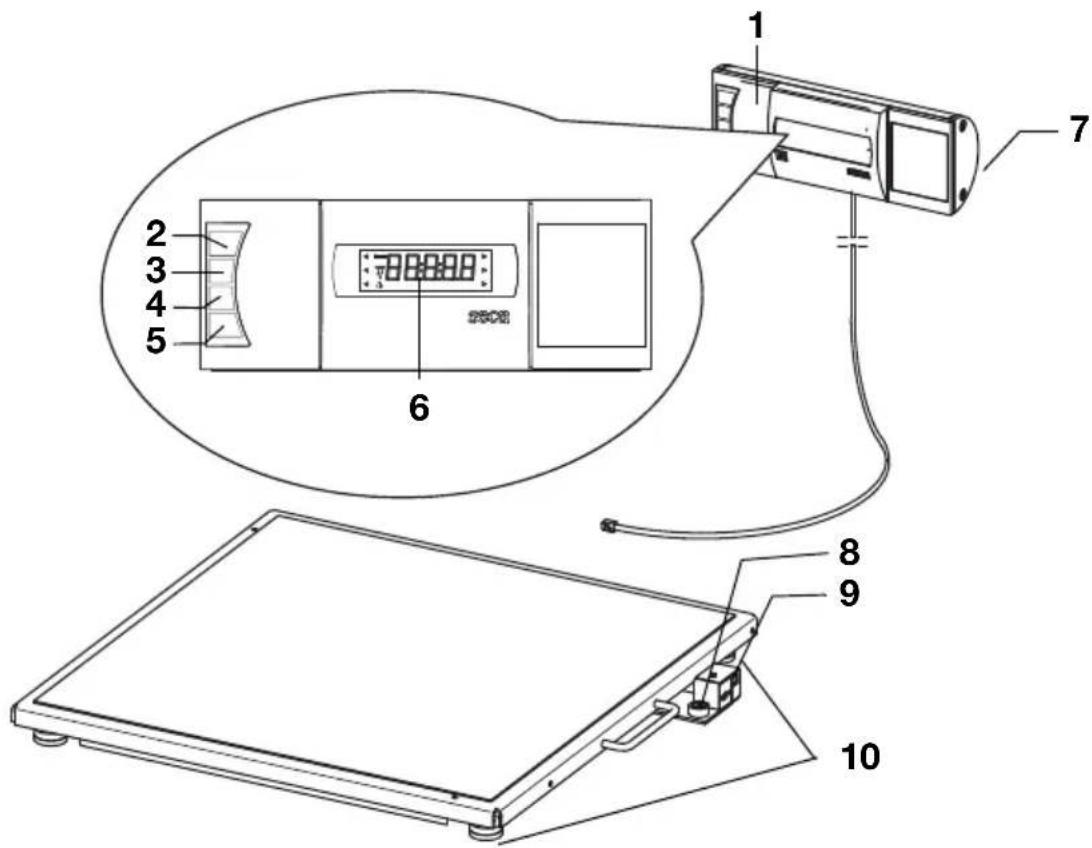
4.1 Controls
| No. Control Function | ||
| 1 | Display housing | Central control and display element Can be set up on a work surface or fitted to a wall |
| 2 | Switch scale on and off | |
| 3 | Arrow key During weighing: - press briefly: activate hold function - press and hold: activate hare function In the menu: - select submenu, select menu item - increase value | |
| 4 | Arrow key During weighing: - press briefly: activate BMI function - press and hold: call up menu In the menu: - select submenu, select menu item - reduce value | |
| 5 | Enter key • During weighing (if wireless network is set up): - press briefly: send measuring result to devices ready to receive it (PC with USB wireless adapter) - press and hold: print out measuring result (wireless printer) • In the menu: - confirm selected menu item - save set value | |
| 6 | Display | Display element for measuring results and to configure the device |
| 7 | Battery compartment | Location for batteries |
| 8 | Spirit level Shows | Whether the device is horizontal |
| 9 | Power supply connection | For connecting the optional power pack |
| 10 | Foot screw 4 | pcs, for precise alignment |
4.2 Symbols in the display
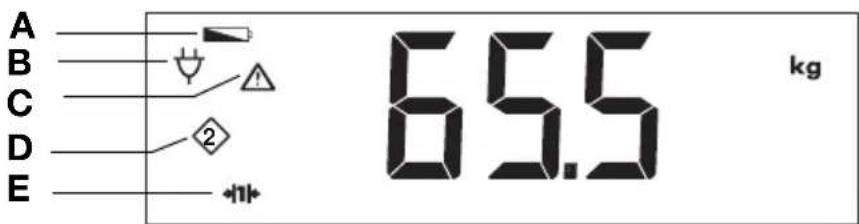
| Symbol Meaning | ||
| A | Battery power low | |
| B | Operation with power pack | |
| C | Non-calibratable function active | |
| D | Memory location currently in use | |
| E | →|1|← →|2|← | Weighing range currently in use see "Technical data" on page 98 |
4.3 Marking on the device and on the rating plate
| Text/symbol Meaning | |
| Model Model | number |
| Ser. no. Serial | number |
| Follow instructions for use | |
| Electrical medical device, type B | |
| Insulated device, protection class II | |
| M | Conformity symbol in compliance with directive 2009/23/EC for non-automatic scales |
| e | Value in units of measurement used to classify and calibrate a scale |
| d | Value which gives the difference between two consecutive display values |
| →|x|← | Active weighing range |
| III | Class III scale to directive 2009/23/EC |
| CExx01090123 | Device conforms to EC directives • xx: year in which the EC calibration was performed and the CE mark was applied • 0109: appointed office for metrology: Hessische Eichdi-rektion • 0123: appointed office for medical devices: TÜV Süd Pro-duct Service |
| FC | Symbol of the US Federal Communications Commission (FCC) |
| FCC ID | Device license number from the Federal Communications Commission (FCC) |
| IC Device license number from Industry Canada | |
| --+x-y V max. xxx mA use compatible seca adapter only | Rating plate on the power supply connection socket • x-y V: required supply voltage • max xxx mA: maximum current consumption • : operate polarity of device plug : : operate device with direct current |
| Do not dispose of device with household waste | |
4.4 Marking on the packaging
| Protect from moisture | |
| Arrows indicate top of product. Transport and store in an upright position. | |
| Fragile Do not throw or drop. | |
| Permitted min. and max. temperature for transport and storage | |
| Permitted min. and max. moisture for transport and storage | |
| Packaging material can be disposed of through recycling programs. |
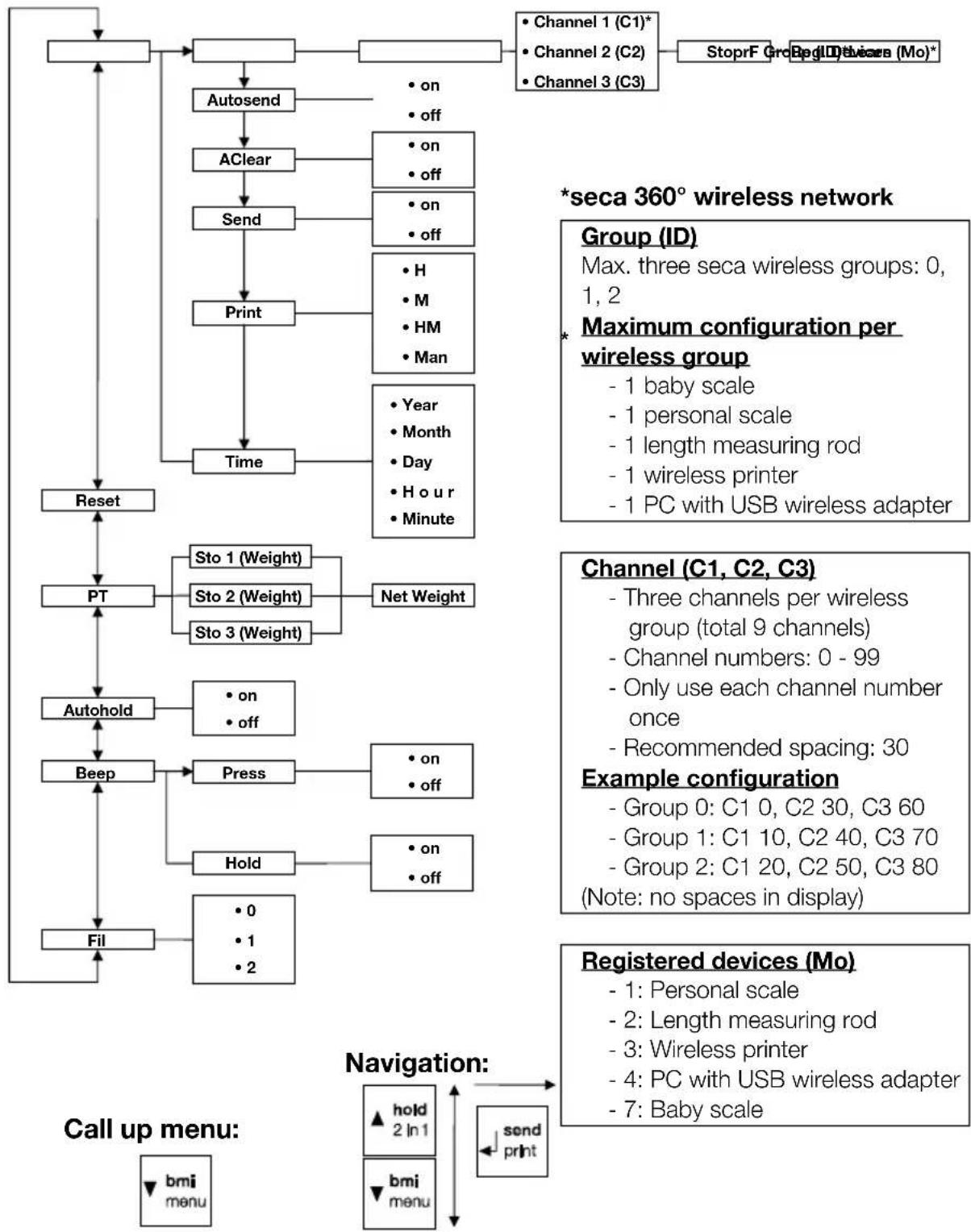
4.5 Menu structure
Other functions are available to you in the menu for the device. This enables you to configure the device perfectly to suit your needs (details from page 81).
5. BEFORE YOU REALLY GET STARTED…
5.1 Scope of delivery
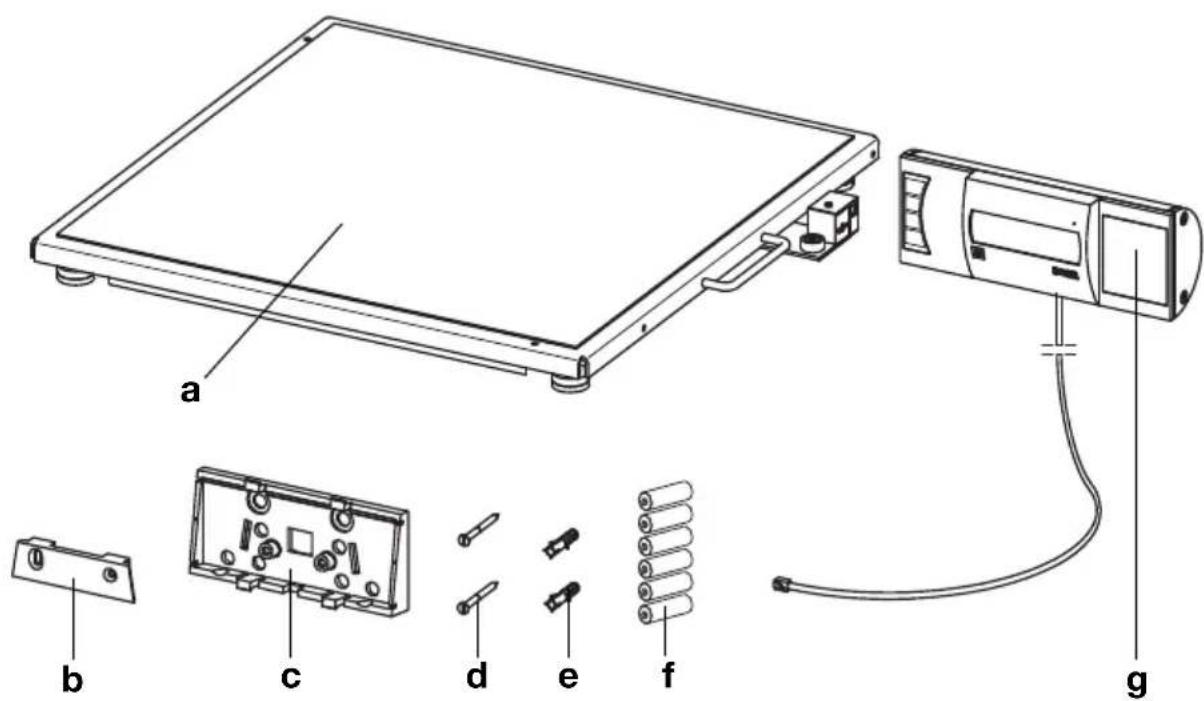
| No. Component Pcs. | ||
| a | Weighing platform 1 | |
| b | Wall bracket 1 | |
| c | Angle adapter 1 | |
| d | Screws, 3 x 35 mm 2 | |
| e | Wall plugs Ø 5 mm 2 | |
| f | Batteries, type AA/LR6, 1.5 V 6 | |
| g | Display housing with connecting cable 1 | |
| Instructions for use, not shown 1 | ||
5.2 Making display housing ready for use (desktop display)
ATTENTION!
Damage to device
The angle adapter cannot be removed once fitted.
- Ensure before fitting that the display housing is to be set up on a desktop.
Fitting the angle adapter
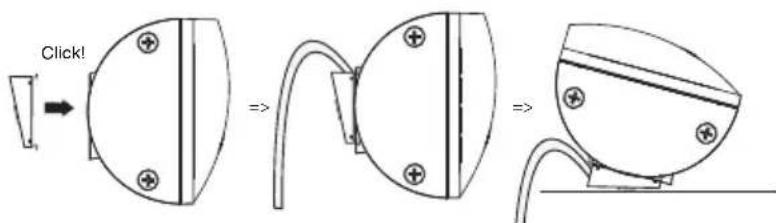
- Hold the angle adapter against the display housing in the position shown.
- Ensure that the connecting cable is running in the guide groove of the angle adapter.
- Push the angle adapter onto the display housing until all four lugs engage audibly.
Connecting the connecting cable to the platform
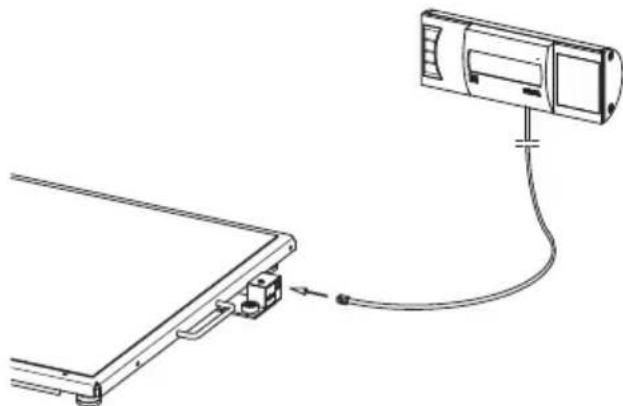
NOTE
When selecting the setup location, take account of the length of the connecting cable so that you can set up the display housing on a work surface.
- Place the scales on a firm, level surface.
- Connect the connecting cable to the electronics box of the scales.
ATTENTION!
Incorrect measurement due to force shunts
If the cable of the display housing contacts the weighing platform, the patient's weight cannot be measured correctly.
-
Route the cable in such a way that it cannot contact the weighing platform.
-
Set up the display housing on a work surface.
5.3 Making display housing ready for use (wall-mounted display)
ATTENTION!
Damage to device
The angle adapter cannot be removed once fitted.
- Ensure before fitting that the display housi is to be wall-mounted.
Fitting the angle adapter
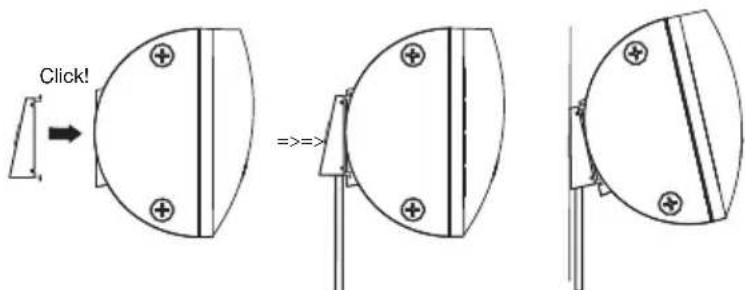
- Hold the angle adapter against the display housing in the position shown.
- Ensure that the connecting cable is running in the guide groove of the angle adapter.
- Push the angle adapter onto the display housing until all four lugs engage audibly.
Connecting the connecting cable to the platform
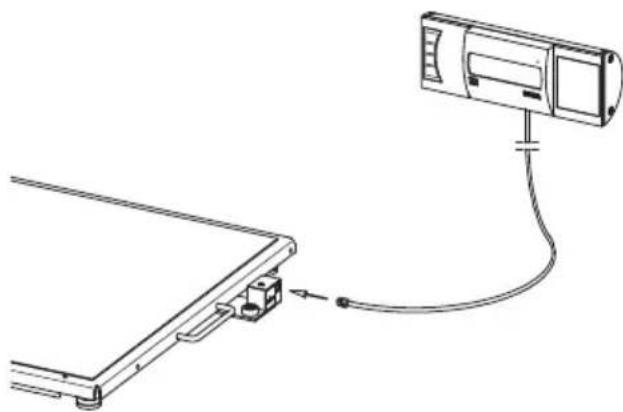
NOTE
When selecting the setup location, take account of the length of the connecting cable so that you can place the display housing on the wall bracket.
- Place the scales on a firm, level surface.
- Connect the connecting cable to the electronics box of the scales.
ATTENTION!
Incorrect measurement due to force shunts
If the cable of the display housing contacts the weighing platform, the patient's weight cannot be measured correctly.
- Route the cable in such a way that it cannot contact the weighing platform.
English
Installing the wall bracket
Choose an adequately strong load-bearing wall to mount the device. Standard wall plugs are supplied for installation on solid brick walls. We recommend use of appropriate special wall plugs for other types of wall.
NOTE
When selecting mounting height, take account of the length of the connecting cable.
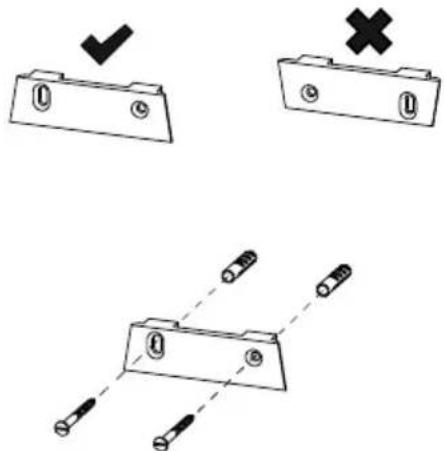
- Mark the drill holes at the desired height, making sure they are level.
- Drill the holes using a 0.5mm drill bit.
- Insert the wall plugs in the drill holes.
- Screw the wall bracket to the wall in the alignment shown.
Placing the display housing on the wall bracket
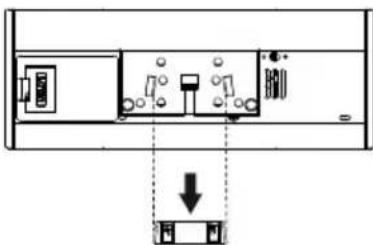
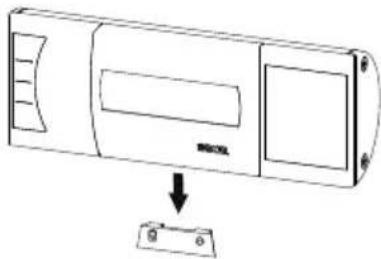
Rear view (Schematic diagram)
Place the display housing on the wall bracket as shown in the drawing above.
Power is supplied to the scales either using batteries or with a power pack available as an accessory.
Inserting the batteries You need 6 batteries, type AA, 1.5 V (included in scope of supply).
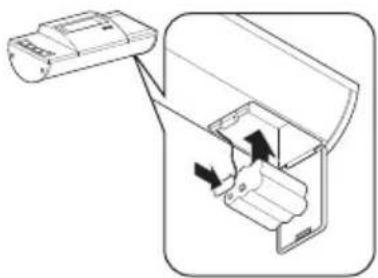
- Press on the latch of the battery compartment.
- Swing down the lid of the battery compartment.
- Remove the battery holder.
- Insert the batteries in the holder.
NOTE
Observe correct polarity of batteries (markings in battery holder). Should the display read bAtt, you have inserted one of the batteries the wrong way round or they are flat.
- Replace the holder with the batteries in the battery compartment.
- Close the battery compartment.
Connecting the power pack (optional)
The scales can be operated with a power pack available as an accessory. Two types of power pack are available, one with plug adapters and one with a fixed Euro connector.

WARNING!
Using the wrong power packs may cause bodily injury or damage to the device
Conventional power packs may deliver a higher voltage than is indicated on them. The scale may overheat, catch fire, melt or short-circuit.
- Use only original seca plug-in power packs with a 9 V or controlled 12 V output voltage.
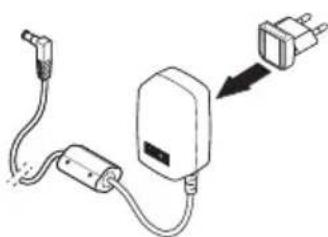
- If required, insert the power supply connector necessary for your power supply into the power pack.
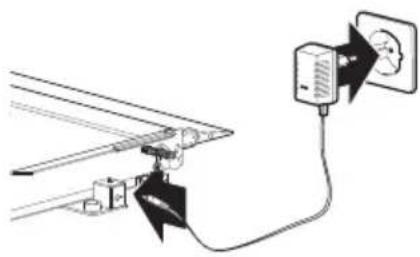
- Insert the connector of the power pack into the connecting socket of the scale.
- Plug the power pack into a power supply socket.
5.5 Setting up the scale
Aligning the scale ATTENTION!
Incorrect measurement due to force shunts
If the scale and housing is in contact with something, e.g. a towel, weight will not be measured correctly.
-
Set the scale up so that only its foot screws are in contact with the floor.
-
Place the scale on firm, level surface.
- Undo the knurled wheels.
- Level the device by turning the foot screws.
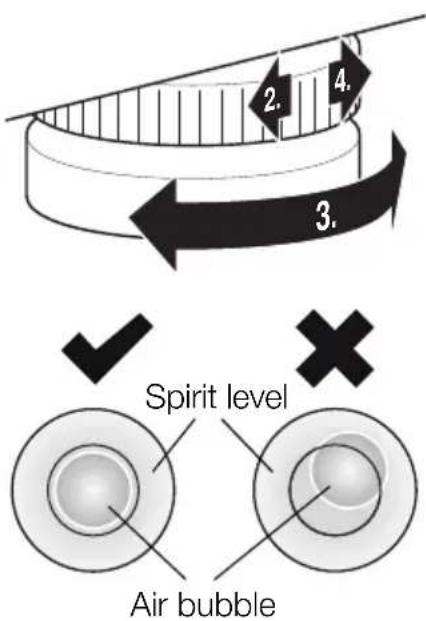
The air bubble in the spirit level must be located in the exact center of the circle.
- Tighten the knurled wheels in the direction of the arrow.
The foot screws are secured against being adjusted.
6. OPERATION

CAUTION!
Bodily injury
Perform a function check as described in the section entitled "Function check" on page 93 before using the device each time.
6.1 Weighing

CAUTION!
Patients can be injured if they fall
People with restricted mobility may fall if they try to step onto the scale.
- Support people with restricted mobility when they step onto the scale.
ATTENTION!
Incorrect measurement as a result of incorrect loading
If the scales are loaded on only one side or in only one corner, weight will not be measured correctly.
- Ask your patients to position themselves in the centre of the scales.
Switching on the scale
Press the Start key.
All the elements of the display are shown briefly, then SECA appears in the display.
The scale is operational when 0.0 appears in the display.
If the scale is operated with a power pack, the symbol appears in the display.
Weighing a patient 1. Ensure that the scale has no load.
- Ask the patient to step onto the scale.
- Ask the patient to keep still.
- Read off the measurement result.
635
Taring off extra weight (TARE)
Using the TARE function, you can prevent any extra weight (e.g. a towel or a support on the weighing platform) from affecting the weighing result.
ATTENTION!
Incorrect measurement due to force shunts
If an extra weight, e.g. a large towel, contacts the surface on which the scale is placed, weight will not be measured correctly.
-
Make sure that extra weights are only placed on the scale's weighing surface.
-
Switch on the scale.
- Place the extra weight on the scale.
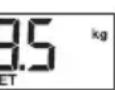
- Hold the (hold/tare) arrow key down until the message "NET" appears in the display.
- Wait until the display stops flashing and 0.0 appears instead.
- Weigh the patient as described in the section entitled "Weighing a patient".
- Read off the measurement result. The additional weight is automatically deducted.
- To deactivate the TARE function, press the (hold/tare) arrow key until the message "NET" is no longer displayed or turn off the scale.
NOTE
The maximum weight which can be displayed is reduced by the weight of the objects already placed on the scale.
Keeping the measurement result in the display (HOLD)
When you activate the HOLD function, the weight value continues to be displayed after the weight has been removed from the scale. As a result, you can attend to the patient before recording the weight.
- Ensure that the scale has no load.
- Switch on the scale.
- Weigh the patient as described in the section entitled "Weighing a patient".
- Press the (hold/tare) arrow key briefly.



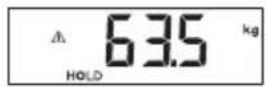

The display flashes until a stable weight is measured. The weight is then continuously displayed. The symbol (non-calibratable function) and the message "HOLD" are displayed.
- To deactivate the HOLD function, briefly press the (hold/tare) arrow key.
The symbol and the "HOLD" message are no longer displayed.
NOTE
If the auto hold function is activated, the weight value is automatically displayed permanently until the scale switches itself off or is switched off, see "Activating the auto hold (Ahold) function" on page 83.
Determining and rating body mass index (BMI)
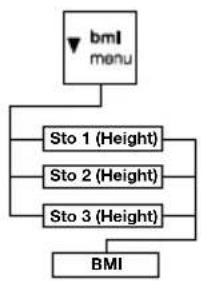

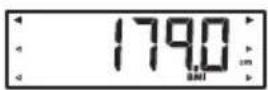

Body mass index relates height and weight to one another and consequently allows more accurate information than ideal Broca weight, for example. A tolerance range is quoted which is considered ideal for health.
The device has three memories for height. You can enter and save the height of specific patients. Alternatively, you can save different start values and thus set a patient's actual height more quickly.
- Ensure that the scale has no load.
- Switch on the scale.
- Press the (bm i/menu) arrow key briefly.
The message "BMI" appears.
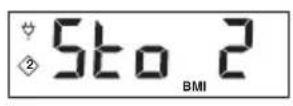
The last memory used is displayed (in this case, memory 2).
- You can adopt the memory displayed or select a different memory using the arrow keys.
- Confirm your setting with Enter (send/print).
Arrows flash in the display.
The last height saved to the selected memory is displayed.
- You can accept the height displayed or use the arrow keys to set a different height.
- Confirm your setting with Enter (send/print).
The height entered is saved and will be available again for the next BMI calculation.
NOTE
Make a note of the memory number so that you can call up this height for another BMI calculation.
- Weigh the patient as described in the section entitled "Weighing a patient".
The patient's BMI is automatically calculated and displayed.
-
Read off the BMI and compare it with the categories quoted further down.
-
To deactivate the BMI function, briefly press the Enter key (send/print).
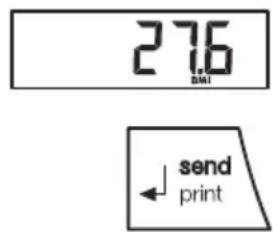
| BMI Rating | |
| Below 18.5 | Patient is underweight. There could be anorexic tendencies. Weight should be increased to improve well-being and perfor- mance. If in doubt, seek the advice of a consultant. |
| Between 18.5 and 24.9 | The patient's weight is normal. |
| Between 25 and 30 (incipient obesity) | The patient is slightly to moderately overweight. He or she should lose weight if already suffering from a disease such as diabetes, high blood pressure, gout or disorders of fat metab- olism. |
| Over 30 | Weight needs to be lost urgently. The metabolism, the circula- tory system and the bones are all under strain. A strict diet, lots of physical activity and behavioral training are all recom- mended. If in doubt, seek the advice of a consultant. |
Sending measurement results to wireless receivers
If the scale is integrated in a seca 360^ wireless network, you can send the measurement results to devices ready to receive them (e.g. wireless printer, PC with USB wireless adapter) at the touch of a button.
Press the Enter key (send/print).
-
Press key briefly: send measurement results to all devices ready to receive them
-
Press and hold key: print out measurement result on wireless printer
Calculating and printing out BMI automatically
If you use this scale together with a wireless printer and a length measuring rod from the seca 360^ wireless system, you can have BMI calculated and printed out automatically.
NOTE
The prerequisite for this function is that the devices are registered together in one wireless group (see "The seca 360^ wireless network" on page 86).
- Perform the height measurement.
- Briefly press the Enter key (send/print) of the length measuring rod.
The measured value is sent to the wireless printer but not printed.
- Perform the weighing operation.
- Press and hold the Enter key (send/print) of the scale.
The measured value is sent to the wireless printer.
BMI is calculated.
Height, weight and BMI are printed out.
Automatic switching of weighing range
The scale has two weighing ranges. In weighing range 1 ( ) capacity is reduced, but the increments in the weight display are finer. In weighing range 2 ( ) you can use the maximum capacity of the scale.
After the scale is switched on, weighing range 1 is active. If a particular weight is exceeded, the scale automatically switches to weighing range 2.
To switch back to weighing range 1, proceed as follows.
Completely remove the load from the scale. Weighing range 1 is active again.
Switching off the scale
Press the Start key.
NOTE
In battery mode, the scales will switch off automatically after 5 minutes if no load is placed on them.
6.2 Other functions (menu)
Other functions are available to you in the menu for the scale. This enables you to configure the scale to suit your conditions of use perfectly.
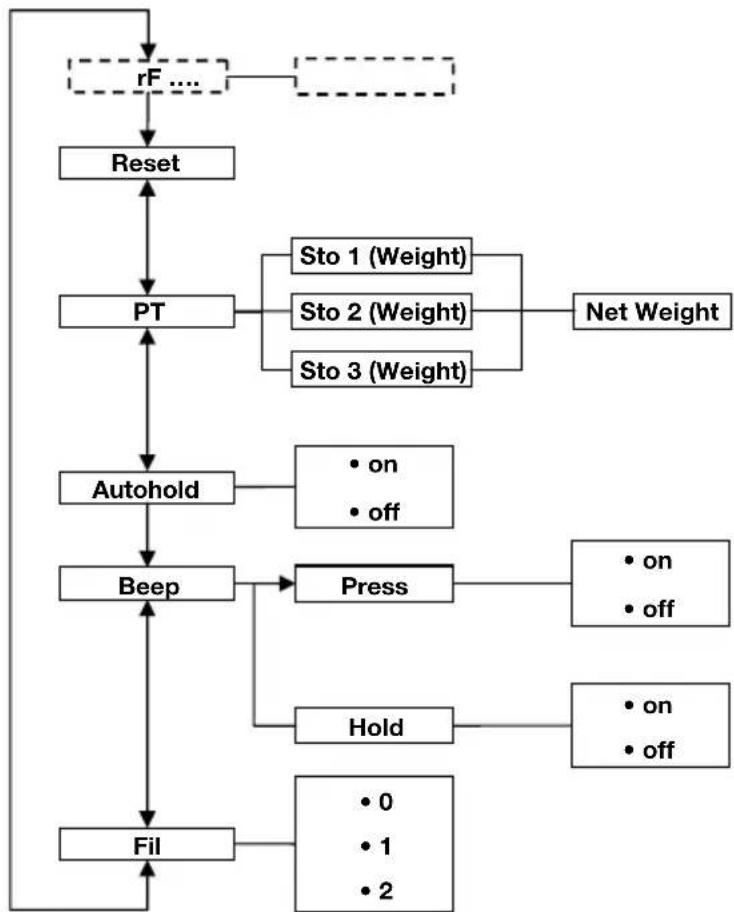
- The description of menu item "rF" can be found in the section entitled "Operating the scale in a wireless group (menu)" on page 88.
Navigating in the menu 1. Switch on the scale.
- Keep arrow key (bm i/menu) pressed until the menu is called up.
The last menu item selected (in this case: auto hold "Ahold") appears in the display.

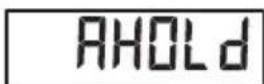



-
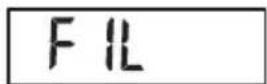
Press one of the arrow keys until the desired menu item appears in the display (in this case: filtering "Fil").
-
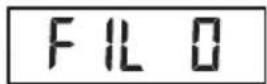
Confirm your selection with Enter (send/print). The current setting for the menu item or a submenu are displayed (in this case: level "0").


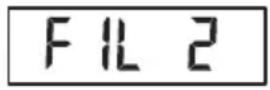

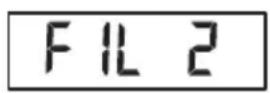
- To amend the setting or call up a different submenu, press one of the arrow keys until the desired setting (in this case: level "2") is displayed.
- Confirm the setting with Enter (send/print). You exit the menu automatically.
- To make more settings, call up the menu again and proceed as described.
NOTE
If no key is pressed for about 24 seconds, you exit the menu automatically.
Deleting saved values automatically (ACIr)
To prevent current measurement results remaining in the memory of the device and leading to an incorrect BMI calculation, you can set the scale so that measurement results are automatically deleted after 5 minutes.
NOTE
This function is activated at the factory on some models. You can deactivate the function if desired.
ACLR
On
- Select the item "ACIr" from the menu.
- Confirm your selection.
-
Select the desired setting:
-
On
-
Off
-
Confirm your selection.
You exit the menu automatically.
Permanently saving the additional weight (Pt)
Using the Pre-tare function, you can permanently save an additional weight and automatically deduct it from a measurement result. For example, you can save an all-inclusive weight for shoes and clothing and then always deduct this from the measurement result if a patient is weighed fully-clothed.
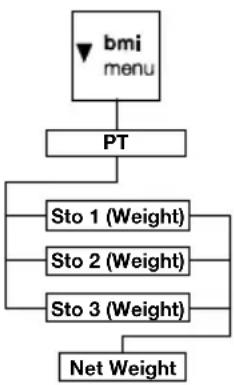
The device has three memories for weights. You can save various weights and call them up individually depending on the initial situation, so that they are automatically deducted from the measurement result.
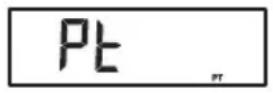
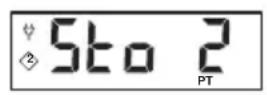
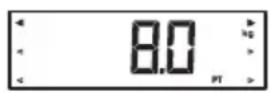
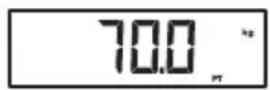
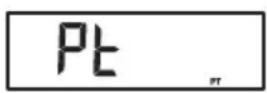
- Select the item "Pt" from the menu. The message "Pt" appears.
- Confirm your selection. The last memory used is displayed.
- You can adopt the memory displayed or select a different memory.
- Confirm your selection. Arrows flash in the display.
The additional weight saved to the selected memory is displayed.
- You can adopt the saved value or amend it using the arrow keys.
NOTE
When you enter the value "0", the function is switched off. The message "Pt" is no longer displayed.
- Confirm your selection.
- Ask the patient to position him or herself on the scale.
The patient's weight is displayed.
The saved additional weight has been deducted automatically.
- To deactivate the function, select the item "Pt" from the menu again.
- Confirm your selection.
The function is deactivated.
You exit the menu automatically.
NOTE
When you switch the scale off, the function is switched off. The message "Pt" is no longer displayed when you switch the scale on again.
Activating the auto hold (Ahold) function
When you activate the auto hold function, the measurement result for every weighing operation continues to be displayed after the weight has been removed from the scale. It is then no longer necessary to activate the Hold function manually for each individual weighing operation.
NOTE
This function is activated at the factory on some models. You can deactivate the function if desired.
AHOLD
0n
-
Select the item "Ahold" from the menu.
-
Confirm your selection.
The current setting is displayed.
-
Select the desired setting:
-
On
-Off
- Confirm your selection.
You exit the menu automatically.
Activating beeps (BEEP)
You can set whether a beep is heard every time a key is pressed and when a stable weight value is achieved. The latter is significant for the Hold/auto hold function.
NOTE
The "Beep when weight is stable" function is activated at the factory. You can deactivate this function if desired.
bEEP
- Select the item "BEEP" from the menu.
- Confirm your selection.
-
Select a menu item.
-
Press: beep when key is pressed
- Hold: beep when weight value is stable.
PreSS
- Confirm your selection.
The current setting is displayed.
-
Select the desired setting:
-
On
-Off -
Confirm your selection.
You exit the menu automatically.
- If you also want to activate beeps for the second function, repeat the process.
Setting filtering (Fil)
Filtering (Fil) allows you to reduce interference (e.g. as a result of patient movement) when determining weight.
FIL
- Select the item "Fil" from the menu.
FIL0
- Confirm your selection.
The current setting is displayed.
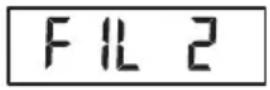
-
Select a filtering level.
-
0: no filtering
- 1: moderate filtering
-
2: high filtering
-
Confirm your selection.
You exit the menu automatically.
Restoring factory settings (RESET)
You can restore the factory settings for the functions below.
| Function Factory setting | |
| Auto hold (Ahold") Model-dependent | |
| Beep (Press) Off | |
| Beep (Hold) On | |
| Filtering (Fil) 0 | |
| Autoclear (Aclear) Model-dependent | |
| Pre-tare (Pt) 0 kg | |
| Height for Body Mass Index (BMI) | 170 cm |
| Wireless module (SYS) Off | |
| Autosend (ASend) Off | |
| Autoprint (APrt) Off | |
NOTE
The wireless module is switched off when factory settings are restored. Information about existing wireless groups is retained. Wireless groups do not have to be set up again.
RESEt
- Select the item "Reset" from the menu.
- Confirm your selection.
You exit the menu automatically.
- Switch off the scale.
Factory settings are restored and are available when the scale is switched back on.
7. THE SECA 360^ WIRELESS NETWORK
7.1 Introduction
seca wireless groups
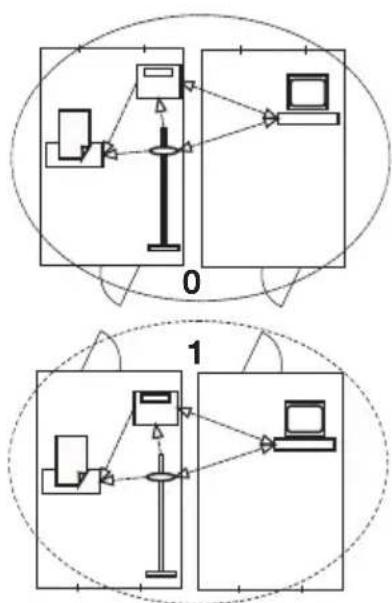
This device is equipped with a wireless module. The wireless module allows wireless transmission of measurement results for evaluation and documentation. Data can be transmitted to the following devices:
- seca wireless printer
PC with seca USB wireless adapter
The seca 360^ wireless network operates with wireless groups. A wireless group is a virtual group of transmitters and receivers. If several transmitters and receivers of the same type are going to be operated, up to 3 wireless groups (0, 1, 2) can be set up with this device.
Setting up several wireless groups ensures the reliable transmission of correctly-addressed measured values if you wish to use several examination rooms each with comparable equipment.
The maximum distance between transmitters and receivers is approx. 10 meters. Certain local circumstances such as the thickness and type of walls, may reduce the range.
The following combination of devices is possible for each wireless group:
1 baby scale
1 personal scale
- 1 length measuring rood
- 1 seca wireless printer
- 1 PC with seca USB wireless adapter
Channels
Within a wireless group, devices communicate with each other on three channels (C1, C2, C3). This guarantees that data are transmitted reliably and without interference.
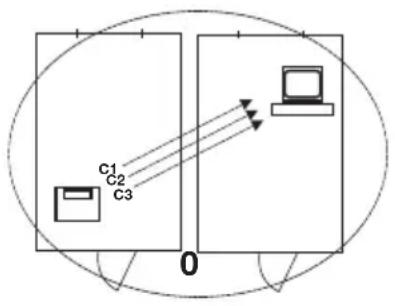
If you set up a wireless group with this scale, the device suggests three channels which will ensure optimal data transmission. We recommend adopting the channel numbers suggested.
You can also manually select the channel numbers (0 to 99), for example if you wish to set up several wireless groups.
To ensure interference-free data transmission, the channels must be spaced sufficiently far apart. We recommend a spacing of min. 30 between channel numbers. Each channel number may only be used for one channel.
Example configuration for channel numbers when setting up 3 wireless groups within a medical practice:
- wireless group 0: C1 = _ 0,C2 = 30,C3 = 60
- wireless group 1: C1=10, C2=40, C3=70
- wireless group 2: C1=20, C2=50, C3=80
Device detection If you set up a wireless group with the scale, it searches for other active devices from the seca 360^ wireless system. The devices detected are shown in the display of the scale in the form of modules (e.g. "MO 3"). The numbers have the following meaning:
1: personal scale
- 2: length measuring rod
- 3: wireless printer
- 4: PC with seca USB wireless adapter
7: baby scale
- 5, 6 and 8-12: reserved for system expansion
7.2 Operating the scale in a wireless group (menu)
All the functions you need to operate the device in a seca wireless group can be found in the "rF" submenu. Information for navigating in the menu can be found on page 81.
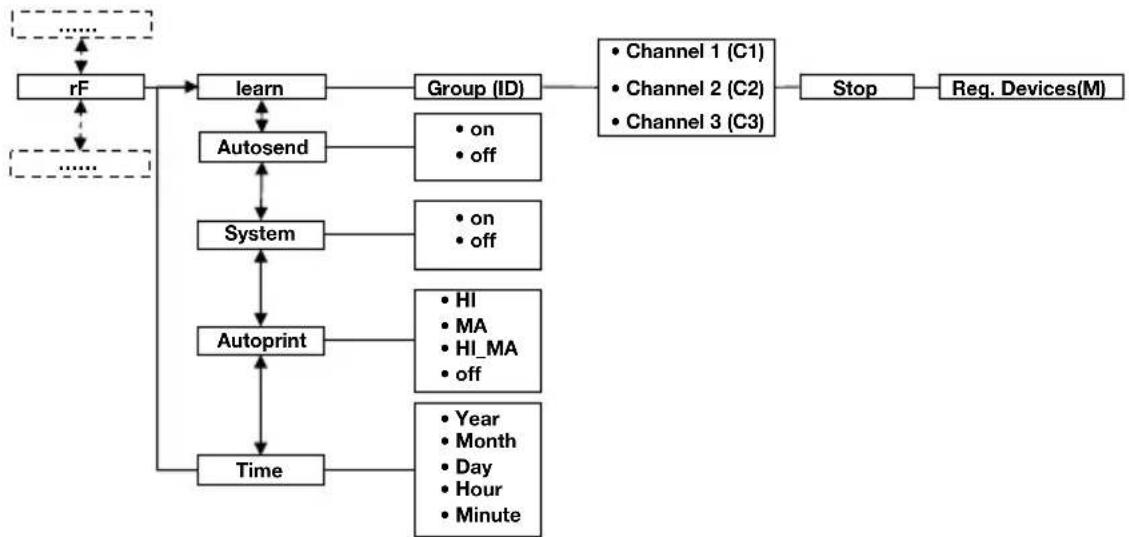
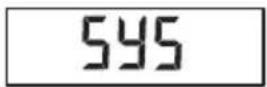
Activating the wireless module (SYS)
The device is supplied with the wireless module deactivated. You have to activate it before you can set up a wireless group.
NOTE
If you activate the wireless module, the power consumption of the device increases. We recommend using a power pack for operating the device in a wireless network.
- Switch on the device.
- Select the "SYS" menu item from the "rF" submenu.
- Confirm your selection.
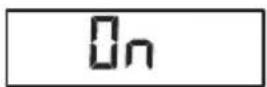
- Select the "On" setting.
- Confirm your selection. You exit the menu automatically.
To set up a wireless group, follow the instructions below.
- Switch on the device.
- Call up the menu.
Setting up a wireless group (Lrn)
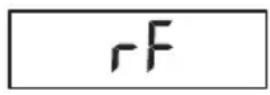
- Select the item "rF" from the menu.
- Confirm your selection.
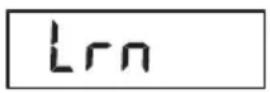
- Select the "Irn" (learn) menu item from the "rF" submenu.
- Confirm your selection.
The wireless group currently set (in this case: wireless group 0 "Id 0") is displayed.
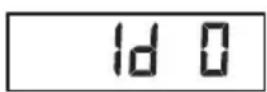
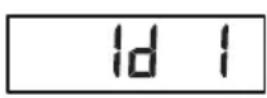
If wireless group "0" already exists, use the arrow keys to select a different ID (in this case: wireless group 1 "Id 1").
- Confirm your selection of wireless group.
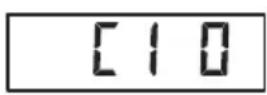
The scale suggests a channel number for Channel 1 (in this case: C1 "0").
You can adopt the proposed channel number or use the arrow keys to set a different channel number.
- Confirm your selection for Channel 1.
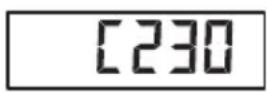
The device suggests a channel number for Channel 2 (in this case: C2 "30").
You can adopt the proposed channel number or use the arrow keys to set a different channel number.
NOTE
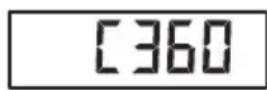
Double-digit channel numbers are displayed without a space. The display "C230" therefore means: Channel "2", channel number "30"
- Confirm your selection for Channel 2.
The device suggests a channel number for Channel 3 (in this case: C3 "60").
You can adopt the proposed channel number or use the arrow keys to set a different channel number.
- Confirm your selection for Channel 3.
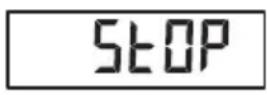
The message StOP appears in the display.
The device waits for signals from other wireless-capable devices in range.
NOTE
On some devices, a special switch-on procedure has to be followed if they are going to be integrated in a wireless group. Follow the instructions for use for the device in question.
#
Activating automatic send (ASend)
A5End
On
- Switch on the device, e.g. a wireless printer, you want to integrate in the wireless group.
When the wireless printer is detected, you will hear a beep.
NOTE
As soon as you have integrated a wireless printer in the wireless group, you then have to select a print option (Menu\rF\APrt) and set the time (Menu\rF\time).
- Repeat step 11. for all the devices you want to integrate in this wireless group.
- Press the Enter key to stop the search procedure.
- Press one of the arrow keys to have the devices which have been detected displayed (in this case: "MO 3" for a wireless printer).
If you have integrated several devices in one wireless group, press the arrow keys several times to ensure that all devices have been detected by the scale.
- Exit the menu using the Enter key or wait until you exit the menu automatically.
You can configure the device so that the measurement results are automatically sent to all receivers which are ready to receive and are registered to the same wireless group (e. g.: wireless printer, PC with USB wireless adapter).
NOTE
If you are using a wireless printer, ensure that "Off" is not set as the print option (see "Selecting print option (APrt)" on page 91).
- Switch on the device.
- Select the "ASend" menu item from the "rF" submenu and confirm your selection.
- Select the "On" setting and confirm your selection. You exit the menu automatically.
Selecting print option (APrt)
You can configure the device so that the measurement results are automatically printed out on a wireless printer registered to the wireless group.
APrt
NOTE
This function is only accessible if a seca wireless printer has been integrated in the wireless group via the "learn" function.
- Switch on the device.
- Select the "APrt" menu item from the "rF" submenu and confirm your selection.
-
Select the setting relevant for your device combination:
-
HI: measurement results from length measuring devices
- MA: measurement results from scales
- HI_MA: measurement results from length measuring devices and scales
-
Off: no automatic printing, printing only possible by pressing and holding the Enter key during the weighing procedure.
-
Confirm your selection.
You exit the menu automatically.
Set the time (Time)
You can configure the system so that the wireless printer automatically adds a date and time to your measurement results. To do this, you have to set date and time once on this device and transmit it to the internal clock of the wireless printer.
NOTE
This function is only accessible if a seca wireless printer has been integrated in the wireless group via the "learn" function.
E INE
YEA10
- Switch on the device.
- Select the "tIME" menu item from the "rF" submenu.
- Confirm your selection. The current setting for "Year" (YEA) is displayed.
- Set the correct year.
- Confirm your selection.
-
Repeat steps 3. and 4. accordingly for "month" (Mon), "day" (dAy), "hour" (hour) and "minute" (Min).
-
Confirm each of your selections.
After confirming the setting for minute, you automatically exit the menu.
The settings are automatically transmitted to the wireless printer.
The wireless printer automatically adds a date and time to every printout.
NOTE
Follow the instructions for use for the wireless printer for further information about operating it.
8. HYGIENE TREATMENT

WARNING!
Electric shock
The device is not de-energized when the on/off key is pressed and the display goes out. Use of fluids on the device may cause electric shock.
- Before each hygiene treatment, remove the mains cable to de-energize the device.
- Ensure that no fluids penetrate the device.

CAUTION!
Damage to device
Inappropriate detergents and disinfectants may damage the sensitive surfaces of the device.
- Do not use aggressive or abrasive cleaning agents.
- Do not use white spirit or petroleum spirit.
- Only use disinfectants suitable for sensitive surfaces. Suitable disinfectants are available from specialist dealers.
8.1 Cleaning
Use a soft cloth dampened with mild soapsuds to clean the surfaces of the device.
8.2 Disinfecting
ATTENTION!
Damage to device
The viewing windows of scales and displays are made of acrylic glass. Acrylic glass windows can crack or become cloudy if unsuitable disinfectants are used on them.
-
Only use disinfectants suitable for sensitive surfaces. Suitable disinfectants are available from specialist dealers.
-
Follow the instructions on the disinfectant.
- Disinfect the device at regular intervals using a soft cloth dampened with a suitable disinfectant.
- Please take note of the following terms:
| Interval Component | |
| Prior to every measurement with direct skin contact | Weighing platform |
| After every measurement with direct skin contact | Weighing platform |
| If required | Display Membrane keyboard |
8.3 Sterilizing
The sterilisation of this device is not permitted.
9. FUNCTION CHECK
Perform a function check before each use.
A complete function check includes:
- a visual inspection for mechanical damage
- a visual inspection and function check of the display
- Function check of all the controls shown in the section entitled "Overview".
- a function check of the optional accessories
If you find faults or deviations during the function check, as a first step try to remedy the fault with the aid of the section entitled "Troubleshooting" from page 94.
CAUTION!
Bodily injury
If you find faults or deviations during the function check which you are unable to remedy with the aid of the section entitled "Troubleshooting" from page 94, you may not use the device.
- Have the device repaired by seca service or by an authorized service partner.
- Please see the section entitled "Servicing/recalibration" on page 96.
10.TROUBLESHOOTING
| Problem Cause / Solution | |
| No weight displayed with a load on the scale. | The scale has no power supply. - Check whether the scale is switched on. - Check whether batteries are inserted. |
| 0.0 does not appear before weighing. | A load was already on the scale before it was switched on. - Remove the load from the scale. - Switch the scale off and back on again. |
| One segment is illumi-nated either continu-ously or not at all. | The corresponding point has a fault. - Inform the service department. |
| The display appears. | Battery power is running down. - Insert new batteries as soon as possible. |
| The display "bAtt" appears. | Batteries are flat. - Insert new batteries. |
| The display "StOP" appears. | Maximum load has been exceeded. - Remove the load from the scale. |
| The display "tEMP" appears. | The ambient temperature of the scale is too high or too low. - Set up the scale in an ambient temperature between +10 °C and +40 °C. - Wait for around 15 minutes until the device has adapted to the ambient temperature. |
| Problem Cause / | Solution |
| After switching on for the first time, measurement results are transmitted and two beeps are heard. | ·The device was unable to send measurement results to the wireless receiver (seca wireless printer or PC with seca USB wireless adapter). - Ensure that the scale is integrated in the wireless network. - Ensure that the receiver is switched on. ·Reception is being interfered with by HF equipment (e.g. cell phones) in the vicinity. - Keep HF equipment at least 1 meter away from transmitters and receivers in the seca wireless network. The actual transmission output of HF equipment may require minimum distances of more than 1 meter. For details, go to www.seca.com. NOTE If this fault is not eliminated, there will be no fresh acoustic warning when further attempts are made to send data. |
| Only the "SYS" item is visible in the "rF" menu. | ·The wireless module is deactivated. - Activate wireless module (see "Activating the wireless module (SYS)" on page 88). |
| Only the "SYS" and "Lrn" items are visible in the "rF" menu. | ·The wireless module is activated and no wireless group is set up. - Set up wireless group (see "Setting up a wireless group (Lrn)" on page 88). |
| The items "APrt" and "Time" are not visible in the "rF" menu. | ·No wireless printer registered to the wireless group. - Register the wireless printer to the wireless group via the "Lrn" menu item (see "Setting up a wireless group (Lrn)" on page 88). |
| After calling up the menu, the "rF" item is not displayed. | ·The scale's wireless module is defective. - Inform seca service. |
| The display "Er:X:11" appears. | The scale has too high a load or too high a load in one corner. - Take the load off the scale or distribute the weight more evenly. - Restart the scale. |
| The display "Er:X:12" appears. | The scale has been switched on with too high a load. - Remove the load from the scale. - Restart the scale. |
| Problem Cause / Solution | |
| The display "Er:X:16" appears. | The scale was caused to oscillate, the zero point could not be determined. - Restart the scale. |
| The Enter key (send/print) is pressed and the display "Er:X:71" appears. | No data transmission possible, wireless module deactivated. - Activate wireless module (see "Activating the wireless module (SYS)" on page 88). |
| The Enter key (send/print) is pressed and the display "Er:X:72" appears. | No data transmission possible, no wireless group set up. - Set up wireless group (see "Setting up a wireless group (Lrn)" on page 88). |
11.SERVICING/RECALIBRATION
11.1 Information on servicing and recalibration
We recommend having your device serviced prior to recalibration.
ATTENTION!
Incorrect measurements as a result of poor servicing
- Have servicing and repairs carried out exclusively by seca service or by an authorized service partner.
- You can find service partners in your area at www.seca.com or by sending an e-mail to service@seca.com.
Have an authorized technician perform recalibration according to national legal regulations. The year of first calibration can be found after the CE symbol on the rating plate above the number of the appointed office 0109 (Hessische Eichdirektion [Hessen Weights & Measures Office]).
Recalibration is necessary whenever one or more calibration seals are damaged or the contents of the calibration counter no longer match the number on the applicable calibration counter sticker. If calibration seals are damaged, contact seca service directly.
11.2 Checking the content of the calibration counter
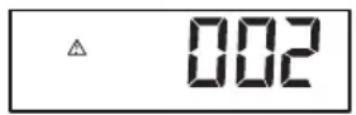

This seca scale is calibrated. Calibrations may only be performed by authorized agencies. To guarantee this, the scale is equipped with a calibration counter to record any change in calibration-related data.
If you want to check whether the scale has been properly calibrated, follow the instructions below.
- If necessary, turn off the scale.
- Press and hold any key and start the scale.
The current content of the calibration counter flashes in the display for a few seconds.
- Compare the content of the calibration counter output with the number given on the calibration counter sticker.
Both numbers have to match for the calibration to be valid. If the sticker and the calibration counter do not match, the scale must be recalibrated. Please contact your service partner or seca service. Once the scale has been recalibrated, a new, updated calibration counter sticker is used to identify the status of the calibration counter. The person authorized to perform the recalibration secures this sticker with an additional seal. The calibration counter sticker can be ordered from seca service.
12. TECHNICAL DATA
12.1 General technical data
| General technical data seca 635 | |
| Dimensions of scale • D e p t h • W i d t h • H e i g h t | 600 mm 640 mm 46 mm |
| Dimensions of weighing platform • D e p t h • W i d t h • H e i g h t | 600 mm 600 mm 46 mm |
| Net weight approx. 14.1 kg | |
| Temperature range • Operation • St o r a g e • Transport | +10 °C to +40 °C / +50 °F to 104 °F -10 °C to +65 °C / +14 °F to 149 °F -10 °C to +65 °C / +14 °F to 149 °F |
| Air pressure • Operation • St o r a g e • Transport | 700-1060 hPa 700-1060 hPa 700-1060 hPa |
| Humidity • Operation • St o r a g e • Transport | 30 % - 80 % no condensation 0 % - 95 % no condensation 0 % - 95 % no condensation |
| Height of digits 25 mm | |
| Power supply Batteries, optional power pack | |
| Power consumption • with wireless module deactivated • with wireless module activated | approx. 25 mA approx. 42 mA |
| Maximum runtime in battery mode • with wireless module disabled • with wireless module activated | approx. 4,800 weighing operations Power pack recommended |
| Medical device in accordance with Directive 93/42/EEC | Class I with measuring function |
| EN 60601-1: • insulated device, protection class II • electrical medical device, type B | □ ▲ |
| Wireless transmission • Frequency band | 2.433 GHz - 2.480 GHz < 10 mW |
| • Transmission power | |
| • Standards applied | EN 300 328 EN 301 489-1 EN 301 489-17 |
12.2 Technical data, weighing
| Technical data, weighing | |
| Calibration in accordance with Directive 2009/23/EC | Class III |
| Maximum load | |
| • Partial weighing range 1 | 200 kg |
| • Partial weighing range 2 | 300 kg |
| Minimum load | |
| • Partial weighing range 1 | 2.0 kg |
| • Partial weighing range 2 | 4.0 kg |
| Increments | |
| • Partial weighing range 1 | 100 g |
| • Partial weighing range 2 | 200 g |
| Tare range 300 kg | |
| Accuracy on initial calibration | |
| • Partial weighing range 1, to 50 kg | ±50 g |
| • Partial weighing range 1, 50 kg to 200 kg | ±100 g |
| • Partial weighing range 2, to 100 kg | ±100 g |
| • Partial weighing range 2, 100 kg to 300 kg | ±200 g |
13.OPTIONAL ACCESSORIES
| seca 360° wireless devices | Article number |
| Length measuring rods • seca 274 • seca 264 | Country-specific versions Country-specific versions |
| Wireless printers • seca 360° wireless printer 465 • seca 360° wireless printer advanced 466 | Country-specific versions Country-specific versions |
| PC software • seca analytics 115 | Application-specific license packages |
| seca 360° wireless USB adapter 456 456-00- | 00-009 |
14.SPARE PARTS
| Spare parts Article number | |
| Power pack with Euro-connector: 230 V~ /50 Hz/12 V= / 130 mA | 68-32-10-252 |
| Switchmode power pack with adapters: 100 - 240 V~ / 50 -60 Hz / 12 V= / 0.5 A | 68-32-10-265 |
15.DISPOSAL
15.1 Device
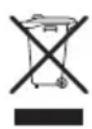
Do not dispose of the device with household waste. The device must be disposed of properly as electronic waste. Comply with the national provisions applicable in your country. For further information contact our service department at:
service@seca.com
15.2 Batteries and rechargeable batteries
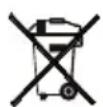
Spent (rechargeable) batteries should not be discarded with household waste, regardless of whether they contain harmful substances or not. As a consumer you are obliged by law to dispose of (rechargeable) batteries via the collection points set up by the municipal authorities or the retail sector. Only discard (rechargeable) batteries when fully discharged.
16.WARRANTY
We offer a two-year warranty from the date of delivery for defects attributable to faulty material or poor workmanship. This excludes all moveable parts such as (rechargeable) batteries, cables, power supply units, etc. Defects which are covered by the warranty shall be rectified free of charge for customers on production of the sales receipt. No further claims can be accepted. The costs of shipment in both directions shall be borne by the customer where the device is not located at the customer's premises. In the event of any damage during shipment warranty claims can only be asserted where the complete original packaging was used for shipment and the scales were secured inside in the same manner as in the original packaging. You should therefore keep all packaging.
The warranty shall become null and void where the device is opened by persons not expressly authorised to do so by seca.
We ask customers based abroad to contact their local sales agent direct in the case of warranty claims.
TABLE DES MATIÈRES
Włuczanie fungcjı Autohold (Ahold)
This device complies with Part 15 of the FCC Rules and with RSS-210 of Industry Canada. Operation is subject to the following two conditions. (1) this device may not cause harmful interference, and (2) this device must accept any interference received, including interference that may cause undesired operation.
NOTE
This device complies with Part 15 of the FCC Rules and with RSS-210 of Industry Canada. Operation is subject to the following two conditions:
- This device may not cause harmful interference.
- This device must accept any interference received, including interference that may cause undesired operation.
NOTE
Changes or modifications made to this equipment not expressly approved by seca may void the FCC authorization to operate this equipment.
NOTE
Radiofrequency radiation exposure Information: This equipment complies with FCC radiation exposure limits set forth for an uncontrolled environment. This equipment should be installed and operated with minimum distance of 1m between the radiator and your body. This transmitter must not be co-located or operating in conjunction with any other antenna or transmitter.
C E
Konformitätserklärung
Declaration of conformity
Certificat de conformité
Dichiarazione di conformità
Declarazione de conformidad
Overensstemmelsesattest
Försakran om überensstämme
Konformitetserklæring
Vaatimuksenmukaisuusvakuutus
Verklaring van overeenkomst
Declaração de conformidade
Δήλωη Συμβατότητας
Prohlášeni o shode
Vastavusdeklaratsion
Megfeleloségi nyilatkozat
Atitikties patvirtinimas
Atbilstības apliecinājums
Oswiadczenie o zgodnosci
Izjava o skladnosti
Vyhlásenie o zhode
Onay belgesi
The non-automatic personal scales
EC type approval D00-09-010
Homologation CE D00-09-010
...corresponds to the type described in the certificate in respect of type approval permit.
The scales comply with the applicable requirements of the following directives:
2009/23/EC governing non-automatic weighing instruments, 93/42/EEC governing medical devices.
Furthermore the following directives are applicable among others:
EN 45501 governing metrological aspects of non-automatic weighing instruments; EN 300 328,
EN 301 489-1 and -17 governing electromagnetic compatibility and radio spectrum matters.