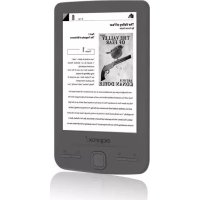
APPEB06G - E-reader Approx - Free user manual and instructions
Find the device manual for free APPEB06G Approx in PDF.


| Product type | Electronic e-book reader |
| Brand | Approx |
| Model | APPEB06G |
| Screen | 4.3 inches, digital ink (E-Ink), resolution 800x600 pixels |
| Processor | Rockchip |
| Internal memory | 4 GB (flash) |
| Expandable storage | Micro SD card up to 32 GB |
| Power supply | Rechargeable battery via USB or power adapter |
| Connectivity | Mini USB (data transfer and charging) |
| Package contents | Device, quick installation guide, micro USB cable |
| Supported formats | Books, images (not specified in detail, but compatible with Adobe DRM) |
| DRM | Compatible with Adobe Digital Editions |
| Navigation | Directional keys, previous/next page buttons, menu, back, virtual keyboard |
| Main functions | Reading books, viewing photos, file explorer, library |
| Minimum system requirements | USB 2.0 port, Windows (or later) |
| Dimensions (estimated) | Approximately 120 x 100 x 10 mm |
| Weight (estimated) | Approximately 150 g |
| Care and cleaning | Soft, dry cloth, avoid liquids |
| Safety | Built-in reset button, forced shutdown by holding the power button |
| Spare parts and repairability | Not specified by the manufacturer |
Frequently Asked Questions - APPEB06G Approx
User questions about APPEB06G Approx
0 question about this device. Answer the ones you know or ask your own.
Ask a new question about this device
Download the instructions for your E-reader in PDF format for free! Find your manual APPEB06G - Approx and take your electronic device back in hand. On this page are published all the documents necessary for the use of your device. APPEB06G by Approx.
USER MANUAL APPEB06G Approx
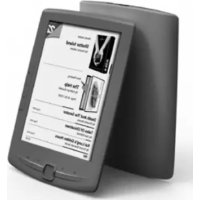
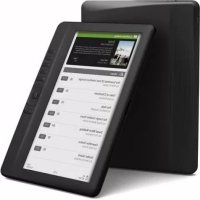
Digital ink E-book Reader 4.3"
Guía de usuario
User Guide
natural_image
Pure technical line drawing of a U-shaped mechanical part with no text or symbols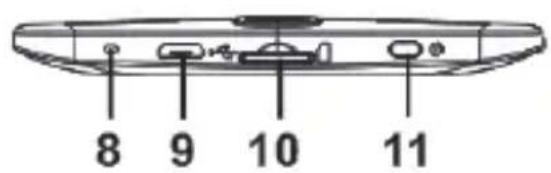
Thank you for choosing eBook APPEB06G
Product description.
E-Book Digital ink 4.3" in which you can read over 2800 books, view images at a resolution of 800x480 pixels.
Its compact and elegant design provides a nice look and robust at the same time, also with its shortcut keys, everything is at within your reach.
Rockchip processor is optimized for multitasking and fast reading and charging.
This E-Book has an internal memory of 4GB flash and also includes a Micro SD card reader that allows you to expand your storage capabilities up to 32GB.
APPROX bet for the ideal solution for the good reader. Read your books as if it were of paper!
Package Contents
- APPEB06G
- Quick Install Guide
- Micro USB cable.
Note: Make sure your pack contains the elements described above. If you find something is missing or damaged, please contact your dealer.
System Requirements
- 1 USB 2.0 Port
- Windows Operating System or superior.
Description of the parts
natural_image
Pure technical line drawing of a U-shaped mechanical part without any text, numbers, or symbols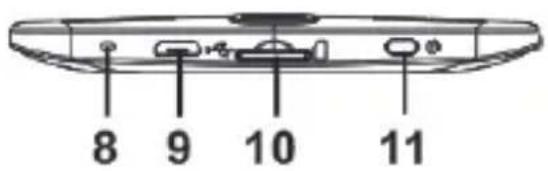
12
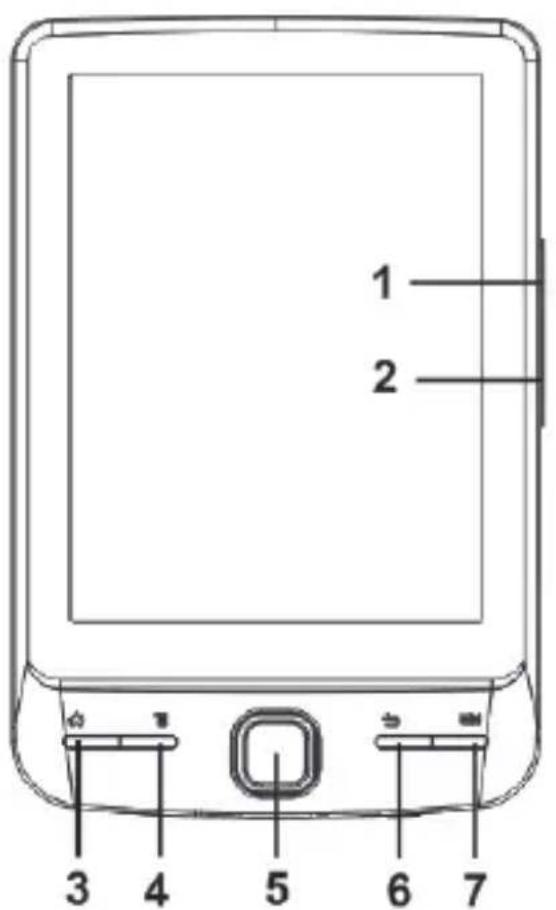
- Page up button
- Page down button
- Home button- press to return to home screen.
- Menu button- press to display option menu.
- Directional buttons/ Enter button
-Directional buttons – press the button up/ down/ left/
right to move cursor
Enter button- Press to confirm or cancel.
- Return button – press once to return to previous menu, press and hold to return to Main menu.
- Keyboard button- press to display/hide the keyboard.
- Charging indicator—when the reader is being charged, red light is on, when fully charged, red light will go out.
- Mini USB jack – for data transfer and emergency charging.
- Memory card slot – supports Micro SD card
- Power button – press and hold for 3 seconds to turn on/off. Press and hold for 3 seconds to restart.
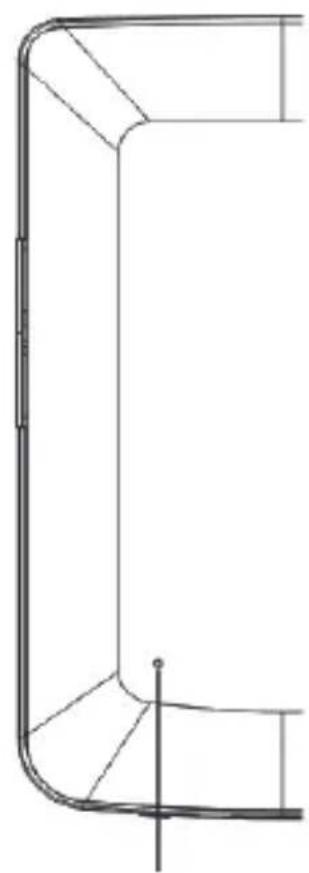
- Reset button
Installation and configuration
1.1 Turning On/Off
- Press and hold the Power button for 3 seconds to turn on/off
1.2 Charging
When battery power is low, charge it by connecting the reader to a computer or USB power adapter via the supplied USB cable.
1.3 Inserting a SD card
- Connect the reader to PC via the supplied USB cable. Computer will recognize the device as a removable disk.
- Perform normal fi le management operation like other USB device.
1.4 Importing DRM Contents
-
Download the Adobe Digital Editions (ADE) installer from http://www.adobe.com/products/digitaleditions/#fp.
-
Install ADE on your computer.
-
For first time user, you are required to register a ADE account.
-
Enter the user name and password to activate your Adobe account, then connect the Reader to PC.
-
Run ADE to authorize PC and Reader.
-
Download or buy ebooks from online ebook stores.
-
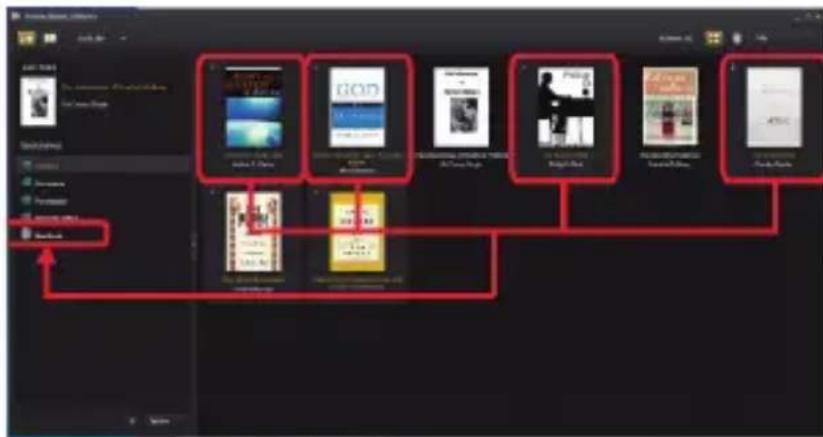
Drag and drop the selected item(s) into the Reader's Drive to transfer DRM ebooks as illustrated below.
1.5 Basics
Use the Directional buttons to move the cursor to the desired item from the list.
Press the Enter button to confirm the selection.
Press the Menu button to display option menu.
Press the Return button to cancel selection or return to previous menu, press and hold to return to Main Menu.
Press the Keyboard button to display/hide the keyboard.
1.6 Settings
From Main menu, select Settings and press the Enter button.
Use the Directional/Enter buttons to set system language and time.
1.7 Reading Books
From the Main menu, select Library and press the Enter button to enter book library.
- From home screen or book library, use the Directional buttons to select a book and press the Enter button to open.
- When reading, press Page up/down or Directional buttons to turn page.
· In reading page, press the Menu button to use the Option Menu.
1.8 Viewing photos
From Main menu, Select Photo and press the Enter button to enter photo viewer.
Select a photo and press the Enter button to full screen view.
Press the Menu button to use the option Menu.
1.9 File Explorer
From Main menu, select File Explorer and press the Enter button to enter fi le explorer.
- Select a folder or file to open.
- Press the Menu button to use the option Menu..
Support.
Please for more information on installing and configuring this product go to our web www.approx.es support section and download the complete guide or write an email to the following address: soporte@approx.es
Introduction.
natural_image
Pure technical line drawing of a U-shaped mechanical part with no text or symbols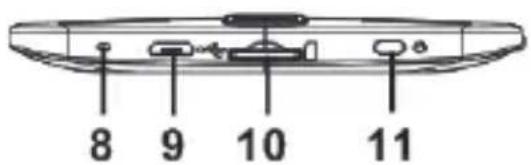
natural_image
Pure technical line drawing of a U-shaped mechanical part with no text or symbols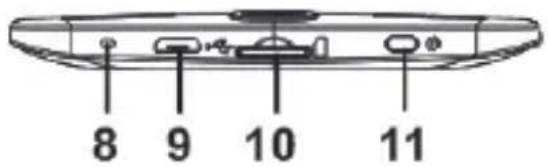
1.5 Basics
natural_image
Pure technical line drawing of a 3D mechanical part with no text, numbers, or symbols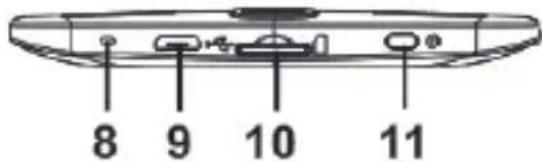
1.5 Nozioni di base
natural_image
Pure technical line drawing of a U-shaped mechanical part with no text or symbols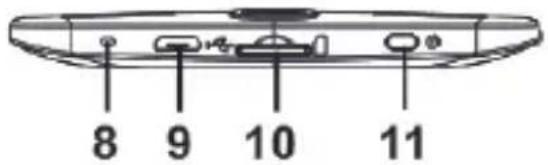
natural_image
Pure technical line drawing of a 3D mechanical part with no text, numbers, or symbols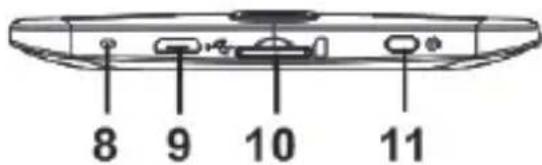
- Stranica se gumb
- Stranica down
- Početna tipka za tisak za povratak na početnom zaslonu.
- Tipka Menu-pritisnite za prikaz opcija izbornika.
- Usmjereni tipke / Enter tipku
-Directional tipke - pritisnite tipku gore / dolje / lijevo / desno za pomicanje kursora
Unesite gumb-Pritisnite za potvrdu ili otkazati.
- Povratak gumb - pritisnite tipku jednom za povratak na prethodni izbornik, pritisnite i držite za povratak na Glavni izbornik.
- Tipkovnica gumb za tisak za prikaz / skrivanje tipkovnicu.
- Oznaka punjenja-kad čitatelj se naplaćuje, crveno svjetlo je na, kad je potpuno napunjena, crveno svjetlo će se ugasiti.
- Mini USB priključak - za prijenos podataka i punjenje hitne.
- Utor za memorijsku karticu - podržava Micro SD karticu
- Gumb - pritisnite i držite 3 sekunde za uključivanje / isključivanje. Pritisnite i držite 3 sekunde za ponovno pokretanje.
- Reset gumb
Instalacija i konfi guracija
1.5 Osnove
Koristite gumbe za pomicanje kursora na željenu stavku s popisa.
Pritisnite gumb Enter za potvrdu odabira.
Pritisnite tipku MENU za prikaz opcija izbornika.
Tipku Povratak otkaza izbor ili povratak na prethodni izbornik, pritisnite i držite tipku za povratak na Glavni izbornik.
Pritisnite gumb za prikaz Keyboard / sakrij tipkovnicu.
1.6 Postavke
Od glavnom izborniku odaberite Postavke, a zatim pritisnite tipku ENTER.
natural_image
Pure technical line drawing of a U-shaped mechanical part with no text or symbols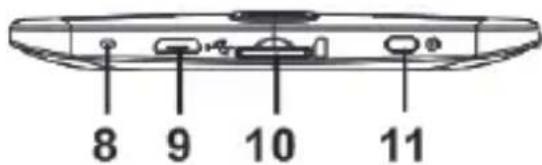
1.5 Podstawy
natural_image
Pure technical line drawing of a 3D mechanical part with no text, numbers, or symbols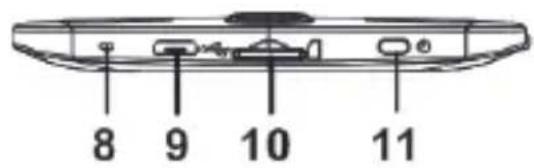
1.5 Βασικά
1.9 to File Explorer
natural_image
Pure technical line drawing of a 3D mechanical part with no text, numbers, or symbols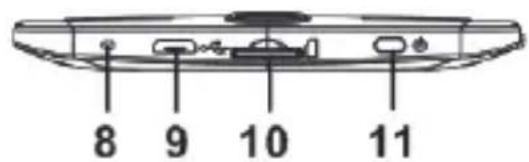
1.5 Temelleri
1.5 Alapjai
natural_image
Pure technical line drawing of a U-shaped mechanical part with no text or symbols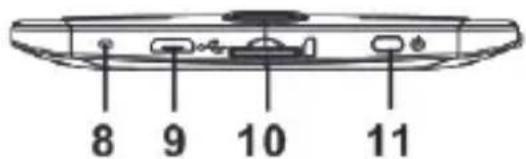
1.5 ОСНОВИ
1.3 Introducerea unui card SD
The content of this guide is subject to typographical errors
aqprox!
www.printyourideas.com
- Digital ink E-book Reader 4.3"
- Product description.
- Package Contents
- System Requirements
- Description of the parts
- Installation and configuration
- Turning On/Off
- Charging
- Inserting a SD card
- Importing DRM Contents
- Basics
- Settings
- Reading Books
- Viewing photos
- File Explorer
- Support.
- Introduction.
- Nozioni di base
- Instalacija i konfi guracija
- Osnove
- Postavke
- Podstawy
- Βασικά
- to File Explorer
- Temelleri
- Alapjai
- ОСНОВИ
- Introducerea unui card SD
Brand : Approx
Model : APPEB06G
Category : E-reader