APPEB02GR - E-reader Approx - Free user manual and instructions
Find the device manual for free APPEB02GR Approx in PDF.


| Product Type | E-Book Reader |
| Brand | Approx |
| Model | APPEB02GR |
| Screen | TFT 7 inch, 800x480 pixels resolution |
| Internal Memory | 4GB Flash |
| Memory Expansion | Micro SD up to 32GB |
| Processor | Boxchip E200 |
| Supported Video Formats | HD 720p, MKV |
| Supported Audio Formats | MP3 (implicit) |
| Supported Image Formats | JPEG, BMP (implicit) |
| Battery | Rechargeable via USB |
| Connections | Mini USB, 3.5mm headphone jack |
| Main Functions | Reading e-books, music, videos, photos, FM radio, file explorer |
| Available Languages | French, English, German, and others |
| Power Supply | Via USB cable (computer or power adapter) |
| Package Contents | Device, quick start guide, micro USB cable |
| Dimensions (approx.) | 190 x 120 x 10 mm |
| Weight (approx.) | 300 g |
| Color | Gray |
| Care and Cleaning | Clean with a soft dry cloth |
| Safety | Do not expose to moisture, use in a dry environment |
| Spare Parts and Repairability | Contact after-sales service by email: soporte@approx.es |
Frequently Asked Questions - APPEB02GR Approx
User questions about APPEB02GR Approx
0 question about this device. Answer the ones you know or ask your own.
Ask a new question about this device
Download the instructions for your E-reader in PDF format for free! Find your manual APPEB02GR - Approx and take your electronic device back in hand. On this page are published all the documents necessary for the use of your device. APPEB02GR by Approx.
USER MANUAL APPEB02GR Approx
Multimedia Colorbook 7" TFT
PbKOBOdCTBO 3a noTpe6nteIa
Noctabete npabnHc KapTaC KOHTaTHaT a NH coH harope.
1,4ПрexВьряниВвocnteКиHaСьдьржанe
- CbpxkTe uHtAeTnKbM KOMNIOBp Upe3 npedocBeHn USB ka6en. KomnIOBpBT ige pa3no3Hae yCTPOIcTBOTO KATo CmHReM DnCK.
2.ИЗВьршване на Hopмалнаразота на управлени на садюбete, кato дpyro
yctpoiCTBOc USB.
1.5ИмпортуареСьдьрхане на управлени на сифpoви параВa
- Истене Adobe Digital Editions (AOД) Истенатopa ot http://www.adobe.com/products/digital Editions/#FP.
2.Инстампайе ADE на Валшя KMNTIbP. - 3a nbpBn nbT ha noTppe6nteIa, Bne cTe nnbXHn da ce pernctpnpat ADE cmetka.
- BbBeTeIOTpe6nteNcKToCn Ime n napOla, 3a daakTINBnPate CBOrTa CMeTKa Ha Adobe, cIed KOeTO CBpXeTe UITaTeJI KbM KOMNIOTpP.
5.Пусни ADE,за за пазршни PCи чтател. - I3TeTJIHe IIN Da Cn KYNITE KHINrTa OT OHJaH MaRa3Hb 3a eJEKTPoHHN KHNrN.
- Плбзөгүдүйсэнүлэдүлүдүдүдүдүдүдүдүдүдүдүдүдүдүдүдүдүдүдүдүдүдүдүдүдүдүдүдүдүдүдүдүдүдүдүдүдүдүдүдүдүдүдүдүдүдүдүдүдүдүдүdэл.
- Плбзөгүдүдүйсэнэлэдүлэдүлэдүлэдүдэл.
- Плбзөгүдүдүйсэнэлэдүлэдүлэдүлэдүлэдэл.
- Плбзөгүдүдүйсэнэлэдүлэдүлэдүлэдүлэдэл.
- Плбзөгүдүдүйсэнэлэдүлэдүлэдүлэдэл.
- Плбзөгүдүдүйсэнэлэдүлэдүлэдүлэдэл.
- Плбзөгүдүдүйсэнэлэдүлэдүлэдэл.
- Плбзөгүдүدэл.
- Плбзөгүдүدэл.
- Плбзөгүдүدэл.
- Плбзөгүдүدэл.
- Плбзөгүдүدэл.
- Плбзөгүдүدэл.
- Плбзөгүдүدэл.
- Плбз.Cosнгий.
- Плбз Cosнгий.
- Плбз Cosнгий.
- Плбз Cosнгий.
- Плбз Cosнгий.
- Плбз Cosнгий.
- Плбз Cosнгий.
- Плбз Cosнгий.
- Плбз Cosнгий.
- Плбз Cosнгий.
- Плбз Cosnrgy.
- Плбз Cosnrgy.
- Плбз Cosnrgy.
- Плбз Cosnrgy.
- Плбз Cosnrgy.
- Плбз Cosnrgy.
- Плбз Cosnrgy.
- Плбз Cosnrgy.
- Плбз Cosnrgy.
- Плбз Cosnrgy
- Плбз Cosnrgy.
- Плбз Cosnrgy.
- Плбз Cosnrgy.
- Плбз Cosnrgy
- Плбз Cosnrgy
- Плбз Cosnrgy
- Плбз Cosnrgy
- Плбз Cosnrgy
- Плбз Cosnrgy
- Плбз Cosnrgy
- Плбз Cosnrgy
- Плбз Cosnrgy
- Плбз Cosnrgy
- В устюк STВо Ha чтATEЯда
- В устюк STВо
- В устюк STВо
- В устюк STВо
- В устюк STВо
- В устюк STВо
- В устюк STВо
- В устюк STВо
- В устюк STВо
- В устюк STВо
- В устюк STВо
1.6 OCHOBM
HaTnCHTe 6yToHa 3a BpBuaHe IIO BCaKO BpeMe Da Ce BbpHeTe KbM npeNiun Hn EKpaH,HaTnCHTe N 3aDpbXKe,3a Da Ce BbpHeTe KbM HaayanHn EKpaH.
HaTnchete 6yToHa MeHIO,3a da ce nokaxe MeHIOTO COnIuIN.
I36epete Nkoha OT hauaHOTo MeHIO, 3a da OTbOpTe JxelaHOTO npnloXeHne.
3a da n3Je3eTe OT MeHIOTo, HATNCHEte OTHOBo 6yToHa MeHIO.
I3noJI3BaIte 6yToHInTe 3a NocOKn, 3a da npeBbPITe CnncbKa c faiIOBe.
1.7 HacrtpoiKn
OttBnTo MeHIO n36epTe [HaTpoiKn], cIeT TOBa DOKoCHTe JKeJAHInTe eJeMeHTN, da 6bIe KOHfIpynpaH Da cTApTnpa N3rpaKdAHeTO.
1.8 YeTeHe Ha KHMn
OT nauHnE ekpaH, n3noI3BaIte 6yToHInTe 3a NocOKInTe 3a da npemeCTInTe Kypcopa
KbM JKeHaHaTa KHe, HATnCHete 6yToHa OK, 3a da pa3rBHe KHe rata.
Korato yeTe,HaTnchTe 6yToHa Ha CJIeDbaUa/ npednHa CTpaHnua nn Directionalright/left,3a Da Ce npeBbPHe CTpaHnUaTa. HATncHete 6yToHa 3a MauabnpaHe,3a da npomehnte rolemnHaTa Ha uPnOta Ha EBook.
HaTnchete 6yToHa MeHIO,3a Da BHe3eTe B MeHIOTO COnUIN.
PeynilpaTe HnBTo Ha 3Byka. HatncHe6yToHa Directional-Up/Down.
3a da n3noJ3BaTe onu r O MeHIO To HATnCHeTe 6yToHa MeHIO.
1.10 YeTeHe Ha KHNr,doKaTo nrgpaT Ha My3nka
- 3a ynpableneHne Ha Bb3npoN3BexJaHeTo Ha My3nKa B KHnRaTa CtpaHnCa, HATNCHeTe 6ytoHa Play / Pause n MmHb ap irpauch 3a ynpableneHne Ha My3nKaTa Ue ce IPOBn B DOJIHaT aYact Ha CtpaHnCaTa.
- Hatnchete My3nkaJIHn 6yToHn 3a ynpaBHeHne, 3a ynpaBHeHne Ha Bb3npon3BexJaHcTo Ha My3nKa.
HaTnchete 6yToHa 3a BpbUaHe I Da NODHOBn HopMaJIHaTa Cn KHnra, YeTeHe KOHTpOJI.
1.11 rIeJaHe Ha BnDeo (no XeJaanHe)
OT MeHIOTo HauaIoo n36epete BnDeo, da BnI3a B 6n6nIOTeKa BnDeo.
B BnIeO 6n6nIOTeKa, npemecTe Kypcopa Do JKeHaHry OT Bac BIneO faiN n da HATnCHHe 6yToHa OK, 3a Da 3anOpHe Ta IrpaTe.
1,12 KoHTpOJIHnIy Bb3npOu3BexKdAHe Ha BVideo
Enter /ɪnɜxɒŋ ot ɪərɛkpaɪn 6bɪtɔHa Zoom Ḥaɪschete,
YBéniuBaHe / HamaIaBaHe Ha 6yToHa 3a 3Byka HaTncHete Directional-Left/Right
Прешина Виdeo / Fast Rewind Hatисенте с поска наюу 6утон
Следваши Виdeo / Fast Forward натуншete Directional-6утона
Play / Pause Bnpeo Hatachte 6yToHa OK
3a da n3noI3BaTe onu r O MeHIO To HATnChTe 6yToHa MeHIO.
Thank you for choosing eBook APPEB02GR
Product description.
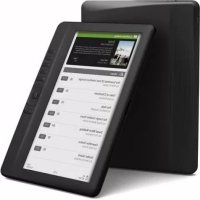
E-Book TFT 7 " in which you can read over 2800 books, view images or videos in 720p HD MKV at a resolution of 800x480 pixels.
Its compact and elegant design provides a nice look and robust at the same time, also with its shortcut keys everything is at within your reach.
Boxchip E200 processor is optimized for multitasking and rapid response to all applications..
This E-Book has an internal memory of 4 GB flash and also includes a Micro SD card reader that allows you to expand your storage capabilities up to 32GB.
Internal sound card makes this E-Book a great multimedia player to spend your leisure time in style.
APPROX bet for the ideal solution for the good reader and lover of the multimedia world. Say goodbye to boredom!
Package Contents
APPEBO2GR
Quick Install Guide
- Micro USB cable.
Note: Make sure your pack contains the elements described above. If you find something is missing or damaged, please contact your dealer.
System Requirements
-
1 Port USB 2.0
-
Windows Operating System or superior.
Description of the parts
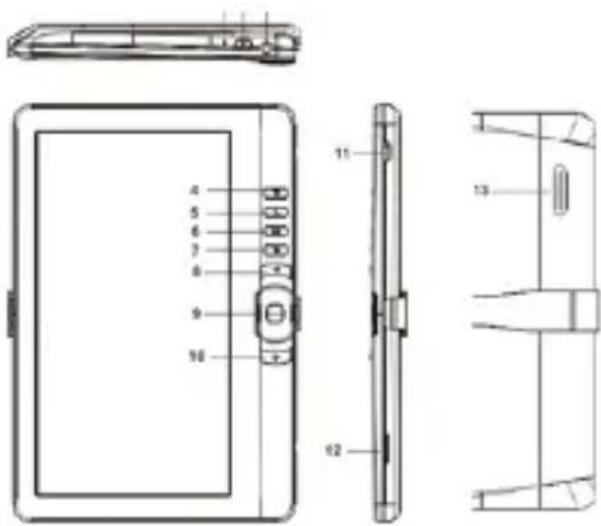
- Earphone jack 8. Previous pg button
- Power button 9. Directional /OK button
- Charging indicator 10.Next pg button
- Menu button 11. Mini USB jack
- Zoom button 12. TF card slot
- Play/Pause button 13. Speak
7.Return button
Installation and configuration.
1.1 Turning On/Off A
- Press and hold the Power button for 3 seconds to turn on/off
1.2 Charging
When battery power is low, charge it by connecting the reader to a computer or USB power adapter via the supplied USB cable.
1.3 Inserting a SD card
Insert the card correctly with the contact pin facing upwards.
1.4 Transfering and Importing Content
-
Connect the reader to PC via the supplied USB cable. Computer will recognize the device as a removable disk.
-
Perform normal file management operation like other USB device.
1.5 Importing DRM Contents
- Download the Adobe Digital Editions (ADE) installer from http://www.adobe.com/products/digital Editions/#fp.
- Install ADE on your computer.
- For first time user, you are required to register a ADE account.
- Enter the user name and password to activate your Adobe account, then connect the Reader to PC.
- Run ADE to authorize PC and Reader.
- Download or buy eBooks from online ebook stores.
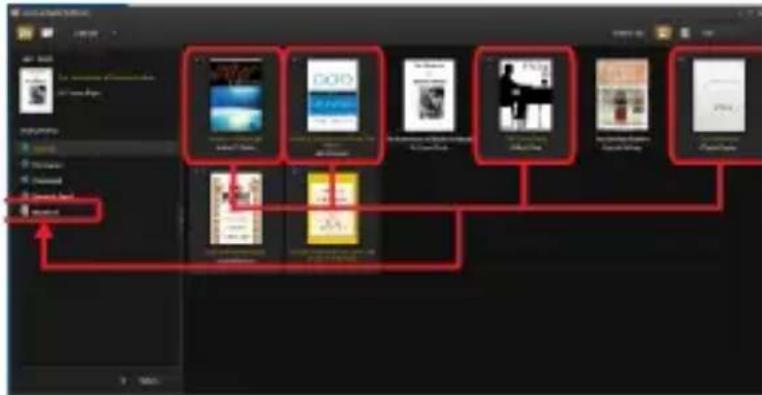
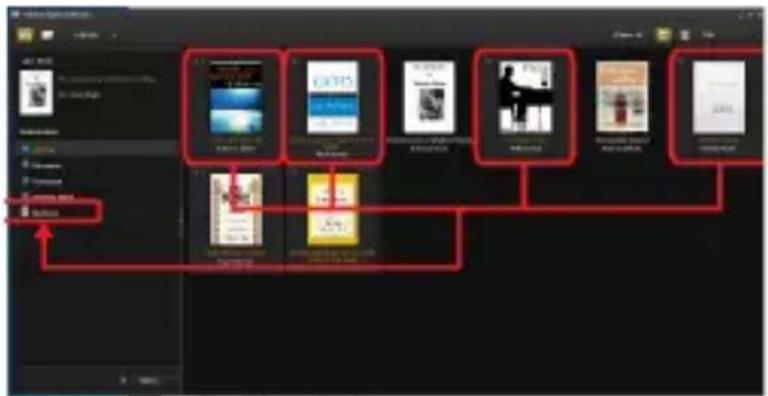
- Drag and drop the selected item(s) into the Reader's Drive to transfer DRM eBooks as illustrated below.
1.6 Basics
Press Return button anytime to return to previous screen. Press and hold to return to home screen.
Press Menu button to display the option menu.
Select an icon from Home menu to open the desired application.
To exit from menu, press Menu button again.
Use the Directional buttons to scroll the file list.
1.7 Settings
From Main menu, choose [Setting], then tap the desired items to be configured to start
the Setting.
1.8 Reading Books
From home screen, use the Directional buttons to move the cursor to the desired book, press OK Button to open the book.
When reading, press Next/Previous page or Directional-right/left button to turn page.
Press Zoom button to change font size of ebook.
Press Menu button to enter the option Menu.
1.9 Playing Music
From Home menu, select Music, then move the cursor
to the desired music file and press OK button to start
playing.
Controlling Song Playback
Play /Pause song. Press OK button.
Play previous or next song. Press Directional-Left/Right button.
Rewind or fast forward. Press and hold Directional-Left/Right button.
Adjust the volume level. Press Directional-Up/Down button.
To use the option menu. Press Menu button.
1.10 Reading books while playing music
- To control music playback in book page, press Play/Pause button and a mini music player control bar will appear at the bottom of the page.
- Press the music control buttons to control music playback.
- Press Return button and resume normal book reading controls.
1.11 Watching Videos(optional)
From Home menu, select Video to enter into the video library.
In video library, move the cursor to your desired video file and press OK button to start playing.
1.12 Controlling Video Playback
Enter/Exit Full Screen. Press Zoom button
Increase/Decrease Volume. Press Directional-Left/Right button
Previous Video / Fast Rewind. Press Directional-down button
Next Video / Fast Forward. Press Directional-up button
Play / Pause a video. Press OK button
To use the option menu. Press Menu button.
1.13 Viewing photos
From Home menu, select Photo to enter into the photo library.
In photo library, move the cursor to your desired video file and press OK button to start viewing
-
Press Directional-left/right button to view previous and next photo.
-
Press Zoom button to zoom in/out, press Return button to resume normal operation.
-
During photo viewing, press Menu button to use the option menu.
1.14 File Explorer
From Home menu, select Explorer.
-
Press Directional-Left/Right to select Internal / SD card memory and press OK button to enter.
-
To copy/delete file by pressing Menu button.
1.15 Radio
IN the HOME menu select RADIO. Connect the headphones to the 3.5mm jack input to have antenna. Perform a channel scan and save the desired channels.
Technical Support: Please for more information about installing and configuration of this product go to our web www.approx.es support section and download the complete guide or write an email to the following address: soporte@approx.es
Introduccion.
Podesite razinu glasnoce. Pritisnite gumb Directional-Up/Down.
Da biste koristili Pritisnite tipku MENU izbornika.
1.3 Introducerea unui card SD
Introduci cardul in mod corect, cu pini de contact cu care se confronta in sus.
products/digital editions/#fp.
The content of this guide is subject to typographical errors
- Multimedia Colorbook 7" TFT
- 1,4ПрexВьряниВвocnteКиHaСьдьржанe
- 1.5ИмпортуареСьдьрхане на управлени на сифpoви параВa
- OCHOBM
- HacrtpoiKn
- YeTeHe Ha KHMn
- YeTeHe Ha KHNr,doKaTo nrgpaT Ha My3nka
- rIeJaHe Ha BnDeo (no XeJaanHe)
- 1,12 KoHTpOJIHnIy Bb3npOu3BexKdAHe Ha BVideo
- Product description.
- Package Contents
- System Requirements
- Description of the parts
- Installation and configuration.
- Turning On/Off A
- Charging
- Inserting a SD card
- Transfering and Importing Content
- Importing DRM Contents
- Basics
- Settings
- Reading Books
- Playing Music
- Controlling Song Playback
- Reading books while playing music
- Watching Videos(optional)
- Controlling Video Playback
- Viewing photos
- File Explorer
- Radio
- Introduccion.
- Introducerea unui card SD
Brand : Approx
Model : APPEB02GR
Category : E-reader