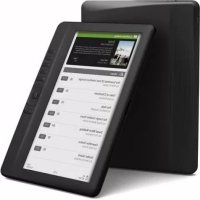
APPEB02E - E-reader Approx - Free user manual and instructions
Find the device manual for free APPEB02E Approx in PDF.



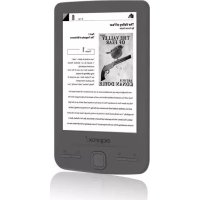
| Product type | Color e-reader |
| Brand | Approx |
| Model | APPEB02E |
| Screen | 7 inches TFT-LCD, 800x480 pixels, brightness 250 cd/m² |
| Internal memory | 32 GB |
| Expandable memory | TF card up to 16 GB (FAT or NTFS) |
| eBook formats | EPUB, PDF, TXT, FB2, PDB, HTML |
| Audio formats | MP3, WMA, AAC, WAV, OGG |
| Video formats | MPEG-1/2/4, Xvid, DivX, H.263, H.264, RM/RMVB, MKV, MOV, VOB, FLV, WMV (up to HD 720p) |
| Photo formats | jpg, bmp, gif |
| Connectivity | USB 2.0 high speed, 3.5 mm headphone jack, built-in speaker |
| Power supply | DC 5.0 V, 1.2 A via USB; charge approx. 6 hours |
| Battery life | Reading: up to 8 hours; Music: up to 40 hours (backlight off); Video: up to 7 hours |
| Dimensions | 187.4 × 128.5 × 11.8 mm |
| Weight | 280 g |
| Main features | eBook reading with bookmarks, page search, rotation, display settings, zoom, auto flip, add to favorites, audio/video player, photo viewer, file explorer, speaker, G-sensor |
| Maintenance and cleaning | Screen: soft cloth; avoid moisture and shocks; do not use abrasive products |
| Safety | Do not expose to extreme temperatures; moderate volume for headphones |
| Spare parts / repairability | Internal battery; contact authorized dealer for repair |
Frequently Asked Questions - APPEB02E Approx
User questions about APPEB02E Approx
0 question about this device. Answer the ones you know or ask your own.
Ask a new question about this device
Download the instructions for your E-reader in PDF format for free! Find your manual APPEB02E - Approx and take your electronic device back in hand. On this page are published all the documents necessary for the use of your device. APPEB02E by Approx.
USER MANUAL APPEB02E Approx
Complete User's Guide
Tabla de Contenidos
Renunciation 1
Introduccion 1
Audio: 3.5mm audio jack
Parts and Controls 2
Power on Reader. 3
Charging 3
Inserng Memory Card 4
Starng from Home Menu 5
Entering Opon Menu 6
Imporng & Transferring Content 7
Imporng Content 7
Imporng DRM Content 7
Installing Adobe Digital Edions 7
Authorizing PC & Reader 8
Transferring DRM eBooks to Reader. 8
Reading 10
Opening eBook 10
Turning Page 10
Adjusng Font Size 11
Zooming In/Out 11
Using Opon Menu in Reading 12
Adding/Deleng Bookmarks 12
Read fromBookmark 13
Go to Page 13
Auto Flip 14
Book Informaon 14
Rotate 14
Display Sengs. 15
Add to Favorite 15
Background Music 15
Playing Audio File 16
Playing Video File 17
Viewing Picture 18
File Explorer 19
Sengs 20
Troubleshooting 21
Precauons and Maintenance 22
Product Specicaons 24
Copyright and Trademark Noce 25
All the informmaon, design and specicaons contained in this manual were correct at the me of publicaon. However, as the product is under development and upgrading, the nal device may have a slightly dierent appearance or modied functionality than presented in this manual.
Introducon
APPEB02G is an eBook reader with full color display screen.
APPEB02G supports eBooks encrypted with Adobe DRM.
Package Content
- eBook Reader
- USB cable
- User Manual
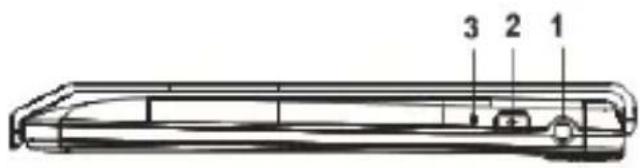
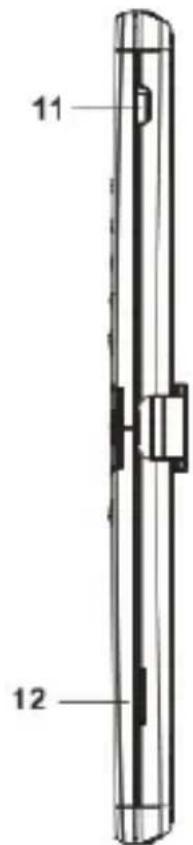
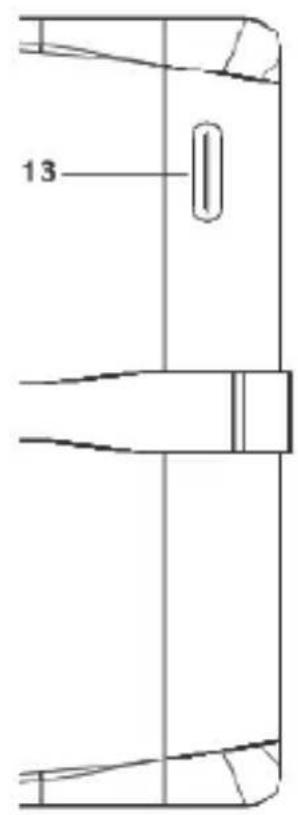
- Earphone jack
- Power buoy - press and hold for 3 seconds to turn on/off, press and hold 6 seconds to reset.
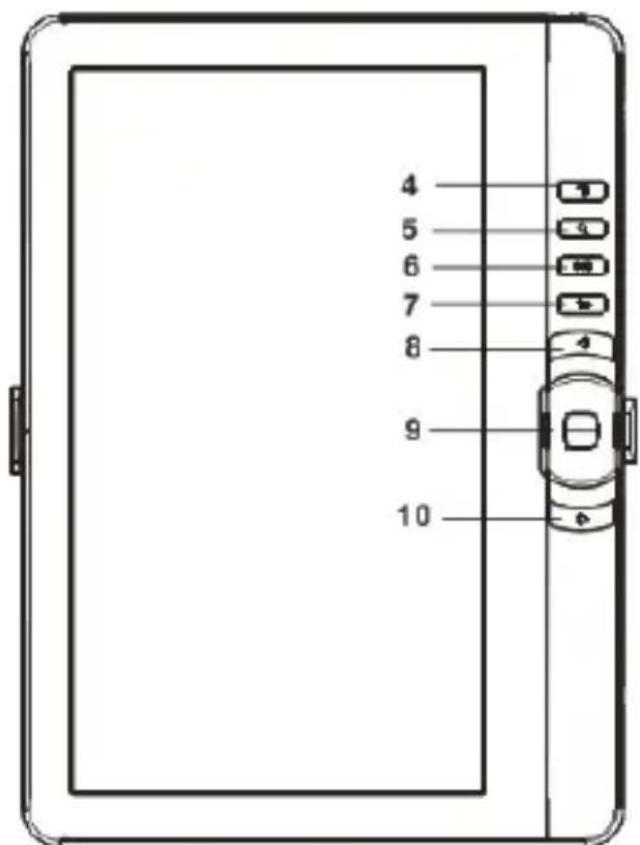
- Charging indicator- when the reader is being charged, red light is on, when fully charged, blue light is on.
- Menu buon - press to display Opon Menu
- Zoom buon – press to adjust font size or to zoom in/out
- Play/Pause buoy - to enter into music playing menu
- Return buon - press once to return to previous menu, press and hold to return to Home menu
- Previous pg buon – press to turn to previous page
- Direconal buons/ OKbuon
Direconal buons – Press the buoy up/ down/ le/ right to move cursor
OK buon- Press to conrm or cancel.
- Next pg buon - press to turn to next page
- Mini USB jack – for data transfer and emergency charging
- TF card slot - supports TF card
- Speaker
Power On and O the Reader
- Press and hold the [Power] buon for 3 seconds to turn on Reader.
- It may take a few moments for reader to turn on and loading the content.
- If Reader does not turn on, charging is required.
- To turn off Reader, press and hold [Power] buon for 3 seconds.
Charging the Reader
- You need to charge the Reader prior to using it for the rst me or when baery power is low.
- Please turn the Reader to standby mode to shorten the charging process.
- It will take about 6 hours to fully charger the reader in standby mode (LCD o)
- You can also charge the reader by connecng to PC. Upon successful conneccon to PC, press the OK buon to select "Power". Charging through PC may not be able to fully charge the reader due to the low output charging current from PC USB port.
- When DC /USB power cable is connected to the reader for charging, the reader will enter into standby mode aer remains idle for 60 s. Press the [Power] buoy to wake up the reader.
- The baery status is displayed at the boom le corner. The remaining baery playback me is displayed right next to the baery icon.
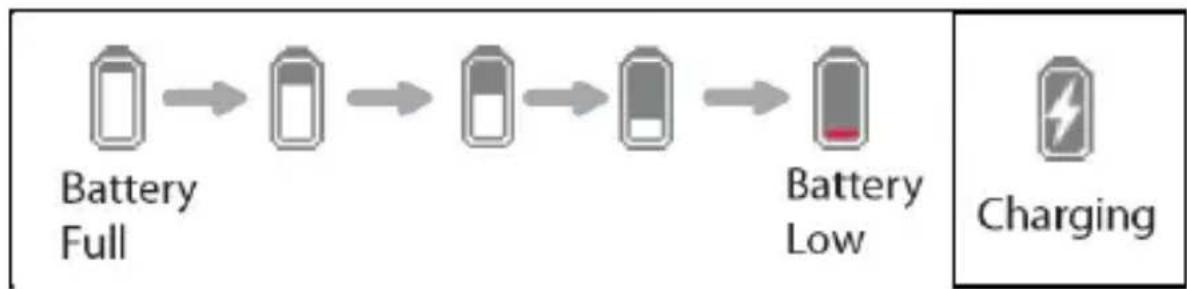
Inserng Memory Card
The Reader supports TF card in both FAT and NTFS le system. NTFS is needed to copy le with size larger than 4GB.
To insert a Memory card:
- Check that the TF card is in the correct posion with the contact pin facing upwards as illustrated below. You may damage the card and the reader if TF card is not inserted in correct posion.
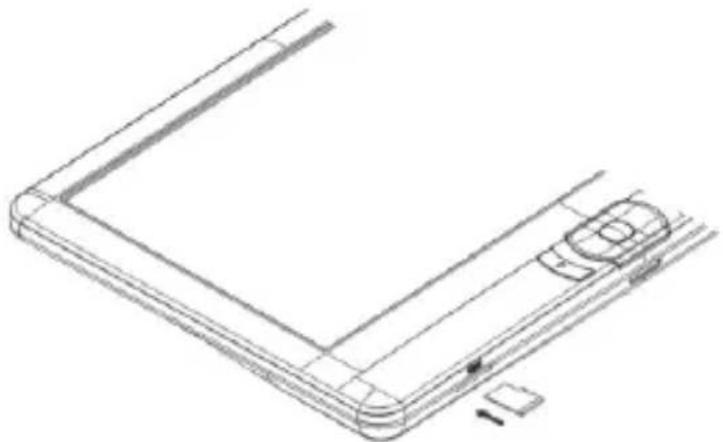
- Push the TF card into the card slot unl it clicks.
- To remove TF card, push the TF card once again until it clicks.
- When a TF card is inserted in or ejected from the reader, it may take few seconds for the reader to update the content.
- Please avoid inserting or ejecting TF card when other operands are running as this may cause the system hang.
- Do not remove the card if the content inside the card is being played. This will halt the operon of the reader and cause the reader to restart.
- If the system is not responding, press and hold the
buon for 6 seconds to reset and turn it o.
Limitaons with NTFS le system:
- Books in the card are not recognized by ADE when connected to PC.
- Direct copy of les from internal memory to card is not supported.
Starng from Home Menu
When the Reader is turn on, you will enter into the Home Menu.
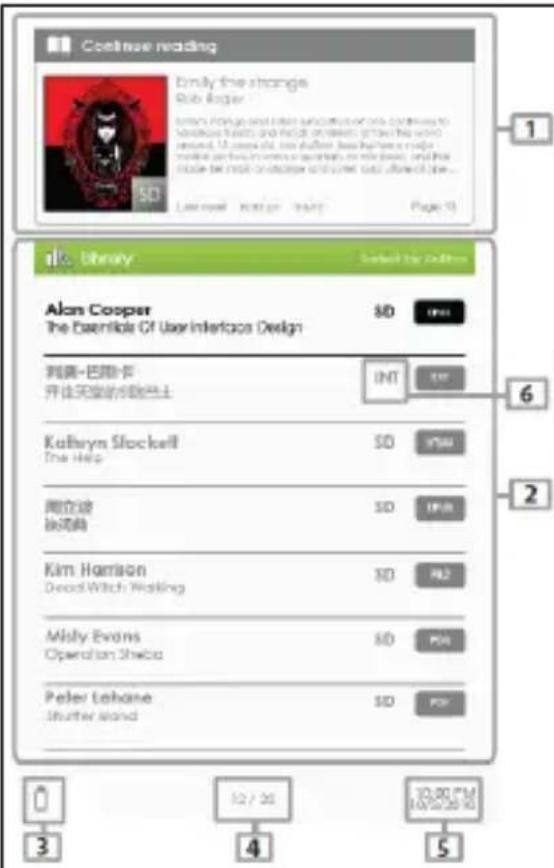
1. Connue Reading
-display the page of the last read book. Press OK>buon to open the last read page.
2. Library
-display the list of books available. Move the cursor to desired book and press OK> buon to open it.
3. Baery Indicator
-displays baery status during operaon.
4. Page Number
-displays current page number and total available pages.
5. Time & Date
-display current me and date, you can set this from the [Sengs].
6. File Directory
- indicates the locaon where the le is stored. SD - SD card, INT - internal memory
Entering Opon Menu
To access extra funcons available, press [Menu] buon to display the
Opon Menu as illustrated.
Press the direconal key to move cursor to desired item. Selected item will be highlighted in dark.
Press < 0K> to enter.
To exit from Opon menu, move cursor to and press
Alternatively, press the
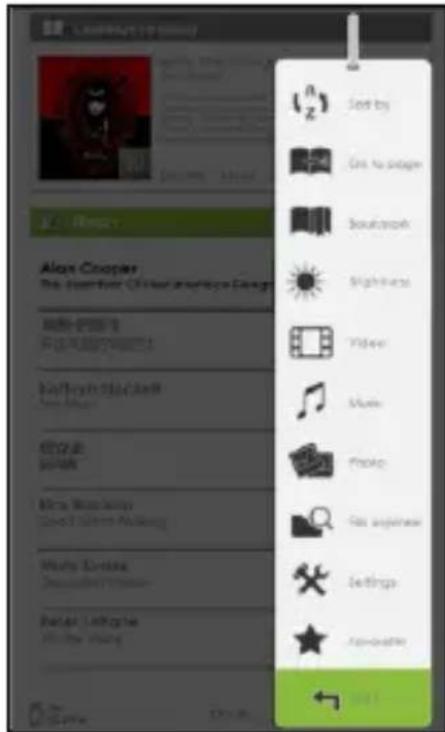
To sort books by dierent categories: Title, Author, Date, Format
Jump to a specic page
Read from previously added bookmarks
Adjust brightness of the display screen
Enter into Video Player
Enter into Music Player
Enter into Photo Viewer
Enter into File Explorer for advance le management
Enter into System sengs
Open your favorite book list
Imporng Content
- The Reader supports USB Mass Storage Device funcon.
- To import contents ( eBooks, video, audio, photo etc) into the reader, connect the reader to PC via the supplied USB cable.
- Upon successful connec to PC, press the Direconal buon to move cursor and press the OK buon to select "Data", the reader will enter USB mode and all operaoon will be halted.
- Go to [My Computer], double click on the reader's disk to open.
- Perform normal le management operaoon like other USB device.
Imporng DRM Contents
The Reader supports Adobe DRM contents. Adobe Digital Edions (ADE) is required.
Installing Adobe Digital Edions (ADE)
- The ADE installer is preloaded into the Reader.
- Connect the Reader to PC via the supplied USB cable and open the reader as removable disk. Go to [My Computer], double click on the reader's disk to open.
- Make sure your computer is connected to internet
- Double click on the [digitaleddions_172] le to open the installer.
- Alternatively, you can download the installer from http://www.adobe.com/products/digitaledions/#fp.
- For rst me user, you will need to get a free adobe ID from adobe website. Click on the [get an Adobe ID online] link as illustrated:
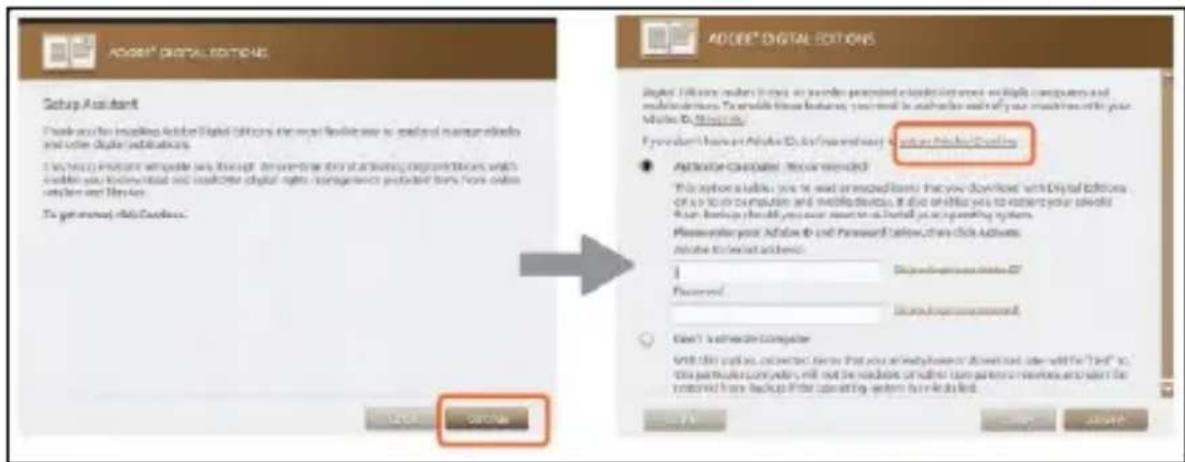
- Enter your email address and complete the online form as per instructed.
Authorizing PC and Reader
- Upon registrant, return to the ADE window. Enter the username and password to acvate your Adobe account.
- Aer acvaon, connect the Reader to PC. ADE will detect the Reader and you are prompted to authorize device.
- Aer authorization, you will be able to nd the Reader recognized in ADE as below. Contents inside the Reader will be displayed on the right hand windows.
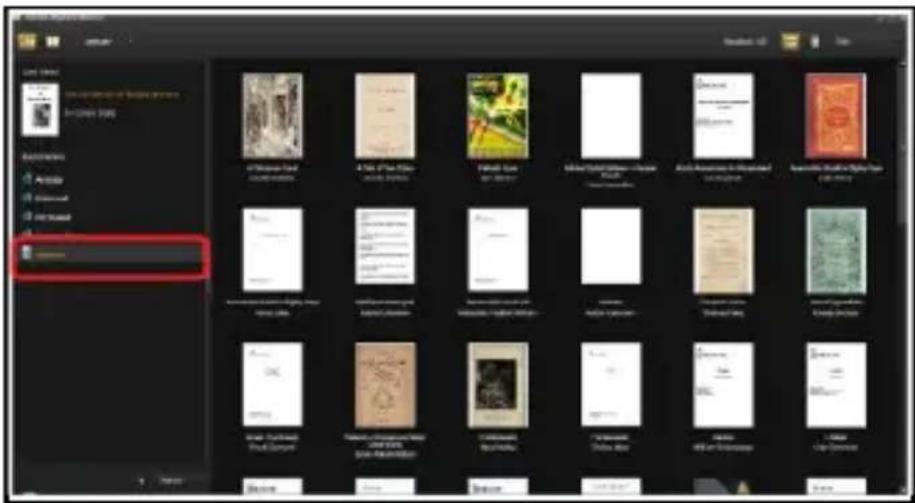
- You can now start downloading or buying eBooks from online. Ebook stores supporting Adobe DRM.
- Purchased or downloaded eBooks will be stored in [My Digital Edions] in [My Documents].
Transferring DRM eBooks to Reader
- From ADE menu, click on [All Items] on the le hand column
- Items in [My Digital Edioms] will be listed down in right window.
- Select the desired item(s) to be transferred,
+ to select mulple les. - Drag and drop the selected item(s) into the Reader's Drive located on the last row of the le side column as illustrated below.
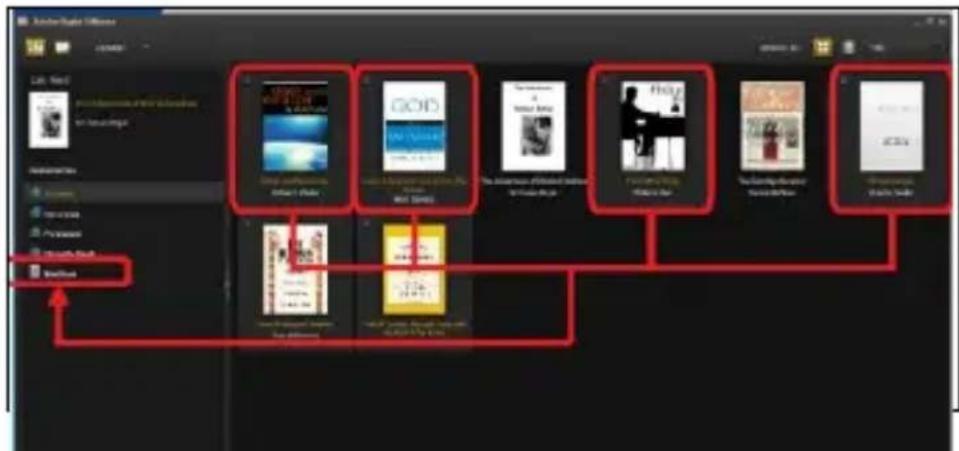
Each ADE ID supports only 6 devices, this includes the master device (the reader) and the slave device (TF card).
When the reader is restored to default sengs, ALL DRM acvaon record and data (including DRM books purchased) will be erased from the reader. You are required to authorize the device with your ADE ID again.
When the number of authorized device has exceeded the allowable amount, you will come across the following error message:
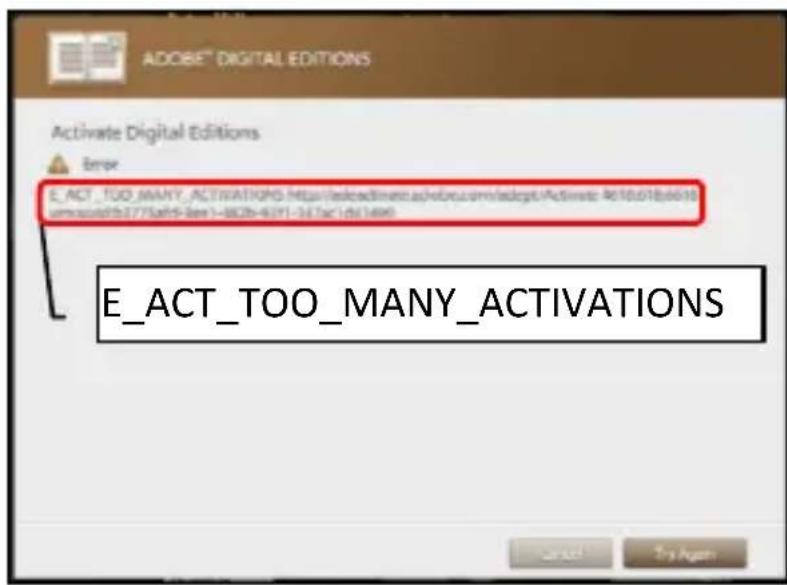
To request for extension and reset of your ADE ID, go to http://www.adobe.com/support/digitaledions/ [Submit a web case]. You are required to key in your ADE ID info.
Opening Book
- Books transferred to Reader will be listed in Home Menu.
- Reader supports eBooks in pub, pdf, txt format.
- Use the
buons to move the cursor to select book and press to open.
Book Page Interface
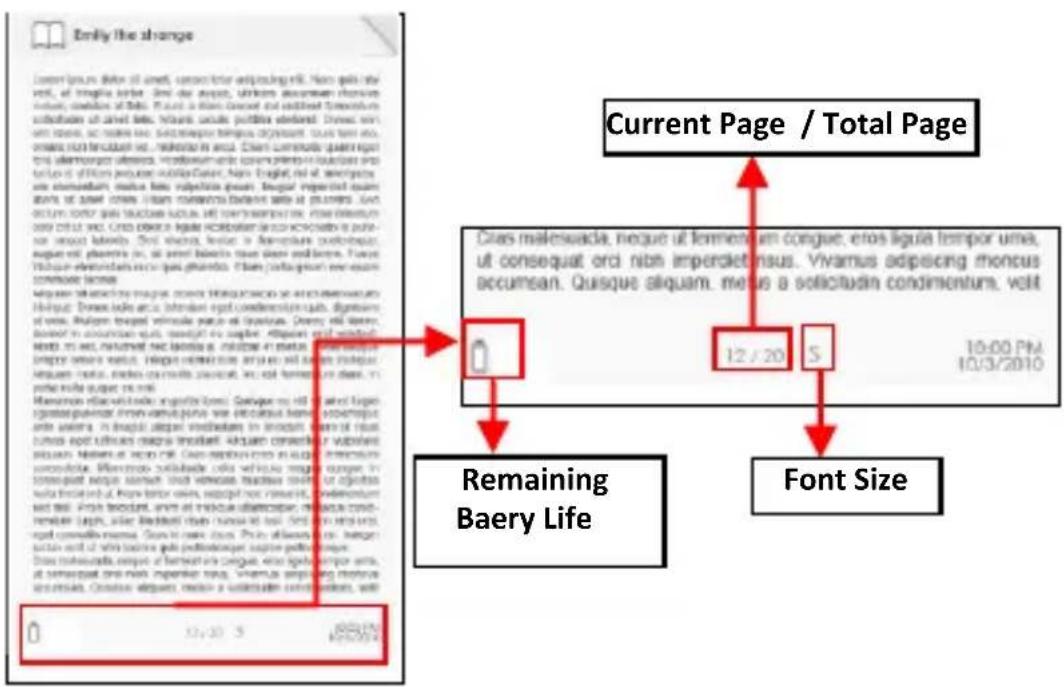
Turning book page
- On reading page, press
or buon to turn to next page. To turn to previous page, press or buon.
Adjusng Font Size
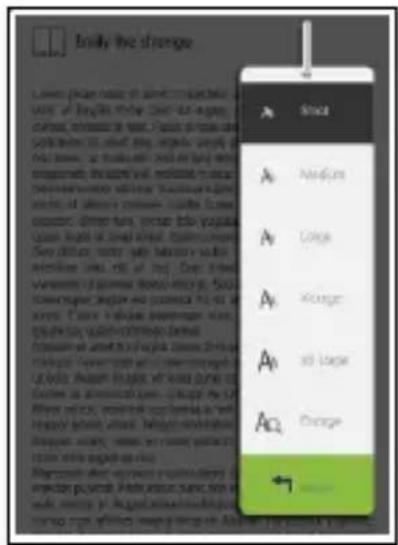
- In reading page, press
buon to enter the font size menu. - There a 5 font sizes available: Small, Medium, Large, XLarge, XXLarge.
- Move the cursor to the desired font size then press <OK> to conrm.
- It may take some me for the fonts to be resized.
Zooming In/Out
- You will need to use the zooming functor to enlarge images available in the eBook (epub & pdf le).
From the size menu, select [Enlarge]. - Zoom menu will appear.
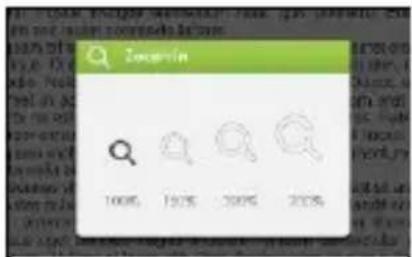
- Move the cursor to the desired zoom level and press < OK > buon.
- In zoom mode, use
buons to pan across the zoomed page. - Page turning is disabled in zoom mode.
- Press
to exit zoom mode and return to original size and resume normal book reading funcons.
Using Opon Menu in Reading
In Reading page, press
- Tabla de Contenidos
- Introducon
- Package Content
- Power On and O the Reader
- Charging the Reader
- Inserng Memory Card
- Limitaons with NTFS le system:
- Starng from Home Menu
- Connue Reading
- Library
- Baery Indicator
- Page Number
- Time & Date
- File Directory
- Entering Opon Menu
- Imporng Content
- Imporng DRM Contents
- Installing Adobe Digital Edions (ADE)
- Authorizing PC and Reader
- Transferring DRM eBooks to Reader
- Opening Book
- Book Page Interface
- Turning book page
- Adjusng Font Size
- Zooming In/Out
- Using Opon Menu in Reading
Brand : Approx
Model : APPEB02E
Category : E-reader