
Keyboard Case iPad Air Plus - Tablet LOGITECH - Free user manual and instructions
Find the device manual for free Keyboard Case iPad Air Plus LOGITECH in PDF.



| Product Type | Keyboard Case for iPad Air |
| Brand | Logitech |
| Model | Keyboard Case iPad Air Plus |
| Connectivity | Bluetooth |
| Power Supply | Rechargeable battery via micro-USB, 5 V, 500 mA |
| Battery Life | Up to 3 months (average use 2 h/day) |
| Charging Time | About 1 h 30 min |
| LED Indicators | Green (full charge), flashing green (charging), red (low battery), flashing blue (pairing mode), solid blue (connection established) |
| Shortcut Keys | Home, Siri, Search, Language switch, Virtual keyboard, Screenshot, Media control, Mute, Volume, Screen lock, Function keys (selection) |
| Usage Positions | Typing and viewing |
| Removing the iPad | Tilt the corner tabs backward |
| Storage for Transport | Insert the iPad into the stand and close the case |
| Care and Cleaning | Clean with a soft, dry cloth |
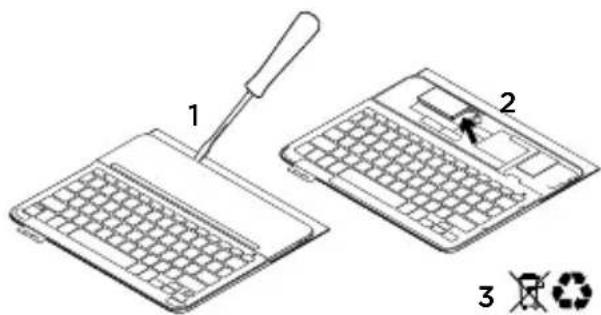
| Battery - Recycling | Remove the cover with a screwdriver, detach the battery and recycle it according to local legislation |
| Online Support | www.logitech.com/support/type-i6 |
Frequently Asked Questions - Keyboard Case iPad Air Plus LOGITECH
User questions about Keyboard Case iPad Air Plus LOGITECH
0 question about this device. Answer the ones you know or ask your own.
Ask a new question about this device
Download the instructions for your Tablet in PDF format for free! Find your manual Keyboard Case iPad Air Plus - LOGITECH and take your electronic device back in hand. On this page are published all the documents necessary for the use of your device. Keyboard Case iPad Air Plus by LOGITECH.
USER MANUAL Keyboard Case iPad Air Plus LOGITECH
Protective case with integrated keyboard

Setup Guide
Contents
English. 3 Suomi .102
Deutsch 12 ElambdaViká. 112
Francais 22 Pocckn .122
Italiano. 32 Magyar .132
Espanol 42 Ceska verze .142
Portugués 52 Po polsku .152
Nederlands . 62 Slovencina. 162
Svenska 72 Turkce 172
Dansk 82 182
Norsk 92
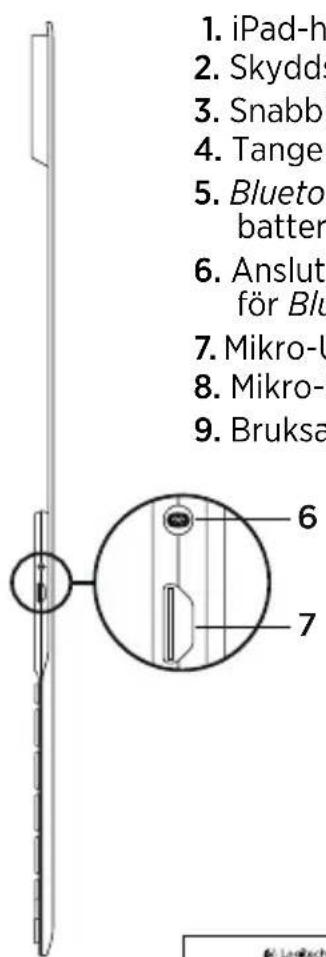
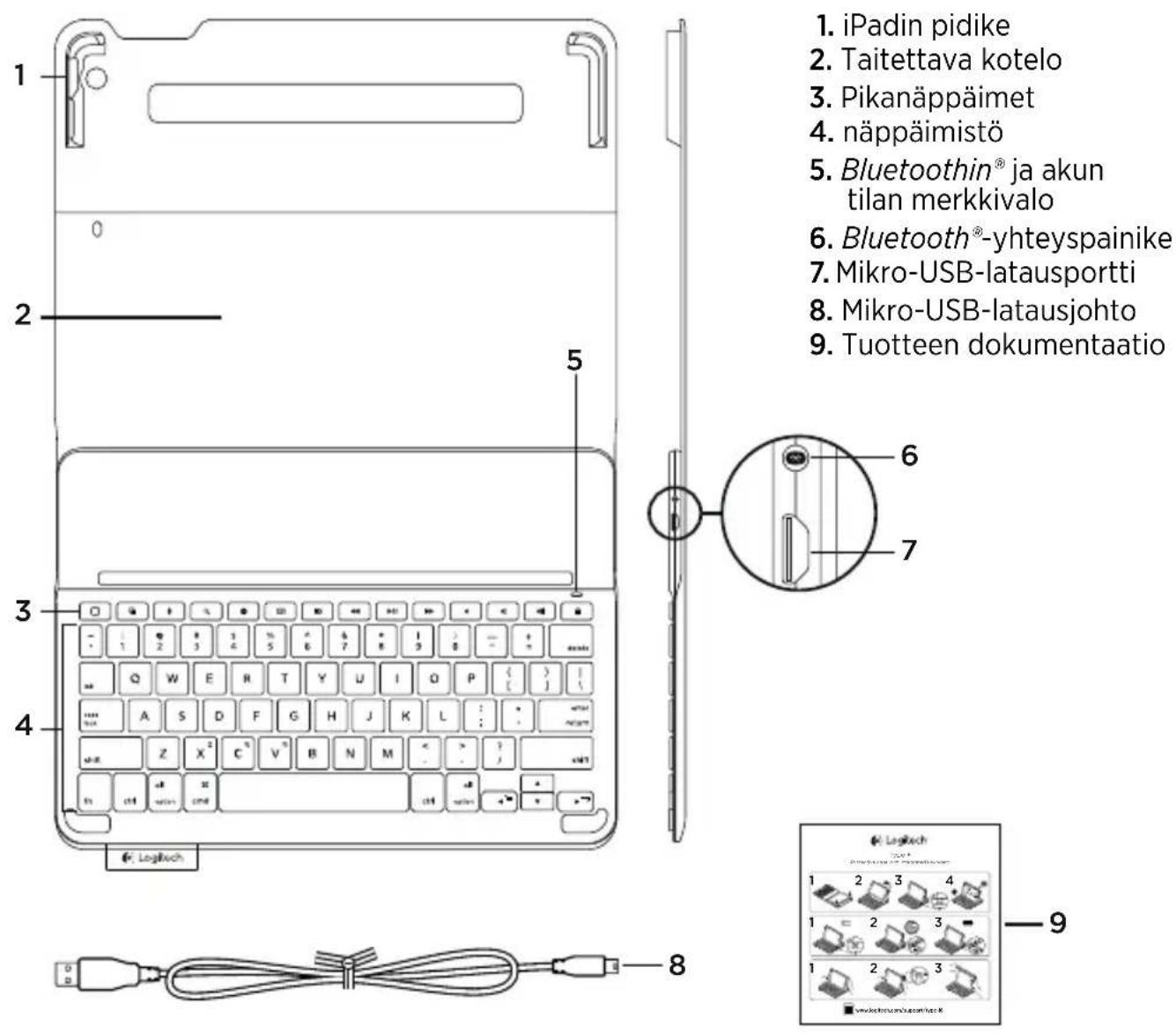
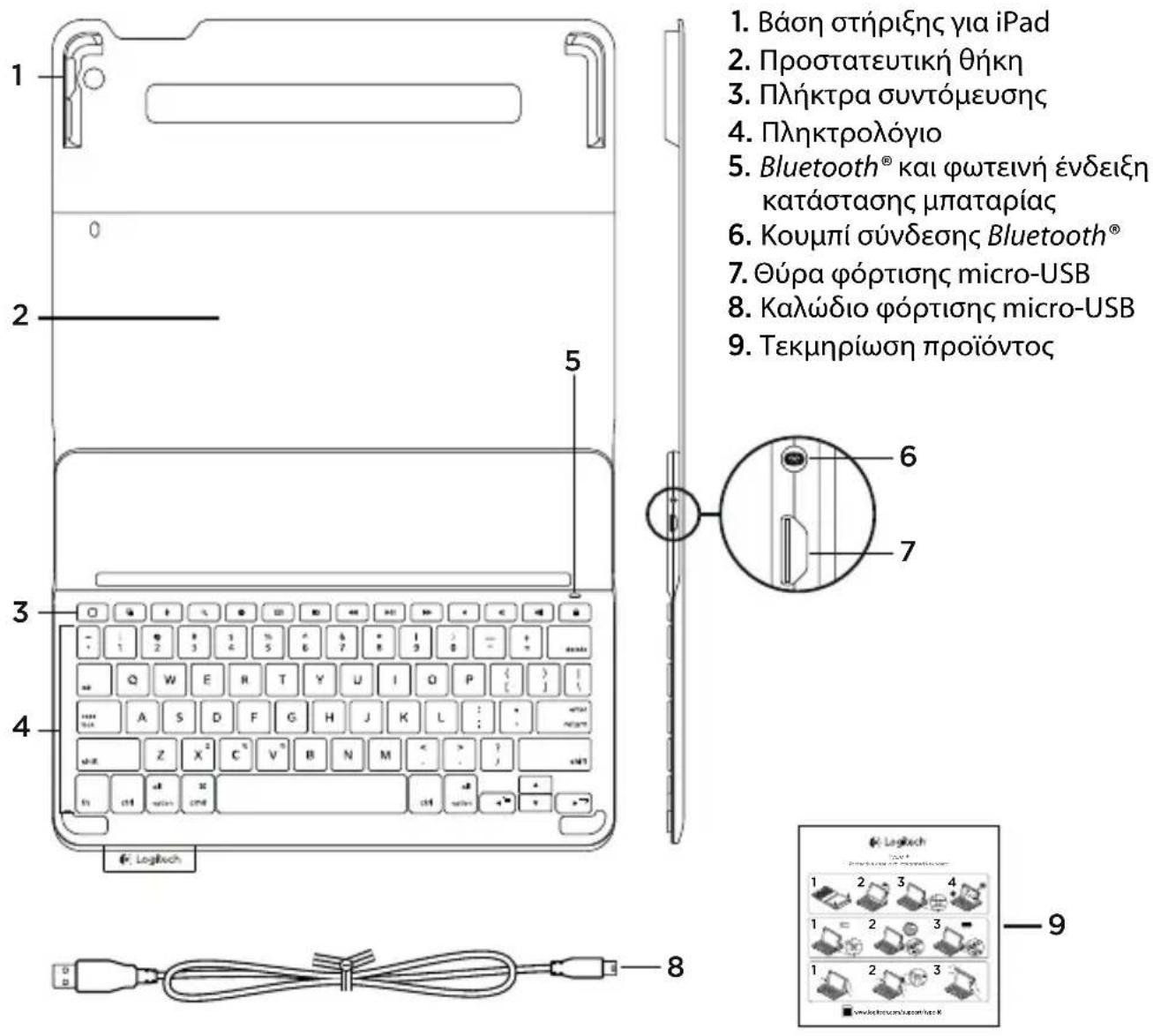
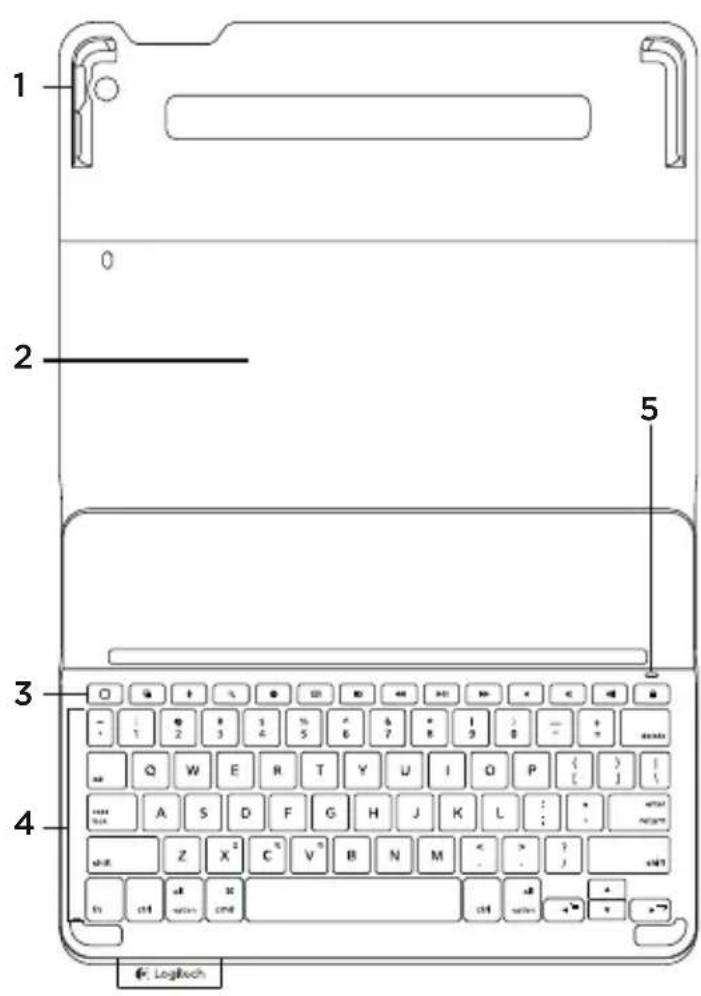
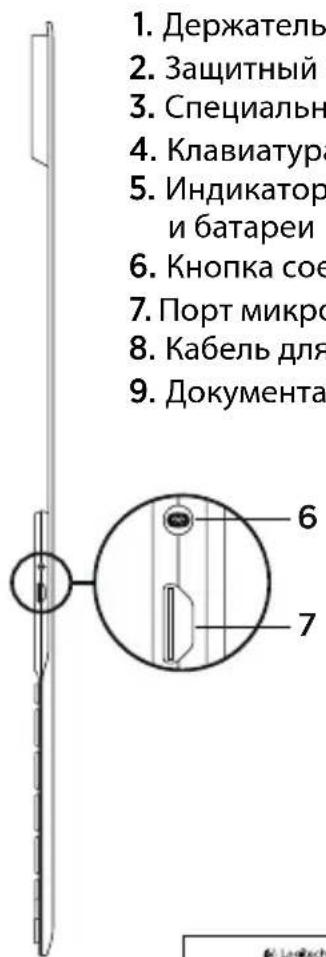
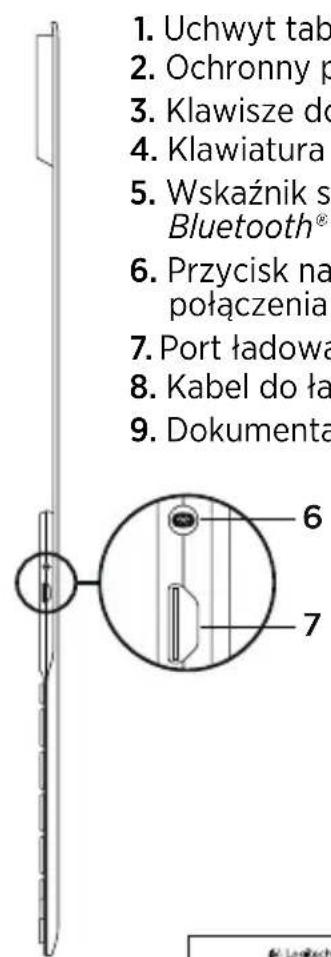
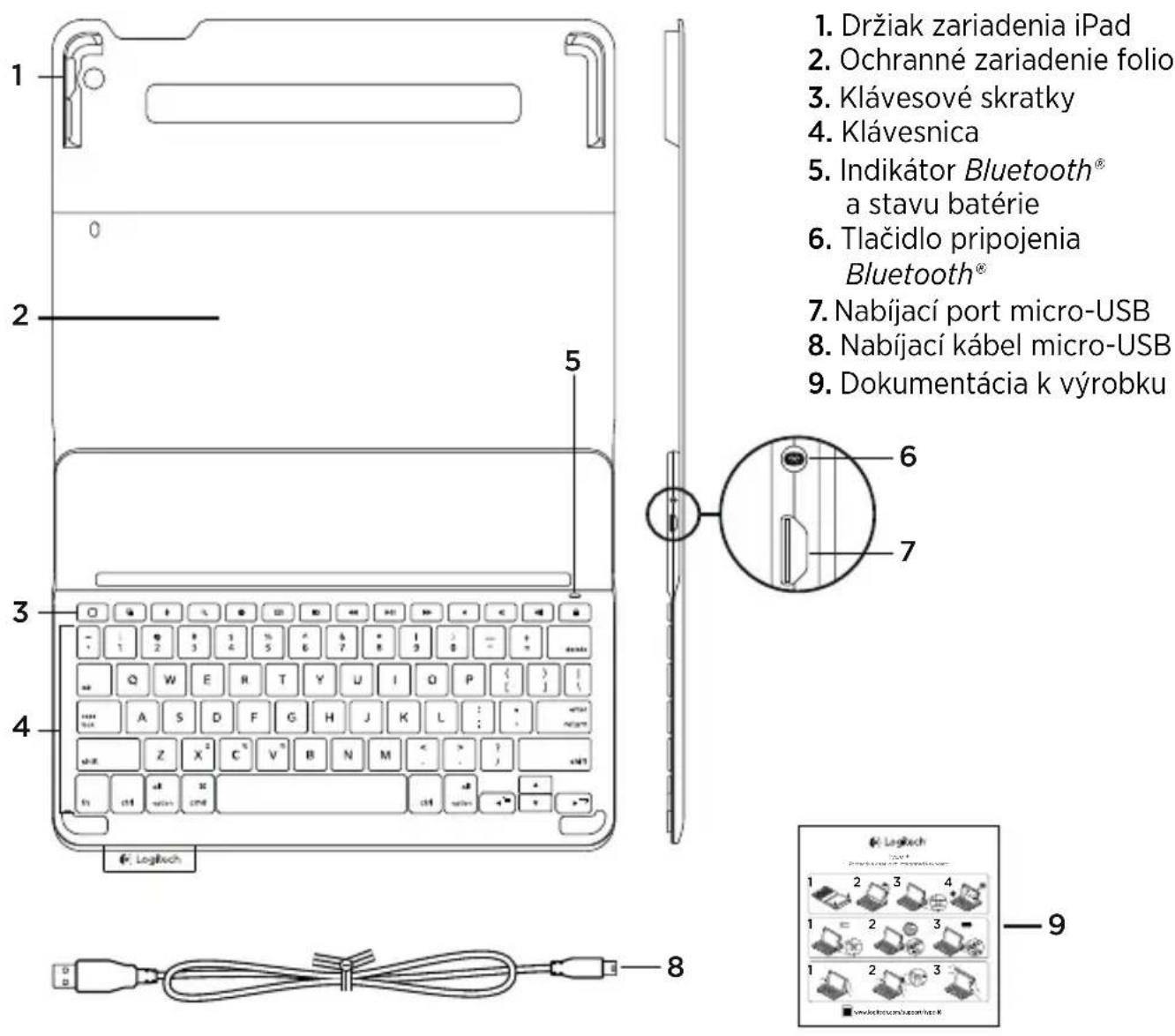
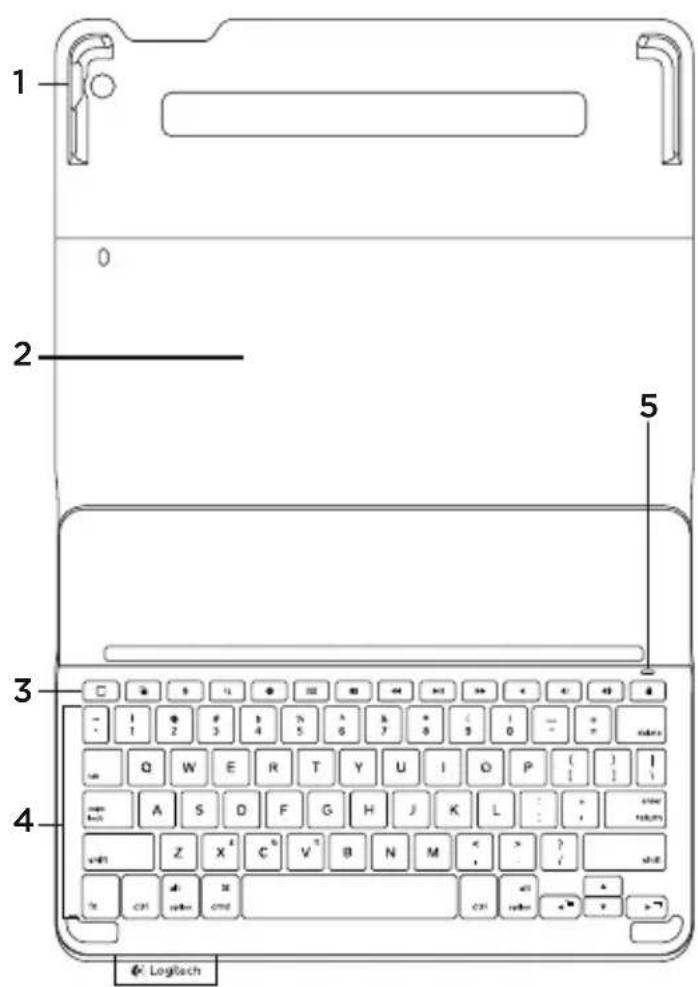
Know your product
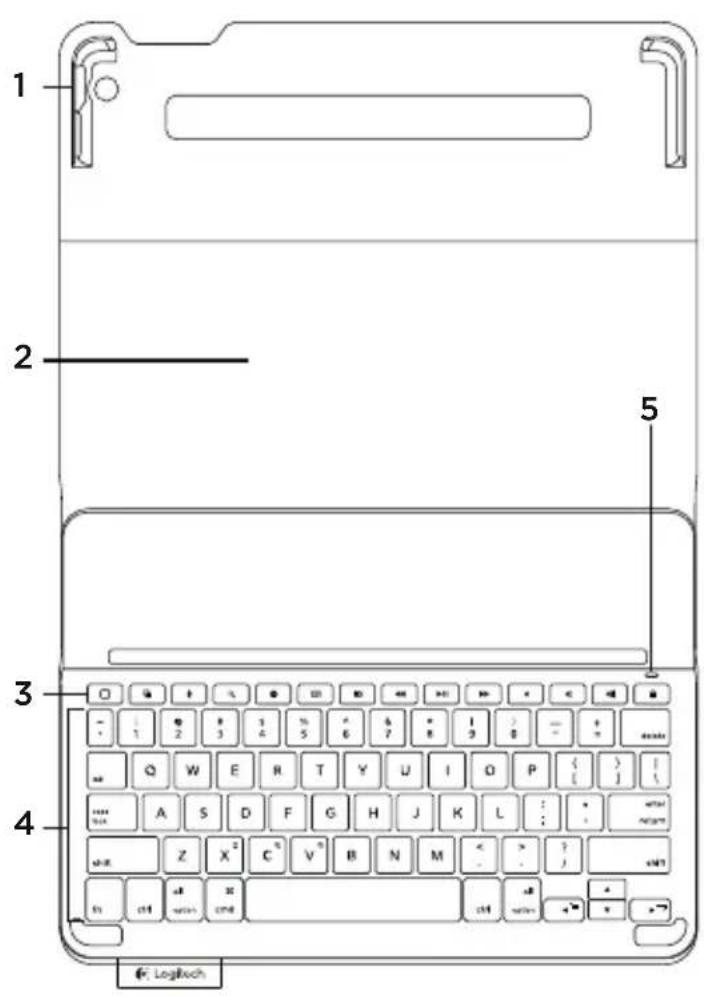
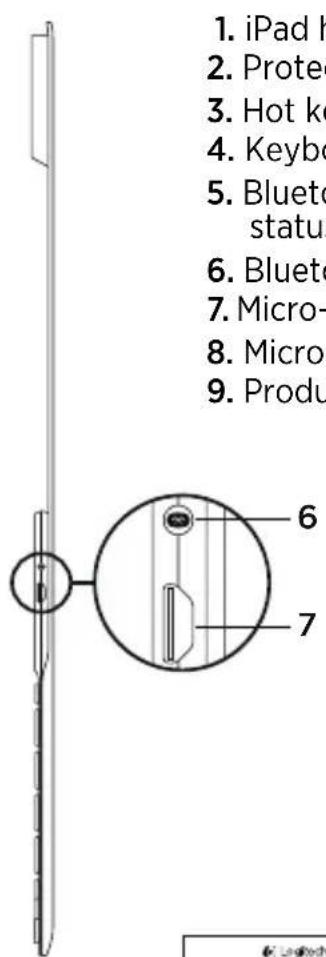
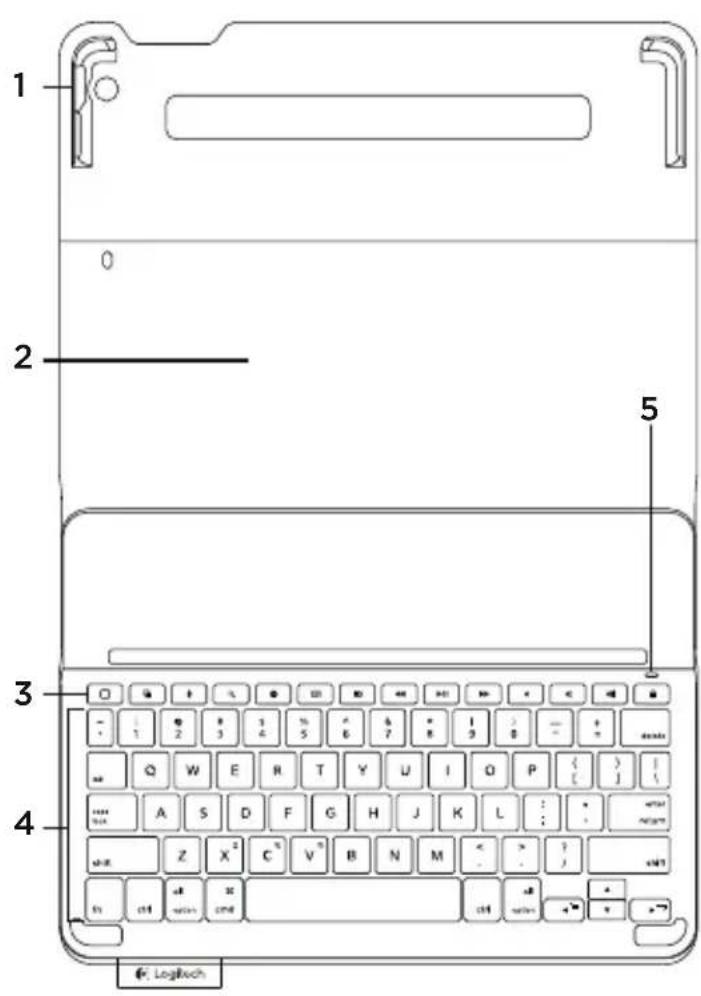
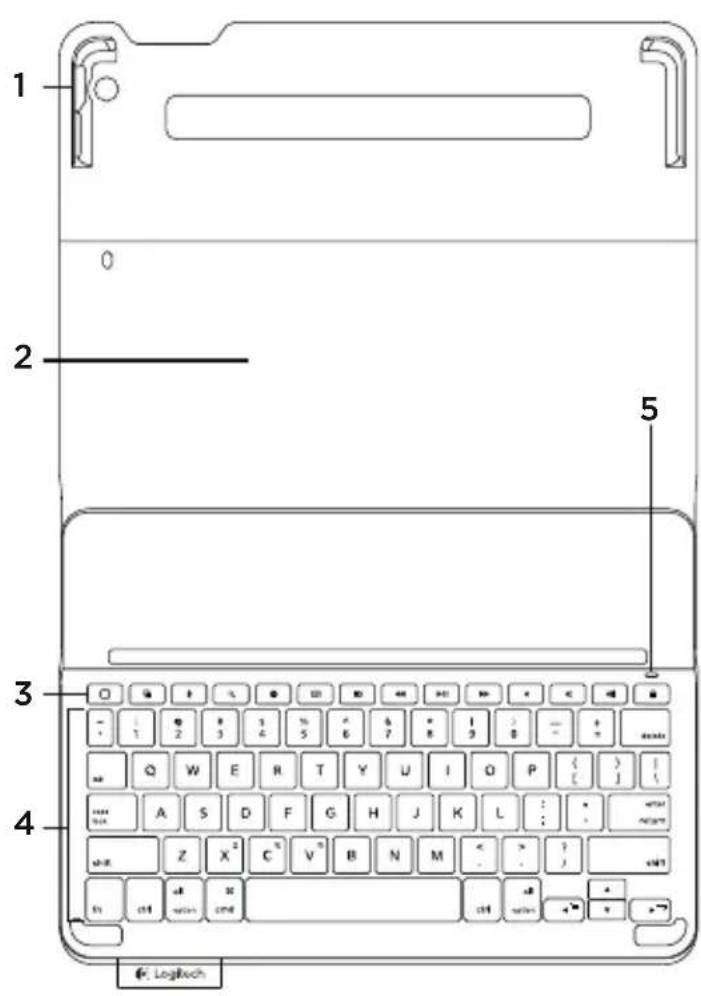
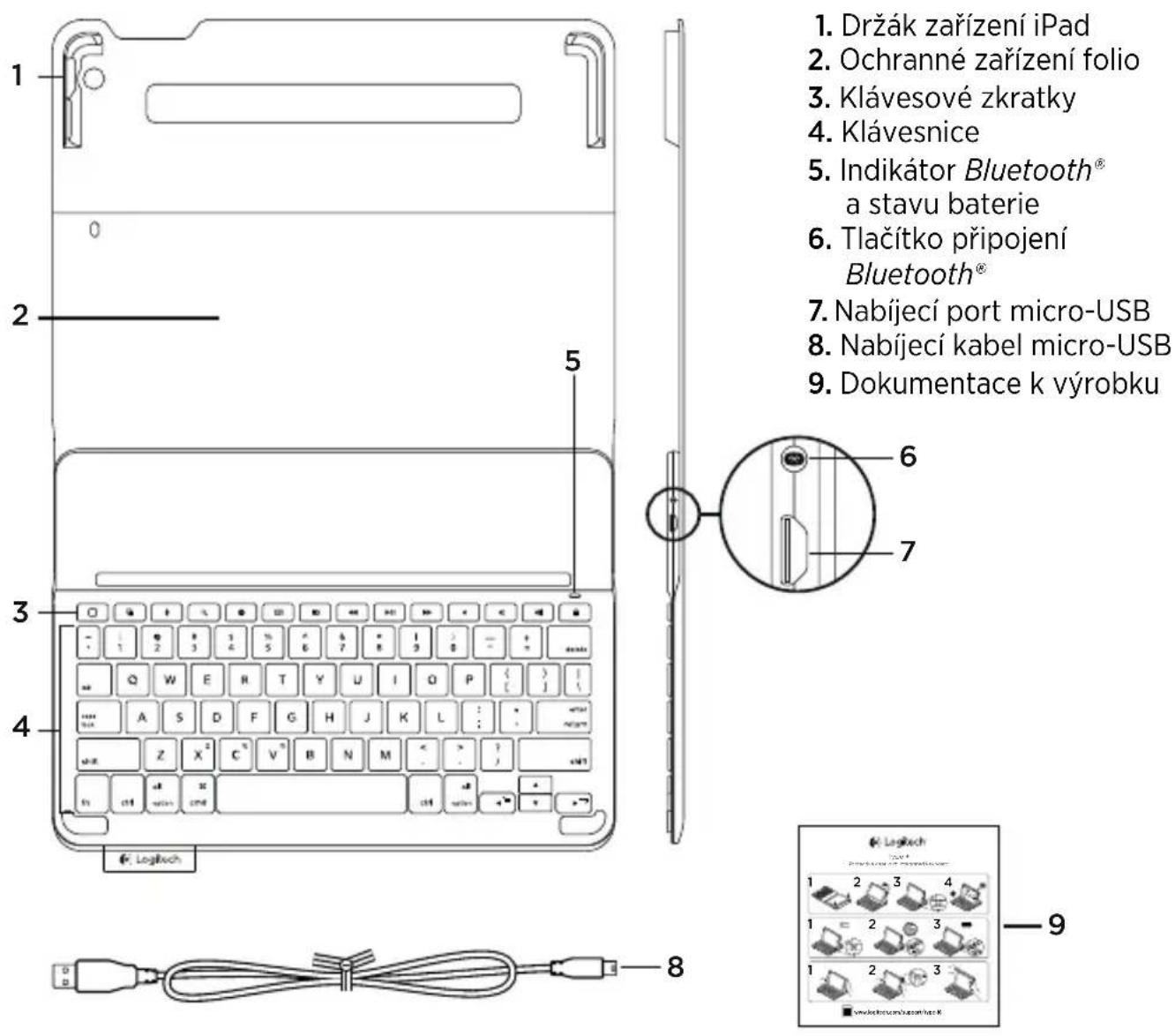
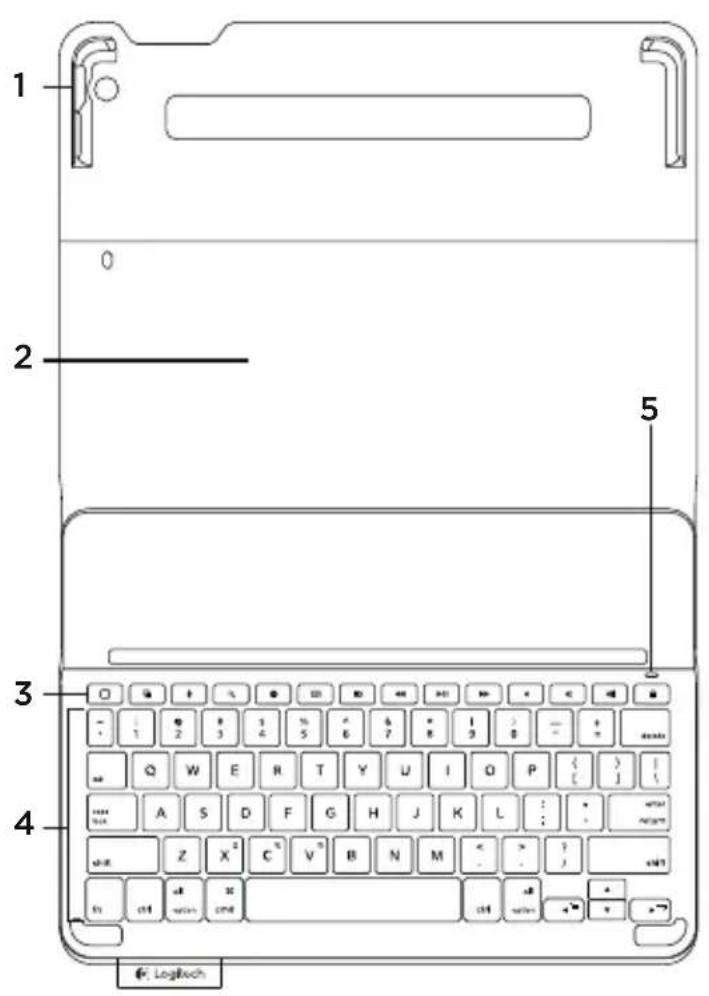
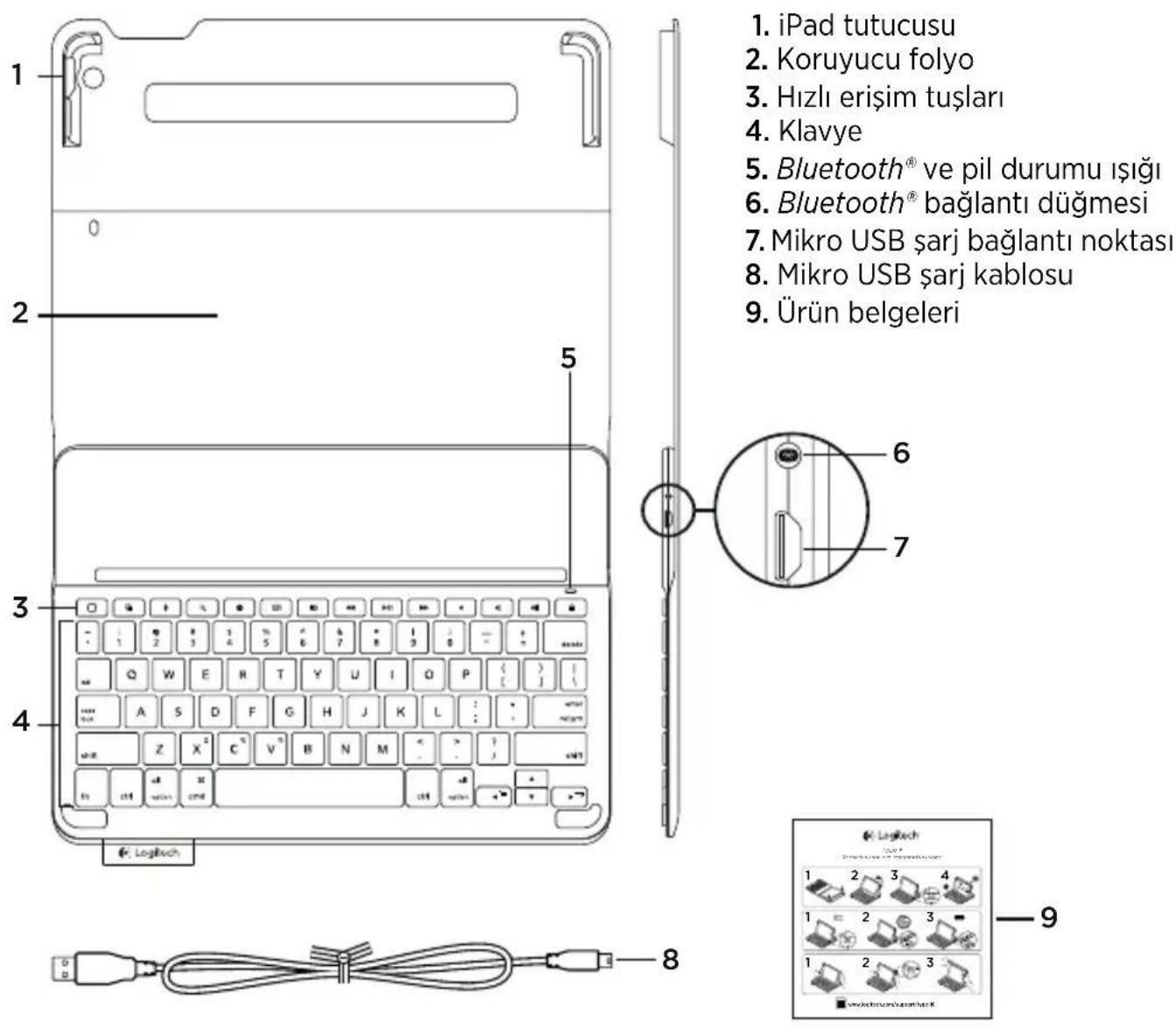
- iPad holder
- Protective folio
- Hot keys
- Keyboard
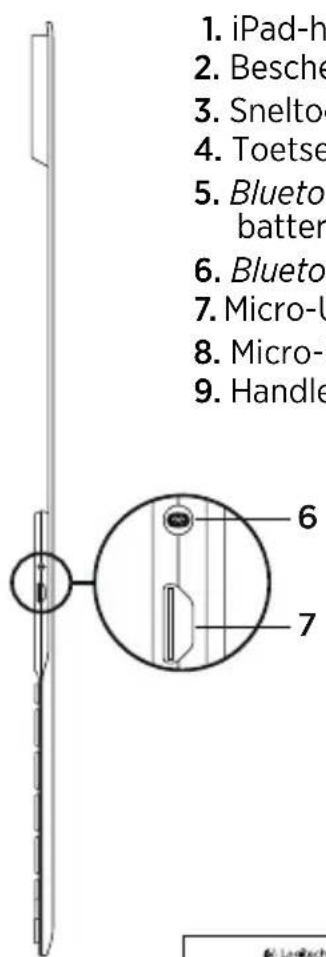
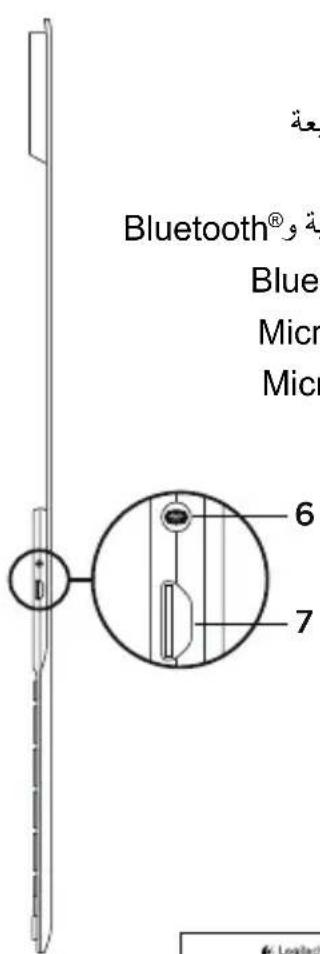
- Bluetooth® and battery status light
- Bluetooth connect button
- Micro-USB charging port
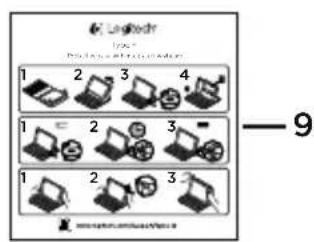
- Micro-USB charging cable
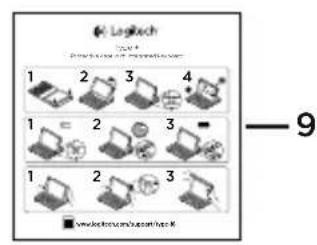
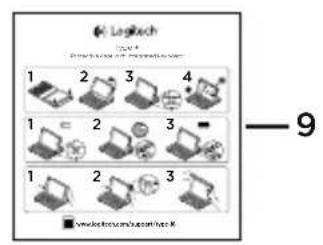
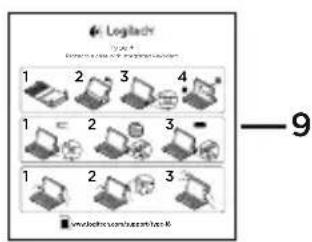
- Product documentation

Setting up the keyboard folio Getting started
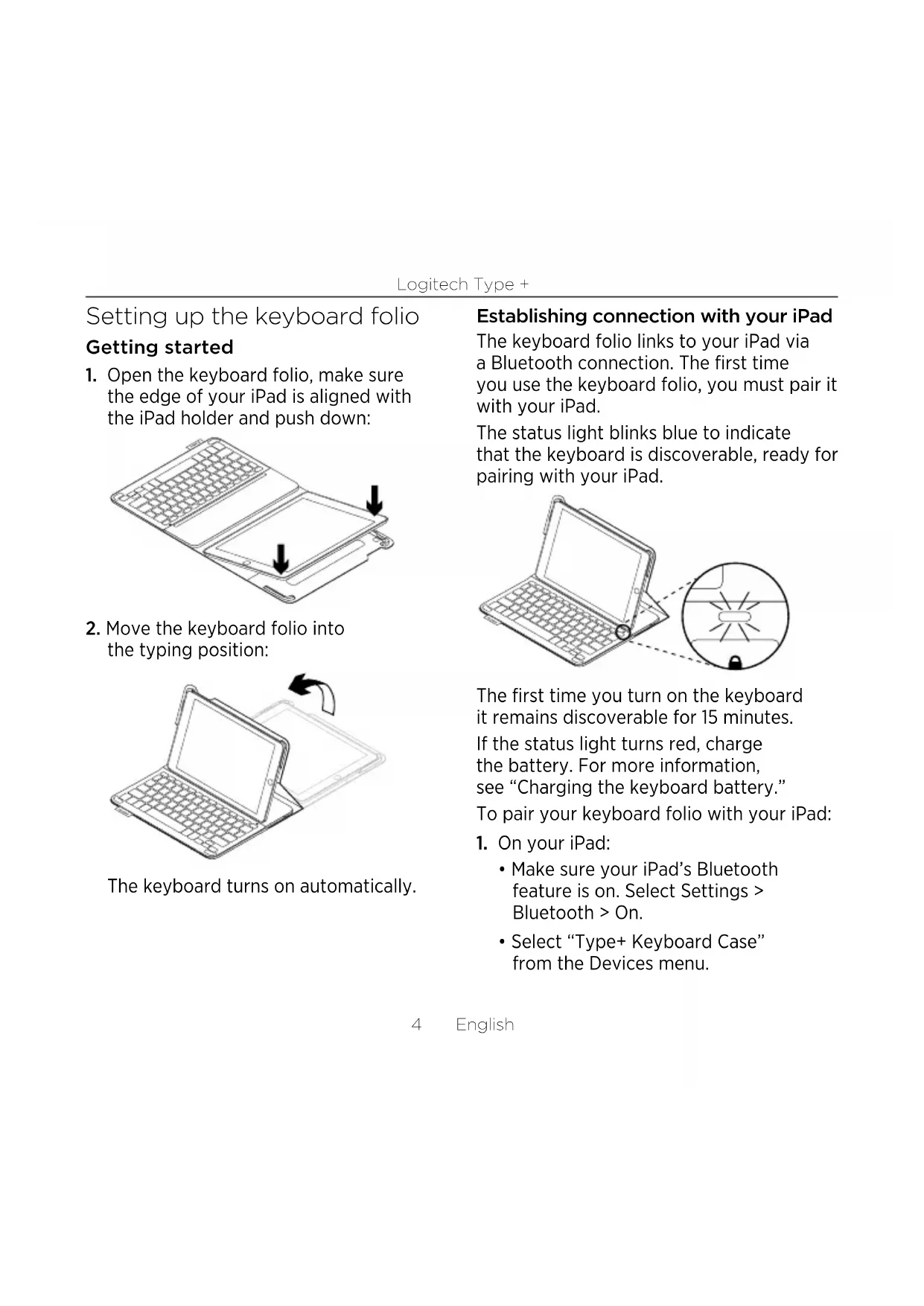
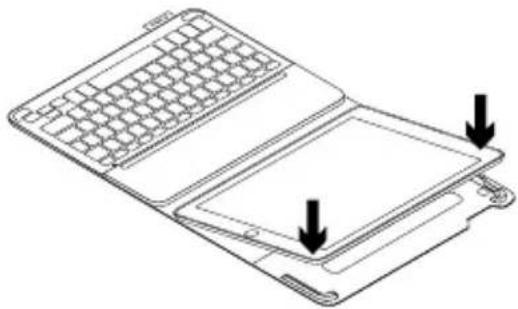
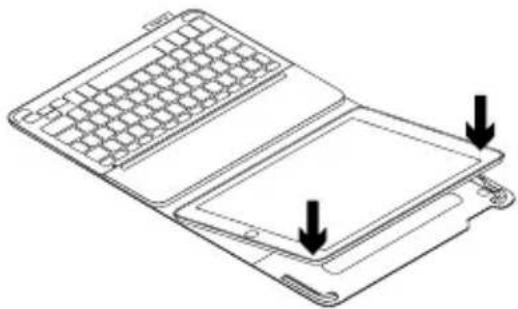
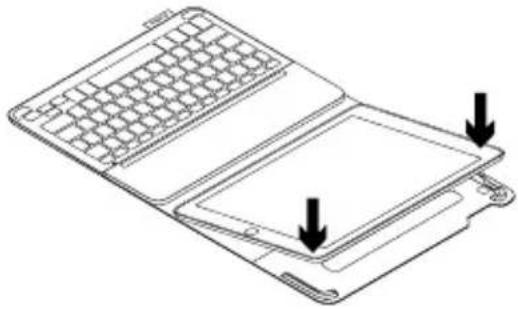
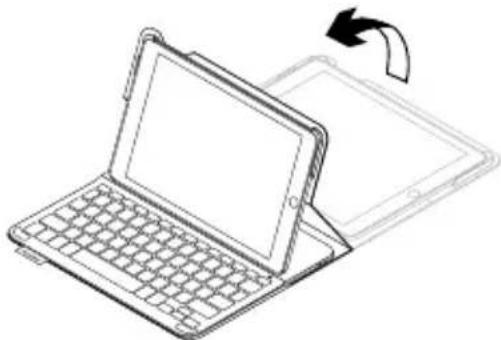
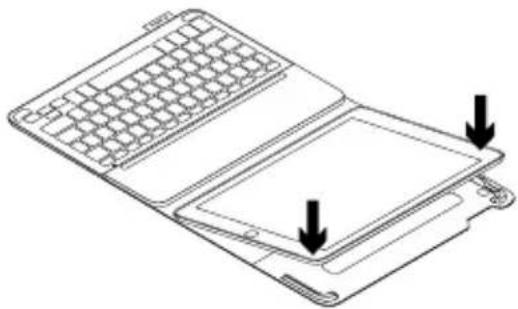
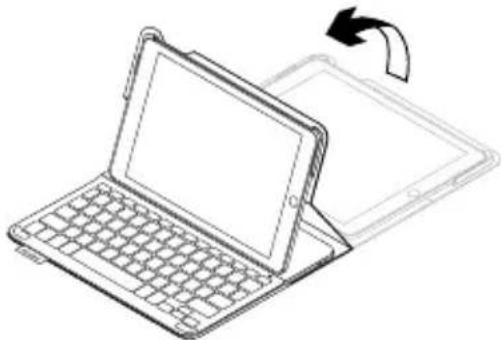
- Open the keyboard folio, make sure the edge of your iPad is aligned with the iPad holder and push down:
- Move the keyboard folio into the typing position:
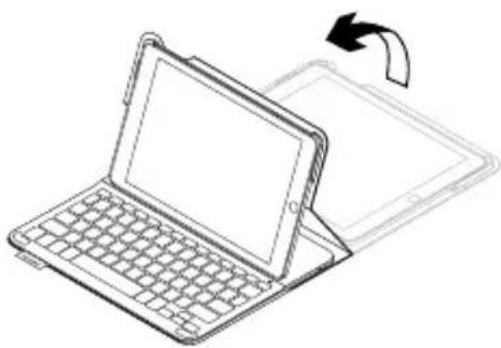
The keyboard turns on automatically.
Establishing connection with your iPad
The keyboard folio links to your iPad via a Bluetooth connection. The first time you use the keyboard folio, you must pair it with your iPad.
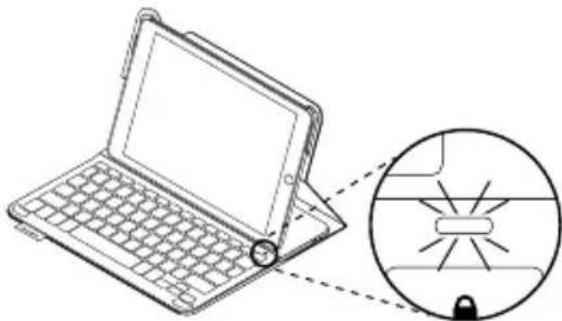
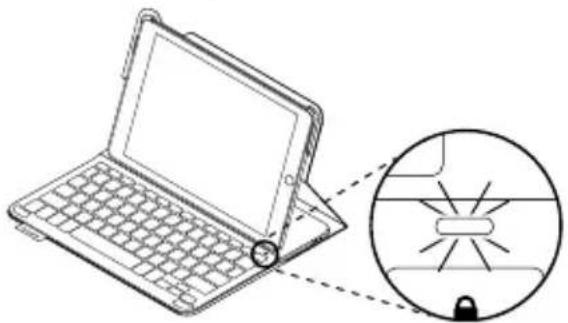
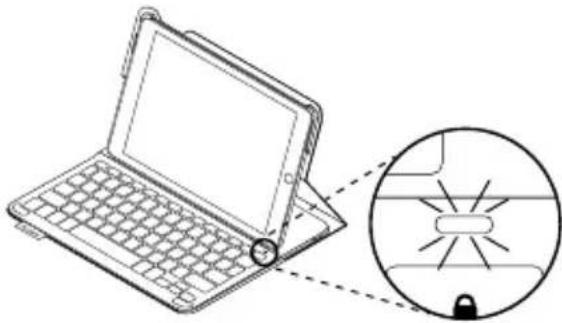
The status light blinks blue to indicate that the keyboard is discoverable, ready for pairing with your iPad.
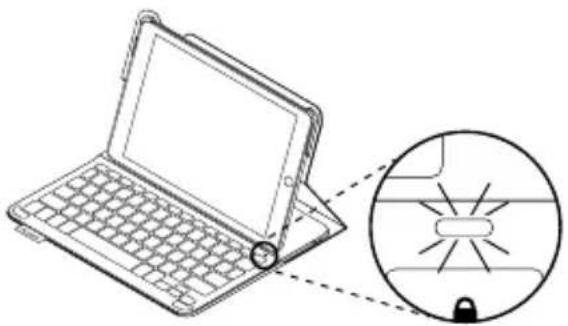
The first time you turn on the keyboard it remains discoverable for 15 minutes.
If the status light turns red, charge the battery. For more information, see "Charging the keyboard battery."
To pair your keyboard folio with your iPad:
-
On your iPad:
-
Make sure your iPad's Bluetooth feature is on. Select Settings > Bluetooth > On.
-
Select "Type+ Keyboard Case" from the Devices menu.
-
If your iPad requests a PIN, enter it using the folio keyboard (not on your iPad).
When successful connection is made, the status light turns solid blue for a short time, and then turns off.
Connecting to another iPad
- Move the keyboard folio into the typing position.
- Make sure your iPad's Bluetooth feature is on. Select Settings > Bluetooth > On.
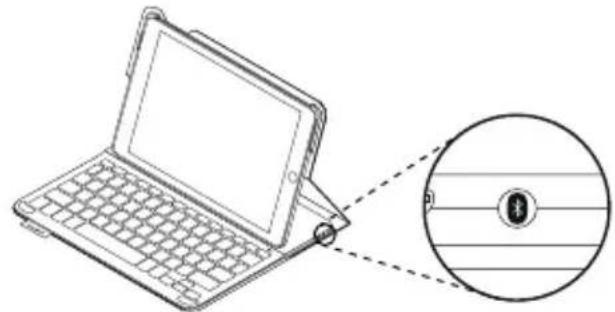
- Press the Bluetooth Connect button:
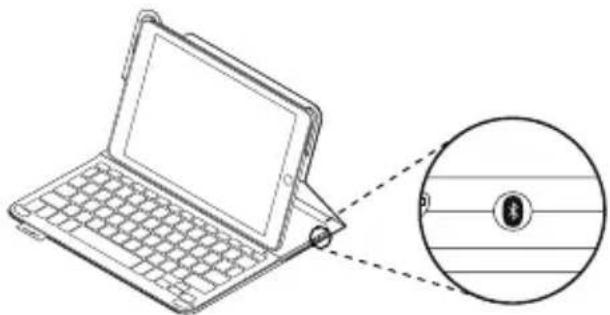
The keyboard is discoverable for 3 minutes.
- Select "Type+ Keyboard Case" on your iPad's Devices menu.
- If your iPad requests a PIN, enter it using the folio keyboard (not on your iPad).
When successful connection is made, the status light turns solid blue for a short time, and then turns off.
Using the keyboard folio
Two viewing positions
The keyboard folio provides two viewing positions—one for typing and another for browsing.
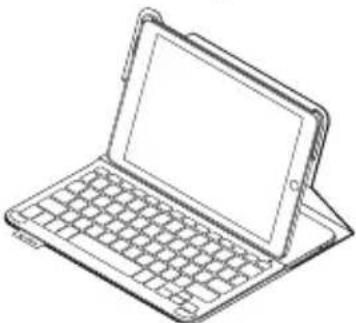
To type, move the keyboard folio into the typing position, aligning it with the built-in magnet to secure it:
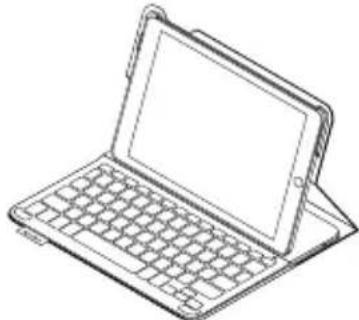
The keyboard turns on automatically when you move the keyboard folio into the typing positon.
To browse, place the keyboard folio in the browsing position:
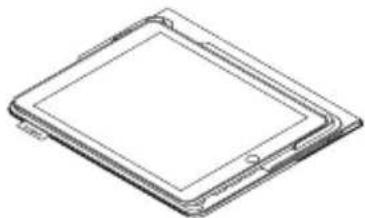
The keyboard powers off automatically when you move the keyboard folio out of the typing position.
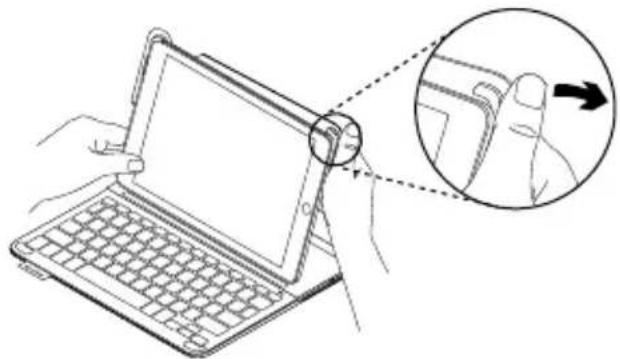
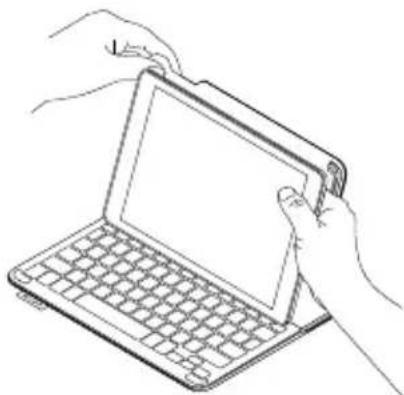
Detaching your iPad
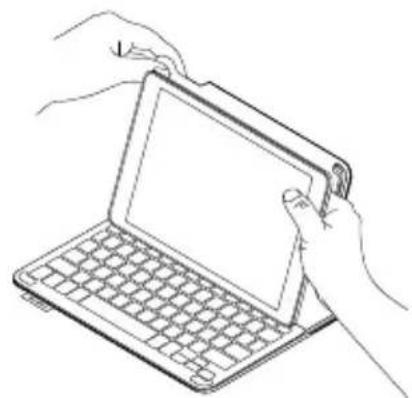
To detach your iPad from the folio, bend back one of the iPad holder corners:
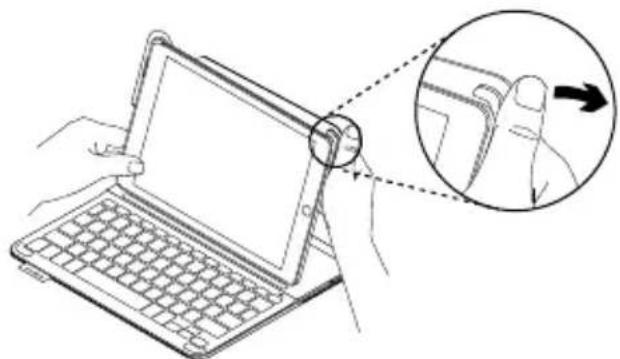
Your iPad is then released:
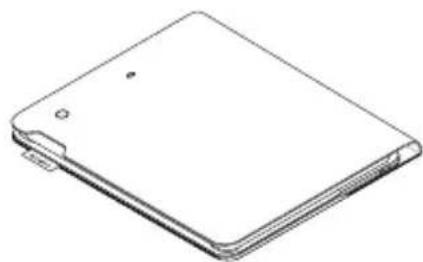
Storing your iPad for travel
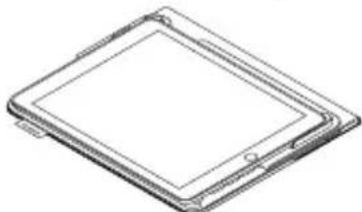
- Insert your iPad in the iPad holder.
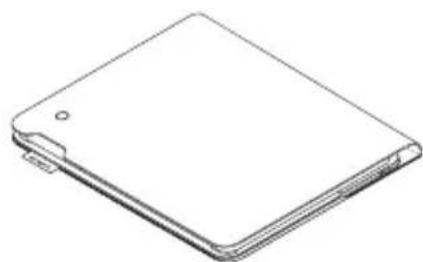
- Close the keyboard folio:
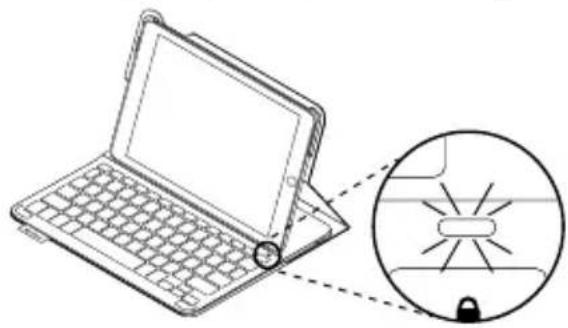
Status light indicators
Your keyboard folio's status light provides information about the battery power and Bluetooth connection:
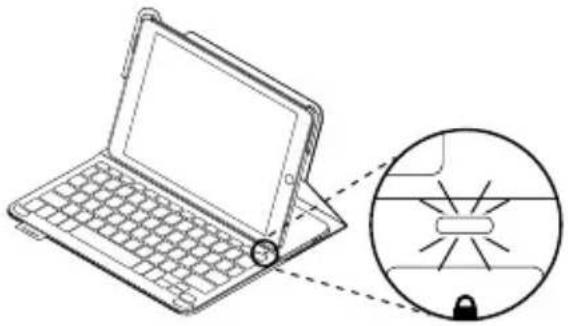
| Light Description | |
| Blinking green The battery is charging. | |
| Green The battery is fully charged (100%). | |
| Red Battery power is low (less than 10%). Recharge the battery. | |
| Blinking blue Fast: The keyboard is in discovery mode, ready for pairing. Slow: The keyboard is trying to reconnect to your iPad. | |
| Solid blue Bluetooth pairing or reconnection is successful. |
Hot keys
Home = iPad Home screen
Switch applications
Siri
Use your voice to send messages, make calls, schedule meetings, and more
Search
Launches search function
Switch language
Switches the keyboard language
Virtual keyboard
Shows/ hides the virtual keyboard

Screenshot
Previous track

Play/Pause

Next track

Mute

Volume down

Volume up

Lock screen
Locks or unlocks the iPad screen
Function keys
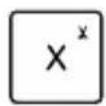
Fn + Left cursor = Select left
Selects text on the left, word by word
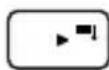
Fn + Right cursor = Select right
Selects text on the right, word by word
Note: To select a function key, press and hold the fn key, and then press the key indicated above.
Charging the keyboard battery
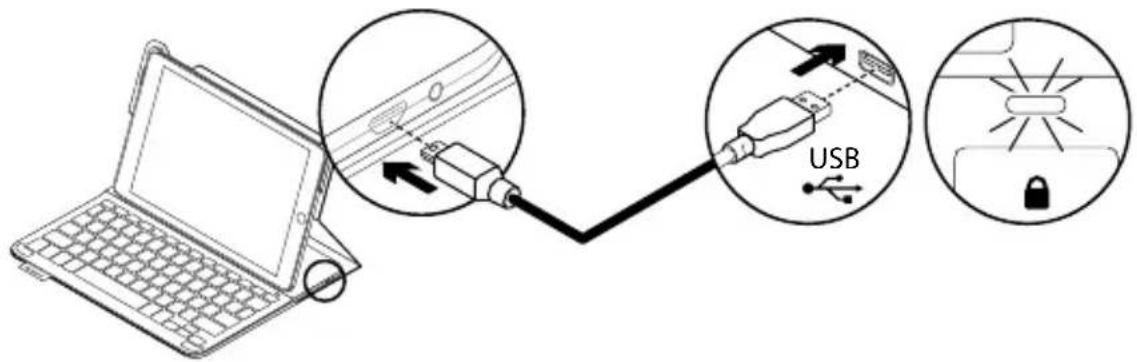
If the status light is red the keyboard folio battery needs to be charged.
-
Plug one end of the micro-USB cable into the charging port, and the other end into a USB port on your computer. Alternatively, you can use a USB charger providing the power output rating is no more than 5V - 500mA. The status light blinks green as the battery charges.
-
Charge the battery until the status light turns solid green.
Battery information
-
A fully charged battery provides about three months of use when the keyboard is used about two hours a day.
-
Charge the battery if the status light turns red briefly after the keyboard turns on.
-
When not in use, turn off the keyboard to conserve battery power.
The keyboard enters sleep mode automatically if not used for a while in the typing position. Press any key to wake it.
One minute of charging can provide 2 hours of use; approximately 1.5 hours of charging can provide a full power.*
- Actual charging and battery life will vary with use, settings, and environmental conditions.
Battery disposal at product end of life
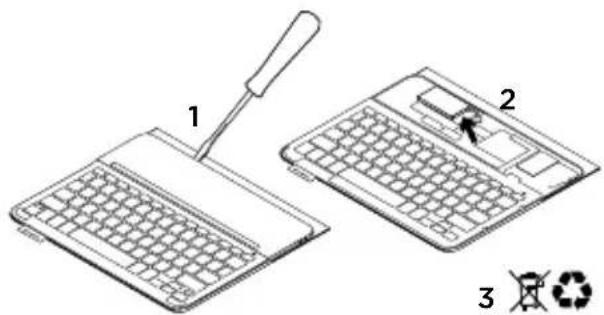
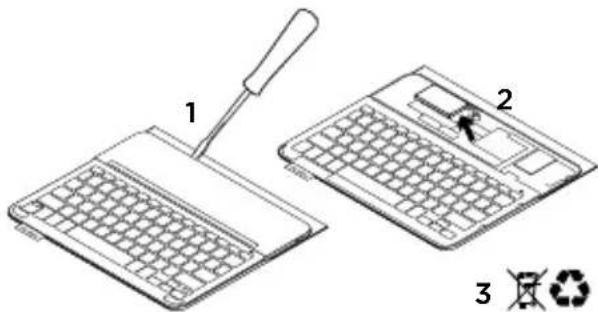
- Pry off top cover of keyboard with screwdriver.
- Detach battery from circuit board and remove battery.
- Dispose of your product and its battery according to local laws
Visit Product Support
There's more information and support online for your product. Take a moment to visit Product Support to learn more about your new Bluetooth keyboard.
Browse online articles for setup help, usage tips, and information about additional features. If your Bluetooth keyboard has optional software, learn about its benefits and how it can help you customize your product.
Connect with other users in our Community Forums to get advice, ask questions, and share solutions.
At Product Support, you'll find a wide selection of content including:
- Tutorials
- Troubleshooting
Support community
Online documentation
Warranty information - Spare parts (when available)
Go to:
www.logitech.com/support/type-i6
Troubleshooting
The keyboard does not work
- Press any key to wake the keyboard from sleep mode.
- Turn the keyboard off and then back on.
- Recharge the internal battery. For more information, see "Charging the keyboard battery."
- Re-establish the Bluetooth® connection between the keyboard and your iPad.
- Verify that Bluetooth® is turned on in your iPad's settings (Settings > Bluetooth > On).
- Choose "Type+ Keyboard Case" from the Devices menu on your iPad. The status light turns solid blue when Bluetooth® connection is established.
What do you think?
Thank you for purchasing our product.
Please take a minute to tell us what you think of it.
www.logitech.com/ithink
www.logitech.com/ithink
X Fn + X = Couper
C Fn + C = Copier
V Fn + V = Coller
www.logitech.com/ithink
www.logitech.com/ithink
www.logitech.com/ithink
www.logitech.com/ithink
Ken uw product
www.logitech.com/ithink
Produktoversikt
www.logitech.com/think
Tastaturet fungerer/DD
www.logitech.com/think
Bruke Keyboard Folio
www.logitech.com/ithink
Tunne tuotteesi
www.logitech.com/ithink
Vwpiia uE To Poiov
Eykataaotaon tnc 0nknc-piaktpooyiou
Eeivwvtac
- AvoiE OKn Folio PAnKToPOlOyIO, a i e oTn aKpN Tou iPad eivai Euvypauuouevn Tn Baoon otnpIeNC iPad kaiPiote poc Ta katw:
www.logitech.com/ithink
3HaKOMCTBO C npOdyKTOM

Hac trokka yexla-KHNKKC c KnaBnatypoi Haayano pa60Tbl
- OTKpoIte YexoN-KHnKky C KnaBnaTypoN, NOMeCTnte KpaI iPad BPOBeHb c DepeKaTelem iPad n HaxMnte.
- Nepemecnte yexon-KHNKky B NOJKeHne IINBBOJa TeKCTa.
KnaBnAtypa BkJIIOuaeTcA aBTOMaTnueckn.
YctaHOBKa coeMHHeHnC iPad
Yexon-KnHexKa CBa3bIbAeTc c iPad uepe3 coeHHeHne Bluetooth®. Pn nepBOM IcNoJb3OBaHm HeO6xOdIMo BblIOJIHNt b copjXeHne Yexna-KnHexKc c iPad.
INHdkaTOp COCTOHN3aMnraET CnHM
ZBcTOM, NOKa3bIBa, YTO KnaBnAtypa
DOctynHa IJRA O6HapyKeHnI RTOBa
K cOnpJxHeHIO c iPad.
Припегвом ВКючени Клавиatype octaetcdoctynhoДЯобарухени B TeueHne 15 mHyT.
Ecnn HnNkAToP COCTOHNCTaHOBNTcKpaChbIM,3apAnTe 6aTaapeo.
IcnoJIb3OBAHnE ueXJa-KHNKcC KnaBnAtypoi
Дваразочи пооженя
B ueXne-KnHexKe c KnaBnaTypoi npedymotpeHO Da pa6oHx NoloXeHna OndHO dIy BBOda,dpYroE dIy IpocMOTpa. UTo6bl nepeiTu B pexm BBOda, nepemecHTe yexoJ-KnXkKc KnaBnaTypoi B nOIOXeHne dJIy BBOda,3aΦNKcnpOBaB erO C NOMOsbU BCTpoEHHO MaHNTa.
Pn nepemeueHn uexna-KnHexKn B noJooKeHne IJI BBOda KnaBnaTypa BKIOUcaTcA aBTOMaTNUceKn.
YTo6bI nepeTn B pexm npocmoTpa, nepemecTe yexoN-KHxKc KlaBnaTypoB INOJKeHne InpocMoTpa:
Ipn n3MeHn noLoXeHn KnaBnaTypa aBTOMaTnueCKN OTKlOuaeTcra.
OToeHHeHne iPad
YTo6bI OToCoeHnHTb iPad ot yexna-KHNKKN,OTOrHnTe Ha3aOOnH n3 yrIOBbIX depKATEnei iPad.
XpaheHne iPad b noe3dkax
- YctaHOBnTe iPad B dEpKaTeIb iPad.
- 3aKpoTe ueXoN-KHnXkKy:
Tenepb iPad MoXkHO ChrTb.
HnKAtOpbI COCTOHN
Hndkatop coctoHna yexna-KnHexKn coo6aet o coctoHnn coeHHeHHa Bluetooth n 3apra da 6atapeu.
Fn + cTpeJka BHeBO = BbI6op cneBa
BbI6Op TeKCTa CneBa, CNOBO 3a CNOBOM

Fn + ctpeIka BnpaBO = Bbl6op cnpaba
Bb6op TeKCTa cnpaBa, CNOBO 3a CNOBOM
IpmeaHne. To6bI BocnoB3OBAtbcra yHKuHOHaBHOJ KnaBnwe, HaxMITE uyePknBaTe KnaBnuy fn, a 3aTeM - Ondy n3 nepeucnEHHbIX Bblwe KnaBnW.
3apka 6aTapeN KlaBnaTypbl
Ecnn HndkaTop COCTOHNr CTan KpaChbIM, Heo6xoJMo 3apAaNTb 6aTapeIO KlaBnaTpybl YexJa-KHnKKn.
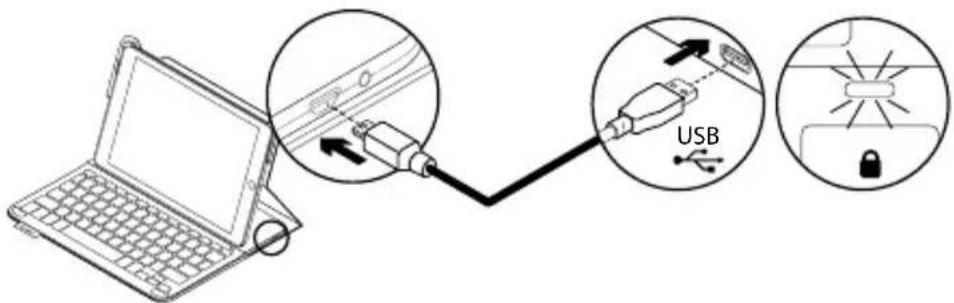
1.ПОДКЛЮЧИTe ODNH KOHeц Ka6eЯ MmKpo- USB K nopty dIry 3aprAn, a npyro erO KOHeu - K USB-nopty Ha KOMnbIoTepe. Bbl TAKKe MoXeTe NcNoJIb3OBaTb 3aprHoe yCTpoiCtBO USB npn ycNoBnU, UTO HOMHaJIbHaN BbIXoJHaN MOUHOCTb He npEByIshaet5B,500MA. Bo Bpem 3aprAn 6aTapeu INHdNKaTOP COCTOHHM MiRaet 3eJeHbIM UBeTOM.
- 3apjkaTe 6aTaPeIO, Noka HndnKaTOp COCTOHN He NaHcET HeNpepbIBHO CBETNbC3eJIeHbIM UBeTOM.
CbeHnO6aTapee
-
POnHoro 3apra 6aTapeu DoCTaTOUHO, UTo6bI pa6oTaTb Ha KlaBnA type OKOJIO Tpex MecrueB NO DBa Yaca B DeHb.
-
EcIn npn BkIIOueHn KnaBnAtypbl INHdIKaTOP COCTOHN Ha KOpOTKoe BpeMa CTaHOBITcKpaChbIM,3apAINTe 6aTapeIO.
Korda KnaBnAtypa He nCnoB3yeTc, ee CneNyET BbIKIouaTb DnE 3KOHOMN 3apra6atapen.
-
EcII B peXIMe BBoDa TeKCTa KnaBnAtypa KaKoe-TO BpeM He NcNoIb3yeTc, OHa aBTOMaTnueCKn nepExOJIT B cIaI npexm. IJIa BbIOda KnaBnAtypbl n3 peXIMa cHa HaxMnte li6yIO KnaBnUwY.
-
Odha MInHyTa 3apRKn o6ecneuNbAeT 2 yaca pa6oTbI yctpoiCTBa, a 3a 1,5 yaca OHO 3apaXkaeTcI NOHOCtBIO.*
* OaKTnueeckoe BpeM 3apAdkN u BpeM pa6Obl OT 6aTapeu 3abncrT OT pexmna 3Kcnnyataun, HAcTpoek n yCIOBn OKpykaUoJe cpebl.
Ytun3aun 6atapen no OKOHuaHn cpoKa cnjx6bl n3dennr
- CHIMITE BepxHIO KpbIuKy KlaBnaTpybIC NOMOUI OTOBepTKN.
- OTKIIOHTe 6aTapeIO OT 3JIeKTPnueckOro pa3bema n N3BNeKITe ee.
3.Ут annihilуп Te npodyк n 6aTapeIO B COOTBETCTBnC DeIcTByIOUm MecTHbIM 3aKOHODaTeJIbCTBOM.
PpOcMOTpIe pa3JeI NOIepeKKn PpOdykTOB
B pa3dene texnueecko noepknc oedepekaTcra doonHntbHbIe CbeDeHn o BaWe m npOdyKe n HOpMaun o ernoepke. YdeNte MNHyTy, uTo6bl nocetntb pa3dEn texnueecko noepknc y3HaTb 60nbwe o HOBOI Bluetooth-KnabnaType.
O3HaKOMbTecb c nHTepHeT-CTaTBaMn, yTO6bl NOJyUHTb NOMOu bNo yCTaHOBKe, COBeTb IIO 3KcNlyaTaCuIN N CBeDeHn o DOnoJIHNTeMbHbIX FyHKunx. EcIn dJa BaWei Bluetooth -KlaBnaTypbl eCt b DOnoJIHNTeMbHoe nporpaMMHoe o6ecneueHne, y3HaIte O erO npEnMyuIeCTbax N O npEIOCTabLraEmbIX BO3MOXHOCTaN O HaCTPOIke npOdyKTa.
PnpcoeHnHtEcB Kdpyrmn NOIb3OBaTeIaM Ha opypmax coo6ueCTBa, yTO6bl NOnyuHTb COBeT, 3aDaTb BOpoc I NoJeNTbcr peweHnem npo6nembl.
B pa3dene Texnueecko noDepKu NMeetc8 o6wnpHbI Ha6op MaTePnaNoB NO CNeDuOUM TeMaM:
-PykoBoDCTBa
CobetbI NO yCTpaHeHIO HEnOJaOK
Co06ueCTBO NOIDepxKn
- INHTepHET-DOKymeHTaTnA
CbepeHn o rapaHTn
3anachbte yactn (npn HannuH)
BbI6epnte npHKT www.logitech.com/support/type-i6
CobetbI NO yctpaHEnIO HeNoJaIOK
www.logitech.com/ithink
www.logitech.com/ithink
Popis produktu
142 Ceska verze
www.logitech.com/ithink
Poznaj urzadzenie

www.logitech.com/ithink
Popis produktu
Nastavenie zariadenia Keyboard Folio
Zacíname
- Otvorte zariadenie folio, uistite sa, ze okraj vasho iPadu je zarovnany s drziakom, a zatlachte ho smerom dole:
- Presunte zariadenie keyboard folio do pozicie na pisanie:
Klavesnica sa automaticky zapne.
Nadviazanie spojenia s iPadom
Zariadenie keyboard folio sa spojis iPadom prostrechnictvom pripojenia Bluetooth Pri prvom pouziti musite zariadenie Keyboard Folio sparovat's iPadom. Indikator stavu blikne na modro na znamenie, ze klavesnica je zistitelna a pripravena na sparovanie s iPadom.
Pri prvom zapnuti bude klávesnica zistitelna poças 15 minút.
Ak sa indicator stavu rozsvieti na Červeno, nabite bateriu. Dalsie informácie najdete v casti „Nabijanie baterie".
Spárovanie zariadenia keyboard folios iPadom:
-
Na iPade:
-
Skontrolujte, cis je funkcia Bluetooth® zariadenia iPad zapnutá. Vyberte Nastavenia > Bluetooth® > Zapnuté.
-
Z ponuky Zariadenia vyberte, "Type+ Keyboard Case".
-
Ak iPad požaduje kód PIN, zadajte ho pomocou klávesnice folio (a nie pomocou iPadu).
Po uspesnom prepojen sa indikator stavu kraktko rozsvieti na modro, a potom zhasne.
Pripojenie k inému iPadu
- Presunte zariadenie keyboard folio do pozicie na pisanie.
- Skontrolujte, ci je funkcia Bluetooth® zariadenia iPad zapnutá. Vyberte Nastavenia > Bluetooth® > Zapnuté.
- Stlache tlacidlo na priopojenie Bluetooth
www.logitech.com/ithink
Urununuztaniyin
www.logitech.com/ithink

iill 1c
iPad Jala .1
S ACD = S COD + S_ DCE
a.3
aalal.4
Bluetooth® 5
Bluetooth® 6
Micro-USB .7
Micro-USB 8
9
iPad J
iPad jge jyjai jai jai jai jai jai jai jai jai jai jai jai jai jai jai jai jai jai jai jai jai jai jai jai jai jai jai jai jai jai jai jai jai jai jai jai jai jai jai jai jai jai jai jai jai jai jai jai jai jai jai
aalal 1 aae oel alal
1 .micro
UB
USB
j1 = - 2516,j2 = 7516
y
P USB 1
- 1
500
. 1111111111111111111111111111
ai = aib_i
y
J 1
blao zuiolai aol jiaoi jai jai i 1
AaBbBaaB
jlll jll l 1
gic biai i 1
sllg jgjgl liao
·jnnn jnnnnnnnnnnnnnnnnnnnnnnnnnnnnnnnnnnnnnnnnnnnnnnnnnnnnnnnnnnnnnnnnnnnnnnnnnn
jgi jlgkgsjgl 1.5 g
j0 = 1 - j1
aagaae aae
i j 1
Cui jiyi yie gaiall pcdlgaiall n da jali all liig
jS yoi jyj slia gai yao dai gai yai i. jai lnc
jiailal aogj Uo dy jall ic jaiil ci jiall p
Bluetooth
J 1 J 1 1 1 1 1 1 1 1 1 1 1 1 1 1 1 1 1 1 1 1 1 1 1 1 1 1 1 1 1 1 1 1 1 1 1 1 1 1 1 1 1 1 1
Jgall gaiall ljiia 1 jn jn Jglal aJlai iis, alil 1 jyol all 1 jaoa 1e gao 1jgi 1jg 1j
aaiiie
1.
2.
A
3.
- a < 0 b > 0
aill cal jll
1,2,3,4 1,2,3,4 1,2,3,4
-ii jyj yj gai jgai
jlaal
-(la jajic)jaii
1
www.logitech.com/support/type-i6
( 0, 4,0) ± 1
lii 1
Lil jiei shi g no o 100
ii
www.logitech.com/ithink
12
Jaiy 2
·
.
·
.5
·
《<2>
Jlai 1
.iPad jL>
@
Bluetooth® > On < तादि! ) iPad Settings
.()
j
JzjIy. iPad j
.Bluetooth® Juaia 1ie
Logitech
www.logitech.com
www.logitech.com/support/type-i6
© 2014 Logitech. All rights reserved. Logitech, the Logitech logo, and other Logitech marks are owned by Logitech and may be registered. Apple and iPad are trademarks of Apple Inc., registered in the U.S. and other countries. The Bluetooth® word mark is a registered trademark owned by Bluetooth SIG, Inc. and any use of such marks by Logitech is under license. All other trademarks are the property of their respective owners. Logitech assumes no responsibility for any errors that may appear in this manual. Information contained herein is subject to change without notice.
621-000407.003

- Contents
- Know your product
- Setting up the keyboard folio Getting started
- Establishing connection with your iPad
- Connecting to another iPad
- Two viewing positions
- Detaching your iPad
- Storing your iPad for travel
- Status light indicators
- Hot keys
- Function keys
- Charging the keyboard battery
- Battery information
- Battery disposal at product end of life
- Visit Product Support
- Troubleshooting
- The keyboard does not work
- Ken uw product
- Produktoversikt
- Tastaturet fungerer/DD
- Bruke Keyboard Folio
- Vwpiia uE To Poiov
- Eykataaotaon tnc 0nknc-piaktpooyiou
- Eeivwvtac
- 3HaKOMCTBO C npOdyKTOM
- Hac trokka yexla-KHNKKC c KnaBnatypoi Haayano pa60Tbl
- YctaHOBKa coeMHHeHnC iPad
- Дваразочи пооженя
- OToeHHeHne iPad
- XpaheHne iPad b noe3dkax
- 3apka 6aTapeN KlaBnaTypbl
- CbeHnO6aTapee
- Ytun3aun 6atapen no OKOHuaHn cpoKa cnjx6bl n3dennr
- PpOcMOTpIe pa3JeI NOIepeKKn PpOdykTOB
- CobetbI NO yctpaHEnIO HeNoJaIOK
- Popis produktu
- Poznaj urzadzenie
- Nastavenie zariadenia Keyboard Folio
- Zacíname
- Nadviazanie spojenia s iPadom
- Pripojenie k inému iPadu
- Urununuztaniyin
- iPad J
- Logitech
Brand : LOGITECH
Model : Keyboard Case iPad Air Plus
Category : Tablet