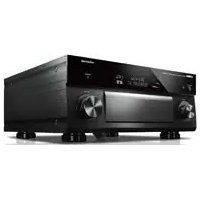
TSR6750 - Home cinema amp YAMAHA - Free user manual and instructions
Find the device manual for free TSR6750 YAMAHA in PDF.



| Product type | Home cinema amplifier |
| Brand | YAMAHA |
| Model | TSR6750 |
| Speaker configuration | 5.1 or 7.1 channels |
| Speaker impedance | 8 Ω (default), adjustable to 6 Ω |
| HDMI inputs | 2 |
| HDMI output | 1 with ARC |
| Optical digital audio input | 1 |
| Analog audio input (RCA) | 1 |
| YPAO function | Automatic optimization of speaker settings |
| Sound modes | CINEMA DSP, STRAIGHT |
| Tuner | FM/AM |
| Connectivity | USB (iPod, storage device), network |
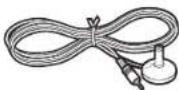
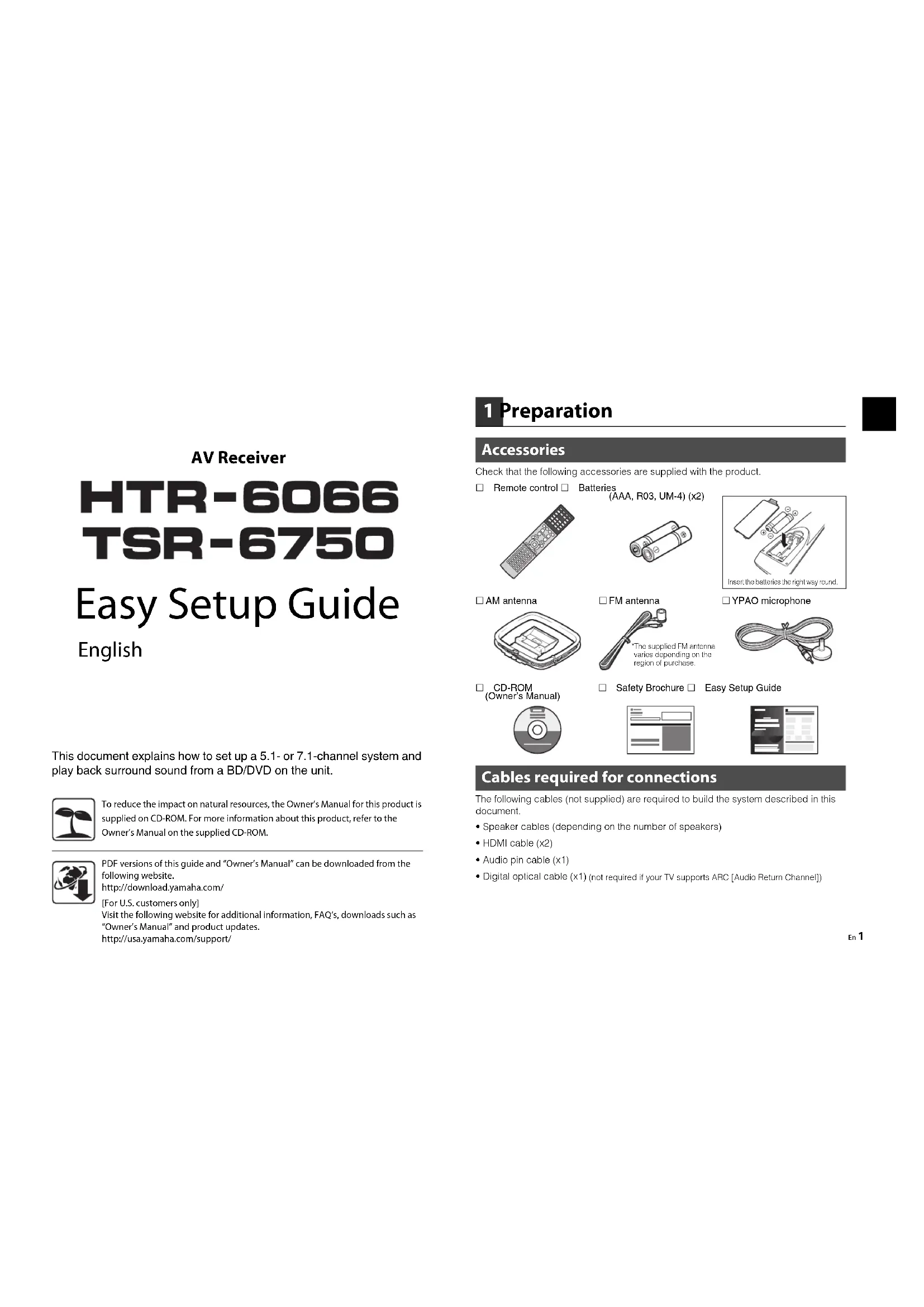
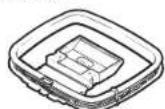
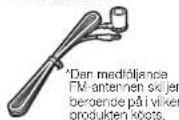
| Supplied accessories | Remote control, batteries, AM/FM antennas, YPAO microphone, CD-ROM (Owner's manual), safety brochure, quick setup guide |
| Power consumption (estimated) | 260 W (0.1 W standby) |
| Dimensions (W x H x D) estimated | 435 x 171 x 365 mm |
| Estimated weight | 8.5 kg |
| Maintenance | Clean with a soft, dry cloth |
| Safety | Disconnect the device before any connection; avoid short circuits |
Frequently Asked Questions - TSR6750 YAMAHA
User questions about TSR6750 YAMAHA
0 question about this device. Answer the ones you know or ask your own.
Ask a new question about this device
Download the instructions for your Home cinema amp in PDF format for free! Find your manual TSR6750 - YAMAHA and take your electronic device back in hand. On this page are published all the documents necessary for the use of your device. TSR6750 by YAMAHA.
USER MANUAL TSR6750 YAMAHA
AV Receiver/Ampli-tuner audio-video
HTR-6066
TSR-6750
Easy Setup Guide
Manuel de configuration rapide
Anleitung zur Schnelleinrichtung
SnabbaInstallationsguide
Guida di configurazione rapida
Guía de configuración sencilla
Easy Setup-gids
AV Receiver
HTR-6066 TSR-6750
Easy Setup Guide
English
This document explains how to set up a 5.1- or 7.1-channel system and play back surround sound from a BD/DVD on the unit.

To reduce the impact on natural resources, the Owner's Manual for this product is supplied on CD-ROM. For more information about this product, refer to the Owner's Manual on the supplied CD-ROM.

PDF versions of this guide and "Owner's Manual" can be downloaded from the following website.
http://download.yamaha.com/
[For U.S. customers only]
Visit the following website for additional information, FAQ's, downloads such as
"Owner's Manual" and product updates.
http://usa.yamaha.com/support/
1 Preparation
Accessories
Check that the following accessories are supplied with the product.
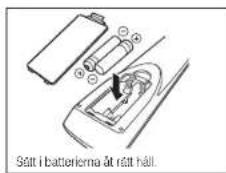
Remote control Batteries
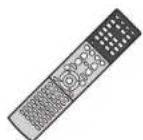
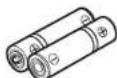
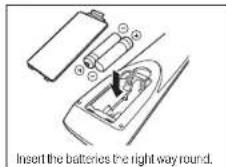
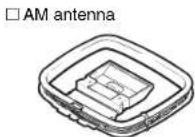
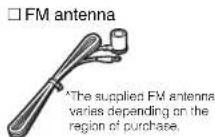
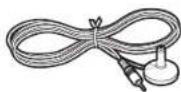
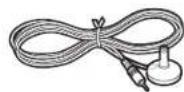
□YPAO microphone
CD-ROM (Owner's Manual)

Safety Brochure
Easy Setup Guide
Cables required for connections
The following cables (not supplied) are required to build the system described in this document.
- Speaker cables (depending on the number of speakers)
- HDMI cable (x2)
Audio pin cable (x1)
Digital optical cable (x1) (not required if your TV supports ARC [Audio Return Channel])

2 Placing speakers
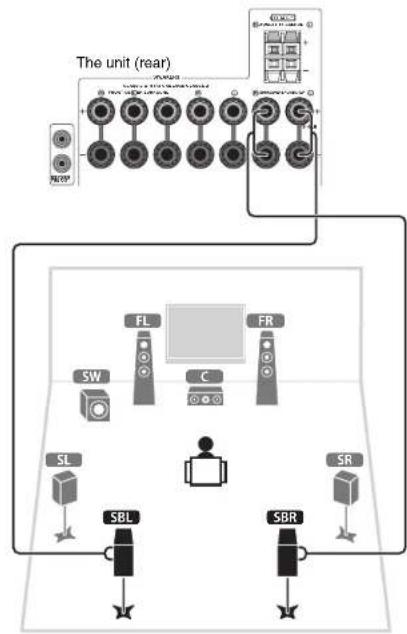
Set up the speakers in the room using the following diagram as a reference. For information on other speaker systems, refer to "Owner's Manual".
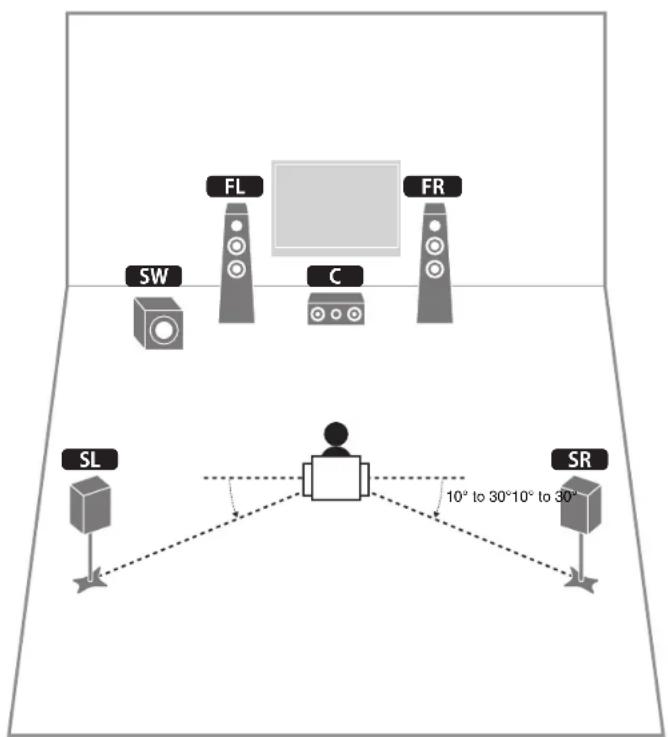
5.1-channel system
7.1-channel system
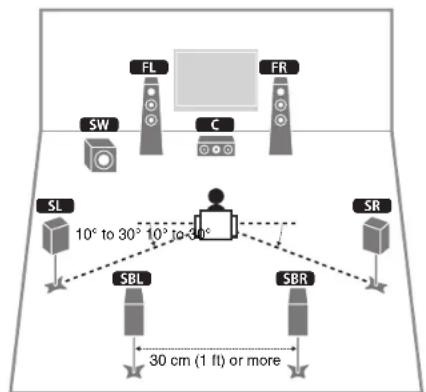
FL Front speaker (L)
FR Front speaker (R)
C Center speaker
SL Surround speaker (L)
SR Surround speaker (R)
SBL Surround back speaker (L)
SBR Surround back speaker (R)
SW Subwoofer
3 Connecting speakers/subwoofer
- Under its default settings, the unit is configured for 8-ohm speakers. When connecting 6-ohm speakers, set the unit's speaker impedance to 6 MIN. For details, see "Setting the speaker Impedance" in "Owner's Manual".
- Use a subwoofer equipped with built-in amplifier.
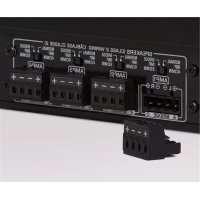
Before connecting the speakers, remove the unit's power cable from the AC wall outlet and turn off the subwoofer. - Ensure that the core wires of the speaker cable do not touch each other or come into contact with the unit's metal areas. This may damage the unit or the speakers. If the speaker cables short circuit, "Check SP Wires" will appear on the front display when the unit is turned on.
Connecting speaker cables
Speaker cables have two wires. One is for connecting the negative (-) terminals of the unit and the speaker, and the other is for the positive (+) terminals. If the wires are colored to prevent confusion, connect the black wire to the negative and the other wire to the positive terminals.
① Remove approximately 10 mm (3/8") of insulation from the ends of the speaker cable and twist the bare wires of the cable firmly together.
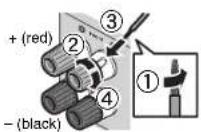
②Loosen the speaker terminal.
③Insert the bare wires of the cable into the gap on the side (upper right or bottom left) of the terminal.
④ Tighten the terminal.
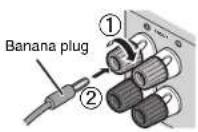
Using a banana plug
(U.S.A. and Australia models only)
① Tighten the speaker terminal.
②Insert a banana plug into the end of the terminal.
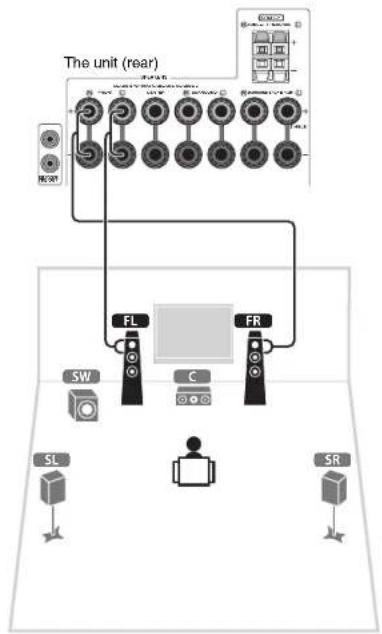
1 Connect the front speakers (FL/FR) to the FRONT (C/O) terminals.
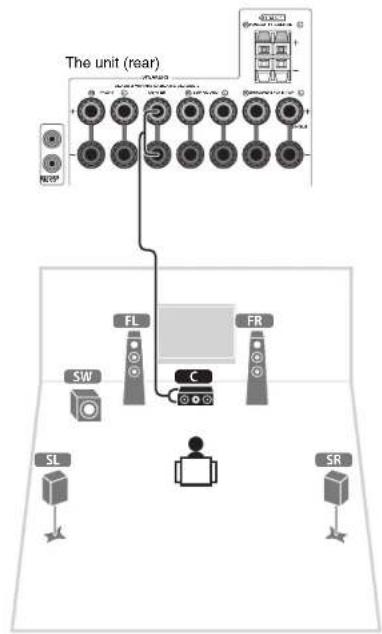
2 Connect the center speaker (C) to the CENTER terminal.
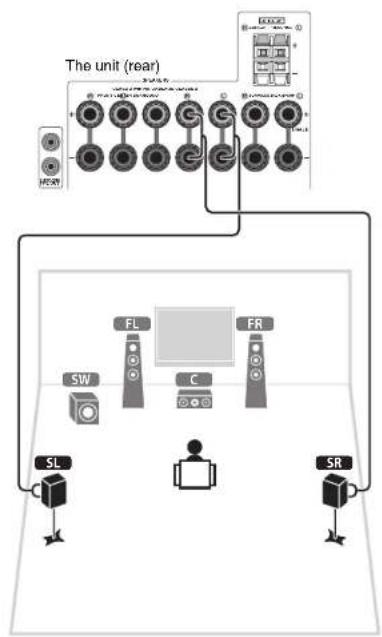
3 Connect the surround speakers (SL/SR) to the SURROUND (L/B) terminals.
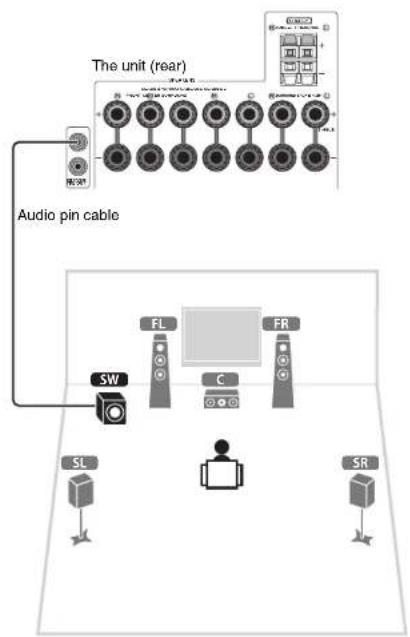
4 Connect the subwoofer (SW) to the SUBWOOFER PRE OUT (1) jack.

- Use a subwoofer equipped with built-in amplifier.
For 7.1-channel system
Connect the surround back speakers (SBL/SBR) to the SURROUND BACK (C/®) terminals.
4 Connecting external devices
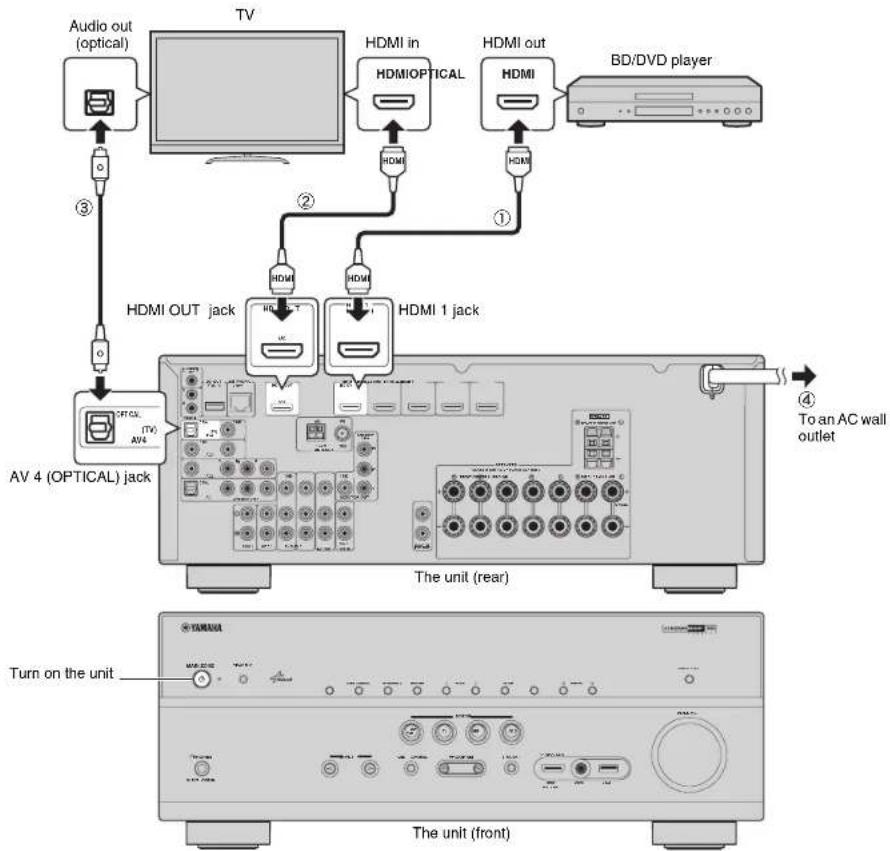
1 Connect external devices to the unit.
① Connect a BD/DVD player to the unit with an HDMI cable. If the BD/DVD player is currently connected to the TV directly with an HDMI cable, disconnect the cable from the TV and connect it to this unit.
② Connect a TV to the unit with the other HDMI cable.
3 Connect a TV to the unit with a digital optical cable. This connection is required to play back TV audio on the unit. This connection is not required if your TV supports ARC (Audio Return Channel).
4 Connect the power cable to an AC wall outlet.

- For information on how to connect radio antennas or other external devices, see "PREPARATIONS" in "Owner's Manual".
2 Turn on the unit, the TV and the BD/DVD player.
3 Use the TV remote control to change the TV input to video from the unit.
The connections are complete. Proceed to the next page to optimize the speaker settings.

- By connecting a TV to the unit with an HDMI cable, you can configure the unit's settings with the menu displayed on the TV. In addition, you can select the on-screen menu language from English (default), Japanese, French, German, Spanish, Russian, Italian and Chinese. For details, refer to 'Owner's Manual'. In this guide, illustrations of English menu screens are used as examples.

5 Optimizing the speaker settings automatically (YPAO)
The Yamaha Parametric room Acoustic Optimizer (YPAO) function detects speaker connections, measures the distances from them to your listening position(s), and then automatically optimizes the speaker settings, such as volume balance and acoustic parameters, to suit your room.
- During the measuring process, test tones are output at high volume. Ensure that the test tones do not frighten small children. Also, refrain from using this function at night when it may be a nuisance to others.
During the measuring process, you cannot adjust the volume. - During the measuring process, keep the room as quiet as possible.
- Do not connect headphones.
- Do not stand between the speakers and the YPAO microphone during the measurement process (about 3 minutes).
- Move to the corner of the room or leave the room.
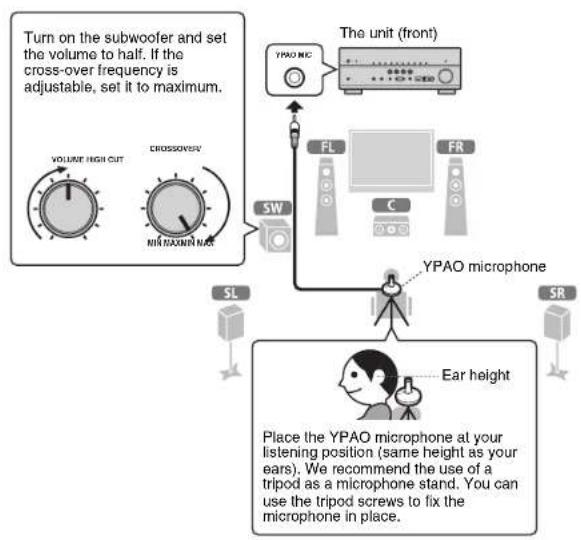
Preparing for YPAO
1 Connect the YPAO microphone to the YPAO MIC jack on the front panel.
The following screen appears on the TV.
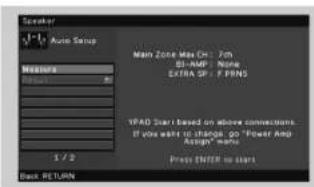

- To cancel the operation, disconnect the YPAO microphone before starting the measurement.
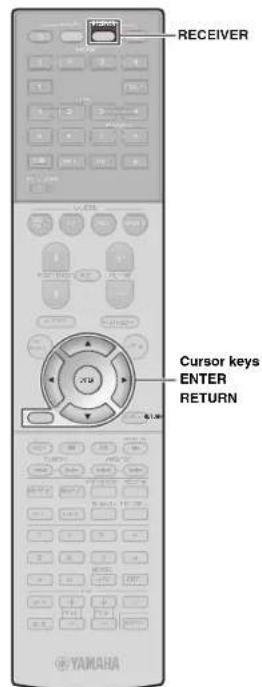
2 To start the measurement, use the cursor keys to select "Measure" and press ENTER.
The measurement will start in 10 seconds. The following screen appears on the TV when the measurement finishes.
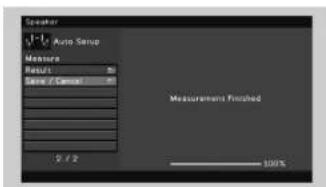

- If the cursor keys do not work, press RECEIVER and then use the cursor keys.
- If any error message (such as E-1) or warning message (such as W-2) appears, see "Error messages" or "Warning messages" in Owner's Manual.
- If the warning message "W-1:Out of Phase" appears, see "If "W-1:Out of Phase" appears" (next page).
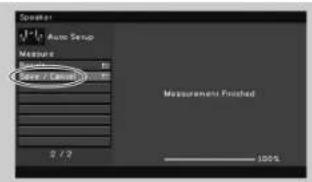
3 Use the cursor keys to select "Save/Cancel" and press ENTER.
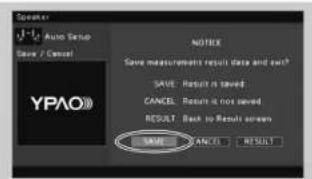
4 Use the cursor keys to select "SAVE" and press ENTER.
5 Disconnect the YPAO microphone from the unit.
This completes optimization of the speaker settings.
- The YPAO microphone is sensitive to heat, so should not be placed anywhere where it could be exposed to direct sunlight or high temperatures (such as on top of AV equipment).
If "W-1:Out of Phase" appears
Follow the procedure below to check the speaker connections.
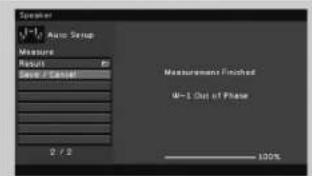
① Use the cursor keys to select "Result" and press ENTER.
Use the cursor keys to select "Wiring".
3Check the cable connections (+ / - ) of the speaker that was identified as being "Reverse" in the warning message.
If the speaker is connected correctly:
Depending on the type of speakers or room environment, this message may appear even if the speakers are connected correctly. In this case, you can ignore the message.
Press RETURN and proceed to step 3.
If the speaker is connected Incorrectly:
Turn off the unit, reconnect the speaker cable, and then try YPAO measurement again.

6 Playing back a BD/DVD
Now let's play back a BD/DVD.
We recommend playing back multichannel audio
(5.1-channel or more) to feel surround sound produced by the unit.
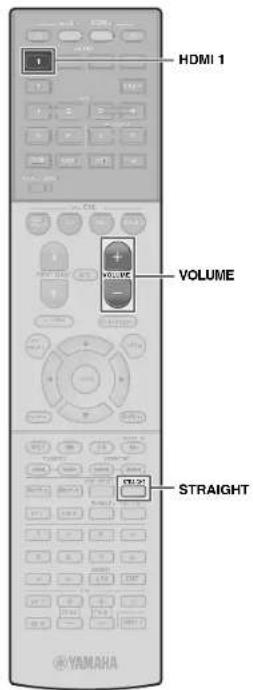
1 Press HDMI 1 to select "HDMI 1" as the input source.

2 Start playback on the BD/DVD player.
3 Press STRAIGHT repeatedly to select "STRAIGHT".

4 Press VOLUME to adjust the volume.
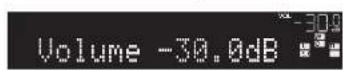
This completes the basic setup procedure.
If surround sound is not working
Sound is only being output from the front speakers during multichannel audio playback
Check the digital audio output setting on the BD/DVD player.
It may be set to 2-channel output (such as PCM).
No sound is coming from a specific speaker
See "Troubleshooting" in "Owner's Manual".
Many more features!
The unit has various other functions.
Please refer to "Owner's Manual" on the supplied CD-ROM to help you get the most out of the unit.
Connecting other playback devices
Connect audio devices (such as CD player), game consoles, camcorders, and many others.
Selecting the sound mode
Select the desired sound program (CINEMA DSP) or surround decoder suitable for movies, music, games, sports programs, and other uses.
Playing back from iPod
By using a USB cable supplied with iPod, you can enjoy iPod music on the unit.
■ Listening to FM/AM radio
■Playing back music stored on a USB storage device
Playing back the network contents
Selecting the input source and favorite settings at once
For more information, see "What you can do with the unit".
Ampli-tuner audio-video
HTR-6066 TSR-6750
Manuel de configuration rapide François
(AAA, R03, UM-4) (2 st.)
□AM-antenn
FM-antenn
□YPAO-mikrofon
□CD-ROM
(Bruksanvising)

Sakerhetsanyisningar
Snabinstallationsguide
Kablar som kravs for ansluttingar
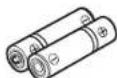
(AAA, R03, UM-4) (x2)
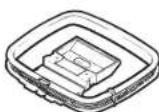
Antenna AM
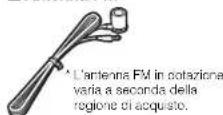
Antenna FM
□MicrofonoYPAO