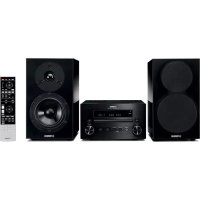
Restio ISX803D - Audio System YAMAHA - Free user manual and instructions
Find the device manual for free Restio ISX803D YAMAHA in PDF.



| Product Type | Audio system with CD player, USB, DAB+/FM radio and Bluetooth |
| Brand | YAMAHA |
| Model | Restio ISX803D |
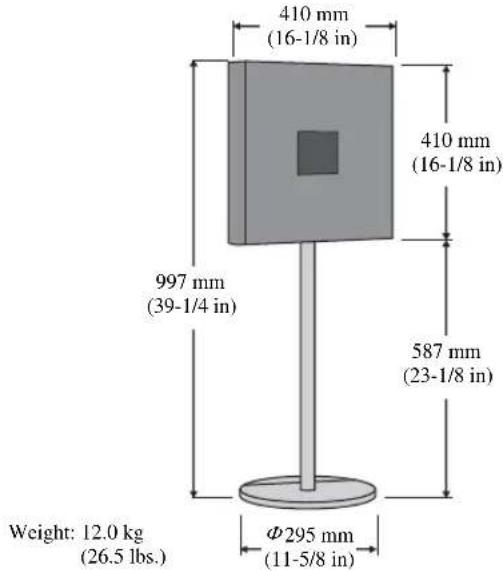
| Weight | 12.0 kg |
| Power Supply | 100-240 V AC, 50/60 Hz, 11 W |
| Standby Consumption | 2.5 W (clock display and Bluetooth enabled); 0.4 W (eco standby mode) |
| Main Functions | CD audio and CD data player, USB port, DAB+/FM receiver with 5 presets, Bluetooth with NFC, IntelliAlarm 3-mode alarm, 3-band equalizer, analog and digital clock, timer |
| Maintenance and Cleaning | Clean with a dry, clean cloth. Do not use chemical solvents. |
| Safety | Do not expose to rain or moisture. Respect ventilation distances (top 15 cm, rear 2.5 cm, sides 10 cm). Do not open the casing. Disconnect during thunderstorms. |
| Spare Parts and Repairability | Consult Yamaha service for any repairs. Do not attempt to modify or repair yourself. |
| Supplied Accessories | Power cable, remote control, DAB/FM antenna, USB cap, instruction manual, installation guide, foot, tube, base, bracket, band, screws |
| Tuning Ranges | FM: 87.50-108.00 MHz; DAB/DAB+: 174-240 MHz (Band III) |
| Supported Audio Formats | CD audio, CD-R/RW, MP3 and WMA files (bitrate 8-320 kbps, sampling 16-48 kHz) |
| Number of Radio Presets | 5 DAB stations and 5 FM stations |
| Bluetooth | Profile A2DP, codec SBC, range approx. 10 m, pairing via NFC |
| Laser Type (CD player) | Semiconductor GaAs/GaAlAs, wavelength 790 nm, output power 7 mW |
| Alarm Function | 3 modes: Source + BEEP, Source only, BEEP only. Snooze (5 min). Weekly Alarm via DTA Controller app |
| Control App | DTA Controller (iOS/Android) for advanced settings and weekly alarm |
| Remote Control | AAA batteries (2 x), range approx. 6 m |
Frequently Asked Questions - Restio ISX803D YAMAHA
User questions about Restio ISX803D YAMAHA
0 question about this device. Answer the ones you know or ask your own.
Ask a new question about this device
Download the instructions for your Audio System in PDF format for free! Find your manual Restio ISX803D - YAMAHA and take your electronic device back in hand. On this page are published all the documents necessary for the use of your device. Restio ISX803D by YAMAHA.
USER MANUAL Restio ISX803D YAMAHA
1 To assure the finest performance, please read this manual carefully. Keep it in a safe place for future reference.
2 Install this unit in a well ventilated, cool, dry, clean place away from direct sunlight, heat sources, vibration, dust, moisture and cold. For proper ventilation, allow the following minimum clearances.
Top: 15cm (6 in)
Rear: 2.5cm (1 in)
Sides: 10cm (4 in)
3 Locate this unit away from other electrical appliances, motors, or transformers to avoid humming sounds.
4 Do not expose this unit to sudden temperature changes from cold to hot (or vice versa), and do not locate this unit in an environment with high humidity (i.e., a room with a humidifier) to prevent condensation inside this unit, which may cause an electrical shock, fire, damage to this unit, and/or personal injury.
5 Avoid installing this unit where foreign object may fall onto this unit and/or this unit may be exposed to liquid dripping or splashing. On the top of this unit, do not place:
- Other components, as they may cause damage and/or discoloration on the surface of this unit.
- Burning objects (i.e., candles), as they may cause fire, damage to this unit, and/or personal injury.
- Containers with liquid in them, as they may fall and liquid may cause electrical shock to the user and/or damage to this unit.
6 Do not cover this unit with a newspaper, tablecloth, curtain, etc. in order not to obstruct heat radiation. If the temperature inside this unit rises, it may cause fire, damage to this unit, and/or personal injury.
7 Do not plug in this unit to a wall outlet until all connections are complete.
8 Do not operate this unit upside-down. It may overheat, possibly causing damage.
9 Do not use force on switches, knobs and/or cords.
10 When disconnecting the power cable from the wall outlet, grasp the plug; do not pull the cable.
11 Do not clean this unit with chemical solvents; this might damage the finish. Use a clean, dry cloth.
12 Only voltage specified on this unit must be used. Using this unit with a higher voltage than specified is dangerous and may cause fire, damage to this unit, and/or personal injury. Yamaha will not be held responsible for any damage resulting from use of this unit with a voltage other than specified.
13 To prevent damage by lightning, keep the power cable and outdoor antennas disconnected from a wall outlet or this unit during a lightning storm.
14 Do not attempt to modify or fix this unit. Contact qualified Yamaha service personnel when any service is needed. The cabinet should never be opened for any reasons.
15 When not planning to use this unit for long periods of time (i.e., vacation), disconnect the AC power plug from the wall outlet.
16 Be sure to read the "TROUBLESHOOTING" section on common operating errors before concluding that this unit is faulty.
17 Before moving this unit, press set the system to off, and disconnect the AC power plug from the wall outlet.
18 Condensation will form when the surrounding temperature changes suddenly. Disconnect the power cable from the outlet, then leave this unit alone.
19 When using this unit for a long time, this unit may become warm. Turn the system off, then leave this unit alone for cooling.
20 Install this unit near the wall outlet and where the AC power plug can be reached easily.
21 The batteries shall not be exposed to excessive heat such as sunshine, fire or the like.
- Keep the batteries in a location out of reach of children. Batteries can be dangerous if a child were to put in his or her mouth.
- If the batteries grow old, the effective operation range of the remote control decreases considerably. If this happens, replace the batteries with two new ones as soon as possible.
- Do not use old batteries together with new ones.
- Do not use different types of batteries (such as alkaline and manganese batteries) together. Read the packaging carefully as these different types of batteries may have the same shape and color.
- Exhausted batteries may leak. If the batteries have leaked, dispose of them immediately. Avoid touching the leaked material or letting it come into contact with clothing, etc. Clean the battery compartment thoroughly before installing new batteries.
- If you plan not to use the unit for a long period of time, remove the batteries from the unit. Otherwise, the batteries will wear out, possibly resulting in a leakage of battery liquid that may damage the unit.
- Do not throw away batteries with general house waste. Dispose of them correctly in accordance with your local regulations.
This unit is not disconnected from the AC power source as long as it is connected to the wall outlet, even if this unit itself is turned off by in this state, this unit is designed to consume a very small quantity of power.
WARNING
TO REDUCE THE RISK OF FIRE OR ELECTRIC SHOCK, DO NOT EXPOSE THIS UNIT TO RAIN OR MOISTURE.
CAUTION
Danger of explosion if battery is incorrectly replaced.
Replace only with the same or equivalent type.
There is a chance that placing this unit too close to a CRT-based (Braun tube) TV set might impair picture color.
Should this happen, move this unit away from the TV set.
CONTENTS
NAMES OF PARTS AND THEIR FUNCTIONS. 2
ADJUSTING THE CLOCK. 5
INSTALLING "DTA CONTROLLER" 6
LISTENING TO CD AND USB DEVICES 7
LISTENING TO MUSIC FROM YOUR Bluetooth DEVICE....10
LISTENING TO DAB STATIONS (ISX-803D) 13
LISTENING TO FM STATIONS. 15
LISTENING TO EXTERNAL SOURCES 16
USING THE ALARM FUNCTION 17
USING THE SLEEP TIMER 21
TONE CONTROL (REMOTE CONTROL ONLY) 21
ADJUSTING BRIGHTNESS OF FRONT PANEL DISPLAY...21
TROUBLESHOOTING 22
NOTES ON DISCS AND USB DEVICES. 25
SPECIFICATIONS 26
Features
- Play back music on external devices such as audio/data CDs and USB devices (USB flash drives), and tune in to the DAB (ISX-803D only)/FM radio.
- By the Bluetooth technology, you can enjoy clear sound without wired connections. One touch pairing enabled by NFC technology.
- Use your favorite music or set of beeps as an alarm. The music you select is played at a volume of your own choice at the set alarm time, giving you the best possible start to the day (IntelliAlarm function) (P. 17).
- Store/call up to five of your favorite DAB (ISX-803D only)/FM stations easily.
- The 3-band equalizer (bass, middle, treble) can be set so that music sounds exactly how you want it.
- Two types of clocks (with hour hands) that match the design of the unit can be shown.
About this manual
- The illustrations of the main unit used in this manual are of the ISX-803D, unless otherwise specified.
- The DAB/DAB+ tuning feature is only available on the ISX-803D.
- If both the unit and remote control buttons can be used to operate a feature, the manual will describe steps using the buttons on the unit.
Note indicates precautions for use of the unit and its feature limitations.
indicates supplementary explanations for better use.
Supplied accessories
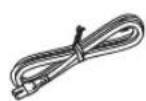
Power cable
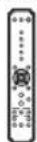
Remote control
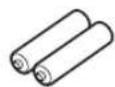
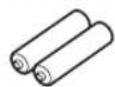
Batteries x 2 (AA, R6, UM-3)
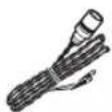
FM antenna (for ISX-803)
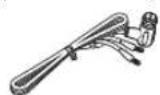
DAB/FM antenna (for ISX-803D)

USB cap
Note
Keep the USB cap out of reach of children so as to ensure that it is not mistakenly swallowed.
Owner's Manual (this manual)
Assembly Guide
Note
Pole
Base
Support
Cable clamp
Screw set
Use these items to assemble the stand. Read the separate Assembly Guide for information on how to assemble the stand.
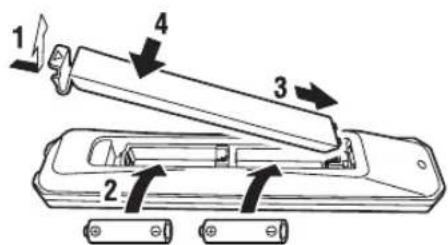
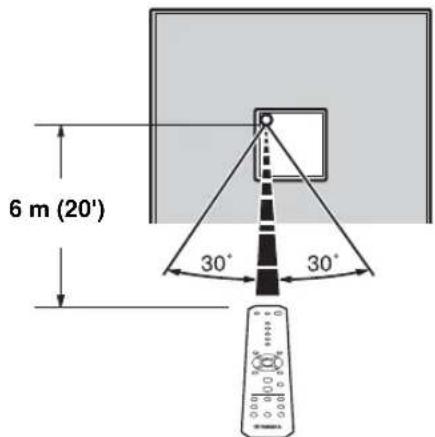
How to use the remote control
Insert the batteries into the remote control in the correct direction (+ and -) .
Point the remote control at the remote control signal receiver (on the front panel) and use within the range shown below.
Top panel
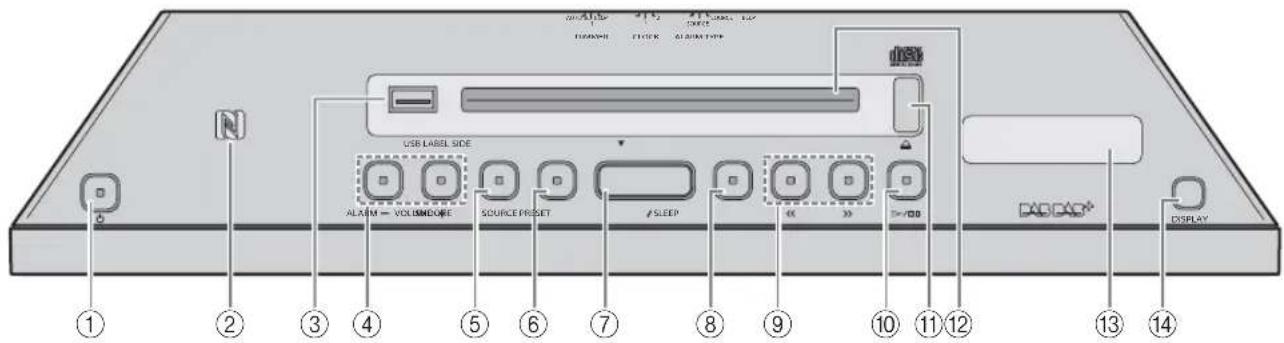
① (Bower)
Press to turn on the system or enter standby mode. Time is displayed on the front panel even when the system is in standby mode.
- Press and hold the top of the unit for more than 3 seconds to set the system to Eco Standby mode. No information on the front panel is displayed in this mode. This can reduce power consumption. To cancel Eco Standby mode, press drain.
Even in standby mode or Eco Standby mode, the alarm function is available.
② NFC mark
Allows easy pairing with NFC technology.
③USB port
Connect a USB device (P.9).
④VOLUME-/+
Adjust the volume.
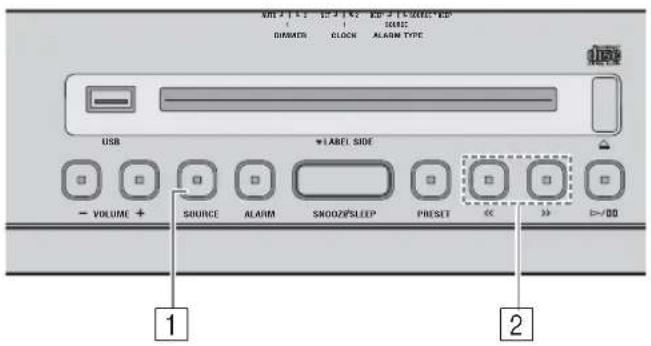
(5)SOURCE
Switch the source to be played.
⑥ALARM
Turns the alarm on/off, and allows various alarm settings to be adjusted (P. 18, 19).
⑦SNOOZE/SLEEP
Set the sleep timer or switch the alarm to snooze mode (P. 19, 21).
(8) PRESET
Store/call up radio stations, or switch the playback folder (when playing music on data CDs or USB devices).
9K<>>
Skip the playback track/file, or tune the radio.
Holding the button down while playing a track/file will search backward/forward the track/file.
10
Play/pause the track being played.
⑪
Eject the CD (FsP.7,8).
⑫Disc slot
Insert a CD (P. 7, 8).
③DAB information display (ISX-803D only)
Display DAB information (P. 13).
DISPLAY (ISX-803D only)
Switch the DAB information display (P. 14).
Auto Standby
- With the Auto Standby function, the unit behaves as described below when the system is turned on (default setting):
This unit enters standby mode when playback of CD/USB is paused, when no signal is input from the tuner or a connected device, or when playback continues at quite a low volume for a certain period of time (about 20 minuets).
This unit enters standby mode when no operation is performed for more than 8 hours.
- Activating/Deactivating Auto Standby
1 Plug in the unit while pressing and holding
2 Keep holding
Auto Standby status changes, blinking the following indicators:
- When activating Auto Standby: 1 ALL and the ALARM, and PRESET buttons on the top panel blink for 3 seconds.
- When deactivating Auto Standby: Only on the front display blinks for 3 seconds.
Front panel display
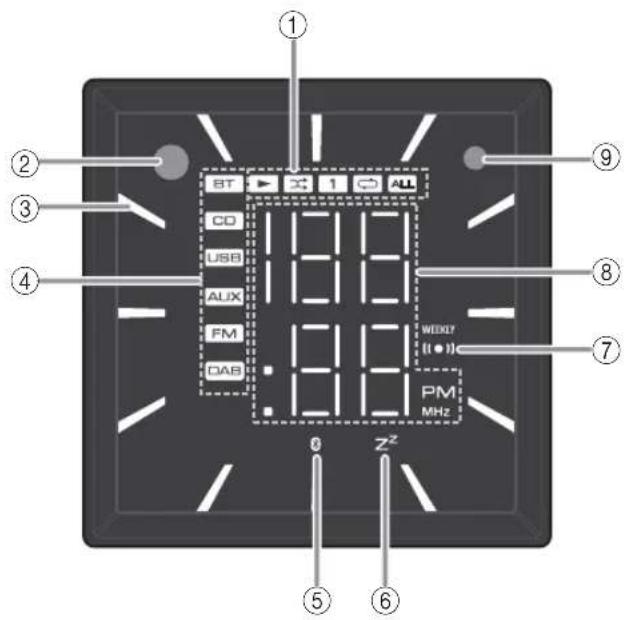
①Play/shuffle/repeat indicator
Displays the playback mode (P. 7, 9).
② Remote control signal receiver
③Clock indicator
Shows the clock hour hand (P. 5).
④Source indicator
Shows selected source. (The DAB indicator is only displayed on the ISX-803D.)
⑤Bluetooth indicator
Turns on if this unit is connecting via Bluetooth (P. 10, 12).
⑥ Sleep indicator
Turns on if the sleep timer has been set (P. 21).
⑦ Alarm indicator
Turns on if the alarm has been set (P.17).
The Weekly Alarm indicator (WEEKLY) turns on if Weekly Alarm has been set.
Multi-function indicator
Displays various information, including the clock time, track number being played or FM station.
⑨Illumination sensor
Detects ambient lighting. Do not cover this sensor.
Rear panel
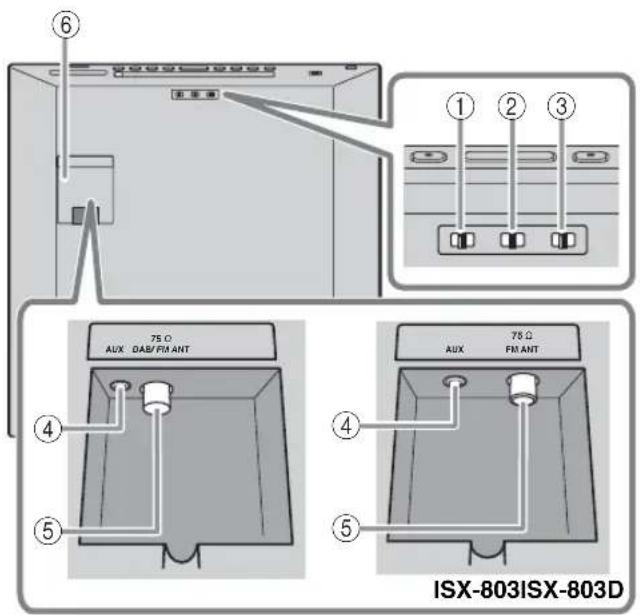
①ALARM TYPE
Switches the alarm type (P.18).
② CLOCK
Switches the type of clock display or allows the time to be set (P.5).
③ DIMMER
Adjusts the brightness of the front panel display (P. 21).
AUX
Connects an external device.
⑤DAB/FM antenna terminal (ISX-803D)/FM antenna terminal (ISX-803)
Connects the supplied DAB/FM antenna or an outdoor antenna.
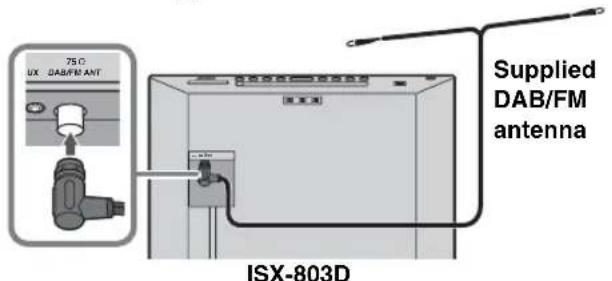
Notes
The antenna should be stretched out. If radio reception is poor, change the height, direction, or placement of the antenna.
If you use a commercially available outdoor antenna instead of the supplied DAB/FM antenna, reception may be better.
⑥ Terminal cover
Remove the terminal cover before connecting external devices to AUX, and/or connecting the DAB/FM antenna to antenna terminal.
If you pass the outdoor antenna cable and/or external device cable through the pole of the stand, read the separate Assembly Guide.
Remote control
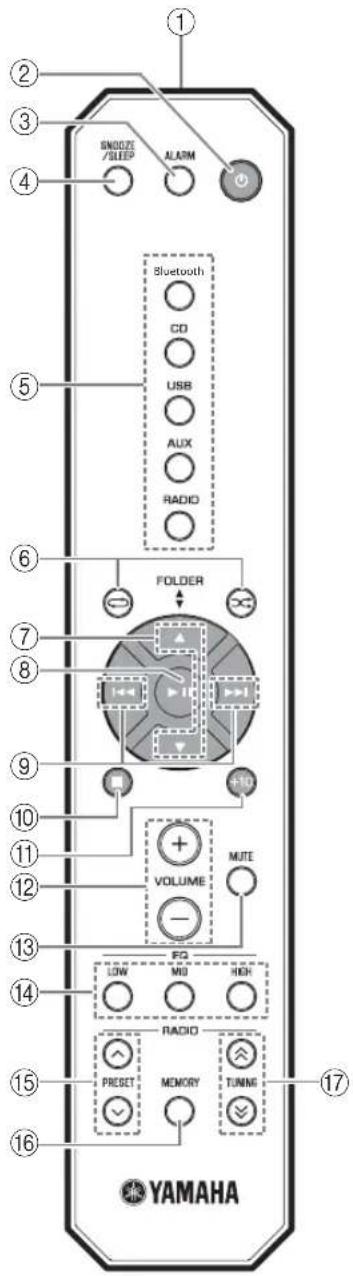
① Remote control signal transmitter
② (Power)
Press to turn on the system or enter standby mode.
③ALARM
Switches the alarm on/off.
④SNOOZE/SLEEP
Set the sleep timer or switch the alarm to snooze mode (P. 19, 21).
⑤Source button
Switch the source to be played.
(Repeat)/ (Shuffle)
Play music on an audio/data CD or USB device in repeat/shuffle (P. 7, 9).
⑦
Switch the playback folder when playing music on data CDs or USB devices.
⑧
Play/pause.
Apply the setting.
⑨h<
Skip the playback track/file.
Holding the button down while playing a track/file will search backward/forward the track/file.
10
Stop playback.
⑪+10
Skip 10 tracks/files.
⑫VOLUME +/−
Adjust the volume.
MUTE
Mute/resume the sound.
⑭EQ LOW/MID/HIGH
Adjust the bass, middle or treble sound quality (P. 21).
15 PRESET \~/v
Select a preset radio station.
6 MEMORY
Store the radio station (P.15).
TUNING ≈ / ≈
Tune the radio.
Setting the time
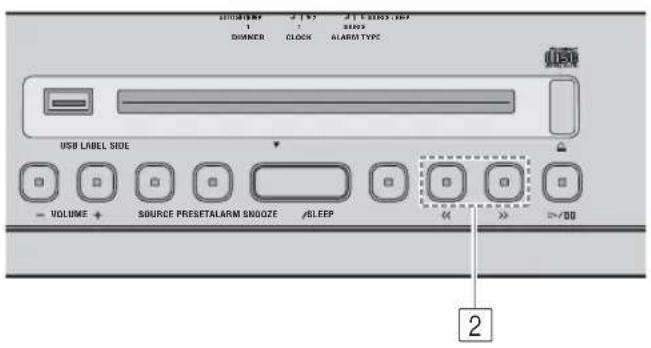
Top panel
1 Move the CLOCK switch on the rear panel to SET.
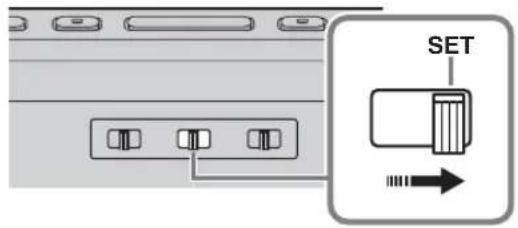
Rear panel
Set the time with
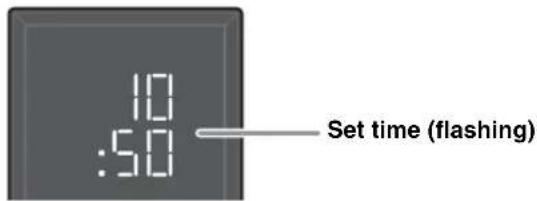
3 Move the CLOCK switch on the rear panel to CLOCK1 or CLOCK2 to end the time setting.
- Pressing SNOOZE/SLEEP in step [2] will switch between the 12 and 24 hour clock display.
- The "PM" indicator will be shown only when you select the 12 hour clock display.
Note
The time settings will be reset if the unit is not powered for more than one week.
Switching the clock type
Move the CLOCK switch on the rear panel to switch the clock type.
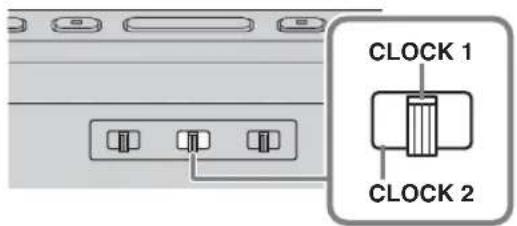
Rear panel
Clock display mode 1 (CLOCK 1)
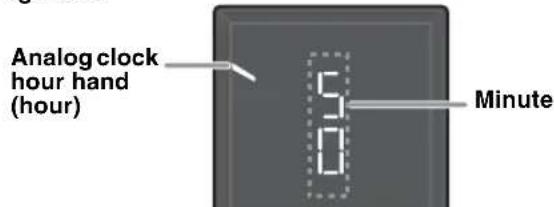
Eg: 10:50
Clock display mode 2 (CLOCK 2)
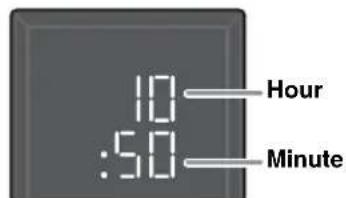
Eg: 10:50
INSTALLING "DTA CONTROLLER"
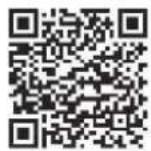
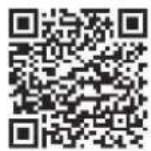
Insting DTA CONTROLLER aplicaion on a mobile device, such as a smartphone or tablet computer, allows you to use a variety of additional convenient features of this unit.
Features
- Turning on the unit or setting the unit to standby mode
- Adjusting volume
- Setting of the alarm function (IntelliAlarm) (P.20)
- Playing back songs stored in an iPhone

The mobile device needs to be connected with the unit via Bluetooth connection (P. 10).

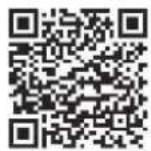
http://itunes.com/app/dtacontroller
Google PlayTM
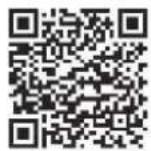
https://play.google.com/store/apps/
details?id=com.yamaha.av.
dto-controller
Note
If you cannot access the above information, search for "DTA CONTROLLER" on App Store or Google Play.
LISTENING TO CD AND USB DEVICES
The unit will operate as follows when playing back tracks/files on CD/USB devices.
- If the CD/USB device being played back is stopped, the track that was being played back will start playing from the beginning of the track the next time playback begins.
- If you press on the remote control while playback is stopped, the next time playback begins, the unit will play tracks as follows: -For audio CD: from the first track of the CD.
-For data CD/USB device: from the first track of the folder that contains the track that was played last.
This system enters standby mode automatically if 20 minutes have elapsed without any playback and no operation is performed after CD/USB device playback is stopped.
中
For details on playable discs and files, refer to "NOTES ON DISCS AND USB DEVICES" (P. 25).
Listening to an audio CD
Top panel
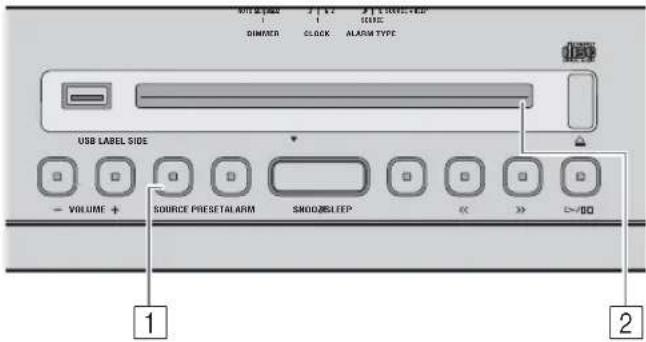
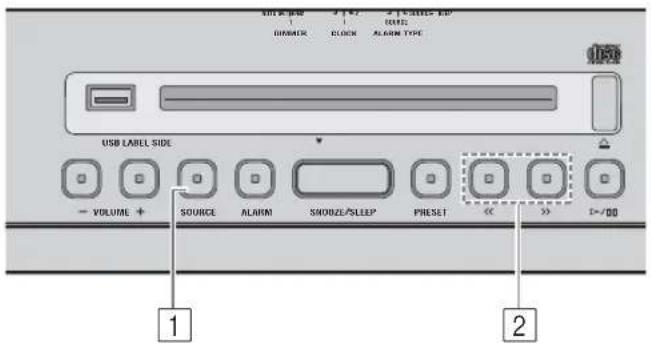
Press SOURCE to set CD as the playback source.
Using the remote control
Press CD.
If a CD is already inserted, playback will start.
2 Insert the audio CD into the disc slot with the label side facing toward the front of the unit.
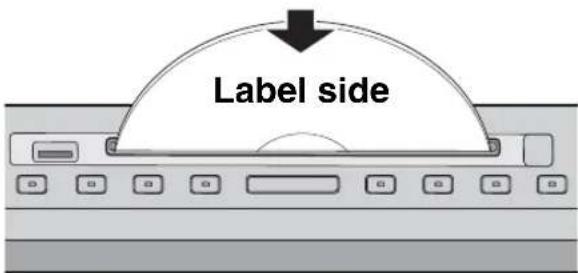
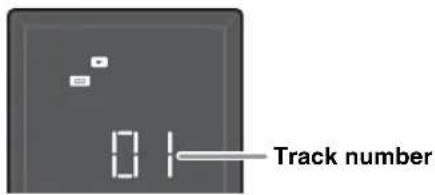
Playback starts automatically. The track number is shown for a while when starting playback or skipping tracks.
Use the following buttons to control the unit while playing back tracks on audio CDs.
| Button | Function | |
| Top Panel | > / 田 | Play/Pause |
| <</>> | Skip Search backward/forward (press and hold down) | |
| △ | Eject the CD | |
| Remote control | ■ | Play/Pause |
| ▲ / ▲ | Skip Search backward/forward (press and hold down) | |
| ■ | Stop | |
| ← | Repeat playback (press P.9) | |
| × | Shuffle playback (press P.9) | |
| +10 | Skip 10 tracks/files | |
Note
CDs cannot be inserted or ejected when the system is in Eco Standby mode (P. 2).
Listening to a data CD
Top panel
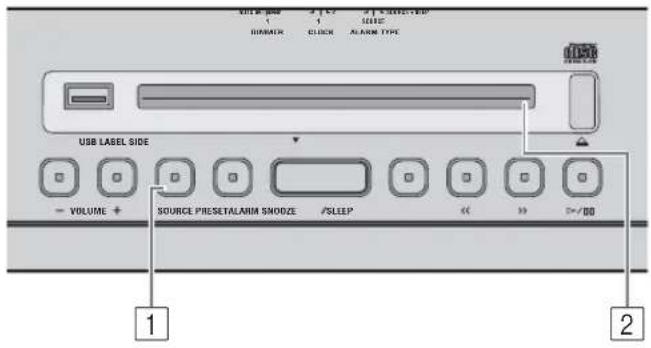
Press SOURCE to set CD as the playback source.
Using the remote control
Press CD.
If a CD is already inserted, playback will start.
2 Insert the data CD into the disc slot with the label side facing toward the front of the unit.

Playback starts automatically. The folder/file number is shown for a while when starting playback or skipping tracks.
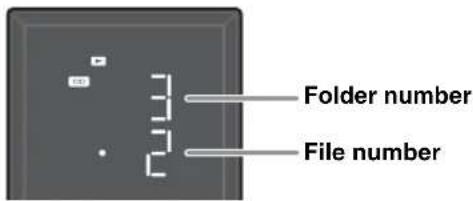
Use the following buttons to control the unit while playing back tracks on data CDs.
| Button Function | ||
| Top Panel | ▷/□ | Play/Pause |
| <</>> | Skip Search backward/forward (press and hold down) | |
| PRESET Change the playback folder | ||
| △ | Eject the CD | |
| Remote control | ▷II | Play/Pause |
| I←/→ | Skip Search backward/forward (press and hold down) | |
| ■ | Stop | |
| ▲/◇change the playback folder | ||
| ← | Repeat playback (▷ P.9) | |
| → | Shuffle playback (▷ P.9) | |
| +10 | Skip 10 tracks/files within the same folder | |
Listening to a USB device
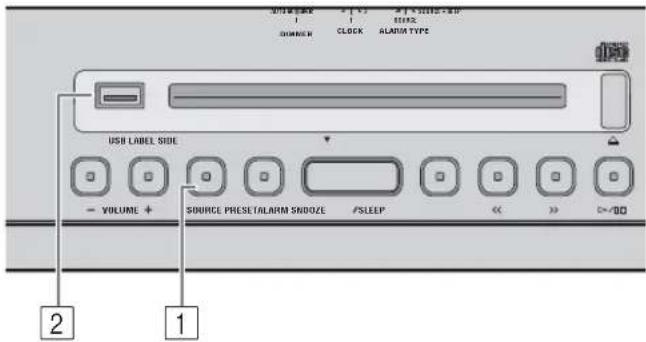
Top panel
1 Press SOURCE and set USB as the playback source.
Using the remote control Press USB.
If a USB device is already connected, playback will start.
Connect a USB device to the USB port.
Playback starts automatically. The folder/file number is shown for a while when starting playback or skipping tracks.
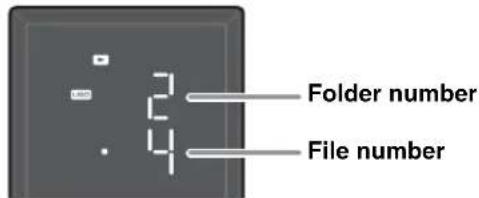
Use the following buttons to control the unit while playing back tracks on USB devices.
| Button | Function | |
| Top Panel | > | Play/Pause |
| < | Skip Search backward/forward (press and hold down) | |
| PRESET | Change the playback folder | |
| Remote control | > | Play/Pause |
| > | Skip Search backward/forward (press and hold down) | |
| ■ | Stop | |
| ▲/▼ | Change the playback folder | |
| ← | Repeat playback (P.9) | |
| × | Shuffle playback (P.9) | |
| +10 | Skip 10 tracks/files within the same folder | |
Stop playback before removing the USB device.
Repeat/shuffle playback
The playback mode can be checked with the play/shuffle/repeat indicator on the front panel display.
Remote control
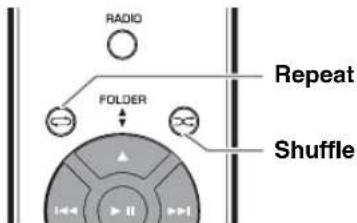
If the selected source contains folders, each folder will be played in repeat/shuffle mode.

Repeat playback
Press (Repeat) on the remote control to select a playback mode from the following.

1:1track

All tracks within the folder (data CD/USB device only)

ALL: A I I t r a c k s
No display: Repeat mode off

Shuffle playback
Press (Shuffle) on the remote control to select a playback mode from the following.

All tracks within the folder (data CD/USB device only)

A l l t r a c k s
No display: Shuffle mode off
LISTENING TO MUSIC FROM YOUR Bluetooth DEVICE
This unit provides Bluetooth functionality. You can enjoy wireless music playback from your Bluetooth device (smartphone, digital audio player, etc.). Please also refer to the owner's manual of your Bluetooth device.
Pairing this unit with your Bluetooth device
Pairing is an operation that registers the communicating device (hereafter called "the connecting device") with this unit. You'll need to perform the pairing operation the first time you use your Bluetooth device with this unit, or if the pairing settings have been deleted. Once pairing has been completed, subsequent reconnection will be easy even after the Bluetooth connection is disconnected. If pairing is not successful, refer to the item "Bluetooth" in "TROUBLESHOOTING" (U P. 23).

This unit can be paired with up to eight connecting devices. When pairing with the ninth device has succeeded, pairing data for the device with the oldest connection date will be deleted.
- If this unit is connected via Bluetooth to another device, hold down the SOURCE button on this unit or Bluetooth on the remote control to disconnect the Bluetooth connection before you perform the pairing operation.
If using an iPod touch/iPhone/iPad
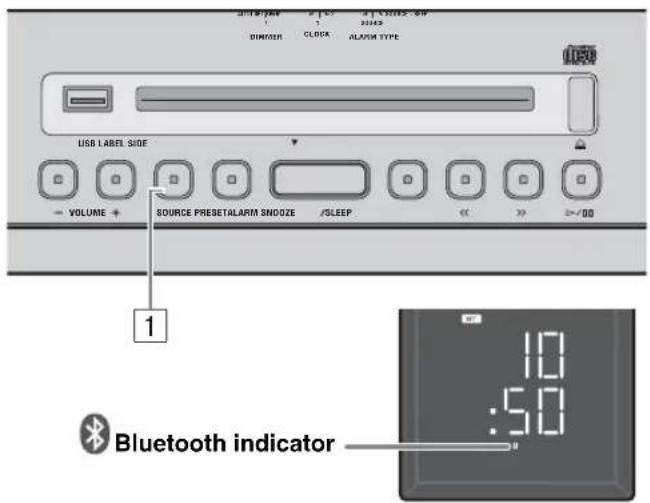
Top panel
Press the SOURCE button to switch the playback source to Bluetooth.
Using the remote control Press Bluetooth.
On your iPod touch/iPhone/iPad, turn [Settings] [Bluetooth] on.
The Bluetooth connection list will appear in [Devices]. (This procedure or display may differ depending on the type of your iPod touch/iPhone/iPad.)
3 From the Bluetooth connection list of the connecting device, choose this unit (ISX-803 Yamaha/ISX-803D Yamaha).
When pairing has been completed, your iPod touch/iPhone/ iPad will indicate "Connected".
The Bluetooth indicator on the front panel display of this unit will light.
If using other than an iPod touch/iPhone/iPad
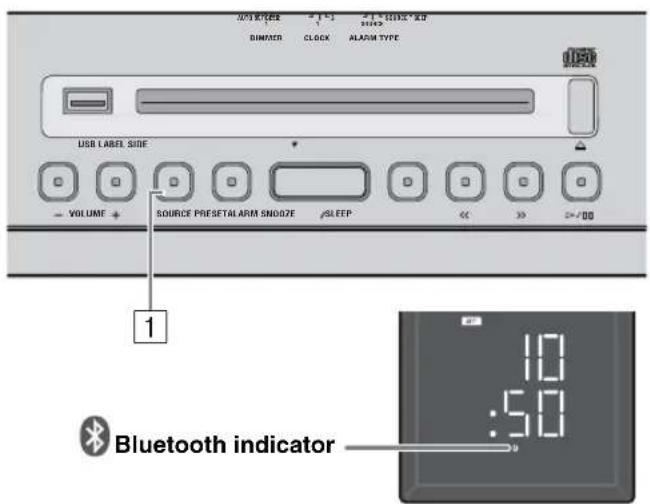
Top panel
Press the SOURCE button to switch the playback source to Bluetooth.
Using the remote control Press Bluetooth.
2 Perform Bluetooth pairing on the connecting device. For details refer to the owner's manual of the connecting device.
3 From the Bluetooth connection list of the connecting device, choose this unit (ISX-803 Yamaha/ISX-803D Yamaha). When pairing has been completed, the Bluetooth indicator on the front panel display of this unit will light for about 1

If you are asked to enter a password, enter the numerals "0000".
Easy pairing
For the smartphone with NFC (Near Field Communication) function, you can easily perform the pairing operation just by holding the smartphone over the NFC mark (you need to turn the system on and turn on the NFC function of the smartphone beforehand).
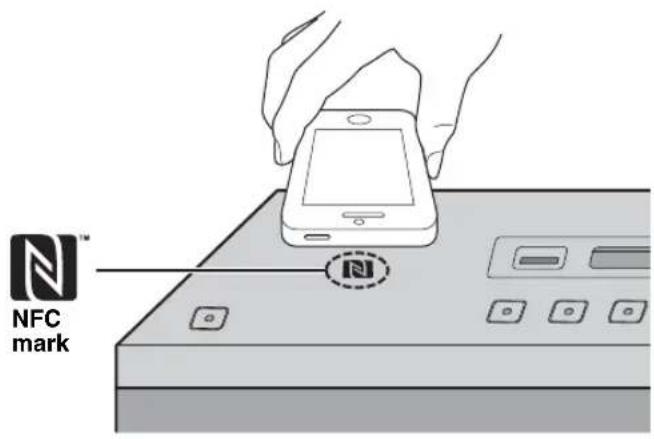
Press turn the system on.
Hold the smartphone over the NFC mark.
3 Perform the pairing operation at the smartphone (for details, please read the owner's manual of the smartphone).
This unit is indicated as "ISX-803 Yamaha"/"ISX-803D Yamaha" on the smartphone.
中
- If you are prompted for a passkey, enter the numerals "0000".
- If the connection fails, move the smartphone slowly on the NFC mark.
- If the smartphone is equipped with a case, remove the case.
Listening to a Bluetooth device
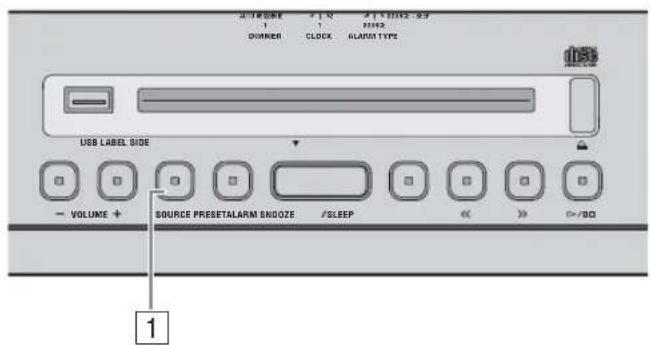
Top panel
Press the SOURCE button to switch the playback source to Bluetooth.
Using the remote control
Press Bluetooth.
2 Connect this unit and your connecting device via Bluetooth.
3 Play back music from your Bluetooth device.
Note
Take care that the volume setting of this unit is not too high. We recommend that you adjust the volume on the connecting device.
- If you connect via Bluetooth from your connecting device and play back music while the system is in standby mode, the system will automatically turn on.
- If you disconnect the Bluetooth connection from your connecting device while the playback source is set to Bluetooth, the system will automatically enter standby mode.
- If Bluetooth is selected as the playback source, the system will automatically enter standby mode when 20 minutes have elapsed without any Bluetooth connection nor any operation performed.
Connecting an already-paired device via Bluetooth
Once pairing has been completed, connecting a Bluetooth will be easy the next time.
Connecting from this unit
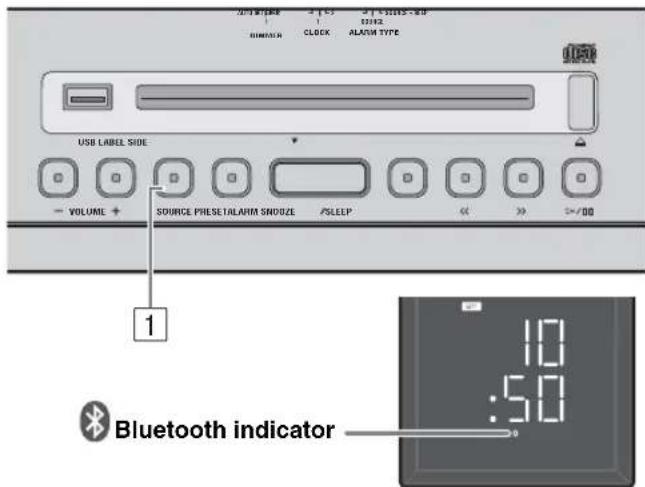
Top panel
Press the SOURCE button to switch the playback source to Bluetooth.
Using the remote control Press Bluetooth.
The Bluetooth indicator will blink on the front panel display; this unit will search for the connecting device that was most recently connected via Bluetooth, and will then establish a connection (You must first turn on the Bluetooth setting of the connecting device).
When the Bluetooth connection has been established, the Bluetooth indicator will light.
Note
Yamaha does not guarantee all connections between this unit and Bluetooth device.
Connecting from the connecting device
In the Bluetooth settings of the connecting device, turn Bluetooth on.
2 From the Bluetooth connection list of the connecting device, choose this unit (ISX-803 Yamaha/ISX-803D Yamaha).
The Bluetooth connection will be established, and the Bluetooth indicator on the front panel display of this unit will light.
Connecting with the NFC function
When using an already-paired smartphone with the NFC function, holding it over the NFC mark establishes a Bluetooth connection.
Note
Bluetooth connections cannot be established from the connecting device when this unit is in Eco Standby mode. Turn the system on.
Disconnecting a Bluetooth connection
If any of the following operations are performed while a Bluetooth connection is established, the Bluetooth connection will be disconnected.
- Hold down the SOURCE button on this unit or Bluetooth on the remote control.
- Set the system to standby mode.
- Turn off the Bluetooth setting of the connecting device.
- Hold the smartphone with the NFC function over the NFC mark during Bluetooth connection.
LISTENING TO DAB STATIONS (ISX-803D)
DAB (Digital Audio Broadcasting) and DAB+ use digital signals for clearer sound and more stable reception compared to analog signals. DAB+ is based on the original DAB standard but uses a more efficient audio codec.
DAB and DAB+ are broadcast in blocks of data called "ensembles" containing up to several radio stations that are simultaneously broadcast.
DAB and DAB + can also include an extensive amount of text information, enabling you to select a station by name.
Other information, such as the ensemble name or the status of the digital signal, can be displayed on the DAB information display.
"DAB" described in this manual may also refer to "DAB+".
Preparing for DAB reception
Before tuning into DAB stations, an initial scan must be performed. When you select the DAB for the first time, the initial scan is performed automatically.
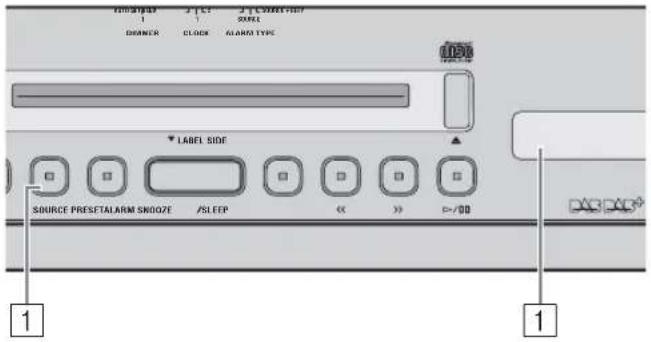
Top panel
Press SOURCE and set DAB as the playback source.
The initial scan starts. During the scan, the degree of progress is displayed on the DAB information display.
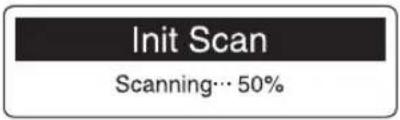
Scan is completed.
"Completed" and the number of receivable DAB stations appear on the DAB information display.
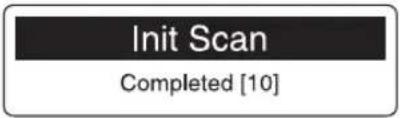
Using the remote control Press RADIO to switch between DAB/FM.
Note
- To perform the initial scan manually, press and hold PRESET for more than 4 seconds and then press PRESET when the scan starting screen is displayed.
- If the initial scan is performed, stored DAB station information and preset DAB stations are cleared.
Tuning DAB stations
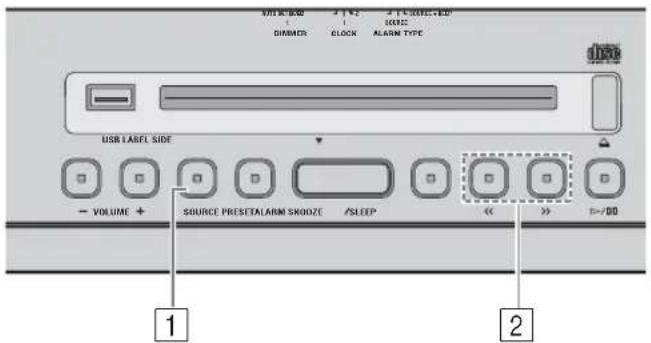
Top panel
Press SOURCE and set DAB as the playback source.
Press KtoXne the DAB station.
While receiving DAB, switch on the DAB information display. When the unit does not receive a DAB signal, "Off Air" is displayed instead of the DAB station name.
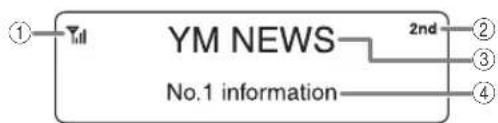
① Signal strength indicator: Shows current signal strength.
② Secondary indicator: Some stations have sub (secondary) stations. If a secondary station is playing, the secondary indicator is displayed.
③ DAB station name ④ DAB station Information (P.14)
Switching DAB station information
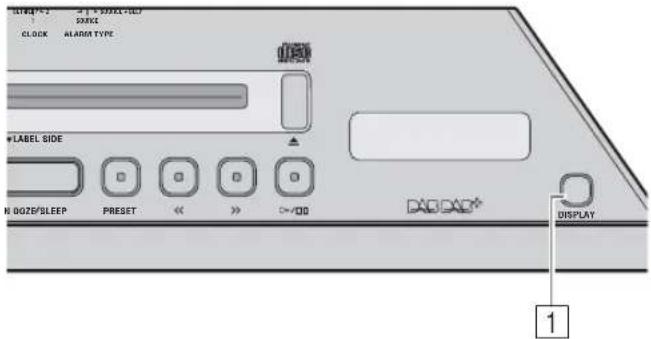
Top panel
1 Select DAB information by pressing DISPLAY repeatedly.
Information is displayed in the order shown below.
Text information
Ensemble name
( displayed before the ensemble name.)
Status 1 (channel label and frequency)
Status 2 (DAB or DAB+ and signal quality)
Back to the top.
Storing DAB stations (preset)
Use the preset function to store your favorite 5 stations.
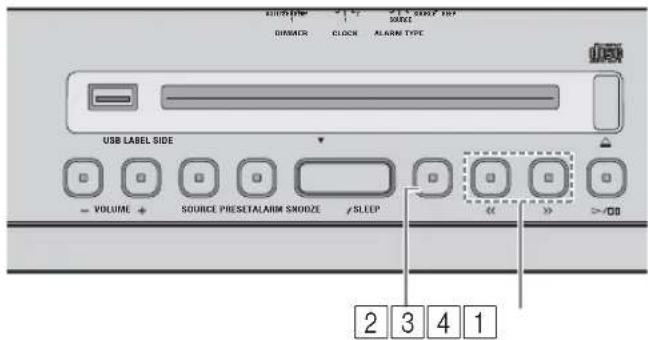
Top panel
Press K fo X one into your favorite DAB station.
Press and hold down PRESET.
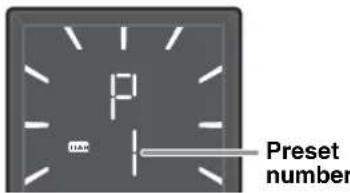
Using the remote control Press and hold down MEMORY.
3 Press PRESET and select the preset number to store the DAB station.
Using the remote control Press PRESET 一 / 一
4 Press and hold down PRESET to store the preset station.
This stores the DAB station.
Using the remote control Press MEMORY.
Selecting preset DAB stations
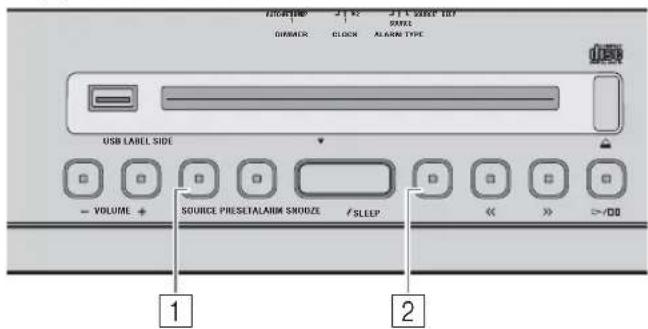
Top panel
1 Press SOURCE and set DAB as the playback source.
Press PRESET repeatedly to select the preset DAB station.
Using the remote control Press PRESET 一 / 一
LISTENING TO FM STATIONS
Selecting the FM station
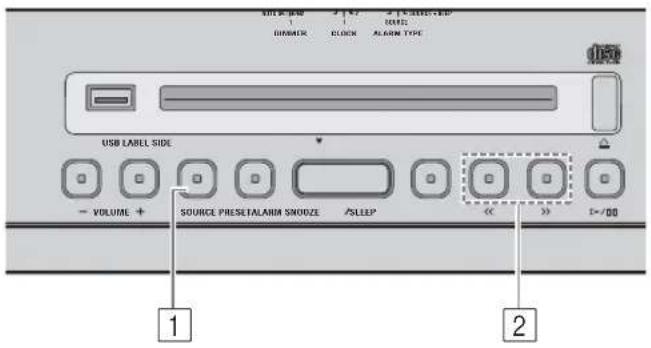
Top panel
Note
If you tune to an FM station manually, the sound will be in monaural.
Press SOURCE and set FM as the playback source.
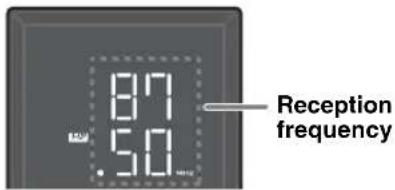
Using the remote control Press RADIO.
Press KtoXane the FM station.
| Tuning type Operation | ||
| Top panel | Automatic tuning | Press and hold down << or >> |
| Manual tuning | Press << repeatedly. | |
| Remote control | Automatic tuning | Press and hold down TUNING ≅ or ≅. |
| Manual tuning | Press TUNING ≅ or ≅ repeatedly. | |
Storing FM stations (preset)
Use the preset function to store your favorite 5 stations.
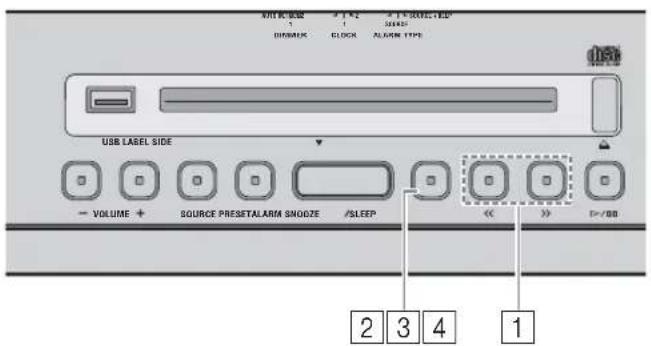
Top panel
Press Kto nene into your favorite FM station.
Press and hold down PRESET.
Using the remote control Press and hold down MEMORY.
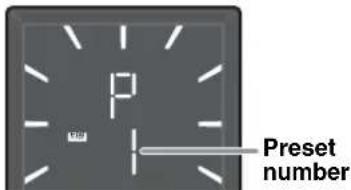
3 Press PRESET and select the preset number to store the FM station.
Using the remote control Press PRESET /
4 Press and hold down PRESET to store the preset station.
This stores the FM station.
Using the remote control Press MEMORY.
Selecting a preset FM station
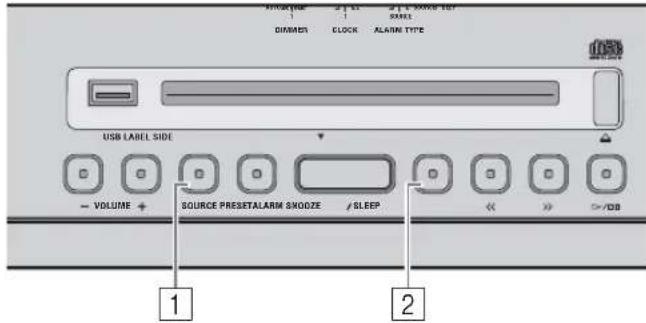
Top panel
Press SOURCE and set FM as the playback source.
Press PRESET repeatedly to select the preset FM station.
Using the remote control
Press PRESET /
LISTENING TO EXTERNAL SOURCES
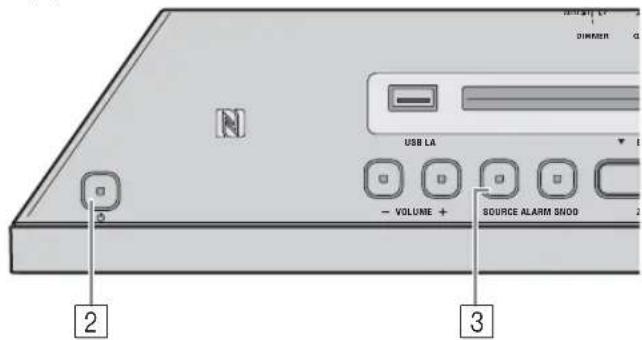
Top panel
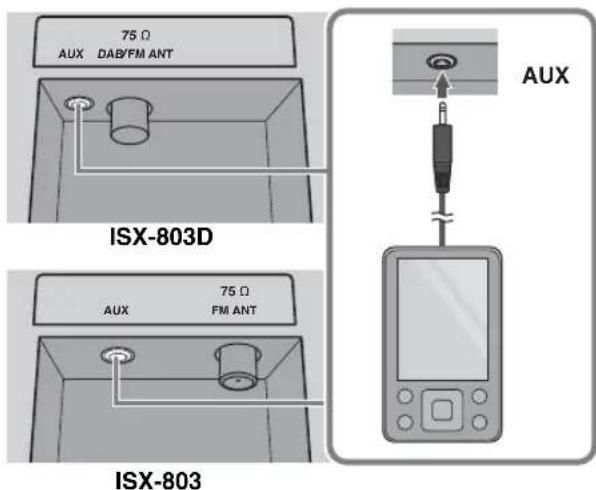
Set the system to standby mode before connecting audio cables. Remove the terminal cover before connecting external devices.
1 Connect external audio device to AUX on the rear panel using a commercially available 3.5mm (1/8 in) stereo mini plug cable.
Note
Turn down the volume of the unit and your external audio device before connection.
Press to turn the system on.
3 Press SOURCE and set AUX as the playback source.
Using the remote control
Press AUX.
4 Start playback on the connected external audio device.
USING THE ALARM FUNCTION
The unit includes an alarm function (IntelliAlarm) that plays back music sources or set of beeps (built-in alarm) at the set time in a variety of different methods. The alarm function has following features.
3 types of alarms
Select from 3 alarm types, combining music and beep sounds.
| SOURCE + BEEP | The selected audio source and beep sound are played at the set time. This mode is recommended for the best possible start to the day. 3 minutes before the set time: the source music begins to fade in and the volume gradually increases as the alarm time approaches. Alarm time: a beeping sound also begins playing. |
| SOURCE | The selected audio source is played at the set time. The volume fades in gradually and increases to the set volume. |
| BEEP Only beep sound | is played back at the set time. |
Various music sources
Audio CD, data CD, USB device and radio can be selected. The following can also be selected depending on the audio source:
| Source Playback | ack method Function | |
| Audio CD | Selected track The selected track is played repeatedly. | |
| Resume The track you listened to last time is played back. | ||
| Data CD/USB | Folder The selected folder is played repeatedly. | |
| Resume The track you listened to last time is played back. | ||
| Radio | Preset station The selected preset radio station is played. | |
| Resume The radio station you listened to last time is played back. | ||
Snooze
The snooze function can be enabled to replay the alarm after 5 minutes.
Set the alarm time and alarm type
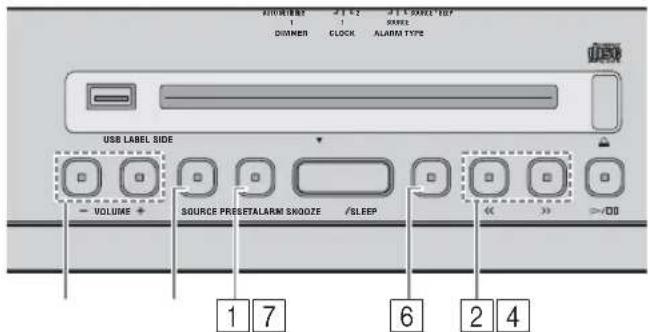
Top panel
Note
The alarm setting will be erased if the system enters standby mode without properly completing it.
Press and hold ALARM.
The alarm indicator (1) set alarm time will flash
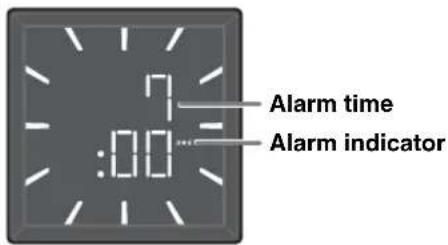
Press / to set the alarm time.
Using the remote control Press
3 Select the alarm type with the ALARM TYPE switch on the rear panel.
For details on alarm types, refer to P. 17.
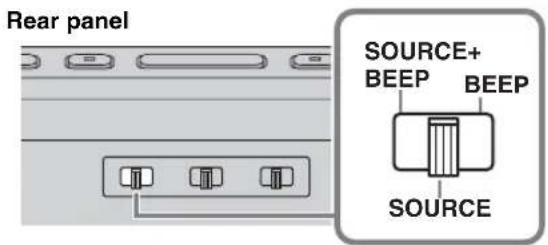
4 (when alarm types other than BEEP are selected) Press SOURCE to select music source.
Sources other than AUX and Bluetooth can be selected.
Using the remote control Press the USB, CD, or RADIO button to select the music source.
Notes
- If CD/USB has been selected, connect/insert the audio source (audio/data CD, USB device) to the unit.
- If source cannot be played back at the time set for the alarm (eg. CD is not inserted), the beep sound is played back.
(when alarm types other than BEEP are selected) Specify the track, folder or radio station to be played.
Press PRESET to select the track (audio CD), folder (data CD/USB device) or radio station to be played.
Using the remote control Press PRESET 一 / 一
When "0" is set, the playback resumes from the track/radio station you listened to last time (resume).
6 Set the alarm volume by pressing VOLUME - / +
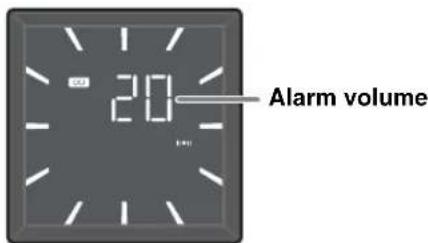
7 Press ALARM to complete setting the alarm. The alarm will be set, and the alarm indicator ( light up.
Turning the alarm on/off
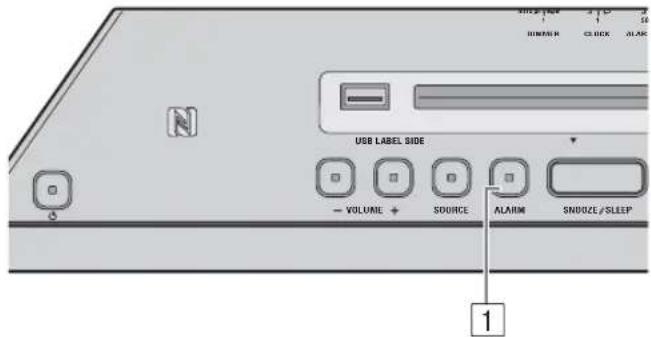
Top panel
1Press ALARM.
When the alarm is on, the alarm indicator (h) shown, and the alarm time is shown for a while. If you press ALARM again, the alarm indicator (the alarm will turn off. When alarm mode is Weekly Alarm (P.20), the Weekly Alarm indicator (W) also turn on/off.
中
The alarm setting will be saved even if the alarm is turned off. If the alarm is turned on again by pressing ALARM, the alarm will sound with the previous alarm settings.
Operations while playing back alarm sound
At the set time, the alarm sound is played back. During playback, the following operations are available.
Stopping the alarm for a short time (snooze)
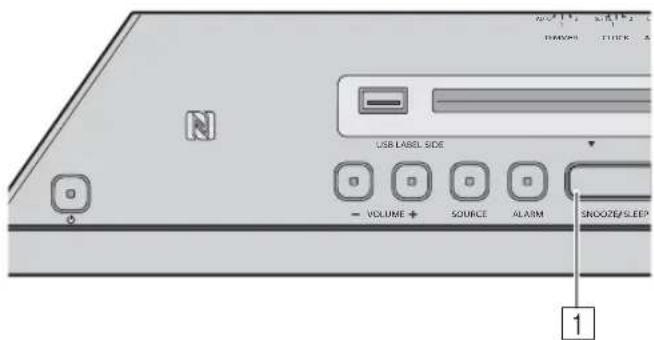
Top panel
1PressSNOOZE/SLEEP.
SNOOZE will stop the alarm and resume again in 5 minutes.
- When SOURCE + BEEP is set, press SNOOZE/SLEEP once to stop the beep sound, and twice to stop the audio source. 4 minutes after the audio source is stopped, it will start fading in again and after another minute the beep sound will resume.
The alarm indicator will flash when the snooze function is activated.
Turning the alarm off
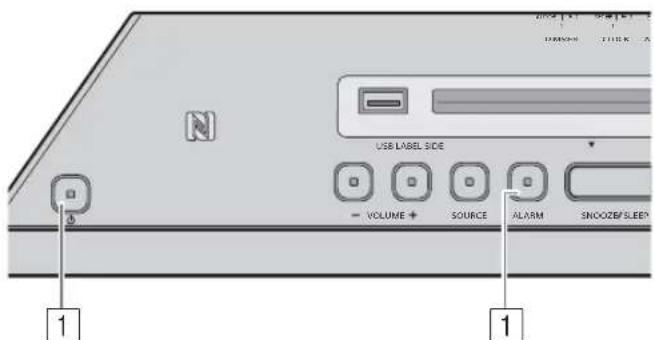
Top panel
1Press ALARM or
中
The alarm stops automatically after 60 minutes unless you stop the alarm.
- The alarm setting will be saved even if the alarm is turned off. If the alarm is turned on again by pressing ALARM, the alarm will sound with the previous alarm settings.
Setting Weekly Alarm
With DTA CONTROLLER (P.6), you can use Weekly Alarm, which allows you to set alarm times respectively for each day of the week. First, make the Weekly Alarm settings on DTA CONTROLLER.
Setting Weekly Alarm with DTA CONTROLLER
IntelliAlarm setting screen
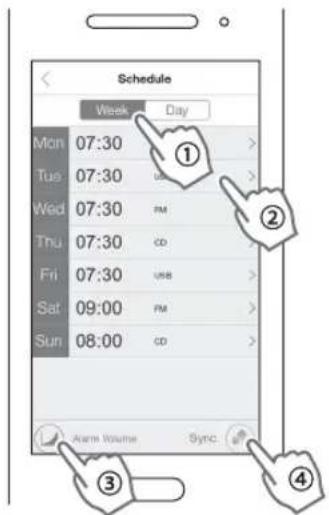
Due to product improvements, specifications and appearance are subject to change without notice.
1 Tap (IntelliAlarm icon) in DTA CONTROLLER to open the IntelliAlarm setting screen.
2 Perform the operations below on the IntelliAlarm setting screen.
① Select [Week] (Weekly Alarm).
② Set the alarm time for each day of the week.
③ Set the alarm volume or IntelliAlarm advanced settings.
④ Tap [Sync] to transfer the settings to the unit.
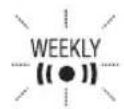
The Weekly Alarm function is activated and the alarm indicator (Weekly Alarm indicator) turn WEEKLY on.
Setting Weekly Alarm on the unit
Once you have set Weekly Alarm by DTA CONTROLLER, you can select the Weekly Alarm mode in the alarm mode select display of this unit.
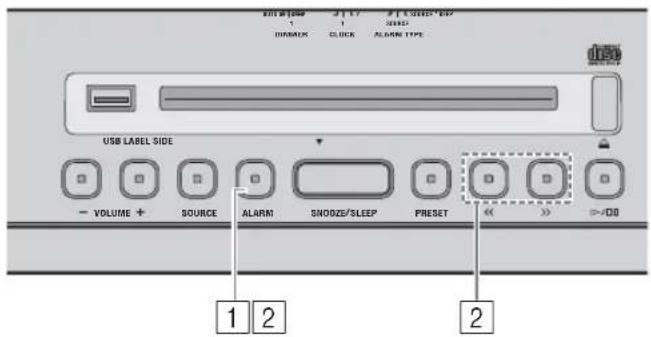
Top panel
Press and hold ALARM.
The alarm indicator (1) flash and the alarm mode select display will appear.
2 Select the alarm mode.
Press to select the alarm mode, and press ALARM to confirm it.
Using the remote control
Press 140 select the alarm mode, and press
to confirm it.
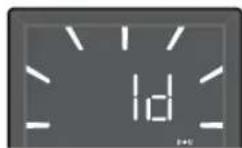
1d (One Day Alarm mode):
An alarm that sounds only once at the specified time.
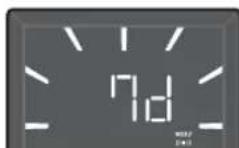
7d (Weekly Alarm mode):
An alarm whose time can be specified for each day of the week (settable only using "DTA CONTROLLER").
If you have chosen Weekly Alarm mode, this completes the alarm setting. The alarm indicator (the Weekly Alarm indicator (Wright light up.
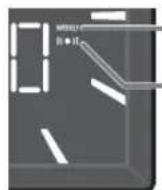
Weekly Alarm indicator
Alarm indicator
Note
The Weekly Alarm mode cannot be selected when all the days of the Weekly Alarm setting are turned off. Turn on any day of the Weekly Alarm setting.
USING THE SLEEP TIMER
You can set the time until the system automatically enters standby mode.
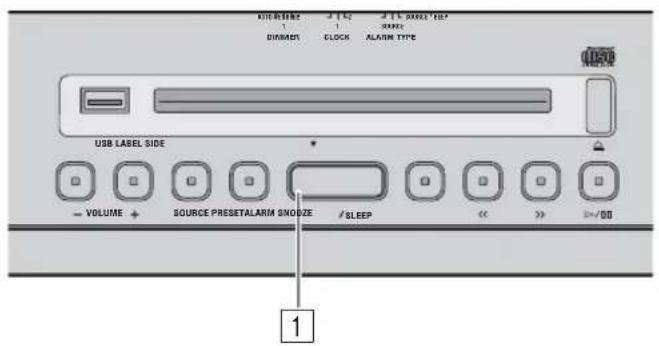
Top panel
Press SNOOZE/SLEEP a number of times to set the time until the system enters standby mode.
The sleep timer can be set to 30, 60, 90 and 120 minutes. When the time is set, the sleep indicator (z) is shown on the front panel display.
中
If you press SNOOZE/SLEEP while the sleep timer is activated, the sleep timer setting will be canceled.
TONE CONTROL (REMOTE CONTROL ONLY)
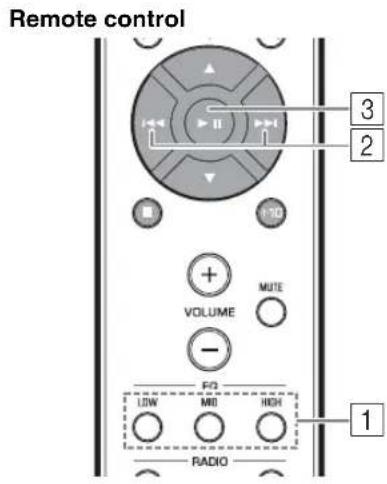
Press one of the LOW/MID/HIGH EQ buttons on the remote control while playing back.
Select the tone to be adjusted (LOW, MID, HIGH).
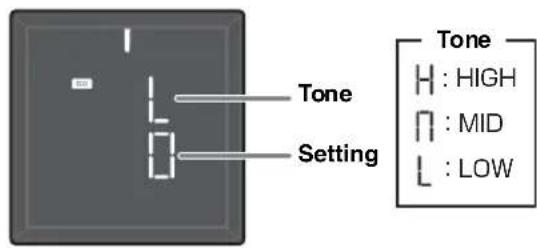
Press / to adjust the tone.
Each tone can be adjusted from -5 to +5 .
Press Completc settings.
You can also press the EQ button that you pressed in Step [1] to complete the settings.
To change the tone of other frequency band, return to step [1] and press the EQ button to adjust the desired tone.
ADJUSTING BRIGHTNESS OF FRONT PANEL DISPLAY
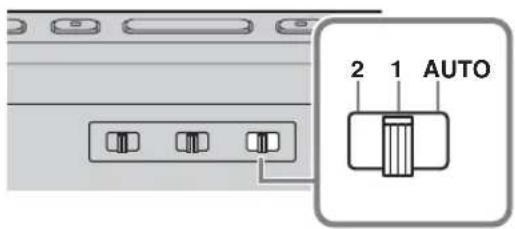
Rear panel
1 Adjust the brightness with the DIMMER switch on the rear panel.
AUTO: adjusts the brightness automatically to match the surroundings.
1:brighter.
2: darker.
Note
When AUTO is set, the brightness of the front panel display is adjusted automatically with the illumination sensor (P.3). Ensure that the sensor is not covered.
TROUBLESHOOTING
If there is a problem with the unit, check the following list first. If you cannot resolve the problem with the suggested solutions or if the problem is not listed below, set the system to standby mode, unplug it, and consult the nearest authorized Yamaha dealer or service center.
General
| Problem Cause Solution | ||
| Cannot turn on the unit. | The power cable is not connected firmly. Reconnect | the power cable into the wall outlet and the unit firmly. |
| The unit may have received a strong electrical shock such as lightning or excessive static electricity. | Disconnect the power cable. Wait about 30 seconds, reconnect the power cable, and turn on the system. | |
| The speakers make no sound. | The volume may be set to the minimum level. Adjust the volume level. | |
| The source may be incorrect. Select the correct source. | ||
| Auto Standby is activated. Turn on the system again. | ||
| Sound suddenly turns off. | The sleep function (sP.21) may be set. | Turn on the system and play the source again. |
| Auto Standby is activated. Turn on the system again. | ||
| Sound is cracked/distorted or there is abnormal noise. | Input source volume is excessive, or volume of this unit is excessive (especially Bass). | Adjust volume with VOLUME, or adjust Bass with EQ (sP.21). |
| The unit does not operate properly. | The unit may have received a strong electrical shock such as lightning or excessive static electricity, or power supply may have dropped. | Set the system to standby mode and disconnect the power cable. Wait about 30 seconds, reconnect the power cable, and turn the system on. |
| The system turns on but immediately enters standby mode. | ||
| A digital or high-frequency equipment produces noises. | The unit may be placed too close to the digital or high-frequency equipment. | Place the unit further away from the equipment. |
| The clock setting has been cleared. | The unit is left more than one week after you disconnect the power cable from the wall outlet. | Plug the power cable into the wall outlet firmly, and set the clock again (sP.5). |
| The selected source does not play back at the alarm time. | No CD or USB device is inserted. Insert a CD or USB device. | |
| ALARM TYPE switch is set to BEEP. | Set ALARM TYPE to SOURCE + BEEP or SOURCE (sP.18). | |
| Clock flashes and the unit cannot be operated. | CLOCK switch on the rear panel is set to SET, and this unit is in clock setting mode. | Set CLOCK switch to CLOCK1 or CLOCK2 (sP.5). |
| Auto Standby is inactive. | The unit may have picked up ambient noise. | If the unit is close to portable phones, wireless devices, microwave ovens, fluorescent light, place the unit further away from them. |
| The front display becomes dim. | The front display setting is set to AUTO. Set the brightness of the front panel display to a setting other than AUTO. Or, do not cover the illumination sensor. | |
CD playback
| Problem Cause Solution | ||
| Disc cannot be inserted. | The system is set to Eco Standby mode. | Press ☐ cancel Eco Standby mode. (P.2). |
| A disc is already inserted. | Press ☐ to eject the disc. | |
| Some button operations do not work. | The disc loaded into the unit may not be compatible. | Use a disc supported by the unit (P.25). |
| Playback does not start after pressing >/00 (playback stops immediately). | The disc may be dirty. | Wipe the disc clean. |
| The disc loaded into the unit may not be compatible. | Use a disc supported by the unit (P.25). | |
| If the unit was moved from a cold to warm place, condensation may have formed on the disc reading lens. | Wait for an hour or two until the unit adjusts to the room temperature, and try again. | |
| The CD indicator flashes twice, and repeated 3 times, and the disc is ejected. | The disc loaded into the unit may not be compatible. | Use a disc supported by the unit (P.25). |
| The disc may be dirty. | Wipe the disc clean. | |
| The disc does not contain playable files. | Use a disc contains playable files (P.25, 26). | |
| The disc is loaded back to front. | Insert a disc facing the label side to near side. | |
| “Err” is displayed in the front panel display after loading a disc. | An error occurs in the unit. | Eject the disc with ☑. |
USB device playback
| Problem Cause Solution | ||
| MP3/WMA file on the USB device does not play. | The USB device is not recognized. Set the system to standby mode and disconnect the USB device. Then, turn the system on and reconnect the USB device. | |
| Connect an AC adapter if supplied with the device. | ||
| If the solutions above do not resolve the problem, the USB device is not playable on the unit. | ||
| The USB indicator flashes twice, and repeated 3 times, after connecting a USB device. | An incompatible USB device is connected to the unit. | Set the system to standby mode and reconnect the USB device to the unit. If it does not resolve the problem, the USB device is not playable on the unit. |
| The USB device does not contain playable files. Use a USB device contains playable files (wir P. 25, 26). | ||
| “Err” is displayed in the front panel display after connecting a USB device. | An incompatible USB device is connected to the unit. | Set the system to standby mode and reconnect the USB device to the unit. If it does not resolve the problem, the USB device is not playable on the unit. |
| An overcurrent is detected. | ||
Bluetooth
| Problem Cause Solution | ||
| Cannot make this unit paired with the connecting device. | The unit is already connected with another device. | Disconnect the already connected Bluetooth device. |
| The connecting device does not support A2DP. Perform pairing operations with a device which supports A2DP. | ||
| A Bluetooth adaptor, etc. that you want to pair with this unit has a password other than "0000". | Use a Bluetooth adaptor, etc. whose password is "0000". | |
| This unit and the connecting device are too far apart. | Move the connecting device closer to this unit. | |
| There is a device (microwave oven, wireless LAN, etc.) outputs signals in the 2.4 GHz frequency band nearby. | Move this unit away from the device that is emitting radio-frequency signals. | |
| Cannot establish a Bluetooth connection. | This unit is not registered on the connecting device's Bluetooth connection list. | Perform pairing operations again (« P. 10). |
| Another Bluetooth device is already connected. | Terminate the current Bluetooth connection. | |
| The Bluetooth function of the device is turned off. | Turn on the Bluetooth function of the device. | |
| The pairing information has been deleted. | Perform pairing again (« P. 10).This unit can be paired with up to eight connecting devices. When pairing with the ninth device has succeeded, pairing data for the device with the oldest connection date will be deleted.On iPhone, iPad, or iPod touch, delete the pairing history with this unit and perform pairing again. | |
| No sound is produced or the sound is interrupted during playback. | The Bluetooth connection of this unit with the connecting device is disconnected. | Perform Bluetooth connection operations again (« P. 12). |
| This unit and the connecting device are too far apart. | Move the connecting device closer to this unit. | |
| There is a device (microwave oven, wireless LAN, etc.) outputs signals in the 2.4 GHz frequency band nearby. | Move this unit away from the device that is emitting radio-frequency signals. | |
| The connecting device's Bluetooth function is off. | Turn on the Bluetooth function of the connecting device. | |
| The connecting device is not set to send Bluetooth audio signals to this unit. | Check that the Bluetooth function of the connecting device is set properly. | |
| The pairing setting of the connecting device is not set to this unit. | Set the pairing setting of the connecting device to this unit. | |
| The connecting device's volume is too low. Increase the volume level. | ||
DAB reception (ISX-803D only)
| Problem Cause Solution | ||
| Cannot tune into any DAB stations. | The initial scan operations were not performed. | Perform the initial scan operations (eP. 13). |
| There is no DAB coverage in your area. Check with | your dealer or WorldDMB Online at "http://www.worlddab.org" for a listing of the DAB coverage in your area. | |
| The DAB signals are too weak. Change the height, direction, or placement of the antenna. | ||
| The initial scan operations are not successful and "Not found" appears on the DAB information display. | The DAB signals are too weak. | |
| There is no DAB coverage in your area. Check with | your dealer or WorldDMB Online at "http://www.worlddab.org" for a listing of the DAB coverage in your area. | |
| The DAB station reception is weak. | The DAB signals are too weak. Change the height, direction, or placement of the antenna. | |
| There is noise interference (e.g. hiss, crackle, or jitter). | The antenna needs to be repositioned. | |
| The DAB signals are too weak. | ||
| The DAB station information does not appear or is inaccurate. | The DAB station may be temporarily out of service, or the DAB station information is not provided by the DAB broadcaster. | Contact the DAB broadcaster. |
FM radio reception
| Problem Cause Solution | ||
| Too much noise. | The antenna may be connected improperly. Make sure the antenna is connected properly (W-P 3) or use a commercially available outdoor antenna. | |
| Too much noise during stereo broadcast. | The radio station you selected may be far from your area, or the radio wave reception is weak in your area. | Try manual tuning to improve the signal quality (W-P 15) or use a commercially available outdoor antenna. |
| Even with an outdoor antenna, radio wave reception is weak. (Sound is distorted.) | Multipath reflection or other radio interferences may have occurred. | Change the height, direction, or placement of the antenna. |
Remote control
| Problem Cause Solution | ||
| The remote control does not work properly. | The remote control may be operated outside its operation range. | For information on the remote control operation range, refer to “How to use the remote control” (wir P.1). |
| The remote control signal receiver on the unit (wir P.3) may be exposed to direct sunlight or lighting (inverted fluorescent lamps). | Change the lighting or orientation of the unit. | |
| The battery may be worn out. Replace the batteries with two new ones. | ||
| There are obstacles between the remote control signal receiver on the unit and the remote control. | Remove the obstacles. |
NOTES ON DISCS AND USB DEVICES
CD information
This unit is designed for use with audio CD, CD-R, and CD-RW with the logos followings.






- ISO 9660 format CD-R/RW
#
This unit can play back discs bearing any of the logo marks above. A disc logo mark is printed on the disc and the disc jacket.
Notes
- Do not load any other type of disc into this unit. Doing so may damage this unit.
- CD-R/RW cannot be played back unless finalized.
- Some discs cannot be played back depending on the disc characteristics or recording conditions.
- Do not use any non-standard shaped discs such as a heart-shaped disc.
- Do not use discs with many scratches on their surface.
- Do not load a cracked, warped, or glued disc.
- Do not use 8-cm discs.
Handling a disc
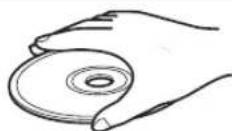
- Do not touch the surface of the disc. Hold a disc by its edge (and the center hole).
- Do not use a pencil or pointed marker to write on the disc.
- Do not put a tape, seal, glue, etc., on a disc.
- Do not use a protective cover to prevent scratches.
- Do not load more than one disc into this unit at one time. This can cause damage to both this unit and the discs.
- Do not insert any foreign objects into the disc slot.
-
Do not expose a disc to direct sunlight, high temperature, high humidity, or a lot of dust.
-
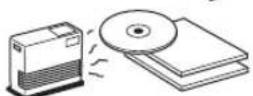
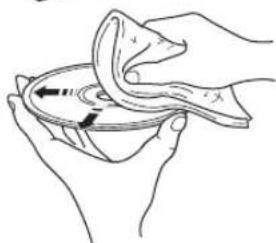
If a disc becomes dirty, wipe it with a clean, dry cloth from the center out to the edge. Do not use record cleaner or paint thinner.
- To avoid malfunction, do not use a commercially available lens cleaner.
Caution

USB device information
This unit supports USB mass storage class devices (e.g., flash memories or portable audio players) using FAT16 or FAT32 format.
Notes
- Some devices may not work properly even if they meet the requirements.
- Do not connect devices other than USB mass storage class devices (such as USB chargers or USB hubs), PCs, card readers, an external HDD, etc.
- Yamaha will not be held responsible for any damage to or data loss on the USB device occurring while the device is connected to this unit.
- Playability of and power supply to all kind of USB devices are not guaranteed.
- USB devices with encryption cannot be used.
About MP3 or WMA files
Notes
The unit can play back:
| File Bitrate | (kbps) | Sampling frequency (kHz) |
| MP3 8 - 320** | 16 - 48 | |
| WMA 16 - 320** | 22.05 - 48 |
** Both constant and variable bitrates are supported.
- The maximum numbers of files/folders that can be played on the unit are as follows.
| Data CD USB | ||
| Maximum total number of file 512 | 9999 | |
| Maximum folder number 255 128 | ||
| Maximum file number per folder 5 | 11 255 | |
Copyright-protected files cannot be played back.
SPECIFICATIONS
PLAYER
CD
Media CD, CD-R/RW
Audio format Audio CD, MP3, WMA
Laser
- Type Semiconductor laser GaAs/GaAlAs
·Wave length 790 nm
Output power. 7 mW
USB
Audio format MP3, WMA
AUX
- Input connector 3.5 mm (1/8 in) STEREO mini jack
Bluetooth
- Bluetooth version.. .Ver. 2.1+EDR
- Supported protocols A2DP
Supported codescs SBC,AAC,aptX - Wireless output Bluetooth Class 2
Maximum communication distance 10 m (without obstructions)
NFC (Near Field Communication)
Supported model.. NFC-ready Android device Ver. 4.1 or later
* Some models may not work or be different in the required distance for connection.
TUNER
Tuning range
FM 87.50 to 108.00 MHz
DAB/DAB+ (ISX-803D only). 174 to 240 MHz (Band III)
GENERAL
- Power supply. AC 100 to 240V 50 / 60Hz
Power consumption 11 W - Standby consumption (clock display on, Bluetooth Ready) 2.5 W
-
Eco Standby consumption (clock display off) 0.4 W
-
Dimensions
Specifications are subject to change without notice.
iPad, iPhone, and iPod touch are trademarks of Apple Inc., registered in the U.S.and other countries.
Android and Google Play are trademarks of Google, Inc.

© 2013 CSR plc and its group companies.
The aptX® mark and the aptX logo are trade marks of CSR plc or one of its group companies and may be registered in one or more jurisdictions.

Digital Audio Broadcasting
Digital Audio Broadcasting
(For ISX-803D)
This unit supports DAB/DAB+ tuning.
Bluetooth
- Bluetooth is a technology for wireless communication between devices within an area of about 10 meters (33 ft) employing the 2.4 GHz frequency band, a band which can be used without a license.
- Bluetooth is a registered trademark of the Bluetooth SIG and is used by Yamaha in accordance with a license agreement.
Handling Bluetooth communications
- The 2.4 GHz band used by Bluetooth compatible devices is a radio band shared by many types of equipment. While Bluetooth compatible devices use a technology minimizing the influence of other components using the same radio band, such influence may reduce the speed or distance of communications and in some cases interrupt communications.
- The speed of signal transfer and the distance at which communication is possible differs according to the distance between the communicating devices, the presence of obstacles, radio wave conditions and the type of equipment.
- Yamaha does not guarantee all wireless connections between this unit and devices compatible with Bluetooth function.
LASER SAFETY
This unit employs a laser. Due to possible eye injury, only a qualified service person should remove the cover or attempt to service this device.
DANGER
This unit emits visible laser radiation when open. Avoid direct eye exposure to beam. When this unit is plugged into the wall outlet, do not look inside the unit through the disc slot and other openings.
The laser component in this product is capable of emitting radiation exceeding the limit for Class 1.
For U.K. customers
If the socket outlets in the home are not suitable for the plug supplied with this appliance, it should be cut off and an appropriate 3 pin plug fitted. For details, refer to the instructions described below.
Note
The plug severed from the mains lead must be destroyed, as a plug with bared flexible cord is hazardous if engaged in a live socket outlet.
Special Instructions for U.K. Model
IMPORTANT
THE WIRES IN MAINS LEAD ARE COLOURED IN ACCORDANCE WITH THE FOLLOWING CODE:
Blue: NEUTRAL
Brown: LIVE
As the colours of the wires in the mains lead of this apparatus may not correspond with the coloured markings identifying the terminals in your plug, proceed as follows:
The wire which is coloured BLUE must be connected to the terminal which is marked with the letter N or coloured BLACK. The wire which is coloured BROWN must be connected to the terminal which is marked with the letter L or coloured RED.
Make sure that neither core is connected to the earth terminal of the three pin plug.
Information for Users on Collection and Disposal of Old Equipment and Used Batteries

These symbols on the products, packaging, and/or accompanying documents mean that used electrical and electronic products and batteries should not be mixed with general household waste.

For proper treatment, recovery and recycling of old products and used batteries, please take them to applicable collection points, in accordance with your national legislation and the Directives 2002/96/EC and 2006/66/EC.

By disposing of these products and batteries correctly, you will help to save valuable resources and prevent any potential negative effects on human health and the environment which could otherwise arise from inappropriate waste handling.
Pb
For more information about collection and recycling of old products and batteries, please contact your local municipality, your waste disposal service or the point of sale where you purchased the items.
[Information on Disposal in other Countries outside the European Union]
These symbols are only valid in the European Union. If you wish to discard these items, please contact your local authorities or dealer and ask for the correct method of disposal.
Note for the battery symbol (bottom two symbol examples):
This symbol might be used in combination with a chemical symbol. In this case it complies with the requirement set by the Directive for the chemical involved.
If there should be color blotching or noise when used near a TV, move this unit away from the TV when using it.
Do not use this unit within 22cm (9 inches) of persons with a heart pacemaker implant or defibrillator implant.
Radio waves may affect electro-medical devices. Do not use this unit near medical devices or inside medical facilities.
The user shall not reverse engineer, decompile, alter, translate or disassemble the software used in this unit, whether in part or in whole. For corporate users, employees of the corporation itself as well as its business partners shall observe the contractual bans stipulated within this clause. If the stipulations of this clause and this contract cannot be observed, the user shall immediately discontinue using the software.
Wc, Yamaha Music Europe GmbH hereby declare that this unit is in compliance with the essential requirements and other relevant provisions of Directive 1999/5/EC.
Yamaha Music Europe GmbH
Siemensstr. 22-34 25462 Rellingen, Germany
Tcl: +49-4101-303-0

ATTENTION : VEUILLEZ LIRE CE QUI SUIT AVANT D'UTILISER L'APPAREIL.
Piles x 2 (AA, R6, UM-3)
Active/desactive I'alarmc.
④SNOOZE/SLEEP
http://itunes.com/app/dtacontroller
Google PlayTM
https://play.google.com/store/apps/
details?id=com.yamaha.av.
dto-controller
Remarque
Selection de la station FM
Panneau supérieur
Remarque
1d (mode One Day Alarm) :
Supports. CD, CD-R/RW
Format audio. CD audio, MP3, WMA
Laser
- Format audio... MP3, WMA
AUX
- Connecteur d'entrec ... .. .. .. .. .. .. .. .. .. .. .. .. .. .. .. .. .. .. .. .. .. .. .. .. .. .. .. .. .. .. .. .. .. .. .. .. .. .. .. .. .. .. .. .. .. .. .. .. .. .. .. .. .. .. .. .. .. .. .. . ...
- Stéris à mini fiche de 3,5 mm
Bluetooth
- Version Bluetooth . . . . . . . . . . . . . . . . . . . . . . . . . . . . . . . . . . . . . . . . . . . . . . . . . . . . . . . . . . . . . . . . . . . . . . . . . . . . . . . . . . . . . . . .
- Version 2.1 +EDR
- Protocoles pris en charge A2DP
- Codecs pris en charge SBC, AAC, aptX
Sortie sans fil .Bluetooth Classe 2 - Distance de communication maximale 10 m (sans obstacles)
NFC (Near Field Communication)
Digital Audio Broadcasting

(Modelle ISX-803D)
http://itunes.com/app/dtacontroller
Google PlayTM
https://play.google.com/store/apps/
details?id=com.yamaha.av.
dto-controller
Hinweis
1: Heller
2: Dunkler
Hinweis
NFC (Near Field Communication)
Digital Audio Broadcasting

Digital Audio Broadcasting
(Fur ISX-803D)
LYSSNA PÄ EXTERNA KÄLLOR. 16
ANVANDALARMFUNKTIONEN 17
ANVANDA INSOMNINGSTIMERN. 21
TONKONTROLL (ENDAST FJÄRRKONTROLL) 21
JUSTERA LJUSSTYRKAN PFRONTPANELENS DISPLAY .... 21
FELSOKNING 22
ANMÄRKNINGAR OM SKIVOR OCH USB-ENHETER...25
SPECIFICATIONER 26
Egenskaper
http://itunes.com/app/dtacontroller
Google PlayTM
https://play.google.com/store/apps/
details?id=com.yamaha.av.
dto-controller
Anmärkning
Om du inte kommer at ovanstende information soker du after "DTA CONTROLLER" pa App Store eller Google Play.
LYSSNA PÄ CD OCH USB-ENHET
Stalla in DAB-stationer
Toppanel
Stalla in Weekly Alarm
1d (One Day Alarm-lage):
7d (Weekly Alarm-lage):
NFC (Near Field Communication)

Digital Audio Broadcasting
Digital Audio Broadcasting
For ISX-803D)
Den har enheten stoder DAB/DAB+--mottagning.
Bluetooth
http://itunes.com/app/dtacontroller
Google PlayTM
https://play.google.com/store/apps/
details?id=com.yamaha.av.
dto-controller
Nota
Se è stata impostata la modalità Weekly Alarm (P. 20), although I'indicatore Weekly Alarm (W) is in the middle of its life cycle, and it is possible that the system will be able to detect any changes in the system's performance.
NFC (Near Field Communication)
Digital Audio Broadcasting

Digital Audio Broadcasting
(Pcr ISX-803D)
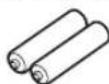
Pilas x 2 (AA, R6, UM-3)
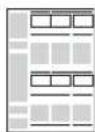
Guía de montaje
http://itunes.com/app/dtacontroller
Google PlayTM
https://play.google.com/store/apps/
details?id=com.yamaha.av.
dto-controller
Nota
Si nogue acceder a la informacion anterior, yaya al App Store o a Google Play y.busque "DTA CONTROLLER".
1 Pulse SNOOZE/SLEEP.
1d (modulo One Day Alarm):
7d (modulo Weekly Alarm):
Indicator Weekly Alarm
Indicador de alarma
Nota
NFC (Near Field Communication)
Digital Audio Broadcasting

Digital Audio Broadcasting
http://itunes.com/app/dtacontroller
Google PlayTM
https://play.google.com/store/apps/
details?id=com.yamaha.av.
dto-controller
Opmerking
De scan is voltooid.