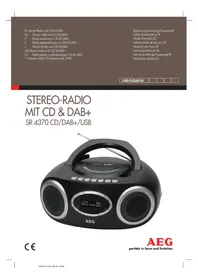
SR 4370 - Radio AEG - Free user manual and instructions
Find the device manual for free SR 4370 AEG in PDF.



| Product type | Stereo radio with CD player and DAB+ receiver |
| Brand | AEG |
| Model | SR 4370 |
| Net weight | Approx. 1.57 kg |
| Mains power supply | 230 V~, 50 Hz |
| Power consumption | 15 W |
| Battery operation | 6 UM2/R14 batteries (1.5 V) not included |
| Protection class | II |
| Radio frequency ranges | FM 87.5 - 108.0 MHz, DAB/DAB+ 174.92 - 239.20 MHz |
| Supported audio formats | Audio CD, MP3 CD, USB (MP3 files) |
| Main functions | DAB+ and FM radio, CD player, USB port, dual alarm, sleep timer, repeat, shuffle, track programming |
| Antenna | Telescopic antenna |
| Headphone jack | 3.5 mm jack |
| Display | LCD screen with radio, time and date information |
| Laser safety | Class 1 laser |
| Maintenance and cleaning | Clean with a dry or slightly damp cloth, without chemical agents. Disconnect before cleaning. |
| Repairability | Repairs must be carried out by a qualified specialist. Do not open the casing. |
| General information | Complies with European directives. Do not expose to moisture or rain. |
Frequently Asked Questions - SR 4370 AEG
User questions about SR 4370 AEG
0 question about this device. Answer the ones you know or ask your own.
Ask a new question about this device
Download the instructions for your Radio in PDF format for free! Find your manual SR 4370 - AEG and take your electronic device back in hand. On this page are published all the documents necessary for the use of your device. SR 4370 by AEG.
USER MANUAL SR 4370 AEG
GB Stereo radio with CD & DAB+
Overview of the Components
4 Menü Übersicht
| DAB | |
| Station scan Local scanFull scanManual tune | |
| Main menu Language | |
| Prune Station Press ENTER toPrune Station | |
| Station Order MultiplexAlphanumericActive | |
| DRC OffLowHigh | |
| Factory reset Press INFO toconfirm | |
| SW version |
| FM | |
| Audio Setting S | Stereo or monoMono only |
| Main menu Language | |
Bedienungsanleitung
DAB stations scannen
Model: SR 4370 CD/DAB+/USB
Balayer les stations FM
Modello: SR 4370 CD/DAB+/USB
46 English Instruction Manual
Thank you for choosing our product. We hope you enjoy using the device.
Symbols in these Instructions for Use
Important information for your safety is specially marked. It is essential to comply with these instructions in order to avoid accidents and prevent damage to the machine:

WARNING:
This warns you of dangers to your health and indicates possible injury risks.

CAUTION:
This refers to possible hazards to the machine or other objects.

NOTE: This highlights tips and information.
General Safety Instructions
Read the operating instructions carefully before putting the appliance into operation and keep the instructions including the warranty, the receipt and, if possible, the box with the internal packing. If you give this device to other people, please also pass on the operating instructions.
- To avoid the risk of fire or an electric shock, you should not expose the device to rain or moisture. Consequently, do not use the device in the immediate vicinity of water - for example near a bath tub, a swimming pool or in a damp cellar.
- Do not use the device in extremely hot, cold, dusty or damp places.
- Only use the device for private use and the intended purpose. This device is not intended for commercial use.
- Ensure that the power cord is not kinked, trapped or brought into contact with heat sources.
- Ensure that the power cord does not present a tripping hazard.
- Never touch the power plug or the cable with wet hands.
- Only connect the device at a properly installed plug socket. Pay attention that the specified voltage corresponds to the voltage of the plug socket.
- The power cord must always be easily accessible.
• Always insert the batteries correctly. - Do not cover up any ventilation openings with objects such as newspapers, tablecloths, curtains, etc.
- This appliance shall not be exposed to dripping or splashing water and that no object filled with liquids such as vases shall be placed on apparatus.
- Exposed ignition sources such as burning candles may not be placed onto the device.
- Never open the housing of the device. Incorrect repairs can constitute a considerable risk for the user. Should the device become damaged, in particular the mains supply
cable, do not operate the device any longer, but rather have it repaired by an expert. Check the mains supply cable regularly for damage.
- For safety reasons a broken or damaged mains lead may only be replaced by an equivalent lead from the manufacturer, our customer service department or a similar qualified person.
- If the device is not used for a longer period, remove the plug connector from the plug socket or take out the batteries.
- Pull the power plug from the socket for cleaning or in the case of a fault.
These symbols may be found on the machine and are intended to indicate the following:

The lightning symbol should advise the user of parts in the inside of the device which carry dangerously high voltage levels.

The symbol with an exclamation mark should advise the user of important operation or maintenance instructions in the accompanying documentation.
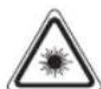
Devices bearing this symbol work with a "class 1 laser" for tracing the CD. The built-in safety switches should prevent the user being exposed to dangerous laser light, which is invisible to the human eye, when the CD compartment is opened.
These safety switches must not be bypassed or altered; otherwise there is a risk of being exposed to the laser beam.
Children and Frail Individuals
- In order to ensure your children's safety, please keep all packaging (plastic bags, boxes, polystyrene etc.) out of their reach.

WARNING:
Do not allow small children to play with the foil. There is a danger of suffocation!
- This device is not intended to be used by individuals (including children) who have restricted physical, sensory or mental abilities and/or insufficient knowledge and/or experience, unless they are supervised by an individual who is responsible for their safety or have received instructions on how to use the device.
• Children should be supervised at all times in order to ensure that they do not play with the device.
Special Safety Information
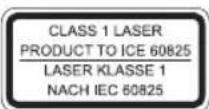
This device works with a class 1 laser.
Overview of the Components
1 Carrying handle
2 Telescopic antenna
3 CD compartment
4 Tab for opening the CD compartment
5 EARPHONE Headphone jack
7 -VOLUME + Volume control
8 PLAY/PAUSE button
9 ▶ button
10 ◀ button
11 RAND button
12 LCD display
14 ENTER button (Select)
15 UP button
16 DOWN button
17 SETUP button (Open menu)
18 INFO button (Show information)
19 PRE/CLK button
20 SLEEP button (Sleep function)
21 ALARM2 button
22 ALARM1 button
23 SNOOZE button (Snooze function)
24 STANDBY button (On/Standby)
25 PROG button
26 REPEAT button
27 STOP/USB button
28 USB port
6 Function selectors switch (BUZZER/OFF/CD/USB/DAB/FM)
13 AUTO SCAN button (Automatic radio station search)
Rear View (without illustration)
AC IN 230 V\~ 50 Hz – Mains socket
Bottom Side (without illustration)
Battery compartment
Start-up of the Device
- Select a suitable location for the device, such as a dry, flat, non-slip surface on which it is easy to operate the machine.
- Ensure that the device is sufficiently ventilated!
- Sensitive surfaces, such as the display, might be protected with films. Remove such films.
Power Supply
- Ensure that the voltage is the same as that indicated on the model identification plate.
- Connect the power cable supplied (see battery compartment if necessary) to a properly installed safety power socket and the mains connector AC IN 230 V\~50 Hz on the back of the machine.
i NOTE:
- If the unit is not used for a long period of time, unplug the mains plug from the socket.
- If the power supply gets disconnected, the time/date settings will be lost.
Battery Operation (not supplied)
- Open the lid of the battery compartment on the bottom.
- Insert 6 batteries of type UM 2/R 14 1.5 V. Please ensure that the polarity is correct (see the floor of the battery compartment)!
- Then close the battery lid.
i NOTE:
When the power adapter is connected, the device will automatically disconnect the batteries.
CAUTION:
- Batteries can leak battery acid. If the device is out of use for a long period of time, remove the batteries.
- Different battery types or new and used batteries must not be used together.
- Batteries are not to be disposed of together with domestic wastes. Dispose of the used batteries at the relevant collection bin or at your dealer's.
WARNING:
The batteries shall not be exposed to excessive heat such as sunshine, fire or the like. Danger of explosion!
Transport Safety Device, CD Compartment
- Open the CD compartment by pulling the lid upwards by the tab.
- Before operating the machine for the first time, remove the transport safety device from the CD player if it is still in place.
First Use
- Fully extend the telescopic antenna. Stand it upright for initial installation.
- Set the function selector switch (6) to the "DAB" position.
- The device automatically searches for DAB stations. "Suchen..." and a progress bar appears on the display. The figure on the right of the display shows the number of radio stations found. The first alphanumeric DAB station is played. When playing a radio station, the time and date is taken from the broadcasting service. If the device does not receive DAB stations in your location, set the time manually as described in "Setting the Time of the Device Manually".
Changing the OSD Language
The factory default of the OSD menu is German. To change the language, proceed as follows:
48 English
- Press the SETUP button.
- Select the menu item "Hauptmenü" with the UP/DOWN buttons. Confirm with the ENTER button.
- Select the menu item "Sprache" with the UP/DOWN buttons. Confirm with the ENTER button.
- Select the desired language with the UP/DOWN buttons. Confirm with the ENTER button.
i NOTE:
The menu is described with the selected language "ENGLISH" in the instruction manual.
Setting the Time of the Device Manually
If the device is in standby mode, the display will indicate the time. It can be set as follows:
- By using the buttons UP / DOWN you can make the settings.
- Press the PRE / CLK button to confirm your setting.
- Switch the device to standby with the STANDBY button. The current time will appear on the display.
- Keep the PRE / CLK button pressed. The notification "24 HOUR" will appear on the display.
- Set the time display format (24 or 12 hours), the hours and the minutes one after the other.
i NOTE:
- In 12 hour display AM = morning, PM = afternoon appears.
- The clock time settings will be erased in the event of power interruptions.
General operation
Function Selector Switch (6)
With the function selector switch, you select the operating mode. The device is switched off when the switch is set to "BUZZER/OFF".
STANDBY button (24)
With this button you can switch the device to standby. In standby mode, the current time appears on the display.
i NOTE:
In CD/USB mode: After about 15 minutes with no signal, the device will automatically switch to standby. In order to use the device again, press the STANDBY button.
Volume Control (7)
Adjust to your preferred volume level.
Delayed shut-off (SLEEP)
The device automatically switches off when the selected time is reached.
-
Press the SLEEP button. "SLEEP 90" appears on the display.
-
Press the SLEEP button repeatedly to select the time after which you want the device to switch off. Select between 90 to 10 minutes in increments of 10 minutes.
i NOTE:
- Briefly press the SLEEP button in order to display the remaining time.
- The activated setting is shown on the display by the symbol "zz". For technical reasons, the symbol is hidden depending on the displayed on-screen information.
EARPHONE Headphone jack (5)
For headphone operation, use headphones with a 3.5 mm jack plug that you plug into the headphone jack of the device. The loudspeakers will be shut off.
Listening to the radio
Hints for FM / DAB Reception
- The FM and DAB reception are dependent on the location.
Follow the steps below: - Completely extend the telescopic antenna.
- For FM: If necessary, change the position of the telescopic antenna to improve the reception.
- For DAB: For optimal DAB reception, we recommend to align the telescopic antenna vertically.
- Depending on the location, some station may not be received in your region or only with interference.
- When playing a radio station, the time and date is taken from the broadcasting service.
- The FM and/or DAB supplementary information (RDS / DLS) may differ. This is selected and transmitted individually by the broadcast stations. If the reception quality at your location is inadequate, the supplementary information may be displayed incorrectly or not at all. This is not a malfunction of the device!
Scan FM Stations
- Set the function selector switch (6) to the "FM" position.
- You have two options for tuning a station:
Automatic Station Scan:
Important! Any previously stored radio stations will be overwritten.
- Press the AUTO SCAN button. The radio stations found are stored in ascending order of frequency.
Manual Scan for Radio Stations:
- Press the UP / DOWN buttons to set the station frequency.
-
If you keep the UP / DOWN buttons pressed, the device will search for the next or previous radio station.
-
If the reception is too weak and there is noise on the received station, try to improve the reception by changing the position of the telescopic antenna.
Show FM Information
Press the INFO button to show the following information, if broadcasted by a radio station.
- Radio Text is shown by default on the display. If no information is available, [No RadioText] appears on the display.
- The program type (PTY) of the station is displayed (e.g. Pop music, news etc.). If no PTY is received, [No PTY] appears on the display.
• Display of the signal strength
• Display of time and date
Scan DAB Stations
Digital Audio Broadcasting (DAB) is a digital broad casing standard for terrestrial reception of digital radio. A list of radio stations which can be received in Germany is available on the Internet at www.digitalradio.de.
i NOTE:
In Germany approx. 70% of the country's area is covered by digital radio broadcasts (as of Nov. 2011). In the individual areas however, coverage and provision vary greatly. If the DAB stations in your region cannot be received or only with interferences depending on location, in this case you can switch to the FM band to receive this station. This is only possible however if these stations are broadcast via VHF. Find out more on the internet site of the radio station.
- Set the function selector switch (6) to the "DAB" position.
- Press the AUTO SCAN button. The device then searches for the radio stations which can be received.
- You can select the next or the previous station by using the UP/DOWN buttons. Confirm your selection with the ENTER button.
- If the reception is too weak and the received station "motorboats", try to improve the reception by changing the position of the antenna.
i NOTE:
To manually set a DAB frequency, proceed as described in the "Settings menu" sections.
Display Additional DAB Information
In DAB mode, you can display the following additional information if broadcast by the radio station. To do so, press the INFO button.
The DLS text is shown on the display by default.
- DLS: Short for Dynamic Label Segment. This involves complementary data. This content may be e.g. information about the station or the music title and artist being played.
- This indicates the station category (e.g. Pop-Music, News etc.).
- Displays the name of the station group (e.g. DR Deutschland).
• Display of time and date.
• Frequency of the current radio station.
• Displays the digital Audio Bit Rate.
• Displays the received signal strength.
- The "SIGNAL ERROR" display shows the signal quality. The lower the adjacent figure, the better the quality.
Save Station
- After having found the desired station, press the PRE / CLK button. The first preset location appears on the display. In case of still empty storage space, the notification "Preset 1 empty" will appear.
- For choosing the memory position, press UP/DOWN buttons.
- To save it, keep the ENTER button pressed. The notification "Station 1 saved" will briefly appear on the display.
Select a Preset Station
- Press the PRE / CLK button.
- For choosing the memory position, press UP/DOWN buttons.
- Confirm your selection with the ENTER button.
Music Playback
You have 3 ways to play music, from an Audio CD (CDDA), a MP3-CD and via the USB port. You also have the option to program any title sequence (see section "Programmed play").
For operation, please refer to the section "Description of the Control Buttons".
Playing CDs/MP3
- Set the function selector switch (6) to the "CD / USB" position.
- Open the CD compartment by pulling the lid upwards by the tab.
- Insert an audio CD with the printed side facing upwards on to the central cone so that the CD clicks into place and then close the lid of the CD compartment.
- The CD will play from the first title. The elapsed playing time and the current track will be shown in the display.
- In order to remove a CD, please press the STOP / USB button, open the CD compartment and lift the CD out carefully.
Always keep the CD deck closed.
i NOTE:
- If a disc is inserted upside down, or if no disc is inserted, "NO DISC" will appear on the display after the notification "LOADING DISC".
- Playback of CDs produced by the user cannot be guaranteed due to the large variety of software and CD media available.
50 English
Playing music via USB (28)
This device has been developed in line with the latest technical advances in the USB field. The wide range of different USB storage devices of all types which are currently on the market, unfortunately do not allow us to guarantee full compatibility with all USB storage devices. For this reason, in rare cases there may be problems in playing back files from USB storage devices. This is not a malfunction of the device. Only use commercially available USB sticks.
- Set the function selector switch (6) to the "CD / USB" position.
- Keep the STOP / USB button pressed. "USB MODE" will briefly appear on the display.
- Connect a USB storage device directly into the port. Playback will automatically start after a few seconds.
i NOTE:
• Always directly connect a USB storage medium to the USB port to prevent any malfunctions.
- The USB port is not designed for charging external devices.
- If no USB stick is connected, or the USB stick is not recognized "NOT FIND USB" will appear on the display after the notification "USB CHECKING ...".
- Please note: The USB port is only intended for playing music from USB sticks. It only provides a low power (100 mA) power supply. This USB port is not suitable for using external 2.5" hard drives with start-up currents of up to 1100 mA.
- There is a huge variety of compression methods as well as quality differences for USB sticks.
Furthermore, the music industry does not adhere to fixed standards (copy protection).
For that reason you might experience problems in some rare cases when playing back MP3 files. This is not a malfunction of the device.
CAUTION:
Switch the device to a different operating mode before you remove the USB storage device.
Description of the Control Buttons
PLAY/PAUSE (8)
You can briefly interrupt and resume playback using this button. Pressing again continues playback.
▶▶ (9)
With ▶▶ you can jump to the next or previous track etc. If the button is kept pressed down, the machine starts to search through the tracks.
◀◀ (10)
The ◀ button can be used as follows:
Press once = This starts the current track again from the beginning.
Press twice = This jumps back to the previous track. Press three times = This plays the song before etc. If the button is kept pressed down, the machine starts to search through the tracks.
STOP/USB (27)
• The playback is stopped.
- If you keep the button briefly pressed in CD mode, you can switch between CD and USB operation.
REPEAT (26)
During playback:
Press once = "REPEAT: One" is displayed momentarily in the display. The current track is repeated continuously.
Press twice = "REPEAT: All" is displayed momen - tarily in the display. All music titles are repeated continuously.
Press three times = "REPEAT: Off" is displayed moment - tarily in the display. All the functions are deactivated. Playback is continued normally.
RAND (11)
Press once = "RANDOM" is displayed momentarily in the display. All the music tracks are played back in random order.
Press twice = "Off" is displayed momentarily in the display. Playback is continued normally.
Programmed Play
This can be used to program any desired sequence of tracks.
- Press the STOP / USB button.
- Press the PROG button. "PROGRAM INPUT 01" (Storage space) and the notification "00" will appear in the display. Use the ▶/◀buttons to select the desired track and then press the PROG button again. The display changes to memory slot 02.
- Select the next track with the ▶▶ buttons and press the PROG button again. Repeat the procedure until all the desired tracks are selected.
i NOTE:
Once the storage capacity of the tracks to be programmed has been reached "FULL" flashes in the display.
- Press the PLAY / PAUSE button. The playback starts. The notification "P" will appear additionally in the display.
- Press once the STOP / USB button to stop the playback while retaining the program.
- To play the programme back again, press the PLAY / PAUSE button.
The device stops automatically after all programmed titles have been played. The notification "P" will disappear. The
English
listed sequence however remains in the memory until you switch to a different operating mode.
Deleting a Programmed Sequence
To delete the program, press the STOP / USB button twice.
The notification "PROG" will disappear.
Settings menu
Numerous settings are made via the Settings menu (see page 4).
In the Settings menu you can find the main menu and the related submenus with the individual options.
To enter the menu, keep the SETUP button pressed in DAB or FM mode.
- Use the UP / DOWN buttons to navigate in the menu.
- Use the ENTER button to select a submenu, or confirm a setting.
- To exit the menu, press the SETUP button.
i NOTE:
- If you do not press any button within 20 seconds, the menu is hidden.
- The currently set option is highlighted by “ * ”.
A Settings menu can be found in DAB mode, as well as in FM mode. The DAB and FM menu is explained below along with the general MAIN MENU menu.
DAB Menu
The DAB menu is divided into menus:
- Local scan: Starts the stations scan. The DAB frequency band is scanned for local stations.
- Full scan: Starts the station scan. The DAB frequency band is scanned for stations.
- Manual tune: To do so you need to know the station frequency. This can be found on the internet site of the broadcasting service. Select the individual frequencies with the UP / DOWN buttons. Start the manual scan by pressing the ENTER button. The station group will appear after a short time on the display. Press the ENTER button again.
FM Menu
- Audio Setting: Select the desired option for the audio mode.
- Stereo or mono: Each radio station broadcasting in stereo will be played in stereo.
- Mono only: Each radio station is played in mono, regardless of the broadcast signal (also in DAB mode).
DAB + FM Menu (MAIN MENU)
The following submenus can be found in the MAIN MENU menu. In FM mode, only a part of the following menu items is available (see page 4).
• Language: Change the OSD language.
- Prune Station: It may be that you can no longer receive some stations after a station scan or change of location. With this function you can delete these stations from the reception list. Confirm with the ENTER button.
- Station Order: Allows you to set the criteria after which the stations are to be sorted during the scan.
- Multiplex: The stations are sorted according to the received program packages.
- Alphanumeric: The radio stations which names include a number will rank before the station names consisting of letters. The stations with letters are sorted in ascending order according to the alphabet.
- Active: Stations which are currently broadcasting a program will be sorted into the first positions.
- DRC: short for Digital Range Control (dynamic range). The term DRC describes the ratio between the quietest and the loudest sound. If the dynamic range is very high there are very soft sounds as well as very loud sounds. Under some circumstances this may present a problem with playback. Let us assume that you are listening to a radio station in a relatively loud environment. By increasing the volume you can play the quiet sections louder. This however has the disadvantage that the loud sections become uncomfortably loud. It makes sense here to reduce the dynamic range. Select between the options:
- DRC Off: The dynamic range is not reduced.
- DRC Low: The dynamic range is slightly reduced.
- DRC High: The dynamic range is sharply reduced.
- Factory reset: Press the INFO button if you want to reset the device to the default factory settings. All settings which you have made will be lost.
- SW version: Here, you can display the Software Version of the device.
Alarm function
You can set the device in such a way that it switches on at a specific time. You have the option of setting two alarm times.
General
- You can set, activate, and deactivate the alarm times only during standby.
- Set the function selector switch to the position with which you want to wake up (BUZZER, CD, DAB or FM).
- You'd like to be woken up by radio? Set the desired station in advance.
- You want to wake up with a CD? Insert a CD into the CD tray.
- Important! Consider setting the required volume with the VOLUME control. The unit switches on with the last set volume.
Setting the Alarm Time
- Button ALARM 1 = to set the first alarm time
- Button ALARM 2 = to set the second alarm time
52 English
The instructions for setting alarm time 1 are given below:
- Switch the device to standby with the STANDBY button.
- Press the ALARM 1 button. "☐" appears on the display and the hours for the switch-on time flash.
- Set the hours with the UP / DOWN buttons.
- Confirm your setting with the ALARM 1 Button. The minute digits start flashing.
- Set the minutes with the UP / DOWN buttons.
- Save the alarm time with the ALARM 1 button.
The activated alarm will be displayed in standby mode with the symbol "☐" for the first alarm and the symbol "☐" for the second alarm.
i NOTE:
For technical reasons, the activated function cannot be displayed during the operation of the display.
Turn off the Alarm Signal
Press the button STANDBY to stop the alarm signal.
Snooze
The automatically set alarm function can be switched off for 9 minutes with the SNOOZE button.
i NOTE:
If the snooze function is activated, the notification "SNOOZE" will appear in the display.
Deactivate Alarm Function
- Switch the device to standby.
- Press the ALARM 1 button or the ALARM 2 button. The symbol for the first or the second alarm will disappear.
Cleaning and Maintenance

CAUTION:
Do not immerse the device in water.
• Always remove the mains plug before cleaning the machine.
- Any marks on the surface can be wiped off with a slightly damp cloth without any additives.
Troubleshooting
| Problem Cause | Solution | |
| The unit cannot be operated | The unit is blocked and "hangs" | Disconnect the power supply for 5 seconds. Then switch the device on again. |
| Reset the device to the factory defaults. ➔ see "Settings menu" |
| Problem Cause | Solution | |
| No DAB Radio reception | Telescopic antenna incorrectly aligned | Fully extend the telescopic antenna and align it vertically. |
| No Digital Radio can be received in your area | ||
| Problems with DAB radio reception | Depending on the location, you may not be able to receive some stations at all or with interference in your region. ➔ see also note on page 49 | Switch to FM mode to receive these stations. If these stations are transmitted via VHF. Find out more on the internet site of the radio station. |
| No sound Volume | is too low | Increase the volume |
| Poor sound quality | Radio signal too weak | Try to adjust the antenna position. |
| Alarm function does not sound | Volume set too low | Increase the volume with the control (7). |
| CD can not be played back. | CD is not inserted or inserted incorrectly. | Ensure that the disc is inserted with the label facing upwards. |
| Batteries too weak. | Insert new batteries or operate the device with the mains lead. | |
| CD jumps during play-back. | Check the disc for fi ingerprints, dirt or scratches. | Check the disc for fi ingerprints, dirt or scratches. |
Technical Data
Model: SR 4370 CD/DAB+/USB
Power supply: 230V\~, 50 Hz
Battery operation: 6 x 1,5V, Type UM2/R14
Power consumption: 15W
Protection class:....II
Net weight: approx. 1.57 kg
Radio section
Frequency ranges: FM 87.5 \~ 108.0 MHz
...... DAB/DAB+ 174.92 \~ 239.20 MHz
The right to make technical and design modifications in the course of continuous product development remains reserved.
This device has been tested according to all relevant current CE guidelines, such as electromagnetic compatibility and low voltage directives, and has been constructed in accordance with the latest safety regulations.
Disposal
Meaning of the "Dustbin" Symbol
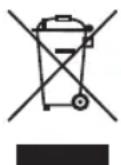
Protect our environment: do not dispose of electrical equipment in the domestic waste.
Please return any electrical equipment that you will no longer use to the collection points provided for their disposal.
This helps avoid the potential effects of incorrect disposal on the environment and human health.
This will contribute to the recycling and other forms of re-utilisation of electrical and electronic equipment.
Information concerning where the equipment can be disposed of can be obtained from your local authority.
Model: SR 4370 CD/DAB+/USB
CTC Clatronic Sp. z o.o



- Menü Übersicht
- Bedienungsanleitung
- DAB stations scannen
- Balayer les stations FM
- English Instruction Manual
- Symbols in these Instructions for Use
- WARNING:
- CAUTION:
- General Safety Instructions
- Children and Frail Individuals
- Special Safety Information
- Overview of the Components
- Start-up of the Device
- Power Supply
- i NOTE:
- Battery Operation (not supplied)
- Transport Safety Device, CD Compartment
- First Use
- Changing the OSD Language
- English
- Setting the Time of the Device Manually
- General operation
- Function Selector Switch (6)
- STANDBY button (24)
- Volume Control (7)
- Delayed shut-off (SLEEP)
- EARPHONE Headphone jack (5)
- Listening to the radio
- Hints for FM / DAB Reception
- Scan FM Stations
- Automatic Station Scan:
- Manual Scan for Radio Stations:
- Show FM Information
- Scan DAB Stations
- Display Additional DAB Information
- Save Station
- Select a Preset Station
- Music Playback
- Playing CDs/MP3
- English
- Playing music via USB (28)
- Description of the Control Buttons
- PLAY/PAUSE (8)
- ▶▶ (9)
- ◀◀ (10)
- STOP/USB (27)
- REPEAT (26)
- RAND (11)
- Programmed Play
- English
- Deleting a Programmed Sequence
- Settings menu
- DAB Menu
- FM Menu
- DAB + FM Menu (MAIN MENU)
- Alarm function
- General
- Setting the Alarm Time
- English
- Turn off the Alarm Signal
- Snooze
- Deactivate Alarm Function
- Cleaning and Maintenance
- Troubleshooting
- Technical Data
- Disposal
- Meaning of the "Dustbin" Symbol
Brand : AEG
Model : SR 4370
Category : Radio