DMR103 - Radio MAKITA - Free user manual and instructions
Find the device manual for free DMR103 MAKITA in PDF.



| Technical Specifications | Details |
|---|---|
| Product Type | Radio |
| Power Supply | Operates on mains or with 10.8V, 14.4V, and 18V Makita batteries |
| Output Power | 2 x 2 W |
| Radio Frequencies | FM / AM |
| Connectivity | 3.5 mm AUX input, USB for charging devices |
| Dimensions | 295 x 240 x 120 mm |
| Weight | 1.6 kg |
| Usage | Ideal for construction sites, indoor and outdoor use |
| Maintenance | Clean regularly, check the condition of cables and connections |
| Safety | Do not expose to water, use only with recommended batteries |
| General Information | Compatible with Makita batteries, 1-year warranty |
Frequently Asked Questions - DMR103 MAKITA
User questions about DMR103 MAKITA
0 question about this device. Answer the ones you know or ask your own.
Ask a new question about this device
Download the instructions for your Radio in PDF format for free! Find your manual DMR103 - MAKITA and take your electronic device back in hand. On this page are published all the documents necessary for the use of your device. DMR103 by MAKITA.
USER MANUAL DMR103 MAKITA
GB Radio Instruction manual
ENGLISH (Original instructions)
Symbols
The following show the symbols used for the equipment. Be sure that you understand their meaning before use.

Read instruction manual.
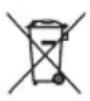

Only for EU countries
Do not dispose of electric equipment or battery pack together with household waste material!
In observance of European Directive 2002/96/EC on waste electric and electronic equipment, 2006/66/EC on batteries and accumulators and waste batteries and accumulators and their implementation in accordance with national laws, electric equipment and battery pack that have reached the end of their life must be collected separately and returned to an environmentally compatible recycling facility.
Explanation of general view
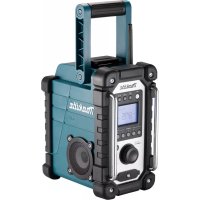
Controls:
- iPod/iPhone docking
- Power/Sleep timer
- Source button
- Radio alarm
- Buzzer alarm
- Preset stations/Playback buttons
- Menu/Info button
- Volume/Tuning control/Select knob
- DC IN socket
10.AUX IN 1 - LCD display
- Handle
- Soft bended rod antenna
- Battery compartment locker
- Speaker
- Battery compartment (covering main battery pack and back up batteries)
- Input terminal (AUX IN 2)
- Battery compartment (covering main battery pack and back up batteries)
- Red indication
- Button
- Battery cartridge
- Supporting bar
LCD display:
A. Radio alarm
B. Buzzer alarm
C. Stereo symbol
D. Low battery indicator
E. Clock
F. Frequency
G. RDS (Radio data system)
H. Sleep status
I. AM/PM for clock
IMPORTANT SAFETY INSTRUCTIONS
WARNING:
When using electric tools, basic safety precautions should always be followed to reduce the risk of fire, electric shock, and personal injury, including the following:
- Read this instruction manual and the charger instruction manual carefully before use.
- Clean only with dry cloth.
- Do not install near any heat sources such as radiators, heat registers, stoves, or other apparatus (including amplifiers) that produce heat.
- Only use attachments/accessories specified by the manufacturer.
- Unplug this apparatus during lighting storms or when unused for long periods of time.
- A battery operated radio with integral batteries or a separate battery pack must be recharged only with the specified charger for the battery. A charger that may be suitable for one type of battery may create a risk of fire when used with another battery.
- Use battery operated radio only with specifically designated battery packs. Use of any other batteries may create a risk of fire.
- When battery pack is not in use, keep it away from other metal objects like: paper clips, coins, keys, nails, screws, or other small metal objects that can make a connection from one terminal to another. Shorting the battery terminals together may cause sparks, burns, or a fire.
- Avoid body contact with grounded surfaces such as pipes, radiators, ranges and refrigerators. There is an increased risk of electric shock if your body is grounded.
- Under abusive conditions, liquid may be ejected from the battery; avoid contact. If contact accidentally occurs, flush with water. If liquid contacts eyes, additionally seek medical help. Liquid ejected from the battery may cause irritation or burns.
- The MAINS plug is used as the disconnect device, and it shall remain readily operable.
SPECIFIC SAFETY RULES
SAVE THESE INSTRUCTIONS
FOR BATTERY CARTRIDGE
- Before using battery cartridge, read all instructions and cautionary markings on (1) battery charger, (2) battery, and (3) product using battery.
- Do not disassemble battery cartridge.
- If operating time has become excessively shorter, stop operating immediately. It may result in a risk of overheating, possible burns and even an explosion.
-
If electrolyte gets into your eyes, rinse them out with clear water and seek medical attention right away. It may result in loss of your eyesight.
-
Do not short the battery cartridge:
(1) Do not touch the terminals with any conductive material.
(2) Avoid storing battery cartridge in a container with other metal objects such as nails, coins, etc.
(3) Do not expose battery cartridge to water or rain. A battery short can cause a large current flow, overheating, possible burns and even a breakdown.
- Do not store the tool and battery cartridge in locations where the temperature may reach or exceed 50^ (122^) .
- Do not incinerate the battery cartridge even if it is severely damaged or is completely worn out. The battery cartridge can explode in a fire.
- Be careful not to drop or strike battery.
- Do not use a damaged battery.
Made for iPod iPhone
iPhone, iPod, iPod classic, iPod shuffle, and iPod touch are trademarks of Apple Inc., registered in the U.S. and other countries.
"Made for iPod" and "Made for iPhone" mean that an electronic accessory has been designed to connect specifically to iPod or iPhone, respectively, and has been certified by the developer to meet Apple performance standards. Apple is not responsible for the operation of this device or its compliance with safety and regulatory standards. Please note that the use of this accessory with iPod or iPhone may affect wireless performance.
Battery Installation
Note:
Keeping back up batteries inside the compartment prevent stored data in preset memories from being lost.
- Pull out the battery compartment locker to release battery compartment. There are main battery pack compartment and back up battery compartment.
(Fig. 2 & 3) - Remove back up battery compartment cover and insert 2 fresh UM-3 (AA sizes). Make sure the batteries are with correct polarity as shown inside the compartment. Replace the battery cover.
- After back up batteries are inserted, insert the main battery pack to power radio. The suitable battery packs for this radio listed as the following table.
The following tables indicate the operating time on a single charge in Radio mode/iPod iPhone mode.
| Battery Cartridge Voltage | AT SPEAKER OUTPUT = 50 mW + 50 mW unit: Hour | |||||||
| 7.2 V 9.6 | V 10.8 V 12 | V 14.4 V 18 V | In Radio or AUX | In iPod mode | In iPhone mode | |||
| BL7010 | APPROX. 5.5 | APPROX. 4.0 | APPROX. 2.0 | |||||
| PA09 PA12 | PA14 PA18 | APPROX. 7.0 | APPROX. 6.0 | APPROX. 3.0 | ||||
| 9050 125 | 1450 1850 | |||||||
| 9051 125 | 1452 1852 | |||||||
| 9100 120 | 1420 | BL1815 | ||||||
| 9120 BL1 | 013 1220 | BL1415 | ||||||
| 9100A 1200A | ||||||||
| BL1815N | APPROX. 9.0 | APPROX. 8.0 | APPROX. 4.5 | |||||
| 9102 120 | 2 1422 1822 | APPROX. 11.0 | APPROX. 10.0 | APPROX. 6.0 | ||||
| 9122 122 | 2 BH1420 | |||||||
| 9102A 1202A | ||||||||
| BH9020 | BH1220 | |||||||
| BH9020A | BH1200C | |||||||
| 9134 123 | 4 1434 1834 | APPROX. 14.0 | APPROX. 13.0 | APPROX. 9.0 | ||||
| BH1427 | APPROX. 15.0 | APPROX. 13.5 | APPROX. 10.0 | |||||
| 9135 123 | 5 1435 1835 | APPROX. 16.5 | APPROX. 15.0 | APPROX. 11.0 | ||||
| 1435F | BL1830 | |||||||
| 1235F | BL1430 | |||||||
| BH9033 | BH1233 | BH1433 | APPROX. 18.0 | APPROX. 16.5 | APPROX. 12.0 | |||
| BH9033A | BH1233C | |||||||
| BL1440 | BL1840 | APPROX. 24.0 | APPROX. 21.0 | APPROX. 17.0 | ||||
Note: Table regarding to the battery operating time above is for reference. The actual operating time may differ with the type of the battery and the model of iPod/iPhone in use.
: Cluster Battery
:Slide Battery

WARNING:
Do not use two main batteries at the same time.
3-1. Installing or removing Slide battery cartridge (Fig. 4)
- To install the battery cartridge, align the tongue on the battery cartridge with the groove in the housing and slip it into place. Always insert it all the way until it locks in place with a little click.
- If you can see the red indicator on the upper side of the button, it is not locked completely. Install it fully until the red indicator cannot be seen. If not, it may accidentally fall out of the tool, causing injury to you or someone around you.
-
Do not use force when inserting the battery cartridge. If the cartridge does not slide in easily, it is not being inserted correctly.
-
To remove the battery cartridge, withdraw it from the tool while sliding the button on the front of the cartridge or pressing the buttons on both sides of the cartridge.

WARNING:
Do not use two main batteries at the same time.
3-2. Installing or removing Cluster battery cartridge (Fig. 5 - 9)
- Pull the supporting bar to allow the battery to insert to the terminal.
- To insert the battery cartridge, align the tongue on the battery cartridge with the grove in the housing and slip it into place.
- Release the supporting bar.
-
To remove the battery cartridge, pull the supporting bar and take the battery out of the terminal.
-
Return the battery compartment locker to the original position.
- Reduced power, distortion and a "stuttering sound" or low battery sign that appears on the display are all the signs that the main battery pack needs to replace.
Note:
The battery pack can't be charged via the supplied AC power adaptor.
- When low battery sign appears and an "E" keeps on flashing is the time to replace the back up batteries.
Installing the Soft bended rod antenna (Fig. 10 & 11)
Install the Soft bended rod antenna as show in the figure.
Note:
There is a click in the battery compartment designed to store the removed antenna.
Using Supplied AC power adaptor (Fig. 12)
Remove the rubber protector and insert the adaptor plug into the DC socket on the front side of the radio. Plug the adaptor into a standard mains socket outlet. Whenever the adaptor is used, the battery pack is automatically disconnected. The AC adaptor should be disconnected from the main supply when not in use.
Note:
When your radio has any interference in AM band by its adaptor, please move your radio away from its AC adaptor over 30~cm
Operating your radio — Scan tuning AM/FM
- Press the Power button to switch on your radio.
- Press the Source button to select AM or FM radio mode.
- Press and hold the Tuning control to carry out an auto-tune. Your radio will scan up the AM/FM band from the currently displayed frequency and will stop scanning automatically when it finds a station of sufficient strength.
- After a few seconds the display will update. The display will show the frequency of the signal found.
- To find other station, press and hold the Tuning control as before.
- When the end of the waveband is reached your radio will recommence tuning from the opposite end of the waveband.
-
Rotate the Tuning control to adjust the sound level as required.
-
While adjusting the volume, make sure the FM/AM is NOT flashing on the screen.
-
If AM/FM is flashing on the screen, it allows you to tune the stations manually (see the section of "Manual tuning-AM/FM" for more detail).
-
To switch off your radio press the Power button

Manual tuning — AM/FM
- Press the Power button to switch on your radio.
- Press the Source button to select AM or FM radio mode.
- Press the Tuning control and you will see the FM or AM is flashing on the display.
FM/AM will flash approx. 10 seconds. Within this period, only manual tuning is allowed.
- If volume adjustment is desired while FM/AM is flashing, press the Tuning control to stop the flash and you can rotate the Tuning control to adjust sound level.
- Rotate the Tuning control to tune to a station. The FM frequency will change in steps of 100kHz / 50kHz and AM frequency will change in steps of 9kHz .
- When the end of the waveband is reached your radio will recommence tuning from the opposite end of the waveband.
- Use the Tuning control to adjust the sound level as required.
Presetting stations in AM/FM mode
There are 5 preset stations each for AM and FM radio. They are used in the same way for each waveband.
- Press the Power button to switch on your radio.
- Press the Source button to select the desired waveband. Tune to the required radio station as previously described.
- Press and hold the required Preset button (1 to 5) until the display shows "P4" for example after the frequency. The station will be stored using the preset number. Repeat this procedure for the remaining presets as you wish.
- Preset stations which have already been stored may be overwritten by following the above procedure if required.
Display modes — FM
Your radio has a range of display options for FM radio mode.
- Repeatedly press the Menu/Info button to view the RDS information of the station you are listening to.
a. Station name Displays the name if the station being listened to.
b. Program type Displays the type of station being listened to such as Pop, Classic, News, etc.
c. Radio text Displays radio text message such as new items etc.
d. Year/Day Displays the year and day of the week according to the date setting of your radio.
e. Date/Day Displays the date and day of the week according to the date setting of your radio.
f. Frequency Displays the frequency of the FM for the station listened to.
If the FM radio station being listened to has a weak signal some hiss may be audible. It is possible to reduce this hiss by forcing the radio to play the station in mono rather than stereo.
- Press the Source button as needed to select the FM band and tune to the desired FM station as previously stated.
- Press and hold Menu/Info button to enter the menu setting.
- Rotate the Tuning control until the FM Auto/mono setting shows on the display. If the setting is Auto press the Tuning control to switch to Mono mode to reduce the hiss. Press the Tuning control to select the option.
Recalling a preset in AM/FM mode
- Press the Power button to switch on your radio.
- Press the Source button to select AM or FM radio mode.
- Momentarily press the required Preset button
to cause your radio to tune to one of the stations stored in the preset memory.
iPod docking
Your radio has an iPod docking facility which allows you to play digital audio files and soundtracks held on your iPod/iPhone directly.
Your radio uses the iPod Universal Dock adjustor developed for use with iPods and iPhone. Recent models of iPod/iPhone are supplied with Universal Dock Adapter inserts which ensure correct alignment of the iPod/iPhone with the electrical connector.
Important:
The radio does not support iPod 3rd generation (build 2003-2004). To avoid possible damage to your iPod, do not use your iPod with the product without the correct adapter fitted to the radio.
Note:
1) All the model listed in the following can be connected to your radio, but not for iPod shuffle: (1) iPhone 4S
(2) iPhone 4 (3) iPhone 3GS (4) iPod touch 4G
(5) iPod touch 3G (6) iPod nano 6G (7) iPod nano 5G (8) iPod classic
2) Models listed above have been certified by the developer to meet Apple performance standards. The models which are not listed above can also operate with your DMR103; however, there is no certification to meet Apple performance standards.
Charging your iPod/iPhone
- Place the iPod/iPhone onto the Universal Dock Adjuster into the iPod docking compartment. Press the Power button to switch on your radio.
- Press Source button until "iPod" shows on the display. If you see (battery with thunder) on your iPod screen, it indicates your radio is charging your iPod's/ iPhone's internal battery.
Note:
1) AM does not operate while charging your iPod/iPhone.
2) When the radio is plugged with AC adapter, your iPod/ iPhone can be charged regardless of power on/off of the iPod/iPhone itself or the radio.
3) When the battery is used as power supply, your iPod/ iPhone can only be charged when the radio is power on.
Navigating your iPod/iPhone
To navigate your iPod/iPhone menus to make selections or to change settings, you should use your iPod/iPhone controls. The radio controls can be used for Menu/Select, Previous/Next, Fast Rewind/Fast Forward and Play/ Pause functions.
- Use the Menu/Info button to navigate to higher level menus on your iPod/iPhone.
- Rotate the Tuning control as required to move up or down a menu screen on your iPod/iPhone.
- Press the Tuning control to select the highlighted option on your screen menu.
Note:
If this item is a lower level menu item, you may then navigate further by pressing the Tuning control.
Playing an audio file on your iPod/ iPhone
- When you have found the desired item, press the Tuning control on the radio to start the iPod playing.
-
Adjust the volume to the required setting using the Tuning control on your radio.
-
To adjust the volume, you need to make sure the word "iPod" on the screen is not flashing.
-
Press the preset button (1-5) at any point. If you want to cease the word "iPod" from flashing.
-
To pause playback press the Play/Pause button (4). To resume playback press the Play/Pause button (4) again.
- iPods do not have a Stop button (they use the Pause function). To play an alternative selection, use the iPod menus to make the selection using the Play/ Pause button stop playing the current item if needed.
- If it was previously playing, your iPod/iPhone will switch on and continue playing from where it was previously stopped.
Note: Your DMR103 does not support video file but only music file.
Note: When Video File List was selected, please press Select button.
Search function
- Press either the Fast-Forward Paq5) forward button playing the next or previous track.
- While the iPod/iPhone is playing, press and hold the Fast-Forward Back forward buttons (3) to move through the current file or track, and then release the button when the desired point in the file or track is reached.
- To select a desired track among folders, press the Folder Up/Down - (1) button select a desired track in different folder.
Clock and Alarms
Setting the time format
The clock display used in stand-by mode and on the playing mode screens can be set to 12 or 24 hour format. The selected format is then also used when setting the alarms.
- Press and hold the Menu/Info button to enter the menu setting.
- Rotate the Tuning control until "CLOCK xxH" appears on the display and press the Tuning control to enter the setting. You will see the time format begins to flash.
- Rotate the Tuning control to select either 12 or 24 hour format. Press the Tuning control to confirm your choice of clock format.
Note: If the 12 hour clock format is chosen, the radio will then use the 12 hour clock for the setting.
Setting the clock time and date
-
Press and hold the Menu/Info button
-
Rotate the Tuning control until "CLOCK ADJ" appears on the display. Press the Tuning control to enter the setting.
- The hour setting on the display will begin flashing. Rotate the Tuning control to select the desired hour, and press the Tuning control to confirm the setting. Then rotate the Tuning control to select the desired minute, and press the Tuning control to confirm the setting.
- Rotate the Tuning control until "DATE ADJ" appears on the display. Press the Tuning control to enter the setting.
- Rotate the Tuning control to select the desired year and press the Tuning control to confirm the setting. Then rotate the Tuning control to select the desired month, and press the Tuning control to confirm the setting. Then rotate the Tuning control to select the desired date and press the Tuning control to confirm the setting.
Radio Data System (RDS)
When you set the clock time using the RDS function, your radio will synchronize its clock time whenever it tunes to a radio station using RDS with CT signals.
- When tuning to a station transmitting RDS data, press and hold the Menu/Info button
- Rotate the Tuning control until "RDS CT" and a clock symbol appear on the display. Press the Tuning control to enter the setting
- Rotate the Tuning control until "RDS CT" appears on the display. Press the Tuning control to confirm the setting. The clock time of the radio will set up automatically according to the RDS data received.
- When the action is completed, the RDS icon will appear on the LCD display indicating the radio time is RDS clock time. The radio cock time will be valid for 5 days each time the radio time is synchronized with RDS CT.
Setting the alarm clock
Your DMR103 has two alarms which can each be set to wake you to AM/FM radio or buzzer alarm. The alarms may be set while the unit is in standby mode or while playing.
a. Setting radio alarm time:
- The radio alarm can be set either when radio is on or off.
- Press and hold the radio alarm button, the radio alarm symbol and the display hour will flash along with a beep.
- During radio alarm symbol flashes, rotate Tuning control knob to select the hour and press Tuning control knob again to confirm hour setting.
Then rotate the Tuning control knob to select the minute and press Tuning control knob to confirm minute setting.
- Rotate the Tuning control knob and the display will show the frequency options for the alarm.
The alarm options are as follows:
ONCE - the alarm will sound once
DAILY - the alarm will sound everyday
WEEKDAY - the alarm will sound only on weekdays
WEEKEND - the alarm will sound only at weekends
Press the Tuning control to confirm the setting.
- During radio alarm symbol is flashing, rotate Tuning control knob to select desired wake-up band and station, then press Tuning control knob to confirm the selection.
- Rotate Tuning control knob to select the desired volume and press Tuning control knob to confirm the volume. Radio alarm setting is now completed.
Note:
If new radio alarm station is not selected, it will select the last alarm station.
Note:
If the selected AM/FM alarm station is not available when the alarm is sounding, the buzzer alarm will be used instead.
b. Setting HWS (Humane Wake System) buzzer alarm: A beep tone will activate when selecting the HWS buzzer alarm.
The alarm beep will sound shorter every 15 seconds for one minute followed by one minute silence before repeating the cycle.
- The buzzer alarm can be set either when the radio is on or off.
- Press and hold the buzzer alarm button, symbol and the display hour will flash along with a beep.
- During buzzer alarm symbol flashes, rotate Tuning control knob to select the hour and press Tuning control knob again to confirm hour setting. Then rotate the Tuning control knob to select the minute and press Tuning control knob to confirm minute setting.
- Rotate the Tuning control knob and the display will show the frequency options for the alarm.
The alarm options are as follows:
ONCE - the alarm will sound once
DAILY - the alarm will sound everyday
WEEKDAY - the alarm will sound only on weekdays
WEEKEND - the alarm will sound only at weekends
Press the Tuning control to confirm the setting.
Note:
There is no volume adjustment for buzzer alarm.
When the alarm sounds
To cancel a sounding alarm, press the Power button.
Disabling/cancelling alarms
To disable an active alarm, either press the Power button or press and hold the corresponding alarm button to cancel the alarm.
Snoopze
- When the alarm sounds, press any button other than the Power button will silence the alarm for 5 minutes. "SNOOZE" will appear on the display.
- To adjust the silence time for the snooze timer, press and hold the Menu/Info button to enter the menu setting.
- Rotate the Tuning control until "SNOOZE X" appears on the display, then press the Tuning control to enter the setting. Rotate the Tuning control to adjust the silence time from 5, 10, 15 and 20 minutes for the snooze timer.
- To cancel the snooze timer while the alarm is suspended, press the Power button
Sleep timer
Your radio can be set to turn off automatically after a preset time has elapsed. The Sleep Timer setting can be adjusted between 60, 45, 30, 15, 120 and 90 minutes.
- Press and hold the Power button to enter the Sleep Timer setting. "SLEEP XX" will show on the display.
- Keep holding the Power button and the Sleep Timer options will start switching on the display. Stop until the desired Sleep Timer setting appears on the display. The setting will be saved and the LCD will return to normal display.
- Your radio will switch off automatically after the preset Sleep Timer has elapsed. The Sleep Timer icon will show on the display indicating an active Sleep Timer.
- To cancel the Sleep Timer function before the preset time has elapsed, simply press the Power button to turn the unit off manually.
Loudness
You can get compensation on lower and higher frequency for your DMR103 by adjusting the loudness function.
- Press and hold the Menu/Info button to enter the menu setting.
-
Rotate the Tuning control until "LOUD ON" or "LOUD OFF" appears on the display. Press the Tuning control to enter the setting.
-
Rotate the Tuning control to choose ON to turn on the loudness function, then press the Tuning control to confirm the setting.
- To turn off the loudness function, select OFF and press the Tuning control to confirm the setting.
Auxiliary input socket
Two 3.5mm stereo Auxiliary Input sockets are provided. One is at the font of your radio; the other is AUX IN 2 is located in the battery compartment.
- Repeatedly press and release the Source button until AUX IN 2 is displayed.
- Connect an external audio source (for example, iPod, MP3 or CD player) to the Auxiliary Input socket.
- Adjust the volume setting on your iPod, MP3 or CD player to ensure an adequate signal level from the player, and then use the Tuning control on the radio as needed for comfortable listening.
MAINTENANCE
CAUTION:
- Never use gasoline, benzine, thinner, alcohol or the like. Discoloration, deformation or cracks may result.
Specifications:
Power Requirements
AC power adaptor DC12 V/1200 mA, center pin positive
Battery UM-3 (AA size) x 2 for back up
Cluster battery: 7.2 V - 18 V
Slide battery: 9.6 - 18 V
Frequency coverage FM 87.50 - 108 MHz (0.05 MHz/step) AM (MW) 522 - 1629 kHz (9 kHz/step)
Circuit feature
Loudspeaker 3 inches 8 ohm
Output Power 7.2 V: 0.5 W x 2, 9.6 V: 1 W x 2, 10.8 V: 1.2 W x 2, 12 V: 1.5 W x 2, 14.4 V: 2.2 W x 2, 18 V: 3.5 W x 2
Input terminal 3.5mm dia.AUX IN1/AUX IN2
Antenna system FM: soft bended rod antenna AM: bar antenna
Dimension (W× H× D) in mm 280× 302× 163
Weight 4.2kg (without battery)
RDS - Radio Data System
Navigate in iPod/iPhone
Radio Data System (RDS)
AM (MW) 522 - 1629 kHz
(9 kHz/increment.)
Circuito
Casse 3 pollici 8 ohm
Tensione 7,2 V: 0,5 W × 2, 9,6 V: 1 W × 2
10,8 V:1,2 W x 2, 12 V:1,5 W x 2,
Radio Data System (RDS)
AM (MW) 522 - 1629 kHz
(9 kHz/stap)
Circuitfunctie
Luidspreker 3 inch, 8 ohm
AM (MW) 522 - 1629 kHz
(9 kHz/paso)
\section*{Caracteristicas del circuito}
Altavoz 3 pulgadas 8 ohmios
Potencia de salute 7,2 V: 0,5 W x 2, 9,6 V: 1 W x 2,
10,8V:1,2Wx2,12V:1,5Wx2
14,4V:2,2W×2,18V:3,5W×2
Terminal de entrada 3,5 mm de diametro (ENTRADA
AUX 1/ENTRADA AUX 2)
Sistema de antenna FM: antenna de varilla flexible
AM: antenna de varilla
Dimensiones (An x Al x Pr) en mm
280 × 302 × 163
Peso 4,2kg (sin bateria)
Radio Data System (RDS)
AM (MW) 522 - 1629 kHz
(9 kHz/incremento)
\section*{CárACTERística de circuito}
AM (MW) 522 - 1629 kHz
(9 kHz/trin)
Kredslobsfunktion
Hjttaler 3 tommer 8 ohm
Udgangseffekt 7,2 V:0,5 W x 2;9,6 V:1 W x 2
10,8 V:1,2 W × 2, 12 V:1,5 W × 2
14.4V:2,2W×2;18V:3,5W×2
Indgangsterminal 3,5 mm diameter
(AUX IN1/AUX IN2)
Antennesystem FM: blod bojet stavantenne
AM: intern antenna
Mai (B× H× D) i mm
280× 302× 163
Vægt
AM (MW) 522 - 1629 kHz
(9 kHz/βnμa)
Xapaktnpiotiko kukawatoc
Meyawo 3 ivw8 ohm
Iaxus Edoou
7,2V:0,5W×2,9,6V:1W×2
10,8 V:1,2 W x 2, 12 V:1,5 W x 2,
14.4 V: 2,2 W × 2, 18 V: 3,5 W × 2
AkoEeKtns 10aywyns
3,5 mm δiαμ. (AUX IN1/AUX IN2)
Σuσημα κεραις
AUX-ingang (Auxiliary)
AM (MW) 522 - 1 629 kHz
(9 kHz/steg)
Egenskaper
Högtalare 3 tum 8 ohm
Navigere iPod-/iPhone-en
AM (MW) 522 - 1629 kHz
(9 kHz/trinn)
Kretsløpsfunksjon
Hoyttaler 3 tommer 8 ohm
Utgangseffekt 7,2 V: 0,5 W x 2, 9,6 V: 1 W x 2,
10.8 V: 1,2 W × 2, 12 V: 1,5 W × 2,
14,4V:2,2W×2,18V:3,5W×2
Inngangsterminal 3,5 mm dia. (AUX IN1/AUX IN2)
Radio Data System (RDS)
He Bb6paBbAaTe 3NeKrPo06OpyDoBaHne nn aKKMyJrTopbI BMeCTe C 6bITOBbIM mycopom!
B COOTBeTCTBn C eBpOneNcKoI dIpeKTbBOI 2002/96/EC o6 yTNIN3aunn
3NeKtpnueckoro n 3NeKtpoHnro
obOpyIOBaHnI, dIpeKTbBOI 2006/66/EC o
6aTaapeJx n aKKymyJIaTOpax, a TaKke
ncNoJIb3OBaHHbIX 6aTaapeJx n
aKKymyJIaTOpax, n INx npImeHnE B
COOTBeTCTBnC MeCTHbIMN 3aKOHaMn
3NeKtpoObOpyDoBaHnE n aKKymyJIaTOpbl,
cPOK 3KcIIpyaTaunn KOTOpbIX nCTEk, DOnJXhbl
yTNIN3OBbIBaTbcr OTeJIbHO 6e3ONaChbIM
dIpyOkpykaIoUe cpeDbI cnocobom.
Ponchenny K obsemy Bndy
OprahbI ynpabJeHnA:
1.Дok-станя дя iPod/iPhone
2.Питане/TaМер са
3.KhONka nCTOuHnKa
4.Будуньнк"paДио"
5. Bydunlbynk "3ymmep"
6. KhoNkI npEduCTaHOBJIeHHbIX cTaHcI/ BOCpON3BeDeHnI
7. KhoNka MeHIO/cnpaBKn
8. PeryjTOrpromKocTH/HacTPOINBbIbopa
9. THe3do DC IN (BXoI nITaHnI NOCTOHHORO TOKa)
10. BxoAUX IN 1
11.KK-dncnnei
12. Puyka
13. ΜΤυρεβαήτην
14. 3amok 6atapeHoro OTecka
15.ДиHamNK
16.БатAPEинь OTCEK (noK KpbIuKoI - OCHOBHOn KOMJIeKT aKKMyJrTOPOB n 3aNaChbIe aKKMyJrTOpbl)
17. BxOJHOn KOHTaKT (AUX IN 2)
18.БатAPEиньгOTCEK(noKpbluKoI-OCHOBHOKOMJIeKT aKKymJrTOPOB n3aNaChbileaKKymJrTOpbl)
19. KpacHbI INHdNkaTOp
20. KhoNka
21.БнokakkymyraTopa
22. Onopa
KK-ducnnnei:
A. BydunbHnK "paDnO"
B. Bydunlbynk "3ymmep"
C.Cmbon ctepeonpOnrpbBaTeTn
D. INHДИΚATOP HN3KORO ypoBHA zapda aKKymyIaTopa
E. yacbi
F. Yactota
G.RDS (CnCTema paHnonHOpmaun)
H. CoctoHne pexkma oxndaHn
I. 3NaOH AM/PM ДячacOB
BAJKHbIE INHCTPyKlUNIOTEXHNKE B3OPACHOCTN
PNEOCTEPEXEHNE:
Bo n36eKaHHe pUcKa Bo3ropaHn, nopAkeHn 3JIeKTPuYeCKm TOKOM IINI NOnyUeHn TpaBMbl npi NCIOb3OBAHN 3JIeKTPoIHnCTpymEtA CNeDyET co6IIOaTb OCHOBHbIe npaBnla TeXnKn 6e3OanacHocTn, yKa3aHHbIe HIXKe.
1.перд ИспОьзOBаHиЕВнИMaTeЛБНо npOчТаNTe 3TOpyKOBODCTBO NOЗКПЛуАTuCINиPyKOBODCTBO NO 3KcПЛуАTuCIN 3apДHOrO yCTpoIcTBA.
2. OuHuaTe ToIbKO cyXoCaJIeTkoI
3.He yctaHabnBaIte B6IINu nCTOuyNkoB TeTna, HapnpMep,paNaTopoB,oborpBeTaTeJe,neey IN dpyrux np6opOB (BKnUoya ycJInTei), BBipabaTbIbAIOx TENJIO.
4. ИспобзуITEТOLБКИ/HaCаДКИ/DОПОЛНITeHbIe npINHaDnEXKHOCTN,yKa3aHHbIe pPON3BOIDNTeJIeM.
5. OToCoeHnHnTe yCTpOInCTBO OT pO3ETKn BO BpeM rpo3bl nIe cJn OHO He nCNOJIb3yETcB TeHeHne DInTeJbHoro BpeMeHn.
6. PaIIO C nITaHHeM OT BCTpOeHHoro IIN BHeUHero aKKymyIaTOPa CneJeYet 3apJxKaTb TOnbKO C NOMoUbHO cNeuHaBHorO 3apJdHoro yCTpoiCTBa. 3apJdHoe yCTpoiCTBO, NOxOJaUeE dNra OdHoro Tnna aKKymyIaTOPOB, MoXeT npVBecTn K NoXApy npn erO hCNoJIb3OBAHN C dpyrIM aKKymyIaTOPOM.
7. IcnoIb3yIte paIIO TOIbKO c peKOMeHIOBaHHbIMn aKKymJrTOpHbIMn 6NOKaMn. IcnoJIb3OBAHne dpyrnx aKKymJrTOpOB MOKeT npINBecT N NOxApy.
8. EcInn aKKymyIaTOPbHb 6NOK He nCNoJIb3YeTc, xpaHInTe ero B CToPOHe OT npOuNX MeTaNIIueCKNX npEdMeTOB: CKpeNOK, MOHeT, KInIOHee, rBO3Dei, WpyNoB IN Dpyrnx MeKnx MeTaNIIueCKNX npEdMeTOB, KOToPbIE MOrTy 3AMKHytb KOHTaKTbIMexJy Co6oN. KopOTKoe 3AmbKaHne MeXdY KOHTaKTamn aKKymyIaTOPHO 6NOKa MoXeT npINBeCTN K NCKpeHHO, OXKOrAM INI NOxApY.
9.ИзбeraиTe KOHTaKaTа yuacTKOB TeNa c TaKIMN 3a3eMJIeHHbIMN NOBepXHOCTaMn, KaK Tpy6bl, paImaTOpbl, 6aTapeN OTOnJIeHnN I XOJIoDINbHNKn. ПпкоHTaKTe TeNa c 3a3eMJIeHnN e NOBiShaeTCa onaCHOCTb NOPaXeHnN 3JIeKTpUneCkIM TOKOM.
10.Пи He npabnIbHOM O6paueHn I3akKymJIaTopa MoKET NoteYb KndKoCTb.N36eAaTe KOHTaKTA C Hei. B cnyae KOHTaTc A KOKeI npomOte MeCtO KOHTaTc O6NJIbHbIM KOJIuYeCTBOM BoDbl. B cnyae nonadAHn B rna3a, O6paNTecb K bpaUy. KndKocTb n3 akKymJIaTopa MoKet BblBaTb pa3dpaxeHne IIN OxKOrn.
11. CeteBa BnIka nCNoIb3yeTcB KaHeCTBe yctpoiCTBa OTKnIOUeHn I DoJXHa 6blt NcnpaBaHa.
CNEUΦNUECKNE INPABUNATEXHNI B3ONACHOCTN
COXPAHNTE DAHHbIE NHCTPYKcN
ДЛЯ AKKUMYJIATOPHOROBJOKA
- Пеед И спосьзовима Ксулгого 6лка почитай СЕ ИСТруКУМИ N И рededурждюши надпси Н (1) зардом устор CTBE, (2) akcymлгогим 6лoke N (3) ИСТрументe, разотаюшem OT akcymлгогого 6лoka.
- He pa36npaTte aKkMyJrToPbHb 6nok.
- EcIn Bpempa60bI 3NaHTeJIbHO COKpaTINOCb, HEmeIeHNO npeKpaTInTe pa6Oy. B npOTNBOM cnyae MOKeT BO3HKnHyTb NepERpeB, YTO npuBeTe K OxKOrAm I daKe K B3PbBy.
- B cnyuae nonaHaHna 3neKtpoNTa B rIa3a npomOte Hx 60JIbUIM KOnnueCTBOM YnCToB OBOI N HeMeJeHHO 6opATNEtcb K BpaCy. 3To MoKeT npNBecTI K nOtepe 3peHna.
- He 3aMbikaTe KOHTaKTbI aKKymyTApHOrO 6noka MEXdy c6oB:
(1) He npikacaiTecb K KOHTaKtAm KaKIMN-JIN60 TOKONPOBOJAAUMN NpeDMeTaMn.
(2)ИзberaиTe xpaHnTb aKKyMnyTOpHbI 6nOK B KOHTeHHepe BmecTe C pyrIMM MeTaNNueCKMn IpeDMeTamN, TaKIMN KaK rBO3dN, MOHeTbI N. T. n.
(3) He donyckaTe nonaHa Ha akMyIaTOPbHbI 6nOK BoDbI INn DoXJa. 3aMbIkaHne KOHTaKTOB aKKMyJIaTOPHO 6JOka MExdy Co6oM MoKeT npNBecTH K BO3HKnHOBeHIO 60JbWoTO Ka, nepepeBy, BO3MOxHbIM OxKOrAm I daKe pa3pblBy 6JOka.
- He xpaHnTe nHcTpymeHT n aKKyMyJrTophBn 6NOK B MeCTax, rIe TemnepaTypa MoKet DOCTnRaTb NIN npebblaTaB 50°C (122°F)
7.He 6pocaIte aKKymJrTopHbI 6nK B orOHb,daKe ecN OH CNJIbHO IOBpeXdEHN IIN NOJHOCTbIO BblweI n3 CTPO.AKKymJrTopHbI 6nOK MOKeT B3OpBaTbcr NOJ DeNCTBnEM OTH. - He poHnIte n He yIapnTe aKkymyIaTOp.
- HeIb3a nCNoIb3OBaTb NOBpeKdHbI aKKyMylrTop.
Made for iPod iPhone
iPhone, iPod, iPod classic, iPod shuffle n iPod touch
YBJIaTcT ToBapHbIMn 3HaKaAMn Apple Inc.,
3apernctpnpoBaHHbIMn B CUSA n npyrrnx cTpaHax.
MapknpoBka "Made for iPod" n "Made for iPhone"
O3NaHaeT, YTO 3NeKtpoHHoe yCTpoiCTBO npedHa3NaHeO
CneuAJIbHo dIra iPod n iPhone coOTBeTCTBeHHO, n
cepTuΦnUPOBaHO npOn3BOJNTeJIem Ha COOTBeTCTBne
CTAHdApTAm 3ΦΦeKTbHocTn Apple. KomnaHnAe Apple He
HeCeT OTBeTCTBeHHOCt b 3a pa6Ot DaHHoro yCTpoiCTBa
HII eRO COOTBeTCTBne CTaHdApTAm 6e3OpacHocTn I
HOPMaTHBbIM aKTaM. ObpatTe BHMaHne, YTO
HCNoIb3OBaHne DaHHoro yCTpoiCTBa c iPod nIi iPhone
MOXeT cKa3aTbcra Ha pa6Ote 6ecnPBoDhbIX yCTpoiCTB.
YcTaHOBka aKKymyJrTopa
Приимейанne:
XpaHeHne pe3epBbIx akKymJrTopoB B OTCKe NO3BOJIaR TpeDoTbPaTnTb NpTePIO daHHbIX IpeDyuctaHOBOK cTaHcN.
- BbITaHInTe cTOnop 6aTapeHoro OTcKa, qTO6bIO CBO6OuNTb 6aTapeHbI OTcK. IpeDyCMOTpeH OCHOBHO 6aTapeHbI OTcEK N OTcEK pe3epBHO aKKymyJrTopa. (Pnc.2 u 3)
- CHIMMTE KpbIuKy OTCeKa pe3epBHoro aKKMyJrTopa n BCTaBbTe 2 HObIx aKKMyJrTopa UM-3 (pa3mep AA). PpOBepbTe NOLApHOCTb yCTaHOBKn B COOTBETCTBnC pNCyHkOM BHyTpN OTCeKa. YcTaHOBIne Ha MeCTO KpbIuKy aKKMyJrTopa.
- После установки pe3eрьха Akkymуларов BCTaBbTe OCHOBHоakKymyIaTOpHbI 6LOKДпЯпТаня paDIO.ПоIxOДЯше akKymyIaTOpHbI 6LOKДпЯданHOro paDIO nepeuHcneHbIВ tabNiue HIXke.
B Ta6nuax Hnke npnbEeNo BpeM pa60tbi npi OndHokpAthom 3apJe B peKmpe pao/o/iPod iPhone.
| Нарожени akкумлаяtopного блoka | HA BыхODE ДИНAMИKA = 50 mВТ + 50 mВТ eДиниць ИЗмерения: Уас | |||||||
| 7,2В | 9,6В | 10,8В | 12В | 14,4В | 18В | В ржиме радно пли AUX | В ржиме iPod | В ржиме iPhone |
| BL7010 | ПРИБЛ. 5,5 | ПРИБЛ. 4,0 | ПРИБЛ. 2,0 | |||||
| PA09 PA12 | PA14 PA18 | ПРИБЛ. 7,0 | ПРИБЛ. 6,0 | ПРИБЛ. 3,0 | ||||
| 9050 125 | 1450 1850 | |||||||
| 9051 125 | 1452 1852 | |||||||
| 9100 120 | 1420 | BL1815 | ||||||
| 9120 | BL1013 | 1220 | BL1415 | |||||
| 9100A | 1200A | |||||||
| BL1815N | ПРИБЛ. 9,0 | ПРИБЛ. 8,0 | ПРИБЛ. 4,5 | |||||
| 9102 120 | 1422 1822 | ПРИБЛ. 11,0 | ПРИБЛ. 10,0 | ПРИБЛ. 6,0 | ||||
| 9122 122 | BH1420 | |||||||
| 9102A | 1202A | |||||||
| BH9020 | BH1220 | |||||||
| BH9020A | BH1200C | |||||||
| 9134 123 | 1434 1834 | ПРИБЛ. 14,0 | ПРИБЛ. 13,0 | ПРИБЛ. 9,0 | ||||
| BH1427 | ПРИБЛ. 15,0 | ПРИБЛ. 13,5 | ПРИБЛ. 10,0 | |||||
| 9135 123 | 1435 1835 | ПРИБЛ. 16,5 | ПРИБЛ. 15,0 | ПРИБЛ. 11,0 | ||||
| 1435F | BL1830 | |||||||
| 1235F | BL1430 | |||||||
| BH9033 | BH1233 | BH1433 | ПРИБЛ. 18,0 | ПРИБЛ. 16,5 | ПРИБЛ. 12,0 | |||
| BH9033A | BH1233C | |||||||
| BL1440 | BL1840 | ПРИБЛ. 24,0 | ПРИБЛ. 21,0 | ПРИБЛ. 17,0 | ||||
Примочи:Табшица с описсем Времен pa6otblakумларон 6aTapeи Bblwe npnbedeHa B kaueCTBe cnpaBOUHOn INΦOPMaци.ФakTuYeCKoeВрем pa6otbl3abucNT OT Tuna akKyuMJIarTopHO 6aTapeи Исponьз汞МоMDeN iPod/iPhone.
: AkkymnyTopHbI 6nok
:BbIDBHXHoaakKMyJnTOp
I PENEOCTEPEXEHNIE:
He nCnoNb3yIte IBa OCHOBHyix aKKymyIaTopa OHOBpeMeHHo.
3-1. YcTaHOBKa nIi ChrTne BblBnKHO aKKMyJITopHOrO 6Joka (Pnc.4)
-Дя установки akkyмлгторно 6лoka coBmectnte Bblctyn 6лoka c паимь корпусяи 3адвиные erо на место.Всетда устанавливаite 6лokdo унopa тak, YTO6bl OH 3aФИКСИРОВАСЯ на MeCTe C He6OlbшIM ΜeJIчКOM.
- Ecni Bbl MoKeTe BnDeTb KpaChBn INHdNkATOp Ha BepxHeuactn KhoIKN, aKkyMnyAToPbHb 6Lok He NOnHOCTbU OyCTaHOBJIeH Ha MeCte. YcTaHOBIne erO do KOHca TaK, UTO6bl KpaCHbN INHdNkATOp 6bl HbNe H B npOTnbOM cnyae aKKymyJrAToPbHb 6Lok MoKeT
BbInactb n3 HnCTpyMeHTa n HaHeCTn TpaBMy Bam nIIN dpYrIM IIOdAm.
He npimehnTe cnny npu yctahOBke aKKymyIaTOpHOro 6Joka. Ecn 6Jok He Dbiraetcra Cbo6OJHO, 3HaHT OH BCTaBJIeH HnpaBnIbHO.
- UTo6bI n3Bnueb akKymyTOpHbI 6JOK, BblDbHbTeero n3 yctpoiCTBa, nepemeea JKHONKy Ha nepeDHei CTopoHe 6JOKa HnHaXkab Ha KHONKn NO 6OKam 6JOKa.
PNEOCTEPEXEHNE:
He nCnoNb3yIe DBA OCHOBbIX aKKMyJrTopa ODHOBpeMeHHO.
3-2. YctaHOBka n CHrTne aKKMyJrTopHOro 6noka (Pnc.5-9)
- Notaryte 3a onopy, YTO6bI aKKyMnyTOp BOWeJ B rHe3do.
-Дя установки akку млг Торно 6нoka coьмстп Te BыICTун 6нoka c пзOM b KОрпус e n 3aДВиНье erо Ha MecTo.
- OtcoeHnHte onopy.
- 4To6bI n3Bnueb aKkymyIaTOPhbl 6nok, NotHInTe onopy n BbInbte aKkymyIaTOP n3 rHe3da.
4. YctaHOBnte cTOnop 6aTapeHoro OTeKa B NcXoHoe NOJIOXKeHne.
5.CHIXeHHe MOUHOCTn, NCKaXeHnI "3aIKKaHne", NIO60 CnMBoN Hn3KOrO yPOBnI 3apraJa aKKyMylrTopa KOtOpbI NOBJIeTcR Ha DnCpJIee, ABlJrOTcR npn3HaKaAMn Heo6xOUMocTn 3aMeHbI OCHOBHOro aKKMyJrTOphoro 6Joka.
Приимechanical:
AkkymyIaTOPhIb6IOKHeNb3a3apXaTbC NOMOJIbIO npJnaraemoro aadantepa nepemehHoro Toka.
- Ecnn noBnncnmbon Hn3KOro 3apra da aKKymyIaToppa n 3NaOH "E" nocToHNO Miraet, Heo6xoJMo 3aMeHHTpe3epBhbIe aKKymyIaTopbl.
YcTaHOBka 7TbIpeBOaHTeHHbl (Pnc.10n11)
YcTaHOBtTe WITbIpeByo aHTeHHy KaK NOKa3aHo Ha pncyHke.
Приимейкин:
B 6atapeHOM oTceKe npedymoTeHa 3aueIka IЯ xpaHeHn CHrToI aHTeHHbI.
IcnoJb3OBAHne npJIaraeMOro aAnTepa nepeMeHHoro Toka (Pnc. 12)
CHIMITE pe3HOBBI n3OJTOP IN BCTaBbTe pa3beM aadantepa BRHe3do DC Ha nepeDnei naHenn paIIO. BCTaBbTe aanTep B po3eTKy 3neKTPocETn. Pn uCNOJIb3OBAHNn aadantepa akymyIaTOpHbN 6nok ABTOMATUeCKN OTCOEINHReTc. Ecnn aadantep nepeMeHHoro TOKa He nCNoNb3yETc, erO Heo6xOdmo OTCOEINHHTb OT pO3eTKN.
Приимechanical:
EcnBBO BpempaObIpaNoB DnAna3oHe AM BO3HnKaIO T NOMEXNOT aanTepa, OTOdBnHbTe paNo OT aanTepe npemehHoro ToKa Ha 30 cm.
Paδota paδno - Hactrpoɪka AM/ FM
- Haxmte KhoNky nHTaHnra [O] , 4TO6bI BKNIOuHTb paIIO.
- HaxMnte KhoNky NCTOuyHnka 106bI Bbl6paTb peKIM AM nn FM paNo.
- Haxmte n ydepknbaiTe KhoNky Hactpoyn DnBbINOJIHeHnA bTOMaTHueCKoH hactpoyn.PaIIOBbINOHNCT cKaHnpOBaHne dnaNa3OHa AM/FM,HaCHNA C OTO6paKaemoy YAcToTbI, n
aBtOMaTnueckn npeKpaTNT cKaHnpOBaHne NocNe HaxOxJdeHnA CTAHcN C CnHaIOM DoCTaTOHOn MOUHOCTn.
- Yepe3 HeckonbKO CekyHd n3o6paXeHne Ha 3kpaHe o6HOBNTc. Ha 3kpaHe 6yDet OTo6paXaTbc7acToTa o6HapYKeHHoro cnHaJa.
- UTo6bI HauTn DpyryIO CTAHcHIO, HaxMnte n ydepxkBaTe KHOKNy HAcTpoKn KaK OINcaHO Bbiue.
6.ДocTHHyB KOHcA dHaNa3OHa BOnH,paHOB03o6HOBnT HAcTpOy C Haayana dHaNa3OHa. -
ПовернITE КНОнКУ HabстpoиВ В NOJOKeHne 6,TO6bl OTperyInnPoBaTb ypoBeHb 3Byka.
-
Bo Вемя рergyніровки رомковости уб\'дпесь, чсumbон FM/AM HE мURAет на зкран.
- Ecπn Ha 3kpahe Muraet CmBOn AM/FM, CTaHcπn MoXHo HactpaunBaT bpyHyO (noDpo6hble cBeHeHna CM. B pa3dJe "PyuHaJ hAcToPoiKa - AM/ FM").
8.ДЯ BBKIOUeHnRApaIHO HAXMITE KHOKNy NITaHnI
Руная有很大 поka - AM/FM
- Haxmnte KhoNky nHTaHnra , yTo6bI BkNoHTb paAno.
- Haxmte KhoNky nToCHnka 0, YTo6bI Bbl6paTb peKIM AM uIN FM paNo.
- Haxmte KhoNky HacTpoKn , TTo6bI Ha 3KpaHe hauan MuraTb cunBON FM uHn AM.
CIMBOI FM/AM Miraet OKOIO 10 cekynd. B3TOBpeM IOCTynHa TOnbKO pyHnA HAcTpoiKa.
- Ecni BO Bpem MmraHn FM/AM Heo6xOIMO OtperyInpOBaTb rPOMKocTb, HaxMNTe KhONKy HactpoiKn, YTO6bl OCTaHOBnTB MmraHne, NocNe Yero IOBepHNTE KhONkY HacToPOKn dIpyInpOBKn rPOMKOCTn.
4.ПоворачьайтКнОнку HabТpoик,HTO6blHacTpontb cTahuIO.YaCTota FM MeHЯETcRc SwarOM100Kr/50Kr,aYacTotaAMMeHЯETcRcSwarOM9Kr.
5. Доступные Конта Диаээюна ВОн, радно ВOSTOBИТ Настору с нада Диаээээ.
6. C nOmoIbIO KHOJIKN HAcTpoiKn OtperynpyuTe yPoBeHb 3Byka.
IpeBapnteJbHaJa HacTpoKa cTaHcN B pexIme AM/FM
Дя кадоу Диana3oHa (AM n FM) paAno
PpeDyCMOTpeHo 5 cTaHcunI ppeBapnteHbOn
HacTpoiKn. OHI NCNoJIb3yOToC aHaIOrnHybIM o6pa3OM
Дя кадоу Диana3oHa BOH.
- Haxmte KhoNky nHTaHnay ,yTo6bI BkNoUHTb paDIO.
- HaxmTe KhoNky nCTouHnKa DnBb6opa Heo6xOuMOro dnaIa3OHa. HactpoTe Heo6xOuMMyo paAnocTaHcIIO Ka ONcaHO Bblwe.
- Haxmte n ydepkmbaite Heo6xOmyu KhoNky npedyctaHOBKN (1-5) 00000000, noka prdom c qactoton Ha ekpaHe He oTo6pa3ntcra, Hanpimep, "P4". CtaHnna 6ydet coxpaneHa ha npedyctaHOBJIeHHOM HOMpe. Ppr Heo6xOUMocTn NOBTopNTe pOceDpy dIra OCTabuxxCra npedBaPITeNbHbIX HacTpoeK.
- Pahee coxpaheHHbIe cTAHmN ppeDyCTaHOBKn npn Heo6XoDMocTn MOXHO nepe3aHcBbATb B COOTBeTCTBm C ONHCANNB BblE npOeDpyoN.
Peximblnncnpe - FM
IpyeXmMa FM npedycmTopehbl pa3nHbI npaMeTpbI nucnner.
- HeckoIbko pa3 haXmnte KhoNky MeHIO/cnpaBKn ⅡIЯ npocMToPa HOpMaunn RDS npocnyuBaemoi CTaHcun.
a. Ha3BaHne cTaHcHn OTo6paXeHHe Ha3BaHn npocLyuBaemc TaHcHn.
b. Tn nporpaMMbl OTo6paKeHne Tnna npocnyuBaemcStaHcnn (POnyIrpHa, KNaCCnuecka, HOBocTu nT.D.).
c. PádnóTeKCT OTo6paXeHne TeKcTObbIX coo6üeHn paDnO, HapnpMep, HOBBie 3JIeMeHTbI n T.D.
d. TOp/JeHb OTo6paXeHne roa n DnHa HeDeIIN B COOTBETCTBUN C HAcTpoiKaMn DaTbI Ha paAno.
e.Дata/ден b OTo6paXeHne DaTbI IN DnH HeDeJI N B COOTBETCTBUN C HAcTpOJkAMN DaTbI Ha paIIO.
f. Yactota OTo6paKeHne YacTObI npocnyuINBaemOn cTaHcN B dnaana3OHe FM.
Ctepeo (aBTo)/MOHO pexm FM
Ecnn cnrha npocnyuBaemf FM-ctaunn cnuKOM cna6bni,MOXET 6bITb CbIWeH yPoBeH yMa MOxHO CHN3NTb,BbI6paB pexHM BOCpON3BeDeHnA MOHO a He cTepeo.
- Пи Heo6xOДIMOCn HaxMnTe KHONky nCTOuHnKa ⑤ ДЯ ВьБОра ДИАпAZOHa FM И HAcTpoIKN Heo6xOДIMоN FM-СтAnZn (Кak OПИСАНВБИSe).
- Haxmnte n ydepknaTe KhoNky MeHIO/cnpaBKn dIra oTo6paXeHnna npaMeTPOB MeHIO.
3.ПоворачиВаite KнОпу HabToPkИ,NOKaHa 3kpAHe He OTO6pa3ntc npaMeTp AByTo/MoHo FM. EcIn BbI6paH npaMeTp AByTo,HaxMnTe KHOIpKy HAcTpoKINДЯ nepexOdaBpeKIMMOHO IN CHIXKeHnA
Wyma. Haxmte KhONky HacTpoNn DnB BbIbopa npametpa.
BbI3OB npedyuctaHOBJeHHoCTaHcnn B pexime AM/FM
- Haxmnte KhoNky nHTaHnra , yTo6bI BKnHouNTb paAno.
- HaxmTe KhoNky nToCHnka ,TO6bI Bbl6paTb peKIM AM nn FM paNo.
- KpaTKo HauKmTe Heo6xOdUmMyIO KhoNkY npEynCTaHOBKn 00000 DnI HaCtpoKn paDnO Ha Ody IVx COxaHHeHHbIX B PAmrTn CTAuM.
Дok-станця за iPod
Bpaio npedycmTopeHa DOK-CTaHnna IpiPod, KOtopa n03BOJare BOCpOIN3BOIDnTb UcfoPoBBie ayDnOphiJIbI KOMPO3nCn, COxpaHeHHbIe Ha iPod/iPhone.
B paIIO nCnOJIb3yETc yHIVBepcaJIbHbI aIaNTep iPod Universal Dock, no3BOJIAUoI moKJIIOuATb ycTPOiCTBa iPod u iPhone. PocLeDHeMoIeN iPod/iPhone nocTaBIAJIOCTc c yHIVBepcaJIbHbIM aIaNTepOM Universal Dock, KOtOpBI oEcecneuBAeT hAdnEkaUO coBMeCTUMOCt b iPod/iPhone c 3JIeKTpUYeCKM pa3beMOM.
Baxho:
Papno He noDaepxnBaet ycTpoNCTBa iPod 3-ro nokolneHna (BbInyueneHHble B 2003-2004 rr.).Bo n36ekaHne nobpeXdEHHa iPod He nCNoJIb3yIte eroc ycTpoNCTBAMN 6e3 COOTBeTCTByUoJero aadantepa npn POnkIOueHHK paio.
Приимechanical:
1) BCE peyuHcJIeHHbIe HnKe MoJeI MoJHo noKIOuHaTb K paIIO, KpOme iPod shuffle: (1) iPhone 4S (2) iPhone 4 (3) iPhone 3GS (4) iPod touch 4G (5) iPod touch 3G (6) iPod nano 6G (7) iPod nano 5G (8) iPod classic
2)Пересиеловье ВишемолсерпсицровыnpОИЗВODИТЕЛЕм Ha COOTBeTCTBVE CTaHДapТam3ФфektNtBHOCTnApple.MoELIN,He nepeuCJIeHHbIe BVIWe,TakkeMOryTpa6OtaTb cDMR103;OнakoceptNtФИКATHa COOTBeTCTBVE CTaHДapTaM3ФфektNtBHOCTnAppleOTcyTCTByeT.
3apяdka yctpočTB iPod/iPhone
- Пoctabte iPod/iPhone c yHnBepcaIbHbIM aanTepom Universal Dock BdoK-ctaHcIIO dIy iPod. HaxMITE KHOJky nITaHnIa [O] , YTO6bl BKJIIOHTb paINo.
- Hαнмай Te Khoику nCToUHnka ⑤, nOKa Ha 3KpaHe He oTo6pa3ntcra "iPod". EcIn Ha 3KpaHe iPod oTo6paxKaetcra CmB0JI (6aTapeЯ c MoHnE), 3HaHT paIIO OCyUeCTBnAeT 3apJd BHyTpEnHne 6aTapei iPod/iPhone.
Приимechи: [ \text{Д��making} = \frac{\text{市场}}{\text{产品}} ]
1) Bo Bpem 3apAdkn iPod/iPhone pexm AM HeoctyneH.
2) Ecni paIIO IOKIIIOyeHO KaIaIaTIpeY nepMeHHoro Toka, iPod/iPhone moXHO 3apJxKaTb He3aBnCmO OT TORO, BKNIOeHO IIN BBIKIOueHO cAmO yCTPOIcTBO IIN paIIO.
3) KOrda B KaueCTBe NcToUHnKa NHTaHn IcNoIb3yeTc aKKymyIaTopHa 6aTape, yCtpoIcTBo iPod/iPhone MOnKHO 3apJKaTb TOnIbKO pN BKnIOuHeHHOM paIIO.
Cnctema MeHIO iPod/iPhone
Дляпелемшени no MeHIO iPod/iPhone n OcyusectBlenHa Bb6opa nII BHeceHn N3MeHn B HactpoKn Heo6xOIMo NcNoIb3OBaTb OpraHbI ynpabHenn iPod/iPhone. OprAhbl ynpabHenn paNIO MoXHO NcNoB3OBaTb dЯФyHKUm MeHIO/Bb16Op, IpeDbIduyn/CneDyUOuN, BbICTpra nepemOTka Bneped/Ha3ad n Bocpon3BeDeHne/Play3a.
- C nOmoUbKHOJIKN MeHIO/cnpaBka nepeMeuaTecb BBepx no MeHIO iPod/iPhone.
- ПовернITE КНОКУ HabТpoик, ecn Heo6xOДМо nepeHTN Bn3 nIb BBepx Ha 3KpaHe MeHIO iPod/ iPhone.
- Hαχmnte Khoπky NaCTpOriKn DnI BbIbopa BbIeJIeHHOro NapaMeTpa Ha ΚKpaHe MeHIO.
Приимechanical:
Ecnn 3TOT napameTp haxoDntcB HNKeCTOaem MeHIO, 3aTeM MoXHO nepeuTN BblIe N0 MeHIO, HxKab KhoNky HAcToPouKn.
Bocnpo3BeDeHne ayDnoΦaJIOB ha iPod/iPhone
- Bb6paB Heo6xOuMbI 3JIeMeHT, HaxMnte KhoNky NaCTpoiKn Ha paNo, YTO6bl HaTaB BocnpOn3BeDeHne iPod.
- Otperynpyte rpoMKocTb do Heo6xOJIMoro ypOBHc NOMOuKHOHNHaCTPOIN Ha paINO.
-ДяperулровгромкocTN Heo6xOIMO yOCTOBepNTbCra,чTo Ha 3KpaHe He Miraet CNoBO "iPod".
- Haxmnte KhoNky npedyctahOBKn (1 - 5) B liOboi MOMeHT, YTo6bl npekpaTntb MIRaHne cNoBa "iPod".
3.Дя npnoctaHOBKN BocnpoN3BeDeHnHaXmnte KhoNky BocnpoN3BeHne/Play3a (4).Дя npodonKHeHn BocnpoN3BeDeHn HaXmTe KhoNky BocnpoN3BeHne/Play3a (4) eue pa3.
4. B yctpoiCTbax iPod He npedycmOTpeHO KHONK CTon (ncnoIb3yETcra cyHKnra Nay3a).ДЯ BOCnpoN3BedeHnRApyrO KOMNo3nINBb6epnte ee B MeHIO iPod, npu Heo6xoIMocTn HaxkAB npn 3TOM KHOJky BocnpoN3BeHne/Play3a (4)ДЯ npekpaueHnBocnpoN3BedeHnTekyueKOMNo3nIN.
- Ecni KOMNo3nua BOCnpoN3BOOInacb do 3Toro, iPod/ iPhone BKIOuHTc n npOdoJXNT BOCnpoN3BeDeHne c MOMeHTa OCTaHOBKn KOMNo3nui.
PpmeaHne:
DMR103 He noДержИbaet BndeoФaIbI, TOnbKO My3bIkaJIbHbIe FaIbI.
PnmeaHne:
EcnBbIbpaH nyHKT "CnncOK BnDeoopaHOB", HaxMnte KhoNky Bbl6op.
ФункиЯ Поньс
- Haxmte KhoNky BbICTpo nepemotkn Bnpeed (5) nIi Ha3ad (3), YTO6bl Haayatb Bocpnoun3BedeHne cJeDyUoSei nIi npdeBdyuuei KOMIO3nCNI.
- Korda iPod/iPhone haxoindTcB pexime Bocnpou3BeDeHn, HaxmTe n ydepxnBaTe KhONky 6bICTPOI nepemOTKn Bpepei (5) nHn Ha3aD (3) dIy IepMeueHn no TeKyUeMy paayny nIN KOMNo3uN, NOcNe HeO OTNyCTnTe KhONky B Heo6xOUMOM MeTe.
- TTo6bI BbIbpaTb Heo6xOaMMyo KOMno3nUHO n3 cnNcKa npOK, HaxMnte KhoNky CneDyUoAra naKa/ PpeBldyuaa naKa -(①),+(②)dna BBbOpa Heo6xOaMOnKOMno3nUuB dpyroanKe.
Yacbl 6yDnIbHnKn
Hactpoika fopMaTa BpeMeHN
3KpaH yacOB nCNoB3yETcB pexIMe OxNdaHnHa Ha 3KpaHax BpeXIMe BocPOn3BeDeHnHa MoKeT 6bITb ycTaHOBJIeH BΦopMaTe 12 nn 24 cacOB. Bbl6paHHbI ΦopMaT 3aTeM nCNoB3yETc npn HactpoKe 6yDnBnKOB.
- Hαχmnte u yndepxnBaIte KhoNky MeHIO/cnpaBKnДЯ OTO6paXeHna napaMeTPOB MeHIO.
2.ПоворачьайтКнОнкуHaCTpoикnOkaHa 3кранe He oTo6pa3ntcra“CLOCK xxH”,пocе уero HaЖмITE KнОнкуHaCTpoикnДЯВBOda npapametpoB.FOpMaTВpeMeHnHaHHTMURAtB.
3.ПоворачиBaIte KHONky HacTpoiKnДЯ BbIbopaФopMaTa 12 nII 24 YacOB.HaXMMTe KHONkyHacTpoiKnДЯ NOdTBepKdEHNy BblbopaФopMaTa YacOB.
PpmeaHne:
EcnBbIbpaHΦopMaT 12 yacOB,paIIO 6yJeT nCNOJIb3OBAtB 12 YACOB IaIHaCTpOIKN.
Hactpoika BpeMeHH n DaTbI
- HaxmTe n ydepKnBaIe KhoNky MeHIO/cnpaBKn
2.ПоворачиBaIte KHONky HacTpOiKn ,NOKaHa 3KpaHe He OTo6pa3ntcra "CLOCK ADJ".HaxMnte KHONky HacTpOiKn DnB BbOda npaMeTpa.
12V noct. Toka/1200 mA,
ZeHTpaBHyKoHTaKT
NIOJXHTeHbI
AkkymyJrTOp UM-3 (pa3mep AA) x 2 B KauecTeB
pe3epBhbIX
AkkymyITophBn6nK:7,2B-18B
BbDnKHOaKMyJrTop:9,6-18B
AM (MW) 522 - 1629 KΓ
(war 9KrU)
Iapametpbkohtypa
HAMK 3IOMa8OM
BbIXoHaMoUHocTb
7,2 B: 0,5 B T× 2 ,9,6 B:1 B T× 2
10,8 B:1,2 B × 2 , 12 B: 1,5 B × 2
14,4B:2,2BTx2,18B:3,5BTx2
BxOHHo pa3bEm dnaMeTp 3,5 MM (AUX IN1/AUX IN2)
ANTeHHa cHcTeMa FM: UTbipeBa aHTeHa
AM:peppuTOBa aHTeHa
Pa3Mep (UxxBxΓ) BMM
280× 302× 163
Macca 4,2 Kr (6e3 akkymyTopa)
AM (MW) 522-1 629 kHz
(9 kHz/krok)