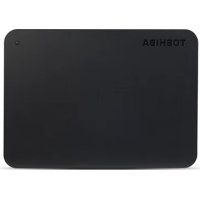
StorE Art - External hard drive TOSHIBA - Free user manual and instructions
Find the device manual for free StorE Art TOSHIBA in PDF.


| Product type | Portable external hard drive |
| Brand | Toshiba |
| Model | StorE Art |
| Form factor | 2.5 inches |
| Interface | USB 2.0 |
| Power supply | Via USB bus (no external power) |
| Compatible operating systems | Windows XP / Vista |
| Minimum system requirements | 750 MHz processor, 256 MB RAM, 10 MB disk space, 2 available USB ports |
| Capacity | Varies by model (examples: 120 GB, etc.) |
| Indicator light | Power/data indicator |
| Main functions | Storage, backup and data transfer |
| Cooling | Passive heat dissipation, fanless, silent operation |
| Maintenance and cleaning | Disconnect before cleaning; use standard products; wipe off any liquid traces |
| Safety instructions | Do not open the casing, do not expose to moisture, do not bump, do not disconnect while powered on |
| Data protection | Toshiba disclaims any liability for data loss or corruption; backup your data |
| Spare parts and repairability | Not user-serviceable; contact Toshiba support in case of issues |
| Warranty | Warranty certificate provided |
| Regulatory information | CE marking, compliance with European directives |
| Manual countries/languages | Multilingual (French included) |
Frequently Asked Questions - StorE Art TOSHIBA
User questions about StorE Art TOSHIBA
0 question about this device. Answer the ones you know or ask your own.
Ask a new question about this device
Download the instructions for your External hard drive in PDF format for free! Find your manual StorE Art - TOSHIBA and take your electronic device back in hand. On this page are published all the documents necessary for the use of your device. StorE Art by TOSHIBA.
USER MANUAL StorE Art TOSHIBA
Check the Components. 4
Safety Instructions 5
System Requirements 7
Getting Started 7
Installing the drive 8
Connecting the drive to your computer . . . 9
Dismount and disconnect the drive ....11
Further Advise 12
Frequently Asked Questions 12
Troubleshooting 14
TOSHIBA Support 16
Regulatory Information. 16
Notices. 20
Thank you for choosing our TOSHIBA STORE art USB Hard Disk Drive.
This product has been designed and manufactured in accordance with Toshiba's high quality product standards, by incorporating the latest technology and user-interface, whilst ensuring best-in-class performance, quality, workmanship and environmental friendly protection.
Please read this User's Manual carefully, as it contains all relevant information for installation, usage and maintenance of the drive, as well as security and safety advice.
In case it does not behave as expected, please refer to the "Frequently Asked Questions" section at the end of this manual.
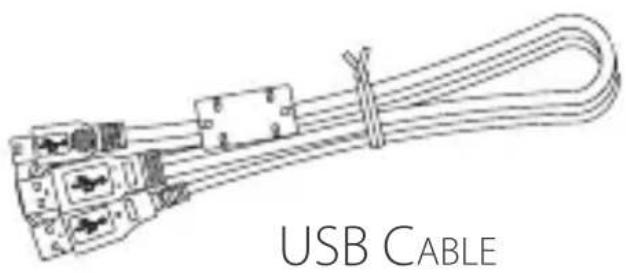
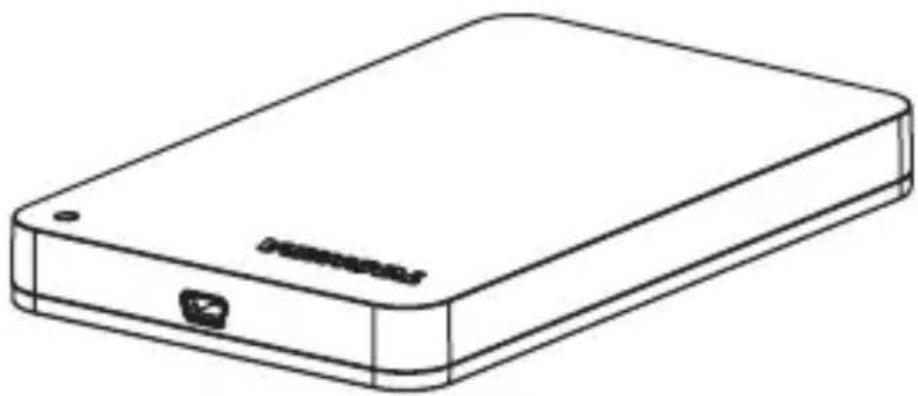
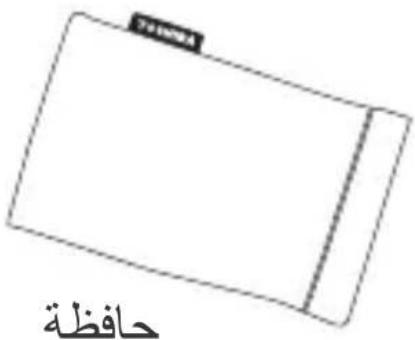
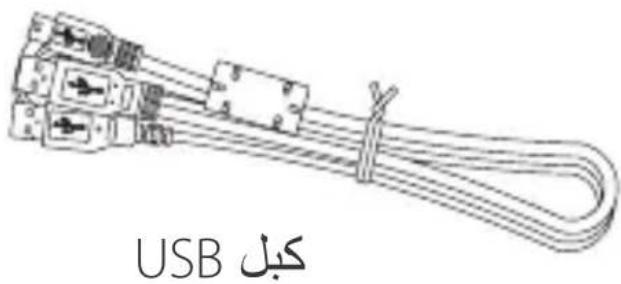
- Check The Component
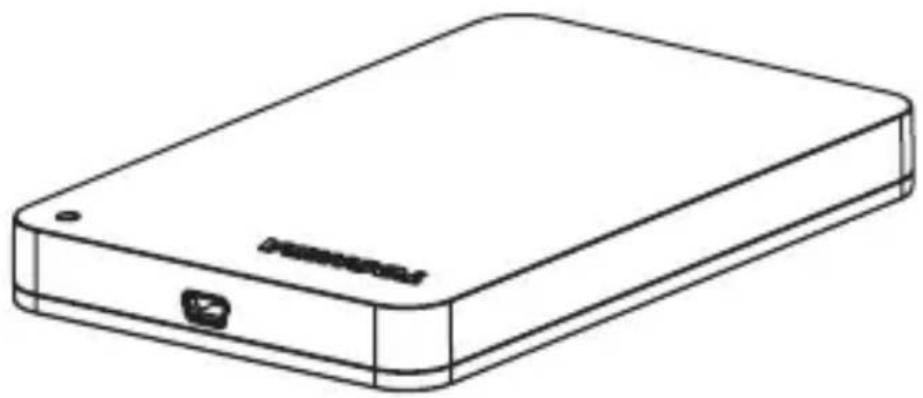
STORE ART 2.5"
QUICK START GUIDE
WARRANTY LEAFLET
This User's Manual is uploaded on the drive itself. We recommend to backup the User's Manual onto a CD or your local hard disk drive, directly after the drive being installed.
In order to avoid malfunction or damage of the drive, please carefully follow the precautions listed below.
- Make sure that you backup all your data on the drive, as Toshiba is not responsible for data corruption or data loss. Toshiba will not cover any data recovery cost.
- Do not
- open the enclosure or drive
disassemble the drive or parts of it - place liquids near or on the drive, as it may damage the drive, cause personal injury or may result in an electrical shock or fire
- bump, drop or jar the drive
- move the drive while operating, as data damage may happen
- use other connectors than USB 2.0 bus powered types
- disconnect cables while operating. Please dismount the drive first!
- expose the drive to temperatures outside the range of 5^ - 40^ C while operating, and temperatures of -20^ - 60^ C while switched off
- expose the drive to wet or damp conditions
- cover the drive during operation, as it may become overheated
-
place the drive close to hot appliances
-
Immediately disconnect the drive if
-
smoke or an unusual smell is coming from the drive enclosure
water has entered the drive enclosure or if it becomes wet - an object has entered the drive enclosure
- the cable has been damaged (in such case replace the cable with a new one)
If the drive behaves not as expected or you have doubts about the electrical safety, please contact immediately the TOSHIBA hotline or an authorised reseller!
- SySTEM rEQUIrEMENTS
- Windows XP/VISTA
CPU with 750 MHz or faster
10 MB system hard disk space
256 MB system memory - 2 x available USB ports
GETTING STArTED
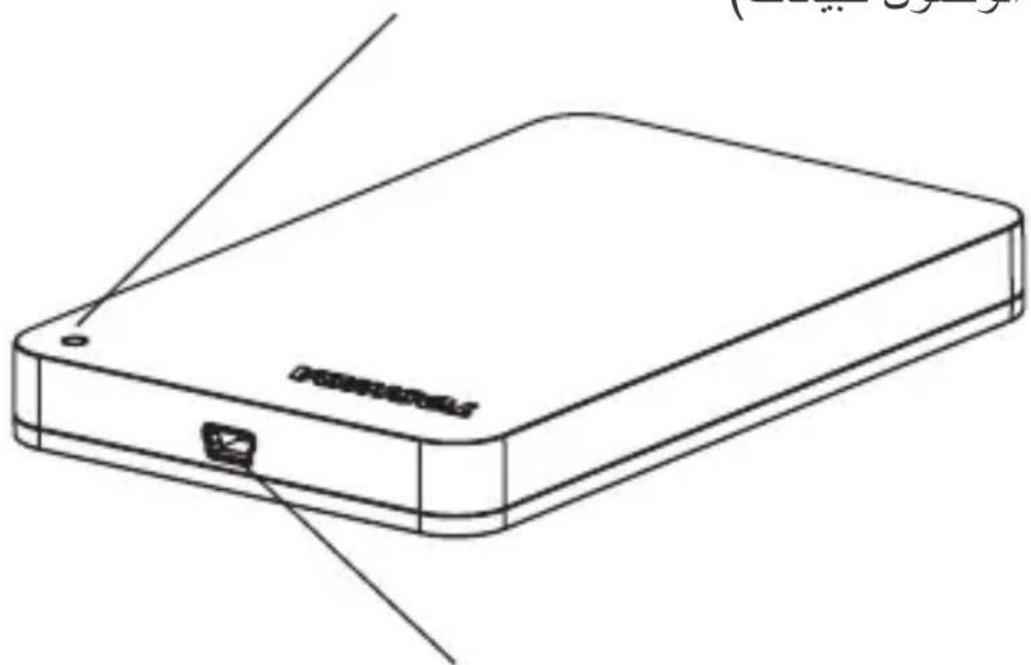
The drive at a glance
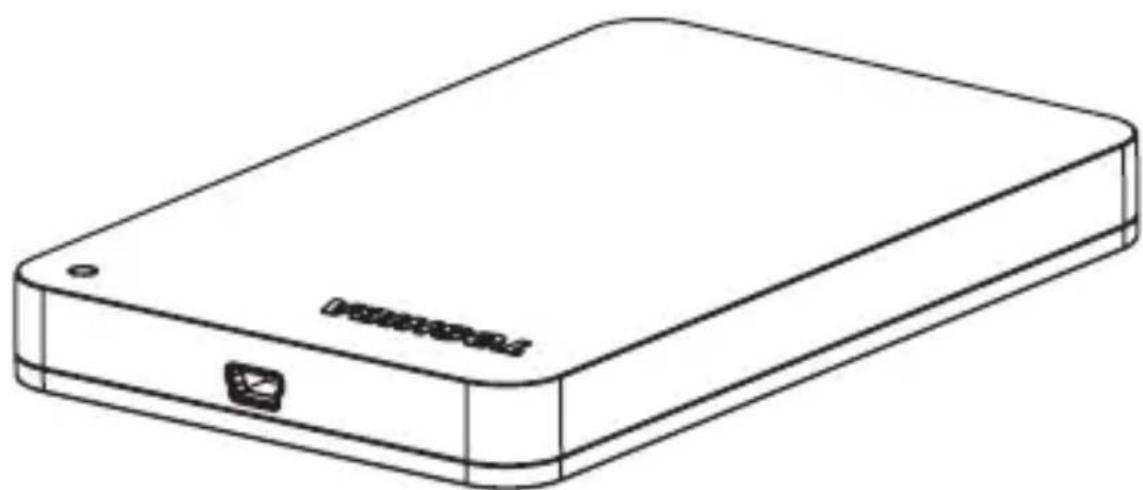
Power/Data indicator (lights up when the drive is powered on or during data access)
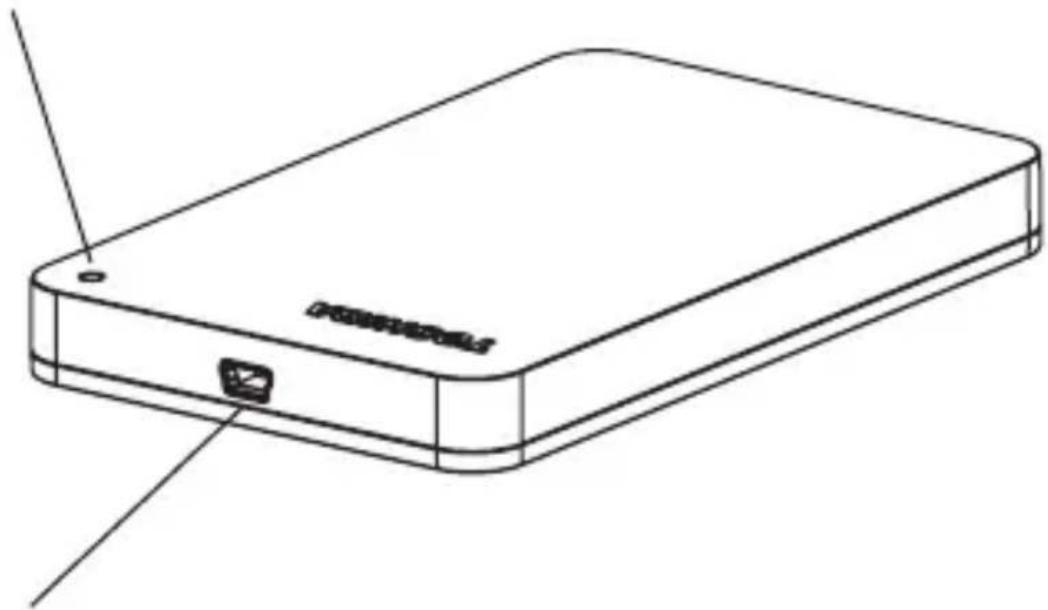
USB 2.0 port (by connecting the USB cable the drive is powered-on and data can be easily transferred)
INSTALLING ThE drlvE
Some information about bus-powered operation and the supplied USB cable:
- Your drive is bus-powered. Therefore, there is no need to connect an external power supply as all needed current will be supplied by the connected USB port(s).
- Typically, connecting only one USB port is sufficient. However, in some cases you may need to connect two ports with the bundled cable as your host system may not supply sufficient power per connected USB port. (To find out more on how to connect the drive correctly, please refer to the details described on the following page).
Passive USB hubs or USB connectors like keyboards, mice or similar products cannot be used or connected to the drive. - Make sure that the connectors will be inserted correctly.
- Never use pressure for connecting the cables. Check the polarity before connecting!
- CONNECTING The drive to your Computer
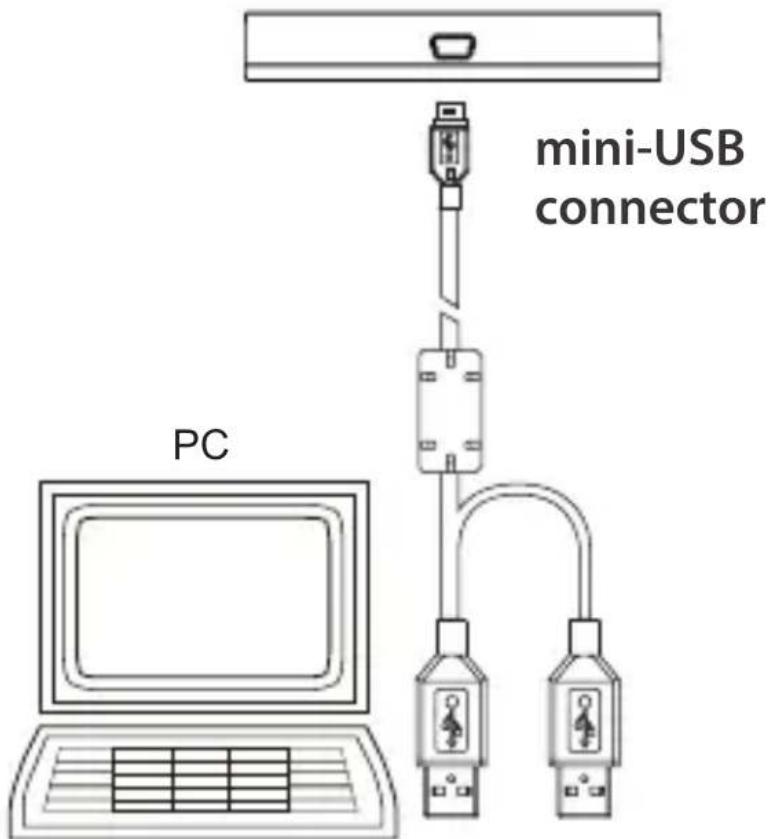
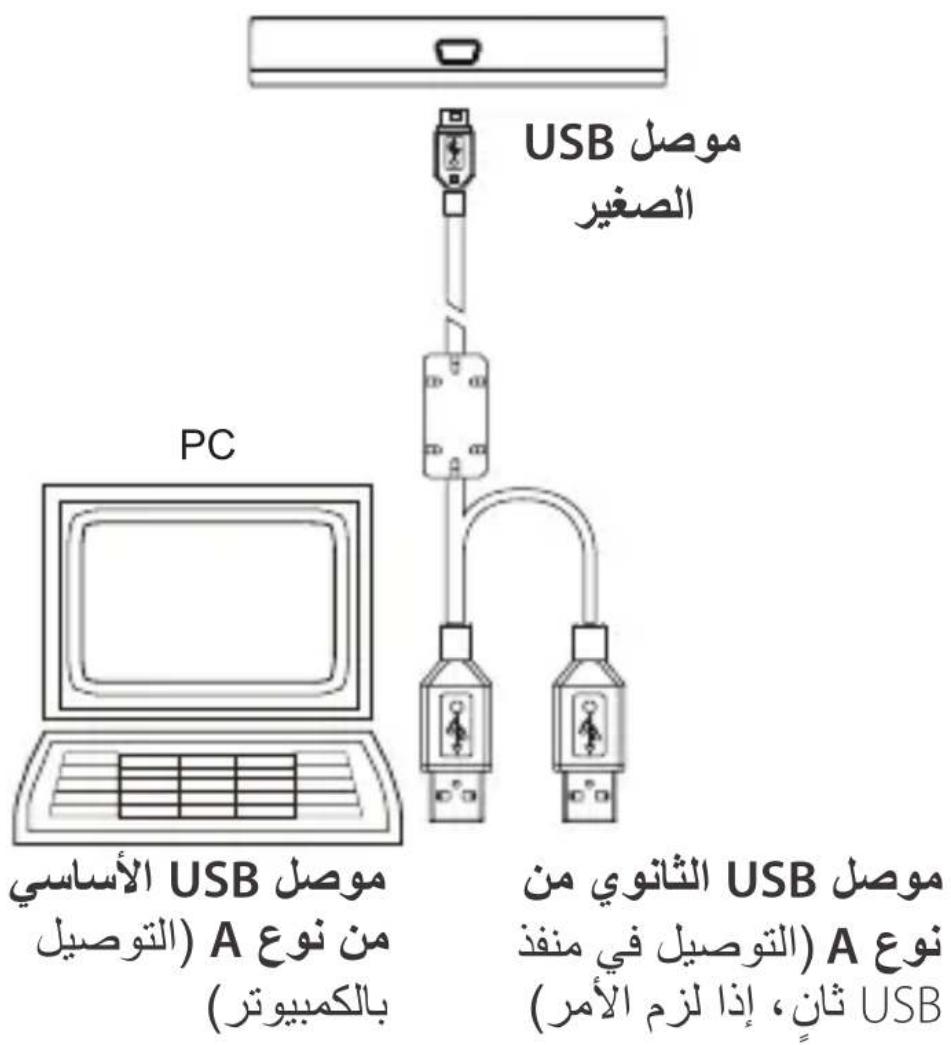
Primary USB type A connector (plug into your computer)
Secondary USB type A connector (plug into a second USB port, if needed)
- With your computer powered on and fully booted up, plug the primary USB type A connector into a USB port of your host system, or an active USB HUB.
For the time being, don't connect the secondary type A connector.
If it is needed, it will be determined after step 2.
- Now, plug in the mini-USB connector into the corresponding port of the drive itself.
Immediately,
the Power/Data indicator light will illuminate
- the drive will power up
- the drive should mount and a new drive icon should appear in "My Computer"
In case the drive does not mount after a few seconds,
it may not have sufficient power. Although the Power/Data light is illuminated, you need use the secondary type A connector.
Please follow the below instructions:
- Unplug the mini-USB connector from the drive.
- Plug in the secondary type A connector into a free USB port of the host system or active USB hub.
- Plug the mini-USB connector back into the drive again. The drive should be mounted correctly after a few seconds.
DISMOUNT AND DISCONNECT The drive
It is strongly recommended not to unplug the drive by just unplugging the cable connection as it may be that data is written to the drive at that time.
Such data will be lost and the drive may be damaged physically!
Please follow the steps below for a safe dismount of the drive:
- Click the "Safely Remove - icon"
A pop-up message box will appear listing the external devices connected to your computer. - Select the TOSHIBA drive.
After a few seconds, you will get the notification that it is now safe to remove the device. - Click "OK" and you can unplug the drive now.
Cleaning the drive case / enclosure
Before cleaning the drive, make sure that it's physically disconnected from the computer. We suggest to use standard products for cleaning it and to make sure that possible remaining liquid on the surface will be wiped off.
FUrThEr AdvISE
For any further action of normal operation such as renaming the drive, backup data, or file management, we suggest to read your operation system user's manual.
Also for maintenance tasks such as defragmenting and optimisation we suggest to refer to the operating system user's manual.
We also strongly suggest having anti-virus software installed to protect your data against intended damage caused by virus or Trojan programs.
FrEQUENTly ASkEd QUESTIONS
Q: Do I need to format my drive after installation?
A: No, as the drive is already formatted during the manufacturing process
Q: Do I need USB drivers for Windows Vista, XP?
A: No, they are already available with your operating system.
Q: Can I boot my system from the drive?
A: No, because Windows does not support booting from external hard disk drives.
Q: Why doesn't the drive need a fan?
A: The drives are designed to have optimal heat dissipation, and therefore no fan is required. This results in a near silent operation.
Q: Why is the capacity of my drive (as shown in Windows) lower than the drives actual stated capacity?
A: This difference can be explained because of the different methods of calculating the capacity. Hard drive manufacturers calculate on the decimal system, while the operating system calculates in the binary system.
Example decimal:
1GB = 1.000MB = 1.000.000KB = 1.000.000.000 bytes
Example binary:
1GB = 1.024MB = 1.048.576KB = 1.073.741.824 bytes.
As a result, a 120GB (decimal) hard disk appears in Windows to have just 112GB (binary)
Q: Can I use my drive to copy an operating system from one computer to another?
A: No, you must follow the operating system supplier instructions for installation. A simple copy does not work.
Q: Does Toshiba offer a data recovery services?
A: No, Toshiba does not provide such data recovery services.
TrOUBLESHOOTING
My computer does not recognize the disk drive at all.
Make sure all of your connections are secure.
- Check if connecting the secondary USB connector may solve the problem; see "Installing the Drive".
If your drive is connected via a USB hub, make sure that it has its own power supply.
- If using an add-on card, make sure it is working properly and update the software/firmware. If using Windows XP make sure you have Service Pack 1 or later.
Is it dangerous if the drive feels warm whilst in operation?
A: This is normal, and therefore not dangerous.
The drive gives me a "Device cannot start. Code (10)."
A: Two possible reasons. It is either a power problem and you should check the connections, or the drive has a malfunction and requires service.
I cannot see my drive in "My Computer", but it does appear in the Device Manager.
A: Follow these instructions:
- Right click on "My Computer".
-
Select "Manage" in the pop-up menu.
-
Select "Disk Management". You should see a list of available storage devices.
-
Check, whether your drive is listed.
-
Right click on the right hand box and select "Delete Partition" in the pop-up menu.
-
Right click on the box ad select "Create New Partition" in the pop-up menu.
-
Then select "Primary Partition" in the partition wizard window. Click next.
-
A drive letter will be displayed, which you can change. Click next.
-
Confirm to format the drive.
As I try to format the drive, I receive the message "Could not complete format".
A: This can be caused by formatting the drive with FAT file system. Try "NTFS" file system. This should solve the problem.
The drive seems to be operating slower than 480 Mbps (USB 2.0 specification).
A: Make sure that you are using a USB 2.0 port, and not the old V1.1 standard. There are some possibilities, like available CPU resources, other connected USB devices at the same time which may cause some slower operation than the ideal 480Mbps/s.
TOSHIBASUppOrT
Need help?
For the latest driver updates, user manuals & FAQs please have a look at the
TOSHIBA options & services support page: computers.toshiba.eu/options-support
Please see computers.toshiba.eu/options-warranty for the TOSHIBA hotline numbers.
- rEGULATORY INFOrMATION
CE compliance
C
This product is CE marked in accordance with the requirements of the applicable EU Directives. Responsible for CE marking is Toshiba Europe GmbH, Hammfelddamm 8, 41460 Neuss, Germany. A copy of the official Declaration of Conformity can be obtained from following website: http://epps.toshiba-teg.com.
Working Environment
The Electromagnetic Compliance (EMC) of this product has been verified typically for this product category for a so called Residential, Commercial & Light Industry Environment. Any other working environment has not been verified by Toshiba and
the use of this product in these working environments is maybe restricted or cannot be recommended.
Possible consequences of the use of this product in non verified working environments can be:
Disturbances of other products or of this product in the nearby surrounding area with temporarily malfunction or data loss/corruption as result.
Example of non verified working environments and related advices:
Industrial environment (e.g. environments where a mains voltage of 380V three-phase is being used mainly): Danger of disturbances of this product due to possible strong electromagnetic fields especially near to big machinery or power units.
Medical environment: The compliance to the Medical Product Directive has not been verified by Toshiba; therefore this product cannot be used as a medical product without further verification. The use in usual office environments e.g. in hospitals should be no problem if there is no restriction by the responsible administration.
This product is not certified as a medical product according to the Medical Product Directive 93/42 EEC.
Automotive environment: Please search the owner instructions of the related vehicle for advices regarding the use of this product (category).
Aviation environment: Please follow the instructions of the flight personnel regarding restrictions of use.
Additional environments not related to EMC
Outdoor use: As a typical home/office equipment this product has no special resistance against ingress of moisture and is not strong shock proofed.
Explosive atmosphere: The use of this product in such special working environment (Ex) is not allowed.
Following information is only valid for EU-member States:
REACH - Compliance Statement
The new European Union (EU) chemical regulation, REACH (Registration, Evaluation, Authorization and Restriction of Chemicals), entered into force on 1 June 2007.
Toshiba will meet all REACH requirements and is committed to provide our customers with information about the chemical substances in our products according to REACH regulation.
Please consult the following website www.toshiba-europe.com/computers/info/reach for information about the presence in our articles of substances included on the candidate list according to article 59(1) of Regulation (EC) No 1907/2006 ("REACH") in a concentration above 0.1% weight by weight.
Disposal of products
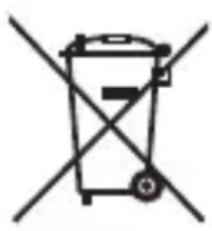
The crossed out wheeled dust bin symbol indicates that products must be collected and disposed of separately from household waste.
The black bar indicates that the product was placed on the market after August 13, 2005.
By participating in separate collection of products, you will help to assure the proper disposal of products and thus help to prevent potential negative consequences for the environment and human health.
For more detailed information about the collection and recycling programmes available in your country, please visit our website (http://eu.computers.toshiba-europe.com) or contact your local city office or the shop where you purchased the product.
NOTICES
© 2009 TOSHIBA Europe GmbH. All rights reserved.
TOSHIBA reserves the right to make technical changes. TOSHIBA assumes no liability for damages incurred directly or indirectly from errors, omissions or discrepancies between this product and the documentation.
The Toshiba name and its logos are registered trademarks of Toshiba. Other trademarks mentioned or appearing in this document are the property of their respective owners. Errors and omissions excepted.
StoreArt2.5-UM-V2/0209
p
STORE
art
USB
PT GR AR
RU HR CZ
RS HU DE
SE IT DK
SK NL ES
SL NO FI
TR PL FR
Jg
四四四 44
Y 1
70 1
111
V
1
9 1
1 1
1
1
·s < x < 109
1
1
49 1
STORE art USB
i 1
aLc aIgX 1 jbi yie biai wll Jld oJ g jy
aIi yal diiwgl wll ssjBjRjBai all laoeall
. xlll ybl aaleil zilail
a 1
STORE ART 2.5"
Jalil
i 11111111111111111111111111
lalaiie 1
A
J 5i
Lg 1
Lilillll 1
g
1
a 1
1
iilil lai iiaai 111
Jai p 1
USB 2.0
J 1
!
-0 1
4 07 -09-8JgJgJgJgJgJgJgJgJgJgJgJgJgJgJgJgJgJgJgJgJgJgJgJgJgJgJgJgJgJgJgJgJgJgJgJgJgJgJgJgJg
100
a 1
-
aiee e 1
1c 1
LdIgJgJgJgJgJgJg
i 1
()
aal al gglgagg gaaas
1 1
1
Windows XP/VISTA
eJg jyalvo. 4c yj
1
yolj 107 aew pbi o Sli
USB
J
i
1
()
JU USB 2.0
()
: USB 56
J 1
Jg jn Jbll J 5 g y
Jusll USB (jia) jia
p 1
Jusll USB 1000
Jlll lss
(2) a4 = a1 + 3 = 90%
Ji ailll USB 100000000000000000000000000000000000000000
Jgglallllglalglgl
.
aaln . 1gill gall
Jgill
J

USB
2b + a = 5
aalillll lalalal alalal aalalal alalal alalal alalal alalal alalal alalal alalal
?XP Windows Vista USB
J 1
i 150
:
J 1 J 1 J 1 J 1 J 1 J 1 J 1 J 1 J 1 J 1 J 1 J 1 J 1 J 1 J 1 J 1 J 1 J 1 J 1 J 1 J 1 J 1 J 1 J 1 J 1 J 1 J 1 J 1 J 1 J 1 J 1 J 1 J 1 J 1 J
(Windows
J 1
a 1
y
iililipbilll jii lai
$$ \therefore s \neq c \quad j \neq i $$
$$ \begin{array}{l} \left. \right.\left. \right.\left. \right.\left. \right.\left. \right.\left. \right.\left. \right.\left. \right.\left. \right.\left. \right.\left. \right.\left. \right.\left. \right.\left. \right.\left. \right.\left. \right.\left. \right.\left. \right.\left. \right.\left. \right.\left. \right.\left. \right.\left. \right.\left. \right.\left. \right.\left. \right.\left. \right.\left. \right.\left. \right.\left. \right.\left. \right.\left. \right.\left. \right.\left. \right. \dots , \dots = \dots = \dots = \dots = \dots = \dots = \dots = \dots = \dots = \dots = \dots = \dots = \dots = \dots = \dots = \dots = \dots = \dots = \dots = \dots = \dots = \dots = \dots = \dots = \dots = \dots = \dots = \dots = \dots = \dots = \dots = \dots = \dots = \dots = 1, 1, 1, 1, 1, 1, 1, 1, 1, 1, 1, 1, 1, 1, 1, 1, 1, 1, 1, 1, 1, 1, 1, 1, 1, 1, 1, 1, 1, 1, 1, 1, 1, 1, \ \ldots , \dots , \dots , \dots = \ \end{array} $$
$$ : \underline {{\underline {{\mathcal {A}}}}} \quad \mathcal {J} \underline {{\underline {{\mathcal {A}}}}} $$
$$ \begin{array}{l} \because \exists y \leq 1, \cdot \varepsilon \lambda , o v t = \left. \exists y \mid l _ {m} \right., \cdot Y \varepsilon = \left. \exists y \mid l _ {m} \right.) \ \therefore \mathrm {U} _ {1}, \cdot \vee \tau , \vee \varepsilon 1, \wedge \tau \varepsilon = \ \end{array} $$
$$ (\mathcal {S} \dot {\mathrm {s}} \dot {\mathrm {s}} \dot {\mathrm {s}}) \ddot {\mathrm {s}} \dot {\mathrm {s}} \dot {\mathrm {s}} \dot {\mathrm {s}} \dot {\mathrm {s}} \dot {\mathrm {s}} \dot {\mathrm {s}} \dot {\mathrm {s}} \dot {\mathrm {s}} \dot {\mathrm {s}} \dot {\mathrm {s}} \dot {\mathrm {s}} \dot {\mathrm {s}} \dot {\mathrm {s}} \dot {\mathrm {s}} \dot {\text {s}} \dot {\mathrm {s}} \dot {\mathrm {s}} \dot {\mathrm {s}} \dot {\mathrm {s}} $$
Baa (s) 11 Windows
:
$$ \begin{array}{c} \text {? j i g u g a s} \ \text {j i g u g a s} \end{array} $$
$$ \therefore \text {i n t i t i a l} \quad \text {a l l} \quad \text {j e c t i a l} \quad \text {p a l p a l} \quad \text {g o r d} \quad \text {c l a s s i e} \quad \text {e l} \quad \text {i n} \quad \text {j} \quad : 2 $$
$$ \therefore J _ {2} = \frac {1}{2} \dot {z} \dot {w} w i l l 2 r a d $$
:
.
1y
.
J 1sUUSB Jgoguagaa IJ Loo
"
1J 1S:USB
4.1.2.1.2.3
J 1
g.1/1
j j j j j j j j j j j j j j j j j j j j j j j j j j j j j j j j j j j j j j j j j j j j j j j j j j
. 1 1 1 1 1 1 1 1 1 1 1 1 1 1 1 1 1 1 1 1
J 1
-
- | j1| = | j2| = | j_3|
Device cannot start
"Code (10)
gill idie g yll lal g k m . jnnn
y j 1000
.
J My Computer 8
:
jMy Computer
·s + 109 - 19 = 119
.aaiaaiaai" "s" Manage j
."dss" Disk Management 1
.
.
jglg jyjgl ggl 0
"ddd" Delete Partition
Create New 1
"lll lll " 1111" Partition
J 1
.
g jai .0 1
1
. 9
Could not 1lll lll:
."complete format
.FAT 1
.
()/p 1
(.USB 2.0
V1.1 USB 2.0
J! n J. Neuss, Germany
:
. http://epps.toshiba-teg.com
Jaeil
iE 1
aiee eae eae eae eae eae eae eae eae eae eae eae eae eae eae eae eae eae eae eae eae eae eae eae eae eae eae eae eae eae eae eae eae eae eae eae eae eae eae
1
g 15 g i j k l j k l j k l j k l j k l j k l j k l j k l j k l j k l j k l j k l j k l j k l j k l j k l j k l j k l j k l j k l j k l j k l j k l j k l j k l j k l j k l j k l j k l j k l j k l j k l j k l j k l
Restriction of Chemicals
1 1
J 1 J 1 J 1 J 1 J 1 J 1 J 1 J 1 J 1 J 1 J 1 J 1 J 1 J 1 J 1 J 1 J 1 J 1 J 1 J 1 J 1 J 1 J 1 J 1 J 1 J 1 J 1 J 1 J 1 J 1 J 1 J 1 J 1 J 1 J
.REACH
e
www.toshiba-europe.com/computers/info/reach
aaiiaaiiiaaiiaaiiaaiiaaiiaaiiaaiiaaiiaaiiaaiiaaiiaaiiaaiiaaiiaaiiaaiiaaiiaaiiaaiiaaiiaaiiaaiiaaiiaaiiaaiiaaiiaaiiaaiiaaiiaaiiaaiiaaiiaaiiaaiiaaiiaaiiaaiiaaiiaaiiaaiiaaiiaaiiaaiiaaiiaaiiaaiiaaiiaaiiaaiiaaiiaaiia
n n %.1 19
.
iiaai jaoalil
i j 1 1 1 1 1 1 1 1 1 1 1 1 1 1 1 1 1
i 1
1.4.0 1
aaii iiaii laiial
i jlll jn nn nnnn nn n
ailll lalaiall aillll lalil gio 0dclllg
aai
y
1
J (http://eu computers.toshiba-europe.com)
- SySTEMANFORDErUNGEN
AFBryd FOrBINdELSEN TIL hArddISkEN, OG FjErN hArddISkEN
1 Gt = 1000 Mt = 1000000 kt =
1 000 000 000 tessua
PykoBoDCTBO NOIb3OBaTeJa
STORE E art
KPATKOE PYKOBOIDCTBO
TAPAHNTINHbI TAOH
USB Tnna A (PoiKJIIOUHTe
USB Tnna A (noocoeHHnte
K KOMnblOTepy)
ko Btopomy pa3bemy USB,
ecn Heo6xOdmo)
- KOrda KomnbIOTep BkIoueH n npOceDypa 3aRpy3KN pONHOCTbIO 3aBepseHa, NOdCoEINHInTe OCHOBHO pa3bem USB Tnna A K npOpy USB xocT-KOMNbIOTepa IINI K aKTHBHomy KOHcHTpaTopy USB.
Ioka He IopcoeHnYte BtOPO pa3bem Tnpa A.
Notpe6yETcI IN OH, 6yTeT YCHO NocJe BbINOJIHeHnJe DeiCTBNI Iwara 2.
- Tenepb noDCoeHNHe MHH-pa3bem USB K COOTBeTCTByUoIeMy NOpTu Ha CaMOM DnCKe.
Cpa3y Xe
IHΦOPMAÇIЯ O COOTBETCTBNI CTAHДAPTAM
CoOTBcTbNtpe6ObaHnAm CE
C E
Данhoe устюпбо Имeel OTMeTKу CEВ COOTBeTCTBnC Tpe6OBaHЯМN COOTBeTCTByUOuXДиpeKТИВ EC.OTBeTCTBeHHo 3a МарКИрOBky «CE»ЯВЯETcKaMpaHnT OSHIBA Europe GmbH, Hammfelddamm 8,41460 Neuss, Germany. Konno oФициально3aYbIeHnO O COOTBeTCTBnN CE moJHo nOlyuHTb Ha cIeNyUoIeM Be6-y3Ne: http://epps.toshiba-teg.com.
Pabochay cpea
3JIeKTPomarHHTna COBMeCTnMOCTb DaHHoro yCtpoiCTBa 6bla npOBepena B CTaNdapTHbIX ycNoBnx Dla DaHHoJ KaTeROpN IpoDyKTOB,ДЯ TaK Ha3bIbaEMOTo «DOMaShHeG KOMMepueckOrO NcPOnb3OBAHnI n PrnPmeHEny B JleKoJ npOMbIshJeHHocTn>.Pa6ota B dpyroI cpeI He npOBepaI
kompanen TOSHIBA, noTomy nCnoIb3OBaHne daHHoro yctpoiCTBa B dpyrnx cpeax moKeT 6bItb orpaHnueho I He peKOMeHdyetc. Bo3MOxHbIe NocJeDCTBn IcNoJIb3OBaHnJa daHHoro yctpoiCTBa B HeNPoBepeHHbIX pa6OuNX cpeax: Pomexn Dlan dpyrnx yctpoiCTB nn DaHHoro yctpoiCTBa B 6n3Jexkaaee Oblactn, CBpeMeHHo HnPabInbHO Jpa6ToJ nn Notepe/ IOBpeXdHnem daHHbIX. Primep HeNPoBepeHHbIX pa6OuNX cpeN COOTBeTCTByUOxN X peKOMeHdaZn:
ПюиЗВОДСТВЕннасрEDA(Tо ectb pa6oчасрEDA,гдБ OCHOВHOM ИСПОЛь3уETСТРexФa3ная сеть снаняжenv380B):Опасноctь hapшени рбOTы Данногу устpoиCTBCLEДСТВИЕ BO3MOЖНО ГВОЗДЕИСТВИЯ CINьнБИХэлКТРOMaГнIHTHbIX ПОЛe,OCO6eHNO ряДOM C КруПнБIMn aRperaTAMN INI CNIOBbIMN UCTaHOBKaMNI.
Meiuncka Cpea. CootBcTcBne Tpe6oBaHnmaI DnpeKtBbI IO Meiunckm npOyKtAm He npOBepJIoC KOMpaHnei TOSHIBA, nO3Tomy daHHoe yCTpoiCTBO HeIb3 IcNoJIb3OBaTb B KaueCTBe MeiunckOTo yCTpoiCTBa 6e3 DoOpHntJIbHO npOBepKn. NcNoJIb3OBaHne B Heo6bUHc CpeDe upeXdEHN, HApPImep B BoJIbHuaX, He doJxHo Bbl3BaTb np6JeM, eCIn OTBeTCTBeHHo aDMnHnCTpaCnei He yCTaHOHeNkakx OgrpAHueHn.
INNEhÄLLSForTECKNING
Introduktion 378
Paketets innehall 379
Sakerhetsinstruktioner 380
Systemkrav 382
Komma igang 382
Installera encheten 383
Ansluta encheten till datorn 384