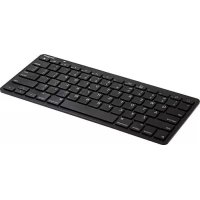
iPad Bluetooth Keyboard AKB32NO - Keyboard TARGUS - Free user manual and instructions
Find the device manual for free iPad Bluetooth Keyboard AKB32NO TARGUS in PDF.



| Product Type | Bluetooth Keyboard for iPad |
| Brand | Targus |
| Model | AKB32NO |
| Connection Technology | Bluetooth (range up to 10 m) |
| Power Supply | 2 AAA batteries |
| Battery charge indicator | Blue LED: flashes 2 times/s at 15%, off at 10% |
| System Compatibility | iPad, Mac OS X v10.4 or higher |
| Function Keys | Home, Search, Play/Pause, Volume, Lock, etc. |
| Box Contents | Keyboard, 2 Energizer AAA batteries, user manual |
| Dimensions (approx) | Approximately 24 x 16 x 1 cm |
| Weight (approx) | Approximately 300 g |
| Maintenance | Clean with a soft, dry cloth |
Frequently Asked Questions - iPad Bluetooth Keyboard AKB32NO TARGUS
User questions about iPad Bluetooth Keyboard AKB32NO TARGUS
0 question about this device. Answer the ones you know or ask your own.
Ask a new question about this device
Download the instructions for your Keyboard in PDF format for free! Find your manual iPad Bluetooth Keyboard AKB32NO - TARGUS and take your electronic device back in hand. On this page are published all the documents necessary for the use of your device. iPad Bluetooth Keyboard AKB32NO by TARGUS.
USER MANUAL iPad Bluetooth Keyboard AKB32NO TARGUS
| Targus® BLUETOOTH WIRELESS KEYBOARD for iPad |
©2011 Manufactured or imported by Targus Europe Ltd., Fetham, Middlesex TW14 8HA. UK. All rights reserved. Targus is either a registered trademark or trademark of Targus Group International, Inc. in the United States and/or other countries. Features and specifications are subject to change without notice. All trademarks and registered trademarks are the property of their respective owners.
User Guide
Targus Bluetooth Wireless Keyboard for iPad
Table of Contents
GB – English
BLUETOOTH WIRELESS KEYBOARD for iPad 6
Targus Bluetooth Wireless Keyboard for iPad
FI – Suomi
BLUETOOTH LANGATON NÄPPÄIMISTÖ iPadille 48
FR – Français
Targus Bluetooth Wireless Keyboard for iPad
NL – Nederlands
Targus Bluetooth Wireless Keyboard for iPad
SK – Slovenčina
BEZDRÔTOVÁ BLUETOOTH KLÁVESNICA pre iPad 144
TR – Türkçe
Targus Bluetooth Wireless Keyboard for iPad
Targus Bluetooth Wireless Keyboard for iPad
GB - Introduction Installing the Batteries
Thank you for your purchase of the Targus Bluetooth Wireless Keyboard for iPad. This keyboard uses Bluetooth technology which provides a seamless connection up to 33 feet (10 m) away. This keyboard is iPad and Mac OS compatible. Its compact size is ideal for portability and travel.
Contents
• Targus Bluetooth Wireless Keyboard
•2x AAA Energizer ^® MAX ^® Batteries
-User Guide
System Requirements
Hardware
·iPad
• Mac Bluetooth enabled device
Operating System
•MacOSXv10.4 or later
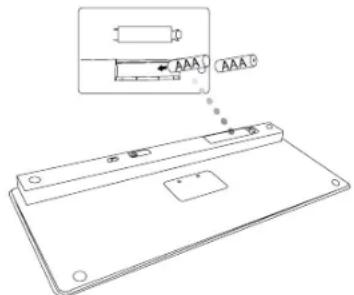
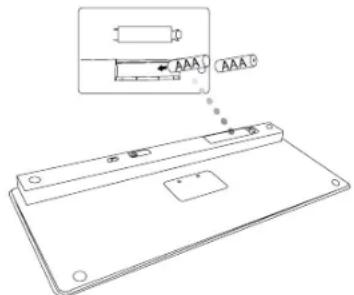
1 Remove the battery cover located on the bottom of the keyboard.
2 Insert the supplied batteries, making sure that the positive (+) and negative (-) ends of each battery match the polarity indicators inside the battery compartment.
Battery Life Indicator
- Battery life indicator will blink twice every second when the power level drops below 15%. Replace the batteries as soon as possible.
• Keyboard will shut down when power level is below 10%.
Targus Bluetooth Wireless Keyboard for iPad
Targus Bluetooth Wireless Keyboard for iPad
Establishing the Connection
natural_image
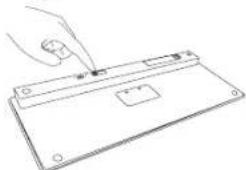
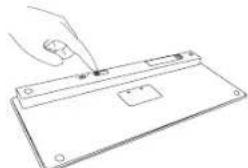
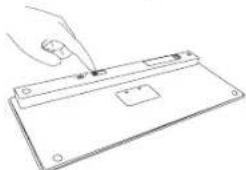
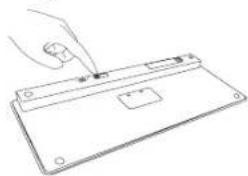
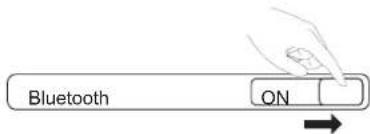
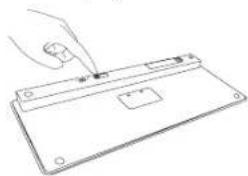
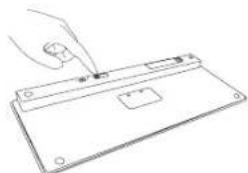
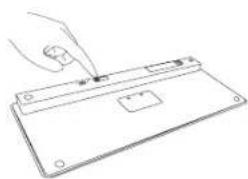
Line drawing of a hand pressing down on a flat electronic device (no text or symbols)- Turn on the keyboard by sliding the power button to the ON position.
- Switch ON the Bluetooth function of your iPad.
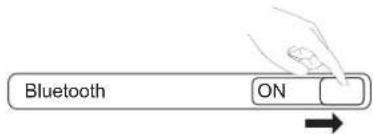
- Press the Connect button on the back of your Targus Bluetooth Wireless Keyboard to enable discovery mode. The low power indicator light will flash blue when the keyboard is in discovery mode.
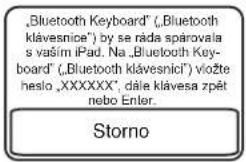
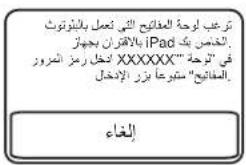
- Once the Bluetooth keyboard is listed as a found device in the bluetooth menu on the iPad, tap on the name and you will be prompted to enter a pass key as shown.
"Bluetooth Keyboard" would like to pair with your iPad.
Enter the passkey "XXXXXX" on "Bluetooth Keyboard", followed by the return or enter Key.
Cancel
- Enter the passkey shown on the pop up message, followed by the enter key.
- Bluetooth Keyboard is now connected with your iPad and the blue light will stop flashing.
Using the Hot Keys
| Key | Function |
| Home Screen | |
| Search | |
| iPad will enter Photo Frame mode | |
| Show and hide the Keyboard on your display | |
| Rewind or go to previous song, movie, or slideshow | |
| Play or pause songs, movies, or slideshows | |
| Fast Forward or go to next song, movie, or slideshow | |
| Mute the sound on the iPad | |
| Decrease the volume on the iPad | |
| Increase the volume on the iPad | |
| Lock your display |

FOR MAC USER, PLEASE SET UP YOUR OWN HOT KEYS INSIDE "KEYBOARD SHORTCUT" OF "SYSTEM PREFERENCES".
Bluetooth Connection: Mac
- Go to the Bluetooth icon located on your desktop or in the system bar and click the icon to begin setup. Select "Turn Bluetooth On" to activate the Bluetooth function on your Mac.
- Scroll down the list and select "Setup Bluetooth Device..."
- The Bluetooth Setup Assistant will begin. Please follow the on-screen instructions.
- Select "keyboard" and click continue to proceed with setup. Your keyboard will need to be in "discovery" mode to connect.
- Press the Connect button on the back of your Targus Bluetooth Wireless Keyboard to enable discovery mode. The low power indicator light will flash blue when the keyboard is in discovery mode.
- Your computer will begin to search for the keyboard. Once the keyboard is found, it will show up in the list. Highlight "Bluetooth Keyboard" and press continue.
- The Bluetooth keyboard will now begin pairing. Click continue to proceed.
- Congratulations. Your Bluetooth keyboard is setup and ready to use. You can choose to set up another device or click Quit to exit setup.
Targus Bluetooth Wireless Keyboard for iPad
Targus Bluetooth Wireless Keyboard for iPad
natural_image
Line drawing of a hand pressing down on a flat electronic device (no text or symbols)Targus Bluetooth Wireless Keyboard for iPad
Targus Bluetooth Wireless Keyboard for iPad
Targus Bluetooth Wireless Keyboard for iPad
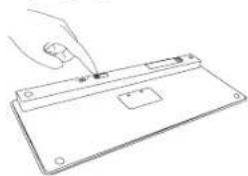
Vytvoření připojení
natural_image
Line drawing of a hand pressing down on a flat electronic device (no text or symbols)Targus Bluetooth Wireless Keyboard for iPad
Targus Bluetooth Wireless Keyboard for iPad
Targus Bluetooth Wireless Keyboard for iPad
Targus Bluetooth Wireless Keyboard for iPad
natural_image
Line drawing of a hand holding a small object over a flat surface, with no text or symbols present.Targus Bluetooth Wireless Keyboard for iPad
Targus Bluetooth Wireless Keyboard for iPad
Targus Bluetooth Wireless Keyboard for iPad
Targus Bluetooth Wireless Keyboard for iPad
Targus Bluetooth Wireless Keyboard for iPad
natural_image
Line drawing of a hand pressing down on a flat surface with a small object, no text or symbols presentTargus Bluetooth Wireless Keyboard for iPad
Targus Bluetooth Wireless Keyboard for iPad
EE - Sissejuhatus Patareide paigaldamine
Targus Bluetooth Wireless Keyboard for iPad
Targus Bluetooth Wireless Keyboard for iPad
Ühenduse loomine
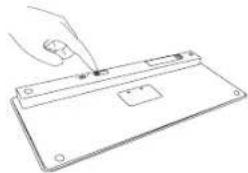
natural_image
Line drawing of a hand holding a small object above a flat electronic device (no text or symbols)Targus Bluetooth Wireless Keyboard for iPad
Targus Bluetooth Wireless Keyboard for iPad
Targus Bluetooth Wireless Keyboard for iPad
natural_image
Line drawing of a hand pressing down on a flat electronic device (no text or symbols)Targus Bluetooth Wireless Keyboard for iPad
Targus Bluetooth Wireless Keyboard for iPad
Targus Bluetooth Wireless Keyboard for iPad
Targus Bluetooth Wireless Keyboard for iPad
Targus Bluetooth Wireless Keyboard for iPad
Yhteyden luominen
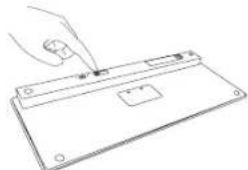
natural_image
Line drawing of a hand pressing down on a flat surface with a small object, no text or symbols presentTargus Bluetooth Wireless Keyboard for iPad
Targus Bluetooth Wireless Keyboard for iPad
FR - Introduction Installation des piles
Targus Bluetooth Wireless Keyboard for iPad
Targus Bluetooth Wireless Keyboard for iPad
natural_image
Line drawing of a hand pressing down on a flat electronic device (no text or symbols)Targus Bluetooth Wireless Keyboard for iPad
Targus Bluetooth Wireless Keyboard for iPad
Targus Bluetooth Wireless Keyboard for iPad
Targus Bluetooth Wireless Keyboard for iPad
HR - Uvod Umetanje baterija
Zahvaljujemo na kupnji Targus bežične Bluetooth tipkovnice za iPad. Tipkovnica koristi Bluetooth tehnologiju koja omogućava bežičnu vezu dometa do 33 stope (10 m). Tipkovnica je kompatibilna s iPadom i Mac operativnim sustavom. Zahvaljujući kompaktnoj veličini, idealna je za prijenos i putovanja.
Sadržaj
• Targus bežična Bluetooth tipkovnica
• 2 x AAA Energizer ^ MAX ^ baterije
- Korisničke upute
Zahtjevi sustava
Hardver
• iPad
• Mac uređaj s ugrađenom Bluetooth tehnologijom
Operativni sustav
• Mac OS X v10.4 ili novija verzija
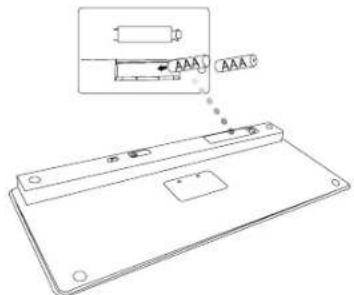
- Skinite poklopac spremnika za baterije s donje strane tipkovnice.
- Umetnite priložene baterije pazeći da pozitivni (+) i negativni (-) pol svake baterije odgovaraju oznakama polariteta u spremniku.
Indikator stanja baterija
natural_image
Line drawing of a hand pressing down on a flat surface with a small object, no text or symbols present- Uključite tipkovnicu pomicanjem gumba za napajanje ON (uključeno) u poziciju.
- Uključite Bluetooth funkciju na vašem iPadu.
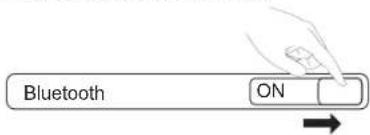
- Za aktiviranje načina rada otkriće, pritisnite gumb za spajanje sa stražnje strane vaše Targus bežične Bluetooth tipkovnice. Kada je tipkovnica u načinu rada otkriće, indikator prazne baterije će treperiti plavo.
- Nako što se Bluetooth tipkovnica pojavi u popisu pronađenih uređaja u Bluetooth izborniku na iPadu, kratko dotaknite njezin naziv i pojavit će se zahtjev da unesete aktivacijski ključ, kao što je prikazano na slici.
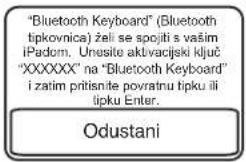
- Unesite aktivacijski ključ naveden u zasebnom prozorčiću i pritisnite tipku Enter.
- Bluetooth tipkovnica sada je spojena s vašim iPadom te će plavo svjetlo prestatí treperiti.
Uporaba prečaca
Targus Bluetooth Wireless Keyboard for iPad
Targus Bluetooth Wireless Keyboard for iPad
natural_image
Line drawing of a hand inserting a small electronic component into a device (no text or symbols)Targus Bluetooth Wireless Keyboard for iPad
Targus Bluetooth Wireless Keyboard for iPad
Targus Bluetooth Wireless Keyboard for iPad
Targus Bluetooth Wireless Keyboard for iPad
natural_image
Line drawing of a hand pressing down on a flat electronic device (no text or symbols)Targus Bluetooth Wireless Keyboard for iPad
Targus Bluetooth Wireless Keyboard for iPad
Ryšio užmezgimas
natural_image
Line drawing of a hand holding a small object over a flat surface, with no text or symbols present.Targus Bluetooth Wireless Keyboard for iPad
Targus Bluetooth Wireless Keyboard for iPad
natural_image
Line drawing of a hand inserting a small electronic component into a device (no text or symbols)Targus Bluetooth Wireless Keyboard for iPad
Targus Bluetooth Wireless Keyboard for iPad
•MacOSXv10.4 of later
Targus Bluetooth Wireless Keyboard for iPad
Targus Bluetooth Wireless Keyboard for iPad
De verbinding tot stand brengen
natural_image
Line drawing of a hand pressing down on a flat surface with a small rectangular object on the cover (no text or symbols)Targus Bluetooth Wireless Keyboard for iPad
Targus Bluetooth Wireless Keyboard for iPad
Targus Bluetooth Wireless Keyboard for iPad
Targus Bluetooth Wireless Keyboard for iPad
natural_image
Line drawing of a hand holding a small object over a flat surface, with no text or symbols present.Targus Bluetooth Wireless Keyboard for iPad
Targus Bluetooth Wireless Keyboard for iPad
Targus Bluetooth Wireless Keyboard for iPad
Targus Bluetooth Wireless Keyboard for iPad
natural_image
Line drawing of a hand pressing down on a flat electronic device (no text or symbols)Targus Bluetooth Wireless Keyboard for iPad
Targus Bluetooth Wireless Keyboard for iPad
Targus Bluetooth Wireless Keyboard for iPad
Targus Bluetooth Wireless Keyboard for iPad
natural_image
Line drawing of a hand holding a small object over a flat surface, with no text or symbols present.Targus Bluetooth Wireless Keyboard for iPad
Targus Bluetooth Wireless Keyboard for iPad
RO - Introducere Instalarea bateriilor
Targus Bluetooth Wireless Keyboard for iPad
Targus Bluetooth Wireless Keyboard for iPad
Stabilirea conexiunii
natural_image
Line drawing of a hand holding a small object over a flat surface, with no text or symbols present.Targus Bluetooth Wireless Keyboard for iPad
Targus Bluetooth Wireless Keyboard for iPad
natural_image
Line drawing of a hand pressing down on a flat electronic device (no text or symbols)Targus Bluetooth Wireless Keyboard for iPad
Targus Bluetooth Wireless Keyboard for iPad
Targus Bluetooth Wireless Keyboard for iPad
Targus Bluetooth Wireless Keyboard for iPad
Upprätta anslutning
natural_image
Line drawing of a hand pressing down on a flat surface with a small rectangular object on the cover (no text or symbols)Targus Bluetooth Wireless Keyboard for iPad
Targus Bluetooth Wireless Keyboard for iPad
SI - Uvod Vstavljanje baterij
- Odstranite pokrov baterij, ki se nahaja na hrbtni strani tipkovnice.
- Vstavite priloženi bateriji in poskrbite, da se pozitivna (+) in negativna (-) konca obeh baterij ujemata z indikatorji polaritete znotraj prostora za baterije.
Targus Bluetooth Wireless Keyboard for iPad
Targus Bluetooth Wireless Keyboard for iPad
Establishing the Connection
natural_image
Line drawing of a hand pressing down on a flat electronic device (no text or symbols)- Vklopite tipkovnico, tako da gumb za vklop/izklop potisnete v položaj ON (vključeno).
- Vklopite funkcijo bluetooth na vašem iPad-u.
"Bluetooth Keyboard" would like to pair with your iPad. Enter the passkey "XXXXXX" on "Bluetooth Keyboard", followed by the return or enter Key.
Prekliči
Targus Bluetooth Wireless Keyboard for iPad
Targus Bluetooth Wireless Keyboard for iPad
Nadviazanie spojenia
natural_image
Line drawing of a hand pressing down on a flat electronic device (no text or symbols)Targus Bluetooth Wireless Keyboard for iPad
Targus Bluetooth Wireless Keyboard for iPad
Bağlantı Kullanma
natural_image
Line drawing of a hand inserting a small electronic component into a device (no text or symbols)Targus Bluetooth Wireless Keyboard for iPad
Targus Bluetooth Wireless Keyboard for iPad
مقدمة - AR
Targus Bluetooth Wireless Keyboard for iPad
إن ((( )
natural_image
Line drawing of a hand inserting a small electronic component into a device (no text or symbols)Targus Bluetooth Wireless Keyboard for iPad

- Table of Contents
- Targus Bluetooth Wireless Keyboard for iPad
- NL – Nederlands
- SK – Slovenčina
- TR – Türkçe
- GB - Introduction Installing the Batteries
- Contents
- System Requirements
- Battery Life Indicator
- Establishing the Connection
- Bluetooth Connection: Mac
- Vytvoření připojení
- EE - Sissejuhatus Patareide paigaldamine
- Ühenduse loomine
- Yhteyden luominen
- FR - Introduction Installation des piles
- HR - Uvod Umetanje baterija
- Sadržaj
- Zahtjevi sustava
- Indikator stanja baterija
- Ryšio užmezgimas
- De verbinding tot stand brengen
- RO - Introducere Instalarea bateriilor
- Stabilirea conexiunii
- Upprätta anslutning
- SI - Uvod Vstavljanje baterij
- Nadviazanie spojenia
- Bağlantı Kullanma
- مقدمة - AR
Brand : TARGUS
Model : iPad Bluetooth Keyboard AKB32NO
Category : Keyboard