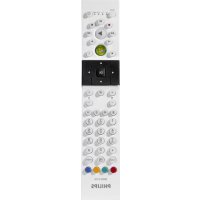
Multimedia Remote Control - Remote control PHILIPS - Free user manual and instructions
Find the device manual for free Multimedia Remote Control PHILIPS in PDF.

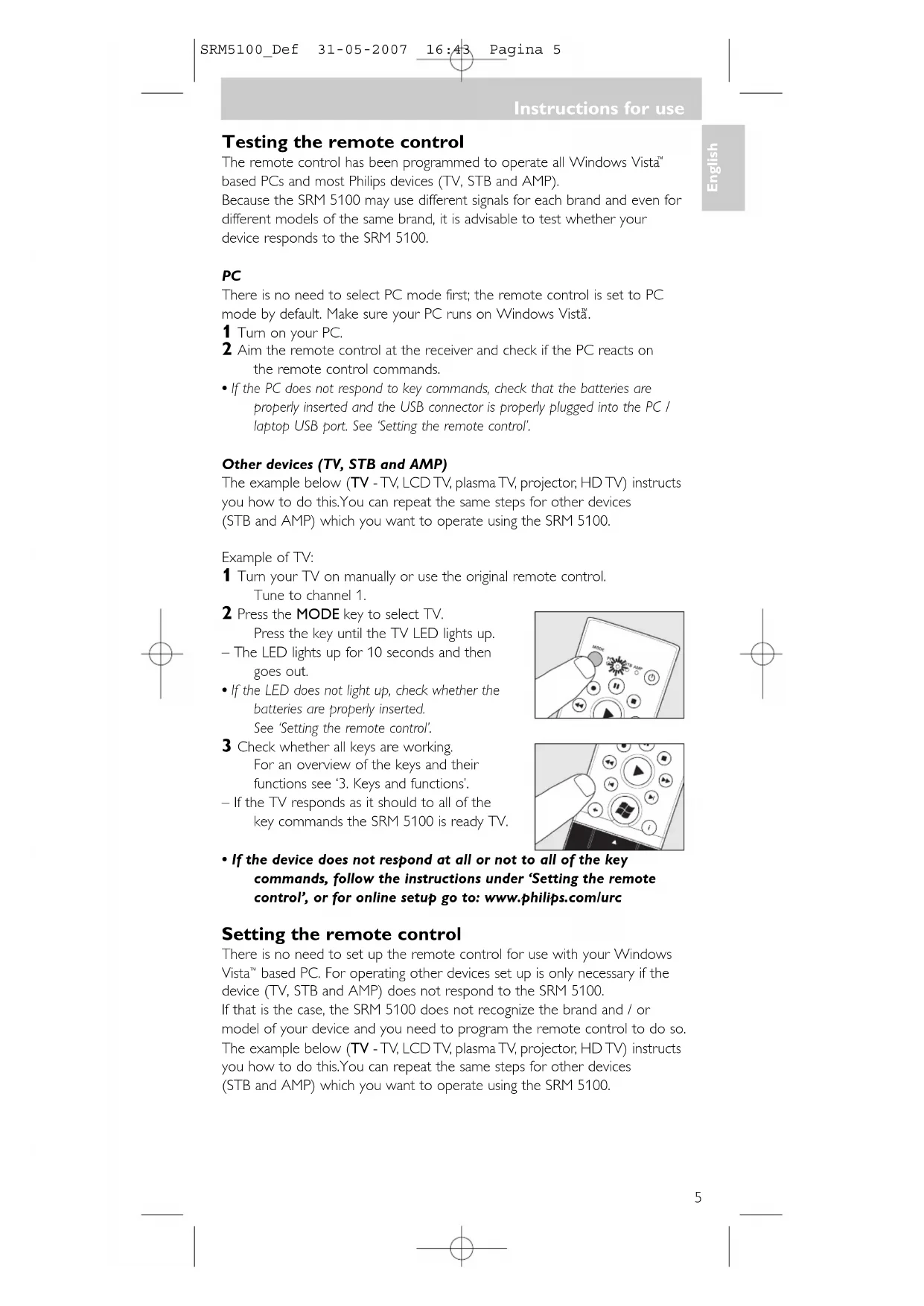


| Product type | Universal multimedia remote control |
| Brand | Philips |
| Model | SRM 5100 (Multimedia Remote Control) |
| Number of controllable devices | 4 (PC, TV, STB, AMP) |
| Power supply | 2 AAA batteries (not included) |
| Dimensions (approx.) | 18 x 5 x 2 cm |
| Weight (approx.) | 150 g (with batteries) |
| Housing material | ABS plastic |
| Color | Black |
| Infrared range | Up to 10 meters |
| Main functions | PC control (Windows Vista), TV, decoder, amplifier; key learning; unified volume control; automatic code search; teletext |
| Compatible device types | TV, LCD TV, plasma, projector, HDTV; satellite/cable/terrestrial decoder; amplifier, receiver, home theater |
| Code memory | Yes (built-in database + learning) |
| Number of keys | Approximately 40 |
| USB receiver included | Yes (for PC connection) |
| Maintenance and cleaning | Clean with a soft, dry cloth. Do not use abrasive products or solvents. |
| Safety | Respect battery polarity; do not expose to humidity or excessive heat. |
| Replacement batteries | AAA batteries (commercially available) |
| Reparability | No user-serviceable parts. Contact Philips after-sales service. |
| Warranty | 2 years (according to local legislation) |
| Package contents | Remote control, USB receiver, user manual, code list |
Frequently Asked Questions - Multimedia Remote Control PHILIPS
User questions about Multimedia Remote Control PHILIPS
0 question about this device. Answer the ones you know or ask your own.
Ask a new question about this device
Download the instructions for your Remote control in PDF format for free! Find your manual Multimedia Remote Control - PHILIPS and take your electronic device back in hand. On this page are published all the documents necessary for the use of your device. Multimedia Remote Control by PHILIPS.
USER MANUAL Multimedia Remote Control PHILIPS
Register your product and get support at
www.philips.com/welcome
SRM 5100
EN User Manual 4
natural_image
Close-up of a black and white USB connector with a glossy surface, isolated on white background (no text or symbols visible)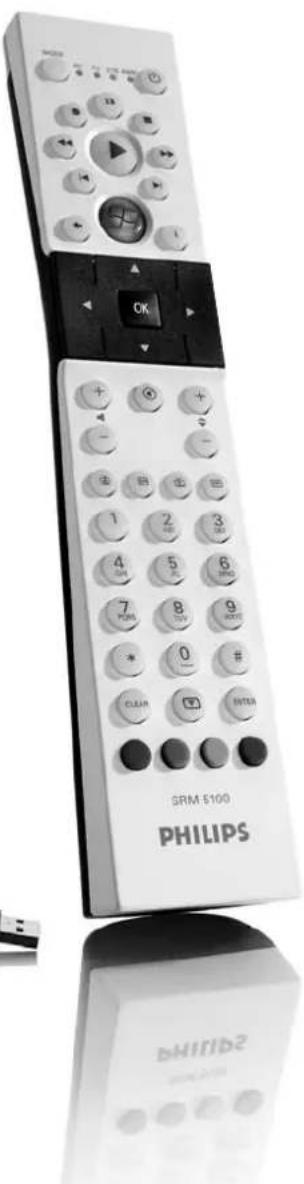
PHILIPS
Your Remote Control
Congratulations on your purchase and welcome to Philips!
To fully benefit from the support that Philips offers, register your product at www.philips.com/welcome
Instructions for use
English
Contents
- Introduction 4
- Installing the remote control 4-7
Connecting the receiver (for PC only) 4
Inserting the batteries in the remote control 4
Testing the remote control 5
Setting the remote control 5-7
- Keys and functions 8-9
- Extra possibilities 9-10
Learn a key....9
Adding a function to the remote control 10
Assigning the volume control to another mode 10-11
Restoring the original functions of your remote control ..... 11
- Troubleshooting 12-13
- Need help? 13
Code list of all brands / equipment 124-137
Information to the consumer....139
1. Introduction
Congratulations on your purchase of the Philips SRM 5100 universal remote control. After installing the remote control you can operate a maximum of 4 different devices with it: Windows Vista ^™ based PC, TV (TV, LCD TV, plasma TV, projector, HD TV), STB (Set Top Box, satellite or cable decoder, digital terrestrial receiver / decoder) and AMP (amplifier, receiver, Home Theatre System). You can find information about how to prepare this remote control for use in the chapter 'Installing the remote control'.
2. Installing the remote control
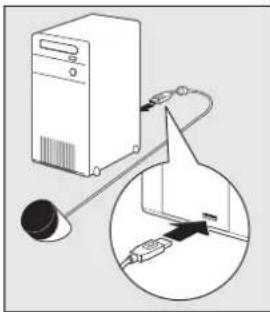
Connecting the receiver (for PC only)
- Plug the receiver USB connector into one of the PC's / laptop's USB ports.
- A green LED lights up, indicating that the receiver is deriving its power from the PC / laptop.
- A red LED lights up. The PC / laptop is now looking for the driver. As soon as the driver is found the red LED goes out. The receiver is now ready for use.
natural_image
Diagram showing a desktop computer connected to a cable via a cable connector, with an inset magnified view of the cable being inserted (no text or symbols present)Inserting the batteries in the remote control
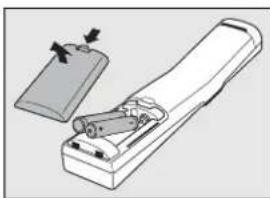
1 Press the cover inwards and slide it in the direction of the arrow.
2 Place two AAA type batteries into the battery compartment as shown.
3 Slide the cover back and click it firmly into place.
natural_image
Illustration of a handheld device with a clip and handle, no text or symbols presentNote: If, after every key press, all indicator LEDs (PC, TV, STB and AMP) light up and then go out one after another, the remote control is indicating that its batteries are running low. Replace the batteries.
Instructions for use
Testing the remote control
The remote control has been programmed to operate all Windows Vista™ based PCs and most Philips devices (TV, STB and AMP).
Because the SRM 5100 may use different signals for each brand and even for different models of the same brand, it is advisable to test whether your device responds to the SRM 5100.
PC
There is no need to select PC mode first; the remote control is set to PC mode by default. Make sure your PC runs on Windows Vista.
1 Turn on your PC.
2 Aim the remote control at the receiver and check if the PC reacts on the remote control commands.
- If the PC does not respond to key commands, check that the batteries are properly inserted and the USB connector is properly plugged into the PC / laptop USB port. See 'Setting the remote control'.
Other devices (TV, STB and AMP)
The example below (TV - TV, LCD TV, plasma TV, projector, HD TV) instructs you how to do this. You can repeat the same steps for other devices (STB and AMP) which you want to operate using the SRM 5100.
Example of TV:
1 Turn your TV on manually or use the original remote control. Tune to channel 1.
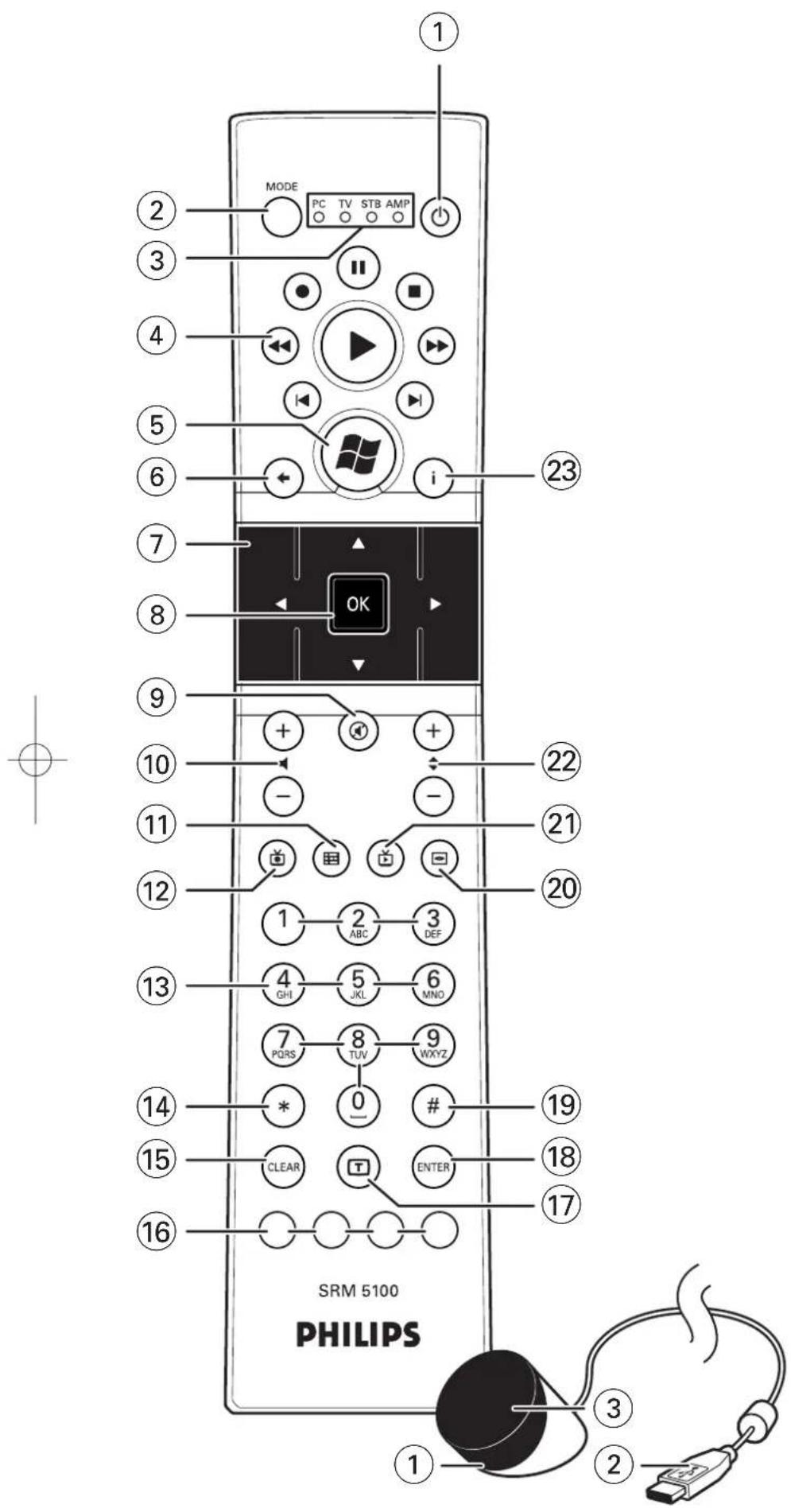
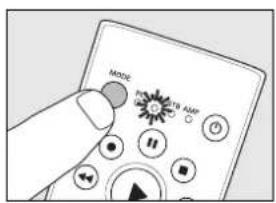
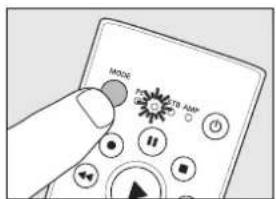
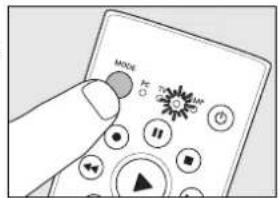
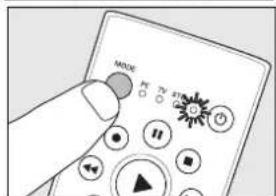
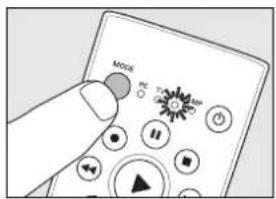
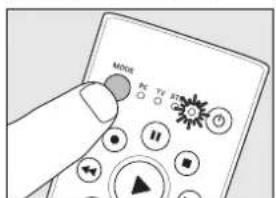
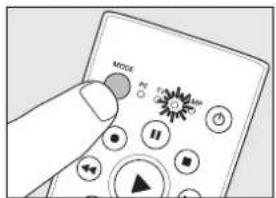
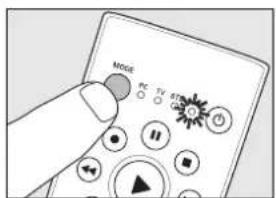
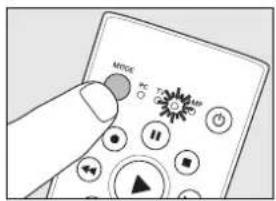
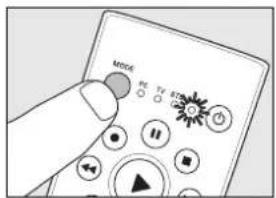
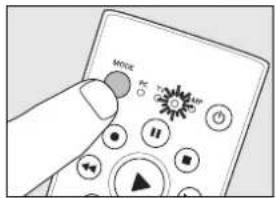
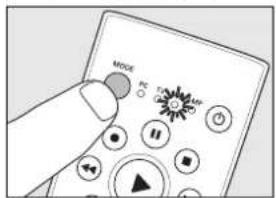
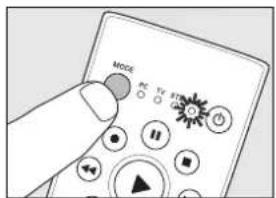
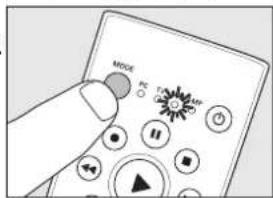
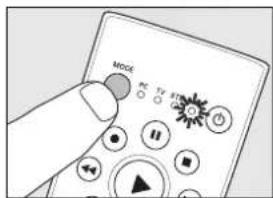
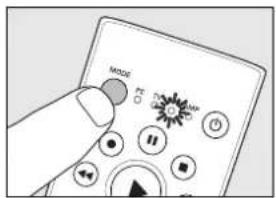
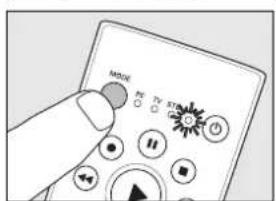
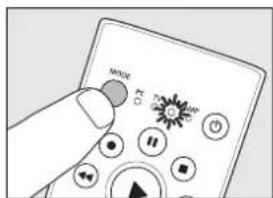
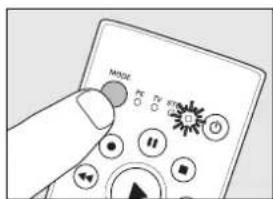
2 Press the MODE key to select TV. Press the key until the TV LED lights up.
- The LED lights up for 10 seconds and then goes out.
- If the LED does not light up, check whether the batteries are properly inserted. See 'Setting the remote control'.
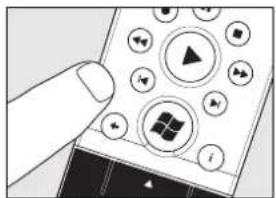
3 Check whether all keys are working. For an overview of the keys and their functions see '3. Keys and functions'.
- If the TV responds as it should to all of the key commands the SRM 5100 is ready TV.
- If the device does not respond at all or not to all of the key commands, follow the instructions under 'Setting the remote control', or for online setup go to: www.philips.com/urc
Setting the remote control
There is no need to set up the remote control for use with your Windows Vista™ based PC. For operating other devices set up is only necessary if the device (TV, STB and AMP) does not respond to the SRM 5100.
If that is the case, the SRM 5100 does not recognize the brand and / or model of your device and you need to program the remote control to do so.
The example below (TV - TV, LCD TV, plasma TV, projector, HD TV) instructs you how to do this. You can repeat the same steps for other devices (STB and AMP) which you want to operate using the SRM 5100.
Instructions for use
English
Note: The third mode (STB) can be used either for operating your Set Top Box, satellite or cable decoder or digital terrestrial receiver / decoder. The fourth mode (AMP) can be used either for operating your amplifier, receiver or Home Theatre System.
Automatically setting the remote control
The remote control will now automatically search for the right code for your device.
Example of TV (TV, LCD TV, plasma TV, projector, HD TV):
1 Make sure the TV is switched on and select a channel using the original remote control or the keys on the TV (for example channel 1). The SRM 5100 emits the 'switch TV to standby' signal for all models of TV that are stored in the memory.
2 Press the MODE key to select TV. Press the key until the TV LED lights up. – The LED lights up for 10 seconds and then goes out.
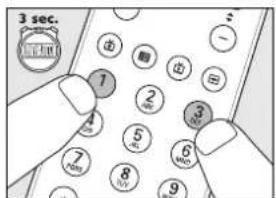
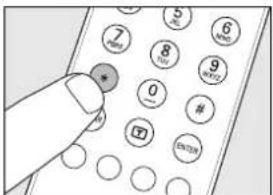
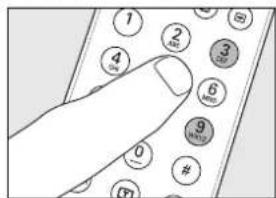
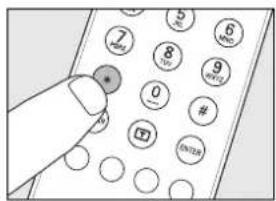
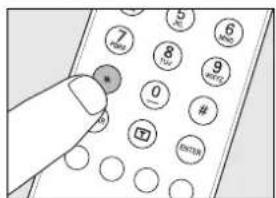
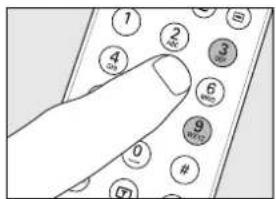
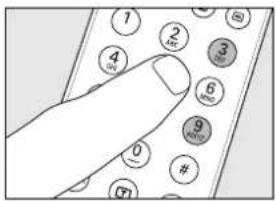
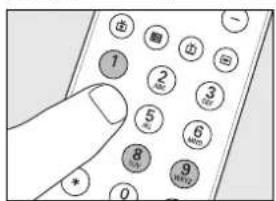
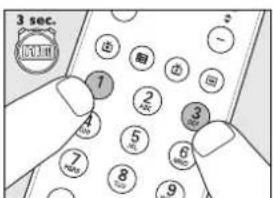
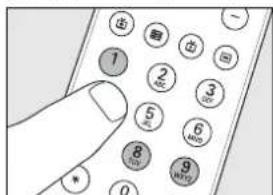
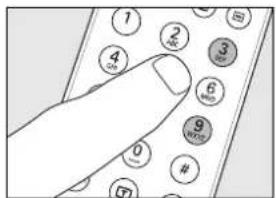
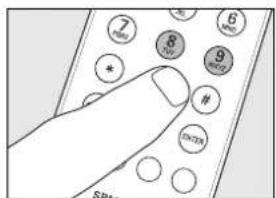
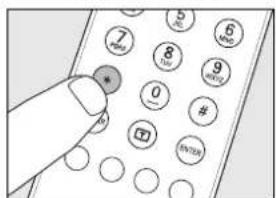
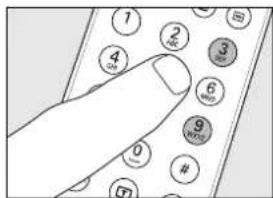
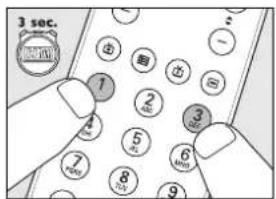
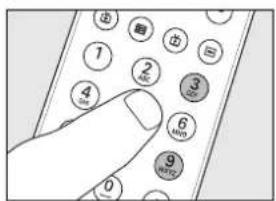
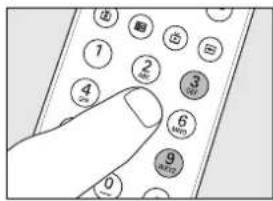
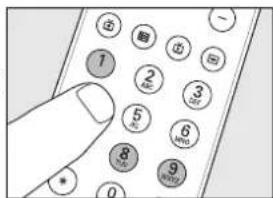
3 Then keep keys 1 and 3 pressed simultaneously for three seconds until the TV LED flashes twice and then remains lit.
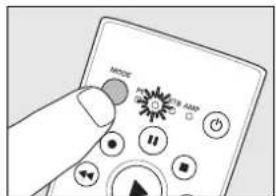
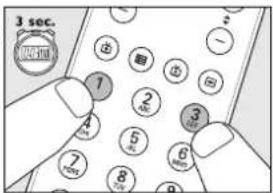
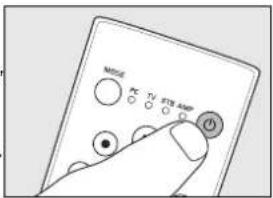
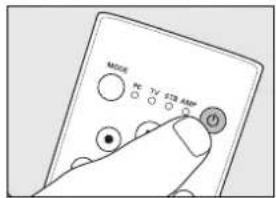
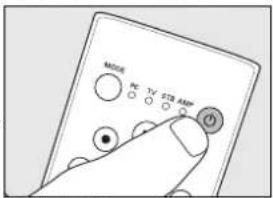
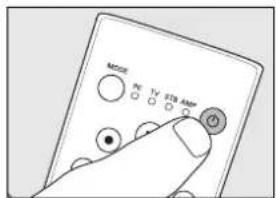
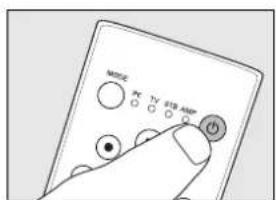
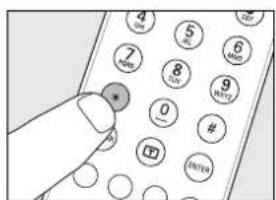
4 Press the SRM 5100 Standby (⏻) key. - The TV LED goes out and the SRM 5100 now starts emitting all known 'switch TV to standby' signals, one by one. Each time a code is sent, the TV LED lights up.
5 When your TV switches to standby, immediately press the SRM 5100 Standby (⏻) key to stop the auto-search.
- The TV LED blinks twice and then goes out. The SRM 5100 has now found a code that works on your TV.
6 Check if you can operate all functions on your TV with the SRM 5100.
- If this is not the case, you can redo the automatic setting. The SRM 5100 will then search for a code that works better.
- After the SRM 5100 has run through all the known codes, the search will stop automatically and the TV LED will stop flashing. - Automatic programming of a TV takes a maximum of 5 minutes. For STB and AMP this time is 2 minutes.
Instructions for use
Manually setting the remote control
Example of TV (TV, LCD TV, plasma TV, projector, HD TV):
1 Turn on the TV manually or use the original remote control. Tune in to channel 1.
2 Look up the brand of your TV in the code list at the back of this manual. One or more four-figure codes are shown for each brand. Note the first code.
Be careful! There are separate tables for TV, STB and AMP.
On our website www.philips.com/urc you can directly select your device typenumber to find the right code.
Make sure you use the codes from the correct table.
3 Press the MODE key to select TV. Press the key until the TV LED lights up.
- The LED lights up for 10 seconds and then goes out.
4 Keep keys 1 and 3 pressed simultaneously for three seconds until the TV LED flashes twice and then remains lit.
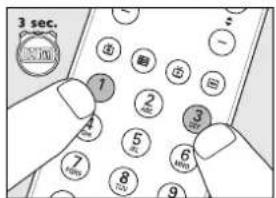
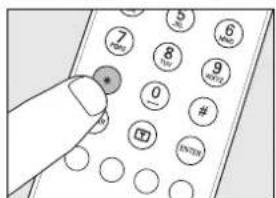
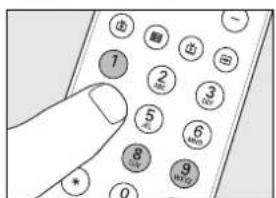
5 Then enter the code noted in step 2 using the digit keys. - The TV LED key will now flash twice. If the LED flashes once for an extended period, the code has not been entered properly or the wrong code has been entered. Start again from step 2.
6 Point the SRM 5100 at the TV and check that it responds as it should.
- If the TV responds to all of the key commands, the SRM 5100 is ready for use. Do not forget to note your code.
- If the device does not respond at all, or not to all of the key commands, start again from step 2 and try the next code from the list.
Instructions for use
3. Keys and functions
The illustrations on page 3 gives an overview of all keys and their functions.
Remote control
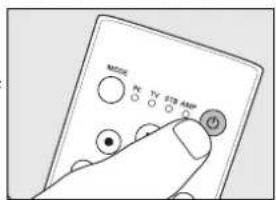
① Standby.....switches PC,TV, STB and AMP on or off.
② MODE......selects PC, TV, STB or AMP mode.
③Indicator LEDs......indicate selected mode.
④ Multimedia keys
●......record (PC, STB, AMP)
◀......rewind (PC, STB, AMP)
▶ play (PC, STB, AMP)
▲......previous track (PC, STB, AMP)
▶I......next track (PC, STB, AMP)
⑤ opens Windows® Media Center start menu. Microsoft, Windows, Windows Logo, and Windows Vista are either registered trademarks or trademarks of Microsoft Corporation in the United States and/or other countries.
⑥ ← ......- jumps back one position in the user interface (PC, Media Center).
- jumps back one level in the menu or turns off the menu (TV, STB, AMP).
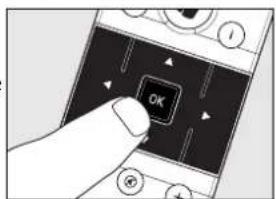
⑦ Cursor keys......cursor up, down, left, right in a menu.
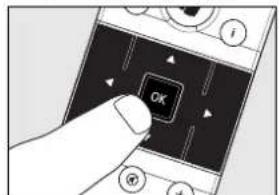
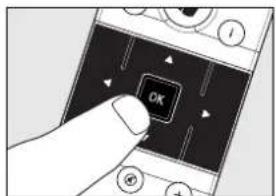
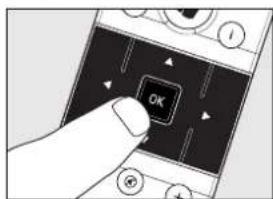
⑧ OK......confirms your selection.
⑨....mutes the TV or AMP sound.
⑩- +...adjusts the TV or AMP volume.
⑪....- displays the Guide in Windows ^® Media Center.
- displays Electronic Program Guide (TV, STB).
- selects FM radio (AMP).
⑫...- displays the Recorded TV page in Windows Media Center.
- selects AM radio (AMP).
⑬ Digit keys......- direct choice of channels and other functions (TV, STB, AMP).
- text entry (PC, Media Center).
⑭....- text entry (PC, Media Center).
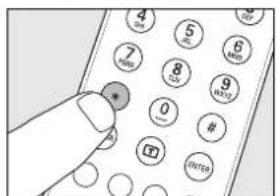
- selects between one- and two-figure channel numbers (TV, STB).
⑮ CLEAR ......deletes text during text entry (PC, Media Center).
⑯Red, green,
yellow, blue keys.....- red, green, yellow and blue teletext keys (PC, Media Center, TV, STB).
- red: switches surround mode on / off (AMP).
- green: selects surround modes (AMP).
- yellow: switches DSP (Digital Signal Processor) on / off (AMP).
- blue: selects DSP (Digital Signal Processor) modes (AMP).
⑰ switches teletext on / off.
⑱ENTER ......confirms menu selection.
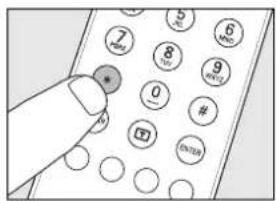
⑲....#......- text entry (PC, Media Center).
- switches between external (audio / video) inputs of your equipment (TV, STB).
- source selection (AMP).
Instructions for use
20....- turns the menu on and off (TV, STB, AMP).
- opens DVD menu (PC, Media Center).
⑳ shows live TV on the currently selected channel.
22- + - selects a previous or next channel (PC, Media Center, TV, STB).
- selects a previous or next preset channel (AMP).
②3 i ......- displays on-screen channel information (TV, STB, AMP).
- provides information for the focus point. An icon indicates your position in the menu (PC, Media Center).
Receiver
① Green LED .....lights up when the receiver is deriving its power from the PC / laptop.
② USB connector......connects to the USB port of your Windows Vista™ based PC / laptop.
③ Red LED ...... lights up when the PC / laptop starts looking for the driver. The LED goes out as soon as the driver is found.
- lights up when the receiver receives a signal from the remote control.
If the device does not respond at all, or not to all of the key commands, follow the instructions under 'Setting the remote control'. It is possible that you must enter another code for the device.
4. Extra possibilities
Learn a key
If you miss certain functions from your original remote control on the SRM 5100, the SRM 5100 can learn these functions from the original remote control. You can store a function under any of the available keys of the SRM 5100, except TM and MODE. Please, note that any function already stored under a key will be deleted.
Microsoft, Windows, Windows Logo, and Windows Vista are either registered trademarks or trademarks of Microsoft Corporation in the United States and/or other countries.
Example of TV (TV, LCD TV, plasma TV, projector, HD TV):
Make sure you have the original TV remote control at hand.
1 Place both remote controls on a flat surface (like a coffee table) and aim them head-to-head with about 5 - 10 cm in between.
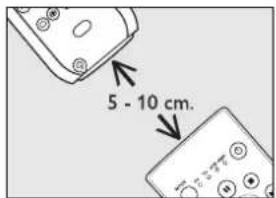
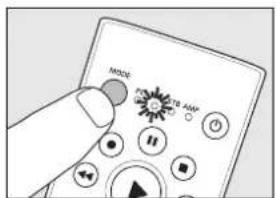
2 Press the MODE key to select TV. Press the key until the TV LED lights up.
- The LED lights up for 10 seconds and then goes out.
Instructions for use
English
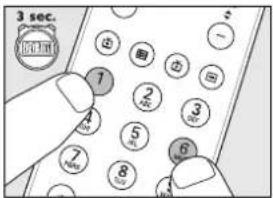
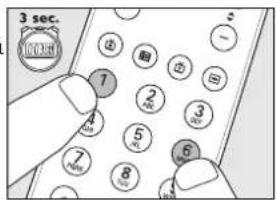
3 Keep keys 1 and 6 pressed simultaneously for three seconds until the TV LED flashes twice and then remains lit.
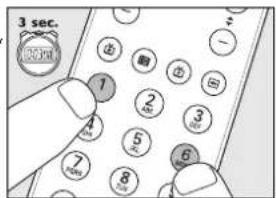
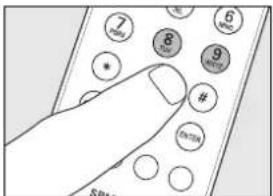
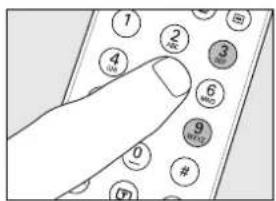
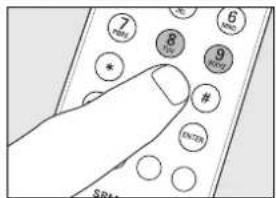
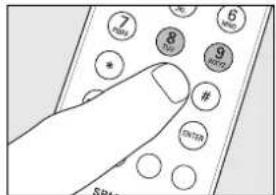
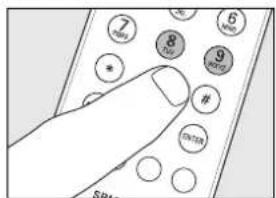
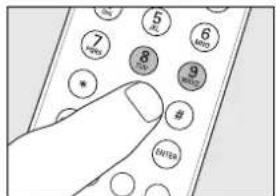
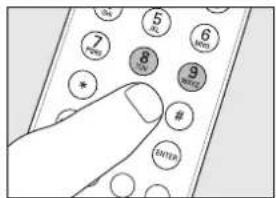
4 Press keys 9, 9 and 8 in that order. - The TV LED blinks twice and then remains lit.
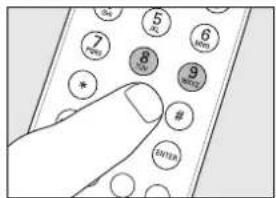
5 Press the target key on the SRM 5100.
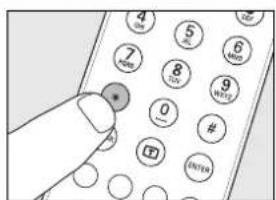
6 Press and hold the key you want to copy on the original remote control. Keep the key pressed until the TV LED goes out and then blinks twice.
- The signal is now stored in the remote control memory. - If the LED blinks once for a longer period, the IR signal is not learned by the SRM 5100. Please, try a few times and make sure the remote controls are aligned as described in step 3.
If the SRM 5100 cannot learn the code after several times trying, it is possible that:
- The IR signal of your original device is out of range (the SRM 5100 can only learn IR signals with a carrier signal of 30-60kHz).
- The memory of the SRM 5100 is full.
- The SRM 5100 stopped the learning process after 20 seconds for no IR signals were found. Check if your original remote control is working correctly.
Adding a function to the remote control
If you want to add a function to the SRM 5100, you can contact the Philips service line for Universal Remote Control to ask for the 5-figure code for the extra function.
Assigning the volume control to another mode (Volume control punch through)
In most home entertainment systems, the volume is controlled by one device only (usually TV or amplifier). This means that you always have to switch to TV or AMP mode to adjust the volume of an other device.
The 'Volume control punch through' feature enables you to set the remote control's - + and keys to also adjust the sound of other devices in your system, even those that do not have a volume control of their own.
Instructions for use
Example: In STB mode you want to operate the amplifier/receiver volume control
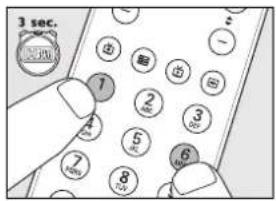
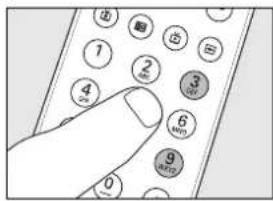
1 Keep keys 1 and 6 on the SRM 5100 pressed simultaneously for three seconds, until the STB LED flashes twice and then remains lit.
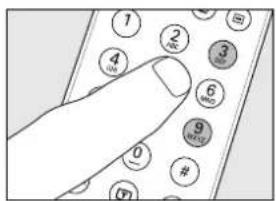
2 Press keys 9, 9 and 3 in that order.
- The STB LED flashes twice and then remains lit.
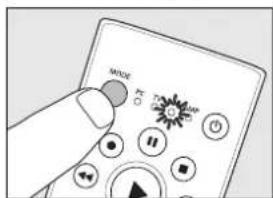
3 Press the MODE key to select STB.
Press the key until the STB LED lights up.
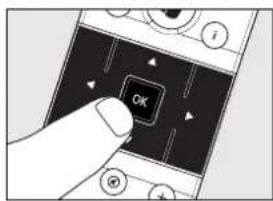
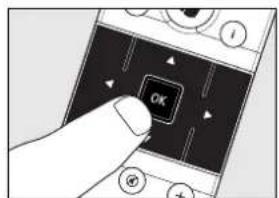
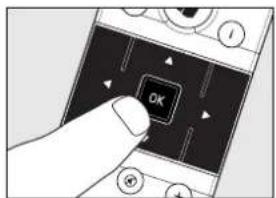
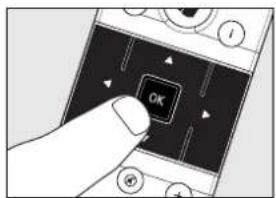
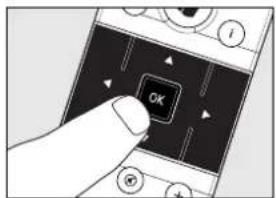
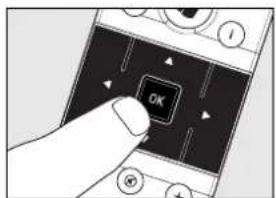
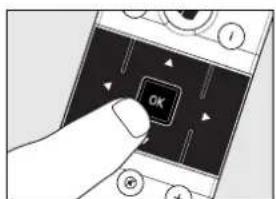
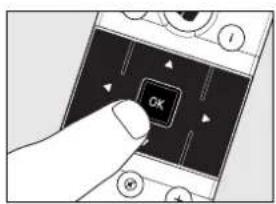
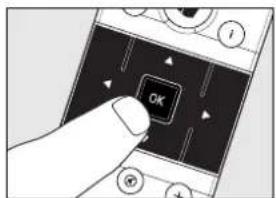
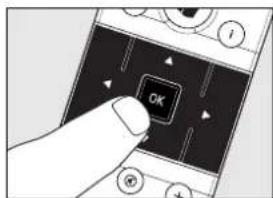
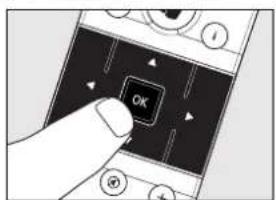
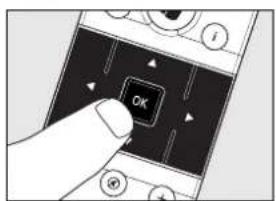
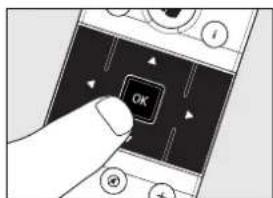
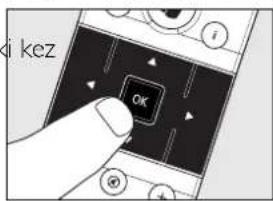
4 Press the OK key.
5 Press the MODE key to select AMP.
Press the key until the AMP LED lights up.
6 Press the OK key.
- The AMP LED flashes twice to confirm the new setup. You can now use the AMP volume controls in STB mode.
Restoring the original functions of your remote control
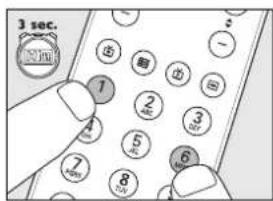
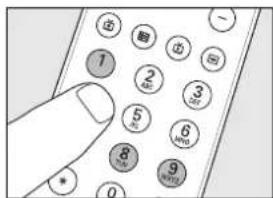
1 Keep keys 1 and 6 on the SRM 5100 pressed simultaneously for three seconds, until one of the LEDs (PC, TV, STB, AMP) lights up.
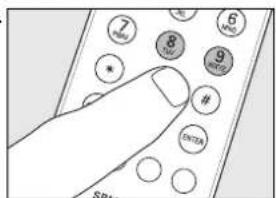
2 Press keys 9, 8 and 1, in that order: The LED flashes twice. All original functions have now been restored and any extra functions have been deleted.
Instructions for use
English
- Troubleshooting
| Problem | Solution |
| The PC does not respond to remote control commands. | Check that the batteries are properly inserted in the remote control and the USB connector is properly plugged into the PC / laptop USB port. See 'Installing the remote control'. |
| After every key press, all indicator LEDs (PC,TV, STB and AMP) light up and then go out one after another. | The remote control is indicating that its batteries are running low. Replace the old batteries with new AAA batteries. |
| The indicator LED blinks once for a longer period and the remote control goes to standby mode. | No key is pressed for 20 seconds. Press any key to re-activate the remote control.Battery power is low. Replace the old batteries with new AAA batteries. |
| The remote control stops transmitting, the indicator LED goes out and the remote control goes to standby mode. | A key is pressed for more than 30 seconds. Release the (stuck) key.When learning a key: the remote control memory is full. Restore the original functions of the remote control in order to create memory space. See 'Restoring the original functions of your remote control'. |
| The device you want to operate does not respond and its LED (PC, TV, STB, AMP) does not flash when you press a key. | Replace the old batteries with new AAA batteries. |
| The device you want to operate does not respond but its LED (PC, TV, STB, AMP) does flash when a key is pressed. | Point the SRM 5100 at the device and make sure that there are no obstructions between the SRM 5100 and the device. |
| The SRM 5100 does not respond properly to commands. | Maybe you are using the wrong code.Try programming the SRM 5100 again using another code, which is mentioned under the brand of your device, or reset for automatic search to find the right code. If the device still does not respond, call our helpline. |
Instructions for use
| Problem | Solution |
| None of the codes works during manual setting of the remote control. | If that is the case, follow the instructions under 'Automatically setting the remote control'. |
| The Teletext keys do not work. | Find out whether your TV is equipped with Teletext. |
| You have difficulties operating all of the functions on your device. | Maybe the SRM 5100 has to be adapted to the model of the device. Call our helpline for details. |
| Your brand of device is not in the code list. | Try to set the SRM 5100 automatically. See 'Automatically setting the remote control'. |
4세18u3
6. Need help?
If you have any questions about the SRM 5100, you can always contact us. You will find our contact details after the code list at the back of this manual.
Read this manual carefully before you make a call. You can solve most of the problems yourself. If you cannot find any answers to your problems, write down the details of your device shown in the code list at the back of this manual. This will help our operators to assist you better and more quickly. Look up the numbers of the models in the instructions accompanying the device or on the back of your device. When you call our helpline, make sure the device is to hand so that our operators can help you determine whether your remote control is working properly.
The model number of your Philips universal remote control is SRM 5100.
Date of purchase: ...../...../.....
(day/month/year)
Mode d'emploi
Sommaire
Inserting the batteries in the remote control 14
natural_image
Diagram showing a server connected to a cable via a cable to a device, with an inset magnified view of the cable being inserted (no text or symbols present)natural_image
Diagram of a handheld device with a battery and a cylindrical component, showing no text or symbols.natural_image
Hand interacting with a device showing a play button, a Windows logo, and surrounding icons (no text or symbols visible)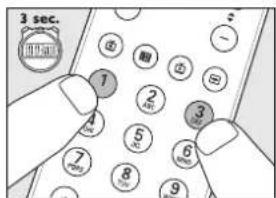
Mode d'emploi
natural_image
Diagram showing a desktop computer connected to a cable with an inset close-up of its cable (no text or symbols present)natural_image
Diagram of a handheld device with a slide and handle, showing mechanical components (no text or symbols)natural_image
Hand interacting with a device displaying a play button and a Windows logo (no text or symbols visible)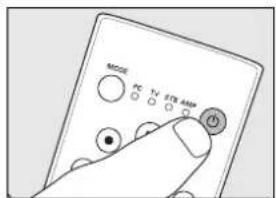
Bedienungsanleitung
II....Pause (PC, STB, AMP)
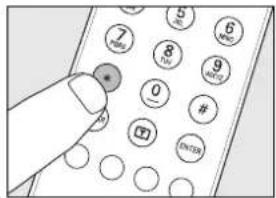
- selects between one- and two-figure channel numbers (TV, STB).
Bedienungsanleitung
natural_image
Diagram showing a desktop computer connected to a cable via a connector, with an inset magnified view of the cable being inserted (no text or symbols present)natural_image
Diagram of a handheld device with an open lid and internal components, showing no text or symbols.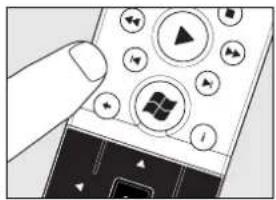
natural_image
Hand interacting with a mobile phone displaying a play button and Windows logo (no text or symbols visible)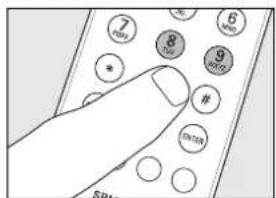
natural_image
Diagram showing a desktop computer connected to a cable via a cable connector, with an inset magnified view of the cable being inserted (no text or symbols present)natural_image
Diagram of a handheld device with a battery and two arrows indicating action or movement (no text or symbols present)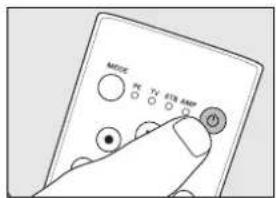
Svenska
Bruksanvisning
- Felsökning
natural_image
Diagram showing a desktop computer connected to a cable via a cable connector, with an inset magnified view of the cable being inserted (no text or symbols present)Sette inn batteriene i fjernkontrollen
natural_image
Diagram of a handheld device with a clip and handle, showing mechanical components (no text or symbols)natural_image
Hand interacting with a device displaying a play button and a Windows logo (no text or symbols visible)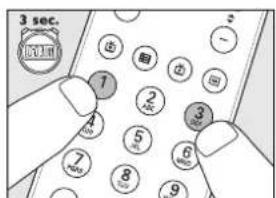
Bruksanvisning
Stille inn fjernkontrollen manuelt
På nettsiden vår www.philips.com/urc kan du velge apparatets typenummer direkte for å finne den rette koden.
spol tilbake (PC, STB, AMP)
▶I......neste spor (PC, STB, AMP)
⑤ äpner startmenyen i Windows® Media Center Microsoft,Windows,Windows-logoen og Windows Vista er enten registrerte varemerker eller varemerker for Microsoft Corporation i USA og/eller andre land.
⑫ - viser Recorded TV page (side for TV-opptak) i Windows® Media Center.
- velger AM-radio (AMP).
Bruksanvisning
- Problemløsing
natural_image
Diagram showing a server connected to a device via cable, with an inset magnified view of the device's internal components (no text or symbols present)natural_image
Diagram of a handheld device with a battery and mechanical components, no text or symbols present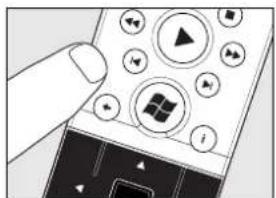
Käyttöohjeet
- Vianmääritys
natural_image
Diagram showing a server connected to a cable via a connector, with an inset magnified view of the device's cable connection (no text or symbols present)natural_image
Diagram of a handheld device with a battery and a separate casing, showing internal components (no text or symbols)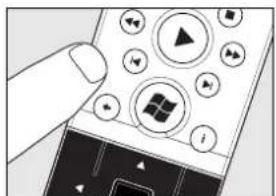
Italiano
natural_image
Diagram showing a server connected to a device via cable, with an inset magnified view of the device's cable connection (no text or symbols present)natural_image
Diagram of a handheld device with a battery and mechanical components, no text or symbols presentnatural_image
Hand interacting with a device displaying a play button and a Windows logo (no text or symbols visible)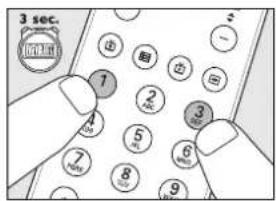
Español
natural_image
Diagram showing a server connected to a cable with a magnified inset of its cable (no text or symbols present)natural_image
Diagram of a handheld device with a slide and handle, showing mechanical components (no text or symbols)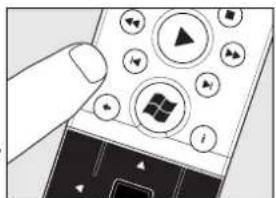
Português
natural_image
Diagram showing a computer tower connected to a cable with an arrow, and a magnified inset illustrating the cable's insertion (no text or symbols present)natural_image
Illustration of a handheld device with a clip and handle, showing mechanical components (no text or symbols)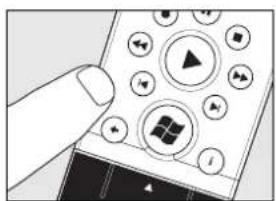
natural_image
Hand interacting with a mobile phone displaying a Windows logo and control buttons (no readable text or symbols)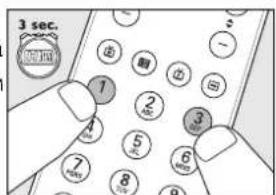
natural_image
Diagram showing a computer tower connected to a cable with an inset magnified view of its cable attachment (no text or symbols present)natural_image
Diagram of a handheld device with a slide and handle, showing mechanical components (no text or symbols)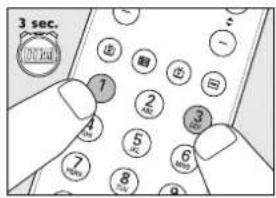
●......kayit (PC, STB, AMP)
geri sar (PC, STB, AMP)
cal (PC, STB, AMP))
Kullanım kılavuzu
- Sorun giderme
American High 0027, 0087
Amstrad ..... 0064, 1064, 0291, 0027, ..... 0036, 0190, 0198, 0398, 0675
Amtron 0027, 0207
Anam 0064, 0036, 0207, 0277
Anam National ..... 0064, 0677, 0277
Andersson....1190
Anglo 0291,0036
Anitech 0064, 0291, 0036
Ansonic....0064,0695,0036,0190,0401
AOC 0057,0207
Apex Digital....0183, 0792, 1244
AR 0583,0379
Arc En Ciel 0136
Ardem 0064, 0741
Aristocrat....0190
Aristona. 0583, 0064
ART 1064
Arthur Martin 0190
Asberg. 0064
Asora. 0036
Asuka 0291
Atlantic 0064
Atori 0036
Auchan 0190
Audinac 0207
Audiosonic....0064, 0741, 0513,
0291, 0036, 0136, 0401
Audioton....0513,0291
Audiovox....0119,0207,0478,0650
Aumark 0087
Aventura 0198
AVP 0027
Awa 0633, 0135, 0036, 0478
Axxent 0036
Baird. 0064, 0136, 0235, 0370
Bang & Olufsen. 0592
Barco....0583,0190
Basic Line ..... 0583, 0064, 0695, 1064, ..... 0482, 0036, 0190, 0401, 1190
Baur 0064, 0222, 0388, 0539
Baysonic 0207
Beaumark....0044, 0057, 0205
Beko 0064, 0741, 0222, 1064, 0513, 0633, 0445, 0835
Belcor 0057
Bell & Howell.....0044, 0081, 0120, 0181
Belstar 1064
BenQ....1783
Beon 0064, 0190, 0445
Berthen 0695
Bestar 0064, 0401
Bestar-Daewoo 0401
Black Diamond ... 1936, 1064, 0641, 1190
Blaupunkt ... 0222, 0482, 0197, 0227, 0354
Blue Sky ..... 0583, 0064, 0741, 0695, ..... 1064, 0514, 0482, 0526, 1943
Boots....0036
BPL 0064, 0235
Bradford 0207
Brandt. 0652, 0741, 0587, 0136, 0314, 0362
Brinkmann .. 0064, 0695, 0513, 0445, 0546
Brionvega 0064
Brockwood 0057, 0205
Broksonic.....0207, 0263, 0490, 1962
Brother 0291
BSR 0190
Bush.....0583, 0064, 0741, 0695, 1064, .....0514, 0388, 0291, 1981, 0641, 0546, .....0401, 0398, 0362, 0235, 0190, 0036
Candle. 0057
Capehart ..... 0044, 0057, 0119, 0205
Capetronic 0057
Capsonic 0291
Carad. 0695, 1064, 0637
Carena. 0064, 0482
Carnivale....0057
Carrefour 0064
Carver 0081, 0197
Cascade. 0064, 0036
Casio 0064
Cathay 0064
CCE....0064
Celebrity 0027
Celera 0792
Centrum 1064
Codes TV
Centurion 0064
CGE. 0101, 0190, 0445
Changhong 0183, 0792
Cimline 0036
Cineral. 0119, 0478
Cinex. 0675
Citek 0074
Citizen ..... 0027, 0057, 0062, 0081, 0087, ..... 0119, 0198, 0207, 0478, 0490, 1962
City 0036
Clarion 0207
Clarivox 0064, 0445
Classic 0057, 0119, 0526
Clatronic ... 0064, 0741, 0291, 0036, 0398
Clayton 1064
Colortyme....0044, 0057, 0074,
....0081, 0087, 0205
Commercial Solutions ..... 0074, 1474
Concorde 0036
Condor..... 0064, 0291, 0036, 0445
Conic. 0205
Conrac 0835
Contec. 0064, 0036, 0207
Continental Edison ..... 0514, 0136, 0314
Cosmel 0064, 0036
Craig 0198, 0207
Crosley....0027, 0057, 0081,
....0101, 0190, 0198, 0207
Crown....0064, 0741, 1064, 0513,
....0514, 0633, 0036, 0080,
....0120, 0207, 0235, 0445, 0699
Crown Mustang 0699
CTX 1783
Curtis Mathes....0064, 1374, 1174, 0729,
....0478, 0207, 0205, 0193,
....0181, 0172, 0120, 0087, 0081,
....0078, 0074, 0062, 0057, 0027
CXC 0207
Cytronix.... 1325
D-Vision 0583,0064
Daewoo....0583, 0064, 0661, 1936, 0291,
....0181, 0205, 0401, 0478, 0526,
....0136, 0650, 0119, 0699, 0892,
....0907, 1688, 1782, 1783, 0036
Dansai....0064, 0036, 0062, 0235
Dantax....0741, 0513
Datsura 0235
Dawa 0064
Dayton. 0036, 0119
Daytron....0064, 0036, 0057,
.....0119, 0205, 0401
De Graaf 0190, 0235
Decca 0064
Degraff. 0190, 0235
Dell 1205
Denko 0291
Denon 0172
Denver 0064, 0614
Desmet 0064,0036
Diamant....0064
Digatron 0064
Digiline 0064, 0695
Digix Media....0907
Dixi 0064, 0036
DMTech....1991
Domeos 0695
Domland 0421
Dream Vision 1731
DTS. 0036
Dual 0064, 1064, 1164, 0370, 0379, 0421, 0546
Dumont....0044, 0205, 0207
Durabrand .. 0198, 0205, 0207, 0490, 1061
Dux 0064
Dwin 0120
Dynatron....0064
Easy Living....1275
Eaton....0087
ECE 0064
Edison-Minerva 0514
Elbe 0064, 0637
Elcit 0190
Electroband. 0027
Electrograph....1782
Electrohome. 0027, 0057, 0177, 0181, 0205, 0490
Elekta. 0291
Elfunk. 1064
ELG 0064
Elin. 0064, 0388, 0036
Elite 0064
Elta. 0291,0036
Emerald....0205
Emerson . . . 0064, 0741, 0695, 0222, 1936,
. . . . . . . . . . . . . . . . . . . . . . . . . . . . . . . . . . . . . . . . . . . . . . . . . . . . . . . . . . . . . . . . . . . . . . . . . . . . . . . . . . 0513, 0388, 0650, 0490, 0478,
. . . . . . . . . . . . . . . . . . . . . . . . . . . . . . . . . . . . . 0398, 0263, 0207, 0205, 0198,
. . . . . . . . . . . . . . . . . 0197, 0181, 0177, 0074, 0044
Envision....0057
Erres 0064
ESA 0198,0839
ESC 0064
Etron 0036, 0190
Eurofeel....0291
Euroman 0064, 0291
Europa. 0064
Europhon. 0064, 0136
Evesham 1275
Evolution....1783
Expert 0190
Exquisit 0064
Fenner 0036, 0401
Fer0. 0362
Ferguson ..... 0064, 0652, 0587, 0222,
1064, 0080, 0136, 0314,
0362, 0370, 0470, 1962
Fidelity 0064, 0388, 0291,
0190, 0198, 0398, 0539
Finlandia. . . . . . . 0388, 0190, 0235, 0373
Finlux 0583, 0064, 0741, 0190, 0373, 0507, 0835
Firstline .... 0583, 0064, 0741, 0695, 1064
0388, 0036, 0235, 0401, 0835
Fisher 0388, 0027, 0074,
0081, 0181, 0235

Codes TV
Flint 0064, 0637, 0291, 0482
Formenti 0064, 0190
Fortress....0120
Fraba 0064
Friac ..... 0064, 0637, 0036, 0526
Frontech....0291, 0036, 0190
Fujimaro 0892
Fujitsu....0036, 0710, 0836, 0880
Fujitsu General 0036, 0710
Fujitsu Siemens . . . 0835, 0836, 1190, 1325
Funai. . . . . . 0695, 0291, 0027, 0198, 0207
Futuretech....0207
Galaxi 0064
Galaxis. 0064
Gateway 1782, 1783
GBC....0036,0190,0401
GE....0587,0027,0057,0062, ....0074,0078,0087,0120,0205, ....0362,0478,1174,1374,1474
GEC. 0064, 0388, 0190
Geloso....0036, 0190, 0401
Gemini....0074
General 0136,0314
General Technic 0036
Genesis 0036
Genexxa 0064, 0036, 0190
Gericom. . . . 0835, 0892, 0907, 1244, 1325
Gibraltar 0027, 0044, 0057
Go Video....0087
Goldfunk 0695
GoldStar....0064, 0741, 0633, 0388, ....0482, 0036, 0057, 0074, ....0081, 0136, 0190, 0205
Gooding 0514
Goodmans....0583, 0064, 0652, 0741, ....0587, 0695, 0661, 1936, 1064, ....0514, 0291, 0614, 0401, 0507, ....0526, 0398, 0370, 0362, 0062, ....0036, 0835, 0907, 1190, 0027
Gradiente ..... 0064, 0080, 0197
Graetz....0741, 0514, 0388, ....0190, 0398, 1190
Gran Prix 0675
Granada....0064, 0587, 0135, ....0253, 0190, 0235, 0370
Grandin .... 0064, 0741, 0695, 1064, 0637, .... 0482, 0036, 0190, 0401, 0892, 0907
Grundig. 0583, 0064, 0222, 0514, 0614, 0190, 0470, 0699, 0710, 1943, 1962, 1981
Grundy 0222, 0207
Grunkel 1190
Grunpy 0207
H & B 0835
Haier 1061
Halifax 0291
Hallmark....0205, 0207, 0263
Hanseatic...0583, 0064, 0741, 0661, 0388, 0036, 0421, 0526, 0546, 0835
Hantarex 0064, 0036, 0892
Hantor....0064
Harley Davidson....0027, 0057,
0087, 0205, 0207
Harman/Kardon 0081
Harsper....0892
Harvard....0207
Harwood 0064, 0514, 0036
Hauppauge 0064
Havermy 0120
HCM 0064, 0291, 0036, 0445
Heathkit 0044
Helios 0892
Hello Kitty 0478
Hema. 0036
Hifivox. 0136
Highline 0064, 0291
Hinari....0064, 0291, 0036, ....0190, 0235, 0379, 0470
Hisawa 0741, 0637, 0482
Hisense 0583, 0535
Hitachi....0064, 0661, 1064, 1164, 0135, ....0252, 1603, 1172, 0904, 0771,
0526, 0508, 0507, 0370, 0205,
0190, 0177, 0172, 0136, 0081,
0078, 0074, 0062, 0044, 0027
Hitachi Fujian....0135, 0177
Hitsu 0637, 0482, 0036
Hoeher 0741, 0892, 1190
Home Electronics 0633
Hornyphon 0064
Hoshai....0482
Huanyu 0401
Hugoson 1244
Hyper 0036
Hypersonic 0388
Hypson....0583, 0064, 0741, 0695, ....1064, 0513, 0291, 0482
Hyundai....0892
Iberia 0064
ICE. 0064, 0291, 0398
liyama 0904,1244
Ima. 0205, 0207, 0263
Imperial 0064, 0101, 0445
Indiana. 0064
Infinity 0081
Ingelen ..... 0741, 0637, 0514, 0190
Ingersol 0036
Inno Hit. 0036, 1190
Innova 0064
Innovation 0546
Innowert 0892, 1325
Insignia. 0198
Inteq 0044, 0172
Interbuy 0064, 0291, 0036
Interfunk....0064, 0388, 0136, ....0190, 0227, 0354, 0539
Internal 0064, 1936
Intervision.....0064, 0513, 0514, 0291, .....0482, 0036, 0421, 0546
Irradio 0064, 0036, 0398
Isukai 0064, 0482
ITS 0064, 0291, 0398
ITT...0637,0388,0190,0235,0373,0507
Codes TV
ITT Nokia....0222, 0637, 0633, 0388, ....0190, 0235, 0373, 0507
ITV....0064, 0291, 0401
IX....0904
JBL 0081
JCB 0027
JEC 0062
JIL 0057
Jinxing 0583,0064
JMB. 0583, 0661, 0470, 0526
Johnson 0482
Jubilee 0583
Jutan 0057
JVC....0633, 0677, 0680, 0057, ....0080, 0081, 0120, 0398, ....0445, 0490, 0710, 0758, 1280
Kaisui 0064, 0482, 0036
Kamp 0044, 0207
Kapsch. 0388, 0190
Karcher ..... 0741, 0637, 0633, 0291
Kathrein 0583
Kawa 0398
Kawasho 0057
KB Aristocrat 0190
KEC 0087,0207
Kendo.....0064, 1064, 0637, 0546, 0675
Kennedy 0190
Kennex 0695, 1064
Kenwood....0057,0207
Kioto....0583
Kiton 0064, 0695
KLH 0183, 0207, 0792
Kloss 0057
Kneissel....0583,0064,0637,0401,0526
Kolster 0064
Konig 0064
Konka ..... 0064, 0741, 0207, 0398, 0445
Kontakt 0514
Korpel 0064
Kosmos 0064
Koyoda 0036
KTV 0057,0207,0490
Kyoshu....0445
Kyoto....0190
L&S Electronic....0741, 0835, 0892
Lark 0181
LaSAT 0513
Lavis. 1064
Leader 0036
Lecson....0064
Lenco....0064, 0614, 0401
Lenoir 0036
Leyco. 0064, 0291
LG....0583, 0064, 0741, 0388, ....0036, 0057, 0081, 0087, 0136, ....0190, 0205, 0883, 1205, 1292
Liesenk & Tter 0064
Lloyd's....0036,0057,0207,0263
Local India TV 0036, 0235
Lodos 1064
Loewe 0064, 0539, 0660, 0817
Logik. ..... 1064, 0207, 0263, 0907, 1244
Logix 0695, 0546
Luma ..... 1064, 0036, 0190, 0401
Lumatron . . . 0583, 0064, 0388, 0291, 0190
Lux May....0064,0036
Luxor....1064, 0388, 0190, ....0235, 0373, 0507, 1190
LXI....0064, 0235, 0205, 0198, 0193, .....0183, 0181, 0120, 0087, 0081, 0080, .....0078, 0074, 0062, 0057, 0044, 0027
M Electronic ..... 0064, 0741, 0661, 0222, ..... 0036, 0136, 0190, 0314, ..... 0370, 0373, 0401, 0507, 0539
Madison....0064
Multitech...0064,0513,0291,0036,0207
Murphy 0190
Myryad 0583
NAD....0064, 0388, 0183, ....0193, 0205, 0893, 1183
Naiko. 0064, 0633
Nakimura....0064, 0401
NAT 0253
National 0253
NEC....0482,0036,0057,0074, ....0197,0205,0401,0731,1731
Neckermann....0583, 0064, ....0227, 0354, 0445
NEI. 0064, 0190, 0398
Neovia. 0892, 1991
Netsat 0064
NetTV 1782
Neufunk .... 0583, 0064, 0741, 0637, 0036
New Tech.....0583, 0064, 0036, 0370
Nikkai.....0064, 0291, 0036, 0062, 0190
Nikkei 0741
Nikko. 0057, 0119, 0205
Nikkodo....0057, 0119, 0205
Nishi 0057
Nogamatic....0136
Nokia....0637, 0633, 0388, 0190, ....0235, 0373, 0401, 0507
Nordmende....0064, 0741, 0587, ....0222, 0136, 0314, 0370
Normerel 0064
Novatronic.... 0064, 0401
NTC 0119
Nyon 0027
Oceanic 0388, 0190, 0235
Odeon....0291
Okano 0064, 0291, 0036
Omega. 0291
Onida....0080,1280
Onimax 0741
Onwa 0207,0398
Opera 0064
Optimus ..... 0677, 0057, 0120, 0177, ..... 0181, 0193, 0205, 0207, 0277
Optonica 0120
Orbit 0064
Orion....0583, 0064, 0741, 0044, ....0205, 0207, 0263, 0470, ....0490, 0907, 1943, 1981
Orline 0064
Ormond 0695, 1064
Osaki....0583,0064,0291,0401
Osio 0064
Osume 0064
Otto Versand .... 0583, 0064, 0222, 0388, .... 0253, 0120, 0136, 0370, 0539
Pace. 0119
Pacific....0583, 0064, 0741, ....1064, 1164, 0470, 1962
Palladium....0583, 0064, 0741, 1164, ....0190, 0227, 0354, 0445, 0546
Palsonic....0064, 0291, 0445
Panama. 0064, 0291, 0036
Panasonic...0064, 0388, 0677, 0252, 0253, 0027, 0057, 0062, 0078, 0081, 0183, 0190, 0263, 0277, 0880
Panavision 0064
Pathe Cinema 0190
Pathe Marconi....0136
Pausa 0036
Paxonic 0057,0087
PCE 0087,0183
Penney....0064, 0135, 0027, 0057, ....0062, 0074, 0078, 0087, ....0183, 0205, 0277, 1374
Perdio 0064, 0190
Perfekt. 0064
Philco....0064, 0057, 0081, 0101, ....0172, 0190, 0445, 0490, 1688
Philips ..... 0583, 0064, 0388, 1783, 1481, ..... 1281, 0717, 0539, 0401, 0370, 0227, ..... 0198, 0081, 0057, 0044, 0036, 0027
Phocus....0741
Phoenix 0064, 0513, 0190
Phonola 0583,0064
Pilot....0057, 0078, 0087, 0205
Pioneer....0064, 0513, 0388, 0136, ....0190, 0193, 0314, 0539, ....0706, 0787, 0893, 1287
Pionier....0513
Plantron....0064, 0291, 0036
Playsonic 0064, 0741
Polaroid 0792, 0892
Poppy....0036
Portland....0119, 0401, 0478
Powerpoint 0064, 0514
Prandoni-Prince 0388
Precision 0207, 0263
Prima 0291,0036
Prinston....1064
Prinz 0388
Prism 0078, 0277
Profex 0388, 0036, 0190
Profi....0036
Profitronic....0064
Proline....0064, 0652, 0661, 1064
Proscan 0074, 1374, 1474
Prosc0. 0183
Prosonic....0064, 0741, 0695, 0398, 0401
Protec....0064, 0291, 0036
Protech....0064, 0695, 1064, ....0513, 0291, 0036, 0445
Proton 0036, 0205
ProVision ..... 0583, 0064, 0741, 1064
Pulsar....0044, 0119
Pulser....0119, 0205
Codes TV
Pye 0583, 0064, 0401
Pymi....0036
Quadral....0078
Quartz. 0177, 0205
Quasar.... 0677, 0036, 0062,
0078, 0277, 0892
Quelle ..... 0064, 0695, 0222, 1064, 0388
0101, 0136, 0227, 0354, 0539
R-Line 0064
Rabbit 0074
Radialva 0190
Radiola. 0583, 0064
Radiomarelli 0064
RadioShack....0064, 0057, 0074,
0177, 0181, 0205, 0207
Radiotone 0064, 0695, 1064,
0291, 0036, 0445, 0675
RCA ..... 0652, 0027, 0074, 0078, 0081,
0117, 0120, 0205, 0706, 1074,
1174, 1274, 1374, 1474, 1574
Realistic....0057, 0074, 0177,
0181, 0205, 0207
Recor 0064
Rectiligne. 0064
Rediffusion. 0388, 0190, 0373
Redstar 0064
Reflex. 0064, 0695, 1064
Relisys 0892, 0904, 1325
Remotec....0064, 0120, 0172, 0198, 0277
Reoc 0741
Revox 0064
Rex 0291,0190
RFT 0064,0291
Roadstar 0064, 0741, 0695,
1064, 0291, 0036, 0445
Rover....0904
Royal Lux 0362
Runco 0044, 0057, 0087
Saba ..... 0652, 0741, 0587, 0388, 0136,
0190, 0314, 0362, 0370, 0525
Sagem 0637, 0482
Saisho....0291, 0036, 0190
Saivod. 0064, 0695, 1064, 1190
Sakai 0190
Salora 0388, 0190, 0235, 0507
Salsa....0362
Sampo 0057, 0074, 1782, 1783
Samsung . . . 0583, 0064, 0291, 0614, 0645,
1276, 1087, 0841, 0839, 0793,
0729, 0671, 0546, 0398, 0235,
0205, 0190, 0181, 0117, 0087,
0081, 0074, 0062, 0057, 0044, 0036
Sanky 0057,0087
Sansui ..... 0064, 0057, 0087, 0490, 1962
Santon 0036
Sanyo....0064, 0135, 0027, 0036,
0074, 0081, 0181, 0190, 0197,
0198, 0235, 0490, 0731, 1782
Sanyong 0064
Saville. 0087
SBR 0583,0064
Sceptre 1244
Schaub Lorenz 0741, 0513,
0633, 0388, 0401
Schneider ..... 0583, 0064, 0741, 0695,
1064, 0388, 1164, 0190, 0370,
0379, 0398, 0421, 0546, 0675
Scotch 0205
Scotland. 0190
Scott.....0057, 0205, 0207, 0263
Sears ..... 0064, 0235, 0205, 0198, 0193,
0183, 0181, 0120, 0087, 0081, 0080,
0078, 0074, 0062, 0057, 0044, 0027
Seaway....0661
Seelver....1064
SEG 0064, 0695, 1064,
0514, 0291, 0036, 1190
SEI 0064,0190
Sei-Sinudyne 0064
Seleco 0291, 0190, 0373, 0398
Semivox. 0207
Semp 0183
Sencora 0036
Sentra 0062
Serino 0637, 0482, 0120
Sharp. 0695, 0680, 1220, 0080,
0081, 0120, 0207, 0227, 1420
Sheng Chia 0120
Shintoshi 0064
Shivaki ..... 0583, 0064, 0205, 0401, 0470
Siarem 0190
Siemens .... 0064, 0222, 0172, 0227, 0354
Siera. 0583, 0064
Signature 0057, 0074, 0120
Silva 0064, 0388, 0675
Silva Schneider 0064
Silvano....0614
Silver 0388
SilverCrest 1064
Simpson....0057, 0205
Singer ..... 0064, 0036, 0087, 0119, 0362
Sinudyne 0064, 0388, 0190
Skantic. 0190
SKY 0064,0907
Sky Brazil....0907
Sky-North 0064
Sliding 0892, 0907
SLX 0695
Smaragd. 0514
Soemtron 0892, 1325
Solar Drape....0027
Solavox 0064, 0388, 0190
Soniko 0064
Sonitron 0235
Sonneclair 0064
Sonoko....0064, 0291, 0036
Sonolor 0388, 0190, 0235
Sontec 0064, 0036
Sony ..... 0064, 1532, 0027, 0044, 0080
0101, 0177, 0181, 1127, 1678
Sound & Vision 0401
Soundesign 0205, 0207
Soundwave 0064, 0445
Spectra 0036
Codes TV
Spectravision 0183, 0205
Squareview 0198
SR2000 0181, 0198
Ssangyong 0036
SSS. 0207
Standard.....0064, 1064, 0036, 0401
Standard Components ..... 0036
Starlite 0064, 0291, 0036, 0190, 0207, 0263
Stern 0291, 0190
Strato....0064, 0291, 0036
Strong....1190
Sunkai. 0637, 0514, 0482, 0892
Sunstar....0064, 0291, 0036, 0398
Sunwood 0064
Superscan 0120
SuperTech 0583,0064,0036
Supra 0036, 0401
Supreme 0027
Susumu 0314, 0362
Sutron 0036
SV2000 0081
SVA 0614,0892
Swisstec. 0907
Sylvania....0064, 0027, 0057, 0074, 0078, 0081, 0119, 0181, 0198, 0205
Symphonic ..... 0027, 0198, 0205, 0207
Sysline 0064
T+A....0474
Tandberg....0388, 0136
Tandy 0120,0190
Tashiko 0190, 0197
Tatung. . . . . 0064, 0027, 0078, 1275, 1783
TCM 0741,0835
Teac .. 0064, 0695, 1064, 0291, 0482, 0036, .... 0181, 0197, 0198, 0205, 0445, 0539
Tec 0064, 0036, 0190, 0362
Tech Line 0064, 0695, 1190
Technics....0583, 0677, 0253, ....0078, 0081, 0277
TechniSat. 0583
Technisson....0741
Technosonic 0583, 0526
Technovox. 0057
Techwood ..... 0078, 0087, 0277, 1190
Tecnimagen 0583
Tedelex 0036
Teiron 0036
Teknika....0081, 0087, 0119, ....0177, 0205, 0207, 0490
Teleavia 0314, 0370
Telecolor 0044
Telecor....0064, 0190, 0421
Telefunken ..... 0064, 0652, 0741, 0587, ..... 0513, 0101, 0136, 0314, ..... 0362, 0370, 0373, 0525, 0729
Telefusion 0064
Telegazi 0064, 0291, 0190
Telemeister 0064
Telesonic 0064
Telestar 0583,0064
Teletech....0064, 0695, 1064, 0036
Televideon....0190
Teleview 0064
Tempest....0036
Tennessee 0064
Tensai ..... 0064, 1064, 0036, 0398, 0401
Tenson. 0036
Tevion.... 0583, 0064, 0741, 0695, 1064, .... 1164, 0675, 0835, 1275, 1325
Texet 0036, 0401
Thomas 0074, 0205
Thomson....0064, 0652, 0587, 0074, .....0136, 0314, 0362, 0370, 1474
Thorn ..... 0064, 0388, 0291, 0062, 0101, ..... 0136, 0190, 0362, 0370, 0526, 0539
Thorn-Ferguson ..... 0362, 0370, 0526
TMK. 0205, 0207, 0263
TNCi....0044
Tocom 0183
Tokai. . 0064, 0695, 1064, 0036, 0190, 0401
Tokaido 1064
Tokyo 0062
Topline. 0695, 1064
Toshiba....0222, 1064, 0291, 0645, ....0677, 0535, 1962, 1731, 1683, ....1535, 1383, 1292, 1283, 1190, ....1183, 1172, 0872, 0193, 0183,
0181, 0177, 0172, 0136, 0087, 0062
Totevision 0078
Toyoda. 0036
Toyomenka 0205
Trakton 0291
Trans Continens ..... 0064, 0695, 1064
TRANS-continents 0583, 0892
Transonic 0064, 0614, 0036
Tristar 0291
Triumph 0583, 0064, 0373
Truetone 0078, 0277
TVS 0490
TVTEXT 95.0583
Uher.....0064, 0513, 0401, 0445, 0507
Ultra 0119
Ultravox 0064, 0190, 0401
Unic Line....0064, 0482
United ..... 0064, 0741, 1064, 0614, 1943
Universal....0064, 0074
Universum....0064, 0695, 0222, 1064, ....0388, 0291, 0645, 1190, ....0539, 0507, 0445, 0373, 0354, ....0227, 0197, 0136, 0101, 0036
Univox. 0064, 0190
V 0912, 1782, 1783
V2max 0892
V7 Videoseven ..... 0907, 1244, 1782
Vector Research 0057
Vestel....0064, 0695, 1064, 1190
Vexa. 0064, 0036
Victor 0080, 0277
Videocon. 0535
VideoSystem 0064
Videotechnic 0401
Videoton 0190
Vidikron 0081
Codes TV / AMP
Vidtech 0205
Viewsonic 0912, 1782
Viking....0087
Vision 0064
Vizio....0912, 1782, 1783
Vortec 0064
Voxson 0064, 0190, 0445
Waltham....0064, 0695, 1064,
....0136, 0445, 0470
Wards ..... 0064, 0222, 1374, 1183, 1174,
..... 0893, 0263, 0207, 0205, 0193,
..... 0183, 0181, 0120, 0087, 0081,
..... 0078, 0074, 0062, 0057, 0044, 0027
Watson....0064, 0741, 0695, 1064,
....0036, 0190, 0421, 0546
Watt Radio 0190
Waycon 0183
Wega 0064
Wegavox 0036
Welltech 0741
Welton 0205
Weltstar 1064
Westinghouse .... 0027, 0478, 0912, 0916
Wharfedale 0583, 0064, 0546
White Westinghouse ... 0064, 1936, 0263, 0478, 0490, 0650, 0916
Windsor 0695, 1064
Windy Sam 0583
World. 0207, 0263, 0478, 0490
World-of-Vision....0892, 0904,
....0907, 1244, 1325
Xenius 0661
Xoro 1244
XR-1000....0181, 0198, 0207
Xrypton 0064
Yamaha 0057, 1603
Yamishi. 0064, 0482
Yapshe 0277
Yokan. 0064
Yoko....0064,0291,0036
Yorx. 0057
Zanussi 0291, 0190
Zenith....0064,1936,0027,0044,0057,
....0074,0119,0120,0172,0198,
....0205,0490,0839,1172,1292
Setup Codes For Video - Accessory (AMP)
Dgtec....1390
Epson....1590
Motorola 1390
Panasonic 1147
Pioneer 1037
Samsung. 1217, 1517
Sharp 1037
Sony 1351, 1391
Sylvania 1590
Setup Codes For Audio - Amplifier
Bose 0701
Carver....0919
Harman/Kardon 0919
JVC 0358
Left Coast 0919
Marantz 0919
Optimus 0850
Philips 0919
Pioneer 0850
Polk Audio....0919
RCA 0850
Victor 0358
Yamaha 0381
Setup Codes For Audio - Receiver (AMP)
AEG....1417
Aiwa ..... 1216, 1296, 0148, 1432, 1116
Akai 0636,1417
Alco. 1417
All-Tel 1417
Anam 0636,1636
Anam National 0636
Arcam 1216
Audiolab 1216
Audiotronic....1216
Audiovox....1417
Bang & Olufsen....0826
Blue Sky....1417
Bose. 1256, 1960
Carver 1216,0148,1116
Dantax....1417
Denon ..... 0148, 1387, 1131, 1169
Dual....1417
Elta 1417
Fine Arts 1216
Genexxa 0213
Goodmans 0636,1417
Grundig 1216, 1116
Grunkel 1417
Hanseatic....1417
Harman/Kardon 1216, 1331
HCM....1417
Codes AMP / STB
Integra 0162, 1347
JVC....1085,0101,1401
Kawasaki 1417
Kenwood....1340,0213
KLH....1417
LG 1320
Magnavox 1216, 1296, 1116
Marantz 1216, 1296, 1116
MEI 1417
Micromega 1216
Musicmagic 1116
Myryad 1216
NAD 0347,0636
Nakamichi 1340
Nikko 0636
Onkyo 0162, 1347
Optimus.....0148, 0101, 1050, 0213
Palladium 1320, 1417
Panasonic...1790, 1545, 1335, 1336, 1315,
1343, 1575, 1660, 1791, 1806
Philips....1216, 1296, 1116, 1700
Pioneer ..... 1050, 0213, 1411
Proline. 1417
Proscan 1281
Radionette....1320
RadioShack 1636
RCA 1050, 1281, 1417, 1636
Realistic....0148, 0213, 1636
Revox 0213, 1116
Samsung. 1331, 1322
Sansui 1216,0636,1116
Schneider 1417
Sharp 0213,0680
Sherwood 0680
Siemens 0636
Silva Schneider....1417
Sony ..... 1185, 1085, 1285, 1685, 1785,
..... 1468, 1585, 1649, 1749, 1786, 1885
Soundwave 0636
Stereophonics....1050
Sunfire 1340
TAG McLaren 1216
Teac 0636,1417
Technics . . . 1790, 1545, 1335, 1336, 1660
Techwood 0636
Thomson....1281
Thorens....1216
Tokai 1417
Toshiba 0162
United 1417
Universum 0636, 1417, 1636
Venturer 1417
Victor 0101
Wharfedale 1417
Xenius....1417
Yamaha....0203,1050,0213,
1203, 1303, 1358, 1402
Zenith 1320
Setup Codes For Cable Set Top Box (STB)
Austar 0303
BCC 0303
Birmingham Cable Communications 0303
Cable & Wireless 1095
Digeo....1214
Director 0503
Fosgate 0303
France Telecom 0844
Freebox....1509
General Instrument....0303, 0503, 0837
Insight 0503, 0837
Jerrold 0303, 0503, 0837
Macab 0844
Motorola... 0303, 0503, 0837, 1214, 1403
Noos 0844
NTL 1095, 1087, 0303
Ono....1095
Optus 0303
Pace.....1095, 1087, 0904, 1604, 1904
Philips. 0844, 0344, 1332
Pioneer 0904, 1904
Regal 0303
Sagem 0844
Samsung....1087, 1693
Scientific Atlanta ..... 0504, 0904, 1904
StarHub. 0303
Supercable. 0303
Telewest....1095
Time Warner cable....1904
United Cable. 0303
US Electronics. 0303
Visiopass 0844
Setup Codes For Satellite Set Top Box (STB)
@sat 1327
@Sky....1361
ABsat. 0740
ADB....0669,1286,1394
Akai 0227
Alba. . . . . . 0482, 0740, 1311, 1686, 1838
Allsat 0227
Alltech....0740
Allvision....1259, 1361, 1439
Amitronica 0740
Ampere 0159
Amstrad....0874, 1202, 0159,
0740, 0909, 140, 1720
Anglo. 0740
Ankaro 0740
Apollo 0482
Arcon....1102
Armstrong. 0227
Arnion....1327
Asat. 0227
ASCI. 0141, 1361
ASLF 0740
Codes STB
AssCom 0880
Aston. 1288
Astra 0634, 0740
Astratec 1770
Astro. 0200, 0634, 0685,
1126, 1127, 1140
Atsat 1327
AtSky....1361
Audioline....1699
Austar 0669,1203
Axil. 1484, 1686
Axis 1138
B@ytronic....1439
Beko 0482
Bell ExpressVu 0802
Big Sat 1484
Black Diamond 1311
Blaupunkt 0200
Blue Sky....0740
Boca 0159, 0740, 1259, 1393
Boston....1278
Brainwave 0685, 1321, 1699
British Sky Broadcasting ..... 0874, 1202
Broco 0740
BskyB. 0874, 1202
BT 1323
Bubu Sat 0740
Bush ..... 1311, 1672, 1699, 1770, 1838
Canal 0880
Canal Digital 0880
Canal Satellite 0880, 1366
Canal+....0880
CGV 1440, 1594
Chaparral 0243
Chess 0141, 0740, 1361, 1653
Chili....1745
CityCom....0326, 0634, 0845,
1102, 1203, 1259
Classic 1699
Clatronic 1440
CNS. 1394
Colombia 0159
Columbia....0159
Comag....0159, 1259, 1393,
1439, 1440, 1606
Condor 0634
Conrad 0159,0634
Coship....1484
Crown....1311
Cryptovision 0482
Cyfra+....1103
Cyrus. 0227
D-box 0750,1141
Daewoo....1138,0740,1323,1770
Deltasat....1102
Digatron 1321
Digenius 0326
Digiality 0634
Digifusion. 1608, 1672, 1770
DigiLogic 1311
DigiQuest 1327, 1484
DigiSat. 1259
Digisky....1484
DigitAll World....1254
Digiturk....1103
Dijam....1323
DiPro....1394, 1570
DirecTV....1883, 1776, 1667, 1666,
1636, 1469, 1441, 1419, 1404,
1169, 1135, 1103, 0846, 0776,
0666, 0593, 0419, 0274, 0126
Dish Network System ..... 0802, 1032,
1532, 1802
Dishpro ..... 0802, 1032, 1532, 1802
Distratel 1731
DMT 1102
DNT 0227
Dream Multimedia 1264
DSTV....1460
Durabrand....1311
Echostar ..... 0880, 0194, 0637, 1227,
0482, 0740, 0802, 1032,
1350, 1436, 1532, 1802
Einhell 0159, 0740
Elap 0740,1594
Elsat. 0740
Elta. 0227, 1686
Engel 0740, 1278
EP Sat 0482
Eurieult....0909
Eurocrypt 0482
EuroLine 1278
Europa....0634
Europhon. 0159, 0326, 0634
Eurosky ..... 0159, 0141, 0326, 0634
Eurostar....0634, 0845
Eutelsat 0740
Expressvu 0802, 1802
Fenner....0740
Ferguson 0482, 1318, 1770
Finlandia 0482
Finlux. 0482
Flair Mate 0740
FMD. 0141, 1278, 1440, 1484
Freesat 0909
FTEmaximal....0740
Fuba 0200, 0326, 1241, 1278
Funai 1404
Galaxis 0880, 1138, 1584
Gardiner 0845
Garnet....1102
GbSAT....1241
GE 0419,0593
Gecco 1300, 1439
General Instrument 0896
General Satellite 1203
Globo.....1278, 1361, 1439, 1456, 1653
GOD Digital 0227
GOI 0802,1802
Gold Box....0880
Goodmans 0482, 1311, 1318
Granada....0482
Grundig ..... 0874, 0880, 0200, 1318
Haensel & Gretel 0159
Codes STB
Hanseatic....1126, 1127
Hauppauge....1321, 1699
HB 1241
HDT 1186
Heliocom....0634
Helium. 0634
Hirschmann.... 1138, 0200, 0326,
.... 0634, 0909, 1259, 1439
Hitachi....0482, 0776, 0846, 1311
HNE 0159
Hornet 1327
Houston 0802
HTS 0802,1802
Hughes Network Systems .... 0776, 1169, .... 1469, 1776
Humax....1203, 1454, 1702,
....1770, 1815, 1835
Huth 0159, 0634, 1102
Hyundai 1102, 1186
iCan....1394
ID Digital....1203
ILLUSION sat....1584
Imperial 1361, 1456, 1699
Ingelen 0141, 0909
Innova 0126
International 0159
Interstar 1241
Intervision....0634
ITT Nokia 0750, 0482
Jaeger 1361
Jerrold 0896
JVC 0802, 1802
K-SAT 0740
Kamm....0740
Kaon 1327
KaTelco 1138
Kathrein . . . 0200, 0227, 0141, 0507, 0531, . 0580, 0685, 0740, 0845, 1443, 1588, 1594
Kenwood....0880
Key West. 0159
Kiton 0141
Konig 0634
Kreiling 0141, 0685
Kreiselmeyer. 0200
L&S Electronic....0159, 1361
Labgear 1323
LaSAT....0200,0159,0326,0634
Legend. 1745
Lemon 1361
Lenco....0634, 0740
LG 1102, 1441
Lifesat 0159, 0326, 0740
Lodos 1311
Logik 1311
Logix 1102
Lorenzen... 0159, 0326, 0634, 1321, 1606
M Electronic 0845
M vision....1584
Magnavox 0749
Manata 0159, 0740
Manhattan 0482
Marantz 0227
Maspro 0200, 0740
Matsui 0200, 1311, 1770
Max 0634
Maximum....1102, 1361
McIntosh 0896
Mediabox 0880
Mediacom....1233
MediaSat 0880
Medion....0159, 0326, 0740, 1102,
.....1259, 1361, 1439, 1653
Medison....0740
Mega 0227
Metronic....0159, 0740, 0845,
....1361, 1402, 1731
Metz 0200
MiCO 1838
Micro 0634, 0740, 1321
Micro Elektronic 0740
Micro Technology 0740
Micromaxx 0326
Microstar....1102
Microtec 0740
Mitsubishi 0482, 0776
Morgan's....0227,0159,0740,1259,1439
Motorola 0883, 0896
MTEC 1241
Multibroadcast 0669
Multichoice 0669, 1460
Mx Onda. 1686
Myryad 0227
Mysat. 0740
MySky 1720, 1875, 1877
NEOTION 1361
Netgem 1349
Netsat 0126
Neuf TV....1349
Neuhaus 0634, 0740
Neuling 0159, 1259
Neusat. 0740
Nevir....1686
Next Level 0896
Nikko. 0750, 0227, 0740
Noda Electronic 1731
Nokia, 0880, 0750, 0482, 1050, 1250, 1337
Nordmende 0482
OctalTV....1321, 1532
Opentel....1259, 1439
Optex 0141, 0740, 1638
Orbis 1259, 1361, 1439
Orbitech 0141, 1126, 1127
P/Sat 1259
Pace .. 0874, 0880, 0227, 1202, 0356, 0482.
..... 1350, 1450, 1720, 1744, 1875, 1877
Pacific. 1311, 1402
Packard Bell 1138
Palcom. 0326, 1436
Panarex 1186
Panasat 1460
Panasonic...0874,0274,0482,0728,1331
Panda 0200, 0482, 0634
Pansat 1186
Patriot 0159
Codes STB
peeKTon 1484
Philips ..... 0874, 0880, 0200, 0227, 1141,
..... 1776, 1699, 1570, 1560, 1469,
.....1363, 1169, 1103, 0846, 0845,
0802, 0776, 0749, 0482, 0160, 0126
Phonotrend....1227
Pilotime....1366
Pino 1361
Pioneer.....0880, 0356, 1169, 1335, 1469
PMB 0740,1638
Portland....1323
Universum....0200, 0141, 0326, ....0634, 1126, 1278
Variosat 0200
Ventana 0227
Vestel 0141, 1278
VH Sat 0326
ViewSat 1259
VisionNet 1584
Visiosat. . . . . 0141, 0740, 1440, 1484, 1745
Viva 0883
Voom....0896
VTech 0845
Wewa 0482
Wharfedale 1311
Wisi .. 0200, 0159, 0326, 0482, 0634, 0665
Worldsat....0141, 1241, 1278, 1570
Xsat....0874, 0740, 1241, 1350
Xtreme 1327
Yakumo....1440
Yamada 1745
Zehnder ..... 0141, 0531, 0845, 1102, ..... 1259, 1278, 1361, 1439, 1440
Zenith 0883, 1883
Zeta Technology 0227
Note your codes!
Television
Equipment
Brand
Model number
Number of original remote
Code
Video - Accessory
Equipment
Brand
Model number
Number of original remote
Code
Audio - Amplifier
Equipment
Brand
Model number
Number of original remote
Code
Audio - Receiver
Equipment
Brand
Model number
Number of original remote
Code
Cable Set Top Box
Equipment
Brand
Model number
Number of original remote
Code
Satellite Set Top Box
Equipment
Brand
Model number
Number of original remote
Code
Helpline

EN Information to the Consumer
Disposal of your old product
Your product is designed and manufactured with high quality materials and components, which can be recycled and reused.
When this crossed-out wheeled bin symbol is attached to a product it means the product is covered by the European Directive 2002/96/EC.
Please inform yourself about the local separate collection system for electrical and electronic products.
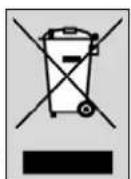
Please act according to your local rules and do not dispose of your old products with your normal household waste. The correct disposal of your old product will help prevent potential negative consequences for the environment and human health.
Guarantee certificate
Certificat de garantie
Dealer's name, address and signature

- Your Remote Control
- Instructions for use
- English
- Contents
- Introduction
- Installing the remote control
- Connecting the receiver (for PC only)
- Inserting the batteries in the remote control
- Testing the remote control
- PC
- Other devices (TV, STB and AMP)
- Setting the remote control
- Automatically setting the remote control
- Manually setting the remote control
- Keys and functions
- Remote control
- Receiver
- Extra possibilities
- Learn a key
- Adding a function to the remote control
- Assigning the volume control to another mode (Volume control punch through)
- Restoring the original functions of your remote control
- Need help?
- Mode d'emploi
- Sommaire
- Bedienungsanleitung
- Bruksanvisning
- Sette inn batteriene i fjernkontrollen
- Stille inn fjernkontrollen manuelt
- Käyttöohjeet
- Kullanım kılavuzu
- Codes TV
- Codes TV / AMP
- Setup Codes For Video - Accessory (AMP)
- Setup Codes For Audio - Amplifier
- Setup Codes For Audio - Receiver (AMP)
- Codes AMP / STB
- Setup Codes For Cable Set Top Box (STB)
- Setup Codes For Satellite Set Top Box (STB)
- Codes STB
- Note your codes!
- Television
- Video - Accessory
- Audio - Amplifier
- Audio - Receiver
- Cable Set Top Box
- Satellite Set Top Box
- Helpline
- EN Information to the Consumer
- Disposal of your old product
- Guarantee certificate
- Certificat de garantie
Brand : PHILIPS
Model : Multimedia Remote Control
Category : Remote control