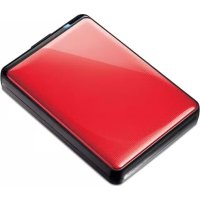
MiniStation Plus - External hard drive BUFFALO - Free user manual and instructions
Find the device manual for free MiniStation Plus BUFFALO in PDF.



| Brand | Buffalo |
| Model | MiniStation Plus |
| Product type | Portable external hard drive |
| Interface | USB 3.0 (backward compatible with USB 2.0/1.1) |
| Connector | USB 3.0 Micro-B |
| Maximum transfer speed | 5 Gbit/s (theoretical) |
| Default storage format | NTFS (1 partition, encryption disabled) |
| Storage capacity | Varies by model |
| Disk size | 2.5 inches |
| Dimensions (W×D×H) | 82 × 16 × 118 mm (standard model) |
| Weight | Approximately 160 g |
| Power supply | USB bus (5V ±5%) |
| Compatible operating systems | Windows 7/Vista/XP (32-bit), Mac OS X 10.4+ |
| Encryption | Hardware AES (via Secure Lock Manager Easy) |
| Included software | TurboPC, TurboCopy, Backup Utility, RAMDISK Utility, eco Manager, Disk Formatter |
| Features | Hot-plugging, LED activity indicator, power management |
| Maintenance | Clean with a soft, dry cloth. Avoid shocks and moisture. |
| Security | Password encryption, automatic lock in sleep/hibernation |
| Repairability | No user-serviceable parts. In case of failure, contact customer support. |
| Box contents | Hard drive, USB 3.0 cable, quick start guide |
Frequently Asked Questions - MiniStation Plus BUFFALO
User questions about MiniStation Plus BUFFALO
0 question about this device. Answer the ones you know or ask your own.
Ask a new question about this device
Download the instructions for your External hard drive in PDF format for free! Find your manual MiniStation Plus - BUFFALO and take your electronic device back in hand. On this page are published all the documents necessary for the use of your device. MiniStation Plus by BUFFALO.
USER MANUAL MiniStation Plus BUFFALO
2.5 inch USB Hard Drive with Encryption
MiniStation HD-PNTU3
User Manual
Layout 2
Recommended Usage 3
Forgot your password? 6
Optional Software 8
Specifications 10
Table of Contents
1 Layout 2
Components 2
2 Recommended Usage 3
Warning 3
Locking the drive 5
3 Forgot your password? 6
Reset to factory defaults 6
4 Optional Software 8
Installing software 8
Optional Software 9
TurboPC. 9
TurboCopy 9
Backup Utility 9
RAMDISK Utility 9
Buffalo Tools launcher 9
Secure Lock Manager Easy 9
eco Manager 9
Disk Formatter 9
Picasa 9
Google Chrome 9
5 Specifications 10
Specifications 10
1
Layout
The following section describes the parts of your MiniStation.
Components
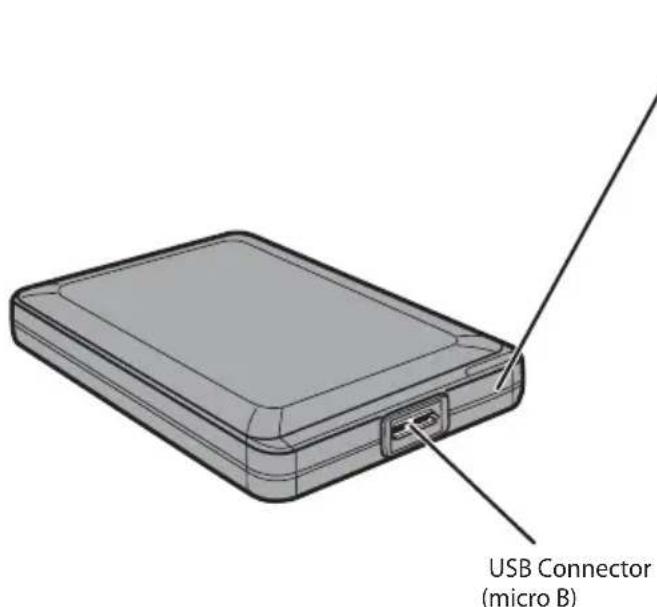
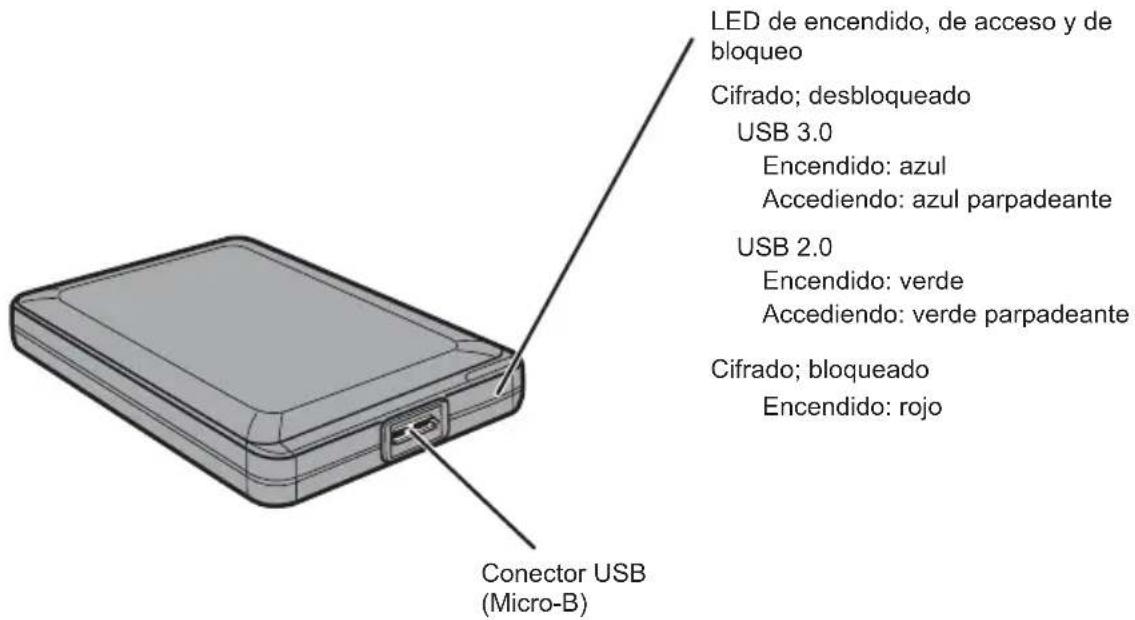
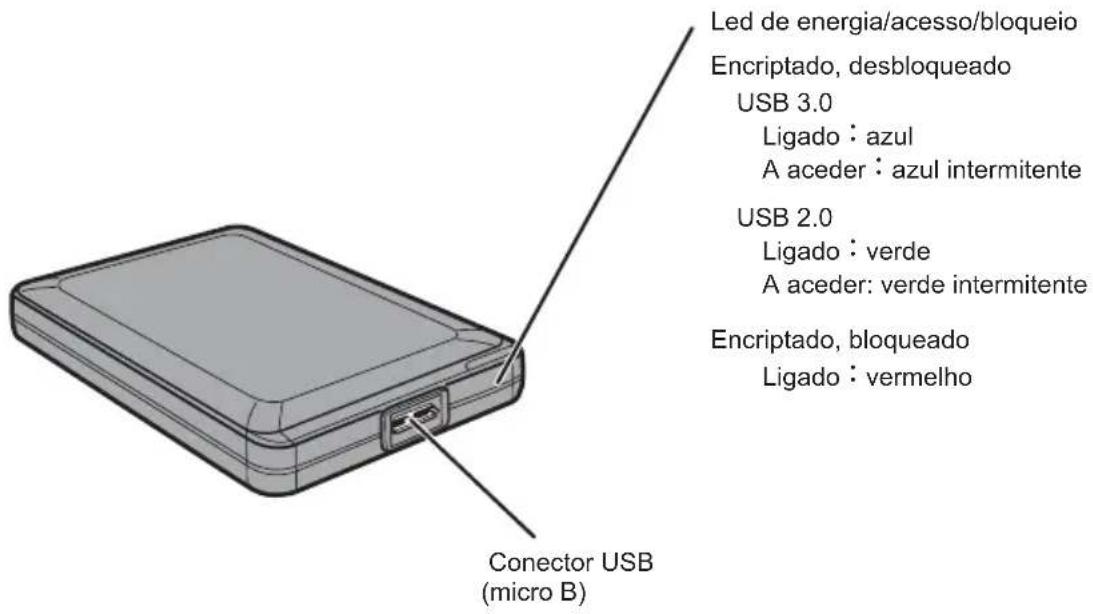
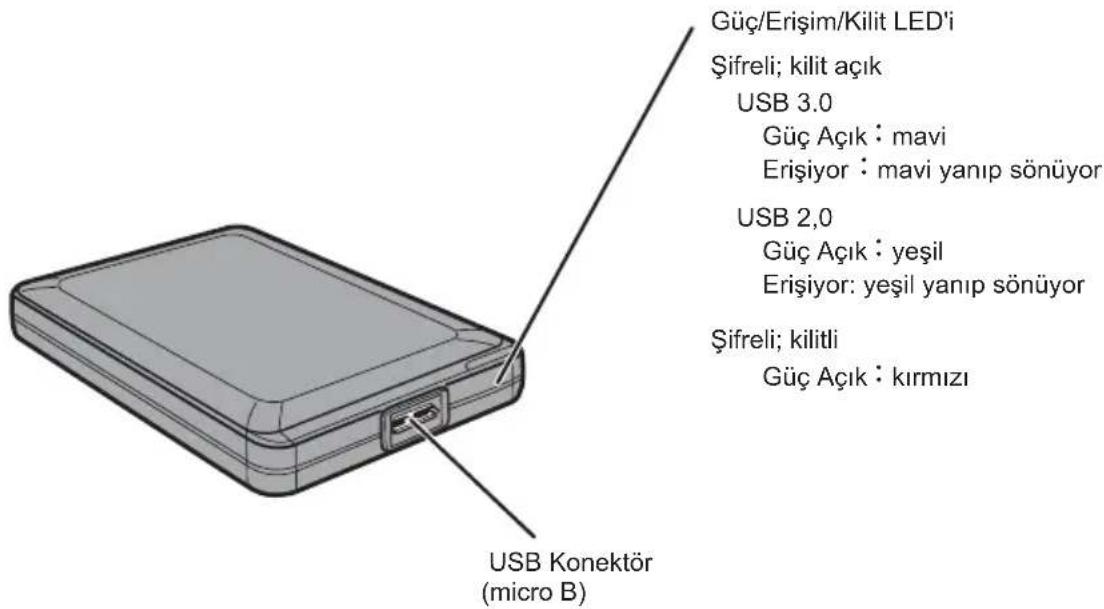
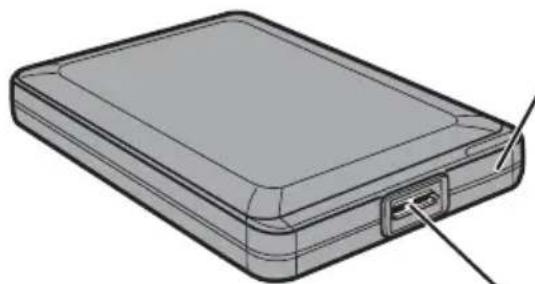
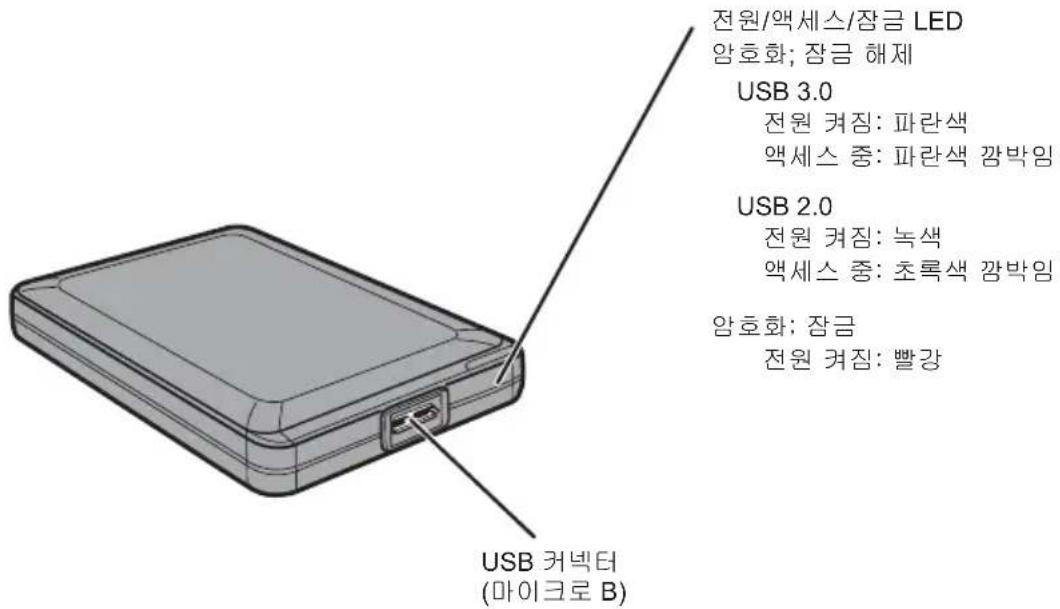
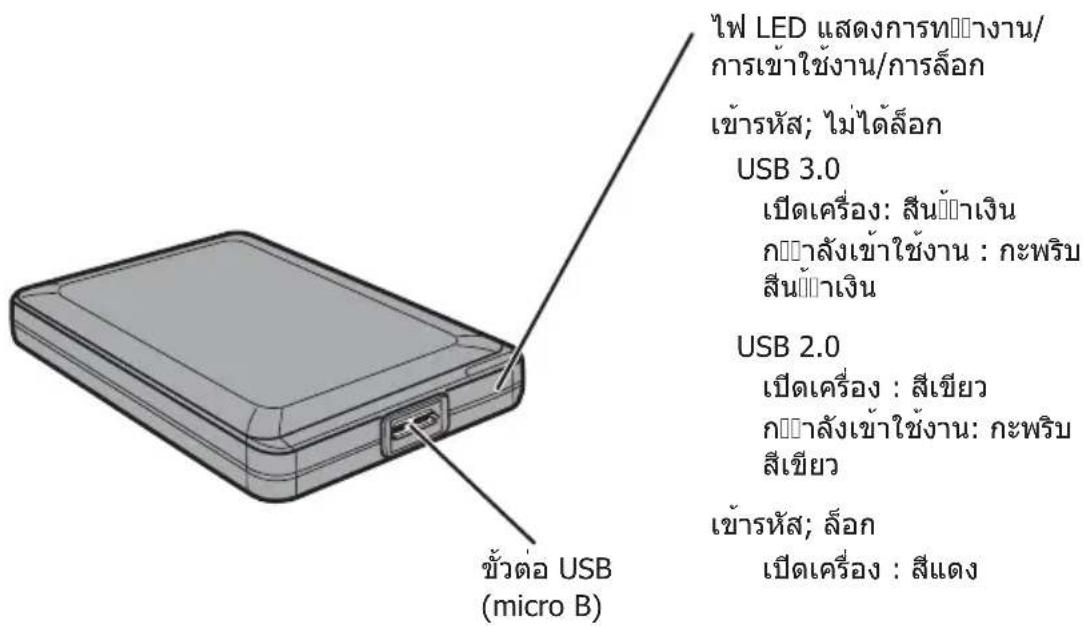
Power/Access/Lock LED
Encrypted; unlocked
USB 3.0
PowerOn:blue
Accessing : blinking blue
USB 2.0
Power On : green
Accessing : blinking green
Encrypted; locked
Power On : red
2
Recommended Usage
Warning
To avoid damage to data, follow these precautions:
- Never configure this unit as a destination for virtual memory.
- Never do any of the following while the data LED is blinking: Unplug the USB or power cable
Turn off your computer
Put your computer into standby, hibernate, or sleep mode
Log off, log on, or switch users
- Some computers may display a delayed write when they return from an energy-saving state. If this happens, unplug the unit before putting your computer into the energy-saving mode.
- If the power/access/lock LED does not turn off when you turn off your computer, unplug the USB cable from the MiniStation. Your data is not protected by encryption until the power/access/lock LED turns off.
- Encryption is disabled by default. To protect your data with encryption, enable encrypted mode and configure a password.
- Keep your password in a safe place. If you forget your password, you will not be able to access data stored on the drive in encrypted mode.
- Encryption is not supported with Mac OS X. To use this device with a Mac, do not enable Encryption.
- Please keep your password safe. Don't give out your password to anyone.
- The first time you connect this unit, it may take about 20 seconds before the power/access LED turns on.
- If your MiniStation is not detected, disconnect and then reconnect it.
Enter your password if encryption is enabled.
Even if the MiniStation icon is displayed in My Computer, you may not be able to access the MiniStation if the following things are true:
- Secure Lock Manager Easy is not installed
- Encryption is activated and a password set
- Your computer has gone into standby or hibernation mode
If this happens, disconnect and then reconnect the MiniStation.
-
The maximum size of a file on a FAT32 hard drive is 4 GB. To work with larger files, reformat the drive with NTFS or Mac OS extended.
-
If you use this unit with multiple partitions, format each partition before use.
- When Mac OS is booted while the MiniStation is connected, the computer may not recognize it. If this happens, unplug the USB cable for a few seconds and then plug it in again.
- Some computers may not boot Windows while this unit is connected. If this happens, leave the MiniStation disconnected until after the computer has booted. Consult your computer's manual for instructions on changing the BIOS settings to boot from an internal hard drive if you want to be able to turn on or off your computer while this unit is connected.
- The MiniStation supports hot-plugging. You can plug or unplug the USB cable while the MiniStation and your PC are on. However, never unplug the cable while the Power/AccessLock LED is blinking, as data is being accessed. If you unplug the MiniStation while the Power/AccessLock LED is blinking, your data may be damaged or lost.
Refer to the manuals for your computer and peripheral devices. - Do not boot your operating system from the MiniStation.
- Do not lean any object against this unit. It may cause the unit to malfunction.
- If the MiniStation is connected to a USB 2.0 / 1.1 plug, Windows will display a message that a high-speed USB device is connected to a non high-speed USB hub. Move the MiniStation to a USB 3.0 port for best performance, or click [X] to continue.
- You may hear some noise while the MiniStation is working, especially while it's booting or being accessed. This is normal.
- After installing the driver for the MiniStation, several devices are added to Device Manager.
Display [Device Manager] by following the instructions below:
Windows 7/Vista..................................................Click [Start], right-click [Computer], and click [Manage]. When "A program needs your permission to continue" is displayed, click [Continue] and click [Device Manager].
Windows XP .Click [Start] and right-click [My Computer].
Click [Manage] and then [Device Manager].
| Device Device Name in Device | Manager |
| Universal Serial Bus controllers | USB Mass Storage Device |
| Disk drives BUFFALO HD-PNTU | 3 USB Device |
| DVD/CD-ROM Drive BUFFALO | Virtual Cdrom USB Device |
Locking the drive
In encrypted mode, the MiniStation will be locked in the following situations.
| Windows 7/Vista/XP Mac | OS | |
| Secure Lock Manager Easy V | Encrypted mode is not supported | |
| Shutting down V | ||
| Reboot V | ||
| Unplug this unit V | ||
| Standby V | ||
| Hibernate V | ||
| Logging off - | ||
| Switching user - |
V: Will be locked.
-: Will not be locked
- The MiniStation doesn't lock when you log off or switch users.
Unplug the MiniStation to lock it. - Encrypted mode is not supported with Mac OS.
3
Forgot your password?
If your MiniStation is in encrypted mode and you forget the password, follow the procedure below to reset the unit back to it's default settings.
Note: A Windows computer is required to reset this drive. The Secure Lock Manager Easy software does not support Mac OS.
Reset to factory defaults
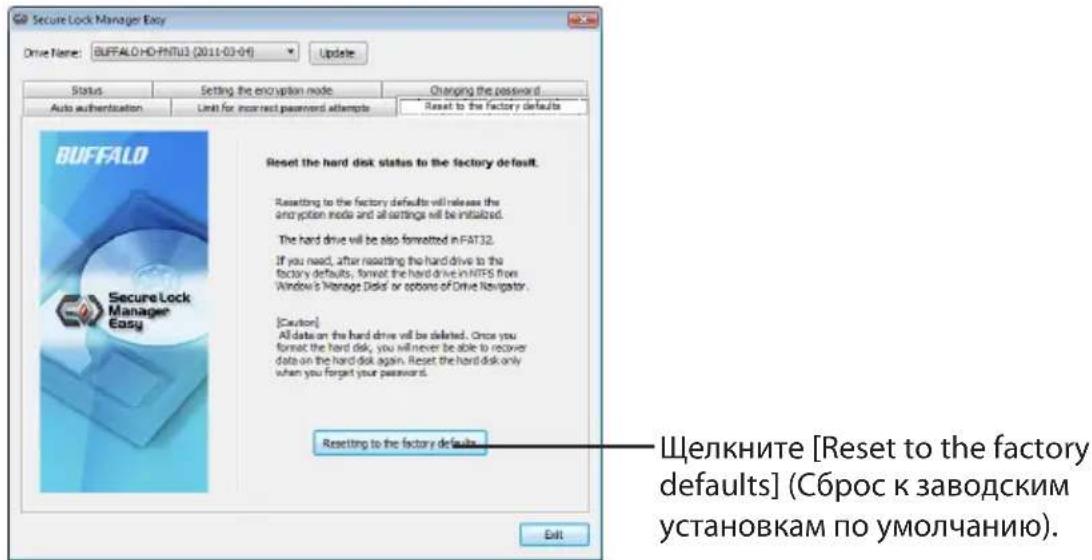
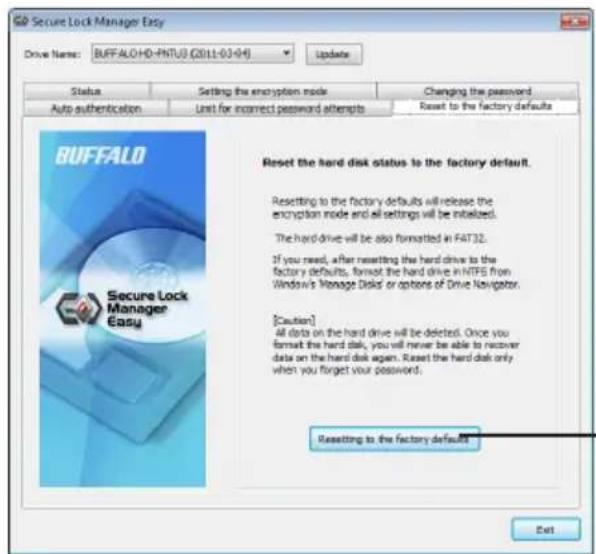
Restoring your drive to factory defaults will erase all data and passwords on the drive. To access data on an encrypted drive, you must enter the correct password.
After resetting to factory defaults, the drive will be formatted in NTFS. If you want to be able to use Mac OS, reformat the drive with Mac OS extended after resetting to factory defaults.
1 Connect the MiniStation to your Windows PC.
If the password verification screen is displayed, close it. If Windows Vista opens the autopy screen, close it.
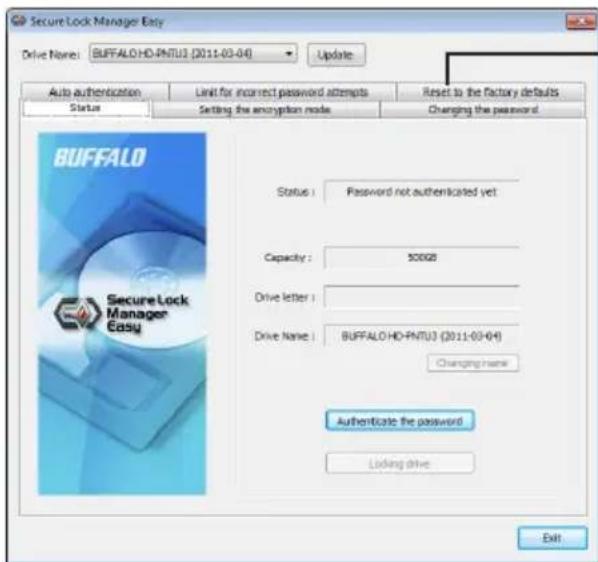
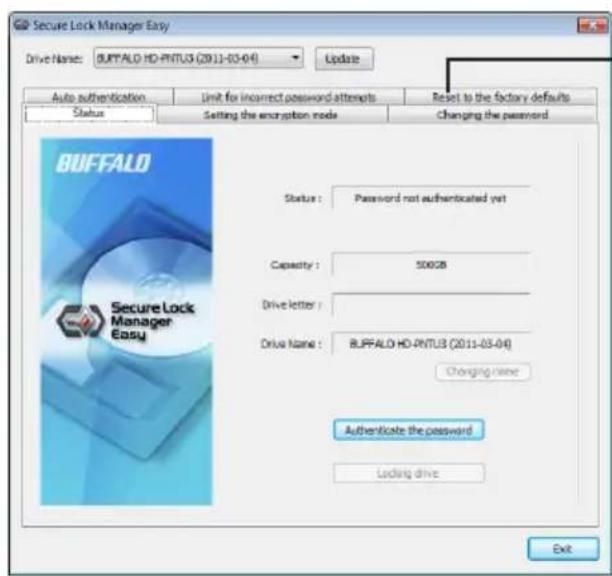
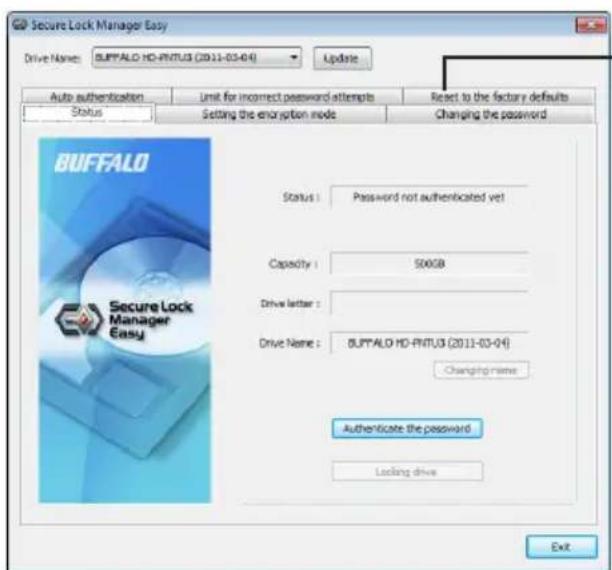
2 Click [Start] - [(All) Programs] - [BUFFALO] - [SecureLockManagerEasy] - [SecureLockManagerEasy].
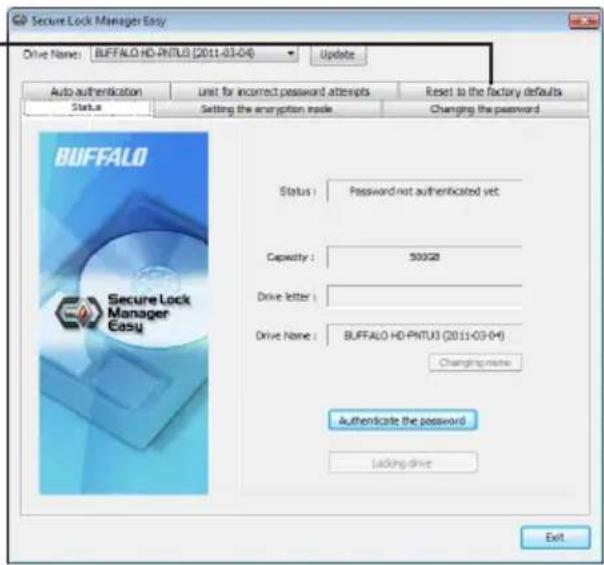
Secure Lock Manager Easy will launch.
3
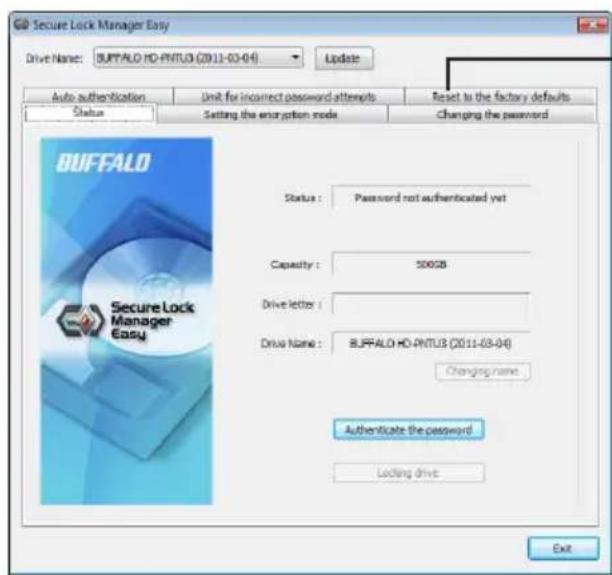
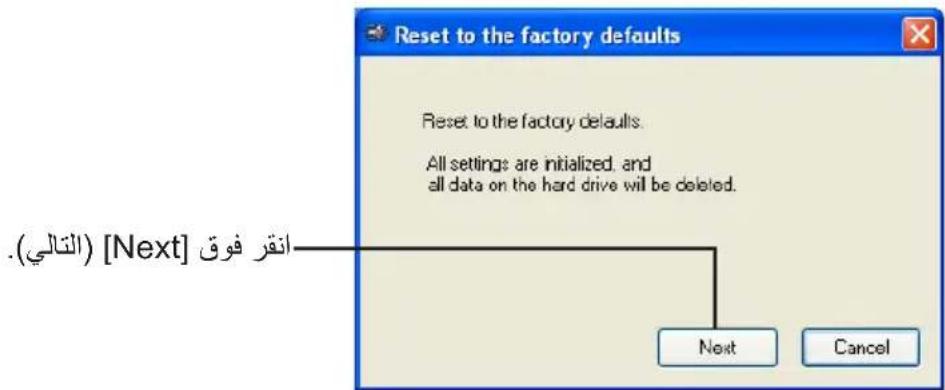
Click [Reset to the factory defaults].
4
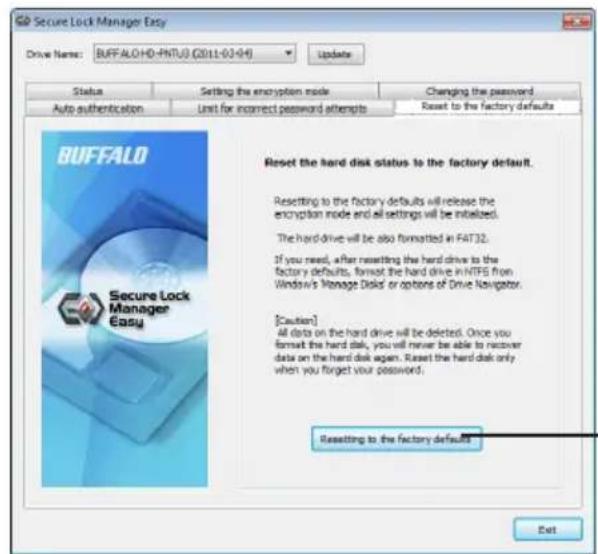
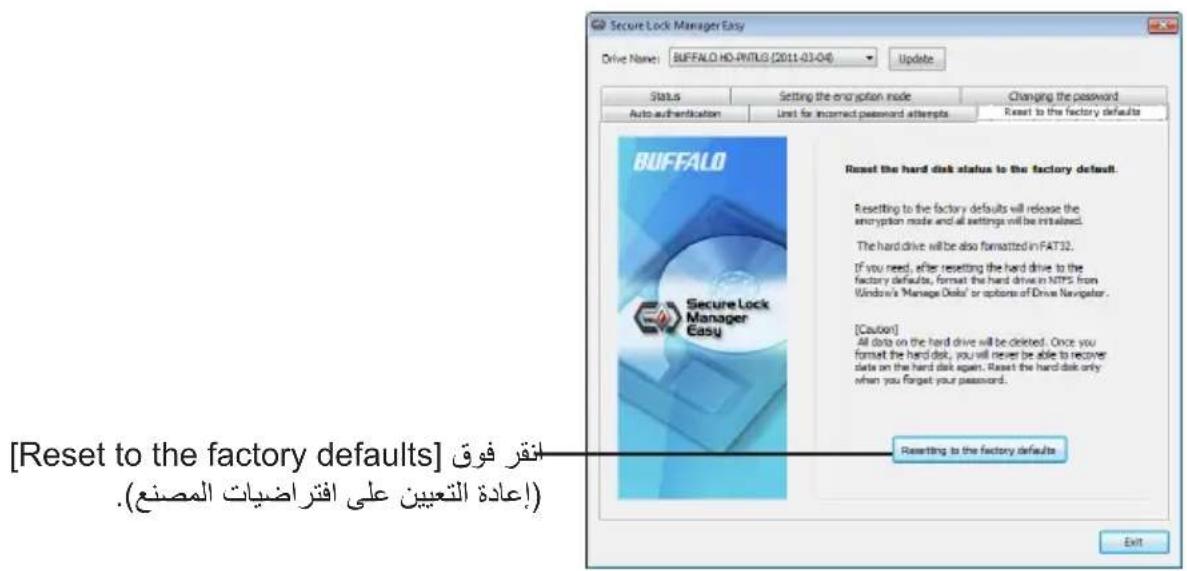
Click [Reset to the factory defaults].
5
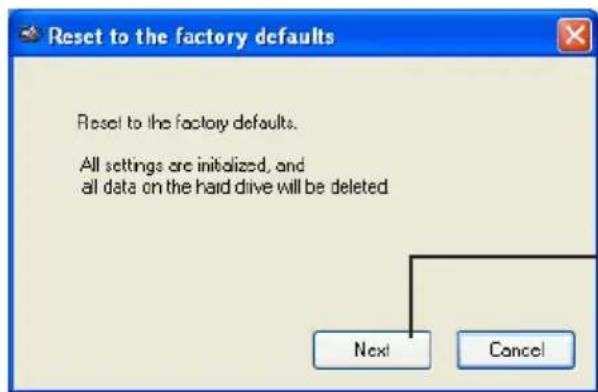
Click [Next]
All data saved on the hard drive will be erased! You will not be able to undo this.
6
When "The hard disk status is now reset to the factory defaults." is displayed, click [OK].
The reset is now complete. Wait until the hard drive is recognized. If it is not recognized, unplug the hard drive and reconnect it.
4
Optional Software
The MiniStation includes several optional software packages for use with Windows computers. This software is not required to use the MiniStation; it is strictly optional. Although the MiniStation works perfectly with Mac OS X, no Mac software is included.
Installing software
To install optional software on your Windows computer, follow the steps below.
1 Connect the MiniStation to your computer.
If encryption is enabled on your MiniStation, please enter the password.
2 Right-click on [HD-PNTU3] in My Computer and select [Open].
3 Double-click on [DriveNavi.exe].
The DriveNavigator wizard will launch. If "A program needs your permission to continue" is displayed, click [Continue].
4 Click [Begin Installation].
5 The License Agreement will open. Click [I accept].
6 Click [Additional Software Installation].
7 Select the target software and click [Install].
The wizard will guide you through installation.
Optional Software
TurboPC
TurboPC can increase data transfer speeds for your Buffalo product.
TurboCopy
TurboCopy uses caching to increase data transfer speeds.
Backup Utility
Backup Utility is software to back up and restore data from your PC. To use, select a source drive to be backed up and a target location for backup data.
RAMDISK Utility
This software uses the memory in your computer as a virtual hard drive "RAMDISK". The RAMDISK is recognized as a hard drive by your computer and you can read and write data to it like any other hard drive.
Buffalo Tools launcher
Buffalo Tools Launcher lets you easily launch software from the Buffalo utility suite. Just click an icon to launch the desired Buffalo tool or utility.
Secure Lock Manager Easy
This software controls the MiniStation's encryption features. Use it to enable encryption, set the password, configure auto-authentication, etc. Encryption is not enabled by default.
eco Manager
eco Manager for HD lets you put the MiniStation into "sleep" mode to save power.
Disk Formatter
This software lets you easily reformat your MiniStation.
Picasa
Picasa organizes and edits digital photos.
Note: An Internet connection is required to share digital photos or send photos via e-mail.
Google Chrome
Google Chrome is a web browser.
Specifications
Check Buffalo's website (www.buffalotech.com) for information about the latest products or compatible models.
| Interface USB 3.0 | |
| Connector USB 3.0 Micro-B | |
| Transfer speed (Logical value) 5 Gbps (*1) Maximum | |
| Factory default format 1 NTFS partition Encryption disabled | |
| External dimensions (W×H×D) (Excluding protruding parts) | [HD-PNTU3] : 82 × 16 × 118 mm; 3.23" × 0.63" × 4.65" [HD-PNTU3B] : 82 × 19 × 118 mm; 3.23" × 0.75" × 4.65" [HD-PNTU3G] : 82 × 22 × 118 mm; 3.23" × 0.87" × 4.65" |
| Power 5 V ± 5% | |
| Compatible OS | Windows 7 (32-bit and 64-bit), Windows Vista (32-bit and 64-bit), Windows XP (32-bit), Mac OS X 10.4 or later (*2) |
1 Connect the MiniStation to a USB 3.0 port for best transfer speeds. The MiniStation will function when connected to a USB 2.0 / 1.1 port, but data transfer will be much slower.
2 With OS X, encryption mode is not supported.
Buffalo Tools launcher 9
Secure Lock Manager Easy 9
eco Manager 9
Disk Formatter 9
Picasa 9
Google Chrome 9
Buffalo Tools launcher
Secure Lock Manager Easy
Buffalo Tools Launcher 9
Secure Lock Manager Easy 9
Eco Manager 9
Disk Formatter 9
Picasa 9
Google Chrome 9
5 Especillas 10
Especificaciones 10
Componentes
2
Advertencia
Buffalo Tools Launcher
Secure Lock Manager Easy
Buffalo Tools Launcher 9
Secure Lock Manager Easy 9
eco Manager 9
Disk Formatter 9
Picasa 9
Google Chrome 9
Buffalo Tools Launcher
Secure Lock Manager Easy
Buffalo Tools launcher 9
Secure Lock Manager Easy 9
eco Manager 9
Disk Formatter 9
Picasa 9
Google Chrome 9
Buffalo Tools launcher
Secure Lock Manager Easy
Buffalo Tools Launcher 9
Secure Lock Manager Easy 9
eco Manager 9
Disk Formatter 9
Picasa 9
Google Chrome 9
5 Especificações 10
Especificações 10
Components
2
Uso recomendado
Atença
Buffalo Tools Launcher
O Buffalo Tools Launcher permite executar fácilmente o software a partir da suite de'utilarios Buffalo. Clicar no icone para executar a ferramenta ou'utilario Buffalo pretendedo.
Secure Lock Manager Easy
Buffalo Tools Launcher 9
Secure Lock Manager Easy 9
eco Manager. 9
Disk Formatter 9
Picasa 9
Google Chrome 9
5 Ozellikler 10
Özellikler 10
Bileşenler
2
Buffalo Tools Launcher
Secure Lock Manager Easy
PykoBoDCTBO NOIb3OBaTeJa
PacnoIoxKeHne 2
PekomeHnyeMoE nCnoIb3OBaHne... 3
3a6bIIN cBoi npoIb? 6
Дононтелhoe NO......8 4
TexHnueckne xapaKTepeNtIKn..10
OrnaBneHne
1 PaCnoJoxKeHne 2
KomnoHeHtbl 2
2 PeKoMeHdyeMoE nCNoIb3OBaHne .........3
PpeDynpexKdene 3
Бл_OKировka наkonntela 5
3 3a6bIIN cBoi napoiB?............6
C6poc K 3aBODcKIM yCTaHOBKaM no yMOJIyAHIO 6
4 DonoHntbHoe PO .8
UctahOBka nporpaMMHoro oecneueHnra 8
Дононтульhoe ПО 9
TurboPC 9
TurboCopy 9
Backup Utility 9
RAMDISK Utility 9
Buffalo Tools launcher 9
Secure Lock Manager Easy 9
eco Manager 9
Disk Formatter. 9
Picasa 9
Google Chrome 9
5 Texnueckne xapaKTepnCTnKn 10
Texnueckne xapaKTepcntuKn 10
KoMNoHeTbI
Pazem USB (Micro-B)
HnDkaTOp nTuHa/DocTyna/ 6JOKuPObKn
aHHbIe 3aunpOBAHbI;IOCTyn pa36JIOKIpOBAH
USB 3.0
1 PoiKJIIOUHTe yCTpoIcTBo MiniStaion K PIc onepauOnHOH cIcTeMoH Windows.
Ecnn noBntcA kpaH BepuKauu npoJ, 3akpoTe erO. Ecnn onepaunOHna cnCTema Windows Vista oTKpoet kpaH abTomatueckoro 3anycka, 3akpoTe erO.
2 Μεικητe [Пуск] - [(Bce) Порогамь] - [BUFFALO] - [SecureLockManagerEasy] - [SecureLockManagerEasy].
3arpy3ntc nporpamma Secure Lock Manager Easy.
3
IeKnTe [Reset to the factory defaults] (C6poc K 3aBODcKm yCTaHOBKaM NO yMOJuaHnO).
4
5
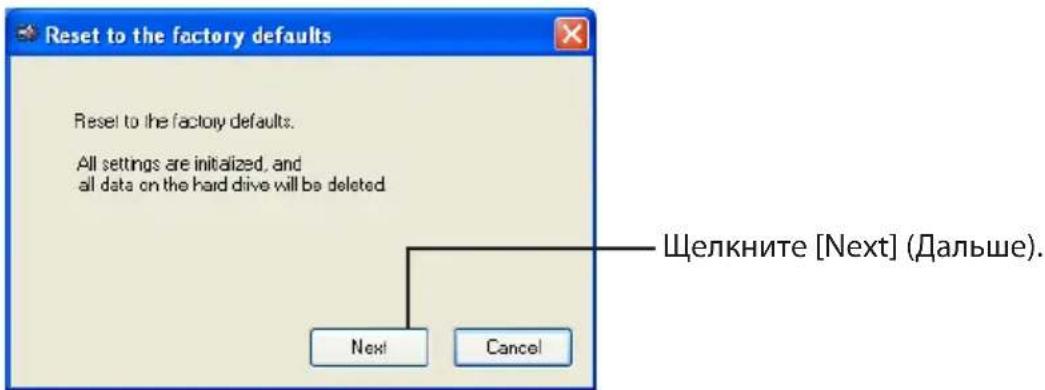
Bce daHHbIe, coXpaHeHHbIe Ha haKoHnTeIe Ha JxecTKnx DnCKax, 6ydyT ydaJeHb! Bbl He cMOKeTe OTMeHHTb pe3yNbTaTb IToI npOeDypbl.
6
Buffalo Tools launcher
Iporpamma Buffalo Tools Launcher no3B0JareT nerko 3aynckaTb nporpaMMbI n3 nporpaMMHoro nakeTa Buffalo. Haxmnte Ha 3NaQok, yTo6bl 3aNcTnTB HyxHbI nHCTpyMeHT nn yTuNTy Buffalo.
Secure Lock Manager Easy
3To nporpamMHOe o6ecneueHne ynpablaerT cyHKcunm KoInpoBaHn yctpoiCTBa MiniStation. IcnoIb3yIte erO dnn BkIIOUeHn KaInpoBaHn, yCTaHOBKn napOJI, KOHfNpyaCIn aBTOMaTIueckoro onpeJeHn IOdIIHHOCTH n T.D. N OymOnuHaHIO KoInpoBaHn eOTKIOUeHo.
eco Manager
Buffalo Tools launcher 9
- Secure Lock Manager Easy 9
Eco Manager 9
Disk Formatter 9
Picasa 9
Google Chrome 9
5 规格 10
规格 10
1
设计布局
Buffalo Tools launcher
Secure Lock Manager Easy
Buffalo Tools Launcher 9
Secure Lock Manager Easy 9
eco Manager. 9
Disk Formmatter 9
Picasa 9
Google Chrome 9
5 規格 10
規格 10
1
外觀設計
·未安装 Secure Lock Manager Easy
[SecureLockManagerEasy]
Buffalo Tools Launcher
Secure Lock Manager Easy
Buffalo Tools Launcher 9
- Secure Lock Manager Easy 9
eco Manager. 9
Disk Formatter 9
Picasa 9
Google Chrome 9
5 仕樣 10
仕樣 10
1
各部の名称
各部の名称を説明いたします。
各部の名称
八一·克士·口克兰
口末解除时:青色点灯
艾克七又 :青色点
口咔時 :赤色点灯
Buffalo Tools Launcher
Secure Lock Manager Easy
Buffalo Tools Launcher 9
Secure Lock Manager Easy 9
Eco Manager 9
Disk Formatter 9
Picasa 9
Google Chrome 9
5 10
南 10
早舌
高
DaeIer sngt hzit hre nn t jn thn
·i
- DeIeTe LEDgacnBikIn是同安n daHmGdRnHcHmHtHmHtHmHtHmHtHmHtHmHtHmHtHmHtHmHtHmHtHmHtHmHtHmHtHmHtHmHtHmHtHmHtHmHtHmHtHmHtHmHtHmHtHmHtHmHtHmHtHmH
USB 凭借将载在前的版本的 转到此
鍾軌軒
賊吾托則大,,
logofo,logoinfo是
2 Click [SI] - [(MO) FrLoG] - [BUFFALO] - [SecureLockManagerEasy] - [SecureLockManagerEasy] to be able to use this tool.
Secure Lock Manager Easy 1
3
[The hard disk status is now reset to the factory defaults.](ohd dksk htaa qo
新造定在可的,。
Buffalo Tools Launcher
Secure Lock Manager Easy
i SsFt i.
eco Manager
Buffalo Tools Launcher 9
Secure Lock Manager Easy 9
eco Manager 9
Disk Formatter 9
Picasa 9
Google Chrome 9
5 10
10
#
#
WindowsXP. []n[]n[]n[]n[]n[]n[]n[]n[]n
| ailnrsni 串串串串串串串串串串串串串串串串串串串串串串串串串串串串串串串串串串串串串串串串串串串串串串串串串串串串串串串串串串串串串串串串串串串串串串串串串串串串串串串串串串串串串串串串串串串串串串串串串串串串 | |
| 串串串串串串串串串串串串串串串串串串串串串串串串串串串串串串串串串串串串串串串串串串串串串串串串串串串串串串串串串串串串串串串串串串串串串串串串串串串串串串串串串串串串串串串串串串串串串串串串串串串单串串串串串串串串串串串串串串串串串串串串串串串串串串串串串串串串串串串串串串串串串串串串串串串串串串串串串串串串串串串串串串串串串串串串串串串串串串串串串串串串串串串串串串串串串串串串串串串串串串串链链链链链链链链链链链链链链链链链链链链链链链链链链链链链链链链链链链链链链链链链链链链链链链链链链链链链链链链链链链链链链链链链链链链链链链链链链链链链链链链链链链链链链链链链链链链链链链链链链链链连串串串串串串串串串串串串串串串串串串串串串串串串串串串串串串串串串串串串串串串串串串串串串串串串串串串串串串串串串串串串串串串串串串串串串串串串串串串串串串串串串串串串串串串串串串串串串串串串串串串港港港港港港港港港港港港港港港港港港港港港港港港港港港港港港港港港港港港港港港港港港港港港港港港港港港港港港港港港港港港港港港港港港港港港港港港港港港港港港港港港港港港港港港港港港港港港港港港港港港港香港港港港港港港港港港港港港港港港港港港港港港港港港港港港港港港港港港港港港港港港港港港港港港港港港港港港港港港港港港港港港港港港港港港港港港港港港港港港港港港港港港港港港港港港港港港港港港港港港港港港港澳港港港港港港港港港港港港港港港港港港港港港港港港港港港港港港港港港港港港港港港港港港港港港港港港港港港港港港港港港港港港港港港港港港港港港港港港港港港港港港港港港港港港港港港港港港港港港港港港港港港港口港港口港港口港港口港港口港港口港港口港港口港港口港港口港港口港港口港港口港港口港港口港港口港港口港港口港港口港港口港港口港港口港港口港港口港港口港港口港港口港港口港港口港港口港港口港港口港港口港港口港港口港港口港港口港港口港港口港港口港港口港港口港港口港港口港港口港港口港港口港港口港港口港港口港港港港港港港港港港港港港港港港港港港港港港港港港港港港港港港港港港港港港港港港港港港港港港港港港港港港港港港港港港港港港港港港港港港港港港港港港港港港港港港港港港港港港港港港港港港港港港港港港港港潜潜潜潜潜潜潜潜潜潜潜潜潜潜潜潜潜潜潜潜潜潜潜潜潜潜潜潜潜潜潜潜潜潜潜潜潜潜潜潜潜潜潜潜潜潜潜潜潜潜潜潜潜潜潜潜潜潜潜潜潜潜潜潜潜潜潜潜潜潜潜潜潜潜潜潜潜潜潜潜潜潜潜潜潜潜潜潜潜潜潜潜潜潜潜潜潜潜潜潜潛潜潜潜潜潜潜潜潜潜潜潜潜潜潜潜潜潜潜潜潜潜潜潜潜潜潜潜潜潜潜潜潜潜潜潜潜潜潜潜潜潜潜潜潜潜潜潜潜潜潜潜潜潜潜潜潜潜潜潜潜潜潜潜潜潜潜潜潜潜潜潜潜潜潜潜潜潜潜潜潜潜潜潜潜潜潜潜潜潜潜潜潜潜潜潜潜潜潜潜渣渣渣渣渣渣渣渣渣渣渣渣渣渣渣渣渣渣渣渣渣渣渣渣渣渣渣渣渣渣渣渣渣渣渣渣渣渣渣渣渣渣渣渣渣渣渣渣渣渣渣渣渣渣渣渣渣渣渣渣渣渣渣渣渣渣渣渣渣渣渣渣渣渣渣渣渣渣渣渣渣渣渣渣渣渣渣渣渣渣渣渣渣渣渣渣渣渣渣渣造造造造造造造造造造造造造造造造造造造造造造造造造造造造造造造造造造造造造造造造造造造造造造造造造造造造造造造造造造造造造造造造造造造造造造造造造造造造造造造造造造造造造造造造造造造造造造造造造造造造 |
n
uunnnnnaeennr MiniStation 2015-2016
| Windows 7/Vista/XP Mac OS | ||
| Secure Lock Manager Easy V | ### | |
| ### | V | |
| ### | V | |
| ### | V | |
| ### | V | |
| ### | V | |
| ### | V | |
| ### | - | |
| ### | - | |
V:
:
* MiniStation aananaananaananaananaananaanana
* mnnnns nnnnnae nnne aee annnnae Mac OS
3
#
MnMiniStation aunnnnnnnnnnnnnnnnnnnnnnnnnnnnnnnnnnnnnnnnnnnnnnnnnnnnnnnnnnnnnnnnnnnnnnnnnnnnnnnnnnnnnnnnnnnnnnnnnnnnnnnnnnnnnnnnnnnnnnnnnnnnnnnnnnnnnnnnnnnnnnn
Wu: awwwauasWindows wuuuauauau uauuucure Lock Manager Easy uauuuaa Mac OS
n
nssnnnnaa nnswunrnnnnsuunrnnnnaaannnauanu uunnuuauuauu u
Nnnaaannnnnnaanennnnn nn nnnnnnnnnnnnnnnnnnnnnnnnnnnnnnnnnnnnnnnnnnnnnnnnnnnnnnnnnnnnnnnnnnnnnnnnnnnnnnnnnnnnnnnnnnnnnnnnnnnnnnnnnnnnnnnnnnnnnnnnnnnnnnnnnnnnnnnnn
1 1
nunnnnnaaannnnnnaeauu uuuu
wn Windows Vista 1nnnnaaannnnn nn nnnnnnnae
2 [5u] - [suunu (nuu] - [BUFFALO] - [SecureLockManager
Easy] - [SecureLockManagerEasy]
Secure Lock Manager Easy
3
[Reset to the factory defaults]
(
4
nnaananaananaananaananaananaananaananaananaananaananaananaananaananaananaananaananaananaananaananaananaananaananaananaananaananaananaananaananaananaananaananaananaananaananaananaananaananaananaananaananaananaananaananaananaananaananaananaananaananaananaanaraannananana an ana an ana an ana an ana an ana an ana an ana an ana an ana an ana an ana an ana an ana an ana an ana an ana an ana an ana an ana an ana an ana an ana an ana an ana an ana an ana an ana an ana an ana an ana an ana an ana an ana an ana an ana an ana an ana an ana an ana an ana an ana an ana an ana an ana an ana an ana an ana an ana an ana an ana an
n
unrnnnnaaennnnnnnnnnnnnnnnnnnnnnnnnnnnnnnnnnnnnnnnnnnnnnnnnnnnnnnnnnnnnnnnnnnnnnnnnnnnnnnnnnnnnnnnnnnnnnnnnnnnnnnnnnnnnnnnnnnn
1 MiniStation
2 nunu [HD-PNTU3] u nnwuaa uauan [1]
3 nnnnnaa[DriveNavi.exe] DriveNavigator uuuuunu [nuuunu
4 n[
5 1aunannnnae nnnnnae nnne nnnn [yaan]
6 n [n]
7
y
W
TurboPC
TurboPC 1
TurboCopy
TurboCopy
Backup Utility
Backup Utility uunwauuunrnnnunrnnnnnnnnnnnnnnnnnnnnnnnnnnnnnnnnnnnnnnnnnnnnnnnnnnnnnnnnnnnnnnnnnnnnnnnnnnnnnnnnnnnnnnnnnnnnnnnnnnnnnnnnnnnnnnnnnnnnnnnnnnnnnnnnnnnnnnnnnnnnnnnnnn
RAMDISK Utility
wawu wuwu wuwu wuwu wuwu wuwu wuwu wuwu wuwu wuwu wuwu wuwu wuwu wuwu wuwu wuwu wuwu wuwu wuwu wuwu wuwu wuwu wuwu wuwu wuwu wuwu wuwu wuwu wuwu wuwu
Buffalo Tools Launcher
Buffalo Tools Launcher 2uununununununununununununununununununununununun un uauuuu uuuuuuuuuuuuuuuuuuuuuuuuuuuuuuuuuuuuuuuuuuuuuuuuuuuuuuuuuuuuuuuuuuuuuuuuuuuuuuuuuuuuuuuuuuuuuuuuuuuuuuuuuuuuuuuuuuuuuuuuuuuuuuuuuuuuuuuuuuuuuuuuuuuuuuuuuuuuuuuuuuuuuuuuuuuuuuu uu
Secure Lock Manager Easy
WuWuWuWuWuWuWuWuWuWuWuWuWuWuWuWuWuWuWuWuWuWuWuWuWuWuWuWuWuWuWuWuWuWuWuWuWuWuWuWuWuWuWuWuWuWuWuWuWuWuWw
eco Manager
eco Manager for HD MiniStation [5]
Disk Formatter
WwWwWwWwWwMiniStation WwWwWw
Picasa
Secure Lock Manager Easy
jia 1
i 1
MiniStation 1
FAT 32 1000
. Mac OS extended NTFS
Jai jai jai g Jg wuui iia aia aia aia aia aia aia aia
i j 15 . MiniStation .Mac
.8J 1000000000000000000000000000000000000000000
Jia 11 11 11 11 11 11 11 11 11 11 11 11 11 11 11 11 11 11 11 11 11 11 11 11 11 11 11 11 11 11 11 11 11 11
JUJI JIJI JIJI JIJI JIJI JIJI JIJI JIJI JIJI JIJI JIJI JIJI JIJI JIJI JIJI JIJI JIJI JIJI JIJI JIJI JIJI JIJI JIJI JIJI JIJI JIJI JIJI JIJI JIJI JIJI JIJI JIJI JIJI JIJI JIJJ
.
MiniStation
.
Windows USB 2.0/1.1 MiniStation JJIJJIJIJIJIJIJIJIJIJIJIJIJIJIJIJIJIJIJIJIJIJIJIJIJIJIJIJIJIJIJIJIJIJIJIJIJIJIJIJIJIJIJIJIJIJIJIJIJIJIJIJIJIJIJIJIJIJIJIJIJIJIJIJIJIJIJIJIJIJIJIJIJIJIJIJIJIJIJIJIJIJIJIJIJIJIJIJIJIJIJIJIJIJIJIJIJIJIJIJIJIJ
J 1 J 2
[0jJ]MiniStation
iJilll lalilll i jia [jgey] jz
[0] [0] [0] [0] [0] [0] [0] [0] [0] [0] [0] [0] [0] [0] [0] [0] [0] [0] [0] [0] [0] [0] [0] [0] [0] [0] [0] [0] [0] [0] [0] [0] [0] [0] [
| USB Mass Storage جز | الجعault الجعault Universal Serial Bus |
| الجعault الجعault Universal Serial Bus | |
| BUFFALO Virtual Cdrom USB جز | الجعault الجعault Alloy-based Alloy-based Alloy-based Alloy-based Alloy-based Alloy-based Alloy-based Alloy-based Alloy-based Alloy-based Alloy-based Alloy-based Alloy-based Alloy-based Alloy-based Alloy-based Alloy-based Alloy-based Alloy-based Alloy-based Alloy-based Alloy-based Alloy-based Alloy-based Alloy-based Alloy- alloy alloy alloy alloy alloy alloy alloy alloy alloy alloy alloy alloy alloy alloy alloy alloy alloy alloy alloy alloy alloy alloy alloy alloy alloy alloy alloy alloy alloy alloy alloy alloy alloy alloy Alloy alloy alloy alloy alloy alloy alloy alloy alloy alloy alloy alloy alloy alloy alloy alloy alloy alloy alloy alloy alloy alloy alloy alloy alloy alloy alloy alloy alloy alloy alloy alloy alloy alLOY alloy alloy alloy alloy alloy alloy alloy alloy alloy alloy alloy alloy alloy alloy alloy alloy alloy alloy alloy alloy alloy alloy alloy alloy alloy alloy alloy alloy alloy alloy alloy alloy alloy |
j 1
BUFFALO HI
Jaa
MiniStation
| Mac OS X 12 | Mac OS X 12 Windows 7/Vista/XP | |
| SOPH | SOPH | Secure Lock Manager Easy破解 |
| Joumeythical Lock | ||
| Joumeythical Lock | ||
| Joumeythical Lock | ||
| Joumeythical Lock | ||
| Joumeythical Lock | ||
| Joumeythical Lock | ||
| Joumeythical Lock | ||
| Joumeythical Lock | ||
| Joumeythical Lock |
Aa:V
A
Ministation
Alal:MiniStation
Mac
y 1 y
J 1 J 1 J 1 J 1 J 1 J 1 J 1 J 1 J 1 J 1 J 1 J 1 J 1 J 1 J 1 J 1 J 1 J 1 J 1 J 1 J 1 J 1 J 1 J 1 J 1 J 1 J 1 J 1 J 1 J 1 J 1 J 1 J 1 J 1 J
. Windows
- gale 1.
Lalalal alalal .Windows Vista 1
- [SecureLockManagerEasy] - [BUFFALO] - [العَرِيَة (العَرَة)] - العَرِيَة
.[SecureLockManagerEasy]
.Secure Lock Manager Easy
[Reset to the factory defaults]


1 1
[OK] 1 [e aaii iie e iie iie iie iie iie iie iie iie iie iie iie iie iie iie iie iie iie
a 1
#
i 1
MiniStation
J 1
[2] [HD-PNTU3]
.[DriveNavi.exe]
J 1
.
[1]
[1]
[la]
[1]
1
y
TurboPC
MiniStation 1
TurboCopy
TuroUSB
Backup Utility
Jaua aae aee aee aee aee aee aee aee aee aee aee aee aee aee aee aee aee aee aee aee aee aee aee aee aee aee aee aee aee aee aee aee aee aee aee aee aee aee aee aee aee aee aee aee aee aee aee aee aee aee aee aeee
RAMDISK Utility
RAMDISK 15. RAMDISK 54
Buffalo Tools launcher
Jll I 15. 2000 11. 2000 11. 2000 11. 2000 11. 2000 11. 2000
Secure Lock Manager Easy
aallll lallll allll lallll .MiniStation 11111111111111111111111111111111111
eco Manager
[1] MiniStation 15000000000000000000000000000000000000000000000000000000000000000
Disk Formatter
MiniStation 1
Picasa
Picasa 1000
Google Chrome
Google Chrome
#
Clll l (www.buffalotech.com) Buffalo 45


- inch USB Hard Drive with Encryption
- MiniStation HD-PNTU3
- User Manual
- Table of Contents
- 1
- Layout
- Components
- 2
- Recommended Usage
- Warning
- To avoid damage to data, follow these precautions:
- Locking the drive
- 3
- Forgot your password?
- Reset to factory defaults
- 4
- Optional Software
- Installing software
- TurboPC
- TurboCopy
- Backup Utility
- RAMDISK Utility
- Buffalo Tools launcher
- Secure Lock Manager Easy
- eco Manager
- Disk Formatter
- Picasa
- Google Chrome
- Specifications
- Componentes
- Advertencia
- Uso recomendado
- Atença
- Bileşenler
- PykoBoDCTBO NOIb3OBaTeJa
- OrnaBneHne
- KoMNoHeTbI
- 规格 10
- 设计布局
- 外觀設計
- 仕樣 10
- 各部の名称
- 早舌
- 高
- 10
- #
- n
- W
- Jaa
- y
Brand : BUFFALO
Model : MiniStation Plus
Category : External hard drive