Scara Bee - Toys BEEWI - Free user manual and instructions
Find the device manual for free Scara Bee BEEWI in PDF.



User questions about Scara Bee BEEWI
0 question about this device. Answer the ones you know or ask your own.
Ask a new question about this device
Download the instructions for your Toys in PDF format for free! Find your manual Scara Bee - BEEWI and take your electronic device back in hand. On this page are published all the documents necessary for the use of your device. Scara Bee by BEEWI.
USER MANUAL Scara Bee BEEWI
WIFI CAMERA BUGGY BWZ200
SCARA BEE


APPLICATION

User's guide
ENGLISH 4
FRANCAIS 10
DEUTSCH 16
ITALIANO 22
ESPAñOL 28
PORTUGUES 34
NEDERLANDS 40
БылгAPСКИ 46
ROmǎN 52
Pycckn 58
日本語 64
中文 70
Thank you for purchasing the WiFi Buggy from BEEWI. Please read the following instructions to learn how to configure and use more effectively your product.
IntRodUcTlon
The WiFi Buggy can be controlled directly from your Smartphone or Tablet using the specific BeeWi BuggyPad application available and Apple AppStore or Google PlayStore. The WiFi Buggy works as a regular RC Toy with left/right and forward/backward proportional directions. The application provided allows for both touch screen and motion control, offering a funnier, richer and more user friendly experience.
The WiFi Buggy works as an ADHOC WiFi peripheral and it can be used with all latest iOS and Android devices supporting WiFi in conjunction with the specific BuggyPad app.
1. PRodUCt DESCRIPTION
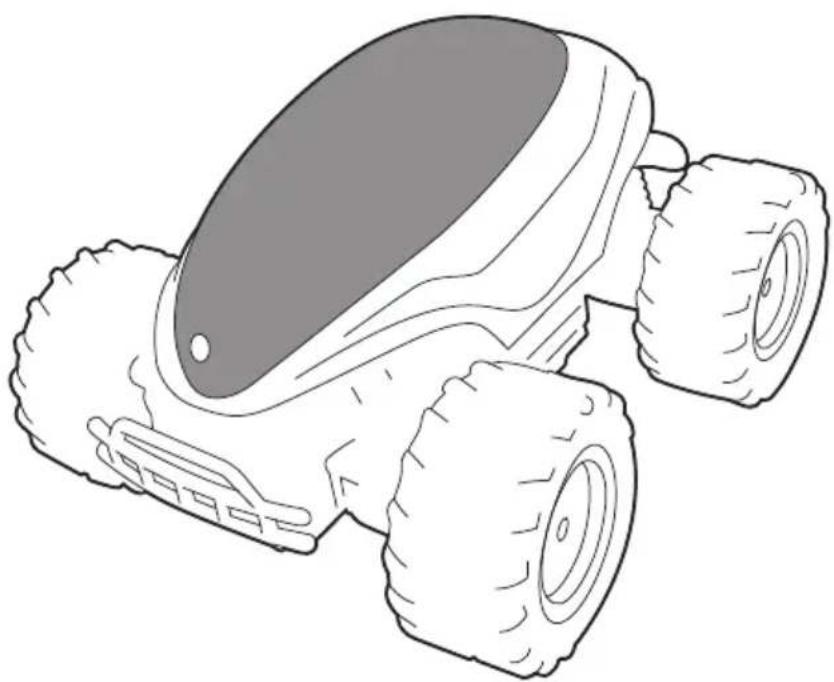
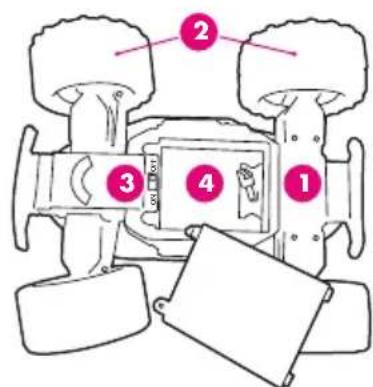
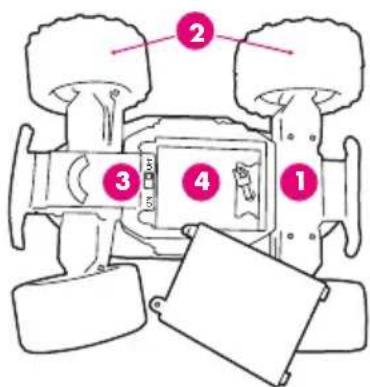
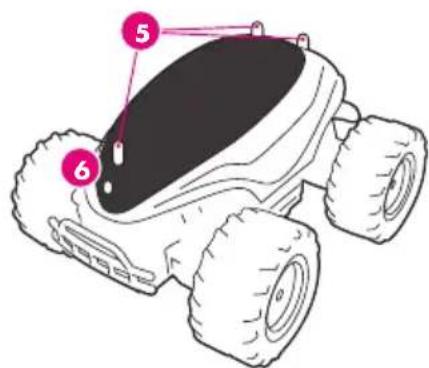
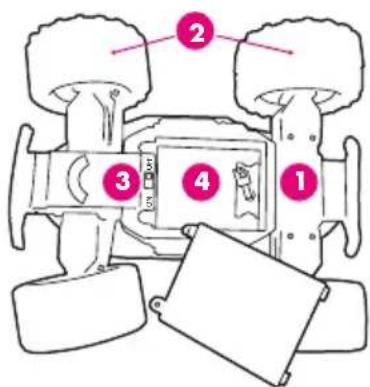
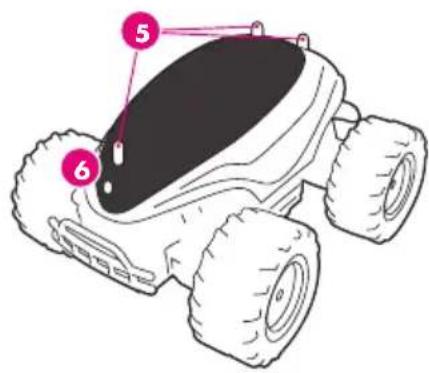
1.1. Product Outlook
- Chassis
2.Wheels - On/Off Button
- Battery Slot
- Body / Body attaches
- Camera hole
1.2. Pack Content
- WiFi Buggy
- Battery Pack
- USB Charging Cable
- Quick Start Guide

1.3. Main Features
- Ultra Fast, High Speed Monster Truck / Buggy
- Independent robust and efficient suspensions for outdoor crossing
- Fully Controlled by a Smartphone using WiFi Radio
- Operating range up to 30 meters
- VGA Camera with live streaming and recording function
- Easy and expert proportional commands for a better user experience
- Motion or Touch control commands
- NiMH rechargeable battery, up to 20 minutes use time
- Battery Meter
- Standard USB charge, less than 2 hours recharging time
1.4. Product Specifications
| WiFi specifications : | |
| WiFi STANDARD IEEE 802.11b/g | |
| FREQUENCY RANGE 2.4 ~ 2.4835 GHz | |
| POWER Max 13 dBm | |
| DATA RATE Up to 54 Mbps | |
| RADIO RANGE Up to 30 m / 100 feet | |
| BATTERY NIMH, 7.2V, 500 mAH | |
| TYPICAL USE TIME Up to 20 minutes continuous | |
| CHARGE TIME Up to 2 Hours | |
| SERVO CONTROLS | Proportional, Forward/Backward and Left/Right steering |
| DIMENSIONS L 23 x W 20 x H 13.5 cm | |
| WEIGHT 600 g | |
| Camera Specifications : | |
| SIZE OF SENSOR 1/4 inch, CMOS Digital Image Sensor | |
| NUMBER OF Pixels VGA (648H*488V pixels) | |
| OUTPUT DATA FORMAT YUV | |
| OPTICAL FILTER | Infrared cut-off filter |
| FOCAL LENGTH, FNO. | f=3.0mm, F=2.8 |
| FIELD OF VIEW (D) | 65.° |
| DISTORSION | <1% |
| FOCUS RANGE | 30 cm to Infinity |
| FRAME RATE | Max 30 fps for VGA |
2. InitIAI SETInGS
2.1. Battery installation
Make sure the battery has been completely charge before the first use or any further use after long storing.
- Remove the battery from the battery slot
- Connect the battery to the end of the USB charging cable
- Connect the USB charging cable to any USB charger (PC or ACDC Adapter)
During the charging process, the USB charger light will turn on. The light will turn off when the battery is fully charged.
2.2 BuggyPad Installation
Go to the app store and look for "BeeWi BuggyPad" app. Follow the Smartphone on-screen indications to download and install the app. Once the application has been successfully installed, you can launch it directly. Insure the Buggy has been connected prior to start the application.
3. USInG tHE BUGGY
3.1. Connection
It is necessary to connect the Buggy over WiFi prior to launch the app. Turn on the buggy, go to the WiFi menu of your smartphone and look for the WiFi device "BeeWi BWZ200 XXX" where "XXXX" are the last 4 character of the MAC address. Once it has been selected, it will connect automatically without password.
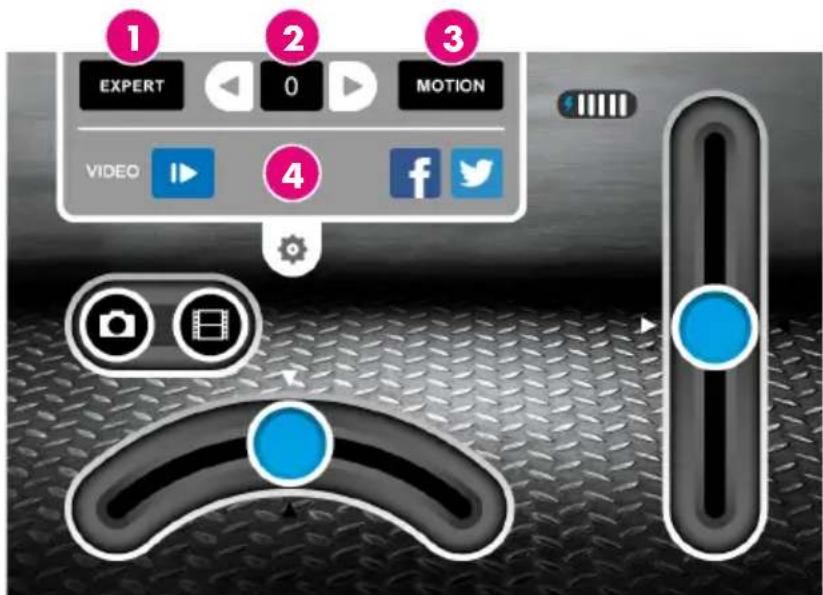
3.2.User Interface
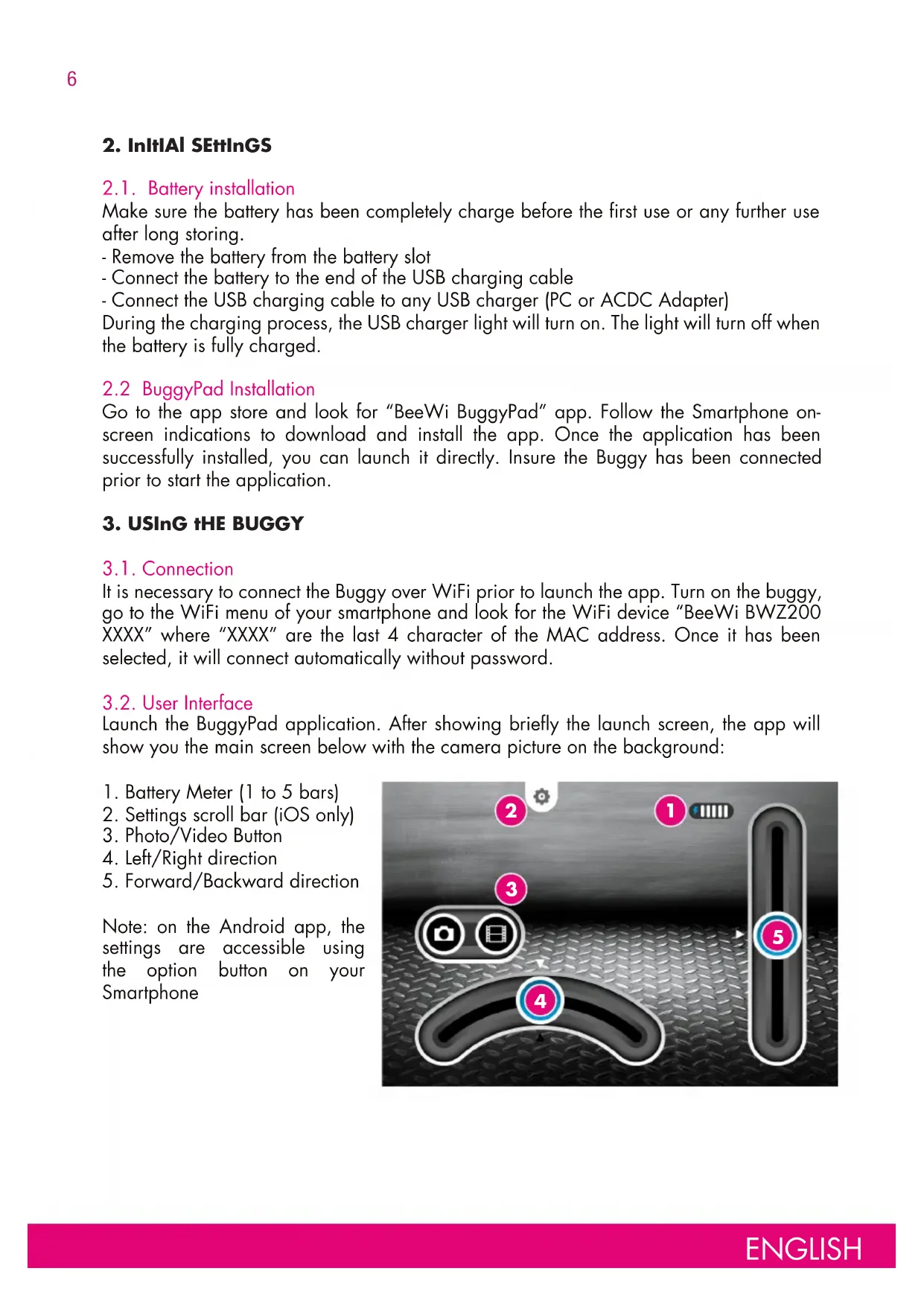
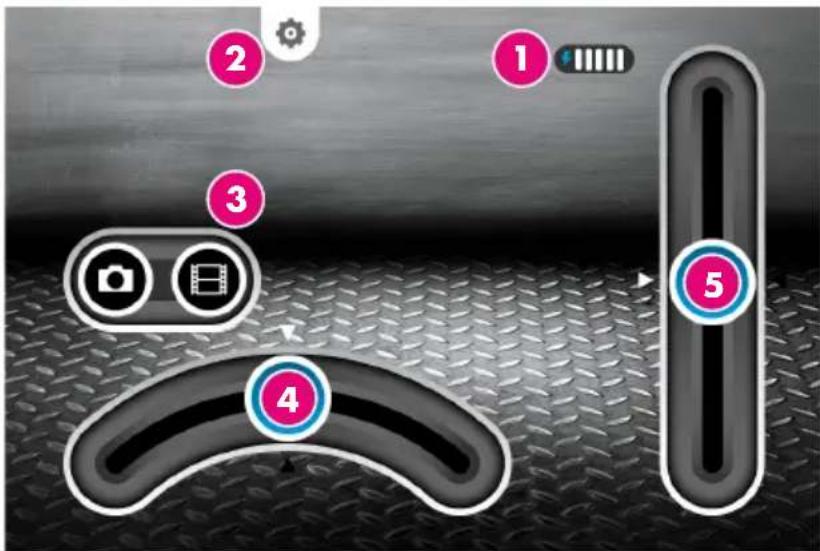
Launch the BuggyPad application. After showing briefly the launch screen, the app will show you the main screen below with the camera picture on the background:
- Battery Meter (1 to 5 bars)
- Settings scroll bar (iOS only)
- Photo/Video Button
- Left/Right direction
- Forward/Backward direction
Note: on the Android app, the settings are accessible using the option button on your Smartphone
3.3. Settings
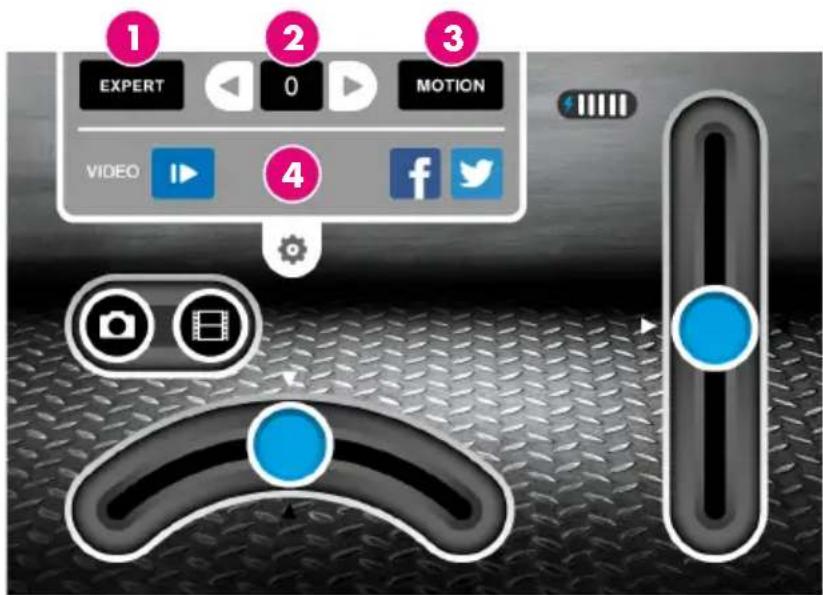
When you slide down the settings bar, you can access to various optional controls
- Mode: Expert or Easy
- Trim: to adjust the direction
- Control: Motion or Touch
- Video: Play/Pause or Share
By default the control is MOTION, the mode is EASY and the trimmer is set to "0".
3.4. Operations
Adjust the direction using the TRIM buttons before using the Buggy. To do so, gently tilt the Smartphone upward until the Buggy engine turns on. Then use the TRIM button to adjust the direction in straight line and make sure there is no drift on the left or the right. Once the direction is properly trimmed, you can start to use the product. It is recommended to use the Easy mode with smoother and lower speed commands to start with.
In Motion control the commands are the following:
- To move forward, tilt the Smartphone forward
- To move backward, tilt the Smartphone towards himself
- To turn left, turn the Smartphone leftwards
- To turn right, turn the Smartphone rightwards
In Touch control, the commands are the following: - To move forward, slide the engine bar up
- To move backward, slide the engine bar down
- To turn left, slide the direction bar left
- To turn right, slide the direction bar right
3.5. Video recording
You can use the camera to simply view real time images, and shoot pictures or videos. To shoot a picture, just press the photo camera icon. It will turn red when shooting the picture.
To SHOOT a video, just press the video camera icon. It will turn red as long as the video is being recorded.
To PLAY the latest recorded video, press the Play/Pause button in the settings bar. You can also share it using the SHARE button.
Note: pictures and videos will automatically be saved in the Smartphone memory to be accessed later on.
4. MAINTENANCE & CAUTIONS
Warning!
- Please read carefully the complete manual before using the product and strictly follow the instructions.
- This product is not suitable for children under 14 years old.
- This product is not suitable for children under 3 years - risks of small parts breaking off and potential choking hazard.
- Stay away from the product when it is turned on. Do not come closer or touch the rotating parts.
- Do not disassemble or rework the product as this may cause damage and void the warranty.
- Please keep this information for future reference.
Use and maintenance
- Use only the charging cable supplied with the product, excluding any other USB cable.
- If the vehicle does not respond, move closer to the vehicle and try again.
- If the vehicle loses power and moves slower, it may be necessary to replace the batteries and to check the wheel mechanism for lint, thread, hair or dust.
- To avoid damages, never drive the vehicle on a wet floor, on sand, or in mud, rain or snow
- Do not expose the vehicle to extreme temperatures.
- To protect the vehicle's wheel mechanism from lint, thread, hair, and dust particles, you can use a small brush, tweezers or tie a small bit of cloth to the tip of a toothpick, etc., and wipe off.
- Always keep vehicle clean, use a dampened cloth to wipe off, and then wipe all the water off with a dry cloth. Never use chemicals to clean the product.
- Avoid holding the wheels when rotating, this will cause the electronic components to short circuit, overheat and cause malfunction.
- Long period of play time can generate high heat level which causes wear and tear. To extend product life, it is suggested to allow 10 minutes of cool down period after long period of operation.
Damages not covered by the standard Warranty:
- Damages that are caused by a improper use of the toy (shocks, falls...)
- Damages resulting from any non-compliance with manufacturer instructions (power supply ...)
- Cosmetic damages (scratches, ...)
- Components and parts which require regular renewal: batteries, power supply...
- Damages to the toy after an intervention by any person not authorized by BeeWi
European Union Directives Conformance Statement
Hereby, VOXLAND declares that this product is in compliance with:
C E The essential requirements and other relevant provisions of Directive 1999/5/EC
- All other relevant EU Directives
You can view your product's Declaration of Conformity (DoC) to Directive 1999/5/EC (to R&TTE Directive) at
www.bee-wi.com.
Caring for the environment by recycling
Do not dispose of electrical devices or accessories with your household waste. In some countries or regions, collection systems are set up to handle electrical and electronic waste items. Contact your regional authorities for more details.
Federal Communications Commission
This equipment has been tested and found to comply with the limits for a Class B digital device, pursuant to Part 15 of the FCC Rules. These limits are designed to provide reasonable protection against harmful interference in a residential installation. This equipment generates, uses and can radiate radio frequency energy and, if not installed and used in accordance with the instructions, may cause harmful interference to radio communications. However, there is no guarantee that interference will not occur in a particular installation. If this equipment does cause harmful interference to radio or television reception, which can be determined by turning the equipment off and on, the user is encouraged to try to correct the interference by one or more of the following measures:
- Reorient or relocate the receiving antenna.
- Increase the separation between the equipment and receiver.
- Consult the dealer or an experienced radio/TV technician for help.
Canada Compliance Statement
This device complies with Industry Canada license-exempt RSS standard(s). Operation is subject to the following two conditions: (1) this device may not cause interference, and (2) this device must accept any interference, including interference that may cause undesired operation of the device. This Class B digital apparatus complies with Canadian ICES-003
Copyright and other legal information
BEEWI is a registered trademark. Other trademarks mentioned herewith are owned by their proprietors. All other product or service names are the property of their respective owners. The use of wireless devices and their accessories may be prohibited or restricted in certain areas. Always obey the laws and regulations on the use of these products.
This product is covered by a 2-year product warranty which is valid from the date of purchase. Users are not permitted to make changes or modify the device in any way. Changes or modifications not expressly approved by the party responsible for compliance will void the user's warranty.
Please visit our website www.bee-wi.com for more information.
Technical support: support@bee-wi.com.
© VOXLAND CS90234 13311 Marseille Cedex 14 France.
- WiFi Buggy
- Battery Pack
- USB Charging Cable
- Quick Start Guide
Support technique: support@bee-wi.com.
© VOXLAND Les Rizeries 208 Bild de Plombières CS90234
13311 Marseille Cedex 14 France.
© VOXLAND CS90234 13311 Marseille Cedex 14 France.
Sopporté técnico: support@bee-wi.com.
© VOXLAND CS90234 13311 Marseille Cedex 14 France.
© VOXLAND CS90234 13311 Marseille Cedex 14 France.
© VOXLAND CS90234 13311 Marseille Cedex 14 France.
Blaoradapm Bn, ue n36paxTe 6bTuTo c 6e3xNHyo ynpaBHeHne Ha BEEWI. PnkaHbame Bn da npOyeTe CneHNte INCTpyKcun, 3a Da KOHfNpyPnPate N 3NoJ3BaTe No-do6pe CBOeTO yCTpoiCTBO.
yBOd
Быгно с 6e3жино управлени може да ce управлая ряко пpe3 Baшя смартфон, KaTO n3noJ3BaTe cneцално ппложене Ha BeeWi BuggyPad, koeto e ha pa3noJoxeHne B mara3nHa 3a ппложеня Ha Apple AppStore n B mara3nHa Ha Google Play.Быгнос 6e3жино управлени Функциюнpa KaTO cTaHДapTHO пpeBO3HO cpeDCTBO, управлЯВанOT pa3CTOHHne, KaTO KOMaHДITE cBOTBETCTBaT Ha NOcOKITE HAnpeД/Ha3ad N HAnRABO/HaJЯСHO.Ппложенeto NO3BOJЯBA eHOBpemeHNO ceH3OpHO ynpabIeHne C BnPtyaJIHn 6byToHи n KOHTpoJ Ha DBNIXeHNeTO, KaTO ce n3NoJ3Ba akcelepePometbP, 3a edHo OSe no-3a6abHNO, ПынOCHeHNo n PpaKTNUHNo pexKINBAHe.
Быгно с 6e3хиунуnpавленира6OTи kaTo nepiферно устpoистBOс 6e3хиунуnpавленис ADHOCВрьзka И може да ce n3ползвс BCИЧКУстpoистВС OC iOS INAndroid, konTO noДьржат 6e3хиунврьзka в cbчетанne с пиюженeto BuggyPad.
1. oПИСАНЕ HA ПОДУКТА
1.1.BbHueh BnHa npodykTa
1.卍acn
2. Koleneta
3. ByToH BkI./M3KJI.
4. NocTabrHe Ha 6aTepeyra
5. Kopnyc / Ппuctаьи Вьрху
КорNYca
6. Kamepa
1.2.CbDbpXaHHeHa naKeTa
Bbnc6e3xuHNOynpaBHeHne
KOMJIeKT 6aTepeuN
USB ka6eI 3a 3apeXdaHe
KpaTko pBKOBOCTBO 3a ekCnloaTaun
1.3.OCHOBHn xapaKTePncTNU
-Быги,ИЗКЛЮЧТЕЦИЗБьрЗΚAMMOHТП"ЧУДОВИSUe"
- CamoToTEnHn HadeKdN OkayBaHn 3a NOJ3BaHe Ha OTKpntO
- Lялостно упраьLEMпе змартфОн, коTo ИЗПОЛЗВа ради-6e3ЖИЧА ВрБЗК
- O6cer Ha DeiCTBne OT 30 MeTpa
- VGA kamepa c He3a6abHa nOraBa Ha n3o6paKeHne n ΦyHKuIra 3a pernctpaIra
- Cbpa3MepHn KOMaHnC HnBO 3a NaunHaeuii HapeJHaJI 3a No-do6po npexNBraHe
-Управелене чрз пидвьхван ссeн Зорни Команд.
- NiMH baTePna, npe3apeKdaa ca, do 20 mHyTu ynoTpe6a
- INHДИΚaTOP 3a HNBO Na 6aTepeRЯTa
- 3apexkahe cbc ctaHapTHO USB 3a no-Manko ot 2 yaca
1.4.Cneunkaun
| Спесификтуни на解开 лесенчеса в рублике: | |
| CTAHДAPТHA IEEE 802.11b/g | |
| ЧECTOTN 2,4 ~ 2,4835 GHz | |
| MOUCHОCT Марс. 13 dBm | |
| СКОPOCT Do 54 Мбр | |
| ПЕHOCIMоCT Do 30 m | |
| БATEРЯ NIMH, 7,2V, 500 mAH | |
| ВРЕМЕ HA ПОЛЗВАЕ Do 20 минутп 6e3 пекьсане | |
| ВРЕМЕ 3A 3APEЖДАЕ Do 2 часa | |
| CEPBO UПРавлике | Пробorationноши, посоки наразд/назади налаяв/надясно |
| ГАБAPИТи Д 23 x Д 20 x B 13,5 сm | |
| TEФLO 600 g | |
© VOXLAND CS90234 13311 Marseille Cedex 14 France.
© VOXLAND CS90234 13311 Marseille Cedex 14 France.
Blaogapm 3a Bb6op paHounpabIeMoW I-FI MaunHKn npOn3BOcTBA BEEWI. PpoTuTe npedctabHeHbIe Hxke nHCTpyKuN - OH NOMOryT Bam npn HaCtpoKe n NcNoJb3OBaHnn yCTpoNCTBa.
BbEaEHVE
Bb mojete ynpabnraTb paHnoynpabnmeo WI-FI maunHKo HnocpeCTBeHHO C nOMOsbIO CBOero cMaprfoHa co CneuaNBbIM npINOxehnem BeeWi BuggyPad, KOtOpoe MoXHO npno6pctn B Apple AppStore nn Google PlayStore. PaHnoypabnemaR WFI maunHka ynpabnaretc DaCTaHNoHNO C NOMOsbIO CNCTeMbI npONOPuHOJIbHoro ynpabHeHRA Bnepd/Ha3ad n BLeBO/Bnpabo. PnploxeHne no3BOJAE TOCUeCTBnTB ynpabHeHNE C NOMOsbIO BnPTyaNbHbIX CeHCOPhIX KHOLOK nn NOCpeCTBOM DBNXeHNA C NOMOsbIO akcepePometpa, 6naorapr KOTOPomy nolb3OBaTeNb CMOxET OueHITb paCUnpeHHbIE BO3MOxHOCTn I neKoCTb ynpabNeHnA, a TaKxe HaCnAdntbcr ppaKTNUHOCTbIO n eSe 6onee 3axBaTbBAousei ngpoi.
Papnoypabnemai FI maunnka pa6oTaT kak nepnphiepnHoe yctpoiCTBO ADHOC n MOKET nOJIb3OBaTbC8 CO BCEMu yctpoiCTBaAMn iOS n Android, noIepeKJBauOzmmu WI-FI n COBMeCTNMBIMC npIoJKeHnem BuggyPad.
1. oПИСАHи ПОpoДУКТА
1.1.Bud npodykTa
- Pama
- Koneca
- Khonka "Bkn./BbIKn."
4.ОтсекдяakkymnyЯTopa - Kopnyc/kpenJIeHnKopnyca
- Kamepa
1.2.CoepkaHne ynaKOBKn
Pánooynpablěma Wi-Fi MaunHka
KomnneKt aKKymyIATOPOB
3apnHbI Ka6eJb USB
Ynpoehnoe pykooboctbo no 3Kcnnyatau
1.3.OCHOBHbIe xapaKTepeNTIKN
-Cbepx6bictpa paHnoypabJMaMaHHa Tnna "MoHcTp-TpaK".
- He3aBcNmbie npouhbe IOBeCKn IJy NCIOJIb3OBAHn BHe NOMEueHn.
- INterpaBHeOy npaBHeHne c nOMoUsbIO cMaprTfoHa c yHKnne CoeHNHeHn Wl-Fl.
-PaDnyc DeiCTBna 30 MetpoB.
- KaMepa VGA c ΦyHKUnei MrHOBeHHOc CbEMKn 3aNNCn.
- CnCTembl nponopuznoHaBHor ynpaBHeHnC JERKIM N 3KcneptThbIM peKImamn dIra
ONTINMaJIbHOJ pa6OToI.
- YnpaBHeHne NocpeDCTBOM DnHexeHn IIN C NOMOuBcEHCOPHOrO 3KpaHa.
- Ipee3apjkaembl HnkeIb-Metan-l-rnpHbI aKKymyIaT op oecneuBaET do 20 mHyT abTOHOMHO pa6Otbl.
- INHnKaTOp yPoBn 3apJa aKKymyIaTopa.
- 3apЯДka c nOMOиьIO CTaHApTHOrO 3apЯHOrO Ka6eJr USB B TeueHne 2 yaCoB.
1.4.Cneunkaun
| Спецфизим WI-Fl: | |
| CTAHДAPT IEEE 802.11b/g | |
| ЧАCTOTНБИДИАПАЗОH 2,4~2,4835 Гц | |
| MOШHOCTь Максимальнай: 13 дБМВТ | |
| СКОPOCTь ПЕPEDAVИ До 54 М6/c | |
| РADIИС ДЕЙСТВИ До 30 M | |
| AKKUMЛЯТОР НИKEль-Mетал-гидринь, 7,2В,500 mA/ч | |
| ВPEМЯ ИСПОЛьЗОВАня До 20 мInHyт HeпрөрьВИНо | |
| ВPEМЯ 3APДКИ До 2ч | |
| СРЕДСТВА CEPBOUYПРавлиЕНЯ | Прочорцноны, с пе徴воженим впeped/ назади Вправо/Bлево. |
| PAЗMEРы Д 23 x 52 20 x B 13,5 cm | |
| BEC 600 r | |
IyoymoJuaHnO yCTaHOBJeHbIpexmbl MOTION (KoHTpOJbNocpeDCTBOM DnXKeHnA),EASY
(JerKn),a TpumMep yCTaHOBJeH Ha "0".
3.4.YnpaBneHne
Ipeep nCnoB3OBAHnem OTperylnpyte HappaBHeHne c NOMoUk KhoNOK TPIMMEPA.ДЯ 3TOrO HaKIOHnTe CMapTfoH Bpeep, YTO6bI Hauatb MeJleHHoe DBrXKeHne Bpeep, 3aTeM IcNoJIb3yIe KHOKnTPMMEPA, YTO6bI OTperylnpOBaTB DBrXKeHne no npraMo JInHn - y6eINTEcb, YTO OTCyTCTByET OTKIOHeHne BNeBO NnBnPaBO.C6anaHCnpOBaB HappaBHeHne, MOxTe Haatb IcNoB3OBAHne paDIOyPpABLEm MoAunHKn. PekomeHdyetcHaunHaTb c peKIma EASY (JeRkn) c He6OJbwockOpocTbIO.
4. MEPbI I PEPIOCTOPOXHOCTN IN TEXHNUCKOE OBCJLYKINBAHNE
BhmuHne!
-Перед Исторьогим Велиmaелов почтente NOHoe pyKOBODSTBOИ CTporo
придэржавайтесь уka3aHHbIX ИНСТРУКИ.
-Пюдукт педанзаундядетeу ot 14 leT.
-Пюдукт He npedHa3Hauen Дя DeTeB BO3pacTe MeHee 36 MecaueB, NOCKoIbKy cyuEcTByeT pNcK TpaBMbl IIN ydySbB B pe3yIbTaTe NOnaHaHnB D bIXaTeIbHbIe NytMEnKnx DeTaJIeI.
-При зауcke устюпва соблдайтse 6e3oNaChHyо дuctанци.ДерхиТecь на 6e3oNaChOMpacSTOHHN OT BpaaIooxxCЯ DeTalei.
- He nbItaIteCb pa36npaTb nII npemOnTHnpoBaTb yCTpoiCTBO camOCToTeNbHO - 3TO MOKeT HaHeCTu yUep6 n aHHyInpOBA Tb DeiCTBne rapaHTnn.
-CoxpaHnTe HactoIyU INΦOpMaIu IJL nOcneIyUeRo IcNoIb3OBaHnI.
3Kcnpnyatauia n TexHnueckoe 6cbnyxmbaHne
- He nCnoJIb3yIte IaI 3apAkn KaKne 6bl To Hn 6blIO npyrue Ka6eIN USB, KpOme TOrO, UTO BXODIT B KOMPJIeKT.
- EcnMaunHka He pearnpyet Ha ynpaBneHne, nooDnte K Hei, TTo6bI paCCTOHNHe npebblano 30 metpoB IJRA BOCCTaHOBNeHnCnHaHa.
- Ecni MaunnKa Tepaet MouHocb N 3aMeJnEeTc, Heo6xOIMo 3apAITb aKKymyIaTOP nnnpOBepntb nCnpabHoctb MExaHN3Ma Konec.
-Bo n36exaHne noBpeXeHn He nCnoIb3yIte MaunHKy Ha MOKpoi 3emne, necke nnrpa3n, a TaKke POn DoJxDem nn CHerom. - He noDBepraIte MaunHky Bo3JeIcTBnIO kCTpeMaJIbHbIX TemnepaTyp.
-ДяЗauntbI MexaHn3Ma Konec OT nbIn OunuaiTe INx He6oJbWOn TeKoN,AnJIaNoHHbIM INHcetOM INn He6oJbWm OTpe3KOM TKaHn.
-Дя подержаня чИСТОТы пOTирайтЕ мaшинку влajхнос calфETКо, пося уero ydaяп Te octaTK n Blaru cyxос calфETKо. He nCnoJIb3yIte moIOUne cpeDCTBa. - He 6loknpyte DvnkeHne Konec, NocKoIbky 3TO MOKeT npNBecT N K OPOtKIM 3aMbIkaHnM, nepeRpeBy nII nOLOmKe.
-При динтелов И сплььзови BOЗможно NOвьшен TeMнераТуры,КOTОpoe MOжет пивеси KпөждеврemeHOMу n3Hocy.Для пордени срoka слжбл рpoуктpekOMeHnyetcЯ DeJaTb NepepbBbl KaЖдie 10 mHyT.
Ctanhaptna rapaHTna He paCnpocTpaHReTcHa TaKne Tnbl yuepe6a:
-yuep6,HaHeceHbB CnEeCTBue HeHaIeJkaUero nCNoJIb3OBaHnY uCTpoiCTBa (ydaP a, naeHnra, HarpeBaHnra, HecO6IIOeHnra npaBn IcNoJIb3OBaHnra);
-yuep6,HaHeceHHbI BCJeIcTBnE HecO6JIOpENHn IHCTpyKcI npOn3BOJntTeIa;
-KOCMeTnueckne NOBpeKdHnra(TpeunHbI,uaapanHbI n.T.D.);
- 6bICTpon3HaunBaIOuIeCn 3JeMeHTbl Nll DeTaII, NOJLeKaUne peRyIpaHOn 3aMeHe:
6aTapeiKN, aKKyMylrTop, 3JeMeHTbI NITAHN I T. D.;
-yuep6,HaHeceHHbIyCTpoiCTBy BCJIeCTBnE BMeJAtenbCTBa,BblIOJIHeHHOrO KEM 6bl TO HN 6blIO NOMMO npedctabntela BeeWi.
Декларачи COOTBETCTBNAДИPEKTUBAM EBponeckoro Colo3a
VOXLAND 3aBnEToTOM,HTo HAcToaun npOdyKT COOTBeCTByeT:

- OCHOBHbIM NIOJoxeHnM IN BcEM Tpe6oBaHnM DnpeKtNBbl 1999/5/EC;
- BCEM OCTaIbHbIM COOTBeTCTBHyUOUM DnapeKtIbAm Ebponeckoro Co103a.
Bbl mojke Te 03HaKOMtbcra c DeKlapauney coOTBeTCTBnA (DoC) napeKTube 1999/5/EC (a TakaKe dIpeKTube R&TTE) ha caIte www.bee-wi.com.
3aunTa OkpykaIoUe CpeIb: yTnnn3auNna

EcnBbI Bnnte Ha npOyKTe TaKo3HaK - 3TO 3HaHT, yTO eTo HeIb3aBbIbTaB HENOCpeDCTBeHNO B yphy.
Ha cerodnHn deHb 6bICTpo pa3BnBaetc CeTb CNTeM yTNn3aun NJIeKtpnuecknx n 3JIeKTPoHHbIX OTXODOB.
Haundte cBeHnO MeCTbIX ceTAX TaKOro Tnna.
ABTOPCKoe npabo n dpyra nHphiopmaun
BEEWI npedctabnaretco6o3apernctpnpobAHnyTOproByoMapky.Dpyrue ynoMaHyTbIe Mapkn npHaJnxat CBOIM Blaenbucam. Bce dpyrne nCNoJIb3OBaHHbIe Ha3BaHn IpoDyKToB u clyr TaKx JaBnIOCTc CO6CTBeHHOCTbIO CBOX BnaJeBcE.
B HeKOTOpbIX MeCTax IcNoIb3OBAHnE 6ecnpoBOJhIx yCTpoiCTB N COOTBeTCTByIOxuX npHaIeJXHOCTe MoKeT 6bITb 3aIpeUeHo. Bcerda co6IouaTe HOpMbI DeIcTByIOUeRo 3aKOHOJaTeJIbCTBa.
Ha npodukt pacnpoctpaehetc rapaHTn, deiCTbYIOUaB TeueHne DByx let C MOMeHTa NOKynu yctpoiCTBa. Ionb3OBaTeIam 3anpeuaeTcra PON3BOIDNTb BMeWateJIbCTBO nn KaKne 6bl To HN 6blIO MOINΦNkauu. IIObIe BMeWATEJBCTBa NN MOINΦNkaun, BBINOJHHeHbIe 6e3 COOTBeTCTBYIOUeRo pa3peuHna, aHHyInpyIOT deiCTBnE rapaHTn.
Ioppo6HyIO HFOpMaUIO BbI HaJeTe Ha HaWeM caTte: www.bee-wi.com.
Cnyk6a TexHnuecko nOndepKKn: support@bee-wi.com.
© VOXLAND CS90234 13311 Marseille Cedex 14 France.
© VOXLAND CS90234 13311 Marseille Cedex 14 France.
© VOXLAND CS90234 13311 Marseille Cedex 14 France.