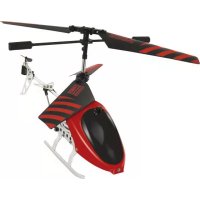
StingBee - Toys BEEWI - Free user manual and instructions
Find the device manual for free StingBee BEEWI in PDF.

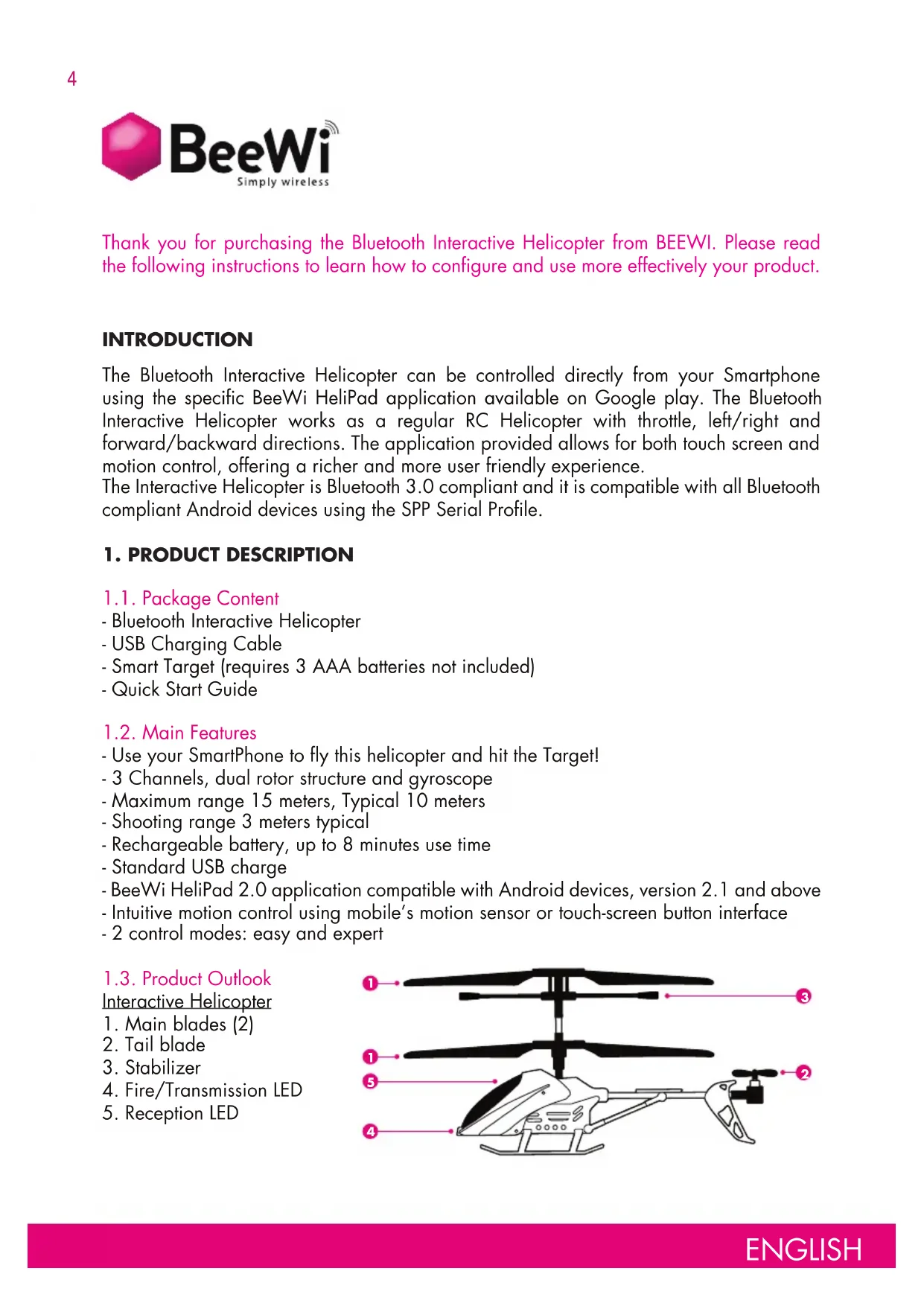


| Product type | Bluetooth interactive helicopter with infrared target |
| Brand | BeeWi |
| Model | StingBee |
| Dimensions (helicopter) | L 200 mm x H 100 mm x D 140 mm |
| Weight (helicopter) | 45 g |
| Power supply (helicopter) | Rechargeable Lithium Polymer battery 180 mAh via USB |
| Power supply (target) | 3 AAA batteries (not included) |
| Battery life (helicopter) | Up to 8 minutes continuous flight |
| Charging time (helicopter) | Up to 40 minutes |
| Bluetooth range | Up to 15 meters (10 meters typical) |
| Infrared shooting range | Approximately 3 meters |
| Main functions | Control via smartphone (motion sensor or touch), 2 flight modes (normal/expert), infrared combat with target (shoot and shield), integrated gyroscope, 3 channels |
| Maintenance and cleaning | Do not disassemble or repair yourself; use only the provided USB cable; avoid shocks, drops, humidity and heat sources |
| Safety | Not suitable for children under 14 years; contains small parts (choking hazard); do not touch rotating blades |
| Spare parts and repairability | Not available; any unauthorized service voids the warranty |
| General information | Bluetooth 3.0, SPP profile; compatible with Android 2.1+; BeeWi HeliPad app; emergency stop; automatic disconnection in case of crash |
Frequently Asked Questions - StingBee BEEWI
User questions about StingBee BEEWI
0 question about this device. Answer the ones you know or ask your own.
Ask a new question about this device
Download the instructions for your Toys in PDF format for free! Find your manual StingBee - BEEWI and take your electronic device back in hand. On this page are published all the documents necessary for the use of your device. StingBee by BEEWI.
USER MANUAL StingBee BEEWI
BLUETOOTH INTERACTIVE HELICOPTER
STING BEE BBZ302
STING BEE
APPLICATION

User's guide
ENGLISH 4
FRANCAIS 12
DEUTSCH 20
ITALIANO 28
ESPAÑOL 36
PORTUGUES 44
NEDERLANDS 52
БЪЛГАРСКИ 60
ROMÂN 68
РУССКИЙ 76
日本語 84
中文 92
Thank you for purchasing the Bluetooth Interactive Helicopter from BEEWI. Please read the following instructions to learn how to configure and use more effectively your product.
INTRODUCTION
The Bluetooth Interactive Helicopter can be controlled directly from your Smartphone using the specific BeeWi HeliPad application available on Google play. The Bluetooth Interactive Helicopter works as a regular RC Helicopter with throttle, left/right and forward/backward directions. The application provided allows for both touch screen and motion control, offering a richer and more user friendly experience.
The Interactive Helicopter is Bluetooth 3.0 compliant and it is compatible with all Bluetooth compliant Android devices using the SPP Serial Profile.
1. PRODUCT DESCRIPTION
1.1. Package Content
- Bluetooth Interactive Helicopter
- USB Charging Cable
- Smart Target (requires 3 AAA batteries not included)
- Quick Start Guide
1.2. Main Features
- Use your SmartPhone to fly this helicopter and hit the Target!
- 3 Channels, dual rotor structure and gyroscope
- Maximum range 15 meters, Typical 10 meters
- Shooting range 3 meters typical
- Rechargeable battery, up to 8 minutes use time
- Standard USB charge
- BeeWi HeliPad 2.0 application compatible with Android devices, version 2.1 and above
- Intuitive motion control using mobile's motion sensor or touch-screen button interface
- 2 control modes: easy and expert
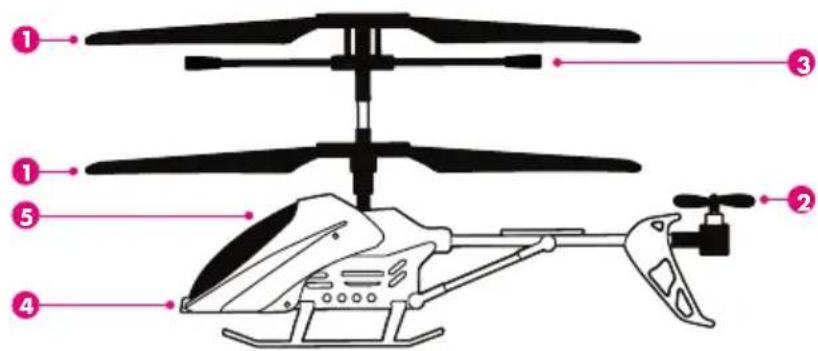
1.3. Product Outlook
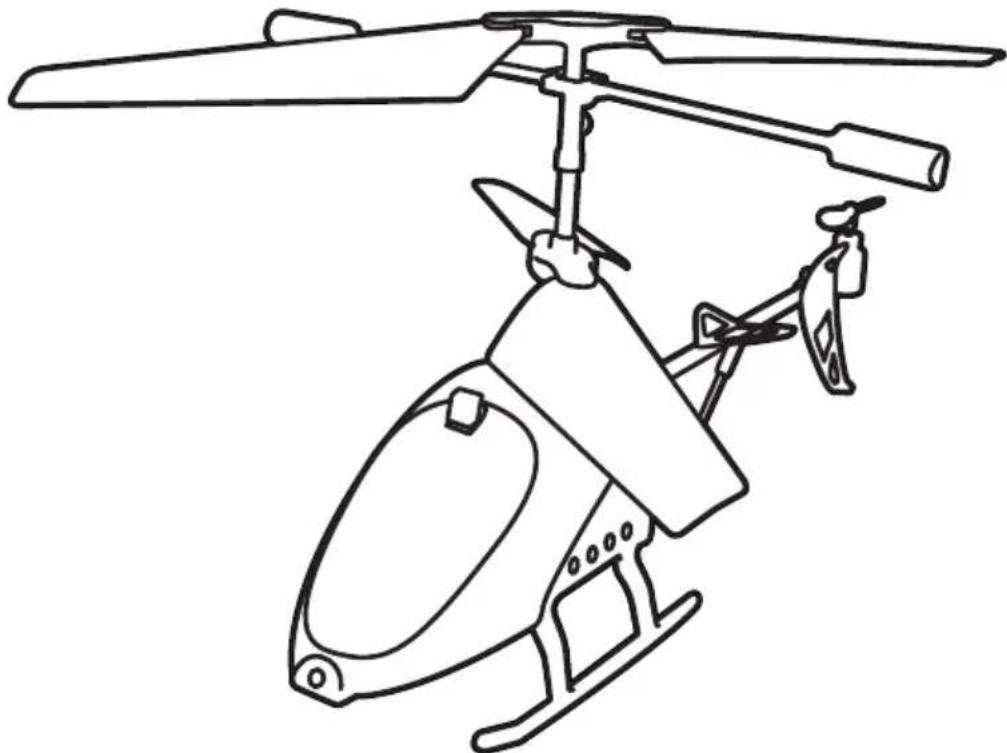
Interactive Helicopter
- Main blades (2)
- Tail blade
- Stabilizer
- Fire/Transmission LED
- Reception LED
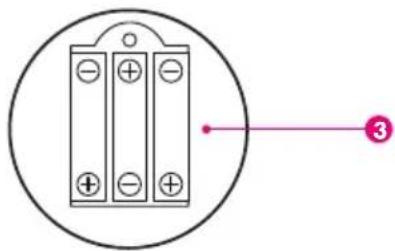
Smart Target
- Power On/Off button
- Lives indicator LEDs
- 3 x AAA batteries slot

1.4. Product Specification
Helicopter Specifications
| BLUETOOTH CHIP Bluetooth 3.0 | |
| BLUETOOTH RANGE Class 2, up to 10 m | |
| PROTOCOL SPP Serial Profile | |
| BATTERY Lithium Polymer 180 mAH | |
| TYPICAL USE TIME Up to 8 minutes continuous | |
| CHARGE TIME Up to 40 minutes | |
| SERVO CONTROLS 3 channels + gyroscope | |
| IR SENSORS 1 TX (3 m range), 1 RX | |
| DIMENSIONS L 200 mm x H100 mm x W140 mm | |
| WEIGHT 45 g |
Target Specifications
| IR SENSORS 1 TX, 1 RX | |
| TX RANGE Minimum 3 m | |
| TX RADIUS +/- 30° | |
| BATTERY 3 X AAA cells (not included) | |
| DIMENSIONS D 76 mm x H 30 mm | |
| WEIGHT 40 g |
2. INITIAL SETTINGS
2.1. Battery Charge
- Make sure the Helicopter is switched OFF
- Plug the USB cable into the USB port on your PC: the light at the USB charger end is lightening.
- Connect the USB cable end to the charging socket located underneath the helicopter. Do not force, the cable end should connect smoothly.
- During the charging process, the USB charger light will turn off; if the light turns on again, it means the helicopter is fully charged.
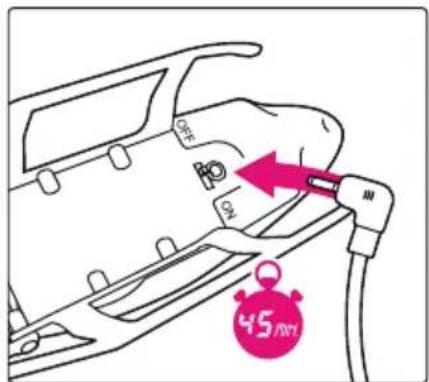
2.2. BeeWi HeliPad Installation
Go to Google play and look for "BeeWi HeliPad" app. Follow the on-screen indications to download and install the app. Once the application has been successfully installed, you can launch it directly. Insure the Helicopter has been paired and connected prior to start the application.
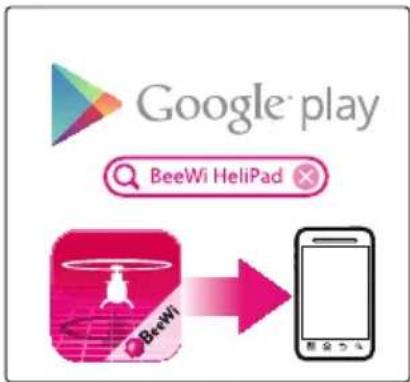
2.3. Pairing
To pair the Helicopter with your device, refer to the pairing procedures in your mobile phone user manual and follow the instructions below:
- Power on the Helicopter to turn the unit in pairing mode (wait 30 seconds)
- In the Smartphone Bluetooth menu, search for devices, select the device named "BeeWi BBZ302" to pair it. When prompted, enter the pass key "0000".
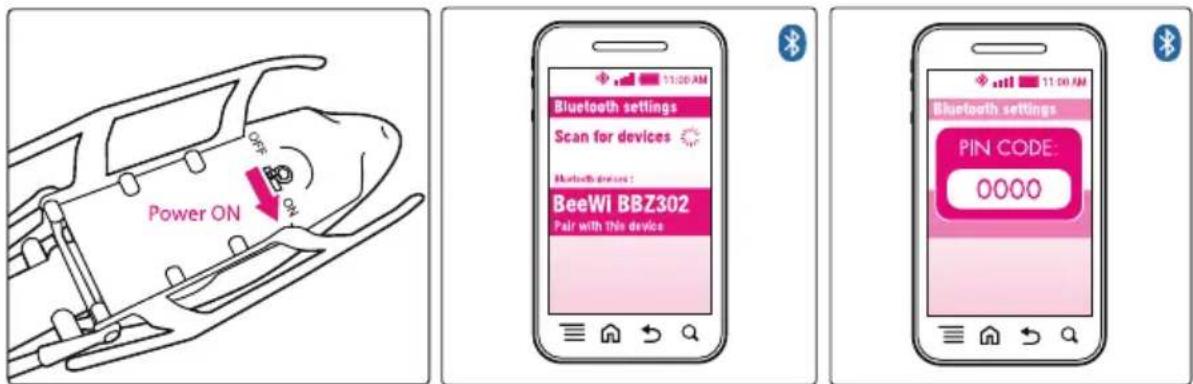
Note: you can also pair the Helicopter directly in the app by opening the "Select Helicopter" Menu and searching the Helicopter. In that case, select the device name "BeeWi BBZ302" on the screen and enter the pass key "0000" to add this device in your phone device list.
3. USING THE HELICOPTER
3.1. Connection
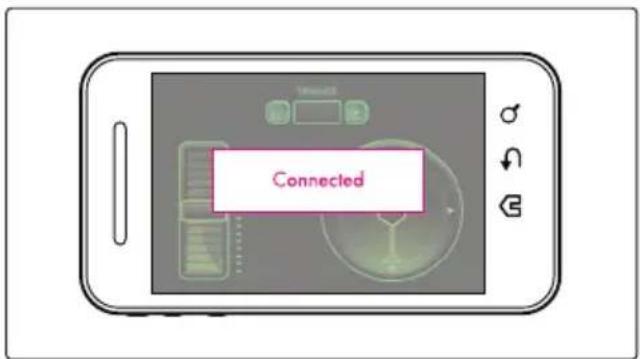
Open the BeeWi HeliPad application and display the application menu using the mobile Menu key then press "Select Helicopter" to see the list of paired devices.
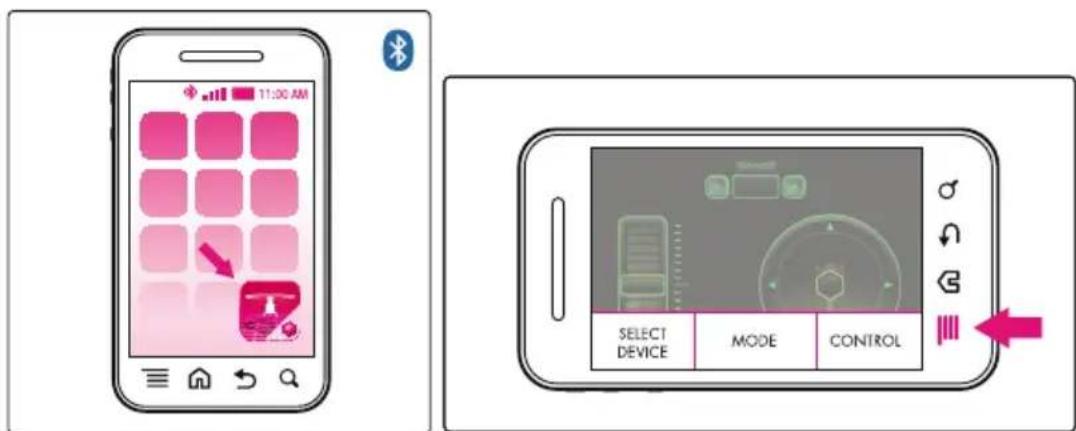
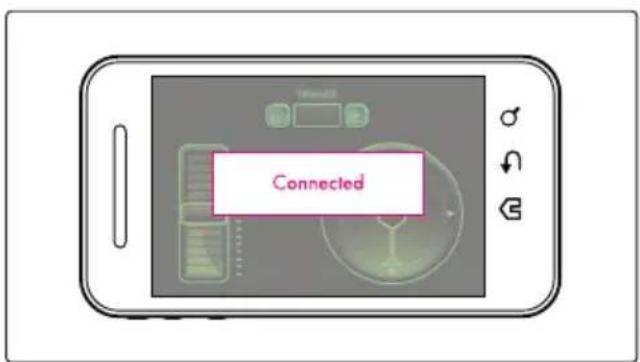
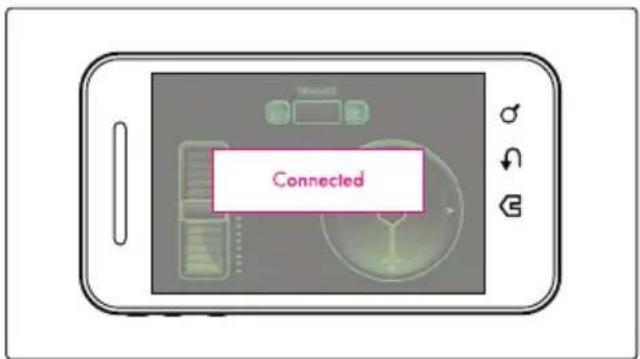
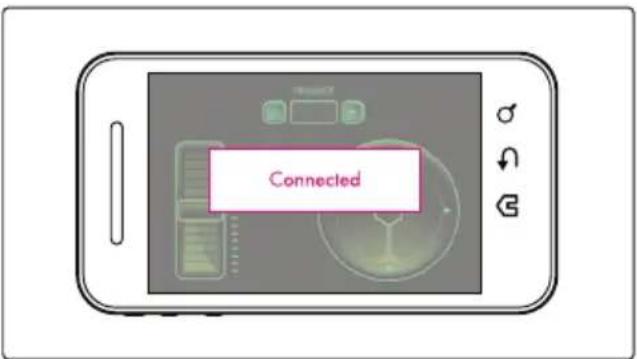
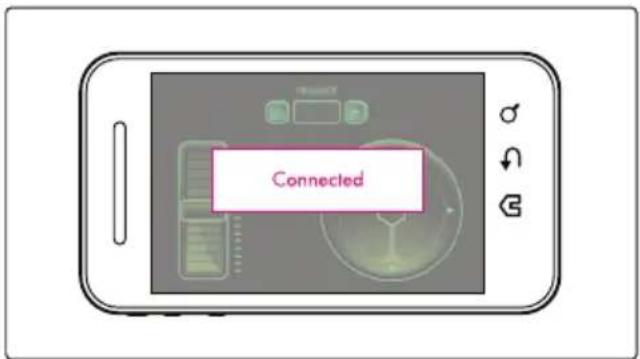
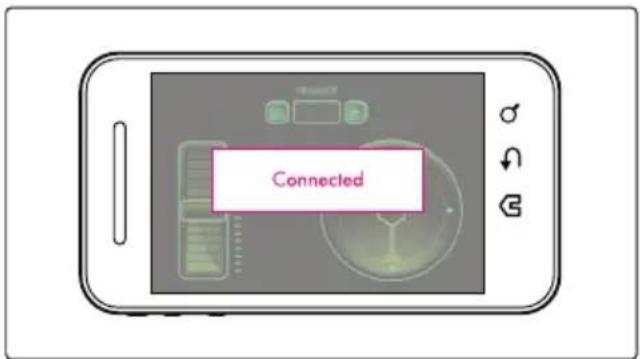
Make sure your Helicopter is turned on and select it in the list. The Helicopter will be connected automatically and the control screen below displayed.
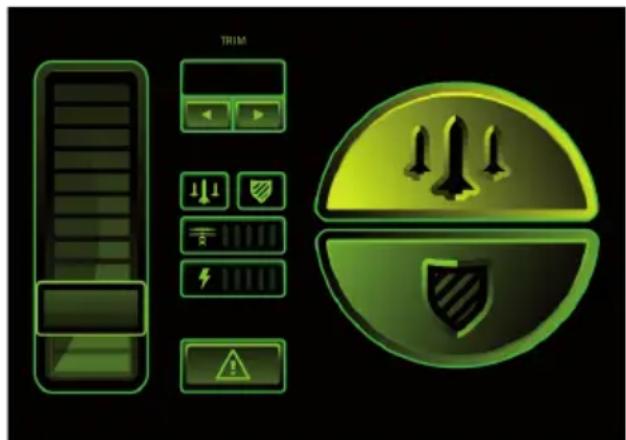
3.2. User Interface
When the Helicopter is connected, you can access the control screen below. By default the control is motion and the trimmer is set to "0".
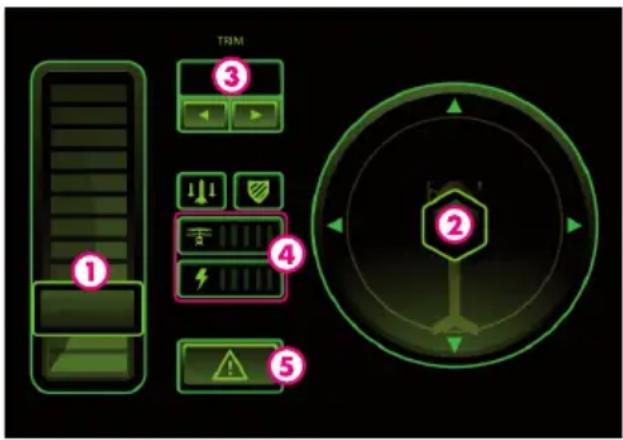
- Gas throttle
- Direction wheel (only touch mode)
- Trimmer
- Status control: lives bar and battery meter
- Emergency Stop
3.3. Operation
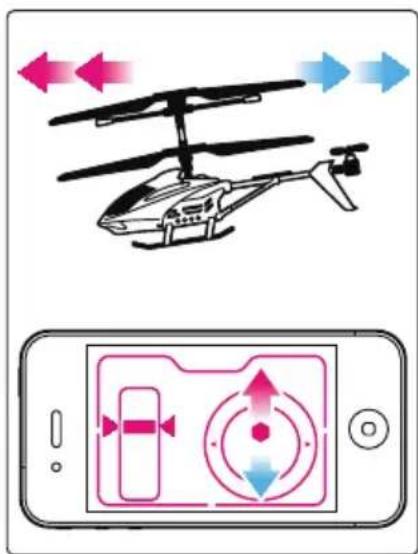
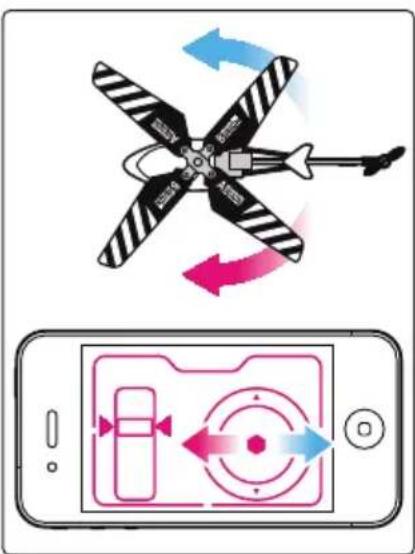
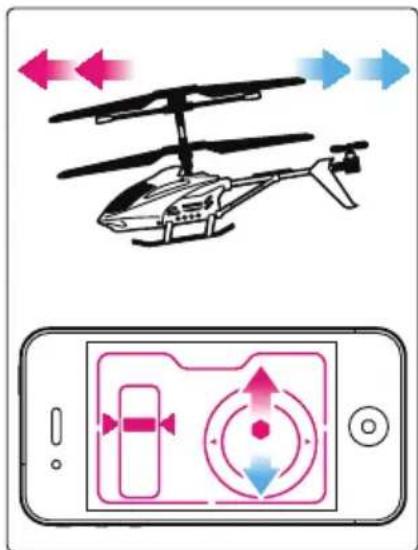
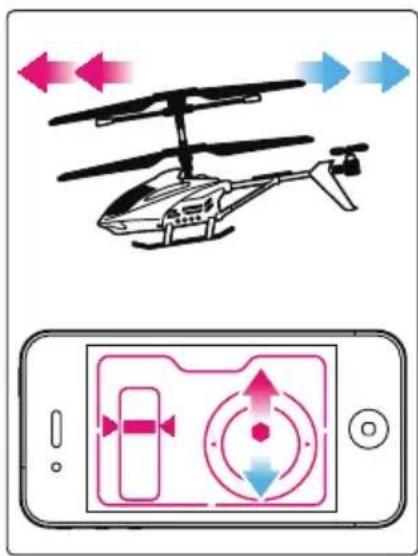
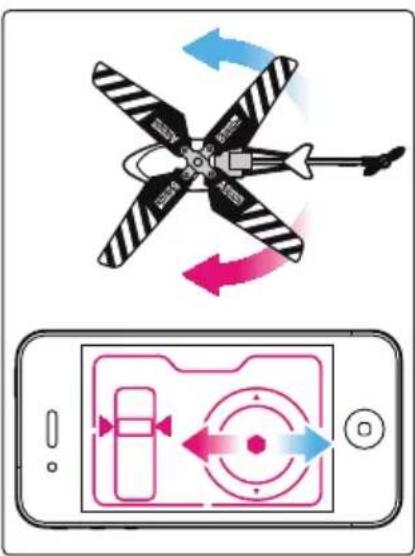
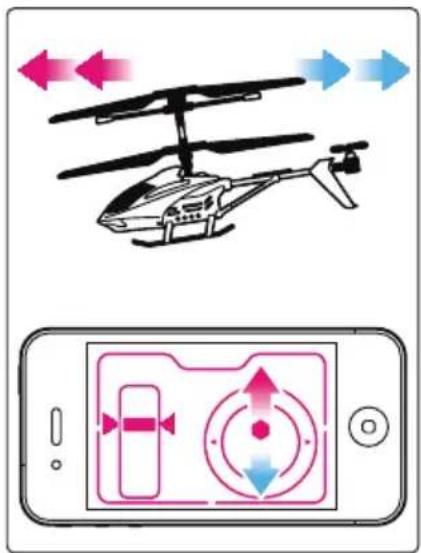
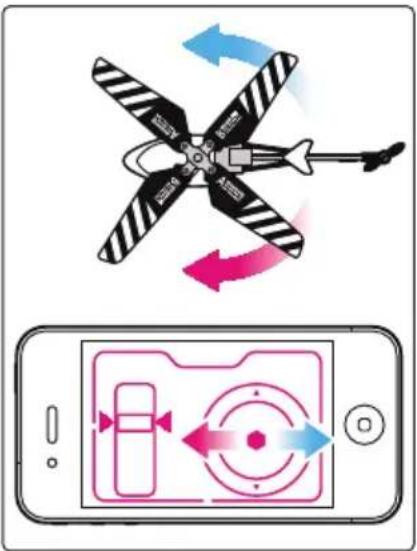
Gently push the throttle until the Helicopter engine turns on. Then keep the Helicopter on the ground and try the direction commands to learn how to fly:
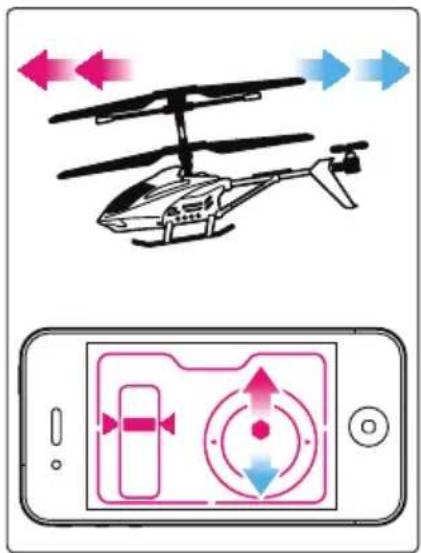
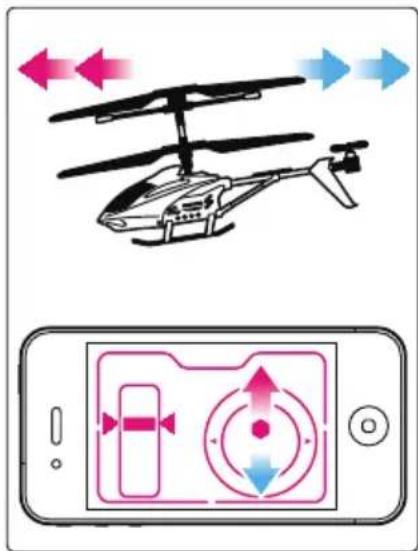
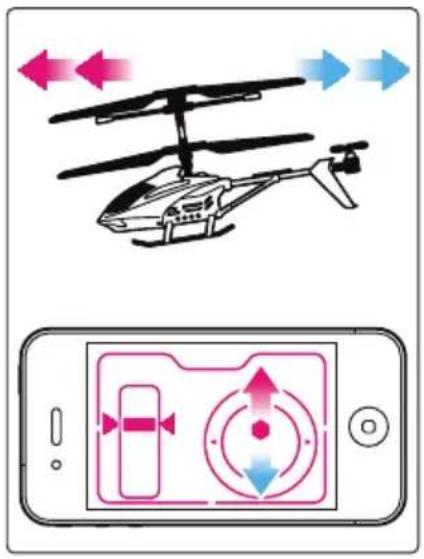
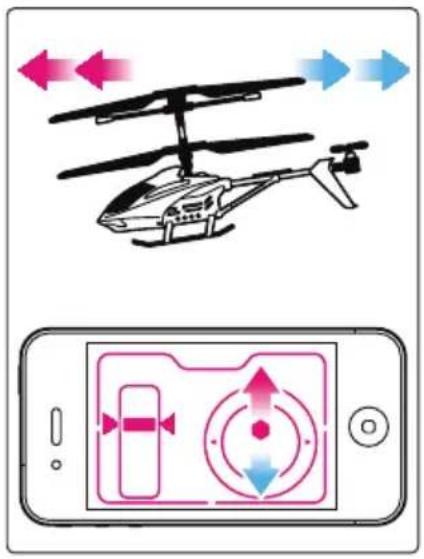
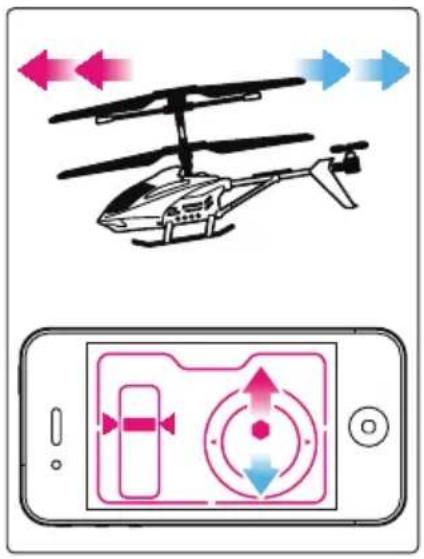
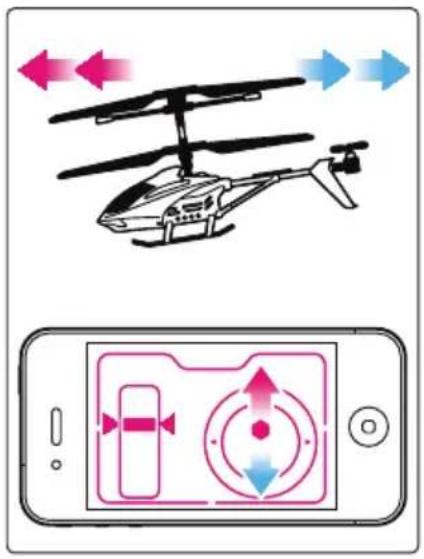
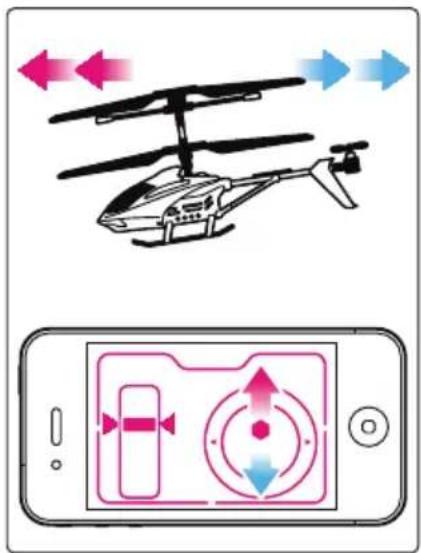
- To move forward, move the mobile device downwards
- To move backward, move the mobile device upwards
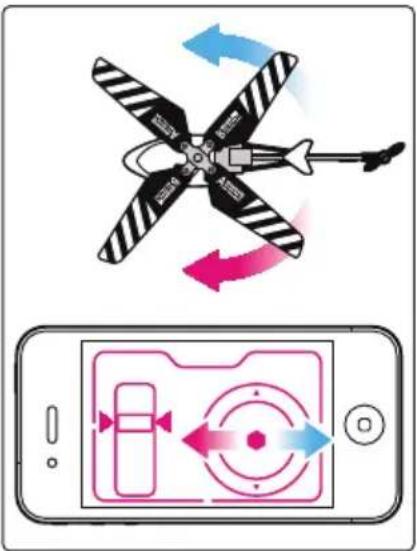
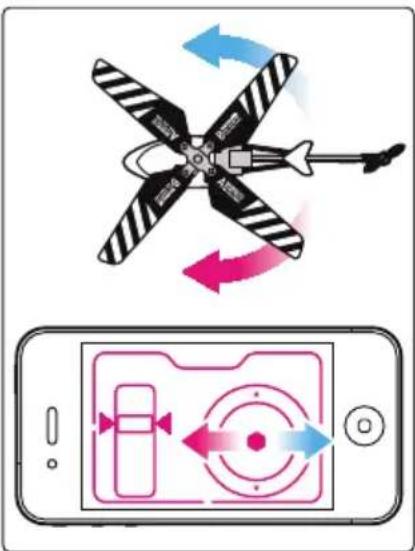
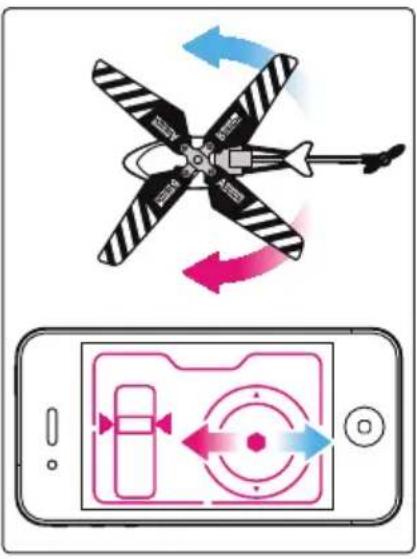
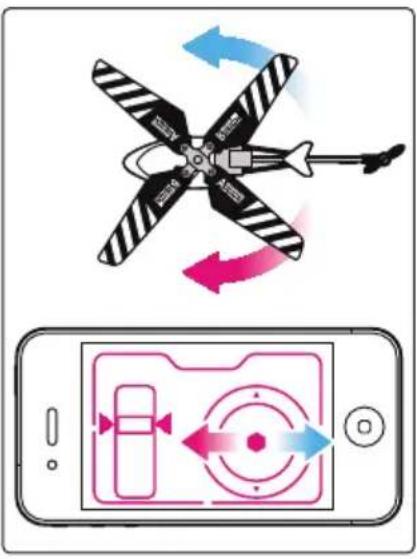
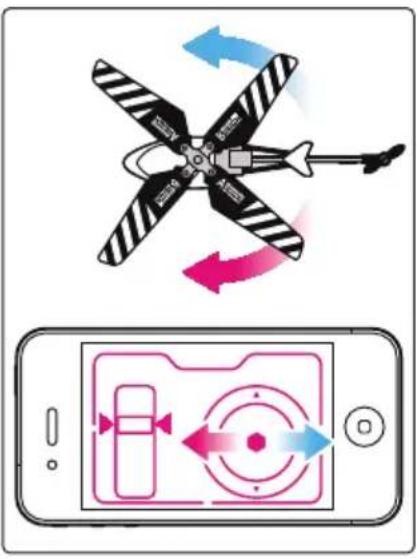
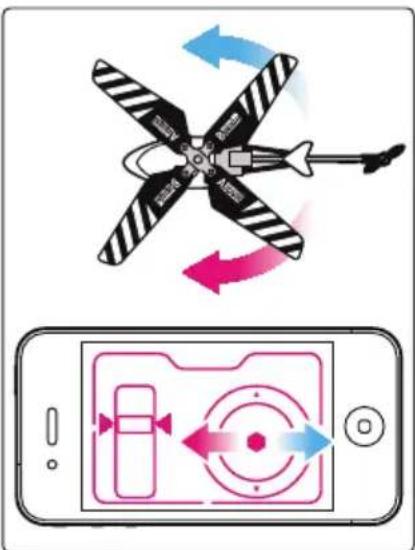
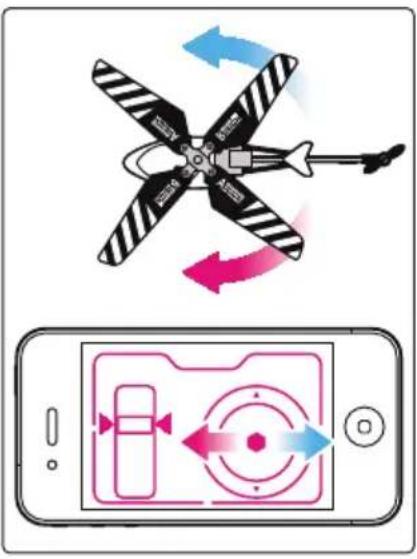
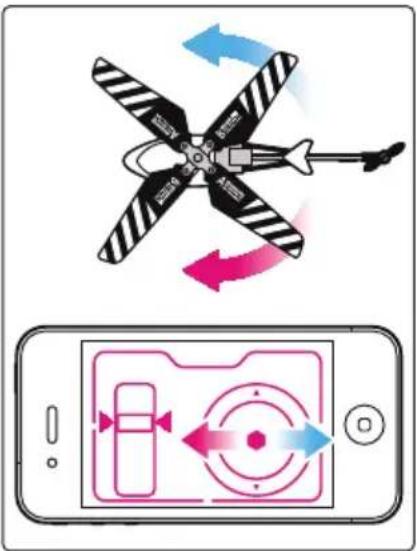
- To turn left, turn the mobile device leftwards
- To turn right, turn the mobile device rightwards
If the helicopter is drifting during the initial trial on the ground, it may be necessary to adjust the direction trimmer using the Trim > key if the helicopter is drifting on the left, or Trim < key if it is drifting on the right.
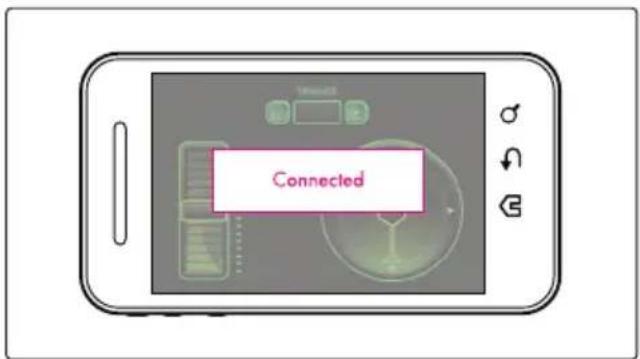
You can also simply use the buttons on the screen to control the Helicopter. To do so, open the Menu bar using the Menu key of the phone, and tap on Touch/Motion key. A confirmation message will appear on your screen. The controls are described next page:
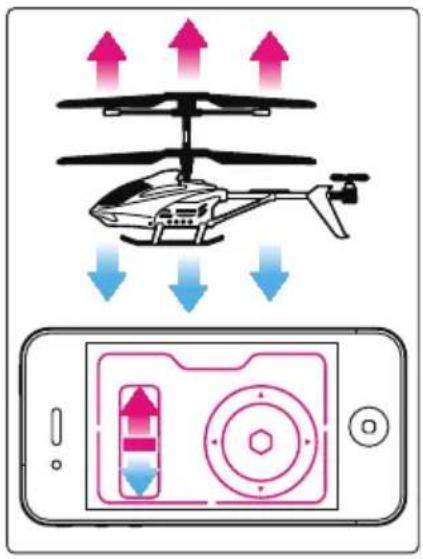
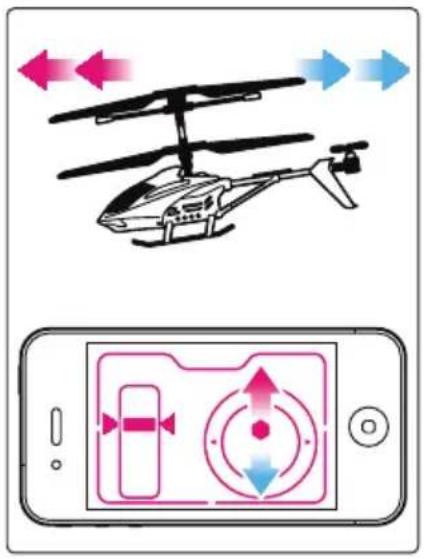
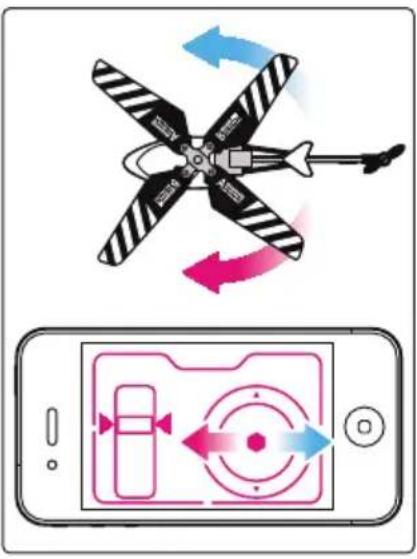
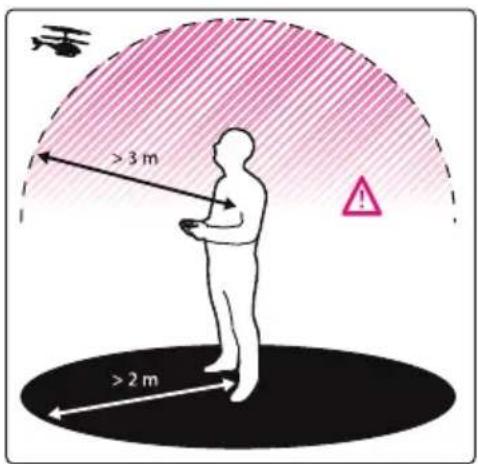
When you feel confident with the direction commands, you can start to fly your Helicopter. Softly push the throttle until your Helicopter is taking off. Try to maintain it at a steady height using the throttle before using the direction commands. Once you are confident with the throttle control, you can state to use all commands and train yourself with the following circuits.
![graph TD A["人形图"] --> B["粉色圆圈"] B --> C["灰色环"] C --> D["灰色环"] D --> E["毛"] style A fill:#fff,stroke:#000 style B fill:#ff9999,stroke:#000 style C fill:#ccf,stroke:#000 style D fill:#cfc,stroke:#000 style E fill:#fcc,stroke:#000](/content/2026/02/353935/images/0eaa35677aabe991fe9c0f5da40f82d1462742b41acf87d5bdb9fe7e937a5388.jpg)
3.4. Configuration
The configuration menu can be accessed by opening the Menu bar using the phone Menu key. There are 4 different options listed in the Settings:
- SELECT: to select the Helicopter in the list of paired devices or search it to add it to the list
- CONTROLS: to select either MOTION or TOUCH control modes.
- MODE : to select either EASY (slower/smoother commands) or EXPERT
The default settings are MOTION, EASY, SOUND ON and VIBRATE ON but your preferred settings will be saved.
4. COMBAT FUNCTIONS
4.1. Interactive Helicopter Combat functions
You can use the combat functions in motion or touch control mode.
In motion control mode, the combat functions are accessible with large Fire and Shield buttons on the right side of the screen.
In touch control mode, the combat functions are emulated by flipping the mobile device forward to fire or backward to shield.
When hit the Helicopter will make a half turn on the left and the screen will display different screens and bomb sounds depending on the shield being raised or not.
The 5 bars 10 live counter will be decrement by one in case the shield was not raised.
4.2. Smart Target functions
Power on/off:
Just press the center button to power on or off the target.
The target will also automatically turn off in the following circumstances:
o Life count is "0"
o The target is not used for 8 minutes
o The batteries are low
Difficulty settings
The target comes with 5 preset difficulty levels. The default level is Level 3 (intermediate). You can select one of the difficulty levels when turning on the target with a long press. The actual level is then displayed on the 5 LED indicators. Just release the power button when you reach the required difficulty level.
Use the target
Like the Helicopter, the target is starting with 10 lives. It will randomly alternatively shoot and raise the shield. Shoots are shown with a beep and a red light. Shield mode is shown with the red light on.
Any time the target is hit, a double beep will be heard and one of the 5 lives LED will either blink or turn off depending on the previous state.
5. CAUTIONS & MAINTENANCE
WARNING!
- Please read carefully the complete manual before flying and strictly follow the instructions given.
• This product is not suitable for children under 14 years old. - This product is not suitable for children under 3 years old – risks of small parts breaking off and potential choking hazard.
- Stay away from the product when it is turned on. Do not come closer or touch the rotating parts.
- Do not disassemble or rework the product as this may cause damage and void the warranty.
USE AND MAINTENANCE
- During the first few flights, try to keep the helicopter very close to the ground to learn how to use it and land safely in case you lose control
- For better performance this model uses only one stabilizer hook – do not try to add another one.
- Use only the charging cable supplied with the helicopter, excluding any other USB cable.
- Do not operate the product with people or obstacles around.
- Do not operate the product outdoor in windy or bad weather conditions.
- Use the product with care and avoid throwing, crashing or twisting it.
- In case of a crash, the helicopter will automatically disconnect to avoid further damage
- Do not leave the product near sources of heat or in wet environment conditions for a long time.
DAMAGES NOT COVERED BY STANDARD WARRANTY
Damages not covered by the standard Warranty:
- Damages that are caused by a improper use of the toy (shocks, falls...)
- Damages resulting from any non-compliance with manufacturer instructions (power supply ...)
• Cosmetic damages (scratches, ...) - Components and parts which require regular renewal: batteries, power supply... Damages to the toy after an intervention by any person not authorized by BeeWi
European Union Directives Conformance Statement
Hereby, VOXLAND declares that this product is in compliance with:
CE • The essential requirements and other relevant provisions of Directive 1999/5/EC • All other relevant EU Directives
You can view your product's Declaration of Conformity (DoC) to Directive 1999/5/EC (to R&TTE Directive) at www.bee-wi.com.
Federal Communications Commission
FC This device complies with Part 15 of the FCC rules and with RSS-210 of Industry Canada.
Operation is subjected to the following two conditions:
1) This device may not cause harmful interference, and,
2) This device must accept any interference received, including interference that may cause undesired operation.
Caring for the environment by recycling
Do not dispose of electrical devices or accessories with your household waste. In some countries or regions, collection systems are set up to handle electrical and electronic waste items. Contact your regional authorities for more details.
Copyright and other legal information
BEEWI is a registered trademark. Other trademarks mentioned herewith are owned by their proprietors. All other product or service names are the property of their respective owners.
The use of wireless devices and their accessories may be prohibited or restricted in certain areas. Always obey the laws and regulations on the use of these products.
This product is covered by a 2-year product warranty which is valid from the date of purchase. Users are not permitted to make changes or modify the device in any way.
Changes or modifications not expressly approved by the party responsible for compliance will void the user's warranty. Please visit our website www.bee-wi.com for more information.
Technical support: support@bee-wi.com.
Cible intelligente
1.4. Spécification
3.4. Configuration
Allumage/Extinction:
Support technique: support@bee-wi.com.
Intelligentes Ziel
1.4. Spezifikation
3.4. Konfigurierung
1.4. Specifiche
3.4. Configurazione
Diana inteligente
3.4. Configuración
Alvo inteligente
1.4. Especificação
3.4. Configuração
Intelligent doel
1.4. Specificatie
3.4. Configuratie
Интелигентна мишена
1.4. Спецификация
3.4. Конфигурация
Tintă inteligentă
1.4. Product Specification
Helicopter Specifications
| TEHNOLOGIE Bluetooth 3.0 | |
| DISTANȚĂ Clasa a 2-a, maximum 10 m | |
| PROTOCOL Profil seria SPP | |
| BATERIE Litiu polimer 180 mAh | |
| AUTONOMIE Până la 8 minute de utilizare continuă | |
| TIMP DE ÎNCĂRCARE Până la 40 de minute | |
| SERVOCONTROALE 3 canale + giroscop | |
| DIODE INFRAROȘU 1 de emisie (distanță 3 m), 1 de recepție | |
| DIMENSIUNI L 200mm x H 100 mm x I 140 mm | |
| GREUTATE 45 g |
Target Specifications
| SENZORI INFRAROŞU 1 TX, 1 RX | |
| DISTANȚĂ DE EMISIE Minimum 3 m | |
| UNGHI DE EMISIE ± 30° | |
| ALIMENTARE 3 x acumulatori AAA (care nu sunt incluși) | |
| DIMENSIUNI D 76 mm x H 30 mm | |
| GREUTATE 40 g |
2. CONFIGURARE INITIALĂ
3.4. Configurare
Подвижная цель
1.4. Спецификация
3.4. Конфигурация
インテリジェント・ターゲット
1.4. 特徵
ヘリコプターの仕様
3.2. 操作画面
3.4. 設定
智能目标
1.4. 规格
直升飞机的规格
3.2. 用户界面
3.4. 配置
- BLUETOOTH INTERACTIVE HELICOPTER
- USER'S GUIDE
- INTRODUCTION
- PRODUCT DESCRIPTION
- PACKAGE CONTENT
- MAIN FEATURES
- PRODUCT OUTLOOK
- SMART TARGET
- PRODUCT SPECIFICATION
- INITIAL SETTINGS
- BATTERY CHARGE
- BEEWI HELIPAD INSTALLATION
- PAIRING
- USING THE HELICOPTER
- CONNECTION
- USER INTERFACE
- OPERATION
- CONFIGURATION
- COMBAT FUNCTIONS
- INTERACTIVE HELICOPTER COMBAT FUNCTIONS
- SMART TARGET FUNCTIONS
- POWER ON/OFF
- DIFFICULTY SETTINGS
- USE THE TARGET
- CAUTIONS & MAINTENANCE
- WARNING
- USE AND MAINTENANCE
- DAMAGES NOT COVERED BY STANDARD WARRANTY
- EUROPEAN UNION DIRECTIVES CONFORMANCE STATEMENT
- FEDERAL COMMUNICATIONS COMMISSION
- CARING FOR THE ENVIRONMENT BY RECYCLING
- COPYRIGHT AND OTHER LEGAL INFORMATION
- CIBLE INTELLIGENTE
- SPÉCIFICATION
- ALLUMAGE/EXTINCTION
- INTELLIGENTES ZIEL
- SPEZIFIKATION
- KONFIGURIERUNG
- SPECIFICHE
- CONFIGURAZIONE
- DIANA INTELIGENTE
- CONFIGURACIÓN
- ALVO INTELIGENTE
- ESPECIFICAÇÃO
- CONFIGURAÇÃO
- INTELLIGENT DOEL
- SPECIFICATIE
- CONFIGURATIE
- ИНТЕЛИГЕНТНА МИШЕНА
- СПЕЦИФИКАЦИЯ
- КОНФИГУРАЦИЯ
- TINTĂ INTELIGENTĂ
- CONFIGURARE INITIALĂ
- CONFIGURARE
- ПОДВИЖНАЯ ЦЕЛЬ
- インテリジェント・ターゲット
- 特徵
- 操作画面
- 設定
- 智能目标
- 规格
- 用户界面
- 配置
Brand : BEEWI
Model : StingBee
Category : Toys