BLUESTAR - Computer Mouse DICOTA - Free user manual and instructions
Find the device manual for free BLUESTAR DICOTA in PDF.



| Product type | Computer mouse |
| Brand | DICOTA |
| Model | BLUESTAR |
| Connectivity technology | Bluetooth V1.1, HID profile |
| Range | 10 meters |
| Sensor | Invisible laser |
| Resolution | 1600 dpi |
| Power source | 2 AAA rechargeable batteries (included) |
| Charging type | Via USB cable (connected to computer) |
| Battery life | Power saving mode: standby after 10 s, shutdown after 5 min |
| Compatible operating systems | Windows 2000/ME/XP (SP2, Widcomm, Toshiba Stack, BlueSoleil), Mac OS X 10.2.8+ |
| Key features | Scroll wheel, connect button, power saving function |
| Box contents | Mouse, 2 AAA rechargeable batteries, USB cable, user manual |
| Laser class | Class 1 (IEC 60825-1) |
| Safety standards | FCC, CE |
| Warranty | 2 years |
| Maintenance | Clean with a soft, dry cloth |
| Repairability | Contains no user-serviceable parts |
Frequently Asked Questions - BLUESTAR DICOTA
User questions about BLUESTAR DICOTA
0 question about this device. Answer the ones you know or ask your own.
Ask a new question about this device
Download the instructions for your Computer Mouse in PDF format for free! Find your manual BLUESTAR - DICOTA and take your electronic device back in hand. On this page are published all the documents necessary for the use of your device. BLUESTAR by DICOTA.
USER MANUAL BLUESTAR DICOTA
Rechargeable Bluetooth Laser Mouse
deutsch
Bedienungsanleitung
Souris laser Bluetooth rechargeable
español
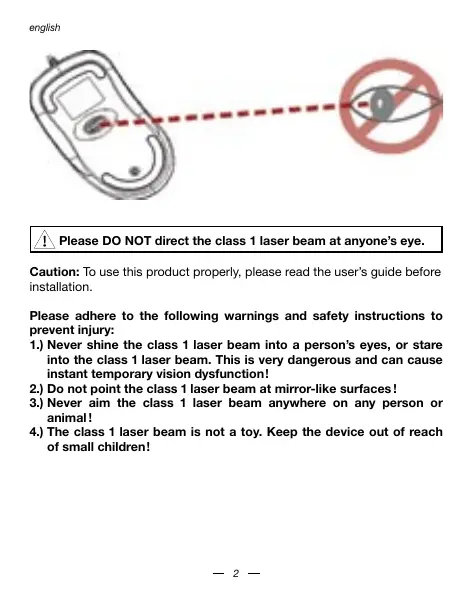
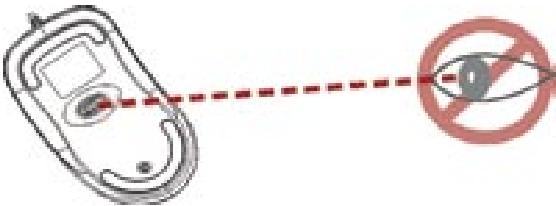
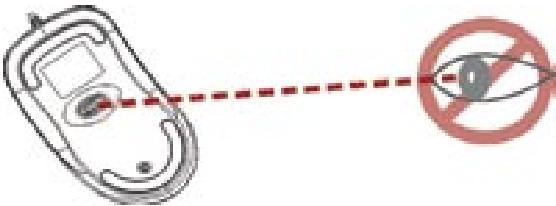
Please DO NOT direct the class 1 laser beam at anyone's eye.
Caution: To use this product properly, please read the user's guide before installation.
Please adhere to the following warnings and safety instructions to prevent injury:
1.) Never shine the class 1 laser beam into a person's eyes, or stare into the class 1 laser beam. This is very dangerous and can cause instant temporary vision dysfunction!
2.) Do not point the class 1 laser beam at mirror-like surfaces!
3.) Never aim the class 1 laser beam anywhere on any person or animal!
4.) The class 1 laser beam is not a toy. Keep the device out of reach of small children!
Welcome!
Your BlueStar mouse works without a receiver for the ultimate hassle-free mobility. It instantly connects to a Notebook or PC enabled with Bluetooth wireless technology, providing up to 10 meters (30 feet) of cordless range. Power-saving sleep modes and an ON/OFF switch let you manage working power wisely.
Your BlueStar mouse uses a new generation technology – invisible 1600 dpi laser sensor that replaces and accurately scans the surface 20 times more sensitive than the traditional LED optical sensor. You can work with your BlueStar mouse in most surfaces smoothly.
The stylish & comfortable design provides you with the best way to work with your Notebook or PC.
Safety notice:
- This product complies with IEC 60825-1, class 1 laser product.
- This product complies with FCC and CE rules.
- This product has no serviceable parts. Use of controls or adjustments of procedures other than the user guide mentiones may result in malfunction.
Package contents
- Bluetooth rechargeable laser mouse
- 2 x AAA rechargeable batteries
- USB charging cable
- User's guide
Minimum system requirements
- Bluetooth module enabled Notebook or PC
Windows 2000/ME/XP (supports WinXP SP2, Widcomm BTW, Toshiba Stack or IVT BlueSoleil Bluetooth software)
Mac OS X (10.2.8 or later) running Bluetooth software
CAUTION:
Change or modifications not expressly approved by the manufacturer responsible for compliance could void the user's authority to operate the equipment.
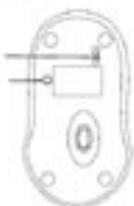
Functional introduction
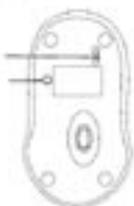
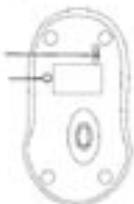
Green LED is ON Charging
Green LED is OFF Battery charging completed
Red LED is blinking Paired link low in battery
Red LED is blinking once
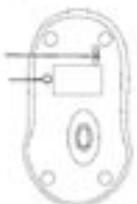
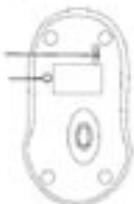
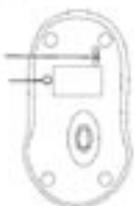
Turn the switch ON
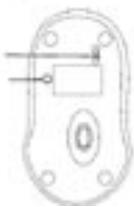
ON/OFF switch Connect button
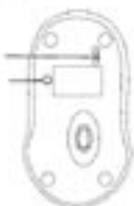
Battery and power management:
Installing the batteries
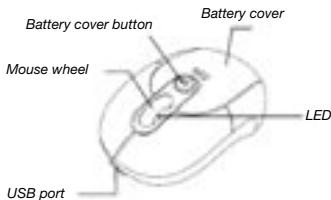
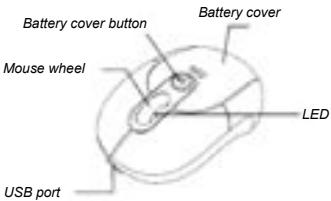
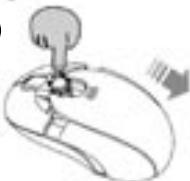
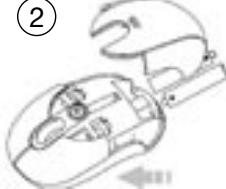
Step 1: Press the button on the mouse and pull the battery cover backwards.
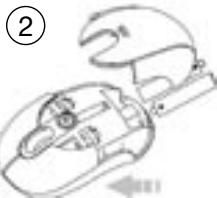
Step 2: Insert the batteries as shown inside the battery compartment.
Step 3: Replace the cover.
Hold
1
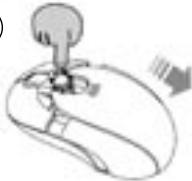
Push
Charging the battery
Please charge at least 10 hours for the first time usage and charge at least 6 hours when battery runs low.
Note: The charging time varies on different power output offered by USB port of your Notebook or PC.
How to charge
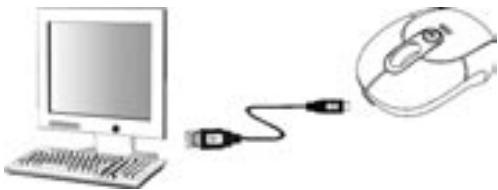
Plug the USB cable into your BlueStar mouse and Notebook or PC by USB port respectively and it starts charging. Mouse can work uninterruptedly during charging.
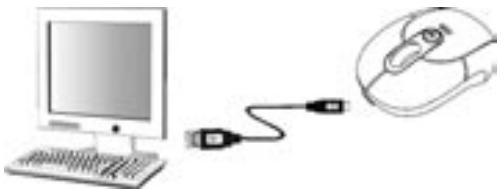
Note: To continuously charge the BlueStar mouse via the USB cable, your Notebook or PC must be ON and AWAKE.
Power indicator lights:
| Green LED is ON | Power cable is connected and the battery is charging. |
| Green LED is OFF | Power cable is connected and the battery is fully charged. |
Power saving features:
To conserve the battery power, the mouse offers power management functions as below:
- The mouse goes into "Saving Mode" after 10 seconds of inactivity.
- The mouse powers down to "Sleep Mode" after 5 minutes of inactivity.
Press one of the mouse buttons to wake it up while in Saving or Sleep Mode. There may be a slight delay while the mouse re-establishes Bluetooth connection from power saving or sleep mode.
Establishing a Bluetooth connection
The BlueStar mouse can work in any Bluetooth working environment. Before connecting your BlueStar mouse with your Notebook or PC, make sure your Notebook or PC has a working Bluetooth configuration that meets Bluetooth specification V1.1 or higher with Human Interface Device (HID) profile. If your Notebook or PC does not support Bluetooth, you need to obtain and install a commercially available Bluetooth adapter which converts your Notebook or PC to a Bluetooth environment.
Paring your Bluetooth mouse with your computer
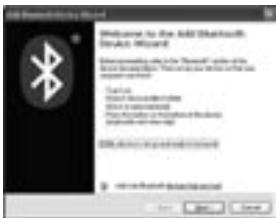
Before paring your BlueStar mouse with your computer, you should read through the instructions that came with your Bluetooth hardware and/or software for details how to pair a device to your specific Bluetooth configuration. Follow below steps to paring your BlueStar mouse under Windows XP/SP2 system.
- Attach or turn on the Bluetooth radio adaptor under Windows XP
- Turn on the switch on the bottom of the mouse.
- Click Start menu, click Control Panel and double click "Bluetooth Devices".
- On the "Devices" tab, click "Add".

- Select the "My device is set up and ready to be found" check box, and then click "Next".
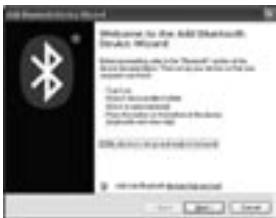
- Press the connection button of the mouse and it starts paring with your Notebook or PC. The red LED light will blink when connecting. Click the icon that represents the BlueStar mouse, and then click "Next".
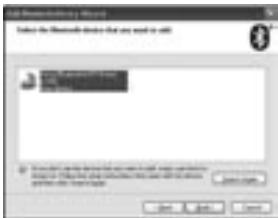
- Click "Don't use a passkey", and then click "Next".
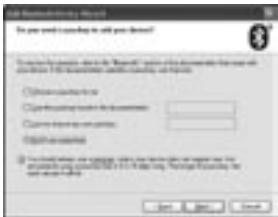
- You can find the Bluetooth mouse in the "Devices" tab when it is connected. The red LED will turn off automatically when the paring is successfully done.
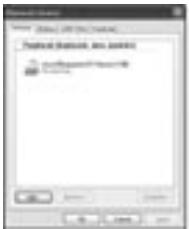
Note: Once the BlueStar mouse is installed, you can either disconnect the a wired mouse or leave it connected. (If you leave two mice connected, they will both work.)
Disconnecting BlueStar mouse from your computer
If you would like to disconnect your BlueStar mouse, just open the Bluetooth devices control panel and delete the pairing for the mouse.
Using your mouse
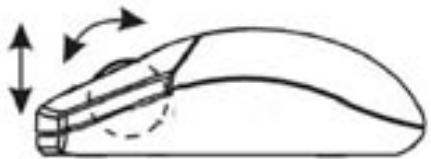
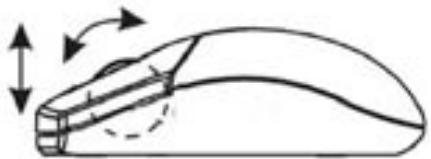
How to use the wheel
Your mouse has a wheel that functions both as a wheel for windows scrolling and also as a customized button. It can be used as a standard mouse button, click (press down) the wheel. To use the middle button, directly press down the wheel. For scrolling the screen, simply move the wheel.
Troubleshooting
A. Mouse does not work upon installation or is not detected
Try one or more of the following:
- Make sure you have installed the batteries correctly and turn the switch on. Replace a fresh set of batteries if it still doesn't work.
- Make sure that Notebook's or PC's Bluetooth module is enabled.
- Press the connection button to reset the Bluetooth connection between your mouse and Notebook or PC. Make sure it had been detected by the operating systems properly.
B. The screen cursor does not move properly
If your screen cursor lags behind the movement, then your Bluetooth connection may not be able to transmit all of the data from the mouse with the necessary speed. This may be caused by interference from other radio sources, obstructions in the radio wave path, excessive distance from the Notebook or PC, or a combination of the above.
- Low Battery: Replace batteries you feel the battery being low.
-
Try the following actions to improve your Bluetooth connection and optimize your BlueStar mouse performance:
-
Remove any metallic objects from the line of sight between your Notebook or PC and BlueStar mouse.
- If you are using a Notebook or PC with a built-in Bluetooth antenna, try re-orienting the Notebook or PC until you get a better data rate.
- If you are using an external Bluetooth device, use a USB extension cable and place the Bluetooth adapter onto your desktop or somewhere in sight of your BlueStar mouse.
- Move the mouse closer to your Bluetooth device.
- Disconnect any Bluetooth audio devices, such as headsets, that may be connected to your Notebook or PC.
-
Switch off any other devices operating in the 2.4 GHz radio spectrum, such as Wi-Fi network, mobile telephones, etc., or move their antennas further away from your Notebook or PC.
-
Caution: It may sometimes interfere the sensor of the mouse, if your tabletop surface is in red color, transparent as glass or highly
reflective like a mirror. Try to use a mouse pad or use your mouse on a different tabletop surface.
Disclaimer:
Information in this document is subject to change without notice. The manufacturer does not make any representations or warranties (implied or otherwise) regarding the accuracy and completeness of this document and shall in no event be liable for any loss of profit or any commercial damage, including but not limited to special, incidental, consequential, or other damage. No part of this document may be reproduced or transmitted in any form by any means, electronic or mechanical, including photocopying, recording or information recording and retrieval systems without the express written permission of the manufacturer.
Customer service:
If you encounter any problem with your BlueStar mouse, please contact our local subsidiary, partner or dealer, or send us your inquiry to info@dicota.com.
2 years warranty. Please find the complete text in our guarantee on the internet: www.dicota.com.
All the products and software mentioned above are registered trademarks of their respective owners. Errors and omissions excepted.

Bluetooth®
The Bluetooth word mark and logos are owned by the Bluetooth SIG, Inc. and any use of such marks by DICOTA is under license. Other trademarks and trade names are those of their respective owners.

This symbol (crossed out bin wheeile symbol according to WEEE Annex IV) indicates separate collection of waste electrical and electronic equipment in the EU countries. Please do not throw the equipment into the domestic refuse. Please use the return and collection systems available in your country for the disposal of this product.

Green LED is ON Charging
Green LED is OFF Battery charging completed
Red LED is blinking Paired link low in battery
Red LED is blinking once
Turn the switch ON
ON/OFF switch Connect button
Green LED is ON Charging
Green LED is OFF Battery charging completed
Red LED is blinking Paired link low in battery
Red LED is blinking once
Turn the switch ON
ON/OFF switch Connect button
Battery charging completed
Red LED is blinking
Paired link low in battery
Red LED is blinking once
Turn the switch ON
ON/OFF switch
Connect button
Battery charging completed
Red LED is blinking
Paired link low in battery
Red LED is blinking once
Turn the switch ON
ON/OFF switch
Connect button
Green LED is ON Charging
Green LED is OFF Battery charging completed
Red LED is blinking Paired link low in battery
Red LED is blinking once
Turn the switch ON
ON/OFF switch Connect button
Baterie a napajeni:
Instalace baterii
Please DO NOT direct the class 1 laser beam at anyone's eye.
BHHMAnHe: IpeE nIcNOLbOaBHMe dHAnHO pRoDyKtA, NOkAYnCTA, npOHTe HnCTpyKnIO neKcnPlyatauNtiopeE yCTAHOBKO.
TOKJIYCTA, TBEPO nprEpeKXBAIteCb cneyuOuHX npABIN BO N36EKAHNE NOPAKEHNA
1.) HNkorDA He naHapnBne CBT eon na3epa 7Rna3A. 3To oHeNo aNoCHO M NOKET BbI3BaTb MTOBOEHOE HApUeHMe 3PBN.
2.) He HapabJIaTe Na3epHbI nyuO Ka 3epKaJIbHyIO NOBepXHOCTb.
3.) Hnkorda He HanpaBnaIte Ja3epHbI nyOc Ha IIOe NIN XNBOThbIX.
4.) IaIaePbHn pyOcK - 3To He nrgPyuSha. DeepXte daHbH daBaC bDaJIr Ot detei!
Welcome!
Baua MbIb BlueStar pa60tae8 63 Ha paacctoHn do 10 MetpoB 63 shupa pnnpomoi 63npobOHOJ texHoNOrm Bluetooth. Pekm 3hePocBepexEHHN《CINpua peKIM》PpOJaBaet pa60Ty MbIu.
Baua MbIb BlueStar hncnon3yetTexhOnorHOBORo NOKONENHIN - HEBNIMMbI na3epHer cEHcOp 160dpi, KOtOpBckAChnpyet NOpeBxHocTb B2 p03 3fFekntNBHeE YEM TpaDNIOHNH ONITMueckn CEHocP.
Elaqaradop CTINbHOMY KOMFOPTHOMY m3aHy paObOtab 3a HoTybKom nnIPI - ONO yUBOBbCTME.
Ppabnla 6e3onacchoTn:
1.ДаньшюрдунктсовмостимсIC60825-1,knacc1лаерноюpondkyum.
2. Bāwī Ṭpόdūykt COBmecṭn m FCC n CE.
3. 3TOT pOlyKT He IMeET ZaMeHReBbX qAteH. McNoJIbOBAHHe OTdIbHbX qAteH INn peYrIpOBKa B HApUeHne INcHTpyKuIMoKet npRBeCTN K PONOMke.
KOMJIeKT:
- nepezapjaemajnaepnajmbiBcBluetooth
-ДBEбатapestиТипа AAA - ka6eJIb IaIg 3apJIkn USB
- INHCTpyKZnI NOb3OBeTEnI
MHHMaJIbHbIe CnCTeMHbIe Tpe6oBaHnA
- Moунь Bluetooth B Hoутбук eи nI K
- Windows 2000/ME/XP (Supports WinXP SP2, Widcomm BTW, Toshiba Stack or IVT BlueSoleil Bluetooth Software)
Mac OS X ( 10.2.8 or later ) running Bluetooth software
BHIMAHNE:
3aHaMaH cAteh Hm MoDnKauMn BmHb6e 0oBepHn pOIO3BODIHTenEM IiMaET noNTOBATEcex BCx npae Ha nCPOIbOBAHRe DAHNHO pOBOYkUN.
Functional introduction
Green LED is ON
Charging
Green LED is OFF
Battery charging completed
Red LED is blinking
Paired link low in battery
Red LED is blinking once
Turn the switch ON
ON/OFF switch
Connect button
Battery and power management:
Installing the batteries
War 1: Haxmnte KhoNky Ha MbIuKe N BbITaHnTe KpbIuKy 6aTapei.
War 2:BCTaBbTe 6atapen KaK noka3aHo Ha pncyHke.
War 3: BCTaBbTe KpbIuKy Ha MeCTo.
Hold
1
Push
(2
3apdka 6aTapeu
TokanyiIc7a 34 zajkaiTe 6atapoe nepbIy pa3 no kpaIeH mepe 10 cacOB n He Meehe 6 cacob B daJIbHeHiem.
BHMHHe: Bpemn no3aapdikm moKet bapnspoBaTc B a3bHcMOnCTO cnbl toka cepes USB nopt BaWero Hoyt6yka mIn nepcoHaIbHoro KOMNbTopeA.
Kak 3apjkaTb
BCTabte USB ka6ebb B bauy Mbu bBlueStar n b nopT USB hoyt6yka nnPi K no3aapraJaKa hauhctetc.
BHHMAne:Дилгельноу подадрamy MbluB BlueStar donKxha 6bIbT noDknIOHeya Hepe3 nopt USB KBNIOHcHMyOhySTyKyu nII PK.
HnkaTopb nntaHa:
| 3eJEHbI BkLIOUeH | Kabel noJcoEiHEn H 6aTapey 3apJxJaTcY. |
| 3eJEHbI BbIKLIOUeH | Kabel noJcoEiHEn H 6aTapey ⅠoNHOCTbI 3apJdINlAcB. |
3Heproc6epexeHne:
YtOb6I coxpaHITb 3ePRnIO bATepen, ynpaBHeNMeMbIIN cNoPb3yET cnEduynupeXeRIMbI?
How to use the wheel
Your mouse has a wheel that functions both as a wheel for windows scrolling and also as a customized button. It can be used as a standard mouse button, click (press down) the wheel. To use the middle button, directly press down the wheel. For scrolling the screen, simply move the wheel.
Troubleshooting
A. Mouse does not work upon installation or is not detected
Try one or more of the following:
- Make sure you have installed the batteries correctly and turn the switch on. Replace a fresh set of batteries if it still doesn't work.
- Make sure that Notebook's or PC's Bluetooth module is enabled.
- Press the connection button to reset the Bluetooth connection between your mouse and Notebook or PC. Make sure it had been detected by the operating systems properly.
B. The screen cursor does not move properly
If your screen cursor lags behind the movement, then your Bluetooth connection may not be able to transmit all of the data from the mouse with the necessary speed. This may be caused by interference from other radio sources, obstructions in the radio wave path, excessive distance from the Notebook or PC, or a combination of the above.
- Low Battery: Replace batteries you feel the battery being low.
-
Try the following actions to improve your Bluetooth connection and optimize your BlueStar mouse performance:
-
Remove any metallic objects from the line of sight between your Notebook or PC and BlueStar mouse.
- If you are using a Notebook or PC with a built-in Bluetooth antenna, try re-orienting the Notebook or PC until you get a better data rate.
- If you are using an external Bluetooth device, use a USB extension cable and place the Bluetooth adapter onto your desktop or somewhere in sight of your BlueStar mouse.
- Move the mouse closer to your Bluetooth device.
- Disconnect any Bluetooth audio devices, such as headsets, that may be connected to your Notebook or PC.
-
Switch off any other devices operating in the 2.4 GHz radio spectrum, such as Wi-Fi network, mobile telephones, etc., or move their antennas further away from your Notebook or PC.
-
Caution: It may sometimes interfere the sensor of the mouse, if your tabletop surface is in red color, transparent as glass or highly
reflective like a mirror. Try to use a mouse pad or use your mouse on a different tabletop surface.
INHOpMaUNB 3OTOMDOKyMHeMe MOrYbItbNcPabNeHb6e3 neDyUnpExdHnE. IPOr3OuDITb HeBbIa3aN HNKxHnpeTeHNbA n Hn rapaHTm B C3TJLDAOM Ha TOoHCTb N KOMNKeTHOCTb 3TOr DOKyMeHTa, n He Hecet OTBCTBeHNOCTn 3a KaKyO JIn6o NToepIO npN6bln INn mtePApHaIbHn yUe6 (CneuaNaHbN yUe6p, CnyaHnh, HnepMO, n T. d.) Hn Ondha cctb Etoro DOKyMHTa HEMOKeT 6bIbKoNipOBaHa, nepeCbHa na, npeReda, nH b KaKoiΦOpme NHKakMM cpeCTBaMn (B eEnkTOPHOM BInde INn MExAHueCheKn), BKlNoaer KOnIPOBaHne, ZaInscBaNHe, nI6o nepENncBaHnne INHOpMaUNB yINbcKBaHMe B INhOpMaONHbX cStEmax, 6ez npMRIO NcBMcEHORo corTna.
KIneHTckn cepBnc:
Ecnj 6nBte MeBt kakne npb6mbl c npodkTOM BlueStar, KOntaktpyuHnac NoxKnycta hà: dicota@dicota.cz iNiz Hs CTpaenlax wKdiocota.
Garanty 2 roda. Bonee noop6hna HnΦopmaua Ha INTEpHET cTpaHuaX: www.dicota.com.
Bce pnojkybI noCtoBpeBy ykaaAHHbe bIyue raHIOCTa 3apeHcTPOBAHHO mapKo COOTBETCByUOxN co6CbTBENHKKOB.

Bluetooth®
The Bluetooth word mark and logos are owned by the Bluetooth SIG, Inc. and any use of such marks by DICOTA is under license. Other trademarks and trade names are those of their respective owners.

This symbol (crossed out bin wheele symbol according to WEEE Annex IV) indicates separate collection of waste electrical and electronic equipment in the EU countries. Please do not throw the equipment into the domestic refuse. Please use the return and collection systems available in your country for the disposal of this product.

Battery charging completed
Red LED is blinking
Paired link low in battery
Red LED is blinking once
Turn the switch ON
ON/OFF switch
Connect button
Akkumulator es energiaikarekossag (Power Management):
- Pipälja ki a "My device is set up and ready to be found" ablakot és klikkejen a "Next"-re.
Battery charging completed
Red LED is blinking
Paired link low in battery
Red LED is blinking once
Turn the switch ON
ON/OFF switch
Connect button