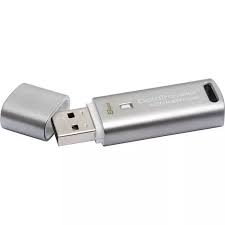
DATATRAVELER LOCKER G2/DTLPG2 - USB Drive KINGSTON - Free user manual and instructions
Find the device manual for free DATATRAVELER LOCKER G2/DTLPG2 KINGSTON in PDF.



User questions about DATATRAVELER LOCKER G2/DTLPG2 KINGSTON
0 question about this device. Answer the ones you know or ask your own.
Ask a new question about this device
Download the instructions for your USB Drive in PDF format for free! Find your manual DATATRAVELER LOCKER G2/DTLPG2 - KINGSTON and take your electronic device back in hand. On this page are published all the documents necessary for the use of your device. DATATRAVELER LOCKER G2/DTLPG2 by KINGSTON.
USER MANUAL DATATRAVELER LOCKER G2/DTLPG2 KINGSTON
DataTraveler Locker+ G2
Find the language and latest documentation for your Kingston® DataTraveler Locker+ G2 here.
DataTraveler Locker+ G2 Installation Guide
For instructions in English
Para instrucciones en español
+ .Fur Anleitungen in Deutsch
Pour des instructions en français
Per le istruzioni in italiano
. Por as instruções em portugues
Instrukcje w jezyku polskim
Japanese
Thai
Simplified Chinese....... 中文说明
Traditional Chinese .... 中文說明
DataTraveler® Locker+ G2 User Manual
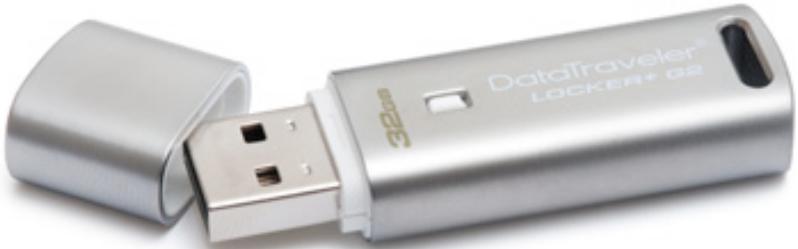
Table of Contents
About This User Guide 3
System Requirements 3
Recommendations 3
Setup (Windows Environment) 4
Device Initialization (Windows Environment) 5
Device Usage (Windows Environment) 9
Device Options (Windows Environment) 10
Setup (Mac Environment) 14
Device Initialization (Mac Environment) 15
Device Usage (Mac Environment) 19
Device Options (Mac Environment) 20
Help and Troubleshooting 24
Device Lockout 24
Forgot Password 25
Drive Letter Conflict (Windows Operating Systems) 26
About This User Guide
This user manual covers the DataTraveler® Locker+ G2 (referred to simply as DTL+ G2 from this point forward) based on the factory image with no implemented customizations.
System Requirements
PC Platform
- Pentium III (or faster) processor equivalent
15MB free disk space
USB 2.0 / 3.0 port - Two consecutive drive letters after the last physical drive*
PC Operating System Support
Windows® 7
- Windows® Vista SP1, SP2
- Windows® XP SP2, SP3
Mac Platform
15MB free disk space
USB 2.0 / 3.0 port
Operating System Support
Mac OS X 10.5.x
Mac OS X 10.6.x
Mac OS X 10.7x
Recommendations
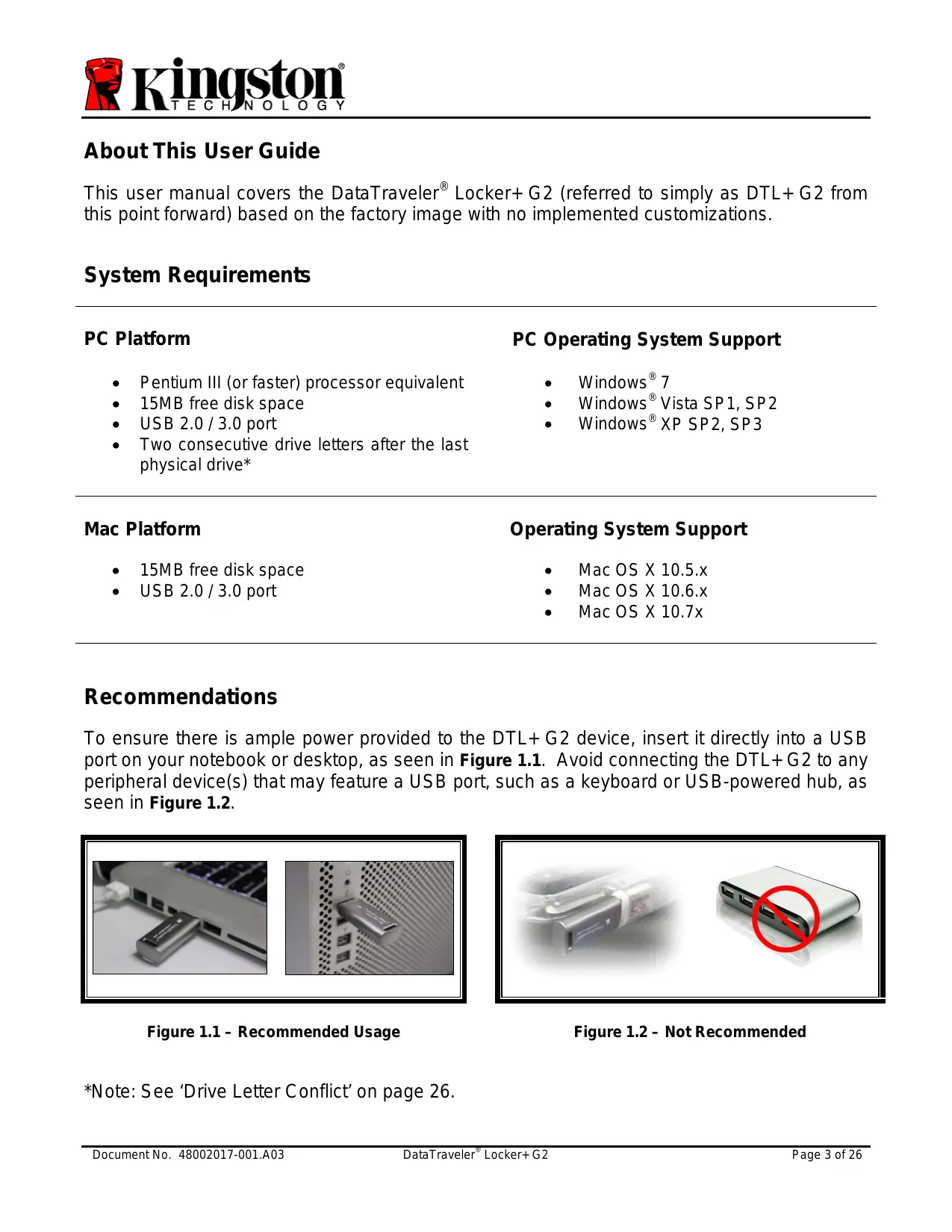
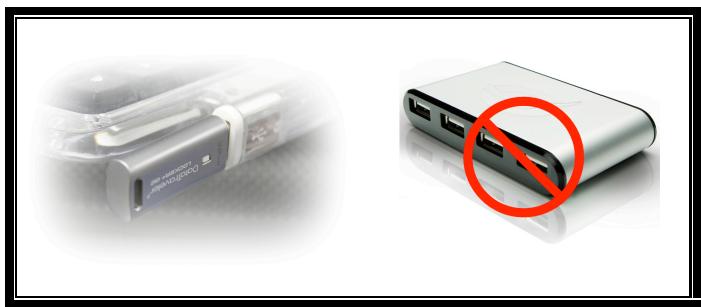
To ensure there is ample power provided to the DTL+ G2 device, insert it directly into a USB port on your notebook or desktop, as seen in Figure 1.1. Avoid connecting the DTL+ G2 to any peripheral device(s) that may feature a USB port, such as a keyboard or USB-powered hub, as seen in Figure 1.2.
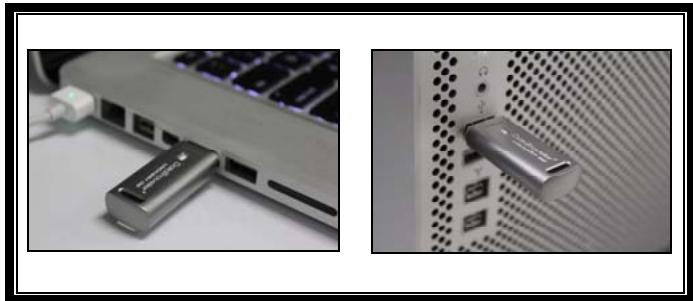
Figure 1.1 - Recommended Usage
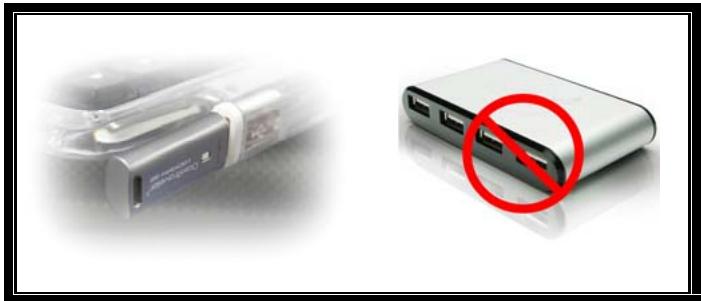
Figure 1.2 - Not Recommended
*Note: See 'Drive Letter Conflict' on page 26.
Setup (Windows Environment)
-
Insert the DTL+ G2 into an available USB port on your notebook or desktop and wait for Windows to detect it.
-
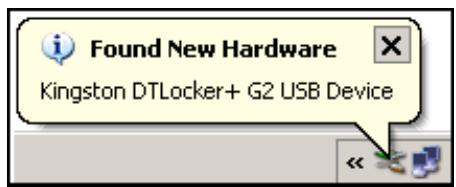
Windows XP users will receive a 'Found New Hardware' notification as seen in Figure 2.1.
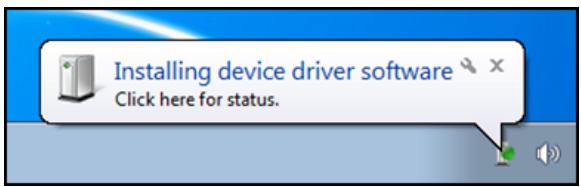
- Windows Vista/7 users will receive a device driver notification as seen in Figure 2.2.
Once the new hardware detection is complete, Windows will begin the initialization process.
- If the Windows autorun function is enabled, you can skip the next step and go to page 5 - Device Initialization.
-
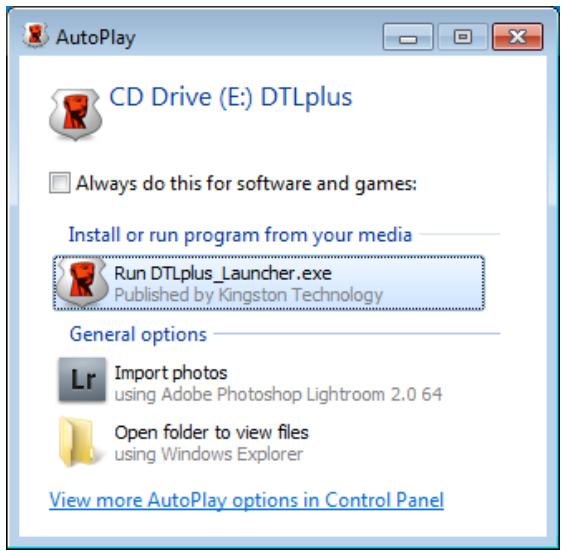
If the Windows autorun function is disabled, as it is in Windows 7 by default, you may see an AutoPlay window similar to the one in Figure 2.3.
-
Select the option 'Run DTLplus_Launcher.exe'.
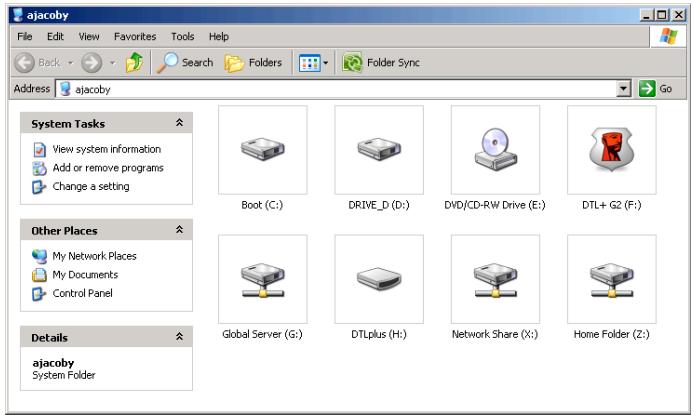
If Windows does not AutoPlay, simply browse to the CD-ROM partition (Figure 2.4) and manually execute the DTLplus_Launcher program. This will also start the initialization process.
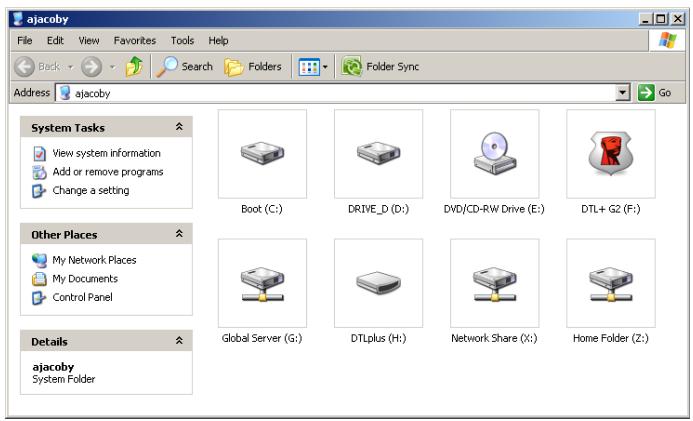
Figure 2.4 - DTL+ G2 Contents
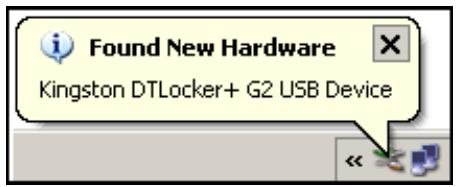
Figure 2.1 – Found New Hardware (Windows XP)
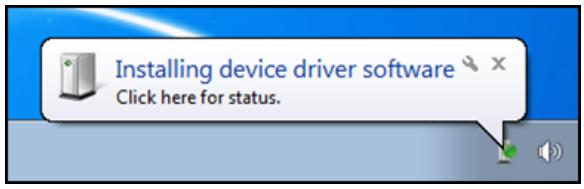
Figure 2.2 - Device Driver Installation (Windows Vista/7)
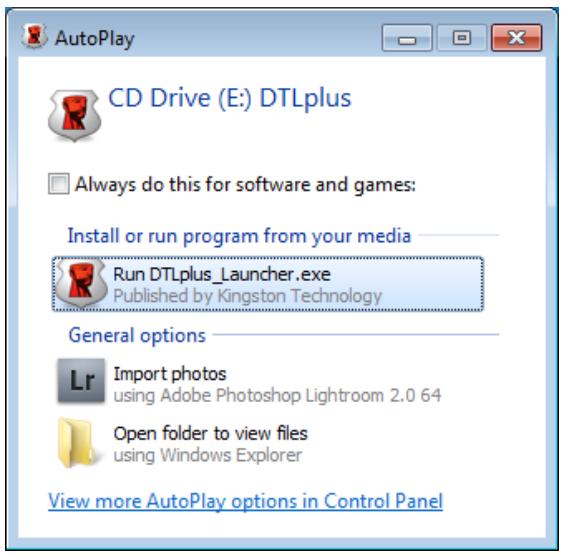
Figure 2.3 – AutoPlay Window (Windows Vista/7)
(Note: Menu options in the AutoPlay window may vary depending on what programs are currently installed on your computer. If enabled, AutoRun will start the initialization process automatically.)
Device Initialization (Windows Environment)
- Select your language preference from the drop-down menu and click 'Next' (Figure 3.1.)
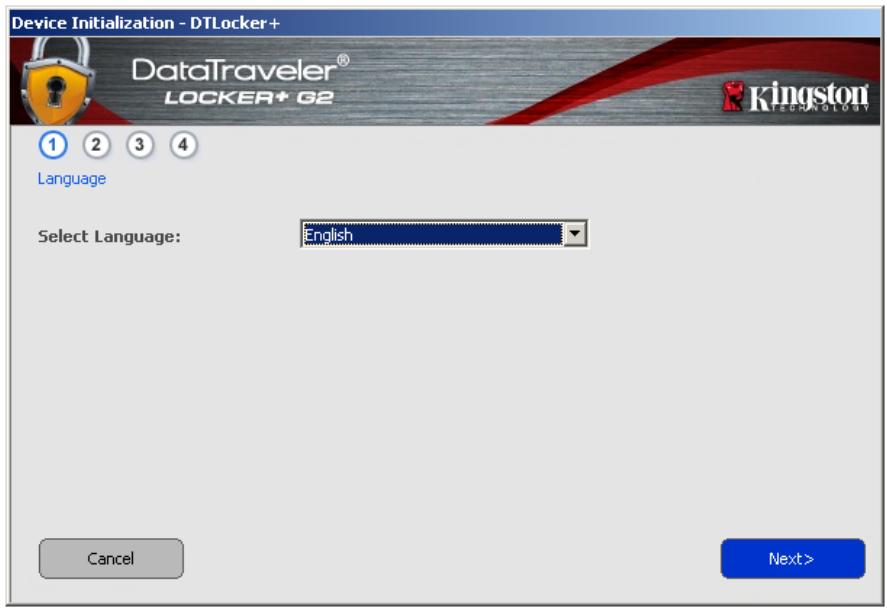
Figure 3.1 - Language Selection
- Review the license agreement and click 'Next' (Figure 3.2.) (Note: You must accept the license agreement before continuing; otherwise the 'Next' button will remain disabled.)
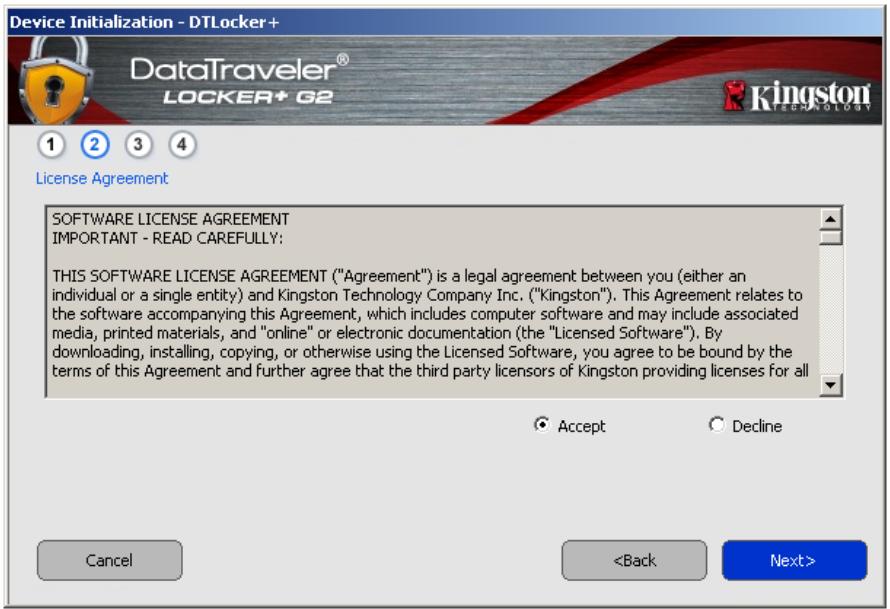
Figure 3.2 - License Agreement
-
Create a password to protect your data on the DTL+ G2. Enter it in the 'Password' field, then re-enter it in the 'Password Confirmation' field, as seen below in Figure 3.3. The password you create must meet the following criteria before the initialization process will allow you to continue:
-
Passwords must contain 6 characters or more (up to 16 characters.)
-
Passwords must contain three (3) of the following criteria options:
-
UPPER CASE, lower case, numeric, and/or special characters (!, $, etc.)
You may also enter a password hint, but it is not a mandatory field. The hint field can be useful in providing a clue as to what the password is, should the password ever be forgotten. (Note: The hint CANNOT be an exact match to the password.)
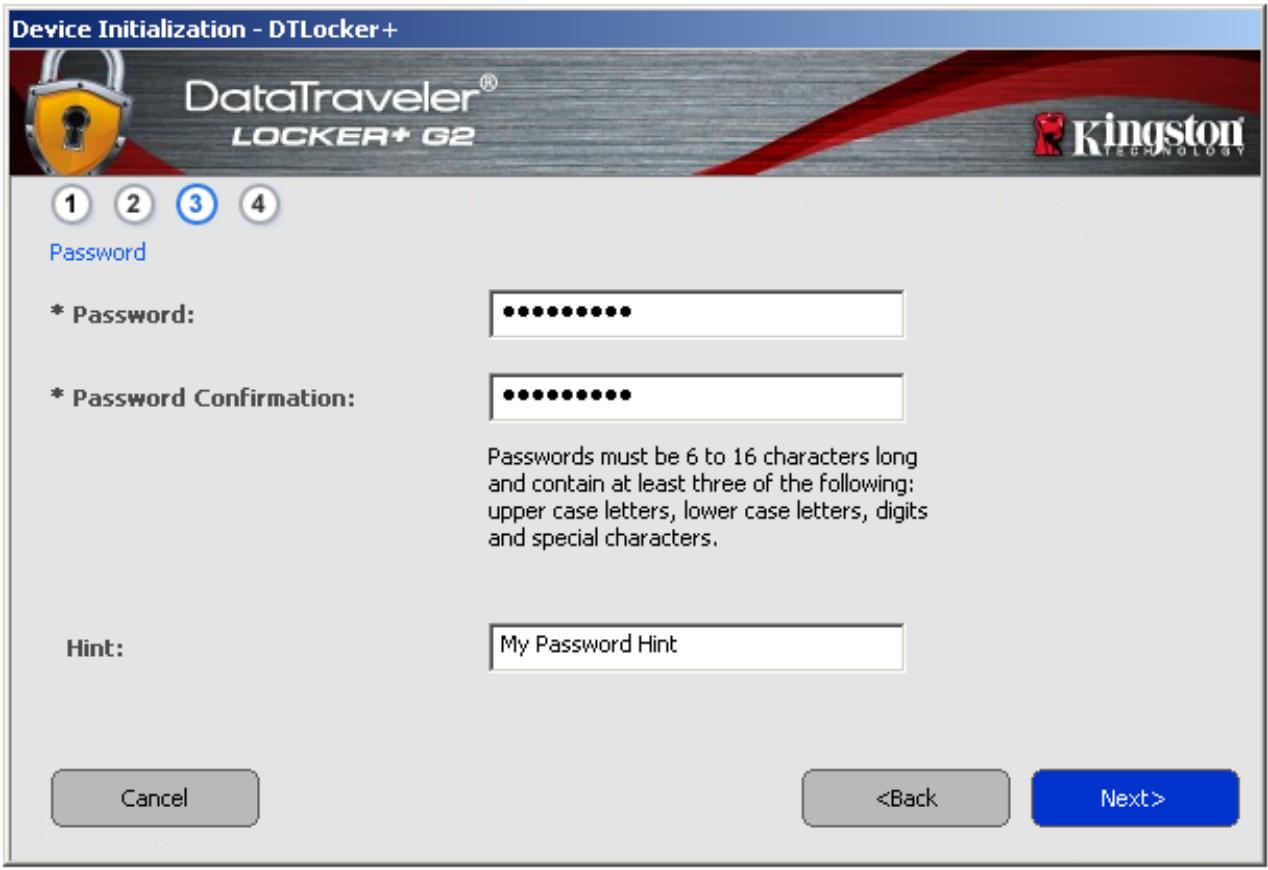
Figure 3.3 - Password Setup
-
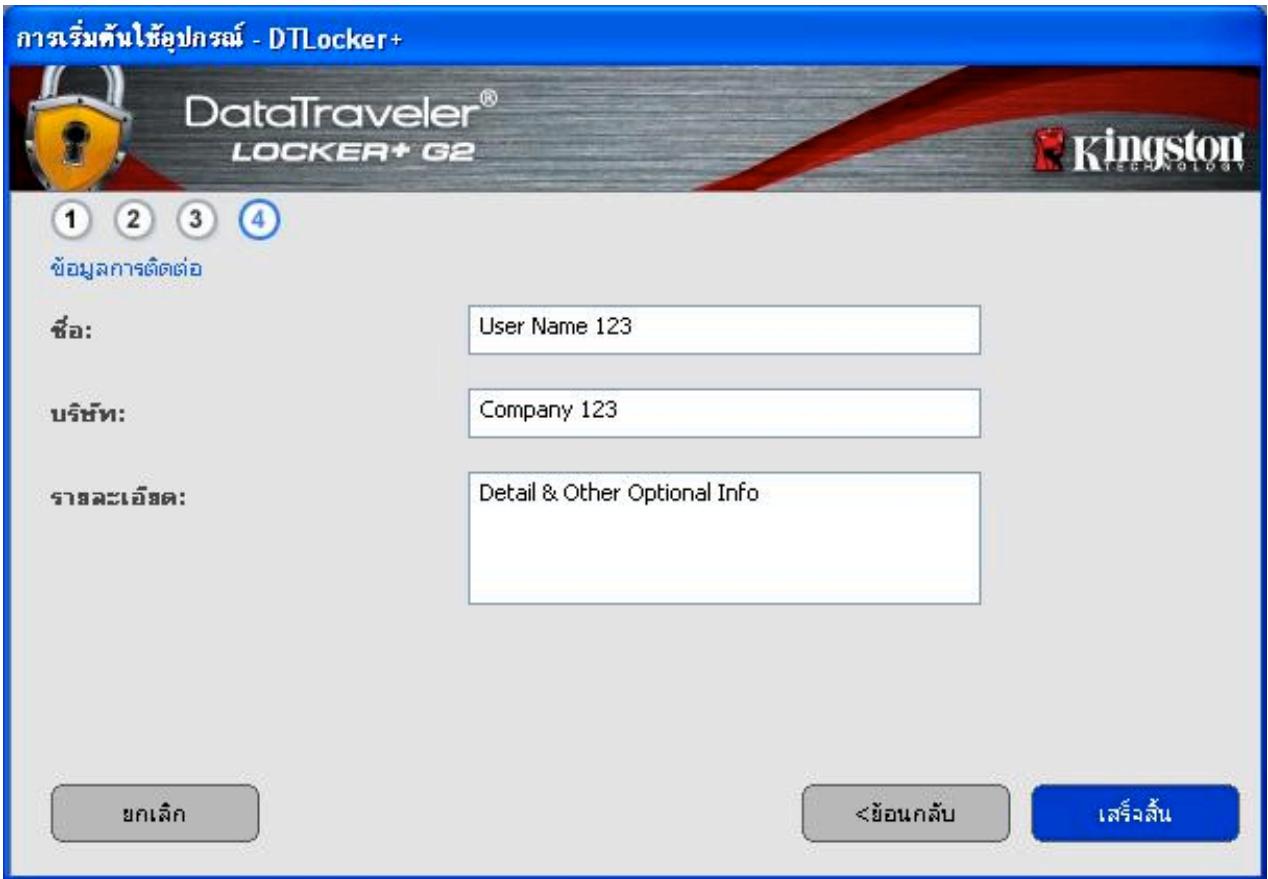
Enter your contact information into the text boxes provided (see Figure 3.4) (Note: The information you enter in these fields may NOT contain the password string you created in Step 3. However, these fields are optional and can be left blank, if so desired.)
-
The 'Name' field may contain up to 32 characters, but cannot contain the exact password.
- The 'Company' field may contain up to 32 characters, but cannot contain the exact password.
- The 'Details' field may contain up to 156 characters, but cannot contain the exact password.
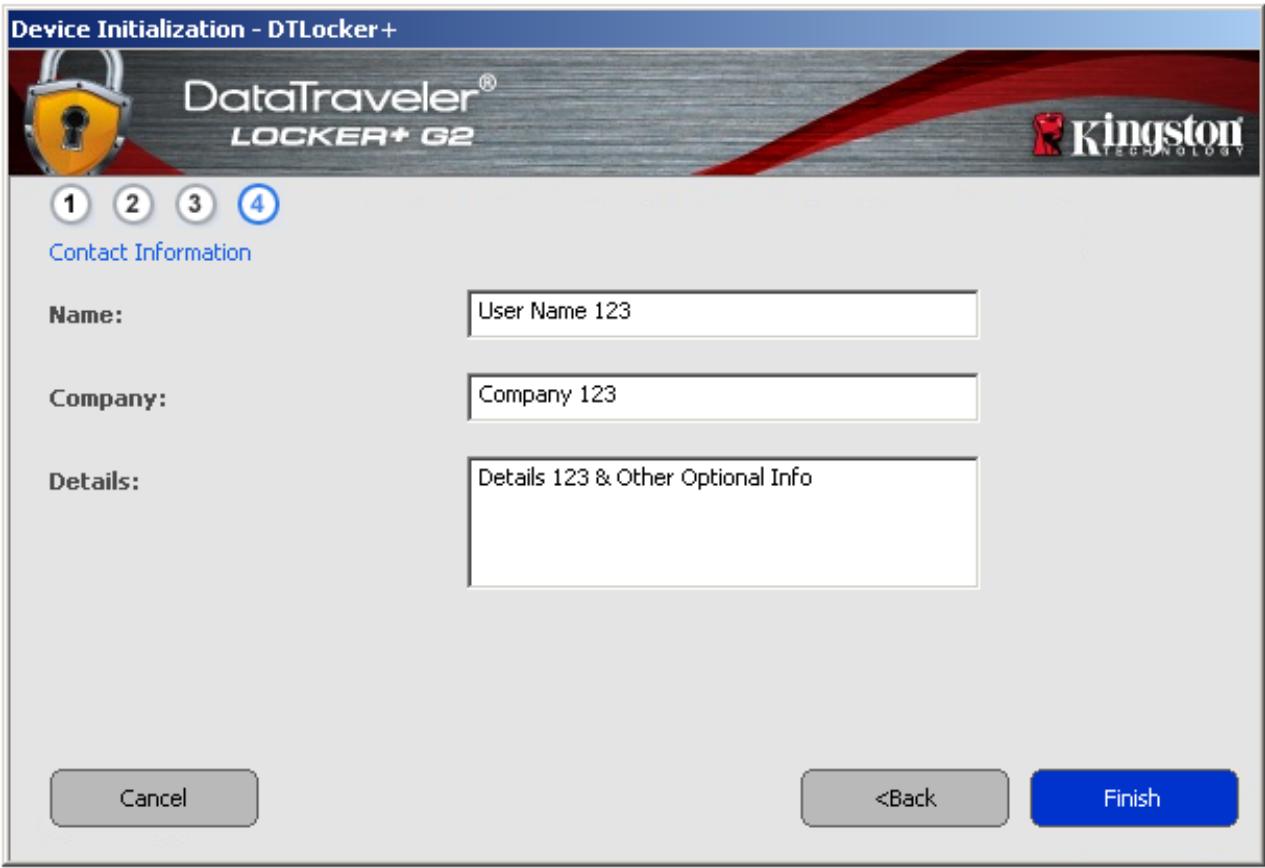
Figure 3.4 - Contact Information
- Click 'Finish' to complete the device initialization process.
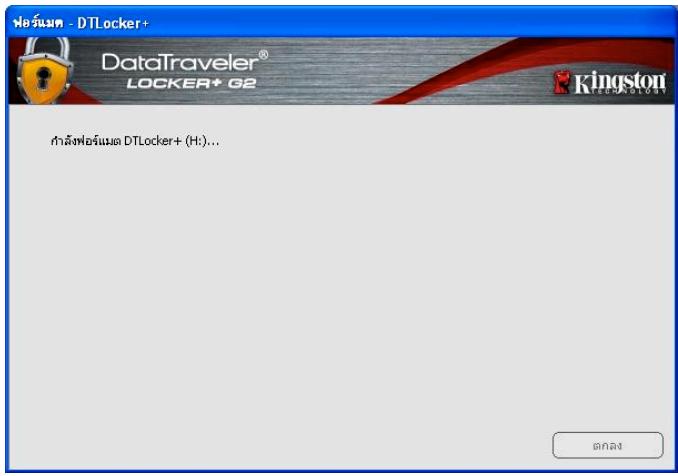
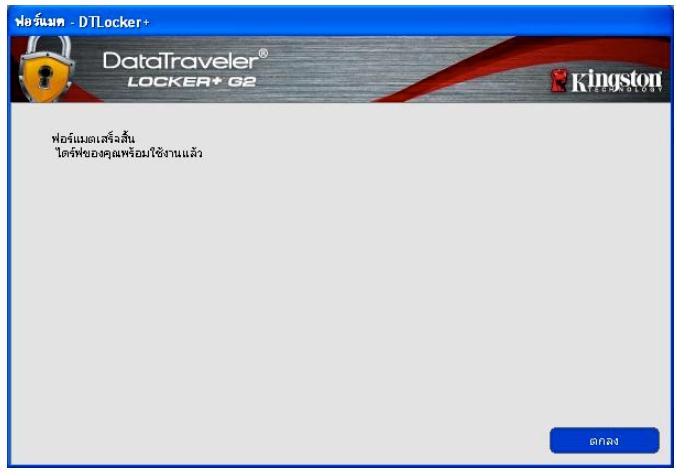
The DTL+ G2 will now format the secure data partition (Figure 3.5) and notify you when it is complete (Figure 3.6.)

Note: If operating under Windows XP in Non-Admin mode, the 'Format' routine can take up to a minute.*
- Click OK to continue.
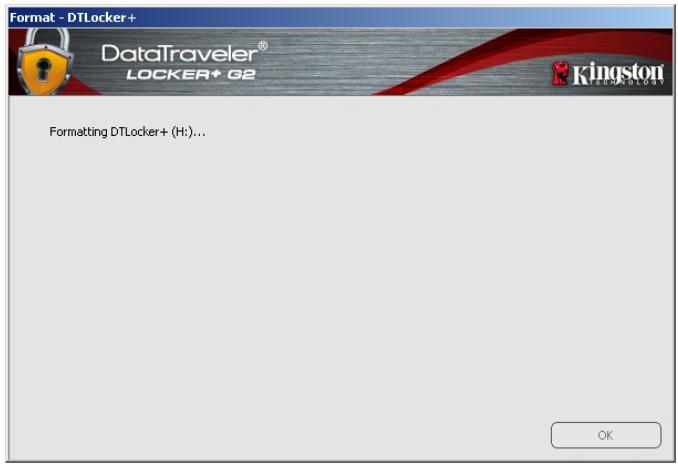
Figure 3.5 - Formatting DTL+ G2
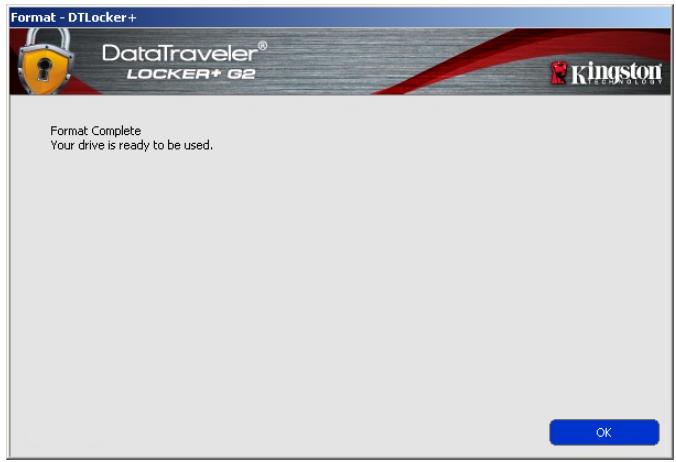
Figure 3.6 - Format Complete
Initialization complete.
*Note: Times may vary based on system hardware and the capacity of the DTL+ G2 drive.
Device Usage (Windows Environment)
Once the DTL+ G2 has been initialized, you can access the secure data partition and utilize the device options by logging into the device with your password. To do so, follow these steps:
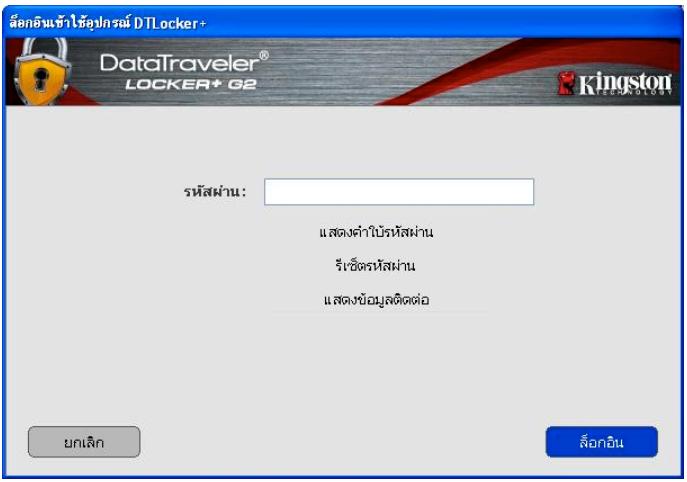
- Insert the DTL+ G2 into a USB port on your notebook or desktop and enter your password (see Figure 4.1.)
-
Once you've typed your password, click the 'Login' button to continue.
-
If the correct password is entered, the DTL+ G2 will unlock and you can begin using the device.
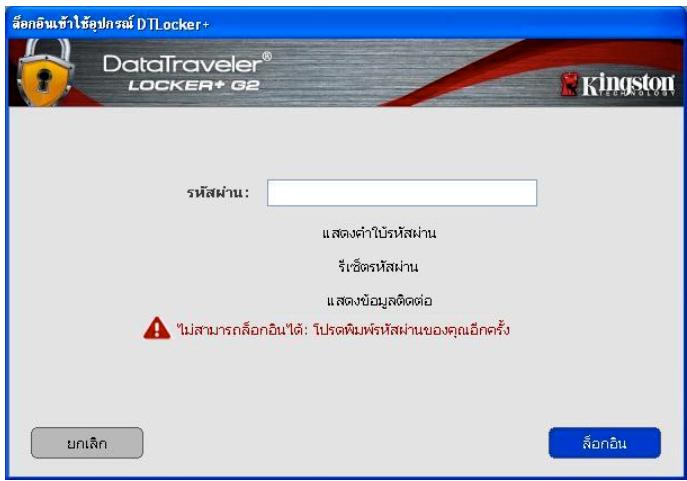
- If an incorrect password is entered, an error message will appear just below the 'Hint' field, indicating a login failure (see Figure 4.2.)
During the login process, if a bad password is entered, you will be given another opportunity to enter the correct password; however, there is a built-in security feature that tracks the number of failed login attempts*. If this number reaches the preconfigured value of 10 failed attempts, the DTL+ G2 will lock and require a device format of the secure data partition prior to next use.

THIS MEANS THAT ALL DATA STORED ON THE DTL+ G2 WILL BE LOST.
For more details on this feature, see 'Device Lockout' on page 24.
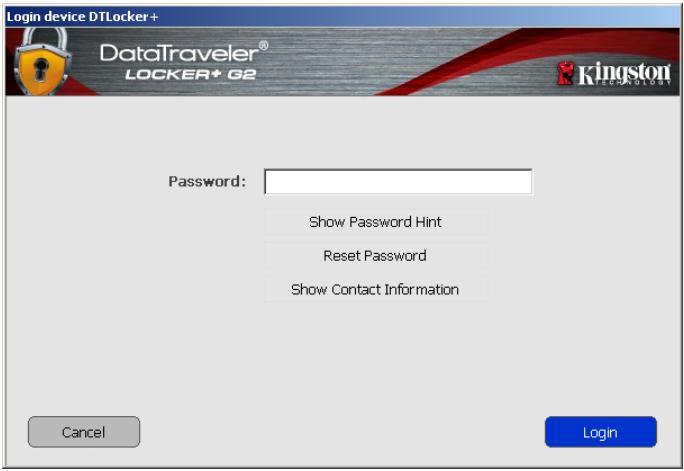
Figure 4.1 - Login Window
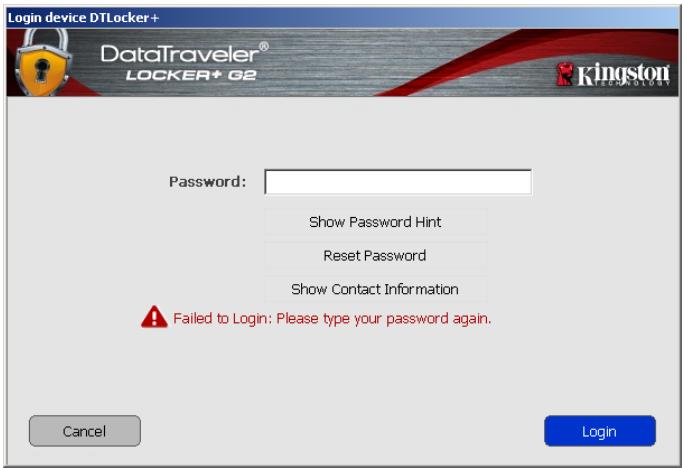
Figure 4.2 - Login Failure
*Note: Once you authenticate to the device successfully, the failed login counter will reset.
Device Options (Windows Environment)
While you are logged into the device, there will be a ‘DTL+ G2’ icon located in the right-hand corner of the Windows taskbar (Figure 5.1.) (Note: Windows 7 users will need to click on the up-arrow button in the taskbar in order to access the ‘DTL+ G2’ icon (Figure 5.2.)
Clicking once on the DTL+ G2 icon will display the following menu:
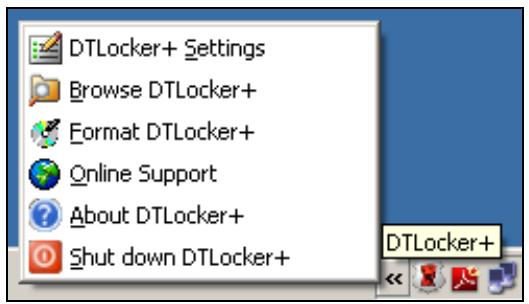
Figure 5.1 - DTL+ G2 icon in taskbar (Windows XP users)
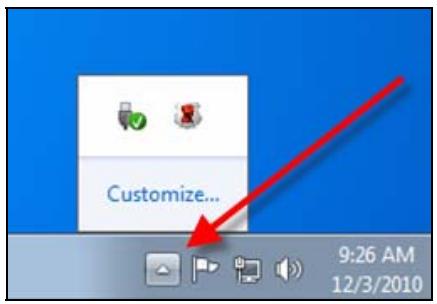
Figure 5.2 - DTL+ G2 icon in taskbar (Windows 7 users)
DTL+ G2 Settings
- Allows you to change your password and/or hint (Figure 5.3)
- Allows you to store username and password information (see Page 11)
- Allows you to add/view/change your contact information (Figure 5.4)
- Allows you to change your current language selection (Figure 5.5)
(Note: For security purposes, your current DTL+ G2 password is required to update and/or modify any of these settings.)
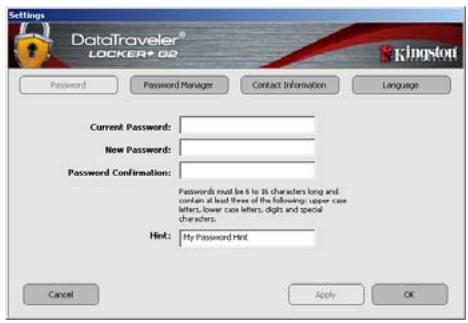
Figure 5.3 Change Password
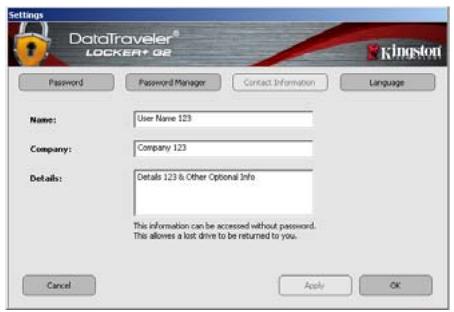
Figure 5.4 Contact Information
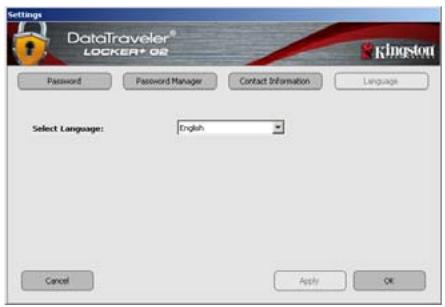
Figure 5.5 Select Language
Password Manager
Password Manager is an area found within the settings menu of the DTL+ G2 that allows you to store and access username and password account information (for up to 20 accounts.)
To store an account, just follow these simple steps:
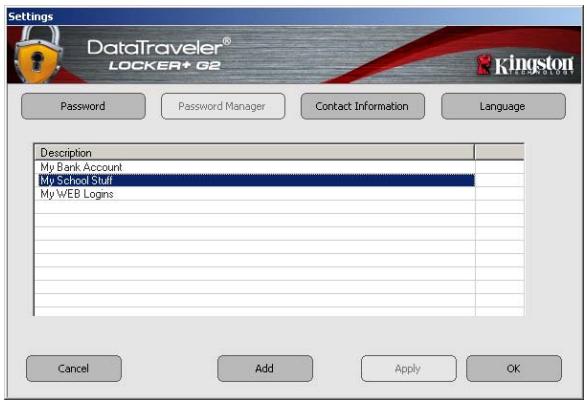
- Click the 'Add' button (shown in Figure 5.6a) to create a new account.
- Type in the information you would like to store, using the following criteria:
a. The 'Description' field is mandatory and can hold up to 40 characters.
(Note: This field must contain at least 1 character. It cannot be left blank.)
b. The 'Username' field is optional. It can hold up to 40 characters.
c. The 'Password' field is optional. It can hold up to 40 characters. By default, each character is masked by an asterisk. If you would like to store the password in plain text, simply de-select the 'Hide Password' checkbox located below the 'Comments' field. (See Figure 5.6b)
d. The 'Comments' field is optional. It can hold up to 360 characters.
- If you would like to protect this item using a password, simply select the 'Password protect' checkbox located below the 'Comments' field. (See Figure 5.6b)
(Note: The password used to protect this item is the same password you use to log into the DTL+ G2 device.)
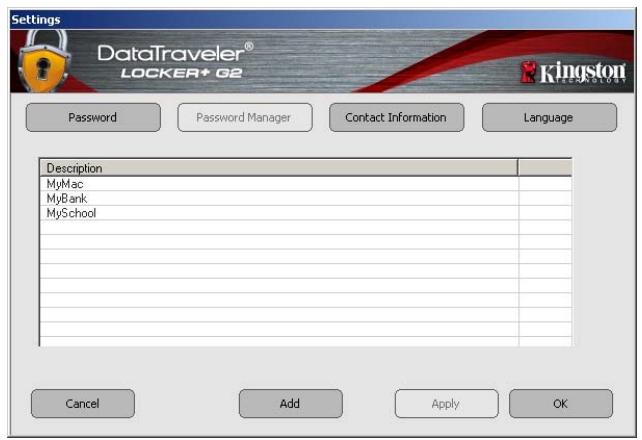
Figure 5.6a
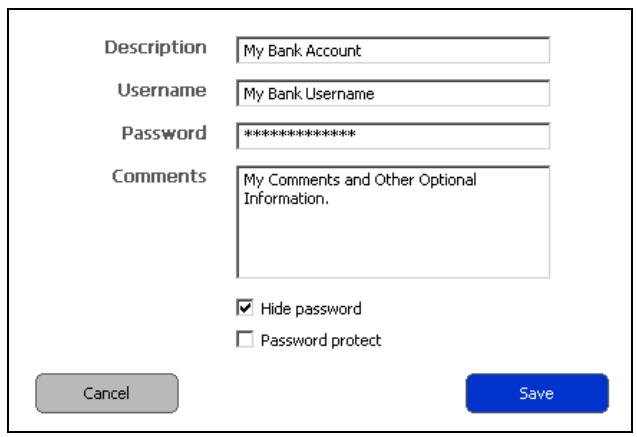
Figure 5.6b
Password Manager Screenshots
To update or change an existing account in 'Password Manager', do the following:
- Double-click the line item you wish to update or change.
- If you password-protected the item you are trying to update or remove, you will be prompted for the device password, which is the same password you use to unlock the DTL+ G2 device at login. You must enter this password correctly before the account window will open for that specific item.
- When the account window opens, you can modify any of the fields by clicking in the text box of the specific field you want to update and make the necessary changes. When you are finished making changes, click on the 'Save' button.
To delete an existing account in 'Password Manager', do the following:
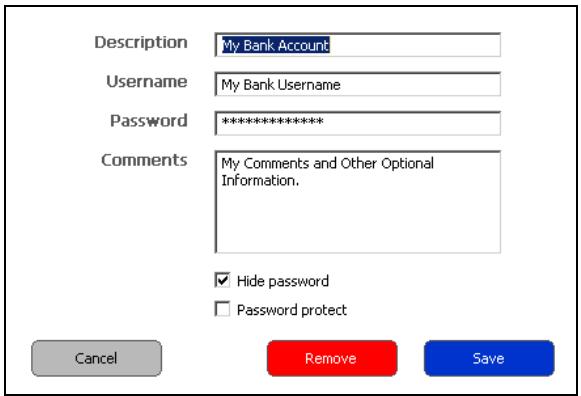
- Double-click the line item you wish to delete.
- If you password-protected the item you are trying to delete, you will be prompted for the device password, which is the same password you use to unlock the DTL+ G2 device at login. You must enter this password correctly before the account window will open for that specific item.
- When the account window opens, simply click the 'Remove' button and you are finished
Browse DTL+ G2
- Allows you to browse the contents of the secure data partition while you are logged in
Format DTL+ G2*
- Allows you to format the secure data partition (Warning: All data will be erased.) (Figure 5.7)
Online Support (Requires Internet access)
- Opens your Internet browser and navigates to http://www.kingston.com/support/ where you can access additional support information

Figure 5.7 - Format Warning
About DTL+ G2
- Provides specific details about the DTL+ G2, including Application and Firmware version information (Figure 5.8)
Shutdown DTL+ G2
- Properly shuts down the DTL+ G2, allowing you to safely remove it from your system
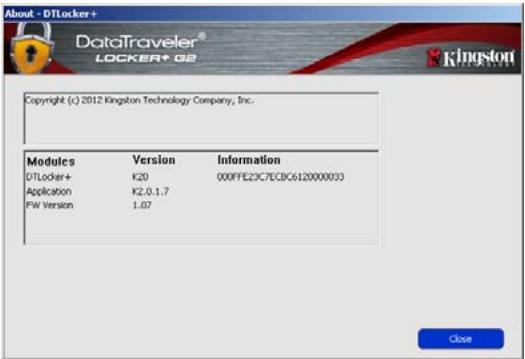
Figure 5.8 - About DTL+ G2
*Note: Your current DTL+ G2 password is required in Windows Vista and Windows 7
-Windows Section Complete
Setup (Mac Environment)
Insert the DTL+ G2 into an available USB port on your notebook or desktop and wait for the Mac operating system to detect it. When it does, you will see a DTLplus volume appear on the desktop, as seen in Figure 6.1.
- Double-click the DTL+ G2 CD-ROM icon.
- Double-click the Mac folder found in the window displayed in Figure 6.2.
- Double-click the DTLplus application icon found in the window displayed in Figure 6.3. This will start the initialization process.

Dulplus
6.7 Wb
Figure 6.1 -DTLplus
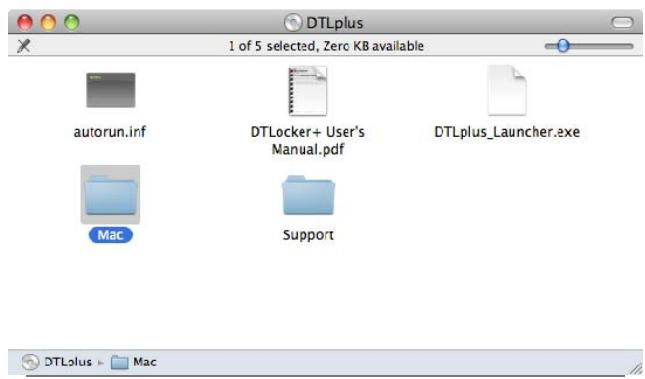
Figure 6.2 - DTL+ G2 Contents
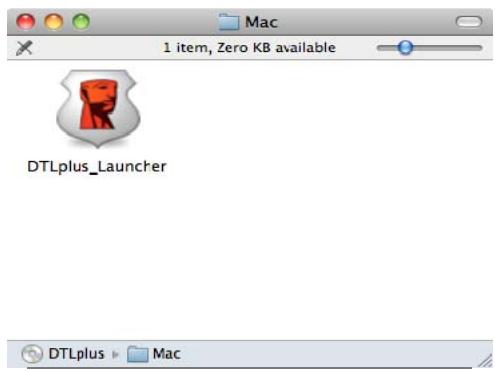
Figure 6.3 - DTL+ G2 Application
Device Initialization (Mac Environment)
- Select your language preference from the drop-down menu and click 'Next' (Figure 7.1.)
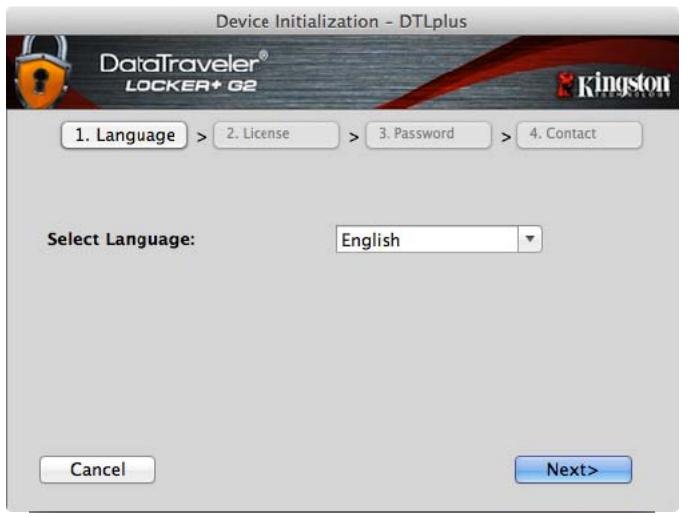
Figure 7.1 - Language Selection
- Review the license agreement and click 'Next' (Figure 7.2.) (Note: You must accept the license agreement before continuing; otherwise the 'Next' button will remain disabled.)
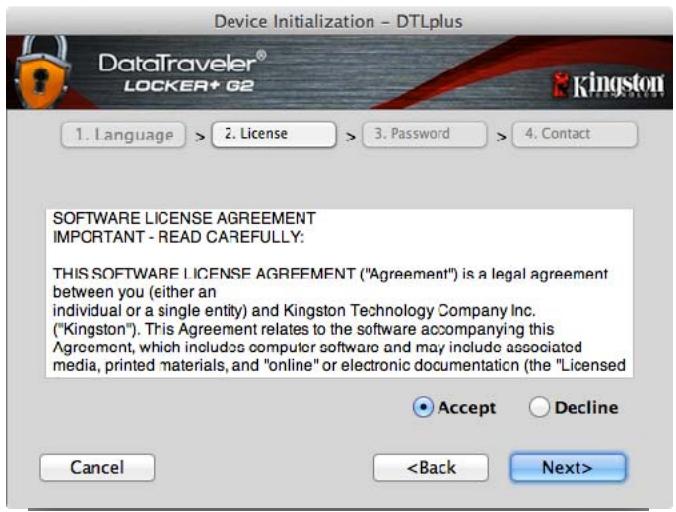
Figure 7.2 - License Agreement
-
Create a password to protect your data on the DTL+ G2. Enter it in the 'Password' field, then re-enter it in the 'Password Confirmation' field, as seen below in Figure 7.3. The password you create must meet the following criteria before the initialization process will allow you to continue:
-
Passwords must contain 6 characters or more (up to 16 characters.)
-
Passwords must contain three (3) of the following criteria options:
-
UPPER CASE, lower case, numeric, and/or special characters (!, $, etc.)
You may also enter a password hint, but it is not a mandatory field. The hint field can be useful in providing a clue as to what the password is, should the password ever be forgotten. (Note: The hint CANNOT be an exact match to the password.)
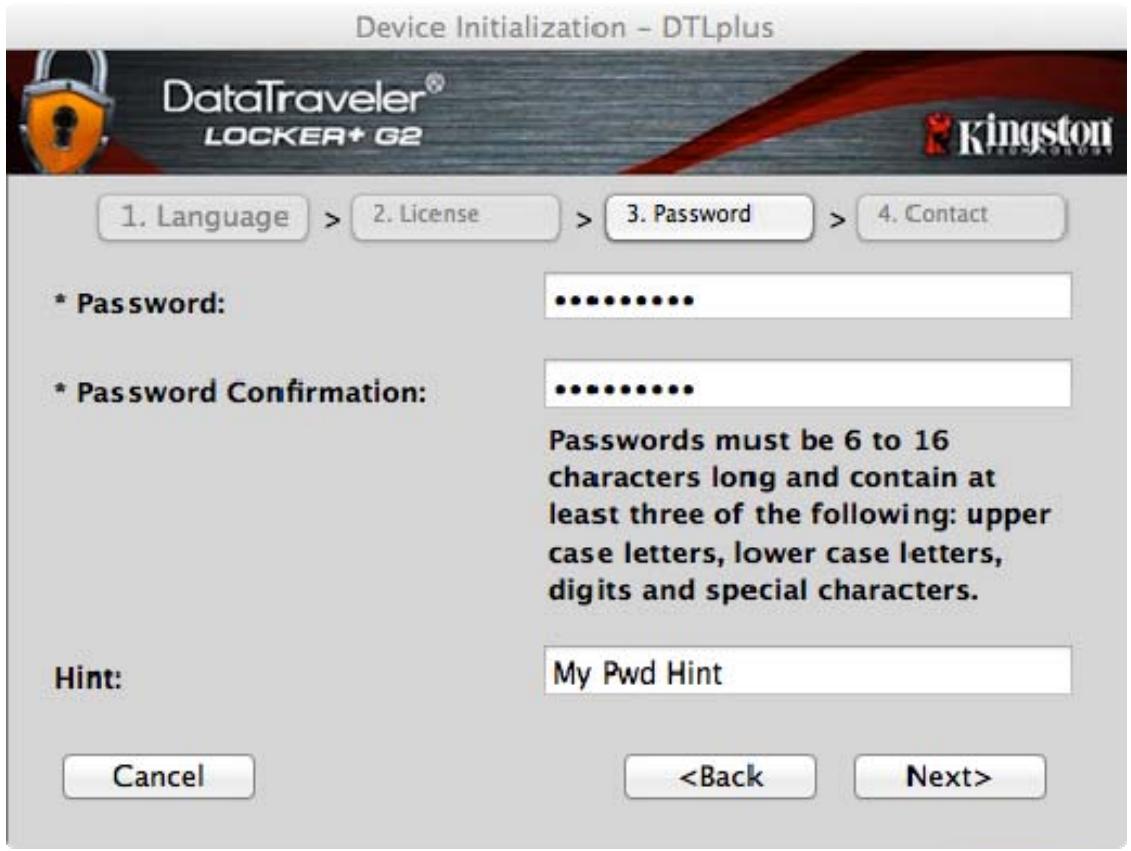
Figure 7.3 - Password Setup
-
Enter your contact information into the text boxes provided (see Figure 7.4) (Note: The information you enter in these fields may NOT contain the password string you created in Step 3. However, these fields are optional and can be left blank, if so desired.)
-
The 'Name' field may contain up to 32 characters, but cannot contain the exact password.
- The 'Company' field may contain up to 32 characters, but cannot contain the exact password.
- The 'Details' field may contain up to 156 characters, but cannot contain the exact password.
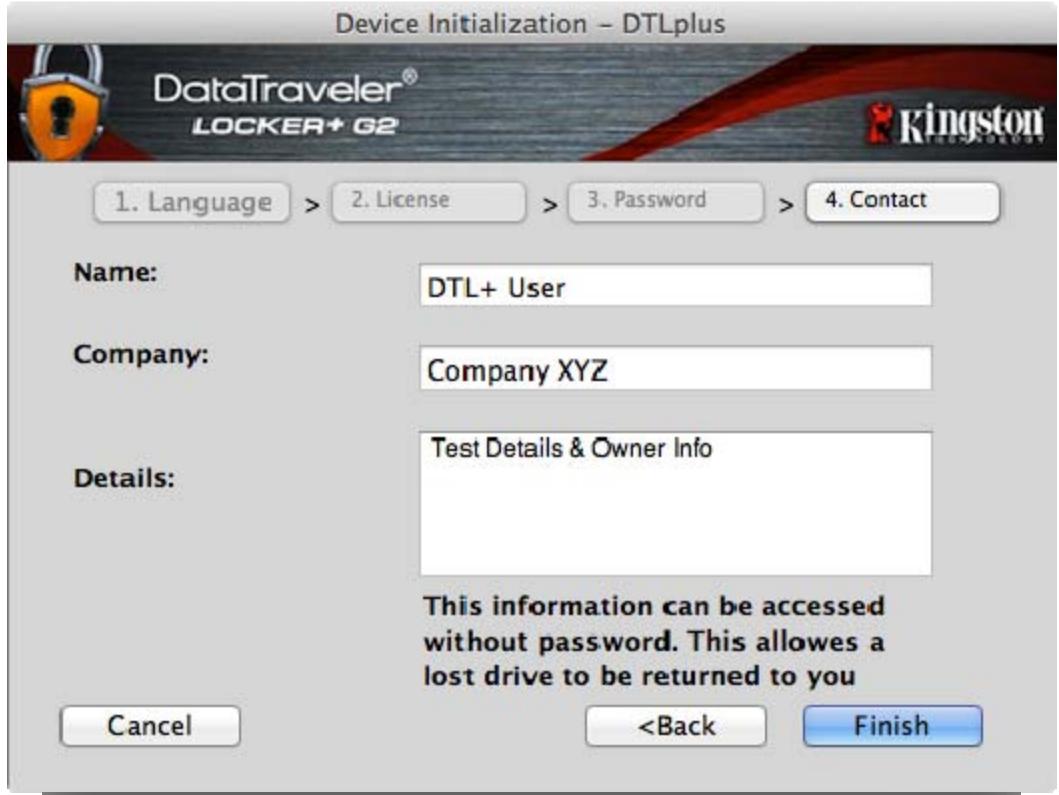
Figure 7.4 - Contact Information
- Click 'Finish' to complete the device initialization process.
The DTL+ G2 will now format the secure data partition (Figure 7.5) and notify you when it is complete (Figure 7.6.)
- Click 'OK' to continue.
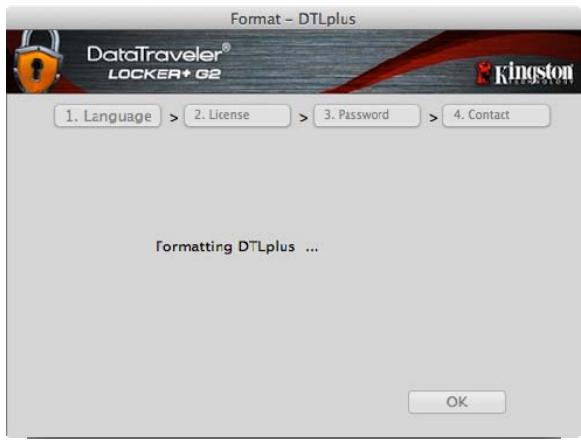
Figure 7.5 - Formatting DTLocker+ G2
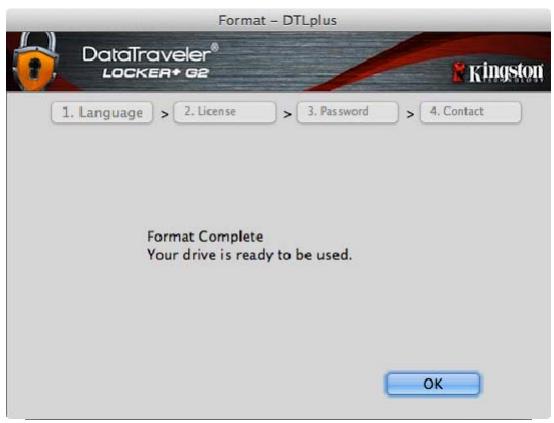
Figure 7.6 - Format Complete
Initialization complete.
Device Usage (Mac Environment)
Once the DTL+ G2 has been initialized, you can access the secure data partition and utilize the device options by logging into the device with your password. To do so, follow these steps:
- Insert the DTL+ G2 into a USB port on your notebook or desktop and enter your password (see Figure 8.1.)
-
Once you've typed your password, click the 'Login' button to continue.
-
If the correct password is entered, the DTL+ G2 will unlock and you can begin using the device.
- If an incorrect password is entered, an error message will appear just below the 'Hint' field, indicating a login failure (see Figure 8.2.)
During the login process, if a bad password is entered, you will be given another opportunity to enter the correct password; however, there is a built-in security feature that tracks the number of failed login attempts*. If this number reaches the preconfigured value of 10 failed attempts, the DTL+ G2 will lock and require a device format of the secure data partition prior to next use.

THIS MEANS THAT ALL DATA STORED ON THE DTL+ G2 WILL BE LOST.
For more details on this feature, see 'Device Lockout' on page 24.
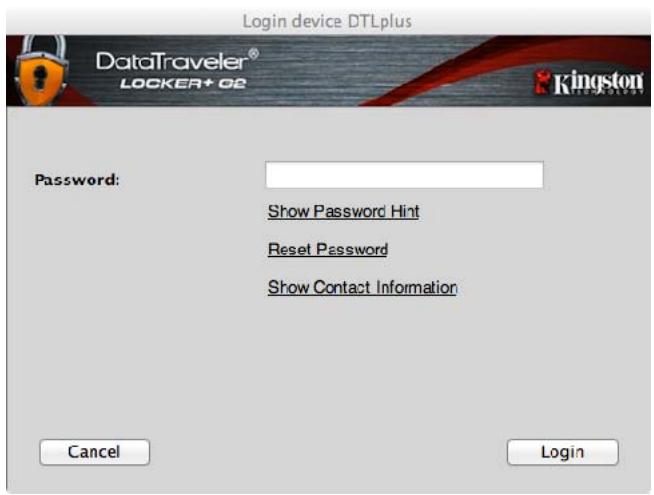
Figure 8.1 - Login Window
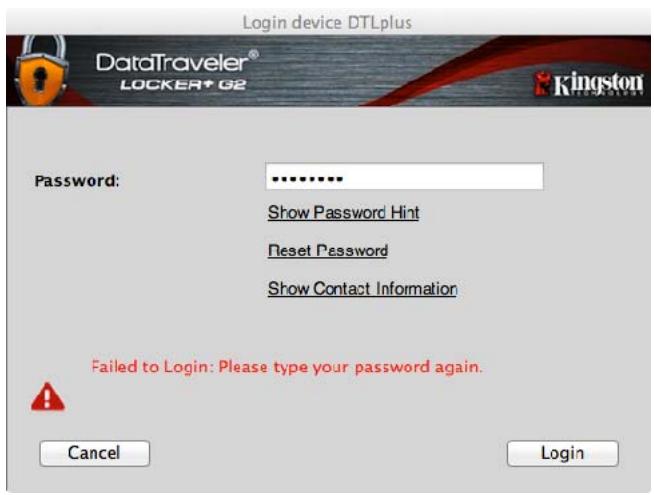
Figure 8.2 - Login Failure
*Note: Once you authenticate to the device successfully, the failed login counter will reset.
Device Options (Mac Environment)
While you are logged into the device, there will be a 'DTLplus_Launcher' icon located in the Mac OS X Dock as seen in Figure 9.1 below:

Figure 9.1 - DTL+ G2 Icon In Mac OS X Dock
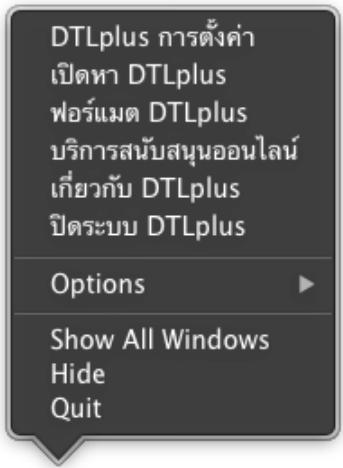
Holding down the 'control' key on your keyboard and clicking once on the 'DTLplus_Launcher' icon will display the menu shown in Figure 9.2 to the right.
DTL+ G2 Settings
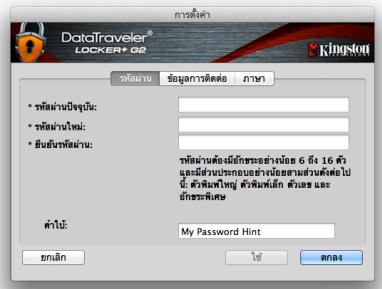
- Allows you to change your password and/or hint (Figure 9.3)
- Allows you to store username and password information (see Page 21)
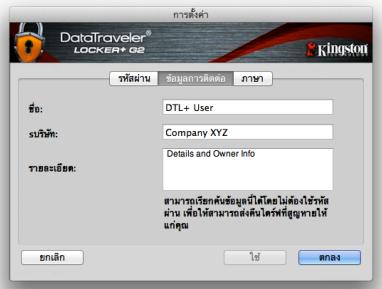
- Allows you to add/view/change your contact information (Figure 9.4)
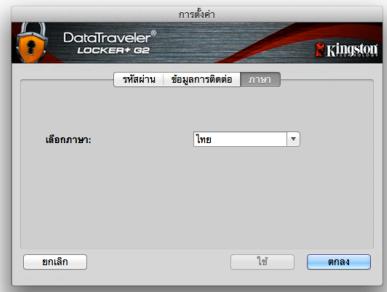
- Allows you to change your language preference (Figure 9.5)
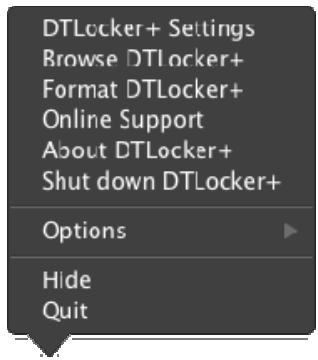
Figure 9.2 DTL+ G2 Optic
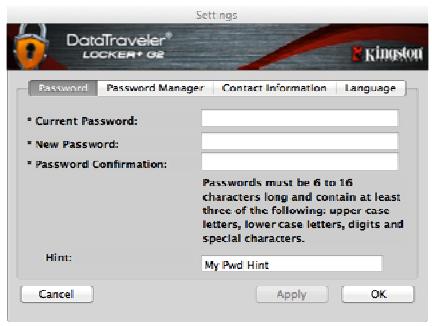
Figure 9.3 Change Password
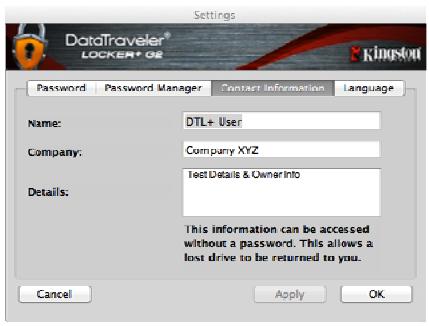
Figure 9.4 Contact Information
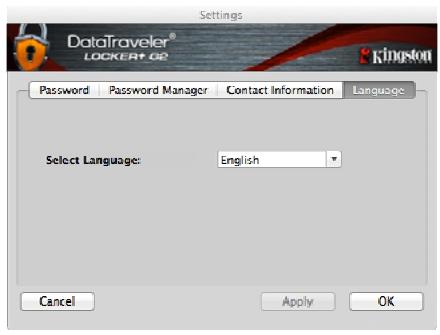
Figure 9.5 Select Language
(Note: For security purposes, your current DTL+ G2 password is required to update and/or modify any of these settings.)
Password Manager
Password Manager is an area found within the settings menu of the DTL+ G2 that allows you to store and access username and password account information (for up to 20 accounts.)
To store an account, just follow these simple steps:
- Click the 'Add' button (shown in Figure 5.6a) to create a new account.
- Type in the information you would like to store, using the following criteria:
a. The 'Description' field is mandatory and can hold up to 40 characters.
(Note: This field must contain at least 1 character. It cannot be left blank.)
b. The 'Username' field is optional. It can hold up to 40 characters.
c. The 'Password' field is optional. It can hold up to 40 characters. By default, each character is masked by an asterisk. If you would like to store the password in plain text, simply de-select the 'Hide Password' checkbox located below the 'Comments' field. (See Figure 9.6b)
d. The 'Comments' field is optional. It can hold up to 360 characters.
- If you would like to protect this item using a password, simply select the 'Password protect' checkbox located below the 'Comments' field. (See Figure 9.6b)
(Note: The password used to protect this item is the same password you use to log into the DTL+ G2 device.)
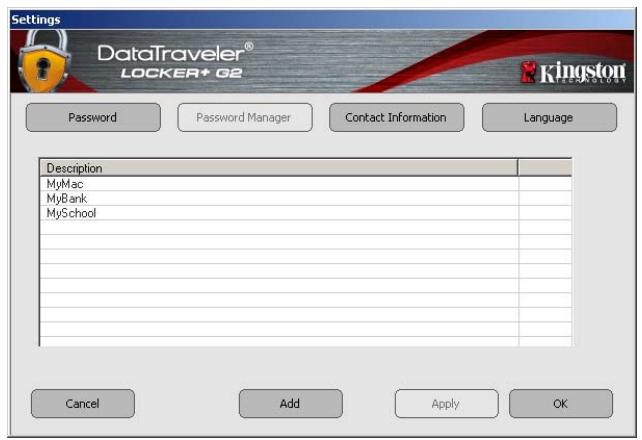
Figure 9.6a
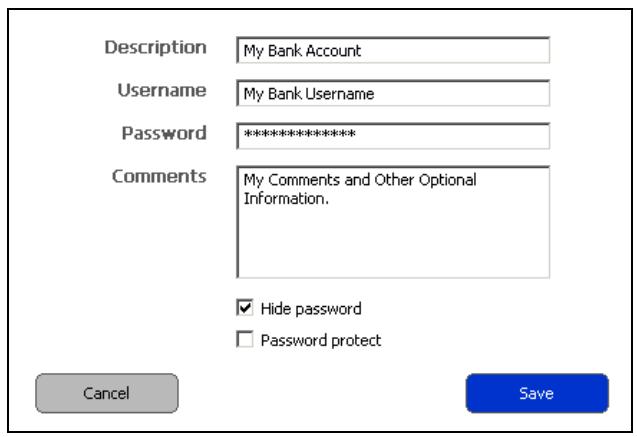
Figure 9.6b
Password Manager Screenshots
To update or change an existing account in 'Password Manager', do the following:
- Highlight the line item you wish to update or change.
- If you password-protected the item you are trying to update or remove, you will be prompted for the device password, which is the same password you use to unlock the DTL+ G2 device at login. You must enter this password correctly before the account window will open for that specific item.
- When the account window opens, you can modify any of the fields by clicking in the text box of the specific field you want to update and make the necessary changes. When you are finished making changes, click on the 'Save' button.
To delete an existing account in 'Password Manager', do the following:
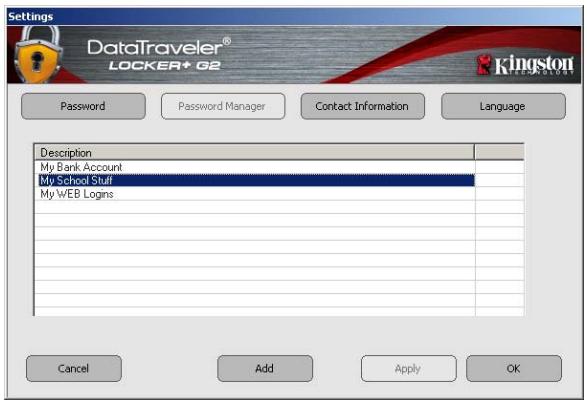
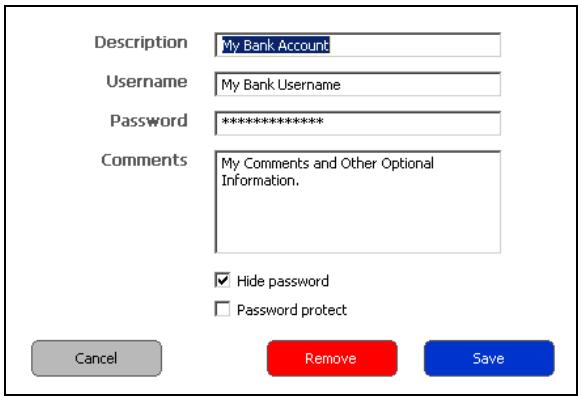
- Highlight the line item you wish to delete and click 'Edit.'
- If you password-protected the item you are trying to delete, you will be prompted for the device password, which is the same password you use to unlock the DTL+ G2 device at login. You must enter this password correctly before the account window will open for that specific item.
- When the account window opens, simply click the 'Remove' button and you are finished
Browse DTL+ G2
- Allows you to browse the contents of the secure data partition while you are logged in
Format DTL+ G2
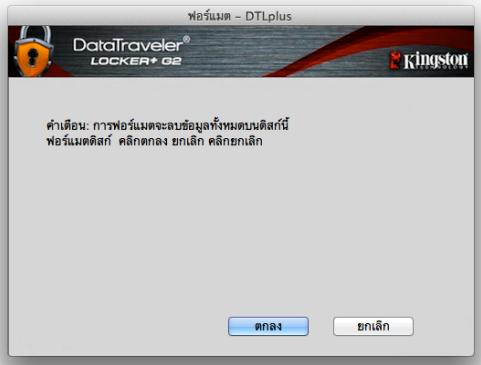
- Allows you to format the secure data partition (Warning: All data will be erased.) (Figure 9.7)
Online Support (Requires Internet access)
- Opens your Internet browser and navigates to http://www.kingston.com/support/ where you can access additional support information
About DTL+ G2
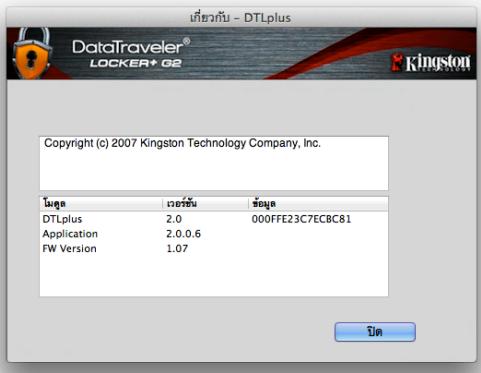
- Provides specific details about the DTL+ G2, including Application and Firmware version information (Figure 9.8)
Shutdown DTL+ G2
- Properly shuts down the DTL+ G2, allowing you to safely remove it from your system
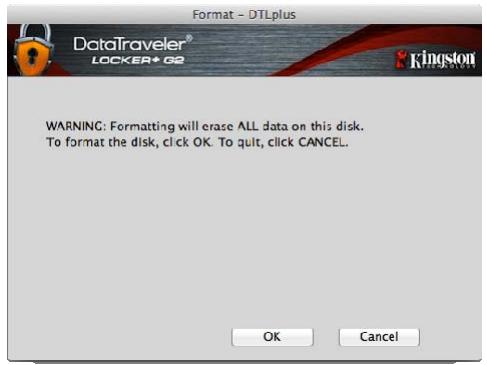
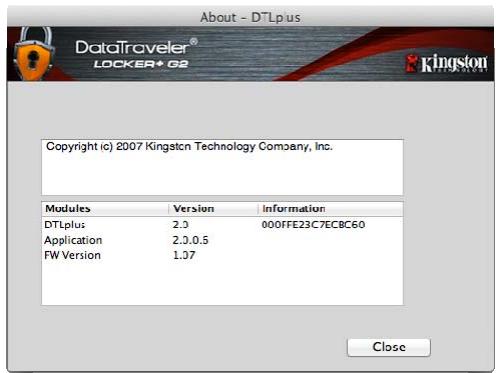
Figure 9.7 - Format Warning
Figure 9.8 - About DTL+ G2
-Mac Section Complete-
Help and Troubleshooting
Device Lockout
The DTL+ G2 includes a security feature that prevents unauthorized access to the data partition once a maximum number of consecutive failed login attempts (MaxNoA for short) has been made; the default "out-of-box" configuration has a pre-configured value of 10 (no. of attempts.)
The 'lock-out' counter tracks each failed login and gets reset one of two ways: 1) A successful login prior to reaching MaxNoA or 2) reaching MaxNoA and performing a device format.*
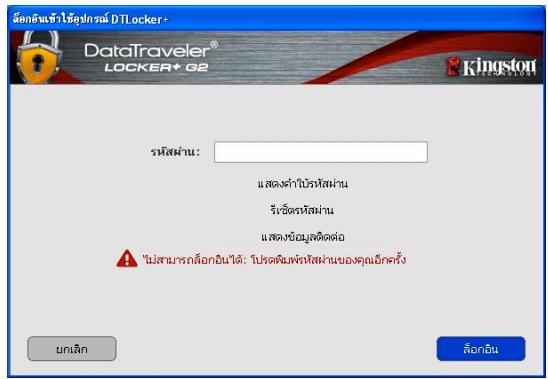
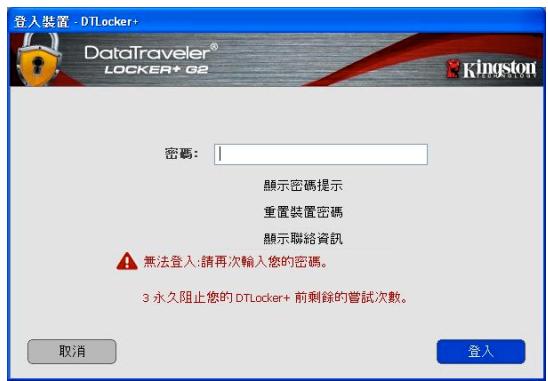
If an incorrect password is entered, an error message will appear just below the 'Hint' field, indicating a login failure. See Figure 10.1.
If and when a 7^th failed attempt is made, you will see an additional error message indicating you have 3 attempts left before reaching MaxNoA (which is set to 10 by default.) See Figure 10.2.
After a 10^th failed login attempt, the DTL+ G2 will permanently block the data partition and require a device format prior to next use. This means that all data stored on the DTL+ G2 will be lost and you will need to create a new password.
This security measure limits someone (who does not have your password) from attempting countless login attempts and gaining access to your sensitive data.
If you are the owner of the DTL+ G2 and have forgotten your password, the same security measures will be enforced, including a device format.*
For more on this feature, see 'Forgot Password' on page 25.
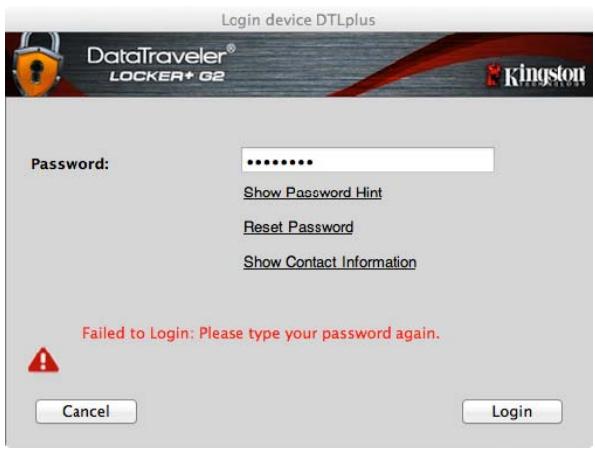
Figure 10.1 - Login Failure
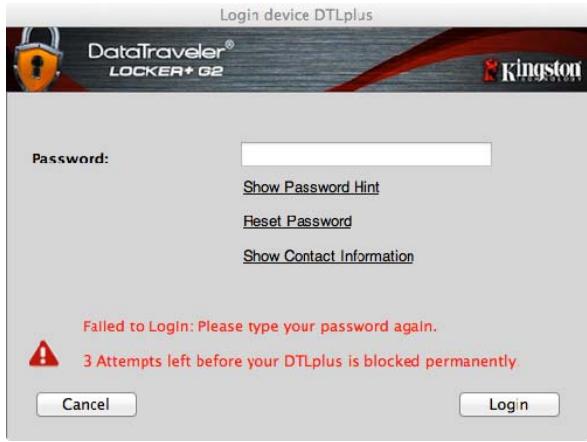
Figure 10.2 - 7^th Login Failure
*Note: A device format will erase ALL of the information stored on the DTL+ G2's secure data partition.
Forgot Password
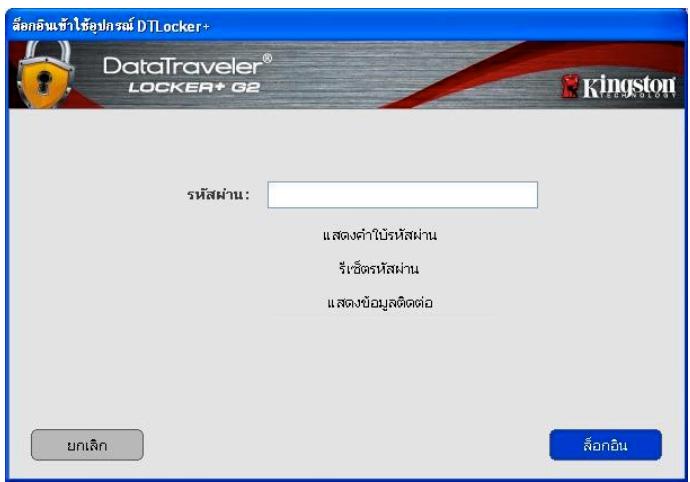
If you forget your password, you can click on the 'Reset Password' link that appears in the device login window when DTLplus_Launcher is executed (see Figure 10.3.)
This option will allow you to create a new password, but in order to protect the privacy of your data, the DTL+ G2 will be formatted. This means that all of your data will be erased in the process.*
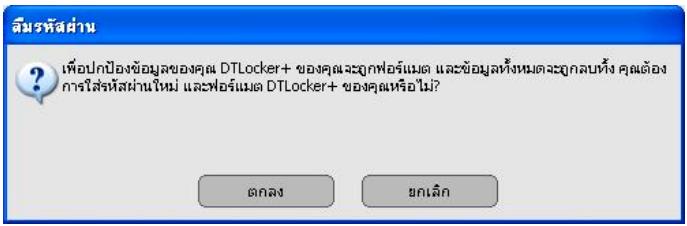
When you do click on 'Reset Password', a message box (Figure 10.4) will appear and ask if you want to enter a new password prior to executing the format. At this point, you can either 1) click OK to confirm or 2) click 'Cancel' to return to the login window.
If you opt to continue, you will be prompted to create a new complex password and a new hint. The hint is not a mandatory field, but it can be useful in providing a clue as to what the password is, should the password ever be forgotten.
(Note: The hint CANNOT be an exact match to the DTL+ G2 device password.)
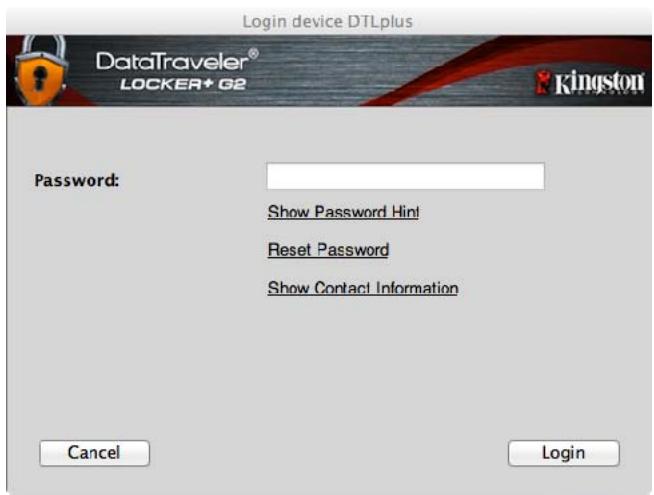
Figure 10.3 - Forgot Password
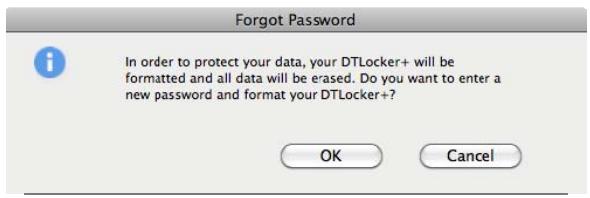
Figure 10.4 - Prompt Before Format
*Note: A device format will erase ALL of the information stored on the DTL+ G2's secure data partition.
Drive Letter Conflict (Windows Operating Systems)
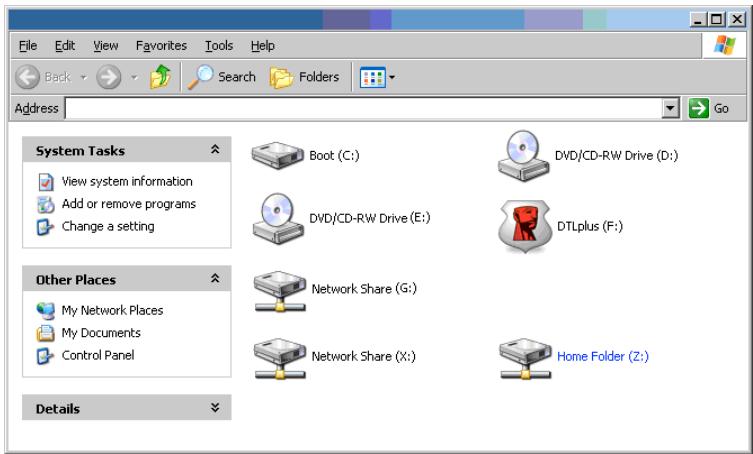
As mentioned in the 'System Requirements' section of this manual (on page 3), the DTL+ G2 requires two consecutive drive letters AFTER the last physical disk that appears before the 'gap' in drive letter assignments (see Figure 10.5.) This does NOT pertain to network shares because they are specific to user-profiles and not the system hardware profile itself, thus appearing available to the OS.
What this means is, Windows may assign the DTL+ G2 a drive letter that's already in use by a network share or Universal Naming Convention (UNC) path, causing a drive letter conflict. If this happens, please consult your administrator or helpdesk department on changing drive letter assignments in Windows Disk Management (administrator privileges required.)
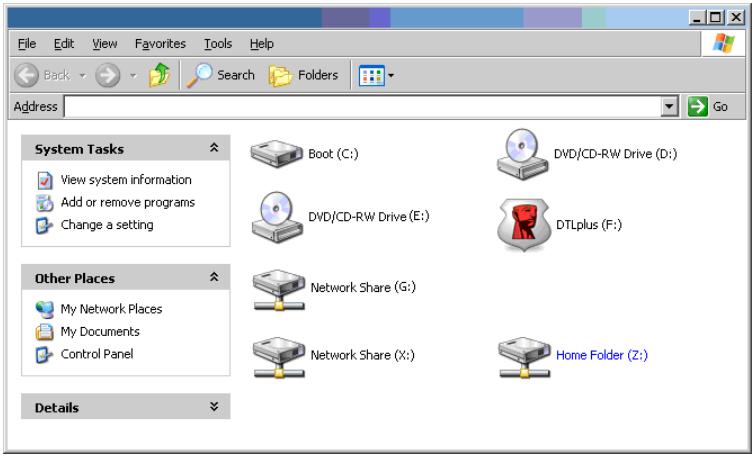
Figure 10.5 - My Computer
In this example, the DTL+ G2 uses drive F:, which is the first available drive letter after drive E: (the last physical disk before the drive letter gap.) Because letter G: is a network share and not part of the hardware profile, the DTL+ G2 may attempt to use it as its second drive letter, causing a conflict.
If there are no network shares on your system and the DTL+ G2 still won't load, it is possible that a card reader, removable disk, or other previously-installed device is holding on to a drive-letter assignment and still causing a conflict.
Please note that Drive Letter Management, or DLM, has improved significantly in Windows XP SP3, Vista, and 7, so you may not come across this issue, but if you are unable to resolve the conflict, please contact Kingston's Technical Support Department for further assistance.
DTLplus_Launcher.exe'.
Configuration (Environment Windows)
Configuration (Environment Mac)
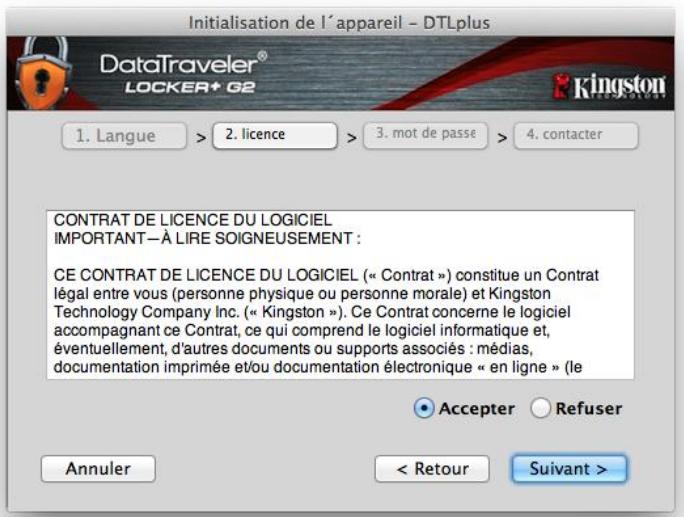
Figure 7.2 – Accord de licence
©2012 Kingston Technology Corporation. 17600 Newhope Street, Fountain Valley, CA 92708 USA All rights reserved. All registered trademarks and trademarks are the property of their respective owners.
*nrrnnr: 1 "yurwnnrnnrnnrnn" hnun 22
(Windows)
- DTL+ G2 USB Windows
Windows XP 'Found New Hardware' 2.1
Windows Vista/7
Windows
Windows 5-
Windows 7
wn1.2-
2.1- (Windows XP)
AutoPlay
Jannnnnneennnnnn 2.3
- RunDTLplus_Launcher.exe
wn Windows 11000-10000 CD-ROM (mnn)
2.4) TDLplus_Launcher
y
2.4 - 1000000000 DTL+G2
nwn 2.2-nnnnnnnnnnnnnnnnnnnnn
(Windows Vista/7)
2.3-WAutoPlay
(Windows Vista/7)
AutoPlay
wauuuaaunueauuauuuuauuauuauuauuuuuuuuuuuuuuuuuuuuuuuuuuuuuuuuuuuuuuuuuuuuuuuuuuuuuuuuuuuuuuuuuuuuuuuuuuuuuuuuuuuuuuuuuuuuuuuuuuuuuuuuuuuuuuuuuuuuuuuuuuuuuuuuuuuuuuuuuuuuuuuuuuuuuuuuuuuuuuuuuuuuuuuuuuuuuuuuuuuuuuuuuuuuuuuuuUU
My Password Hint
un
<Jn
山
3.3-
- nangnngnnnngnnnngnnnngnnnngnnnngnnnngnnnngnnnngnnnngnnnngnnnngnnnngnnnngnnnngnnnngnnnngnnnngnnnngnnnngnnnngnnnngnnnngnnnngnnnngnnnngnnnngnnnngnnnngnnnngnnnngnnnngnnnngnnnngnn
Name 32
Company 32
- Wad Details' 156
JW3.4-
- an 'Finish'
DTL+G2 3.5)

wnnnn nnnn Windows XP 111111111111111111111111111111111
- nON 'OK
3.5-mwDTL+G2
JW3.6-WuJUJI#
aagannnnn
*uTJU: 1277777777777777777777777777777777777777DTL+G2
nwnnnn (Windows)
DTL+G2
1
y
-
DTL+G2 USB 4.1
-
'Login'
DTL+G2
Wannanwanaanuunnnaaunnnnau
wovvivlqumnwn (uwrnn 4.2)
ywnnnnnaeennnnnnnnnnnnnnnnnnnnnnnnnnnnnnnnnnnnnnnnnnnnnnnnnnnnnnnnnnnnnnnnnnnnnnnnnnnnnnnnnnnnnnnnnnnnnnnnnn
aannnnnne nnnnnnnaeennnnn nn nnnnnnnnnnnnn
2
wnnnnnaaannnnnnnnnnnnnnnnnnnnnnnnnnnnnnnnnnnnnnnnnnnnnnnnnnnnnnnnnnnnnnnnnnnnnnnnnnnnnnnnnnnnnnnnnnnnnnnnnnnnnnnnnnnnnnnnnnnnnnnnnnnnnnnnnnnnnnnnnnnn
zannnnnnaa
fuiuunnnnnaaannnnnnnnnnnnnnnnnnnnnnnnnnnnnnnnnn

DTL+G2
z
'Device
Lockout 20
JW4.1-WyJyJyJyJy
JW4.2-
:VJYILU:uHJyHJyHJyHJyHJyHJyHJyHJyHJyHJyHJyHJyHJyHJyHJyHJyHJyHJyHJyHJyHJyHJyHJyHJyHJyHJyHJyHJyHJyHJyHJyHJyHJyHJy
Windows
DTL+G2Windows5.1) (Windows7
TDLplus_Launcher Dock Mac OS X 9.1

9.1- 9uDTL+G2uDock Mac OS X
'control' 'nuiuwwwovvovwovwovwovwovwovwovwovwovwovwovwovwovwovwovwovwovwovwovwovwovwovwovwovwovwovwovwovwovwovwovwovwovwovwovwovwovwovwovwovwovwovwovwovwovwovwovwovwovwovwov
DTL+ G2 Settings
- 9.3
- 9.4
- 9.5
9.2 1000yDTL+G2
nW9.3
ww9.4
9.5
(1)
Browse DTL+ G2
-
Format DTL+ G2
9.7)
Online Support (
http://www.kingston.com/support/
About DTL+ G2
DTL+G2 98
Shutdown DTL+ G2
DTL+G2
9.7-
wn9.8- nDTL+G2
'Forgot Password' 21
10.1-
10.2-
TDL+G2
a
wannnnnnaaennnnaanennnnnnnnnnnnnnnnnnnnnnnnnnnnnnnnnnnnnnnnnnnnnnnnnnnnnnnnnnnnnnnnnnnnnnnnnnnnnnnnnnnnnnnnnnnnnnnnnnnnnnnnnnnnnnnnnnnnnnnnnnnnnnnnnnnnnnnnnnnnnnnnnnnnnnn nn n nn n nn n nn n nn n nn n nn n nn n nn n nn n nn n nn n nn n nn n nn n nn n nn n nn n nn n nn n nn n nn n nn n nn n nn n nn n nn n nn n nn n nn n nn n nn n nn n nn n nn n nn n nn n nn n nn n nn n nn n nn n nn n nn n nn n nn n nn n nn n nn n nn n nn
Reset Password (10.4)
1) 'OK' 2) 'Cancel'
nannnnnnnnnnnnnnnnae nnnnnnnnnnnnnnne
(107163)DTL+G2)
10.3-
10.4 - 1
*WJUJ: WJUJ/1/21/21/21/21/21/21/21/21/21/21/21/21/21/21/21/21/21/21/21/21/21/21/21/21/21/21/21/21/21/21/21/21/21/2
n 3) DTL+ G2 mnnnnnnnnnnnnn nnnnnnnnnnnnnnnnnnnnnnnnnnnnnnnnnnnnnnnnnnnnnnnnnnnnnnnnnnnnnnnnnnnnnnnnnnnnnnnnnnnnnnnnnnnnnnnnnnnnnnnnnnnnnnnnnnnnnnnnnnnnnnnnnnnnnnnnnnnnn
Windows Windows Windows Windows Windows Windows Windows Windows Windows Windows Windows Windows Windows Windows Windows Windows Windows Windows Windows Windows Windows Windows Windows Windows Windows Windows Windows Windows Windows Windows Windows Windows Windows Windows Windows Windows Windows Windows Windows Windows Windows Windows Windows Windows Windows Windows Windows Windows Windows Windows Windows Windows Windows Windows Windows Windows Windows Windows Windows Windows Windows Windows Windows Windows Windows Windows Windows Windows Windows Windows Windows Windows Windows Windows Windows Windows Windows Windows Windows Windows Windows Windows Windows Windows Windows Windows Windows Windows Windows Windows Windows Windows Windows Windows Windows Windows Windows Windows
10.5 - My Computer
TDL+G2F:F: 111111111111111111111111111111111111111
TNTNNTNNNTNNNTNNNTNNNTNNNTNNNTNNNTNNNTNNNTNNNTNNNTNNNTNNNTNNNTNNNTNNNTNNNTNNNTNNNTNNNTNNNTNNNTNNNTNNNTNNNTNNNTNNNTNNNTNNNTNNNTNNNTNNNTNNNTNNNTNNNTNNNTNNNTNNNTNNNTNNNTNNNTNNNTNNNTNNNTNNNTNNNTNNNTNNNTNNNTNNNT
Drive Letter Management DLM Windows XP SP3, Vista 7 Kingston
© 2011 Kingston Technology Corporation