SH100S3 - 2.5 inch SSD KINGSTON - Free user manual and instructions
Find the device manual for free SH100S3 KINGSTON in PDF.



User questions about SH100S3 KINGSTON
0 question about this device. Answer the ones you know or ask your own.
Ask a new question about this device
Download the instructions for your 2.5 inch SSD in PDF format for free! Find your manual SH100S3 - KINGSTON and take your electronic device back in hand. On this page are published all the documents necessary for the use of your device. SH100S3 by KINGSTON.
USER MANUAL SH100S3 KINGSTON
Find the language and latest documentation for your Kingston® HyperX SSD here.
SSDNow Installation Guide
For instructions in English
Para instrucciones en español
...... Für Anleitungen in Deutsch
Pour des instructions en français
...... Per le istruzioni in italiano
.....Por as instruções em português
Voor instructies in het Nederlands
Instrukcje w języku polskim
Для инструкции на русском
Turkce talimatlar icin
Korean
Japanese
Thai
Simplified Chinese ..... 中文说明
Traditional Chinese .... 中文說明
Hindi ...... हिन्दी
Arabic ...... للتعليمات بلغة العربية
Installation Guide
Your purchase of the SSD with Accessory Kit will allow you to enjoy the benefits of increased system performance and reliability. All hardware and software necessary to replace your internal hard drive with the SSD Solid State Drive (SSD) is included. The Acronis ^® True Image HD software ^* , an imaging program that copies the contents of one computer hard disk and loads those contents to another system drive, will take you through the cloning process. This software allows you to move your Operating System and your personal data from your current system hard drive to your new SSD. Once the Acronis ^® True Image HD cloning process is complete and the data is successfully transferred to your SSD, your hard drive can then be used as a secondary drive for data storage.
* The software provided in this kit does not support imaging/cloning of RAID or Spanned disk arrays. There are tools and features included in the Acronis software that are not applicable to this product bundle. This manual provides instructions for the Cloning feature only. Please refer to the Acronis “Help” menu, located within the software application, for instructions on the use of any other software features.
This device complies with Part 15 FCC Rules. Operation is subject to the following two conditions: (1) This device may not cause harmful interference. (2) This device must accept any interference received, including interference that may cause undesired operations.
This Equipment has been tested and found to comply with the limits for a Class B digital device, pursuant to Part 15 of the FCC rules. These limits are designed to provide reasonable protection against harmful interference in a residential installation. This equipment generates, uses and can radiate radio frequency energy and, if not installed and used in accordance with the instructions, may cause harmful interference to radio communications.
However, there is no guarantee that interference will not occur in a particular installation. If this equipment does cause harmful interference to radio or television reception, which can be determined by turning the equipment off and on, the user is encouraged to try and correct the interference by one or more of the following:
• Reorient or relocate the receiving antenna.
- Increase the separation between the equipment and receiver.
- Connect the equipment into an outlet on a circuit, different from that to which the receiver is connected.
- Consult the dealer or an experienced radio/TV technician for help.
TABLE OF CONTENTS
Kit Includes: 4
Tools Needed: 4
System Requirements.... 5
Handling Precautions....6
Desktop Instructions 7
Hardware Installation....7
Setup and Use Acronis ^® True Image HD 8
Set “Hard Drive Boot Priority” 13
Notebook Instructions.... 14
Hardware Installation.... 14
Setup and Use Acronis ^® True Image HD 15
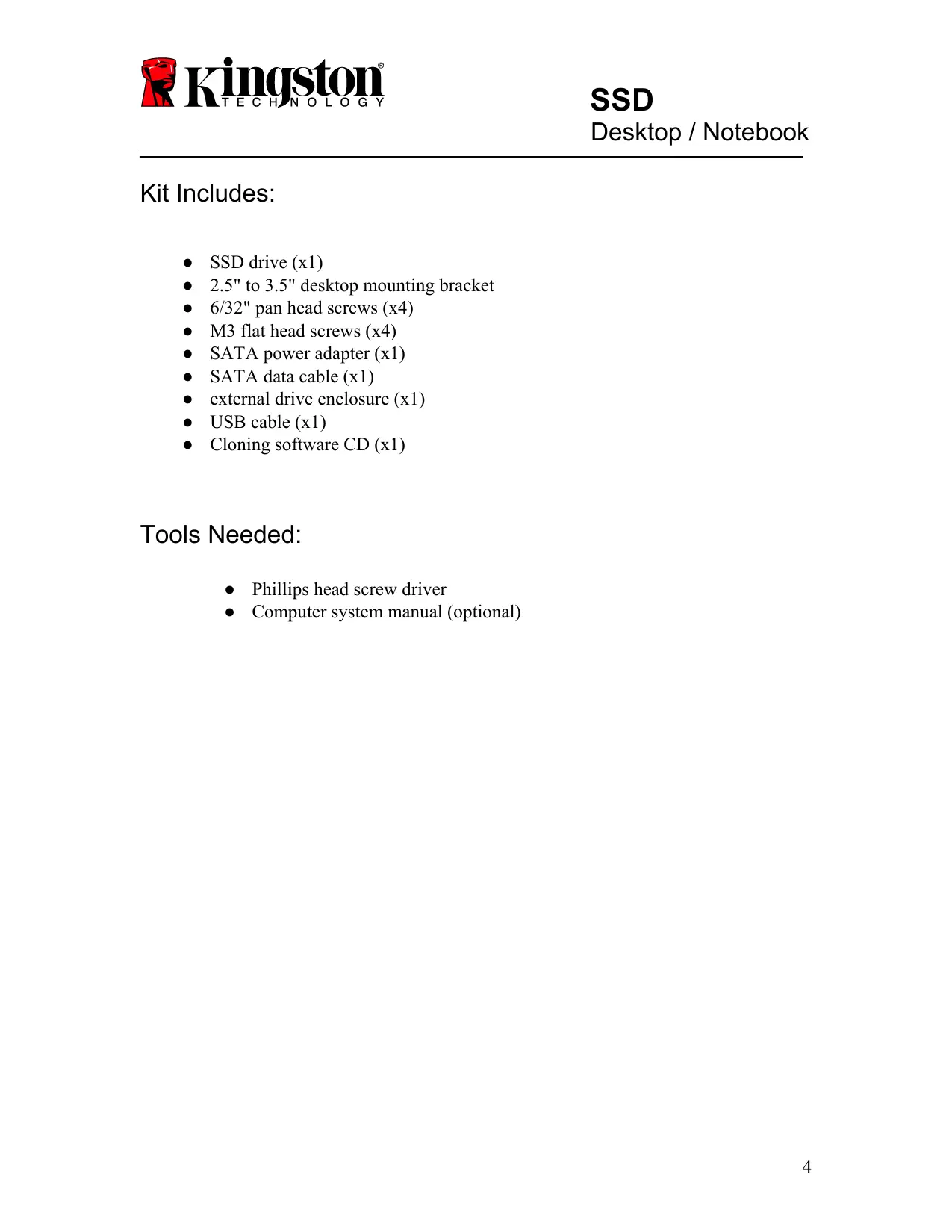
Kit Includes:
- SSD drive (x1)
- 2.5" to 3.5" desktop mounting bracket
- 6/32" pan head screws (x4)
• M3 flat head screws (x4) - SATA power adapter (x1)
• SATA data cable (x1)
• external drive enclosure (x1) - USB cable (x1)
- Cloning software CD (x1)
Tools Needed:
• Phillips head screw driver
• Computer system manual (optional)
System Requirements
Operating System: Windows ^® 7, Windows Vista (SP1), Windows XP (SP3) and Windows 2000 (SP4)
◆ Pentium processor or higher
128MB RAM
◆ CD drive for bootable media creation
◆ Available SATA Connector for desktop installation
◆ Available 3.5 inch drive bay for desktop installation
ATTENTION: PLEASE READ BEFORE BEGINNING INSTALLATION.
- If the SSD provided in this kit is larger in capacity than the hard drive currently in your system, proceed to Handling Precautions.
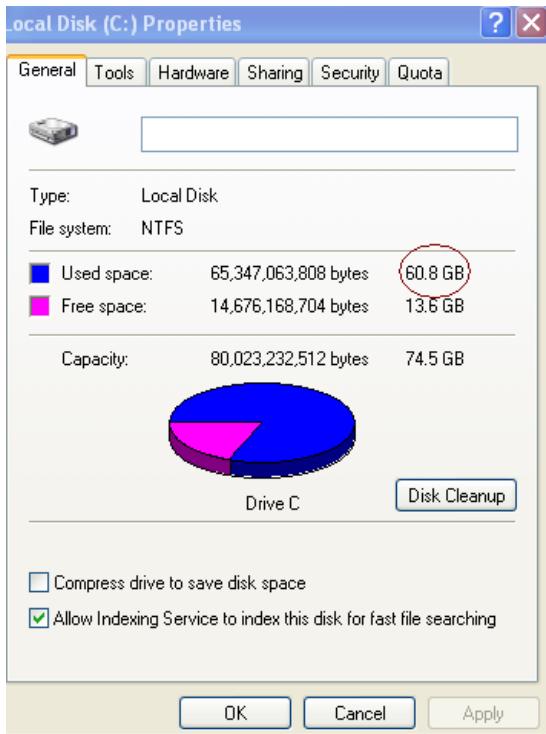
- If the SSD provided in this kit is smaller in capacity than the hard drive currently in your system, please confirm that the used capacity on the system hard drive is not larger than the capacity of your new SSD. Perform the following steps to determine the Used Space on the system hard drive:
1) Boot your computer to your desktop.
2) Double-click on Computer (or My Computer) located on your desktop or via the Start Menu.
3) Right-click on the C: drive and select Properties. The Properties window for the C: drive will appear (Figure 1):
pie
| File system: | Bytes | Capacity (GB) | | ------------ | --------- | ------------- | | Used space | 65,347,063,808 | 60.8 | | Free space | 14,676,168,704 | 13.6 | | Drive C | 80,023,232,512 | 74.5 |Figure 1: (C :) drive Properties
If the used capacity is greater than the capacity of the SSD, it is required that you move some of your data such as pictures, movies, music, etc. off of the drive to an alternative data source (e.g., external hard drive or USB drive) until the Used space is no more than 85% of your new SSD capacity. This will help to ensure that the imaging process is successful. The following chart may be useful as a guide:
| SSD capacity | Adjusted HDD Used Space |
| 32GB | 27GB or less |
| 40GB | 34GB or less |
| 64GB | 54GB or less |
| 80GB | 66GB or less |
| 128GB | 109GB or less |
| 160GB | 136GB or less |
| 256GB | 218GB or less |
| 512GB | 423GB or less |
Adjusted HDD Used space = SSD capacity X 85%
After the cloning process has been successfully completed, these files can be moved back to their original location on the hard drive.
Handling Precautions
To prevent damage from static electricity, observe the following precautions:
- Allow the drive to remain in the anti-static container until you are ready to install the SSD.
- Wear a wrist strap and connect the ground strap to the computer case to minimize static electricity.
- Use care in handling the drive. Do not touch the connectors.
Desktop Instructions
Hardware Installation
- Turn off the power to your computer and disconnect the power source.
- Remove the system chassis cover according to the system manufacturer's instructions.
- Attach the 2.5" to 3.5" mounting bracket (provided) to the SSD by aligning the mounting screw holes on the bracket with those on the SSD and inserting the M3 flat head screws provided.
- Locate an available 3.5 inch drive bay inside your computer and install the SSD using the 6/32" pan head screws (provided).
Note: Your system may require proprietary chassis screws, rails or a bracket system to be used with its drive bay(s). If this is the case, please attach that hardware to the 2.5" to 3.5" mounting bracket for compatibility with your computer chassis. Refer to your system manufacturer's documentation for instructions.
- Attach one end of the SATA data cable (provided) to the SATA interface connector on your computer's motherboard or SATA host adapter. (Figure 2) displays an example of what a SATA connector might look like on the motherboard.

text_image
SATA Connectors JTPM1 SATA3 SATAFigure 2: Desktop PC motherboard with 4 SATA connectors. The number of connectors on each system will vary.
Note: SATA connectors are keyed to ensure correct orientation.
- Attach the other end of the SATA interface cable to the SSD.
- Attach the power cable or power adapter (provided) to the SSD.
- You are now ready to copy your data from the system hard drive to the SSD using the cloning software provided.
Setup and Use Acronis® True Image HD
IMPORTANT: Always uninstall Trial versions of Acronis software prior to installing a full version!
- Insert the Acronis True Image HD software into the system CD-ROM drive.
- Restart the system.
- The Acronis True Image HD CD is a bootable disk and will boot to the Acronis True Image HD screen.
Note: If the system does not boot to the Acronis True Image HD screen and instead boots to Windows, perform the following:
1) Restart the computer. While the system is restarting, run the system setup program (BIOS). The BIOS can be activated by pressing a special key such as ESC, F1, F12 or DELETE. (Refer to your system manufacturer's documentation for the correct key.)
2) While in the system BIOS, change the boot order so that CD-ROM is the first boot device.
3) Save the settings and exit BIOS. (For more detailed instructions on configuring the BIOS, consult your system manufacturer's documentation.)
4) Restart the computer. When the computer restarts, it should now boot to the Acronis True Image HD page.
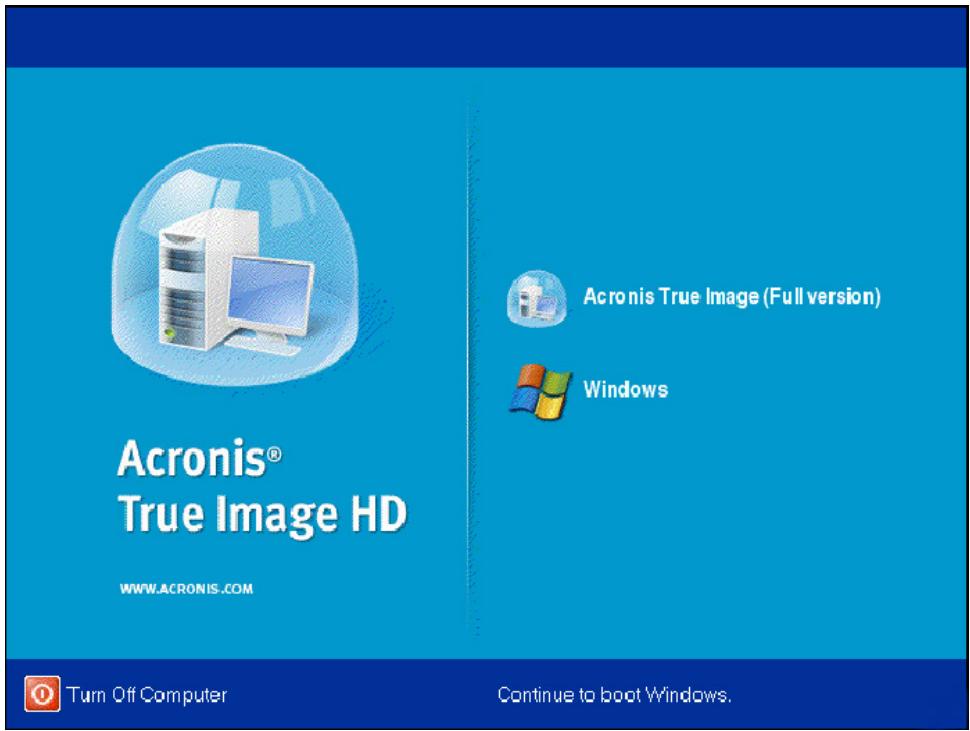
- Select the Acronis True Image icon from the Acronis True Image HD screen (Figure 3).
Note: It may take a few minutes for the next screen to come into view.
text_image
Acronis® True Image HD WWW.ACRONIS.COM Acronis True Image (Full version) Windows Turn Off Computer Continue to boot Windows.Figure 3: Acronis True Image HD
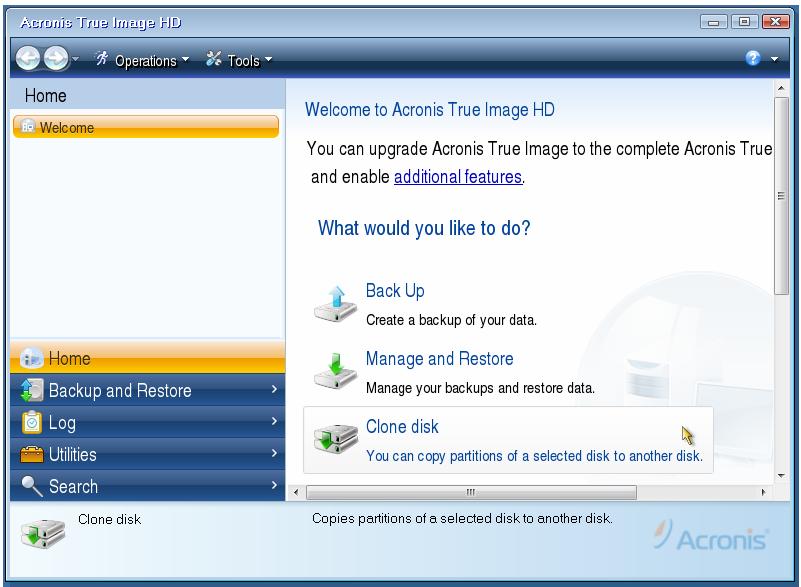
- Select Clone Disk (Figure 4).

text_image
Acronis True Image HD Home Welcome Welcome to Acronis True Image HD You can upgrade Acronis True Image to the complete Acronis True and enable additional features. What would you like to do? Back Up Create a backup of your data. Manage and Restore Manage your backups and restore data. Clone disk You can copy partitions of a selected disk to another disk. Home Backup and Restore Log Utilities Search Clone disk Copies partitions of a selected disk to another disk.Figure 4: Select Clone Disk
Note: If you receive an error message stating “This program is designed to work with two or more drives,” check all connections to both the hard drive and the SSD. Ensure that the SATA data and power cables are connected to the drives and motherboard. If all connections are in place, it is possible that your system BIOS does not have the spare SATA ports turned on or enabled.
If this is the case do the following:
1) Restart your computer. While the system is restarting, activate the system setup program (BIOS) by repeatedly pressing a special key such as ESC, F1, F12 or DELETE. (Consult your computer system's documentation for the correct key).
2) While in the system BIOS, look for an entry labeled “Drives or Hard Drives.” Select this field using the arrow keys on your keyboard and press Enter. Here, the spare SATA ports can be enabled or turned on by selecting the SATA port and changing the value to “On” or “Enabled.” For best results, it is recommended that you enable or turn on all SATA ports during this process. Doing so will not harm your system.
3) Exit the BIOS by pressing the ESC key. Save changes when prompted.
4) Restart the computer, boot to the software CD and try the cloning process again.
- Select Automatic from the cloning mode options (Figure 5). DO NOT select Manual mode. (Manual mode should be used by advanced users only!) Click Next.

text_image
Clone Disk Wizard Required steps: Clone Mode Summary: Summary You can choose between either fully automated or manual clone modes. Automatic (recommended) All your partitions from the source hard disk will be copied to the target disk in a few simple steps and your new hard disk will be made bootable. Your existing partitions will be automatically resized to fit the target hard disk. Manual Manual mode will give you full control over the hard disk cloning procedure. You will be able to transfer your partitions adjusting their size, create new partitions on source and target hard disk drives, and much more. Next > Summary CancelFigure 5: Cloning mode options
- If prompted, select the Source and Destination Disk. Click Next to continue.
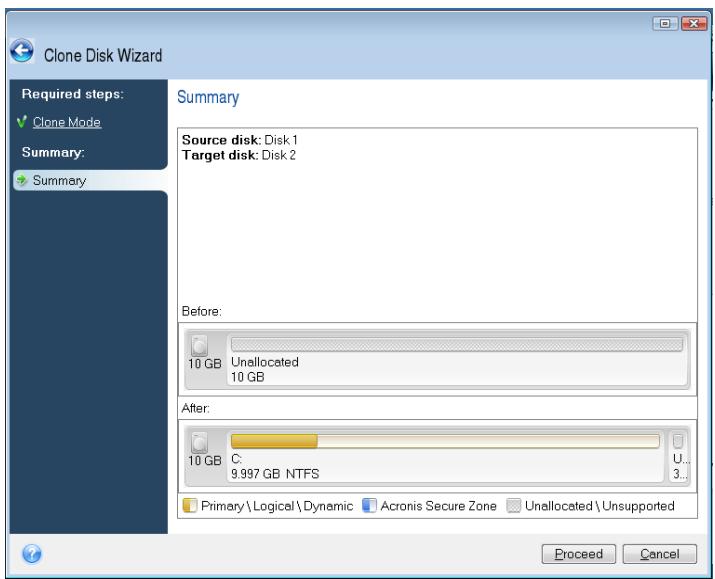
- The Hard Disk Drives Structure screen will appear (Figure 6). Click Proceed.
Note: The original partition size will be scaled according to the new drive capacity. If the new drive has less space than the original drive, the partitions will shrink accordingly. If the new drive is larger than the original drive, the partitions will be enlarged proportionately.
text_image
Clone Disk Wizard Required steps: Clone Mode Summary: Summary Summary Source disk: Disk 1 Target disk: Disk 2 Before: 10 GB Unallocated 10 GB After: 10 GB C: 9.997 GB NTFS U... 3... Primary\Logical\Dynamic Acronis Secure Zone Unallocated\Unsupported Proceed CancelFigure 6: Hard Disk Drives Structure
- An operation progress bar will indicate the data is being copied (Figure 7). Once the cloning process is complete, a Disk Cloning was successful window will appear. Click OK.

text_image
Operation Progress Operation status Current operation progress: 2 of 3 - Copying partition Current operation progress: Total progress: Remaining time: 3 minutes Shutdown the computer after completion CancelFigure 7: Acronis Operation Progress
- Remove the Acronis True Image HD software CD and close the program.
Set "Hard Drive Boot Priority"
Your system is now configured with two bootable drives. In order to boot from your new SSD drive, you must enter the system BIOS to set “Hard Drive Boot Priority” so that your new SSD drive is set to boot first. Perform the following:
- Restart your computer. While the system is restarting, activate the system setup program (BIOS) by repeatedly pressing a special key such as ESC, F1, F12 or DELETE. (Consult your computer system's documentation for the correct key.)
- While in the BIOS, change the “Hard Drive Boot Priority” so that the disk labeled “SSDxxxx” is in the first position.
- Exit BIOS by pressing the ESC key. Save changes when prompted.
- Restart the computer. When the computer restarts, it should now boot to your new SSD drive.
Note: Your original system hard drive can now be used as a secondary data disk for data storage and should be viewable via My Computer (Computer in Vista).
Notebook Instructions
Hardware Installation
Note: Do not install the SSD into the external drive enclosure.
- Transfer your System Hard Drive to the External Drive Enclosure:
1) Turn off the power to your computer, disconnect the power source and remove the battery pack from your notebook.
2) Remove the system hard drive from your notebook and disassemble the system drive bracket. (The system drive bracket will be used later to install the SSD in your notebook.) Refer to your system manufacturer's documentation for further instructions.
3) Insert the external system hard drive into the external drive enclosure.
- Install the SSD into your Notebook and attach the External Drive Enclosure:
1) Assemble the SSD with the system's drive bracket and insert it into the drive bay of your notebook. Refer to your system manufacturer's documentation for instructions.
2) Using the USB cable provided, attach the system hard drive (installed in the provided external drive enclosure) to your notebook via any USB port.
3) You are now ready to copy your data from the system hard drive to the SSD using the cloning software provided.
Setup and Use Acronis® True Image HD
IMPORTANT: It is strongly recommended that you uninstall any Trial versions of Acronis software prior to installing a full version.
- Insert the Acronis True Image HD software into the system CD-ROM drive.
- Restart the system.
- The Acronis True Image HD CD is a bootable disk and will boot to the Acronis True Image HD screen.
Note: If the system does not boot to the Acronis True Image HD screen and instead boots to Windows or fails to boot at all, perform the following:
1) Restart the computer. While the system is restarting, run the system setup program (BIOS). The system BIOS can be activated by pressing a special key such as ESC, F1, F12 or DELETE. (Consult your computer system's documentation for the correct key.)
2) While in the system BIOS, change the boot order so that CD-ROM is the first boot device.
3) Save the settings and exit BIOS. (For more detailed instructions on configuring the BIOS, consult your computer system's documentation.)
4) Restart the computer. When the computer restarts, it should now boot to the Acronis True Image HD page.
- Select the Acronis True Image icon from the Acronis True Image HD screen (Figure 8).
Note: It may take a few minutes for the next screen to come into view.

text_image
Acronis® True Image HD WWW.ACRONIS.COM Acronis True Image (Full version) Windows Turn Off Computer Continue to boot Windows.Figure 8: Acronis True Image HD
5. Select Clone Disk (Figure 9).

text_image
Acronis True Image HD Home Welcome Home Backup and Restore Log Utilities Search Clone disk Copies partitions of a selected disk to another disk. Back Up Create a backup of your data. Manage and Restore Manage your backups and restore data. Clone disk You can copy partitions of a selected disk to another disk.Figure 9: Select Clone Disk
- Select Automatic from the cloning mode options (Figure 10). DO NOT select Manual mode. (Manual mode should be used by advanced users only.) Click Next.

text_image
Clone Disk Wizard Required steps: Clone Mode Summary: Summary You can choose between either fully automated or manual clone modes. Automatic (recommended) All your partitions from the source hard disk will be copied to the target disk in a few simple steps and your new hard disk will be made bootable. Your existing partitions will be automatically resized to fit the target hard disk. Manual Manual mode will give you full control over the hard disk cloning procedure. You will be able to transfer your partitions adjusting their size, create new partitions on source and target hard disk drives, and much more. Next > Summary CancelFigure 10: Cloning mode options
- If prompted, select the Source and Target Disk. Click Next to continue.
- The Hard Disk Drives Structure screen will appear (Figure 11). Click Proceed.
Note: The original partition sizes will be scaled according to the new drive size. If the new drive is smaller in capacity than the original drive, the partitions will shrink accordingly. If the new drive is larger than the original drive, the partitions will be enlarged proportionately.

text_image
Clone Disk Wizard Required steps: Clone Mode Summary: Summary Summary Source disk: Disk 1 Target disk: Disk 2 Before: 10 GB Unallocated 10 GB After: 10 GB C: 9.997 GB NTFS Primary\Logical\Dynamic Acronis Secure Zone Unallocated\Unsupported Proceed CancelFigure 11: Hard Disk Drives Structure
- An operation progress bar will indicate data transfer (Figure 12). Once the cloning process is complete, a Disk Cloning was successful window will appear. Click OK.

text_image
Operation Progress Operation status Current operation progress: 2 of 3 - Copying partition Current operation progress: Total progress: Remaining time: 3 minutes Shutdown the computer after completion CancelFigure 12: Acronis Operation Progress
- Remove the Acronis True Image HD software CD and close the program. The system will automatically reboot to the new SSD drive.
Note: The drive in the external enclosure can now be used as secondary storage.
Guía de instalación
pie
| Category | Value | | -------------- | --------- | | Used space | 65,347,063,808 bytes | | Free space | 14,676,168,704 bytes | | Capacity | 80,023,232,512 bytes | | Drive C | 80,023,232,512 bytes | | Total | 60.8 GB | | Total | 13.6 GB | | Total | 74.5 GB |text_image
Acronis® True Image HD WWW.ACRONIS.COM Acronis True Image (Full version) Windows Turn Off Computer Continue to boot Windows.Figura 3: Acronis True Image HD
- Seleccione Clone Disk (Clonar Disco) (clonar disco) (figura 4).

text_image
Acronis True Image HD Home Welcome Welcome to Acronis True Image HD You can upgrade Acronis True Image to the complete Acronis True and enable additional features. What would you like to do? Back Up Create a backup of your data. Manage and Restore Manage your backups and restore data. Clone disk You can copy partitions of a selected disk to another disk. Home Backup and Restore Log Utilities Search Clone disk Copies partitions of a selected disk to another disk.Figura 4: seleccione Clone Disk (Clonar Disco)
text_image
Clone Disk Wizard Required steps: Clone Mode Summary: Summary You can choose between either fully automated or manual clone modes. Automatic (recommended) All your partitions from the source hard disk will be copied to the target disk in a few simple steps and your new hard disk will be made bootable. Your existing partitions will be automatically resized to fit the target hard disk. Manual Manual mode will give you full control over the hard disk cloning procedure. You will be able to transfer your partitions adjusting their size, create new partitions on source and target hard disk drives, and much more. Next > Summary Canceltext_image
Clone Disk Wizard Required steps: ✓ Clone Mode Summary: ✓ Summary Summary Source disk: Disk 1 Target disk: Disk 2 Before: 10 GB Unallocated 10 GB After: 10 GB C: 9.997 GB NTFS Primary\Logical\Dynamic Acronis Secure Zone Unallocated\Unsupported Proceed CancelFigura 6: pantalla Hard Disk Drives Structure (Estructura Dispositivos del Disco Duro)
text_image
Operation Progress Operation status Current operation progress: 2 of 3 - Copying partition Current operation progress: Total progress: Remaining time: 3 minutes Shutdown the computer after completion Canceltext_image
Acronis® True Image HD WWW.ACRONIS.COM Acronis True Image (Full version) Windows Turn Off Computer Continue to boot Windows.Figuraa 8: Acronis True Image HD
5. Seleccione Clone Disk (Clonar Disco) (Figura 9).

text_image
Acronis True Image HD Home Welcome Acronis True Image HD You can upgrade Acronis True Image to the complete Acronis True and enable additional features. What would you like to do? Back Up Create a backup of your data. Manage and Restore Manage your backups and restore data. Clone disk You can copy partitions of a selected disk to another disk. Home Backup and Restore Log Utilities Search Clone disk Copies partitions of a selected disk to another disk. Acronis®Figura 9: seleccione Clone Disk (Clonar Disco)
text_image
Clone Disk Wizard Required steps: Clone Mode Summary: Summary You can choose between either fully automated or manual clone modes. Automatic (recommended) All your partitions from the source hard disk will be copied to the target disk in a few simple steps and your new hard disk will be made bootable. Your existing partitions will be automatically resized to fit the target hard disk. Manual Manual mode will give you full control over the hard disk cloning procedure. You will be able to transfer your partitions adjusting their size, create new partitions on source and target hard disk drives, and much more. Next > Summary Canceltext_image
Clone Disk Wizard Required steps: ✓ Clone Mode Summary: ✓ Summary Summary Source disk: Disk 1 Target disk: Disk 2 Before: 10 GB Unallocated 10 GB After: 10 GB C: 9.997 GB NTFS Primary\Logical\Dynamic Acronis Secure Zone Unallocated\Unsupported Proceed CancelFigura 11: Pantalla Hard Disk Drives Structure (Estructura Dispositivos del Disco Duro)
text_image
Operation Progress Operation status Current operation progress: 2 of 3 - Copying partition Current operation progress: Total progress: Remaining time: 3 minutes Shutdown the computer after completion Cancelpie
| Category | Value | | -------------- | --------- | | Used space | 65,347,063,808 bytes | | Free space | 14,676,168,704 bytes | | Capacity | 80,023,232,512 bytes | | Drive C | 74.5 GB |Hardwareinstallation
text_image
Acronis® True Image HD WWW.ACRONIS.COM Acronis True Image (Full version) Windows Turn Off Computer Continue to boot Windows.Abbildung 3: Acronis True Image HD
text_image
Acronis True Image HD Home Welcome Welcome to Acronis True Image HD You can upgrade Acronis True Image to the complete Acronis True and enable additional features. What would you like to do? Back Up Create a backup of your data. Manage and Restore Manage your backups and restore data. Clone disk You can copy partitions of a selected disk to another disk. Home Backup and Restore Log Utilities Search Clone disk Copies partitions of a selected disk to another disk.text_image
Clone Disk Wizard Required steps: Clone Mode Summary: Summary You can choose between either fully automated or manual clone modes. Automatic (recommended) All your partitions from the source hard disk will be copied to the target disk in a few simple steps and your new hard disk will be made bootable. Your existing partitions will be automatically resized to fit the target hard disk. Manual Manual mode will give you full control over the hard disk cloning procedure. You will be able to transfer your partitions adjusting their size, create new partitions on source and target hard disk drives, and much more. Next > Summary Canceltext_image
Clone Disk Wizard Required steps: Clone Mode Summary: Summary Summary Source disk: Disk 1 Target disk: Disk 2 Before: 10 GB Unallocated 10 GB After: 10 GB C: 9.997 GB NTFS Primary\ Logical\ Dynamic Acronis Secure Zone Unallocated\Unsupported Proceed Canceltext_image
Operation Progress Operation status Current operation progress: 2 of 3 - Copying partition Current operation progress: Total progress: Remaining time: 3 minutes Shutdown the computer after completion CancelHardwareinstallation
text_image
Acronis® True Image HD WWW.ACRONIS.COM Acronis True Image (Full version) Windows Turn Off Computer Continue to boot Windows.Abbildung 8: Acronis True Image HD
text_image
Acronis True Image HD Home Welcome Welcome to Acronis True Image HD You can upgrade Acronis True Image to the complete Acronis True and enable additional features. What would you like to do? Back Up Create a backup of your data. Manage and Restore Manage your backups and restore data. Clone disk You can copy partitions of a selected disk to another disk. Clone disk Copies partitions of a selected disk to another disk.text_image
Clone Disk Wizard Required steps: Clone Mode Summary: Summary You can choose between either fully automated or manual clone modes. Automatic (recommended) All your partitions from the source hard disk will be copied to the target disk in a few simple steps and your new hard disk will be made bootable. Your existing partitions will be automatically resized to fit the target hard disk. Manual Manual mode will give you full control over the hard disk cloning procedure. You will be able to transfer your partitions adjusting their size, create new partitions on source and target hard disk drives, and much more. Next > Summary Canceltext_image
Clone Disk Wizard Required steps: Clone Mode Summary: Summary Summary Source disk: Disk 1 Target disk: Disk 2 Before: 10 GB Unallocated 10 GB After: 10 GB C 9.997 GB NTFS Primary\Logical\Dynamic Acronis Secure Zone Unallocated\Unsupported Proceed Canceltext_image
Operation Progress Operation status Current operation progress: 2 of 3 - Copying partition Current operation progress: Total progress: Remaining time: 3 minutes Shutdown the computer after completion Cancelpie
| Category | Value | | -------------- | --------- | | Used space | 65,347,063,808 bytes | | Free space | 14,676,168,704 bytes | | Capacity | 80,023,232,512 bytes | | Drive C | 80,023,232,512 bytes | | Total | 60.8 GB | | Total | 13.6 GB | | Total | 74.5 GB |text_image
Acronis® True Image HD WWW.ACRONIS.COM Acronis True Image (Full version) Windows Turn Off Computer Continue to boot Windows.Illustration 3 : Acronis True Image HD
text_image
Acronis True Image HD Home Welcome Welcome to Acronis True Image HD You can upgrade Acronis True Image to the complete Acronis True and enable additional features. What would you like to do? Back Up Create a backup of your data. Manage and Restore Manage your backups and restore data. Clone disk You can copy partitions of a selected disk to another disk. Home Backup and Restore Log Utilities Search Clone disk Copies partitions of a selected disk to another disk.text_image
Clone Disk Wizard Required steps: Clone Mode Summary: Summary You can choose between either fully automated or manual clone modes. Automatic (recommended) All your partitions from the source hard disk will be copied to the target disk in a few simple steps and your new hard disk will be made bootable. Your existing partitions will be automatically resized to fit the target hard disk. Manual Manual mode will give you full control over the hard disk cloning procedure. You will be able to transfer your partitions adjusting their size, create new partitions on source and target hard disk drives, and much more. Next > Summary Canceltext_image
Clone Disk Wizard Required steps: Clone Mode Summary: Summary Summary Source disk: Disk 1 Target disk: Disk 2 Before: 10 GB Unallocated 10 GB After: 10 GB C. 9.997 GB NTFS Primary\ Logical\ Dynamic Acronis Secure Zone Unallocated\Unsupported Proceed Canceltext_image
Operation Progress Operation status Current operation progress: 2 of 3 - Copying partition Current operation progress: Total progress: Remaining time: 3 minutes Shutdown the computer after completion Canceltext_image
Acronis® True Image HD WWW.ACRONIS.COM Acronis True Image (Full version) Windows Turn Off Computer Continue to boot Windows.Illustration 8 : Acronis True Image HD
text_image
Acronis True Image HD Home Welcome Welcome to Acronis True Image HD You can upgrade Acronis True Image to the complete Acronis True and enable additional features. What would you like to do? Back Up Create a backup of your data. Manage and Restore Manage your backups and restore data. Clone disk You can copy partitions of a selected disk to another disk. Clone disk Copies partitions of a selected disk to another disk.text_image
Clone Disk Wizard Required steps: Clone Mode Summary: Summary You can choose between either fully automated or manual clone modes. Automatic (recommended) All your partitions from the source hard disk will be copied to the target disk in a few simple steps and your new hard disk will be made bootable. Your existing partitions will be automatically resized to fit the target hard disk. Manual Manual mode will give you full control over the hard disk cloning procedure. You will be able to transfer your partitions adjusting their size, create new partitions on source and target hard disk drives, and much more. Next > Summary Canceltext_image
Clone Disk Wizard Required steps: Clone Mode Summary: Summary Summary Source disk: Disk 1 Target disk: Disk 2 Before: 10 GB Unallocated 10 GB After: 10 GB C: 9.997 GB NTFS Primary\Logical\Dynamic Acronis Secure Zone Unallocated\Unsupported Proceed Canceltext_image
Operation Progress Operation status Current operation progress: 2 of 3 - Copying partition Current operation progress: Total progress: Remaining time: 3 minutes Shutdown the computer after completion Cancelpie
| Category | Value | | -------------- | --------- | | Used space | 65,347,063,808 bytes | | Free space | 14,676,168,704 bytes | | Capacity | 80,023,232,512 bytes | | Drive C | 74.5 GB |text_image
Acronis® True Image HD WWW.ACRONIS.COM Acronis True Image (Full version) Windows Turn Off Computer Continue to boot Windows.Figura 3: schermata di Acronis True Image HD
text_image
Acronis True Image HD Home Welcome Welcome to Acronis True Image HD You can upgrade Acronis True Image to the complete Acronis True and enable additional features. What would you like to do? Back Up Create a backup of your data. Manage and Restore Manage your backups and restore data. Clone disk You can copy partitions of a selected disk to another disk. Clone disk Copies partitions of a selected disk to another disk.text_image
Clone Disk Wizard Required steps: Clone Mode Summary: Summary You can choose between either fully automated or manual clone modes. Automatic (recommended) All your partitions from the source hard disk will be copied to the target disk in a few simple steps and your new hard disk will be made bootable. Your existing partitions will be automatically resized to fit the target hard disk. Manual Manual mode will give you full control over the hard disk cloning procedure. You will be able to transfer your partitions adjusting their size, create new partitions on source and target hard disk drives, and much more. Next > Summary Canceltext_image
Clone Disk Wizard Required steps: Clone Mode Summary: Summary Summary Source disk: Disk 1 Target disk: Disk 2 Before: 10 GB Unallocated 10 GB After: 10 GB C: 9.997 GB NTFS Primary\Logical\Dynamic Acronis Secure Zone Unallocated\Unsupported Proceed Canceltext_image
Operation Progress Operation status Current operation progress: 2 of 3 - Copying partition Current operation progress: Total progress: Remaining time: 3 minutes Shutdown the computer after completion Canceltext_image
Acronis® True Image HD WWW.ACRONIS.COM Acronis True Image (Full version) Windows Turn Off Computer Continue to boot Windows.Figura 8: schermata di Acronis True Image HD
text_image
Acronis True Image HD Home Welcome Welcome to Acronis True Image HD You can upgrade Acronis True Image to the complete Acronis True and enable additional features. What would you like to do? Back Up Create a backup of your data. Manage and Restore Manage your backups and restore data. Clone disk You can copy partitions of a selected disk to another disk. Clone disk Copies partitions of a selected disk to another disk.text_image
Clone Disk Wizard Required steps: Clone Mode Summary: Summary You can choose between either fully automated or manual clone modes. Automatic (recommended) All your partitions from the source hard disk will be copied to the target disk in a few simple steps and your new hard disk will be made bootable. Your existing partitions will be automatically resized to fit the target hard disk. Manual Manual mode will give you full control over the hard disk cloning procedure. You will be able to transfer your partitions adjusting their size, create new partitions on source and target hard disk drives, and much more. Next > Summary Canceltext_image
Clone Disk Wizard Required steps: Clone Mode Summary: Summary Summary Source disk: Disk 1 Target disk: Disk 2 Before: 10 GB Unallocated 10 GB After: 10 GB C: 9.997 GB NTFS Primary\Logical\Dynamic Acronis Secure Zone Unallocated\Unsupported Proceed Canceltext_image
Operation Progress Operation status Current operation progress: 2 of 3 - Copying partition Current operation progress: Total progress: Remaining time: 3 minutes Shutdown the computer after completion Cancelpie
| Category | Value | | -------------- | ----------- | | Used space | 65,347,063,808 bytes | | Free space | 14,676,168,704 bytes | | Capacity | 80,023,232,512 bytes | | Drive C | 80,023,232,512 bytes | | Total | 60.8 GB | | Total | 13.6 GB | | Total | 74.5 GB |text_image
Acronis® True Image HD WWW.ACRONIS.COM Acronis True Image (Full version) Windows Turn Off Computer Continue to boot Windows.Figura 3: Acronis True Image HD
text_image
Acronis True Image HD Home Welcome Welcome to Acronis True Image HD You can upgrade Acronis True Image to the complete Acronis True and enable additional features. What would you like to do? Back Up Create a backup of your data. Manage and Restore Manage your backups and restore data. Clone disk You can copy partitions of a selected disk to another disk. Clone disk Copies partitions of a selected disk to another disk.text_image
Clone Disk Wizard Required steps: Clone Mode Summary: Summary You can choose between either fully automated or manual clone modes. Automatic (recommended) All your partitions from the source hard disk will be copied to the target disk in a few simple steps and your new hard disk will be made bootable. Your existing partitions will be automatically resized to fit the target hard disk. Manual Manual mode will give you full control over the hard disk cloning procedure. You will be able to transfer your partitions adjusting their size, create new partitions on source and target hard disk drives, and much more. Next > Summary Canceltext_image
Clone Disk Wizard Required steps: Clone Mode Summary: Summary Summary Source disk: Disk 1 Target disk: Disk 2 Before: 10 GB Unallocated 10 GB After: 10 GB C. 9.997 GB NTFS Primary\ Logical\ Dynamic Acronis Secure Zone Unallocated \ Unsupported Proceed Canceltext_image
Operation Progress Operation status Current operation progress: 2 of 3 - Copying partition Current operation progress: Total progress: Remaining time: 3 minutes Shutdown the computer after completion Canceltext_image
Acronis® True Image HD WWW.ACRONIS.COM Acronis True Image (Full version) Windows Turn Off Computer Continue to boot Windows.Figura 8: Acronis True Image HD
text_image
Acronis True Image HD Home Welcome Welcome to Acronis True Image HD You can upgrade Acronis True Image to the complete Acronis True and enable additional features. What would you like to do? Back Up Create a backup of your data. Manage and Restore Manage your backups and restore data. Clone disk You can copy partitions of a selected disk to another disk. Clone disk Copies partitions of a selected disk to another disk.text_image
Clone Disk Wizard Required steps: Clone Mode Summary: Summary You can choose between either fully automated or manual clone modes. Automatic (recommended) All your partitions from the source hard disk will be copied to the target disk in a few simple steps and your new hard disk will be made bootable. Your existing partitions will be automatically resized to fit the target hard disk. Manual Manual mode will give you full control over the hard disk cloning procedure. You will be able to transfer your partitions adjusting their size, create new partitions on source and target hard disk drives, and much more. Next > Summary Canceltext_image
Clone Disk Wizard Required steps: Clone Mode Summary: Summary Summary Source disk: Disk 1 Target disk: Disk 2 Before: 10 GB Unallocated 10 GB After: 10 GB C: 9.997 GB NTFS Primary\Logical\Dynamic Acronis Secure Zone Unallocated\Unsupported Proceed CancelFigura 11: Estrutura de Unidades de Disco Rígido
text_image
Operation Progress Operation status Current operation progress: 2 of 3 - Copying partition Current operation progress: Total progress: Remaining time: 3 minutes Shutdown the computer after completion Cancelpie
| Category | Value | | -------------- | --------- | | Used space | 65,347,063,808 bytes | | Free space | 14,676,168,704 bytes | | Capacity | 80,023,232,512 bytes | | Drive C | 80,023,232,512 bytes | | Compress drive to save disk space | (unlabeled) | | Allow Indexing Service to index this disk for fast file searching | (unlabeled) |Figuur 1: (C :) station Eigenschappen
text_image
Acronis® True Image HD WWW.ACRONIS.COM Acronis True Image (Full version) Windows Turn Off Computer Continue to boot Windows.Figuur 3: Acronis True Image HD
text_image
Acronis True Image HD Home Welcome Welcome to Acronis True Image HD You can upgrade Acronis True Image to the complete Acronis True and enable additional features. What would you like to do? Back Up Create a backup of your data. Manage and Restore Manage your backups and restore data. Clone disk You can copy partitions of a selected disk to another disk. Home Backup and Restore Log Utilities Search Clone disk Copies partitions of a selected disk to another disk.text_image
Clone Disk Wizard Required steps: Clone Mode Summary: Summary You can choose between either fully automated or manual clone modes. Automatic (recommended) All your partitions from the source hard disk will be copied to the target disk in a few simple steps and your new hard disk will be made bootable. Your existing partitions will be automatically resized to fit the target hard disk. Manual Manual mode will give you full control over the hard disk cloning procedure. You will be able to transfer your partitions adjusting their size, create new partitions on source and target hard disk drives, and much more. Next > Summary Canceltext_image
Clone Disk Wizard Required steps: Clone Mode Summary: Summary Summary Source disk: Disk 1 Target disk: Disk 2 Before: 10 GB Unallocated 10 GB After: 10 GB C 9.997 GB NTFS Primary\Logical\Dynamic Acronis Secure Zone Unallocated\Unsupported Proceed Canceltext_image
Operation Progress Operation status Current operation progress: 2 of 3 - Copying partition Current operation progress: Total progress: Remaining time: 3 minutes Shutdown the computer after completion Canceltext_image
Acronis® True Image HD WWW.ACRONIS.COM Acronis True Image (Full version) Windows Turn Off Computer Continue to boot Windows.Figuur 8: Acronis True Image HD
text_image
Acronis True Image HD Home Welcome Home Backup and Restore Log Utilities Search Clone disk Copies partitions of a selected disk to another disk. Back Up Create a backup of your data. Manage and Restore Manage your backups and restore data. Clone disk You can copy partitions of a selected disk to another disk.text_image
Clone Disk Wizard Required steps: Clone Mode Summary: Summary You can choose between either fully automated or manual clone modes. Automatic (recommended) All your partitions from the source hard disk will be copied to the target disk in a few simple steps and your new hard disk will be made bootable. Your existing partitions will be automatically resized to fit the target hard disk. Manual Manual mode will give you full control over the hard disk cloning procedure. You will be able to transfer your partitions adjusting their size, create new partitions on source and target hard disk drives, and much more. Next > Summary Canceltext_image
Clone Disk Wizard Required steps: ✓ Clone Mode Summary: ✓ Summary Summary Source disk: Disk 1 Target disk: Disk 2 Before: 10 GB Unallocated 10 GB After: 10 GB C: 9.997 GB NTFS Primary\Logical\Dynamic Acronis Secure Zone Unallocated\Unsupported Proceed Canceltext_image
Operation Progress Operation status Current operation progress: 2 of 3 - Copying partition Current operation progress: Total progress: Remaining time: 3 minutes Shutdown the computer after completion Canceltext_image
Acronis® True Image HD WWW.ACRONIS.COM Acronis True Image (Full version) Windows Turn Off Computer Continue to boot Windows.Rys 3: Acronis True Image HD
text_image
Acronis True Image HD Home Welcome Welcome to Acronis True Image HD You can upgrade Acronis True Image to the complete Acronis True and enable additional features. What would you like to do? Back Up Create a backup of your data. Manage and Restore Manage your backups and restore data. Clone disk You can copy partitions of a selected disk to another disk. Home Backup and Restore Log Utilities Search Clone disk Copies partitions of a selected disk to another disk.text_image
Clone Disk Wizard Required steps: Clone Mode Summary: Summary You can choose between either fully automated or manual clone modes. Automatic (recommended) All your partitions from the source hard disk will be copied to the target disk in a few simple steps and your new hard disk will be made bootable. Your existing partitions will be automatically resized to fit the target hard disk. Manual Manual mode will give you full control over the hard disk cloning procedure. You will be able to transfer your partitions adjusting their size, create new partitions on source and target hard disk drives, and much more. Next > Summary Canceltext_image
Clone Disk Wizard Required steps: Clone Mode Summary: Summary Summary Source disk: Disk 1 Target disk: Disk 2 Before: 10 GB Unallocated 10 GB After: 10 GB C: 9.997 GB NTFS Primary\Logical\Dynamic Acronis Secure Zone Unallocated\Unsupported Proceed Canceltext_image
Operation Progress Operation status Current operation progress: 2 of 3 - Copying partition Current operation progress: Total progress: Remaining time: 3 minutes Shutdown the computer after completion Canceltext_image
Acronis® True Image HD WWW.ACRONIS.COM Acronis True Image (Full version) Windows Turn Off Computer Continue to boot Windows.Rys. 8: Acronis True Image HD
text_image
Acronis True Image HD Home Welcome Welcome to Acronis True Image HD You can upgrade Acronis True Image to the complete Acronis True and enable additional features. What would you like to do? Back Up Create a backup of your data. Manage and Restore Manage your backups and restore data. Clone disk You can copy partitions of a selected disk to another disk. Clone disk Copies partitions of a selected disk to another disk.text_image
Clone Disk Wizard Required steps: Clone Mode Summary: Summary You can choose between either fully automated or manual clone modes. Automatic (recommended) All your partitions from the source hard disk will be copied to the target disk in a few simple steps and your new hard disk will be made bootable. Your existing partitions will be automatically resized to fit the target hard disk. Manual Manual mode will give you full control over the hard disk cloning procedure. You will be able to transfer your partitions adjusting their size, create new partitions on source and target hard disk drives, and much more. Next > Summary Canceltext_image
Clone Disk Wizard Required steps: ✓ Clone Mode Summary: ✓ Summary Summary Source disk: Disk 1 Target disk: Disk 2 Before: 10 GB Unallocated 10 GB After: 10 GB C: 9.997 GB NTFS Primary\Logical\Dynamic Acronis Secure Zone Unallocated\Unsupported Proceed Canceltext_image
Operation Progress Operation status Current operation progress: 2 of 3 - Copying partition Current operation progress: Total progress: Remaining time: 3 minutes Shutdown the computer after completion Cancelpie
| Category | Value | | -------------- | ----------- | | Used space | 65,347,063,808 bytes | | Free space | 14,676,168,704 bytes | | Capacity | 80,023,232,512 bytes | | Drive C | 74.5 GB |text_image
Acronis® True Image HD WWW.ACRONIS.COM Acronis True Image (Full version) Windows Turn Off Computer Continue to boot Windows.Рисунок 3: Acronis True Image HD
text_image
Acronis True Image HD Home Welcome Welcome to Acronis True Image HD You can upgrade Acronis True Image to the complete Acronis True and enable additional features. What would you like to do? Back Up Create a backup of your data. Manage and Restore Manage your backups and restore data. Clone disk You can copy partitions of a selected disk to another disk. Clone disk Copies partitions of a selected disk to another disk.text_image
Clone Disk Wizard Required steps: Clone Mode Summary: Summary You can choose between either fully automated or manual clone modes. Automatic (recommended) All your partitions from the source hard disk will be copied to the target disk in a few simple steps and your new hard disk will be made bootable. Your existing partitions will be automatically resized to fit the target hard disk. Manual Manual mode will give you full control over the hard disk cloning procedure. You will be able to transfer your partitions adjusting their size, create new partitions on source and target hard disk drives, and much more. Next > Summary Canceltext_image
Clone Disk Wizard Required steps: Clone Mode Summary: Summary Summary Source disk: Disk 1 Target disk: Disk 2 Before: 10 GB Unallocated 10 GB After: 10 GB C: 9.997 GB NTFS Primary\ Logical\ Dynamic Acronis Secure Zone Unallocated\Unsupported Proceed Canceltext_image
Operation Progress Operation status Current operation progress: 2 of 3 - Copying partition Current operation progress: Total progress: Remaining time: 3 minutes Shutdown the computer after completion Canceltext_image
Acronis® True Image HD WWW.ACRONIS.COM Acronis True Image (Full version) Windows Turn Off Computer Continue to boot Windows.Рисунок 8: Acronis True Image HD
text_image
Acronis True Image HD Home Welcome Welcome to Acronis True Image HD You can upgrade Acronis True Image to the complete Acronis True and enable additional features. What would you like to do? Back Up Create a backup of your data. Manage and Restore Manage your backups and restore data. Clone disk You can copy partitions of a selected disk to another disk. Clone disk Copies partitions of a selected disk to another disk.text_image
Clone Disk Wizard Required steps: Clone Mode Summary: Summary You can choose between either fully automated or manual clone modes. Automatic (recommended) All your partitions from the source hard disk will be copied to the target disk in a few simple steps and your new hard disk will be made bootable. Your existing partitions will be automatically resized to fit the target hard disk. Manual Manual mode will give you full control over the hard disk cloning procedure. You will be able to transfer your partitions adjusting their size, create new partitions on source and target hard disk drives, and much more. Next > Summary Canceltext_image
Clone Disk Wizard Required steps: ✓ Clone Mode Summary: ✓ Summary Summary Source disk: Disk 1 Target disk: Disk 2 Before: 10 GB Unallocated 10 GB After: 10 GB C: 9.997 GB NTFS Primary\Logical\Dynamic Acronis Secure Zone Unallocated\Unsupported Proceed Canceltext_image
Operation Progress Operation status Current operation progress: 2 of 3 - Copying partition Current operation progress: Total progress: Remaining time: 3 minutes Shutdown the computer after completion Cancelpie
| File system: | Bytes | GB | | ------------ | --------- | ----- | | Used space | 65,347,063,808 | 60.8 | | Free space | 14,676,168,704 | 13.6 | | Capacity | 80,023,232,512 | 74.5 | | Drive C | - | - | | Disk Cleanup | - | - | | Compress drive to save disk space | - | - | | Allow Indexing Service to index this disk for fast file searching | - | - | OK Cancel Applytext_image
Acronis® True Image HD WWW.ACRONIS.COM Acronis True Image (Full version) Windows Turn Off Computer Continue to boot Windows.Şekil 3: Acronis True Image HD
text_image
Acronis True Image HD Home Welcome Welcome to Acronis True Image HD You can upgrade Acronis True Image to the complete Acronis True and enable additional features. What would you like to do? Back Up Create a backup of your data. Manage and Restore Manage your backups and restore data. Clone disk You can copy partitions of a selected disk to another disk. Clone disk Copies partitions of a selected disk to another disk.text_image
Clone Disk Wizard Required steps: Clone Mode Summary: Summary You can choose between either fully automated or manual clone modes. Automatic (recommended) All your partitions from the source hard disk will be copied to the target disk in a few simple steps and your new hard disk will be made bootable. Your existing partitions will be automatically resized to fit the target hard disk. Manual Manual mode will give you full control over the hard disk cloning procedure. You will be able to transfer your partitions adjusting their size, create new partitions on source and target hard disk drives, and much more. Next > Summary Canceltext_image
Clone Disk Wizard Required steps: Clone Mode Summary: Summary Summary Source disk: Disk 1 Target disk: Disk 2 Before: 10 GB Unallocated 10 GB After: 10 GB C: 9.997 GB NTFS Primary\ Logical\ Dynamic Acronis Secure Zone Unallocated\ Unsupported Proceed Canceltext_image
Operation Progress Operation status Current operation progress: 2 of 3 - Copying partition Current operation progress: Total progress: Remaining time: 3 minutes Shutdown the computer after completion Canceltext_image
Acronis® True Image HD WWW.ACRONIS.COM Acronis True Image (Full version) Windows Turn Off Computer Continue to boot Windows.Şekil 8: Acronis True Image HD
text_image
Acronis True Image HD Home Welcome Welcome to Acronis True Image HD You can upgrade Acronis True Image to the complete Acronis True and enable additional features. What would you like to do? Back Up Create a backup of your data. Manage and Restore Manage your backups and restore data. Clone disk You can copy partitions of a selected disk to another disk. Clone disk Copies partitions of a selected disk to another disk.text_image
Clone Disk Wizard Required steps: Clone Mode Summary: Summary You can choose between either fully automated or manual clone modes. Automatic (recommended) All your partitions from the source hard disk will be copied to the target disk in a few simple steps and your new hard disk will be made bootable. Your existing partitions will be automatically resized to fit the target hard disk. Manual Manual mode will give you full control over the hard disk cloning procedure. You will be able to transfer your partitions adjusting their size, create new partitions on source and target hard disk drives, and much more. Next > Summary Canceltext_image
Clone Disk Wizard Required steps: ✓ Clone Mode Summary: ✓ Summary Summary Source disk: Disk 1 Target disk: Disk 2 Before: 10 GB Unallocated 10 GB After: 10 GB C: 9.997 GB NTFS Primary\Logical\Dynamic Acronis Secure Zone Unallocated\Unsupported Proceed Canceltext_image
Operation Progress Operation status Current operation progress: 2 of 3 - Copying partition Current operation progress: Total progress: Remaining time: 3 minutes Shutdown the computer after completion Cancelpie
| Category | Value | | -------------- | --------- | | Used space | 65,347,063,808 bytes | | Free space | 14,676,168,704 bytes | | Capacity | 80,023,232,512 bytes | | Drive C | 74.5 GB |그림 1: (C :) 드라이브 속성
text_image
Acronis® True Image HD WWW.ACRONIS.COM Acronis True Image (Full version) Windows Turn Off Computer Continue to boot Windows.text_image
Acronis True Image HD Home Welcome Welcome to Acronis True Image HD You can upgrade Acronis True Image to the complete Acronis True and enable additional features. What would you like to do? Back Up Create a backup of your data. Manage and Restore Manage your backups and restore data. Clone disk You can copy partitions of a selected disk to another disk. Clone disk Copies partitions of a selected disk to another disk.그림 4: 디스크 복제 선택
text_image
Clone Disk Wizard Required steps: Clone Mode Summary: Summary You can choose between either fully automated or manual clone modes. Automatic (recommended) All your partitions from the source hard disk will be copied to the target disk in a few simple steps and your new hard disk will be made bootable. Your existing partitions will be automatically resized to fit the target hard disk. Manual Manual mode will give you full control over the hard disk cloning procedure. You will be able to transfer your partitions adjusting their size, create new partitions on source and target hard disk drives, and much more. Next > Summary Cancel그림 5: 복제 모드 옵션
text_image
Clone Disk Wizard Required steps: Clone Mode Summary: Summary Summary Source disk: Disk 1 Target disk: Disk 2 Before: 10 GB Unallocated 10 GB After: 10 GB C. 9.997 GB NTFS Primary\Logical\Dynamic Acronis Secure Zone Unallocated\Unsupported Proceed Canceltext_image
Operation Progress Operation status Current operation progress: 2 of 3 - Copying partition Current operation progress: Total progress: Remaining time: 3 minutes Shutdown the computer after completion Canceltext_image
Acronis® True Image HD WWW.ACRONIS.COM Acronis True Image (Full version) Windows Turn Off Computer Continue to boot Windows.text_image
Acronis True Image HD Home Welcome Acronis True Image HD You can upgrade Acronis True Image to the complete Acronis True and enable additional features. What would you like to do? Back Up Create a backup of your data. Manage and Restore Manage your backups and restore data. Clone disk You can copy partitions of a selected disk to another disk. Home Backup and Restore Log Utilities Search Clone disk Copies partitions of a selected disk to another disk. Acronis®그림 9: 디스크 복제 선택
text_image
Clone Disk Wizard Required steps: Clone Mode Summary: Summary You can choose between either fully automated or manual clone modes. Automatic (recommended) All your partitions from the source hard disk will be copied to the target disk in a few simple steps and your new hard disk will be made bootable. Your existing partitions will be automatically resized to fit the target hard disk. Manual Manual mode will give you full control over the hard disk cloning procedure. You will be able to transfer your partitions adjusting their size, create new partitions on source and target hard disk drives, and much more. Next > Summary Cancel그림 10: 복제 모드 옵션
text_image
Clone Disk Wizard Required steps: Clone Mode Summary: Summary Summary Source disk: Disk 1 Target disk: Disk 2 Before: 10 GB Unallocated 10 GB After: 10 GB C: 9.997 GB NTFS Primary\ Logical\ Dynamic Acronis Secure Zone Unallocated \Unsupported Proceed Canceltext_image
Operation Progress Operation status Current operation progress: 2 of 3 - Copying partition Current operation progress: Total progress: Remaining time: 3 minutes Shutdown the computer after completion CancelBookmark not defined.
pie
| Category | Value | | -------------- | --------- | | Used space | 65,347,063,808 bytes | | Free space | 14,676,168,704 bytes | | Capacity | 80,023,232,512 bytes | | Drive C | 74.5 GB |図 1:(C :)ドライブのプロパティ
text_image
Acronis® True Image HD WWW.ACRONIS.COM Acronis True Image (Full version) Windows Turn Off Computer Continue to boot Windows.图 3:Acronis True Image HD
text_image
Acronis True Image HD Home Welcome Welcome to Acronis True Image HD You can upgrade Acronis True Image to the complete Acronis True and enable additional features. What would you like to do? Back Up Create a backup of your data. Manage and Restore Manage your backups and restore data. Clone disk You can copy partitions of a selected disk to another disk. Clone disk Copies partitions of a selected disk to another disk.図 4: クローン ディスクの選択
text_image
Clone Disk Wizard Required steps: Clone Mode Summary: Summary You can choose between either fully automated or manual clone modes. Automatic (recommended) All your partitions from the source hard disk will be copied to the target disk in a few simple steps and your new hard disk will be made bootable. Your existing partitions will be automatically resized to fit the target hard disk. Manual Manual mode will give you full control over the hard disk cloning procedure. You will be able to transfer your partitions adjusting their size, create new partitions on source and target hard disk drives, and much more. Next > Summary Cancel図 5:クローン モード オプション
text_image
Clone Disk Wizard Required steps: Clone Mode Summary: Summary Summary Source disk: Disk 1 Target disk: Disk 2 Before: 10 GB Unallocated 10 GB After: 10 GB C. 9.997 GB NTFS Primary\Logical\Dynamic Acronis Secure Zone Unallocated\Unsupported Proceed Cancel図 6:ハードディスク ドライブ構成
text_image
Operation Progress Operation status Current operation progress: 2 of 3 - Copying partition Current operation progress: Total progress: Remaining time: 3 minutes Shutdown the computer after completion Canceltext_image
Acronis® True Image HD WWW.ACRONIS.COM Acronis True Image (Full version) Windows Turn Off Computer Continue to boot Windows.text_image
Acronis True Image HD Home Welcome Welcome to Acronis True Image HD You can upgrade Acronis True Image to the complete Acronis True and enable additional features. What would you like to do? Back Up Create a backup of your data. Manage and Restore Manage your backups and restore data. Clone disk You can copy partitions of a selected disk to another disk. Clone disk Copies partitions of a selected disk to another disk.図 9: クローン ディスクの選択
text_image
Clone Disk Wizard Required steps: Clone Mode Summary: Summary You can choose between either fully automated or manual clone modes. Automatic (recommended) All your partitions from the source hard disk will be copied to the target disk in a few simple steps and your new hard disk will be made bootable. Your existing partitions will be automatically resized to fit the target hard disk. Manual Manual mode will give you full control over the hard disk cloning procedure. You will be able to transfer your partitions adjusting their size, create new partitions on source and target hard disk drives, and much more. Next > Summary Canceltext_image
Clone Disk Wizard Required steps: ✓ Clone Mode Summary: ✓ Summary Summary Source disk: Disk 1 Target disk: Disk 2 Before: 10 GB Unallocated 10 GB After: 10 GB C: 9.997 GB NTFS Primary\Logical\Dynamic Acronis Secure Zone Unallocated\Unsupported Proceed Cancel図 11:ハードディスクドライブ構成
text_image
Operation Progress Operation status Current operation progress: 2 of 3 - Copying partition Current operation progress: Total progress: Remaining time: 3 minutes Shutdown the computer after completion Cancelpie
| Category | Value | | -------------- | --------- | | Used space | 65,347,063,808 bytes | | Free space | 14,676,168,704 bytes | | Capacity | 80,023,232,512 bytes | | Drive C | 74.5 GB |text_image
Acronis® True Image HD WWW.ACRONIS.COM Acronis True Image (Full version) Windows Turn Off Computer Continue to boot Windows.text_image
Acronis True Image HD Home Welcome Acronis True Image HD You can upgrade Acronis True Image to the complete Acronis True and enable additional features. What would you like to do? Back Up Create a backup of your data. Manage and Restore Manage your backups and restore data. Clone disk You can copy partitions of a selected disk to another disk. Home Backup and Restore Log Utilities Search Clone disk Copies partitions of a selected disk to another disk. Acronis®text_image
Clone Disk Wizard Required steps: Clone Mode Summary: Summary You can choose between either fully automated or manual clone modes. Automatic (recommended) All your partitions from the source hard disk will be copied to the target disk in a few simple steps and your new hard disk will be made bootable. Your existing partitions will be automatically resized to fit the target hard disk. Manual Manual mode will give you full control over the hard disk cloning procedure. You will be able to transfer your partitions adjusting their size, create new partitions on source and target hard disk drives, and much more. Next > Summary Canceltext_image
Clone Disk Wizard Required steps: Clone Mode Summary: Summary Summary Source disk: Disk 1 Target disk: Disk 2 Before: 10 GB Unallocated 10 GB After: 10 GB C: 9.997 GB NTFS Primary\Logical\Dynamic Acronis Secure Zone Unallocated\Unsupported Proceed Cancelचित्र 6: हार्ड डिस्क झाइव दाँचा
text_image
Operation Progress Operation status Current operation progress: 2 of 3 - Copying partition Current operation progress: Total progress: Remaining time: 3 minutes Shutdown the computer after completion Canceltext_image
Acronis® True Image HD WWW.ACRONIS.COM Acronis True Image (Full version) Windows Turn Off Computer Continue to boot Windows.text_image
Acronis True Image HD Home Welcome Acronis True Image HD You can upgrade Acronis True Image to the complete Acronis True and enable additional features. What would you like to do? Back Up Create a backup of your data. Manage and Restore Manage your backups and restore data. Clone disk You can copy partitions of a selected disk to another disk. Home Backup and Restore Log Utilities Search Clone disk Copies partitions of a selected disk to another disk.text_image
Clone Disk Wizard Required steps: Clone Mode Summary: Summary You can choose between either fully automated or manual clone modes. Automatic (recommended) All your partitions from the source hard disk will be copied to the target disk in a few simple steps and your new hard disk will be made bootable. Your existing partitions will be automatically resized to fit the target hard disk. Manual Manual mode will give you full control over the hard disk cloning procedure. You will be able to transfer your partitions adjusting their size, create new partitions on source and target hard disk drives, and much more. Next > Summary Canceltext_image
Clone Disk Wizard Required steps: Close Mode Summary: Summary Summary Source disk: Disk 1 Target disk: Disk 2 Before: 10 GB Unallocated 10 GB After: 10 GB C: 9.997 GB NTFS Primary\Logical\Dynamic Acronis Secure Zone Unallocated\Unsupported Proceed Canceltext_image
Operation Progress Operation status Current operation progress: 2 of 3 - Copying partition Current operation progress: Total progress: Remaining time: 3 minutes Shutdown the computer after completion Cancelpie
| Category | Value | | -------------- | --------- | | Used space | 65,347,063,808 bytes | | Free space | 14,676,168,704 bytes | | Capacity | 80,023,232,512 bytes | | Drive C | 80,023,232,512 bytes | | Total | 60.8 GB | | Total | 13.6 GB | | Total | 74.5 GB |图1:(C:)盘属性
text_image
Acronis® True Image HD WWW.ACRONIS.COM Acronis True Image (Full version) Windows Turn Off Computer Continue to boot Windows.图 3: Acronis True Image HD
- 选择克隆磁盘(图 4)。
text_image
Acronis True Image HD Home Welcome Home Backup and Restore Log Utilities Search Clone disk Copies partitions of a selected disk to another disk. Welcome to Acronis True Image HD You can upgrade Acronis True Image to the complete Acronis True and enable additional features. What would you like to do? Back Up Create a backup of your data. Manage and Restore Manage your backups and restore data. Clone disk You can copy partitions of a selected disk to another disk.图4:选择克隆磁盘
text_image
Clone Disk Wizard Required steps: Clone Mode Summary: Summary You can choose between either fully automated or manual clone modes. Automatic (recommended) All your partitions from the source hard disk will be copied to the target disk in a few simple steps and your new hard disk will be made bootable. Your existing partitions will be automatically resized to fit the target hard disk. Manual Manual mode will give you full control over the hard disk cloning procedure. You will be able to transfer your partitions adjusting their size, create new partitions on source and target hard disk drives, and much more. Next > Summary Cancel图5: 克隆模式选项
text_image
Clone Disk Wizard Required steps: Clone Mode Summary: Summary Summary Source disk: Disk 1 Target disk: Disk 2 Before: 10 GB Unallocated 10 GB After: 10 GB C: 9.997 GB NTFS Primary\Logical\Dynamic Acronis Secure Zone Unallocated\Unsupported Proceed Cancel图6: 硬盘驱动器结构
text_image
Operation Progress Operation status Current operation progress: 2 of 3 - Copying partition Current operation progress: Total progress: Remaining time: 3 minutes Shutdown the computer after completion Cancel7: Acronis 操作过程
text_image
Acronis® True Image HD WWW.ACRONIS.COM Acronis True Image (Full version) Windows Turn Off Computer Continue to boot Windows.图 8: Acronis True Image HD
5. 选择克隆磁盘(图9)。

text_image
Acronis True Image HD Home Welcome Welcome to Acronis True Image HD You can upgrade Acronis True Image to the complete Acronis True and enable additional features. What would you like to do? Back Up Create a backup of your data. Manage and Restore Manage your backups and restore data. Clone disk You can copy partitions of a selected disk to another disk. Clone disk Copies partitions of a selected disk to another disk.图9:选择克隆磁盘
text_image
Clone Disk Wizard Required steps: Clone Mode Summary: Summary You can choose between either fully automated or manual clone modes. Automatic (recommended) All your partitions from the source hard disk will be copied to the target disk in a few simple steps and your new hard disk will be made bootable. Your existing partitions will be automatically resized to fit the target hard disk. Manual Manual mode will give you full control over the hard disk cloning procedure. You will be able to transfer your partitions adjusting their size, create new partitions on source and target hard disk drives, and much more. Next > Summary Cancel图 10: 克隆模式选项
text_image
Clone Disk Wizard Required steps: ✓ Clone Mode Summary: ✓ Summary Summary Source disk: Disk 1 Target disk: Disk 2 Before: 10 GB Unallocated 10 GB After: 10 GB C: 9.997 GB NTFS Primary\Logical\Dynamic Acronis Secure Zone Unallocated\Unsupported Proceed Cancel图11:硬盘驱动结构
text_image
Operation Progress Operation status Current operation progress: 2 of 3 - Copying partition Current operation progress: Total progress: Remaining time: 3 minutes Shutdown the computer after completion Cancel图 12: Acronis 操作进度
pie
| Category | Value | | -------------- | ----------- | | Used space | 65,347,063,808 bytes | | Free space | 14,676,168,704 bytes | | Capacity | 80,023,232,512 bytes | | Drive C | 74.5 GB |圖1:(C:)磁碟機內容
text_image
Acronis® True Image HD WWW.ACRONIS.COM Acronis True Image (Full version) Windows Turn Off Computer Continue to boot Windows.text_image
Acronis True Image HD Home Welcome Welcome to Acronis True Image HD You can upgrade Acronis True Image to the complete Acronis True and enable additional features. What would you like to do? Back Up Create a backup of your data. Manage and Restore Manage your backups and restore data. Clone disk You can copy partitions of a selected disk to another disk. Clone disk Copies partitions of a selected disk to another disk.圖4:選取Clone Disk (複製磁碟)
text_image
Clone Disk Wizard Required steps: Clone Mode Summary: Summary You can choose between either fully automated or manual clone modes. Automatic (recommended) All your partitions from the source hard disk will be copied to the target disk in a few simple steps and your new hard disk will be made bootable. Your existing partitions will be automatically resized to fit the target hard disk. Manual Manual mode will give you full control over the hard disk cloning procedure. You will be able to transfer your partitions adjusting their size, create new partitions on source and target hard disk drives, and much more. Next > Summary Cancel圖5:複製模式選項
text_image
Clone Disk Wizard Required steps: Clone Mode Summary: Summary Summary Source disk: Disk 1 Target disk: Disk 2 Before: 10 GB Unallocated 10 GB After: 10 GB C: 9.997 GB NTFS Primary\Logical\Dynamic Acronis Secure Zone Unallocated\Unsupported Proceed Cancel圖6:硬碟的磁碟機結構
text_image
Operation Progress Operation status Current operation progress: 2 of 3 - Copying partition Current operation progress: Total progress: Remaining time: 3 minutes Shutdown the computer after completion Cancel圖 7:Acronis 作業進度
text_image
Acronis® True Image HD WWW.ACRONIS.COM Acronis True Image (Full version) Windows Turn Off Computer Continue to boot Windows.圖8 : Acronis True Image HD
5. 選取 Clone Disk (複製磁碟) (圖9)。

text_image
Acronis True Image HD Home Welcome Welcome to Acronis True Image HD You can upgrade Acronis True Image to the complete Acronis True and enable additional features. What would you like to do? Back Up Create a backup of your data. Manage and Restore Manage your backups and restore data. Clone disk You can copy partitions of a selected disk to another disk. Clone disk Copies partitions of a selected disk to another disk.圖9:選取Clone Disk (複製磁碟)
text_image
Clone Disk Wizard Required steps: Clone Mode Summary: Summary You can choose between either fully automated or manual clone modes. Automatic (recommended) All your partitions from the source hard disk will be copied to the target disk in a few simple steps and your new hard disk will be made bootable. Your existing partitions will be automatically resized to fit the target hard disk. Manual Manual mode will give you full control over the hard disk cloning procedure. You will be able to transfer your partitions adjusting their size, create new partitions on source and target hard disk drives, and much more. Next > Summary Cancel圖 10:複製模式選項
text_image
Clone Disk Wizard Required steps: Clone Mode Summary: Summary Summary Source disk: Disk 1 Target disk: Disk 2 Before: 10 GB Unallocated 10 GB After: 10 GB C. 9.997 GB NTFS Primary\Logical\Dynamic Acronis Secure Zone Unallocated\Unsupported Proceed Cancel圖 11:硬碟的磁碟機結構
text_image
Operation Progress Operation status Current operation progress: 2 of 3 - Copying partition Current operation progress: Total progress: Remaining time: 3 minutes Shutdown the computer after completion Cancelpie
| Category | Value | | -------------- | --------- | | Used space | 65,347,063,808 bytes | | Free space | 14,676,168,704 bytes | | Capacity | 80,023,232,512 bytes | | Drive C | 74.5 GB |text_image
Acronis® True Image HD WWW.ACRONIS.COM Acronis True Image (Full version) Windows Turn Off Computer Continue to boot Windows.text_image
Acronis True Image HD Home Welcome Acronis True Image HD You can upgrade Acronis True Image to the complete Acronis True and enable additional features. What would you like to do? Back Up Create a backup of your data. Manage and Restore Manage your backups and restore data. Clone disk You can copy partitions of a selected disk to another disk. Home Backup and Restore Log Utilities Search Clone disk Copies partitions of a selected disk to another disk. Acronis®text_image
Clone Disk Wizard Required steps: Clone Mode Summary: Summary You can choose between either fully automated or manual clone modes. Automatic (recommended) All your partitions from the source hard disk will be copied to the target disk in a few simple steps and your new hard disk will be made bootable. Your existing partitions will be automatically resized to fit the target hard disk. Manual Manual mode will give you full control over the hard disk cloning procedure. You will be able to transfer your partitions adjusting their size, create new partitions on source and target hard disk drives, and much more. Next > Summary Canceltext_image
Clone Disk Wizard Required steps: Clone Mode Summary: Summary Summary Source disk: Disk 1 Target disk: Disk 2 Before: 10 GB Unallocated 10 GB After: 10 GB C: 9.997 GB NTFS Primary\Logical\Dynamic Acronis Secure Zone Unallocated\Unsupported Proceed Cancelचित्र 6: हार्ड डिस्क झाइव दाँचा
text_image
Operation Progress Operation status Current operation progress: 2 of 3 - Copying partition Current operation progress: Total progress: Remaining time: 3 minutes Shutdown the computer after completion Canceltext_image
Acronis® True Image HD WWW.ACRONIS.COM Acronis True Image (Full version) Windows Turn Off Computer Continue to boot Windows.text_image
Acronis True Image HD Home Welcome Acronis True Image HD You can upgrade Acronis True Image to the complete Acronis True and enable additional features. What would you like to do? Back Up Create a backup of your data. Manage and Restore Manage your backups and restore data. Clone disk You can copy partitions of a selected disk to another disk. Home Backup and Restore Log Utilities Search Clone disk Copies partitions of a selected disk to another disk. Acronis®text_image
Clone Disk Wizard Required steps: Clone Mode Summary: Summary You can choose between either fully automated or manual clone modes. Automatic (recommended) All your partitions from the source hard disk will be copied to the target disk in a few simple steps and your new hard disk will be made bootable. Your existing partitions will be automatically resized to fit the target hard disk. Manual Manual mode will give you full control over the hard disk cloning procedure. You will be able to transfer your partitions adjusting their size, create new partitions on source and target hard disk drives, and much more. Next > Summary Canceltext_image
Clone Disk Wizard Required steps: Close Mode Summary: Summary Summary Source disk: Disk 1 Target disk: Disk 2 Before: 10 GB Unallocated 10 GB After: 10 GB C: 9.997 GB NTFS Primary\Logical\Dynamic Acronis Secure Zone Unallocated\Unsupported Proceed Canceltext_image
Operation Progress Operation status Current operation progress: 2 of 3 - Copying partition Current operation progress: Total progress: Remaining time: 3 minutes Shutdown the computer after completion Cancelpie
| Category | Value | | -------------- | --------- | | Used space | 65,347,063,808 bytes | | Free space | 14,676,168,704 bytes | | Capacity | 80,023,232,512 bytes | | Drive C | 74.5 GB |natural_image
Close-up of a red printed circuit board with various electronic components and connectors (no readable text or symbols)SATA وصلات
text_image
Acronis® True Image HD WWW.ACRONIS.COM Acronis True Image (Full version) Windows Turn Off Computer Continue to boot Windows.Acronis True Image HD :3 الشكل
.(4 Alaska) Clone Disk .5
text_image
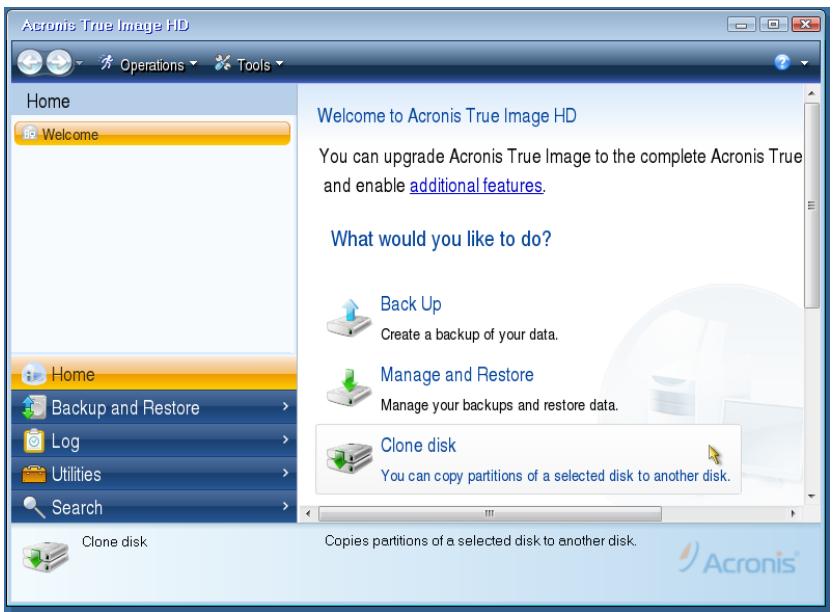
Acronis True Image HD Home Welcome Acronis True Image HD You can upgrade Acronis True Image to the complete Acronis True and enable additional features. What would you like to do? Back Up Create a backup of your data. Manage and Restore Manage your backups and restore data. Clone disk You can copy partitions of a selected disk to another disk. Home Backup and Restore Log Utilities Search Clone disk Copies partitions of a selected disk to another disk.Clone Disk : 4 alشكل
text_image
Clone Disk Wizard Required steps: Clone Mode Summary: Summary You can choose between either fully automated or manual clone modes. Automatic (recommended) All your partitions from the source hard disk will be copied to the target disk in a few simple steps and your new hard disk will be made bootable. Your existing partitions will be automatically resized to fit the target hard disk. Manual Manual mode will give you full control over the hard disk cloning procedure. You will be able to transfer your partitions adjusting their size, create new partitions on source and target hard disk drives, and much more. Next > Summary Canceltext_image
Clone Disk Wizard Required steps: Clone Mode Summary: Summary Summary Source disk: Disk 1 Target disk: Disk 2 Before: 10 GB Unallocated 10 GB After: 10 GB C: 9.997 GB NTFS Primary\Logical\Dynamic Acronis Secure Zone Unallocated\Unsupported Proceed CancelHard Disk Drives Structure :6 الشكل
text_image
Operation Progress Operation status Current operation progress: 2 of 3 - Copying partition Current operation progress: Total progress: Remaining time: 3 minutes Shutdown the computer after completion Canceltext_image
Acronis® True Image HD WWW.ACRONIS.COM Acronis True Image (Full version) Windows Turn Off Computer Continue to boot Windows.Acronis True Image HD :8 alشكل
.(9 Clone Disk .5

text_image
Acronis True Image HD Home Welcome Welcome to Acronis True Image HD You can upgrade Acronis True Image to the complete Acronis True and enable additional features. What would you like to do? Back Up Create a backup of your data. Manage and Restore Manage your backups and restore data. Clone disk You can copy partitions of a selected disk to another disk. Clone disk Copies partitions of a selected disk to another disk.Clone Disk : 9 al الشكل
text_image
Clone Disk Wizard Required steps: Clone Mode Summary: Summary You can choose between either fully automated or manual clone modes. Automatic (recommended) All your partitions from the source hard disk will be copied to the target disk in a few simple steps and your new hard disk will be made bootable. Your existing partitions will be automatically resized to fit the target hard disk. Manual Manual mode will give you full control over the hard disk cloning procedure. You will be able to transfer your partitions adjusting their size, create new partitions on source and target hard disk drives, and much more. Next > Summary Canceltext_image
Clone Disk Wizard Required steps: ✓ Clone Mode Summary: ✓ Summary Summary Source disk: Disk 1 Target disk: Disk 2 Before: 10 GB Unallocated 10 GB After: 10 GB C: 9.997 GB NTFS Primary\Logical\Dynamic Acronis Secure Zone Unallocated\Unsupported Proceed CancelHard Disk Drives Structure :11 الشكل