
WEBPHONE SET WEBCAM - Webcam VIVANCO - Free user manual and instructions
Find the device manual for free WEBPHONE SET WEBCAM VIVANCO in PDF.



| Product type | Webcam |
| Brand | VIVANCO |
| Model | WEBPHONE SET WEBCAM |
| Dimensions (approx.) | 10 x 5 x 5 cm |
| Weight (approx.) | 100 g |
| Power supply | USB port (5 V, 500 mA) |
| Maximum resolution | 640 x 480 pixels (VGA) |
| Main functions | Video capture, contrast adjustment, color, white balance, sharpness, zoom and face tracking (depending on model) |
| System requirements | 500 MHz processor, USB 1.1/2.0 port, Windows 98SE/ME/2000/XP/Vista, CD-ROM drive, 24-bit color display |
| Box contents | Webcam, quick installation guide, CD-ROM (software and manual) |
| Installation | Install the software and driver before connecting the webcam |
| Included software | Amcap (for video adjustments) |
| Maintenance and cleaning | Clean the lens with a soft, dry cloth. Avoid chemical products. |
| Safety | Do not expose to moisture, extreme temperatures or shocks. Disconnect if not used for an extended period. |
| Spare parts and repairability | No removable parts. Device not user serviceable. |
| Warranty | 2 years |
| General information | Webcam designed for video conferencing and video calls. Compatible with common messaging software. |
Frequently Asked Questions - WEBPHONE SET WEBCAM VIVANCO
User questions about WEBPHONE SET WEBCAM VIVANCO
0 question about this device. Answer the ones you know or ask your own.
Ask a new question about this device
Download the instructions for your Webcam in PDF format for free! Find your manual WEBPHONE SET WEBCAM - VIVANCO and take your electronic device back in hand. On this page are published all the documents necessary for the use of your device. WEBPHONE SET WEBCAM by VIVANCO.
USER MANUAL WEBPHONE SET WEBCAM VIVANCO
"Webphone Set" Webcam
Users Guide Bedienungsanleitung Notice d'emploi Instrucciones de uso Istruzioni per l'uso Gebruiksaanwijzing Instruções de uso Instrukcja obš®, Brugermanualer Bruksanvisning
EDV Nr. 22863
VOIP SET
GB
Introduction
Thank you for purchasing the Vivanco webcam.
You have made an excellent choice by deciding in favour of this WebCam, giving you innovative technology with unique benefits.
We grant a warranty of 2 years on this product. Please take a few minutes to read this instruction manual carefully. It will help you to understand the different functions.
System Requirements
- 500 MHz processor or higher
Free USB 1.1 port, compatible with USB 2.0 - Windows 98SE / ME / 2000 / XP / Vista
CD ROM drive
24bit colour display adapter
Package Contents
- Webcam
- Quick installation guide
- CD including software and manual
Installation
Attention:
Make sure to install the software and driver BEFORE plugging the camera into USB port.
- Insert the software CD into the CD-ROM drive of your computer.
- The installation program will run automatically. If the installation does not auto play, please run "Setup.exe" from the CD-ROM's root directory to install. Please follow the steps below to install.
Software installation - Driver
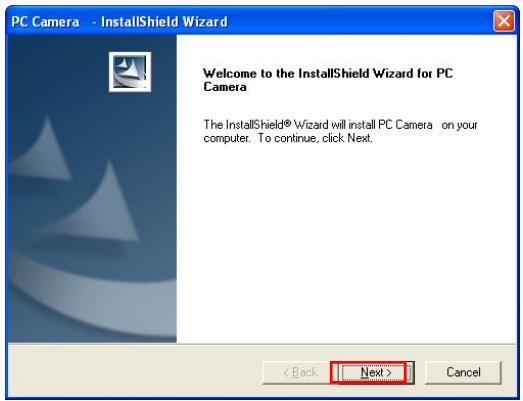
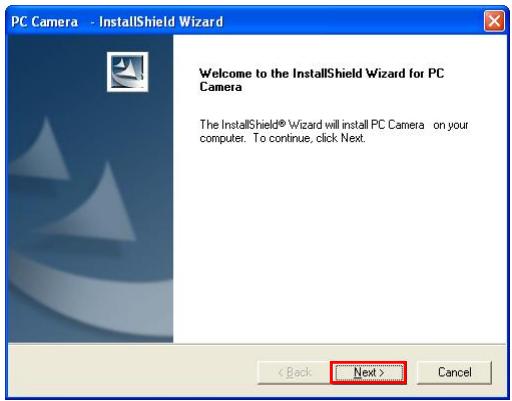
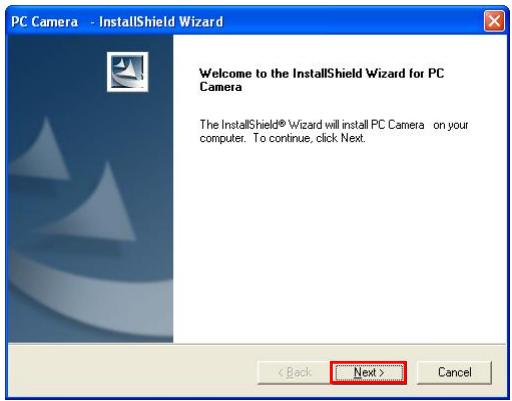
The InstallShield Wizard will run Webcam Driver setup.
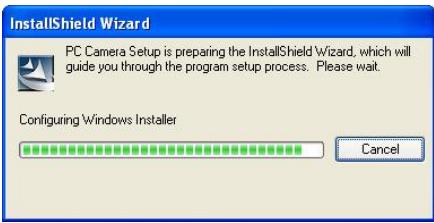
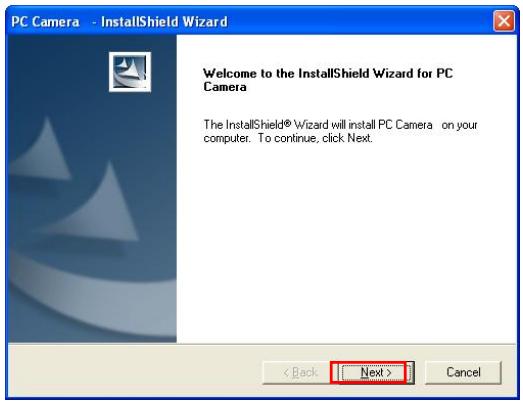
Click "Next" to continue.
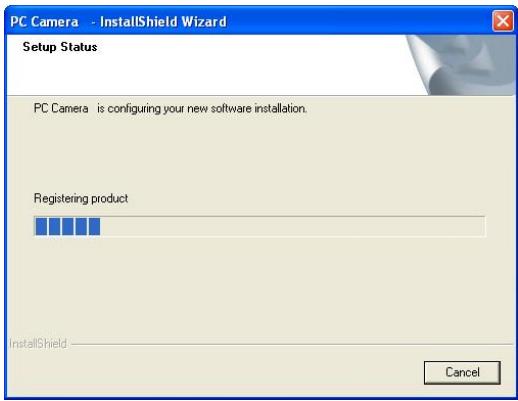
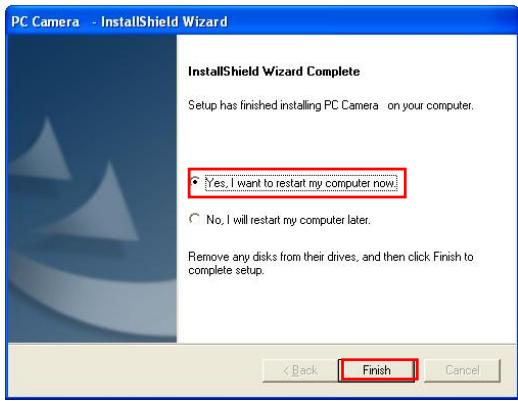
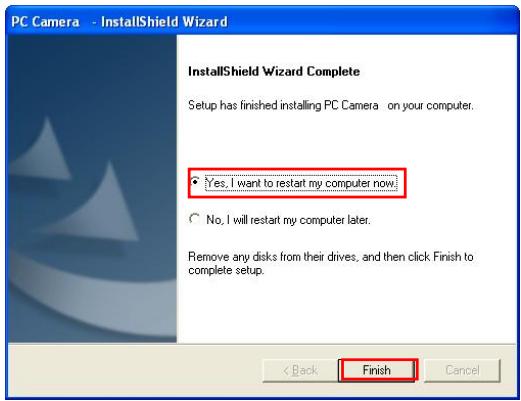
Driver installation completed:
When Driver installation is completed, restart the PC, click "Finish", then plug the Webcam into the USB port.
Hardware installation
Webcam Connection
Plug the Webcam to the PC after you installed the software and drivers before. The Webcam's LED indicator will light up when it is successfully connected.
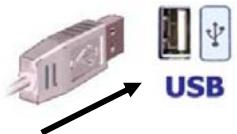
Attention:
If a dialog box pops up and requests to have the language setting file replaced after plugging the camera into USB port, please simply click "Yes" to continue.
Adjusting camera settings:
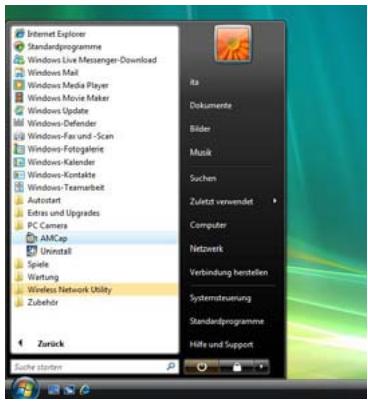
Start AMCap software
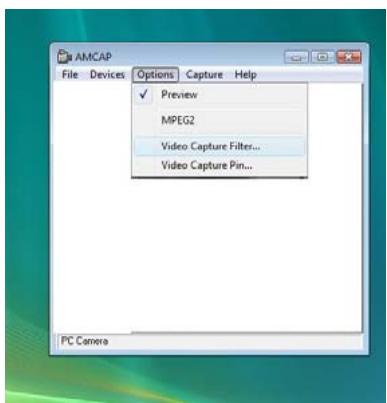
Select Options
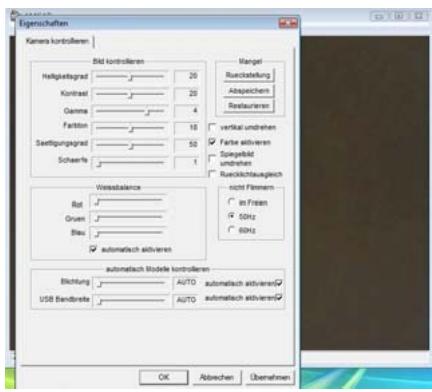
- Video Capture Filter
Depending on your webcam model you can adjust your camera settings like - Contrast
-Colour
-White balance - Sharpness
- Optional settings* like Zoom or Facetracking
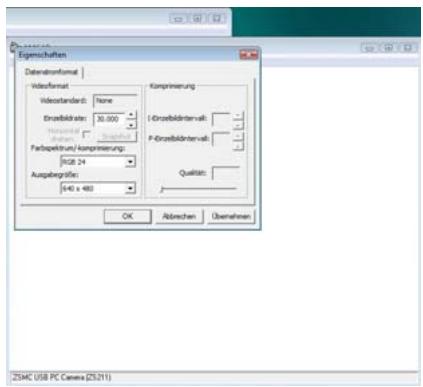
- Video Capture Pin
Depending on your webcam model you can adjust the framerate settings and resolution
D
Einleitung
PC Camera Setup is preparing the InstallShield Wizard, which will guide you through the program setup process. Please wait.
Configuring Windows Installer
国
Cancel
Hardware Installation
PC Camera Setup is preparing the InstallShield Wizard, which will guide you through the program setup process. Please wait.
Configuring Windows Installer

Cancel
Para continuar, hagablick en "seguir"
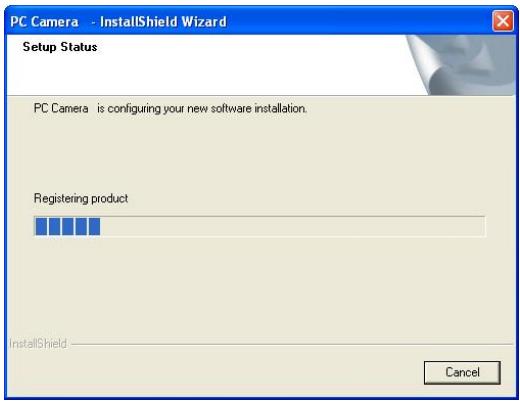
PC Camera Setup is preparing the InstallShield Wizard, which will guide you through the program setup process. Please wait.
Configuring Windows Installer
Cancel
- Webcam
- Manual breve
- CD inclusive software e manual
Instalacao
Instalacao do software - driver
PC Camera Setup is preparing the InstallShield Wizard, which will guide you through the program setup process. Please wait.
Configuring Windows Installer
国国国国国国国国国国国国国国国国国国国
Cancel
PC Camera Setup is preparing the InstallShield Wizard, which will guide you through the program setup process. Please wait.
Configuring Windows Installer
国国国国国国国国国国国国国国国国国国国
Cancel
Software installation - driver
Installationsguiden starter driverinstallationen.
InstallShield Wizard

PC Camera Setup is preparing the InstallShield Wizard, which will guide you through the program setup process. Please wait.
Configuring Windows Installer

Cancel
Hardware installation
PC Camera Setup is preparing the InstallShield Wizard, which will guide you through the program setup process. Please wait.
Configuring Windows Installer


Information in this document is subject to change without notice. The manufacturer does not make any representations or warranties (implied or otherwise) regarding the accuracy and completeness of this document and shall in no event be liable for any loss of profit or any commercial damages, including but not limited to special, incidental, consequential, or other damages. No part of this document may be reproduced or transmitted in any form, electronic or mechanical, by any means, including photocopying, recording or information recording and retrieval systems without the expressed written permission of the manufacturer. All brand names and product names mentioned in this document are trademarks, or registered trademarks of their respective holders.