
TRD UB25 - Network card / adapter VIVANCO - Free user manual and instructions
Find the device manual for free TRD UB25 VIVANCO in PDF.


| Product type | USB 2.0 to Ethernet network adapter |
| Brand | Vivanco |
| Model | TRD UB25 |
| Host interface | USB 2.0 (compatible with USB 1.1) |
| Network interface | Ethernet 10/100 Mbps (RJ45) |
| Dimensions (L x W x H) | Approximately 72 x 26 x 16 mm |
| Weight | Approximately 30 g |
| Power supply | Via USB port (5V / 500 mA max) |
| Supported operating systems | Windows XP/Vista/7/8/10, Mac OS X, Linux |
| Main functions | High-speed wired connection, plug-and-play, compatible with most boxes and routers |
| Maintenance and cleaning | Unplug the device before cleaning. Use a soft, dry cloth. Do not use solvents. |
| Safety | Do not expose to moisture or extreme temperatures. Do not open the casing. |
| Spare parts and repairability | Not user-serviceable. No spare parts available directly. |
| General information | Compact network adapter to add an Ethernet port to a computer. Suitable for Internet and local network connections. |
| Warranty | 2 years (according to local legislation) |
| Color | Black (primarily) |
| Operating temperature | 0°C to 40°C |
| Operating humidity | 10% to 90% (non-condensing) |
Frequently Asked Questions - TRD UB25 VIVANCO
User questions about TRD UB25 VIVANCO
0 question about this device. Answer the ones you know or ask your own.
Ask a new question about this device
Download the instructions for your Network card / adapter in PDF format for free! Find your manual TRD UB25 - VIVANCO and take your electronic device back in hand. On this page are published all the documents necessary for the use of your device. TRD UB25 by VIVANCO.
USER MANUAL TRD UB25 VIVANCO
- What's pairing? 11
- Pass Key 11
Connect and Disconnect 12
An example to use "BlueSoleil" program, please follow the instructions below: · · · · · 14
How to un-pair devices? 20
Specification of Bluetooth USB Adapter 133
CE Statements / FCC Safety Statements 134
Regulatory Information 135
Warranty 136
Package Contents
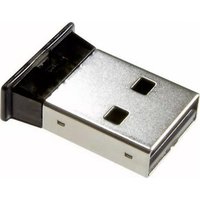
Bluetooth USB Adapter
Installation Software CDROM
➢ Setup programs and drivers for Microsoft Windows 98 SE, ME, 2000, and XP
- README.TXT with updating information for BT USB Adapter
◆ Users' Manual
Introduction
Bluetooth USB Adapter is a Bluetooth enabler, that enables your desktop or notebook computer to connect wirelessly to any other Bluetooth enabled computers and devices. It allows a working range of up to 10 meters (33 feet) with a 723 Kbps data rate transmission, and complies with Bluetooth 1.2 and USB 1.1 specifications. Bluetooth USB Adapter is an ideal solution for home and mobile networking needs. It is easy to install and use for wireless connectivity to such as cellular phones, PDAs, printers, computers, keyboards, mice etc.
Overview
Bluetooth is a low-power wireless networking standard, which uses short radio links to allow electronic devices to communicate with other without using cables.
The following services are supported by Bluetooth technology:
- Synchronize your Bluetooth PDA with your computer.
- Send your business cad to anyone who has a Bluetooth enabled device.
- Send or receive files to or from anyone who has a Bluetooth enabled device.
- Send an e-mail without being wired to the network.
- Dial up to internet on your computer over your Bluetooth cellular phone.
- Send a fax from your computer over your Bluetooth cellular phone.
- Chat with anyone who has a Bluetooth enable computer.
- Play a one-on-one serial game without a cable.
Most Bluetooth enabled devices may act as:
- A Bluetooth host – can provide one or more services, such as access to the internet or to other Bluetooth devices.
- A Bluetooth client – can use the service provided by Bluetooth servers.
- Bluetooth devices can act as both host and client, and do both at the same time.
System Requirement
PC System Requirement:
CPU: Intel Pentium III 500MHz or above.
Memory: 256MB or more.
Hard disk space: at least 50MB.
OS: Windows 98SE/Me/2000/XP
A free USB port, USB 1.1 compliant.
CD-ROM Drive.
Mac System Requirement:
MAC OS: 10.1.4 or later
Mac OS driver and software provided by Apple.
A free USB port, USB 1.1 compliant.
CD-ROM Drive.
Software Installation
Note: Do not plug your Bluetooth USB Adapter into USB port until you have completed the software installation as the following:
- Insert the software CD cams with your USB adapter. The "InstallShield Wizard" should automatically start running. If it doesn't load, run its "Setup.exe" file.
- A window appears for you to choose your preferred language for this installation. Click OK to continue.
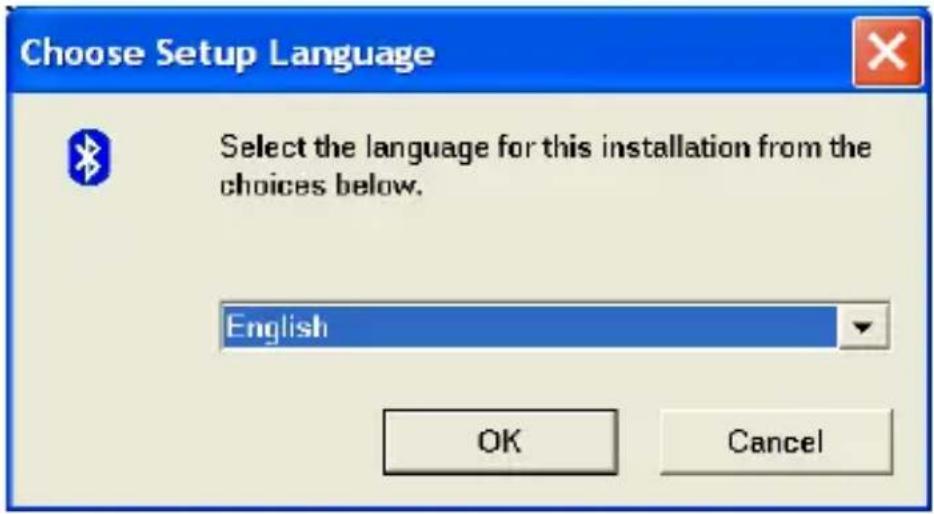
- Wait for the setup preparation.

- The IVT BlueSoleil Setup window should now appear, Click "Next".
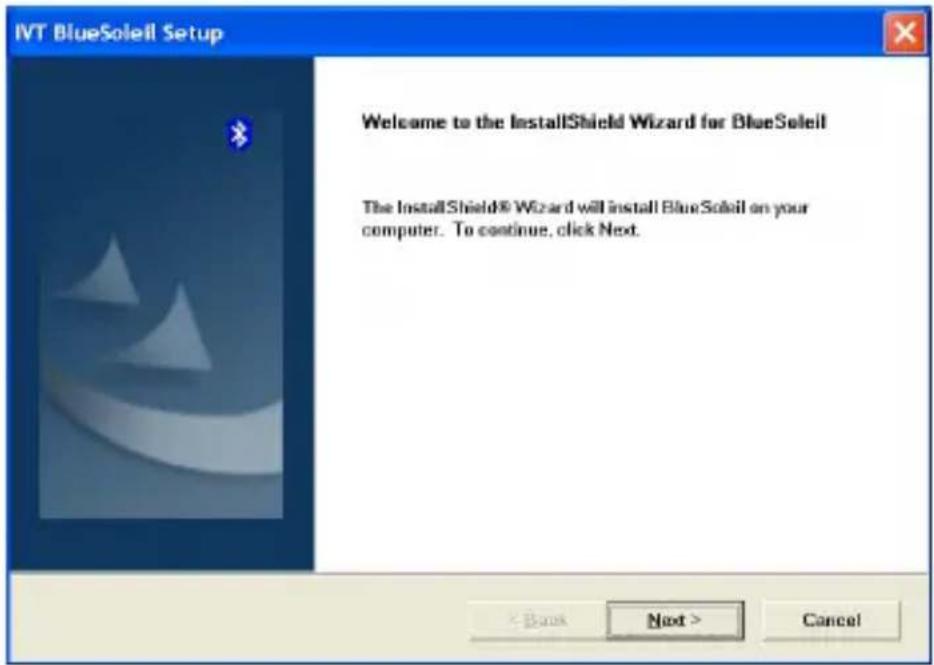
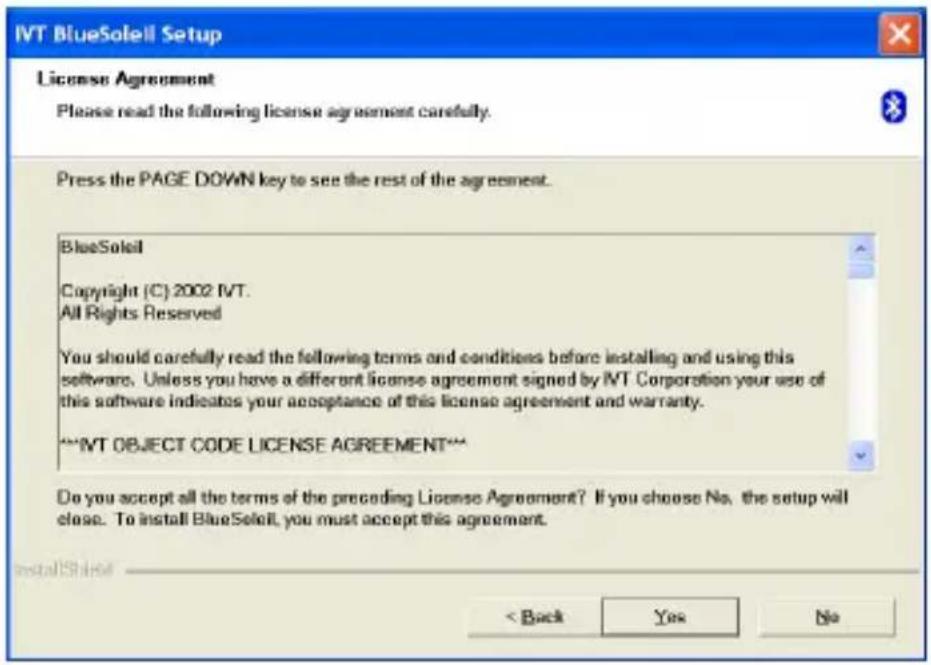
- Select "Yes" to proceed with the installation.

- Click "Yes" to accept License Agreement.
- Click "Next" to install the driver to the default folder. Click "Browse" and select another folder if you wish to relocate your driver.
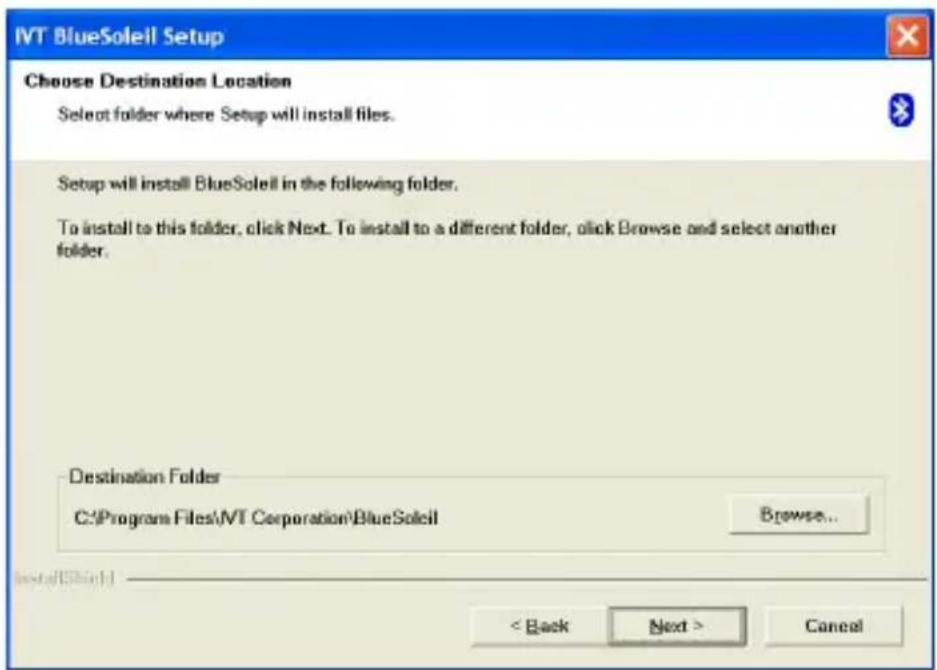
- Wait for the setup.

- Wait for Bluetooth device installation.

Installing Bluetooth Audio Device...

Installing Bluetooth Human Interface Device...

Installing Bluetooth Virtual Serial Ports...

Installing Bluetooth Modem...
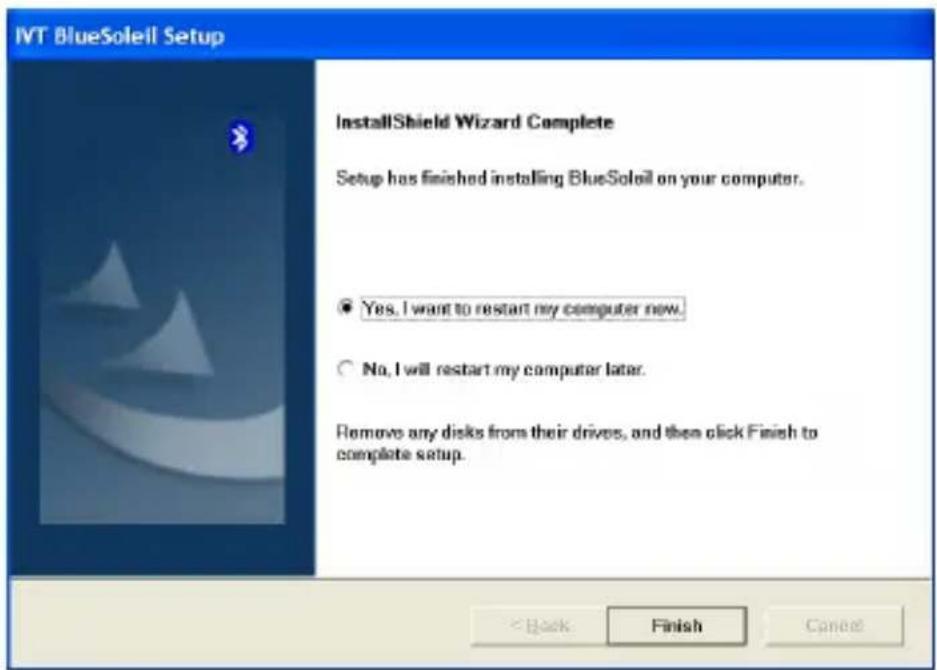
- Check "Yes" and click "Finish" to restart your computer.
Hardware Installation
Install USB Adapter
- Insert the USB dongle into a free USB port after installing the driver and restarting your computer. You will see a system notice of "new USB devices found". Click "Next" to register. To boot from a different location, mark "install from a list or specific location" and click "Next" to continue.

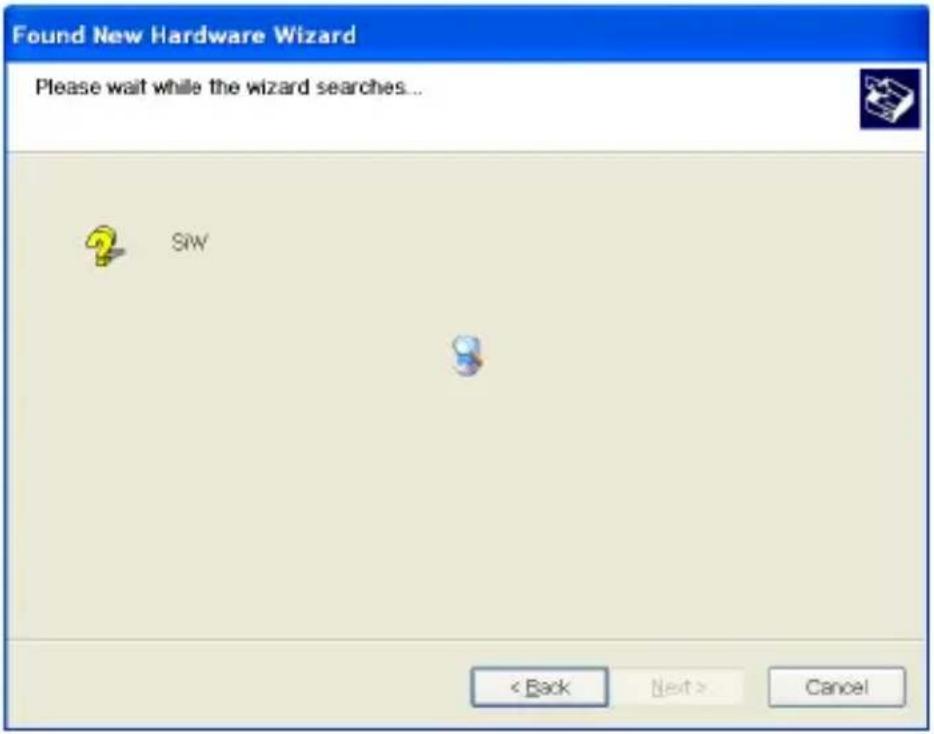
- Wait while the wizard searches for your USB dongle.
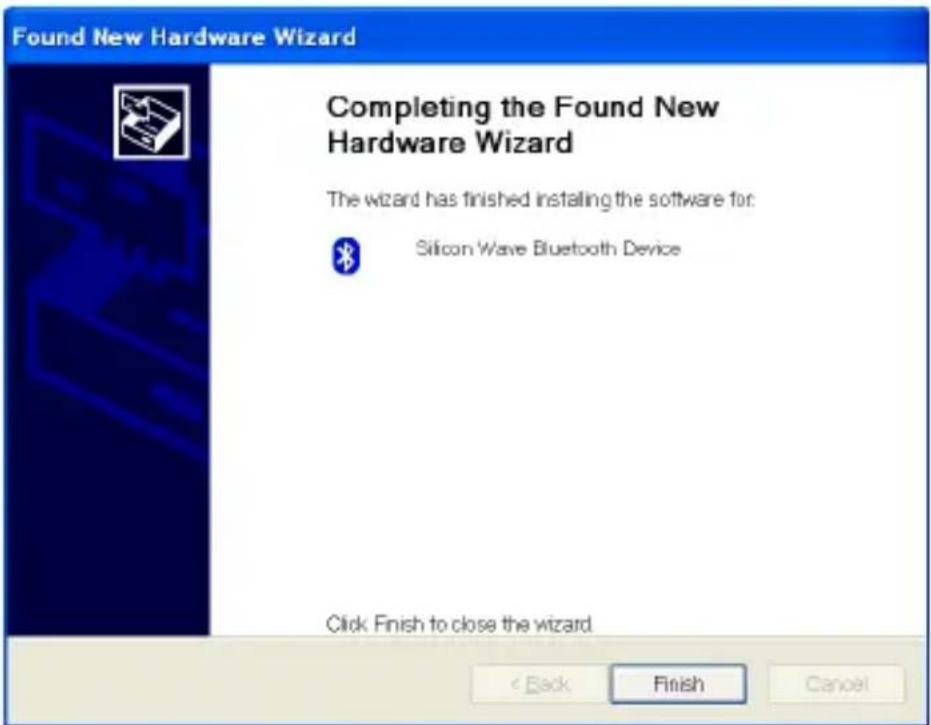
- Click on "Finish" while the search is completed.
Pairing Guide
What's pairing?
Pairing is a process of associating Bluetooth devices with each other. It allows avoiding entering access information every time when a connection is requested. Bluetooth devices need to be paired with each other before attempting a connection at first time.
Paired devices will remain paired, even if:
- One of the devices is un-powered.
- A service connection is interrupted or stopped.
- One or both devices are rebooted.
Pass Key
Paired devices share a unique Pass Key (also referred to as Link Key), by which they authenticate with each other when connecting. The Pass Key can be alphanumeric, numbers, or letters, and must consist of one or up to 16 characters.
How to pair devices?
Automatically -- If a passkey is required before connection, devices will pair automatically the first time they connect (a passkey must be successfully exchanged).
Manually -- In the main window of BlueSoleil, right click a device, select Pair Device from the popup menu, and then input a same passkey on both sides.
Connect and Disconnect
Connect
There are two ways to setup a Bluetooth connection.
Select Remote Device First
Select a remote device and double click it to refresh its services. Bluetooth passkey may be asked if security level of either side of the connection is set to High and they are not paired devices. After service searching finished, the services that the remote device supports are found and the corresponding service icons on the top of the main window will change to be pink color.
Double click the pink color service icon you want to connect on the top of the Main Window. Connection will be setup. After connection is OK, the remote device and the service icon will turn green.
Note:
PAN: If the PAN server side does not connect to a DHCP server, it will take about 45 seconds to assign the IP address for the PAN client. Users have to wait about 45 seconds before using TCP/IP.
DUN: There will be a dial-up dialog box. The user needs to input the ISP phone number, its name and the password.
FTP: After connection is setup, a FTP Window will pop up. The window shows the shared directories of the remote device. The window may be empty if there is no file or directory on the remote site.
OPP: There are four kinds of operation modes for OPP: Send My Card, Get Card, Send Objects and Exchange Cards. At the beginning, the default operation is Send My Card. Users can right click the icon to select operation on the popup menu. Send My Card will send my card directly to the remote device. Get Card will try to require the owner's card from the remote device. Exchange Cards will send my card first and then get the remote device card.
Send Objects will pop up a file dialog box to let users to select some object files to send to the remote device. Object means the files in the format of vCards2.1, vCalendar1.0, vMessage and vNote.
Synchronization: There will be a dialog to let user to operate.
Printer: After the connection is established, users can use the printer to print with any other Windows applications that support printing.
Select Service Icon First
Select a service icon on the top of the main Window. If you have ever browsed the services of
some remote devices, the device that supports the service will be highlighted in yellow.
Double click the remote browse first to check whether the device has the service and then connect to it. If the remote device does not have the service, connection will fail. The
Bluetooth passkey may be asked if the security level of either side of the connection is set to High and they are not paired devices.
Note:
There are corresponding operation menu on the remote device icon and the service icon.
Users can also start the connection using the pop up menu.
Disconnect
Select the remote device first and right click the service icon on the top of the main window.
On the pop up menu, select Disconnect.
Select the remote device and right click the device icon. On the pop up menu, select
Disconnect / submenu (the connection you want to disconnect).
With FTP and Synchronization, close their operation widow and the connection will be disconnected.
The remote device side can disconnect the connection directly.
If the local Bluetooth device is removed or the remote device is removed, all the connections will be disconnected. If the remote device moves out of the radio range, all the connections with the remote device will be disconnected after about 1 minute.
Note:
When the program starts, It will show some words in the bottom right hand corner of the screen.
An example to use "BlueSoleil" program, please follow the instructions below:
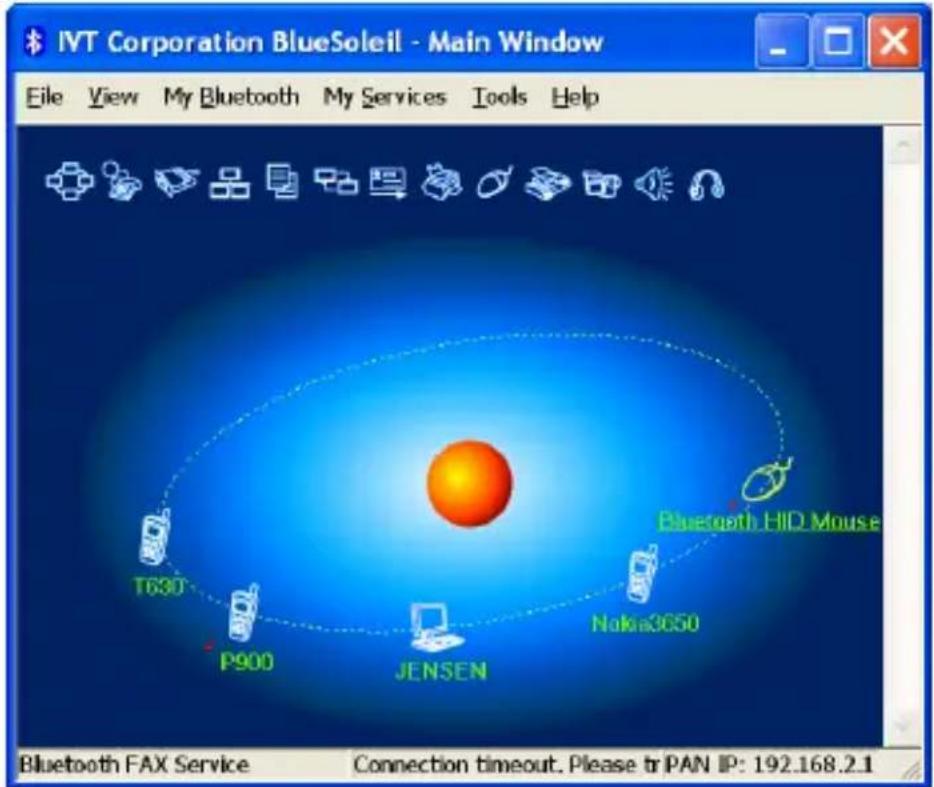
- Click the Bluetooth Icon located right hand side of the taskbar to open "BlueSoleil" program.

Or click "BlueSoleil" on your screen.
- The main window of IVT BlueSoleil should appear on the screen.
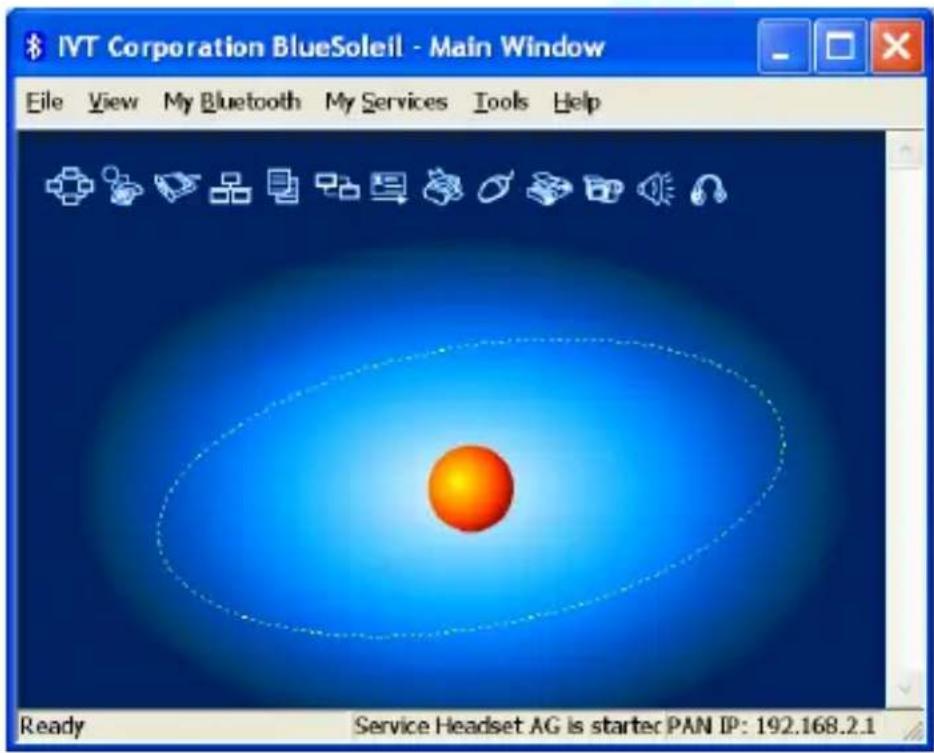
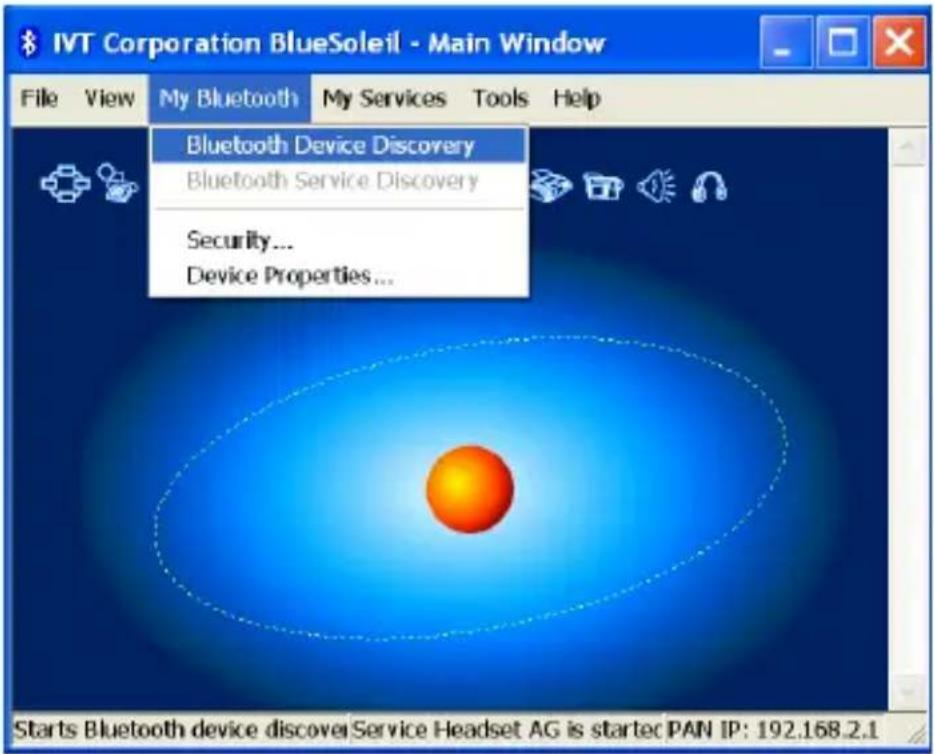
- Click on the "Sun" icon of the solar system to see your available Bluetooth devices.

Or click "My Bluetooth" and select "Bluetooth Device Discovery" to perform search.
- Wait while search performing.
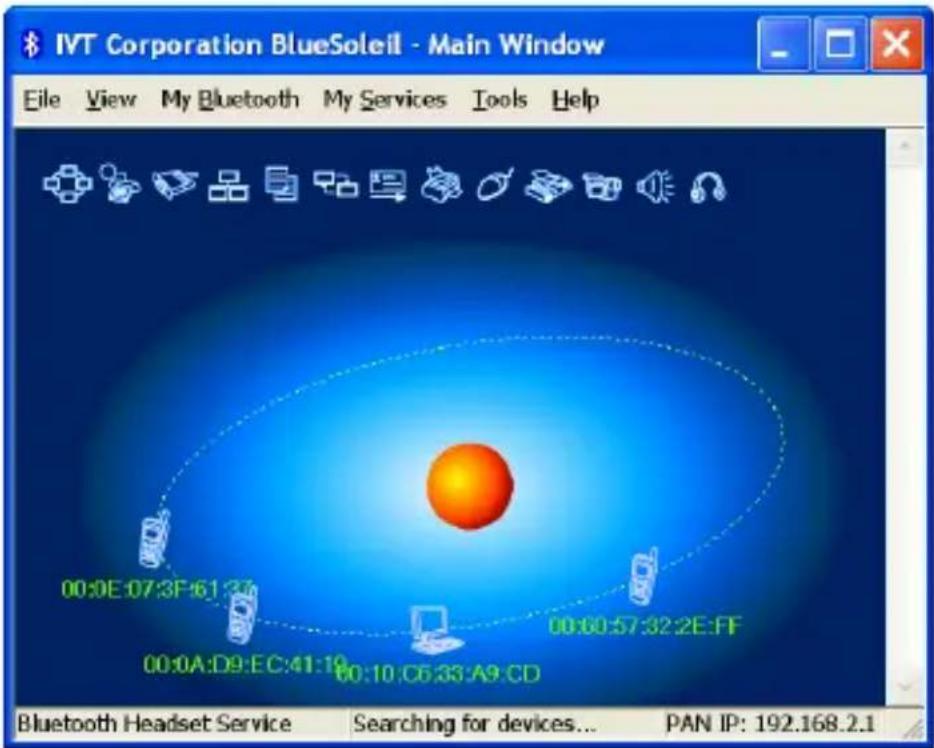
- While the search is done, scroll up and down to find the devices you are looking for.

- Right click the device icon and select "Pair Device".
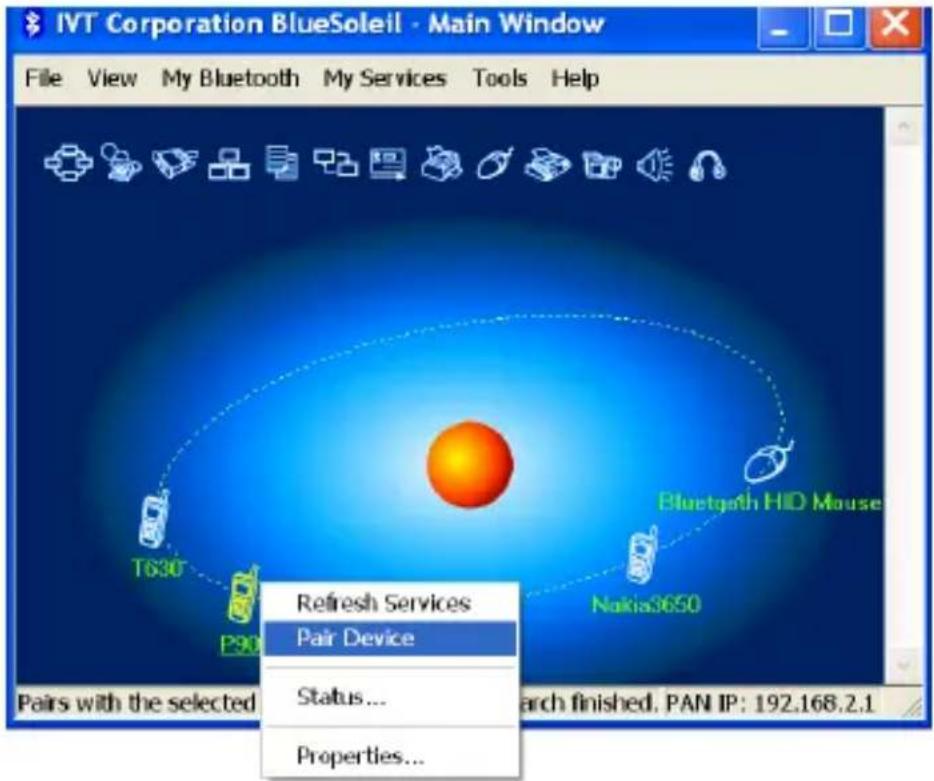
- Enter your preferred passkey on the screen and click OK. You will now be asked to enter the same passkey to your client device to complete "pairing".

- While Bluetooth connection is established between devices, the device icon should appear with a red "√" to indicate completion of pairing and connecting.
![graph TD A["T630"] --> B["P900"] B --> C["JENSEN"] C --> D["Nokia3650"] D --> E["Bluetooth HID Mouse"]](/content/2026/06/1269725/images/93a7f741224eeef5ec8ca17e8107a77705393f80189683ecd442d53a6f5ce6fa.jpg)
-
As long as the connection between devices is built, it will last permanently. In other words, the connection will be auto-established whenever the Windows runs.
-
Click "Yes", if you wish to create a shortcut for this connection on your desktop in the future.

- You may continue to pair as many devices as you desire, and connect up to 7 devices at once.
How to un-pair devices?
In the main window of BlueSoleil, right click a paired device; select Un-pair from the pop up menu.

Chapter for Mac Users:
How to add Bluetooth to your Mac?
IMPORTANT INFORMATION FOR MAX OS X USERS:
Bluetooth support for Mac OS X is still in development but will be supported natively with the full release of Mac OS X Version 10.2. As of now, the beta drivers for Bluetooth support can be downloaded from the Apple website at http://www.apple.com.
To enable Bluetooth on your Mac is as following:
- Download and install the Technology Preview 2 software. (Double-click "Apple Bluetooth.pkg.")
- Plug in the Bluetooth USB Adapter to available USB port on your PowerBook G4, iBook, PowerMac Ge or iMac (for the PowerMac G4 and iMac, you can attach the Bluetooth USB adapter to a free USB port on your keyboard.)
- Launch the Bluetooth software to find Bluetooth enabled devices within range of your computer to pair with.
- Select the Bluetooth device on the list and click the Pair button.
- Connection is now completed.
Please refer to the Apple website for further information on Bluetooth support and updates at http://www.info.apple.com
For more application references, please read the users' manual provided by IVT saved in the same driver CDROM.
Technical Support
For support of your other Bluetooth devices, contact your device manufacturer. Go to My Bluetooth Places>Help for support of your Bluetooth USB Adapter and advanced information about Bluetooth:
- Bluetooth for Windows
- Basic Operations
- Client Application
- Technical Supports
- Troubleshooting


Guide d'Appariement
Assistance Technique
Hardware-Installation
Den USB-Adapter installieren
- La finestra IVT Bluesoleir compaia. Scatti "next".

Accoppiamento Guida

4. Attende mentre cerca


MAC OS: 10.1.2 of later
Koppelingsgids (pairing)
Wat is Koppelen (Pairing)?
Technische ondersteuning
This device has bee tested and found to comply with the requirements set up in the council directive on the approximation of the law of member states relating to EMC Directive 89/336/EEC, Low Voltage Directive 73/23/EEC and R&TTE Directive 99/5/EC.
FCC Safety Statements
This device complies with Part 15 of the FCC rules. Operation is subject to the following two conditions:
- This device may not cause harmful interference.
- This device must accept m\any interference received, including interference that may cause undesired operation.
The radiated output power is far below the FCC Radio frequency exposure limits.
Nevertheless, this device should be used in such a manner that the potential for human contact during normal operation is minimized.
Warning: Change or modifications made to this equipment not expressly approved by the manufacturer. May void the FCC authorization to operate this equipment. Important
This equipment has been tested and found to comply with the limits for a Class B digital device, pursuant to part 15 of the FCC Rules. These limits are designed to provide reasonable protection against harmful interference in a residential installation. This equipment generates uses and can radiate radio frequency energy and, if not installed and used in accordance with the instructions, may cause harmful interference to radio communication. However, there is no guarantee that interference will not occur in a particular installation. If this equipment does cause harmful interference to radio or television reception, which can be determined by turning the equipment off and on, the user is encouraged to try to correct the interference by one or more of the following measures:
- Reorient or relocate the receiving antenna.
- Increase the separation between the equipment and receiver.
- Connect the equipment into an outlet on a circuit different from that to which the receiver is connected.
- Consult the dealer or an experienced radio/TV technician for help.
Regulatory Information
Bluetooth
This equipment is qualified according to Bluetooth Core Specification, version 1.2
Special notices for use in France and Italy:
France
Low power device (1mW), no limitation for indoor or outdoor use.
Italy
License required for use. Check with your reseller for the procedure you need to follow.
Copyright and Trademark Notices.
Products and brand names may be the trademarks or registered trademarks of their respective owners.
Warranty
The manufacturer warrants that the Bluetooth USB Adapter shall conform to their published specifications, which maybe subject to change, and remain free from defects in materials and workmanship under normal, proper and intended use within warranty period, provide that proof of purchase be furnished with any returned equipment.
During the warranty period, if any component part of the equipment becomes defective by reason of material or workmanship, the manufacturer is immediately notified of such defect. The manufacturer shall supply a replacement part or request return of equipment, freight prepaid, and its designated facility for repair. In the event that no fault is found on a product returned for repair, the manufacturer reserves the right to charge the customer its standard published repair charge.
This warranty shall not apply to any product that has been subject to misuse, bending, neglect, alteration, improper installation, operation outside of the parameters of the published specification, use in any non-approved countries or unauthorized repair performed by anyone other than a the manufacturer designated repair facility. Any non-warranty repairs or maintenance shall be at the manufacturer's standard rates in effect at the time.
This warranty is in lieu of all other warranties, whether expressed, implied, or statutory, including but not limited to, implied warranties or merchantability and fitness for a particular purpose. In no event shall the manufacturer be liable, whether in contract, in tort, or on any other basis, for any damage sustained by its customers or any other person arising from or related to loss of use, failure or interruption in the operation any products, or delay in maintenance, or for incidental, consequential, indirect, or special damages or liabilities, or for loss of revenue, loss of business or other financial loss arising out of or in connection with the sale, maintenance use, performance, failure, or interruption of these products.


- PACKAGE CONTENTS
- INTRODUCTION
- OVERVIEW
- MOST BLUETOOTH ENABLED DEVICES MAY ACT AS
- SYSTEM REQUIREMENT
- PC SYSTEM REQUIREMENT
- MAC SYSTEM REQUIREMENT
- SOFTWARE INSTALLATION
- HARDWARE INSTALLATION
- INSTALL USB ADAPTER
- PAIRING GUIDE
- WHAT'S PAIRING
- PASS KEY
- HOW TO PAIR DEVICES
- CONNECT AND DISCONNECT
- CONNECT
- NOTE
- DISCONNECT
- AN EXAMPLE TO USE "BLUESOLEIL" PROGRAM, PLEASE FOLLOW THE INSTRUCTIONS BELOW
- HOW TO UN-PAIR DEVICES
- CHAPTER FOR MAC USERS
- HOW TO ADD BLUETOOTH TO YOUR MAC
- TECHNICAL SUPPORT
- GUIDE D'APPARIEMENT
- ASSISTANCE TECHNIQUE
- HARDWARE-INSTALLATION
- DEN USB-ADAPTER INSTALLIEREN
- ACCOPPIAMENTO GUIDA
- ATTENDE MENTRE CERCA
- KOPPELINGSGIDS (PAIRING)
- WAT IS KOPPELEN (PAIRING)
- TECHNISCHE ONDERSTEUNING
- FCC SAFETY STATEMENTS
- REGULATORY INFORMATION
- BLUETOOTH
- SPECIAL NOTICES FOR USE IN FRANCE AND ITALY
- FRANCE
- ITALY
- COPYRIGHT AND TRADEMARK NOTICES
- WARRANTY
Brand : VIVANCO
Model : TRD UB25
Category : Network card / adapter