
ARTJET 22 - Inkjet Printer OLIVETTI - Free user manual and instructions
Find the device manual for free ARTJET 22 OLIVETTI in PDF.



| Product type | Inkjet printer |
| Brand | OLIVETTI |
| Model | ARTJET 22 |
| Power supply | Mains via supplied power cable (separate plug) |
| Operating temperature | 15 to 35 °C |
| Operating humidity | 20% to 80% RH |
| Main functions | Inkjet printing, two positions (vertical/horizontal), main input tray, output tray/alternate input tray, manual feeder, banner printing up to 1.5 m |
| Maintenance and cleaning | Clean with a damp cloth; do not use abrasive or corrosive products |
| Safety | Disconnect the power cable to completely cut off power; do not use an extension cord or adapter; do not attempt self-repair in case of mechanical problem |
| Spare parts and repairability | Replaceable print heads (black and color); supplied mains cable; CD with software and electronic guide |
| Package contents | Printer, power cable, two print heads (color and black), main input tray, output tray, CD |
| Connections | Parallel and USB (cables not supplied) |
| Supported operating systems | Windows 3.1x/95/98/NT/2000 |
| DOS compatibility | Yes, PCL III+ command codes |
| Main input tray capacity | Plain paper (A4, letter, etc.); do not exceed the MAX level |
| Output tray / alternate tray capacity | Up to 10 sheets or 3 envelopes |
| Supported media types | Plain paper, envelopes, thick paper, banner |
| Included software | Printer manager and electronic guide (CD-ROM) |
Frequently Asked Questions - ARTJET 22 OLIVETTI
User questions about ARTJET 22 OLIVETTI
0 question about this device. Answer the ones you know or ask your own.
Ask a new question about this device
Download the instructions for your Inkjet Printer in PDF format for free! Find your manual ARTJET 22 - OLIVETTI and take your electronic device back in hand. On this page are published all the documents necessary for the use of your device. ARTJET 22 by OLIVETTI.
USER MANUAL ARTJET 22 OLIVETTI
ink jet colour printer
Installation Guide
Copyright © 2000, by Olivetti
All rights reserved
Publication issued by:
Olivetti Lexikon, S.p.A.
77, Via Jervis - 10015 Ivrea (Italy)
Publishing department:
Olivetti Lexikon, S.p.A.
The C€ mark affixed to the product certifies that the product satisfies the basic quality requirements.

Your attention is drawn to the following actions that could compromise the characteristics of the product:
. incorrect electrical supply;
. incorrect installation; incorrect or improper use, or, in any case, not in accordance with the warnings given in the User Manual supplied with the product;
. replacement of original components or accessories with others of a type not approved by the manufacturer, or carried out by unauthorized personnel.
Use a clean, dry, lint-free cloth to clean the printer. Do NOT use alcohol, solvents or other abrasive cleaners.
Always disconnect the power cable plug from the electrical power supply.
Do not spill water or other liquids on or in the printer.
All trademarks and/or proprietary names indicated are the property of their respective owners.
NOTE: This equipment has been tested and found to comply with the limits for a CLASS B digital device pursuant to Part 15 of the FCC Rules. These limits are designed to provide reasonable protection against harmful interference in a residential installation. This equipment generates, uses and can radiate radio frequency energy and, if not installed and used in accordance with the instructions, may cause harmful interference to radio communications. However, there is no guarantee that interference will not occur in a particular installation.
If this equipment does cause harmful interference to radio or television reception, which can be determined by turning the equipment off and on, the user is encouraged to try to correct the interference by one or more of the following measures:
. Reorient or relocate the receiving antenna.
. Increase the separation between the equipment and receiver.
. Connect the equipment into an outlet of a circuit different from that to which the receiver is connected.
Consult the dealer or an experienced radio/TV technician for assistance.
Changes or modifications not expressly approved by the party responsible for compliance could void the user's authority to operate the equipment.
Connection of peripherals requires the use of grounded shielded signal cables.
This digital equipment does not exceed the CLASS B limits for radio noise emissions from digital apparatus set out in the interference-causing equipment standard entitled "Digital Apparatus", ICES-003 of the Industry Canada.
Thank you for purchasing this unique dual-position printer which allows you to personalise the organisation of your working environment.
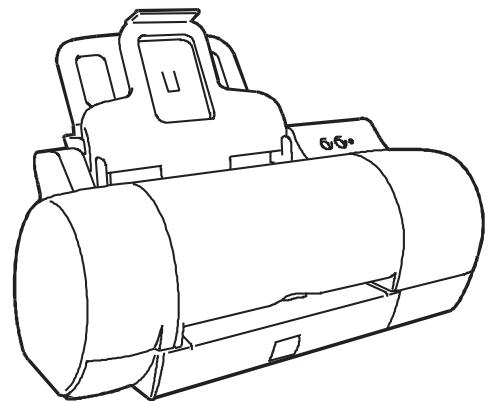
Vertical operating position
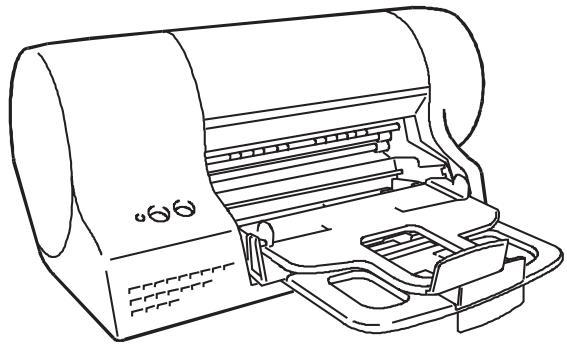
Horizontal operating position
This booklet describes how to install your printer and prepare it for use. Follow the instructions in the order in which they are presented.
You will find further information about the printer features and functions in the On-Line documentation that is loaded when you install the driver contained on the Installation CD supplied with the printer.
Carton contents
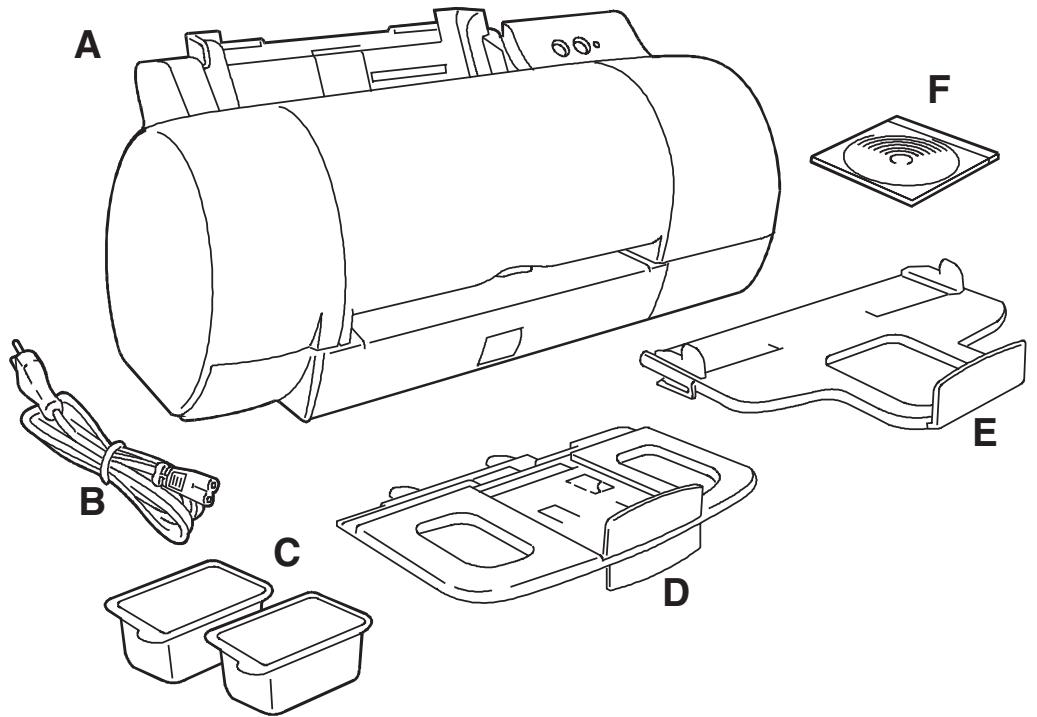
(A) Printer
(B) Power cable
(C) Two ink jet print heads (colour and black)
(D) Paper tray for automatic feeder
(E) Output paper tray
(F) CD containing printer driver
Presentation

(1) Main automatic feeder (paper tray mounted) - (2) Output tray/Second automatic feeder (paper tray mounted)
(3) Margin guide - (4) Print head carriage (print heads inserted) - (5) Print head release lever - (6) Cover (open)
(7) Operator panel (two buttons and a light indicator) - (8) Print head rest position (under the printer casing)
(9) Manual feeder - (10) Release button (to free jammed paper, if necessary)
Connect the printer to the electrical power supply
- Insert the small two-pin connector of the power cable in the socket on the rear the printer.
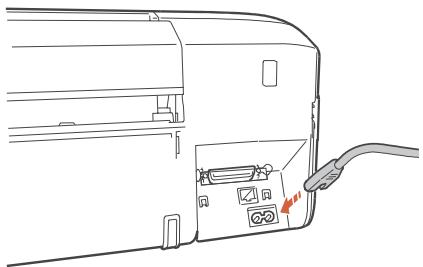
- Plug the other end of the cable into an independent wall socket.
The "Power" button ( ) does not electrically disconnect the printer from the power supply. To electrically disconnect the printer, you must unplug the power supply cable from the power outlet.
Insert the print heads
The figures in this section show the printer in its horizontal position.
- Press the "POWER" button ( ) on the printer operator panel to switch on the printer and open the printer co*ver; the print head carriage will be in the head loading position and the light indicator will be flashing.
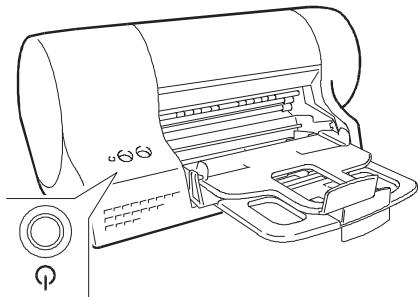
- Open the black print head container, remove the print head, holding it by the thumb and finger grip, and remove the protective film.
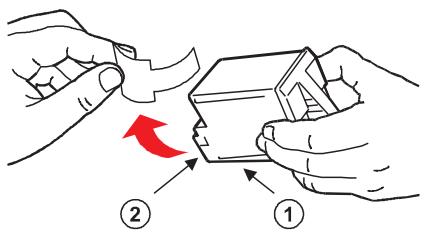
Do not touch either the electrical contacts (① - gold-coloured part) or the printing nozzles (②) nor sit the print head on them.
- Insert the print head in the seat on the print head carriage indicated by the single engraved dot so that its electrical contacts (①) match the corresponding contacts in the seat.
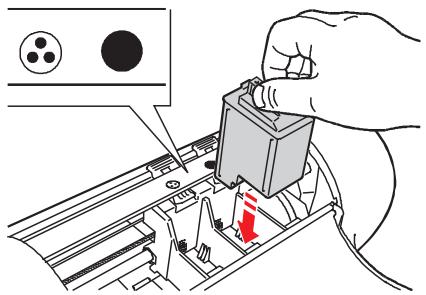
- Block the print head, pushing it towards the release lever until it clicks into place.
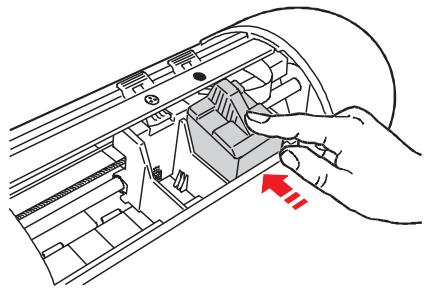
Repeat the above operation for the colour print head.
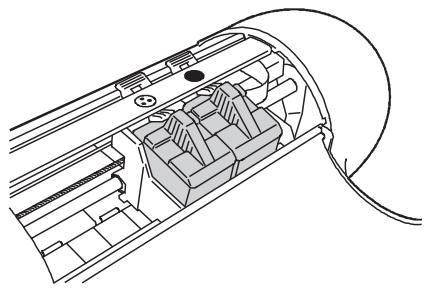
- When you have inserted both print heads, close the printer cover, then press and hold (1) and press (2); release the two buttons together.
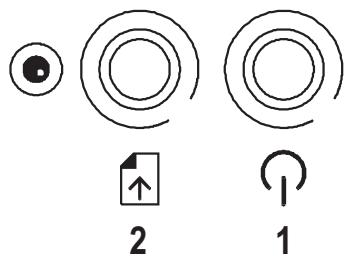
The print head carriage returns to its rest position and the printer runs an initialisation cycle that takes some time (the light indicator continues flashing until the cycle is completed).
Remember to run the print head alignment function BEFORE starting any print jobs.
For print head replacement, see the specific section in this booklet.
GB
Install the printer software
Before installing any software, read carefully the Terms and conditions of the user licence displayed as the first page of the software installation procedure.
Make sure both your printer and computer are switched OFF.
If your PC does not have a CD drive, you can:
- download the printer software from the web address indicated on the inside front cover, or
-
create a set of diskettes yourself, using a PC that has a CD drive.
-
Switch on your PC, start Windows and insert the Installation Disk CD in the CD drive of the PC.
- Install the printer software following one of the procedures below (a, b, c or d), according to the operating system and the interface cable used:
The interface cables are NOT supplied with the printer. Ask your computer dealer for details.
(a) Windows 3.1X/95/98/NT + parallel cable
- Connect the printer to the PC (with the parallel cable).
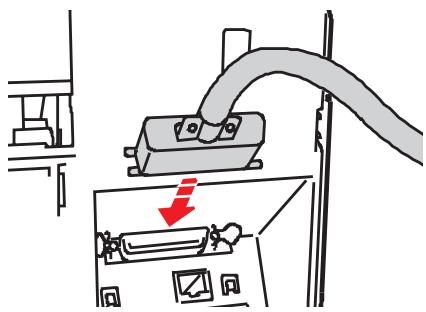
-
Press the "POWER" button ( ) on the printer operator panel to switch on the printer.
-
From the Windows 95/98/NT Start menu (or Windows 3.1x File menu), select Run, type the CD-ROM drive letter followed by "olsetup" (normally, d:\lolsetup) and click on OK.
The installation menu appears on the screen. - Click on Install software and then on Install printer driver.
- Follow the instructions that appear on the screen.
- Once the installation procedure is completed, you will be prompted to restart your PC.
(b) Windows 2000 + parallel cable
- From the Start menu, select Run, type the CD-ROM drive letter followed by "olsetup" (normally, d:\olsetup) and click on OK. The installation menu appears on the screen.
- Click on Install software and then on Install printer driver.
-
Follow the instructions that appear on the screen:
-
select the LPT port and connect the printer to the PC (with the parallel cable) when prompted to do so,
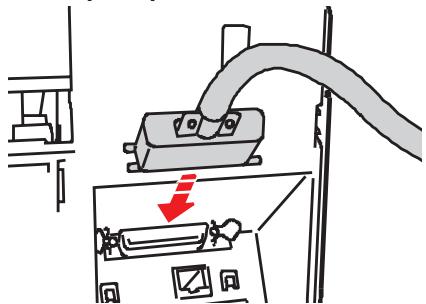
- press the "POWER" button ( ) on the printer operator panel to switch on the printer,
- check also that the automatic Plug and Play installation for the printer is selected in one of the dialogue boxes displayed.
(c) Windows 98 + USB cable
- Press the "POWER" button ( ) on the printer operator panel to switch on the printer.
- Connect the printer to the PC (with the USB cable).
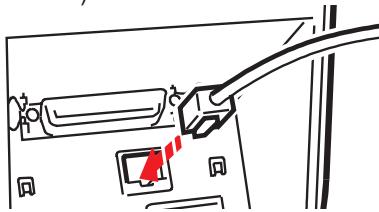
- To install the USB driver follow the instructions as they appear on the screen. In the dialogue boxes displayed, make sure that the check box search for the best driver for your peripheral device, and only the CD-ROM drive check box are selected.
- On completion of the USB driver installation, the printer software installation menu appears on your PC screen.
- Click on Install software and then on Install printer driver.
- Follow the instructions that appear on the screen.
- Once the installation procedure is completed, you will be prompted to restart your PC.
- From the Start menu, select Run, type the CD-ROM drive letter followed by "olsetup" (normally, d:\olsetup) and click on OK. The installation menu appears on the screen..
- Click on Install software and then on Install printer driver.
-
Follow the instructions that appear on the screen:
-
select the USB port and connect the printer to the PC (with the USB cable) when prompted to do so,
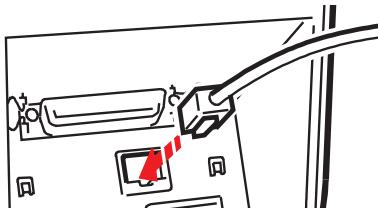
- press the "POWER" button ( ) on the printer operator panel to switch on the printer,
- check also that only the CD-ROM drive check box is selected in one of the dialogue boxes displayed.
On completion of the printer driver installation, a group with the printer name, containing a series of icons, will have been created on your hard disk (to view it, click Start and then Programs (Program Manager for Windows 3.1X)).
GB
Mount the paper trays
for the main automatic feeder
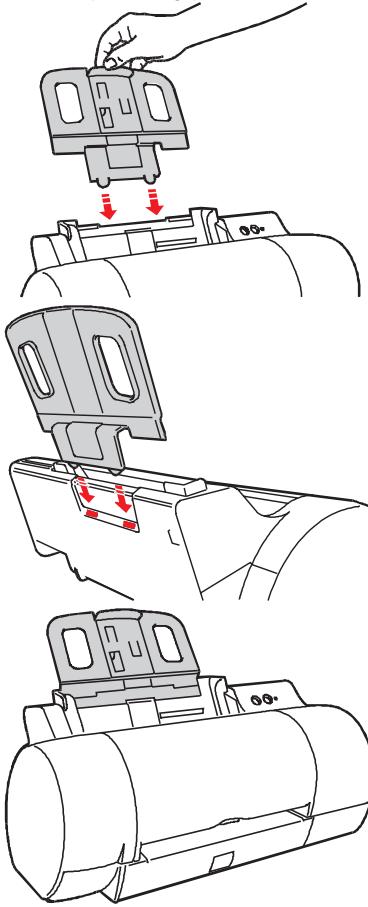
Vertical operating position
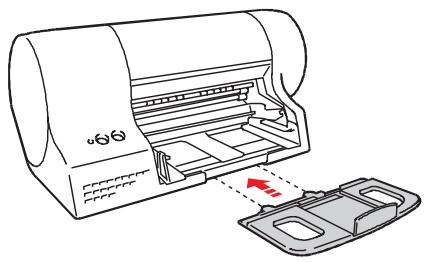
Horizontal operating position
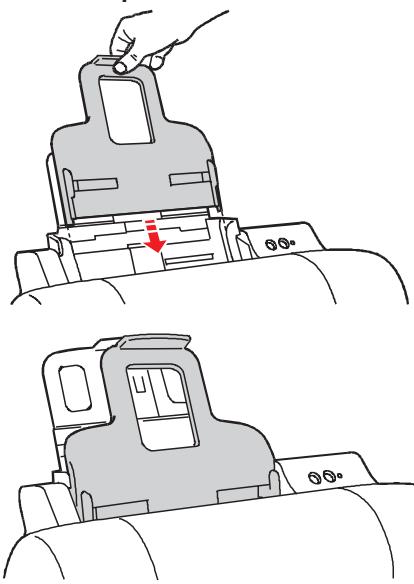
for output/second automatic feeder
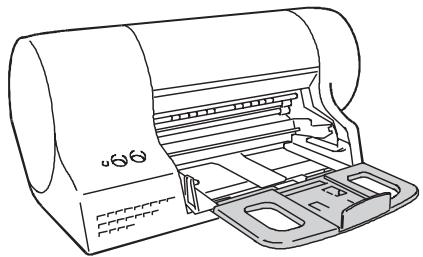
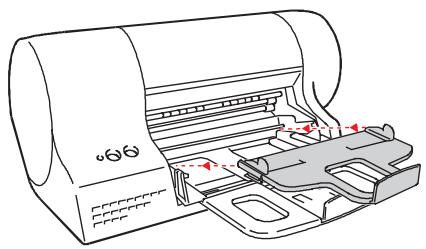
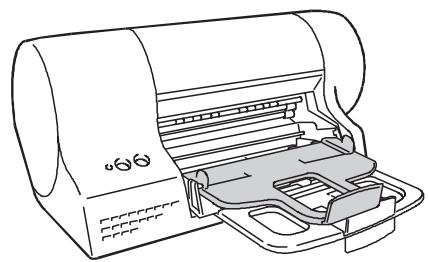
Load paper
The figures in this section show the printer in its horizontal position.
- Push up the output tray, to simplify access to the main automatic feeder.
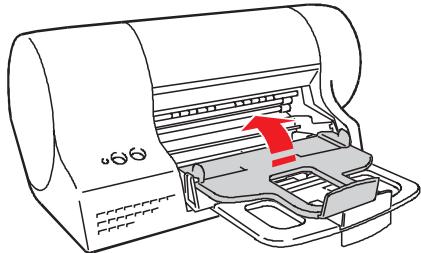
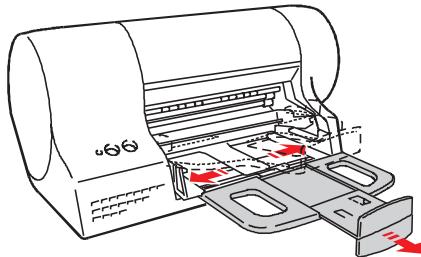
- Pull out the adjustable rear guide on the paper tray of the main feeder and make sure that the adjustable margin guides are completely open.
- Fan the paper and load it as a single pack into the main feeder, inserting it carefully until it stops inside the printer.
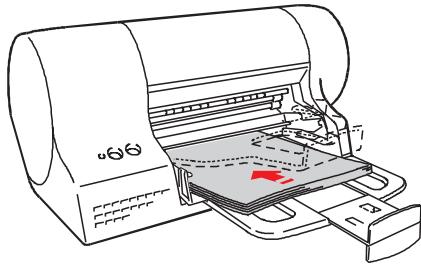
Do NOT load paper above the maximum level indicated on the inside of the feeder.
The printing surface must face towards the tray.
- Close the adjustable margin guides against the edges of the paper and the rear guide against the trailing edge.
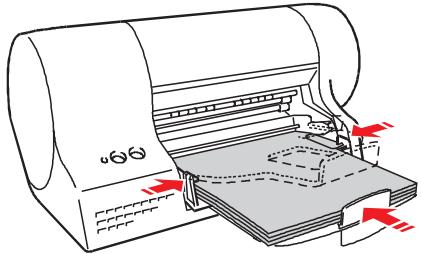
- Return the output tray to its operating position and make sure that its lateral and rear guides are open.
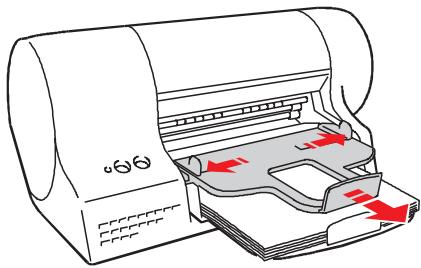
The priority of paper insertion is determined automatically by the printer: a single sheet in the manual feeder will always have first priority over paper in the second and main automatic feeders, in this order.
See the specific sections in this booklet for paper insertion from manual and second feeders. For the media types and formats you can use, consult the On-Line Help loaded with the printer driver.
Complete printer installation
1. Access the Printer Monitor
(a) Under Windows® 3.1/3.11, from your printer driver group by double-clicking its icon.
(b) Under Windows® 95/98/NT/2000:
- Click Start, highlight Programs and then the printer name in the sub-menu which opens.
-
Click the Printer Monitor icon.
-
Click on the Options tab and then select the printer operating position (Horizontal or Vertical).
The choice of operating position does not affect the printer performance.
- Click on the Printer Care tab and then:
(a) Click both the "New Head" buttons, to confirm that new print heads have been inserted.
(b) Click the Align button, to run the test pages that confirm the accuracy of bi-directional printing; follow the instructions displayed (this feature requires at least two sheets of paper).
(c) Click the Demo button, to print the demo page so that you can check that the print quality is satisfactory; follow the instructions displayed. (This feature requires one sheet of paper).
Once you have done these operations, you can reduce the Printer Monitor to its icon.
Your printer is now ready for use.
On-line documentation
The CD containing the printer software also contains a User Guide (How do I) and an interactive Troubleshooting feature. The User Guide contains further information on the printer features, and print head and paper handling. The Troubleshooting feature is a fully contextual help file, giving on-the-spot information on how to solve the particular problem that has occurred.
To access the User Guide or the Troubleshooting, click on the specific icon in the Printer group created when you loaded the printer software.
Printer settings
There are several ways of accessing information on the printer settings contained in the "Settings" tab of the printer driver (Start, Settings, Printers, select and right click your printer icon, click Properties):
- select the item required and then right click it, or
- click on the "?" in the top right hand corner of the tab, then move to and click on to the item required, or
- click the "HELP" button in the lower right hand corner of the tab; in this case you access the complete section dealing with the entire "Settings" tab.
DOS environment
Although optimised for operation in a Windows® environment, your printer will also operate in DOS, recognising PCL III + command codes. This means that you can print from any DOS application that supports this command code set.
How to change the printer settings in DOS environment
With your printer connected and switched on, insert the CD in the reader on your PC. From the DOS prompt, type d:\config.exe (where "d" is the CD driver). Follow the instructions displayed on your PC screen.
Disinstalling the printer driver
If you have problems printing that are not solved with normal printer care operations (paper and print heads inserted correctly, appropriate selections in the printer driver, etc.), it may be necessary to re-install the printer driver.
To do this, you must first disinstall the driver, by clicking on the specific icon created in the printer group when you first loaded the driver. This allows a complete and correct removal of all the files loaded from the CD and/or created in your PC during driver installation, permitting a correct re-installation (see "Installing the printer software").
To disinstall the driver in Windows 98 USB environment, you must first disconnect the USB interface cable from the printer and then run the "ol22usbu.exe" file from the Windows\System\directory.
Disinstallation of the driver in Windows 2000 USB environment is done from Control Panel \ Add/Remove Program .
For other problems regarding the use of print heads, printing media, etc., refer to the specific topics in the Troubleshooting section of the On-Line documentation loaded with your printer driver.
Replacing print heads
- With the printer idle (in standby),
(a) open the Printer Care tab in the Printer Monitor and click on the Change button, or
(b) press and hold on the operator panel and press once; release the two buttons together.
- Open the top cover: the print head carriage will be in the head loading position.
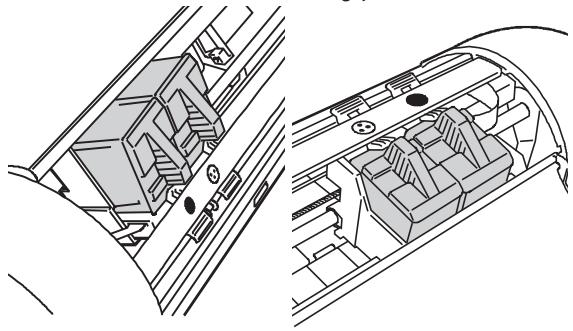
- Press the print head release lever to release either:
(a) the black print head, or
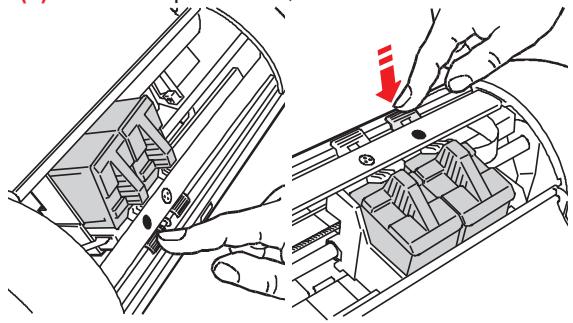
(b) the colour print head.
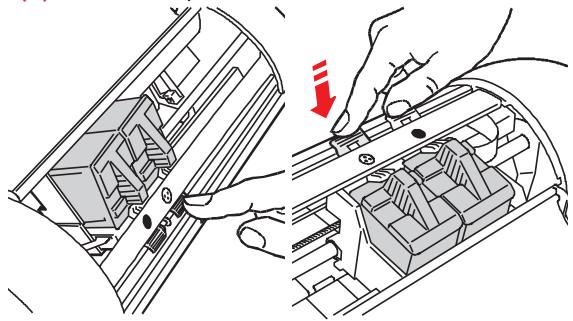
- Pulling upwards by the thumb and finger grip:
(a) remove the black print head,
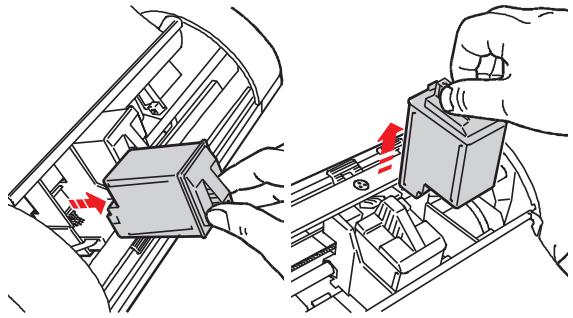
(b) remove the colour print head.
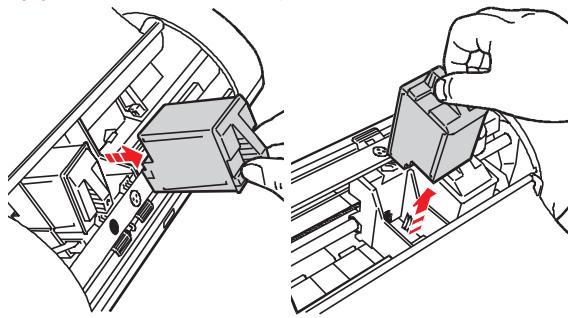
- Insert a new print head of the SAME type (black/colour) and close the printer cover.
- Click on the appropriate New Head button in the Printer Care tab in the Printer Monitor and then run the Align function in the same tab.
Loading paper/envelopes from the second feeder
The figures in this section show the printer in its horizontal position.
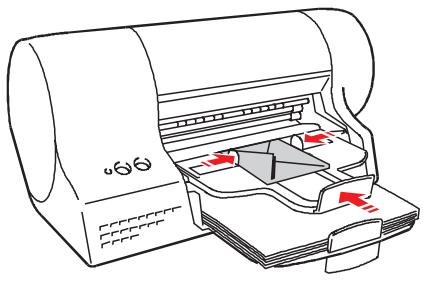
You can print up to 10 sheets of paper or 3 envelopes, loading them from the output tray which doubles as a second automatic feeder. On reception of a print command, the media in the second feeder will have priority over that in the main feeder.
- Remove any printed documents from the output tray and open its rear and lateral guides.
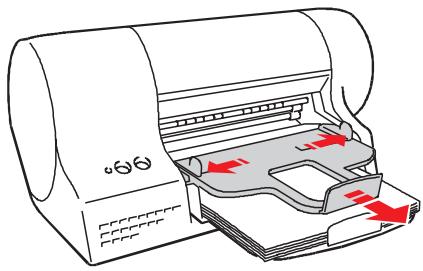
- Fan the paper/envelopes and load them as a single pack on the tray, inserting them carefully until they stop inside the printer, under the output guide.
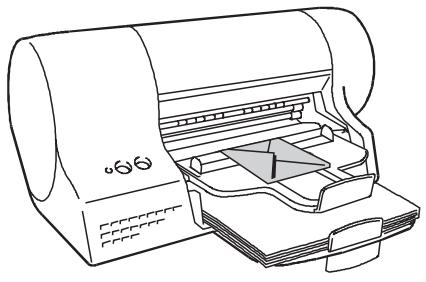
The printing surface must face towards the tray.
- Close the lateral guides against the edges of the paper/envelope and close the rear guide.
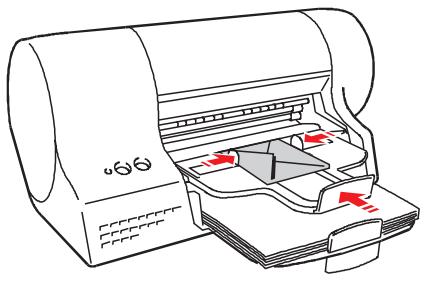
Remove the printed document as soon as it exits from the printer.
Loading a single sheet manually
You can print a single, or thicker, sheet of paper or special media, inserting it in the manual feeder. On reception of a print command, the media in the manual feeder will have priority over that in both the main and/or second feeders.
□ Printer in vertical operating position
Insert the sheet of paper, with the printing surface facing upwards, aligning it with the right hand guide.
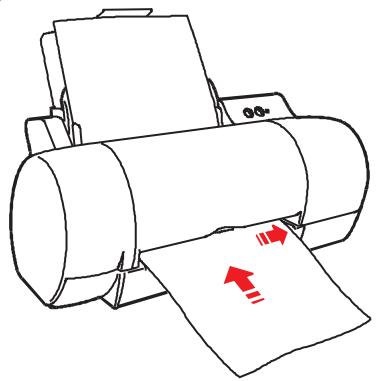
Make sure that the leading edge of the paper is against the feed rollers along its entire width - you will hear a beep.
GB
Loading small formats from the main feeder
The figures in this section show the printer in its horizontal position.
- Empty and tip up the output tray.
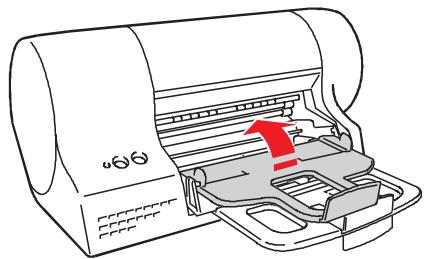
- Open the rear guide for small formats on the paper tray of the main feeder and make sure that the adjustable margin guides are completely open.
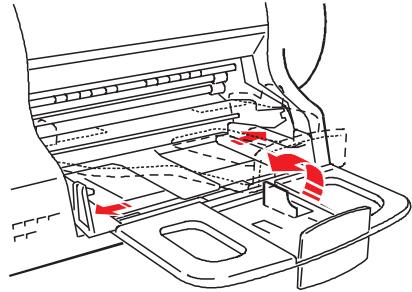
- Fan the paper/envelopes and load it/them as a single pack into the main feeder, inserting it/them carefully until it/they stop inside the printer.
Make sure the trailing edge is inside the intermediate rear guide.
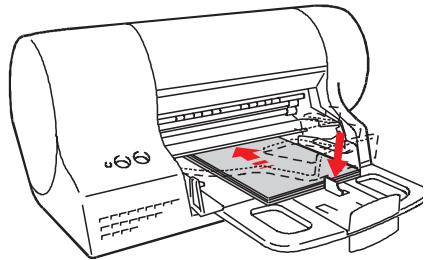
Do NOT load above the maximum level indicated on the inside of the feeder.
The printing surface must face towards the tray.
- Close the adjustable margin guides against the edges of the paper.
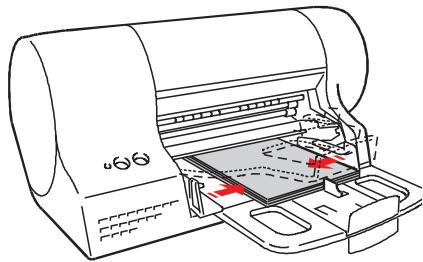
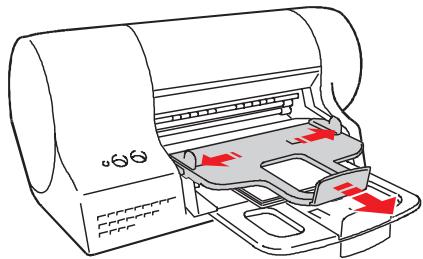
- Return the output tray to its operating position and make sure that its lateral and rear guides are open.
Loading a banner
The figures in this section show the printer in its horizontal position.
You can print a banner up to 5 ft/1.5 m long (5 x A4 length), loading it from the main feeder.
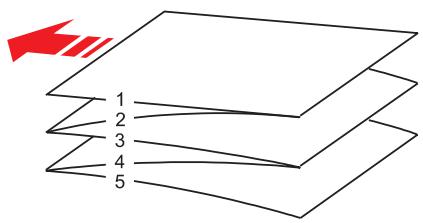
- Empty and tip up the output tray.
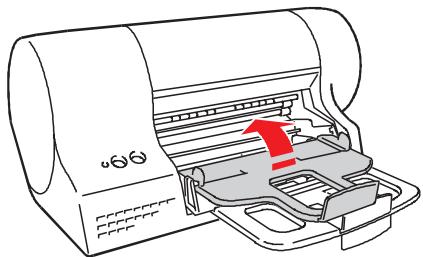
- Pull out the adjustable rear guide on the paper tray of the main feeder and make sure that the adjustable margin guides are completely open.
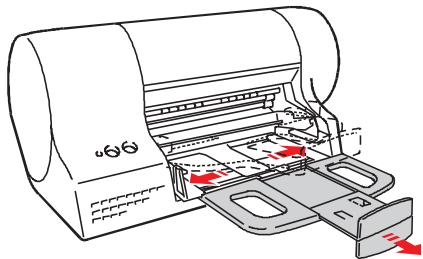
- Place the banner as a single pack in the main feeder.
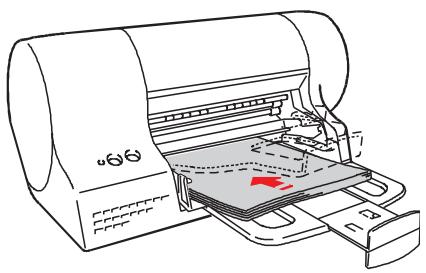
The first module to be printed must be on top of the pack and its leading edge must be facing towards the paper feed channel. The printing surface must face towards the tray.
- Close the adjustable guides against the paper edges, making sure that it is not held too tightly nor has too much play.
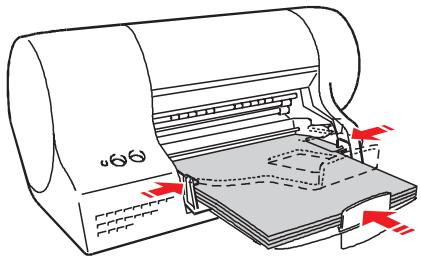
- Lower the output tray to its operating position and open its rear and lateral guides.
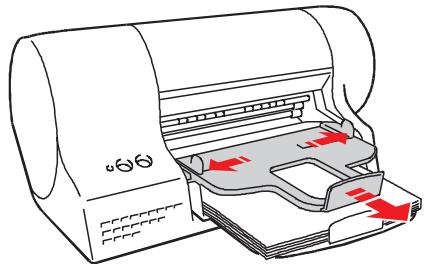
When the printer is in its horizontal operating position, the tab on the rear guide must be opened downwards.
GB
Tips on use and care
□ Working environment
- Place your printer in a clean, stabilised environment.
Do not leave your printer exposed to direct sunlight or heat sources, or in dusty, dirty or poorly-ventilated environments.
Recommended operating environment
Temperature: 60 to 95^ F - 15 to 35^ C Relative Humidity: 20% - 80% .
- Do not let dust accumulate on your printer and take care not to spill anything on or in your printer.
Use a clean, slightly damp cloth to clean the casing. Do NOT use corrosive or abrasive cleaners
Installation
- Connect your printer to an independent power socket.
The printer should be positioned near the power socket which must be easily accessible. - Do not locate the printer where people will step on the power cable or let anything rest on the power cable.
- Make sure that the plug on the power cable of the printer is of the type accepted by the wall socket you intend to use.
Do NOT attempt to change the plug yourself. - Do not use an extension cable or an adapter.
If your printer does not work, DO NOT ATTEMPT TO REPAIR IT YOURSELF.
Print heads
Always use manufacturer-recommended supplies.
- Remove the print heads from the printer only to replace them.
Always keep the new print heads sealed in their containers until they are to be used.
- Remember to remove the protective tape before inserting the print head in the printer.
- Do NOT attempt to refill the print head with ink, as this damages the print head and the printer.
Paper
Always use manufacturer-recommended paper and printing media.
For all types of special printing media, always read the instructions included with the media pack.
- The paper/printing media must not be damp, curled, crumpled or torn, otherwise it may jam or even not be inserted. Sub-standard paper can also affect the quality of printing.
- When loading paper/printing media, make sure the printing surface of the paper is facing the correct way.
- Don't load paper/printing media over the "max" indication in the paper tray and make that it is not held too tightly nor has too much play.
- Remember to select the appropriate paper type and format (see the On-Line Documentation loaded with your printer driver).
For further information, read the On Line documentation loaded in your PC when you installed the printer software.
- Fecha as guías reguláveis encostando-as nas margens do papel/envelopes.
- Carton contents
- Connect the printer to the electrical power supply
- Insert the print heads
- Install the printer software
- Windows 98 + USB cable
- Mount the paper trays
- for the main automatic feeder
- Load paper
- Complete printer installation
- Access the Printer Monitor
- On-line documentation
- Printer settings
- DOS environment
- How to change the printer settings in DOS environment
- Disinstalling the printer driver
- Replacing print heads
- Loading paper/envelopes from the second feeder
- Loading a single sheet manually
- □ Printer in vertical operating position
- Loading small formats from the main feeder
- Loading a banner
- Tips on use and care
- □ Working environment
- Recommended operating environment
- Installation
- Print heads
- Paper
Brand : OLIVETTI
Model : ARTJET 22
Category : Inkjet Printer