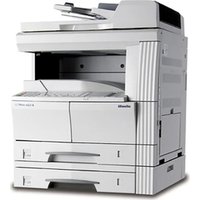
Logos 552 - Printer OLIVETTI - Free user manual and instructions
Find the device manual for free Logos 552 OLIVETTI in PDF.


Pick your language and provide your email: we'll send you a specifically translated version.
| Product Type | Daisy wheel impact printer |
| Brand | Olivetti |
| Model | Logos 552 |
| Printing Technology | Daisy wheel impact |
| Print Speed | 20 characters per second |
| Maximum Paper Width | 10 inches (254 mm) |
| Print Width | 80 characters per line |
| Interface | Centronics parallel and RS-232 serial |
| Built-in Functions | Automatic correction, text memory, multi-copy printing |
| Display | LED mode indicators |
| Keyboard | Alphanumeric QWERTY |
| Dimensions (W x D x H) | 430 x 340 x 120 mm |
| Weight | 5.2 kg |
| Power Supply | AC 230 V, 50 Hz |
| Power Consumption | 20 W |
| Operating Temperature | 10°C to 35°C |
| Noise Level | Approximately 60 dB |
| Maintenance | Clean print wheel and platen with isopropyl alcohol |
| Consumables | Ribbon cartridge and daisy wheel |
| Included Items | Power cord, user manual, starting ribbon |
| Manufacturing Country | Italy |
Frequently Asked Questions - Logos 552 OLIVETTI
What type of printer is the Olivetti Logos 552?
It is a daisy wheel impact printer and electronic typewriter that produces sharp, letter-quality text for documents.
How do I install the ribbon?
Turn off the printer, open the top cover, insert the ribbon cartridge into the cradle, and route the ribbon between the print wheel and the paper guide.
What print wheels are compatible?
Use 96-character daisy wheels with a pitch of 10 or 12 characters per inch. Ensure the wheel is firmly seated on the hub.
How do I connect it to a computer?
Use the Centronics parallel or RS-232 serial port. Connect the appropriate cable to your computer and set the printer mode on the control panel.
How do I change the print wheel?
Turn off the printer, open the cover, and pull the existing wheel straight off the hub. Align the new wheel onto the hub and press firmly until it clicks.
What maintenance is required?
Regularly clean the print wheel and platen with isopropyl alcohol. Replace the ribbon cartridge when prints become faint.
Can it print multi-part forms?
Yes, set the paper thickness lever to the multipart position and use a heavy-duty ribbon to print on up to 3 copies.
Why is my print faded?
A worn ribbon is the most common cause. Replace the ribbon cartridge with a new one to restore crisp, dark print.
How do I set margins and tabs?
Use the margin set and tab set keys on the keyboard. Position the carriage to the desired point and press the corresponding key.
What should I do if it jams?
Switch off the printer, carefully pull out any jammed paper, and check the paper feed rollers for debris. Reload the paper with the lever set to single sheet.
User questions about Logos 552 OLIVETTI
0 question about this device. Answer the ones you know or ask your own.
Ask a new question about this device
No questions yet. Be the first to ask one.
Download the instructions for your Printer in PDF format for free! Find your manual Logos 552 - OLIVETTI and take your electronic device back in hand. On this page are published all the documents necessary for the use of your device. Logos 552 by OLIVETTI.
USER MANUAL Logos 552 OLIVETTI
Manual assistant
Powered by Anthropic
Waiting for your message
Product information
Brand : OLIVETTI
Model : Logos 552
Category : Printer