
C930E - Webcam LOGITECH - Free user manual and instructions
Find the device manual for free C930E LOGITECH in PDF.



| Product Type | HD Webcam for Video Calls |
| Brand | Logitech |
| Model | C930e |
| Max Video Resolution | Full HD 1080p (1920 x 1080 pixels) |
| Lens | Carl Zeiss with autofocus |
| Field of View | 90 degrees |
| Microphone | Built-in dual omnidirectional microphone |
| Digital Zoom | Yes, with software pan and tilt functions |
| Connectivity | USB 2.0 or 3.0 |
| Mounting | Flexible clip/base for screen, desk or tripod (mounting thread) |
| Privacy Shutter | Yes, built-in |
| Activity Indicator | Standby LED |
| Optional Software | Logitech Camera Settings (downloadable) |
| Supported Operating Systems | Windows 7, 8, 10, macOS |
| Dimensions (W x H x D) | Approx. 11 x 4.3 x 3.3 cm (without cable) |
| Weight | Approx. 150 g |
| Cable Length | Approx. 1.5 m |
| Operating Temperature | 0 to 40 °C |
| Care and Cleaning | Wipe with a soft, dry cloth. Do not use abrasive products. |
| Safety | Use only with compliant USB ports. Avoid exposure to moisture. |
| Spare Parts and Repairability | Not user-repairable. Contact Logitech support. |
Frequently Asked Questions - C930E LOGITECH
User questions about C930E LOGITECH
0 question about this device. Answer the ones you know or ask your own.
Ask a new question about this device
Download the instructions for your Webcam in PDF format for free! Find your manual C930E - LOGITECH and take your electronic device back in hand. On this page are published all the documents necessary for the use of your device. C930E by LOGITECH.
USER MANUAL C930E LOGITECH
Logitech for Business
Contents
English. 3 Dansk 43
Deutsch . 8 Norsk 48
Francais 13 Suomi 53
Italiano. 18 Elambdaiká. 58
Espanol 23 Iop-yccn. 63
Portugués 28 Magyar 68
Nederlands 33 Ceska verze. 73
Svenska 38 Po polsku 78
www.logitech.com/support 83

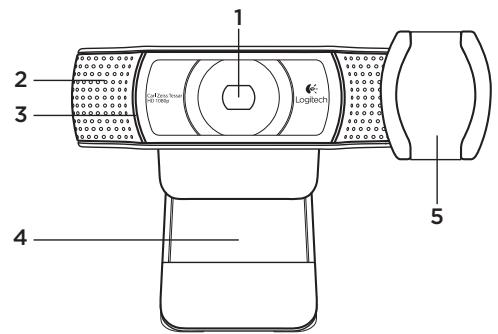
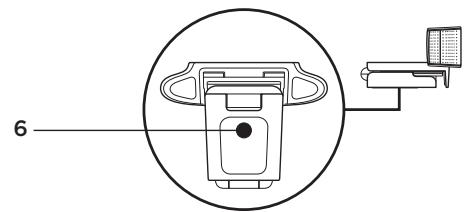
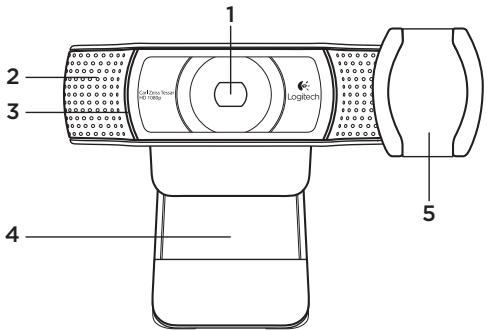
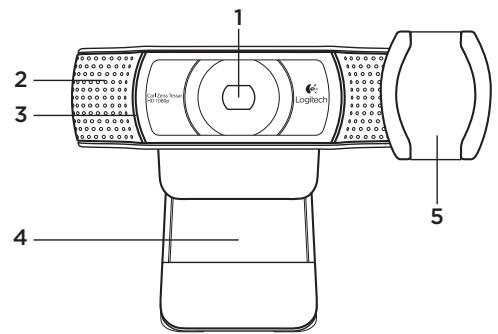
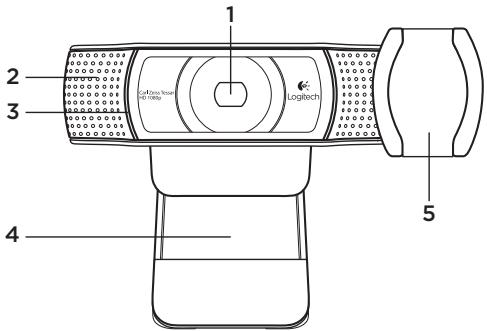
Features
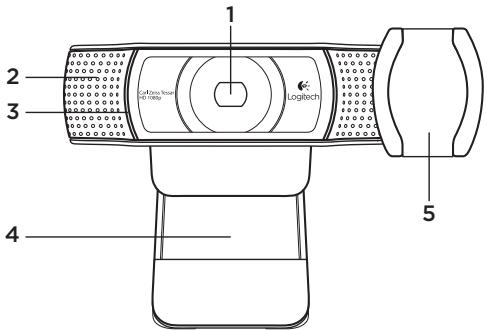
- Carl Zeiss® autofocus HD 1080p lens
- Microphone
- Activity light
- Flexible clip/base
- Privacy cover
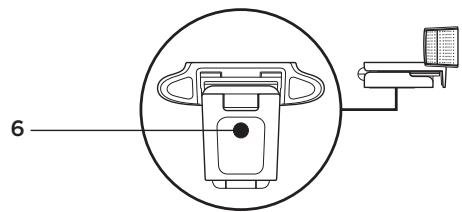
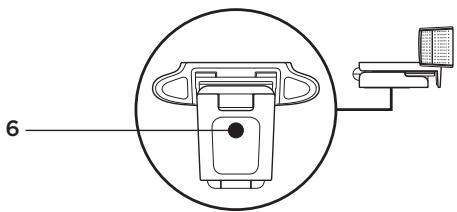
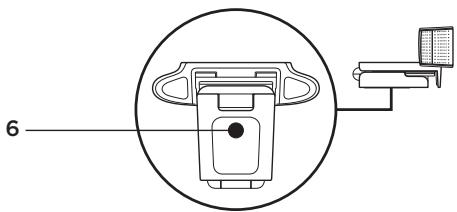
- Tripod attachment
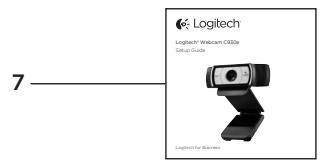
- Product documentation
Thank you for buying your C930e!
Use this guide to set up and begin using your Logitech webcam.
If you have questions before you start, or if you just want to learn more about your Logitech webcam, please visit www.logitech.com/support.
Setting up your webcam
1 Place your webcam
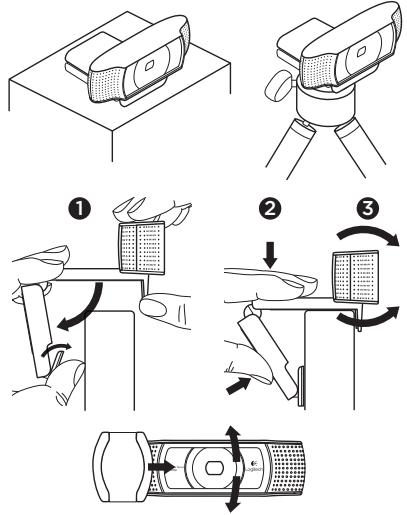
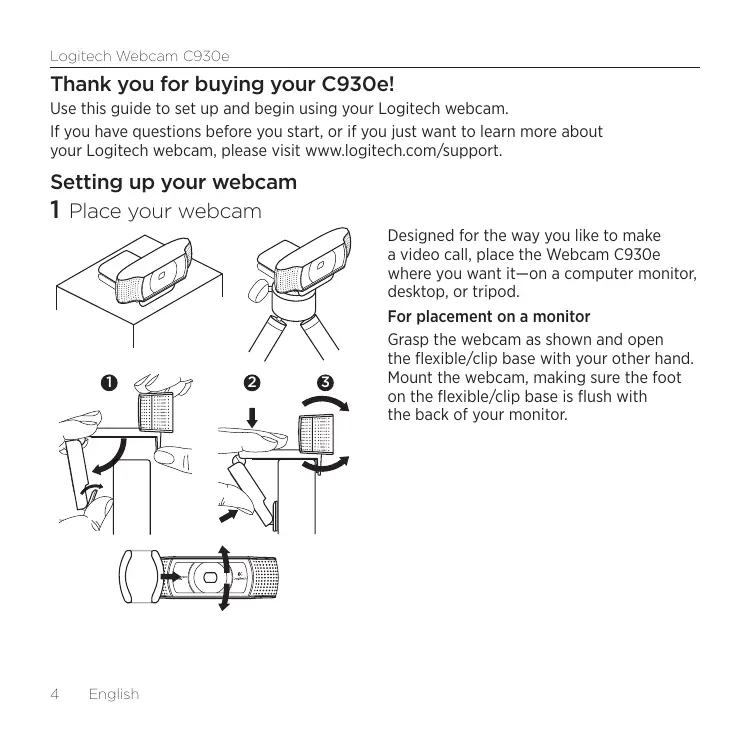
Designed for the way you like to make a video call, place the Webcam C930e where you want it-on a computer monitor, desktop, or tripod.
For placement on a monitor
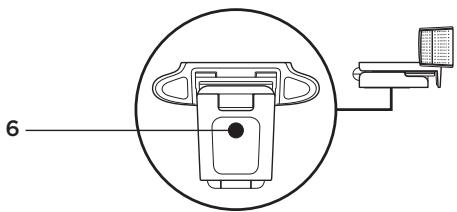
Grasp the webcam as shown and open the flexible/clip base with your other hand. Mount the webcam, making sure the foot on the flexible/clip base is flush with the back of your monitor.
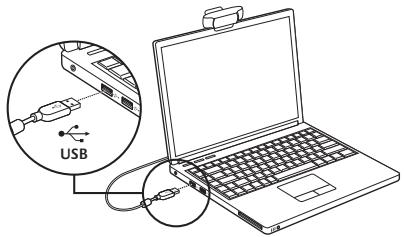
2 Connect your webcam
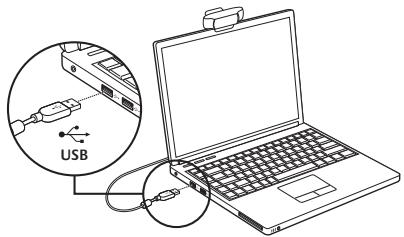
3 Download optional software A light application for either PC or Mac is available from http://www.logitech.com/ support/c930e which allows you to:
Control pan, tilt and zoom from your PC or Mac screen
- Select Advanced Settings for your camera
Getting started with video calling
Your Logitech Webcam C930e provides full HD 1080p video calling.
To begin your video calling experience both you and the person you call must use a video-calling application such as Microsoft Lync or Cisco Jabber.
As well as a webcam and video calling application, both callers need:
- A computer with speakers (or a headset) and a microphone; your Logitech Webcam C930e has two built-in microphones.
- A broadband Internet connection (e.g., DSL, T1, or cable)
- For full HD 1080p video calling please check your preferred video calling software requirements. (Requirements may vary between applications but usually a minimum of 2 megabit upload speed is required).
Troubleshooting
How do I know if my camera is recognized by the operating system?
Connect the camera in any USB 2.0/3.0 port. Once the camera is connected it takes a few moments before the new hardware is recognized.
To ensure that the camera has installed correctly on the Windows 8 system check the following:
Under Control Panel > System and Security > System > Device Manager
Review the Imaging Devices: Logitech Webcam C930e should be seen
- Review the Sound, Video, and Game Controllers: Logitech Webcam C930e should be seen
- Review USB Serial Bus controllers: USB Composite Device should be seen
- If installed on Windows 7 you will only see USB Composite Device
I installed under Windows 8 and under Composite Device I do not see Logitech USB Camera (Webcam C930e); why not?
Check to be sure you have automatic enable (which is enabled by default)
Under Control Panel > Hardware and Sound > Device and Printers
- Right mouse click on the system in Devices > Device Installation Settings
- Select option, "Yes, do this automatically (recommended)" and save the settings.
How do I know if my video client is using my Logitech Camera?
All video clients have an option setting to review the audio and video device.
Using the video client in question review the following:
- The Audio selection to ensure the C930e Microphone is selected.
If not change the selection to the C930e - The Video selection to ensure the C930e is selected.
If not change the selection to the C930e
While streaming, how can I take advantage of the Pan, Tilt, and Zoom (PTZ) features?
The ability to take advantage of the PTZ feature is controlled either by downloadable software (referenced in item 3 of this guide), or if available, through your application's webcam settings or property page.
To control PTZ through application webcam settings or property page:
- Access to the various webcam properties on this page is usually available from your selected Video Client.
- Once you select the webcam properties, you will want to review the options available under Webcam Control.
- Use the available buttons and/or slider to increase zoom.
- Use the available buttons and/or slider provided to pan left or right, or to tilt up or down.
Why can I not reach 1080p with my video calling application?
There are various constraints on the system that could impede the ability to attain a 1080p video calling session. They center around processing power (i.e. CPU speed) and available network bandwidth.
In all cases, review the requirements from the video calling application. They will provide guidance as to the system performance required as well as the necessary bandwidth.
What do you think?
Thank you for purchasing our product. Please take a minute to tell us what you think of it.
www.logitech.com/ithink
For general guidance and support please check out: www.logitech.com/support

Funktionen
www.logitech.com/ithink
www.logitech.com/ithink
www.logitech.com/ithink
www.logitech.com/ithink
www.logitech.com/ithink
www.logitech.com/ithink
www.logitech.com/ithink
www.logitech.com/ithink
www.logitech.com/ithink
Du finner generell veiledning og stotte på: www.logitech.com/support

Ominausudet
www.logitech.com/ithink
2 PoiokJIIOUHTe Be6-KaMepy
3 3arpyuTe IOnoJIHnTeIbHoe nporpamMHOe OecneueHne
Ha ctpaeniue http://www.logitech.com/support/c930e moxno 3arpyntbnpoctoe npinloxeHne IJa Pk nMaK, KOTOpoe no3BOnJeT:
- YnpabTb naHopamUpoBaHnEm, NaKIOHOM m MacSTa6upoBaHnEm CekpaHa PKNiN Mac
3aadaBaTb DOnOpHnTeBhBHe NaCTpoKn KaMepbl
Haayano pa60tbcBnDeocBra3bIO
Be6-kaMepa Logitech Webcam C930e noDaePKNBaet BnEocB3b BΦOpMaTe BBICOKOy YeTkoCTn (1080p).
YTO6bI BOCIOJIb3OBAbTc8B NIDeOCB83bH, BAMnBaAWeMy CO6eCedNkU HUKHO 6ydet UCTaHOBNTb KaOe-JIbO npINJoxEHNe IJRA BNDocB83n, HApnpMep Microsoft Lyncnn Cisco Jabber.
www.logitech.com/ithink
O3HaKOMnTbC a O6UIMN
HnCTpykUJMaM N IOnyUHTb TexHnueckyIO
IOndepKkU MoXHO Ha Be6-caTe
www.logitech.com/support

Jellemzok
www.logitech.com/ithink
Obecné poukyny a podporu naleznete na strancé: www.logitech.com/support

Funkcje
www.logitech.com/ithink
www.logitech.com/support

Belgié/Belgique Dutch: +32-(0)2 200 64 44; French: +32-(0)2 200 64 40
| Česká Republika | +420 239 000 335 |
| Danmark | +45-38 32 31 20 |
| Deutschland | +49-(0)80-05 895 562 |
| España | +34-91-275 45 88 |
| France | +33-(0)8-05 54 07 36 |
| Ireland | +353-(0)1 524 50 80 |
| Italia | +39-02-91 48 30 31 |
| Magyarország | +36 (1) 777-4853 |
| Nederland | +31-(0)-20-200 84 33 |
| Norge | +47-(0)24 159 579 |
| Österreich | +43-(0)1 206 091 026 |
| Polska | 00800 441 17 19 |
| Portugal | +351-21-415 90 16 |
| Rocsnja | +7(495) 641 34 60 |
| Schweiz/Suisse | +41-(0)44 654 59 17 |
| Svizzera | |
| South Africa | 0800 981 089 |
| Suomi | +358-(0)9 725 191 08 |
| Sverige | +46-(0)8-501 632 83 |
| Türkiye | 00800 44 882 5862 |
| United Arab Emirates | 8000 441-4294 |
| United Kingdom | +44-(0)800-731-31 02 |
| European, Mid. East., & African Hq. Morges, Switzerland | English: +41-(0)22 761 40 25 Fax: +41-(0)21 863 54 02 |
| Eastern Europe | English: 41-(0)22 761 40 25 |
www.logitech.com/business
- Contents
- Features
- Thank you for buying your C930e!
- Setting up your webcam
- Place your webcam
- For placement on a monitor
- Connect your webcam
- Download optional software A light application for either PC or Mac is available from http://www.logitech.com/ support/c930e which allows you to:
- Getting started with video calling
- Troubleshooting
- While streaming, how can I take advantage of the Pan, Tilt, and Zoom (PTZ) features?
- Why can I not reach 1080p with my video calling application?
- What do you think?
- Funktionen
- Ominausudet
- PoiokJIIOUHTe Be6-KaMepy
- 3arpyuTe IOnoJIHnTeIbHoe nporpamMHOe OecneueHne
- Haayano pa60tbcBnDeocBra3bIO
- Jellemzok
- Funkcje
- www.logitech.com/support
Brand : LOGITECH
Model : C930E
Category : Webcam