HOTAS WARTHOG - Flight simulation joystick THRUSTMASTER - Free user manual and instructions
Find the device manual for free HOTAS WARTHOG THRUSTMASTER in PDF.



| Product type | Flight simulation joystick with throttle quadrant |
| Brand | THRUSTMASTER |
| Model | HOTAS WARTHOG |
| System compatibility | Windows XP, Vista, 7 and later versions |
| Connection | USB |
| Components | Separate joystick and throttle, connected via USB cable |
| Number of programmable buttons | Joystick: multiple buttons, trigger, release; Throttle: numerous switches |
| Axes | Additional X, Y, Z (rotational) axes |
| Material | Metal and high-strength plastic |
| Approximate dimensions (joystick) | 35 x 25 x 30 cm |
| Total weight | Approximately 5 kg |
| Power supply | Via USB port (bus powered) |
| Main functions | Realistic flight simulation with dual throttle, programmable controls |
| Installation | Requires specific drivers; Bootloader procedure in case of firmware loss |
| Maintenance and cleaning | Clean with a dry, lint-free cloth |
| Safety | No specific electrical risks; use on a stable surface |
| Spare parts and repairability | Available on the manufacturer's website; firmware update possible |
| Included accessories | USB cable, user manual |
Frequently Asked Questions - HOTAS WARTHOG THRUSTMASTER
User questions about HOTAS WARTHOG THRUSTMASTER
0 question about this device. Answer the ones you know or ask your own.
Ask a new question about this device
Download the instructions for your Flight simulation joystick in PDF format for free! Find your manual HOTAS WARTHOG - THRUSTMASTER and take your electronic device back in hand. On this page are published all the documents necessary for the use of your device. HOTAS WARTHOG by THRUSTMASTER.
USER MANUAL HOTAS WARTHOG THRUSTMASTER
ENGLISH: Bootloader method: How to wake your HOTAS Warthog if it is no longer recognized on PC (i.e. in the event of firmware loss).
Bootloader method: How to wake your HOTAS Warthog if it is no longer recognized on PC (i.e. in the event of firmware loss).
Required system: PC running Windows® XP, Vista or 7.
1) Before beginning this procedure, be sure to have installed the latest HOTAS Warthog driver package (currently 2011_TMHW_1) available on the support web site:
http://ts.thrustmaster.com/eng/index.php?pg view_files&gid = 1 &fid = 3 &pid = 311 &c id = 1
NOTE: During the installation process, you will be asked to connect your joystick/Throttle to the USB port.
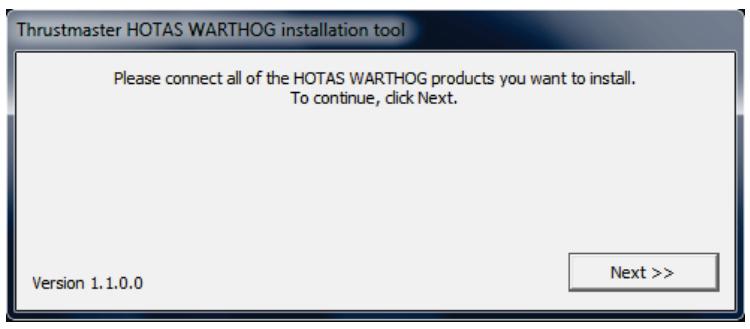
DO NOT CONNECT the device to the PC, and click NEXT.
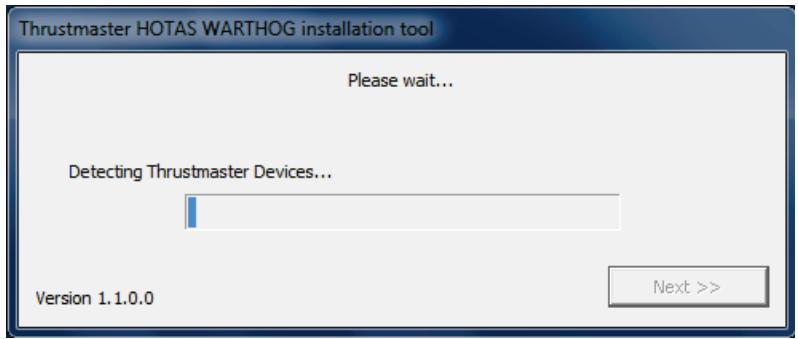
Since your device will not be detected, the process may take a bit more time than usual. PLEASE BE PATIENT until the operation is completed.
2) Restart the computer.
For the following steps, connect the Joystick/Throttle directly to the PC's USB port. We advise against using a USB hub during this procedure.
3a) Installing the joystick Bulk driver
- Simultaneously press and hold both Gun Trigger and Weapon Release buttons, then connect the USB plug to the PC.

- Release the buttons once the device is detected:
Windows 7/ Vista: The following message appears in the lower right-hand corner of your screen.
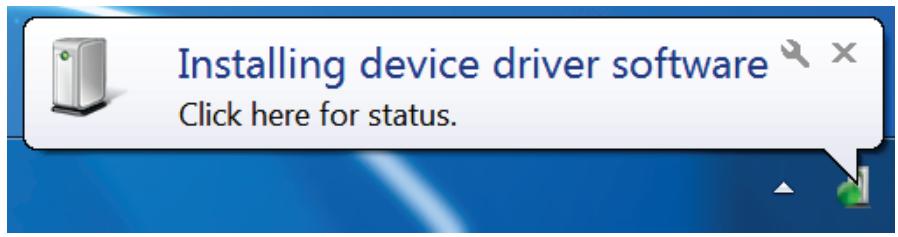
Do not do anything or click on any window during the automatic installation procedure.
- After the installation, a second message appears:
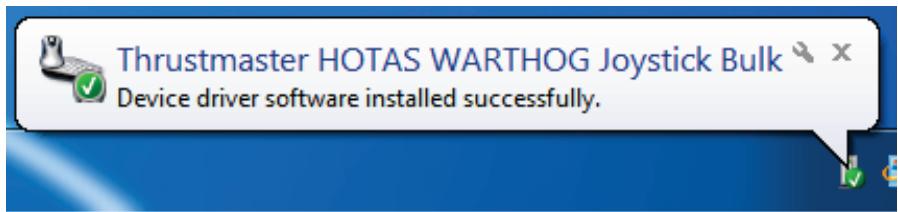
Windows XP: if the following window appears, click Continue Anyway to force the installation to run (but do not click on any other windows that may appear).
Hardware Installation

The software you are installing for this hardware:
Thrustmaster HOTAS WARTHOG Joystick Bulk
has not passed Windows Logo testing to verify its compatibility with Windows XP. (Tell me why this testing is important.)
Continuing your installation of this software may impair or destabilize the correct operation of your system either immediately or in the future. Microsoft strongly recommends that you stop this installation now and contact the hardware vendor for software that has passed Windows Logo testing.
Continue Anyway
STOP Installation
3b) Installing the Throttle Bulk driver
- Simultaneously press and hold both Autopilot Engage/Disengage and Landing Gear Horn Silence buttons, then connect the USB plug to the PC.
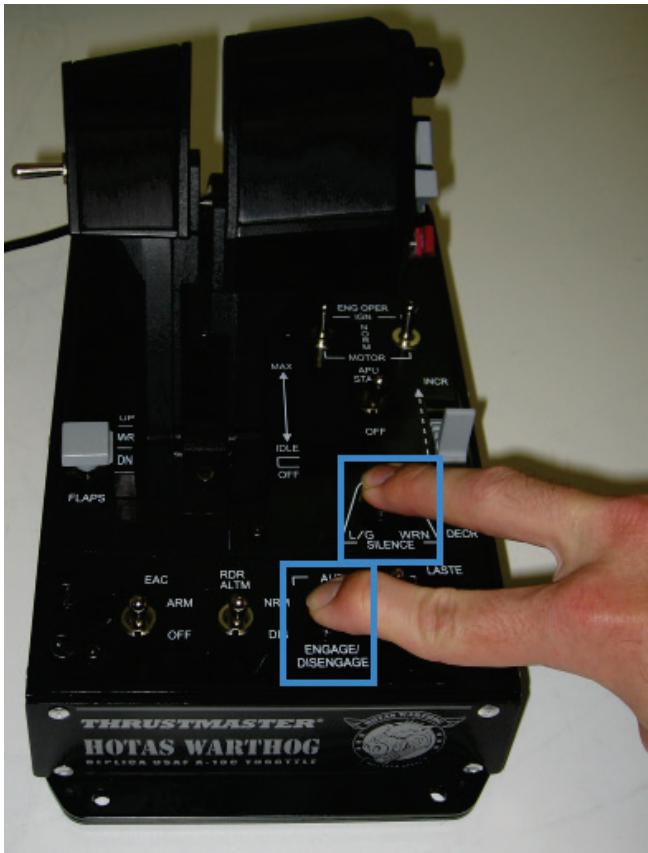
- Release the buttons once the device is detected:
Windows 7/ Vista: The following message appears in the lower right-hand corner of your screen.
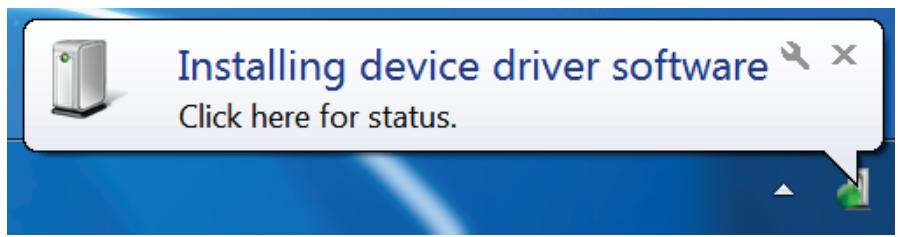
Do not do anything or click on any window during the automatic installation procedure.
- After the installation, a second message appears:
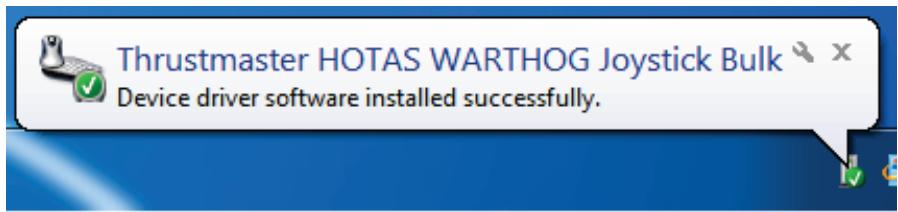
Windows XP: if the following window appears, click Continue Anyway to force the installation to run (but do not click on any other windows that may appear).

4) Installation verification
Once installed, the joystick/throttle bulk driver should appear in Device Manager under Human Interface Device:
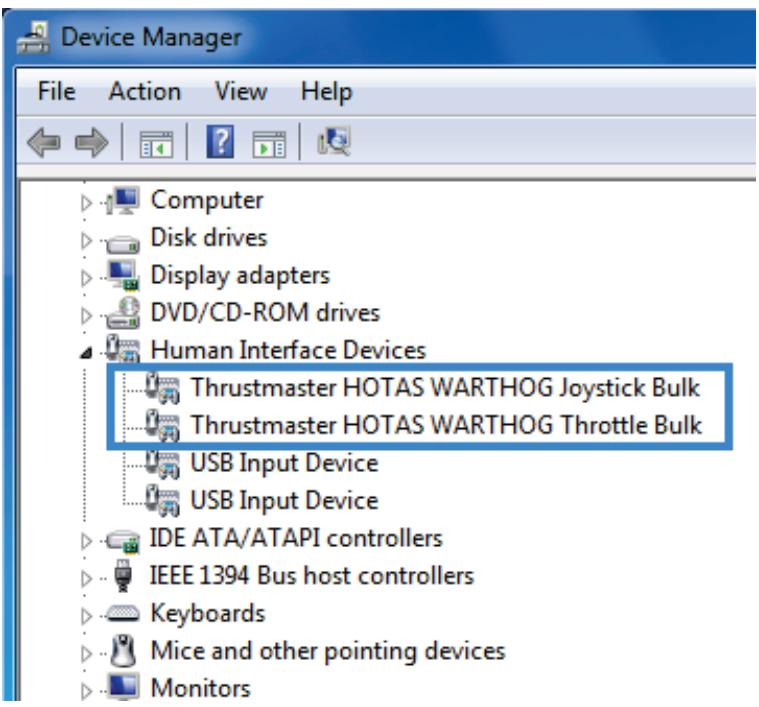
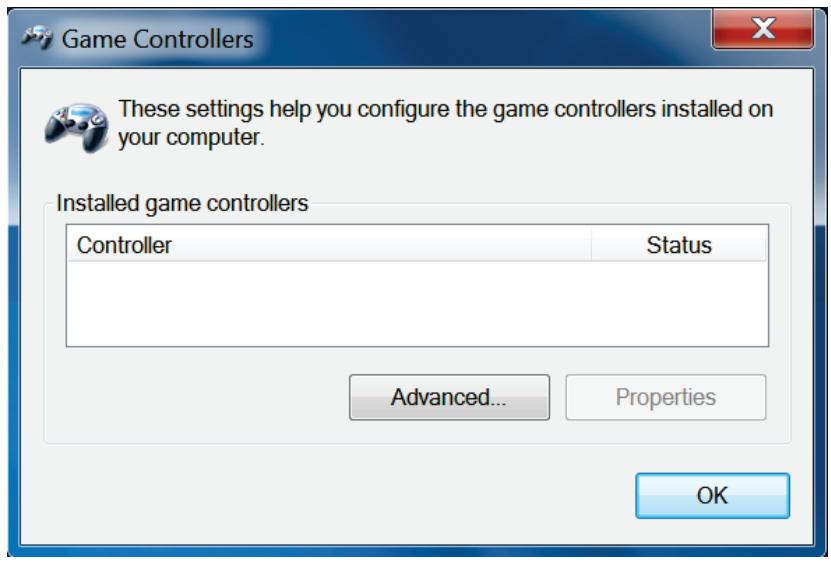
The joystick and throttle are no longer enumerated in the Game Controller: this is normal.
5) Firmware Update procedure
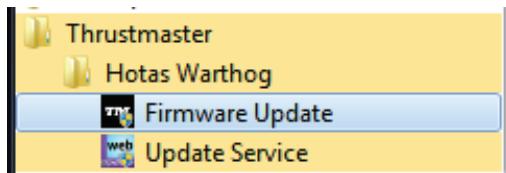
Select Start > All Programs > Thrustmaster > Hotas Warthog, then click Firmware Update.
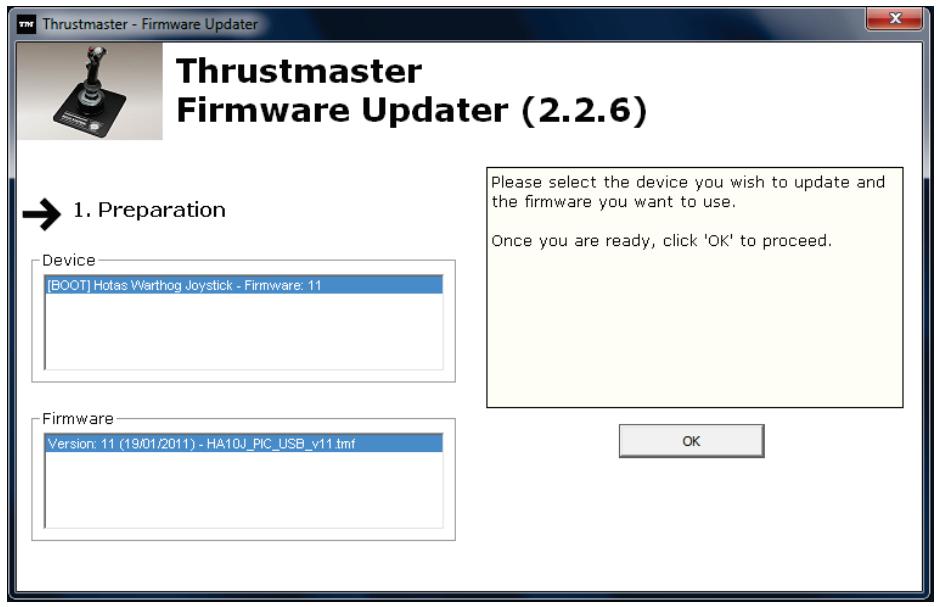
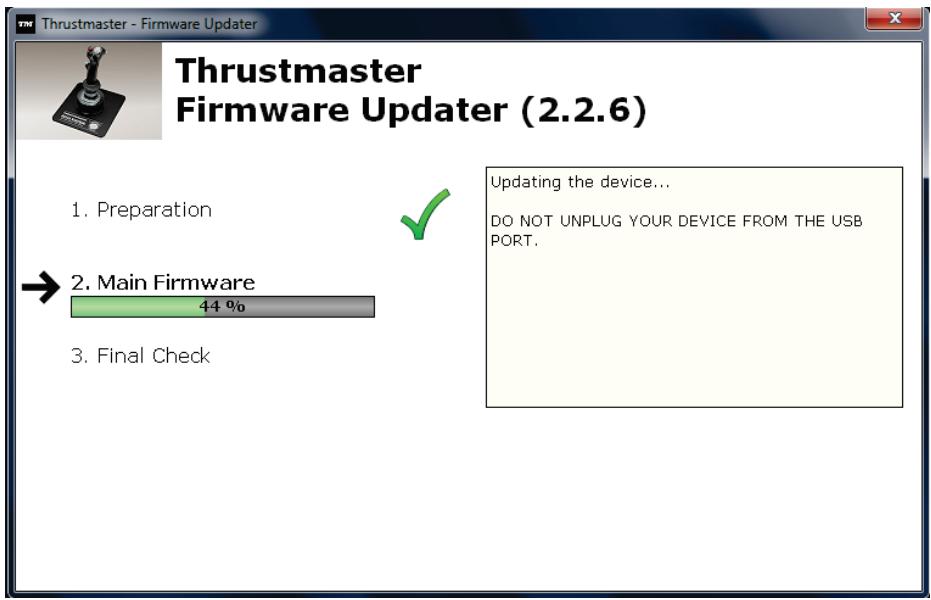
The Thrustmaster - Firmware Updater window appears onscreen.
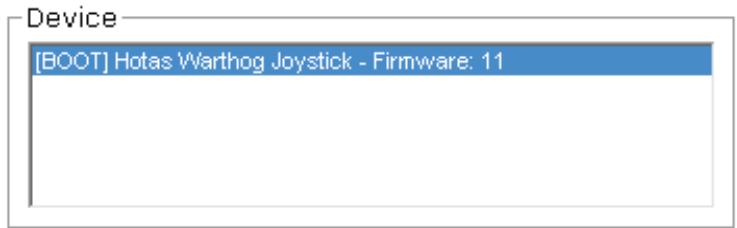
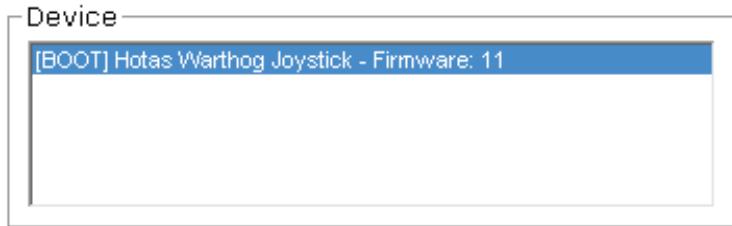
- The Device field shows the current state of the device [BOOT] and firmware version.
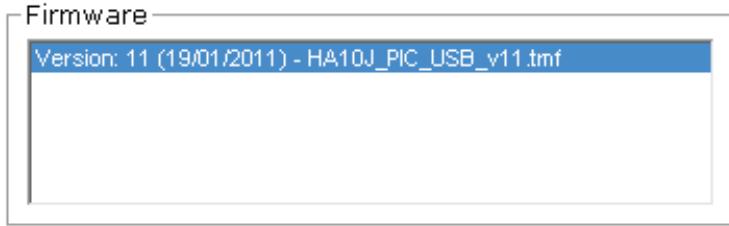
- The Firmware field displays the firmware version that will be applied to the device
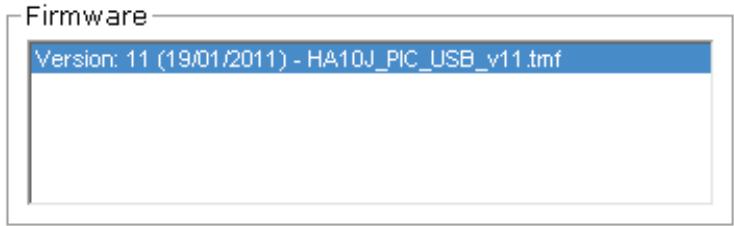
Note: If nothing appears in the Device or Firmware fields, please repeat the installation procedure from the beginning, connecting the device to another USB port on the PC (or try running the procedure on another PC).
- Click OK to update the firmware.
IMPORTANT:
DO NOT DISCONNECT the device from the USB port!
DO NOT CLICK on any windows that may appear during the update.
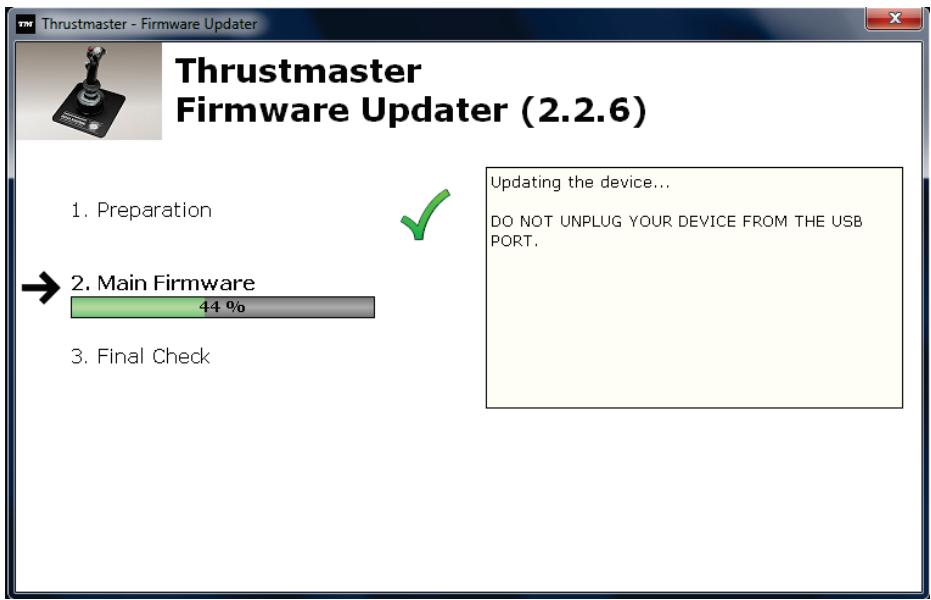
The firmware updater will inform you if the update procedure ran successfully.
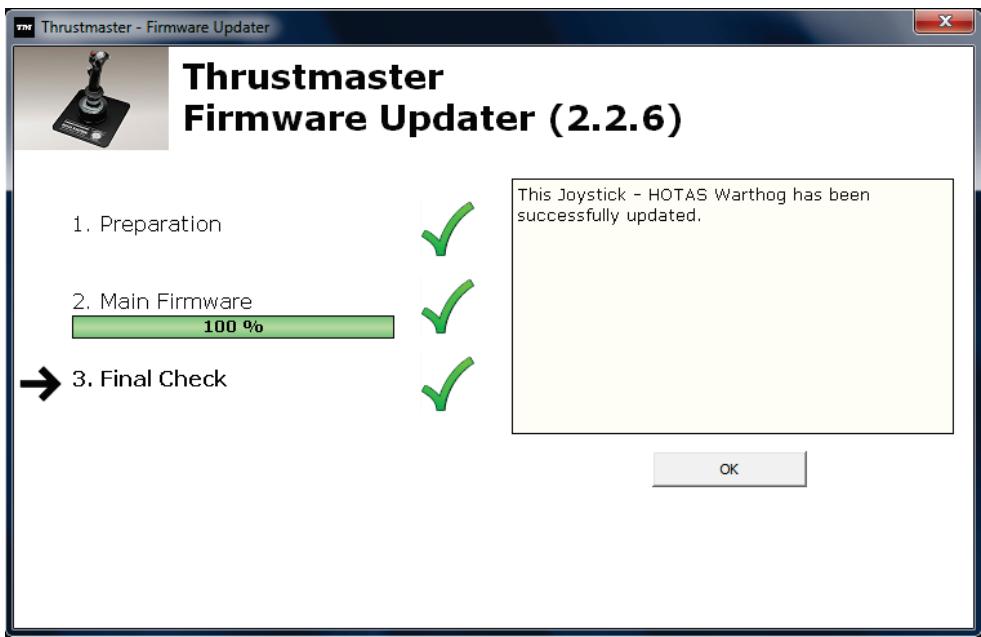
- Click OK to return to the firmware updater main window.
The Device field now shows the normal state of the device and current firmware version.
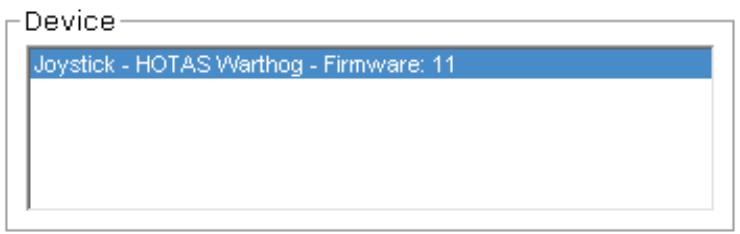
- Click to exit the updater program.
6) Device testing
The joystick/throttle should now appear in Device Manager under Human Interface Device as HID-compliant game controller:

- The joystick and throttle will also be present in the Game Controller:
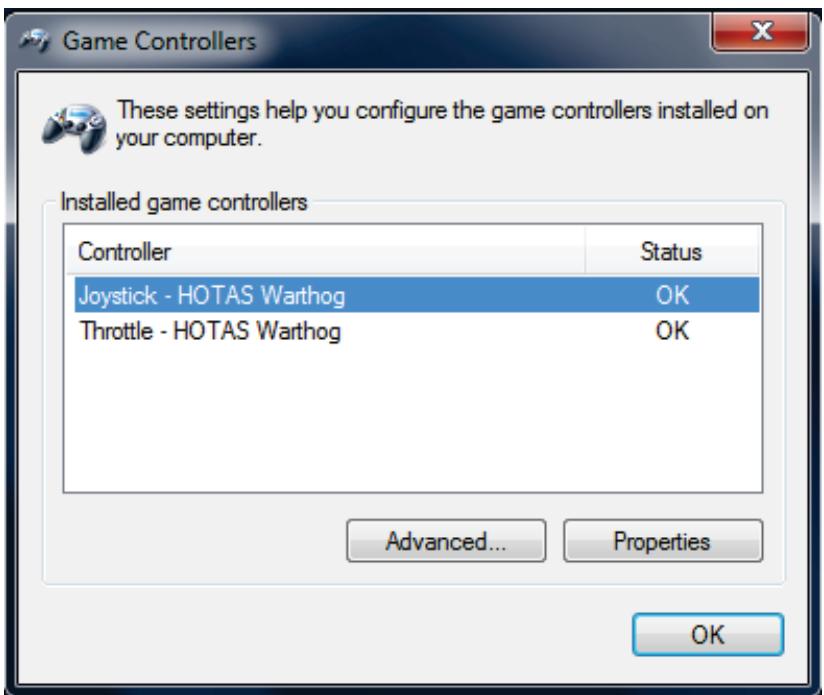
- Click Properties to confirm that all axes and buttons are working.
Note: If the procedure fails, please repeat the installation procedure from the beginning, connecting the USB plug to another USB port on the PC (or try running the procedure on another PC).
If the problem remains, please contact Technical Support, who will then provide other solutions.
FRANÇAIS :
Hardware Installation

The software you are installing for this hardware:
Thrustmaster HOTAS WARTHOG Joystick Bulk
has not passed Windows Logo testing to verify its compatibility with Windows XP. (Tell me why this testing is important.)
Continuing your installation of this software may impair or destabilize the correct operation of your system either immediately or in the future. Microsoft strongly recommends that you stop this installation now and contact the hardware vendor for software that has passed Windows Logo testing.
Continue Anyway
STOP Installation
Hardware Installation

The software you are installing for this hardware:
Thrustmaster HOTAS 'WARTHOG Joystick Bulk
has not passed Windows Logo testing to verify its compatibility with Windows XP. (Tell me why this testing is important.)
Continuing your installation of this software may impair or destabilize the correct operation of your system either immediately or in the future. Microsoft strongly recommends that you stop this installation now and contact the hardware vendor for software that has passed Windows Logo testing.
Continue Anyway
STOP Installation
Hardware Installation

The software you are installing for this hardware:
Thrustmaster HOTAS WARTHOG Joystick Bulk
has not passed Windows Logo testing to verify its compatibility with Windows XP. (Tell me why this testing is important.)
Continuing your installation of this software may impair or destabilize the correct operation of your system either immediately or in the future. Microsoft strongly recommends that you stop this installation now and contact the hardware vendor for software that has passed Windows Logo testing.
Continue Anyway
STOP Installation
3b) De Throttle Bulk-driver installeren
Hardware Installation

The software you are installing for this hardware:
Thrustmaster HOTAS WARTHOG Throttle Bulk
has not passed Windows Logo testing to verify its compatibility with Windows XP. (Tell me why this testing is important.)
Continuing your installation of this software may impair or destabilize the correct operation of your system either immediately or in the future. Microsoft strongly recommends that you stop this installation now and contact the hardware vendor for software that has passed Windows Logo testing.
Continue Anyway
STOP Installation
4) Controlleren van correcte installment
Hardware Installation

The software you are installing for this hardware:
Thrustmaster HOTAS WARTHOG Joystick Bulk
has not passed Windows Logo testing to verify its compatibility with Windows XP. (Tell me why this testing is important.)
Continuing your installation of this software may impair or destabilize the correct operation of your system either immediately or in the future. Microsoft strongly recommends that you stop this installation now and contact the hardware vendor for software that has passed Windows Logo testing.
Continue Anyway
STOP Installation
Hardware Installation

The software you are installing for this hardware:
Thrustmaster HOTAS WARTHOG Joystick Bulk
has not passed Windows Logo testing to verify its compatibility with Windows XP. (Tell me why this testing is important.)
Continuing your installation of this software may impair or destabilize the correct operation of your system either immediately or in the future. Microsoft strongly recommends that you stop this installation now and contact the hardware vendor for software that has passed Windows Logo testing.
Continue Anyway
STOP Installation
Hardware Installation

The software you are installing for this hardware:
Thrustmaster HOTAS WARTHOG Joystick Bulk
has not passed Windows Logo testing to verify its compatibility with Windows XP. (Tell me why this testing is important.)
Continuing your installation of this software may impair or destabilize the correct operation of your system either immediately or in the future. Microsoft strongly recommends that you stop this installation now and contact the hardware vendor for software that has passed Windows Logo testing.
Continue Anyway
STOP Installation
3b) Instalar o controlador bulk da manete
He BbINOJIHЯITe HNKaKnx DeiCTBn I He OTBeuAite Hn Ha KaKne 3aIpOcbl BO BpeM npoZeDypbl ABTomAtnueCKoY cTaHOBKn.
Hardware Installation

The software you are installing for this hardware:
Thrustmaster HOTAS WARTHOG Joystick Bulk
has not passed Windows Logo testing to verify its compatibility with Windows XP. (Tell me why this testing is important.)
Continuing your installation of this software may impair or destabilize the correct operation of your system either immediately or in the future. Microsoft strongly recommends that you stop this installation now and contact the hardware vendor for software that has passed Windows Logo testing.
Continue Anyway
STOP Installation
3a) YcTaHOBka naketa dpaBepOB pbIyara ynpabLeHnA
- OndnoBpeMeHHo HaxMume u ydepxume KHOPIKs Autopilot Engage/Disengage (BkJ./BbIK. aBToNJItoTa) n Landing Gear Horn Silence (BbIKIoueHne CnHaJIbHOcCTeMbI Waccn), 3aTeM POnKJIouHrTe USB-pa3bem K PIK.
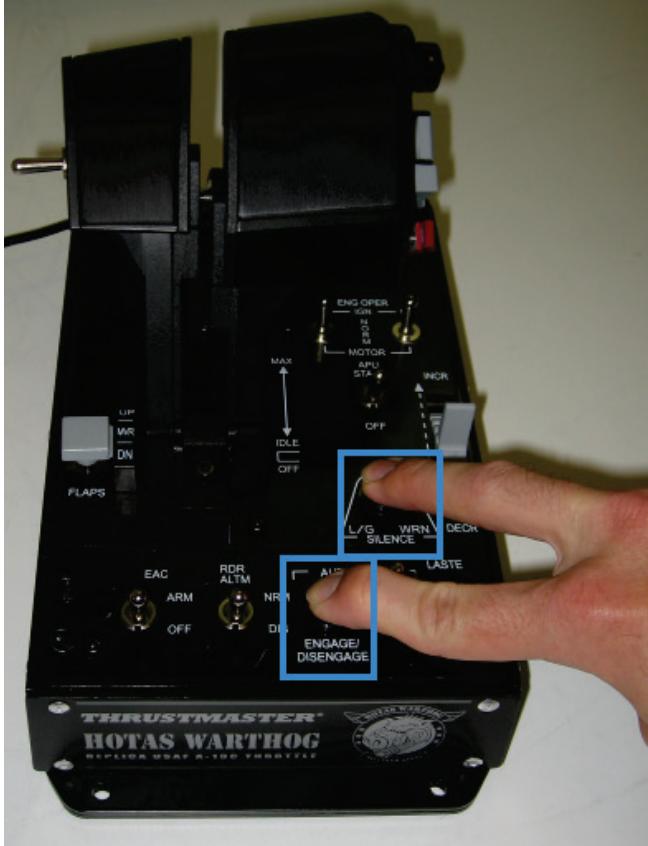
- Otnyuctte KhoKn nocne obHapxKeHna yctpoiCTBa:
He BbINOJIHЯIte HNKaKnx DeiCTBn I He OTBeuAite Hn Ha KaKne 3aIpOcbl BO BpeM npOeDypbl ABTomTuYeCKoY cTaHOBKn.
Ha ekpahe oTo6pkaetcOkHo Thrustmaster - Firmware Updater.
- B noJe YcTpoiCTBO (Device) OTo6paJcaTeKyuIee COCTOJHne yCtpoiCTBa [BOOT] n Bercnja npoWbKn.
- B noIe IpoUWBka (Firmware) oTo6paxaetcBepnI npOuNBKn, KOTopa8 byeT yctaHOblena Ha yCTpOJcTBO.
Прumsачиue:Есlu в полax «Усмpoшсmeо» уlu «Прош ueka» huчezo He omobpaхаemся, поморUME пpoцedуpy ycmaHOBku c haayana, podknquwe ycmpoшсmeo K dpyzomy USB-nopmy PK (uju 3anycmume ycmaHOBky Ha dpyzom PK).
- ⅢeJIKNHTe OKДЯOBHJeHnI npOuINBKn.
BAXHO!
HE OTKJIIOUcATb yCTpoIcTBo oT USB-nopTa!
HE PEAPYTE Hn Ha KaKne COOeHn, KOToPbE MOrT OTo6paXaTbcra BO Bpemr o6HOBJIeHn.