
F85 - Keyboard KeepOut - Free user manual and instructions
Find the device manual for free F85 KeepOut in PDF.


| Product type | Wired keyboard |
| Brand | KeepOut |
| Model | F85 |
| Dimensions (L x D x H) | 440 x 140 x 30 mm |
| Weight | 600 g |
| Power supply | USB 2.0 (fixed cable) |
| Cable length | 1.5 m |
| Number of keys | 104 keys (AZERTY) |
| Main functions | Text input, function keys (F1-F12), numeric keypad, dedicated multimedia keys |
| Backlighting | No |
| Wrist rest | Integrated |
| Compatible operating systems | Windows, macOS, Linux |
| Maintenance and cleaning | Unplug before cleaning, use a soft slightly damp cloth, avoid solvents |
| Safety | Do not expose to moisture, use on a stable surface, plug into a compliant USB port |
| Spare parts and repairability | No removable parts, repair by an approved professional |
| General information | Standard wired keyboard for office and home use |
Frequently Asked Questions - F85 KeepOut
User questions about F85 KeepOut
0 question about this device. Answer the ones you know or ask your own.
Ask a new question about this device
Download the instructions for your Keyboard in PDF format for free! Find your manual F85 - KeepOut and take your electronic device back in hand. On this page are published all the documents necessary for the use of your device. F85 by KeepOut.
USER MANUAL F85 KeepOut
2. PERFILES
3. TECLAS PROGRAMABLES
natural_image
Abstract green brushstroke pattern on black background (no text or symbols)INTRODUCTION
Thank you for choosing Keep Out's Gaming Keyboard F85.
DESCRIPTION
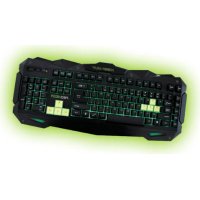
The Gaming Keyboard F85 is our newest keyboard, with a stunning design specially designed for the most demanding professional gamers.
Its size has been optimized to improve the management of the game space, and its keys have also been optimized in height and pressure for better performance, with a maximum response time of 5ms.
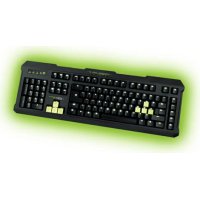
The F85 keys include LED backlit green or red, and its intensity can be changed with a dimmer lighting. It also includes a button which changes the color of the illumination although this can also be modified also by software. All keys are removable allowing perfect cleaning of the keyboard.
F85 has an internal memory which can store up to three profiles fully modifiable. These profiles can program macros that will be most useful for a unique gaming experience.
TECHNICAL SPECIFICATIONS
Backlit keys in green or red with dimmer lighting.
119 keys with silent membrane life up to 10,000,000 keystroke
3 customizable profiles gaming software.
It has 8 additional interchangeable keys designed for better gaming performance.
WASD and cursor keys.
6 media control keys
5 programmable keys for creating macros
1-Touch Gaming Mode, which allows the activation / deactivation of the Windows key
1.5 meter nylon cable
Polling software adjustable rate 125/500/1000Hz
PACKAGE CONTENTS
· Gaming Keyboard F85
- Quick Installation Guide in multiple languages
· Gaming keys W, A, S, D and additional cursors
- Accessory for extracting keys
- Software Installation Cd
Note: Make sure that your package contains the items described above. If any item is missing or damaged, please contact your dealer.
INSTALLATION
- Connection: Connect the Gaming Keyboard in a free USB port on your PC.
- Installation on Windows: Insert the installation CD into your drive and double-click the icon for My PC or Computer, then double-click the floppy drive where you placed the CD and boot the installation program.
- Once installed, reboot your pc. Software
1. LIGHTING
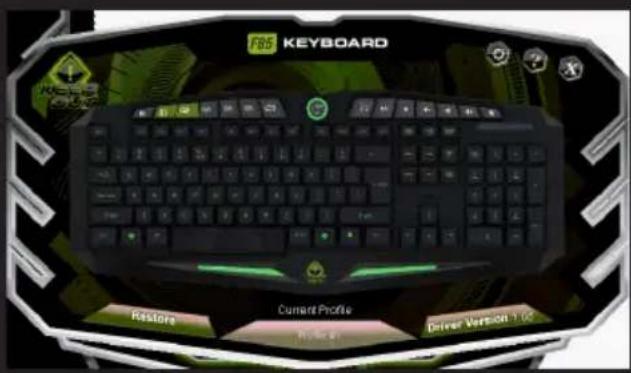
-Open the software from Start - All Programs or icon of the taskbar in the lower right corner of your desktop.

EN
- If no light appears on the keys of your keyboard, click on "Restore". Once done, it should light up.
-To change the color of the light on the keyboard, press the keys (G & R) on your keyboard. Choose two colors, green and red. Or if you just want to increase / decrease the intensity of light simply rotate left or right the lighting controller located at the top middle of the keyboard.
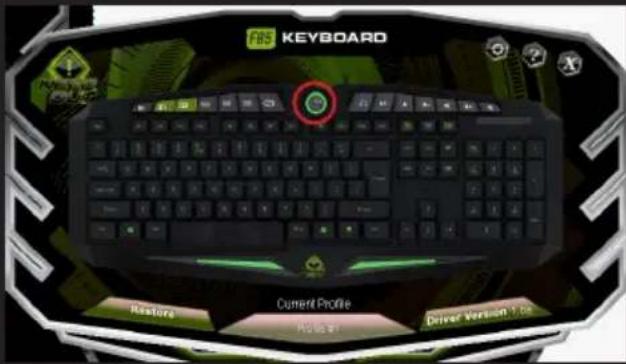
-To change the lighting via software, click on the button lighting controller that is in the main window of the software.
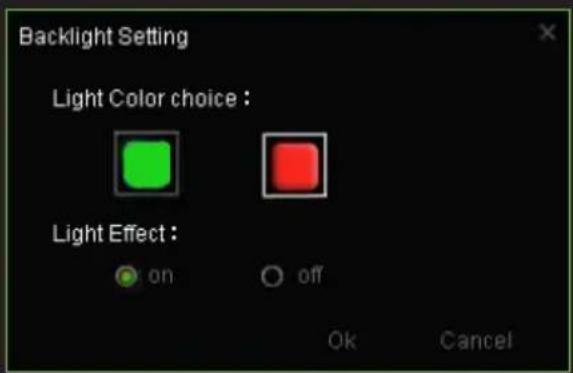
- Once you have clicked you will see two options in which you can choose the colors green or red, or if you want to activate or deactivate the lighting effects.

For these changes to take effect, click "OK" and then "Apply", the backlight will automatically begin to change.

2.PROFILES
- In the memory of the Gaming Keyboard F85, you can save up to 3 profiles. Just click on any of them and "Apply" to activate.

3. PROGRAMMABLE KEYS
All keys of the Gaming Keyboard F85 are programmable. If the media keys are not programmed, they will continue to do the function indicated by the symbol
3.1 Macro function
- To program a macro, follow these steps: (For example we will set the key "G1")
- First, left click on "G1" in the software window and click "MACRO" on the controller.
- To create a new 'Macro' for key "G1", click on "New" and enter a name for it. Then press the "Enter" key on your keyboard.

- If you click on "Record", it will start recording the "Macro". For example, if you want to burn the letter combination "WASD", press "Record" and then press on your keyboard the letters "WASD". When finished, click "STOP". (You can also check the "loop time" and fill in the time loop that also want to set or check the "Auto Delay")
3.1 The option "loop time" means how many times you will repeat the macro. For example, if you want the key "G1" to repeat the command "WASD" a certain number of times (only 1-5 times), check "loop time" and change from "1" to "5" times you want to repeat this macro.
3.2 The "Auto Delay" is the delay between the keystrokes that are entered in the macro. It is measured in milliseconds.
3.3 Once you have the macro to your liking, click on "Apply". The software will automatically show the key "G1" in green, which means that we have configured correctly. Now every time you press the button "G1", you will be writing the command "WASD".


4. MULTIMEDIA KEYS
- If these are not scheduled, the media keys perform the function which marks its symbol.
-The media keys include macro recording and multimedia function.
-If you want to return to the multimedia configuration of these keys, just click on the button in the software and click on "Media Center". Where you can go back to the default values by clicking on "Restore Default"
EN
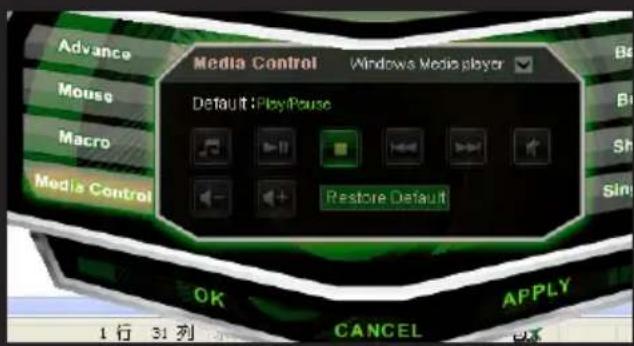
- The multimedia key which is located to the right (with the Windows symbol and a padlock) is used for Gaming mode, which means for enabling or disabling "Windows" key.
5. "G" KEYS
All "G" and media keys can be programmed. You can record both 'Macros' as multimedia features. You can also program these keys with the functions shown in the software as "Advance" or "Mouse". For example in the "Mouse" option, you can program a key to do a feature on your mouse (left click for example).
Always remember to click "APPLY" to complete the setup.
TECHNICAL SUPPORT
For more information on installing and configuring this product go to our website www.keep-out.eu or write an email to the following address:
support@keep-out.eu

natural_image
Abstract green brushstroke pattern on black background (no text or symbols)INTRODUCTION
2.PROFILE
3. TOUCHES PROGRAMMABLES
natural_image
Abstract green brushstroke pattern on black background (no text or symbols)EINFÜHRUNG
6 media control Tasten

DE
- Profile
- Programmierbare Tasten
natural_image
Abstract green brushstroke pattern on black background (no text or symbols)INTRODUZIONE
2.PROFILE
3. PROGRAMMIERBARE TASTEN
natural_image
Abstract green brushstroke pattern on black background (no text or symbols)INTRODUÇÃO

PT
- PERFIS

natural_image
Abstract green brushstroke pattern on black background (no text or symbols)UVOĐENJE
mijenjati.

- PROFILI
- PROGRAMIBILNIH TIPKI
Svi ključevi Gaming Keyboard F85 su programirati. Ako su mediji ključevi nisu programirani, oni će nastaviti raditi na funkciju koju pokazuje simbol
3.1 Macro funkciju
natural_image
Abstract green brushstroke pattern on black background (no text or symbols)WPROWADZENIE

PL
2.PROFILE
3. PROGRAMOWALNE KLAWISZE
natural_image
Abstract green brushstroke pattern on black background (no text or symbols)ΕΙΣΑΓΩΓΗ

EL
2. Профіл
natural_image
Abstract green brushstroke pattern on black background (no text or symbols)ÚVOD
2.. PROFILY
3.. PROGRAMOVATELNÉ KLÁVESY
5. "G" KEYS
natural_image
Abstract green brushstroke pattern on black background (no text or symbols)GIRIŞ
TR
başlayacak.

2. PROFILLERI
3. PROGRAMLANABILIRTUŞLAR
5. "G" TUŞLARI
natural_image
Abstract green brushstroke pattern on black background (no text or symbols)BEVEZETÉS
- PROFILOK
- PROGRAMOZHATÓ GOMBOK
natural_image
Abstract green brushstroke pattern on black background (no text or symbols)ВЪВЕЖДАНЕ
BG
1. Осветление
2.PROFILES
3. ПРОГРАМИРУЕМИ БУТОНА
natural_image
Abstract green brushstroke pattern on black background (no text or symbols)INTRODUCERE
- Profiluri
- Taste programabile
5. TASTE "G"
natural_image
Abstract green brushstroke pattern on black background (no text or symbols)ÚVOD
SK
tlačidlo "Restore" Potom, čo urobil, mal by sa rozsvietit'.
"Apply", podsvietenie sa automaticky začne menit.
2. PROFILY
3. PROGRAMOVATEL'NÉ KLÁVESY
3.1 Funkcia makro
natural_image
Abstract green brushstroke pattern on black background (no text or symbols)Importado por / Imported by:
APPROX IBERIA S. L.
CIF: B-91202499
Soporte técnico / Technical support:
support@keep-out.eu
The content of this guide is subject to typographical errors.


48H NON STOP

NO SHARING!

FEEL SUPERIOR
www.keep-out.eu


- PERFILES
- TECLAS PROGRAMABLES
- INTRODUCTION
- DESCRIPTION
- TECHNICAL SPECIFICATIONS
- PACKAGE CONTENTS
- INSTALLATION
- LIGHTING
- EN
- 2.PROFILES
- PROGRAMMABLE KEYS
- Macro function
- MULTIMEDIA KEYS
- "G" KEYS
- TECHNICAL SUPPORT
- 2.PROFILE
- TOUCHES PROGRAMMABLES
- EINFÜHRUNG
- DE
- INTRODUZIONE
- PROGRAMMIERBARE TASTEN
- INTRODUÇÃO
- PT
- UVOĐENJE
- WPROWADZENIE
- PL
- PROGRAMOWALNE KLAWISZE
- ΕΙΣΑΓΩΓΗ
- EL
- Профіл
- ÚVOD
- 2.. PROFILY
- 3.. PROGRAMOVATELNÉ KLÁVESY
- GIRIŞ
- TR
- PROFILLERI
- PROGRAMLANABILIRTUŞLAR
- "G" TUŞLARI
- BEVEZETÉS
- ВЪВЕЖДАНЕ
- BG
- Осветление
- ПРОГРАМИРУЕМИ БУТОНА
- INTRODUCERE
- TASTE "G"
- SK
- PROFILY
- PROGRAMOVATEL'NÉ KLÁVESY
- Funkcia makro
Brand : KeepOut
Model : F85
Category : Keyboard