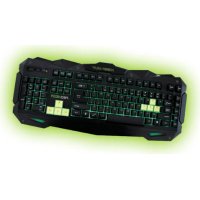
F80 - Keyboard KeepOut - Free user manual and instructions
Find the device manual for free F80 KeepOut in PDF.



| Product Type | Gaming Keyboard |
| Brand | KeepOut |
| Model | F80 |
| Key Type | Silent Membrane |
| Backlight | Multicolor LED (7 colors: green, blue, yellow, turquoise, purple, white, red) |
| Number of Keys | 109 keys |
| Multimedia Keys | 12 multimedia control keys |
| Programmable Macro Keys | 5 keys (G1 to G5) |
| Customizable Profiles | 3 profiles in internal memory |
| Interchangeable Keys | 8 keys (WASD and arrow keys) |
| Anti-ghosting | Yes |
| Connectivity | USB 2.0 with braided nylon cable |
| Compatibility | Windows XP / Vista / 7 / 8 |
| Dimensions (approx.) | 44 x 15 x 2 cm |
| Weight (approx.) | 800 g |
| Power Supply | Via USB port |
| Package Contents | F80 keyboard, quick installation guide, extra WASD and arrow keys, keycap puller, software installation CD |
| Maintenance | Removable keys for easy cleaning |
| Key Lifespan | 20 million keystrokes |
Frequently Asked Questions - F80 KeepOut
User questions about F80 KeepOut
0 question about this device. Answer the ones you know or ask your own.
Ask a new question about this device
Download the instructions for your Keyboard in PDF format for free! Find your manual F80 - KeepOut and take your electronic device back in hand. On this page are published all the documents necessary for the use of your device. F80 by KeepOut.
USER MANUAL F80 KeepOut
- F80 Keyboard Gaming
"Ok".
Thank you for choosing the Keep Out gaming keyboard F80
Description
The F80 is a professional gaming keyboard that does not leave anyone indifferent as performance and design have been meticulously cared for the most demanding gamers.
This model uses a kind of membrane with a special design that provides minimal tired feeling and at the same time a minimum response time. Comes with additional software and numerous keys with multimedia features.
F80 keys include LED backlighting in various colors which can be modified using a special key. With 5 additional programmable macro keys. All keys are removable which allows a perfect cleaning of the keyboard.
This model has an internal memory which can store up to 3 profiles and each of these can store different macros for a unique gaming experience.
Technical Specifications
Retro illuminated keys adjustable lighting in different colors.
Colors: Green, blue, yellow, turquoise, violet, white, red. 109 keys and silent membrane life up to 20,000,000 keystrokes.
3 customizable profiles. Additional software Additional 8 interchangeable keys (WASD and arrow keys). 12 keys for multimedia control
5 programmable macro keys to create Gaming Mode, which allows the activation / desactivation of the Windows key
USB 2.0 Cable made of reinforced nylon anti ghosting system
Compatible with Windows XP / Vista / 7/8
Package Contents
· Gaming Keyboard F80
· Quick Installation Guide in multiple languages
- Keys W, A, S, D and additional cursors. Special tool for
extracting keys
- Software Installation CD
Note: Make sure that your package contains the items described above. If you find any items are missing or damaged, please contact your dealer.
Installation
-
Connection: Connect the Gaming Keyboard in a free USB port on your pc.
-
Insert the included installation CD in your drive.
- Double-click My Computer, select your DVD drive and run the autorun.exe file.
-
Install the drivers for your device.
-
Once installed, restart your pc.
Software
1. Lighting
-To change the keyboard backlight it must be done manually using the following commands:
- Press the bulb button to set the color you want
- Press Fn+ "Page Down" to reduce lighting
- Press Fn + "Retro Page" to increase lighting
- Press Fn + bulb to set the lighting or intermittently
2. Profiles
- Open the software from Start / All Programs or icon of the taskbar in the lower right corner of your desktop.

EN
- In the Gaming Keyboard memory, you can save to 3 profiles. Just click on any of them and "Apply" to activate.
3. Macro Function
- To program a macro, follow these steps: (For example we will set the "G1" key)
- First, click the key you want to program, in this case "G1". Then the configuration window opens.

- To create a new 'Macro' click on "+" and if you want you can assign a custom name to the macro.
- To record the macro click the "Record" option, it will start recording the "Macro". For example, if you want to burn the letter combination "WASD" press "Record" and then press on your keyboard the letters "WASD". When finished, click "Record". (You can also change the "Delay time", for this click on the "Delay" column, as shown in the picture.

- The "delay" is the delay between the keystrokes that are entered in the macro. It is measured in milliseconds.
- Once we have programmed the macro, click on "OK" to save. Now every time you press the "G1" key, you will be writing the "WASD" command.
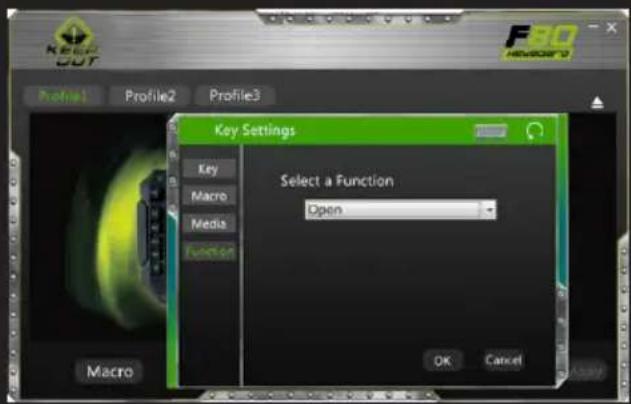
- We can also assign a function to a key as a "Copy", "Paste", and "Open". We'll just have to click the button you want to modify and assign a function as shown in the picture, then click "Ok".

-To create macros manually (without using the software), you must follow the following steps:
- Press the "REC" button to see the LEDs flashing top right. (LEDs "Shift", "Num Lock)
- Now press the key you want to record (ex: "G1"), then the LED indicator on the top right of the keyboard will blink faster.
- Now we can press the keys with which we want to perform the "G1" function. (For example, press WASD).
- To end recording, press "REC" after doing this, every time you click the "G1" key will be operating the WASD keys. How to cancel the macros?
- Press "REC" and you'll see the LED on the top right of the keyboard flashing.
- Now press cancel which we want, in this case "G1".
- Finally press "REC" and the macro will be canceled.
4 "Fn" Keys
The Fn key in combination with other keys performs multimedia and special functions:
- Fn + F1 Open media player
- Fn + F2 decrease volume
- Fn + F3 increase volume
- Fn + F4 to disable sound
- Fn + F5 Stop
- Fn + F6 Previous Track
- FN + F7 Play / Pause
- Fn + F8 Next Track
- Fn + F9 Open mail
- Fn + F10 Open the default browser
- Fn + F11 Lock the keypad
-
Fn + F12 Calculator
-
Fn + Q keyboard response speeds (30/60 milliseconds)
5. "Gaming Key" Windows lock feature
Pressing the FN key + Windows key to enable or disable the Windows key, so that nothing hinders you during play sessions.
6. Restore defaults
You can restore defaults by clicking the "Restore Default"
button on the software keyboard.
Technical Support
Please more information on installing and configuring this product go to our website www.keepoutgaming.com or write an email to the following address: support@keep-out.eu
ES
Introducción
ET
- In Gaming Keyboard mällu saab salvestada kuni 3 profile. Kliki möni neist ja "Apply" aktiveerida.
3. Makrofunktsioon

HR
- U Gaming Keyboard memorije, možete pohraniti do 3 profila. Samo kliknite na bilo koji od njih i "Primijeni" aktivirati.
3. Makro funkcija
- Da programirati makro, slijedite ove korake: (Na primjer ćemo postaviti tipku "G1")
- Prvo, pritisnite tipku koju želite programirati, u ovom slučaju "G1". Tada se otvara prozor konfiguracije.

- Za stvaranje novog 'Makro' kliknite na "+" a ako želite, možete dodijeliti naziv korisničke na makro.
- Za snimanje makro kliknite na "Record" opciju, počet

HU


PL
2. Profile
3. Função Macro
PT
sistem anti-ghosting
Compatibil cu Windows XP / Vista / 7/8

RO
2. Profiluri
rohu. (LED "Shift", "Num Lock)
TR
EC DECLARATION OF CONFORMITY
We declare under our sole responsibility that the product:
Brand name: KEEP OUT
Model no: F100, F110, F89, F80
Product description: Gaming Usb Keyboard
The measurements shown in this test report were made in accordance with the procedures given in the:
- EMC DIRECTIVE: 2004/108/EC
- RoHS DIRECTIVE: 2011/65/EU
To which this declaration is based on with full conformance to the following European norms and standards:
- EN 55022:2010
- EN 61000-3-2:2006+A1:2009+A2:2009
- EN 61000-3-3:2008
- EN 55024:2010
- EN 61000-4-2:2009, EN 61000-4-3:2006+A1:2008+A2:2010
- EN 61000-4-4:2012, EN 61000-4-5:2006
- EN 61000-4-6:2009, EN 61000-4-8:2010, EN 61000-4-11:2004
Signed Jun 25, 2014

Jose Luis Ruiz Gómez
Managing Director
KEEP OUT
ADD: Polígono Industrial Guadalquivir
Gelves (Sevilla), Spain.
Website: www.keepoutgaming.com
CE
Importado por / Imported by:
APPROX IBERIA S. L.
CIF: B-91202499
Soporte técnico / Technical support:
support@keep-out.eu
The content of this guide is subject to typographical errors.


48H NON STOP

NO SHARING!

FEEL SUPERIOR
keepoutgaming.com


- Description
- Technical Specifications
- Package Contents
- Installation
- Software
- Lighting
- Profiles
- EN
- Macro Function
- "Fn" Keys
- "Gaming Key" Windows lock feature
- Restore defaults
- Technical Support
- ES
- Introducción
- ET
- Makrofunktsioon
- HR
- Makro funkcija
- HU
- PL
- Profile
- Função Macro
- PT
- RO
- Profiluri
- TR
- EC DECLARATION OF CONFORMITY
Brand : KeepOut
Model : F80
Category : Keyboard