
F110 - Keyboard KeepOut - Free user manual and instructions
Find the device manual for free F110 KeepOut in PDF.


| Product type | Wired keyboard |
| Brand | KeepOut |
| Model | F110 |
| Dimensions (L x W x H) | 450 x 150 x 25 mm |
| Weight | 500 g |
| Power supply | USB port (5V, 100 mA) |
| Cable length | 1.5 m |
| Key layout | AZERTY (French) |
| Number of keys | 104 keys |
| Main functions | Text input, numeric keypad, multimedia keys (play/pause, volume) |
| Connectivity | USB Type-A (compatible with 2.0 and 3.0) |
| Compatible operating systems | Windows, macOS, Linux |
| Maintenance and cleaning | Dust regularly, clean with a soft slightly damp cloth (no abrasive products) |
| Safety | Avoid any contact with liquids, do not disassemble, use in a dry environment. |
| Spare parts and repairability | Not user-repairable, no spare parts available. |
| General information | Office and home use, standard design, comes with user manual. |
Frequently Asked Questions - F110 KeepOut
User questions about F110 KeepOut
0 question about this device. Answer the ones you know or ask your own.
Ask a new question about this device
Download the instructions for your Keyboard in PDF format for free! Find your manual F110 - KeepOut and take your electronic device back in hand. On this page are published all the documents necessary for the use of your device. F110 by KeepOut.
USER MANUAL F110 KeepOut
Thank you for choosing Keep Out's Mechanical Gaming Keyboard F100 Description
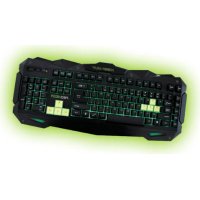
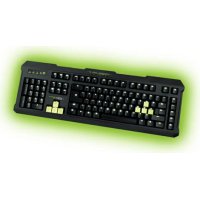
The F100 is a mechanical keyboard that aims to offer gamers a product of great quality with a simple and elegant design, with its own Keep Out personality. Each key is individually backlit in a clear and crisp green, provides a perfect view of the keys in total darkness. With the additional software you can record your favorite macros for a unique gaming experience and with its 8 additional multimedia keys, you get full control of your team. Devastate your opponent with the F100 keypad.
Technical Specifications
Fully mechanical keys with "Non-Click" technology. WASD and Cursor keys have "Non-Click" keys, Network and the rest Black "Non-Click" keys. Keys individually illuminated retro green 110 mechanical keys with "non-click" technology and life up to 50,000,000 keystrokes. 3 customizable profiles. additional software Additional 8 interchangeable keys (WASD and arrow keys). 12 multimedia control functions 5 programmable macro keys to create Function "Gaming Mode" which allows the activation / desactivation of the Windows key USB 2.0 Cable braided nylon fiber anti ghosting system Compatible with Windows XP / Vista / 7/8 Dimensions: 50.4 * 17.8 * 2.53cm Weight: 1285G
Package contents
· Gaming Keyboard F100
· Quick Installation Guide in multiple languages
- Keys W, A, S, D and additional cursors. Special tool for extracting keys

- Software Installation CD
Note: Make sure that your package contains the items described above. If you find any items are missing or damaged, please contact your dealer.
Installation
1 Connection: Connect the Gaming Keyboard in a free USB port on your pc.
1. Insert the included installation CD in your drive.
2. Double-click My Computer, select your DVD drive and run the autorun.exe file.
3. Install the drivers for your device.
2 Once installed, restart your pc.
Software
Lighting
-To change the keyboard backlight should do it manually using the following commands:
- Press Fn + "Page Down" to reduce lighting
- Press Fn + "Retro Page" to increase lighting
- Press Fn + Esc to fix the lighting or put in intermittent mode
Profiles
-Open the software from Start / All Programs or icon of the

EN
taskbar in the lower right corner of your desktop.
In the keyboard memory, you can save to 3 profiles. Just click on any of them and "Apply" to activate.
Macro Function
If you want to program a macro, follow these steps: (For example we will set the "G1" key)
- First, click the key you want to program, in this case "G1". Then the configuration window opens.

- To create a new 'Macro' click on "+" and if you want to assign a custom name to the macro.
- To record the macro click the "Record" option, it will start recording the "Macro". For example, if you want to burn the letter combination "WASD" press "Record" and then press on your keyboard the letters "WASD". When finished, click "Record". (You can also change the "Delay time", for this click on the "Delay" column, as shown in the picture.

3.1 The "delay" is the delay between the keystrokes that are entered in the macro. It is measured in milliseconds.
4. Once we have programmed the macro, click on "OK" to save. Now every time you press the "G1" key, will be writing the "WASD" command.
5., We can also assign a function to a key as a "Copy", "Paste", "Open". We'll just have to click the button you want to modify and assign a function as shown in the picture, then click "Ok".

- To create macros manually (without using the software), you must follow the following steps:

- Press the "REC" button to see the LEDs flashing top right. (LEDs "Shift", "Num Lock)
-
Now press the key you want to record (ex: "G1"), then the LED indicator on the top right of the keyboard will blink faster.
-
Now we can press the keys with which we want to perform the "G1" function. (For example, press WASD).
-
To end recording, press "REC" after doing this, every time you click the "G1" key will be operating the WASD keys. How to cancel the macros?
-
Press "REC" and you'll see the LED on the top right of the keyboard flashing.
- Now press cancel which we want, in this case "G1".
- Finally press "REC" and the macro will be canceled.
"Fn" Keys
The Fn key in combination with other keys performs multimedia and special functions:
- Fn + F1 Open media player
- Fn + F2 decrease volume
- Fn + F3 increase volume
- Fn + F4 to disable sound
- Fn + F5 Stop
- Fn + F6 Previous Track
- FN + F7 Play / Pause
- Fn + F8 Next Track
- Fn + F9 Open mail
- Fn + F10 Open the default browser
- Fn + F11 Lock the keypad
- Fn + F12 Calculator
- Fn + Q keyboard response speeds (30/60 milliseconds)
- Fn + TAB on / off the lighting of the gaming keys
- Fn + Esc 15 changes the illumination mode: steady / flashing
"Gaming Key" Windows lock feature
Pressing the FN key + Windows key to enable or disable the Windows key, so that nothing hinders you during play sessions.
Restore defaults
You can restore defaults by clicking the "Restore Default" button on the software keyboard.
Technical Support
For more information on installing and configuring this product go to our web site www.keepoutgaming.com or write an email to the following address: support@keep-out.eu
ES
Introducción
Como cancelar as macros?
Chaves "Fn"
EC DECLARATION OF CONFORMITY
We declare under our sole responsibility that the product:
Brand name: KEEP OUT
Model no: F100, F110, F89, F80
Product description: Gaming Usb Keyboard
The measurements shown in this test report were made in accordance with the procedures given in the:
- EMC DIRECTIVE: 2004/108/EC
- RoHS DIRECTIVE: 2011/65/EU
To which this declaration is based on with full conformance to the following European norms and standards:
EN 55022:2010
- EN 61000-3-2:2006+A1:2009+A2:2009
- EN 61000-3-3:2008
- EN 55024:2010
- EN 61000-4-2:2009, EN 61000-4-3:2006+A1:2008+A2:2010
- EN 61000-4-4:2012, EN 61000-4-5:2006
- EN 61000-4-6:2009, EN 61000-4-8:2010, EN 61000-4-11:2004
Signed Jun 25, 2014

Jose Luis Ruiz Gómez
Managing Director
KEEP OUT
ADD: Polígono Industrial Guadalquivir
Gelves (Sevilla), Spain.
Website: www.keepoutgaming.com
CE
Importado por / Imported by:
APPROX IBERIA S. L.
CIF: B-91202499
Soporte técnico / Technical support:
support@keep-out.eu
The content of this guide is subject to typographical errors.


48H NON STOP

NO SHARING!

FEEL SUPERIOR
keepoutgaming.com


Brand : KeepOut
Model : F110
Category : Keyboard