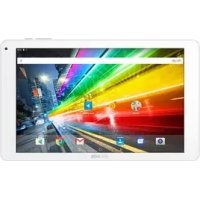
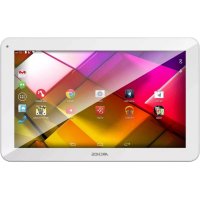
80 CESIUM - Tablet ARCHOS - Free user manual and instructions
Find the device manual for free 80 CESIUM ARCHOS in PDF.


User questions about 80 CESIUM ARCHOS
0 question about this device. Answer the ones you know or ask your own.
Ask a new question about this device
Download the instructions for your Tablet in PDF format for free! Find your manual 80 CESIUM - ARCHOS and take your electronic device back in hand. On this page are published all the documents necessary for the use of your device. 80 CESIUM by ARCHOS.
USER MANUAL 80 CESIUM ARCHOS
Package contents. 2
Getting started. 3
Description of the device. 4
Through the wizard. 5
Connecting to a WiFi network 6
The WindowsTM interface. 8
Troubleshooting. 14
As we are often updating and improving our products, your device's software may have a slightly different appearance or modified functionality than presented in this Quick Start Guide.
- For more detailed information about how to use your device, go to the link:
http://windows.microsoft.com/en-gb/windows/tutorial - Consult the declaration of conformity on http://www.archos.com/products/declaration_conformity.html


Package Content
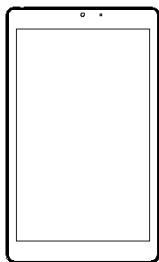
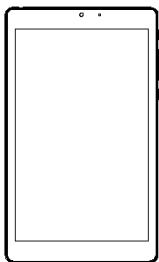
ARCHOS 80 Cesium

QSG booklet
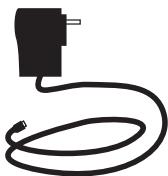
Charger
Warranty, legal & safety booklet
2
Getting Started
Charging
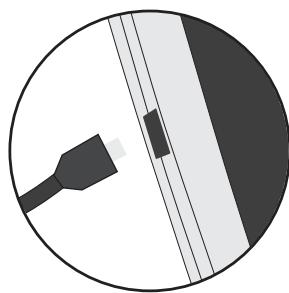
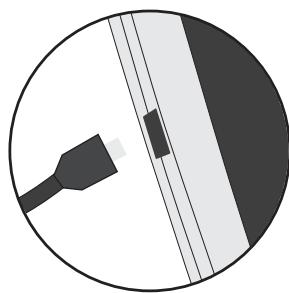
- Charge your device by plugging your power cable into the power connector. The ARCHOS device will start charging.
- Press the Power button to turn on the device.
The charging indicator light is on when the battery is charging.
- You can use your ARCHOS whilst it charges.
- Let your device charge completely the first time you use it.
- Use only the supplied charger.
When the battery on your device is completely discharged, you need to charge it for at least 10 minutes before the charging battery icon can be displayed.
TIP:
To receive more complete service, please register your product.
From a computer, go to www.archos.com/register.
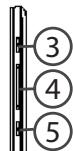
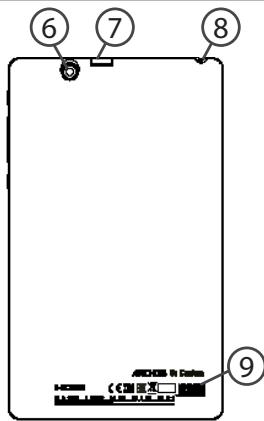
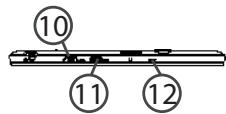
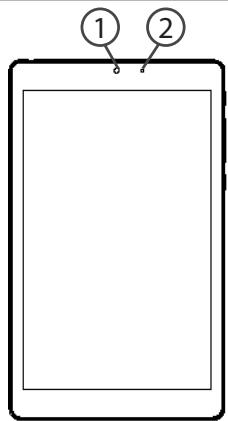
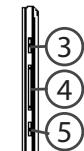
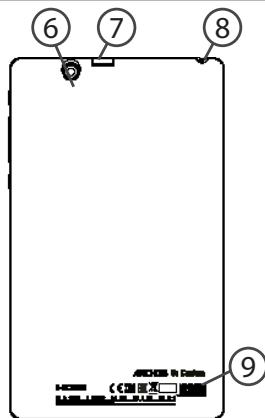
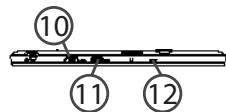
Description of the device
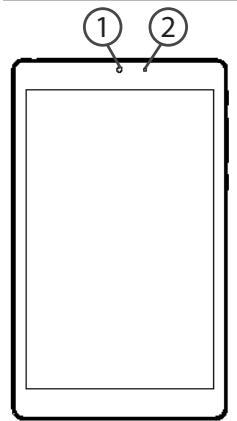
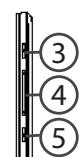
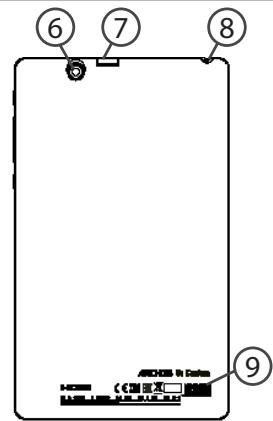
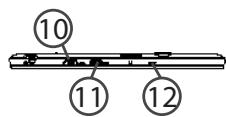
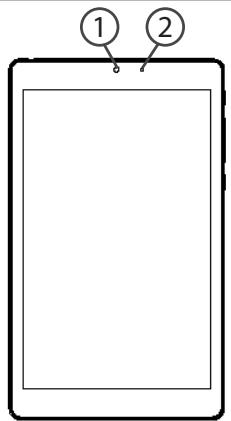
1 Front camera
⑤ Windows button
Loudspeaker
Charging indicator
Back camera
10 Micro-HDMI video output
③ ON/OFF button
⑦ Micro-SD card slot
11 Micro-USB port
Volume buttons
Headphone jack
12 Microphone
*With optional Micro-HDMI to HDMI cable.
Through the Wizard
The first time you start up your ARCHOS, the installation wizard will help you set up your device:
- Region and Language
- Personalise
-Get online - Settings
- Sign in
TIP:
You need to sign in with a Microsoft account. If you don't have one, select create an account at the Sign in step and follow the onscreen instructions.
Connecting to a WiFi Network
CAUTION: Make sure that you are in a WiFi zone.
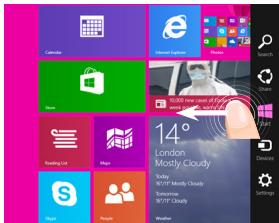
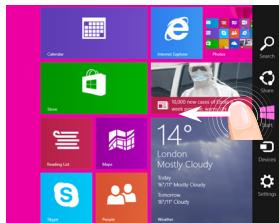
① Swipe in from the right edge.
② Select the "Settings" icon.
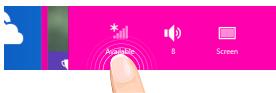
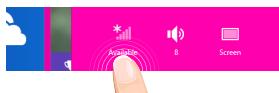
③Select the "WiFi" icon.
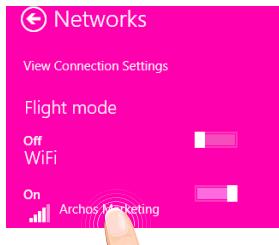
The ARCHOS will scan for Wifi networks in range. Touch the name of network you want to connect to.
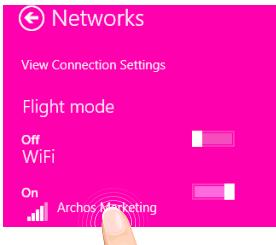
Enter the network security key
You can also connect by pressing the button on the router.
Next
Cancel
Private networks are shown with a lock icon and will require you to enter your password.
TIP:
Once you have been connected to a secured network, you can disconnect from it and connect again without entering the password.
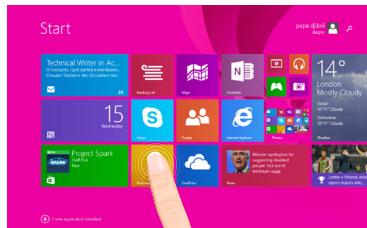
The Windows™ Interface
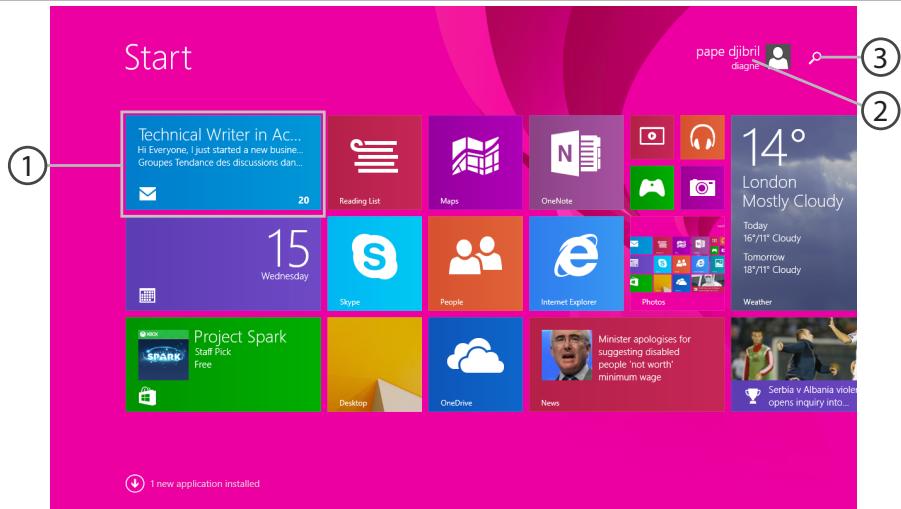
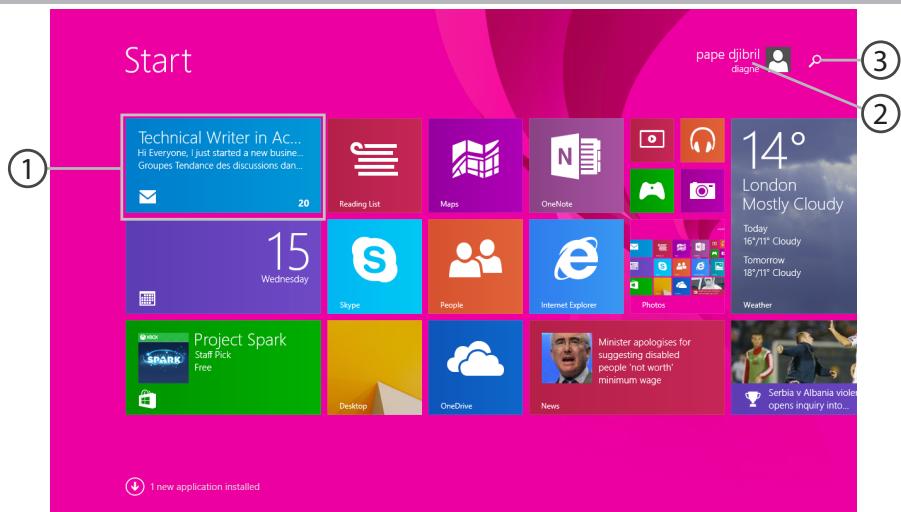
① App icon
Touch to open.
② User account
Touch to customize the account.
③ Search button Top the Scarce
Tap the Search button and enter an app name.
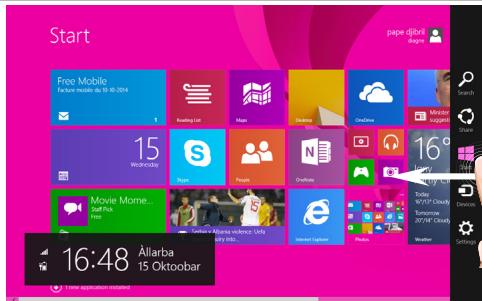
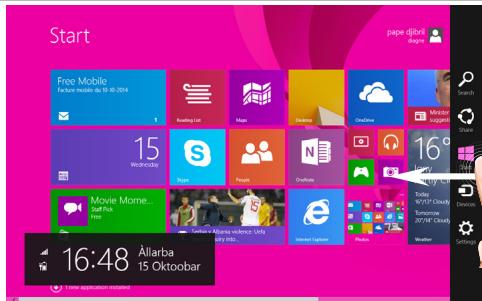
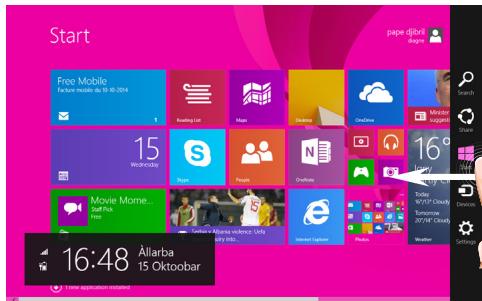
Quick settings
Swipe in from the right edge, and then tap the icon you want.

Search: You can use the Search button to find things. If you're on the Start screen, click the Search button next to your account picture.

Share: When you're in an app, you can use the Share button to share files, photos, etc.

Start: The Start button takes you to the Start screen. Or if you're already on Start, it takes you to the last app you were using.

Devices: Use the Devices button to play, project, and print to devices.

Settings: Use the Setting button to change settings for the app you are in.

The Windows™ Interface
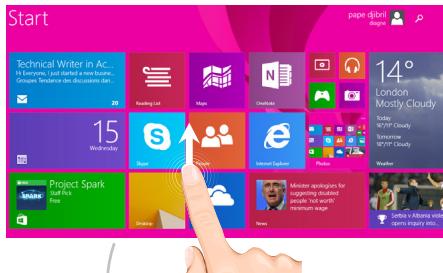
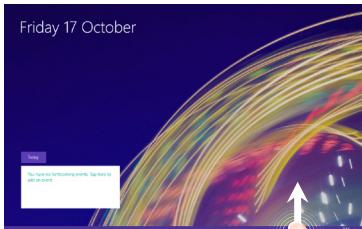
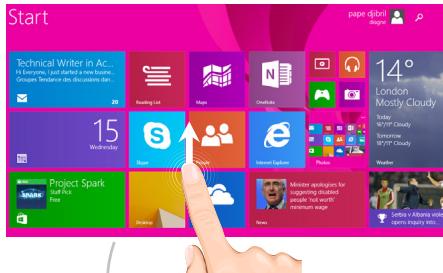
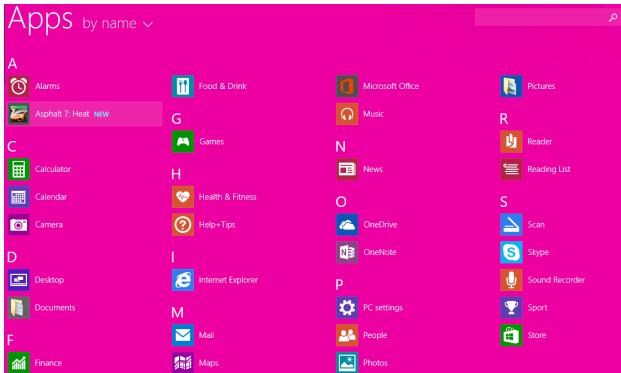
All apps
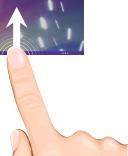
Swipe up from the center of the Start screen or click ① on the lower-left of Start to display all installed apps.
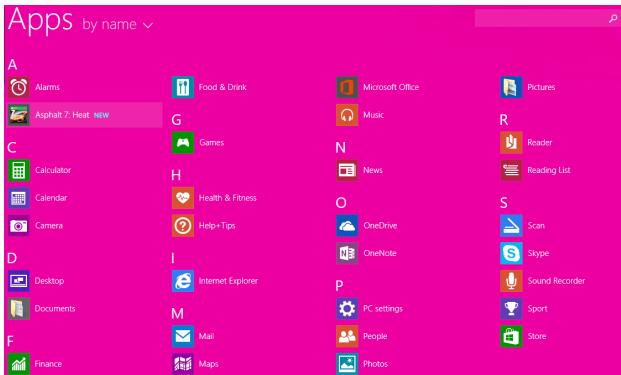

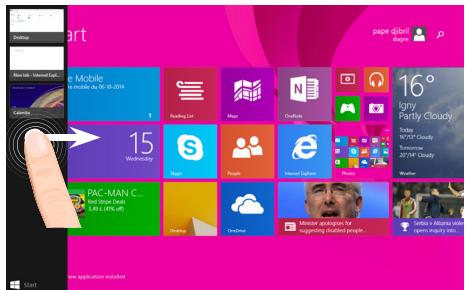
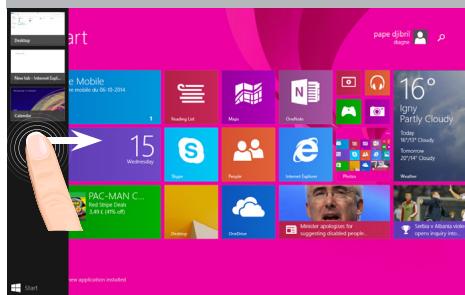
Switch between open apps: Switch between open apps by swiping in from the left edge of the screen.
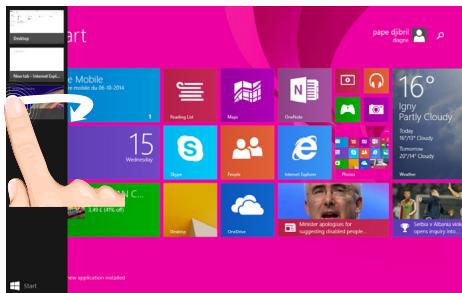
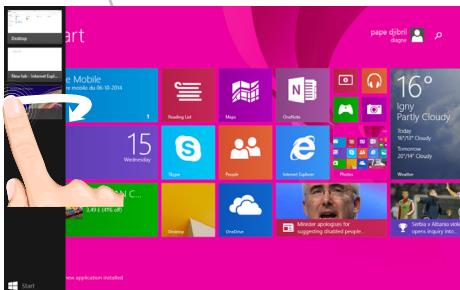
Switch to a specific app: Swipe in from the left edge, and with your finger still on the screen, move it back toward the left edge. Tap the app you want.

The Windows™ Interface
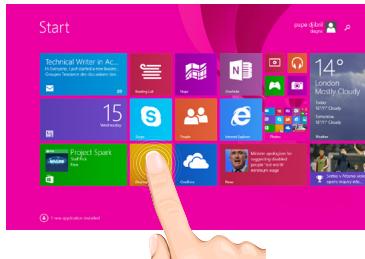
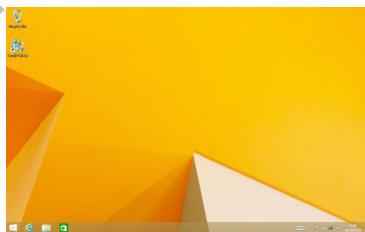
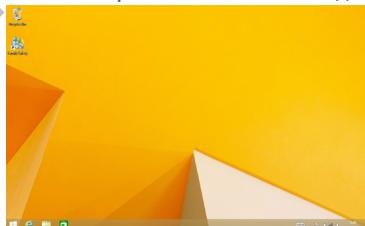
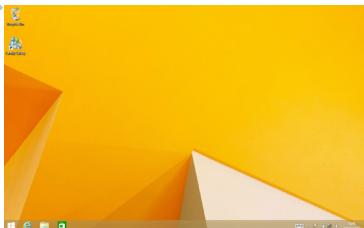
The familiar desktop
The desktop is where you'll use desktop apps like Office and File Explorer. You can also pin Windows Store apps to the taskbar.

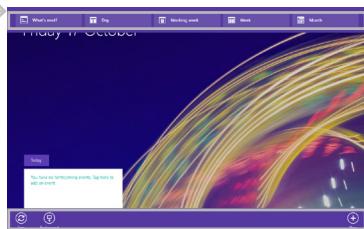
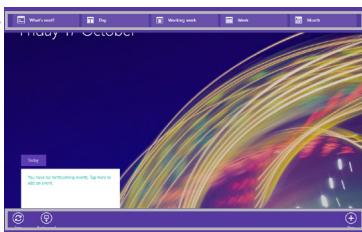
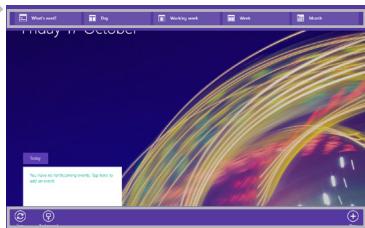
App commands
Swipe up from the bottom edge of the screen, or down from the top edge.
peAeDspspuwco
To close an app
Swipe down from the top edge of the screen, and drag the app down and off the screen.
T close desktop apps
You can close an Office app by tapping or clicking the Close button in the title bar
To uninstall an app
From the Start screen or All apps section, tap and hold it for a couple seconds.
Tap Uninstall. If the app is a desktop app, choose the app from the list and then tap Uninstall.
To add an email account:
- Tap or click Mail from the Start screen.
- Open the Settings charm, then tap or click Accounts > Add an account.
- Choose the type of account you want to add, and then follow the on-screen instructions. Most accounts can be added with only your user name and password. In some cases, you'll be asked for more details, which you can usually find on your email account provider's website.

Troubleshooting
If your device is frozen:
Press the ON/OFF button for 10 seconds.
If your device doesn't turn on:
- Charge your device.
- Press the ON/OFF button for 10 seconds.
If you want to extend the life of your battery:
Decrease the screen brightness and turn off the wireless connections if not in use.
If your device functioning is too slow:
Close all apps which are not currently used.
If your WiFi reception is too low:
Make sure you are not far from the WiFi hotspot.
Update the firmware of the device: http://www.archos.com/support.
Reset and redefine your connection parameters.
Contact your WiFi connection provider.
Why isn't my Windows tablet detected when it's connected to a computer?
Windows tablets work in the same way as a standard PC - as such they can't be detected as peripheral devices by other PC.
To transfer files to or from your Windows tablet, you will need to connect a USB drive to the device using a USB host cable, or transfer via your Windows home network setup.
For more detailed information about how to use your device, go to the link:
http://windows.microsoft.com/en-gb/windows/tutorial


Table des matières
Enter the network security key
You can also connect by pressing the button on the router.
Next
Cancel
Enter the network security key
You can also connect by pressing the button on the router.
Next
Cancel
Enter the network security key
You can also connect by pressing the button on the router.
Enter the network security key
You can also connect by pressing the button on the router.
Next
Cancel
WiFi-networkverbinding
Enter the network security key
You can also connect by pressing the button on the router.
Next
Cancel
Quick settings [Snelinstallingen]
Enter the network security key
![ARCHOS 80 CESIUM - Quick settings [Snelinstallingen] - 1](/content/2019/11/87113/images/1bd463caf7823afc90757dcea0b9bcbd2a1d68f5c6ddaa9eee620b3dec310c0f.jpg)
You can also connect by pressing the button on the router.
Next
Cancel
http://windows.microsoft.com/pt-pt-windows-8
![ARCHOS 80 CESIUM - Quick settings [Snelinstallingen] - 2](/content/2019/11/87113/images/64baad887581828365b18f8a1afbd4dcde917164042b7da1ff59149bd7d8ff6d.jpg)
![ARCHOS 80 CESIUM - Quick settings [Snelinstallingen] - 3](/content/2019/11/87113/images/7420f57d9624812e85e5187e5f014cd1e186f60640d8d78e9c5ab621cbb52d08.jpg)
Copepknne
Codelpkmoe ypaKOBkn 100
Hauano pa6oTb1. 101
Oncanhe yctpoictBa. 102
MaTepe HaCTpoiKn. 104
Поdkлочи К сети Wi-Fi... 105
A interface WindowsTM 106
UcTpaHHe HeNoJaOk. 112
3a doonnntbno nHphiopmaueo obpaTtecb k http://windows.microsoft.com/ru-ru-windows-8. 06aTeNbHO npOCTNE IH npExe, yem 3aDymbatcB o 03Bpate yctpoiCTBA. Baua npOsbema MoKet OKa3aTbcr He cToB yk 3aHNTbNo. Mby cacto 06OBHbEm n UyUshaem CBOIO npOykuIIO, POtOMy rpaQhuEckn INThepEicu IINI pYHKUHbONbCTb IpORpAMMhOrO o6eCneHueBaWaeO yCTpoiCTBa MOrYT hecKOnbKO oTInuHaTbcr O npECTABNeHHbIX B HACTOJIeM KpATKompykoDBCTBe NOIb3ObaTeNIA.
- 3a donoJHntbHOH nHOpMaueNe o6paTntecb K http://windows.microsoft.com/ru-ru/windows-8.
- 06paTntecb K DeKlapaun O COOTBeTCTBn Ha http://www.archos.com/products/declaration_conformity.html


Copeximoe ynapokBkn
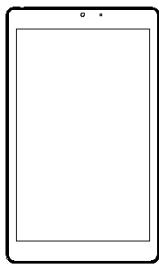
ARCHOS 80 Cesium
KpaTkoepykoBOdCTBO

3apdHoe yctpoIcTBO
TapaHTnN INHCTpyKcN N NO 6e3ONaCHOCTN
Hauano pa60tbi
3apnka
- 3apdnte Baue yctpoCTBO, NOdklouvB Ka6ebI bNTaHnK npTy micro-USB. ARCHOS yctpoCTBO HaHTe 3apjkaTbC.
-
Haxmte KhoNkY pntaHn, yTo6bI BkIoUoHTb yCTpoiCTBO. INdkaTOp 3apJKn BkIoUoaeTc nOcne 3apJKn yCTpoiCTBa.
-
Bы може Te полььоватбя устpoистВOM ARCHOS BO Врема зардк.
-ПередпервимИСПОЛБЗОВАнUE yCTPOДТВОdoJXHOIJIHOCTBIO3apAДNTbCRA. - Pa3pe7aetaTcra nCnOJIb3OBA TbToJIbKO 3apIaHoe yCTPOIcTB0 I3 KOMIIeKTA NOCTaBKN.
EcnBaWe yctpoiCTBO NOJIHoCTbIO pa3PdIINOCb, Heo6XoIMMo 3ap4nITb erO B TeueHne MmHmym 10 MNHyT, IpexKeJe CmOKeT OTo6pa3ntbcr 3HaoyK 3apJkaIoUeOcraKKymyIaTOPa.
COBET:
3apernctpnpuyte CBOE n3dene, uTO6bI pOlyuTaB o6cnykBaHne B 60Jee pONHom O6beMe.
Ppna pa6ote c KOMpbTeOpempeiNeTPO C6blKe Wwarchos.com/register.


Описане устpoиства
Enter the network security key
You can also connect by pressing the button on the router.
Next
Cancel
YacThbIe cTeN OTo6paXaIoTc So 3HaUKOM 3aMka, I dIy POnkJIIOUeHnK HnM nOTpe6yeTcBVeCTn napOJb.
COBET:
Iocne npoklueynK 6e3oNaChNo cTe MoKeTe OTKluuHTbcra OT Hee. Ppi NOBTOPHOM npokluoyenn BBod napoJI He notpe6yeTcra.
3naOK npuNoKeHn
KocnntecbДЯЗanycka.
②yuetha3anncb noIb3ObaTeia
KoCHNTecbIJIpeaKaTIpOBaHnIaHHbIXyueTHOJ3a\PuCn.
3 Khonka noncka
KoCHNTecb KHONKNI NOnCKa N BVeDnTe Ha3BaHne npInIOxKeHH.
BbICTpbIe HaCTpoiKn
CdbnHbTe əKpaH c npaBoi CTOpObbl IO HaNPaBLeHNI K ueHTpy, a 3aTEM KOCHNTcB Tpe6yemoro 3HaUka.


KhONka noncKa: nCnOJIb3yIte npn Heo6xOaMIOCTn yTO-JIb6 OHaItn. EcNn Bbl HaXODITecb HrIaNBHom 3kPaHe, HaxMMITE KHONky IOncKa, paCnOJIoKeHHyIOp PraOM CO 3Hauchom yUeTHoN 3aIncN.

Ha pa6ooyem cToJe Bby 6yTe
NcNoB3OBAtB HaCTOnbHbIe PpNIOxHeHn, TaKne KaK Office n File Explorer.
Прилwxен� Windows Store Тжke
MOXKHO 3aKpeINtB Ha NaHeJIn 3aJaU.
Komahdbipnpuioxehn
IpepeMeCTeKpaHOT HnXhero KpaB BBepx NnI OT BepXhero KpaB Bn3.
OTo6paKeHneKOMaHd
3aKpbItne npnloKeHH
IpeMeCTIe 3KpaH OT BepxHero KpaI NO HnPaBHeHIO BHN3, 3aTeM IpeTaUHTe npINOJXeHne BHN3 N 3a IpeJebl EKpaHa.
3aKpbTHe NaCTOJIbHbIX npUNoXeHn
Moxete 3akpbItb npniloxeHne Office nytem kacaHn nn HaxaTn KHOKN 3aKpbTn, paCnoIooXeHHoB v 6bactn 3arOJOBka.
Ydalenne npnloxeknna
Ha rIaBHom 3KpaHe nIi Ha 3KpaHe CO 3HaUkAMn BCex pIuJIOKeHn KocHTecb N ydepXnBaIte Tpe6yEmbl 3HaOc B TeueHne DByxCekyHd.
KochnTeCb «Uninstall» (YdaJIntb).Пиу удалени habToIbHOrO npuIIOKeHnBbIbepuTe ero n3 cnIcKa, a 3aTeM KochnTeCb «Uninstall».
I6abHeHne yueTHo3aNNc 3JeKtpOnHOHn IOyTbI
- KocnTeScb nJIn ⅢeJIKNHTe «Mail» (NouTa) Ha rIaBHom 3KpaHe.
- Haxmte KhoNky «Settings» (Hactpoikn), 3aTeM KocnTeCb nll uejknite «Accounts» (YueThbIe 3annc) > «Add an account» (Do6abTb yueThyIO 3anncb).
- BbI6epnt TnU yueTHo 3aIncn, KOtOpyIO JxenaTe Do6abNTb, a 3aTeM cneNyTe HNCTpyKcIyam, OTO6paXaemblm Ha 3kpaHe. IJna Do6abIeHn8 BoJIbShnHCTBa yueThbIX 3aIncen doctatoTuHO yka3aTb TOnbKO Imn POJIb3OBAteRn I napoiB. B HeKOTopbIX Cnyuayx MoKeT Notpe6oBaTbcra Yka3aTb N dpyrNe daHHble, KOTopbIe, KaK npaBnIO, MOxHO NaHTn Ha Be6-caTe NoCTaBUnKa ycIyr 3JeKTPoHNO nOuybl.

YcTpaHHeNHeNoJaDOK
B clyuae 3abncnna nlaanweTa:
Haxmnte Ha KhoNky BKJI/BblKJI u yapedxnbaiTe B TeueHne 10 cekyHd.
Ecn yctpojCTBO He BKJIouaetc:
1.3apaIte yctpoicTBO.
2. Haxmnte ha KhoNky BKJI/BblKJI u yapedxnbaiTe b TeueHne 10 cekyHd.
EcnnccehcpnbnKpaH cyHKunOHpye HnPaBnblbHo:
Bb6epnte 3HaouK Settings BocctaHOBJeHne n oOpMaTnpoBaHne), haxMnTe Ha 3HaouK
Touch-screen calibration (kaɪnɪbɒpɒkɑːcɛncɒpɒhʊrə ɜːkpaɪhɑ).
EcnBbXOTnTe npoAInTb cpoK pa60tbl 6aTapei:
YMeHbIHTe IpKoCTb 3KpaHa N BbIKJIouHTe 6ecnpoBODhIe CoeINHeHn, eCIn OHn He NCIOJIb3yIOTcR.
EcIn yctpoCTBO yHKunOHpyeT cInuKOM MedJeHHO:
3aKoIe BCE npuJoxeHn, KOToPbE B daHHbIMOMeHT He nCNoJIb3yIOTc.
Ecn npHnHaembui ciHaJ Wi-Fi cnHsKOM cJa6:
y6eIntecb, yTO He haxoIntecb cIniHKOM daneKO OT y3na doctyna Wi-Fi.
06HOBNTe BCTpoEHny MUKNpONporpaMMy yCTponCTBa:
http://www.arnovatech.com/support.
C6pocbTe n NOBTOPHo BBeDHTe npaMeTpbl CoeDInHeHn.
6bnteck npobayepy cTe Wi-Fi.
Touemy Moi Windows-Планшет He onpeдяETcЯ nepcohaIbHbIM KOMnbIOTepom npn podknoyehnn?
Windows-Планшеты pa60taIOT kak StaHdapThbI nepcoHaNbHbI KOMnbIOTeP, NO3OMy OHn He MORYT 6blt OnpedeneHbI KAppeepnHoe yCTpoIcTB OpyrIM nepcoHaNbHbIM KOMnbIOTePom.Дяп parenoHaФаС Winds-WIANHETa NOHaObNTcR NaOKNIOuHTb USB-KANOITeB K yCTpoIcTBY, ИСоньЗУ USB-xocT Ka6eI,ТаЖke ФaINbI MOxHOb nepecNaTb ФaInbI NaCTpoIky DomaUnHe CETn Windows.
3a donolnHntelbHOH HOpMaunei 6paTntecb K:
http://windows.microsoft.com/ru-ru-windows-8.
Spistresci
Enter the network security key
You can also connect by pressing the button on the router.
Next
Enter the network security key
You can also connect by pressing the button on the router.
Next
Cancel
jolll jwogj jwoll jlkjlgall wogj jxjgall jw
jaiil aiai iui jajgai gaoaog,uygjj
jogagw,glll jy&jzclaobcj
aJbUJ JwJdLcUJUJUJU
jaiac elil gailol dsiwol siwali
alillll llll lllllllllllllllllllllllllll
golgo golaal glaal jolal alas
jllg jlll, jy jz jz jz jz jz jz jz jz jz jz jz jz jz jz jz jz jz jz jz jz jz jz jz jz
. aaiiiaaiae jie jnssll aoae 10 d
:dd>la
. www.archos.com/register ciyyllgagoljcdoaiaoljydsalokdoa



s
ARCHOS 80 Cesium
QSG _

Jlaalll & Jlaalll

jgllll bcll a cgl lgl jglllolssy
aull & aobull
yaosobuo
CuiyiluJiuayi -
山山山
JgduJJg

:clalai
gljyagJgdl Jgssiai jdu yuul aui jil ,uuaa ggeoae alb , Microsoft uuau uu uu uuuu uuuu uuuu uuuu uuuu uuuu uuuu uuuu uuuu uuuu uuuu uuuu uuuu uuuu uuuu uuuu uuuu uuuu uuuu uuuu uuuu uuuu uuuu uuuu uuuu uuuu uuuu uuuu uuuu uuuu uuuu uuuu uuuu uuu



aillgog

a>clawd

a.àjuljla

aolol|yolol

HDMI

a. a.111

juxu wui juxuo

USB jao

slll slljia

G


jillyaclaw diaio

gall

*With optional Micro-HDMI to HDMI cable.

gllg Jalll aolsc IaLc ybbai alolll klll alll oijg aolll grrall aol llaol
Enter the network security key
You can also connect by pressing the button on the router.
Next
Cancel
:la
j 1000000000000000000000000000000000000000000
aLwU aJU JuaJI
aLdsslll aaiia aiaia gaiia jgulgill l
a>1 a>1 a>1 b
②

aSLw| aS|a gəj j ③
jLxu, a, aLall dLwU UcK uU JxuJy jLxuog
.1aJUdYI aWgI aSluuI aWul
aJyJyJyJyJyJyJy
a a aal dali no aal al alj b < 1golwai w wll gdl gdiy
cIa 1,1d11 a11 3 c151, jolll ic cull cull cia oulssw k: cy .uill oog y
gall, alalal alal alal alal alal alal alal alal alal alal alal alal alal alal alal alal alal alal alal alal alal alal alal alal alal alal alal alal alal alal alal alal alal alal alal alal
1d1 100000000000000000000000000000000000000000000000000000
aIbI, JUoiyI, JUsuW oJg>11 cIoo bOol: oJg>11
aaiiill iil 111111111111111111111


windows 1
①
Start
pape djibril
diagné

C.
(3)
②
Technical Writer in Ac...
Hi Everyone. I just started a new busse.
Groups Tendance the discussions din


Reading List

Maps

OneNote


London Mostly Cie
Today 16'/'11° Cloudy
Tomorrow 18^ / 11^ Cloudy
Weather

15
Wednesday

Skype

People

Internet Explorer

Weather
Photos
Weather
13/14

Serbia v Albania viole opens inquiry into.

Project Spark
Staff Pick
Free

new application installed

Desktop
OneDrive

News
Minister apologetes for suggesting disabled people 'not worth' minimum wage

Serbia v Albania viole opens inquiry into.

aillawl ldsly aogbdoi<
cai
(3)
a
①
Jb
aannll
②
| x^ | = 1| x| · | r1^2 + r2^2 + r_3^2| ≤ 34| x| ^2
gaaaagaae aae
Jds jdo gao all laaull jy Jgolll
aawluljwlofoa>lly
J 1
aJyI Jx 0 no 200 gbbj y Jgxx Jy
aJawll jy Iy Iy Iy Iy Iy Jw J
dss Jgbbj y Jx Ig aJw Jy Jy
windows 0
J
b2olgldlalw woo no jcly>jlyy< 1aabll Js oJrJ "d"JLJ LJWJ aOsc
中

aaww gale ygagwll jawgabll 1ydu ggl no aalwla gljy
sall
olgsll b 3 ycky c liu jbcai lns no kallcbw clabbi kclk
gcb
jI 1Ig, cIaI IJI bI aI, jI aI t oJ aI bI aI gl jiI, cIaI aII J5 oJgl IJ uJ LJ s Jo
cillll bdoi jaoaiaill bdojg jzil kai l
gjzJyJyJyJyJyJyJyJyJyJy
dll dawl do" (gjyJU | yjU "ddgj | jz1.1
150 - 150-150-150-150-150-150-150-150-150-150-150-150-150-150-150-150-150-150-150-150-150-150-150-150-150-150
lalw l llll 0, dwlwl cayol gyl y, dlol gll wlll egj jy .3
Iolulaiwl aillg lalaii jno yj noa nlll 3 g, gall alk g ooll
jyJyJyJyJyJyJyJyJyJyJyJyJyJyJy
windowsddj
#
gll aaiill jckalh baw g
cagoo9 office 10 lqolzaiwl ay
glll aaiill aioll lalj kssl alall
. algal byr w ll qo

aalal
,awll JwJ no Jcl JdJyU y .awll Jcl no JwJdJyU gl

Commands displayed

1g>10g>1b>11
Jusllgjglj
10 000000000000000000000000000
:JyjLjglzll
| x^ | = 1| x| · | r1^2 + r2^2 + r_3^2| ≤ 34| x| ^2
10 000000000000000000000000000
aJbllolauw aocdsj
alsslll 3a 3a1slll 5uyl lul yll 1g, aalwol ool gaae
jusyyi jy jy
goludsiw y jll aalldl 5d
1du 2du aSswuUdSswU
aLwUdJzUuJzUuJzUuJzUuJzUuJzUuJzUuJzUuJzUuJzUuJzUuJzUuJzUuJzUuJzUuJzUuJzUuJzUuJzUuJzUuJzUuJzUuJzUuJzUuJzUuJzUuu
http://www.archos.com/support cjiyjll gog jno jao jao jao jao jao jao jao jao jao
JUaYI UdUcUeR aee 03g bua 03
aLwUdAuldoJusuJUsy
aalall aaiy jolll golgol
http://windows.microsoft.com/en-gb/windows/tutorial
J 1
OJAL
1 1 1 1 1 1 1 1 1 1 1 1 1 1 1 1 1 1 1 1 1 1 1 1 1 1 1 1 1 1 1 1 1 1 1 1 1 1
j
Entertainment your way
#
…
wos


Uni-Group
19043

www.uni-grp.com
/ArchosEgypt

/ArchosEgypt
a o 10 aol 100g 1000
jlaJUJUJU
Uulg UoIoojio Ugb aiaaauu uuiu oogglleaiy
jaua oolooaiouoaiu uufo auiuluiuoiuua
JU
:JgUulUolUaWJLdAUGOuUUoJgUuUoJgUuUoJg
auiu uo uolugouolugoujll jao yagaiy
Ugjlll UJi i Jui Uo joi o jio o Jgjj ai uu uuiu o uu acunu
e 1000000000000000000000000000000000000000
e oolw! 000000000000000000000000000000000000000000
.1JUULI JUULI JUULI JUULI JUULI JUULI JUULI JUULI JUULI JUULI JUULI JUULI JUULI JUULI JUULI JUULI JUULI
Jogoo
aJUoljOjio JLOsEoJUeO uGgUgUgUgUgUgUgUgUgUgUgUgUgUgUgUgUgUgUgUgUgUgUgUgUgUgUgUgUgUgUgUgUgUgUgUgUgUgUgUgUgUgUgUgUgUgUgUgUgUgUg
a
UuluuaUoc
Joo
00000000000000000000000000000000000000000
aulllaljllulugicglooraogwoljolgluluillnii
info@ntra.gov.eg jgjjlll lglc gP e ooojol golnnl aajrnnl
:JjwylawuLw:Lul
()Uealgouo uu 15juaa 1y juaa
e 1E 1
jaoofoafofofofofofofofofofofofofofofofofofofofofofofofofofofofofofofofofofofofofofofofofofofofofofofofofofofofofofofofofofofofofofofofofo
aillgaiiiojouyoljiaoiyjiaoiyjiaoiyjiaoiyjiaoiyjiaoiyjiaoiyjiaoiyjiaoiyjiaoiyjiaoiyjiaoiyjiaoiyjiaoiyjiaoiyjiaoiyjiaoiyjiaoiyjiaoiyjiaoiyjiaoiyjiaoiyjiaoiyjiaoiyjiaoiyjiaoi
. auiuul ouiuol ojgllo lolg 0auiuill
U
/ :
:JU
:JQOJI 1
JUULUJI 0
jlll jlll jg gogwll 13 wll lio wll ufo flllulu
a
Ld2oUCuGmu
lo rolallllloolloofoa ooloo
.
Jlaljz-10ay-rolwllgW)ucuugcUowUol
JUe JgJgJgJgJgJgJg
ooJyIyIgO- jauJuyIgIgI-ooJooJugoogwoljrol
Lgduo oLulolaljoofoolwUroluogla
.01iiaaiiluiuul uo hui guiu w uua uou
. 2g0ll rai gai juiu raii d 9g 5o Uo
National restrictions
This device is intended for home and office use in all EU countries (and other countries following the EU directive 1999/5/EC) without any limitation except for the countries mentioned below:
| Country | Restriction | Reason/remark |
| Bulgaria | None | General authorization required for outdoor use and public service |
| France | Outdoor use limited to 10 mW e.i.r.p. within the band 2454-2483.5 MHz | Military Radiolocation use. Refarming of the 2.4 GHz band has been ongoing in recent years to allow current relaxed regulation. Full implementation planned 2012 |
| Italy | None | If used outside of own premises, general authorization is required. |
| Luxembourg | None | General authorization required for network and service supply (not for spectrum) |
| Norway | Implemented | This subsection does not apply for the geographical aera within a radius of 20 km from the centre of Ny-Alesund |
| Russian Federation | None | Only for indoor applications |
Note: Frequency 2454-2483.5MHZ are restricted to indoor use in France.
Consult the declaration of conformity on http://www.archos.com/products/declaration_conformity.html

Open Source Software Offer
The software bundled with this product includes software files subject to certain open source license requirements. Such open source software files are subject solely to the terms of the relevant open source software license. Such open source software is provided on an "AS IS" basis to the maximum extent permitted by applicable law.
For the open source files contained herein, please access "Open source license" section located at: Settings\About tablet\Legal information on the device for the relevant copyright and licensing terms. You may obtain a copy of Apache License, Version 2.0 at http://www.apache.org/licenses/License-2.0. You may also obtain a copy of GNU General Public License, Version 2 at the Free Software Foundation, INC, 51 Franklin Street, Fifth Floor, Boston, MA 02110-1301, USA.
Until the date that is three years after our last shipment of this product, you may obtain a copy of the source code corresponding to the binaries for any GPL-Licensed file by contacting ARCHOS customer service at http://www.archos.com and ARCHOS will send you a link to such source code or will provide instructions to get the source on a physical medium.
This offer is valid to anyone in receipt of this information.
Archos company declares that this device is in compliance with the essential requirements and other relevant provisions of Directive 1999/5/EC
C€2200