
Platinum 70 - Tablet ARCHOS - Free user manual and instructions
Find the device manual for free Platinum 70 ARCHOS in PDF.



| Product Type | Touchscreen Tablet |
| Brand | Archos |
| Model | Platinum 70 |
| Screen | 7 inches, capacitive touch |
| Operating System | Android 4.2 Jelly Bean |
| Processor | Quad-core 1.2 GHz |
| RAM | 1 GB |
| Internal Storage | 8 GB (expandable via microSD up to 32 GB) |
| Wi-Fi Connectivity | Wi-Fi 802.11 b/g/n, WPS |
| Bluetooth | Yes, version 4.0 |
| Front Camera | Webcam 0.3 MP |
| Rear Camera | 2 MP |
| Ports | 1 x micro-USB, 1 x 3.5 mm audio jack, 1 x microSD card slot |
| Battery | Lithium-ion 3000 mAh, up to 6 hours battery life |
| Dimensions (L x W x H) | 191 x 108 x 10.5 mm |
| Weight | 290 g |
| Box Contents | Tablet, charger, USB cable, quick start guide, warranty guide |
| Main Features | Fusion Storage (internal memory + microSD fusion), setup assistant, quick settings, airplane mode |
| Maintenance and Cleaning | Turn off the device before cleaning, use a soft dry cloth, avoid liquids |
| Safety | Do not expose to moisture, use only the provided charger, do not open the device |
| Spare Parts and Repairability | Contact Archos support for spare parts; professional repairs recommended |
| General Information | 2-year warranty, declaration of conformity at www.archos.com, online FAQ |
Frequently Asked Questions - Platinum 70 ARCHOS
User questions about Platinum 70 ARCHOS
0 question about this device. Answer the ones you know or ask your own.
Ask a new question about this device
Download the instructions for your Tablet in PDF format for free! Find your manual Platinum 70 - ARCHOS and take your electronic device back in hand. On this page are published all the documents necessary for the use of your device. Platinum 70 by ARCHOS.
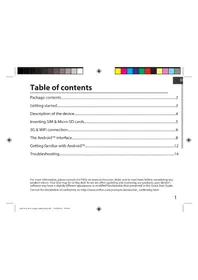
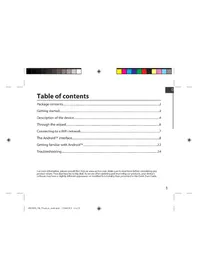
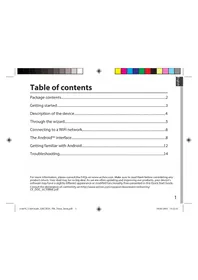
USER MANUAL Platinum 70 ARCHOS
Description of the device. 4
Through the wizard. 5
Connecting to a WiFi network.. 6
The AndroidTM interface. 8
ARCHOS Fusion Storage. 12
Getting familiar with AndroidTM 14
Troubleshooting. 16
For more information, please consult the FAQs on www.archos.com. Make sure to read them before considering any product return. Your deal may be no big deal. As we are often updating and improving our products, your device's software may have a slightly different appearance or modified functionality than presented in this Quick Start Guide. Consult the declaration of conformity on http://www.archos.com/products/declaration_conformity.html




Package Content
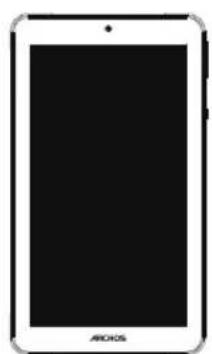
ARCHOS 70 Platinum
QSG booklet

Warranty, legal & safety booklet

USB cable

Charger
2

Getting Started
Charging
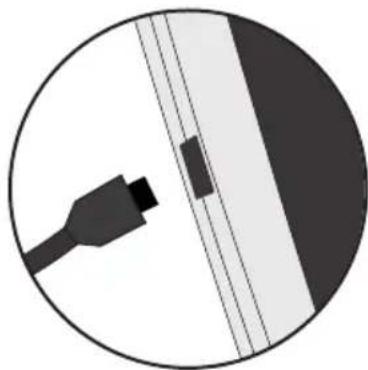
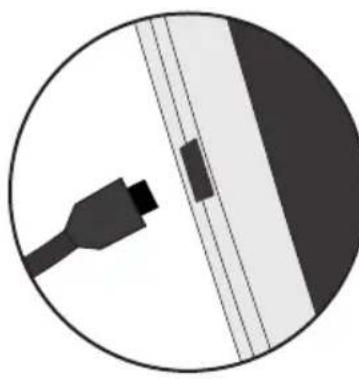
- Charge your device by plugging your power cable into the power connector. The ARCHOS device will start charging.
- Press the Power button to turn on the device.
The charging indicator light is on when the battery is charging.
-You can use your ARCHOS whilst it charges.
- Let your device charge completely the first time you use it.
-Use only the supplied charger.
When your device is completely discharged, you need to charge it for at least 10 minutes before the charging battery icon can be displayed.
TIP:
To receive more complete service, please register your product.
From a computer, go to www.archos.com/register.




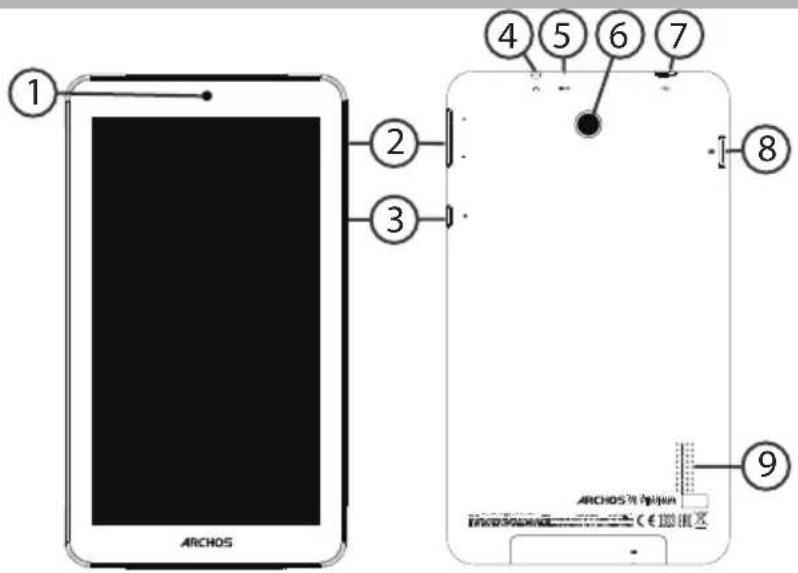
Description of the device
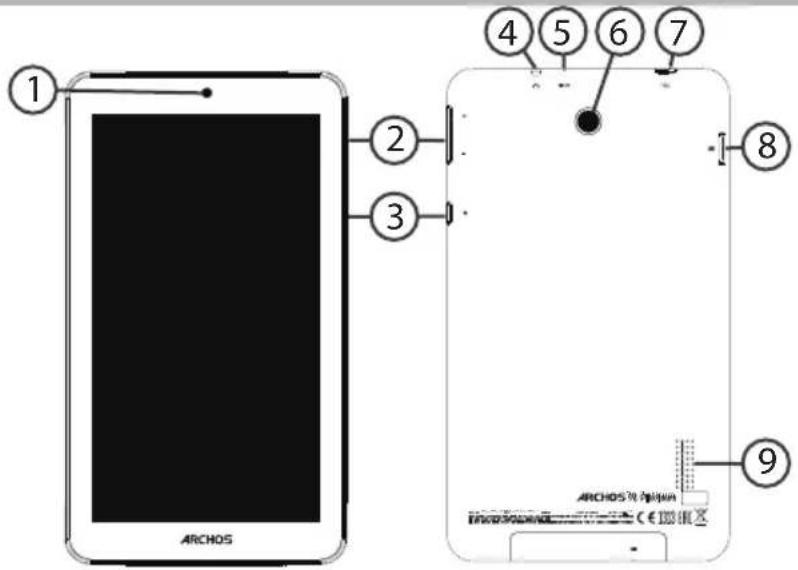
①Webcam
Headphone jack
Micro-USB port
Volume buttons
⑤ Reset button
Micro-SD card slot
ON/OFF button
Camera
9 Loudspeaker
4




Through the Wizard
The first time you start up your ARCHOS, the installation wizard will help you set up your device:
-Language
-WiFi connection
-Date & time
-Your name
-Location service options
-3rd party apps
TIP:
We recommend that you set up your device in the WiFi zone of the network that you will regularly be using.




Connecting to a WiFi Network
WARNING: Make sure that you are in a WiFi zone.
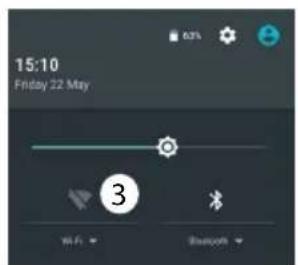
You can access the WiFi settings quickly from the status bar.
- Touch and pull down the status bar to display it.
- Touch again the bar to reveal the quick settings.
- Select the WiFi icon to activate the WiFi connection .
- Select "WiFi" below the WiFi icon.
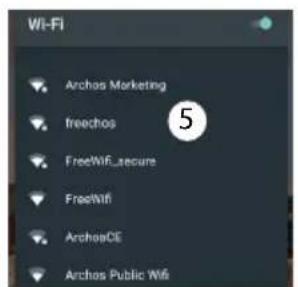
- Touch the name of network you want to connect to.
Private networks are shown with a lock icon and will require you to enter your password.
TIPS:
-
When entering a WiFi password, we recommend that you select "Show password" so you can see the characters you are typing. To get the correct WiFi password (or settings) for the network, contact the WiFi network provider. If your WiFi is on and you are in range of a network that you previously connected to, your ARCHOS will automatically attempt to connect to it.
-
To keep your WiFi connection ON when the device is on sleep, select the Menu icon in the "WiFi" page. Then, select Advanced > Keep WiFi on during sleep > Always.




Connecting to WiFi using WPS
- Touch and pull down the status bar to display it.
- Touch again the bar to reveal the quick settings.
- Select the WiFi icon to activate the WiFi connection
- Select "WiFi" below the WiFi icon.
- Select the Menu button then Advanced.
- Select WPS Push Button.
- Press the WiFi Protected Setup button on your router. It may be called "WPS" or contain a symbol:
Wi-Fi
Add network
Saved networks
Refresh
Advanced
Wi-Fi Direct
WPS Push Button
WPS Pin Entry




The Android™ Interface
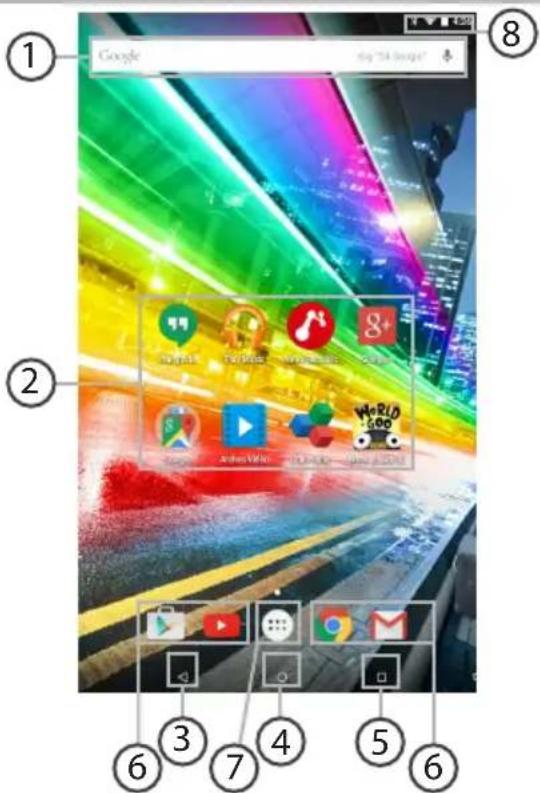
8




GoogleTM Search
Touch "Google" for text search or touch the microphone icon for voice search.
2 AndroidTM apps shortcuts
Touch to start an application.
Back button
Home button
⑤ Recent apps buttons
Permanent Android™ apps shortcuts
Touch to start an application
All Apps button
Touch this icon to show all the applications and widgets installed on your
ARCHOS. All your downloaded applications are here.
The status bar
Displays notifications and quick settings




The Android™ Interface
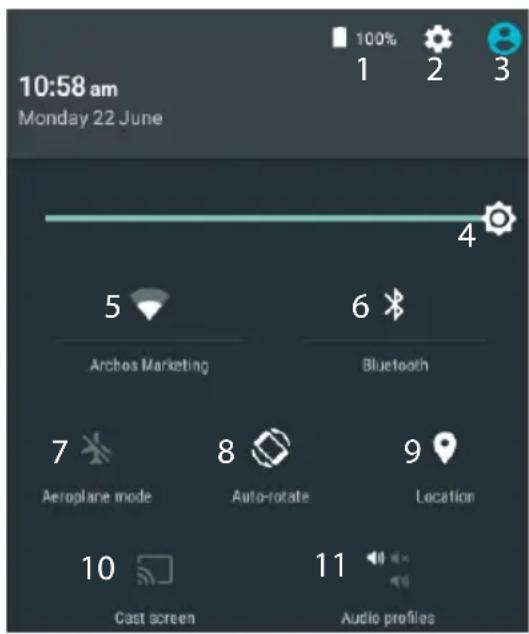
*New multi-user support for tablets lets different users have their own separate, customizable spaces on a single device. Add users in Settings > Device.
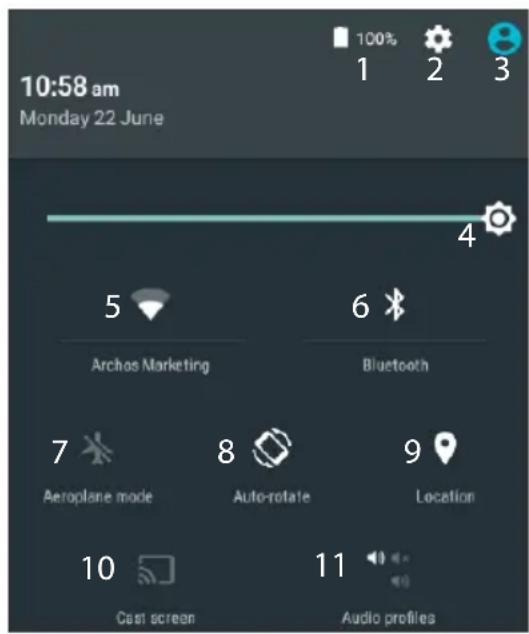
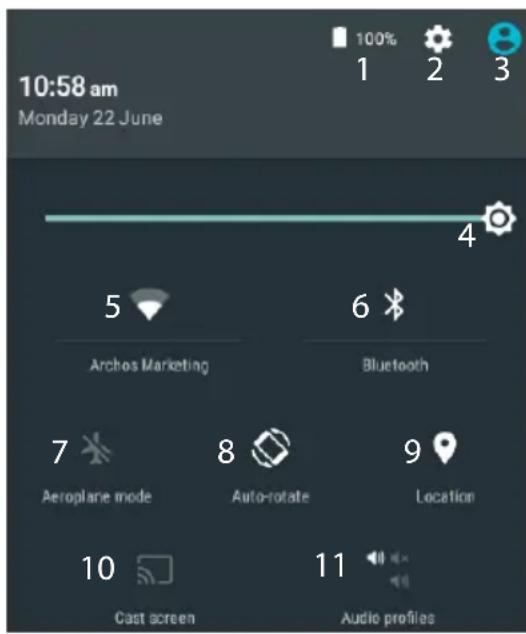
The Quick settings
1 Percentage of battery remaining
2 To access all your settings.
3 Current user
4 To adjust the screen brightness.
5 To turn on/off your WiFi connection.
6 To turn on/off your Bluetooth connection.
7 To activate/deactivate all wireless connections, especially when flying.
8 To activate/deactivate automatic screen orientation as you turn your ARCHOS.
9 Location services
10 To mirror your Android device to the TV so you can enjoy your great content exactly as you see it on your mobile device.
11 To select a notification type





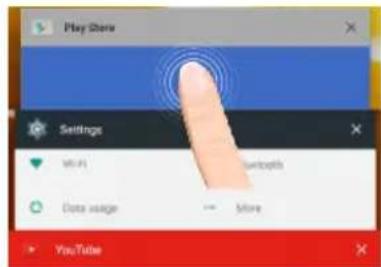
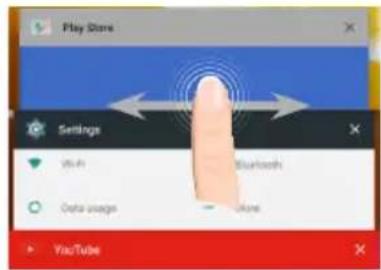
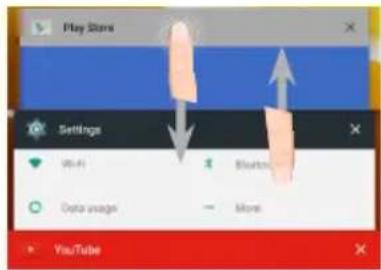
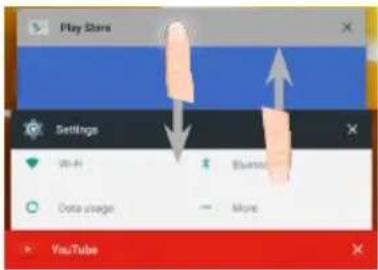
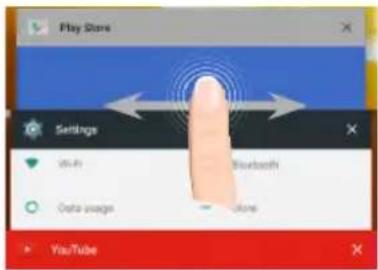
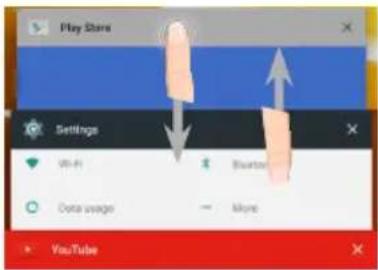
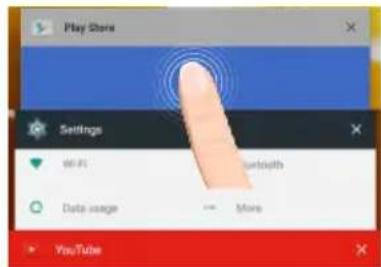
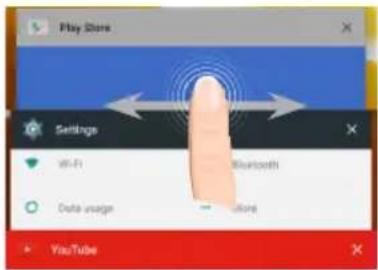
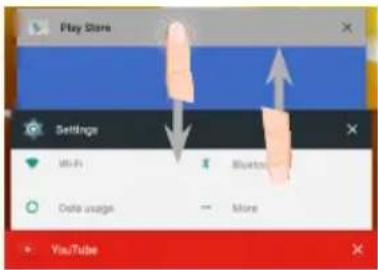
The Recent Apps
Opens a list of thumbnail images of apps you've worked with recently:
Archeae (see below) 2: Uncovering
Source:
1st age: 2021 at time
Arhen GameFort 2 Unboxing
Tolo:
1 year ago: Date when
threelane /nlae/2 10whealng
tune up: 400-500 times
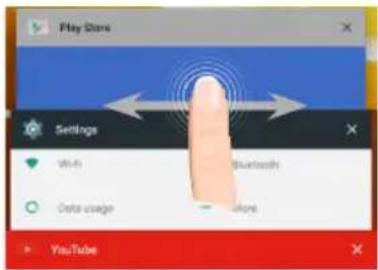
Touch: to open an app.
Swipe left or right: to close an app.
Scroll up or down: to view other recent apps




ARCHOS Fusion Storage
Setting up fusion storage
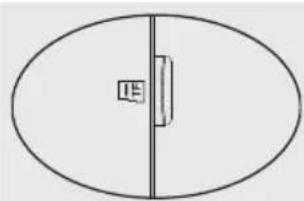
- Insert a micro-SD card in the device's micro-SD card slot.
Make sure to insert the card in the right direction.
Your device will detect the micro-SD card automatically and offers you to merge the internal storage with the micro-SD card. - Select "OK".
- Select "OK" in the Optimizing storage window to confirm your choice.
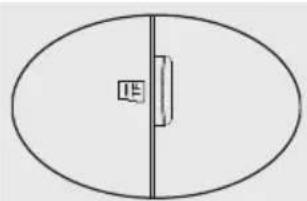
Archos Fusion Storage
A new SD card has been detected.
You can enable Archos Fusion Storage so as to increase your storage.
Enable ?(reboot required)
Not now
OK

Optimizing storage
Archos can optimize the already used storage so as to free some space for installing apps.
No data will be lost.
Optimize?
Cancel
OK

12




The device will reboot.
- When the device restarts, you are informed that the ARCHOS Fusion storage is active.
-In the status bar, a notification is displayed. - Select the Settings app, then ARCHOS Fusion Storage. The merged storage is displayed.
Disabling fusion storage
- Select the Settings app.
- In the Settings app, select ARCHOS Fusion Storage.
- When the ARCHOS Fusion Storage is active, sele "Disable ARCHOS Fusion Storage" and confirm.
Your device will reboot in order to apply the changes.
OPTIONS
Disable Archos Fusion Storage
Get back to the initial configuration
Tip:
We recommend you to turn off the device before inserting the micro-SD card.




Getting familiar with Android™
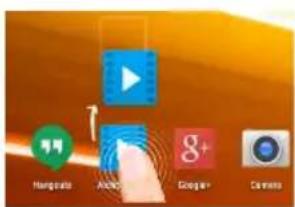
Moving a home screen item:
Touch and hold your finger onto it until the positioning gridlines appear, then slide it to the desired location, and release your finger.
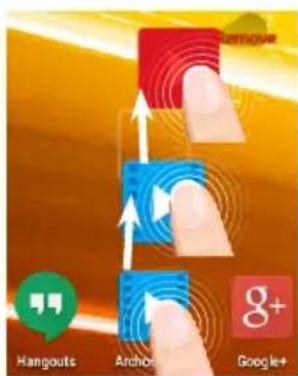
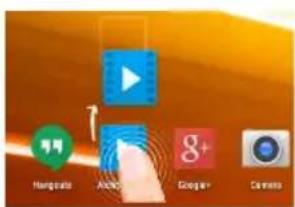
Removing a home screen item:
Touch and hold it, slide your finger towards the top of the screen and drop it over the Remove icon.
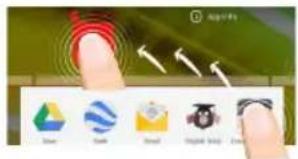
Uninstalling an item:
From the All apps screens, touch and hold it, slide your finger towards the top of the screen and drop it over Uninstall bin.
14




English
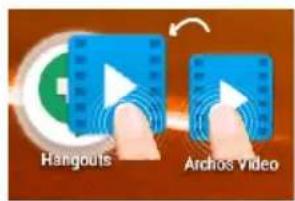
Creating application folders:
Drop one app icon over another on a home screen and the two icons will be combined.
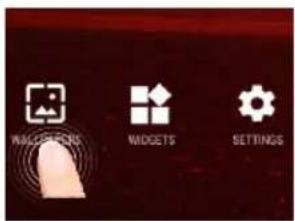
Changing your wallpaper:
Hold your finger on a home screen at an empty location, then choose from the list: Wallpaper.
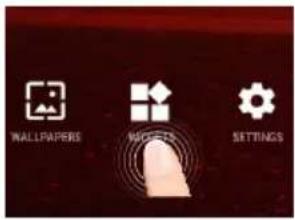
Widgets:
Hold your finger on a home screen at an empty location, then choose from the list: Widgets.




Troubleshooting
If your device is frozen:
Press the ON/OFF button for 10 seconds.
If your device doesn't turn on:
- Charge your device.
- Press the ON/OFF button for 10 seconds.
If you want to extend the life of your battery:
Decrease the screen brightness and turn off the wireless connections if not in use.
If your device functioning is too slow:
Close all apps which are not currently used.
If your WiFi reception is too low:
Make sure you are not far from the WiFi hotspot.
Update the firmware of the device: http://www.archos.com/support.
Reset and redefine your connection parameters.
Contact your WiFi connection provider.

Table des matieres
Author(s)
Anton Gurek-2 (University)
10000
Arthos GamePart 2 Unboxing
1
Arcane Game-End 2 Unbreaking
1 year ago-2015/1/1
A new SD card has been detected.
You can enable Archos Fusion Storage so as to increase your
storage
Enable? (reboot required)
Not now.
OK

Optimizing storage
Archos can optimize the already used storage so as to free some space for installing apps.
No data will be lost.
Optimize?
Cancel
OK





Get back to the initial configuration
Astuce :
A new SD card has been detected.
You can enable Archos Fusion Storage so as to increase your storage.
Enable? (reboot required)
Not now.
OK

Optimizing storage
Archos can optimize the already used storage so as to free some space for installing apps.
No data will be lost.
Optimize?
Cancel
OK





Get back to the initial configuration
Tipp:
A new SD card has been detected.
You can enable Archos Fusion Storage so as to increase your storage.
Enable ?(reboot required)
Not now.
OK

Optimizing storage
Archos can optimize the already used storage so as to free some space for installing apps.
No data will be lost.
Optimize?
Cancel
OK





Get back to the initial configuration
Consejo:
Archer Sane-Set 2: Unblocking
Source
1-type audio: 2000 active
daviesham@palm2.com 2 Unboxing (mail: daviesham@palm2.com)


The author: Paul Ryle 2 (Website: http://www.paleysociety.org)
1. 3 pages, 2005. ISBN
A new SD card has been detected. You can enable Archos Fusion Storage so as to increase your storage. Enable ? (reboot required)
Not now
OK

Archos can optimize the already used storage so as to free some space for installing apps.
No data will be lost.
Optimize?
Cancel
OK





Get back to the initial configuration
Suggerimento:
WiFi-networkverbinding. 86
De AndroidTM-Interface. 88
ARCHOS Fusion Storage. 92
WiFi-networkverbinding
Verbinding makes met WiFi via WPS
Author(s) and Date of Publication
1.2023年4月27日
Arthos Gargel-Bast 2 Unboxing
∴ m = 3/11 ;
1
Anchase Game-End 2 Unbarking
1 year ago 2016 times
Get back to the initial configuration
Tip:
∴ m = 3/11 ;
1
Anchse GamePart 2 Unbarking
1 year ago 20% views
A new SD card has been detected.
You can enable Archos Fusion Storage so as to increase your storage.
Enable ?(reboot required)
Not now
OK

Optimizing storage
Archos can optimize the already used storage so as to free some space for installing apps.
No data will be lost.
Optimize?
Cancel
OK





Get back to the initial configuration
Dica:

TapaHTnN nHCTpyKcnn no 6e3oNaCHOCTn

Ka6eIb USB

3apHoe yctpoCTBO
114

Hauano pa60tbi
3apAnka
- 3apynte Bawe yctpoicTBo, noKniouv Ka6enb nTuHnKa Pa3bem nTuHnA. ARCHOS yctpoicTBo NaHcT 3apxkaTbcra.
- Haxmnte KhoNky nItaHn, yTo6bI BKIOuHTb yCTpOInCTBO. Bo BpeM 3apAn 6aTape n CBeNTcN INHdkaTOp 3apJa.
-BbIMoKeTeNoIb3ObaTbcyycTroPcTBOMARCHOSBOBpeM 3apJKN.
-HepeI nepBbIM IcnoJIb3OBAHne yCTpOINCTBO DOJXHO NOHOCTBIO 3apAINTBcI.
-Pa3pewaaetcNcnoBbOaTbTOJbKO 3apAnHOe yCTPOINCTBO N3 KOMnJIeKTA NOCTaBKn.
EcnBawe yctpoiCTBO nonHocTbIO pa3pIINOCb, Heo6xOIMo 3apIITb erO B TeueHne MHNmym 10 MNHyT, npexde qem CMOXeT OTO6pa3NTbC3HaQK 3apJkaIoUeROc aKKyMnyTopa.
COBET:
3aperncptpuyte cboe n3dene, yTo6bl noIyauTaB o6cnykBaHne B 6Oone nnHom obeme.
Ppi pa6oTe cKomnbIoTe pEmiNeTno CbInke www.archos.com/register.



Описиме устюйства

1Be6-kaMepa
4 Pa3bEm dnn HayuHnKOB
7 NopT Micro-USB
2KHOHKn rpoMkoCTn
5 Khonka annapathoro c6poca
CnotДЯ KapTbI Micro-SD
3KhoNka BKJI/BblKI
6Kamepa
9 rpoMkoROBOpnteIb
116

MacTep HacTpoiKn
Пи поьом 3anycke yctpoicTba ARCHOS macTepe yctaHOBKIN NOMOKeT BbINOJIHHTb NaCTpoiKy:
-3bIK
-CoeHHHeHneWi-Fi
-ДаТИВрмЯ
-BaWe nMa
-Onuun cnyyx6bl reolokaun
-CTopOHnne npInoJxehnna
COBET:
Mbl pekomehnyem BbInonHnTb Hactpoyn Ky yctpoinCTBa B 30He Wi-Fi ceTn, KOtopoB Bbl 6yndepepyrnapnoIb3ObaTbcra.



"KhoNKn noCneHnx npnOxKeHn"
Khonka"Домой"
5 Khonka"Ha3aA
6 NocToaHHbIeApblknpuNoKeHnAndroidTM
7 Khonka "Bce npinoXeHna"
Прикочпесь К STОД ПИКTORрамme,чTOбI OTO6pa3NTb BCE пиJOKeHЯ n BnIXeTBI,уCTaHOВЛeHHbI e BAWeM ARCHOS.Здсь habOДТСЯ BCE 3arpyKeHHbI Bamn ppiJIOKeHЯ.
Ctpoka coctoHHa
0To6paXaIOTc coo6uHn n 6bIcTpbe HAcTpoiKn.




Иntepфс Android™
Hobar MHoronolb3oBATEnbcka noDepKka
dIra PnAhnweTob npedocTabnreT pa3nunhblm
POnb3oBaTeJAM CBOE co6CTBeHHoe
OTeJIbHOe, KOHpynpyEmoe MeCTO
Ha ONDOM yCTpoiCTBE. DObabTe
NoB3oBateNe B Settings > Device
[Hactpoikn > YcTpoiCTBO].
BbICtpbHe NaCtpoKn
1 PpoeHTHa BenuuHa ocTaTka 3apya aKKymyIaTopa
2 IocTyN KO Bcem HacTpOiKaM.
3 Tekyuyn noJb3ObaTeIb*
4 PerynipOBKa npKoctn KpHa.
5 BkIIOueHne/ByIKIOueHne coeINHeHHa Wi-Fi.
6 BkIIOUeHne/BbIKIOUeHne coeINHeHnB Bluetooth.
7 AktnBaun/daekTnBaun BCex 6ecnpoBODhIX CoeHHeH, B qactHOCTN, BO BpMa ABnanepeeta.
8 AktnBaun/daakTnBaun aBOMaTneckoOpneHTaun 3KpaHa npu NOBOPTe yCTpOncTBaARCHOS.
9 Onuun cnjxkbI reolokaun
10 OTo6pa3ntb 3KpaH yCTpoiCTBa NOy npabJIeHnEM OC Android ha TeJIeBn3ope nHaCnaJxTaTbc BEnIKOJIeINbIM KOHTeHTOM BTOUHOCTN KaK Ha Mo6NJbHOM yCTpoiCTBe.
11 BbI6paTb Tn yBeIDomneHn





PocneHnepnloJxehna
OTkpblBaetc cnncok 3ckn3OB npniloxeHn, c KOToPbIMn Bbl HeaBHO pa6oTann:
Archeal Sono-Set 2 Unfolding
Date
1 year ago: 2017 Earth
Rhenan SameFlat 2 Unboxing
Socks
1 year ago: 20 views

Antibes ( 2 ) 200mg ( 1 year ago - 20% window
Kochntecb: yTo6bl OTKpbItb npInoJxHne.
PpOBeDnTe naIbCem BLeBO mN BnpaBO: 3aKpbITne npJIOxHeHn.
PpOBeIteNo3KpaHy
PanbIeM BBePx Nn
BHN3,HTo6blI pOcMoTpeTb
dpyrHe PocJeHne
PpINOJxENH




ARCHOS Fusion Storage
Hactpoika o6beHHHO namrTu yctpoCTBa
- BcTaBbTe KapTy micro-SD b cnot dJa
kapTbI micro-SD ha yCTpoiCTBe.
y6eHITecb B TOM, yTO KapTa BcTaBNeHa
npaBnIbHOI CTOpOHoi.
yctpoiCTBO aBTOMaTnueckn onpeJeNT
kapty micro-SD n npednojnt
obbeHNHTb BHyTpEHHIO namrTa
yctpoiCTBa c KapToi micro-SD. - HaxMnte OK
3.Для поТВерждени Вьбoga hyKMnte «OK»ВOKнe «ОптUMиЗaця xpaHnIuHa.
Archos Fusion Storage
A new SD card has been detected.
You can enable Archos Fusion Storage so as to increase your storage.
Enable ?(reboot required)
Not now
OK

Optimizing storage
Archos can optimize the already used storage so as to free some space for installing apps.
No data will be lost.
Optimize?
Cancel
OK





YcTpoiCTBO nepe3arpy3ntcra.
-B npouecce nepezanycka yctpojCTBa NOBHTc COOeHne O TOM,TO
06beHHeHHoe xpaHnJnIe ARCHOS aKtNBupoBaHo.
-B Ctpoke coctoHnOTo6paKaetcOnObeueHne.
- Bb6epnte nporpaMMy Settings (HacTpoiKn), a 3aTeM — ARCHOS Fusion Storage.
OTo6paKaaeTc8ObbeDInHeHHoeXpaHnIInIe.
06beuHHeHHoe xpaHmIe ARCHOS
- BbI6epnTe nporpamMy Settings (HacTpoiKn).
- B nporpaMMe HacTpoE K bI6epuTe ARCHOS Fusion Storage.
- Ecnn nporpaMa ARCHOS Fusion Storage 6bila aKtBnpoBaHa, BbIbepuTe Disable ARCHOS Fusion Storage (DeakTbnpoBaTb ARCHOS Fusion Storage) n noTBePdnte.
YcTpoIcTBo nepe3arpy3ntcI dIy npImeHnI N3MeHEni.
OPTIONS
Disable Archos Fusion Storage
Get back to the initial configuration
Pndka3ka:
Ipeed tem kaK bCTaBnTb KapTy micro-SD, yctpoNcTBO peKOMeHnyeTc OTKIOuHTb.




3HaKOMCTBO C AndroidTM
*New multi-user support for tablets lets different users have their own separate, customizable spaces on a single device. Add users in Settings > Device.
Szybka konfiguracja
Arterial Systolic 2: Introducing
Baseline
1-year-old 300 mmHg
Archie Same/Fat 2 Unboxing
Babes
1 year ago: Dami views
thefive ( 15 ) - 2018 - 1 year ago , 2019
A new SD card has been detected.
You can enable Archos Fusion Storage so as to increase your storage.
Enable ? (reboot required)
Not now.
OK

Archos can optimize the already used storage so as to free some space for installing apps.
No data will be lost.
Optimize?
Cancel
OK





Get back to the initial configuration
Wskazówka:
Arbent Sono-2 Unfolding
Source: 3-year-old 2001 interview
Arthsec Gamedust 2 Unboxing
Held:
Typelags, 201 mm.
Antibes (a) 2005
A new SD card has been detected.
You can enable Archos Fusion Storage so as to increase your storage.
Enable ?(reboot required)
Not now.
OK

Optimizing storage
Archos can optimize the already used storage so as to free some space for installing apps.
No data will be lost.
Optimize?
Cancel
OK





Get back to the initial configuration
Tipp:
National restrictions
This device is intended for home and office use in all EU countries (and other countries following the EU directive 1999/5/EC) without any limitation except for the countries mentioned below:
Country Restriction ReasonRemark
Bulgaria None General authorization required for outdoor use and public service
France Outdoor use limited
to 10mW e.i.r.p.
within the band
2454-2483.5 MHz
Military Radiolocation use. Refarming of the 2.4 GHz
band has been ongoing in recent years to allow
current relaxed regulation. Full implementation
planned 2012
Italy None If used outside of own premises, general
authorization is required.
Luxembourg None General authorization required for network and
service supply (not for spectrum)
Norway Implemented This subsection does not apply for the geographical
aera within a radius of 20km from the centre of
Ny-Alesund
Russian Federation None Only for indoor applications
Note: Frequency 2454-2483.5MHZ are restricted to indoor use in France.
Consult the declaration of conformity on http://www.archos.com/products/declaration_conformity.html




Open Source Software Offer
The software bundled with this product includes software files subject to certain open source license requirements. Such open source software files are subject solely to the terms of the relevant open source software license. Such open source software is provided on an "AS IS" basis to the maximum extent permitted by applicable law.
For the open source files contained herein, please access "Open source license" section located at: Settings\About tablet\Legal information on the device for the relevant copyright and licensing terms. You may obtain a copy of Apache License, Version 2.0 at http://www.apache.org/licenses/LICENSE-2.0. You may also obtain a copy of GNU General Public License, Version 2 at the Free Software Foundation, INC, 51 Franklin Street, Fifth Floor, Boston, MA 02110-1301, USA.
Until the date that is three years after our last shipment of this product, you may obtain a copy of the source code corresponding to the binaries for any GPL-Licensed file by contacting ARCHOS customer service at http://www.archos.com and ARCHOS will send you a link to such source code or will provide instructions to get the source on a physical medium. This offer is valid to anyone in receipt of this information.
Archos company declares that this device is in compliance with the essential requirements and other relevant provisions of Directive 1999/5/EC
C€1313
162


- PACKAGE CONTENT
- GETTING STARTED
- CHARGING
- TIP
- DESCRIPTION OF THE DEVICE
- THROUGH THE WIZARD
- CONNECTING TO A WIFI NETWORK
- TIPS
- CONNECTING TO WIFI USING WPS
- WI-FI
- WI-FI DIRECT
- WPS PUSH BUTTON
- WPS PIN ENTRY
- THE ANDROID™ INTERFACE
- THE QUICK SETTINGS
- THE RECENT APPS
- ARCHOS FUSION STORAGE
- SETTING UP FUSION STORAGE
- OPTIMIZING STORAGE
- DISABLING FUSION STORAGE
- OPTIONS
- DISABLE ARCHOS FUSION STORAGE
- GET BACK TO THE INITIAL CONFIGURATION
- GETTING FAMILIAR WITH ANDROID™
- MOVING A HOME SCREEN ITEM
- REMOVING A HOME SCREEN ITEM
- UNINSTALLING AN ITEM
- CREATING APPLICATION FOLDERS
- CHANGING YOUR WALLPAPER
- WIDGETS
- TROUBLESHOOTING
- IF YOUR DEVICE IS FROZEN
- IF YOUR DEVICE DOESN'T TURN ON
- IF YOU WANT TO EXTEND THE LIFE OF YOUR BATTERY
- IF YOUR DEVICE FUNCTIONING IS TOO SLOW
- IF YOUR WIFI RECEPTION IS TOO LOW
- TABLE DES MATIERES
- ASTUCE
- TIPP
- CONSEJO
- SUGGERIMENTO
- WIFI-NETWORKVERBINDING
- VERBINDING MAKES MET WIFI VIA WPS
- DICA
- HAUANO PA60TBI
- APANKA
- COBET
- ОПИСИМЕ УСТЮЙСТВА
- MACTEP HACTPOIKN
- ИNTEPФС ANDROID™
- BBICTPBHE NACTPOKN
- POCNEHNEPNLOJXEHNA
- HACTPOIKA O6BEHHHO NAMRTU YCTPOCTBA
- BEUHHEHHOE XPAHMIE ARCHOS
- PNDKA3KA
- HAKOMCTBO C ANDROIDTM
- SZYBKA KONFIGURACJA
- WSKAZÓWKA
- NATIONAL RESTRICTIONS
- OPEN SOURCE SOFTWARE OFFER
- C€
Brand : ARCHOS
Model : Platinum 70
Category : Tablet