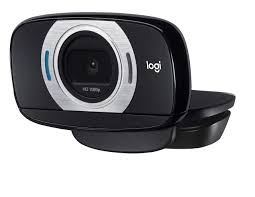
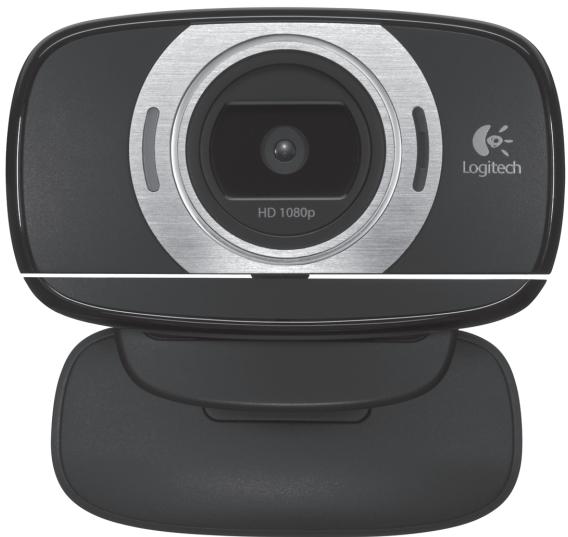
USER MANUAL C615 LOGITECH
Getting started with
Logitech® HD Webcam C615

Logitech.
Contents
English 3
German 12
French 21
Italian 30
Spanish 39
Dutch 48
Swedish 57
Danish 66
Norwegian 75
Finnish 84
Portuguese 93
Eayniká 102
Türkce 111
121 1
www.logitech.com/support. 131


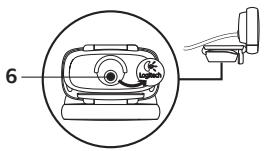
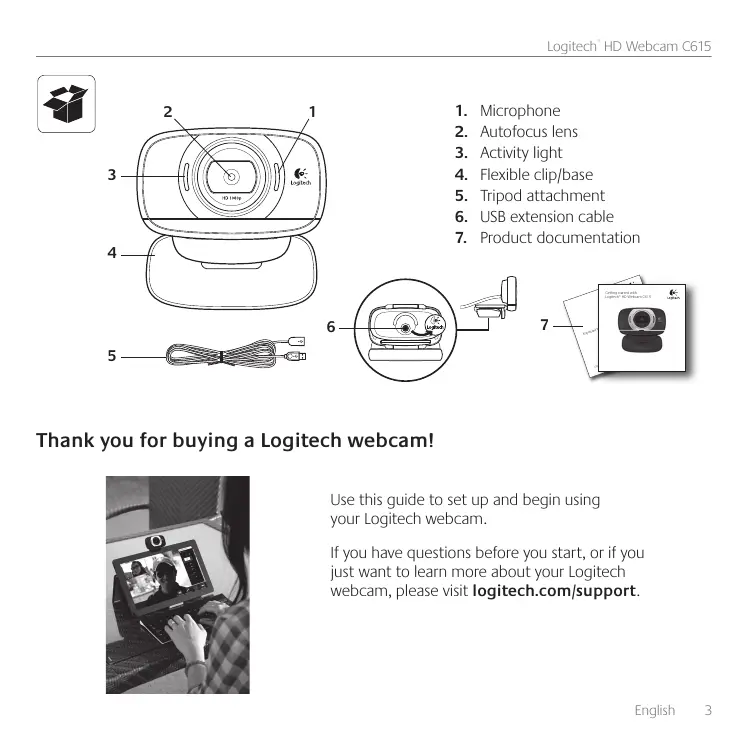
Thank you for buying a Logitech webcam!
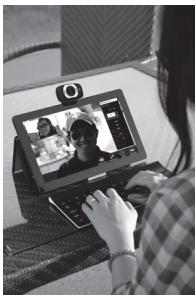
Use this guide to set up and begin using your Logitech webcam.
If you have questions before you start, or if you just want to learn more about your Logitech webcam, please visit logitech.com/support.
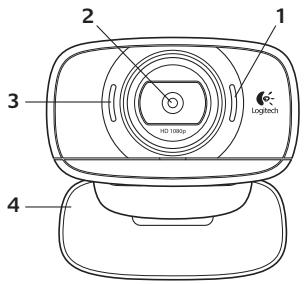
Setting up your webcam
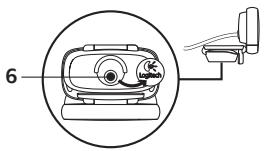
1 Unfold your webcam
3 Connect your webcam
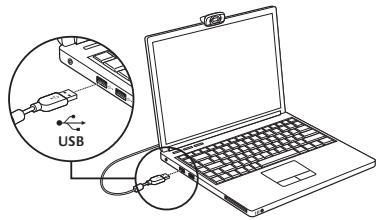
2 Place your webcam
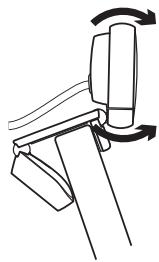
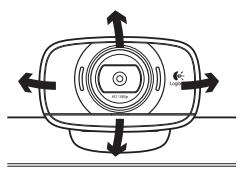
4 Install software
If you're using your webcam with Windows 8, the software required is downloaded automatically when you connect your webcam for the first time, and installed silently in the background.
Important: Make sure you're connected to the Internet, so the software can be downloaded.
If you're using your webcam with Windows 7 or Windows Vista, you must install the Logitech Webcam Software, available from:
logitech.com/downloads
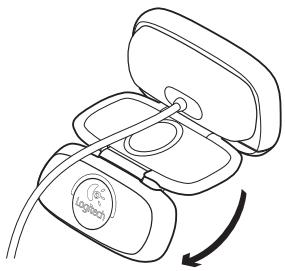
Folding up the camera for travel or storage
1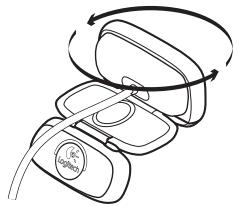
2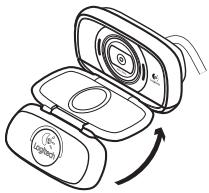
3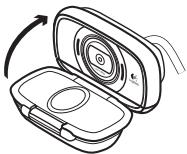
4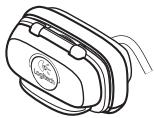
Getting started with video calling

Your Logitech HD Webcam c615 provides Fluid HD 720p video calling.
To take advantage of video calling both you and the person you call must install Skype™, or use a different video-calling application such as Yahoo! Messenger, Windows Live Messenger or Gmail.
Learn more: skype.com
As well as a webcam and video calling application, both callers need:
- A computer with speakers (or a headset) and a microphone; your Logitech HD Webcam c615 has a built-in microphone.
- A broadband Internet connection (e.g., DSL, T1, or cable).
Using your webcam with Windows 8
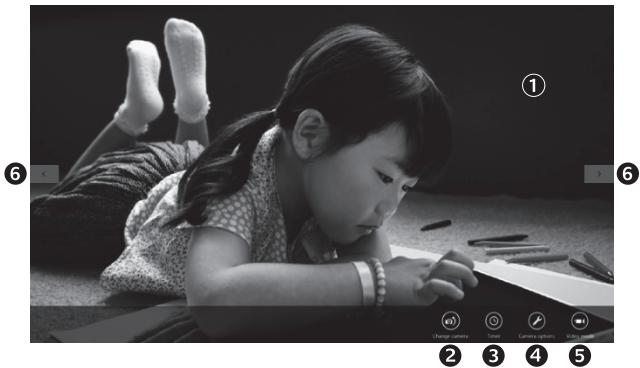
Use the Camera app, available from the Windows 8 Start screen, to operate and control your webcam.
Understanding the Camera app
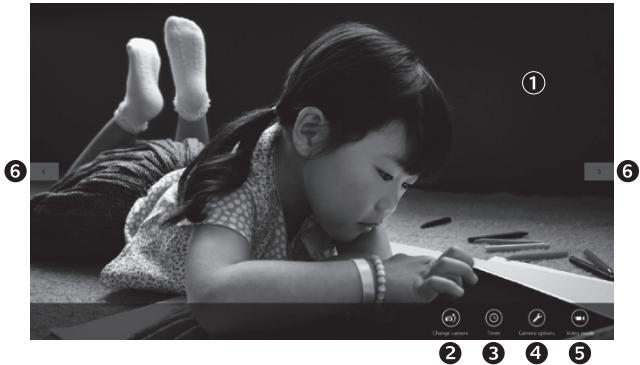
- Preview window. Click or tap to capture photos or videos (depending on whether Video Mode is selected).
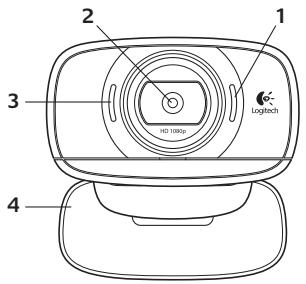
- Change webcams (when you have more than one). The face of your Logitech webcam illuminates when selected.
- Adjust your camera settings.
- Activate or deactivate the Timer feature. When activated, there is a three second countdown to capturing a photo or video.
- Turn Video Mode on (to record videos) or off (to take photos).
- Click or tap on the arrows to scroll through the photos and videos you have captured.
Videos are denoted by a timer and play button in the bottom right-hand corner:
00:03

Tip: The Camera app lets you use your webcam's most popular features quickly and easily. If you want to take advantage of the enhanced features your webcam offers, such as motion detection, use the Logitech Webcam Software available from logitech.com/downloads.
Adjusting your Camera settings
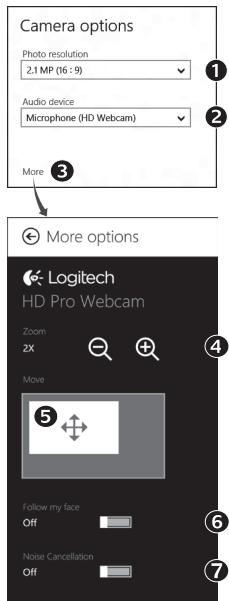
The Logitech software optimizes the settings for your environment automatically. To adjust any of your settings, choose Camera options. This is available from the Camera app (see the previous page) and from within Metro apps that support webcams.
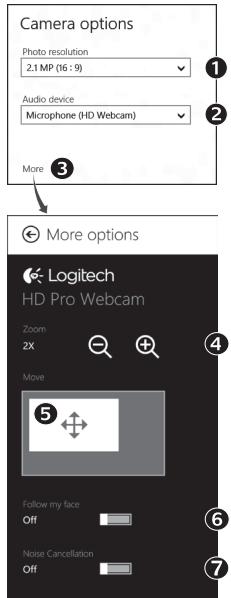
- Choose your required resolution for photo capture, or video capture when in Video Mode.
- Choose the microphone you want to use to record sound in your videos, if you have more than one available.
- Access More Options to benefit from enhanced features such as digital Zoom and Move.
If the More Options pane doesn't show the Logitech logo and offer enhanced options, it is likely that the Logitech software didn't install correctly when you first connected your camera. To reinstall it, go to the Windows Store and look for Logitech Camera Controller.
- Zoom in or out to include or exclude your surroundings.
- Having zoomed in, drag the white box to pan (adjust the focus area of your webcam).
- Use Follow my face so you're always in the picture.
- Enjoy clear conversations without annoying background noise.
Depending on the features available with your camera, you can access further advanced settings by scrolling.
Sharing your photos and videos
You can share your photos and videos via e-mail, Twitter, Facebook®, YouTube®, or Microsoft SkyDrive®. Follow these steps:
- In the Camera app, scroll to the photo or video you want to share.
- Select Share in the Charms bar (or press H).

- Choose the media through which you want to share the photo or video.
Using your webcam with Windows 7 and Windows Vista
The Logitech Webcam Software provides everything you need to use and control your webcam. Launch the software from the Windows Start menu, or by right-clicking on the camera icon in the Windows taskbar.
Understanding the Logitech Webcam Software
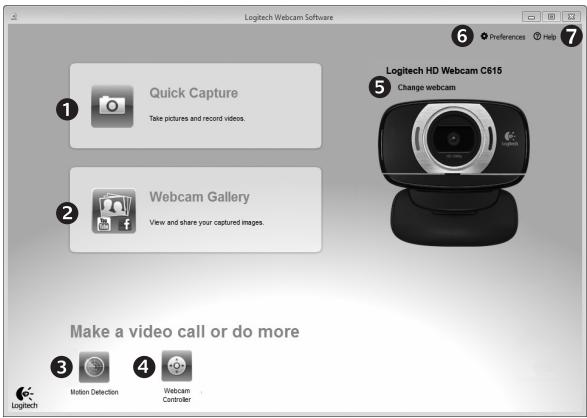
- Capture pictures and videos.
- View captured images and share via e-mail, Facebook, or YouTube.
- Capture videos triggered by detected motion.
- Control your webcam while on a video call.
- Change webcams (when you have more than one).
- Open Logitech Webcam Software settings.
- Open help dashboard.
Capturing video and snapping pictures
The gallery: viewing and sharing
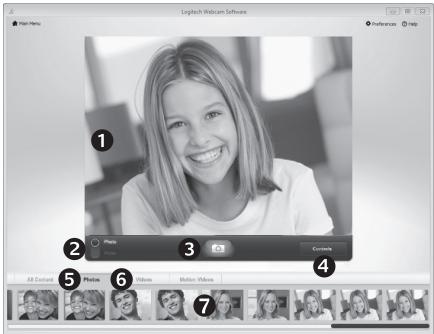
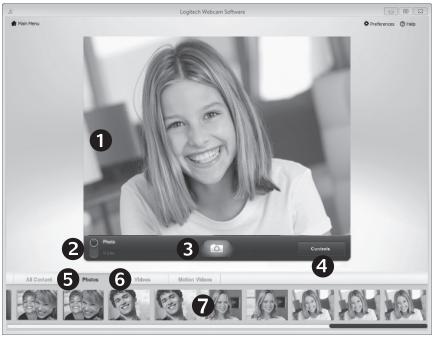
Quick Capture allows you to take photos and record videos easily.
You have quick access to webcam controls and settings:
- Preview window
- Photo thumbnails
- Capture mode: photo/video
- Video thumbnails
- Capture button
- Click a thumbnail to enter the gallery
- Webcam controls
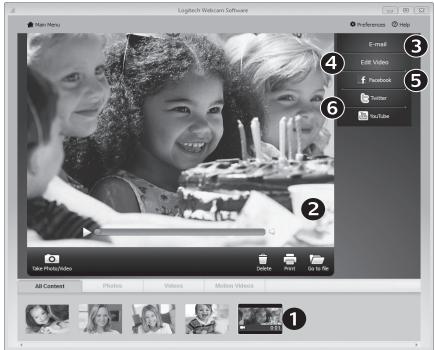
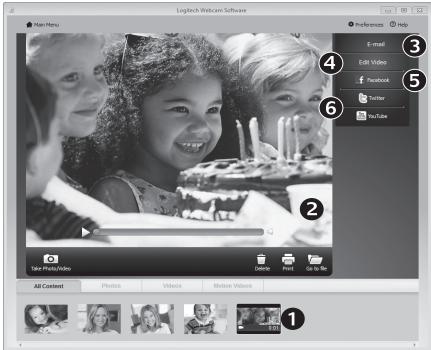
Clicking on an image thumbnail in the webcam gallery (1) opens the video or photo in the review window (2). You can then:
- Attach the video or picture file to an e-mail (3)
- Edit the photo or splice together video (4)
- Upload the picture or video to Facebook (5)
- Upload the video to Twitter or YouTube (6)
You can also drag and drop a gallery image onto one of the function tiles (items 3-6) to launch an editing application or to attach or upload.
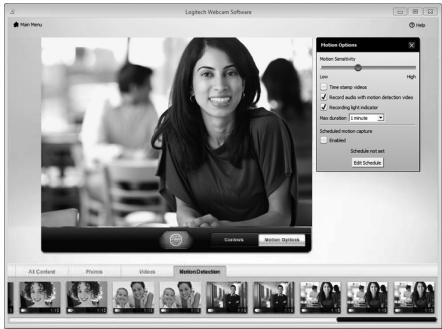
Using motion detection
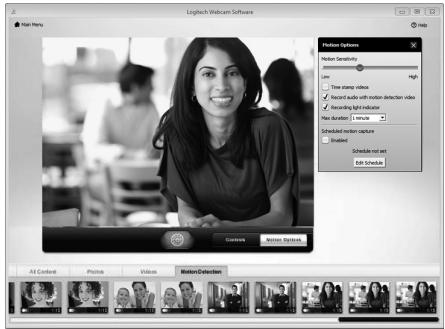
- Set up your webcam to record video when it detects movement.
- Adjust captured video duration and detection sensitivity.
- Captured video is automatically saved to your computer. View content in the Gallery or upload it using the One-touch Upload window.
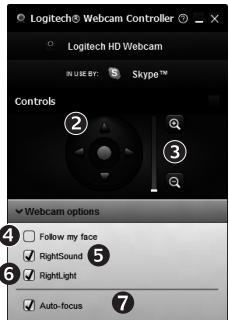
Fine tuning your webcam during a video call
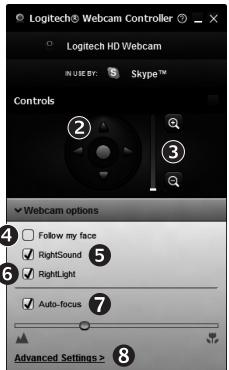
- Launch the webcam controller when on a video call.
- Use pan and tilt to find the best angle.
- Zoom in or out to include/exclude your surroundings.
- Use Follow my face so you're always in the picture.
- Enjoy clear conversations without annoying background noise.
- Correct for poor lighting environments using RightLight.
- Choose between auto- or manual focus.
- Access advanced webcam settings.


logitech.com/downloads
logitech.com/downloads
logitech.com/downloads
4 Installer software
logitech.com/downloads
logitech.com/downloads
Then pack the camera away for storage or transport.
1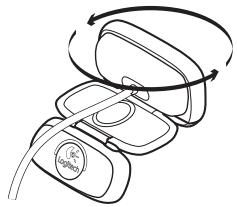
2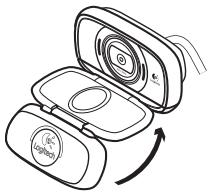
3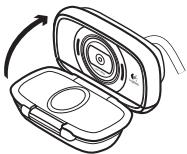
4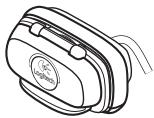
Getting started with video calls

logitech.com/downloads
Close the camera cover for transport or storage
1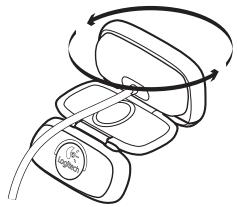
2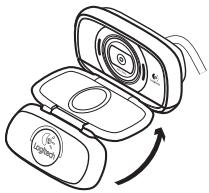
3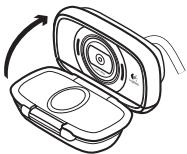
4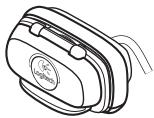
. logitech.com/support
Windows 8
i 1
1
Jlll lll lll lllllllllllllllllllllllllllllll
DSL (J) jail
(1)S T1
()clcawj)clawjjss
Logitech HD
Webcam c615
skype
YouTube Facebook Twitter
Microsoft SkyDrive
1
1545 1545 Metro Cldt 1545 (aillll aall l) 1545
.1
1.20g 2.20g
aill lallll J Logitech 1
Logitech Camera Controller
(1) 5
.6
.7
y 1 y
J .5 Preview window) .1
jill 6
1
J 3
1yds spsill ydlic .4
Therefore, the area of triangle ACD is equal to the area of triangle COD plus the area of triangle CDA.
(3)
(4)
Facebook (5)
YouTube (6) Twitter
1 1
Windows Vista 9 Windows 7
Logitech Webcam Software Logitech Motion Detection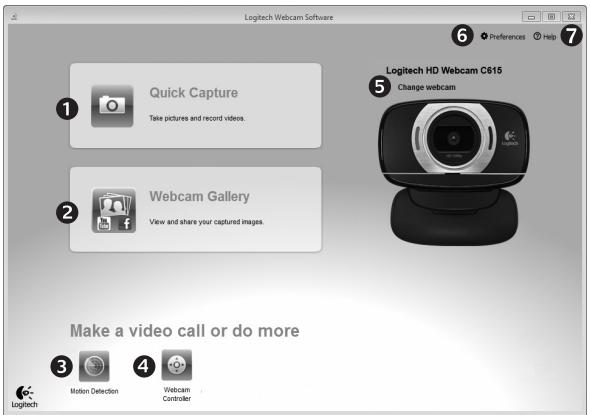
Webcam Controller
y 5 .5
(s)
Webcam Software
2
YouTube | Facebook
4
One-touch Upload
Webcam Controller
www.logitech.com/support
Belgium/Dutch: +32 (0)2 200 64 44 French: +32 (0)2 200 64 40
Czech Republic +420 239 000 335
Italy +39-02-91 48 30 31
© 2012 Logitech. All rights reserved. Logitech, the Logitech logo, and other Logitech marks are owned by Logitech and may be registered. All other trademarks are the property of their respective owners. Logitech assumes no responsibility for any errors that may appear in this manual. Information contained herein is subject to change without notice.
620-003225.005