
CS-2635RH - Calculator SHARP - Free user manual and instructions
Find the device manual for free CS-2635RH SHARP in PDF.


| Product type | Printing calculator |
| Brand | Sharp |
| Model | CS-2635RH |
| Work capacity | 12 digits |
| Power supply | AC 220 V – 230 V, 50 Hz |
| Memory backup battery | Lithium CR2032 (3 V DC) |
| Dimensions (W × D × H) | 250 mm × 345 mm × 78 mm |
| Weight | Approx. 2.0 kg (with battery) |
| Printing speed | Approx. 4.3 lines/s |
| Printing paper | Width 57 mm – 58 mm, max. diameter 80 mm |
| Ink ribbon | Replaceable, included |
| Main functions | Four operations, constant multiplication/division, power, markup/discount, memory calculations (2 memories), item count, currency conversion, tax/discount calculation |
| Maintenance and cleaning | Soft, dry cloth, do not use solvents or damp cloth |
| Safety | Use only with the specified voltage; explosion hazard if lithium battery is incorrectly replaced; do not expose to water |
| Spare parts and repairability | For any repairs, contact an authorized Sharp distributor |
| Supplied accessories | 1 lithium battery, 1 replacement date label, 1 paper roll, 1 ink ribbon (installed), instruction manual |
| Operating temperature | 0 °C – 40 °C |
| Power consumption | 53 mA |
Frequently Asked Questions - CS-2635RH SHARP
User questions about CS-2635RH SHARP
0 question about this device. Answer the ones you know or ask your own.
Ask a new question about this device
Download the instructions for your Calculator in PDF format for free! Find your manual CS-2635RH - SHARP and take your electronic device back in hand. On this page are published all the documents necessary for the use of your device. CS-2635RH by SHARP.
USER MANUAL CS-2635RH SHARP
MANUAL DE INSTRUÇÕES
KÄYTTÖOHJE
HASZNÁLATI ÚTMUTATÓ
Notes for handling Lithium batteries:
CAUTION
Danger of explosion if battery is incorrectly replaced.
Replace only with the same or equivalent type recommended by the manufacturer.
Dispose of used batteries according to the manufacturer's instructions.
The socket outlet shall be installed near the equipment and shall be easily accessible.
Vorsicht!
To insure trouble-free operation of your SHARP calculator, we recommend the following:
- The calculator should be kept in areas free from extreme temperature changes, moisture, and dust.
- A soft, dry cloth should be used to clean the calculator. Do not use solvents or a wet cloth.
- Since this product is not waterproof, do not use it or store it where fluids, for example water, can splash onto it. Raindrops, water spray, juice, coffee, steam, perspiration, etc. will also cause malfunction.
- While the memory protection battery is not installed, the tax / discount rate and conversion rate set up will be cleared upon terminating the AC power supply.
The tax / discount rate and conversion rate set up will also be cleared when the memory protection battery is removed from the unit. - If service should be required on this equipment, use only a SHARP servicing dealer, a SHARP approved service facility or SHARP repair service where available.
- Do not wind the AC cord around the body or otherwise forcibly bend or twist it.
CONTENTS
Page
- INSTALLING OF BATTERY FOR MEMORY PROTECTION .... 3
• OPERATING CONTROLS 4 - INK RIBBON REPLACEMENT .... 8
- PAPER ROLL REPLACEMENT .... 9
- ERRORS 10
- REPLACEMENT OF BATTERY FOR MEMORY PROTECTION.... 11
- SPECIFICATIONS 12
- RESETTING THE UNIT .... 14
• CALCULATION EXAMPLES ...... 134 - CONVERSION CALCULATION
EXAMPLES 158
• TAX RATE CALCULATIONS ...... 161
• DISCOUNT RATE CALCULATION ..... 164
SHARP will not be liable nor responsible for any incidental or consequential economic or property damage caused by misuse and/or malfunctions of this product and its peripherals, unless such liability is acknowledged by law.
INSTALLING OF BATTERY FOR MEMORY PROTECTION
Before using for the first time, remove the attached lithium battery, and install it in the equipment according to the following procedure.
If the power cord is unplugged by accident when operating with AC power only, the tax / discount rate and conversion rate set up will be lost.
1) Turn the power switch "OFF" and unplug the power supply plug from the outlet.
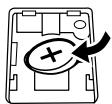
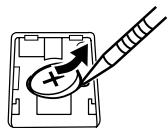
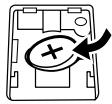
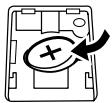
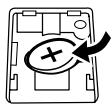
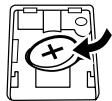
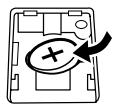
2) Remove the battery cover on the back of the unit. (Fig. 1)
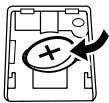
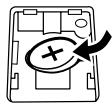
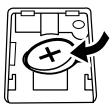
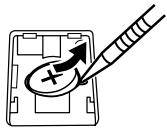
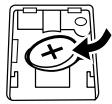
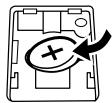
3) Wipe the battery well with a dry cloth and place the plus “+” side upward. (Fig. 2)
4) Replace the battery cover by reversing the removal procedure.
5) Press the RESET switch on the back of the unit (See page 14).
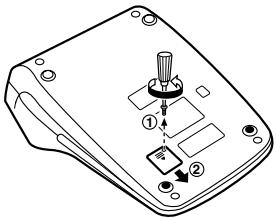
Fig. 1
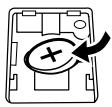
natural_image
Diagram of a device with an oval and plus symbol, no text or labels presentFig. 2
After battery installation
- Connect the power supply plug to an outlet and turn the power switch "ON".
Check that "0." is displayed. If "0." is not displayed, remove the battery, reinstall it, and check the display again. - On the battery replacement date label found on the back of the unit, write down the month and year when the battery is installed, as a reference for the next battery replacement.
OPERATING CONTROLS

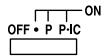
POWER SWITCH; PRINT / ITEM COUNT MODE SELECTOR:
"OFF": Power OFF.
“•”: Power ON. Set to the non-print mode. (“••• ... ••• -P” will be printed.)
“P”: Power ON. Set to the print mode. (“••• ... ••• + P” will be printed.)
“P•IC”: Power ON. Set to the print and item count mode. The counter will count the number of times that ± has been pressed in addition.
Notes: • Each time == is used in subtraction, 1 will be subtracted from the count.
- The count is printed when the calculated result is obtained.
- Pressing of * , × or ÷ clears the counter.
- The counter has a maximum capacity of 3 digits (up to ±999). If the count exceeds the maximum, the counter will recount from zero.


RATE SETTING MODE SELECTOR:
This selector is used to set the conversion rate or the tax / discount rate.
"RATE": Set this selector to the "RATE SET" position before storing an each rate.
Conversion rate:
- Enter the conversion rate, then press ×RATE.
- A maximum of 6 digits can be stored (decimal point is not counted as a digit).
Tax / discount rate:
- Enter the adding tax rate, then press TAX+.
- To store a discount rate, press +/- before pressing TAX+.
- A maximum of 4 digits can be stored (decimal point is not
counted as a digit).
“•”: Set this selector to the “•” position before starting calculations.
Note: • Be sure to set this selector to the “•” position after storing an each rate.
- For the conversion rate and the tax / discount rate, a single value can be stored for each. If you enter a new rate, the previous rate will be cleared.

CONSTANT / ADD MODE SELECTOR:
“K”: The following constant functions will be performed:
Multiplication: The calculator will automatically remember the first number entered (the multiplicand) and × instruction.
Division:
The calculator will automatically remember the second number entered (the divisor) and instruction.
“●”: Neutral
"A": Use of the Add mode permits addition and subtraction of numbers without entry of the decimal point. When the Add mode is activated, the decimal point is automatically positioned according to the decimal selector setting.
Use of ☐, ☒, and ⊕ will automatically override the Add mode and decimally correct answers will be printed at the preset decimal position.


ROUNDING SELECTOR:
Example: Set decimal selector to "2".
$$ 4 \div 9 = 0. 4 4 4 \dots , 5 \div 9 = 0. 5 5 5 \dots $$
| 4 ÷ 9 ± | 5 ÷ 9 ± | |
| ↑ | 0.45 | 0.56 |
| 5/4 | 0.44 | 0.56 |
| ↓ | 0.44 | 0.55 |
Note: The decimal point floats during successive calculation by the use of × or ÷ .
If the decimal selector is set to "F" then the answer is always rounded down (↓).


DECIMAL SELECTOR:
Presets the number of decimal places in the answer.
In the “F” position, the answer is displayed in the floating decimal system.


PAPER FEED KEY


CONVERSION KEY:
This key is used to obtain a value by dividing a given number with a specified conversion rate.
CONVERSION KEY:
This key is used:
- to store the conversion rate (by the use of the rate setting mode selector).
- obtains a value by multiplying a given number with a specified conversion rate.
- to recall the presently stored rate for check. Press ☑ first to clear the calculation register and reset an error condition, then press ✗RATE. The conversion rate is printed with the symbol "TC".
LAST DIGIT CORRECTION KEY
CLEAR ENTRY KEY:
Clears numbers entered prior to use of a function key.
Also used to clear an overflow error caused by an entry.
⑪ #/◇
NON-ADD / SUBTOTAL KEY:
Non-Add – When this key is pressed right after entry of a number in the Print mode, the entry is printed on the left-hand side with “#”. This key is used to print out numbers not subject to calculations such as codes, dates, etc.
Subtotal – Used to get subtotal(s) of additions and / or subtractions. When pressed following ± or , the subtotal is printed with “◇” and the calculation may be continued.
By pressing this key even in the Non-print mode, the displayed number is printed with "P".
⑫ *
TOTAL KEY:
Prints the total of addition and subtraction with “*”.
This key also serves as a clear key for the calculation register and resets an error condition.
⑬ ◇M
⑭ *M
⑮ *I
⑯ ◇I
⑰ +/-
⑱ MU
⑲ TAX+
FIRST RECALL MEMORY KEY
FIRST RECALL AND CLEAR MEMORY KEY
SECOND RECALL AND CLEAR MEMORY KEY
SECOND RECALL MEMORY KEY
CHANGE SIGN KEY:
Changes the algebraic sign of a number (i.e. positive to negative or negative to positive).
MULTIPLE USE KEY:
Performs mark-ups, percent change and automatic add-on / discount.
TAX-INCLUDING KEY:
This key is used for calculations with the tax/discount rate.
To recall the presently stored rate for check, press * to clear the calculation register and reset an error condition, then press + . The tax / discount rate is printed with the symbol "TX".
Display format:
1,234,567,890.12
Symbols:
M : First memory symbol
Appears when a number has been stored in First memory.
I : Second memory symbol
Appears when a number has been stored in Second memory.
- : Minus symbol
Appears when a number is a negative.
E : Error symbol
Appears when an overflow or other error is detected.
* Although all available symbols are shown here for instruction purposes, these symbols will not appear on the screen simultaneously.
INK RIBBON REPLACEMENT
-
Remove the paper roll from the calculator. (Tear the paper and remove it from the print mechanism by using 📋.)
-
Set the power switch to OFF.
Make sure that the print wheel has stopped.
-
Remove the printer cover by sliding it towards the back of the calculator. (Fig. 1)
-
Remove the used ribbon.
-
Install the new ribbon.
-
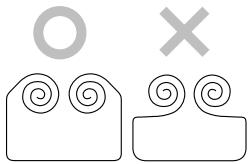
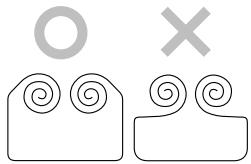
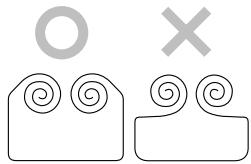
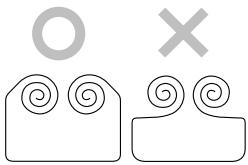
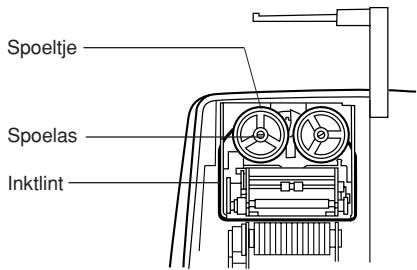
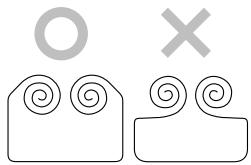
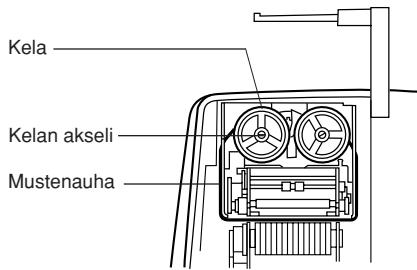
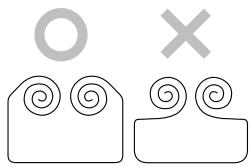
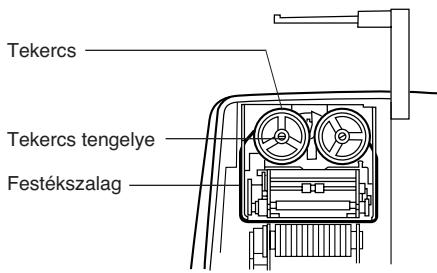
With the black side of the ribbon facing upwards, place one of the reels on the reel shaft on the right. (Fig. 2) Make sure that the reel is securely in place.
-
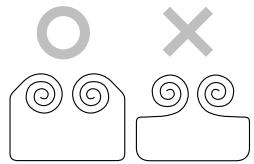
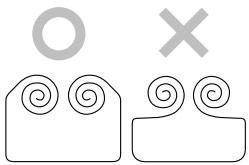
Thread the ribbon around the outside of the metal guides. (Fig. 3)
-
Take up any slack by manually turning one of the reels.
-
Replace the printer cover.
-
Replace the paper roll.
Printer cover
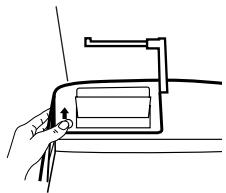
natural_image
Line drawing of a hand holding a device with a cable, no text or symbols presentFig. 1
Ink ribbon
natural_image
Two identical abstract shapes with spiral patterns and a circle above, no text or symbols present.Fig. 2
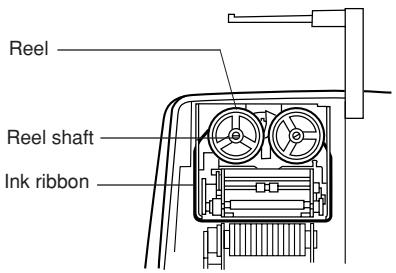
Fig. 3
PAPER ROLL REPLACEMENT
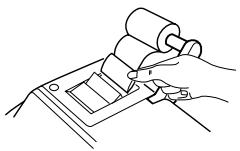
- Lift the paper holder up. (Fig. 1)
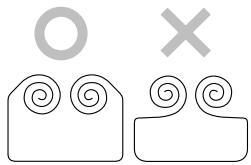
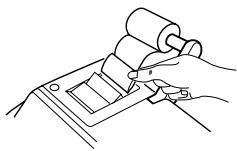
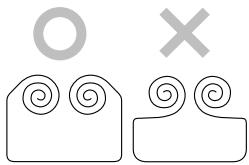
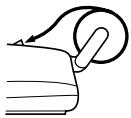
- Fold the leading edge of the paper roll 3 to 5 cm. (Do not fold it slantwise.) (Fig. 2)
- Insert the paper roll from the left side of the paper holder and make sure the paper roll is set in the proper direction (with the paper feeding from the bottom). (Fig. 3)
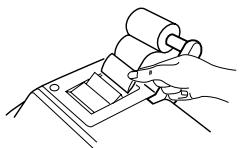
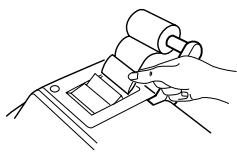
- Insert the leading edge of the paper into the opening directly behind the print mechanism. (Fig. 4)
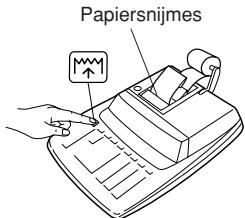
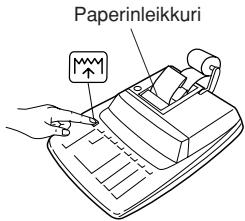
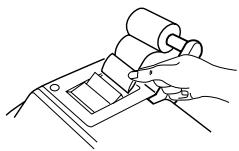
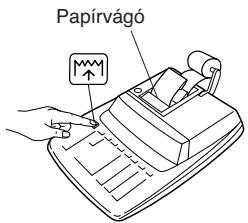
- Press the paper feed key and feed the paper under the edge of the paper cutter. (Fig. 5)
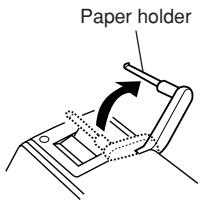
Fig. 1
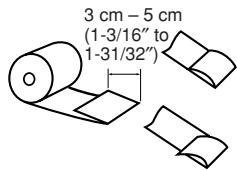
Fig. 2
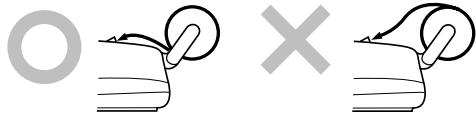
Fig. 3
natural_image
Line drawing of a hand using a rolling roller on a mechanical component (no text or symbols)Fig. 4
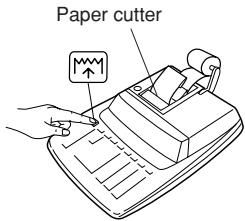
Fig. 5
DO NOT PULL PAPER BACKWARDS AS THIS MAY CAUSE DAMAGE TO PRINTING MECHANISM.
ERRORS
There are several situations which will cause an overflow or an error condition. When this occurs, the error symbol “E” will be displayed and all keys will electronically lock.
The contents of the memory at the time of the error are retained.
If an “0•E” is displayed at the time of the error, * must be used to clear the calculator.
If an “E” with any numerals except zero is displayed, the error may be cleared with CE or and the calculation can still be continued.
Error conditions:
- Entry of more than 12 digits or 11 decimals.
This error can be cleared with CE or .
-
When the integer portion of an answer exceeds 12 digits.
-
When the integer portion of the contents of the memory exceeds 12 digits.
(Ex. *M 9999999999999 M+ 1 M+)
- When any number is divided by zero.
(Ex. 5 ÷ 0 ±)
REPLACEMENT OF BATTERY FOR MEMORY PROTECTION
Time for battery replacement
Replace with a new battery once 2 year.
Method of battery replacement
Use one lithium battery (CR2032).
Note: When replacing the battery, the set tax / discount rate and conversion rate, the memory contents will be lost. You may want to write down the tax / discount rate and conversion rate, other important numbers on a sheet of paper.
1) Turn the power switch "OFF" and unplug the power supply plug from the outlet.
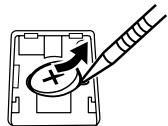
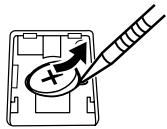
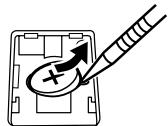
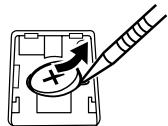
2) Remove the battery cover on the back of the unit. (Fig. 1)
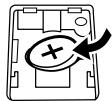
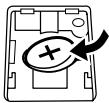
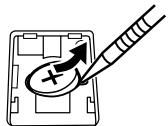
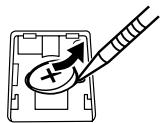
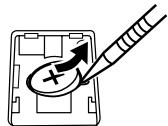
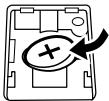
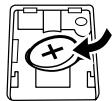
3) Remove the exhausted battery and install one new lithium battery. Wipe the battery well with a dry cloth and place the plus “+” side upward. (Fig. 2)
4) Replace the battery cover by reversing the removal procedure.
5) Press the RESET switch on the back of the unit (See page 14).
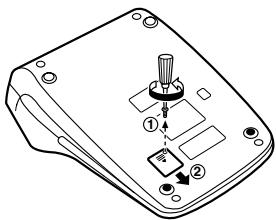
Fig. 1
natural_image
Diagram of a device casing with an arrow indicating rotation or change, no text or symbols present.Fig. 2
After battery replacement
- Connect the power supply plug to an outlet and turn the power switch "ON".
Check that "0." is displayed. If "0." is not displayed, remove the battery, reinstall it, and check the display again. - Reset the tax / discount rate and conversion rate.
- On the battery replacement date label found on the back of the unit, write down the month and year when the battery is replaced, as a reference for the next battery replacement.
Precautions on battery use
- Do not leave an exhausted battery in the equipment.
- Do not expose the battery to water or flame, and do not take it apart.
- Store batteries out of the reach of small children.
SPECIFICATIONS
| Operating capacity: | 12 digits |
| Power supply: | Operating:AC: 220V–230V, 50HzMemory backup:3V (DC)(Lithium battery CR2032 × 1) |
Memory Protection Battery lifespan:
| Approx. 2 years. (tested and confirmed at 25°C (77°F); may change due to usage environment) |
| Calculations: | Four arithmetic calculations, constant multiplication and division, power calculation, add-on / discount calculation, repeat addition and subtraction, reciprocal calculation, item count calculation, markup calculation, memory calculation, etc. |
PRINTING SECTION
| Printer: | Mechanical printer |
| Printing speed: | Approx. 4.3 lines/sec. |
| Printing paper: | 57 mm (2-1/4") ~ 58 mm(2-9/32") wide80 mm (3-5/32") indiameter (max.) |
Operation temperature: 0^ C \~ 40^ C ( 32^ F \~ 104^ F)
| Power consumption: | 53 mA |
| Dimensions: | 250 mm (W) × 345 mm (D) × 78 mm (H)9-27/32" (W) × 13-19/32"(D) × 3-1/16" (H) |
Weight: Approx. 2.0 kg (4.41 lb.) (with battery)
| Accessories: | 1 lithium battery, 1 battery replacement date label (attached on the unit's back body), 1 paper roll, 1 ink ribbon (installed) and operation manual |
WARNING
| THE VOLTAGE USED MUST BE THE SAME AS SPECIFIED ON THIS CALCULATOR. USING THIS CALCULATOR WITH A VOLTAGE HIGHER THAN THAT SPECIFIED IS DANGEROUS AND MAY RESULT IN A FIRE OR OTHER TYPE OF ACCIDENT CAUSING DAMAGE. SHARP WILL NOT BE HELD RESPONSIBLE FOR ANY DAMAGE RESULTING FROM USE OF THIS CALCULATOR WITH OTHER THAN THE SPECIFIED VOLTAGE. |
RESETTING THE UNIT
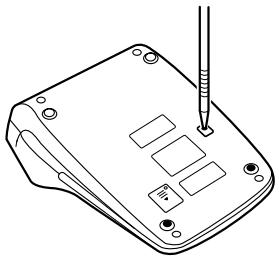
Strong impacts, exposure to electrical fields, or other unusual conditions may render the unit inoperative, and pressing the keys will have no effect. If this occurs, you will have to press the RESET switch on the bottom of the unit. The RESET switch should be pressed only when:
- an abnormal event occurs and all keys are disabled.
- you install or replace the battery.
Notes:
- Pressing the RESET switch will clear the stored tax / discount rate and conversion rate, other data stored in the memory.
- Use only a ballpoint pen to press the RESET switch. Do not use anything breakable or anything with a sharp tip, such as a needle.
- After pressing the RESET switch, connect the power supply plug to an outlet. Turn the power switch "ON" and check that "0." is displayed.
natural_image
Line drawing of a device with a screwdriver inserted into the top panel (no text or symbols)Abb. 1
natural_image
Diagram of a device with a plus sign and arrow indicating rotation or change (no text or symbols present)Abb. 2
natural_image
Line drawing of a hand holding a small electronic device with a cable, no text or symbols presentAbb. 1
Farbband
natural_image
Two identical abstract spiral shapes with a large 'O' and a large 'X' symbol above them, no text or labels present.Abb. 2
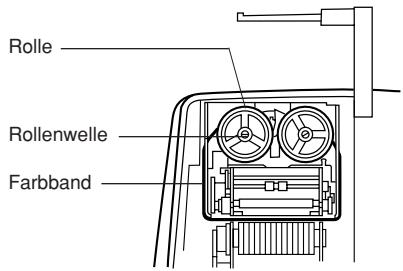
Abb. 3
ERSETZEN DER PAPIERROLLE
Abb. 3
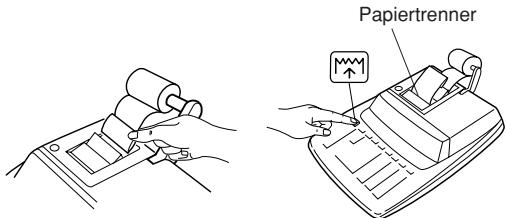
Abb. 5
Abb. 1
natural_image
Diagram of a device with an oval and plus symbol, no readable text or symbols presentAbb. 2
natural_image
Line drawing of a device with a screwdriver inserted into the top panel (no text or symbols)PRÉCAUTIONS
Fig. 1
natural_image
Diagram of a device with a plus symbol and arrow indicating rotation or action (no text or labels)Fig. 2
"OFF": Mise hors tension.
REPLACEMENT DU RUBAN ENCREUR
natural_image
Line drawing of a hand holding a device with a scroll wheel (no text or symbols)Fig. 1
Ruban encreur
natural_image
Two abstract spiral shapes with a large 'O' and a large 'X' symbol above them, no text or labels present.Fig. 2
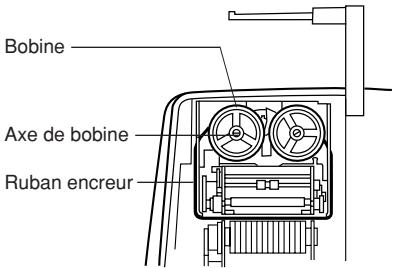
Fig. 3
REPLACEMENT DU ROULEAU DE PAPIER
Fig. 3
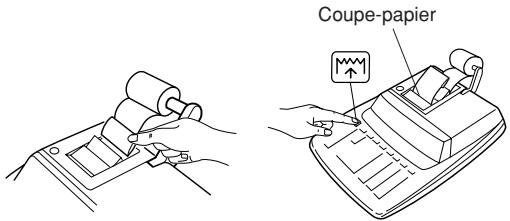
Fig. 4
Fig. 5
NE PAS TIRER LE PAPIER EN ARRIÈRE, CAR CELA POURRAIT ENDOMMAGER LE MÉCANISME IMPRIMANT.
ERREURS
Fig. 1
natural_image
Diagram of a device casing with an oval and plus symbol, no text or labels presentFig. 2
pression de non addition, etc.
SECTION IMPRESSION
natural_image
Line drawing of a device with a screwdriver inserted into the top panel (no text or symbols)NOTAS AL MANEJARLA
Fig. 1
natural_image
Diagram of a computer case with an oval and plus symbol, no text or labels presentFig. 2
natural_image
Line drawing of a hand holding a device with a scroll wheel (no text or symbols)Fig. 1
Cinta entintada
natural_image
Two abstract spiral shapes with a large 'O' and a large 'X' symbol above them, no text or labels present.Fig. 2
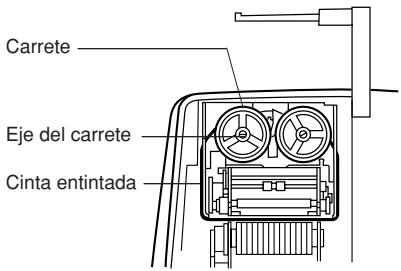
Fig. 3
Fig. 3
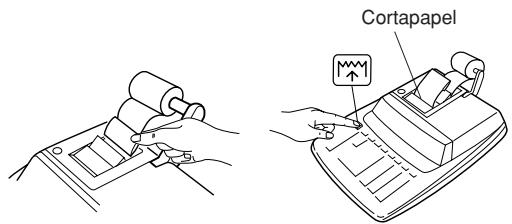
Fig. 4
Fig. 5
Fig. 1
natural_image
Diagram of a device with a plus sign and arrow indicating rotation (no text or symbols)Fig. 2
natural_image
Line drawing of a device with a screwdriver inserted into the top panel (no text or symbols)NOTE INTRODUTTIVE
Fig. 1
natural_image
Diagram of a device with an oval and plus symbol, no readable text or symbols presentFig. 2
natural_image
Line drawing of a hand holding a device with a scroll wheel (no text or symbols)Fig. 1
Nastro
d'inchiostro
natural_image
Two identical abstract shapes with spiral patterns and a large 'O' and 'X' symbol above them (no text or labels)Fig. 2
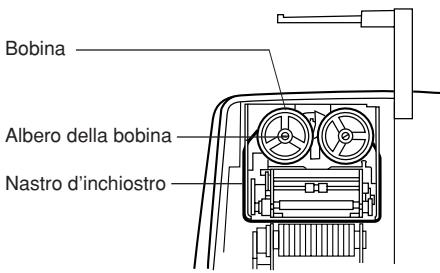
Fig. 3
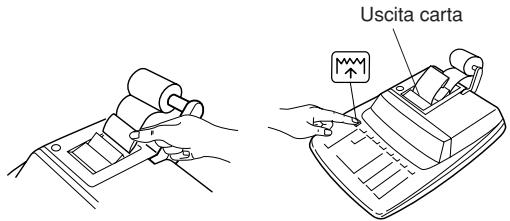
Fig. 4
Fig. 5
NON TIRARE LA CARTA ALL'INDIETRO. CIÒ POTREBBE DANNEGGIARE IL MECCANISMO DI STAMPA.
ERRORI
Fig. 1
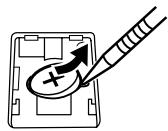
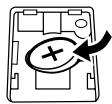
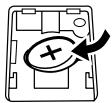
natural_image
Diagram of a computer case with an oval and plus symbol indicating a change or update (no text or labels)Fig. 2
natural_image
Line drawing of a device with a screwdriver inserted into the top panel (no text or symbols)OBSERVERA VID ANVÄNDNING
Fig. 1
natural_image
Diagram of a device casing with an arrow indicating rotation or change, no text or symbols present.Fig. 2
ÅTERKALLNING AV FÖRSTA MINNET
ÅTERKALLNING OCH TÖMNING AV FÖRSTA MINNET
ÄTERKALLNINGS- OCH RADERINGSTANGENT FÖR ANDRA MINNET
ÅTERKALLNINGSTANGENT FÖR ANDRA MINNET
TECKENÄNDRINGSTANGENT:
natural_image
Line drawing of a hand holding a small electronic device with a cable, no text or symbols presentFig. 1
Färgband
natural_image
Two identical abstract shapes with spiral patterns and a large 'O' and 'X' symbol above them (no text or labels)Fig. 2
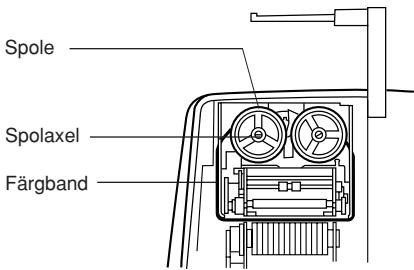
Fig. 3
BYTE AV PAPPERSRULLEN
Fig. 3
natural_image
Line drawing of a hand using a tool to press or install a component on a flat surface (no text or symbols)Fig. 4
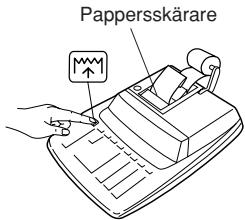
Fig. 5
DRA INTE PAPPERET BAKLÄNGES EFTERSOM DET KAN SKADA SKRIVMEKANISMEN.
FEL
(T.ex. *M 9999999999999 M+ 1 M+)
BYTE AV BATTERI FÖR MINNESSKYDD
Tid för batteribyte
Fig. 1
natural_image
Diagram of a device with a plus sign and arrow indicating rotation (no text or symbols)Fig. 2
Angående batterier
natural_image
Line drawing of a device with a screwdriver inserted, showing no text or symbolsAfb. 1
natural_image
Diagram of a device casing with an arrow indicating rotation or change, no text or symbols present.Afb. 2
CORRECTIETOETS VOOR LAATSTE CIJFER
INVOER-WISSEN TOETS:
natural_image
Line drawing of a hand holding a device with a scroll wheel (no text or symbols)Afb. 1
Inktlint
natural_image
Two identical abstract shapes with spiral patterns and a cross symbol above (no text or labels)Afb. 2
Afb. 3
PAPIERROL VERVANGEN
Afb. 3
natural_image
Line drawing of a hand using a tool to press or install a mechanical component (no text or symbols present)Afb. 4
Afb. 5
TREK HET PAPIER NIET IN ACHTERWAARTSE RICHTING TERUG AANGEZIEN DIT ZOU KUNNEN RESULTEREN IN BESCHADIGINGEN AAN HET PRINTMECHANISME.
FOUTEN
Afb. 1
natural_image
Illustration of a hand using a pen to mark a circular component with an arrow, no text or symbols present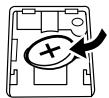
natural_image
Diagram of a computer monitor with an oval button and plus symbol, no text or labels presentAfb. 2
natural_image
Line drawing of a device with a screwdriver inserted into the top panel (no text or symbols)Fig. 1
natural_image
Diagram of a device casing with an oval and plus symbol, no text or labels presentFig. 2
natural_image
Line drawing of a hand holding a device with a scroll wheel (no text or symbols)Fig. 1
Fita de tinta
natural_image
Two identical abstract shapes with spiral patterns and a large 'O' and 'X' symbol above them (no text or labels)Fig. 2
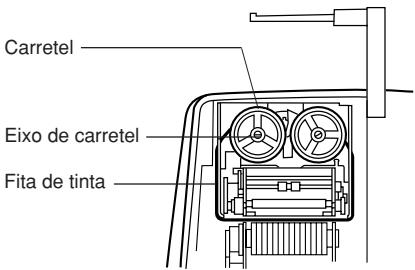
Fig. 3
TROCA DO ROLO DE PAPEL
Fig. 1
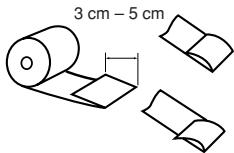
Fig. 2
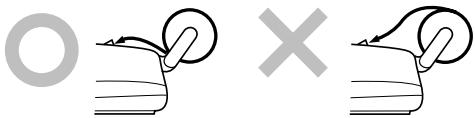
Fig. 3
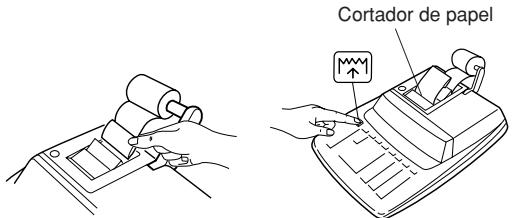
Fig. 1
natural_image
Diagram of a device with an oval and plus symbol, no readable text or symbols presentFig. 2
natural_image
Line drawing of a device with a screwdriver inserted into a tray (no text or symbols)KÄYTTÖHUOMAUTUKSIA
Kuva 1
natural_image
Diagram of a device casing with an arrow indicating direction (no text or symbols)Kuva 2
natural_image
Line drawing of a hand holding a device with a scroll wheel (no text or symbols)Kuva 1
Mustenauha
natural_image
Two identical abstract shapes with spiral patterns and a cross symbol above (no text or labels)Kuva 2
Kuva 3
PAPERIRULLAN VAIHTO
Kuva 3
natural_image
Line drawing of a hand using a tool to press or install a mechanical component (no text or symbols present)Kuva 4
Kuva 5
ÄLÄ VEDÄ PAPERIA TAAKSEPÄIN, SILLÄ SE SAATTAA VAHINGOITTAA TULOSTUS-MEKANISMIA.
VIRHEET
Kuva 1
natural_image
Diagram of a device with an arrow indicating rotation or change, no text or symbols presentKuva 2
Pariston vaihdosta
natural_image
Line drawing of a device with a screwdriver inserted into the top panel (no text or symbols)MÜKÖDÉSI TUDNIVALÓK
- ábra
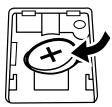
natural_image
Diagram of a device casing with an oval and plus symbol, no text or labels present- ábra
ELSŐ MEMÓRIA ELŐHÍVÁSA GOMB
ELSŐ MEMÓRIA ELŐHÍVÁSA ÉS TÖRLÉSE GOMB
MÁSODIK MEMÓRIA ELŐHÍVÁSA ÉS TÖRLÉSE GOMB
MÁSODIK MEMÓRIA ELŐHÍVÁSA GOMB
ELÓJELVÁLTÓ GOMB:
A FESTÉKSZALAG CSERÉJE
natural_image
Line drawing of a hand holding a device with a scroll wheel (no text or symbols)- ábra
Festékszalag
natural_image
Two abstract spiral shapes with a large 'O' and a large 'X' above them, no text or symbols present.- ábra
A PAPÍRTEKERCS CSERÉJE
natural_image
Simple line drawing of a mechanical component with a circular knob and curved arrow (no text or symbols)
natural_image
Simple line drawing of a mechanical component with a curved arrow indicating direction (no text or symbols)- ábra
natural_image
Line drawing of a hand using a tool to press or install a component on a circuit board (no text or symbols)- ábra
The contents of the memory at the time of the error are retained.
- ábra
natural_image
Diagram of a device with an oval and plus symbol, no readable text or symbols present- ábra
natural_image
Line drawing of a device with a screwdriver inserted into the top panel (no text or symbols)CALCULATION EXAMPLES
- Set the decimal selector as specified in each example.
The rounding selector should be in the "5/4" position unless otherwise specified. - The rate setting mode selector and the constant/add mode selector should be in the “•” position (off position) unless otherwise specified.
- The print/item count mode selector should be in the "P" position unless otherwise specified.
- If an error is made while entering a number, press CE or and enter the correct number.
- Negative values are printed with “—” symbol in red.
Note: All totals and sub-totals may be used for further calculations. RE-ENTER the number into the calculator by using the FUNCTION key and continue the problem.
RECHNUNGSBEISPIELE
*1 : □ was not used in the entries.
*1 : Bei der Eingabe □ wurde nicht verwendet.
*1 : La □ n'a pas été utilisée dans les entrées.
*1 : La □ no ha sido usada en los registros.
*1 : □ non è stato usato nelle entrate.
*1 : □ användes inte vid inmatning.
*1 : □ werd niet gebruikt bij het invoeren van het getal.
*1 : □ não foi usado nas entradas.
*1 : □ ei ole käytetty näppäiltäessä.
*1 : □ Bevitelnél a tizedespont nem használható.
MIXED CALCULATIONS / GEMISCHTE BERECHNUNGEN / CALCUL COMPLEXE / CÁLCULOS MIXTOS / CALCOLI MISTI / BLANDAD RÄKNING / GEMENGDE BEREKENINGEN / CÁLCULOS MISTOS / SEKALAISIA LASKUTOIMITUKSIA / VEGYES SZÁMÍTÁSOK
| (1) | (2) | (3) |
| 10 ± | 10. | 10 · + |
| 2 ± | 12. | 2 · + |
| × | 12 · | |
| 12. | 12 · × | |
| 5 ± | 5 · = | |
| 60 · * | ||
| 60. |
B. 5 × 2 + 12 =
F643210

| (1) | (2) | (3) |
| 5 × | 5. | 5 · × |
| 2 ± | 2 · = | |
| 10 · * | ||
| 10. | ||
| 12 ± | 10. | 10 · + |
| 22. | 12 · + | |
| 22 · * | ||
| 22. |
CONSTANT / KONSTANTE / CALCULS AVEC CONSTANTE / CONSTANTES / COSTANTE / KONSTANTRÄKNING / CONSTANTE / CONSTANTE / VAKIO / KONSTANS SZÁMÍTÁSOK
A. 62.35 × 11.11 = ① 62.35 × 22.22 = ②


| (1) | (2) | (3) |
| 62.35 × | 62.35 | 62·35× |
| 11.11 ± | 11·11=K | |
| 692·71* 1 | ||
| 692.71 | ||
| 22.22 ± | 22·22=K | |
| 1·385·42* 2 | ||
| 1,385.42 |
B. 11.11 ÷ 77.77 = ①
$$ 2 2. 2 2 \div 7 7. 7 7 = ② $$
K · A

F643210

| (1) | (2) | (3) |
| 11.11 + | 11.11 | 11.11 ÷ |
| 77.77 + | 77.77 = K | |
| 0.143 * 1 | ||
| 0.143 | ||
| 22.22 + | 22.22 = K | |
| 0.286 * 2 | ||
| 0.286 |
POWER / POTENZ / PUISSANCE / POTENCIA / POTENZA / POTENSRÄKNING / MACHTSVERHEFFEN / POTÊNCIA / POTENSSI / HATVÁNYOZÁS
| (1) | (2) | (3) |
| 5.25 × | 5.25 | 5·25 × |
| 5·25 = | ||
| 27·563 * | ||
| 27.563 | ||
B. 53=  | ||
| (1) | (2) | (3) |
| 5 × ± | 5. | 5·×5·=K25·* |
| 25. | ||
| 25·=K125·* | ||
| 125. | ||
| K·AF643210 | ||
| 5 × × ± | 5. | 5·×5·×5·=125·* |
| 25. | ||
| 125. | ||
PERCENT / PROZENT / POURCENTAGE / PORCENTAJES / PERCENTUALE / PROCENTRÄKNING / PERCENTAGE / PORCENTAGEM / PROSENTTI / SZÁZALÉKSZÁMÍTÁS
| (1) | (2) | (3) |
| 100 × 25 % | 100. | 100 · ×25 % 25 · 00* |
| 25.00 | ||
| B. (123 ÷ 1368) × 100 = | ||
| (1) | (2) | (3) |
| 123 ÷ 1368 % | 123. | 123 · ÷1 · 368 % 8 · 99* |
| 8.99 | ||
| (1) | (2) | (3) |
| 100 × 25 % | 100. | 100 · ×25 % 25 · 00* |
| 25.00 | ||
| B. (123 ÷ 1368) × 100 = | ||
| (1) | (2) | (3) |
| 123 ÷ 1368 % | 123. | 123 · ÷1 · 368 % 8 · 99* |
| 8.99 | ||
RECIPROCAL / KEHRWERT / INVERSES /
RECÍPROCOS / RECIPROCO /
RECIPROKA TAL / RECIPROQUE /
RECÍPROCA / KÄÄNTEISARVO /
RECIPROKSZÁMÍTÁS

| (1) | (2) | (3) |
| 7 ÷ | 7. | 7 · ÷ |
| ÷ | 1. | 7 · ÷ |
| ± | 7 · = | |
| 0 · 14285714285 * | ||
| 0.14285714285 |
ADD-ON AND DISCOUNT / AUFSCHLAG UND
ABSCHLAG / MAJORATION ET RABAIS /
RECARGOS Y DESCUENTOS /
Markup and Profit Margin are both ways of calculating percent profit.
– Profit margin is percent profit vs. selling price.
– Markup is percent profit vs. cost.
- Cost is the cost.
– Sell is the selling price.
- GP is the gross profit.
- Mkup is the percent profit based on cost.
– Mrgn is the percent profit based on selling price.
| Cost | Sell | GP | Mkup | Mrgn |
| 200 | 250 | $50 | 25% | 20% |
F643210

| (1) | (2) | (3) |
| 200 ÷ 20 | 200. | 200 ÷ Cost20 · %M Mrgn250 · 00* Sell50 · 00 GP GP |
| 50.00 |
PERCENT CHANGE / ÄNDERUNG DER PROZENTE / VARIATION EN POUR CENT / CAMBIO PORCENTUAL / VARIAZIONE IN PERCENTUALE / ÄNDRING I PROCENT / PROCENTUELE VERANDERING / VARIAÇÃO PERCENTUAL / PROSENTTIMUUTOS / SZÁZALÉKOS VÁLTOZÁS SZÁMÍTÁSA
- Calculate the dollar difference (a) and the percent change (b) between two yearly sales figures \1,500 in one year and \1,300 in the previous.
- Berechne den Unterschied in Dollar (a) und die Änderung der Prozente (b) zwischen zwei Jahresumsätzen von \1.500 in einem Jahr und \1.300 im Vorjahr.
- Calculer la différence en dollars (a) et la variation en pour cent (b) entre deux prix. 1.500 \pour cette année et 1.300 \ pour l'année précédente.
- Calcular la diferencia en dólares (a) y el cambio porcentual (b) entre dos cifras de ventas anuales, \1.500 en un año y \1.300 en el año anterior.
- Calcolare la differenza in dollari (a) e la variazione in percentuale (b) tra due cifre delle vendite pari a 1.500\in un anno e 1.300\ in quello precedente.
-
Beräkna skillnaden i dollar (a) och ändringen i procent (b) mellan två årliga försäljningssiffror på \1.500 det ena året och \1.300 året innan.
-
Bereken het verschil in dollars (a) en de procentuele verandering (b) tussen twee jaarlijkse verkoopcijfers: \1.500 in een bepaald jaar en \1.300 het jaar ervoor.
- Calcule a diferença em dólares (a) e a variação percentual (b) entre duas vendas anuais de \1.500 em um ano e de \1.300 no ano anterior.
- Laske ero dollareina (a) ja muutos prosentteina (b) kahden vuosittaisen myyntiluvun välillä, 1.500\yhtenä vuonna ja 1.300\ edellisenä.
- Számítsa ki a különbséget (a) és a százalékos változást (b), ha az éves eladás 1.300 Ft-rol 1.500 Ft-ra nő!
F643210
| (1) | (2) | (3) |
| 1500 ± | 1,500.00 | 1,500·00 + |
| 1300 -- | 200.00 | 1,300·00 – |
| MU | 200·00 * (a) | |
| 15·38 %C (b) | ||
| 15.38 |
PERCENT PRORATION / PROZENT PRO ANTEIL / DISTRIBUTION PROPORTIONNELLE EN POURCENTAGE / DISTRIBUCIÓN PROPORCIONAL DE PORCENTAJE / DIVISIONE PROPORZIONALE IN PERCENTUALE / PROPORTIONELL FÖRDELNING I PROCENT / PROCENTUELE VERHOUDING / DISTRIBUIÇÃO PROPORCIONAL DE PORCENTAGEM / PROSENTUAALINEN JAKO PROSENTTIOSUUS / SZÁZALÉKOS ARÁNY
- Calculate the percentage of each of the parts to the whole.
- Berechne den Prozentteil von jedem der Teile in Bezug auf das Ganze.
- Calculer le pourcentage que chaque article représente par rapport au tout.
- Calcular el porcentaje de cada artículo.
- Calcolare la percentuale di ognuna delle parti rispetto all'intero.
- Beräkna procentandelen av varje del i förhållande till summan.
- Bereken het percentage van iedere uitgave ten opzichte van het totaal.
-
Calcule a porcentagem de cada uma das partes de um inteiro.
-
Laske kunkin osan prosenttiosuus summasta.
- Számítsa ki az összetevők arányát az egészhez képest!
| ExpensesAusgabenDépensesGastosSpese%UtgifterUitgavenGastosMenotKöltségek | |
| $123 | (a) |
| 456 | (b) |
| 789 | (c) |
| (D) | (d) |


| (1) | (2) | (3) |
| *M * ^2 | ||
| 123 ± | 123.00 | 123·00 + |
| 456 ± | 579.00 | 456·00 + |
| 789 ± | 1,368.00 | 789·00 + |
| 123MU | 1·368·00 * (D) | |
| 123·F | ||
| 8·99%P (a) | ||
| 8.99 | ||
| + | 8.99^M | 8·99 +M |
| 456MU | 456·F | |
| 33·33%P (b) | ||
| 33.33^M | ||
| + | 33.33^M | 33·33 +M |
| 789MU | 789·F | |
| 57·68%P (c) | ||
| 57.68^M | ||
| + | 57.68^M | 57·68 +M |
| M | 100·00 M (d) | |
| 100.00^M | ||
| *M | 100·00 *M | |
| 100.00 |
*2 : Press *M to clear the memory before starting a memory calculation.
*3 : Press *M to clear the memory before starting a memory calculation.
| (1) | (2) | (3) |
| 120 × RATE | 120 · 14,814 · TC | |
| 14,814. |
EXAMPLE 3: Set the conversion rate (1 meter = 39.3701 inches).
EXAMPLE 4: Convert 472.4412 inches to meters (1 meter = 39.3701 inches).
EXAMPLE 1: Set a 5% tax rate.
EXAMPLE 2: Calculate the total amount for adding a 5% tax to \$800.
| (1) | (2) | (3) |
| 800 TAX+ | 800·40·TX840· | |
| 840. |
EXAMPLE 3: Calculate the total amount for adding a 5% tax to the sum of \500 and \460. Calculate the total amount for the sum of \500 with tax already included and \460 with 5% tax to be added.
EXAMPLE 1: Set an 8% discount rate.
EXAMPLE 2: Calculate the final amount for an 8% discount on \$800.
Attention: Your product is marked with this symbol. It means that used electrical and electronic products should not be mixed with general household waste. There is a separate collection system for these products.
ENGLISH
A. Information on Disposal for Users (private households)
1. In the European Union
Attention: If you want to dispose of this equipment, please do not use the ordinary dust bin!
Used electrical and electronic equipment must be treated separately and in accordance with legislation that requires proper treatment, recovery and recycling of used electrical and electronic equipment.
Following the implementation by member states, private households within the EU states may return their used electrical and electronic equipment to designated collection facilities free of charge*. In some countries* your local retailer may also take back your old product free of charge if you purchase a similar new one.
*) Please contact your local authority for further details.
If your used electrical or electronic equipment has batteries or accumulators, please dispose of these separately beforehand according to local requirements.
By disposing of this product correctly you will help ensure that the waste undergoes the necessary treatment, recovery and recycling and thus prevent potential negative effects on the environment and human health which could otherwise arise due to inappropriate waste handling.
2. In other Countries outside the EU
If you wish to discard this product, please contact your local authorities and ask for the correct method of disposal.
For Switzerland: Used electrical or electronic equipment can be returned free of charge to the dealer, even if you don't purchase a new product. Further collection facilities are listed on the homepage of www.swico.ch or www.sens.ch.
B. Information on Disposal for Business Users.
1. In the European Union
If the product is used for business purposes and you want to discard it:
Please contact your SHARP dealer who will inform you about the take-back of the product. You might be charged for the costs arising from take-back and recycling. Small products (and small amounts) might be taken back by your local collection facilities.
For Spain: Please contact the established collection system or your local authority for take-back of your used products.
2. In other Countries outside the EU
If you wish to discard of this product, please contact your local authorities and ask for the correct method of disposal.

