
CS-4194 - Calculator SHARP - Free user manual and instructions
Find the device manual for free CS-4194 SHARP in PDF.


| Product Type | Printing Calculator |
| Brand | Sharp |
| Model | CS-4194 |
| Display | 12-digit LCD |
| Printing | Thermal or impact (depending on version) |
| Paper width | 58 mm |
| Print speed | Approx. 2.5 lines per second |
| Power source | AC adapter (included) |
| Input voltage | 220-240 V AC, 50/60 Hz |
| Dimensions (W x D x H) | 200 x 150 x 50 mm |
| Weight | 500 g |
| Basic functions | Addition, subtraction, multiplication, division, percentage, square root |
| Memory | Independent memory (M+, M-, MR, MC) |
| Tax calculation | Programmable tax rate (TAX+ / TAX-) |
| Buffer memory function | Yes |
| Number of keys | Approx. 40 keys |
| Care and cleaning | Clean with a soft dry cloth. Do not use solvents. |
| Safety | Do not expose to moisture or extreme temperatures. Use only the supplied adapter. |
| Spare parts and repairability | Contact Sharp customer service for parts or repairs. |
| General information | Robust desktop calculator suitable for professional use. |
Frequently Asked Questions - CS-4194 SHARP
User questions about CS-4194 SHARP
0 question about this device. Answer the ones you know or ask your own.
Ask a new question about this device
Download the instructions for your Calculator in PDF format for free! Find your manual CS-4194 - SHARP and take your electronic device back in hand. On this page are published all the documents necessary for the use of your device. CS-4194 by SHARP.
USER MANUAL CS-4194 SHARP
INSTRUCTION MANUAL
USER'S GUIDE
Notes for handling Lithium batteries:
CAUTION
Danger of explosion if battery is incorrectly replaced. Replace only with the same or equivalent type recommended by the manufacturer. Dispose of used batteries according to the manufacturer's instructions.
The socket outlet shall be installed near the equipment and shall be easily accessible.
Caution!
To ensure trouble-free operation of your SHARP calculator, we recommend the following:
- The calculator should be kept in areas free from extreme temperature changes, moisture, and dust.
- A soft, dry cloth should be used to clean the calculator. Do not use solvents or a wet cloth.
- Since this product is not waterproof, do not use it or store it where fluids, for example water, can splash onto it. Raindrops, water spray, juice, coffee, steam, perspiration, etc. will also cause malfunction.
- While the memory protection battery is not installed, the tax/discount rate set up will be cleared upon terminating the AC power supply. The tax/discount rate set up will also be cleared when the memory protection battery is removed from the unit.
- If service should be required on this equipment, use only a SHARP servicing dealer, a SHARP approved service facility or SHARP repair service where available.
- Do not wind the AC cord around the body or otherwise forcibly bend or twist it.
CONTENTS
• INSTALLING OF BATTERY FOR MEMORY PROTECTION .... 3 • OPERATING CONTROLS 4 - INK RIBBON REPLACEMENT 8 • PAPER ROLL REPLACEMENT 9 - ERRORS 10 - REPLACEMENT OF BATTERY FOR MEMORY PROTECTION .... 10 - SPECIFICATIONS 12 - RESETTING THE UNIT 13 • CALCULATION EXAMPLES 115 • TAX RATE CALCULATIONS 134 • DISCOUNT RATE CALCULATION ..... 138
SHARP will not be liable nor responsible for any incidental or consequential economic or property damage caused by misuse and/or malfunctions of this product and its peripherals, unless such liability is acknowledged by law.
INSTALLING OF BATTERY FOR MEMORY PROTECTION
Before using for the first time, remove the attached lithium battery, and install it in the equipment according to the following procedure.
If the power cord is unplugged by accident when operating with AC power only, the set tax rate and the contents of memory will be lost.
1) Turn the power switch "OFF" and unplug the power supply plug from the outlet. 2) Remove the battery cover on the back of the unit. (Fig. 1) 3) Wipe the battery well with a dry cloth and place the plus “+” side upward. (Fig. 2) 4) Replace the battery cover by reversing the removal procedure. 5) Press the RESET switch on the back of the unit (See page 13).

Fig. 1 Fig. 2
After battery installation
- Connect the power supply plug to an outlet and turn the power switch "ON". Check that "0." is displayed. If "0." is not displayed, remove the battery, reinstall it, and check the display again.
- On the battery replacement date label found on the back of the unit, write down the month and year when the battery is installed, as a reference for the next battery replacement.
OPERATING CONTROLS

POWER SWITCH; PRINT / ITEM COUNT MODE SELECTOR:
"OFF": Power OFF.
“•”: Power ON. Set to the non-print mode. (“•••...•••—” will be printed.
"P": Power ON. Set to the print mode. ("•••...•••+" will be printed.)
"P•IC": Power ON. Set to the print and item count mode. The counter will count the number of times that has been pressed in addition.
Notes: • Each time is used in subtraction, 1 will be subtracted from the count.
- The count is printed when the calculated result is obtained.
- Pressing of ,* or × + clears the counter.
• The counter has a maximum capacity of 3

digits (up to ±999).
If the count exceeds the maximum, the counter will recount from zero.
DECIMAL SELECTOR:
Presets the number of decimal places in the answer.
In the "F" position, the answer is displayed in the floating decimal system.

ROUNDING SELECTOR:
Example: Set decimal selector to "2". 4 ÷ 9 = 0.444 ..., 5 ÷ 9 = 0.555 ...
| 4 5 | ||
| ↑ | 0.45 0.56 | |
| 5/4 0.44 0.56 | ||
| ↓ | 0.44 0.55 |
Note: The decimal point floats during successive calculation by the use of ☐r . + If the decimal selector is set to "F" then the answer is always rounded down (↓).

CONSTANT / ADD MODE SELECTOR:
“K”: The following constant functions will be performed:
Multiplication: The calculator will automatically remember the first number entered (the multiplicand) and instruction.
Division: The calculator will automatically remember the second number entered (the divisor) and instruction.
“•”: Neutral
"A": Use of the Add mode permits addition and subtraction of numbers without entry of the decimal point. When the Add mode is activated, the decimal point is automatically positioned according to the decimal selector setting.
Use of ☐, and will automatically override the Add mode and decimally correct answers will be printed at the preset decimal position.

GRAND TOTAL MODE SELECTOR:
"GT": This selector will accumulate the following:
(" * " will be printed.)
- Addition and subtraction totals obtained with *
- Product and quotient totals obtained with ☐ or . --
- Results obtained using %
“•”: Neutral

PAPER FEED KEY

LAST DIGIT CORRECTION KEY

CHANGE SIGN KEY:
Changes the algebraic sign of a number (i.e. positive to negative or negative to positive).

NON-ADD / SUBTOTAL KEY:
Non-Add – When this key is pressed right after entry of a number in the Print mode, the entry is printed on the left-hand side with “#”. This key is used to print out numbers not subject to


calculations such as codes, dates, etc.
Subtotal – Used to get subtotal(s) of additions and/or subtractions. When pressed following ☐ or , the subtotal is printed with “◇” and the calculation may be continued.
By pressing this key even in the Non-print mode, the displayed number is printed without any symbol.
TOTAL KEY:
Prints the total of addition and subtraction with “*”.
This key also serves as a clear key for the calculation register and resets an error condition.
CLEAR ENTRY KEY:
Clears numbers entered prior to use of a function key.
Also used to clear an overflow error caused by an entry.
FIRST RECALL MEMORY KEY
FIRST RECALL AND CLEAR MEMORY KEY
PRE-TAX KEY
TAX-INCLUDING KEY:
This key is used for calculations with the tax/discount rate.
STORE KEY:
This key is used to store the tax/discount rate.
- A maximum of 4 digits can be stored (decimal point is not counted as a digit). •To store a discount rate, press first.
- Only one rate can be stored. If you enter a new rate, the previous rate will be cleared.
⑰ GT
GRAND TOTAL KEY:
Prints and clears the "GT" memory contents.
⑱ ◇ I
SECOND RECALL MEMORY KEY
⑲ *I
SECOND RECALL AND CLEAR MEMORY KEY
⑳ DISPLAY
Display format:
12,345,678,90 1,234. MI .°E
Symbols:
M : First memory symbol
Appears when a number has been stored in First memory.
I : Second memory symbol
Appears when a number has been stored in Second memory.
- : Minus symbol
Appears when a number is negative.
E : Error symbol
Appears when an overflow or other error is detected.
• : Grand total memory symbol
Appears when a number is in the grand total memory.
* Although all available symbols are shown here for instruction purposes, these symbols will not appear on the screen simultaneously.
INK RIBBON REPLACEMENT
- Remove the paper roll from the calculator. (Tear the paper and remove it from the print mechanism by using 📋)
- Set the power switch to OFF. Make sure that the print wheel has stopped.
- Remove the printer cover by sliding it towards the back of the calculator. (Fig. 1)
- Remove the used ribbon.
- Install the new ribbon.
- With the black side of the ribbon facing upwards, place one of the reels on the reel shaft on the right. (Fig. 2) Make sure that the reel is securely in place.
- Thread the ribbon around the outside of the metal guides. (Fig. 3)
- Take up any slack by manually turning one of the reels.
- Replace the printer cover.
- Replace the paper roll.
Printer cover
Fig. 1
Ink ribbon
Fig. 2
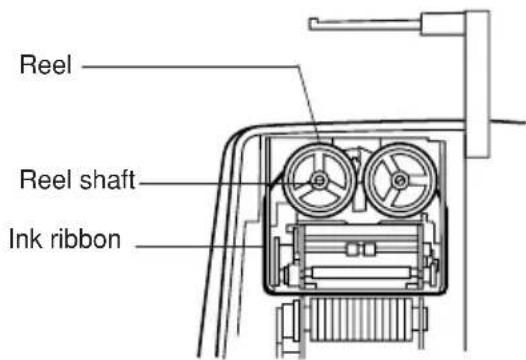
Fig. 3
PAPER ROLL REPLACEMENT
- Lift the paper holder up. (Fig. 1)
- Fold the leading edge of the paper roll 3 to 5 cm. (Do not fold it slantwise.) (Fig. 2)
- Insert the paper roll from the left side of the paper holder and make sure the paper roll is set in the proper direction (with the paper feeding from the bottom). (Fig. 3)
- Insert the leading edge of the paper into the opening directly behind the print mechanism. (Fig. 4)
- Press the paper feed key and feed the paper under the edge of the paper cutter. (Fig. 5)
Paper holder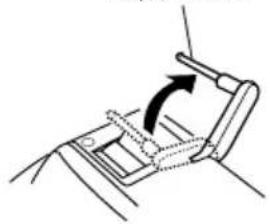
Fig. 1

Fig. 2

Fig. 3
Fig. 4

Fig. 5
DO NOT PULL PAPER BACKWARDS AS THIS MAY CAUSE DAMAGE TO PRINTING MECHANISM.
ERRORS
There are several situations which will cause an overflow or an error condition. When this occurs, the error symbol “E” will be displayed and all keys will electronically lock.
The contents of the memory at the time of the error are retained.
If "0•E" then " , , , , , , " is printed in red at the time of an error (in Non-print mode, error symbols are only displayed), *must be used to clear the calculator.
If an “E” with any numerals except zero is displayed, the error may be cleared with and the calculation can still be continued.
Error conditions:
- Entry of more than 14 digits or 13 decimals. This error can be cleared with ☐. →
- When the integer portion of an answer exceeds 14 digits.
- When the integer portion of the contents of the memory exceeds 14 digits. (Ex. *99999999999999 1 M+ M+
- When any number is divided by zero. (Ex. 5 + 0)
REPLACEMENT OF BATTERY FOR MEMORY PROTECTION
Time for battery replacement
Replace with a new battery once every 2 years.
Method of battery replacement
Use one lithium battery (CR2032).
Note: When replacing the battery, the set tax rate and the memory contents will be lost. You may want to write down the tax rate and other important numbers on a sheet of paper.
1) Turn the power switch "OFF" and unplug the power supply plug from the outlet. 2) Remove the battery cover on the back of the unit. (Fig. 1) 3) Remove the exhausted battery and install one new lithium battery. Wipe the battery well with a dry cloth and place the plus “+” side upward. (Fig. 2) 4) Replace the battery cover by reversing the removal procedure. 5) Press the RESET switch on the back of the unit (See page 13).

Fig. 1

Fig. 2
Precautions on battery use
- Do not leave an exhausted battery in the equipment.
- Do not expose the battery to water or flame, and do not take it apart.
- Store batteries out of the reach of small children.
After battery replacement
- Connect the power supply plug to an outlet and turn the power switch "ON". Check that "0." is displayed. If "0." is not displayed, remove the battery, reinstall it, and check the display again.
- Reset the tax rate.
- On the battery replacement date label found on the back of the unit, write down the month and year when the battery is replaced, as a reference for the next battery replacement.
SPECIFICATIONS
Operating capacity: 14 digits
Power supply: Operating:
AC: 220V–230V, 50Hz
Memory backup:
3V ..(DC)
(Lithium battery CR2032 × 1)
Memory Protection Battery lifespan:
Approx. 2 years. (tested and confirmed at 25° C ( 77° F); may change due to usage environment)
Calculations: Four arithmetic calcula-
tions, constant multiplication and division, power calculation, add-on/discount calculation, repeat addition and subtraction, reciprocal calculation, grand total calculation, item count calculation, markup calculation, memory calculation, etc.
PRINTING SECTION
Printer: Mechanical printer
Printing speed: Approx. 4.3 lines/sec.
Printing paper: 57 mm (2-1/4") \~ 58 mm
(2-9/32") wide
80 mm (3-5/32") in
diameter (max.)
Operation temperature: 0°C \~ 40°C (32°F \~ 104°F)
Power consumption: 53 mA
Dimensions: 250 mm (W) × 345 mm (D)
× 78 mm (H)
9-27/32" (W) × 13-19/32"
(D) × 3-1/16" (H)
Weight: Approx. 2.0 kg (4.41 lb.)
(with battery)
Accessories: 1 lithium battery, 1 battery
replacement date label (attached on the unit's back body), 1 paper roll, 1 ink ribbon and operation manual
WARNING
THE VOLTAGE USED MUST BE THE SAME AS SPECIFIED ON THIS CALCULATOR. USING THIS CALCULATOR WITH A VOLTAGE HIGHER THAN THAT SPECIFIED IS DANGEROUS AND MAY RESULT IN A FIRE OR OTHER TYPE OF ACCIDENT CAUSING DAMAGE. SHARP WILL NOT BE HELD RESPONSIBLE FOR ANY DAMAGE RESULTING FROM USE OF THIS CALCULATOR WITH OTHER THAN THE SPECIFIED VOLTAGE.
RESETTING THE UNIT
Strong impacts, exposure to electrical fields, or other unusual conditions may render the unit inoperative, and pressing the keys will have no effect. If this occurs, you will have to press the RESET switch on the bottom of the unit. The RESET switch should be pressed only when:
- an abnormal event occurs and all keys are disabled.
- you install or replace the battery.
Notes:
- Pressing the RESET switch will clear the stored tax rate and other data stored in the memory.
- Use only a ballpoint pen to press the RESET switch. Do not use anything breakable or anything with a sharp tip, such as a needle.
- After pressing the RESET switch, connect the power supply plug to an outlet. Turn the power switch "ON" and check that "0." is displayed.

Ribbon
Fig. 2

Fig. 3
REPLACING THE PAPER ROLL
Fig. 1

Fig. 2


Fig. 3

Fig. 1

Fig. 2
FRENCH
PRECAUTIONS
Fig. 1
Fig. 2
"OFF": Power off.
REPLACING THE INK RIBBON
Fig. 1
Ink ribbon
Fig. 2
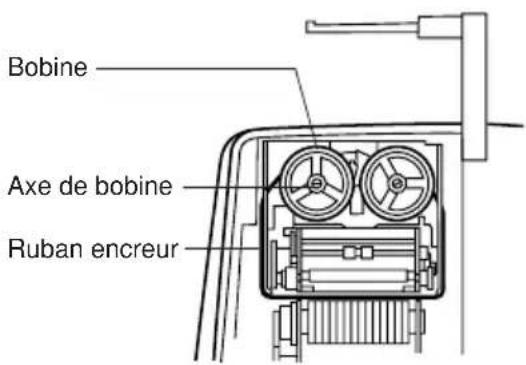
Fig. 3
REPLACING THE PAPER ROLL
Fig. 3

Fig. 4 Fig. 5
DO NOT PULL THE PAPER BACKWARD, AS THIS COULD DAMAGE THE PRINTING MECHANISM.
ERRORS
(Ex. *99999999999999 1 M+ M+
Fig. 1

Fig. 2
Dimensions: 250 mm (W) × 345 mm (D) × 78 mm (H)
SPANISH
OPERATING NOTES
Fig. 1
Fig. 2
Fig. 1
Ink ribbon
Fig. 2

Fig. 3
Fig. 3

Fig. 4

Fig. 5
(Ex. *99999999999999
1M M+
Fig. 1

Fig. 2
ITALIAN
INTRODUCTORY NOTES
Ink ribbon


DO NOT PULL THE PAPER BACKWARDS. THIS COULD DAMAGE THE PRINTING MECHANISM.
ERRORS

SWEDISH
POWER SWITCH; PRINT/COUNT SELECTOR:
SELECTOR FOR FINAL ANSWER MODE:
RECALL AND CLEAR OF FIRST MEMORY
KEY FOR "BEFORE TAX"
KEY FOR "INCLUDING TAX":
⑯ STR KEY FOR MEMORY STORAGE:
⑰ GT KEY FOR GRAND TOTAL:
18 I RECALL KEY FOR SECOND MEMORY
19 *I RECALL AND CLEAR KEY FOR SECOND MEMORY
⑳ DISPLAY
Display format:

Symbols:
Fig. 1
Ribbon
Fig. 2

Fig. 3
REPLACING THE PAPER ROLL
Fig. 3

Fig. 4 Fig. 5
DO NOT PULL THE PAPER BACKWARDS AS THIS MAY DAMAGE THE PRINT MECHANISM.
WRONG
REPLACING THE MEMORY BACKUP BATTERY
Time for battery replacement
Fig. 1

Fig. 2
About batteries
DUTCH
Fig. 1
Fig. 2
CORRECTION KEY FOR LAST DIGIT
⑧ +/-
POSITIVE/NEGATIVE SWITCH KEY:
Fig. 1
Ink ribbon
Fig. 2

Fig. 3
REPLACING THE PAPER ROLL
Fig. 1

Fig. 2

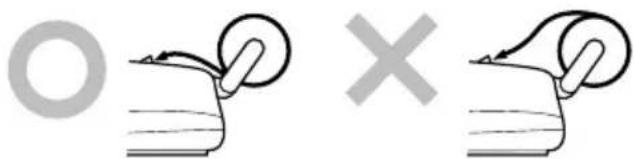
Fig. 3

Fig. 4 Fig. 5
DO NOT PULL THE PAPER BACKWARDS AS THIS COULD RESULT IN DAMAGE TO THE PRINT MECHANISM.
ERRORS
Fig. 1

Fig. 2
NOTE: FOR NETHERLANDS ONLY

PORTUGUESE
Fig. 1 Fig. 2
Fig. 1
Ink ribbon
Fig. 2
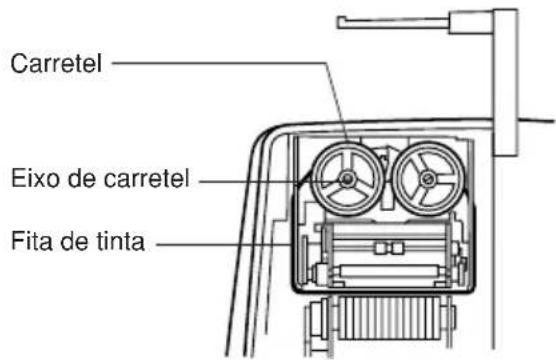
Fig. 3
PAPER ROLL REPLACEMENT
Fig. 1
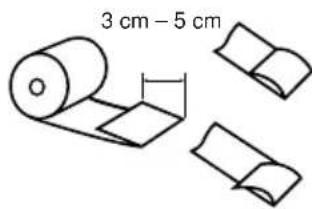
Fig. 2


Fig. 3

Fig. 1

Fig. 2
FINNISH
Figure 1 Figure 2

Figure 1
Tape
Figure 2

Figure 3
REPLACING THE PAPER ROLL
Figure 3

Figure 4 Figure 5
DO NOT PULL THE PAPER BACKWARDS, AS IT MAY DAMAGE THE PRINTING MECHANISM.
ERRORS
Figure 1

Figure 2
CALCULATION EXAMPLES
- Set the decimal selector as specified in each example. The rounding selector should be in the "5/4" position unless otherwise specified.
- The grand total mode selector and the constant/add mode selector should be in the "•" position (off position) unless otherwise specified.
- The print/item count mode selector should be in the "P" position unless otherwise specified.
- If an error is made while entering a number, press CE or - and enter the correct number.
- Negative values are printed with a “—” symbol in red.
- Not all punctuation marks will be printed. Large numbers will be printed as, e.g.: 12345678,901,234.
Note: All totals and sub-totals may be used for further calculations. RE-ENTER the number into the calculator by using the FUNCTION key and continue the problem.
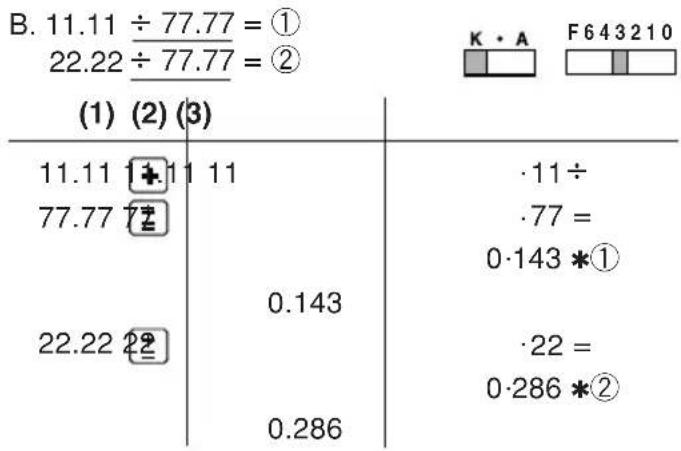
POWER / POTENZ / PUISSANCE / POTENCIA / POTENZA / POTENSRÄKNING / MACHTSVERHEFFEN / POTÊNCIA / POTENSSI

PERCENT / PROZENT / POURCENTAGE / PORCENTAJES / PERCENTUALE / PROCENTRÄKNING / PERCENTAGE / PORCENTAGEM / PROSENTTI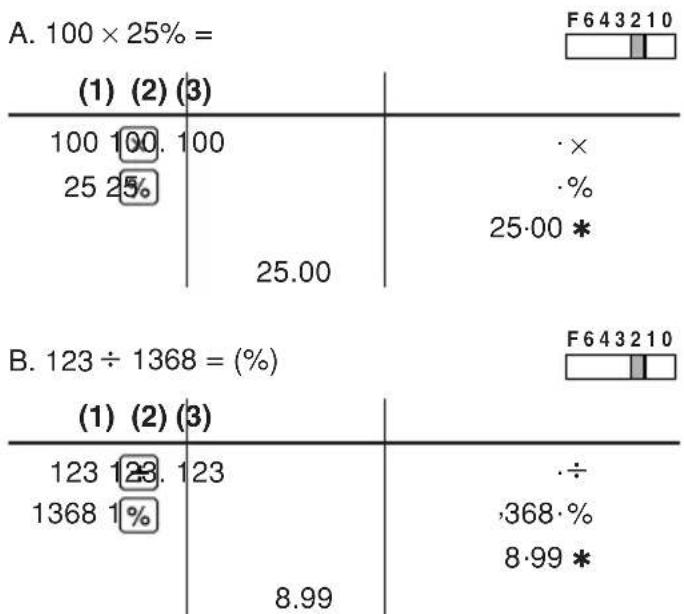
RECIPROCAL / KEHRWERT / INVERSES / RECÍPROCOS / RECIPROCO / RECIPROKA TAL / RECIPROQUE / RECÍPROCA / KÄÄNTEINEN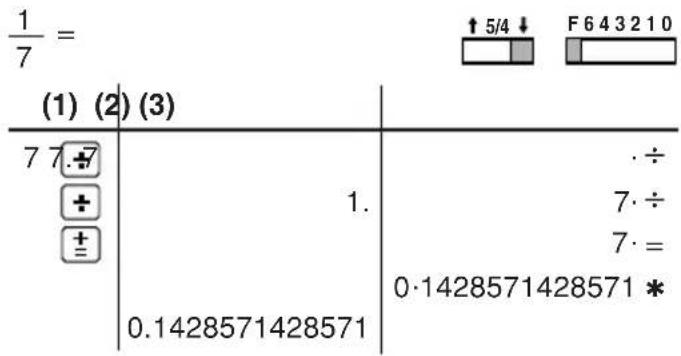
ADD-ON AND DISCOUNT / AUFSCHLAG UND ABSCHLAG / MAJORATION ET RABAIS / RECARGOS Y DESCUENTOS / MAGGIORAZIONE E SCONTO / TILLÄGG OCH RABATT / OPSLAG/KORTING / ACRÉSCIMO E DESCONTO / LISÄYS/VÄHENNYS
A. 5% add-on to 100. / Ein Aufschlag von 5% auf 100. / Majoration de 5% de 100. / Un 5% de recargo sobre 100. / Maggiorazione del 5% su 100. / 5% tillägg på 100. / Een opslag van 5% op 100. / Um acréscimo de 5% sobre 100. / 5% lisätään 100:aan

B. 10% discount on 100. / Ein Abschlag von 10% auf 100. / Rabais de 10% sur 100. / Un 10% de descuento sobre 100. / Sconto del 10% su 100. / 10% rabatt på 100. / Een korting van 10% op 100. / Desconto de 10% de 100. / 10% vähennys 100:sta. F643210


ITEM COUNT CALCULATION / BERECHNUNG MIT DEM POSTENZÄHLER / CALCUL DE COMPTE D'ARTICLES / CÁLCULO DE CUENTA DE ARTÍCULOS / CALCOLO CONTEGGIO VOCI / RÄKNING MED POSTRÄKNAREN / REKENEN MET DE POSTENTELLER / CÁLCULO DA CONTAGEM DE ITENS / OSALASKU
| Bill No. Number of Rechnung Nr. | Anzahl der Rechnungen de factures Montant | Betrag |
| Facture n° Nbre de N° de factura Cantidad de facturas Importe Numero di fattura | Numero delle fatture Importo | |
| Fakturanr. Antal fakturor Belopp Rekeningnr. Aantal rekeningen Bedrag N° da fatura Número de faturas Quantia Laskunr. Laskujen | lukumäärä Määrä | |
| 1 | 1 | 100.55 |
| 2 | 1 | 200.00 |
| 3 | 1 | 200.00 |
| 4 | 1 | 400.55 |
| 5 | 1 | $500.65 |
| Total / Summe / Total Total / Totale / Svar Totaal / Total / Summa | (a) | (b) |
| (1) | (2) | (3) |
| 100.55 ± | 100.55 | 100·55 + |
| 200 ± | 300.55 | 200·00 + |
| 400.55 ± | 500.55 | 200·00 + |
| 500.65 ± | 901.10 | 400·55 + |
| 1,401.75 | 500·65 + | |
| 005 (a) | ||
| 1,401·75 * (b) | ||
| 1,401.75 |
GRAND TOTAL / ENDSUMME / TOTAL GÉNÉRAL / TOTAL GLOBAL / TOTALE GENERALE / SLUTSVAR / EINDTOTAAL / TOTAL GERAL / KOKONAISSUMMA
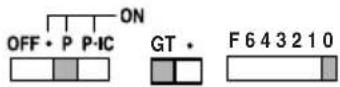
1 0 0 + 2 0 0 + 3 0 0 = 1
+) 3 0 0 + 4 0 0 + 5 0 0 = ②
+) 5 0 0 - 6 0 0 + 7 0 0 = ③
Grand total / Endsumme / Total général / Total global / Totale generale / Slutsvar / ④ Eindtotaal / Total geral / Kokonaissumma
(1) (2) | (3)


600.
The Ground Truth image displays a single, solid horizontal line. According to Rule 2 (UNDERSCORE & LINE RULES), if the GT contains lines used for stylistic emphasis or as background elements (like ruled paper), the OCR result must ignore them. The provided OCR content is "____", which consists of four underscores. This is incorrect because underscores are not equivalent to a solid line and are not permitted under the “Stylistic/Background Lines (Ignore)” rule. Outputting underscores for a stylistic line violates the rule and constitutes an error. Therefore, the OCR result is inconsistent with the Ground Truth.
The Ground Truth image displays a single, solid horizontal line. According to Rule 2 (UNDERSCORE & LINE RULES), if the GT contains lines used for stylistic emphasis or as background (like ruled paper), the OCR result must ignore them. The provided OCR content is "____", which consists of four underscores. This is incorrect because underscores are not equivalent to a solid line and are not permitted under the “Stylistic/Background Lines (Ignore)” rule. The OCR has hallucinated underscores where none should exist in the GT, violating the “Stylistic/Background Lines (Ignore)” rule. Therefore, the OCR result is inconsistent with the Ground Truth.
The Ground Truth image displays a single, solid horizontal line. According to Rule 2 (UNDERSCORE & LINE RULES), if the GT contains lines used for stylistic emphasis or as background elements (like ruled paper), the OCR result must ignore them. The provided OCR content is "____", which consists of four underscores. This is incorrect because underscores are not equivalent to a solid line and are not permitted under the “Stylistic/Background Lines (Ignore)” rule. Outputting underscores for a stylistic line violates the rule and constitutes an error. Therefore, the OCR result is inconsistent with the Ground Truth.
•
1,200.
∴ m = 3/11
(1)
•
•
600.
•
2,400.*
· +
1,200·*②
500·+
600.-
700+
600.*③
2,400-*④
MEMORY / SPEICHER / MÉMOIRE / MEMORIA / MEMORIA / MINNE / GEHEUGEN / MEMÓRIA / MUISTI
| A. | 46 × 78 = 1 |
| +) 125 ÷ 5 = 2 | |
| -) 72 × 8 = 3 |
Total / Summe / Total Total / Totale / Svar ④ Totaal / Total / Summa

| (1) (2) | (3) | |
| *M *246 48. 4678 18 | 3,588.MM | × |
| = | ||
| 3·588·M 1 | ||
| 125 125.5 M+ | M | 125÷ |
| 5.= | ||
| 25.M | 25·M 2 | |
| 72 72.8 M- | M | 72× |
| 8-= | ||
| 576.M | 576·M 3 | |
| ◇M | 3,037.M | 3·037·M 4◇ |
| B. (123 + 45) × (456 - 89) = | GT • | F643210 |
| (1) (2) | (3) | |
| 123 M3. | M | 123·M |
| 45 45. | M | 45·M |
| 456 456. | M | 456·+ |
| 89 367. | M | 89·- |
| 367·◇ | ||
| 367.M | 367·× | |
| 168·M | ||
| 168.M | ◇ | |
| 168·= | ||
| 61·656·* | ||
| 61,656.M |
EXAMPLE 1: Set a 5% tax rate. Calculate the total amount for adding a 5% tax to \$800.
*4 : works in the same way.
EXAMPLE 2: Calculate the total amount for adding a 5% tax to the sum of \500 and \460.
EXAMPLE 3: Calculate the total amount for the sum of \500 with tax already included and \460 with 5% tax to be added.
EXAMPLE 4: Calculate the before-tax value of \$800 in which a 5% tax has been included.
EXAMPLE: Set an 8% discount rate. Calculate the final amount for an 8% discount on \$800.
This equipment complies with the requirements of Directives 89/336/EEC and 73/23/EEC as amended by 93/68/EEC.
- NOTES FOR HANDLING LITHIUM BATTERIES
- CAUTION
- CONTENTS
- INSTALLING OF BATTERY FOR MEMORY PROTECTION
- AFTER BATTERY INSTALLATION
- OPERATING CONTROLS
- POWER SWITCH; PRINT / ITEM COUNT MODE SELECTOR
- DECIMAL SELECTOR
- ROUNDING SELECTOR
- CONSTANT / ADD MODE SELECTOR
- GRAND TOTAL MODE SELECTOR
- PAPER FEED KEY
- LAST DIGIT CORRECTION KEY
- CHANGE SIGN KEY
- NON-ADD / SUBTOTAL KEY
- TOTAL KEY
- CLEAR ENTRY KEY
- INK RIBBON REPLACEMENT
- PAPER ROLL REPLACEMENT
- ERRORS
- ERROR CONDITIONS
- REPLACEMENT OF BATTERY FOR MEMORY PROTECTION
- TIME FOR BATTERY REPLACEMENT
- METHOD OF BATTERY REPLACEMENT
- PRECAUTIONS ON BATTERY USE
- AFTER BATTERY REPLACEMENT
- SPECIFICATIONS
- PRINTING SECTION
- WARNING
- RESETTING THE UNIT
- NOTES
- REPLACING THE PAPER ROLL
- FRENCH
- PRECAUTIONS
- REPLACING THE INK RIBBON
- SPANISH
- OPERATING NOTES
- ITALIAN
- INTRODUCTORY NOTES
- SWEDISH
- POWER SWITCH; PRINT/COUNT SELECTOR
- SELECTOR FOR FINAL ANSWER MODE
- RECALL AND CLEAR OF FIRST MEMORY
- KEY FOR "BEFORE TAX
- KEY FOR "INCLUDING TAX
- ⑯ STR KEY FOR MEMORY STORAGE
- ⑰ GT KEY FOR GRAND TOTAL
- I RECALL KEY FOR SECOND MEMORY
- I RECALL AND CLEAR KEY FOR SECOND MEMORY
- ⑳ DISPLAY
- SYMBOLS
- WRONG
- REPLACING THE MEMORY BACKUP BATTERY
- ABOUT BATTERIES
- DUTCH
- CORRECTION KEY FOR LAST DIGIT
- POSITIVE/NEGATIVE SWITCH KEY
- PORTUGUESE
- FINNISH
- CALCULATION EXAMPLES
- ADD-ON AND DISCOUNT / AUFSCHLAG UND ABSCHLAG / MAJORATION ET RABAIS / RECARGOS Y DESCUENTOS / MAGGIORAZIONE E SCONTO / TILLÄGG OCH RABATT / OPSLAG/KORTING / ACRÉSCIMO E DESCONTO / LISÄYS/VÄHENNYS
- GRAND TOTAL / ENDSUMME / TOTAL GÉNÉRAL / TOTAL GLOBAL / TOTALE GENERALE / SLUTSVAR / EINDTOTAAL / TOTAL GERAL / KOKONAISSUMMA
- MEMORY / SPEICHER / MÉMOIRE / MEMORIA / MEMORIA / MINNE / GEHEUGEN / MEMÓRIA / MUISTI
Brand : SHARP
Model : CS-4194
Category : Calculator