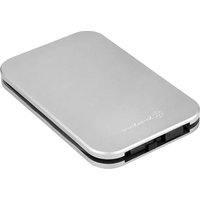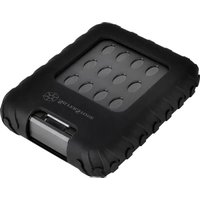
Mammoth MMS01 - External hard drive SILVERSTONE - Free user manual and instructions
Find the device manual for free Mammoth MMS01 SILVERSTONE in PDF.


| Product Type | External enclosure for 2.5" SATA hard drive/SSD |
| Brand | SilverStone |
| Model | Mammoth MMS01 |
| Interface | USB 3.0 (compatible with USB 2.0/1.1) |
| Compatible drive formats | SATA I (1.5 Gbit/s), SATA II (3 Gbit/s), SATA III (6 Gbit/s) |
| Maximum supported capacity | Greater than 4 TB (subject to operating system limit) |
| Connector | 1 USB 3.0 micro-B port |
| Power supply | USB bus (5V) |
| Material | Aluminum and plastic |
| Dimensions | Approximately 130 x 80 x 12 mm (estimated) |
| Weight | Approximately 100 g (estimated) |
| Key features | External storage, easy installation, Plug and Play functionality, UASP support (if host compatible) |
| Maintenance and cleaning | Wipe with a soft, dry cloth. Do not use harsh chemicals. |
| Safety | Discharge static electricity before handling. Safely remove the device via the taskbar icon. |
| Spare parts and repairability | Hexagonal screws included, USB cable, anti-vibration pad. No user-serviceable parts other than the hard drive. |
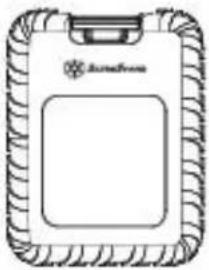
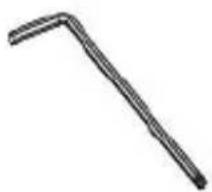
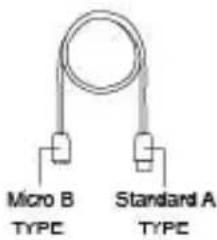
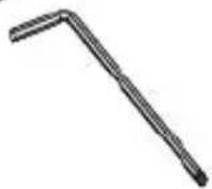
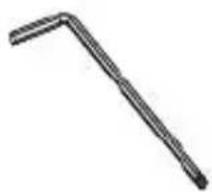
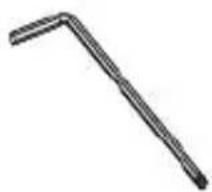
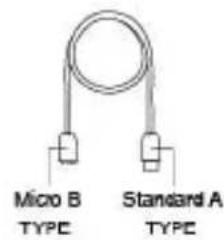
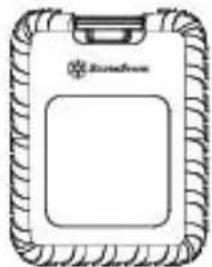
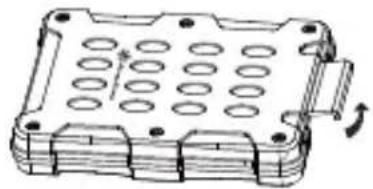
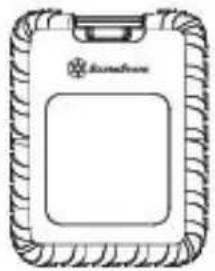
| Package contents | MMS01 enclosure, USB 3.0 micro cable, hex key, screws, anti-vibration pad, protective case |
| SATA connector durability | Up to 10,000 insertion cycles |
| System compatibility | Windows, Mac OS X, Linux (installation guide for Windows included) |
Frequently Asked Questions - Mammoth MMS01 SILVERSTONE
User questions about Mammoth MMS01 SILVERSTONE
0 question about this device. Answer the ones you know or ask your own.
Ask a new question about this device
Download the instructions for your External hard drive in PDF format for free! Find your manual Mammoth MMS01 - SILVERSTONE and take your electronic device back in hand. On this page are published all the documents necessary for the use of your device. Mammoth MMS01 by SILVERSTONE.
USER MANUAL Mammoth MMS01 SILVERSTONE
Mammoth Series MMS01
natural_image
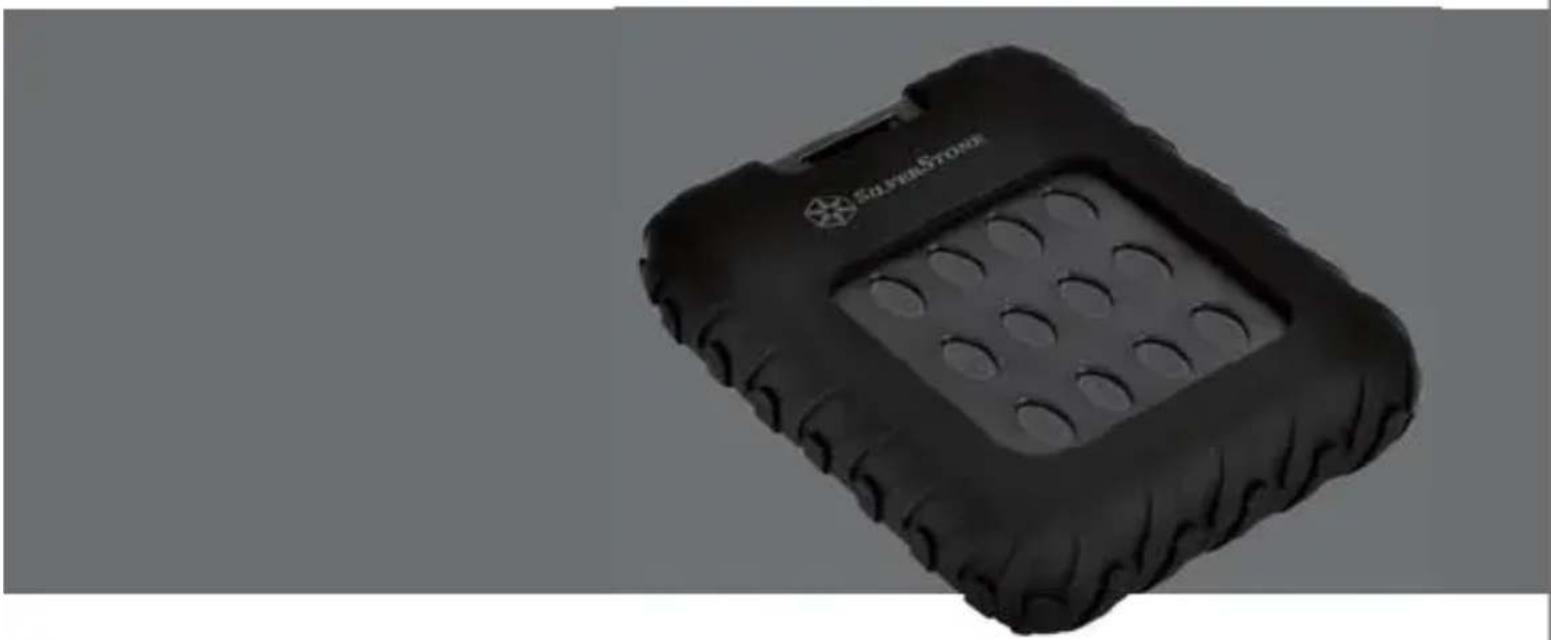
Black silver stone hard drive with textured surface and circular indentations (no visible text or symbols)Military-grade IP65 water resistant and dust proof external 2.5" drive enclosure with USB 3.0
Introduction
The MMS01 is a military-grade external 2.5" drive enclosure with USB 3.0 capability. Its thick, protective enclosure is certified for IP65 standard so it is dust proof and water resistant. Under multiple testing regime based on US military standard, the MMS01 has also proven to be immune or resistant to rapid temperature change, vibration, 1.2 meter drop, salt spray, sand, and fungal growth. Despite the extraordinary durability, there are no sacrifices in performance as the MMS01 supports UASP in addition to its already speedy USB 3.0 interface. If you are looking for an enclosure that can protect your drive in the harshest environment possible, the MMS01 is the one to get.
natural_image
Black hard drive pad with visible teeth and cushion (no text or symbols)Specifications
| Model No | SST-MMS01B |
| Enclosure material | ABS with silicone sleeve |
| Color | Black |
| Military Standard | MIL-STD-810G, Method 503.5 (thermal shock)MIL-STD-810G, Method 507.5 (humidity)MIL-STD-810G, Method 508.6 (fungus)MIL-STD-810G, Method 509.5 (salt spray)MIL-STD-810G, Method 510.5, Procedure I (sand and dust)MIL-STD-810G, Method 514.6 (vibration)MIL-STD-810G, Method 516.6 (shock) |
| Ingress protection | IP6XDustproof: No ingress of dust; complete protection against contact (dust tight)IPX5Water resistant: Water projected by a nozzle (6.3 mm) against enclosure from any direction shall have no harmful effects |
| HDD size support | 7mm or 9.5mm 2.5" SATA HDD/SSD |
| HDD interface | SATA III / II / I |
| Enclosure interface | Micro USB 3.0 type B (compatible with USB 2.0/USB 1.1) |
| Transfer speed | Max. 5Gbps |
| Support OS | Microsoft Windows 10/8.1/8/7/VISTA (32 and 64 bit) or future release versionsMac OS 10.6 or future release versions |
| Extra function | UASP |
| Environment | Operating Temperature: 5°C ~ 35°COperating Humidity: 20%RH ~ 80%RHSstorage Temperature: -20°C ~ 50°CStorage Humidity: 20%RH ~ 80%RH |
| Net Weight | 280g ± 20g |
| Dimension | 100mm (W) x 20mm (H) x 135 mm (D) (without silicone sleeve) |
Instruction
EN
Package Content
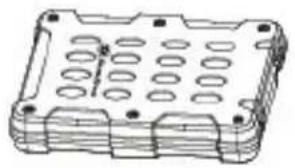
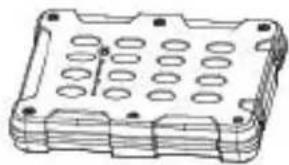
natural_image
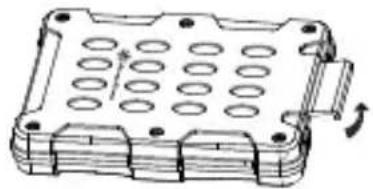
Technical line drawing of a mechanical housing or enclosure with multiple circular cutouts and mounting holes (no text or symbols)MMS01B enclosure
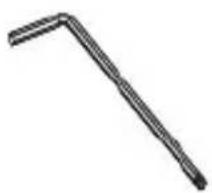
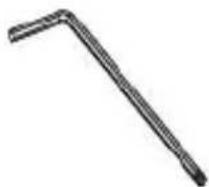
natural_image
Simple L-shaped metal tool or bracket (no text or symbols visible)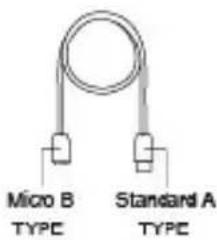
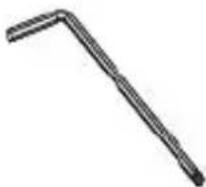
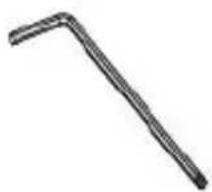
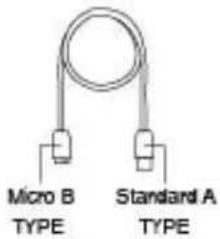
Micro USB3.0 cableSix hand corner
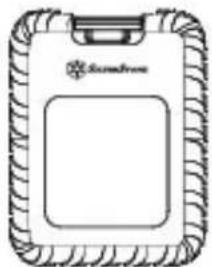
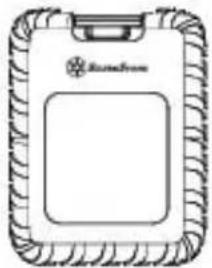
natural_image
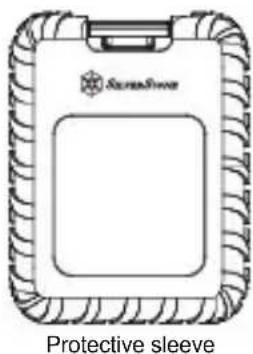
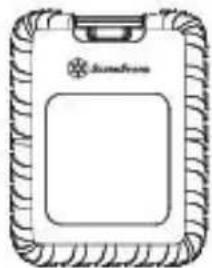
Simple line drawing of a rectangular device with a label and decorative border (no readable text or symbols)Protective sleeve
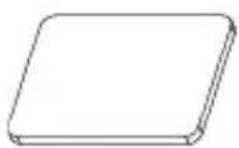
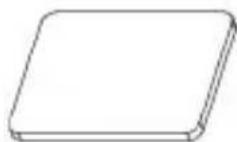
Anti-vibration pad
natural_image
Simple line drawing of a blank document or paper sheet (no text or symbols)User manual
Product Description
Application for 2.5"SATA HDD/SSD(SATA III 6Gbps /SATA II 3.0Gbps /SATA I 1.5Gbps)
■ This product is designed for SATA HDD/SSD only and is not applicable for PATA(IDE) based HDD.
■ This product can support hard drives with more than 4TB capacity.
■ Windows XP operating system limits HDD capacity to 2TB.
■ Loading / Removing hard drive may cause slight scratching.
The following USB Host controller models have been validated.
Intel H87 chipset USB 3.0 Host controller
■ ETron EJ168 USB 3.0 Host controller
Intel Z77 chipset USB 3.0 Host controller
■ ASMedia ASM1042 USB 3.0 Host controller
■ Frescologic FL1100 USB 3.0 Host controller
■ ASMedia ASM1142 USB 3.1 Host controller
■ FL1100 USB 3.0 Host controller
※ Please update each host controller (adapter) driver to the latest version.
Appearance
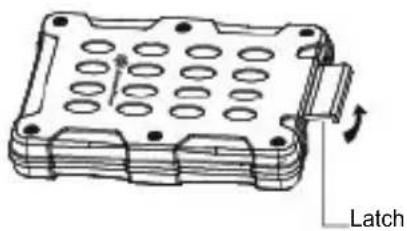
Back
natural_image
Technical line drawing of a mechanical housing component with internal holes and a labeled 'Latch' arrow (no other text or symbols)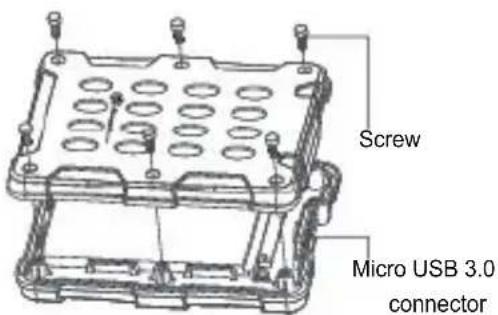

Installation Guide
■ When mounting a hard drive, please be mindful of static electricity as it can cause device malfunction. Please touch other metal objects to discharge or wear antistatic gloves before handling hard drive.
■ If hard drive already contains data, please backup it up before installation to prevent data loss.
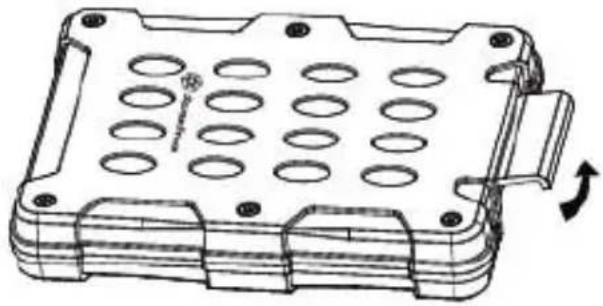
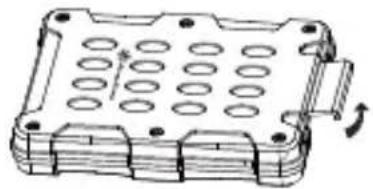
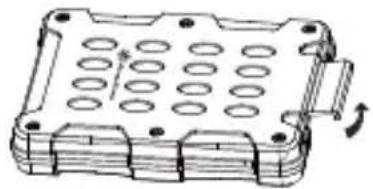
1.Open the latch
natural_image
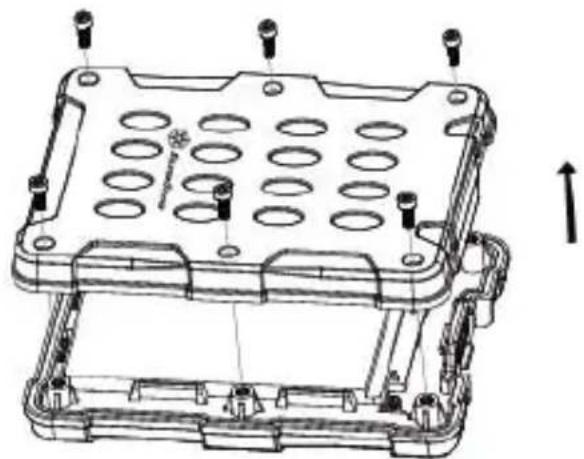
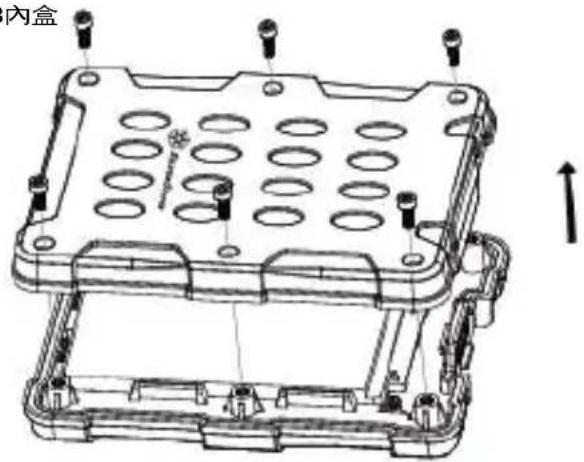
Technical line drawing of a mechanical housing component with circular holes and mounting holes (no text or symbols)- Using included hex key to remove the hex screws for opening the MMS01 enclosure
natural_image
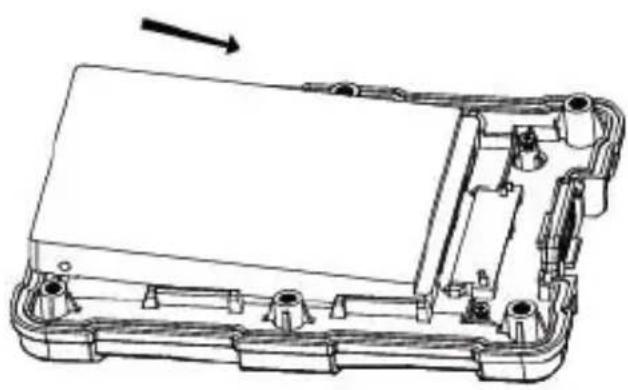
Technical line drawing of a mechanical housing with mounting holes and internal compartments (no text or symbols)- Install HDD or SSD into MMS01 enclosure
natural_image
Technical line drawing of an electronic device casing with internal components and a directional arrow (no text or symbols)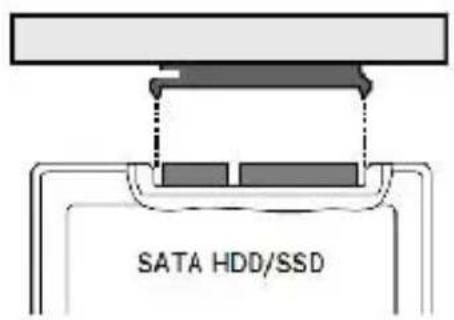
Instruction
EN
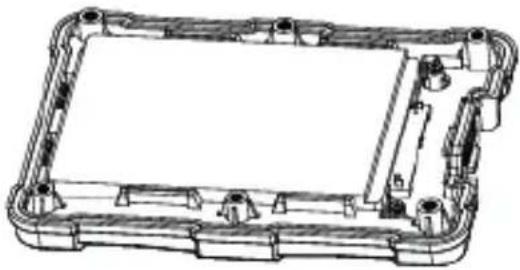
4. Drive securely seated
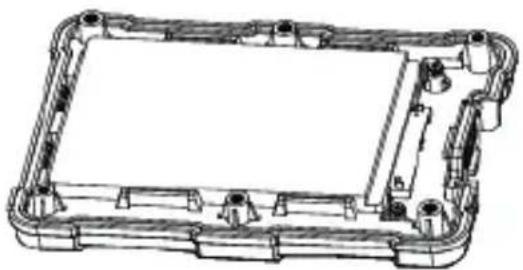
natural_image
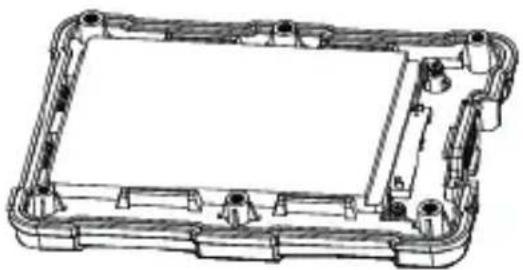
Technical line drawing of a rectangular mechanical housing with internal components and mounting holes (no text or symbols)4.1 Installation the crash pad
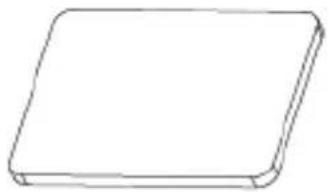
natural_image
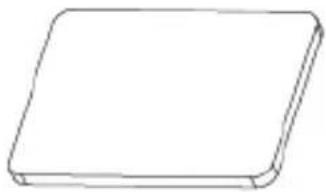
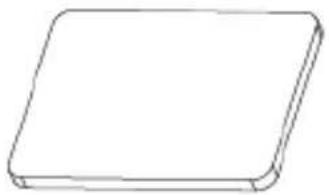
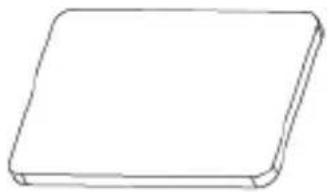
Simple line drawing of a rectangular object with rounded edges (no text or symbols)Anti-vibration pad
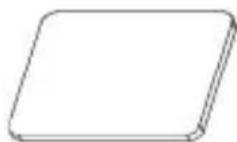
* If 7mm thick 2.5" HDD/SSD is installed, please place the anti-vibration pad on it. For 9.5mm thick 2.5" HDD/SSD, it is not necessary to use the anti-vibration pad.
5. Reinstall all hex screws
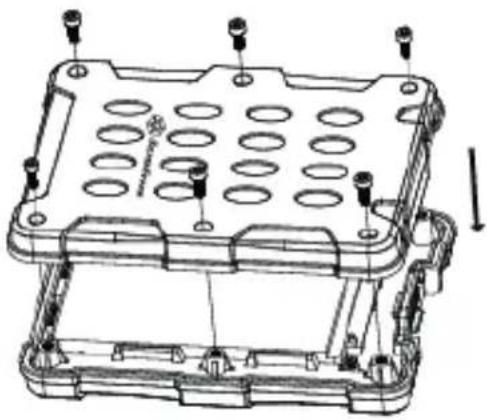
natural_image
Technical line drawing of a mechanical housing with mounting holes and internal components (no text or symbols)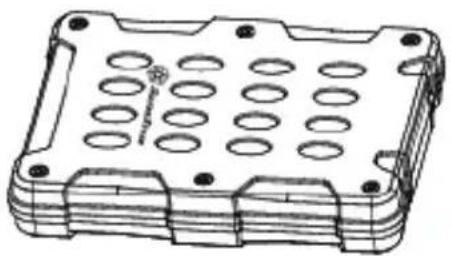
natural_image
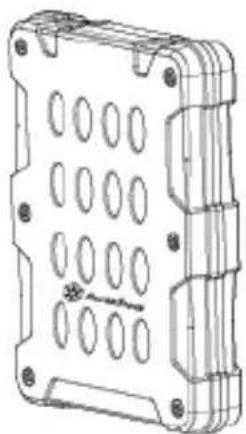
Technical line drawing of a rectangular electronic component with circular holes and mounting holes (no text or symbols)6. Slip the protective sleeve over the enclosure
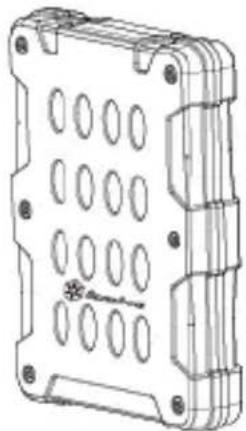
natural_image
Technical line drawing of a rectangular electronic component with circular holes and mounting feet (no text or symbols)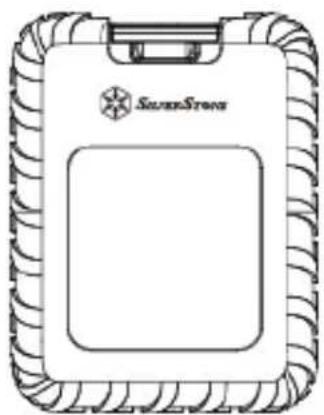
natural_image
Line drawing of a silver stone tablet device with decorative border (no text or symbols)7. Connect MMS01 to your computer
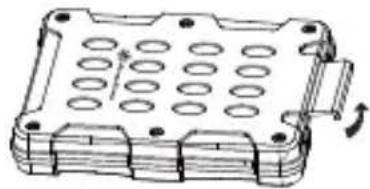
natural_image
Technical line drawing of a mechanical housing or enclosure with circular holes and mounting holes (no text or symbols)

natural_image
Simple black-and-white icon of a computer monitor with no text or symbolsP Troubleshooting
If a suspected case of failure occurs, please check for the following:
■ My device is recognized as USB 2.0, not USB 3.0?
→Try to power off your computer and connect the cable again.
■ Only 2TB capacity can be identified when using a drive over 2TB (Windows Vista/7/8/10)?
→Please use GPT format for over 2TB capacity.
■ When connected as a USB 3.0 device, my system cannot recognize it after a period of time?
→Please update the USB 3.0 driver.
■ Why some drives don't show up in "My Computer" (Windows)?
→Make sure the hard disk letter is assigned in C \~ Z range.
■ When using a new drive, it cannot be recognized by my OS?
→Please format the drive.
■ When using a 2TB drive, the capacity in the OS only shows 1.8TB?
→Most hard drive manufacturers use decimal, but the OS uses binary to calculate drive capacity. Due to different calculation methods, you will see 200GB less capacity on a 2TB drive.
Caution
EN
FAQ
Q : Can I use drives that already have existing data?
A : Mostly yes, but depending on the environment in which the drive was previously used, there may be incompatibility, so to avoid unpredictable data loss, please backup first before using it in MMS01B.
Q : What kinds of hard drives are supported ?
A : The product can support 2.5" SATA HDD/SSD, but not IDE, SAS, SCSI HDD.
Q : How many drive insertion cycles can MMS01B withstand?
A : This product's SATA connector durability is rated up to 10,000 cycles.
Q : Why does disk format take so much time in Windows?
A : You can select quick format when performing the format function.
Q: Why can't my drive access S.M.A.R.T information?
A : This product does not support S.M.A.R.T function.
Q : Does MMS01B support USAP function?
A : Yes, but your system also needs to support USAP for it to work.
Lieferumfang
natural_image
Technical line drawing of a mechanical housing or enclosure with multiple circular cutouts (no text or symbols)MMS01B-Gehäuse
natural_image
Simple line drawing of a rectangular device with a label and decorative border (no text or symbols)Protective sleeve
natural_image
Simple black L-shaped tool or bracket with no visible text or symbols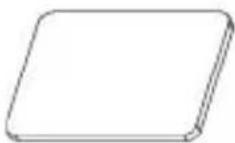
Vibrationsdämpfendes Polster
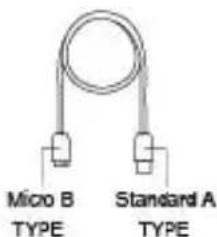
Micro USB 3.0-KabelSix hand corner

natural_image
Simple line drawing of a blank document or paper sheet (no text or symbols)Bedienungsanleitung
Produktbeschreibung
natural_image
Simple line drawing of a notebook with a bookmark and decorative border (no text or symbols)Protective sleeve
natural_image
Technical line drawing of a mechanical housing component with circular holes and mounting holes (no text or symbols)natural_image
Technical line drawing of a mechanical housing with mounting holes and internal components (no text or symbols)natural_image
Technical line drawing of an electronic device casing with internal components and a directional arrow (no text or symbols)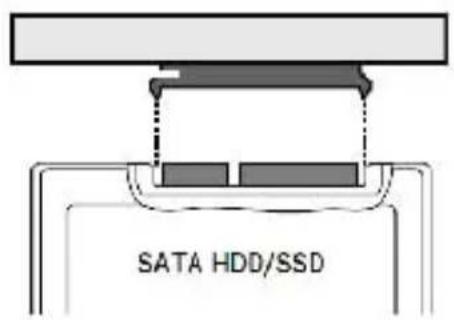
natural_image
Technical line drawing of a rectangular electronic component with mounting holes and internal wiring (no text or symbols)4.1 Vibrationsdämpfendes Polster installieren
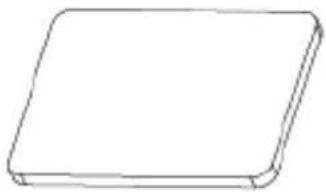
natural_image
Simple line drawing of a rectangular object with rounded edges (no text or symbols)Vibrationsdämpfendes Polster
natural_image
Technical line drawing of a mechanical housing with mounting holes and internal components (no text or symbols)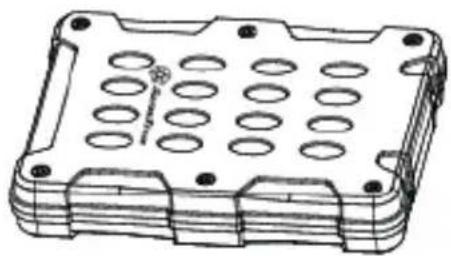
natural_image
Technical line drawing of a mechanical housing or enclosure with multiple circular holes and mounting points (no text or symbols)natural_image
Technical line drawings of two different electronic device enclosures, one with circular cutouts and the other a rectangular device labeled 'SawarStone' (no text or symbols on the devices themselves)Achtung
DE
natural_image
Technical line drawing of a mechanical housing or enclosure with circular holes and a directional arrow (no text or symbols)

natural_image
Simple black-and-white icon of a computer monitor with no text or symbolsProblemlösung
natural_image
Technical line drawing of a mechanical housing component with circular holes and mounting holes (no text or symbols)natural_image
Technical line drawing of a mechanical housing with mounting holes and internal components (no text or symbols)natural_image
Technical line drawing of an electronic device casing with internal components and a directional arrow (no text or symbols)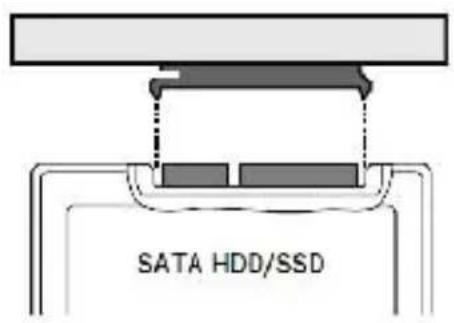
Introducción
ES
4. Disco fijado
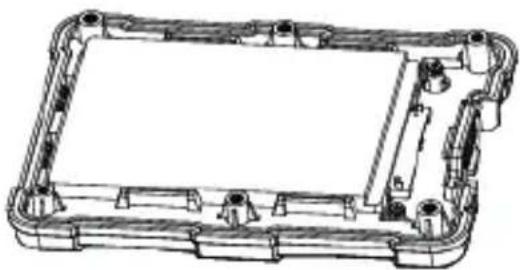
natural_image
Technical line drawing of a mechanical housing or enclosure frame with no visible text or symbolsnatural_image
Simple line drawing of a rectangular object with rounded edges (no text or symbols)natural_image
Technical line drawing of a mechanical housing with mounting holes and internal components (no text or symbols)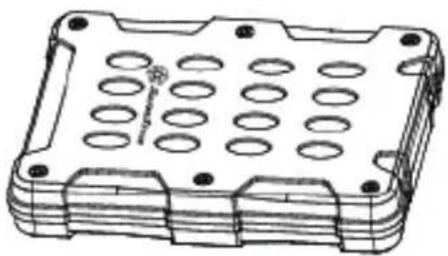
natural_image
Technical line drawing of a rectangular electronic component with circular holes and mounting holes (no text or symbols)natural_image
Technical line drawing of a rectangular electronic component with circular holes and mounting holes (no text or symbols)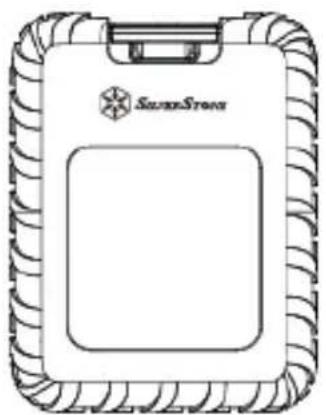
natural_image
Line drawing of a portable electronic device with a logo and 'Sunrise Stone' branding (no text or symbols on the device itself)natural_image
Technical line drawing of a mechanical housing or enclosure with circular holes and mounting holes (no text or symbols)

natural_image
Simple black-and-white icon of a computer monitor with no text or symbolsnatural_image
Technical line drawing of a mechanical housing or enclosure with multiple oval cavities and mounting holes (no text or symbols)Boîtier MMS01B
natural_image
Simple line drawing of a rectangular device with a label 'Analogron' on the top (no other text or symbols)Protective sleeve
natural_image
Simple line drawing of a right-angle tool (no text or symbols)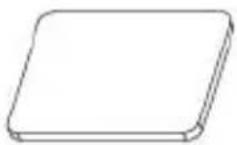
Tampon anti-vibrations
Micro Câble USB 3.0Six hand corner
natural_image
Simple line drawing of a closed book with no visible text or symbols on pages
natural_image
Technical line drawing of a mechanical housing component with circular holes and mounting holes (no text or symbols)natural_image
Technical line drawing of a mechanical housing with mounting holes and internal components (no text or symbols)natural_image
Technical line drawing of an electronic device casing with internal components and a directional arrow (no text or symbols)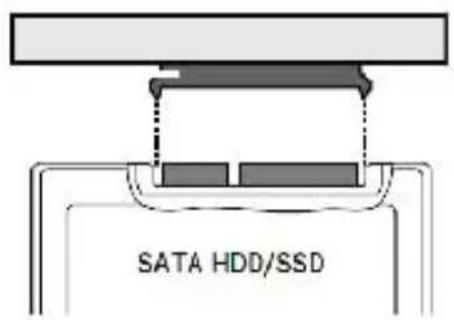
- Lecteur bien placé
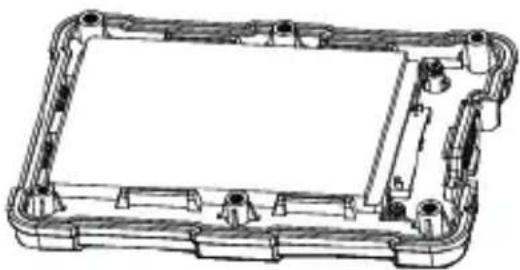
natural_image
Technical line drawing of a rectangular mechanical housing or enclosure with internal components (no text or symbols)4.1 Installer le tampon anti-vibrations
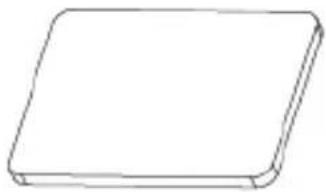
natural_image
Simple line drawing of a rectangular object with rounded edges (no text or symbols)Tampon anti-vibrations
natural_image
Technical line drawing of a mechanical housing with mounting holes and internal components (no text or symbols)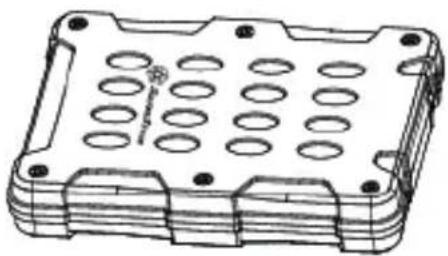
natural_image
Technical line drawing of a rectangular electronic component with circular holes and mounting holes (no text or symbols)natural_image
Technical line drawing of a rectangular electronic component with circular holes and mounting feet (no text or symbols)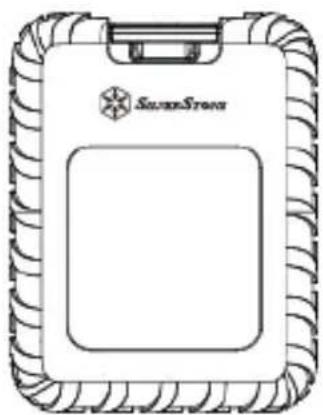
natural_image
Line drawing of a branded clipboard with 'SilverStone' branding and a gear-like border (no text or symbols beyond logo)Attention
FR
natural_image
Technical line drawing of a mechanical housing or enclosure with circular holes and mounting holes (no text or symbols)

natural_image
Simple black-and-white icon of a computer monitor with no text or symbols
Dépannage
natural_image
Technical line drawing of a mechanical housing or enclosure with multiple circular cutouts and mounting holes (no text or symbols)Box MMS01B
natural_image
Simple line drawing of a rectangular device with a label and decorative border (no readable text or symbols)Protective sleeve
natural_image
Simple L-shaped metal tool or bracket (no text or symbols visible)natural_image
Simple line drawing of a blank document or paper sheet (no text or symbols)Manuale d'uso

natural_image
Technical line drawing of a mechanical housing component with circular holes and mounting holes (no text or symbols)natural_image
Technical line drawing of a rectangular electronic device with internal compartments and mounting points (no text or symbols)natural_image
Technical line drawing of an electronic device casing with internal components and a directional arrow indicating motion (no text or symbols)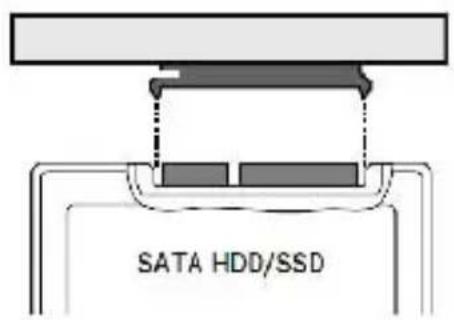
Introduzione
IT
natural_image
Technical line drawing of a mechanical housing or enclosure frame with no visible text or symbolsnatural_image
Simple line drawing of a rectangular object with rounded edges (no text or symbols)natural_image
Technical line drawing of a mechanical housing with mounting holes and internal components (no text or symbols)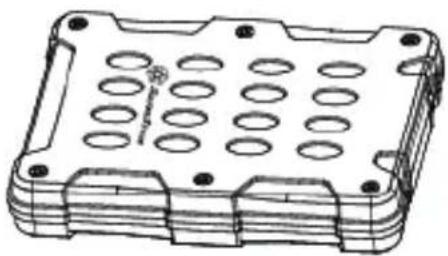
natural_image
Technical line drawing of a rectangular electronic component with circular holes and mounting holes (no text or symbols)natural_image
Technical line drawing of a rectangular electronic device casing with internal compartments and mounting holes (no text or symbols)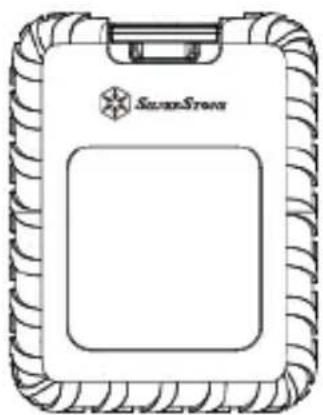
natural_image
Line drawing of a silver Sony plastic clipboard with coiled texture (no text or symbols)- Collegare MMS01 al computer
natural_image
Technical line drawing of a mechanical housing or enclosure with circular holes and a rotation arrow (no text or symbols)

natural_image
Simple black-and-white icon of a computer monitor with no text or symbolsnatural_image
Technical line drawing of a mechanical housing or enclosure with multiple oval cutouts and mounting holes (no text or symbols)natural_image
Simple line drawing of a clipboard with decorative border (no text or symbols)Protective sleeve
natural_image
Simple L-shaped metal tool or bracket (no text or symbols visible)Six hand corner
natural_image
Simple line drawing of a closed book with horizontal lines representing text on pages (no actual text or symbols)natural_image
Simple line drawing of a rectangular device with a handle and label, no readable text or symbols.Protective sleeve
natural_image
Technical line drawing of a mechanical housing component with circular holes and a directional arrow indicating rotation (no text or symbols)natural_image
Technical line drawing of a mechanical housing with mounting holes and internal components (no text or symbols)natural_image
Technical line drawing of an electronic device casing with internal components and a directional arrow (no text or symbols)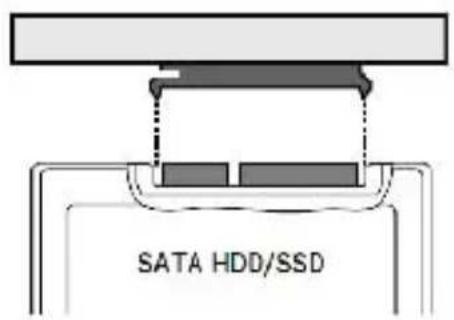
natural_image
Technical line drawing of a rectangular mechanical housing or enclosure with internal components and mounting points (no text or symbols)natural_image
Simple line drawing of a rectangular object with rounded edges (no text or symbols)natural_image
Technical line drawing of a mechanical housing with multiple circular components and mounting holes (no text or symbols)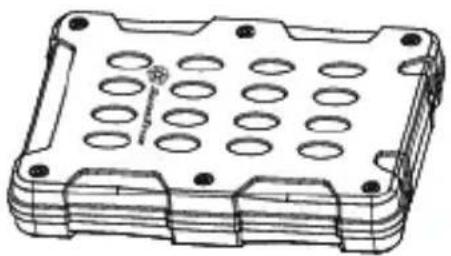
natural_image
Technical line drawing of a rectangular electronic component with circular holes and mounting holes (no text or symbols)natural_image
Technical line drawings of two different electronic device enclosures, one with circular cutouts and the other a rectangular cover (no text or symbols)Внимание
RU
natural_image
Technical line drawing of a mechanical housing or enclosure with circular holes and mounting holes (no text or symbols)

natural_image
Simple black-and-white icon of a computer monitor with no text or symbolsnatural_image
Technical line drawing of a mechanical housing or enclosure with multiple circular cutouts and mounting holes (no text or symbols)MMS01Bエンクロージャー
natural_image
Simple L-shaped metal tool or bracket (no text or symbols)Six hand corner
マイクロUSB 3.0ケーブル
natural_image
Simple line drawing of a rectangular device with a label and decorative border (no text or symbols)Protective sleeve
防振パッド
natural_image
Simple line drawing of a closed book with no visible text or symbols on pagesユーザーマニュアル
製品の説明
2.5"SATA HDD/SSD对应 (SATA III 6Gbps / SATA II 3.0Gbps / SATA I 1.5Gbps)
紹介
JP
P・インストールガイド
natural_image
Technical line drawing of a mechanical housing component with circular holes and mounting holes (no text or symbols)natural_image
Technical line drawing of a mechanical housing with mounting holes and internal components (no text or symbols)natural_image
Technical line drawing of a mechanical housing or enclosure with internal components and an arrow indicating direction (no text or symbols present)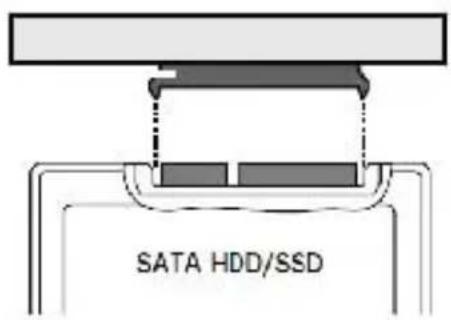
紹介
JP
- 正しく装着されたドライブ
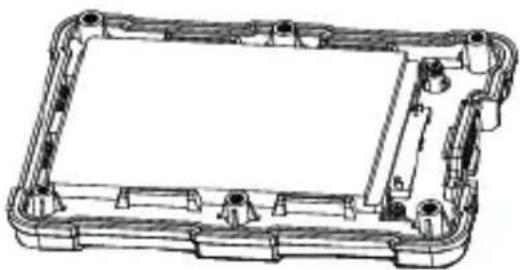
natural_image
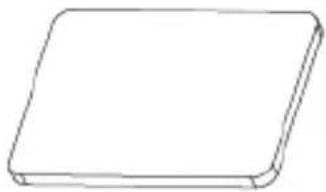
Technical line drawing of a rectangular mechanical housing or enclosure with internal components (no text or symbols)4.1 防振パッドを装着します。
natural_image
Simple line drawing of a rectangular object with rounded edges (no text or symbols)防振パッド
natural_image
Technical line drawing of a mechanical housing with mounting holes and internal compartments (no text or symbols)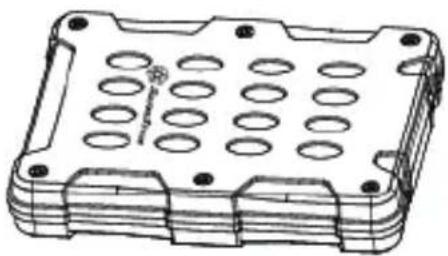
natural_image
Technical line drawing of a rectangular electronic component with circular holes and mounting feet (no text or symbols)natural_image
Technical line drawing of a rectangular electronic component with internal cavities and mounting holes (no text or symbols)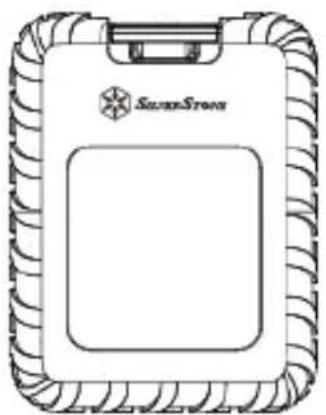
natural_image
Line drawing of a battery cover with 'SilverStress' branding and decorative border (no text or symbols beyond branding)ご注意
- をコンピューターに接続します。
natural_image
Technical line drawing of a mechanical housing or enclosure with circular holes and a directional arrow (no text or symbols)

natural_image
Simple black-and-white icon of a computer monitor with no text or symbolsP・トラブル シュー ティン
natural_image
Technical line drawing of a mechanical housing or enclosure with multiple oval cutouts and mounting holes (no text or symbols)MMS01B 합체
natural_image
Simple line drawing of a rectangular device with a label and decorative border (no text or symbols)Protective sleeve
natural_image
Simple L-shaped metal tool or rod (no text or symbols visible)Six hand corner
진동 방지 패드
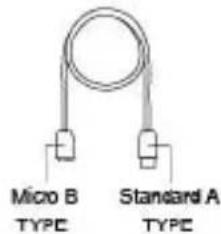
마이크로USB 3.0 케이블
natural_image
Simple line drawing of a blank document or paper sheet (no text or symbols)사용 설명서
제품 설명
2.5" SATA HDD/SSD (SATA III 6Gbps /SATA II 3.0Gbps /SATA I 1.5Gbps) 전용
natural_image
Simple line drawing of a notebook with a bookmark and decorative border (no text or symbols)Protective sleeve
소개
KR
설치 설명서
natural_image
Technical line drawing of a mechanical housing component with circular holes and a directional arrow (no text or symbols)natural_image
Technical line drawing of an open electronic device casing with internal components and a directional arrow indicating motion (no text or symbols)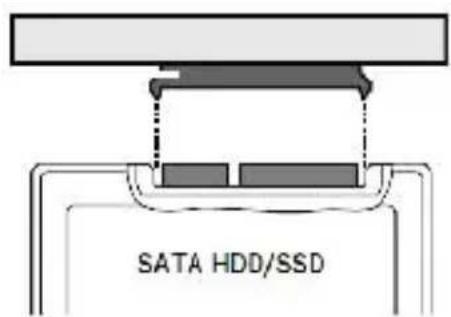
소개
KR
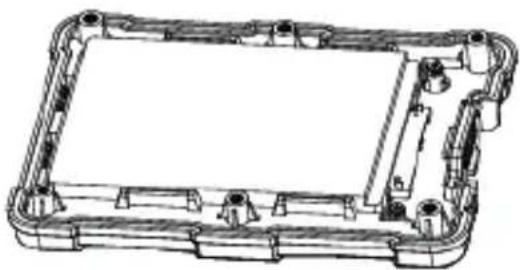
4.드라이브를 꽐 맞게 넣습니다.
natural_image
Technical line drawing of a rectangular mechanical housing or enclosure with internal components (no text or symbols)4.1진동 방지 패드를 설치합니다.
natural_image
Simple line drawing of a rectangular object with rounded edges (no text or symbols)진동 방지 패드
natural_image
Technical line drawing of a mechanical housing with mounting holes and internal components (no text or symbols)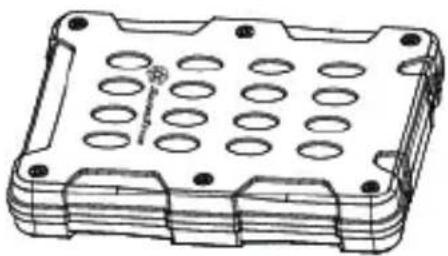
natural_image
Technical line drawing of a rectangular electronic component with circular holes and mounting holes (no text or symbols)natural_image
Technical line drawing of a rectangular electronic component with circular holes and mounting holes (no text or symbols)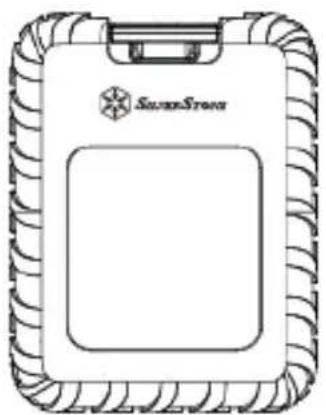
natural_image
Line drawing of a branded battery cover with 'Sunrise Stone' branding and a logo, no readable text or symbols beyond the brand name.주의
KR
- MMS01을 컴퓨터에 연결합니다.
natural_image
Technical line drawing of a mechanical housing or enclosure with circular holes and a rotation arrow (no text or symbols)

natural_image
Simple black-and-white icon of a computer monitor with no text or symbols문제 해결
natural_image
Technical line drawing of a mechanical housing or enclosure with multiple circular cutouts and mounting holes (no text or symbols)MMS01B 硬碟盒
natural_image
Simple line drawing of a rectangular device with a label and decorative border (no text or symbols)矽膠防護套
natural_image
Simple line drawing of a right-angle wrench (no text or symbols)
防震垫
natural_image
Technical line drawing of a mechanical housing component with circular holes and mounting holes (no text or symbols)- 請使用六角螺絲扳手打開MMS01B內盒
natural_image
Technical line drawing of an electronic device casing with internal components and a directional arrow (no text or symbols)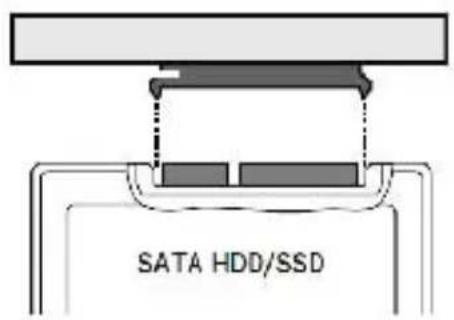
簡介
TW
4. 硬碟安裝完成
natural_image
Technical line drawing of a rectangular electronic device with internal components and mounting holes (no text or symbols)4.1 安装防震垫
natural_image
Simple line drawing of a rectangular object with rounded edges (no text or symbols)防震垫
natural_image
Technical line drawing of a mechanical housing with multiple circular components and mounting holes (no text or symbols)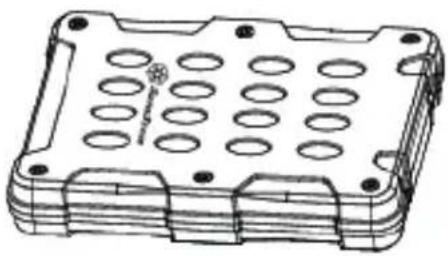
natural_image
Technical line drawing of a rectangular electronic component with circular holes and mounting feet (no text or symbols)6. 將防護套套上主機
natural_image
Technical line drawing of a rectangular electronic device casing with internal compartments and mounting holes (no text or symbols)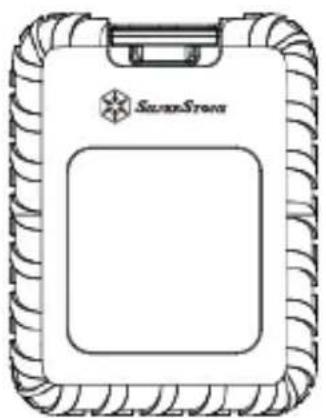
natural_image
Line drawing of a battery with a logo and 'Sunrise Stone' branding, no readable text or symbols beyond the brand name.7. 將MMS01B接上電腦
natural_image
Technical line drawing of a mechanical housing or enclosure with circular holes and a rotation arrow (no text or symbols)

natural_image
Simple black-and-white icon of a computer monitor with no text or symbols故障排除
natural_image
Technical line drawing of a mechanical housing or enclosure with multiple circular cutouts and mounting holes (no text or symbols)MMS01B 硬盘盒
natural_image
Simple line drawing of a rectangular device with a label and decorative border (no text or symbols)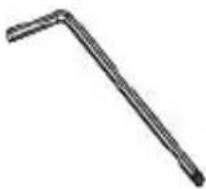
natural_image
Simple L-shaped metal tool with no text or symbols六角螺丝扳手
防震垫
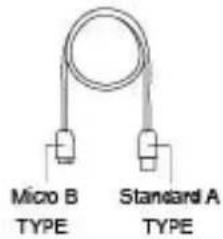
Micro USB 3.0 线材
natural_image
Simple line drawing of a closed book with no visible text or symbols on pages使用手册硅胶防护套
产品说明
应用于2.5吋 SATA HDD/SSD(SATA III 6Gbps /SATA II 3.0Gbps /SATA I 1.5Gbps)
natural_image
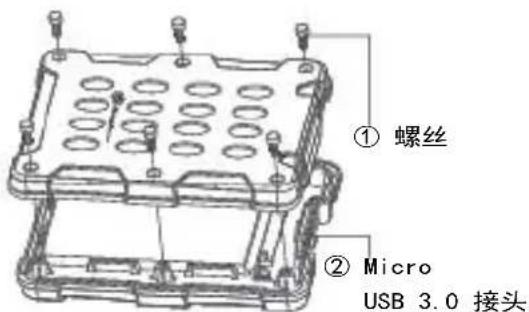
Technical line drawing of a mechanical housing or enclosure with internal compartments and mounting holes (no text or symbols)① 防护盖
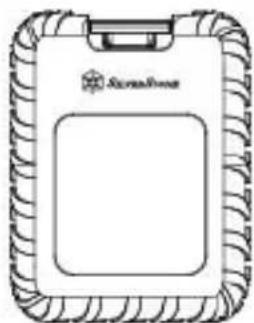
防护套
简介
CN
4. 硬盘安装完成
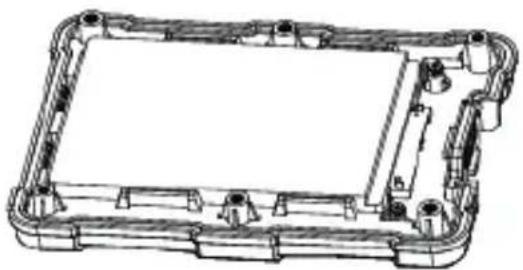
natural_image
Technical line drawing of a rectangular mechanical housing or enclosure with internal components and mounting points (no text or symbols)4.1 安装防震垫
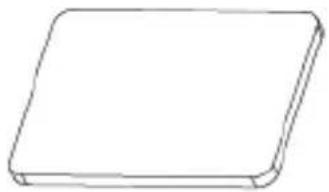
natural_image
Simple line drawing of a rectangular object with rounded edges (no text or symbols)防震垫
natural_image
Technical line drawing of a mechanical housing with mounting holes and internal components (no text or symbols)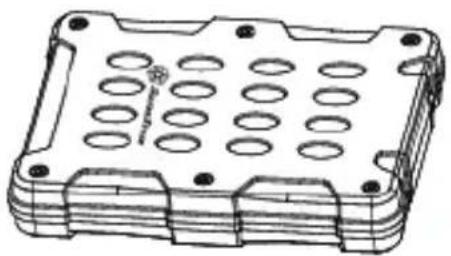
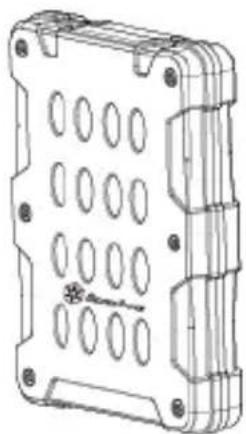
natural_image
Technical line drawing of a rectangular electronic component with circular holes and mounting holes (no text or symbols)6. 防护套套上主机
natural_image
Technical line drawing of a rectangular electronic device casing with internal compartments and mounting holes (no text or symbols)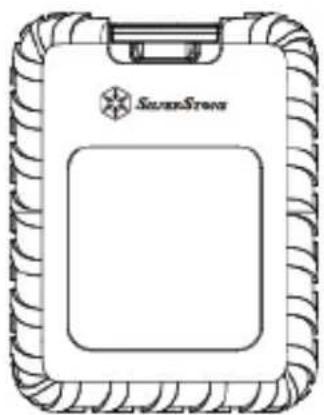
natural_image
Line drawing of a silver stone tablet device with decorative border (no text or symbols)简介
CN
4. 硬盘安装完成
natural_image
Technical line drawing of a rectangular mechanical housing or enclosure with internal components and mounting points (no text or symbols)4.1 安装防震垫
natural_image
Simple line drawing of a rectangular object with rounded edges (no text or symbols)防震垫
natural_image
Technical line drawing of a mechanical housing with mounting holes and internal components (no text or symbols)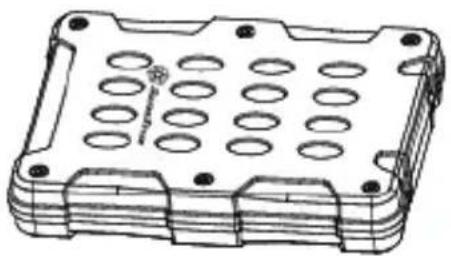
natural_image
Technical line drawing of a rectangular electronic component with circular holes and mounting holes (no text or symbols)6. 防护套套上主机
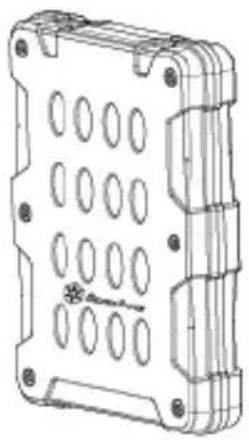
natural_image
Technical line drawing of a rectangular electronic enclosure with internal compartments and mounting holes (no text or symbols)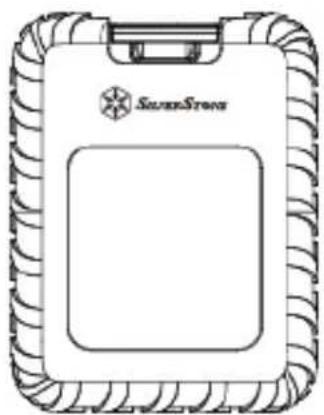
natural_image
Line drawing of a silver stone tablet device with decorative border (no text or symbols)注意
CN
7. 将MMS01B接上计算机
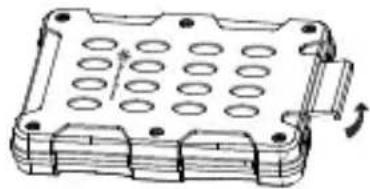
natural_image
Technical line drawing of a mechanical housing or enclosure with circular holes and mounting holes (no text or symbols)

natural_image
Simple black-and-white icon of a computer monitor with no text or symbols故障排除
Caution: This instruction is intended for those who do no plan on partitioning the installed drive. For detailed partition operation, please refer to Windows Help and Support, or other related books. ※Performing the following steps to format the drive will erase all data on it. Please do not format the drive if there is important data on it.
DEUTSCH
Programs and Features
Power Options
Event Viewer
System
Device Manager
Network Connections
Disk Management
Computer Management
Command Prompt
Command Prompt (Admin)
natural_image
Simple line drawing of a computer mouse with a cursor pointing to the left (no text or symbols)ENGLISH
In Windows 10 / 8.1 / 8
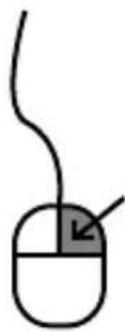
Please right-click on the lower left corner of the Start button, select "Disk Management." (as shown in the illustration).
In Windows 7 / Vista or prior versions
Please right-click "Computer" on the Start menu, and open "Manage." (as shown in the illustration).
DEUTSCH
Unter Windows 10/8.1/8
ENGLISH
In the "Computer Management" window, select "Disk Management."
It will show disk drive as "not initialized". Please Right-click and select "Disk initialization."
DEUTSCH
ENGLISH
The window "Disk initialization" will appear. Press the OK button.
※About partition format MBR partition formatted capacity limit is 2TB. We suggest using GPT format on disk drives with capacity of 2TB or above, but GPT may not be recognized by Windows 2000 and XP In addition, some older hardware cannot divide sectors with over 2TB capacity.
DEUTSCH
The state of disks will turn to "connection", when the "Initialization Disk" is completed. This state still cannot be used, you must create a partition and format it. Please right click the "unallocated" sector and select "New Simple Volume."
DEUTSCH
ENGLISH
The "New Simple Volume Wizard" window will open, then press "Next".
DEUTSCH
ENGLISH
When the "specify volume size" pop up, you can set partition size to arbitrary value.
The size is not particularly specified as the maximum capacity setting.
After the setup is complete, press "Next."
DEUTSCH
The size is not particularly specified as the maximum capacity setting.
After the setup is complete, press "Next."
ITALIANO
ENGLISH
In the "assigned drive letter and path" window.
- Assign drive letter. Drive letter is usually done in alphabets starting with letter C, if not specified, it will be assigned in alphabetical order.
- Do not select "hanging in the following empty NTFS folder" and "does not assign a drive letter or drive path" under normal circumstances.
※ When selecting these options, please refer to your Windows documentation or other related materials.
■ Press "Next."
DEUTSCH
ENGLISH
The "Format Partition" window.
■ For "File System", choose NTFS. Please do not use other file format.
- You can specify the size of the allocation unit size when configuring partition. If you don't need to specify, then please select default volume.Set the name of volume for display in "My Computer".
■ Check this option to perform a quick format, it will perform a quick format.
■ Boot files and Compression folders.
Check this option to enable file and folder compression.
You can increase available drive capacity with this option, but drive speed will be lower than with no compression. When setup is complete, press "Next."
DEUTSCH
ENGLISH
"Completing the New Simple Volume Wizard" window. If settings are correct, press Finish and formatting will begin.
DEUTSCH
When formatting, disk window will display the format condition. After formatting is complete, this disk icon will appear in "My Computer".
Now you can start using the formatted drive.
DEUTSCH
■ While in the formatting process, a warning window will appear but it does not mean formatting has failed.
■ While in the formatting process, please do not power off the PC, power off the docking station, unplug cables, or turn off Windows, etc...
DEUTSCH
Open the "Disk Utility." ※ "Disk Utility" in the "Applications" "Utilities" folder.
The left column displays the disks that can be formatted, this docking will be displayed as "Xx GB (HDD / SSD capacity) Media."
Click to format it.
DEUTSCH
ENGLISH
The disk information will show on this page.
DEUTSCH
Click the "Partition." You can change the partition setting.
DEUTSCH
Are you sure you want to partition the disk "JMicron Generic DISK03 Media"?
Partitioning this disk will change one of the partitions. No partitions will be erased.
This partition will be added: "Untitled 1"
Cancel
Partition
ENGLISH
Click the lower right corner "Apply" after setting.
The warning window wills popup.
Click "Partition" to confirm. If not, click "Cancel."
DEUTSCH
natural_image
Gray USB switch icon with 'Untitled 1' label below (no other text or symbols)ENGLISH
The disk partition will appear on the desktop.
DEUTSCH
1 When you want to remove MMS01B, please click the safety remove icon on the lower right corner.
2 When the screen shows "Safe to Remove Hardware" means the hardware has been removed. remove the cable connections.
※The process of removing the hard disk depends on the version of the operating system, please refer to the Windows operating manual.
Please note: The wrong way to remove the product may cause damage to the hard disk data.
DEUTSCH
Warranty Information
This product has a limited 1 year warranty in North America and Australia.
For information on warranty periods in other regions, please contact your reseller or SilverStone authorized distributor.
Warranty terms & conditions
- Product component defects or damages resulted from defective production is covered under warranty.
Defects or damages with the following conditions will be fixed or replaced under SilverStone Technology's jurisdiction.
a) Usage in accordance with instructions provided in this manual, with no misuse, overuse, or other inappropriate actions.
b) Damage not caused by natural disaster (thunder, fire, earthquake, flood, salt, wind, insect, animals, etc...)
c) Product is not disassembled, modified, or fixed. Components not disassembled or replaced.
d) Warranty mark/stickers are not removed or broken.
Loss or damages resulted from conditions other than ones listed above are not covered under warranty. - Under warranty, SilverStone Technology's maximum liability is limited to the current market value for the product (depreciated value, excluding shipping, handling, and other fees). SilverStone Technology is not responsible for other damages or loss associated with the use of product.
- Under warranty, SilverStone Technology is obligated to repair or replace its defective products. Under no circumstances will SilverStone Technology be liable for damages in connection with the sale, purchase, or use including but not limited to loss of data, loss of business, loss of profits, loss of use of the product or incidental or consequential damage whether or not foreseeable and whether or not based on breach of warranty, contract or negligence, even if SilverStone Technology has been advised of the possibility of such damages.
- Warranty covers only the original purchaser through authorized SilverStone distributors and resellers and is not transferable to a second hand purchaser.
- You must provide sales receipt or invoice with clear indication of purchase date to determine warranty eligibility.
- If a problem develops during the warranty period, please contact your retailer/reseller/SilverStone authorized distributors or SilverStone http://www.silverstonetek.com.
Please note that: (i) You must provide proof of original purchase of the product by a dated itemized receipt; (ii) You shall bear the cost of shipping (or otherwise transporting) the product to SilverStone authorized distributors, SilverStone authorized distributors will bear the cost of shipping (or otherwise transporting) the product back to you after completing the warranty service; (iii) Before you send the product, you must be issued a Return Merchandise Authorization ("RMA") number from SilverStone. Updated warranty information will be posted on SilverStone's official website. Please visit http://www.silverstonetek.com for the latest updates.
Additional info & contacts
For North America (usasupport@silverstanetek.com)
SilverStone Technology in North America may repair or replace defective product with refurbished product that is not new but has been functionally tested.
Replacement product will be warranted for remainder of the warranty period or thirty days, whichever is longer. All products should be sent back to the place of purchase if it is within 30 days of purchase, after 30 days, customers need to initiate RMA procedure with SilverStone Technology in USA by first downloading the "USA RMA form for end-users" form from the below link and follow its instructions.
http://silverstonetek.com/contactus.php
For Australia only (support@silverstonetek.com)
Our goods come with guarantees that cannot be excluded under the Australian Consumer Law.
You are entitled to a replacement or refund for a major failure and for compensation for any other reasonably foreseeable loss or damage.
You are also entitled to have the goods repaired or replaced if the goods fail to be of acceptable quality and the failure does not amount to a major failure.
Please refer to above "Warranty terms & conditions" for further warranty details.
SilverStone Technology Co., Ltd. 12F No. 168 Jiankang Rd., Zhonghe Dist., New Taipei City 235 Taiwan R.O.C. + 886-2-8228-1238
(standard international call charges apply)
For Europe (support.eu@silverstonetek.de)
For all other regions (support@silverstonetek.com)
SilverStone Technology Co., Ltd.
www.silverstonetek.com
support@silverstonetek.com
NO: G11225360