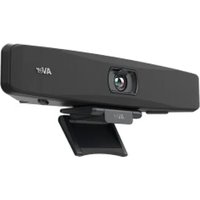
VB150 - Video conferencing system AVer - Free user manual and instructions
Find the device manual for free VB150 AVer in PDF.


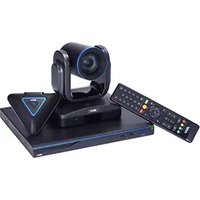
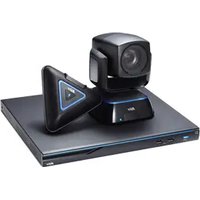
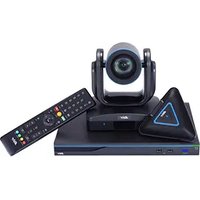
| Product type | Video conferencing system |
| Brand | AVer |
| Model | VB150 |
| Power supply | 12 V DC via power adapter |
| Connectivity | USB 3.1 Type-B, Ethernet, Bluetooth®, HDMI out, extension microphone port |
| Main features | SmartFrame, audio tracking, pan/tilt/zoom (PTZ), presets, Audio Fence, WDR, RTMP streaming |
| Remote control | Included with programmable and combined keys |
| Microphone | Built-in microphone array |
| Speaker | Built-in |
| LED indicators | Status indicators (power, standby, call, mute, etc.) |
| Lens | With lens cover |
| Field of view | Wide 120° or depth 90° (switchable) |
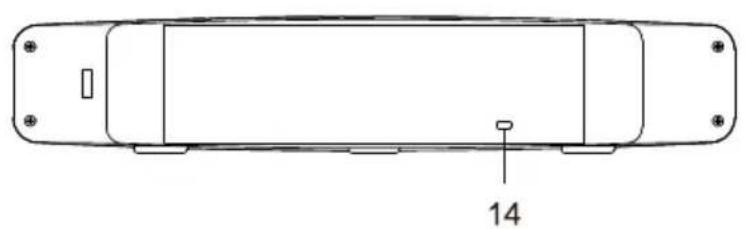
| Anti-theft device | Kensington |
| Optional accessories | Extension microphone 10/20 m, USB 3.1 extension cable 10/20/30 m, Bluetooth® dongle |
| Compliance | Class A, ICES-003 (Canada) |
| Repairability | Spare parts available (optional accessories) |
Frequently Asked Questions - VB150 AVer
User questions about VB150 AVer
0 question about this device. Answer the ones you know or ask your own.
Ask a new question about this device
Download the instructions for your Video conferencing system in PDF format for free! Find your manual VB150 - AVer and take your electronic device back in hand. On this page are published all the documents necessary for the use of your device. VB150 by AVer.
USER MANUAL VB150 AVer
natural_image
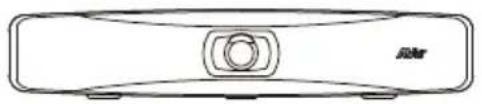
Line drawing of a device with a central circular component and two side supports (no text or symbols)VB150 Conference Camera
Federal Communication Commission Interference Statement
NOTE: This equipment has been tested and found to comply with the limits for a Class A digital device, pursuant to part 15 of the FCC Rules. These limits are designed to pro-vide reasonable protection against harmful interference when the equipment is operate din a commercial environment. This equipment generates, uses, and can radiate radiofrequency energy and, if not installed and used in accordance with the instruction manual, may cause harmful interference to radio communications.
Operation of this equipment in a residential area is likely to cause harmful interference in which case the user will be required to correct the interference at his own expense.
FCC Caution: Any changes or modifications not expressly approved by the party responsible for compliance could void the user's authority to operate this equipment.
This device complies with part 15 of the FCC Rules.
Operation is subject to the following two conditions:
(1) This device may not cause harmful interference, and
(2) this device must accept any interference received, including interference that may cause undesired operation.
This is a Class A product. In a domestic environment this product may cause radio interference in which case the user may be required to take adequate measures.
Caution
Risk of explosion if battery is replaced by an incorrect type. Dispose of used batteries according to the instructions.
PSTI Statement of Compliance
Please refer to the following website: https://www.aver.com/product-security-advisory
VCCI-A
© 2025 AVer Information Inc. All rights reserved. | December 8, 2025
The information contained in this documentation is subject to change without notice.
Contact Information
Headquarters
AVer Information Inc.
8F, No.157, Da-An Rd.,
Tucheng Dist., New Taipei City
236042, Taiwan
Tel: +886 (2) 2269 8535
USA Branch Office
AVer Information Inc., Americas 44061 Nobel Drive, Fremont, CA 94538, USA
Tel: +1 (408) 263 3828
Toll-free: +1 (877) 528 7824
Europe Branch Office
AVer Information Europe B.V.
Westblaak 134, 3012 KM,
Rotterdam, The Netherlands
Tel: +31 (0) 10 7600 550
Japan Branch Office
アバー・インフォメーション株式会社
Vietnam Branch Office
Công ty TNHH AVer Information (Việt Nam)
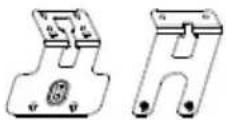
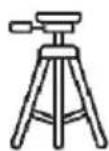
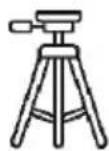
Wall Mount Kit Tripod Screw
1/4"-20UNC(7.5mm)


USB Type-A to Type-C Adapter
Optional Accessories
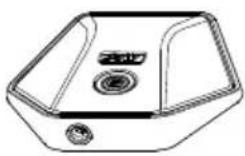
Expansion Microphone 10 m / 20 m (cable included)
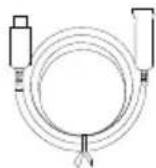
USB 3.1 Extender 10 ~m / 20 ~m / 30 ~m

USB 3.1 Type-A to Type-B Cable (3 m)
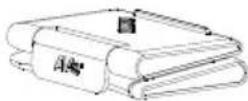
Screen Mount Kit
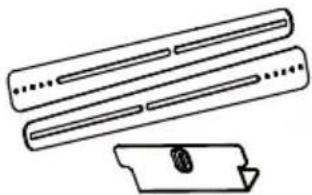
natural_image
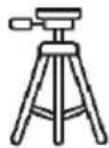
Simple line drawing of three parallel cylindrical objects with a separate rectangular object below (no text or symbols)TV VESA Mount Kit Tripod
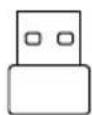
Bluetooth
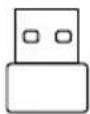
® Dongle
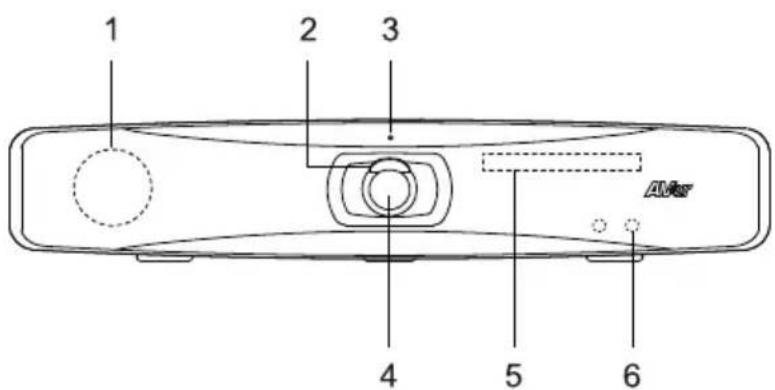
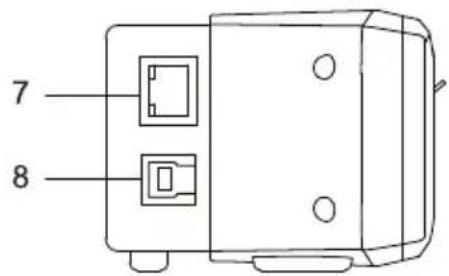
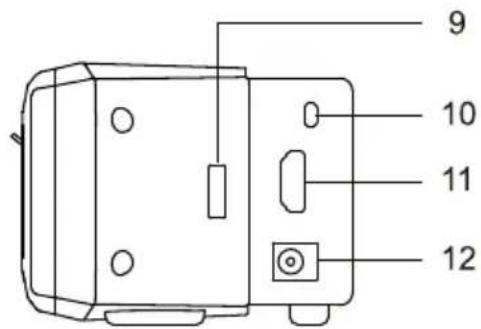
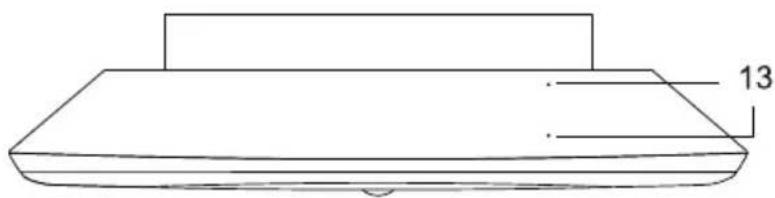
Parts Info
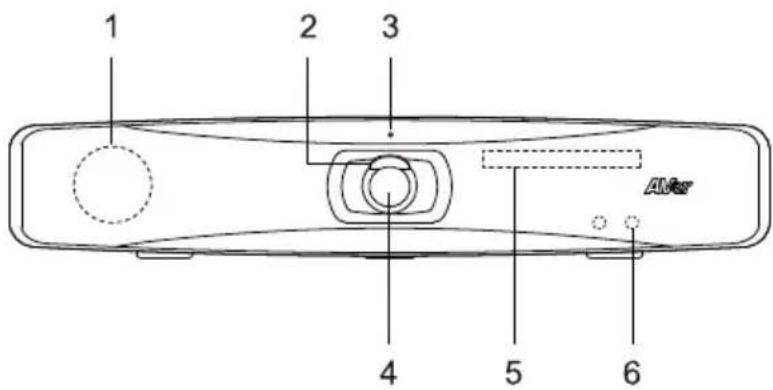
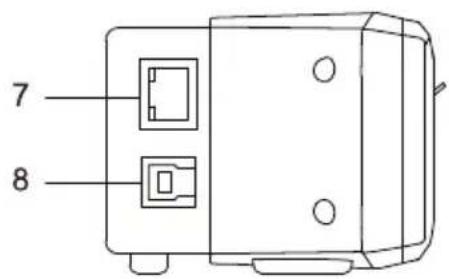
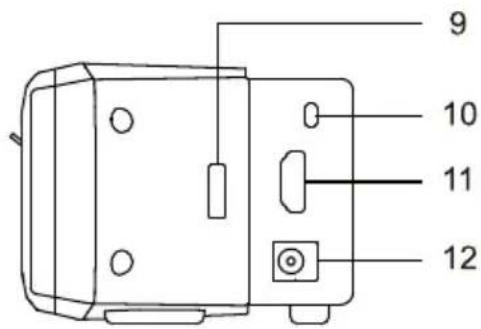
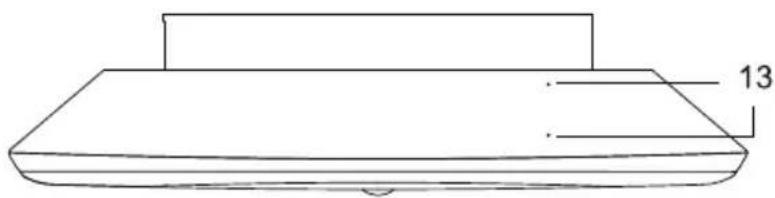
natural_image
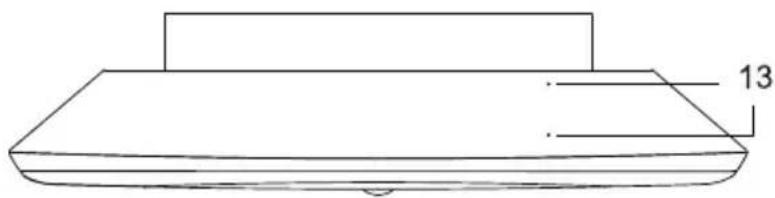
Line drawing of a rectangular object with a flat top and two labeled points (13), no text or symbols present.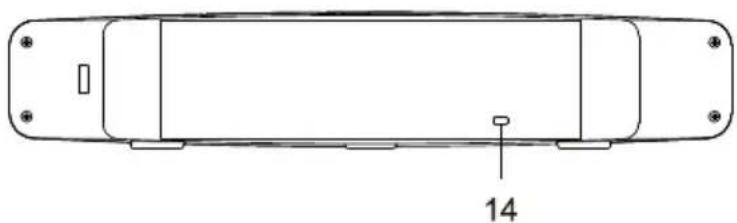
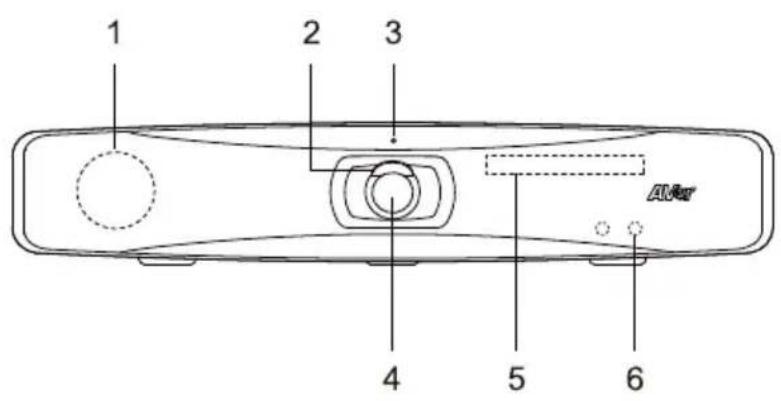
natural_image
Technical line drawing of a rectangular electronic component with mounting holes and a labeled dimension (14), no text or symbols present.- Speaker
- Lens Cover
- LED Indicator
- Lens
- Microphone Array
- IR Sensor
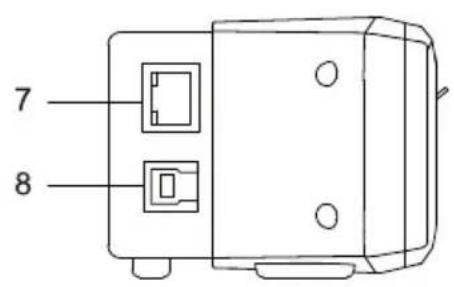
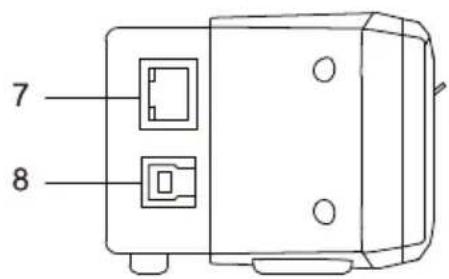
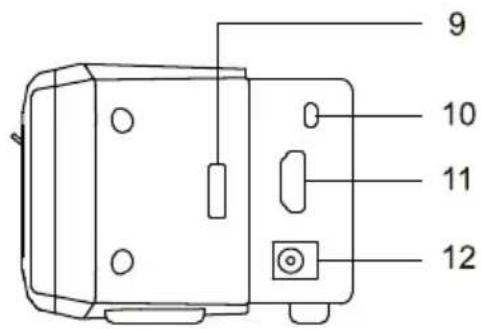
- Ethernet Port
-
USB 3.1 Type-B Port
-
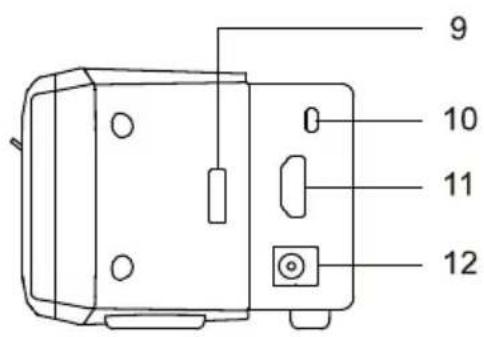
Bluetooth® Dongle Port
- Expansion Microphone Port
- HDMI Out Port
- DC 12V Power Jack
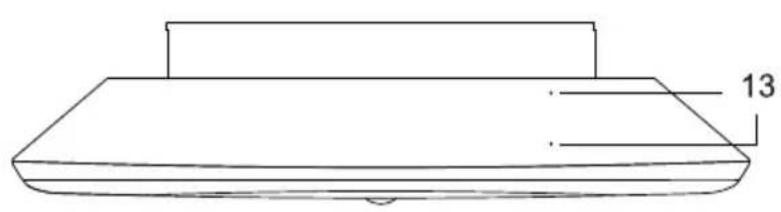
- Microphone Array
- Kensington Lock
English-2
LED Indicator
| Color Status | |
| Flashing blue once Power on | |
| Solid orange Standby mode (not connected to USB device) | |
| Solid white Standby mode (connected to USB device) / a call on hold | |
| Solid blue Video/Audio on | |
| Solid red Mute | |
| Solid purple Video off but audio on (in-call) | |
| Flashing current light Calling | |
| Flashing orange Firmware update | |
| Flashing orange twice Reset |
Remote Control
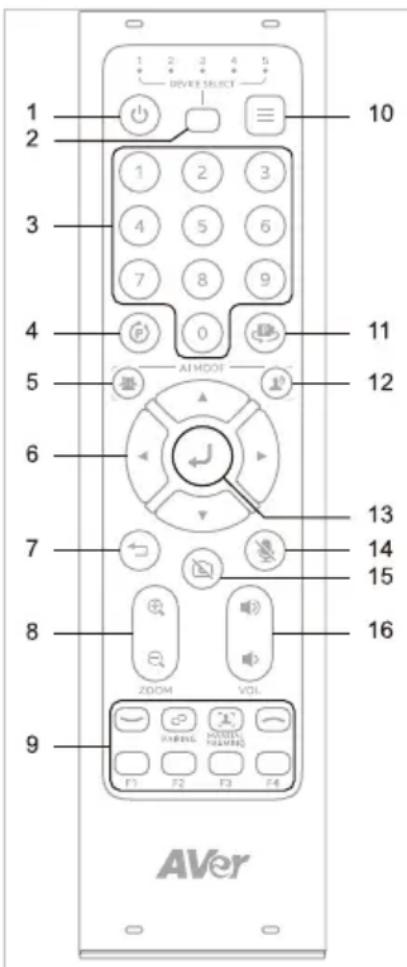
| Name Function | |
| 1. Power N/A | |
| 2. Camera Select Select 1 to operate the camera.The remote control has been set to 1 at the factory. With each press, cycle through 1-5. | |
| 3. Number Buttons | To save a preset: Press and hold aNumber(0-9).To load a preset: Press aNumber (0-9). |
| 4. Compound Key Open compound keys guide. Refer tofor details. | |
| 5. SmartFrame Press to frame entire group on screen. Press and hold to cycle through tracking modes.To hide theSmartFrameicon , go toSetting > On-Screen Menu > Offon the web interface or in Room Management. | |
| 6. Pan-Tilt Control Pan and tilt direction control. | |
| 7. Back N/A | |
| 8. Zoom In/Out Zoom in or out. | |
| 9. Function Buttons | Join: Join a meeting.Pairing: Press and hold to turn Bluetooth®on. Press to disconnect.Manual Framing: N/ALeave: Leave a meeting.F1: Turn Audio Fence on or off.F2: Press and hold to switch between DHCP and Static IP.F3 and F4: N/A |
| 10. Menu N/A | |
| 11. Load Preset With each press, cycle through defined presets. | |
| 12. Audio Tracking Press and hold to cycle through audio tracking modes. | |
| 13. Enter Press to display current AI function on closed caption. | |
| 14. Mute | Mute or unmute microphone. |
| 15. Camera Off | N/A |
| 16. Volume | Volume up or down. |
Combination Buttons
| Press consecutively To | ||
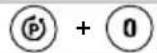 | Switch between 120° Wide Mode and 90° Depth Mode. | |
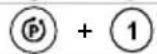 | Turn wide dynamic range (WDR) on or off. | |
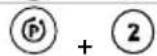 | Turn Set Preset function on or off. | |
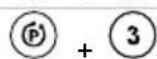 | Turn RTMP streaming on or off. | |
Device Connection
Computer
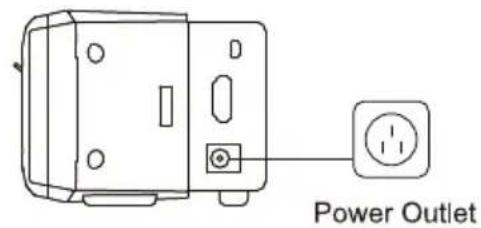
Connect the VB150 to a computer by using the included USB 2.0 cable and connect the power cord of VB150 to power wall outlet.
natural_image
Line drawing of a rectangular electronic device with a central button and side connectors (no text or symbols)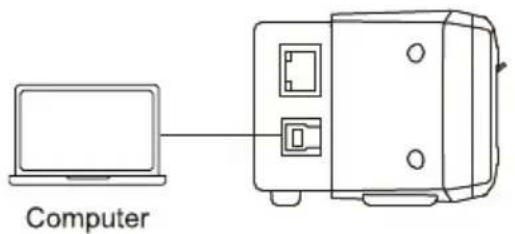
Phone
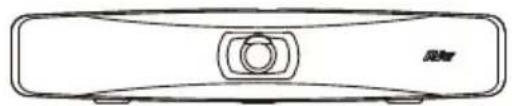
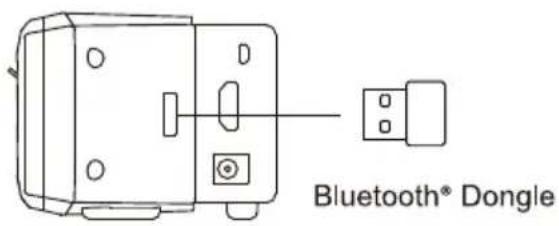
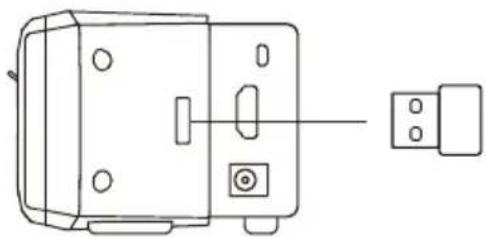
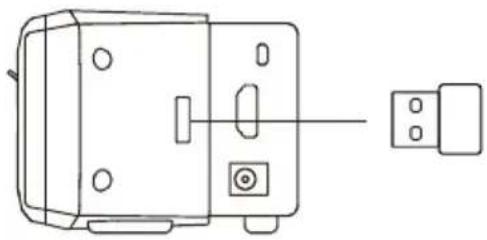
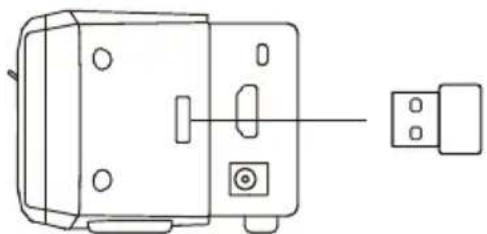
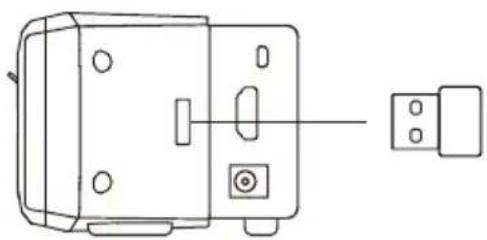
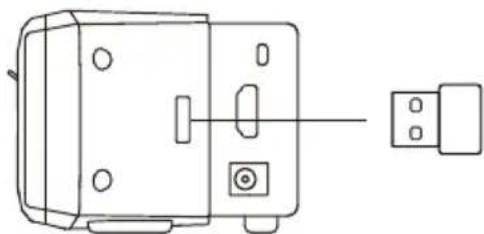
Plug the wireless dongle into the Bluetooth® dongle port before turning on VB150, then use the remote control or Room Management to turn on Bluetooth®.
Turn on Bluetooth® on the mobile phone to connect and use VB150 as an external microphone and speaker during conference meetings.
natural_image
Line drawing of a rectangular electronic device with a central button and two side supports (no text or symbols)
Phone
Configure Settings on Room Management
-
Download and install Room Management to your computer from AVer Download Center. (https://www.aver.com/download-center) and launch the software.
-
Connect your device to your computer using the included USB cable. You device should appear under the Device Control page.
-
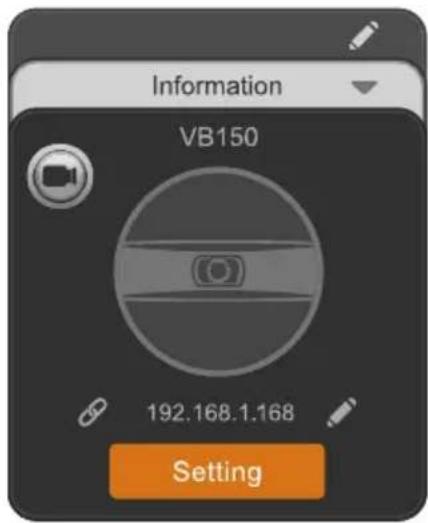
Click Setting to control audio and video settings. For additional information, please refer to the Room Management user manual.
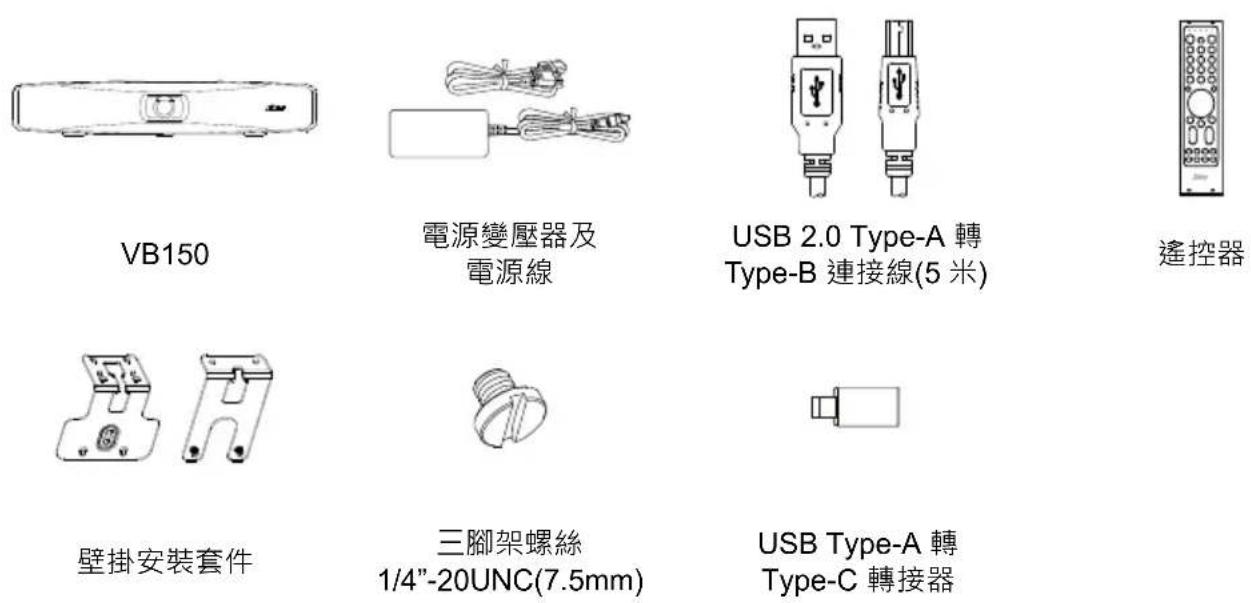
包装内容物
選購配件

擴充麥克風
10 m/20 m (附連接線)
natural_image
Simple line drawing of two parallel cylindrical objects with a separate irregular object below (no text or symbols)電視 VESA 壁掛 安裝套件
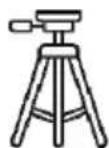
三腳架 藍牙模組
* 欲瞭解更多資訊,請洽當地經銷商。
產品介紹
natural_image
Simple line drawing of a rectangular object with a flat top and a base, labeled with the number 13 (no text or symbols on the object itself)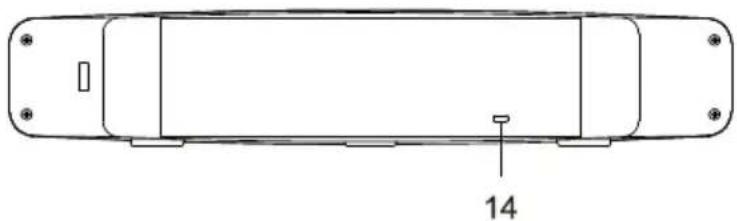
natural_image
Technical line drawing of a rectangular electronic component with mounting holes and a labeled dimension (14), no readable text or symbols beyond the label.natural_image
Simple line drawing of three parallel cylindrical objects with a separate rectangular object below (no text or symbols)电视 VESA 壁挂 安装套件
三脚架
natural_image
Simple line drawing of a rectangular object with a label '13' on its top surface (no other text or symbols)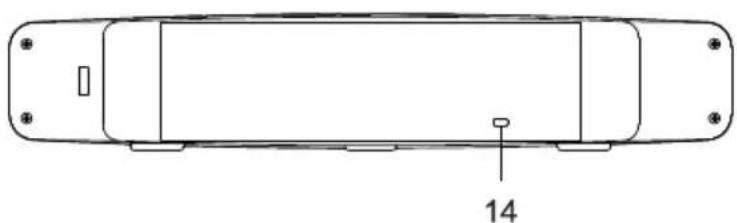
natural_image
Technical line drawing of a vehicle chassis with mounting holes and a labeled component (no text or symbols beyond the number 14)natural_image
Line drawing of four electronic devices connected by lines, including a monitor, switch, and power outlet (no text or symbols present)手机
natural_image
Line drawings of a remote control device showing front, rear, and side views with no text or symbolsnatural_image
Simple line drawing of two parallel cylindrical objects with a separate flat object below (no text or symbols)テレビ取付用
VESA マウント
三脚架 Bluetooth
® ドングル
natural_image
Technical line drawing of a mechanical component with labeled parts (no text or symbols beyond basic labels)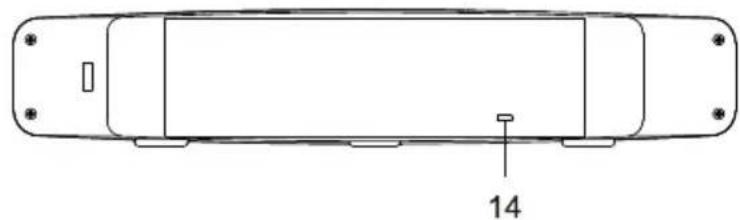
natural_image
Top-down schematic of a vehicle chassis with labeled component '14' (no text or symbols beyond label)natural_image
Simple line drawing of a rectangular device with a central circular button and rounded ends, labeled '泥灰' (no text or symbols on the device itself)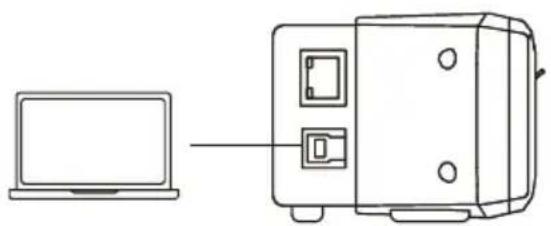
natural_image
Line drawing of a laptop connected to a device (no text or symbols present)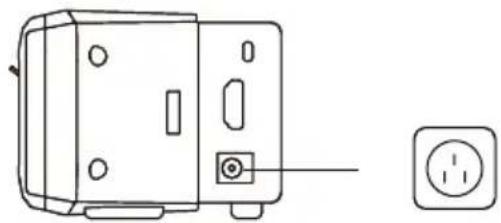
natural_image
Technical line drawing of a device with a socket and power outlet (no text or symbols)携带電話
natural_image
Line drawing of a rectangular electronic device with a central button and mounting feet (no text or symbols)
natural_image
Technical line drawing of a mechanical device with mounting holes and a separate connector (no text or symbols)natural_image
Line drawing of a 3D mechanical component with no text or symbolsnatural_image
Simple line drawing of two parallel cylindrical objects with a separate flat object below (no text or symbols)TV VESA 마운트 키트
삼각대
Bluetooth®동 글
개요
natural_image
Technical line drawing of a vehicle chassis with mounting holes and a labeled component (no text or symbols beyond the number 14)natural_image
Line drawing of a rectangular electronic device with a central button and two side supports (no text or symbols)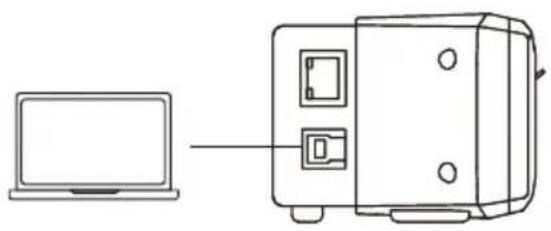
natural_image
Line drawing showing a laptop connected to a device with ports and cables (no text or symbols)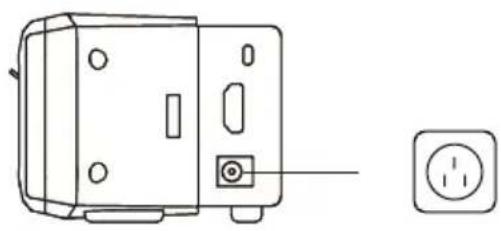
natural_image
Technical line drawing of a device with a socket and power outlet, no text or symbols present휴대전화
natural_image
Line drawing of a rectangular electronic device with a central button and mounting feet (no text or symbols)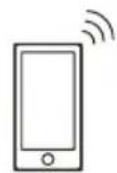
natural_image
Line drawing of a mechanical device with mounting holes and a separate electrical outlet (no text or symbols)natural_image
Simple line drawing of three parallel cylindrical objects with a separate flat object below (no text or symbols)Kit de montage TV VESA
Trépied
natural_image
Simple line drawing of a rectangular object with a label '13' on its top surface (no other text or symbols)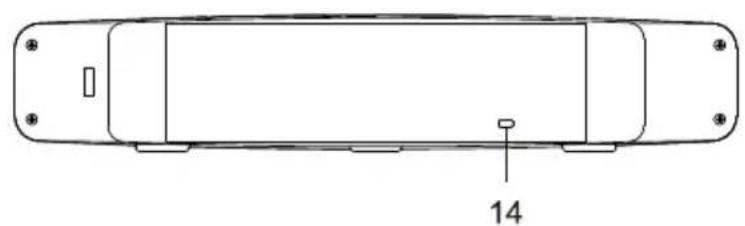
natural_image
Technical line drawing of a mechanical component with mounting holes and a labeled dimension (14), no text or symbols present.natural_image
Simple line drawing of a rectangular device with a central button and two base legs (no text or symbols)
natural_image
Line drawing of a laptop connected to a device with ports and buttons (no text or symbols)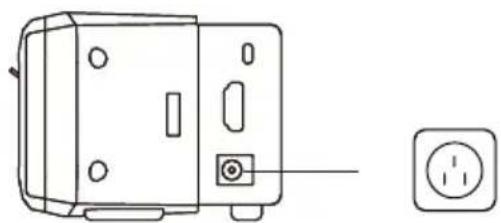
natural_image
Line drawing of a device with a separate electrical outlet symbol (no text or labels)Téléphone mobile
natural_image
Line drawing of a rectangular electronic device with a central button and two side connectors (no text or symbols)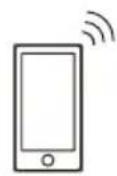
natural_image
Technical line drawing of a mechanical device with mounting holes and a separate connector (no text or symbols)natural_image
Technical line drawing of a rectangular electronic component with mounting holes and a labeled dimension (14), no text or symbols present.natural_image
Simple line drawing of a rectangular device with a central circular element and two base plates (no text or symbols)
natural_image
Line drawing of a laptop connected to a device with ports and connectors (no text or symbols)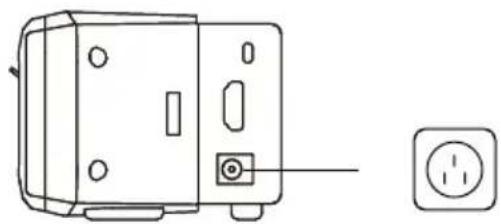
natural_image
Technical line drawing of a device with mounting holes and a socket (no text or symbols)Portátil
natural_image
Line drawing of a rectangular electronic device with a central button and side ports (no text or symbols)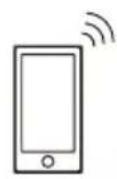
natural_image
Line drawing of a mechanical device with mounting holes and a separate electrical outlet (no text or symbols)Configurar ajustes en Room Management
natural_image
Simple line drawing of two parallel cylindrical objects with a separate rectangular object below (no text or symbols)Kit Dudukan VESA TV Kaki tiga Dongle Nirkabel
natural_image
Technical line drawing of a mechanical component with labeled parts (no text or symbols beyond basic labels)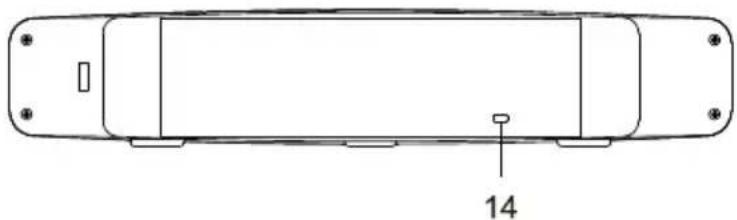
natural_image
Technical line drawing of a vehicle chassis with mounting holes and a labeled component (no text or symbols beyond the number 14)- Speaker
- Penutup Lensa
- Indikator LED
- Lensa
- Rangkaian Mikrofon
-
Sensor IR
-
Port Ethernet
-
Port USB 3.1 Tipe-B
-
Port Bluetooth
-
Port Expansion Microphone
-
Port Keluaran HDMI
-
Soket Daya DC 12V
-
Rangkaian Mikrofon
-
Kunci Kensington
Indikator LED
natural_image
Simple line drawing of a rectangular device with a central button and two base legs (no text or symbols)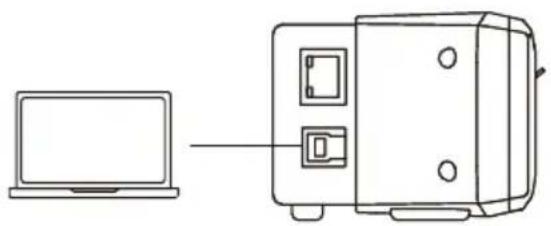
natural_image
Line drawing of a laptop connected to a device with ports and buttons (no text or symbols)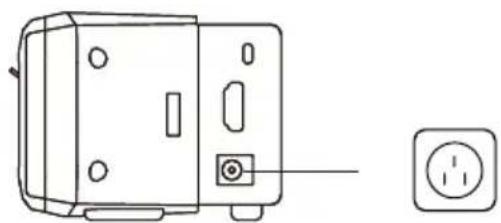
natural_image
Line drawing of a device with a separate electrical outlet symbol (no text or labels)Ponsel
natural_image
Line drawing of a rectangular electronic device with a central button and two side connectors (no text or symbols)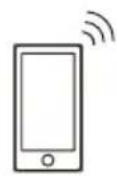
natural_image
Technical line drawing of a mechanical device with mounting holes and a separate connector (no text or symbols)
- VB150 Conference Camera
- Federal Communication Commission Interference Statement
- Caution
- PSTI Statement of Compliance
- VCCI-A
- Contact Information
- Headquarters
- USA Branch Office
- Europe Branch Office
- Japan Branch Office
- Vietnam Branch Office
- Optional Accessories
- Parts Info
- Remote Control
- Combination Buttons
- Device Connection
- Computer
- Phone
- Configure Settings on Room Management
- 包装内容物
- 選購配件
- 產品介紹
- 手机
- 携带電話
- 개요
- 휴대전화
- Téléphone mobile
- Portátil
- Configurar ajustes en Room Management
- Ponsel
Brand : AVer
Model : VB150
Category : Video conferencing system