TB4DUALDOCKPD - Computer Docking Station i-TEC - Free user manual and instructions
Find the device manual for free TB4DUALDOCKPD i-TEC in PDF.
User questions about TB4DUALDOCKPD i-TEC
0 question about this device. Answer the ones you know or ask your own.
Ask a new question about this device
Download the instructions for your Computer Docking Station in PDF format for free! Find your manual TB4DUALDOCKPD - i-TEC and take your electronic device back in hand. On this page are published all the documents necessary for the use of your device. TB4DUALDOCKPD by i-TEC.
USER MANUAL TB4DUALDOCKPD i-TEC
natural_image
Front view of a gray network device with ports and ventilation slots (no visible text or symbols)User guide • Gebrauchsanweisung • Mode d'emploi Manual de instrucciones • Manuale • Uživatelská príručka Instrukcje obsługi • Užívatel'ská príručka • Vartotojo vadovas Handleiding
EN Please read the entire instruction manual carefully. Detailed manual is available on our website www.i-tec.pro/en in the tab „Manuals, drivers“. In case of any issues, please contact our technical support at: support@itecproduct.com
text_image
QR code image containing encoded data, no visible human-readable textwww.i-tec.pro/en
THUNDERBOLT™ 4 / USB-C DUAL DISPLAY DOCKING STATION + POWER DELIVERY 96W
ENGLISH....05-14
DEUTSCH....15-24
FRANÇAIS....25-35
ESPAÑOL....36-45
ITALIANO....46-56
ČESKY....57–66
POLSKI.... 67-76
SLOVENSKY....77-86
LIETUVOS.... 87-97
NEDERLANDS....98-107
WEEE....108-109
Declaration of Conformity....110–111
FCC....112
Important note about 8K resolution: The docking station supports the resolution up to 8K (7680x4320/30Hz), but this resolution can only be set if supported by your laptop - Thunderbolt™ 3 must support DisplayPort 1.4. In case Thunderbolt™ 3 of your laptop only supports DisplayPort 1.2, the maximum resolution is just 5K 5120x2880/60Hz.
*Important notice about the USB-C port connection: The docking station is built on the Titan Ridge chipset and supports also the USB-C port connection, but it also must be supported by the laptop. USB-C is an open standard, which means that laptop manufacturers can freely customize the USB-C protocol. Unfortunately, this means that docking stations built on the Intel Titan Ridge chipset may not work properly on all devices with the USB-C port.
GLOSSARY
- Interface / port / connector / input / slot – a place where two devices are physically connected.
- Chipset – a semiconductor device in a laptop, tablet or PC controlling the function of a port.
- USB-C / USB Type-C / Thunderbolt™ 3 – is a new symmetric connector and standard, introduced by USB-IF in their specification USB 3.1. Windows 10 (Microsoft), macOS X (Apple) and Chrome OS and Android (Google) have introduced native support for this connector. It allows faster charging, energizing, double-function (a host but also a guest), support for alternative modes (DisplayPort, MHL, Thunderbolt) and error messaging using Billboard equipment.
- USB 3.1 / 3.0 / 2.0 – a standard for USB interface / port for connection of various USB devices. Various USB devices can be connected to the docking station or adapter using the USB interface type A. USB type B is used for connecting the docking station or adapter to a laptop or tablet.
- HDMI / Display Port – a standard for digital graphical interface / port for connection of monitors and other graphical display devices.
- LAN (Local Area Network) – the local computer network is now the most popular Ethernet that achieves a theoretical transfer rate of up to 1 Gbit/s at the docking station - GLAN / RJ-45.
- Audio - designation for audio input (microphone) or output (earphones / loudspeakers).
SPECIFICATION
- 1x Thunderbolt™ 4 port for connection to a laptop
• Power Delivery: 96 W
• 2x Thunderbolt™4 port Data
Video Port
• Video Ports: 1x HDMI
- Resolution:
Thunderbolt™ 4 with DisplayPort 1.4 support
1 monitor - 1x HDMI/TB4 up to 8K/30Hz
2 monitors - HDMI+TB4 or 2x TB4 up to 2x4K/60Hz
Thunderbolt™ 3 with DisplayPort 1.4 support
1 monitor - 1x HDMI/TB4 up to 8K/30Hz
2 monitors - HDMI+TB4 or 2x TB4 up to 2x4K/60Hz
Thunderbolt™ 3 with DisplayPort 1.2 support
1 monitor - 1x HDMI/TB4 up to 5K/60Hz
2 monitors - HDMI+TB4 or 2x TB4 up to 2x4K/60Hz
USB-C with DisplayPort 1.4 support
1 monitor - 1x HDMI/TB4 up to 4K/60Hz
USB-C with DisplayPort 1.2 support
1 monitor - 1x HDMI/TB4 up to 4K/30Hz
- 1x USB 3.1 port gen. 2 with fast charging support (BC 1.2)
• 3x USB 3.1 port gen. 2
• 1x Ethernet 2.5GLAN RJ-45 port (Realtek RTL8156) - 1x SD slot
- 1x 3.5mm Audio combo jack
• 1x power input (20V/6.75A) - LED indication
• Support for Kensington lock - Thunderbolt™ 3 cable (70cm)
- OS: Windows 10/11, macOS and Linux with latest updates
• Product dimensions: 200 x 75 x 30 mm
• Product weight: 446 g
SPECIFICATION AND DESCRIPTION
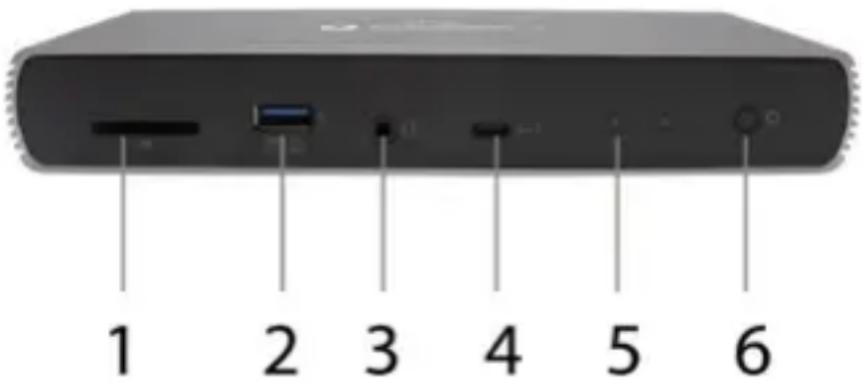
Front panel:
- SD Card Reader
- USB 3.1 port gen. 2 with fast charging support (BC 1.2)
- 3.5mm Audio combo jack
- Thunderbolt™ 4 data port / Power Delivery - for connecting the dock to a laptop's Thunderbolt™ 3/4 port or for connecting a Thunderbolt™ 3/4 / USB-C device to the dock.
- LED indication
- ON/OFF switch to turn the docking station on and off
text_image
1 2 3 4 5 6Rear panel:
- Power input (20V/6.75A)
External power supply exclusively for use with the TB4DUALDOCKPD. - HDMI 2.1
- 2x Thunderbolt™ 4 data port
- Ethernet 2.5GLAN RJ-45 port (Realtek RTL8156)
- 3x USB 3.1 port gen. 2
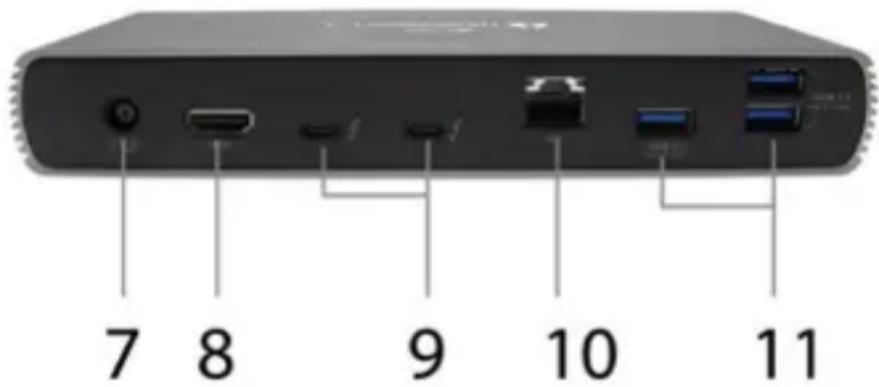
text_image
7 8 9 10 11SYSTEM REQUIREMENTS
Hardware requirements: Device with a free Thunderbolt, USB4 or USB-C port
Power Delivery requirements: Device with a free Thunderbolt, USB4 or USB-C port with "Power Delivery" support
Video Output Requirements: Device with a free Thunderbolt, USB4 or USB-C port with "DisplayPort Alternate Mode" support
Operating System: Windows 10/11, macOS and Linux with latest updates
To play Ultra HD 4K/5K/8K video, the computer must be able to decode the video with its GPU. Especially for less powerful laptops, it is true that they can handle 4K/5K/8K video playback, but the result is not ideal (interruptions, video tearing).
INSTALLING THE DRIVERS
The docking station can be connected directly, the drivers are included in the operating system. For Windows 10, please make sure that you have the latest Thunderbolt™ 3 drivers from your laptop manufacturer installed in your computer.
HARDWARE INSTALLATION (CONNECTING THE DOCKING STATION TO LAPTOP / TABLET)
- Turn on your laptop/tablet and connect the power adapter to the docking station.
- Plug the power adapter of the docking station into a 110V/230V AC power supply.
- Plug the Thunderbolt™ 4 cable into the Thunderbolt™ 4 port on the rear panel of the docking station.
- Plug the other end into an available Thunderbolt™ 3/4, USB4 or USB-C* port on your laptop/tablet.
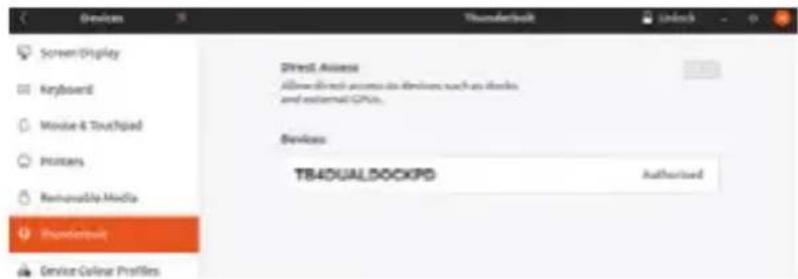
- In Windows OS, enable a new Thunderbolt™ 4 device - see image
text_image
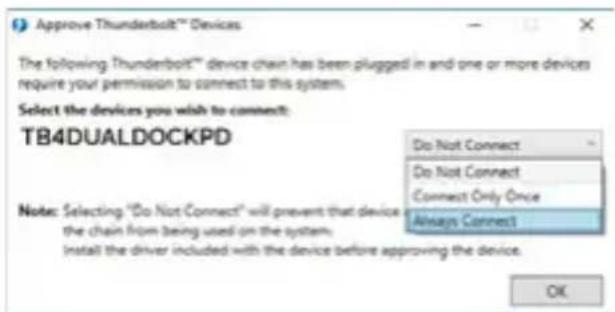
Screen Display Keyboard Mouse & Touchpad Primers Renewable Media Thunderbuild Service Colour Profiles Direct Assess Allow all direct access to devices such as switches and external GPUs. Services TB4DUALDOCKPD Authorised- In Linux, enable the new Thunderbolt™ 3 device. Must be displayed as Enabled
text_image
Approve Thunderbolt™ Devices The following Thunderbolt™ device chain has been plugged in and one or more devices require your permission to connect to this system. Select the devices you wish to connect: TB4DUALDOCKPD Do Not Connect Do Not Connect Connect Only Once Always Connect Note: Selecting "Do Not Connect" will prevent that device the chain from being used on the system. Install the driver included with the device before approving the device. OK- Subsequently, the automatic installation of ports in each system starts.
- After finishing installation, we recommend that you restart the laptop / tablet.
In Windows, the LAN port appears in Start → Control Panel (View Small Icons) → Device Manager → Network Adapters as "Realtek RTL8153". Audio ports can be found in Start → Control Panel (View Small Icons) → Device Manager → Audio, Video and Game Controllers as "USB Advanced Audio Device" and/or according to the connected monitor (e.g. in Fig. "LG Ultra HD (Intel ^® Display Audio)").
The installed ports are shown in macOS X as "TB4DUALDOCKPD" in "About This Mac" → "System Profiler" → "Hardware" → "Thunderbolt".
CONNECTING THE DISPLAYPORT MONITOR
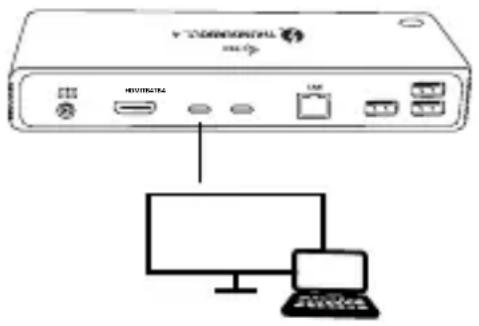
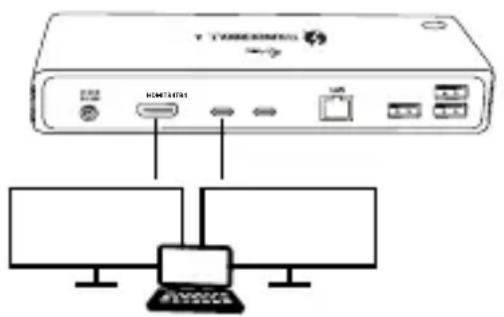
Use an HDMI cable or Thunderbolt™ cable to connect the monitor to the docking station. The monitor may flicker on the laptop/tablet during installation of the additional monitor, which is a standard condition. The dock supports a maximum of two monitors. Graphics interface: 1x HDMI and 2x Thunderbolt™ 4
text_image
V-TERMINISTRAL m3p MINTINATRA LIM MINTINATRA MINTINATRA MINTINATRA1 monitor connected via 1 DisplayPort cable - resolution up to 8K 7680x4320/30Hz 8K resolution is only supported if your laptop's Thunderbolt™ 3 connector supports DisplayPort 1.4.
If the Thunderbolt™ 3 only supports DisplayPort 1.2, the maximum resolution is 5K 5120x2880/60Hz
If Thunderbolt™ 3 only supports DisplayPort 1.2, the maximum resolution is 5K 5120x2880/60Hz
text_image
Y-TIMEI/MSI HOTATO USB2 monitors connected simultaneously 2x DisplayPort, resolution up to 4K 4096x2160@60Hz
The resolution, the frame rate and the maximum number of connected external monitors depends on the capabilities of the host PC/laptop.
USING THE DOCKING STATION IN WINDOWS
- Right-click anywhere on the free screen and select View Settings
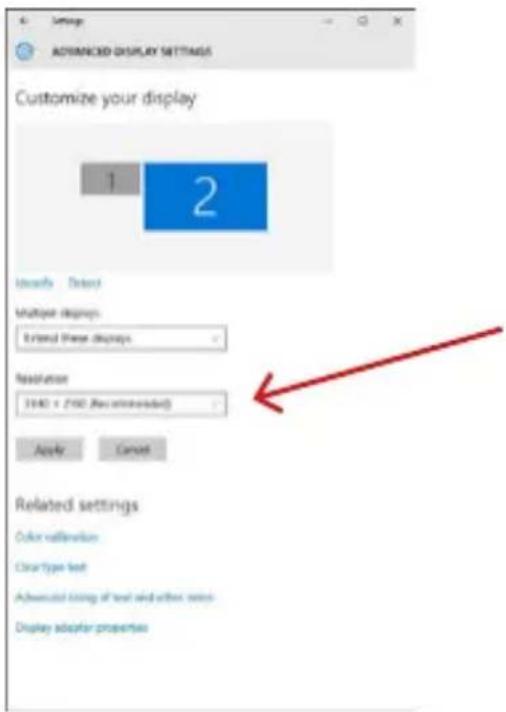
- You will then see the settings for Display Resolution from Windows.
text_image
ADAMINICID DISPLAY SETTINGS Customize your display 1 2 Items Delete Multiple degrees External Three displays Resolution 3140 x 2160 (Recommended) Apply Cancel Related settings Color calibration ClearType text Advanced timing of text and other notes Display adopter propertiesDisplay resolution in Windows 10
You can now make the Extend and Mirror/Duplicate settings:
- Extend mode: on the screen, select for Multiple monitors → Extend this view → OK.
- Mirror mode: on the screen, select Multiple monitors → Duplicate this view → OK.
Check the "Set this monitor as main" box to select the additional monitor as the main monitor.
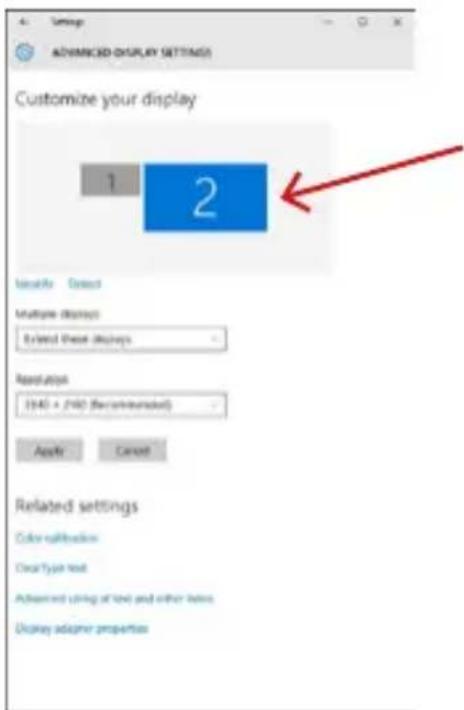
Click and drag the second monitor to position it relative to the original monitor of your laptop/tablet as required.
text_image
ADAMINICED DISPLAY SETTINGS Customize your display 1 2 Isolality Select Multiple displays Extend these displays Resolution (140 × 190 (Recommended)) Apply Cancel Related settings Color calibration Clear Type text Advanced string of text and other items Display adapter propertiesPlacement of one additional monitor in relation to the original laptop/tablet monitor
Thunderbolt™ 4 / USB-C Dual Display Docking Station + Power Delivery 96W
Standby / Hibernate mode and Video port - when you activate the laptop/tablet from Standby / Hibernate mode, the primary (original) monitor is displayed, so we recommend using the one integrated with the laptop/tablet as the primary monitor so you can log back into the system.
Mirror mode - the additional monitor follows the parameters of the original monitor in the system, i.e. if you set Mirror mode and the original monitor has a resolution of 1920x1080, then the screen is transferred to the additional monitor at a maximum resolution of 1920x1080, even if you set it to a higher resolution.
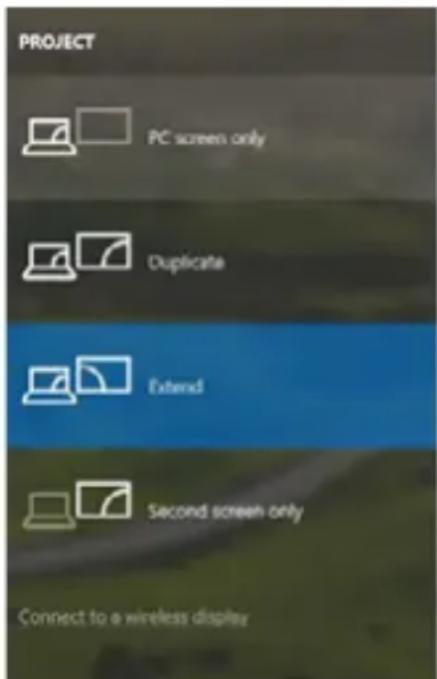
You can also easily control the monitors using the "Windows" + P keyboard option.
text_image
PROJECT PC screen only Duplicate Extend Second screen only Connect to a wireless displayControl the monitor in Windows 10
USING THE DOCKING STATION IN MAC OS
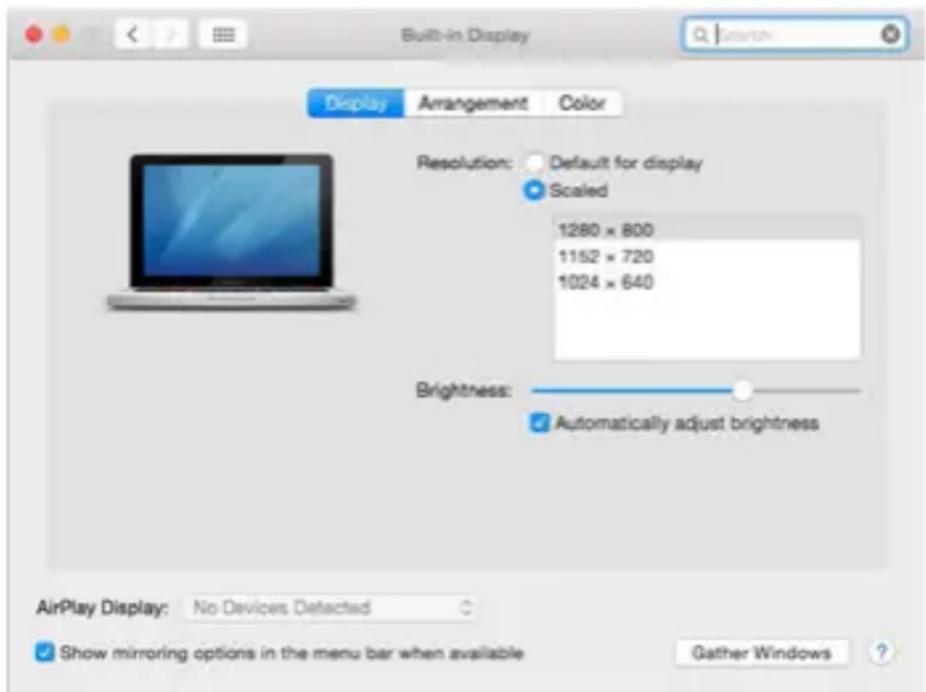
When you plug in your monitor, your Mac's screen will icker, which is a standard condition. Once it has stabilized, you can make settings here: System Preferences-Monitors:
text_image
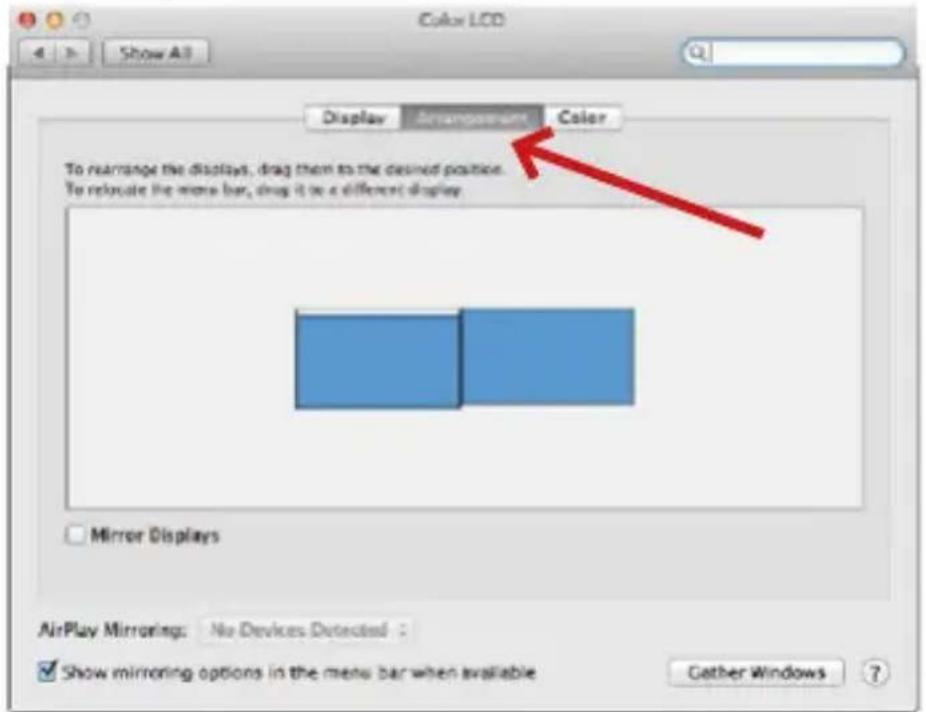
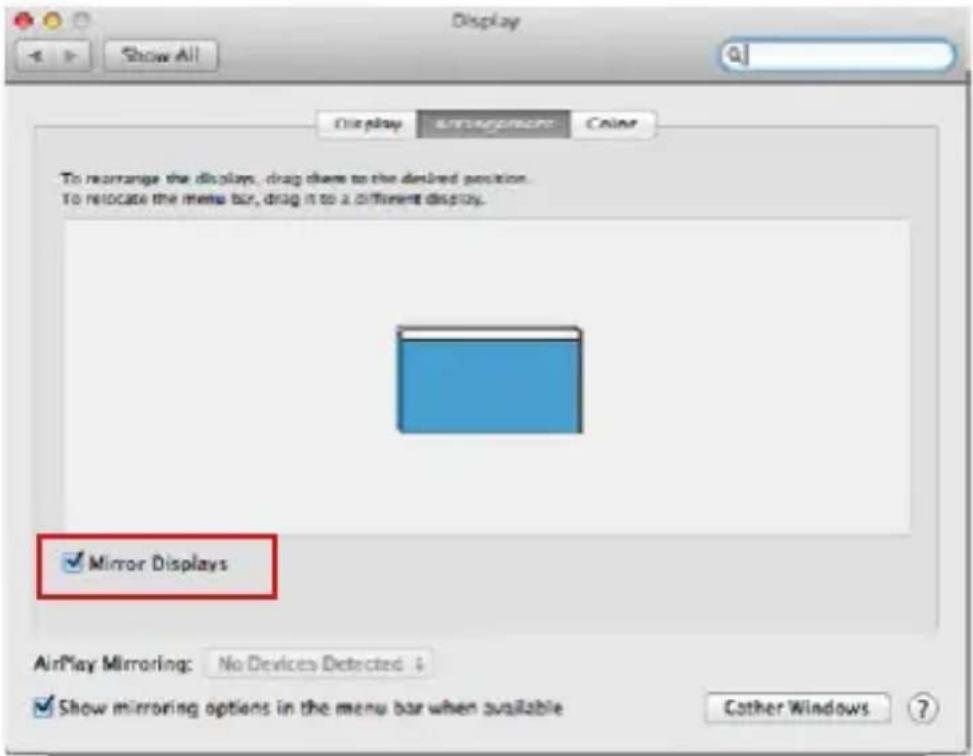
Built-in Display Display Arrangement Color Resolution: Default for display Scaled 1280 × 800 1152 × 720 1024 × 640 Brightness: Automatically adjust brightness AirPlay Display: No Devices Detected Show mirroring options in the menu bar when available Gather WindowsUnder the Arrangement tab and in the default mode (Expand), click on the new monitor and drag it as needed relative to the Mac monitor. When you select Mirror Monitors, the mode changes to Mirror (the resolution of the monitors is automatically adjusted to their parameters and the highest possible resolution is set on both monitors). Deselect Mirror Monitors to restore the Expand mode.
text_image
Color LCD Display Arrangement Color To rearrange the displays, drag them to the desired position. To relocate the menu bar, drag it to a different display Mirror Displays AirPlay Mirroring: No Devices Detected : Show mirroring options in the menu bar when available Gather WindowsExpand mode: The arrow indicates the possibility of positioning the connected monitor relative to the Mac monitor.
text_image
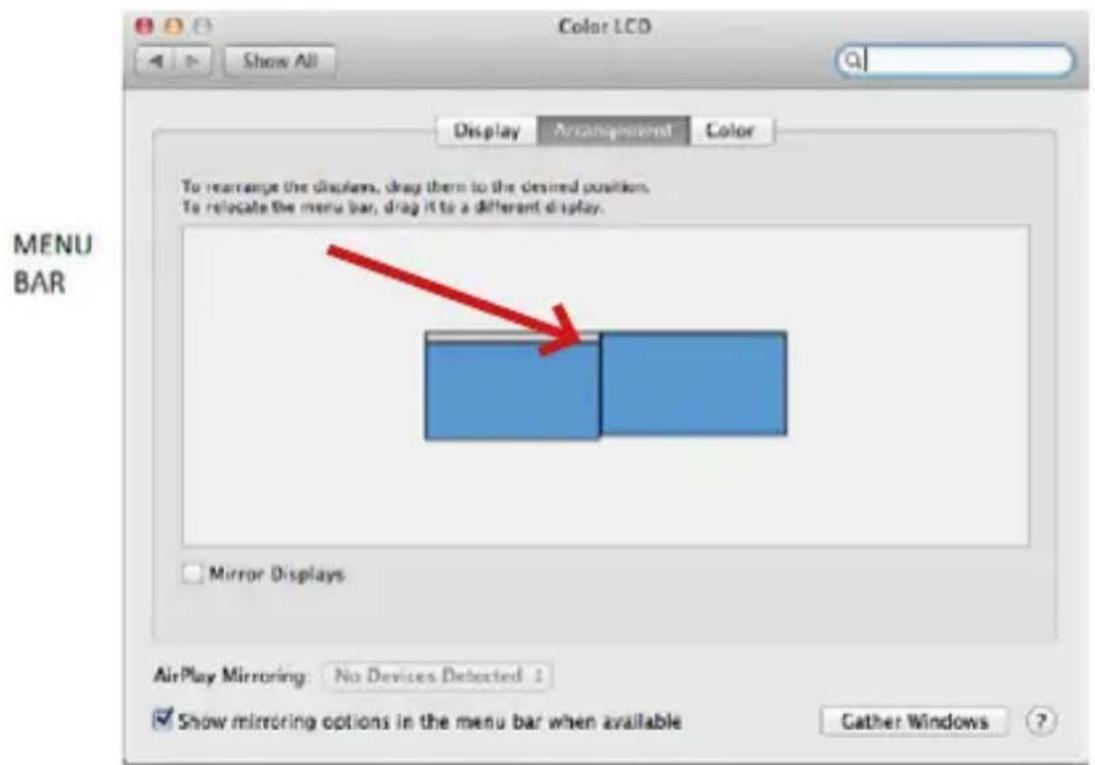
Color LCD Show All Display Arrangement Color To rearrange the displays, drag them to the desired position. To relocate the menu bar, drag it to a different display. Mirror Displays AirPlay Mirroring: No Devices Detected ✓ Show mirroring options in the menu bar when available Cather WindowsExtend Mode: In this mode, you can select the Main Monitor by dragging the Menu Bar.
Thunderbolt™ 4 / USB-C Dual Display Docking Station + Power Delivery 96W
text_image
Display To rearrange the displays, drag them to the desired position. To relocate the menu bar, drag it to a different display. Mirror Displays AirPlay Mirroring: No Devices Detected Show mirroring options in the menu bar when available Cather WindowsMirror Mode: Can only be used if it is offered by a Mac.
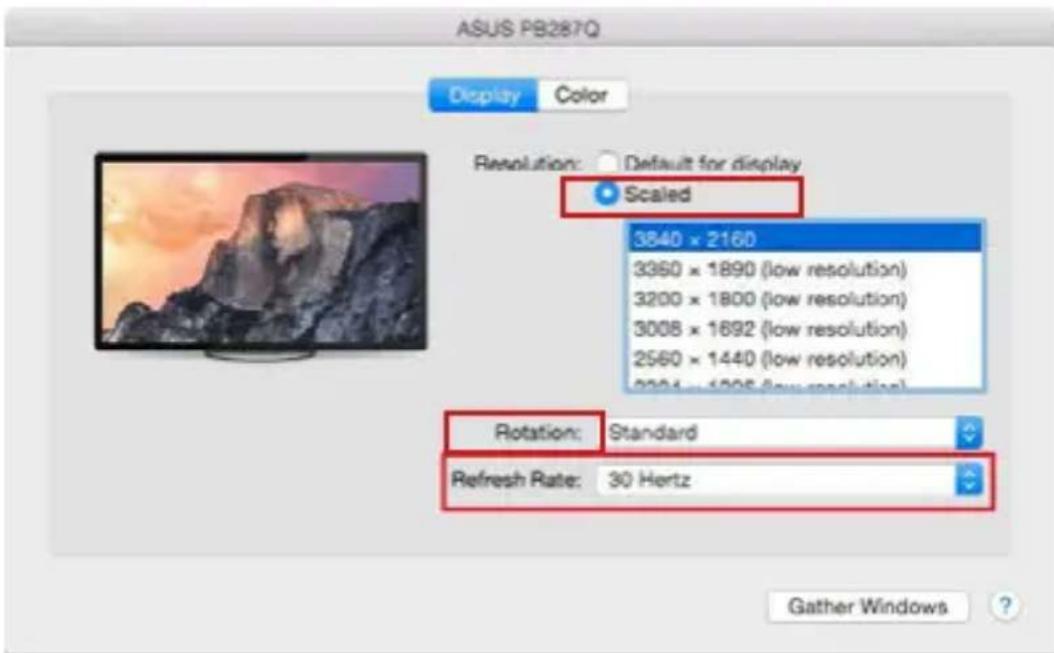
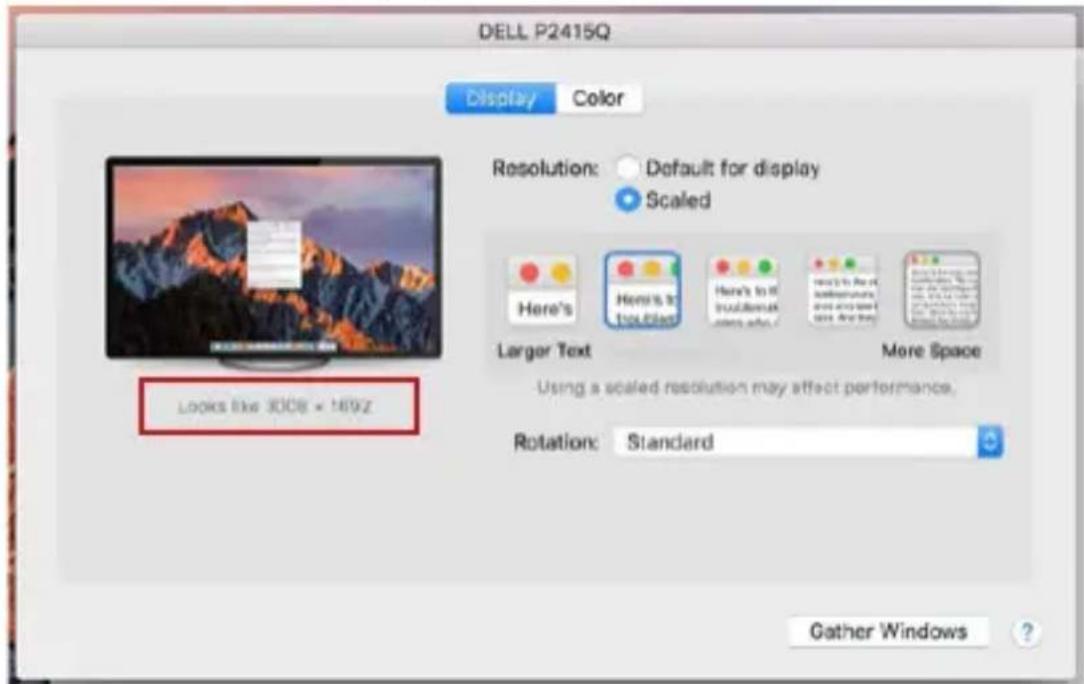
You can choose the settings for the corresponding monitor - Customized Resolution (offers usable resolutions), Rotation (Standard, 90°, 180°, and 270°), and Refresh Rate (if offered) by selecting Gather Windows. Depending on the monitor you are using, these settings are:
text_image
ASUS PB287Q Display Color Resolution: Default for display Scaled 3840 x 2160 3360 x 1890 (low resolution) 3200 x 1800 (low resolution) 3008 x 1692 (low resolution) 2560 x 1440 (low resolution) 3994 x 1505 (low resolution) Rotation: Standard Refresh Rate: 30 Hertz Gather Windows ?Display Option 1

text_image
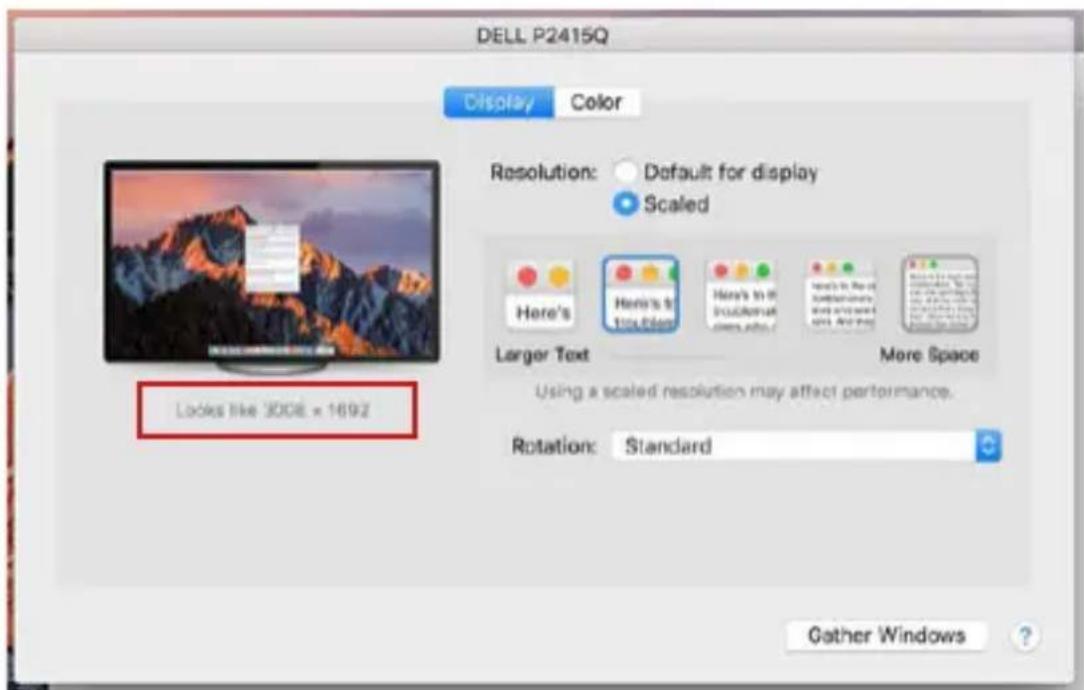
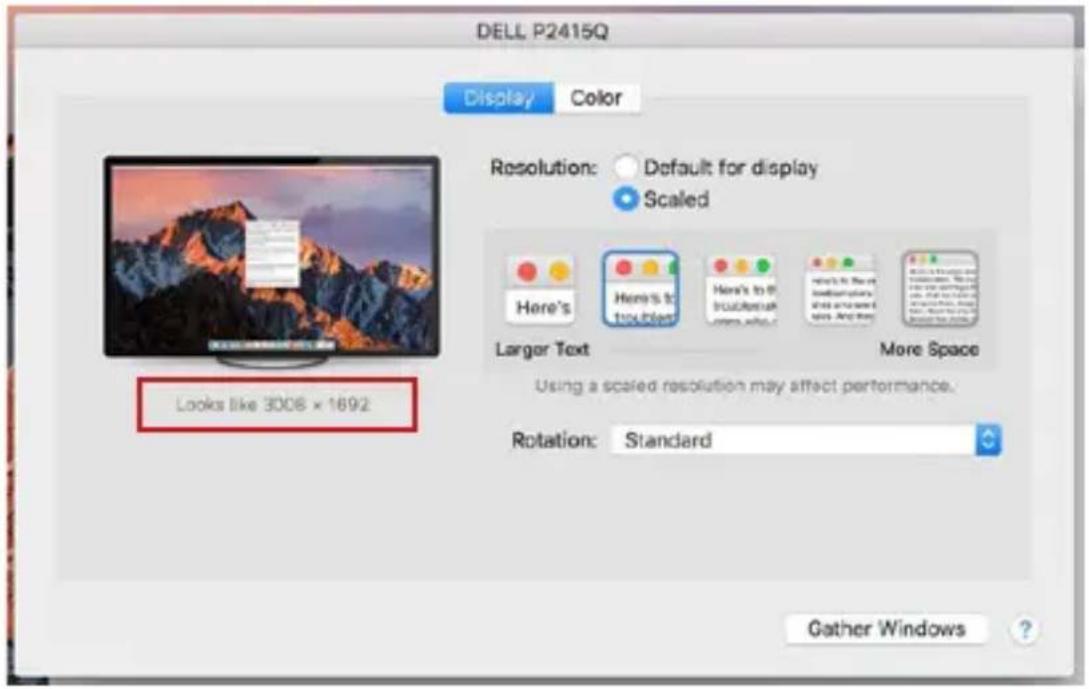
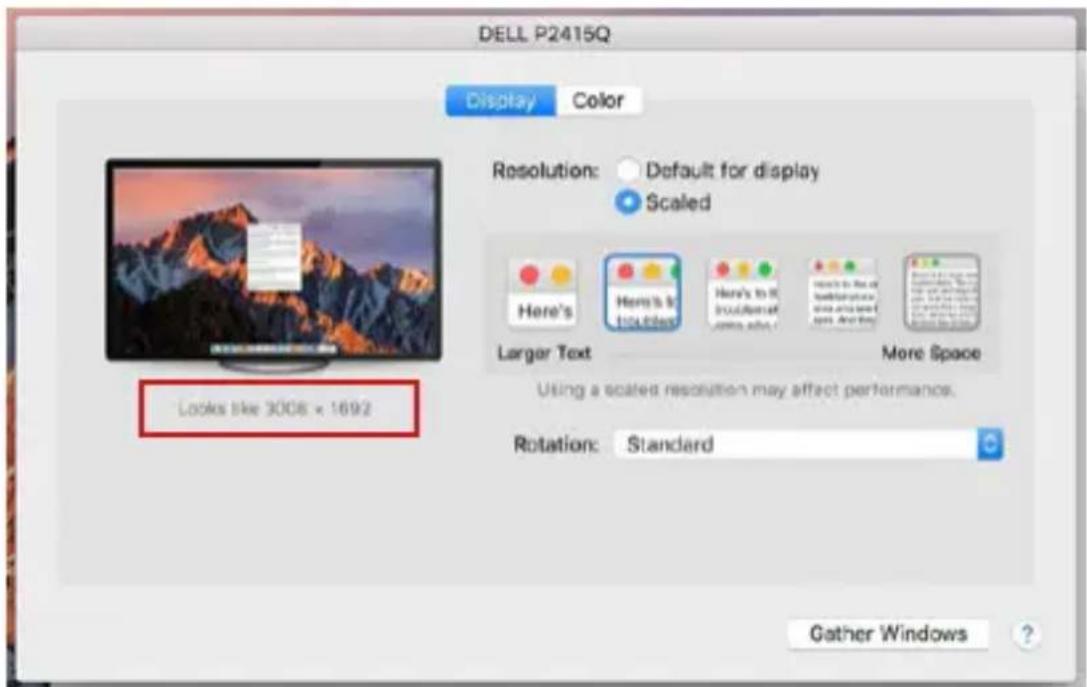
DELL P2415Q Display Color Resolution: Default for display Scaled Here's Here's & 10x8000 Here's to fit Schematic More Space Larger Text More Space Using a scaled resolution may affect performance. Rotation: Standard Gather Windows ?Display Option 2 In Customized mode, click on the icon of your choice, the resolution will be described below the screen (here 3008x1692 = 4K@30Hz)
Closed display mode - working on a connected external monitor when the Mac monitor is tilted is only possible when the Mac is powered and the mouse and keyboard are connected.
Most of the problems with screen refresh on the connected monitor after putting the Mac to sleep, after using the screensaver, after restarting the Mac, after turning the Mac off/on can be solved by disconnecting the Thunderbolt™ 3 dock cable from the Thunderbolt™ 3 port of the Mac and reconnecting it after about 10s. After that, please wait for all peripherals to finish connecting.
OTHER DOCKING STATION FEATURES
LAN Connection - GLAN RJ-45 port connects to your router/switch/hub and the internet, supports 10/100/1000 Mbps speeds
USB device connection - after connecting USB devices to the USB 3.0 port of the docking station (USB external HDD, USB keyboard, USB mouse, USB Hub, USB graphics adapter), these devices are used in a standard way. USB-C devices e.g. external HDD, flash drive, graphics adapter can be connected via Thunderbolt™ 3 port.
Charging - The docking station supports charging of connected USB mobile devices such as smartphones, e-book readers, media players, navigation devices and tablets. Simply connect the device to be charged with the original cable to the USB port of the docking station.
Power Delivery Charging - The dock has the ability to charge hosts up to 85W via the Thunderbolt™ 3 port.
Audio in Windows
By default, the audio output automatically switches to the connected dock. You can check or adjust the default audio output in Control Panel-Sound
Audio in macOS
The audio output device for listening via graphic output needs to be set/verified here: System Preferences-Sound Output-Set USB Advanced Audio Device.
The audio output device for simultaneous headphones and monitor can be selected in Open-Applications-Utilities-Setup Audio MIDI.app - click on the "+" at the bottom left-Create Multi Output Device and select the desired outputs from the options offered on the Multi Output Device.
Note: Most problems with the dock and connected peripherals can be resolved by disconnecting the dock's Thunderbolt™ 3 cable from the Thunderbolt™ 3 port of your laptop/tablet/Mac and reconnecting it after about 10s.
SAFETY INSTRUCTIONS
- Do not expose to extreme temperatures and air humidity.
- Use the device on flat surfaces – this will prevent it from slipping and potentially causing damage to the product.
- Keep the user manual for future reference.
In co-operation with the service department:
- Check the functionality if the product receives any damage.
- Send the device back if it does not work in accordance with the user manual.
FREQUENTLY ASKED QUESTIONS
Available on our website www.i-tec.pro/en/ on the "FAQ" tab of this product.
text_image
Approve Thunderbolt™ Devices: The following Thunderbolt™ device chain has been plugged in and one or more devices require your permission to connect to this system. Select the devices you wish to connect: TB4DUALDOCKPD Do Not Connect Do Not Connect Connect Only Once Always Connect Note: Selecting "Do Not Connect" will prevent that device the chain from being used on the system, Install the driver included with the device before approving the device. OKtext_image
Settings ADVANCED DISPLAY SETTINGS Customize your display 1 2 Isoically Detect Multiple displays Extend these displays Resolution [0.40 × 2160 (Recommended)] Apply Cancel Related settings Colorfulation Clear/your face Advanced and missing all text and other items Display adapter propertiestext_image
Setup ADVANCED DISPLAY SETTINGS Customize your display 1 2 Intervify Select Multiple Displays Extend these Displays Reservation 3400 x 2160 (Non-remulated) Apply Cancel Related settings Color calibration New Type test Advanced color of list and filter items Display adapter propertiestext_image
PROJECT PC screen only Duplicate Extend Second screen only Connect to a wireless displaytext_image
Built-in Display Search Display Arrangement Color Resolution: Default for display Scaled 1280 × 800 1152 × 720 1024 × 640 Brightness: Automatically adjust brightness AirPlay Display: No Devices Detected Show mirroring options in the menu bar when available Gather Windowstext_image
Color LCD Display Arrangement Color To rearrange the displays, drag them to the desired position. To relocate the menu bar, drag it to a different display Mirror Displays AirPlay Mirroring: No Devices Detected Show mirroring options in the menu bar when available Gather Windows ?text_image
Color LCD Show All Display Arrangement Color To rearrange the dimers, drag them to the desired position. To relocate the menu bar, drag it to a different display. Mirror Displays AirPlay Mirroring: No Devices Detected ✓ Show mirroring options in the menu bar when available Cather Windowstext_image
Display To rearrange the displays, drag them to the desired position. To relocate the menu bar, drag it to a different display. ✓ Mirror Displays AirPlay Mirroring: No Devices Detected # ✓ Show mirroring options in the menu bar when available Cather Windowstext_image
ASUS PB287Q Display Color Resolution: Default for display Scaled 5840 x 2160 3360 x 1890 (low resolution) 3200 x 1800 (low resolution) 3008 x 1692 (low resolution) 2560 x 1440 (low resolution) 2004 x 1206 (low resolution) Rotation: Standard Refresh Rate: 30 Hertz Gather Windows ?Variante 1 anzeigen

text_image
DELL P2415Q Display Color Resolution: Default for display Scaled Here's Here's to touchbox Here's to touchbox Use color/ Space in the image and provide it and use space Larger Text More Space Using a scaled resolution may affect performance. Rotation: Standard Gather Windows ?Variante 2 anzeigen
text_image
Screen Display Keyboard Mouse & Touchpad Printers Removable Media Thunderbolt Device Colour Profiles Thunderbolt Direct Access Allow direct access to devices such as docks, and external GPUs. Devices TB4DUALDOCKPD Authorizedtext_image
Approve Thunderbolt™ Devices: The following Thunderbolt™ device chain has been plugged in and one or more devices require your permission to connect to this system. Select the devices you wish to connect: TB4DUALDOCKPD Do Not Connect Do Not Connect Connect Only Once Always Connect Note: Selecting "Do Not Connect" will present that device the chain from being used on the system. Install the driver included with the device before approving the device. OKtext_image
6 Settings ADVANCED DISPLAY SETTINGS Customize your display 1 2 Remove Detect Multiple displays Extend these displays Resolution X340 × 2190 (Recommended) Apply Cancel Related settings Color calibration ClearType text Advanced setting of load and other items Display adapter propertiestext_image
settings ADAMINICED DISPLAY SETTINGS Customize your display 1 2 Identify Detect Multiple displays Extend these displays Resolution (840) x 2560 (Recommended) Apply Cancel Related settings Color calibration ClearType test Advanced grid of list and other items Display adapter propertiestext_image
PROJECT PC screen only Duplicate extended Second screen only Connect to a wireless displaytext_image
Built-in Display Display Arrangement Color Resolution: Default for display Scaled 1280 x 800 1152 x 720 1024 x 640 Brightness: Automatically adjust brightness AirPlay Display: No Devices Detected Show mirroring options in the menu bar when available Gather Windowstext_image
Color LCD Display Attachments Color To rearrange the displays, drag them to the desired position. To relocate the more bar, drag it to a different display Mirror Displays AirPlay Mirroring: No Devices Detected Show mirroring options in the menu bar when available Gather Windowstext_image
Color LCD Show All Display Arrangement Color To rearrange the displays, drag them to the desired position. To relocate the menu bar, drag it to a different display. Mirror Displays AirPlay Mirroring: No Devices Detected ✓ Show mirroring options in the menu bar when available Gather Windowstext_image
Display To rearrange the displays, drag them to the desired position. To relocate the menu bar, drag it to a different display. Mirror Displays AirPlay Mirroring: No Devices Detected # Show mirroring options in the menu bar when available Cather Windows ?text_image
ASUS PB287Q Display Color Resolution: Default for display Scaled 3840 × 2160 3360 × 1890 (low resolution) 3200 × 1800 (low resolution) 3008 × 1692 (low resolution) 2560 × 1440 (low resolution) 3004 × 1896 (low resolution) Rotation: Standard Refresh Rate: 30 Hertz Gather Windows ?text_image
DELL P2415Q Display Color Resolution: Default for display Scaled Here's Here's & You'll Be Here Larger Text More Space Using a scaled resolution may affect performance. Rotation: Standard Gather Windows ?INSTRUCTIONS DE SÛRETÉ
text_image
Devices Screen Display Keyboard Mouse & Touchpad Printers Removable Media Thunderbolt Device Colour Profiles Thunderbolt Direct Assess Allow Direct access to devices such as docks and external GPUs. Devices TB4DUALDOCKPD Authorisedtext_image
Approve Thunderbolt™ Devices The following Thunderbolt™ device chain has been plugged in and one or more devices require your permission to connect to this system. Select the devices you wish to connect: TB4DUALDOCKPD Do Not Connect Do Not Connect Connect Only Once Always Connect Note: Selecting "Do Not Connect" will prevent that device the chain from being used on the system. Install the driver included with the device before approving the device. OKtext_image
4 Settings AD versionED DISPLAY SETTINGS Customize your display 1 2 Identity Detect Multiple displays Extend these displays Resolution 3040 x 2740 (Recommended) Apply Cancel Related settings Color-visualization ClearType text Advanced setting of text and other items Display adapter propertiestext_image
C customization your display 1 2 Remove Drive Multiple displays Extend these displays Resolution (1040 x 2180 (Recommended)) Apply Cancel Related settings Color attenuation Data hyperone Advanced setting of text and ethnic items Display adaptor propertiestext_image
PROJECT PC screen only Duplicate Extend Second screen only Connect to a wireless displayControlar el monitor en Windows 10
USO DEL DOCK EN MAC OS
text_image
Built-in Display Display Arrangement Color Resolution: Default for display Scaled 1280 x 800 1152 x 720 1024 x 640 Brightness: Automatically adjust brightness AirPlay Display: No Devices Detected Show mirroring options in the menu bar when available Gather Windowstext_image
Color LCD Display Ascension Color To rearrange the displays, drag them to the desired position. To relocate the more bar, drag it to a different display. Mirror Displays AirPlay Mirroring: No Devices Detected Show mirroring options in the menu bar when available Gather Windows ?text_image
Color LCD Show All Display Arrangement Color To rearrange the disasters, drag them to the desired position. To relocate the menu bar, drag it to a different display. Mirror Displays AirPlay Mirroring: No Devices Detected. 1 ✓ Show mirroring options in the menu bar when available Cather Windows ?text_image
Display To rearrange the displays, drag there to the desired position To relocate the menu bar, drag it to a different display. ✓ Mirror Displays AirPlay Mirroring: No Devices Detected # ✓ Show mirroring options in the menu bar when available Cather Windows ?text_image
ASUS PB287Q Display Color Resolution: Default for display Scaled 3840 x 2160 3360 x 1890 (low resolution) 3200 x 1800 (low resolution) 3008 x 1692 (low resolution) 2560 x 1440 (low resolution) Rotation: Standard Refresh Rate: 30 Hertz Gather Windows ?text_image
DELL P2415Q Display Color Resolution: Default for display Scaled Here's Here's & Solution Here's to fit the following image: Larger Text More Space Using a scaled resolution may affect performance. Rotation: Standard Gather Windows ?text_image
Screen Display Keyboard Mouse & Touchpad Printers Removable Media Thunderbolt Device Colour Profiles Thunderbolt Direct Access Allow direct access to devices, such as devices and external GPUs Devices TB4DUALDOCKPD Authorizedtext_image
Approve Thunderbolt™ Devices The following Thunderbolt™ device chain has been plugged in and one or more devices require your permission to connect to this system. Select the devices you wish to connect: TB4DUALDOCKPD Do Not Connect Do Not Connect Connect Only Once Always Connect Note: Selecting "Do Not Connect" will present that device the chain from being used on the system. Install the driver included with the device before approving the device. OKtext_image
Settings ADVANCED DISPLAY SETTINGS Customize your display 1 2 Identify Default Multiple Displays Extend Value Displays Resolution (100) x 790 (Recommended) Apply Cancel Related settings Color nitrification ClearType text Advanced using at text and other items Display adapter propertiestext_image
Setups ADVANCED DISPLAY SETTINGS Customize your display 1 2 Identify Select Multiple displays Extend these Displays Resolution 1640 × 2190 (Recommended) Apache Cancel Related settings Color calibration ClearType text Advanced Rating of Text and other items Display adapter propertiestext_image
PROJECT PC screen only Duplicate Extend Second screen only Connect it to a wireless displaytext_image
Built-in Display Display Arrangement Color Resolution: Default for display Scaled 1280 × 800 1152 × 720 1024 × 640 Brightness: ✓ Automatically adjust brightness AirPlay Display: No Devices Detected ✓ Show mirroring options in the menu bar when available Gather Windowstext_image
Color LCD Display Arrangements Color To rearrange the displays, drag them to the desired position To relocate the menu bar, drag it to a different display Mirror Displays AirPlay Mirroring: No Devices Detected Show mirroring options in the menu bar when available Gather Windows ?text_image
Color LCD Show All Display Arrangement Color To rearrange the displays, drag them to the desired position. To relocate the menu bar, drag it to a different display. Mirror Displays AirPlay Mirroring: No Devices Detected ✓ Show mirroring options in the menu bar when available Cather Windowstext_image
Display To rearrange the displays, drag them to the desired position. To relocate the menu bar, drag it to a different display. ✓ Mirror Displays AirPlay Mirroring: No Devices Detected 4 ✓ Show mirroring options in the menu bar when available Cather Windowstext_image
ASUS PB287Q Display Color Resolution: Default for display Scaled 3840 x 2160 3360 x 1890 (low resolution) 3200 x 1800 (low resolution) 3008 x 1692 (low resolution) 2560 x 1440 (low resolution) 3004 x 1205 (low resolution) Rotation: Standard Refresh Rate: 30 Hertz Gather Windows ?Opzione display 1

text_image
DELL P2415Q Display Color Resolution: Default for display Scaled Here's Here's to Use Open Here's to off Use Open Here's to Use Open Scales Larger Text More Space Using a scaled resolution may affect performance. Rotation: Standard Gather Windows ?text_image
Approve Thunderbolt™ Devices The following Thunderbolt™ device chain has been plugged in and one or more devices require your permission to connect to this system. Select the devices you wish to connect: TB4DUALDOCKPD Note: Selecting "Do Not Connect" will prevent that device the chain from being used on the system. Install the driver included with the device before approving the device. Do Not Connect Do Not Connect Connect Only Once Always Connect OKtext_image
Devices Screen/Display Keyboard Mouse & Touchpad Printers Renewable Media Thundersuits Device Colour Profiles Thunderbolt Unlock Direct Access Allow direct access to devices such as docks and external CPUs. Devices TB40UALDOCKPD Authorizedtext_image
TENNESMETH TENNESMETHtext_image
Set ADVANCED DISPLAY SETTINGS Customize your display 1 2 Simply Select Multiple diagnoses: Extend these displays Resolution (340) x 2100 (Recommended) Apply Cancel Related settings Color calibration Clear Type text Advanced editing of text and other items Display adapter propertiestext_image
PROJECT PC screen only Duplicate Extend Second screen only Connect to a window displaytext_image
Built-in Display Search Display Arrangement Color Resolution: Default for display Scaled 1280 × 800 1152 × 720 1024 × 640 Brightness: ✓ Automatically adjust brightness AirPlay Display: No Devices Detected ✓ Show mirroring options in the menu bar when available Gather Windowstext_image
Color LCD Display Mirror Color To rearrange the displays, drag them to the desired position. To relocate the menu bar, drag it in a different display Mirror Displays AirPlay Mirroring: No Devices Detected Show mirroring options in the menu bar when available Gather Windowstext_image
Color LCD Show All Display Arrangement Color To rearrange the displays, drag them to the desired position. To relocate the menu bar, drag it to a different display. Mirror Displays AirPlay Mirroring: No Devices Detected ✓ Show mirroring options in the menu bar when available Cather Windowstext_image
Display To rearrange the display, drag them to the desired position. To relocate the menu bar, drag it to a different display. ✓ Mirror Displays AirPlay Mirroring: No Devices Detected & ✓ Show mirroring options in the menu bar when available Cather Windows ?text_image
ASUS PB287Q Display Color Resolution: Default for display Scaled 3840 x 2160 3360 x 1890 (low resolution) 3200 x 1800 (low resolution) 3008 x 1692 (low resolution) 2560 x 1440 (low resolution) 2004 x 1205 (low resolution) Rotation: Standard Refresh Rate: 30 Hertz Gather Windows ?text_image
DELL P2415Q Display Color Resolution: Default for display Scaled Here's Here's to How does Here's to How does Larger Text More Space Using a scaled resolution may affect performance. Rotation: Standard Gather Windows ?text_image
Approve Thunderbolt™ Devices: The following Thunderbolt™ device chain has been plugged in and one or more devices require your permission to connect to this system. Select the devices you wish to connect: TB4DUALDOCKPD Do Not Connect Do Not Connect Connect Only Once Always Connect Note: Selecting "Do Not Connect" will prevent that device the chain from being used on the system. Install the driver included with the device before approving the device. OKtext_image
Screen Display Keyboard Mouse & Touchpad Military Removable Media Thunderbolt Device Colour Profiles Thunderbolt Direct Access Allow off or more than devices such as icons and external GIFs. Services TB4DUALDOCKPD Authorisedtext_image
Diagram showing a device connected to two computer monitors, one labeled 'SINN' and the other with Chinese text.text_image
6 Settings ADVANCED DISPLAY SETTINGS Customize your display 1 2 Identify Direct Multiple displays: Extend their displays Resorience (340 + 2740 (Recommended) Apply Cancel Related settings Color calibration Over-type text Advanced listing of text and other items Display adapter propertiestext_image
ADAMANCED DISPLAY SETTINGS Customize your display 1 2 Intensity Default Multiple Disksys Extend from Disksys Resolution 34KB × 2960 (Recommended) Apply Cancel Related settings Color validation Clear Type-Text Advanced text string of text and other items. Display adapter propertiestext_image
PROJECT PC screen only Duplicate Extend Second screen only Connect to a wireless directorySterowanie monitorem w systemie Windows 10
KORZYSTANIE ZE STACJI DOKUJĄCEJ W SYSTEMIE MACOS
text_image
Built-in Display Display Arrangement Color Resolution: Default for display Scaled 1280 × 800 1152 × 720 1024 × 640 Brightness: ✓ Automatically adjust brightness AirPlay Display: No Devices Detected ✓ Show mirroring options in the menu bar when available Gather Windowstext_image
Color LCD Display Arrangement Color To rearrange the displays, drag them to the desired position. To rearrange the theme bar, drag it to a different display. Mirror Displays AirPlay Mirroring: No Devices Detected Show mirroring options in the menu bar when available Gather Windows ?text_image
Color LCD Show All Display Antimposed Color To rearrange the discles, drag them to the desired position. To relocate the menu bar, drag it to a different display. Mirror Displays AirPlay Mirroring: No Devices Detected ✓ Show mirroring options in the menu bar when available Cather Windowstext_image
Display To rearrange the displays, drag them to the desired position. To relocate the menu bar, drag it to a different display. ✓ Mirror Displays AirPlay Mirroring: No Devices Detected # ✓ Show mirroring options in the menu bar when available Cather Windows ?text_image
ASUS PB287Q Display Color Resolution: Default for display Scaled 3840 x 2160 3360 x 1890 (low resolution) 3200 x 1800 (low resolution) 3008 x 1692 (low resolution) 2560 x 1440 (low resolution) 3994 x 1205 (low resolution) Rotation: Standard Refresh Rate: 30 Hertz Gather Windows ?Wyświetlacz Opcja 1

text_image
DELL P2415Q Display Color Resolution: Default for display Scaled Here's Here's to touch screen Here's to the thickness screen. And you are more space Larger Text More Space Using a scaled resolution may affect performance. Rotation: Standard Looks like 3008 × 1692 Gather Windows ?text_image
Approve Thunderbolt™ Devices The following Thunderbolt™ device chain has been plugged in and one or more devices require your permission to connect to this system. Select the devices you wish to connect: TB4DUALDOCKPD Do Not Connect Do Not Connect Connect Only Once Always Connect Note: Selecting "Do Not Connect" will prevent that device the chain from being used on the system; Install the driver included with the device before approving the device. OKtext_image
Design Screen Display Keyboard Mouse & Touchpad Printers Removable Media Thunderbolt Device Colour Profiles Thunderbolt Direct Assess Allow direct access to devices such as disks and external OPUs. Devices TB4DUALDOCKPD Authorizedtext_image
PROJECT PC screen only Duplicate Extend Second screen only Connect to a wireless displayOvládanie monitora v systéme Windows 10
POUŽÍVANIE DOKU V SYSTÉME MAC OS
text_image
Built-in Display Search Display Arrangement Color Resolution: Default for display Scaled 1280 × 800 1152 × 720 1024 × 640 Brightness: Automatically adjust brightness AirPlay Display: No Devices Detected Show mirroring options in the menu bar when available Gather Windowstext_image
Color LCD Display Arrangement Color To rearrange the displays, drag them to the desired position. To relocate the menu bar, drag it to a different display. Mirror Displays AirPlay Mirroring: No Devices Detected : Show mirroring options in the menu bar when available Gather Windows ?text_image
Color LCD Show All Display Arrangement Color To rearrange the discles, drop them to the desired position. To relocate the menu bar, drag it to a different display. Mirror Displays AirPlay Mirroring: No Devices Detected Show mirroring options in the menu bar when available Cather Windowstext_image
Display To rearrange the displays, drag them to the desired position. To relocate the menu bar, drag it to a different display. Mirror Displays AirPlay Mirroring: No Devices Detected 4 Show mirroring options in the menu bar when available Cather Windowstext_image
ASUS PB287Q Display Color Resolution: Default for display Scaled 3840 × 2160 3360 × 1890 (low resolution) 3200 × 1800 (low resolution) 3008 × 1692 (low resolution) 2560 × 1440 (low resolution) 3004 - 1295 (low resolution) Rotation: Standard Refresh Rate: 30 Hertz Gather Windows ?Možnost'zobrazenia 1

text_image
DELL P2415Q Display Color Resolution: Default for display Scaled Here's Here's to touch screen Here's to the touch screen Here's to the touch screen More Space Larger Text Using a scaled resolution may affect performance. Rotation: Standard Gather Windows ?text_image
Approve Thunderbolt™ Devices The following Thunderbolt™ device chain has been plugged in and one or more devices require your permission to connect to this system. Select the devices you wish to connect: TB4DUALDOCKPD Do Not Connect Do Not Connect Connect Only Once Always Connect Note: Selecting "Do Not Connect" will prevent that device the chain from being used on the system. Install the driver included with the device before approving the device. OKtext_image
Devices Screen Display Keyboard Mouse & Touchpad Printers Removable Media Thunderbolt Device Colour Profiles Thunderbolt Direct Access Allow direct access to devices such as docks and external CPUs. Devices TB4DUALDOCKPD Authorizedtext_image
TSYNERS Guam HATU HATU HATU HATU HATU HATU HATU2 monitoriai vienu metu prijungti per 1x HDMI+1x „Thunderbolt™ 4“ arba 2x „Thunderbolt™ 4“, maksimali skiriamoji geba 4K 4096x2160@60Hz
text_image
C:\Settings\ADAMINICED DISPLAY SETTINGS Customize your display 1 2 Select To: Select Multiple displays Extend three drops Residuals 2.640 + 2.940 (Recommended) Apply Cancel Related settings Color calibration Clear type text Advanced string of text and other items Display adsor propertiesEkrano skiriamoji geba sistemoje „Windows 10
Dabar galite atlikti parametry Extend ir Mirror/Duplicate nustatymus:
text_image
ADAMANCED DISPLAY SETTINGS Customize your display 1 2 Identify Direct Multiple dispnups: Extract three dispnups Resolution JN40 x JN40 Re-constellation Apply Cancel Related settings Color calibration Cleartype text Advanced using all text and other items Display adapter propertiestext_image
PROJECT PC screen only Duplicate Extend Second screen only Connect to a wireless displaytext_image
Built-in Display Display Arrangement Color Resolution: Default for display Scaled 1280 x 800 1152 x 720 1024 x 640 Brightness: Automatically adjust brightness AirPlay Display: No Devices Detected Show mirroring options in the menu bar when available Gather Windowstext_image
Color LCD Display Amorphousum Color To rearrange the displays, drag them to the desired position. To relocate the more bar, drag it to a different display Mirror Displays AirPlay Mirroring: No Devices Detected Show mirroring options in the menu bar when available Gather Windowstext_image
Color LCD Show All Display Arrangement Color To rearrange the displays, drag them to the desired position. To relocate the menu bar, drag it to a different display. Mirror Displays AirPlay Mirroring: No Devices Detected : ✓ Show mirroring options in the menu bar when available Cather Windowstext_image
Display To rearrange the displays, drag them to the desired precision. To relocate the menu bar, drag it to a different display. ✓ Mirror Displays AirPlay Mirroring: No Devices Detected ↓ ✓ Show mirroring options in the menu bar when available Cather Windowstext_image
ASUS PB287Q Display Color Resolution: Default for display Scaled 3840 x 2160 3360 x 1890 (low resolution) 3200 x 1800 (low resolution) 3008 x 1892 (low resolution) 2560 x 1440 (low resolution) 2004 x 1896 (low resolution) Rotation: Standard Refresh Rate: 30 Hertz Gather Windows ?1 ekrano parinktis
Thunderbolt™ 4 / USB-C Dual Display Docking Station + Power Delivery 96W
text_image
DELL P2415Q Display Color Resolution: Default for display Scaled Here's Here's to the film Here's to it this material here's also Here's to be at the location, where any spot see the text. Larger Text More Space Using a scaled resolution may affect performance. Rotation: Standard Gather Windows ?text_image
Approve Thunderbolt™ Devices The following Thunderbolt™ device chain has been plugged in and one or more devices require your permission to connect to this system. Select the devices you wish to connect: TB4DUALDOCKPD Do Not Connect Do Not Connect Connect Only Once Always Connect Note: Selecting "Do Not Connect" will prevent that device the chain from being used on the system. Install the driver included with the device before approving the device. OKtext_image
Devices Screen Display Keyboard Mouse & Touchpad Printers Removable Media Thunderbolt Device Colour Profiles Thunderbolt Unlock Direct Assess Allow direct access to devices such as docks and external GPUs. Devices TB4DUALDOCKPD Authorisedtext_image
H50000 H50000text_image
4 Settings ADAMANCED DISPLAY SETTINGS Customize your display 1 2 Opacity Address Multiple Disprays: Extend these Disprays Respiration (304) + (748) (Recommended) Apply Cancel Related settings Color calibration ClearType test Advanced set string of line and arrow items Display adapter propertiestext_image
Setup ADVANCED DISPLAY SETTINGS Customize your display 1 2 Modify Direct Multiple displays Extend their displays Resolution 3x80 x 2160 (Recommended) Apply Cancel Related settings Color calibration Create Type text Advanced listing of text and other items Display adapter propertiestext_image
PROJECT PC screen only Duplicate Extended Second screen only Connect to a wireless displayDe monitor bedienen in Windows 10
Thunderbolt™ 4 / USB-C Dual Display Docking Station + Power Delivery 96W
HET DOCK GEBRUIKEN IN MAC OS
text_image
Built-in Display Search Display Arrangement Color Resolution: Default for display Scaled 1280 × 800 1152 × 720 1024 × 640 Brightness: ✓ Automatically adjust brightness AirPlay Display: No Devices Detected ✓ Show mirroring options in the menu bar when available Gather Windows ?text_image
Color LCD Display Arrangement Color To rearrange the displays, drag them to the desired position. To relocate the menu bar, drag it to be a different display Mirror Displays AirPlay Mirroring: No Devices Detected : Show mirroring options in the menu bar when available Gather Windowstext_image
Color LCD Show All Display Arrangement Color To rearrange the displays, drag them to the desired position. To relocate the menu bar, drag it to a different display. Mirror Displays AirPlay Mirroring: No Devices Detected ✓ Show mirroring options in the menu bar when available Cather Windowstext_image
Display To rearrange the display, drag them to the desired position. To relocate the menu bar, drag it to a different display. ✓ Mirror Displays AirPlay Mirroring: No Devices Detected 4 ✓ Show mirroring options in the menu bar when available Cather Windows ?text_image
ASUS PB287Q Display Color Resolution: Default for display Scaled 3840 x 2160 3360 x 1890 (low resolution) 3200 x 1800 (low resolution) 3008 x 1692 (low resolution) 2560 x 1440 (low resolution) 2004 x 1206 (low resolution) Rotation: Standard Refresh Rate: 30 Hertz Gather Windows ?Weergave Optie 1

text_image
DELL P2415Q Display Color Resolution: Default for display Scaled Here's Here's & 100 Bits Here's to fit Inclusionful Gains all Report to the Solutions the area and size gains, drag ring Larger Text More Space Using a scaled resolution may affect performance. Rotation: Standard Gather Windows ?Weergave Optie 2
Note: Marking is in compliance with EU WEEE Directive
ENGLISH
This equipment is marked with the above recycling symbol. It means that at the end of the life of the equipment you must dispose of it separately at an appropriate collection point and not place it in the normal domestic unsorted waste stream. This will benefit the environment for all. (European Union only)
DEUTSCH
Thunderbolt 4 Dual Display Docking Station + PD 96W
Model, Modell, Modèle, Modelo, Modello, Model, Model, Model, Modelis, Model, Modell, Modelo:
TB4DUALDOCKPD
Determination, Bestimmung, La détermination, Determinación, Determinazione, Určení, Určenie, Opcje, Ustatymas, Doel, Fastställande, Determinação:
Product is determined for using in PC as equipment. Das Produkt ist für Austattung und als Zubehör von Computern bestimmt. Le produit est déterminé pour une utilisation sur PC comme équipement. El producto se determina para usar en PC como equipo. Destinato per essere usato come attrezzatura informatica o come accessorio per computer. Výrobek je určen pro prístrojové vybavení a jako príslušenství do počítačů. Výrobok je určený pre prístrojové vybavenie a jako príslušenstvo do počítačov. Produkt jest przeznaczony do współpracy z komputerem jako akcesorium. Gaminys yra skirtas įrangai papildyti ir naudojamas kaip priedas kompiuteriams. Het product is bedoeld als uitrusting voor apparaten en als computeraccessoire. Produkten är avsedd för användning som PC-tillbehör. O produto destina-se a ser utilizado como acessório para PCs.
We declare under our sole responsibility that the above named product is in conformity with the following European Union directives:
This equipment has been tested and found to comply within the limits of a Class B digital device pursuant to Part 15 of the FCC Rules. These limits are designed to provide reasonable protection against harmful interference in a residential installation.
www.i-tec.pro/en