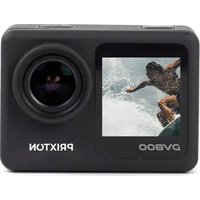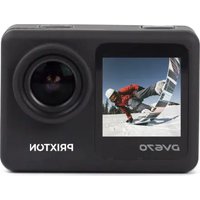
DV670 - Camcorder Prixton - Free user manual and instructions
Find the device manual for free DV670 Prixton in PDF.


| Product type | Action camera / Camcorder |
| Brand | Prixton |
| Model | DV670 |
| Dimensions | 61 x 32 x 44 mm |
| Weight | Approximately 90 g (without accessories) |
| Waterproof | Up to 30 m with waterproof housing |
| Main screen | IPS 2.0 inches |
| Front screen | IPS 1.3 inches |
| Max video resolution | 4K at 30 fps |
| Max photo resolution | 20 megapixels |
| Lens | Wide angle 160° |
| Video format | MP4 (H.264) |
| Storage | Micro SD card up to 64 GB (not included) |
| Battery | Lithium-ion 900 mAh, removable |
| Video battery life | Approximately 90 minutes |
| Charging time | Approximately 3 hours |
| Power supply | 5 V / 1 A (USB) |
| Connectivity | Wi-Fi, HDMI, USB 2.0 |
| Main functions | Video recording, photo, slow motion, time-lapse, loop, driving mode, webcam |
| Available languages | French, English, German, Spanish, Italian, among others |
| Included accessories | Waterproof housing, bike mount, base, clamp, switch, mounts, USB cable, battery |
| Warranty | Compliant with the legislation in force in the country of purchase |
Frequently Asked Questions - DV670 Prixton
User questions about DV670 Prixton
0 question about this device. Answer the ones you know or ask your own.
Ask a new question about this device
Download the instructions for your Camcorder in PDF format for free! Find your manual DV670 - Prixton and take your electronic device back in hand. On this page are published all the documents necessary for the use of your device. DV670 by Prixton.
USER MANUAL DV670 Prixton
Thank you for purchasing the action camera. We recommend you to spend some time reading this instruction manual. Read all the safety instructions carefully before use and keep this instruction manual for future reference.
Warning
- Keep it safe from falling and dropping
- Keep it distance from any strong magnetic interference objects like electrical machine to avoid strong radio waves that might be damaging the product and affect the sound or image quality
- Don't expose the product directly to high temperatures and strong sunlight
- We recommend using high quality Micro SD Card for the best results
- Don't place your Micro SD card near strong magnetic objects to avoid data error
- In case of overheating, unwanted smoke or unpleasant smell from the device, unplug it immediately from the power outlet to prevent hazardous fire
- Keep it safety from children while on charging
- Stored the device in a cool, dry dust free location
Product Features
With a waterproof casing, allowing you to film 30 meters under water scene
" 2.0" IPS+1.3" IPS screen display for convenient videos and image playback
Detachable battery for easy replacement and help extend product lifespan
Record videos while charging
HD 20 Megapixel wide angle lens
HDOUT
PC CAM
Supports SD card memory expandable up to 64GB(Maximum)
Supports multiple video recording formats : 4K/2.7K/1080P/720P
Supports MP4 recording format
Supports multiple photo shooting modes: single shot/Timed/Auto/Drama Shot
Super lightweight, small in size
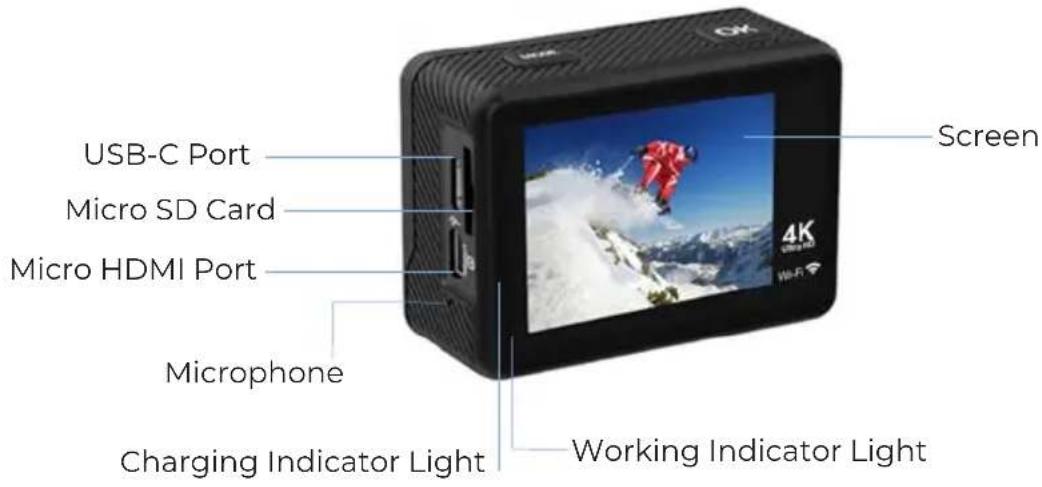
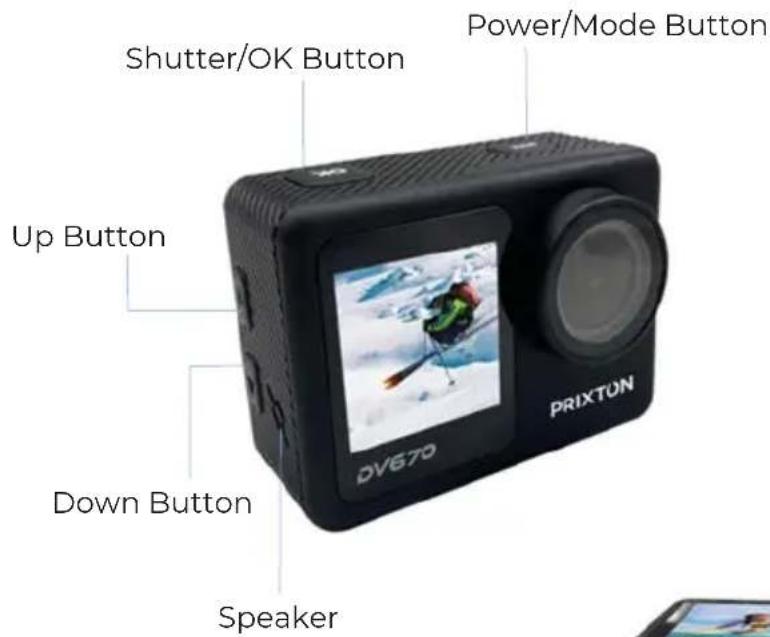
Product Overview
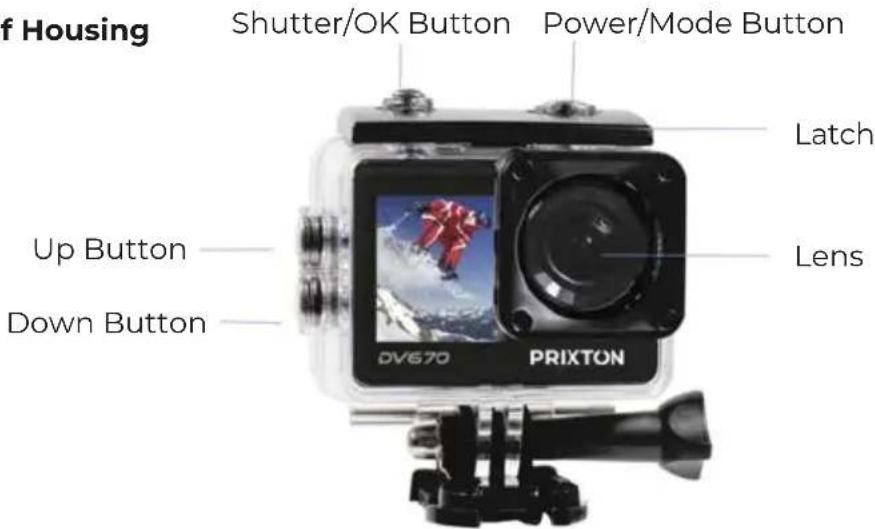
Waterproof Housing
WARNING: Please lock the waterproof housing before putting it into water, otherwise it can result in leaks that may damage or destroy your camera. Water will damage both the camera and the battery, which could cause an explosion or fire. Your warranty does not cover water damage resulting from user error.
Accessories:
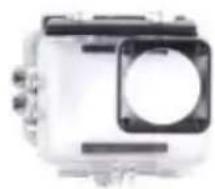
Waterproof case
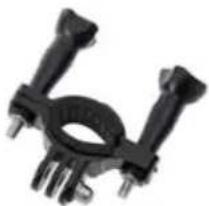
Bicycle bracket
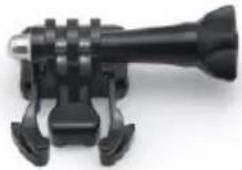
Pedestal
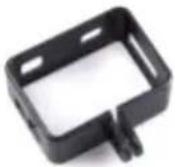
Back clip
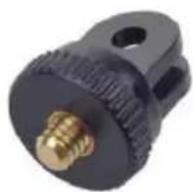
Commutator
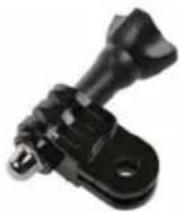
Switch support
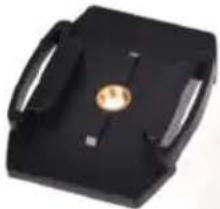
Helmet Mount
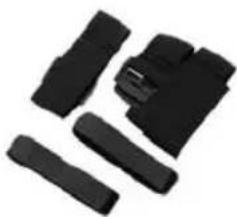
Bandage
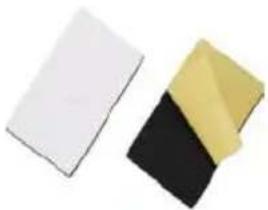
3M Adhesives
USB Cable
Battery
Mounting Your Camera








Getting Started
To power ON: Press and hold the Power/Mode Button
To power OFF: Press and hold the Power/Mode Button
Function Overview
Turn the camera ON and repeatedly press the Power/Mode Button to cycle through camera modes and setting. The modes will appear in following order
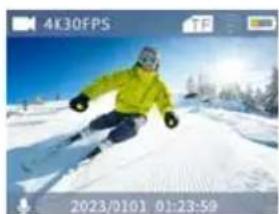
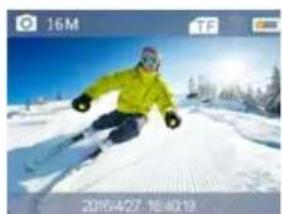
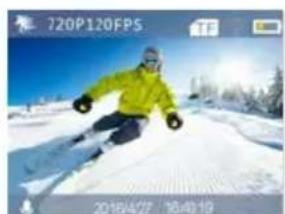

| Video | Record Video |
| Photo | Capture a single photo |
| Slow motion | Slow motion video |
| Play back | Playback Video and photo |
| Settings | Adjust camera settings |
Settings
Press the OK Button to enter the settings menu. Repeatedly press the Power/Mode Button to cycle through options and press the OK Button to select desired option.
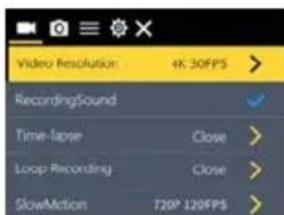
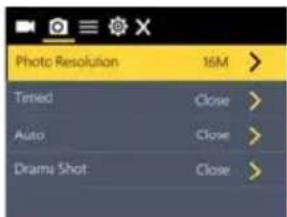
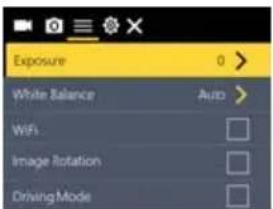
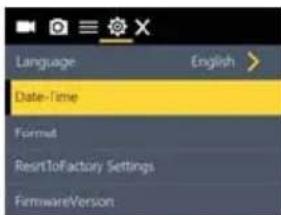
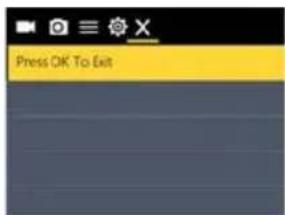
Video setting
Video Resolution: 4K 30FPS, 2.7K 30FPS, 1080P 60/30FPS, 720P 120/60/30FPS
RecordingSound: Open/Close
Time-lapse: Close/0.5S/1S/2S/5S/10S/30S/60S
Loop Recording: Close/ 2minutes/ 3minutes/ 5minutes
Slow motion: 1080P@60FPS, 720P@120FPS
Photo setting
Photo Resolution: 20M / 16M / 12M / 8M / 5M / 2M
Timed: Close / 3S / 5S / 10S / 20S
Auto: Close / 3S / 10S / 15S / 20S / 30S
Drama shot: Close, 3P/S, 5P/S, 10P/S
Settings
Exposure: -3, -2, -1, 0, 1, 2, 3
White balance: Auto/Sunny/Cloudy/Incandescent light/Fluorescent light
WIFI: Open/Close
Image Rotation: Open/Close
Driving Mode: Open/Close
Light Source Frequency: Auto/50HZ/60HZ
LED Indicator Light: Open/Close
Auto Screensaver: Close/10S/20S/30S
Auto Shutdown: Close/1minute/3minutes/5minutes
Time Watermark: Open/Close
Language: English/German/French/Spanish/Italian/Traditional Chinese/Simplified
Chinese/Japanese/Russian/Korean/Polish/Dutch/Portuguese/Thai
Date-time: 2020/01/01 12:00:00
Format: Confirmation/cancel
Reset To Factory Settings: Confirmation/cancel
Firmware Version:Version/Updated
Recording time
- To record video, Verify the camera is in Video mode
- If the Video icon" on screen is showing, press the OK key to start video, at the same time the blue light will flash
- Press OK button again to stop the video, also the blue light will stop flashing.
Picture mode
- To take picture, Verify the camera is in picture mode
- If the picture icon" ” on screen is showing, press OK button to take pictures
Slow motion
- To record slow motion video, Verify the camera is in slow motion mode
- If the slow motion Video icon" on screen is showing, press OK key to start recording video, at the same time the blue light will flash, press OK button again to stop the video, also the blue light will stop flashing
Time-lapse
- Enter the setting menu, open this function, return to video mode
- If the slow motion Video icon" on screen is showing, press the OK key to start recording video, at the same time the blue light will flash, press OK button again to stop the video, also the blue light will stop flashing.
Back & Front Screen Switching
Long press Down Button, Back screen and Front screen can be switched to the video and photo, the back screen goes off after switching the front screen display, and the front screen goes off after switching the back screen display.
Playback
Playing back video and photos
- Verify the camera is in playback menu
- Press up or down button to select file, press OK button to playback video or photos
Battery
- Install and remove the battery
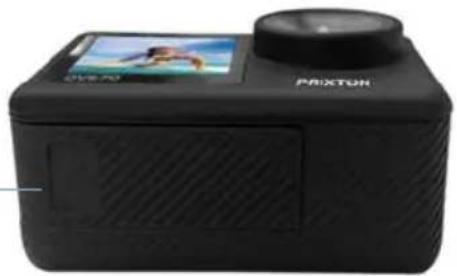
a. Down upon battery cover can be open it
b. According to the battery label plus or minus sign and the direction of the arrow, right put the battery into the camera, until the installation in position
c. Take out battery, push away the battery cover can take out the battery
- Charge
a. Connect the computer or the power adapter can be recharged
b. Directly to the car charger can be recharged in the car
c. Can charge while video function (inside the function table settings required to open the car mode)
d. Power off can be charged
Indicator light
Working LED light: Blue light
Charging LED right: Red light will flash when in charging and keep constant red when charging full.
Connect HDMI
Connect camera to HDMI-TV via HDMI cable, all operations can be displayed in high definition HDMI-TV screen.
Connect PC
Connect camera to PC and turn on camera, screen will display 3 mode: USB Mode, PC Camera, Charging Mode, press Up and Down button to choose the mode you desire.
USB Mode: Press OK button to enter this mode for playback the video and photo
PC Camera: Press OK button to work as PC camera
Charging Mode: Press OK button for charging.
Install APP and use of the WIFI
Before using WIFI function, please install "XDV" APP program on the smart phone.
-
Scan below QR code to download APP or search "XDV"
-
Android smart phone need to download it on Google play, IOS smart phone need to download it in the APP store.

iOS

Android
WIFI Connection
*After power on, press the up button, WIFI message appears on the screen
*Find the WIFI name and password in your smart phone or tablet to connect;
*Point and open "XDV" APP program, you can preview the shooting screen on the APP, can remote video and picture, files can be playback /downloaded/ deleted/shared
Noted:Android smart phone can not use data and WIFI network at the same time. So when you connect the Camera WIFI in your phone, if the following prompt appears, pls click "CONNECT" to connect to the WIFI properly.
This WLAN network has no Internet access. Connect anyway?
CANCEL
CONNECT
Please kindly confirm that the phone is connected to the Camera WIFI network, and then enter the APP. Only in this way, you can remote the camera by APP successfully.
Parameter
LCD: 2.0"IPS +1.3" IPS Screen
LENS: 160 degree wide Angle lens
Language: English/German/French/Spanish/Italian/Traditional Chinese/Simplified Chinese/Japanese/Russian/Korean/Polish/Dutch/Portuguese/Thai
Video: 4K 30FPS, 2.7K 30FPS, 1080P 60/30FPS, 720P 120/60/30FPS
Video format: MP4
Compression format: H.264
Photo: 20M / 16M / 12M / 8M / 5M / 2M
Memory: Micro SD up to 64GB
Video mode: Normal record/Looping record/ Time lapse/ Slow motion
Picture mode : Single/Timed/Auto/Drama Shot
WIFI: Support
Light source frequency: Auto/50HZ/60HZ
USB: USB 2.0
Power: 5V1A
Battery: 900mAh
Video time: About 90mins
Charge time : About 3 hours
System: Windows XP/VistaorAbove/WIN7/Mac os
Size: 61x32x44mm
Warranty policy
This product complies with the warranty law in force in the country of purchase. When you have a problem that you can not solve, you must access the web www.prixton.com and click on the contact option to send us your assistance form.
These technical and electrical specifications are those of typical units and may be changed without prior notice in order to provide improved equipment.
Simplified EU Declaration Of Conformity
We, La Trastienda Digital located in Avenida Cervantes 49, modulo 25, Basauri 48970, Bizkaia hereby declare that the following goods, imported and selling at European market:
| BRAND | MODEL NAME DESCRIPTION | CATEGORY | |
| Prixton DV670 | Action cam Dual Sreen 4K | Leisure | |
Are in compliance with the EC Council Directive of 2014/53/EU (EM DIRECTIVE) and harmonized standards and with the board of the 16th of April 2014. The complete text of the UE Declaration of conformity is available anytime at this website address: www.prixton.com LA TRASTIENDA DIGITAL
Format: Confirmation/Annulation
Abmessungen: 61x32x44mm