
MultiSport DV650 - Video camera Prixton - Free user manual and instructions
Find the device manual for free MultiSport DV650 Prixton in PDF.


| Product Type | Video Camera |
| Brand | Prixton |
| Model | MultiSport DV650 |
| Dimensions | 70 x 40 x 30 mm |
| Weight | 90 g |
| Power Source | Rechargeable Li-ion battery 1000 mAh |
| Charging Time | Approximately 2 hours |
| Video Resolution | 1080p Full HD at 30 fps |
| Photo Resolution | 12 MP |
| Lens Aperture | F/2.0 |
| Field of View | 170 degrees |
| Water Resistance | IP68 up to 30 meters (with housing) |
| Memory Card | MicroSD up to 64 GB (not included) |
| Connectivity | USB 2.0, HDMI |
| Mounting | Standard tripod mount, helmet mount included |
| Main Functions | Video recording, photo capture, time-lapse, loop recording, motion detection |
| Maintenance | Clean lens with soft cloth; keep ports dry |
| Safety | Avoid extreme heat; do not disassemble; use only approved charger |
| Spare Parts | Battery, charger, waterproof housing, mounts |
| General Information | Designed for sports and outdoor use; user manual available online |
Frequently Asked Questions - MultiSport DV650 Prixton
User questions about MultiSport DV650 Prixton
0 question about this device. Answer the ones you know or ask your own.
Ask a new question about this device
Download the instructions for your Video camera in PDF format for free! Find your manual MultiSport DV650 - Prixton and take your electronic device back in hand. On this page are published all the documents necessary for the use of your device. MultiSport DV650 by Prixton.
USER MANUAL MultiSport DV650 Prixton
PRIXTON
Features
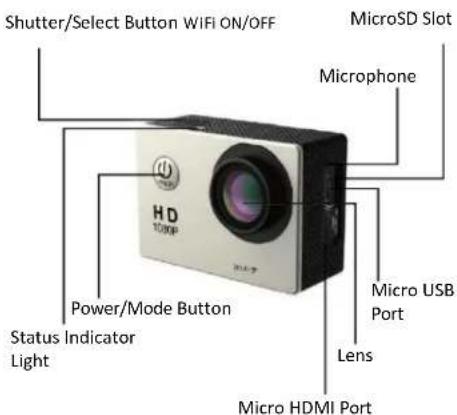
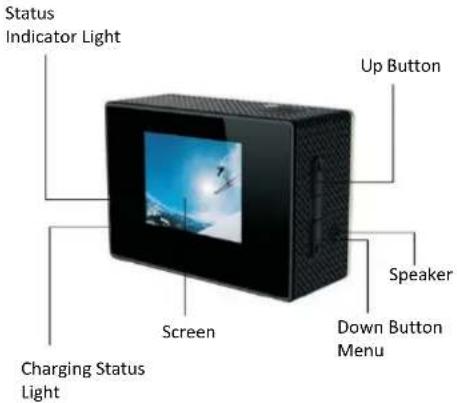
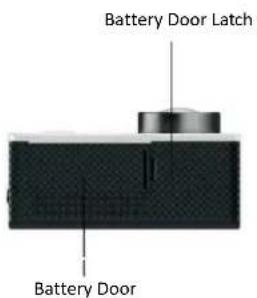
Waterproof Housing
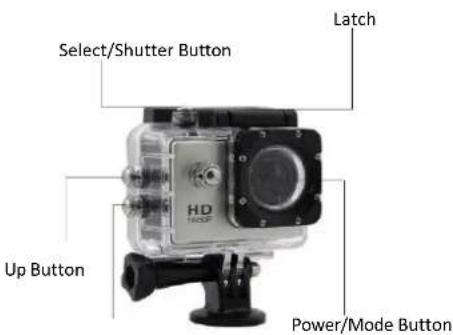
Down/Shutter Button
Accessories
 |  |  |
| Waterproof Housing | Handle Bar/Pole Mount | Mount 1 |
 |  |  |
| Mount 2 | Mount 3 | Adhesives |
 |  |  |
| Manual | USB Cable | Helmet Mounts |
 |  | [XHB7] |
| Clip | Bandages | Battery |
- Video
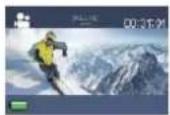
Record Video
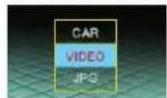
- Playback (Event, Video or JPEG)
- Settings (Video Settings, Photo Settings, and System Settings)
To access to Video Settings, go to the Video mode and press the down button. To access the Photo Settings, go to the Photo mode and press the down button.
a.Video Settings:
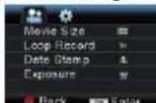
You can then choose different settings such as
Movie Size:1080P 30fps or 720p 60fps
| Micro SD Card | 1080p 30fps | 720p 60fps |
| 32GB | 240mlns | 320mlns |
| 16GB | 120mins | 160mins |
| 8GB | 60mins | 80mins |
| 4GB | 30mins | 40mins |
You can also choose Video Quality, Seamless Mode, White Balance mode, Motion Detection - useful in driver mode so you can save battery and memory space, and Date Stamp display.
b. Photo Settings:
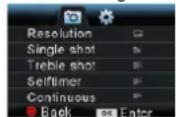
You can select different resolutions up to 12 MP, White Balance modes, Driver/Timer modes, Burst mode, Date Stamp Display.
c.System Settings:
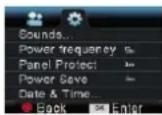
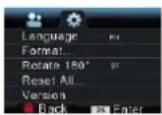
1) Sounds: On/Off, Start-up 1/2/3/None, Beep
On/Off, Volume 0/1/2/3
2) Power Frequency: 50Hz/60Hz/Auto
3) Panel Protect (Screen Saver): Off/1 mins/3 mins/5 mins
4) Power Save: Off/1 mins/3mins/5mins
5) Date&Time: YY/MM/DD
6) Language: English/Simplified Chinese/
Traditional Chinese/France/Spanish/Italian/
Portuguese/Dutch/Polish/Russian/Japanese
7) Format: No/Yes
8)IR mode
To capture the photos and videos, click on the button
OK/Shutter modes.
Storage/MicroSD Cards
This camera is compatible with 4GB,16GB, and 32GB capacity microSD, microSDHC, and microSDXC memory cards. You must use a microSD card with a Class 10 speed rating. We recommend using brand name memory cards for maximum reliability in high-vibration activities
Charging the Battery
If recording is occurring when battery reaches 0%, the camera will save the file and power OFF. To charge the battery:
- Connect the camera to a computer or USB power supply.
- The Charging Status Light remains ON while the battery is charging.
- The Charging Status Light will turn OFF when the battery is fully charged.
Connecting to the iSmart DV App
The iSmart DV App lets you control you camera remotely using a smartphone or tablet. Features include full camera control, live preview, photo playback and sharing of select content and more.
-
Download the iSmart DV App to your smartphone or tablet at the Apple App Store or Google Play.
-
Press the Power/Mode Button to power camera ON.
-
Press the OK/Shutter button for 3 seconds until you see "waiting for WIFI connection"
-
In your smartphone or tablet's Wi-Fi settings, connect to the network called "Action Cam" followed by a series of numbers.
5.Enter the password"1234567890"
6.Open the iSmart DV App on your smartphone or tablet.
Compatibility
The iSmart DV App is compatible with some smartphones and tablets listed below.

ICB App Download For WIFI Ealthuan

Android App Download For WWF Edition
Brand : Prixton
Model : MultiSport DV650
Category : Video camera