
Pixma TS704a - Printer CANON - Free user manual and instructions
Find the device manual for free Pixma TS704a CANON in PDF.


| Product type | Color inkjet printer |
| Brand and model | Canon Pixma TS704a |
| Dimensions (W x D x H) | approximately 435 x 380 x 140 mm |
| Weight | approximately 5.3 kg |
| Power supply | AC 100-240 V, 50/60 Hz |
| Power consumption | Printing: approximately 11 W, standby: approximately 0.9 W |
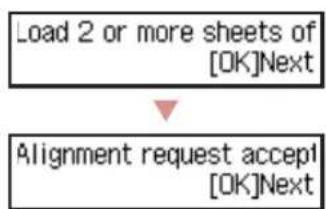
| Main functions | Automatic duplex printing, Wi-Fi, smartphone connection via Canon PRINT |
| Print speed (black / color) | up to 11 ipm / 6 ipm |
| Print resolution | 4800 x 1200 dpi |
| Paper tray capacity | Cassette: 100 plain sheets, rear tray: 1 photo sheet |
| Supported paper sizes | A4, L, postcard, envelopes |
| Connectivity | Wi-Fi 802.11 b/g/n, USB port (for PC) |
| Maintenance and cleaning | Automated head cleaning via menu, ink cartridge replacement |
| Safety | Warning: do not install near heat sources, use supplied cord |
| Spare parts and repairability | Compatible ink cartridges: Canon PG-560/CL-561, integrated print heads |
| General information | Monochrome LCD screen, navigation buttons, Canon PRINT Inkjet/SELPHY app |
Frequently Asked Questions - Pixma TS704a CANON
User questions about Pixma TS704a CANON
0 question about this device. Answer the ones you know or ask your own.
Ask a new question about this device
Download the instructions for your Printer in PDF format for free! Find your manual Pixma TS704a - CANON and take your electronic device back in hand. On this page are published all the documents necessary for the use of your device. Pixma TS704a by CANON.
USER MANUAL Pixma TS704a CANON
Read Safety and Important Information (addendum) first.
natural_image
Icon showing a printer with a paper airplane and a document, symbolizing file transfer or receipt (no text present)Installing the Printer......page 1
natural_image
Two white icons: a laptop and a smartphone, on a solid red background (no text or symbols)Connecting to a Computer, Smartphone or Tablet......page 4

Instructional Videos
Instructions vidéo
Anleitungsvideos
Instructievideo's
Video informativi
flowchart
graph TD
    A["Input URL: http://ij.start.canon"] --> B["User Interface: Click to Browse Image"]
    B --> C["Go"]
    C --> D["Video Stream"]
    E["Add Text 3. XXXXXXXXXXXXXXXXX"] --> F["Add Text 3. XXXXXXXXXXXXXXXXX"]
Setting Up the Printer

Online Setup
http://ij.start.canon

1. Box Contents
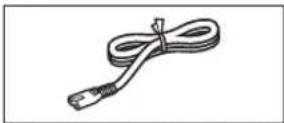
Power cord
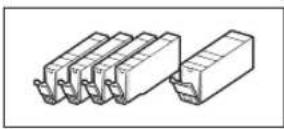
- Ink tanks for setup
- Setup CD-ROM

• Safety and Important Information
• Getting Started (this manual)
- Multi-purpose tray (Attached to the underside of the cassette.)
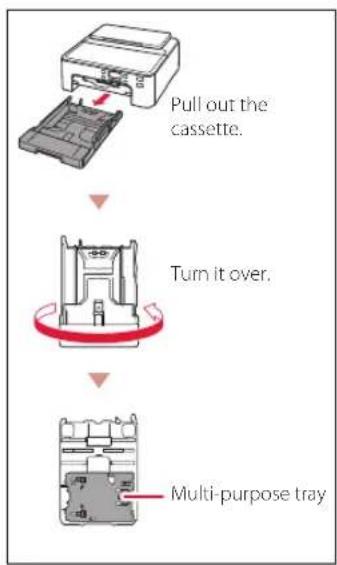
flowchart
graph TD
    A["Pull out the cassette."] --> B["Turn it over."]
    B --> C["Multi-purpose tray"]
2. Removing Packing Materials
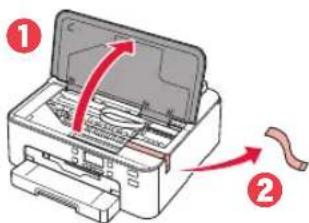
1 Remove and dispose of any packing materials from the printer.
- Be sure to remove any orange tape.
2 Open the top cover and remove the orange tape inside.
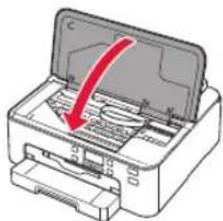
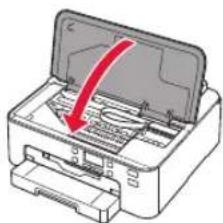
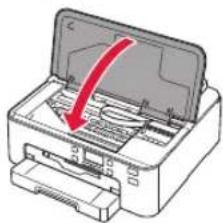
3 Close the top cover.
natural_image
Illustration of a printer with a red arrow indicating compression or disassembly (no text or symbols present)3. Turning on the Printer

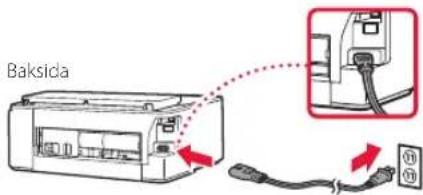
1 Connect the power cord.
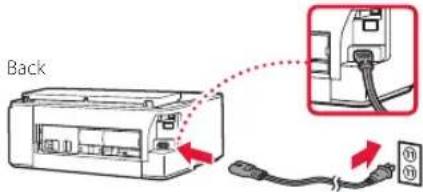

Important
At this time, do not connect any other cables.
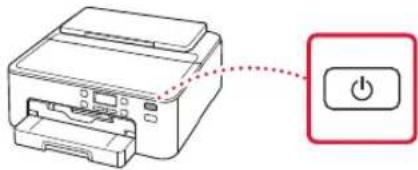
2 Press the ON button.
natural_image
Line drawing of a printer with a power button icon (no text or symbols)
Important
If the following screen appears, press the ON button to turn off the power, and redo the procedure from step 2 in "2. Removing Packing Materials".
Remove all protective ma Support code 1890
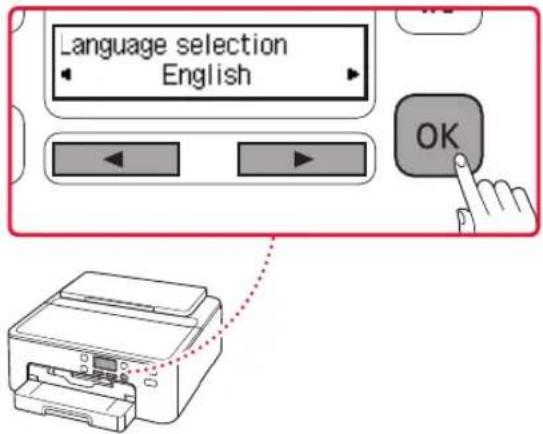
3 When the following screen appears, use the ◀ and ▶ buttons to select a language, and then press the OK button.
Setting Up the Printer
4. Installing the Ink Tanks

1 Open the top cover.

natural_image
Illustration of a printer with a red arrow indicating rotation or movement (no text or symbols)Caution
Do not touch the print head holder until it stops moving.
2 Remove the tape and film on the ink tanks.
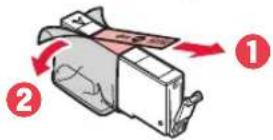
- Check that no tape is left over.
3 Slowly remove the orange cap.
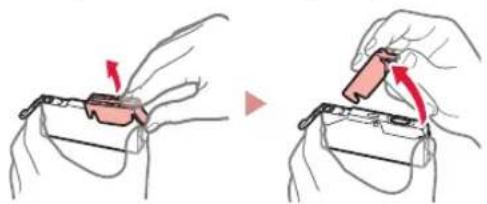
natural_image
Illustration showing two-step instructions for inserting a device into a holder, with no visible text or symbols.Important
- Do not squeeze the ink tank with the Y-shaped air hole blocked.
• Do not touch the areas shown in red.
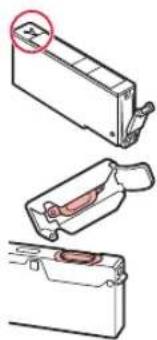
natural_image
Three-step diagram showing a device with a highlighted section, no text or symbols present4 Install the ink tanks.
- Matching the color of the ink tank to the label on the print head, insert the ink tank into the print head, and press down until it clicks.
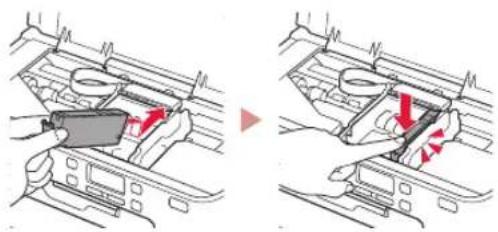
natural_image
Two-step diagram showing a device being inserted into a car's air gap, with red arrows indicating the process (no text or symbols present)5 Check that the mark appears on the screen.

Important
If the ■ mark is not displayed on the screen even though you have installed the ink tank, the color of the ink tank may be wrong or you may have installed an ink tank, such as one with a different model number, that is not supported by this printer. Either install an ink tank for the correct color or use the provided ink tank for setup.
6 Repeat steps 2 through 5 to install all the ink tanks.
- Check that a mark is displayed on the screen for each color.

7 Close the top cover.
• The printer will start initializing.
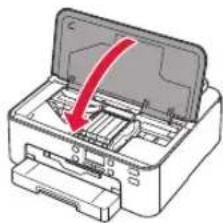
natural_image
Diagram of a printer with a red arrow indicating compression or disassembly (no text or symbols present)8 When the following screen appears, press the OK button.
5. Loading Paper
1 When the following screen appears, use the ◀ and ▶ buttons to select Yes, and then press the OK button.
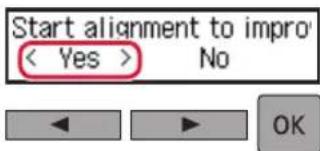
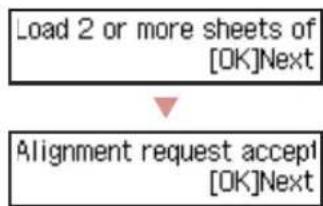
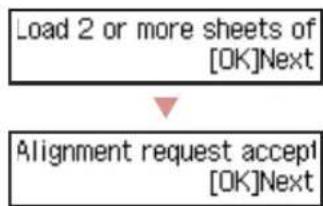
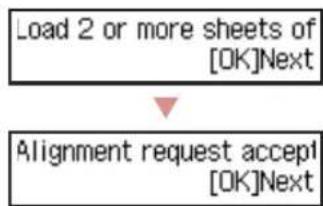
• The following screen appears.
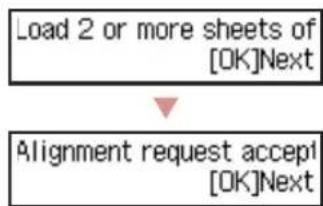
Load 2 or more sheets of [OK]Next
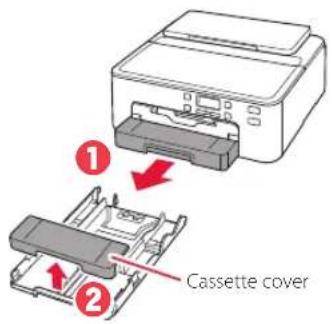
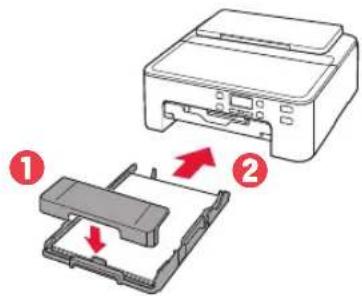
2 Remove the cassette from the printer and remove the cassette cover.
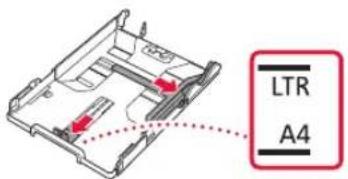
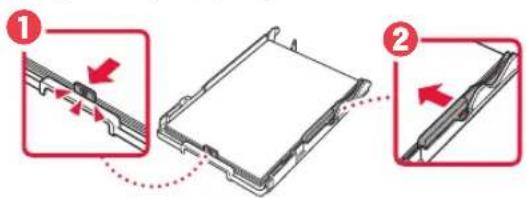
3 Slide apart the paper guides.
- Slide the right paper guide to the right edge. Align the front paper guide with the LTR or A4 mark.
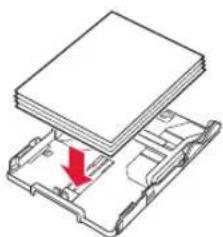
4 Load paper.
- Load 2 or more sheets of LTR or A4 sized plain paper with the print side facing down.
natural_image
3D diagram of a layered electronic device with a red arrow indicating a component or operation (no text or symbols present)- Place the paper against the front paper guide, and align the right paper guide to the width of the paper.
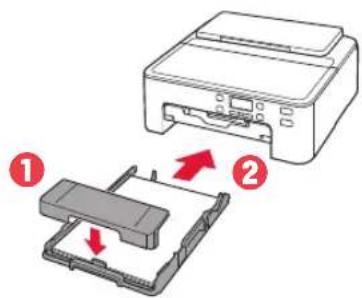
5 Attach the cassette cover and replace the cassette.
- When attaching the cassette cover to the cassette, fit the cassette cover to the shape of the front of the cassette.
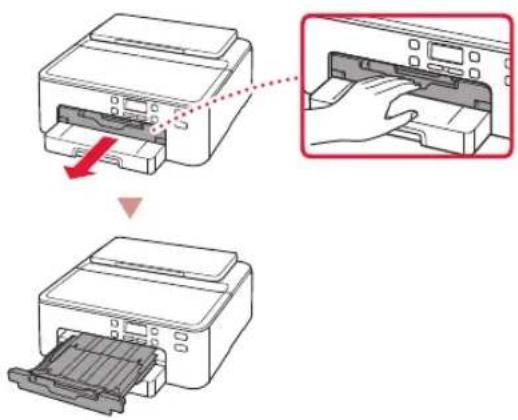
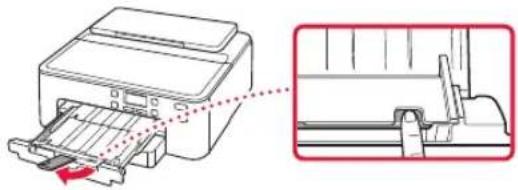
6 Pull out the paper output tray until it stops.
Important
If you do not pull out the paper output tray, an error will occur when printing starts.
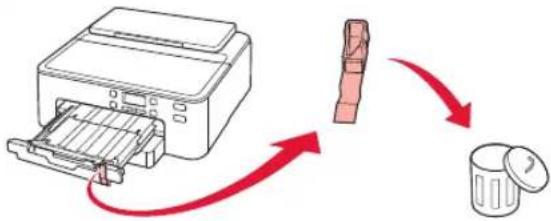
Check!
Remove and dispose of any orange protective material.
flowchart
graph TD
    A["Printer"] --> B["Recycle"]
    B --> C["Final Packaging"]
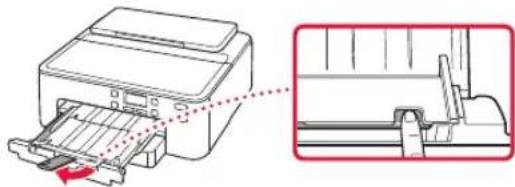
7 Pull out the paper output support.
natural_image
Diagram of a printer with paper feed and paper holder, showing internal structure (no text or symbols)8 Press the OK button.
flowchart
graph TD
    A["Load 2 or more sheets of [OK"]Next] --> B["Alignment request accept [OK"]Next]
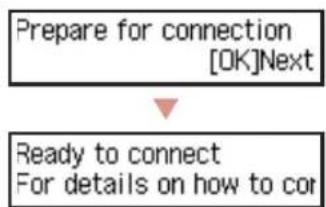
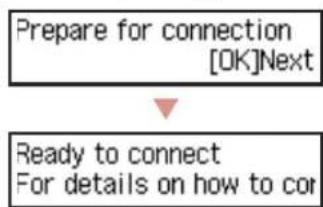
9 Check that Prepare for connection appears on the printer's screen, and then press the OK button.
flowchart
graph TD
    A["Prepare for connection [OK"]Next] --> B["Ready to connect For details on how to cor"]
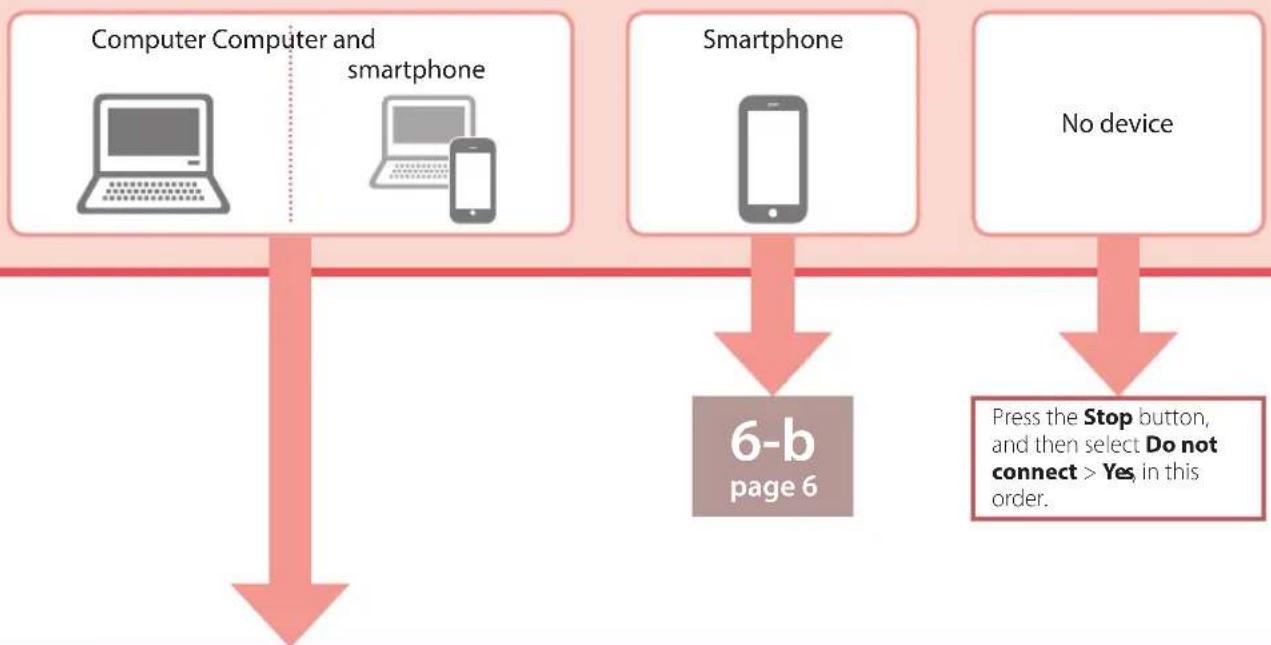
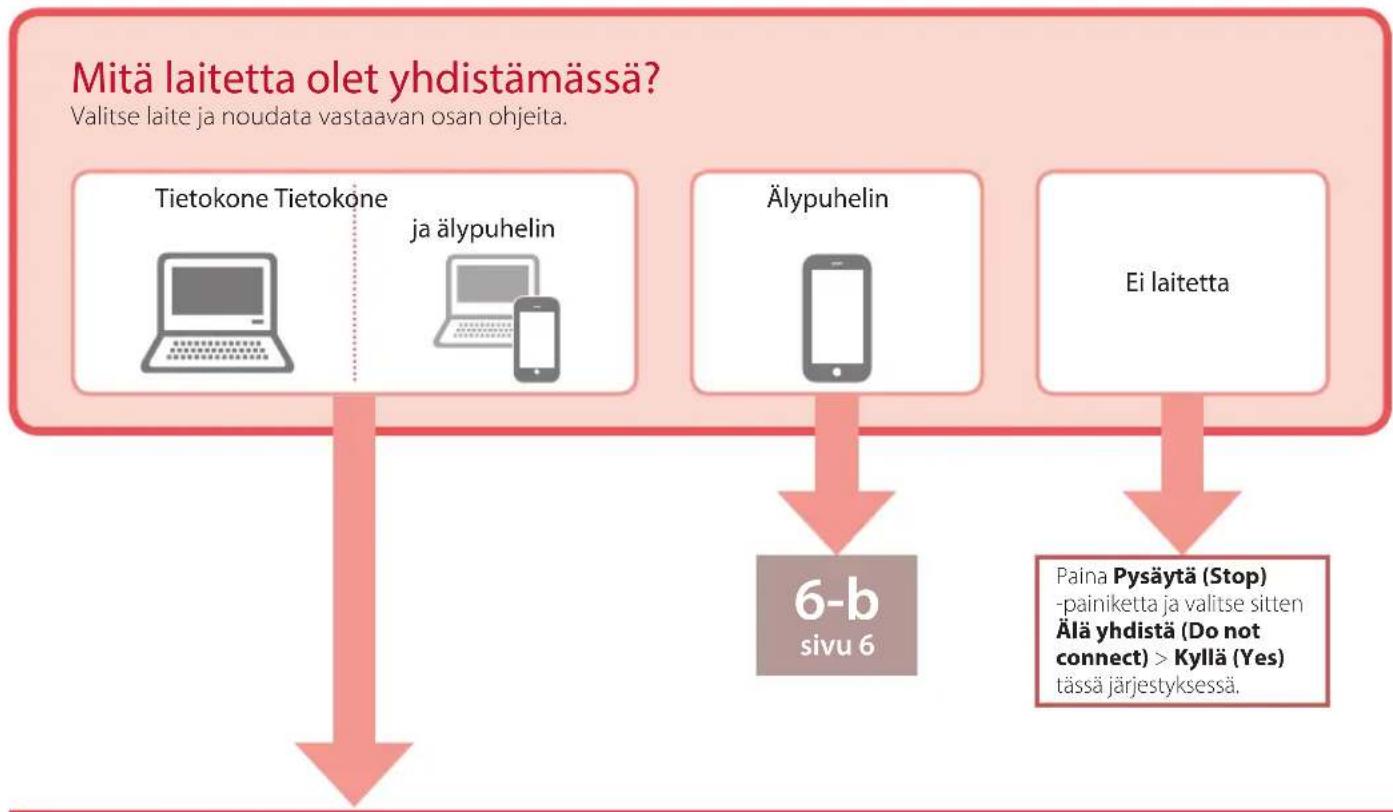
What device are you connecting?
Select a device and follow the instructions in the relevant section.
flowchart
graph TD
    A["Computer Computer and smartphone"] --> C["6-b page 6"]
    B["Smartphone"] --> C
    D["No device"] --> E["Press the Stop button, and then select Do not connect > Yes in this order."]
6-a
Connecting to a Computer
If you are using multiple computers, perform these steps on each computer. There are two methods, "Online Setup" and "Bing the Setup CD-ROM (Windows Only) Provided".
A Online Setup
1 Access the Canon website from a computer.

2 Select Set Up.
3 Enter your printer's model name and click Go.
4 Click Start.
5 Click If you have already prepared your printer, go to Connect.

The following steps are for Windows (except Windows 10 in S mode) and macOS users. For other operating systems, continue setup by following the on-screen instructions instead.
6 Click Download.
- The setup file is downloaded to your computer.
7 Run the downloaded file.
8 Proceed to step 9 on page 5.
B Using the Setup CD-ROM (Windows Only) Provided
1 Insert the Setup CD-ROM into your computer.

2 Follow the instructions for your version of Windows.
Windows 10/Windows 8.1
1 Click on the following message when it appears on the right-hand side of your computer screen.
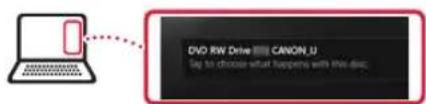
Note
If the message does not appear (or is no longer visible), click the File Explorer icon in the taskbar. On the left-hand side of the window, click This PC. Double click the CD icon that is displayed on the right-hand side. When the content of the CD is displayed, double click Msetup4.exe. Proceed to 3.
② Click Run Msetup4.exe.
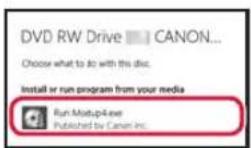
3 If the User Account Control dialog box appears, click Yes
Windows 7
1 Click Run Msetup4.exe.
- When the AutoPlay screen appears, click Run Msetup4.exe.
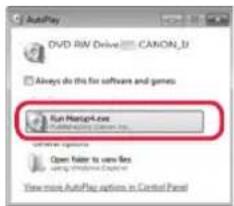
Note
If the AutoPlay screen does not appear, in the Start menu, click Computer. On the right-hand side of the window, double click the CD icon. When the content of the CD is displayed, double click Msetup4.exe.
2 If the User Account Control dialog box appears, click Continue.
3 Proceed to step 9 below.
9 Click Start Setup.
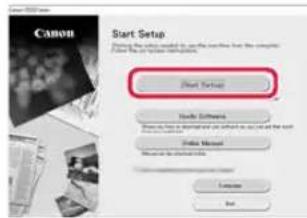
10 Follow the on-screen instructions.
• These operations may take some time.
11 When the following screen appears, click Exit.
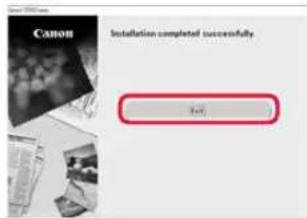
Your printer is now connected to your computer. To connect a smartphone as well, see "6-b. Connecting to a Smartphone" on page 6.
6-b
Connecting to a Smartphone
If you are using multiple smartphones, perform these steps on each smartphone.
Prepare the following before starting.
1 Enable the Wi-Fi setting on your smartphone.
② Connect your smartphone to the wireless router (if you have a wireless router).
See your smartphone and wireless router manuals for more details.
1 Install the "Canon PRINT Inkjet/SELPHY" app on your smartphone.
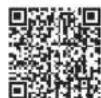
- Scan the QR code shown on the right to access the Canon website, and then download the app.

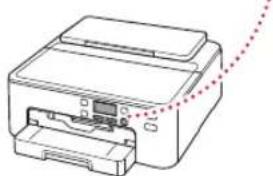
2 Check the printer's screen and proceed to each step.
If the following screen is displayed
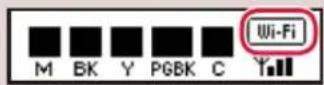
- If WiFi is displayed,
- If KIFFi is notLANis played,


If the following screen is displayed,
Ready to connect For details on how to cor
Ready to connect For details on how to continue, refer to "Getting Started"
Note
- The printer's screen turns off when the printer is idle for 10 minutes. Press a button (except the ON button) on the operation panel to turn on the screen.
- If Wi-Fi appears, the printer cannot communicate by Wi-Fi connection. For details, see "Frequently Asked Questions" at "http://ij.start.canon".

3 Open the installed app.

4 Follow the on-screen instructions to add your printer.
Once you have added your printer, you can print from the smartphone. To print photos, see "Loading Photo Paper" on page 8.

Procedures vary for iOS and Android. Follow the instructions for your operating system.
iOS
3 Tap Settings on your smartphone's home screen, and tap Canon_ij_XXXX in the Wi-Fi settings.
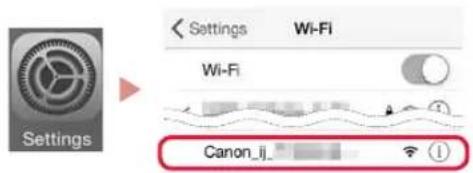

Note
If Canon_ij_XXXX does not appear, follow the procedure in E, and then search for Canon_ij_XXXX again.
4 Tap the installed app, and then follow the on-screen instructions to add your printer.
- The printer is added with the most appropriate connection method for the environment you are using.
Android
3 Tap the installed app, and then follow the on-screen instructions to add your printer.
- The printer is added with the most appropriate connection method for the environment you are using.

Note
If a message saying "No printer has been added. Perform printer setup?" does not readily appear after starting the application, follow the procedure in E, and then return to smartphone operations.
Once you have added your printer, you can print from the smartphone. To print photos, see "Loading Photo Paper" on page 8.
E
3 Press and hold the Wireless connect button for about 3 seconds.
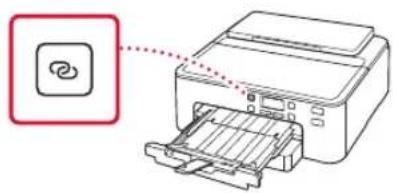
4 When Follow the instructions on the PC or smartphone, etc. appears on the printer's screen, proceed to D
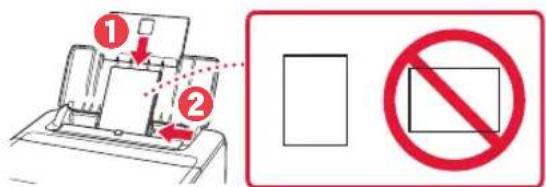
Loading Photo Paper
Photo paper can only be loaded in the rear tray.
1 Open the paper support and the paper support extension.
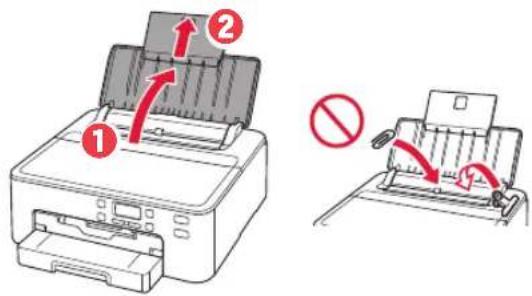
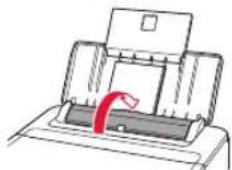
2 Open the feed slot cover and slide the right-hand side paper guide to the far right.
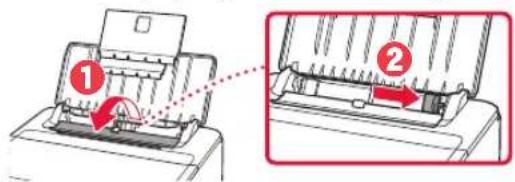
3 Load several sheets of photo paper with the print side facing up and slide the side paper guide against the edge of the paper stack.
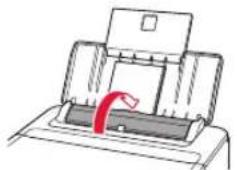
4 Close the feed slot cover.
natural_image
Diagram of a printer with a paper feeding into a slot, showing a red curved arrow indicating motion (no text or symbols present)5 When the following screen appears, press the OK button.
Save the rear tray paper [OK]Next
6 Select the paper size and type, and press the OK button.
Size: ← *L Type: *Glossy
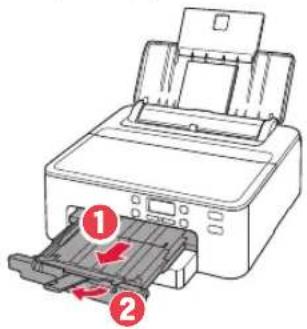
7 Pull out the paper output tray and the paper output support.
Printing a Disc Label Using the Multi-Purpose Tray
You can print a label on a printable disc using the multi-purpose tray.
For details, open the Online Manual and click Basic Operation>Printing a Disc Label from a Computer.

Note
- The multi-purpose tray is attached to the underside of the cassette. +1. Box Contents" on page 1
• Refer to the back cover of this manual for how to open the Online Manual.
Configuration de l'imprimante

natural_image
Illustration of a printer with a red arrow indicating compression or disassembly (no text or symbols present)natural_image
Diagram of a printer with a power button icon connected to it (no text or symbols present)
Important
Configuration de l'imprimante
natural_image
Illustration of a printer with a red arrow indicating rotation or movement (no text or symbols)▲ Attention
natural_image
Illustration showing two hands holding a small object, one with red arrows indicating motion (no text or symbols)Important
natural_image
Three-step diagram showing a device with a highlighted circular region, no text or symbols presentnatural_image
Two-step diagram showing a device being inserted into a car airfoil, with red arrows indicating the process (no text or symbols present)natural_image
Diagram of a printer with a red arrow indicating compression or disassembly (no text or symbols present)natural_image
3D diagram of a layered electronic device with a red arrow indicating a component or connection (no text or symbols present)Vérifiez!
flowchart
graph TD
    A["Printer Printing"] --> B["Recycle"]
    B --> C["Final Packaging"]
natural_image
Diagram of a printer with internal structure and close-up view (no text or symbols)natural_image
Illustration of a printer with a paper feeding into a slot, showing a red curved arrow indicating motion (no text or symbols present)natural_image
Illustration of a printer with a red arrow indicating compression or disassembly (no text or symbols present)natural_image
Diagram of a printer with a power button icon connected to it (no text or symbols present)Wichtig
Remove all protective ma Support code 1890
natural_image
Illustration of a printer with a red arrow indicating rotation or movement (no text or symbols)Vorsicht
natural_image
Illustration showing two-step instructions for using a device to adjust or install a component, with no visible text or symbols.Wichtig
natural_image
Three-step diagram showing a device with a highlighted section, no text or symbols presentnatural_image
Diagram showing two views of a car interior with a device and airflow direction indicators (no text or symbols)natural_image
Diagram of a printer with a red arrow indicating compression or disassembly (no text or symbols present)Load 2 or more sheets of [OK]Next
natural_image
Diagram of a device's internal structure showing a stack of plates and a housing with a red arrow indicating a component (no text or symbols present)Überprüfen!
flowchart
graph TD
    A["Printer Printing"] --> B["Recycle"]
    B --> C["Final Packaging"]
natural_image
Technical line drawing of a printer with an inset close-up showing internal structure (no text or symbols)flowchart
graph TD
    A["Load 2 or more sheets of [OK"]Next] --> B["Alignment request accept [OK"]Next]
flowchart
graph TD
    A["Prepare for connection [OK"]Next] --> B["Ready to connect For details on how to cor"]
Hinweis
Hinweis
Ready to connect For details on how to cor
natural_image
Diagram of a printer or printer with a paper feeding into a slot, showing a red curved arrow indicating rotation (no text or symbols present)Save the rear tray paper [OK]Next
natural_image
Illustration of a printer with a red arrow indicating compression or disassembly (no text or symbols present)3. De printer inschakelen


natural_image
Line drawing of a printer with a power button icon (no text or symbols)
Belangrijk
Remove all protective ma Support code 1890
De printer instellen
4. De inkttanks installeren
1 Open de bovenklep.
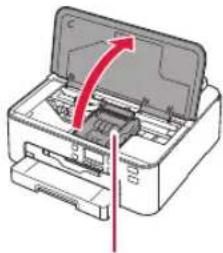
natural_image
Illustration of a printer with a red arrow indicating rotation or movement (no text or symbols)▲ Let op
natural_image
Illustration of two hands holding a small object with red arrows indicating motion (no text or symbols)Belangrijk
natural_image
Three-step diagram showing a device with a red highlighted section, no text or symbols presentnatural_image
Two-step diagram showing a device inside a vehicle intake chamber, with red arrows indicating direction of movement (no text or symbols present)natural_image
Illustration of a printer with a red arrow indicating compression or disassembly (no text or symbols present)Load 2 or more sheets of [OK]Next
natural_image
3D diagram of a layered electronic device with a red arrow indicating a component or connection (no text or symbols present)Controleer!
flowchart
graph TD
    A["Printer Printing"] --> B["Packaging"]
    B --> C["Final Packaging"]
natural_image
Diagram of a printer with paper feed and paper roll, showing internal structure (no text or symbols)flowchart
graph TD
    A["Load 2 or more sheets of [OK"]Next] --> B["Alignment request accept [OK"]Next]
flowchart
graph TD
    A["Prepare for connection [OK"]Next] --> B["Ready to connect For details on how to cor"]
Opmerking
Opmerking
Ready to connect For details on how to cor
natural_image
Illustration of a printer with a paper feeding into a slot, showing a red curved arrow indicating rotation (no text or symbols present)Save the rear tray paper [OK]Next
natural_image
Illustration of a printer with a red arrow indicating compression or disassembly (no text or symbols present)natural_image
Diagram of a printer with a power button icon connected to it (no text or symbols present)
Importante
Remove all protective ma Support code 1890
natural_image
Diagram of a printer with a red arrow indicating rotation or movement, showing internal structure (no text or symbols)Attenzione
natural_image
Illustration showing two hands holding a small object with red arrows indicating motion (no text or symbols)Importante
natural_image
Three-step diagram showing a device being processed into a housing, with no visible text or symbols.4 Installare i serbatoi d'inchiostro.
natural_image
Diagram showing two views of a car intake manifold with red directional arrows indicating movement (no text or symbols present)natural_image
Diagram of a printer with a red arrow indicating the operation, showing internal structure without any text or symbols.Load 2 or more sheets of [OK]Next
natural_image
Diagram of a device with stacked plates and a red arrow indicating a component (no text or symbols present)Verificare!
flowchart
graph TD
    A["Printer"] --> B["Recycle"]
    B --> C["Final Packaging"]
natural_image
Technical line drawing of a printer with an inset close-up showing internal structure (no text or symbols)Load 2 or more sheets of [OK]Next
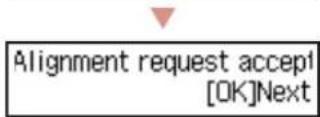
Prepare for connection [OK]Next
Ready to connect For details on how to cor
Nota
Nota
Ready to connect For details on how to cor
natural_image
Diagram of a printer with a paper feeding into a slot, showing a red curved arrow indicating motion (no text or symbols present)Save the rear tray paper [OK]Next
natural_image
Diagram of a printer with a red arrow indicating a process or operation, no text or symbols present3. Ligando a Impressora

natural_image
Diagram of a printer with a power button icon connected to it (no text or symbols present)
Importante
Remove all protective ma Support code 1890
Configurando a impressora
4. Instalando os cartuchos de tinta

1 Abra a tampa superior.
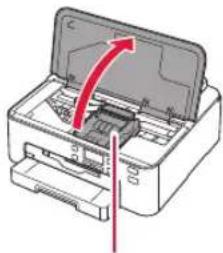
natural_image
Illustration of a printer with a red arrow indicating rotation or movement, showing no text or symbols on the device itself.Cuidado
natural_image
Illustration showing two hands holding a small object with red arrows indicating motion (no text or symbols)Importante
natural_image
Three-step diagram showing a device with a highlighted circular component, no text or symbols present4 Instale os cartuchos de tinta.
natural_image
Diagram showing two views of a car interior with a tool and directional arrows indicating movement (no text or symbols present)natural_image
Diagram of a printer with a red arrow indicating the operation, showing internal structure without any text or symbols.Start alignment to improve < Yes > No

Load 2 or more sheets of [OK]Next
2 Remova o cassete da impressora e remova a tampa do cassete.
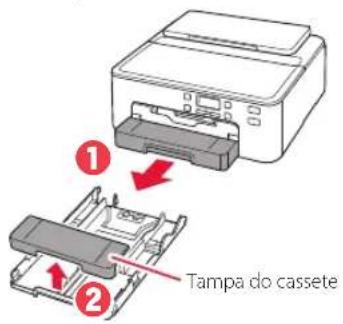
3 Deslize as guias do papel.
natural_image
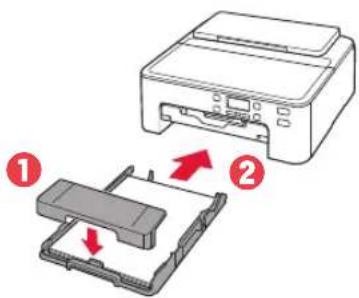
3D diagram of a layered electronic device with a red arrow indicating a component or connection (no text or symbols present)5 Coloque a tampa do cassete e substitua o cassete.
- Ao anexar a tampa do cassete ao cassete, encaixe a tampa do cassete à forma frontal do cassete.
Verificar!
flowchart
graph TD
    A["Printer"] --> B["Recycle"]
    B --> C["Product"]
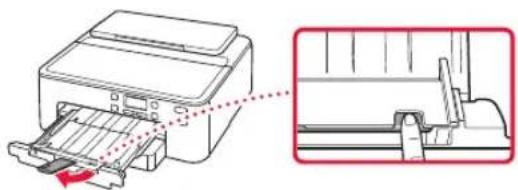
7 Puxe para fora o suporte de saída do papel.
natural_image
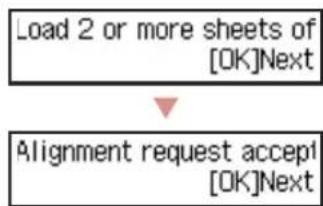
Technical line drawing of a printer with an inset close-up showing the internal structure (no text or symbols)8 Pressione o botão OK.
flowchart
graph TD
    A["Load 2 or more sheets of [OK"]Next] --> B["Alignment request accept [OK"]Next]
flowchart
graph TD
    A["Prepare for connection [OK"]Next] --> B["Ready to connect For details on how to cor"]
Nota
Executar Msetup4.exe (Run Msetup4.exe)
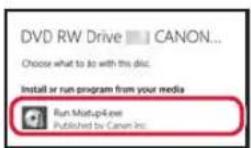
① Clique em Executar Msetup4.exe (Run Msetup4.exe).
Nota
Ready to connect For details on how to cor
natural_image
Diagram of a printer or printer with a paper sheet and a red arrow indicating compression or shift (no text or symbols present)Save the rear tray paper [OK]Next
natural_image
Illustration of a printer with a red arrow indicating compression or disassembly (no text or symbols present)3. Encender la impresora

natural_image
Diagram of a printer with a power button icon connected to it (no text or symbols present)
Importante
Remove all protective ma Support code 1890
natural_image
Illustration of a printer with a red arrow indicating rotation or movement (no text or symbols present)Precaución
natural_image
Illustration of two hands holding a device with red arrows indicating motion (no text or symbols)Importante
natural_image
Three-step diagram showing a mechanical assembly with a highlighted section (no text or symbols)natural_image
Two-step diagram showing a device being inserted into a car's air gap, with red arrows indicating the process (no text or symbols present)natural_image
Diagram of a printer with a red arrow indicating the process (no text or symbols present)Load 2 or more sheets of [OK]Next
natural_image
Diagram of a layered electronic device with a red arrow indicating a component or connection (no text or symbols present)5 Coloque la cubierta del cassette y reemplace el cassette.
Comprobar!
flowchart
graph TD
    A["Printer"] --> B["Recycle"]
    B --> C["Final Disposal"]
natural_image
Technical illustration of a printer with paper feed and paper holder, showing internal structure (no text or symbols)flowchart
graph TD
    A["Load 2 or more sheets of [OK"]Next] --> B["Alignment request accept [OK"]Next]
flowchart
graph TD
    A["Prepare for connection [OK"]Next] --> B["Ready to connect For details on how to cor"]
Nota
Nota
Ready to connect For details on how to cor
natural_image
Illustration of a printer with a paper feeding into a slot, showing a red curved arrow indicating rotation (no text or symbols present)Save the rear tray paper [OK]Next
natural_image
Illustration of a printer with a red arrow indicating compression or disassembly (no text or symbols present)natural_image
Diagram of a printer with a power button icon connected to it (no text or symbols present)
Σημαντικό
Remove all protective ma Support code 1890
natural_image
Diagram of a printer with a red arrow indicating rotation or movement, showing internal structure (no text or symbols)⚠️ Προσοχή
natural_image
Illustration showing two-step instructions for inserting a device into a device (no text or symbols present)
Σημαντικό
natural_image
Three-step diagram showing a device with a highlighted circular region, no text or symbols presentnatural_image
Two-step diagram showing a device being inserted into a car airfoil, with red arrows indicating the process (no text or symbols present)natural_image
Diagram of a printer with a red arrow indicating compression or disassembly (no text or symbols present)Start alignment to improve < Yes > No

Load 2 or more sheets of [OK]Next
natural_image
Diagram of a layered electronic device with a red arrow indicating a component or connection (no text or symbols present)Ελέγξτε!
flowchart
graph TD
    A["Printer"] --> B["Printer with red package"]
    B --> C["Packaging with red package"]
    C --> D["Final Packaging"]
natural_image
Diagram of a printer with paper feed and paper holder, showing internal structure (no text or symbols)flowchart
graph TD
    A["Load 2 or more sheets of [OK"]Next] --> B["Alignment request accept [OK"]Next]
flowchart
graph TD
    A["Prepare for connection [OK"]Next] --> B["Ready to connect For details on how to cor"]
Σημείωση
Σημείωση
Ready to connect For details on how to con
natural_image
Diagram of a printer with a paper feeding into a slot, showing a red curved arrow indicating rotation (no text or symbols present)Save the rear tray paper [OK]Next
natural_image
Illustration of a printer with a red arrow indicating compression or disassembly (no text or symbols present)3. Slå på skrivaren

1 Anslut strömkabeln.

Viktigt!
natural_image
Diagram of a printer with a power button icon (no text or symbols on the printer itself)
Viktigt!
Remove all protective ma Support code 1890
Ställa in skrivaren
natural_image
Illustration of a printer with a red arrow indicating compression or disassembly (no text or symbols present)▲ Försiktighet
natural_image
Illustration of two hands holding a small object with red arrows indicating motion (no text or symbols)Viktigt!
natural_image
Three-step diagram showing a mechanical assembly with a highlighted section (no text or symbols)natural_image
Two-step diagram showing a device being inserted into a car airfoil, with red arrows indicating the process (no text or symbols present)natural_image
Illustration of a printer with a red arrow indicating the operation (no text or symbols present)Load 2 or more sheets of [OK]Next
natural_image
Diagram of a layered electronic device with a red arrow indicating a component or connection (no text or symbols present)Kontrollera!
flowchart
graph TD
    A["Printer Printing"] --> B["Recycle to Printer"]
    B --> C["Recycle to Final Disposal"]
7 Dra ut pappersutmatningsstödet.
natural_image
Technical line drawing of a printer with an inset close-up showing the internal structure (no text or symbols)8 Tryck på OK.
flowchart
graph TD
    A["Load 2 or more sheets of [OK"]Next] --> B["Alignment request accept [OK"]Next]
flowchart
graph TD
    A["Prepare for connection [OK"]Next] --> B["Ready to connect For details on how to cor"]
Obs!
Obs!
Ready to connect For details on how to cor
natural_image
Diagram of a printer with a paper feeding into a slot, showing a red curved arrow indicating rotation (no text or symbols present)Save the rear tray paper [OK]Next
Skriva ut en skivetikett med multifunktionsfacket
natural_image
Diagram of a printer with a red arrow indicating the operation, showing internal structure without any text or symbols.3. Slå på skriveren

natural_image
Diagram of a printer with a power button icon connected to it (no text or symbols present)Viktig!
Remove all protective ma Support code 1890
Konfigurere skriveren
natural_image
Illustration of a printer with a red arrow indicating compression or disassembly (no text or symbols present)▲ Forsiktig!
natural_image
Illustration of two hands holding a device with red arrows indicating motion (no text or symbols)Viktig!
- Ikke klem på blekktanken när det Y-formede lufthullet er blokkert.
natural_image
Three-step diagram showing a mechanical assembly with a highlighted section (no text or symbols)4 Installer blekktankene.
natural_image
Diagram showing two views of a car interior with a device and directional arrows indicating movement (no text or symbols present)natural_image
Illustration of a printer with a red arrow indicating compression or disassembly (no text or symbols present)Load 2 or more sheets of [OK]Next
natural_image
3D diagram of a layered electronic device with a red arrow indicating a component or connection (no text or symbols present)5 Fest kassettdekselet og skift ut kassetten.
- Når du fester kassettdekselet på kassetten, sørger du for at kassettdekselet passer til formen på kassetten foran.
Kontroller!
flowchart
graph TD
    A["Printer"] --> B["Recycle"]
    B --> C["Final Disposal"]
natural_image
Diagram of a printer with paper feed and paper holder, showing internal structure (no text or symbols)8 Trykk på OK-knappen.
flowchart
graph TD
    A["Load 2 or more sheets of [OK"]Next] --> B["Alignment request accept [OK"]Next]
flowchart
graph TD
    A["Prepare for connection [OK"]Next] --> B["Ready to connect For details on how to cor"]
Merk
Merk
Ready to connect For details on how to cor
4 Lukk spordekselet for mating.
natural_image
Illustration of a printer with a paper feeding into a slot, showing a red curved arrow indicating motion (no text or symbols)Save the rear tray paper [OK]Next
Skrive ut en disketikett ved hjelp av flerbruksskuffen
Du kan skrive ut en etikett på en utskrivbar disk ved hjelp av flerbruksskuffen.
3 Luk topdækslet.
natural_image
Illustration of a printer with a red arrow indicating compression or disassembly (no text or symbols present)3. Tænd printeren

natural_image
Line drawing of a printer with a power button icon (no text or symbols)
Vigtigt
Remove all protective ma Support code 1890
Konfigurere printeren
natural_image
Illustration of a printer with a red arrow indicating rotation or movement (no text or symbols)▲ Forsigtig
natural_image
Illustration of two hands holding a small object with red arrows indicating motion (no text or symbols)Vigtigt
natural_image
Three-step diagram showing a device with a highlighted section, no text or symbols presentnatural_image
Diagram showing two views of a car interior with arrows indicating movement or change, no text or symbols present.natural_image
Illustration of a printer with a red arrow indicating compression or disassembly (no text or symbols present)natural_image
3D diagram of a layered electronic device with a red arrow indicating a component or connection (no text or symbols present)Tjek!
flowchart
graph TD
    A["Printer Printing"] --> B["Recycle"]
    B --> C["Final Packaging"]
natural_image
Diagram of a printer with paper feed and paper holder, showing internal structure (no text or symbols)8 Tryk på knappen OK.
flowchart
graph TD
    A["Load 2 or more sheets of [OK"]Next] --> B["Alignment request accept [OK"]Next]
9 Tjek, at Gør klar til forbindelse (Prepare for connection) vises på printerens skærm, og tryk derefter på knappen OK.
flowchart
graph TD
    A["Prepare for connection [OK"]Next] --> B["Ready to connect For details on how to cor"]
Bemærk
Bemærk
Ready to connect For details on how to cor
natural_image
Illustration of a printer with a paper feeding into a slot, showing a red curved arrow indicating motion (no text or symbols)Save the rear tray paper [OK]Next
Udskrive en disketiket vha. universalbakken
Du kan udskrive en etiket på en printbar disk vha. universalbakken.
3 Sulje yläkansi.
natural_image
Illustration of a printer with a red arrow indicating compression or disassembly (no text or symbols present)
natural_image
Diagram of a printer with a power button icon connected to it (no text or symbols present)
Tärkeää
Remove all protective ma Support code 1890
natural_image
Line drawing of a printer with paper feed and paper holder, no text or symbols presentTulostimen asennus
natural_image
Diagram of a printer with an open lid and red arrow indicating rotation (no text or symbols)Huomio
natural_image
Illustration showing two hands holding a small object with red arrows indicating motion (no text or symbols)Tärkeää
natural_image
Three-step diagram showing a mechanical assembly with a highlighted section (no text or symbols)natural_image
Two-step diagram showing car interior components with arrows indicating movement or change (no text or symbols)natural_image
Illustration of a printer with a red arrow indicating compression or disassembly (no text or symbols present)Load 2 or more sheets of [OK]Next
natural_image
Diagram of a stacked electronic device with a red arrow indicating a component or location, no text or symbols present.Varmista!
flowchart
graph TD
    A["Printer"] --> B["Recycle"]
    B --> C["Final Packaging"]
natural_image
Technical line drawing of a printer with an inset close-up showing the internal structure (no text or symbols)8 Paina OK -painiketta.
flowchart
graph TD
    A["Load 2 or more sheets of [OK"]Next] --> B["Alignment request accept [OK"]Next]
flowchart
graph TD
    A["Prepare for connection [OK"]Next] --> B["Ready to connect For details on how to cor"]
Tulostimen asennus
Huomautus
Huomautus
Ready to connect For details on how to cor
natural_image
Illustration of a printer with a paper feeding into a slot, showing a red curved arrow indicating motion (no text or symbols present)Save the rear tray paper [OK]Next
- Setting Up the Printer
- Online Setup
- Box Contents
- Removing Packing Materials
- Turning on the Printer
- Important
- Installing the Ink Tanks
- Open the top cover.
- Remove the tape and film on the ink tanks.
- Slowly remove the orange cap.
- Install the ink tanks.
- Check that the mark appears on the screen.
- Repeat steps 2 through 5 to install all the ink tanks.
- Close the top cover.
- When the following screen appears, press the OK button.
- Loading Paper
- When the following screen appears, use the ◀ and ▶ buttons to select Yes, and then press the OK button.
- Check!
- What device are you connecting?
- 6-a
- Connecting to a Computer
- A Online Setup
- B Using the Setup CD-ROM (Windows Only) Provided
- Windows 10/Windows 8.1
- Windows 7
- Click Start Setup.
- 6-b
- Connecting to a Smartphone
- Install the "Canon PRINT Inkjet/SELPHY" app on your smartphone.
- Check the printer's screen and proceed to each step.
- Note
- iOS
- Android
- E
- Loading Photo Paper
- Printing a Disc Label Using the Multi-Purpose Tray
- Configuration de l'imprimante
- Vérifiez!
- Hinweis
- De printer inschakelen
- Belangrijk
- De printer instellen
- De inkttanks installeren
- Open de bovenklep.
- Controleer!
- Opmerking
- Installare i serbatoi d'inchiostro.
- Verificare!
- Nota
- Ligando a Impressora
- Importante
- Configurando a impressora
- Instalando os cartuchos de tinta
- Abra a tampa superior.
- Instale os cartuchos de tinta.
- Verificar!
- Encender la impresora
- Comprobar!
- Σημαντικό
- Ελέγξτε!
- Σημείωση
- Slå på skrivaren
- Viktigt!
- Ställa in skrivaren
- Kontrollera!
- Dra ut pappersutmatningsstödet.
- Tryck på OK.
- Skriva ut en skivetikett med multifunktionsfacket
- Slå på skriveren
- Konfigurere skriveren
- Installer blekktankene.
- Fest kassettdekselet og skift ut kassetten.
- Kontroller!
- Trykk på OK-knappen.
- Merk
- Skrive ut en disketikett ved hjelp av flerbruksskuffen
- Tænd printeren
- Vigtigt
- Konfigurere printeren
- Tjek!
- Bemærk
- Udskrive en disketiket vha. universalbakken
- Tärkeää
- Tulostimen asennus
- Varmista!
- Paina OK -painiketta.
- Huomautus
Brand : CANON
Model : Pixma TS704a
Category : Printer